
Comprehensive Continuous Improvement Plan CCIP CCIP Training Module
- Slides: 33
Comprehensive Continuous Improvement Plan (CCIP) CCIP Training Module 2 Planning Tool, Part 1
Planning Tool – Things to Remember! • Planning is an organization-wide initiative • Ideally begins prior to knowledge of grant awards • Fiscal year specific – Organization does not have to create from scratch each year – Goals – ‘Motherhood and Apple Pie’ statements – Strategies – more Program-specific • The Plan does not have a submission or approval workflow (versus the Funding Application, which does) • Only one person at a time can work in the Planning Tool • Should not create plan just to satisfy one funding application’s or grant’s requirements – Specific role (Planning Tool Data Entry) for editing plan data 2018 -19 Module 2 - Planning Tool, Part 1 2
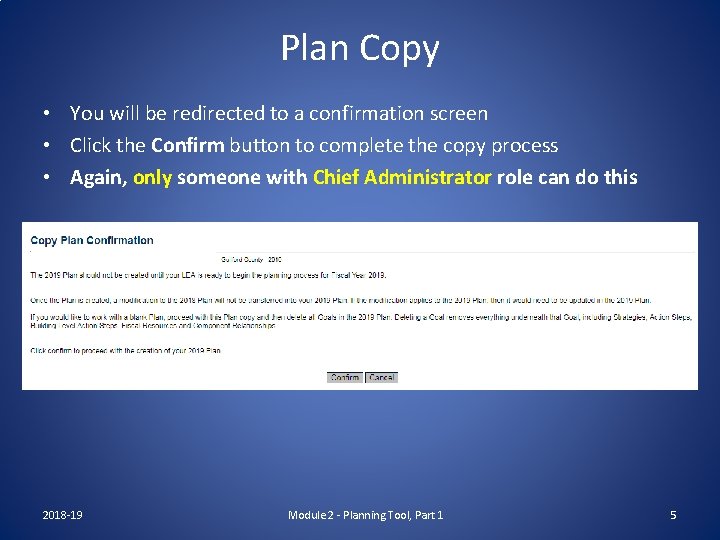
Copying the Plan Forward • ONLY THE ROLE OF CHIEF ADMINISTRATOR CAN DO THIS! • To create the 2018 -19 (FY 19) Organization Plan, organizations will make a copy of the 2017 -18 (FY 18) Plan to use as a starting point • Don’t do until ready to begin the planning process for the next fiscal year • Once the Plan is created, any modification to the previous year’s Plan will not be transferred into the current Plan. If the modification applies to both plans, then it would need to be updated in both fiscal years • If the organization would like to work with a blank Plan, proceed with the Plan copy and then delete all Goals from the new Plan 2018 -19 Module 2 - Planning Tool, Part 1 3
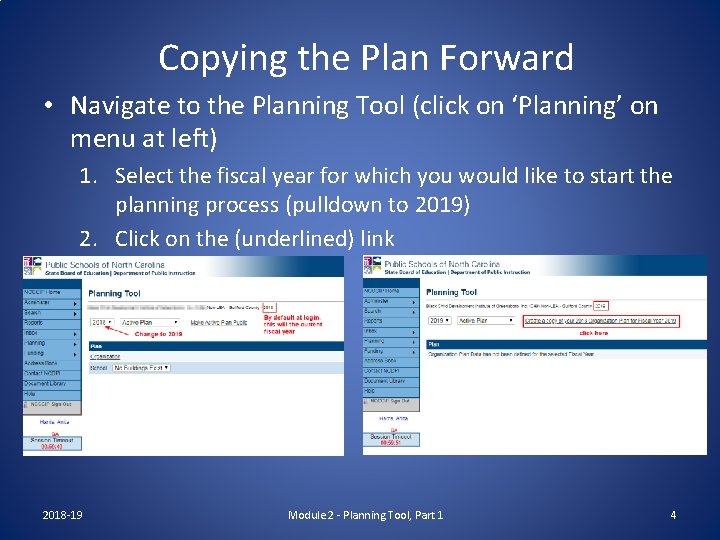
Copying the Plan Forward • Navigate to the Planning Tool (click on ‘Planning’ on menu at left) 1. Select the fiscal year for which you would like to start the planning process (pulldown to 2019) 2. Click on the (underlined) link 2018 -19 Module 2 - Planning Tool, Part 1 4
Plan Copy • You will be redirected to a confirmation screen • Click the Confirm button to complete the copy process • Again, only someone with Chief Administrator role can do this 2018 -19 Module 2 - Planning Tool, Part 1 5
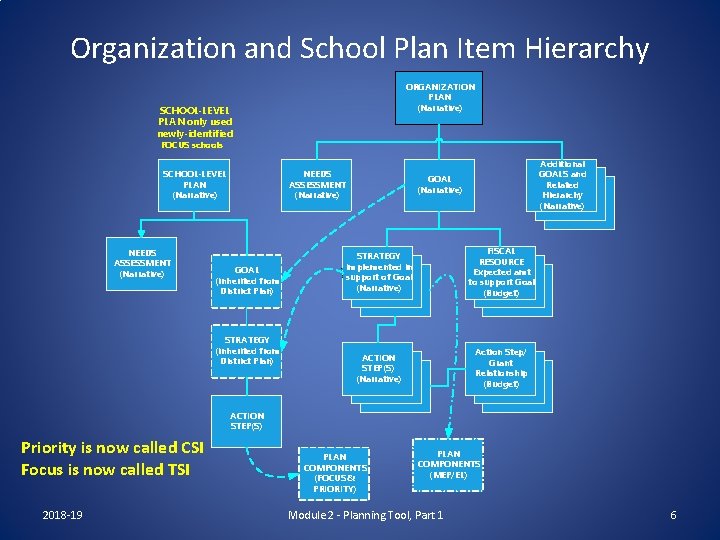
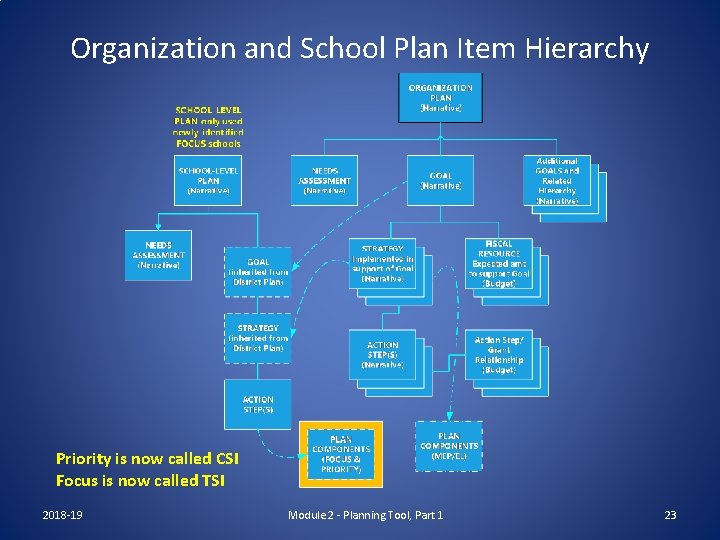
Organization and School Plan Item Hierarchy ORGANIZATION PLAN (Narrative) SCHOOL-LEVEL PLAN only used newly-identified FOCUS schools SCHOOL-LEVEL PLAN (Narrative) NEEDS ASSESSMENT (Narrative) GOAL (inherited from District Plan) STRATEGY (inherited from District Plan) Additional GOALS and Related Hierarchy (Narrative) GOAL (Narrative) STRATEGY Implemented in support of Goal (Narrative) FISCAL RESOURCE Expected amt to support Goal (Budget) ACTION STEP(S) (Narrative) Action Step/ Grant Relationship (Budget) ACTION STEP(S) Priority is now called CSI Focus is now called TSI 2018 -19 PLAN COMPONENTS (FOCUS & PRIORITY) PLAN COMPONENTS (MEP/EL) Module 2 - Planning Tool, Part 1 6
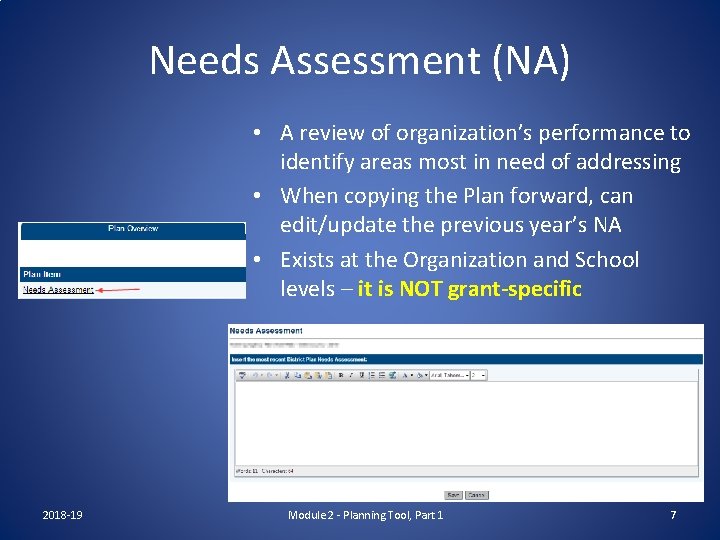
Needs Assessment (NA) • A review of organization’s performance to identify areas most in need of addressing • When copying the Plan forward, can edit/update the previous year’s NA • Exists at the Organization and School levels – it is NOT grant-specific 2018 -19 Module 2 - Planning Tool, Part 1 7
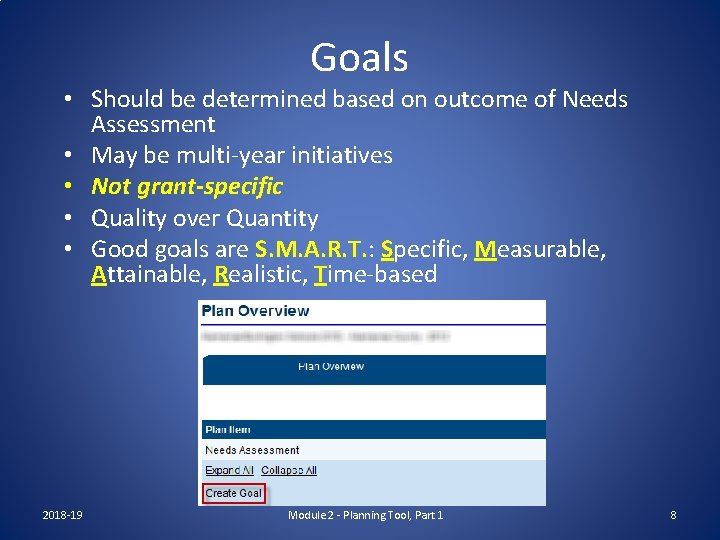
Goals • Should be determined based on outcome of Needs Assessment • May be multi-year initiatives • Not grant-specific • Quality over Quantity • Good goals are S. M. A. R. T. : Specific, Measurable, Attainable, Realistic, Time-based 2018 -19 Module 2 - Planning Tool, Part 1 8
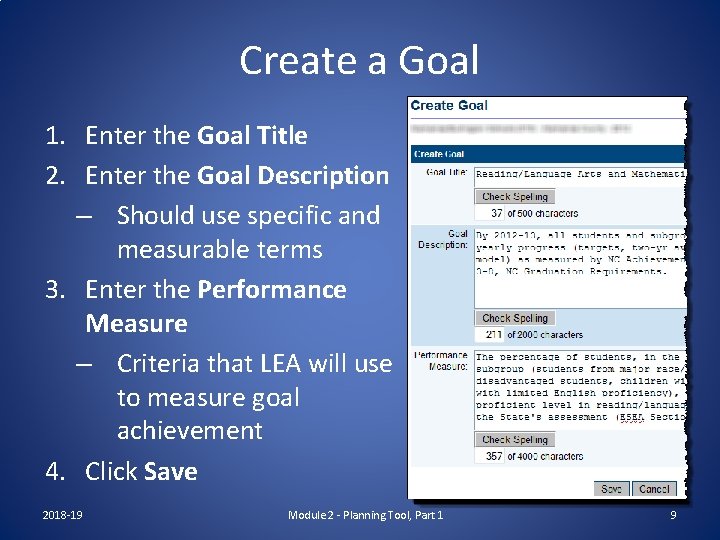
Create a Goal 1. Enter the Goal Title 2. Enter the Goal Description – Should use specific and measurable terms 3. Enter the Performance Measure – Criteria that LEA will use to measure goal achievement 4. Click Save 2018 -19 Module 2 - Planning Tool, Part 1 9
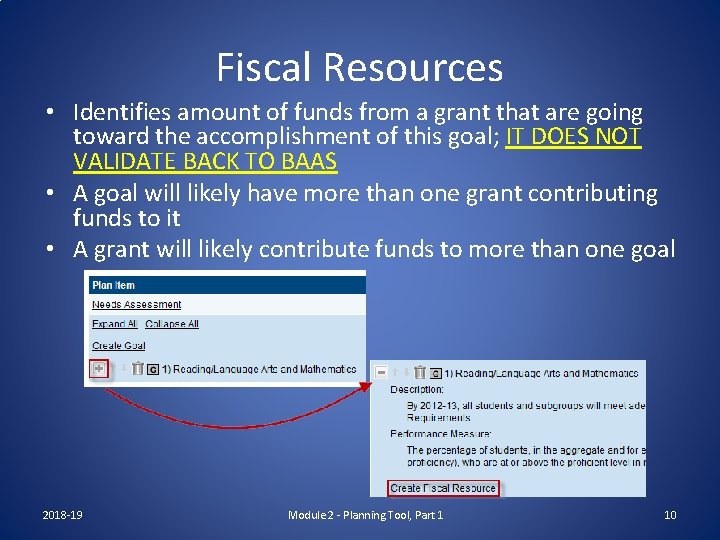
Fiscal Resources • Identifies amount of funds from a grant that are going toward the accomplishment of this goal; IT DOES NOT VALIDATE BACK TO BAAS • A goal will likely have more than one grant contributing funds to it • A grant will likely contribute funds to more than one goal 2018 -19 Module 2 - Planning Tool, Part 1 10
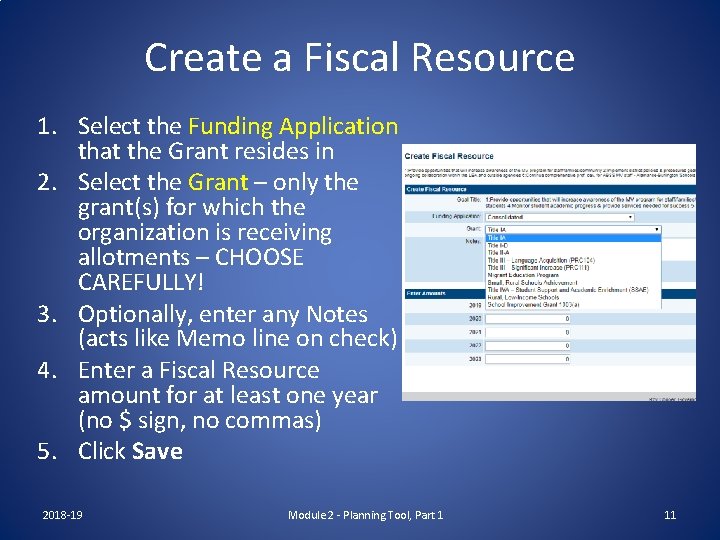
Create a Fiscal Resource 1. Select the Funding Application that the Grant resides in 2. Select the Grant – only the grant(s) for which the organization is receiving allotments – CHOOSE CAREFULLY! 3. Optionally, enter any Notes (acts like Memo line on check) 4. Enter a Fiscal Resource amount for at least one year (no $ sign, no commas) 5. Click Save 2018 -19 Module 2 - Planning Tool, Part 1 11
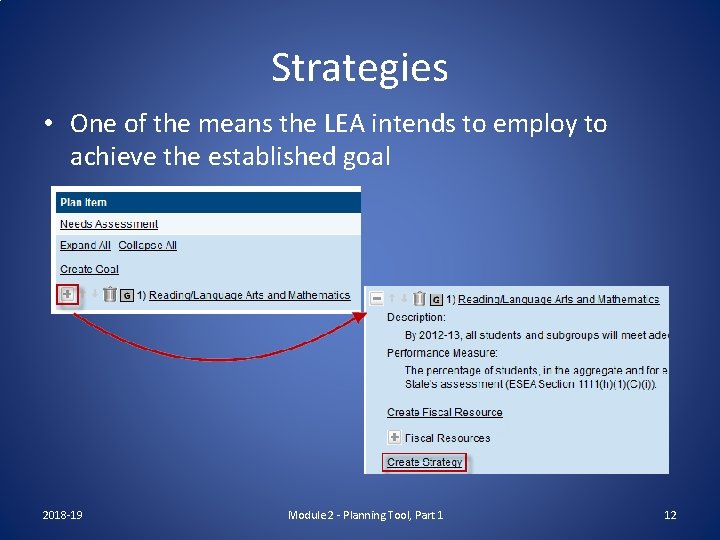
Strategies • One of the means the LEA intends to employ to achieve the established goal 2018 -19 Module 2 - Planning Tool, Part 1 12
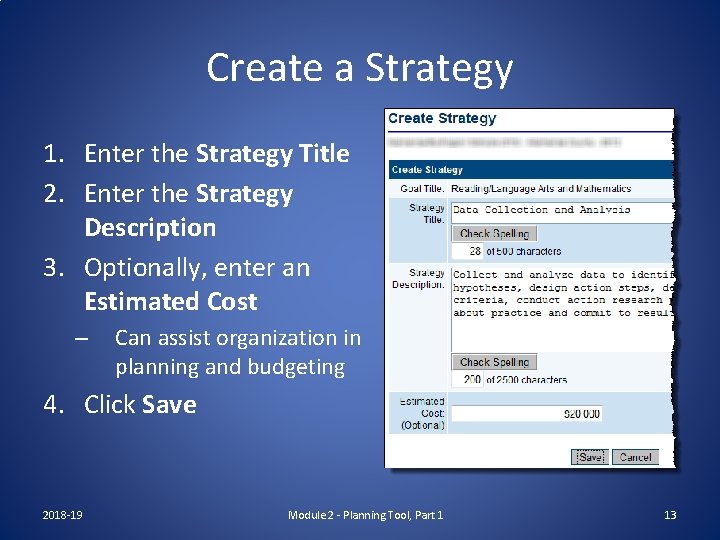
Create a Strategy 1. Enter the Strategy Title 2. Enter the Strategy Description 3. Optionally, enter an Estimated Cost – Can assist organization in planning and budgeting 4. Click Save 2018 -19 Module 2 - Planning Tool, Part 1 13
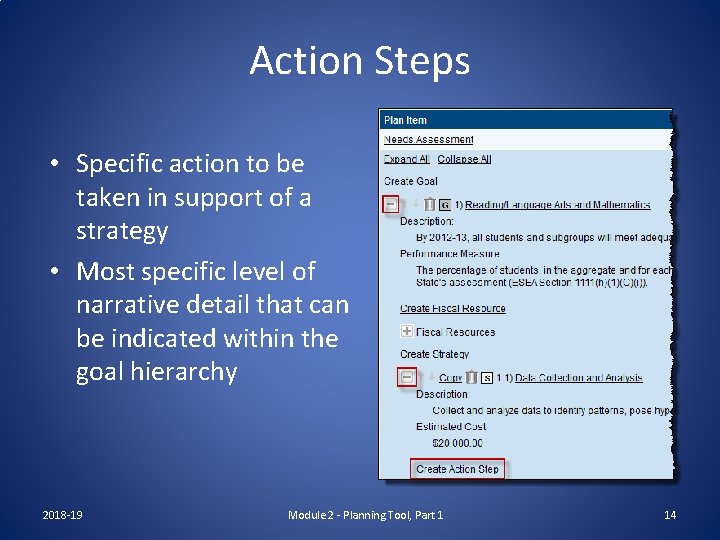
Action Steps • Specific action to be taken in support of a strategy • Most specific level of narrative detail that can be indicated within the goal hierarchy 2018 -19 Module 2 - Planning Tool, Part 1 14
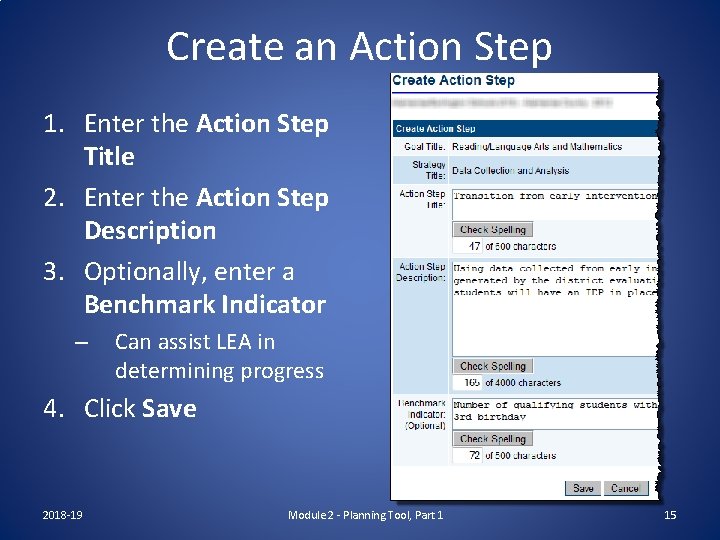
Create an Action Step 1. Enter the Action Step Title 2. Enter the Action Step Description 3. Optionally, enter a Benchmark Indicator – Can assist LEA in determining progress 4. Click Save 2018 -19 Module 2 - Planning Tool, Part 1 15
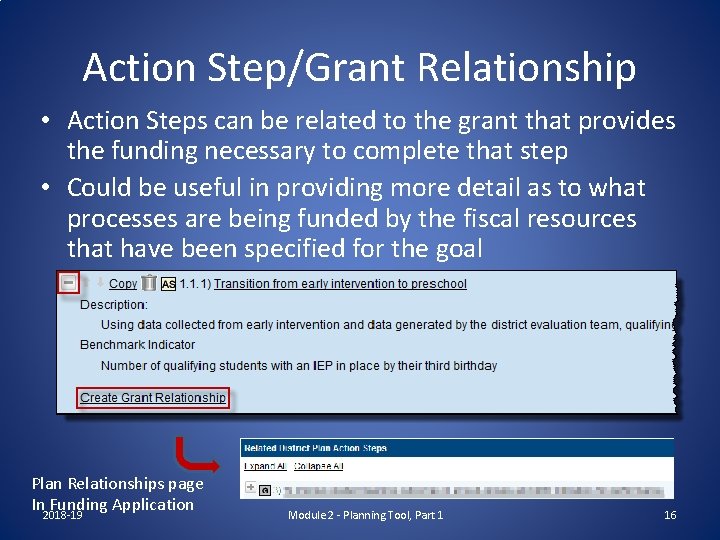
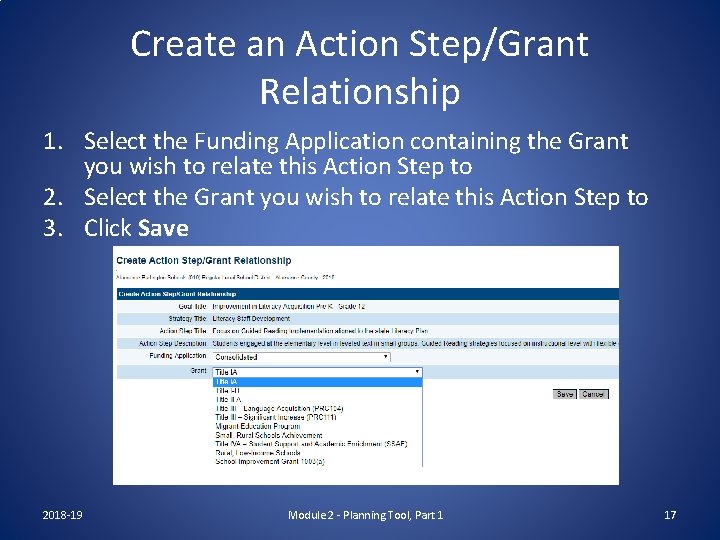
Action Step/Grant Relationship • Action Steps can be related to the grant that provides the funding necessary to complete that step • Could be useful in providing more detail as to what processes are being funded by the fiscal resources that have been specified for the goal Plan Relationships page In 2018 -19 Funding Application Module 2 - Planning Tool, Part 1 16
Create an Action Step/Grant Relationship 1. Select the Funding Application containing the Grant you wish to relate this Action Step to 2. Select the Grant you wish to relate this Action Step to 3. Click Save 2018 -19 Module 2 - Planning Tool, Part 1 17
Plan Components • Set of elements identified by DPI with which the Organization or School plan must be aligned or compliant • Organization-level Plan – Contains Migrant Education (Title IC), and English Learner (Title III) components – May align existing Organization Plan Strategies or Action Steps or create new District Plan Strategies or Action Steps to align • School-level Plan – Contains CSI School and TSI School components* – All LEAs/Charters with Priority Schools plans must be on NCStar – LEAs/charters with Focus schools not on NCStar must identify Plan components in CCIP – May align existing School Plan Action Steps or create new School Plan Action Steps to align – Cannot align Strategies • At a minimum, must have Planning Tool Data Entry role * CSI and TSI formerly known as Priority and Focus, respectively 2018 -19 Module 2 - Planning Tool, Part 1 18
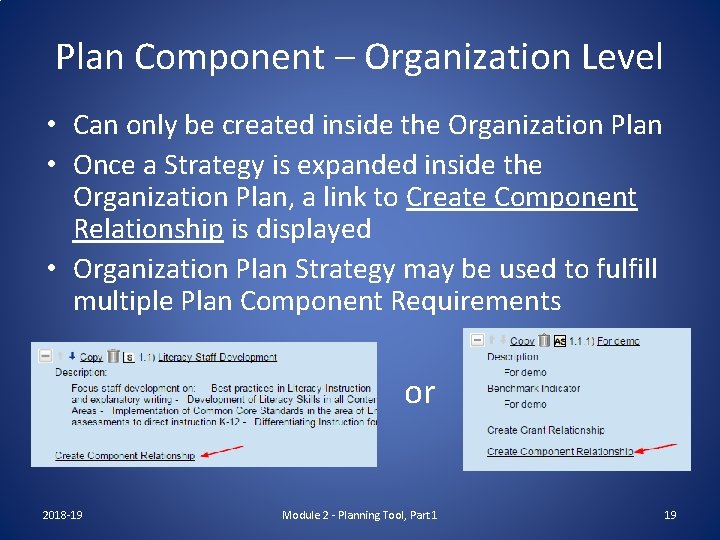
Plan Component – Organization Level • Can only be created inside the Organization Plan • Once a Strategy is expanded inside the Organization Plan, a link to Create Component Relationship is displayed • Organization Plan Strategy may be used to fulfill multiple Plan Component Requirements or 2018 -19 Module 2 - Planning Tool, Part 1 19
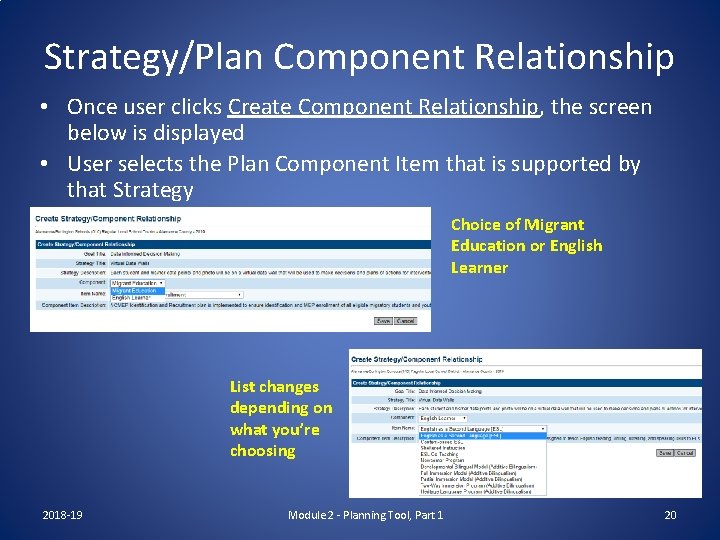
Strategy/Plan Component Relationship • Once user clicks Create Component Relationship, the screen below is displayed • User selects the Plan Component Item that is supported by that Strategy Choice of Migrant Education or English Learner List changes depending on what you’re choosing 2018 -19 Module 2 - Planning Tool, Part 1 20
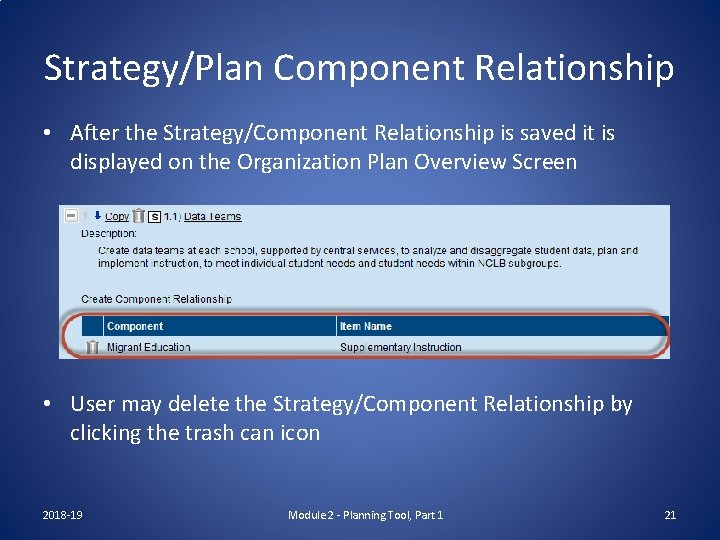
Strategy/Plan Component Relationship • After the Strategy/Component Relationship is saved it is displayed on the Organization Plan Overview Screen • User may delete the Strategy/Component Relationship by clicking the trash can icon 2018 -19 Module 2 - Planning Tool, Part 1 21
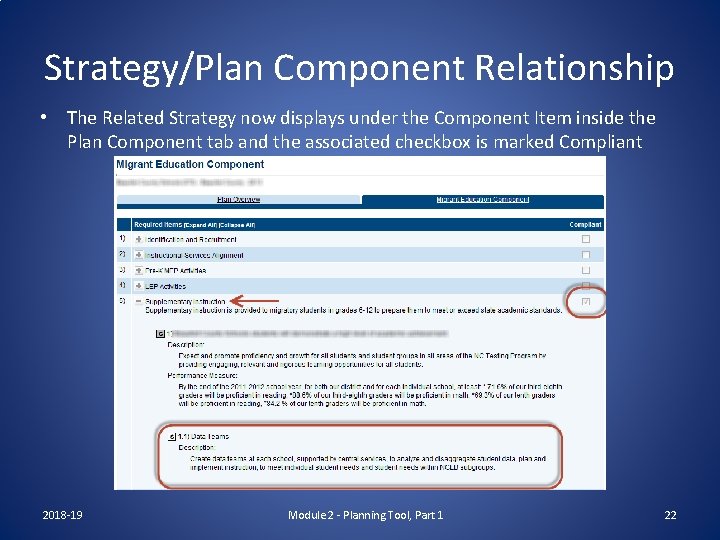
Strategy/Plan Component Relationship • The Related Strategy now displays under the Component Item inside the Plan Component tab and the associated checkbox is marked Compliant 2018 -19 Module 2 - Planning Tool, Part 1 22
Organization and School Plan Item Hierarchy Priority is now called CSI Focus is now called TSI 2018 -19 Module 2 - Planning Tool, Part 1 23
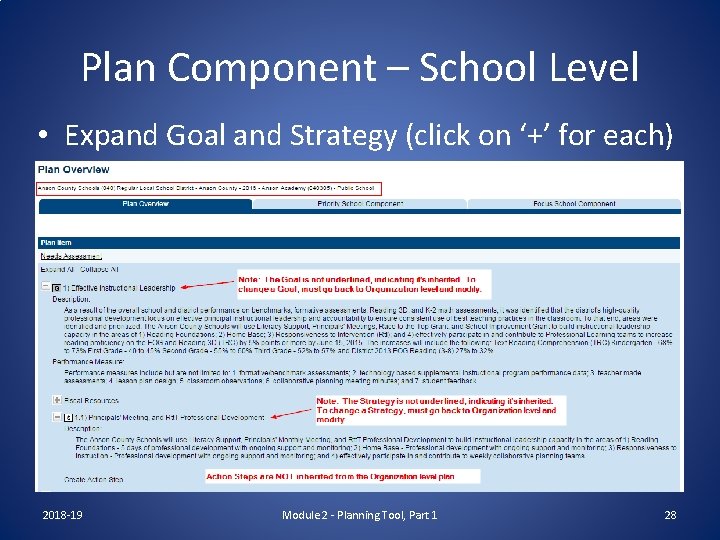
Plan Components – School Level • Needed only for TSI Schools not on NCStar (all CSI schools must be on NCStar) • Same concepts apply to School Plan as Organization Plan, except the following – School Plans inherit Goals and Strategies from the Organization Plan – School Plans must create separate Action Steps from District Plan; they do not inherit Action Steps from the District Plan 2018 -19 Module 2 - Planning Tool, Part 1 24
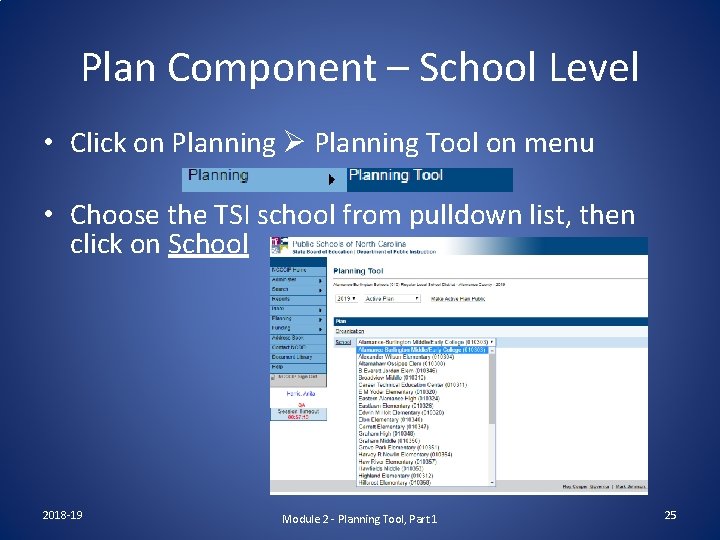
Plan Component – School Level • Click on Planning Tool on menu • Choose the TSI school from pulldown list, then click on School 2018 -19 Module 2 - Planning Tool, Part 1 25
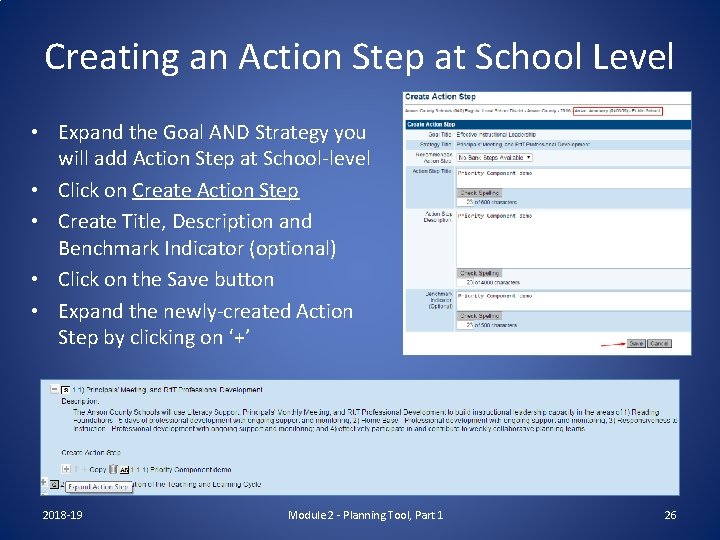
Creating an Action Step at School Level • Expand the Goal AND Strategy you will add Action Step at School-level • Click on Create Action Step • Create Title, Description and Benchmark Indicator (optional) • Click on the Save button • Expand the newly-created Action Step by clicking on ‘+’ 2018 -19 Module 2 - Planning Tool, Part 1 26
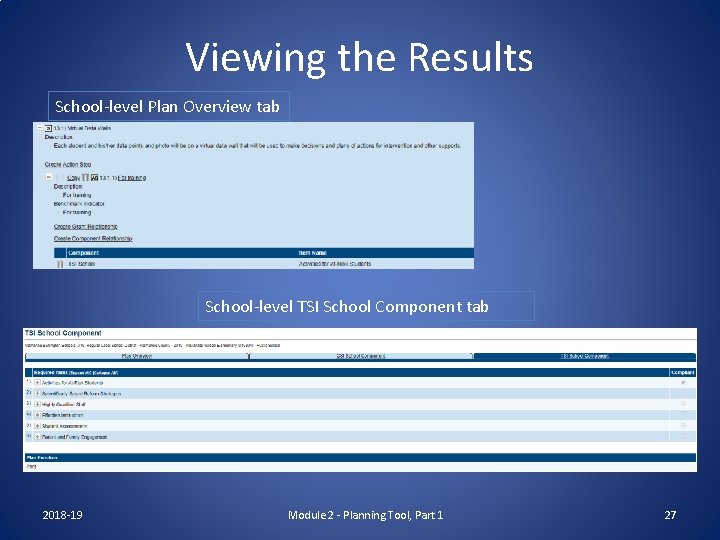
Viewing the Results School-level Plan Overview tab School-level TSI School Component tab 2018 -19 Module 2 - Planning Tool, Part 1 27
Plan Component – School Level • Expand Goal and Strategy (click on ‘+’ for each) 2018 -19 Module 2 - Planning Tool, Part 1 28
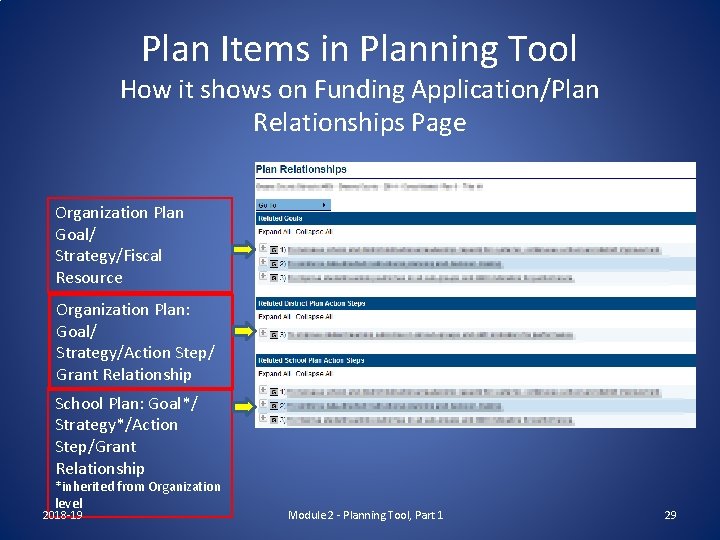
Plan Items in Planning Tool How it shows on Funding Application/Plan Relationships Page Organization Plan Goal/ Strategy/Fiscal Resource Organization Plan: Goal/ Strategy/Action Step/ Grant Relationship School Plan: Goal*/ Strategy*/Action Step/Grant Relationship *inherited from Organization level 2018 -19 Module 2 - Planning Tool, Part 1 29
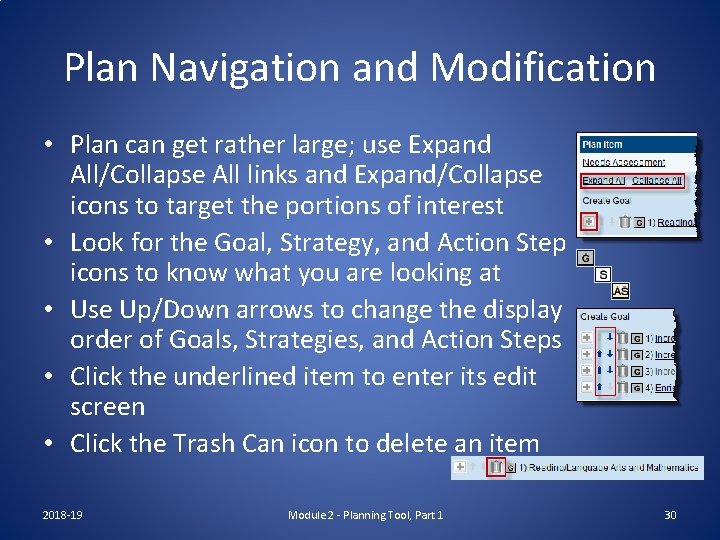
Plan Navigation and Modification • Plan can get rather large; use Expand All/Collapse All links and Expand/Collapse icons to target the portions of interest • Look for the Goal, Strategy, and Action Step icons to know what you are looking at • Use Up/Down arrows to change the display order of Goals, Strategies, and Action Steps • Click the underlined item to enter its edit screen • Click the Trash Can icon to delete an item 2018 -19 Module 2 - Planning Tool, Part 1 30
Plan Navigation and Modification • Plan can only be modified on the Plan Overview tab in the Organization Plan • Plan cannot be modified from within a Plan Component tab or from within the Plan Relationships page inside the Funding Application • When a Goal or Strategy is modified or deleted inside the Organization Plan, then that same change will be reflected in all School Plans • School Plans inherit Goals and Strategies from the Organization Plan and therefore do not allow edits to Goals and Strategies 2018 -19 Module 2 - Planning Tool, Part 1 31
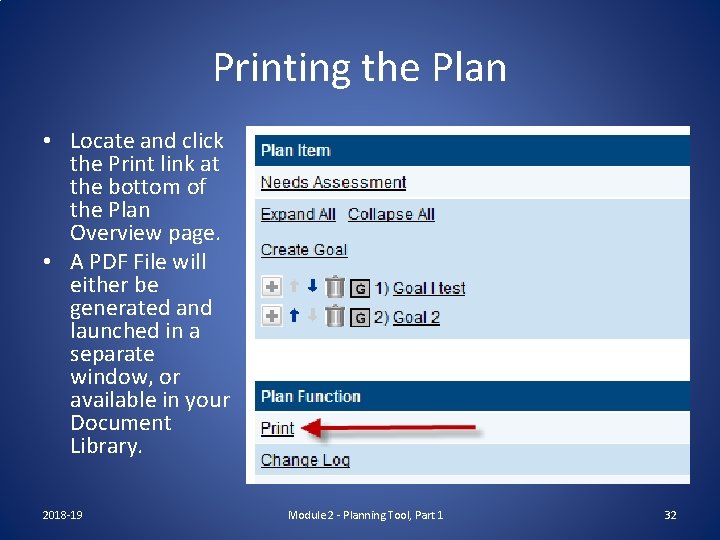
Printing the Plan • Locate and click the Print link at the bottom of the Plan Overview page. • A PDF File will either be generated and launched in a separate window, or available in your Document Library. 2018 -19 Module 2 - Planning Tool, Part 1 32
Activity – Create Plan Data 1. 2. 3. 4. 5. 6. 7. 8. 9. 10. 11. 2018 -19 Log into the system with your Training login (given in class) Navigate to the Planning Tool Change application year to 2019 (Copy Plan forward if not already done) Fill in Needs Assessment data Create two or more Goals Create a Fiscal Resource under each Goal Create a Strategy under each Goal Create an Action Step under each of the Strategies Change the display sequence of the Strategies Delete the Strategy that has an Action Step under it Module 2 - Planning Tool, Part 1 33