
Completing the Form PLAINTIFFS CLAIM FORM 07 A
- Slides: 20
Completing the Form PLAINTIFF’S CLAIM FORM 07 A
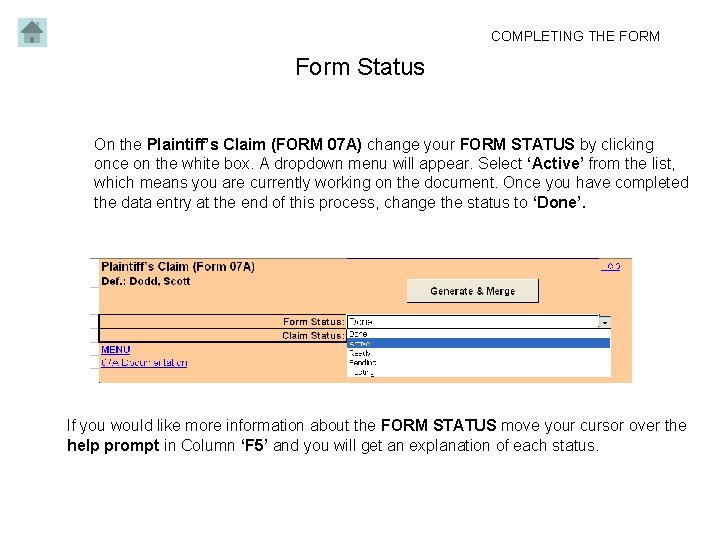
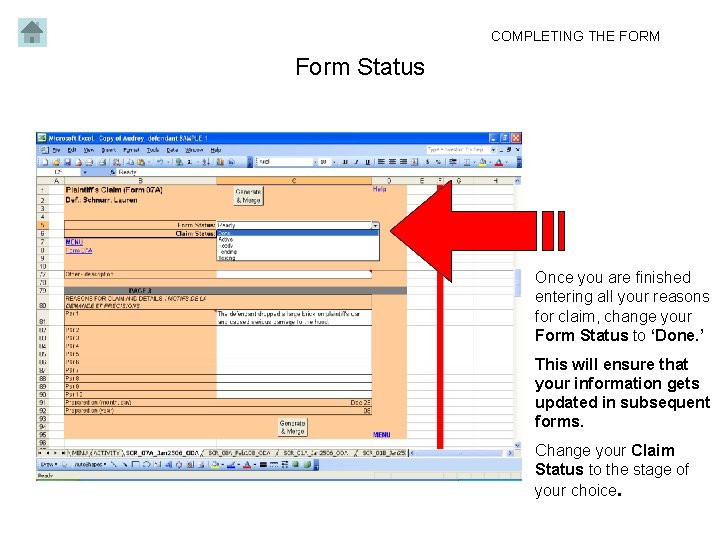
COMPLETING THE FORM Form Status On the Plaintiff’s Claim (FORM 07 A) change your FORM STATUS by clicking once on the white box. A dropdown menu will appear. Select ‘Active’ from the list, which means you are currently working on the document. Once you have completed the data entry at the end of this process, change the status to ‘Done’. If you would like more information about the FORM STATUS move your cursor over the help prompt in Column ‘F 5’ and you will get an explanation of each status.
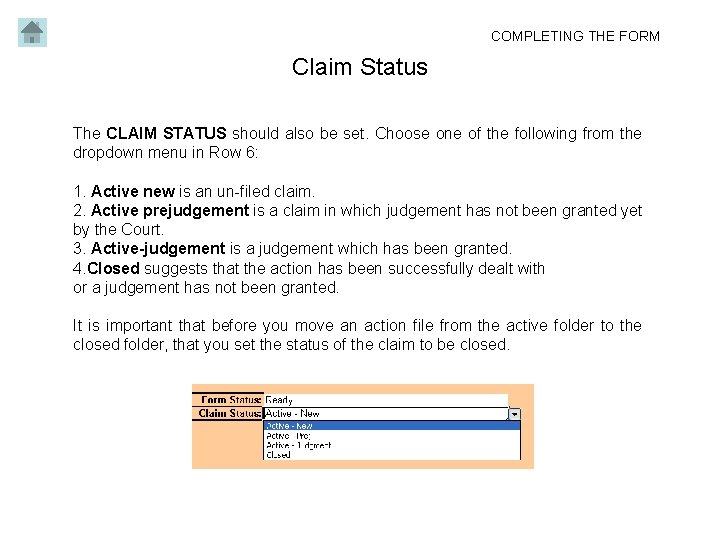
COMPLETING THE FORM Claim Status The CLAIM STATUS should also be set. Choose one of the following from the dropdown menu in Row 6: 1. Active new is an un-filed claim. 2. Active prejudgement is a claim in which judgement has not been granted yet by the Court. 3. Active-judgement is a judgement which has been granted. 4. Closed suggests that the action has been successfully dealt with or a judgement has not been granted. It is important that before you move an action file from the active folder to the closed folder, that you set the status of the claim to be closed.
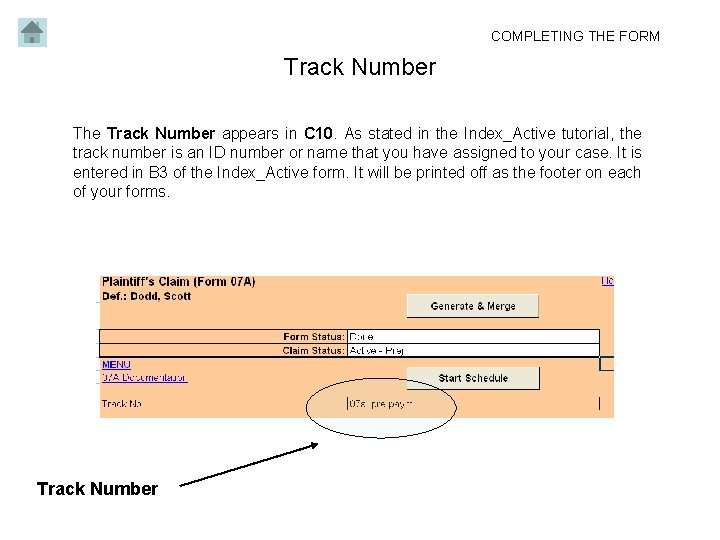
COMPLETING THE FORM Track Number The Track Number appears in C 10. As stated in the Index_Active tutorial, the track number is an ID number or name that you have assigned to your case. It is entered in B 3 of the Index_Active form. It will be printed off as the footer on each of your forms. Track Number
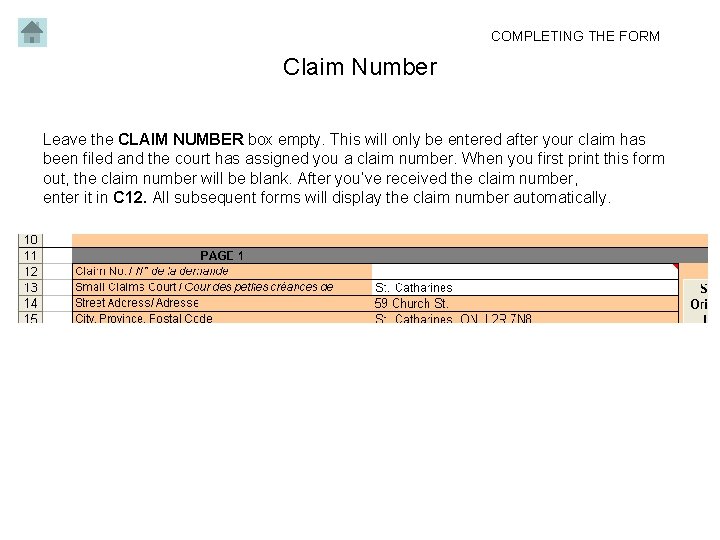
COMPLETING THE FORM Claim Number Leave the CLAIM NUMBER box empty. This will only be entered after your claim has been filed and the court has assigned you a claim number. When you first print this form out, the claim number will be blank. After you’ve received the claim number, enter it in C 12. All subsequent forms will display the claim number automatically.
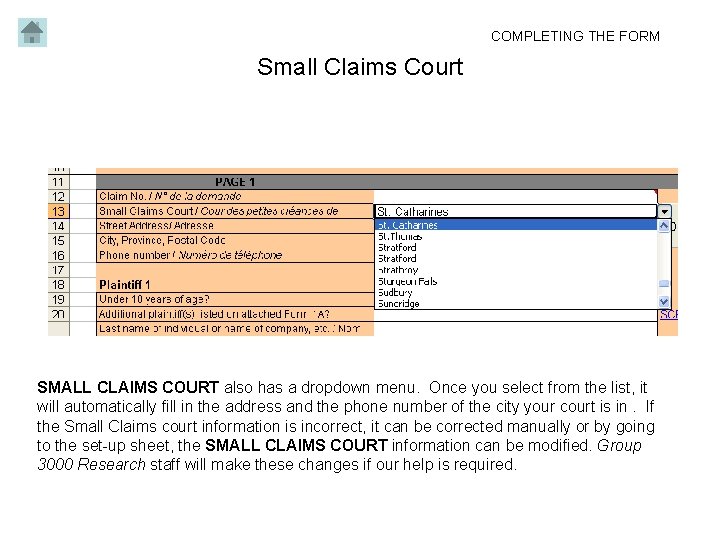
COMPLETING THE FORM Small Claims Court SMALL CLAIMS COURT also has a dropdown menu. Once you select from the list, it will automatically fill in the address and the phone number of the city your court is in. If the Small Claims court information is incorrect, it can be corrected manually or by going to the set-up sheet, the SMALL CLAIMS COURT information can be modified. Group 3000 Research staff will make these changes if our help is required.
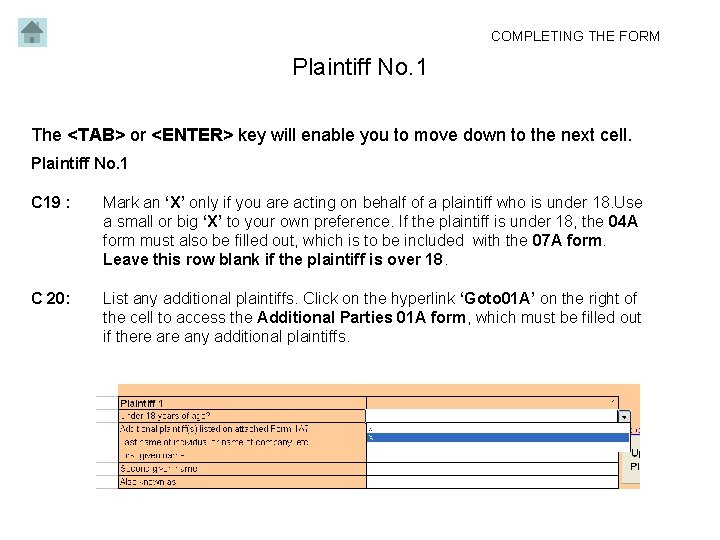
COMPLETING THE FORM Plaintiff No. 1 The <TAB> or <ENTER> key will enable you to move down to the next cell. Plaintiff No. 1 C 19 : Mark an ‘X’ only if you are acting on behalf of a plaintiff who is under 18. Use a small or big ‘X’ to your own preference. If the plaintiff is under 18, the 04 A form must also be filled out, which is to be included with the 07 A form. Leave this row blank if the plaintiff is over 18. C 20: List any additional plaintiffs. Click on the hyperlink ‘Goto 01 A’ on the right of the cell to access the Additional Parties 01 A form, which must be filled out if there any additional plaintiffs.
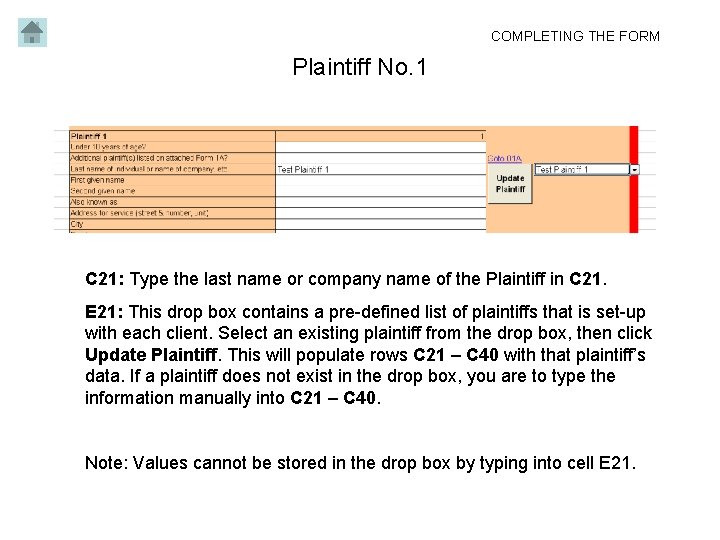
COMPLETING THE FORM Plaintiff No. 1 C 21: Type the last name or company name of the Plaintiff in C 21. E 21: This drop box contains a pre-defined list of plaintiffs that is set-up with each client. Select an existing plaintiff from the drop box, then click Update Plaintiff. This will populate rows C 21 – C 40 with that plaintiff’s data. If a plaintiff does not exist in the drop box, you are to type the information manually into C 21 – C 40. Note: Values cannot be stored in the drop box by typing into cell E 21.
COMPLETING THE FORM Defendant No. 1 Mark an ‘X’ if the defendant is under 18. Use small or big ‘X’ to your own preference. List any additional defendants. Click on the hyperlink ‘Goto 01 A’ on the right of the cell to access the Additional Parties 01 A form, which must be filled out if there any additional defendants. Fill in the information requested. If you have any questions, please contact Group 3000 Research.
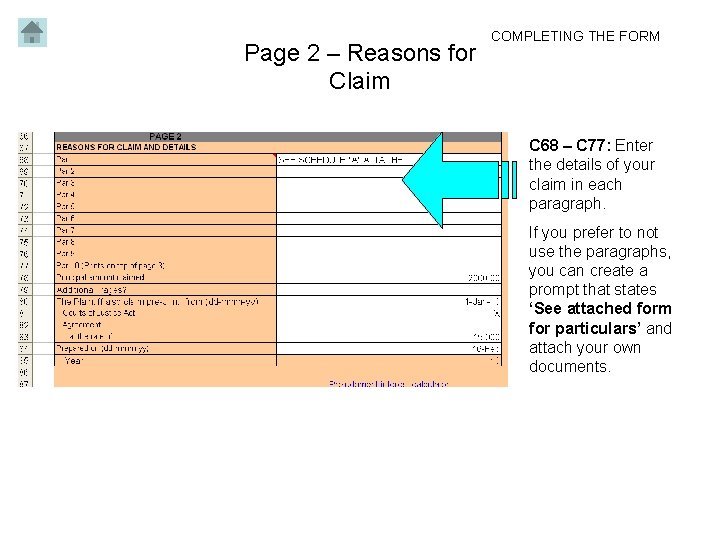
Page 2 – Reasons for Claim COMPLETING THE FORM C 68 – C 77: Enter the details of your claim in each paragraph. If you prefer to not use the paragraphs, you can create a prompt that states ‘See attached form for particulars’ and attach your own documents.
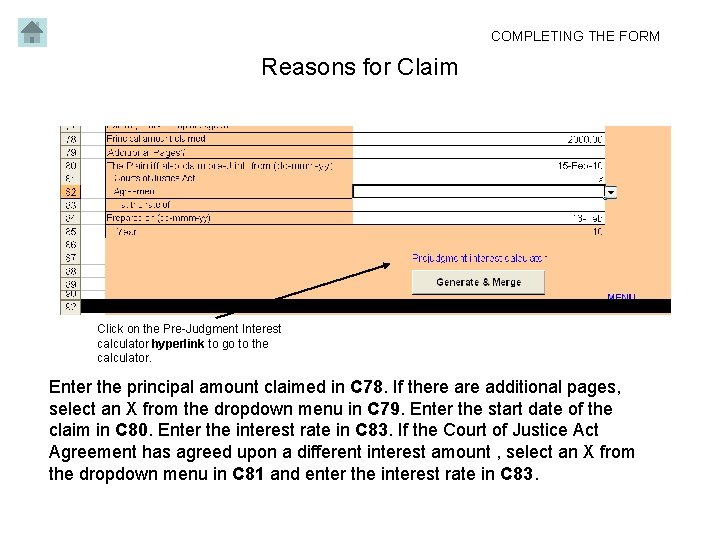
COMPLETING THE FORM Reasons for Claim Click on the Pre-Judgment Interest calculator hyperlink to go to the calculator. Enter the principal amount claimed in C 78. If there additional pages, select an X from the dropdown menu in C 79. Enter the start date of the claim in C 80. Enter the interest rate in C 83. If the Court of Justice Act Agreement has agreed upon a different interest amount , select an X from the dropdown menu in C 81 and enter the interest rate in C 83.
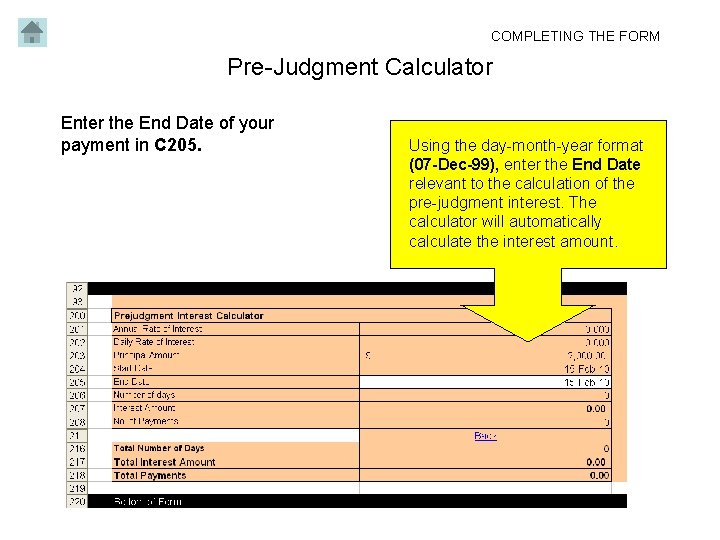
COMPLETING THE FORM Pre-Judgment Calculator Enter the End Date of your payment in C 205. Using the day-month-year format (07 -Dec-99), enter the End Date relevant to the calculation of the pre-judgment interest. The calculator will automatically calculate the interest amount.
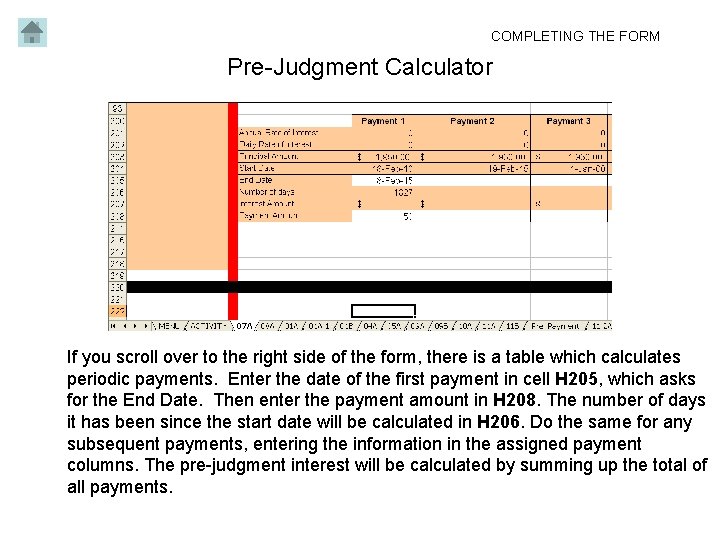
COMPLETING THE FORM Pre-Judgment Calculator If you scroll over to the right side of the form, there is a table which calculates periodic payments. Enter the date of the first payment in cell H 205, which asks for the End Date. Then enter the payment amount in H 208. The number of days it has been since the start date will be calculated in H 206. Do the same for any subsequent payments, entering the information in the assigned payment columns. The pre-judgment interest will be calculated by summing up the total of all payments.
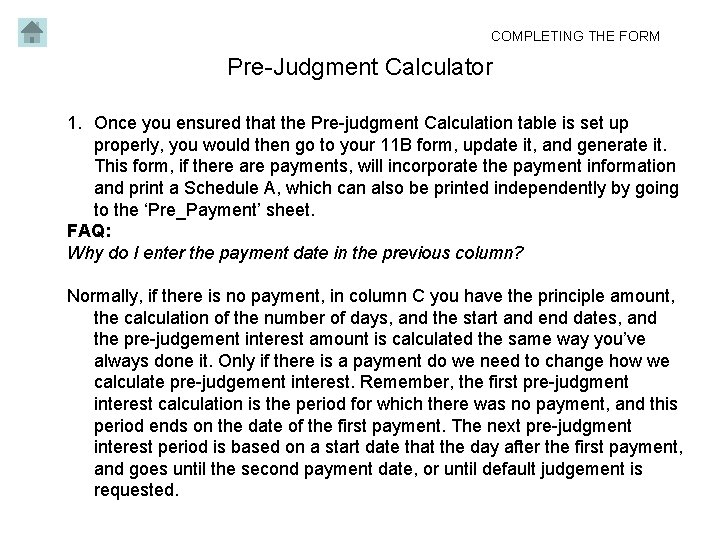
COMPLETING THE FORM Pre-Judgment Calculator 1. Once you ensured that the Pre-judgment Calculation table is set up properly, you would then go to your 11 B form, update it, and generate it. This form, if there are payments, will incorporate the payment information and print a Schedule A, which can also be printed independently by going to the ‘Pre_Payment’ sheet. FAQ: Why do I enter the payment date in the previous column? Normally, if there is no payment, in column C you have the principle amount, the calculation of the number of days, and the start and end dates, and the pre-judgement interest amount is calculated the same way you’ve always done it. Only if there is a payment do we need to change how we calculate pre-judgement interest. Remember, the first pre-judgment interest calculation is the period for which there was no payment, and this period ends on the date of the first payment. The next pre-judgment interest period is based on a start date that the day after the first payment, and goes until the second payment date, or until default judgement is requested.
COMPLETING THE FORM Form Status Once you are finished entering all your reasons for claim, change your Form Status to ‘Done. ’ This will ensure that your information gets updated in subsequent forms. Change your Claim Status to the stage of your choice.
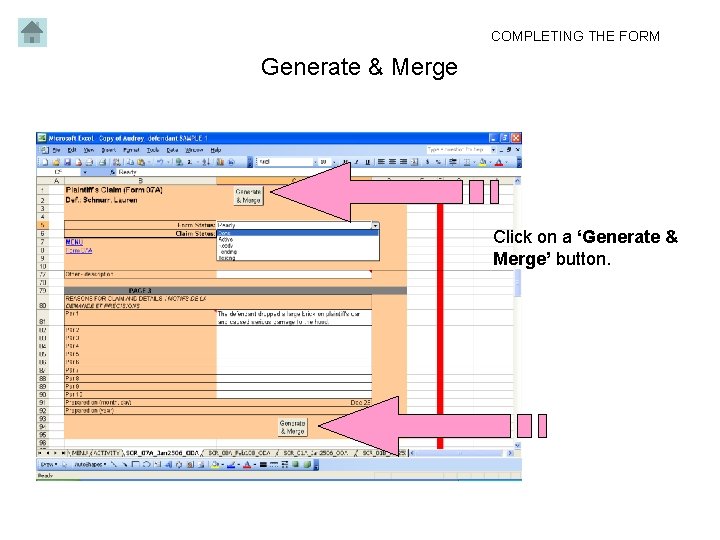
COMPLETING THE FORM Generate & Merge Click on a ‘Generate & Merge’ button.
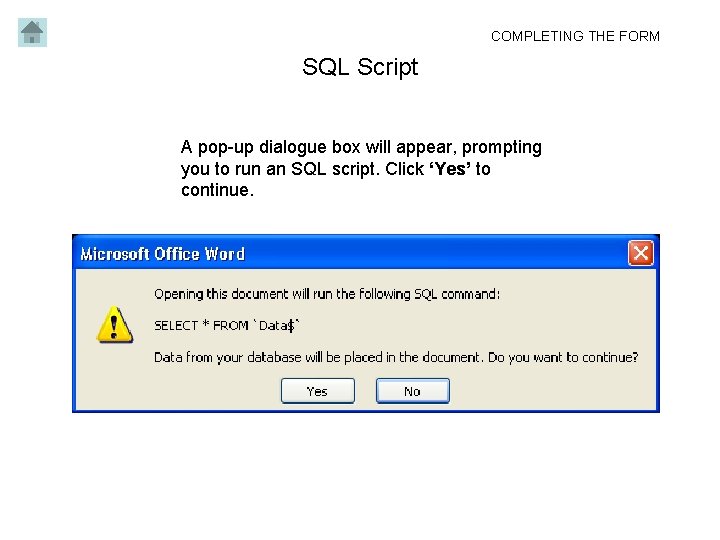
COMPLETING THE FORM SQL Script A pop-up dialogue box will appear, prompting you to run an SQL script. Click ‘Yes’ to continue.
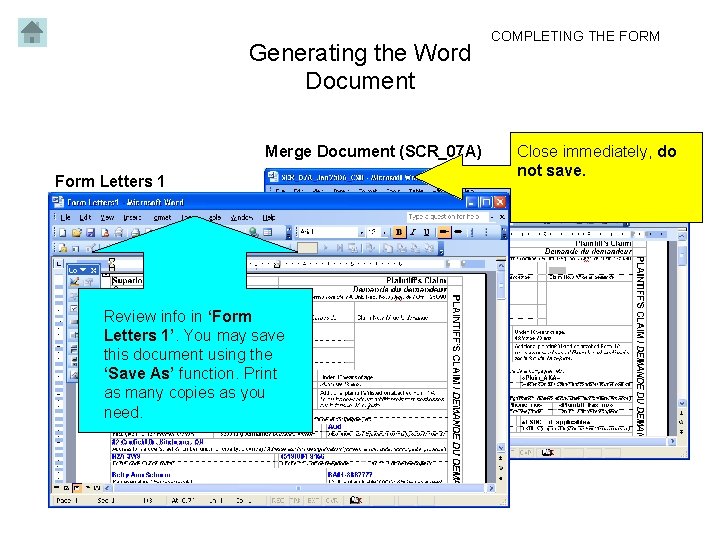
Generating the Word Document COMPLETING THE FORM 1. Two Word documents will appear. ‘Form Letters 1’ is the document you need. Behind it is the merge document SCR_07 A, which you do not need. Please close the merge document without changing it. 2. Review the ‘Form Letters 1’ document carefully to see if all your information has been generated correctly. If you wish, use Save As to save the output where you want to store it. 3. Print as many copies as you need of the document. You can now bring these along with you to the Small Claims Court. To see visual example, go to next slide.
Generating the Word Document Merge Document (SCR_07 A) Form Letters 1 Review info in ‘Form Letters 1’. You may save this document using the ‘Save As’ function. Print as many copies as you need. COMPLETING THE FORM Close immediately, do not save.
COMPLETING THE FORM Next Steps Once you have the claim number that has been assigned by the Small Claims Court, come back to the Plaintiff’s Claim 07 A form and enter the claim number in C 12. From that point on the claim number will appear automatically on all subsequent forms. The next usual step would be to generate an Affidavit's of Service 08 A form when there is only one defendant and one plaintiff. When there is more than one defendant and one plaintiff, the Additional Parties 01 A form should also be filled.