
Comp Tracker Solutions for Modern Learning Version 4

- Slides: 35
Comp. Tracker® Solutions for Modern Learning Version 4. 8 Student & Preceptor/Instructor Orientation © Copyright 2008 Great Big Solutions Ltd. All Rights Reserved.
Welcome! Comp. Tracker replaces paper logbooks for tracking competency and call completion for your program. The system has been set up as per this School’s specific program requirements, and students will be required to complete all applicable course materials through Comp. Tracker. Instructors are counting on students to synchronize as often as possible (DAILY if possible) in order to view the latest progress updates on the website. Click on “Training” from www. studentlogbook. com for student & preceptor Quick Start Guides and other orientation materials. If you’ve never used a PDA before, it will be beneficial to review the User Manual of the device and get to know the general functions available. Support for PDA or website questions/concerns are handled through Great Big Solutions in Edmonton, AB 1 -866 -432 -3280 or support@studentlogbook. com. © Copyright 2008 Great Big Solutions Ltd. All Rights Reserved.
System Requirements Comp. Tracker Version 4. 8 Student requirements: Palm OS Device (Palm, Sony, Treo, etc. ) or Windows Mobile/Pocket PC Device Requirements as per www. studentlogbook. com/requirements. html Access to a Windows-based PC (XP or higher) – contact your Coordinator for info on school access. The computer must have a Dial-up or high-speed Internet connection and have Comp. Tracker installed. © Copyright 2008 Great Big Solutions Ltd. All Rights Reserved.
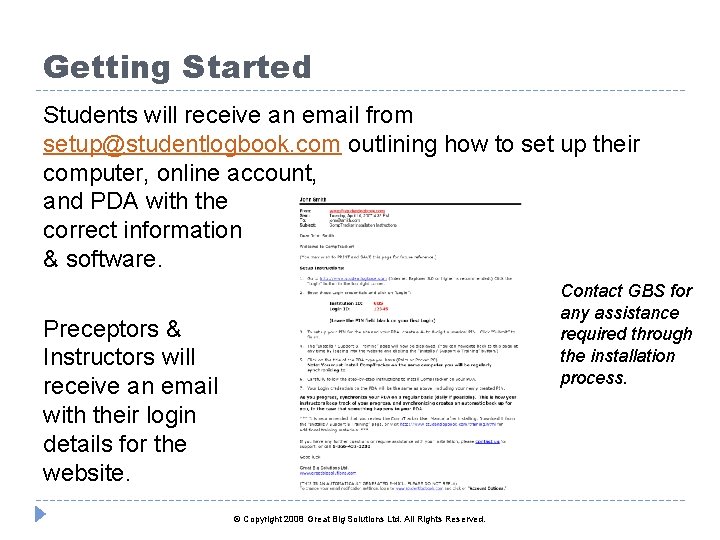
Getting Started Students will receive an email from setup@studentlogbook. com outlining how to set up their computer, online account, and PDA with the correct information & software. Contact GBS for any assistance required through the installation process. Preceptors & Instructors will receive an email with their login details for the website. © Copyright 2008 Great Big Solutions Ltd. All Rights Reserved.
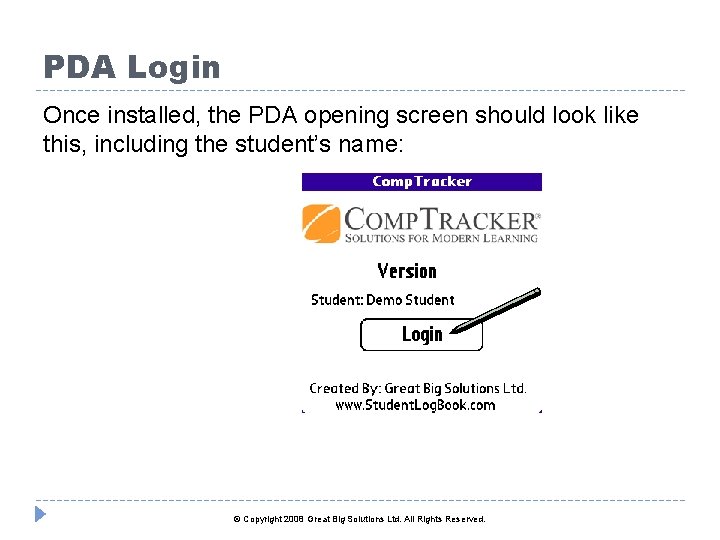
PDA Login Once installed, the PDA opening screen should look like this, including the student’s name: © Copyright 2008 Great Big Solutions Ltd. All Rights Reserved.
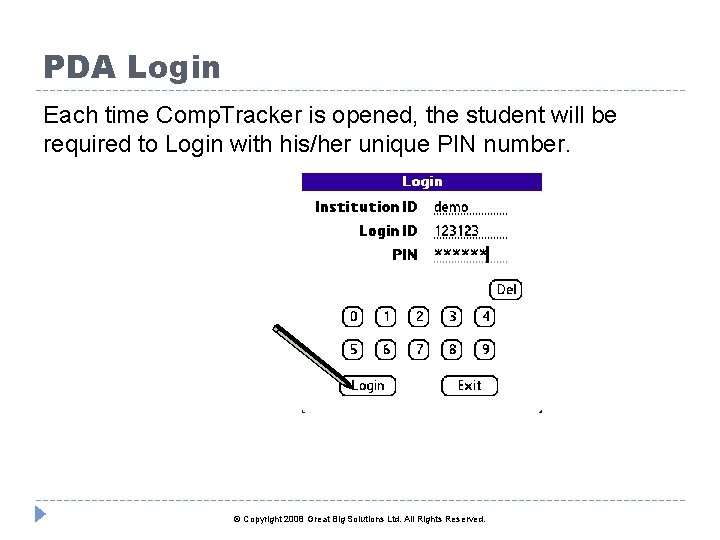
PDA Login Each time Comp. Tracker is opened, the student will be required to Login with his/her unique PIN number. © Copyright 2008 Great Big Solutions Ltd. All Rights Reserved.
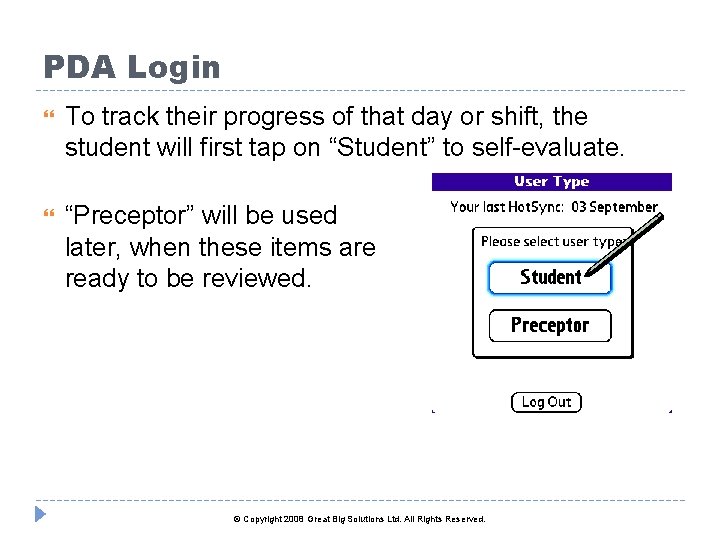
PDA Login To track their progress of that day or shift, the student will first tap on “Student” to self-evaluate. “Preceptor” will be used later, when these items are ready to be reviewed. © Copyright 2008 Great Big Solutions Ltd. All Rights Reserved.
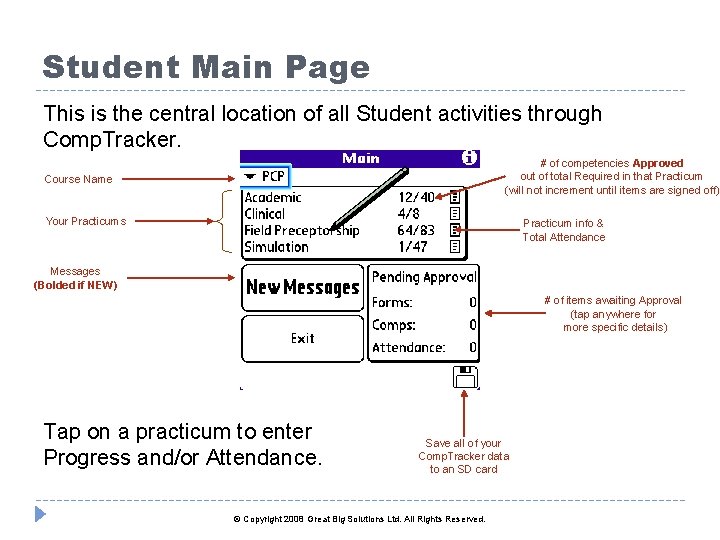
Student Main Page This is the central location of all Student activities through Comp. Tracker. # of competencies Approved out of total Required in that Practicum (will not increment until items are signed off) Course Name Your Practicums Practicum info & Total Attendance Messages (Bolded if NEW) # of items awaiting Approval (tap anywhere for more specific details) Tap on a practicum to enter Progress and/or Attendance. Save all of your Comp. Tracker data to an SD card © Copyright 2008 Great Big Solutions Ltd. All Rights Reserved.
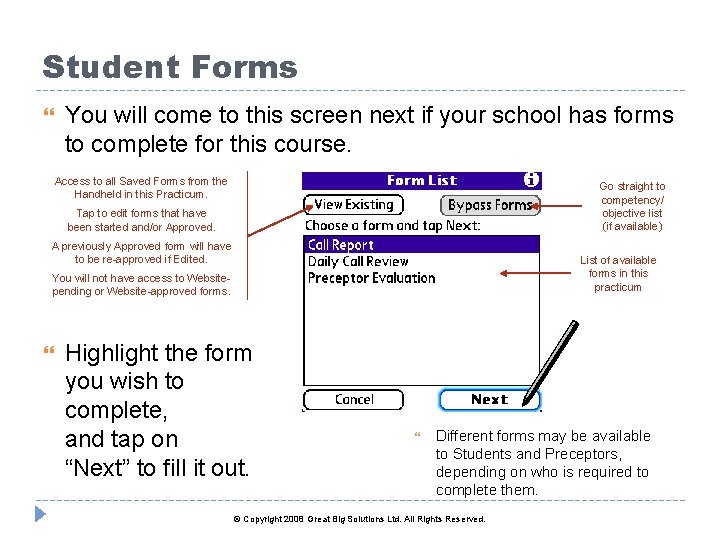
Student Forms You will come to this screen next if your school has forms to complete for this course. Access to all Saved Forms from the Handheld in this Practicum. Go straight to competency/ objective list (if available) Tap to edit forms that have been started and/or Approved. A previously Approved form will have to be re-approved if Edited. List of available forms in this practicum You will not have access to Websitepending or Website-approved forms. Highlight the form you wish to complete, and tap on “Next” to fill it out. Different forms may be available to Students and Preceptors, depending on who is required to complete them. © Copyright 2008 Great Big Solutions Ltd. All Rights Reserved.
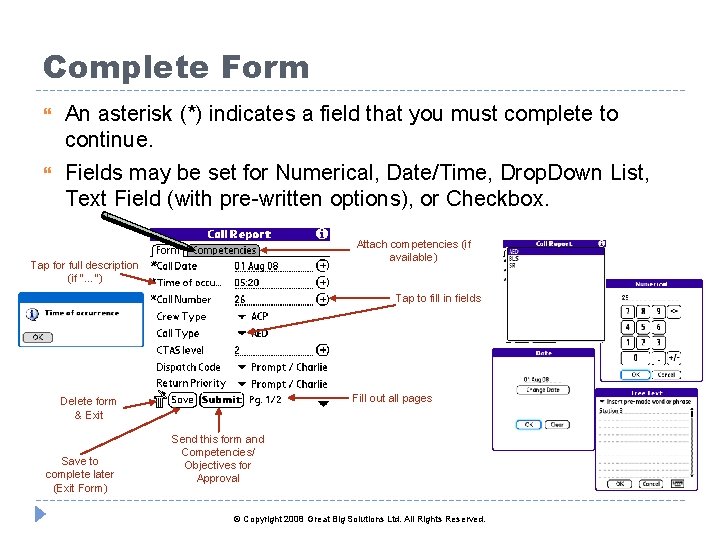
Complete Form An asterisk (*) indicates a field that you must complete to continue. Fields may be set for Numerical, Date/Time, Drop. Down List, Text Field (with pre-written options), or Checkbox. Tap for full description (if “…”) Attach competencies (if available) * Tap to fill in fields Fill out all pages Delete form & Exit Save to complete later (Exit Form) Send this form and Competencies/ Objectives for Approval © Copyright 2008 Great Big Solutions Ltd. All Rights Reserved.
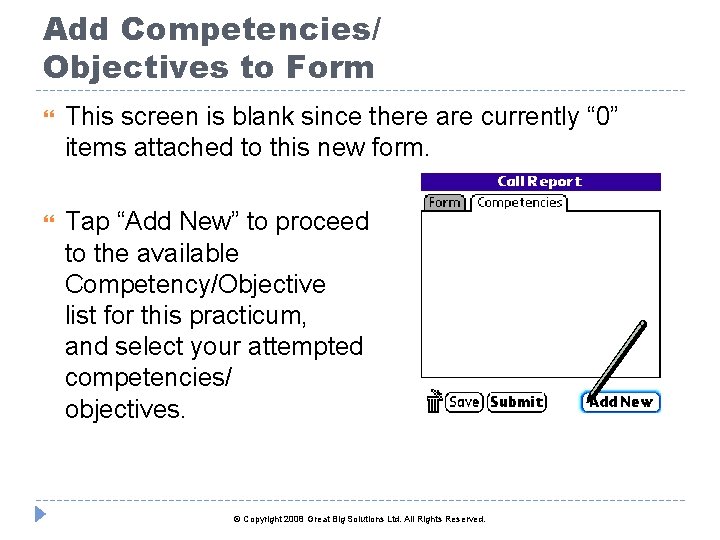
Add Competencies/ Objectives to Form This screen is blank since there are currently “ 0” items attached to this new form. Tap “Add New” to proceed to the available Competency/Objective list for this practicum, and select your attempted competencies/ objectives. © Copyright 2008 Great Big Solutions Ltd. All Rights Reserved.
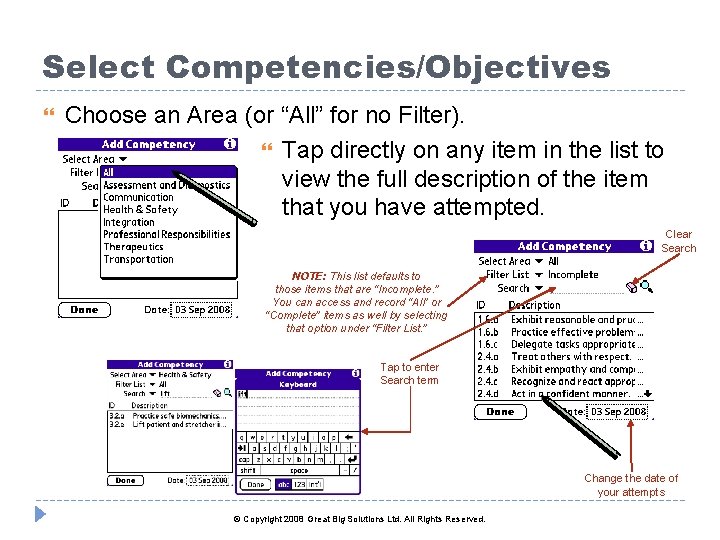
Select Competencies/Objectives Choose an Area (or “All” for no Filter). Tap directly on any item in the list to view the full description of the item that you have attempted. Clear Search NOTE: This list defaults to those items that are “Incomplete. ” You can access and record “All” or “Complete” items as well by selecting that option under “Filter List. ” Tap to enter Search term Change the date of your attempts © Copyright 2008 Great Big Solutions Ltd. All Rights Reserved.
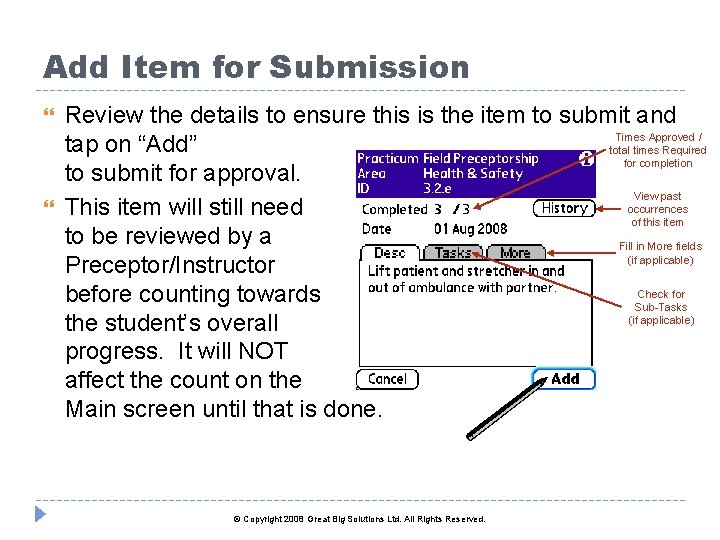
Add Item for Submission Review the details to ensure this is the item to submit and Times Approved / tap on “Add” total times Required for completion to submit for approval. View past occurrences This item will still need of this item to be reviewed by a Fill in More fields (if applicable) Preceptor/Instructor Check for before counting towards Sub-Tasks (if applicable) the student’s overall progress. It will NOT affect the count on the Main screen until that is done. © Copyright 2008 Great Big Solutions Ltd. All Rights Reserved.
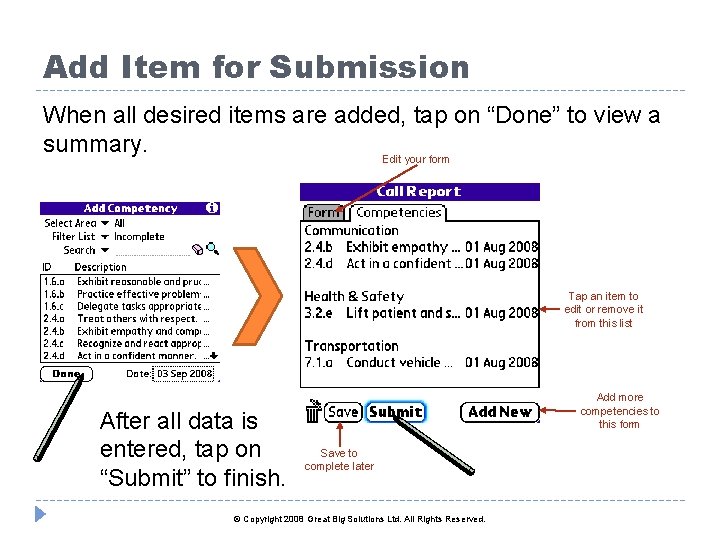
Add Item for Submission When all desired items are added, tap on “Done” to view a summary. Edit your form Tap an item to edit or remove it from this list After all data is entered, tap on “Submit” to finish. Add more competencies to this form Save to complete later © Copyright 2008 Great Big Solutions Ltd. All Rights Reserved.
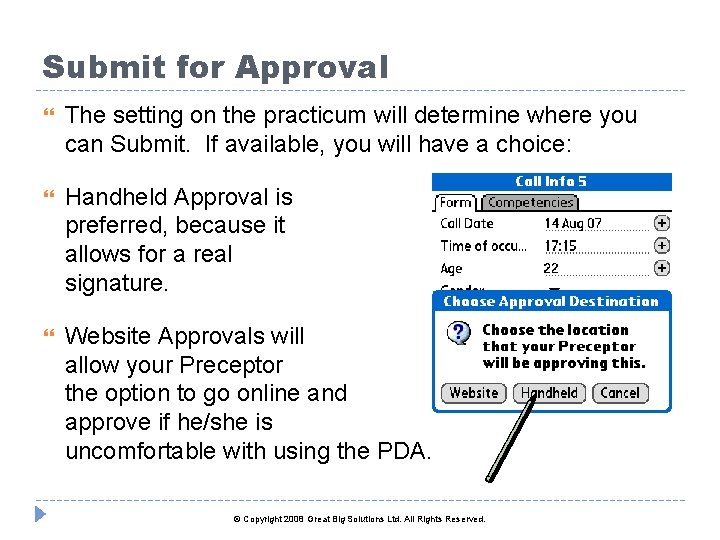
Submit for Approval The setting on the practicum will determine where you can Submit. If available, you will have a choice: Handheld Approval is preferred, because it allows for a real signature. Website Approvals will allow your Preceptor the option to go online and approve if he/she is uncomfortable with using the PDA. © Copyright 2008 Great Big Solutions Ltd. All Rights Reserved.
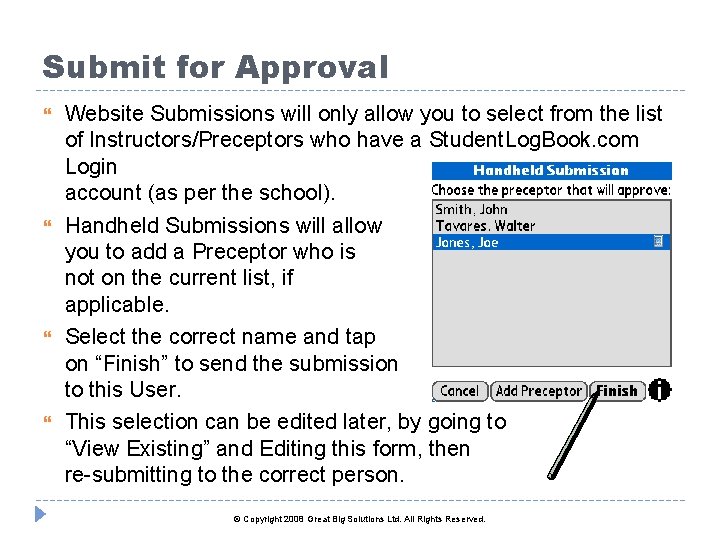
Submit for Approval Website Submissions will only allow you to select from the list of Instructors/Preceptors who have a Student. Log. Book. com Login account (as per the school). Handheld Submissions will allow you to add a Preceptor who is not on the current list, if applicable. Select the correct name and tap on “Finish” to send the submission to this User. This selection can be edited later, by going to “View Existing” and Editing this form, then re-submitting to the correct person. © Copyright 2008 Great Big Solutions Ltd. All Rights Reserved.
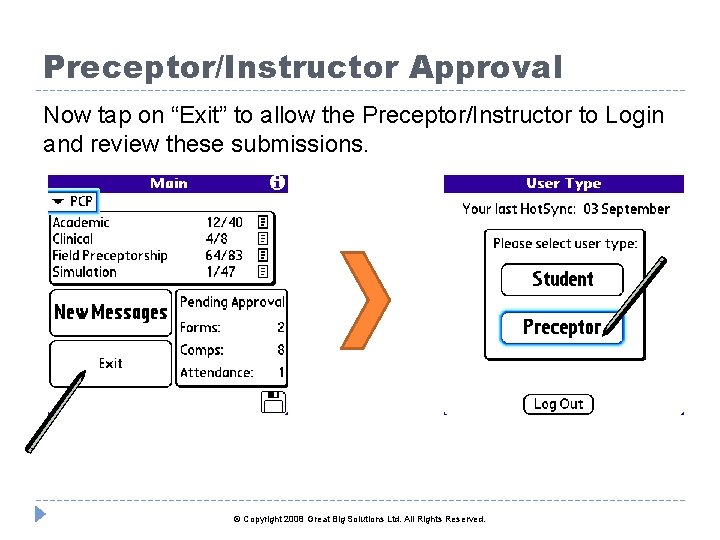
Preceptor/Instructor Approval Now tap on “Exit” to allow the Preceptor/Instructor to Login and review these submissions. © Copyright 2008 Great Big Solutions Ltd. All Rights Reserved.
Preceptor/Instructor Approval Select your name from the list, or add yourself as a new preceptor for this student. Filter by the last name Preceptors added from the handheld will have a “PDA” icon (ie. cannot approve via the website until given a complete login. ) When adding a new user, ONE of the contact fields Phone, Cell, or Email are required; and Designation is required. This number indicates the items awaiting approval by this person, as submitted by the student. View the contact information for this person. Only those added on the PDA can be edited. © Copyright 2008 Great Big Solutions Ltd. All Rights Reserved.
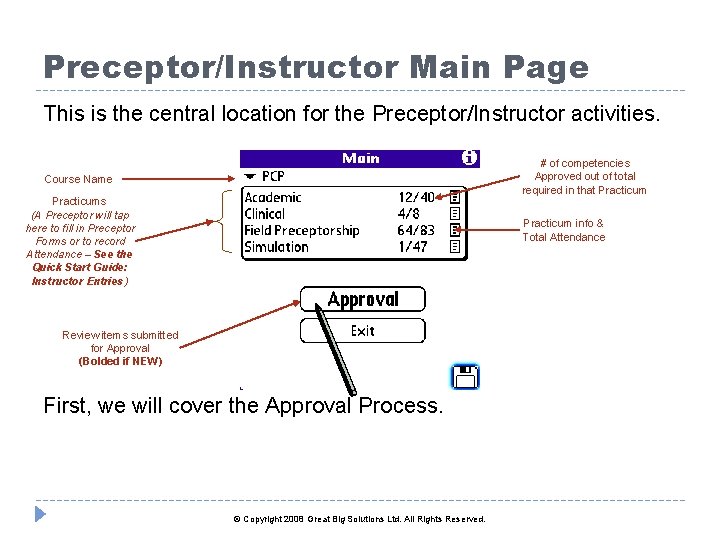
Preceptor/Instructor Main Page This is the central location for the Preceptor/Instructor activities. # of competencies Approved out of total required in that Practicum Course Name Practicums (A Preceptor will tap here to fill in Preceptor Forms or to record Attendance – See the Quick Start Guide: Instructor Entries) Practicum info & Total Attendance Review items submitted for Approval (Bolded if NEW) First, we will cover the Approval Process. © Copyright 2008 Great Big Solutions Ltd. All Rights Reserved.
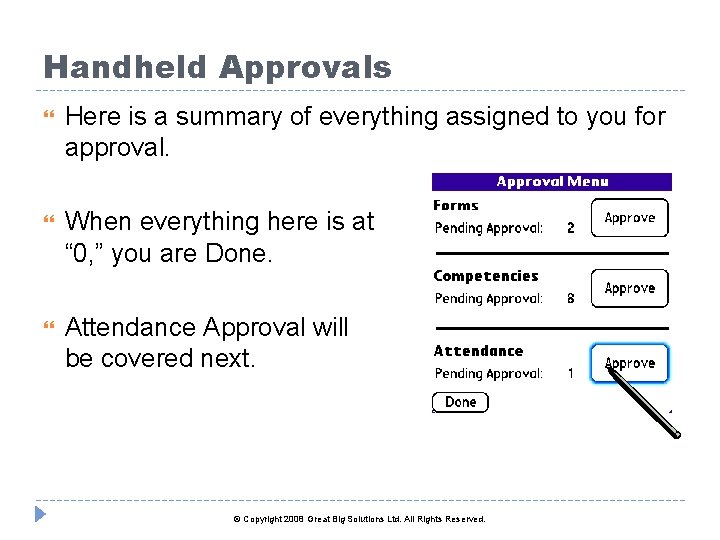
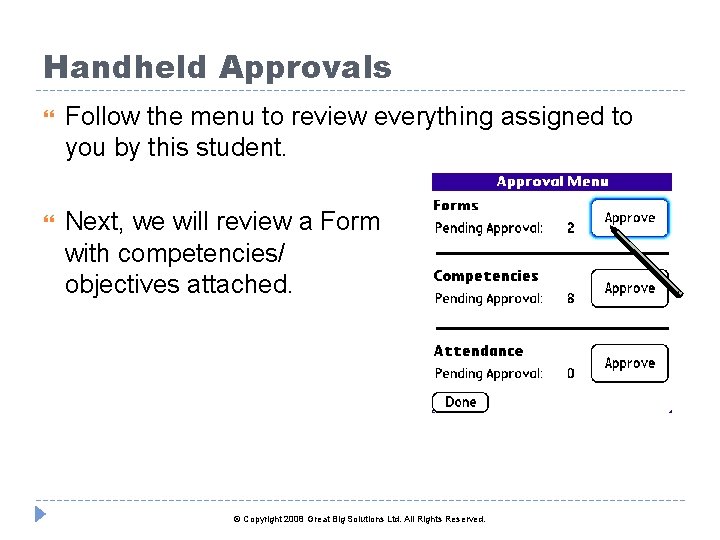
Handheld Approvals Here is a summary of everything assigned to you for approval. When everything here is at “ 0, ” you are Done. Attendance Approval will be covered next. © Copyright 2008 Great Big Solutions Ltd. All Rights Reserved.
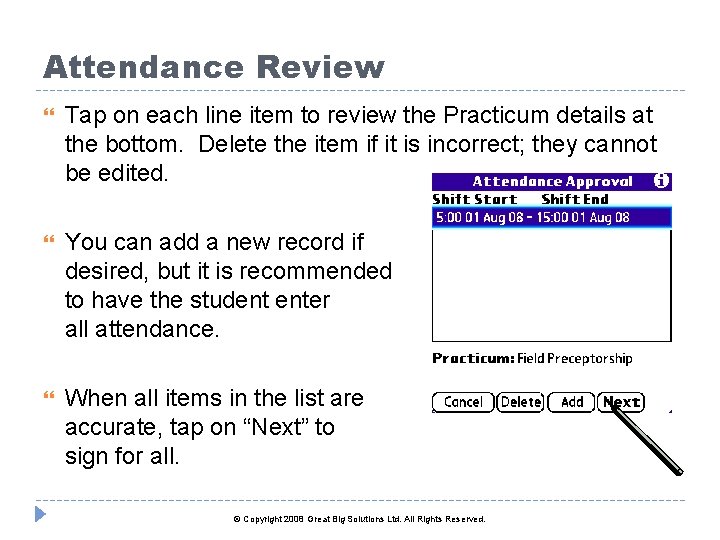
Attendance Review Tap on each line item to review the Practicum details at the bottom. Delete the item if it is incorrect; they cannot be edited. You can add a new record if desired, but it is recommended to have the student enter all attendance. When all items in the list are accurate, tap on “Next” to sign for all. © Copyright 2008 Great Big Solutions Ltd. All Rights Reserved.
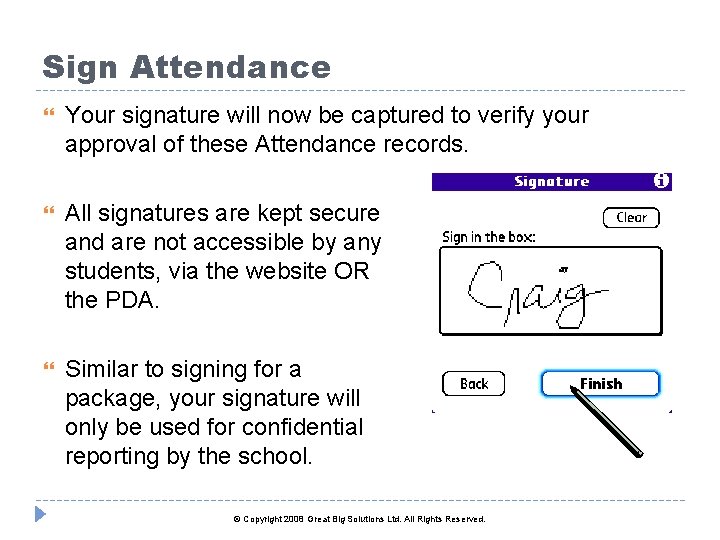
Sign Attendance Your signature will now be captured to verify your approval of these Attendance records. All signatures are kept secure and are not accessible by any students, via the website OR the PDA. Similar to signing for a package, your signature will only be used for confidential reporting by the school. © Copyright 2008 Great Big Solutions Ltd. All Rights Reserved.
Handheld Approvals Follow the menu to review everything assigned to you by this student. Next, we will review a Form with competencies/ objectives attached. © Copyright 2008 Great Big Solutions Ltd. All Rights Reserved.
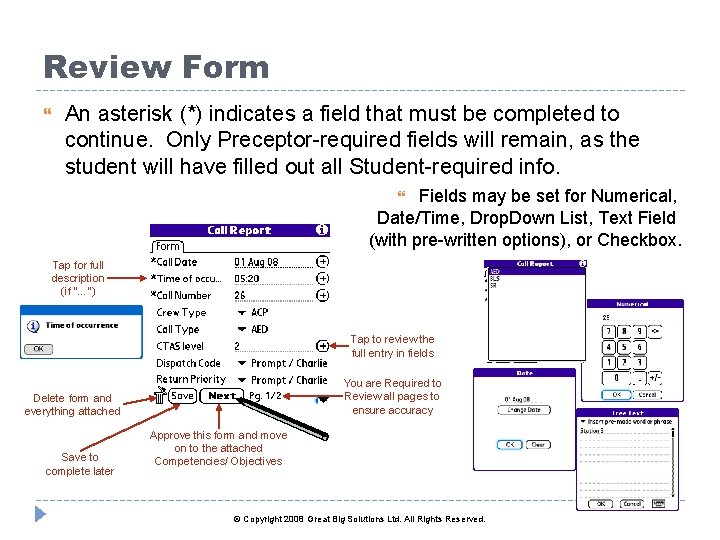
Review Form An asterisk (*) indicates a field that must be completed to continue. Only Preceptor-required fields will remain, as the student will have filled out all Student-required info. Fields may be set for Numerical, Date/Time, Drop. Down List, Text Field (with pre-written options), or Checkbox. Tap for full description (if “…”) Tap to review the full entry in fields You are Required to Review all pages to ensure accuracy Delete form and everything attached Save to complete later Approve this form and move on to the attached Competencies/ Objectives © Copyright 2008 Great Big Solutions Ltd. All Rights Reserved.
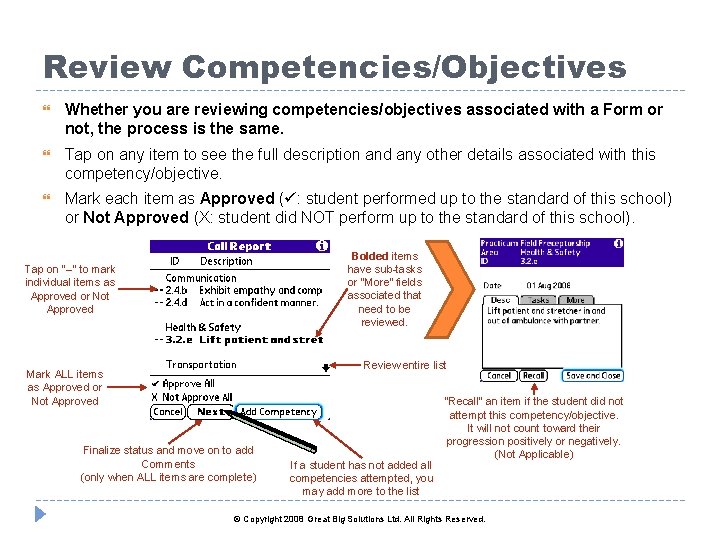
Review Competencies/Objectives Whether you are reviewing competencies/objectives associated with a Form or not, the process is the same. Tap on any item to see the full description and any other details associated with this competency/objective. Mark each item as Approved ( : student performed up to the standard of this school) or Not Approved (X: student did NOT perform up to the standard of this school). Bolded items have sub-tasks or “More” fields associated that need to be reviewed. Tap on “--“ to mark individual items as Approved or Not Approved Review entire list Mark ALL items as Approved or Not Approved Finalize status and move on to add Comments (only when ALL items are complete) If a student has not added all competencies attempted, you may add more to the list “Recall” an item if the student did not attempt this competency/objective. It will not count toward their progression positively or negatively. (Not Applicable) © Copyright 2008 Great Big Solutions Ltd. All Rights Reserved.
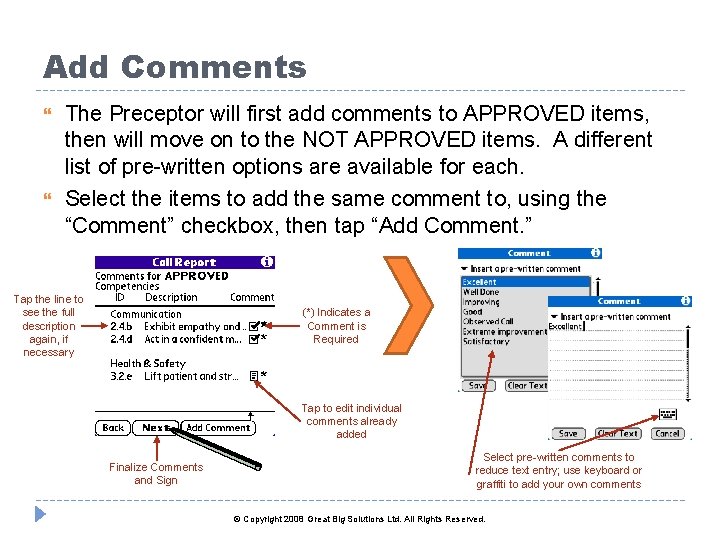
Add Comments The Preceptor will first add comments to APPROVED items, then will move on to the NOT APPROVED items. A different list of pre-written options are available for each. Select the items to add the same comment to, using the “Comment” checkbox, then tap “Add Comment. ” Tap the line to see the full description again, if necessary * (*) Indicates a Comment is Required Tap to edit individual comments already added Finalize Comments and Sign Select pre-written comments to reduce text entry; use keyboard or graffiti to add your own comments © Copyright 2008 Great Big Solutions Ltd. All Rights Reserved.
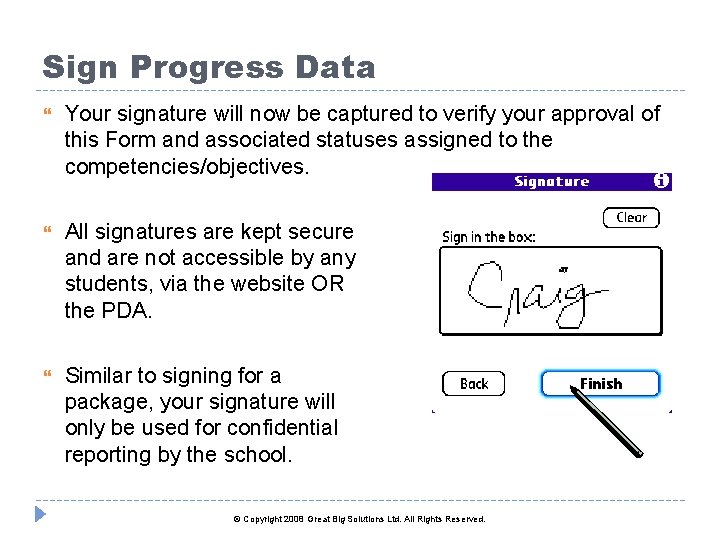
Sign Progress Data Your signature will now be captured to verify your approval of this Form and associated statuses assigned to the competencies/objectives. All signatures are kept secure and are not accessible by any students, via the website OR the PDA. Similar to signing for a package, your signature will only be used for confidential reporting by the school. © Copyright 2008 Great Big Solutions Ltd. All Rights Reserved.
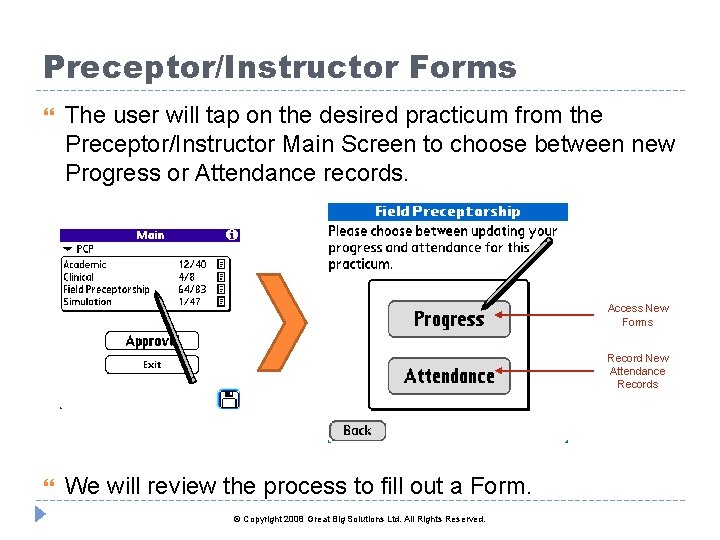
Preceptor/Instructor Forms The user will tap on the desired practicum from the Preceptor/Instructor Main Screen to choose between new Progress or Attendance records. Access New Forms Record New Attendance Records We will review the process to fill out a Form. © Copyright 2008 Great Big Solutions Ltd. All Rights Reserved.
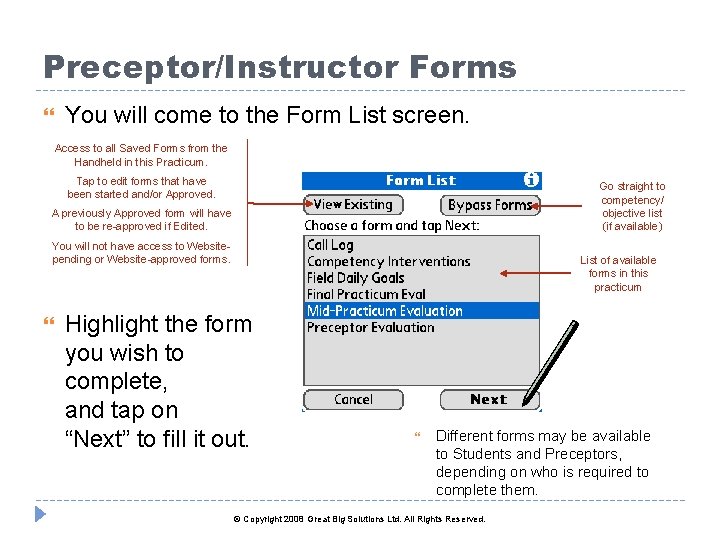
Preceptor/Instructor Forms You will come to the Form List screen. Access to all Saved Forms from the Handheld in this Practicum. Tap to edit forms that have been started and/or Approved. Go straight to competency/ objective list (if available) A previously Approved form will have to be re-approved if Edited. You will not have access to Websitepending or Website-approved forms. List of available forms in this practicum Highlight the form you wish to complete, and tap on “Next” to fill it out. Different forms may be available to Students and Preceptors, depending on who is required to complete them. © Copyright 2008 Great Big Solutions Ltd. All Rights Reserved.
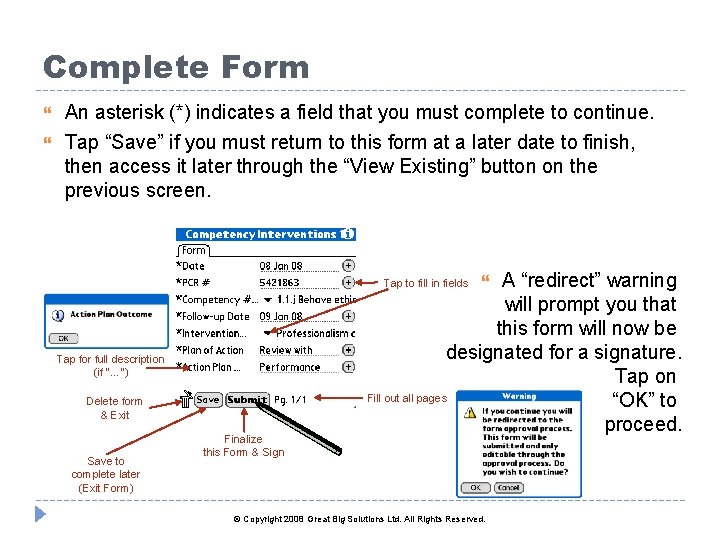
Complete Form An asterisk (*) indicates a field that you must complete to continue. Tap “Save” if you must return to this form at a later date to finish, then access it later through the “View Existing” button on the previous screen. A “redirect” warning will prompt you that this form will now be designated for a signature. Tap on Fill out all pages “OK” to proceed. Tap to fill in fields Tap for full description (if “…”) Delete form & Exit Save to complete later (Exit Form) Finalize this Form & Sign © Copyright 2008 Great Big Solutions Ltd. All Rights Reserved.
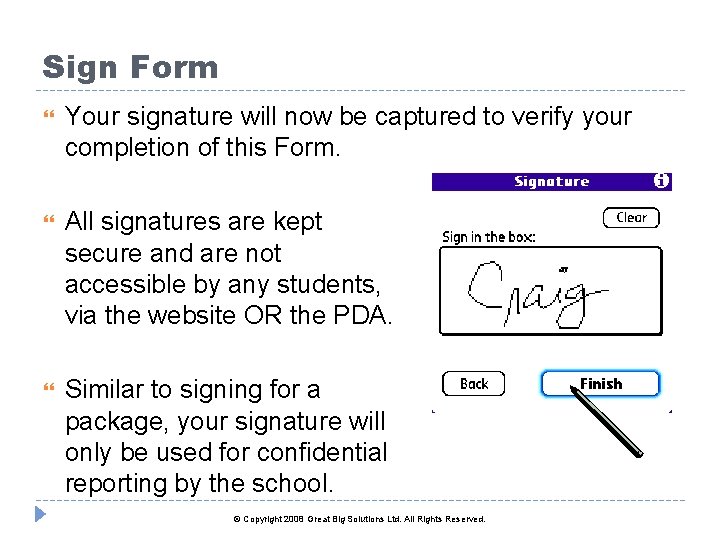
Sign Form Your signature will now be captured to verify your completion of this Form. All signatures are kept secure and are not accessible by any students, via the website OR the PDA. Similar to signing for a package, your signature will only be used for confidential reporting by the school. © Copyright 2008 Great Big Solutions Ltd. All Rights Reserved.
Students: SYNCHRONIZE!!! Your data is BACKED UP AUTOMATICALLY every time you synchronize your device. That means, if you lose your PDA – or it crashes – or you drop it in a lake – your information is STILL THERE! Your Instructors need the most recent data to view on the website: Progress, Attendance, Preceptor Comments & Forms. Important Messages sent through Comp. Tracker from your Instructors are received when you sync (“New Messages”). © Copyright 2008 Great Big Solutions Ltd. All Rights Reserved.
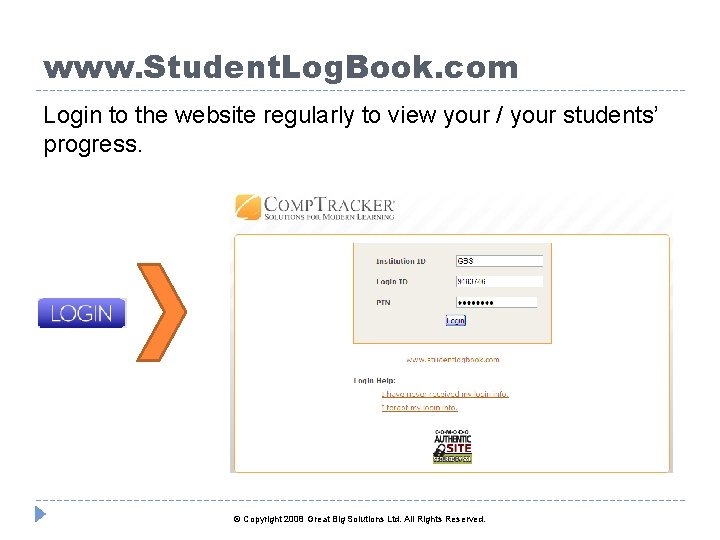
www. Student. Log. Book. com Login to the website regularly to view your / your students’ progress. © Copyright 2008 Great Big Solutions Ltd. All Rights Reserved.
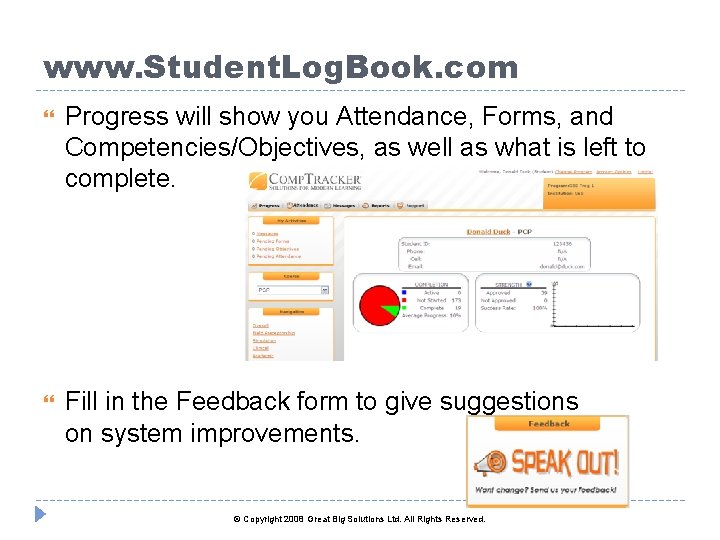
www. Student. Log. Book. com Progress will show you Attendance, Forms, and Competencies/Objectives, as well as what is left to complete. Fill in the Feedback form to give suggestions on system improvements. © Copyright 2008 Great Big Solutions Ltd. All Rights Reserved.
Technical Support: ALL Users Great Big Solutions – Edmonton, Alberta PHONE Toll-Free: 1 -866 -432 -3280 E-MAIL: support@studentlogbook. com ONLINE Support: “Support” link before logging in Submit case through Support Suite (click on “Support” tab after logging in) Office hours 9 am-5 pm Mountain Standard Time, Monday through Friday Response time is 2 business days guaranteed © Copyright 2008 Great Big Solutions Ltd. All Rights Reserved.