
COMP 34219415 Computer Graphics Introduction Angela Finlayson Email


- Slides: 79
COMP 3421/9415 Computer Graphics Introduction Angela Finlayson Email: angf@cse. unsw. edu. au
Course Admin http: //www. cse. unsw. edu. au/~cs 3421 Labs next week in piano lab/ tutorials normally from week 3 onwards Course Outline Robert lectures week 7 – week 13 Second assignment in pairs from same tutorial group
Graphics Then and Now 1963 Sketchpad (4 mins 20) https: //www. youtube. com/watch? v=USyo. T_ Ha_b. A 2014 Pixar’s Renderman https: //www. youtube. com/watch? v=i. Qa. U 9 U P 6 dlg
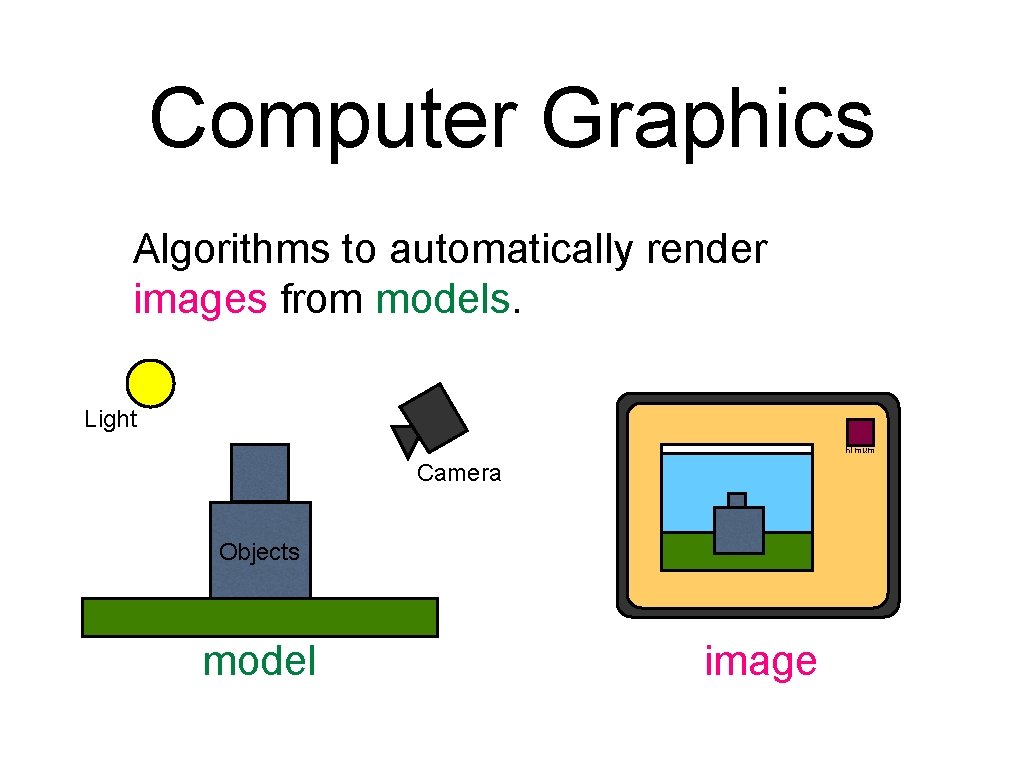
Computer Graphics Algorithms to automatically render images from models. Light hi mum Camera Objects model image
Computer Graphics Based on: Geometry Physics Physiology/Neurology/Psychology with a lot of simplifications and hacks to make it tractable and look good.
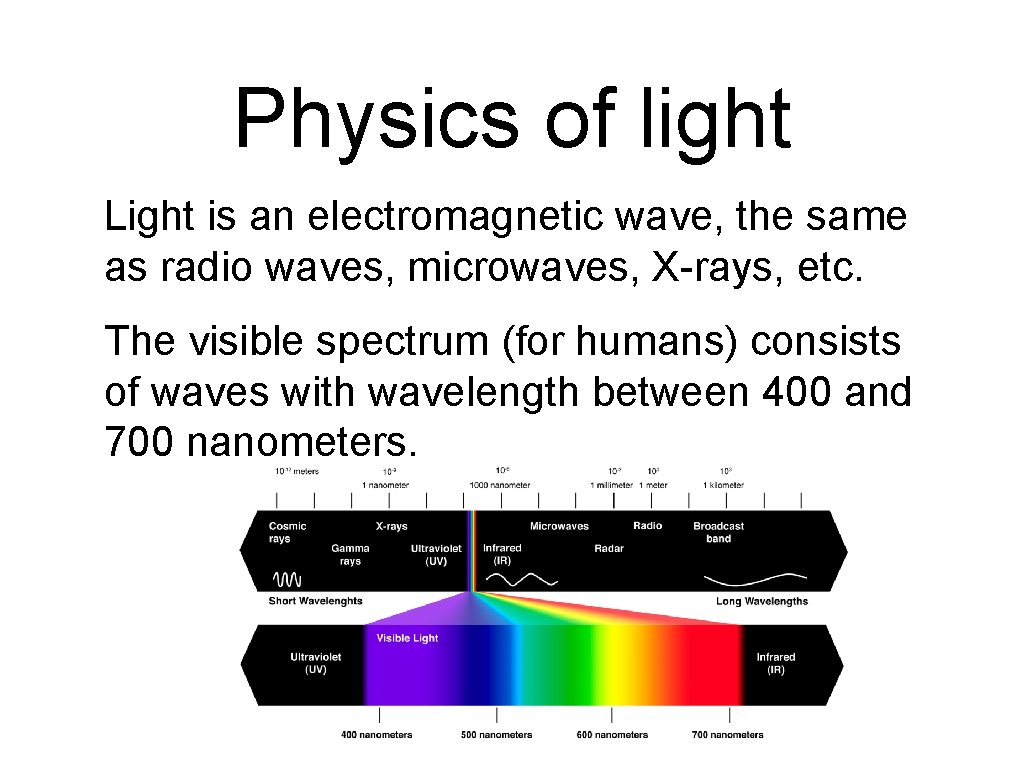
Physics of light Light is an electromagnetic wave, the same as radio waves, microwaves, X-rays, etc. The visible spectrum (for humans) consists of waves with wavelength between 400 and 700 nanometers.
Non-spectral colours Some light sources, such as lasers, emit light of essentially a single wavelength or “pure spectral” light (red, violet and colors of the rainbow). Other colours (e. g. white, purple, pink, brown) are non-spectral. There is no single wavelength for these colours, rather they are mixtures of light of different wavelengths.
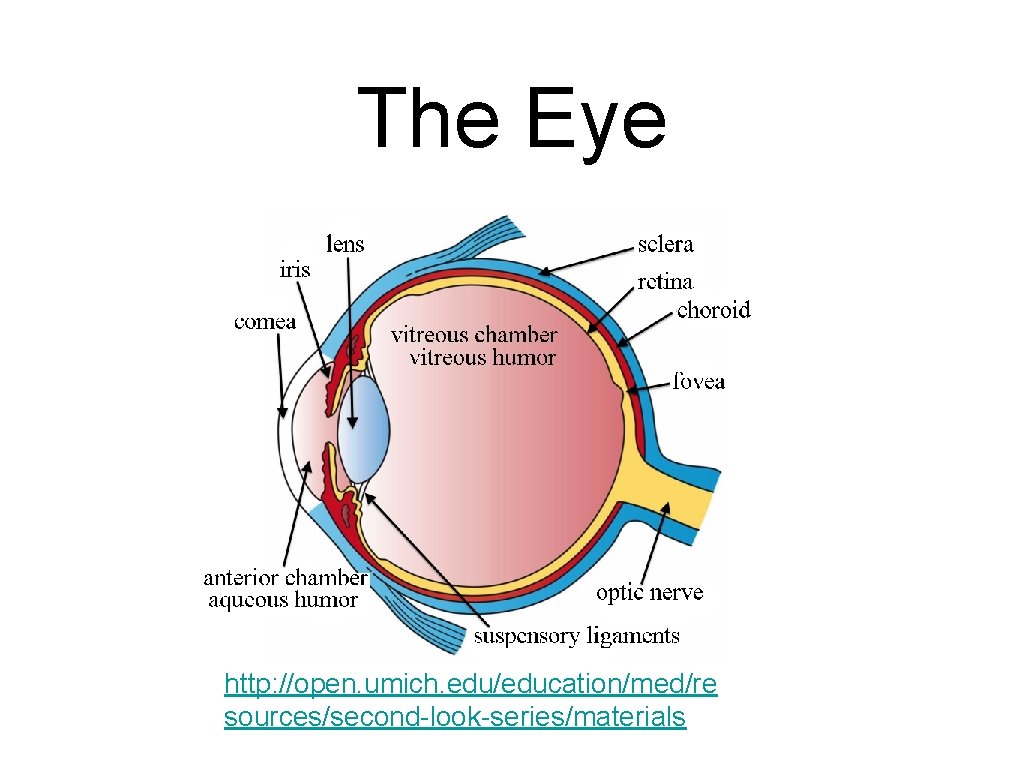
The Eye http: //open. umich. edu/education/med/re sources/second-look-series/materials
Colour perception The retina (back of the eye) has two different kinds of photoreceptor cells: rods and cones. Rods are good at handling low-level lighting (e. g. moonlight). They do not detect different colours and are poor at distinguishing detail. Cones respond better in brighter light levels. They are better at discerning detail and colour.
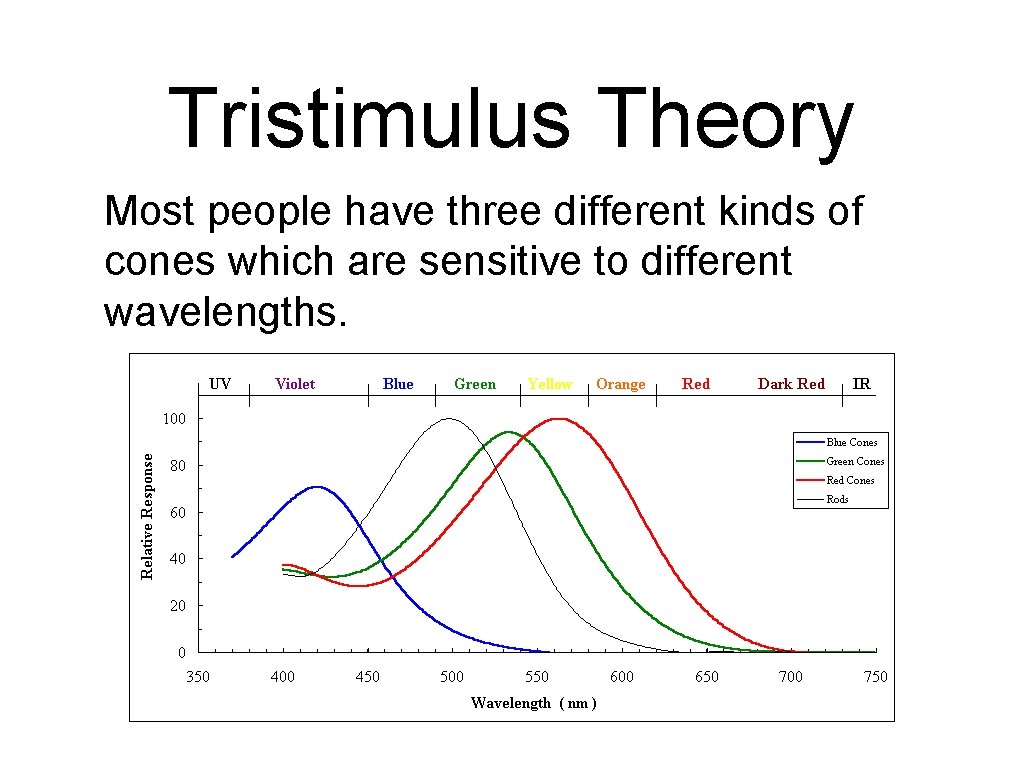
Tristimulus Theory Most people have three different kinds of cones which are sensitive to different wavelengths.
Colour blending As a result of this, different mixtures of light will appear to have the same colour, because they stimulate the cones in the same way. For example, a mixture of red and green light will appear to be yellow.
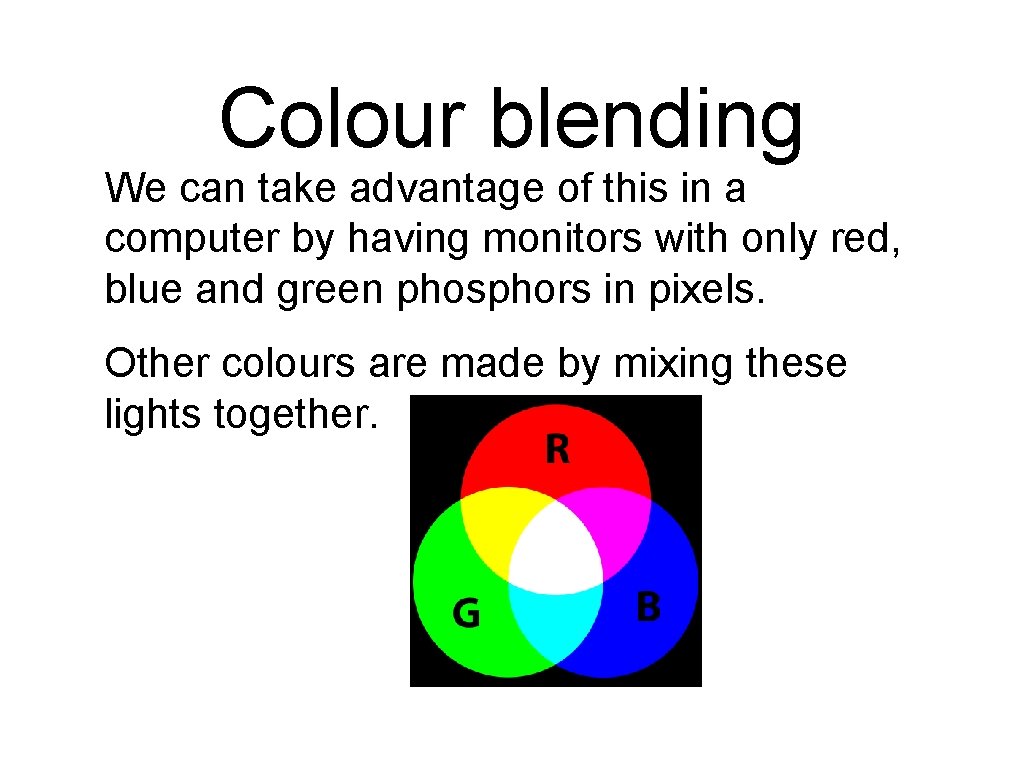
Colour blending We can take advantage of this in a computer by having monitors with only red, blue and green phosphors in pixels. Other colours are made by mixing these lights together.
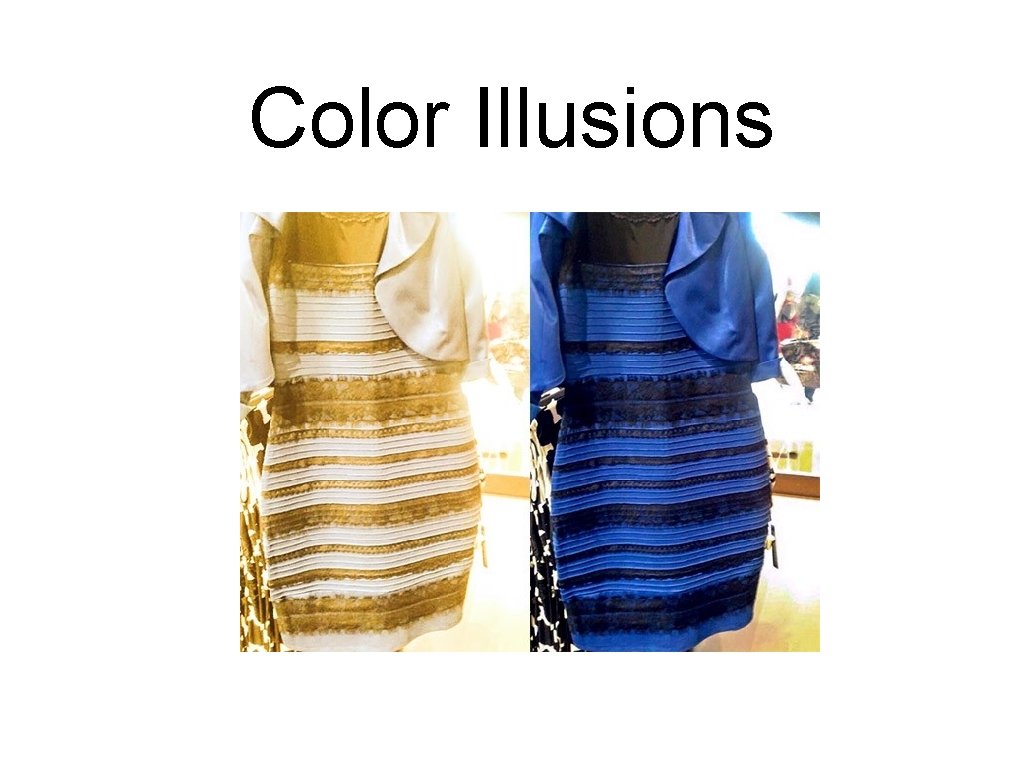
Color Illusions
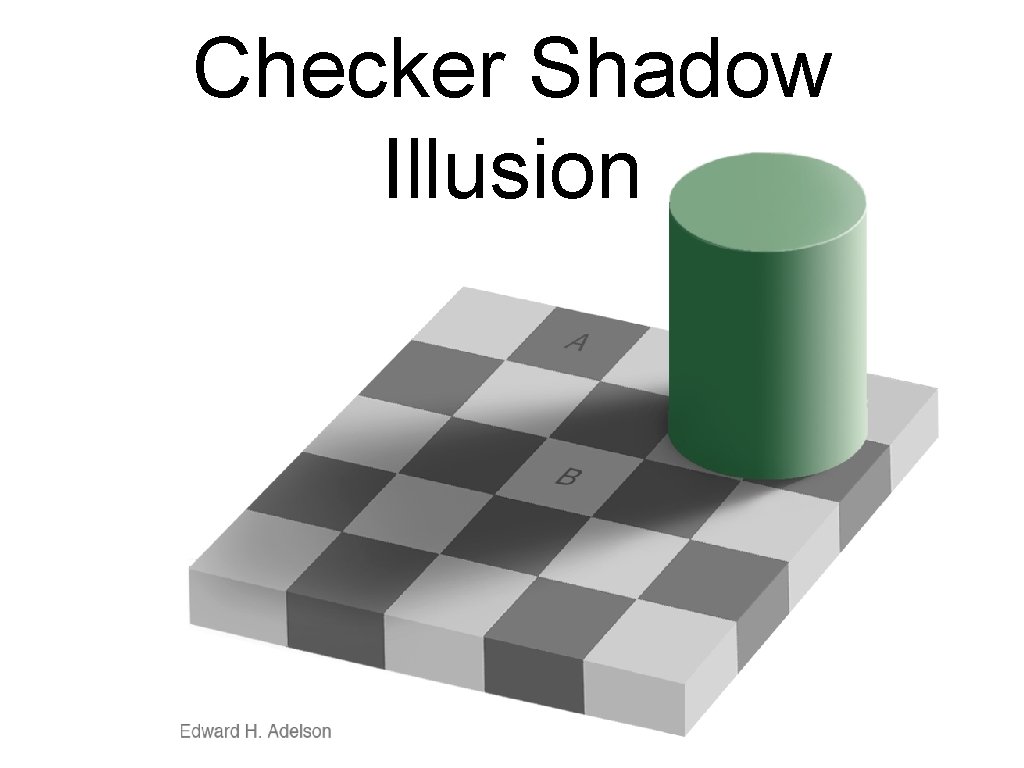
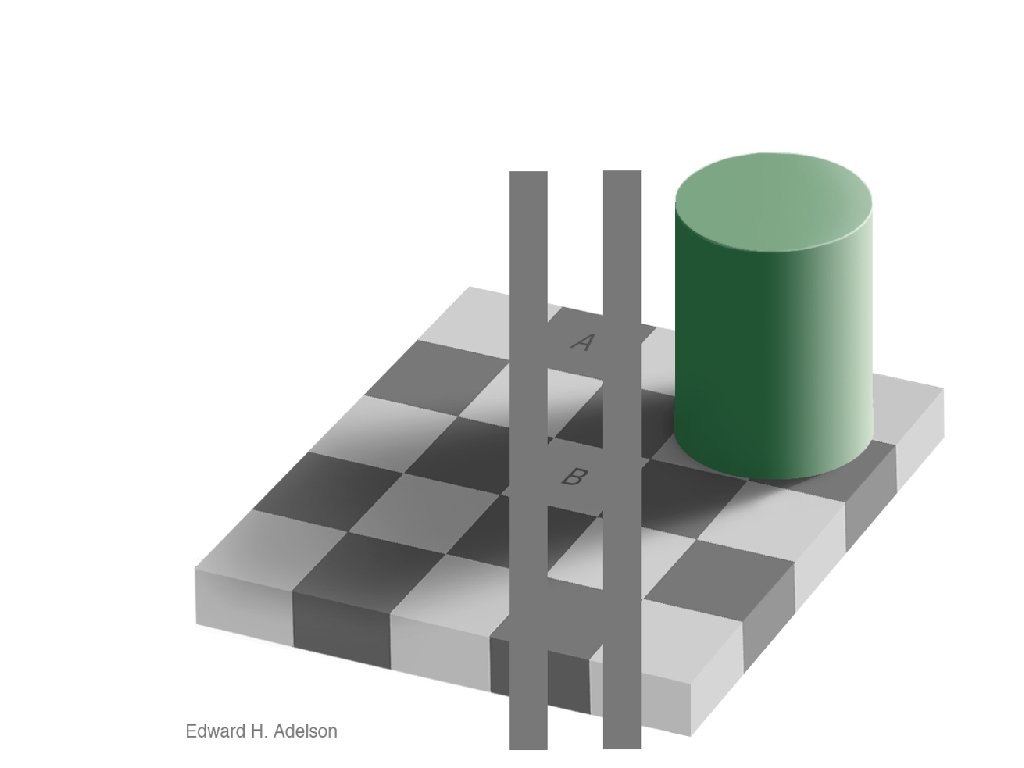
Checker Shadow Illusion
Corner/Curve Illusions Best Illusion of the Year Contest 2016 https: //www. youtube. com/watch? v=o. Wf. Fco 7 K 9 v 8
Realistic rendering Our main focus will be on realistic rendering of 3 D models. i. e. Simulating a photographic image from a camera. Note however: most art is not realistic but involves some kind of abstraction. Realism is easier because physics is more predictable than psychology.
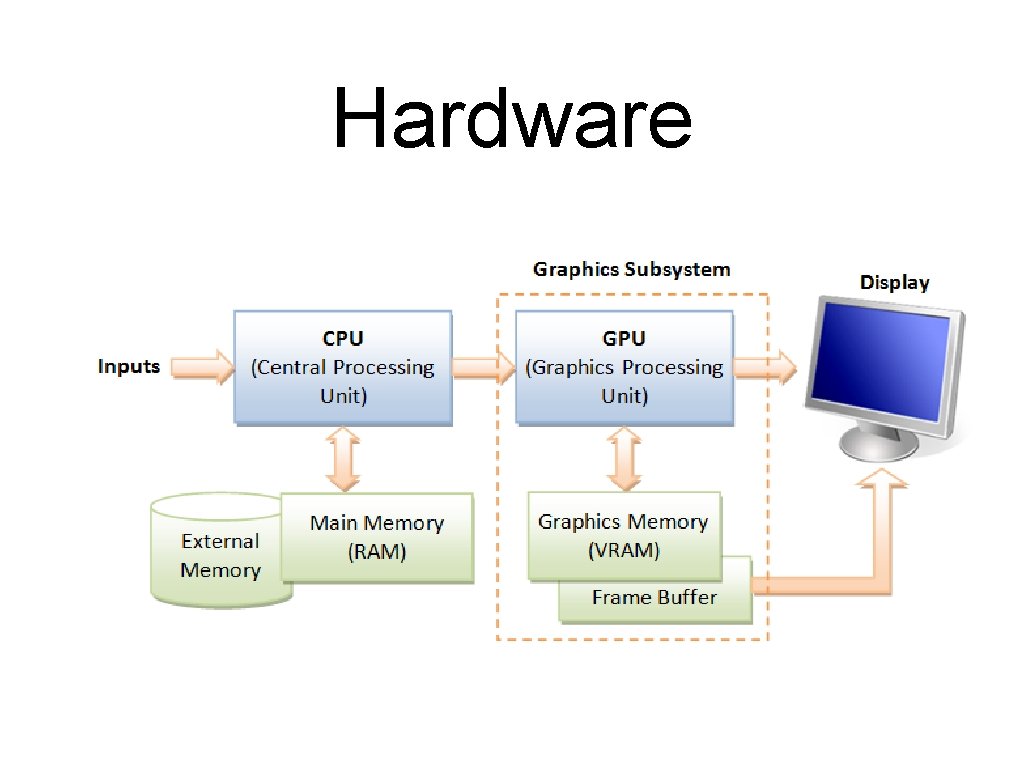
Hardware
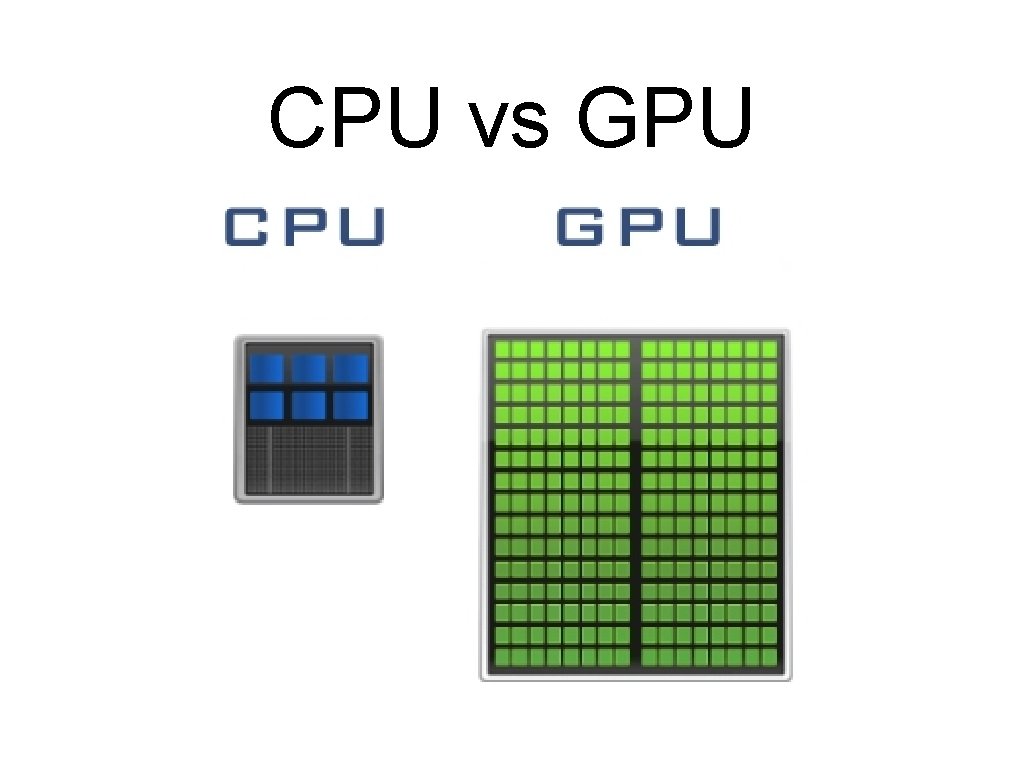
CPU vs GPU
CPU vs GPU CPU consists of a few cores optimized for sequential serial processing GPU has a massively parallel architecture (SIMD/Single Instruction Multiple Data) consisting of smaller special purpose cores designed for handling multiple tasks simultaneously.
Open. GL A 2 D/3 D graphics API. Free, Open source Cross platform (incl. web and mobile) Highly optimised Designed to use special purpose hardware (GPU) We will be using Open. GL
Direct. X Direct 3 D Microsoft proprietary Only on MS platforms or through emulation (Wine, VMWare) Roughly equivalent features + quality
Do it yourself Generally a bad idea: Reinventing the wheel Numerical accuracy is hard Efficiency is also hard
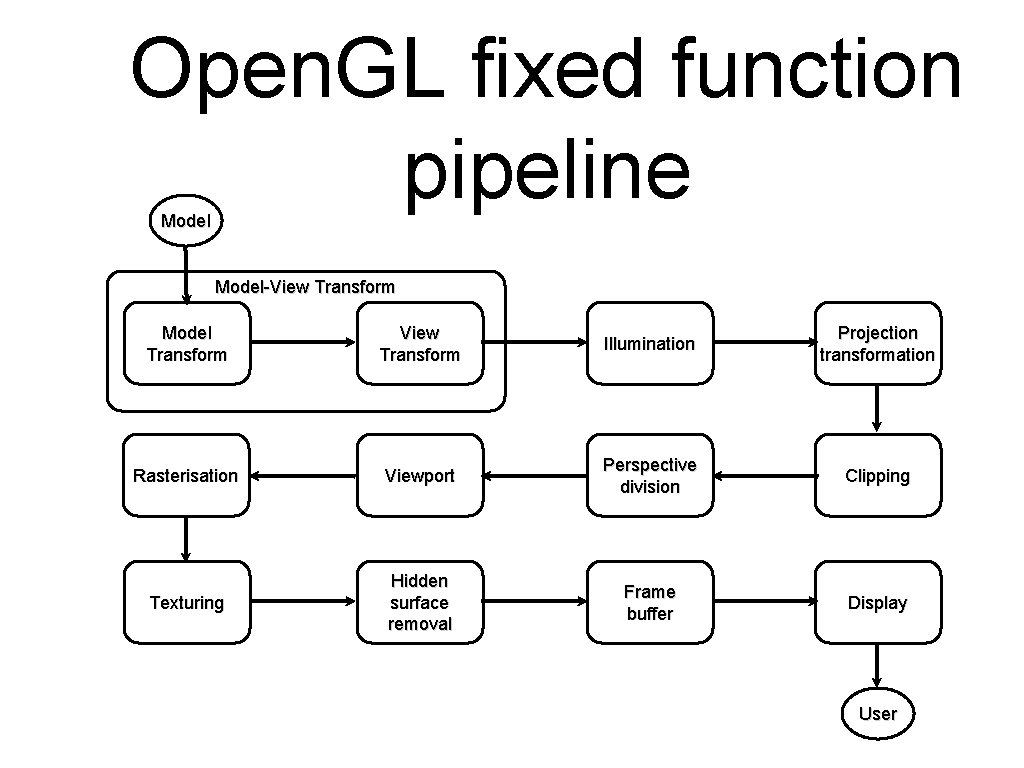
Open. GL fixed function pipeline Model-View Transform Model Transform View Transform Illumination Projection transformation Rasterisation Viewport Perspective division Clipping Texturing Hidden surface removal Frame buffer Display User
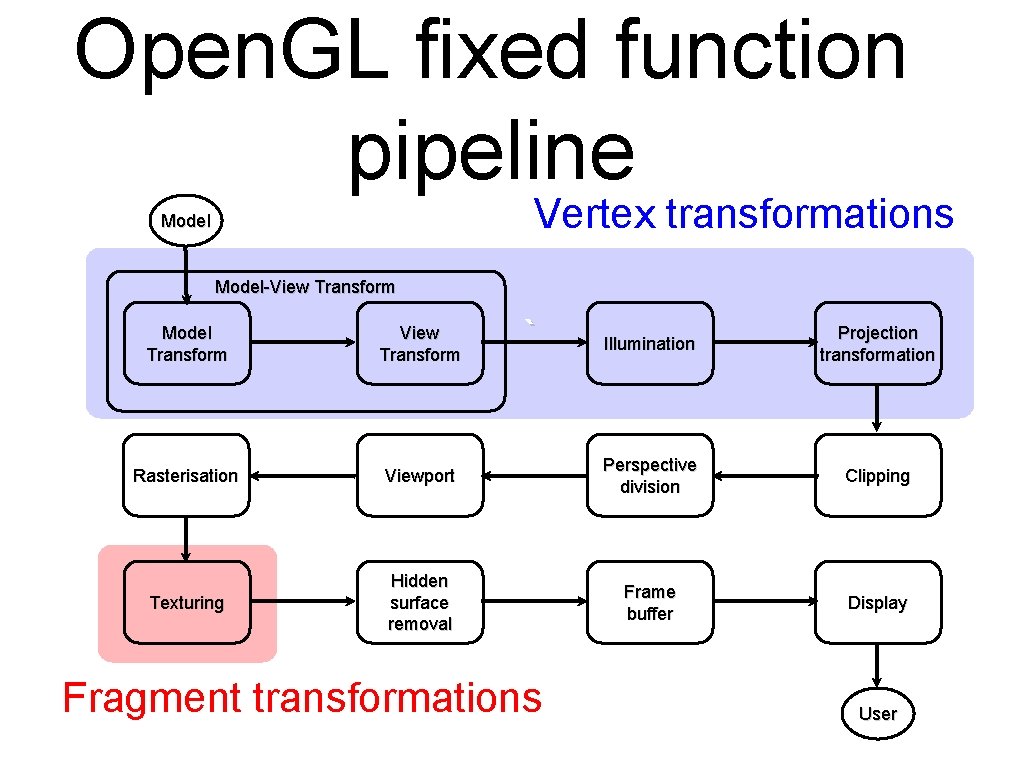
Open. GL fixed function pipeline Vertex transformations Model-View Transform Model Transform View Transform Rasterisation Texturing ` Illumination Projection transformation Viewport Perspective division Clipping Hidden surface removal Frame buffer Display Fragment transformations User
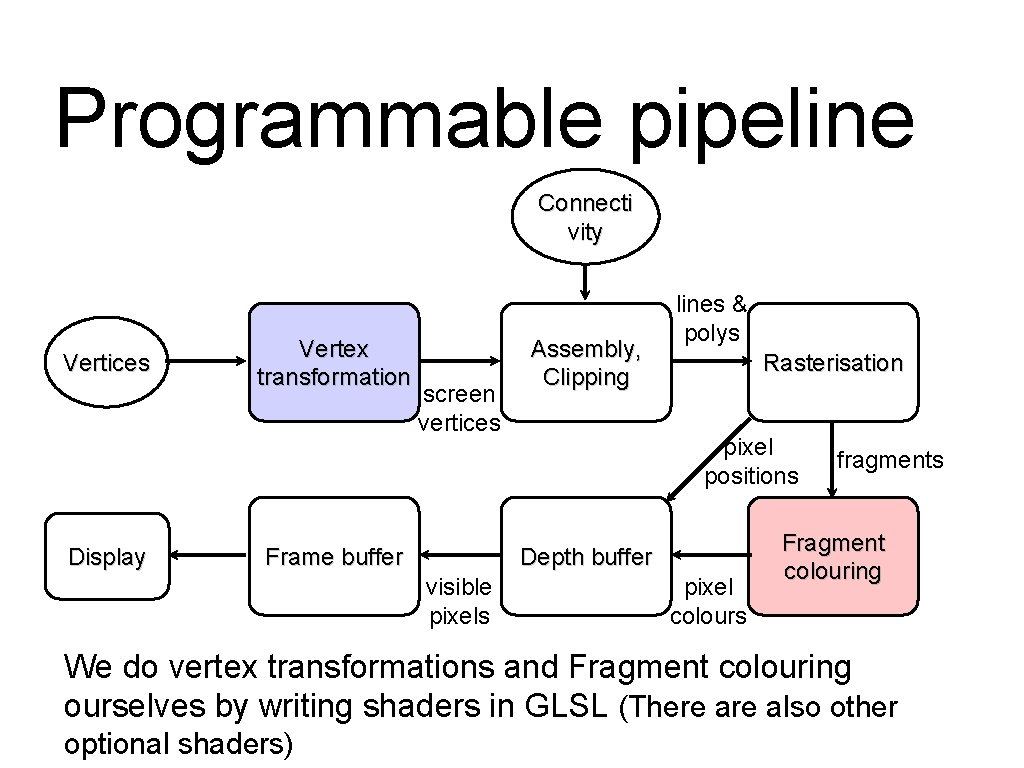
Programmable pipeline Connecti vity Vertices Display Vertex transformation screen vertices Frame buffer Assembly, Clipping lines & polys Rasterisation pixel positions Depth buffer visible pixels pixel colours fragments Fragment colouring We do vertex transformations and Fragment colouring ourselves by writing shaders in GLSL (There also other optional shaders)
Other topics Global illumination techniques such as Ray tracing Radiosity Curves and splines Fractals Advanced Topics: You can suggest these for week 11/12
JOGL Open. GL is a C/C++ library. JOGL provides a set of Java bindings to the native library. http: //jogamp. org/jogl/www/ http: //jogamp. org/deployment/v 2. 3. 2/archive/ http: //jogamp. org/deployment/v 2. 3. 2/javadoc/ jogl/javadoc/
JOGL at Home Assuming you use Eclipse JOGL Home Computing
JOGL at cse JOGL is available on school machines in: /home/cs 3421/jogamp Add the following JAR files to your classpath: /home/cs 3421/jogamp/jar/jogl-all. jar /home/cs 3421/jogamp/jar/gluegen-rt. jar Assignment 1 will be automarked, so you must make sure it runs and compiles on cse machines.
UI Toolkits JOGL interfaces with a number of different UI toolkits: AWT, Swing Open. GL also has its own UI tools: GLUT, GLUI We will be using Swing: http: //docs. oracle. com/javase/tutorial/uiswing/
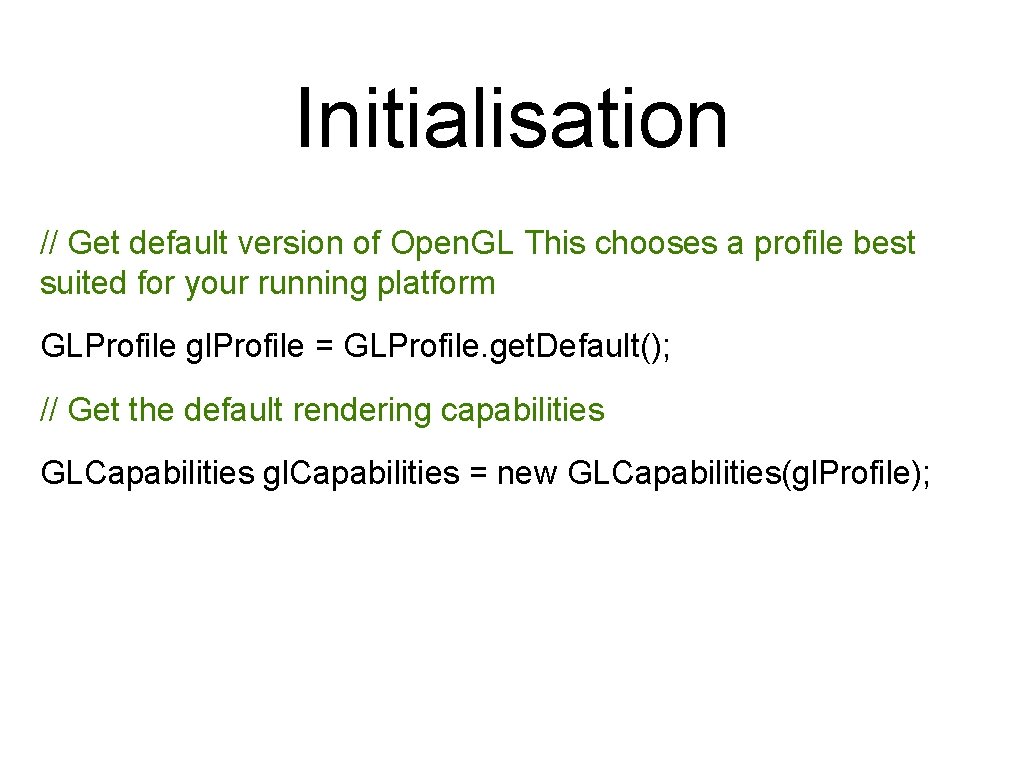
Initialisation // Get default version of Open. GL This chooses a profile best suited for your running platform GLProfile gl. Profile = GLProfile. get. Default(); // Get the default rendering capabilities GLCapabilities gl. Capabilities = new GLCapabilities(gl. Profile);
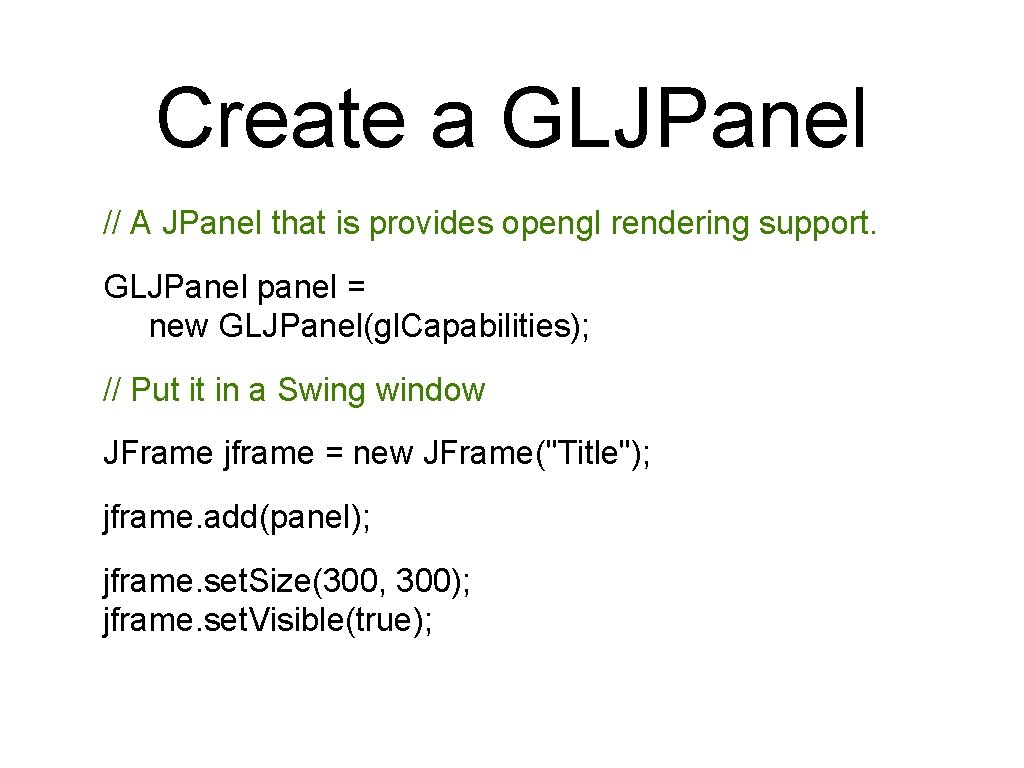
Create a GLJPanel // A JPanel that is provides opengl rendering support. GLJPanel panel = new GLJPanel(gl. Capabilities); // Put it in a Swing window JFrame jframe = new JFrame("Title"); jframe. add(panel); jframe. set. Size(300, 300); jframe. set. Visible(true);
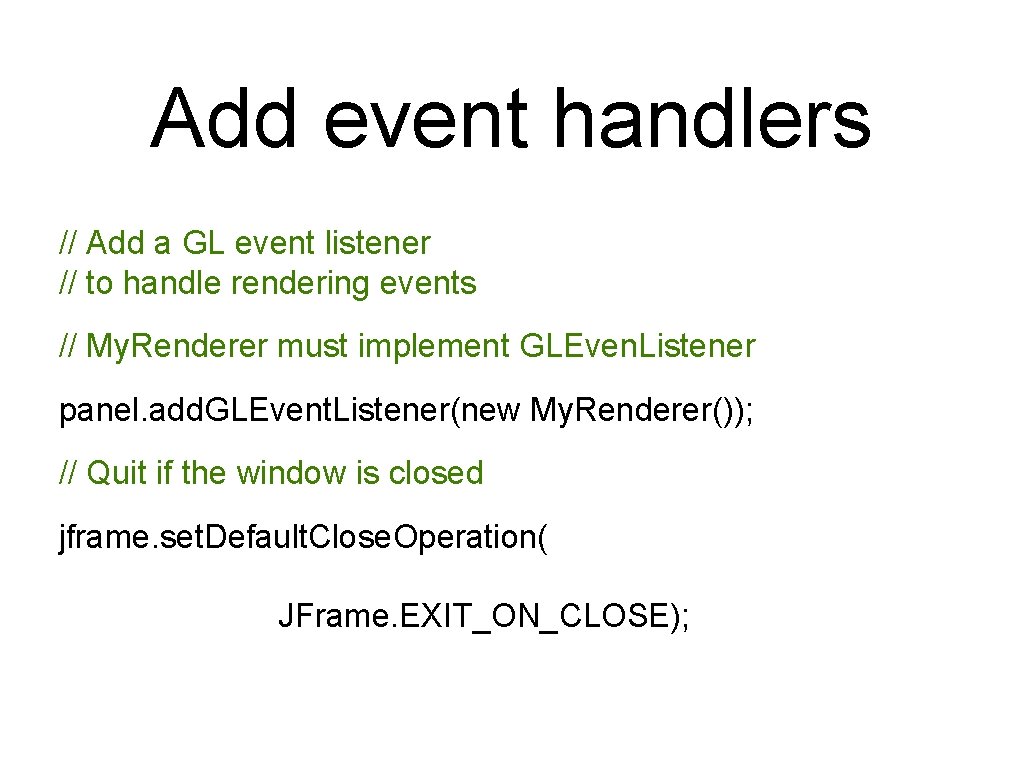
Add event handlers // Add a GL event listener // to handle rendering events // My. Renderer must implement GLEven. Listener panel. add. GLEvent. Listener(new My. Renderer()); // Quit if the window is closed jframe. set. Default. Close. Operation( JFrame. EXIT_ON_CLOSE);
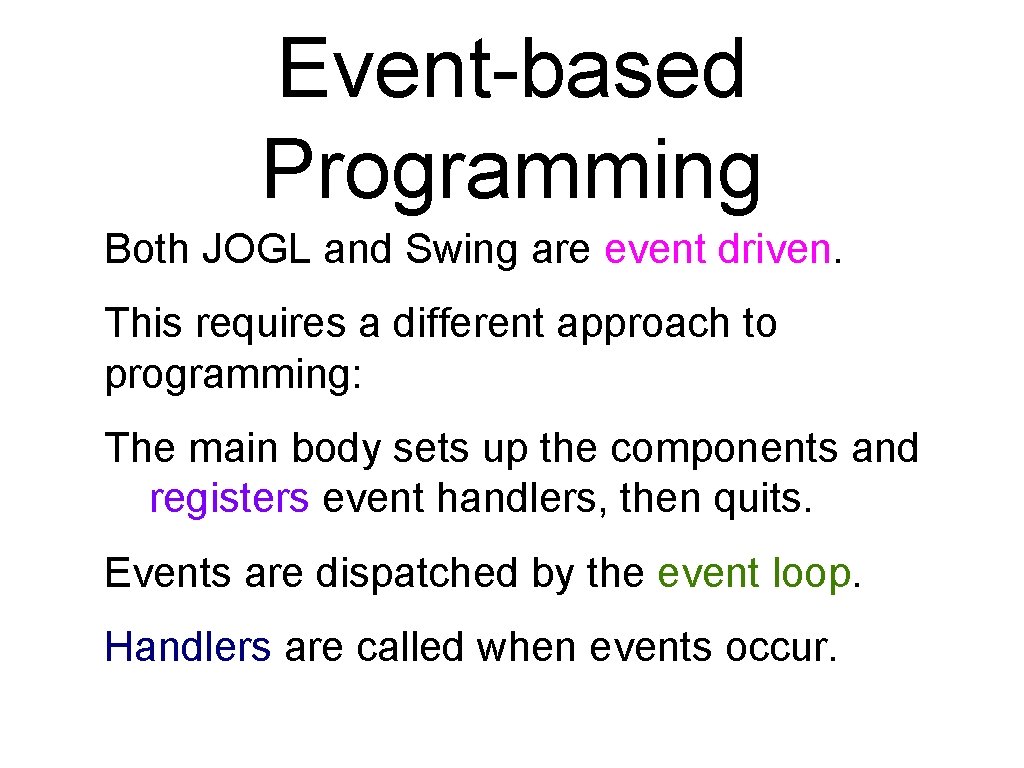
Event-based Programming Both JOGL and Swing are event driven. This requires a different approach to programming: The main body sets up the components and registers event handlers, then quits. Events are dispatched by the event loop. Handlers are called when events occur.
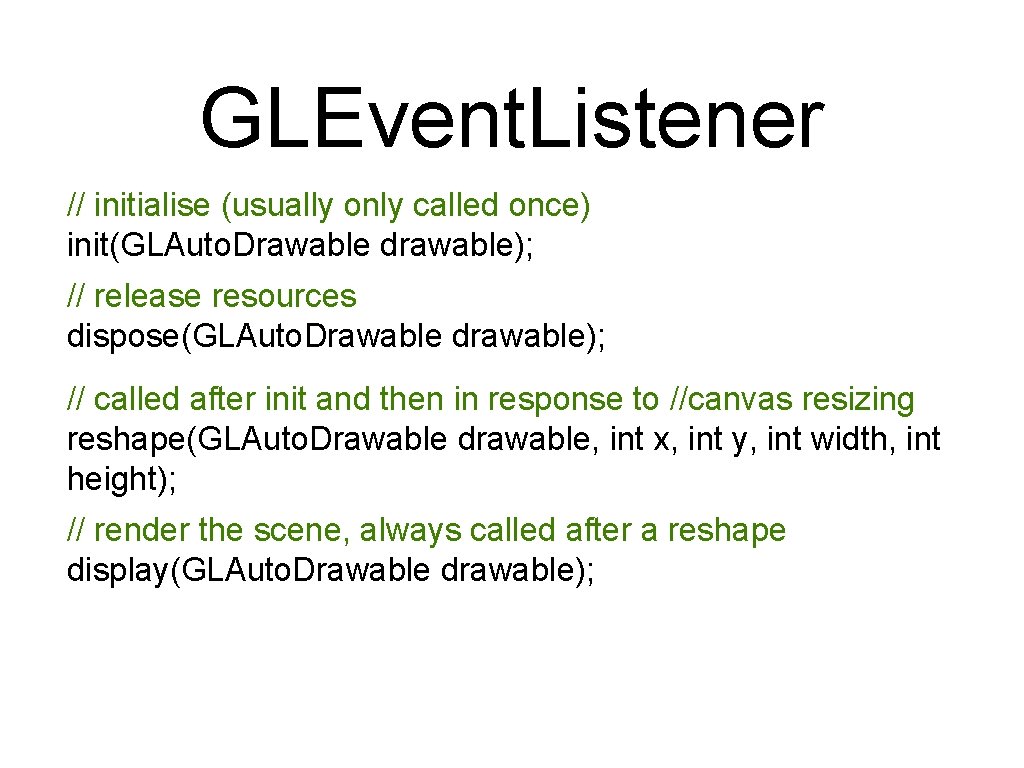
GLEvent. Listener // initialise (usually only called once) init(GLAuto. Drawable drawable); // release resources dispose(GLAuto. Drawable drawable); // called after init and then in response to //canvas resizing reshape(GLAuto. Drawable drawable, int x, int y, int width, int height); // render the scene, always called after a reshape display(GLAuto. Drawable drawable);
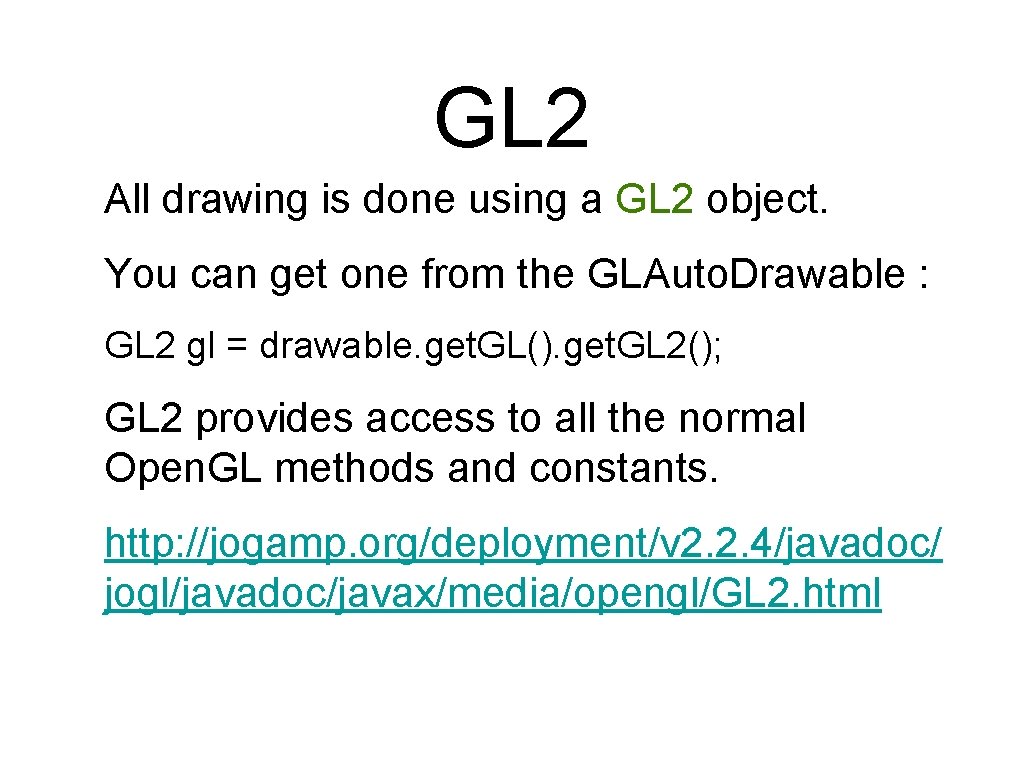
GL 2 All drawing is done using a GL 2 object. You can get one from the GLAuto. Drawable : GL 2 gl = drawable. get. GL(). get. GL 2(); GL 2 provides access to all the normal Open. GL methods and constants. http: //jogamp. org/deployment/v 2. 2. 4/javadoc/ jogl/javadoc/javax/media/opengl/GL 2. html
GL 2 Objects Do not store GL 2 objects as instance variables. They may be created and destroyed over the lifetime of the program, so always get a fresh one each time display, reshape etc is called. You can pass it to other functions that display etc uses.
GL is stateful The GL 2 object maintains a large amount of state: the pen colour the background colour the point size, etc Drawing operations require you to set the state before issuing the drawing command.
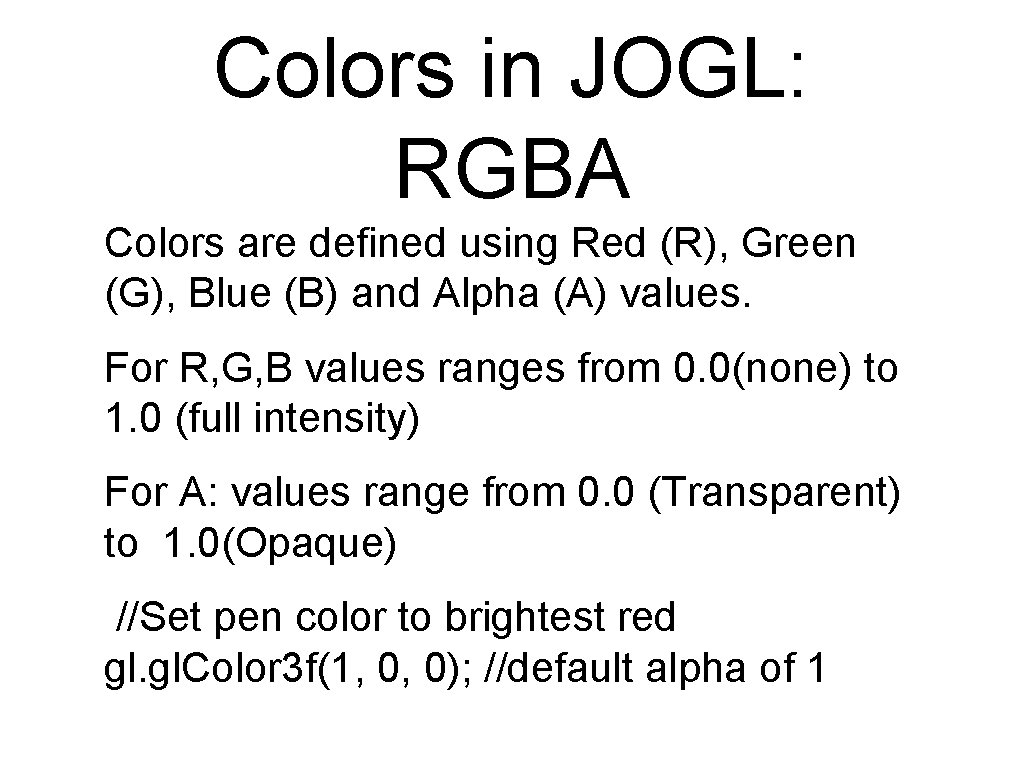
Colors in JOGL: RGBA Colors are defined using Red (R), Green (G), Blue (B) and Alpha (A) values. For R, G, B values ranges from 0. 0(none) to 1. 0 (full intensity) For A: values range from 0. 0 (Transparent) to 1. 0(Opaque) //Set pen color to brightest red gl. Color 3 f(1, 0, 0); //default alpha of 1
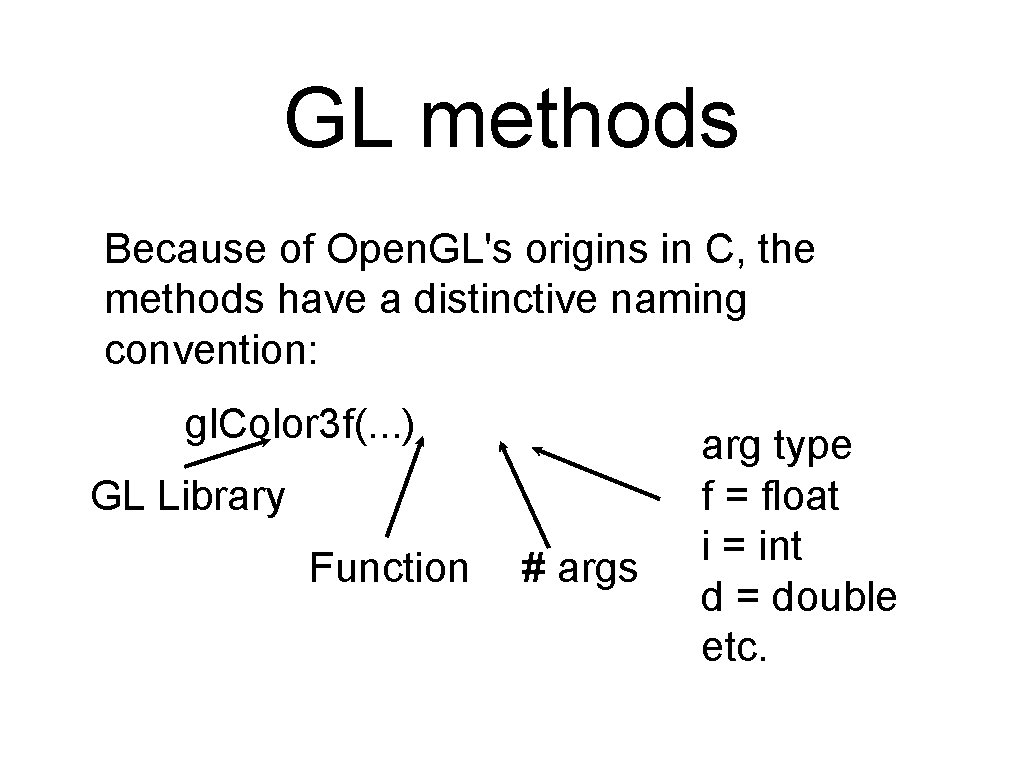
GL methods Because of Open. GL's origins in C, the methods have a distinctive naming convention: gl. Color 3 f(. . . ) GL Library Function # args arg type f = float i = int d = double etc.
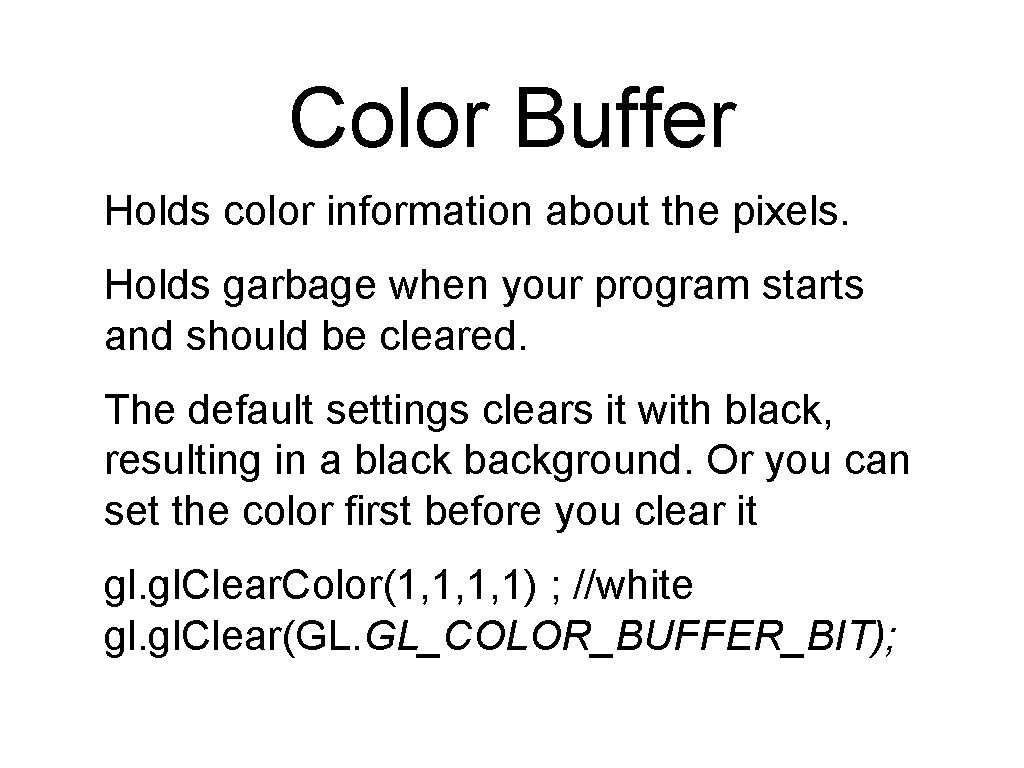
Color Buffer Holds color information about the pixels. Holds garbage when your program starts and should be cleared. The default settings clears it with black, resulting in a black background. Or you can set the color first before you clear it gl. Clear. Color(1, 1, 1, 1) ; //white gl. Clear(GL. GL_COLOR_BUFFER_BIT);
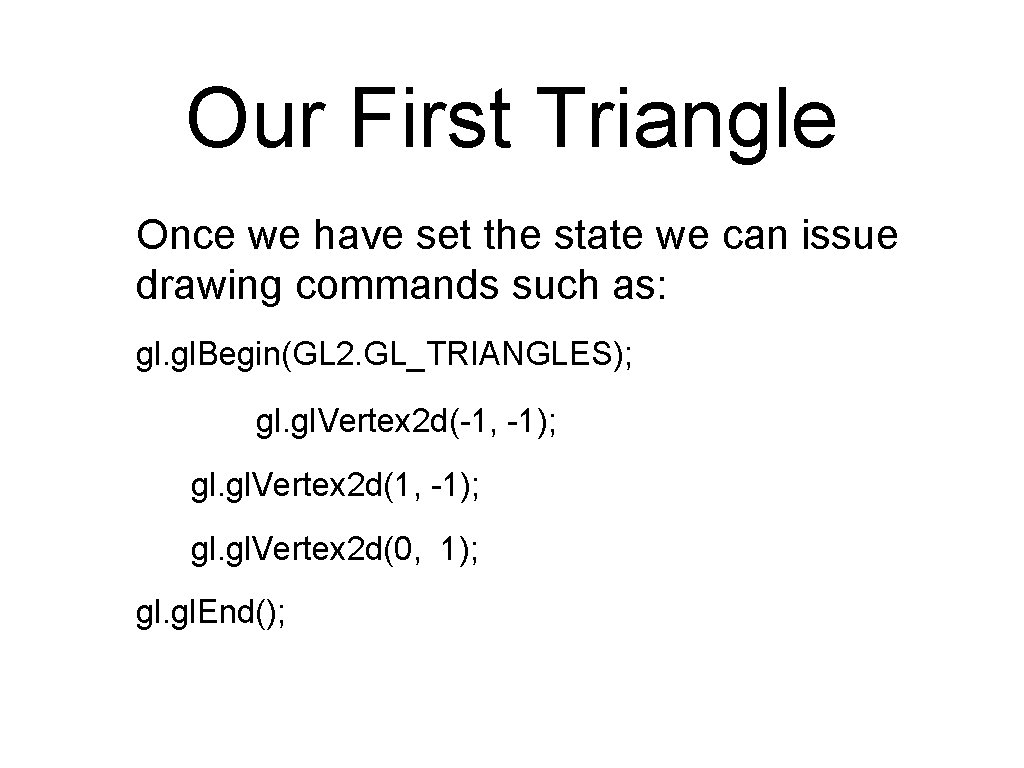
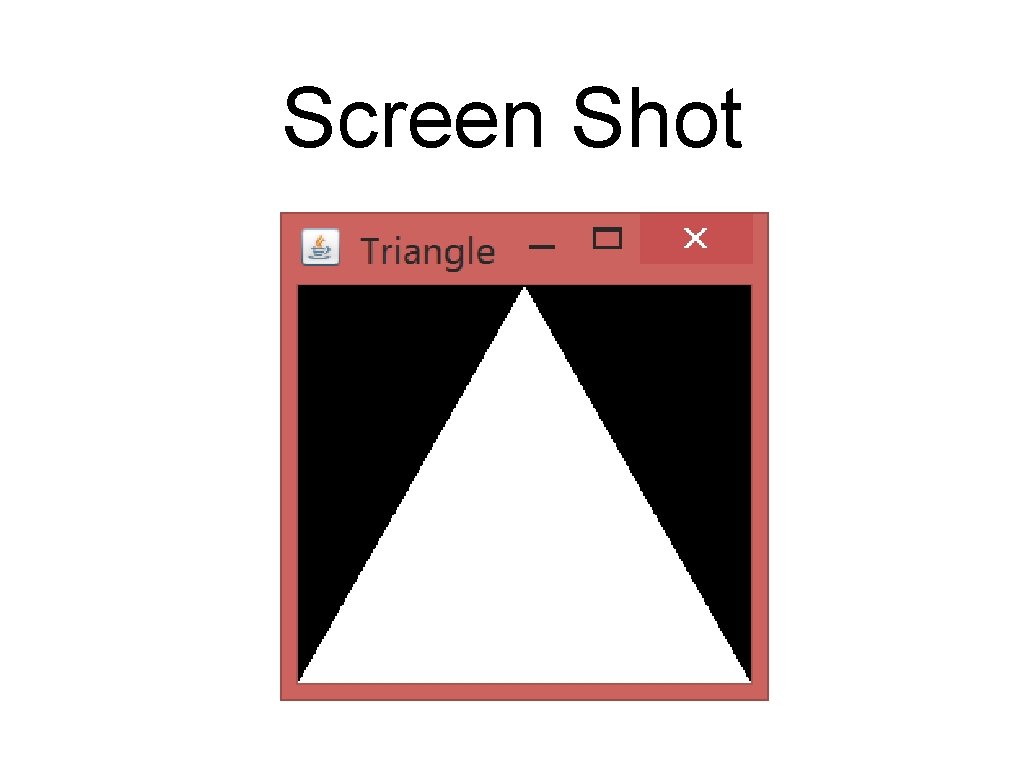
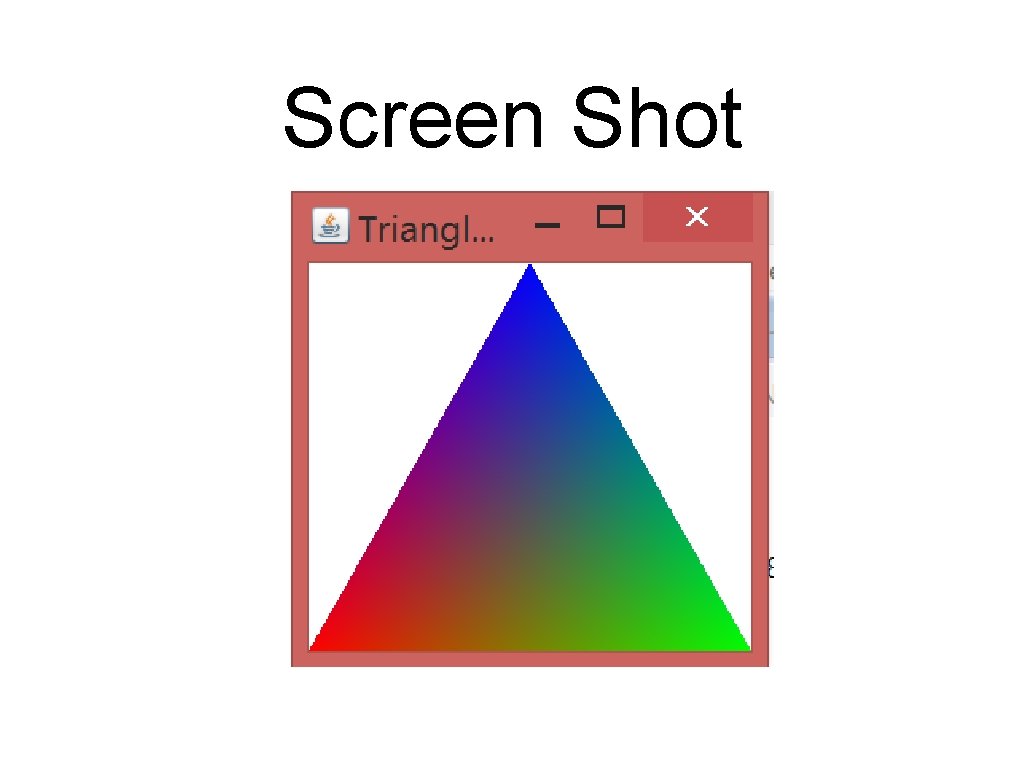
Our First Triangle Once we have set the state we can issue drawing commands such as: gl. Begin(GL 2. GL_TRIANGLES); gl. Vertex 2 d(-1, -1); gl. gl. Vertex 2 d(0, 1); gl. End();
Screen Shot
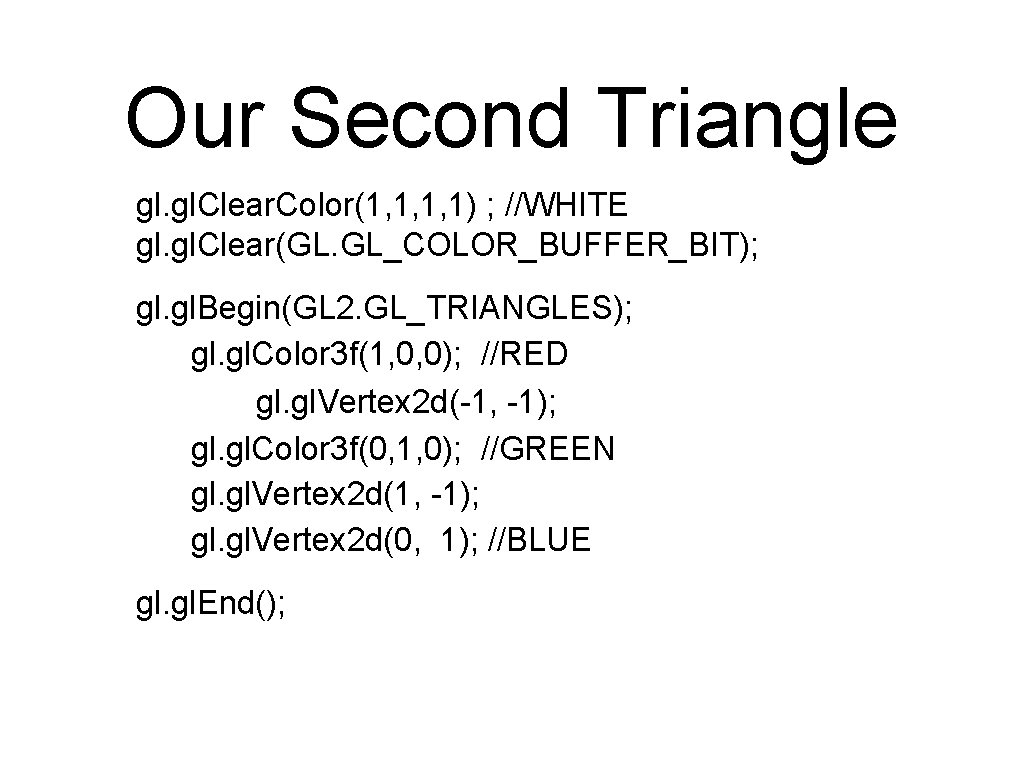
Our Second Triangle gl. Clear. Color(1, 1, 1, 1) ; //WHITE gl. Clear(GL. GL_COLOR_BUFFER_BIT); gl. Begin(GL 2. GL_TRIANGLES); gl. Color 3 f(1, 0, 0); //RED gl. Vertex 2 d(-1, -1); gl. Color 3 f(0, 1, 0); //GREEN gl. Vertex 2 d(1, -1); gl. Vertex 2 d(0, 1); //BLUE gl. End();
Screen Shot
More drawing Once we have set the state we can issue drawing commands as: gl. Begin(GL_POINTS); // draw some points gl. Vertex 2 d(-1, -1); gl. gl. Vertex 2 d(0, 1); gl. End(); Note: these will be tiny and hard to see!
Begin and End Not all commands can be used between Begin and End. gl. Vertex, gl. Color can be. gl. Point. Size, gl. Line. Width can’t For complete list see: https: //www. opengl. org/sdk/docs/man 2/xht ml/gl. Begin. xml
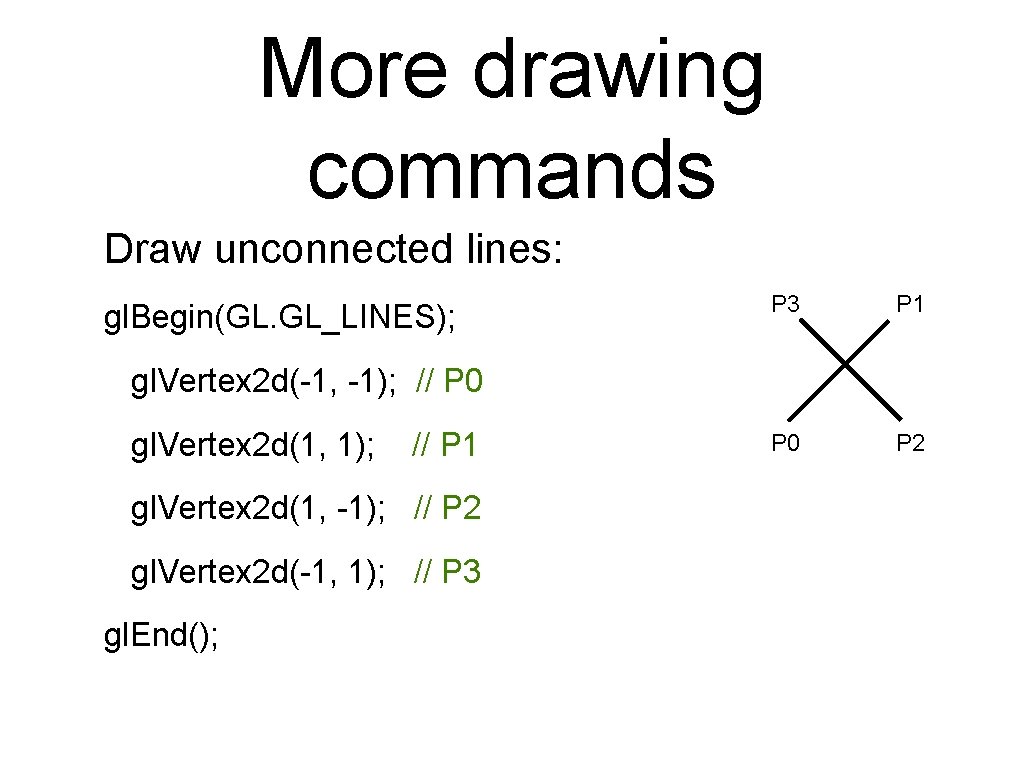
More drawing commands Draw unconnected lines: gl. Begin(GL. GL_LINES); P 3 P 1 P 0 P 2 gl. Vertex 2 d(-1, -1); // P 0 gl. Vertex 2 d(1, 1); // P 1 gl. Vertex 2 d(1, -1); // P 2 gl. Vertex 2 d(-1, 1); // P 3 gl. End();
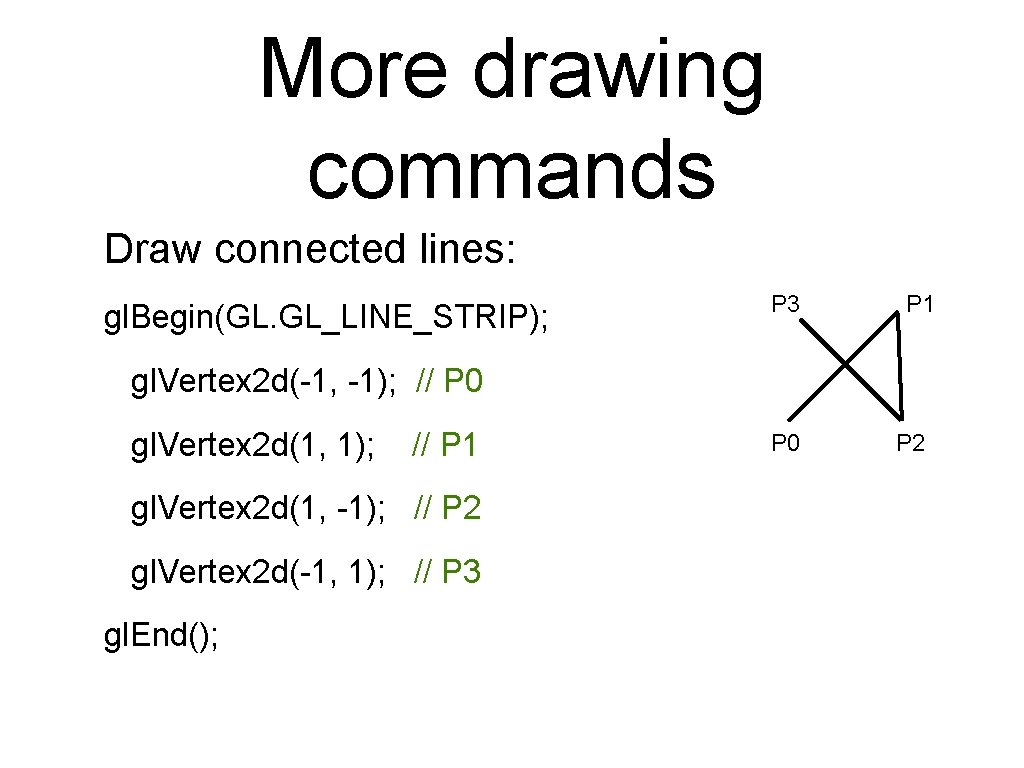
More drawing commands Draw connected lines: gl. Begin(GL. GL_LINE_STRIP); P 3 P 1 gl. Vertex 2 d(-1, -1); // P 0 gl. Vertex 2 d(1, 1); // P 1 gl. Vertex 2 d(1, -1); // P 2 gl. Vertex 2 d(-1, 1); // P 3 gl. End(); P 0 P 2
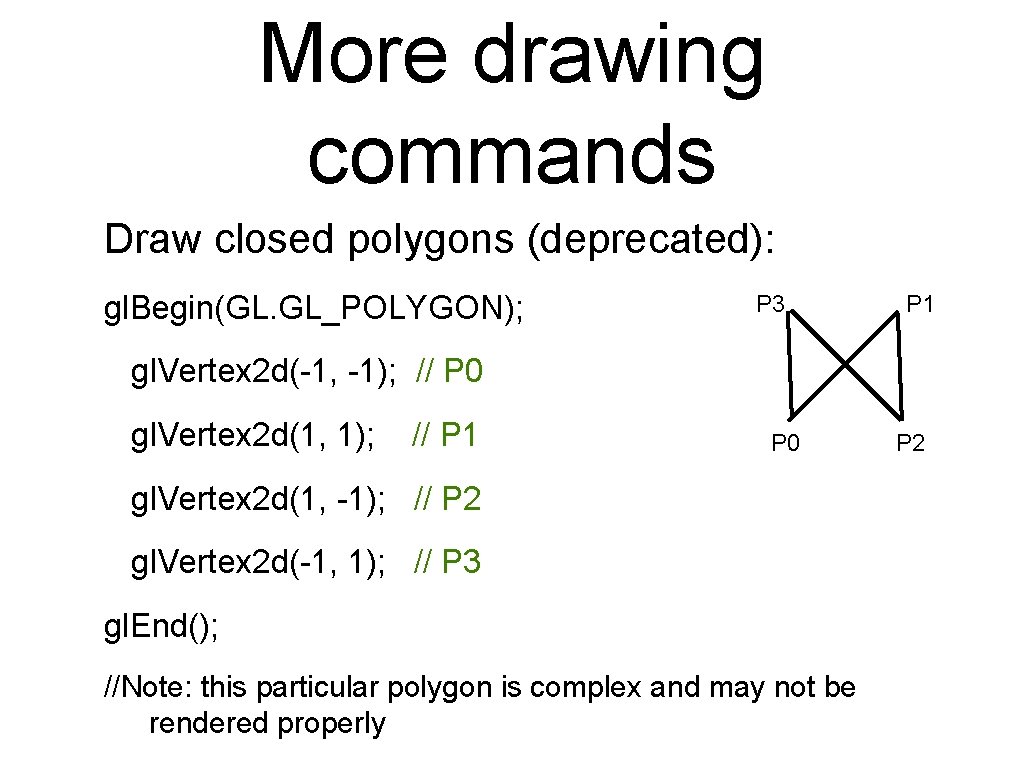
More drawing commands Draw closed polygons (deprecated): gl. Begin(GL. GL_POLYGON); P 3 P 1 gl. Vertex 2 d(-1, -1); // P 0 gl. Vertex 2 d(1, 1); // P 1 P 0 gl. Vertex 2 d(1, -1); // P 2 gl. Vertex 2 d(-1, 1); // P 3 gl. End(); //Note: this particular polygon is complex and may not be rendered properly P 2
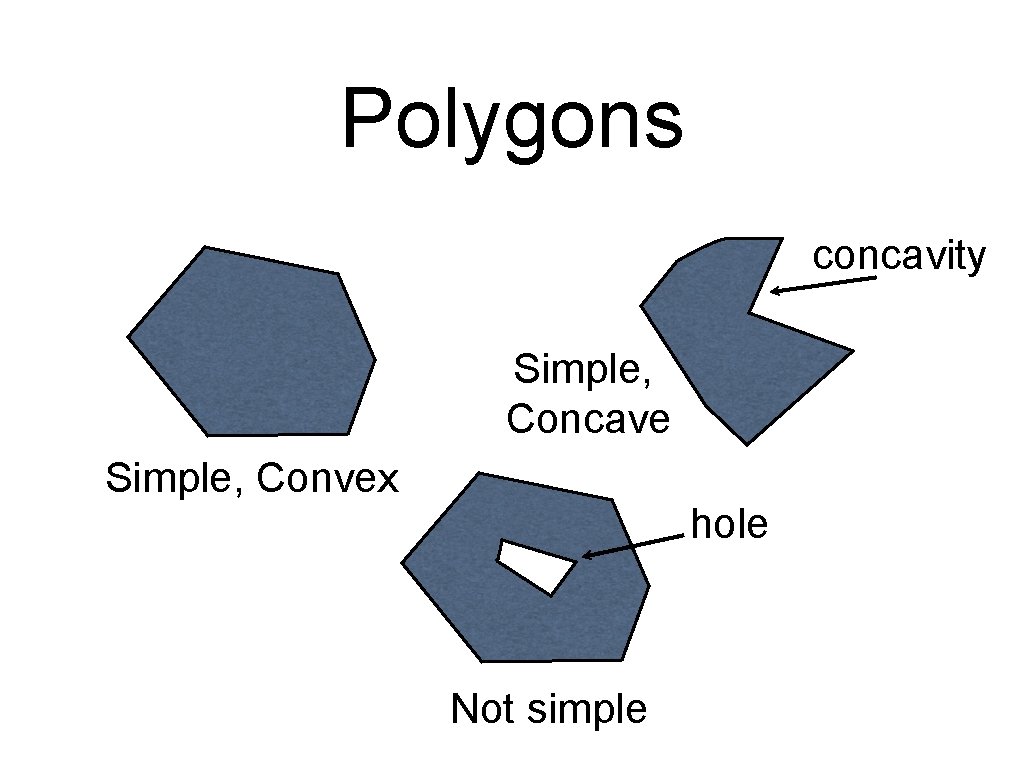
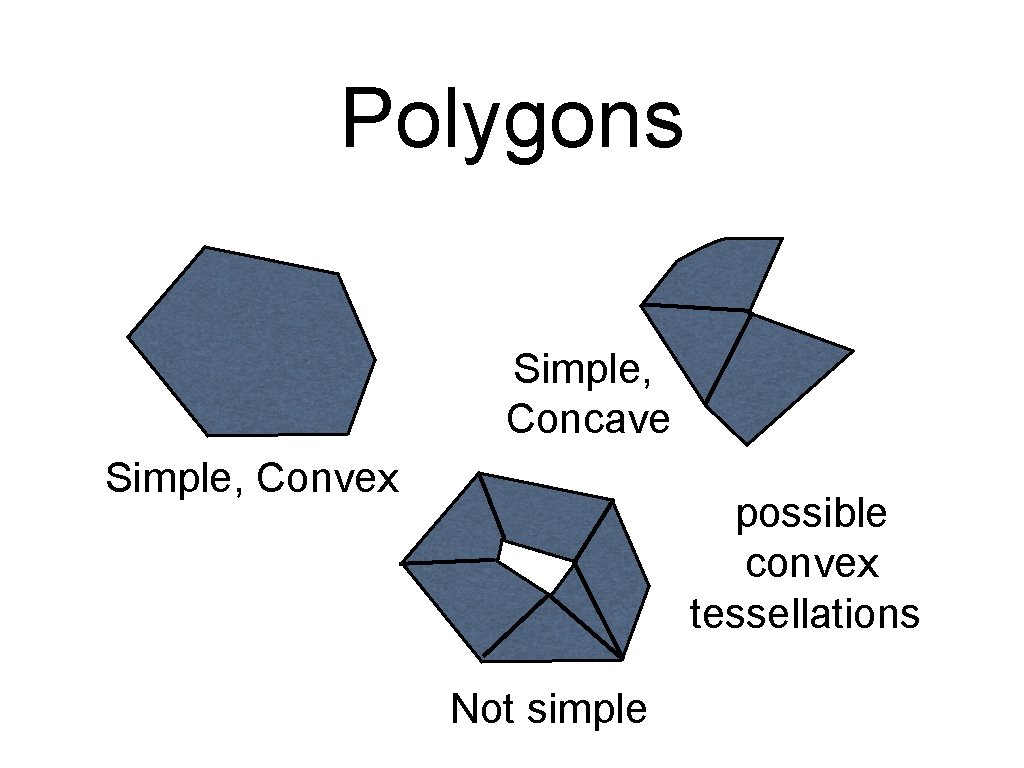
Polygons Open. GL does not always draw polygons properly. (See week 2 tutorial/lab) Open. GL only guarantees to draw simple, convex polygons correctly. Concave and non-simple polygons need to be tessellated into convex parts.
Polygons concavity Simple, Concave Simple, Convex hole Not simple
Polygons Simple, Concave Simple, Convex possible convex tessellations Not simple
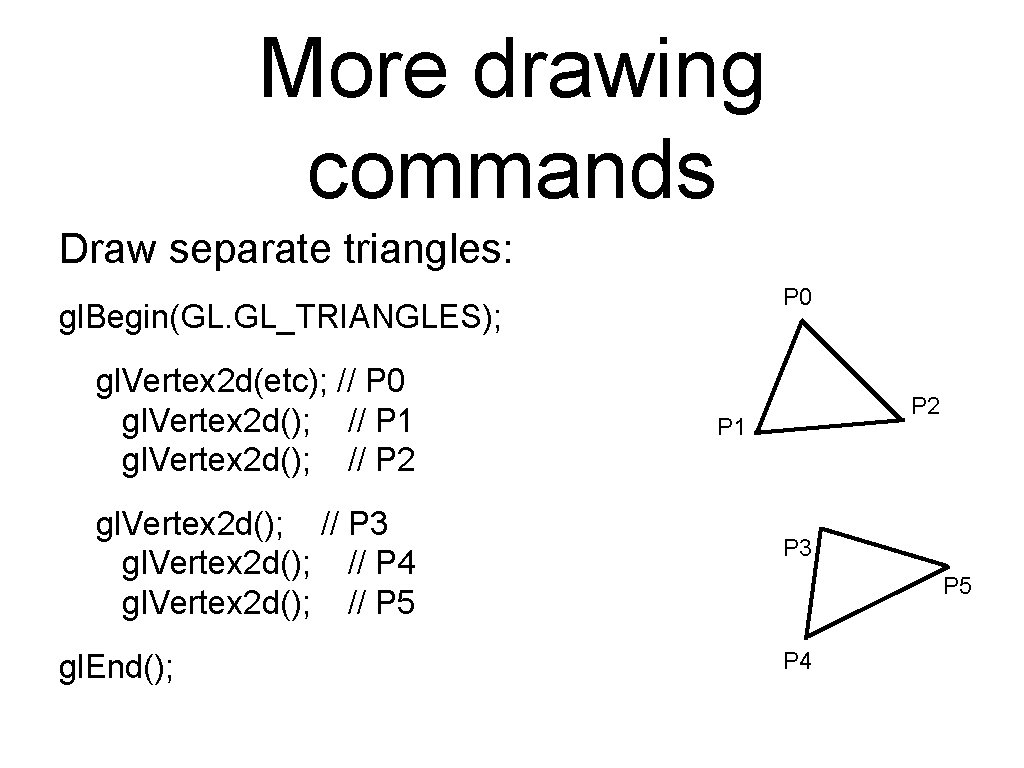
More drawing commands Draw separate triangles: P 0 gl. Begin(GL. GL_TRIANGLES); gl. Vertex 2 d(etc); // P 0 gl. Vertex 2 d(); // P 1 gl. Vertex 2 d(); // P 2 gl. Vertex 2 d(); // P 3 gl. Vertex 2 d(); // P 4 gl. Vertex 2 d(); // P 5 gl. End(); P 2 P 1 P 3 P 5 P 4
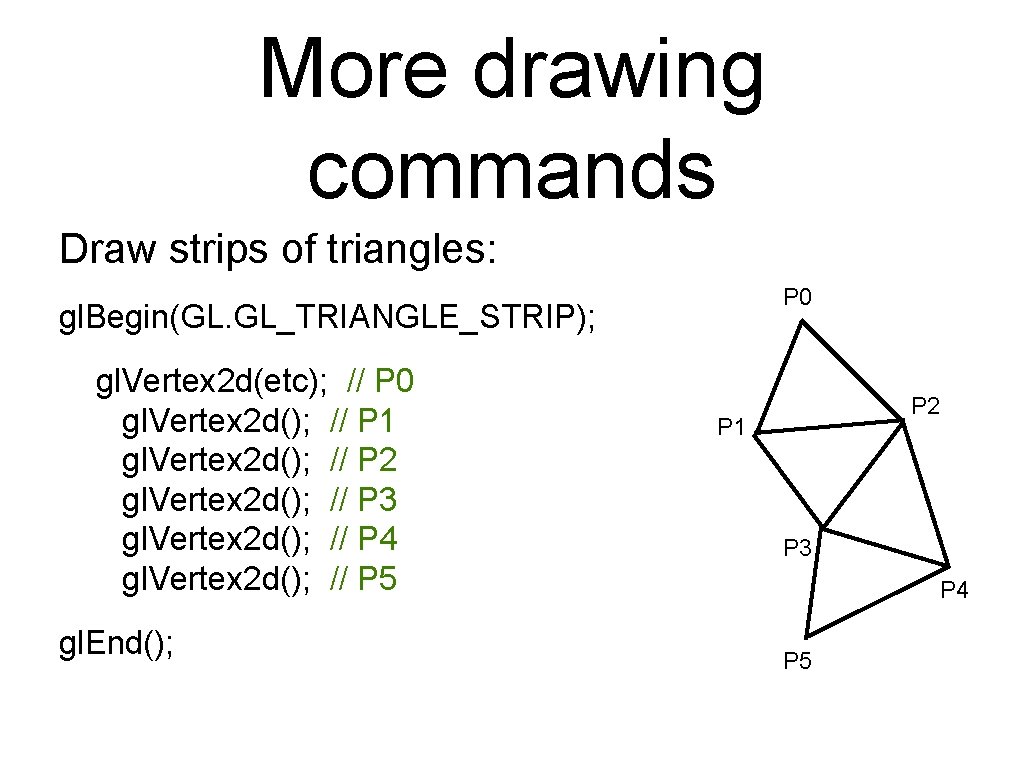
More drawing commands Draw strips of triangles: P 0 gl. Begin(GL. GL_TRIANGLE_STRIP); gl. Vertex 2 d(etc); // P 0 gl. Vertex 2 d(); // P 1 gl. Vertex 2 d(); // P 2 gl. Vertex 2 d(); // P 3 gl. Vertex 2 d(); // P 4 gl. Vertex 2 d(); // P 5 gl. End(); P 2 P 1 P 3 P 4 P 5
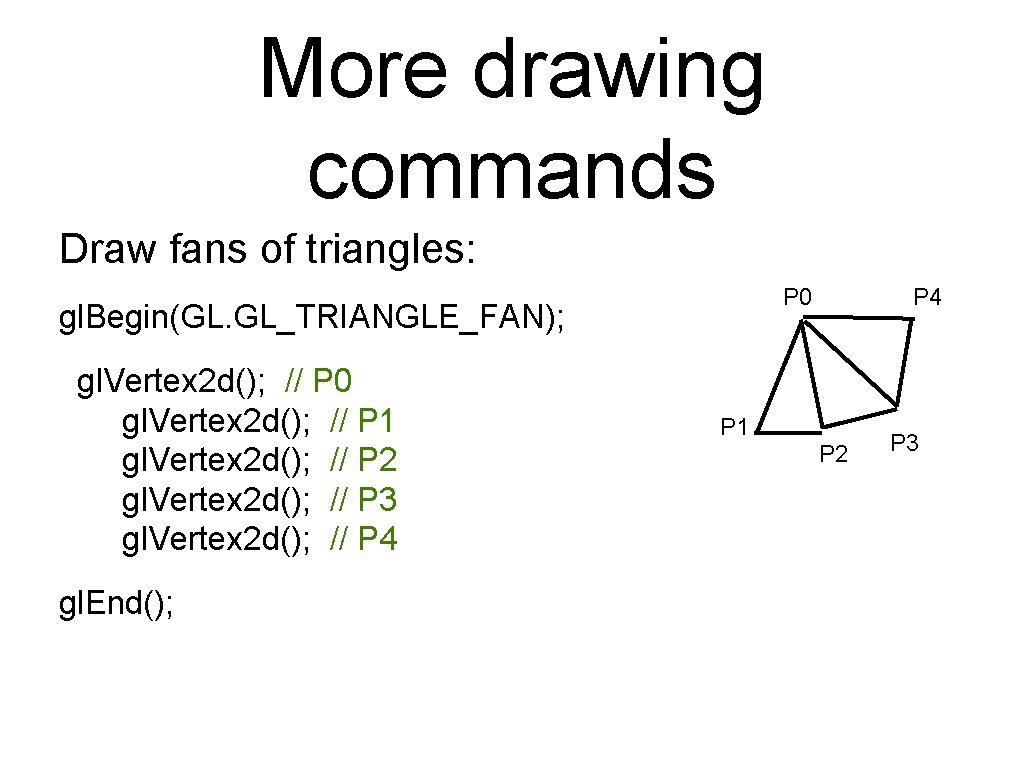
More drawing commands Draw fans of triangles: P 0 gl. Begin(GL. GL_TRIANGLE_FAN); gl. Vertex 2 d(); // P 0 gl. Vertex 2 d(); // P 1 gl. Vertex 2 d(); // P 2 gl. Vertex 2 d(); // P 3 gl. Vertex 2 d(); // P 4 gl. End(); P 4 P 1 P 2 P 3
More drawing commands Similarly for quadrilaterals (deprecated): gl. Begin(GL. GL_QUADS); // draw unconnected quads gl. End(); gl. Begin(GL. GL_QUAD_STRIP); // draw a connected strip of quads gl. End();
Triangles are preferred over quads and polygons as they are guaranteed to lie in one plane. In 3 D we can define four points for our quads (or more for our polygons) which don’t lie on the same plane and different implementations of Open. GL will different results – some of them not great
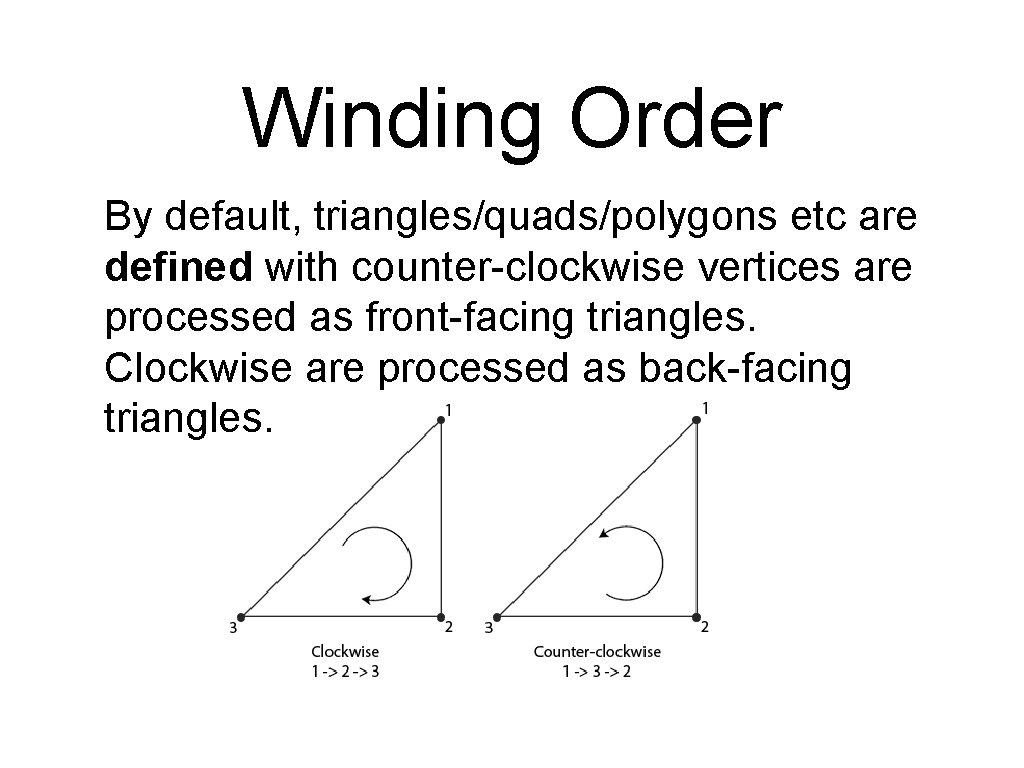
Winding Order By default, triangles/quads/polygons etc are defined with counter-clockwise vertices are processed as front-facing triangles. Clockwise are processed as back-facing triangles.
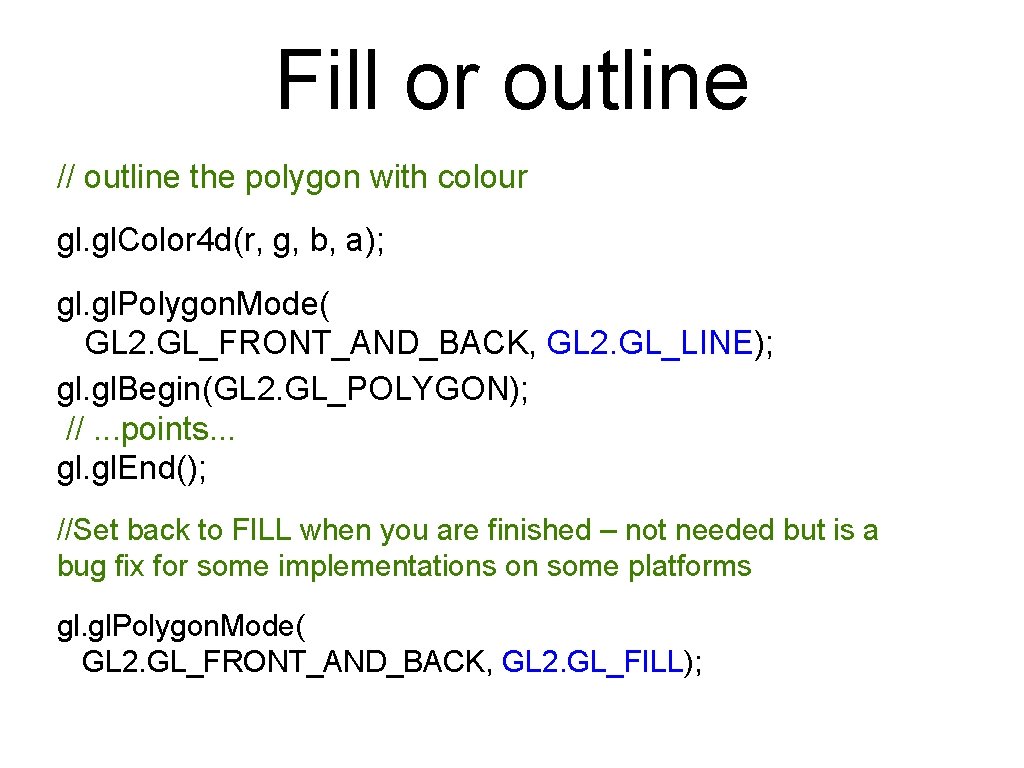
Fill or outline // fill the polygon with colour gl. Color 4 d(r, g, b, a); //This is the default anyway gl. Polygon. Mode( GL 2. GL_FRONT_AND_BACK, GL 2. GL_FILL); gl. Begin(GL 2. GL_POLYGON); //. . . points. . . gl. End();
Fill or outline // outline the polygon with colour gl. Color 4 d(r, g, b, a); gl. Polygon. Mode( GL 2. GL_FRONT_AND_BACK, GL 2. GL_LINE); gl. Begin(GL 2. GL_POLYGON); //. . . points. . . gl. End(); //Set back to FILL when you are finished – not needed but is a bug fix for some implementations on some platforms gl. Polygon. Mode( GL 2. GL_FRONT_AND_BACK, GL 2. GL_FILL);
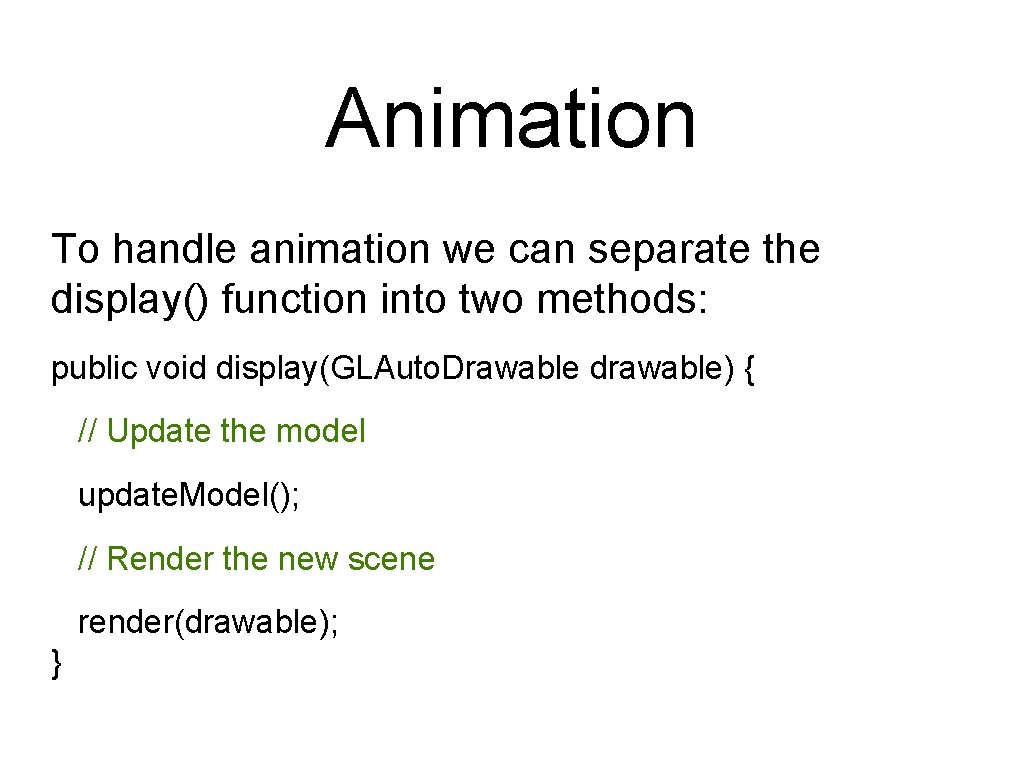
Animation To handle animation we can separate the display() function into two methods: public void display(GLAuto. Drawable drawable) { // Update the model update. Model(); // Render the new scene render(drawable); }
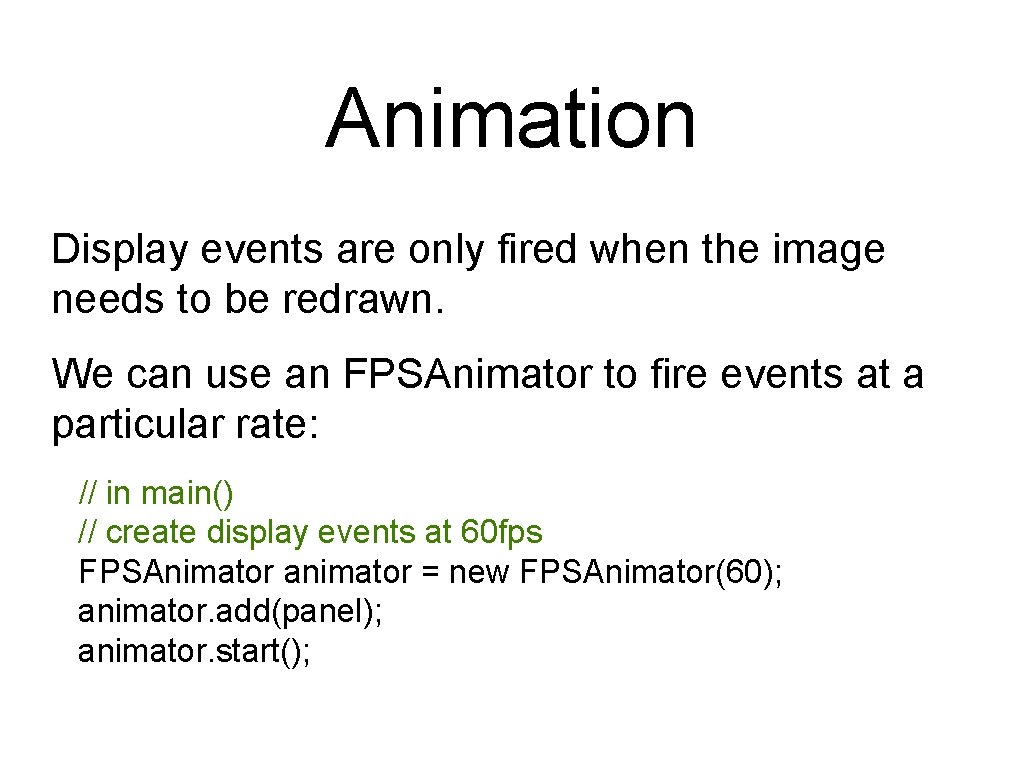
Animation Display events are only fired when the image needs to be redrawn. We can use an FPSAnimator to fire events at a particular rate: // in main() // create display events at 60 fps FPSAnimator animator = new FPSAnimator(60); animator. add(panel); animator. start();
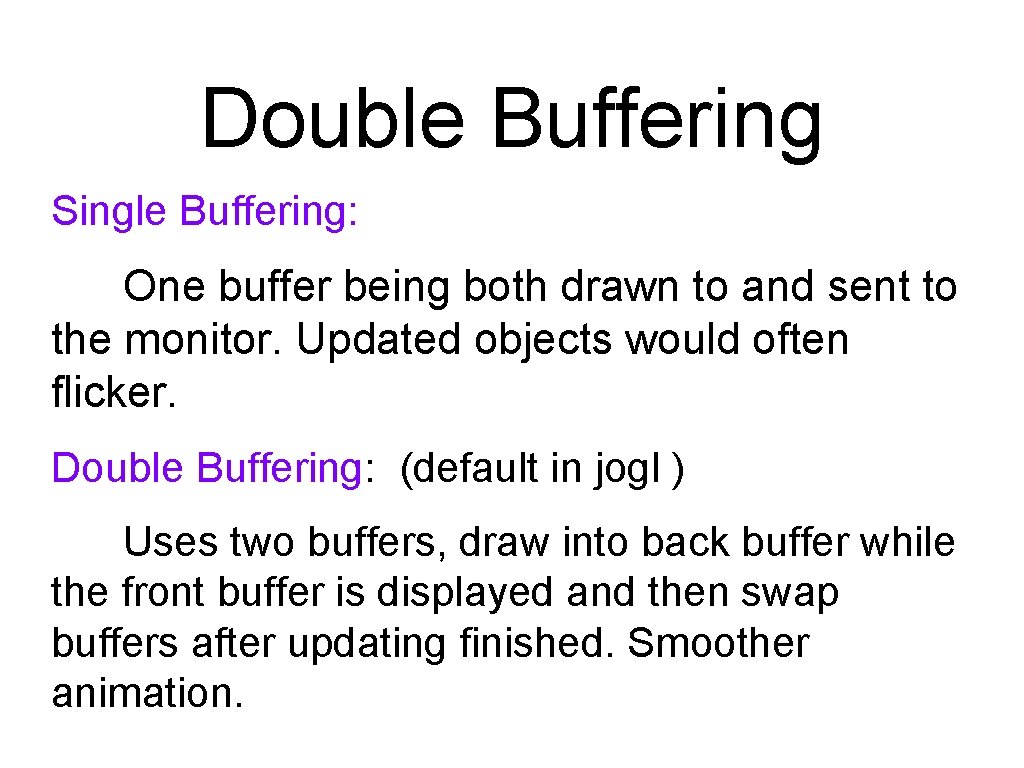
Double Buffering Single Buffering: One buffer being both drawn to and sent to the monitor. Updated objects would often flicker. Double Buffering: (default in jogl ) Uses two buffers, draw into back buffer while the front buffer is displayed and then swap buffers after updating finished. Smoother animation.
Input events We can add keyboard or mouse event listeners to handle input. http: //docs. oracle. com/javase/7/docs/api/jav a/awt/event/Key. Listener. html http: //docs. oracle. com/javase/7/docs/api/jav a/awt/event/Mouse. Listener. html
Event handling GL commands should generally only be used within the GLEvent. Listener events • don’t try to store GL objects and use GL commands in keylistener or mouse events etc. In multi-threaded code it is easy to create a mess if you write the same variables in different threads.
World vs Viewport Notice that the coordinate system is independent of the window size. Open. GL maintains separate coordinate systems for the world and the viewport. This allows us to make our model independent of the particular window size or resolution of the display.
Viewport We talk in general about the viewport as the piece of the screen we are drawing on. We can think of it as a 2 d array of pixels. It may be a window, part of a window, or the whole screen. (In jogl by default it is the whole window – minus the border) It can be any size but we assume it is always a rectangle.
World window The world window is the portion of the world that we can see. It is always an axis-aligned rectangle. By default the bottom-left corner is (-1, -1) and the top-right corner is (1, 1). We can change this using by setting the Projection matrix using glu. Ortho 2 d
GLU The GLU class contains a bunch of utility methods. We will introduce some useful methods as they arise. To create an orthographic projection with the specified boundaries in 2 D (in world coordinates): glu. Ortho 2 d(left, right, top, bottom);
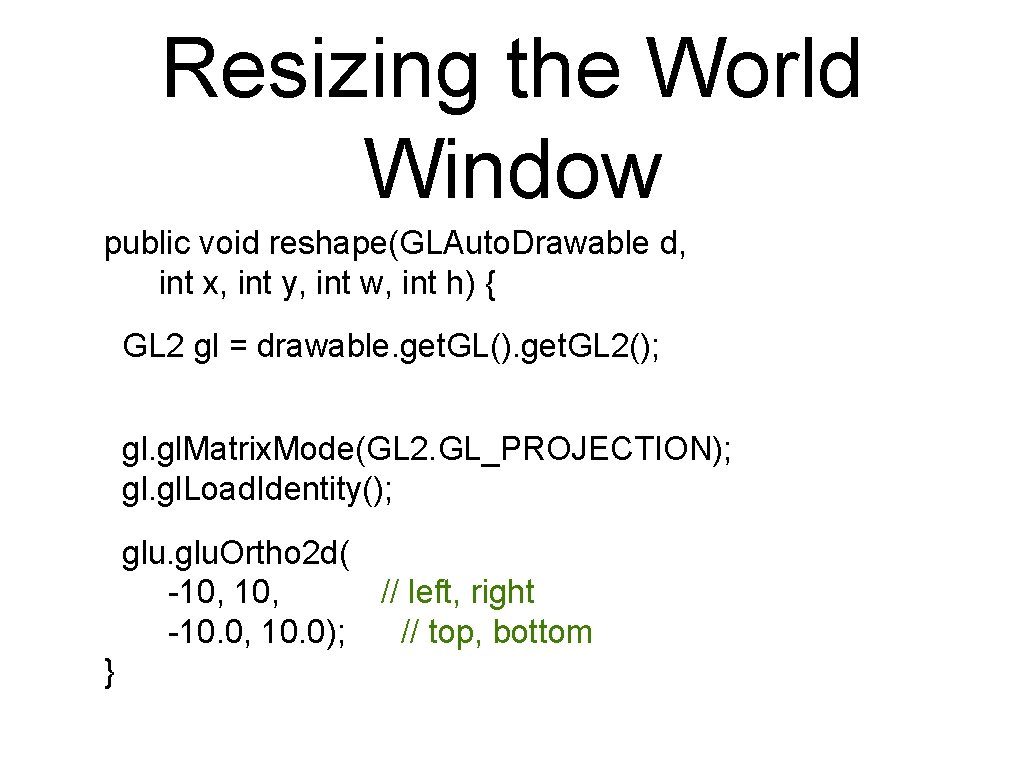
Resizing the World Window public void reshape(GLAuto. Drawable d, int x, int y, int w, int h) { GL 2 gl = drawable. get. GL(). get. GL 2(); gl. Matrix. Mode(GL 2. GL_PROJECTION); gl. Load. Identity(); glu. Ortho 2 d( -10, // left, right -10. 0, 10. 0); // top, bottom }
Aspect ratio The aspect ratio of a rectangle is: aspect = width / height The default world window has aspect 1. 0 (i. e. it is a square) – or it can be changed by the programmer to be a rectangle. The aspect ratio of the viewport depends on the window shape – which the user can change.
Mapping Windows Opengl maps the world window to the viewport automatically by stretching the world to fit into the viewport. If the aspect ratios of the 2 rectangles are not the same, distortion will result.
Maintaining Aspect Ratio We can resize the world window to match its aspect ratio to viewport. The reshape() method is called whenever the window/panel changes size. If the viewport’s width is greater than its height, show more of the world model in the x-direction and vice versa.
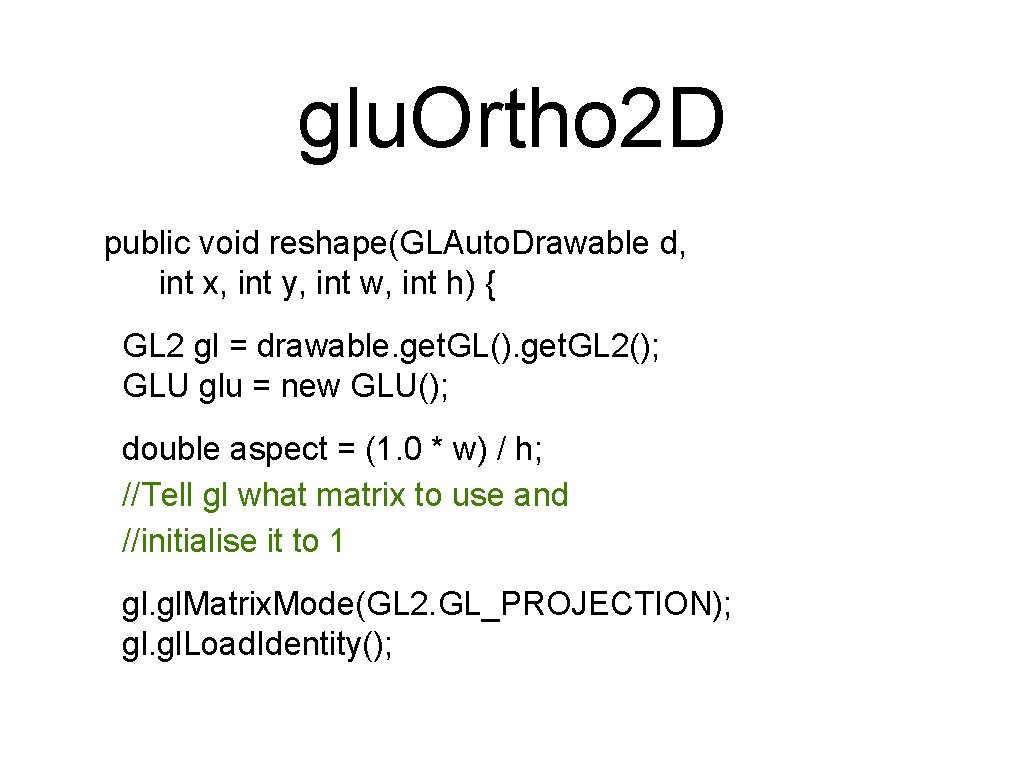
glu. Ortho 2 D public void reshape(GLAuto. Drawable d, int x, int y, int w, int h) { GL 2 gl = drawable. get. GL(). get. GL 2(); GLU glu = new GLU(); double aspect = (1. 0 * w) / h; //Tell gl what matrix to use and //initialise it to 1 gl. Matrix. Mode(GL 2. GL_PROJECTION); gl. Load. Identity();
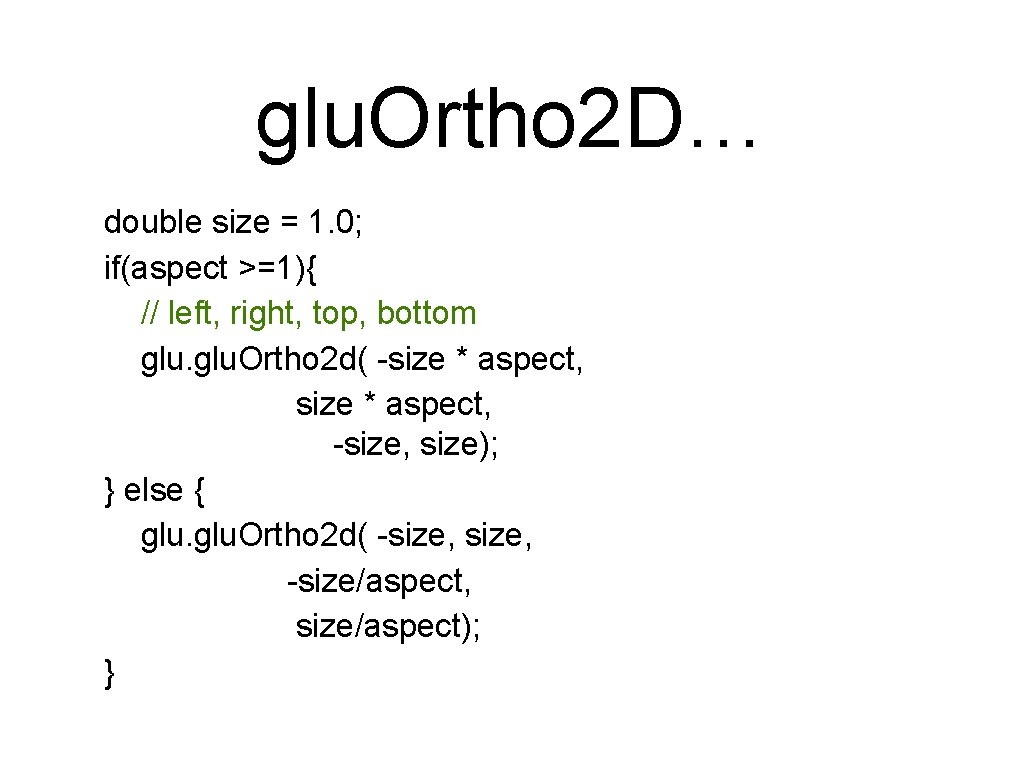
glu. Ortho 2 D… double size = 1. 0; if(aspect >=1){ // left, right, top, bottom glu. Ortho 2 d( -size * aspect, -size, size); } else { glu. Ortho 2 d( -size, -size/aspect, size/aspect); }
Mouse Events When we click on the screen we get the mouse co-ordinates in screen co-ordinates. We need to somehow map them back to world co-ordinates. We have provided a utility class to help do this as it is little messy/tricky at this point.
Debugging Can use Debug. GL 2 or Trace. GL 2 or both. In init: drawable. set. GL(new Debug. GL 2( new Trace. GL 2( drawable. get. GL(). get. GL 2(), System. err)));