
COMP 213 Web Interface Design Week 8 Part
COMP 213 – Web Interface Design Week 8 – Part 2 Page Layout Basics Key Concepts 1
Learning Outcomes 1. 2. 3. 4. 5. 6. 7. 8. 9. Configure float Configure fixed positioning Configure relative positioning Configure absolute positioning Create two-column page layouts Configure vertical navigation in an unordered list Configure horizontal navigation in an unordered list. Add interactivity to hyperlinks with CSS pseudo-classes Configure CSS sprites
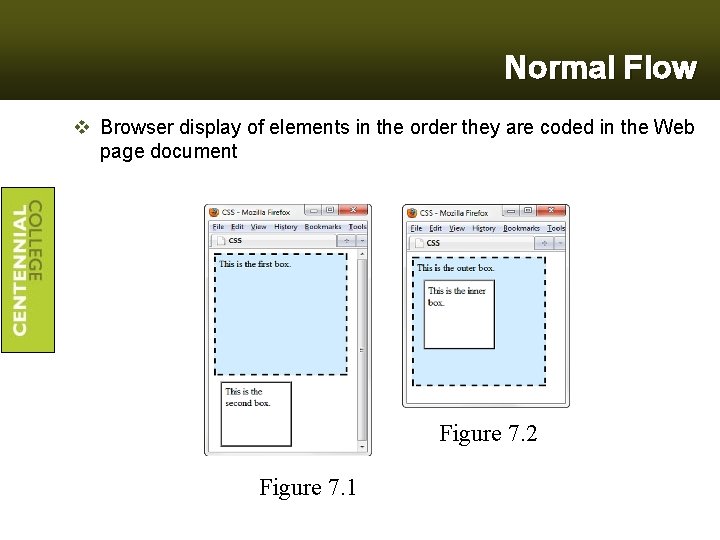
Normal Flow v Browser display of elements in the order they are coded in the Web page document Figure 7. 2 Figure 7. 1
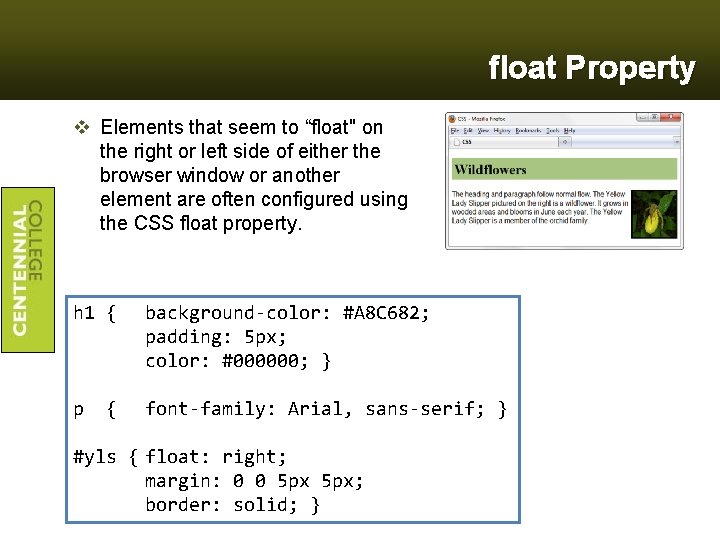
float Property v Elements that seem to “float" on the right or left side of either the browser window or another element are often configured using the CSS float property. h 1 { background-color: #A 8 C 682; padding: 5 px; color: #000000; } p font-family: Arial, sans-serif; } { #yls { float: right; margin: 0 0 5 px; border: solid; }
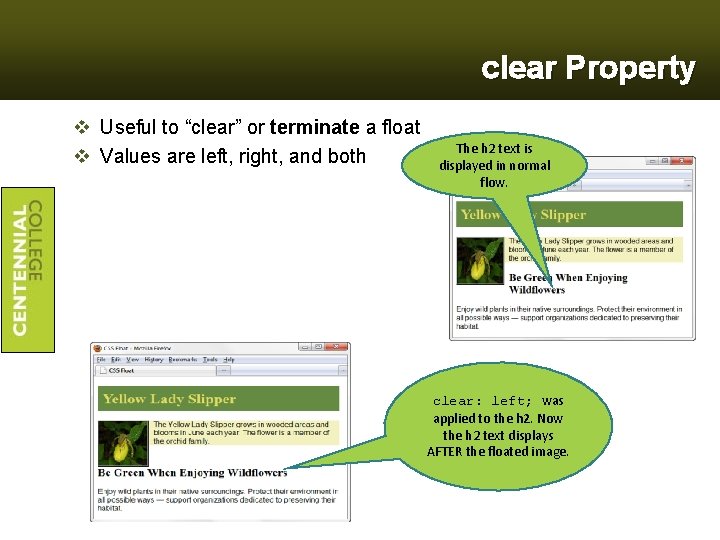
clear Property v Useful to “clear” or terminate a float v Values are left, right, and both The h 2 text is displayed in normal flow. clear: left; was applied to the h 2. Now the h 2 text displays AFTER the floated image.
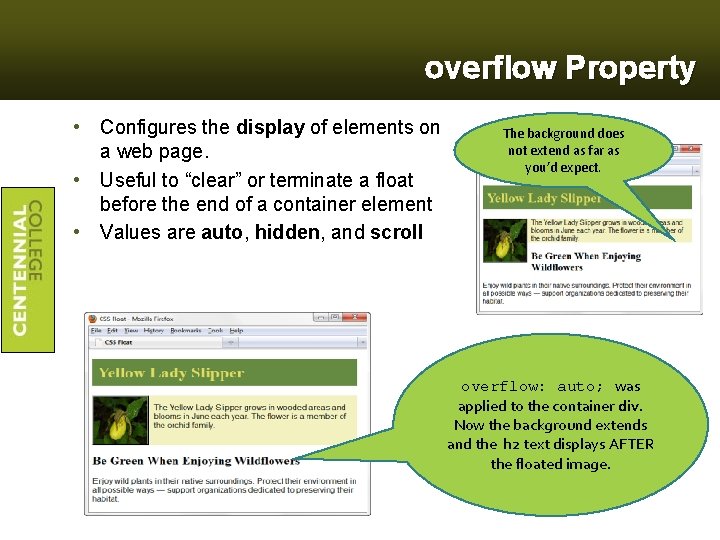
overflow Property • Configures the display of elements on a web page. • Useful to “clear” or terminate a float before the end of a container element • Values are auto, hidden, and scroll The background does not extend as far as you’d expect. overflow: auto; was applied to the container div. Now the background extends and the h 2 text displays AFTER the floated image.
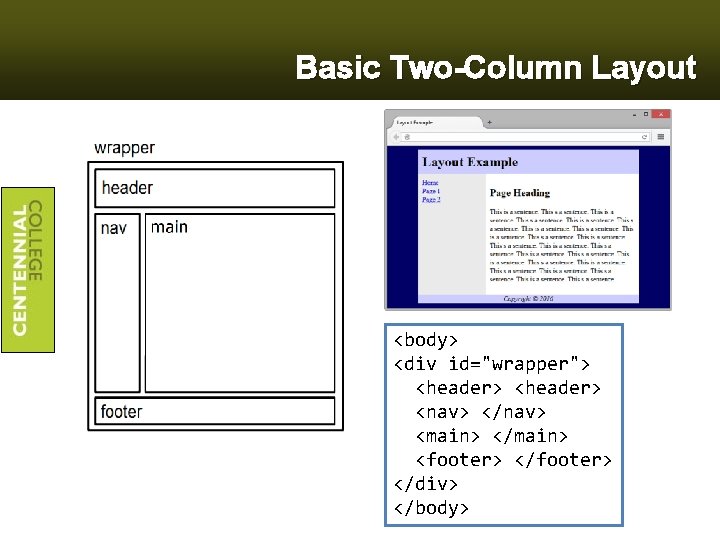
Basic Two-Column Layout <body> <div id="wrapper"> <header> <nav> </nav> <main> </main> <footer> </div> </body>
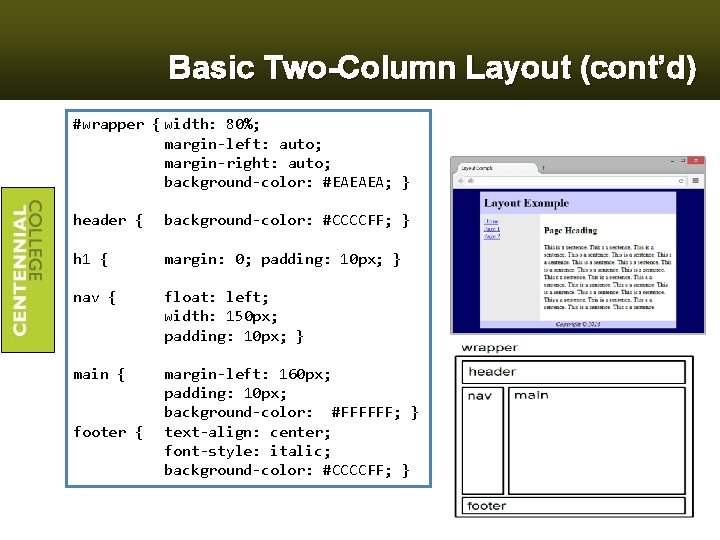
Basic Two-Column Layout (cont’d) #wrapper { width: 80%; margin-left: auto; margin-right: auto; background-color: #EAEAEA; } header { background-color: #CCCCFF; } h 1 { margin: 0; padding: 10 px; } nav { float: left; width: 150 px; padding: 10 px; } main { margin-left: 160 px; padding: 10 px; background-color: #FFFFFF; } text-align: center; font-style: italic; background-color: #CCCCFF; } footer {
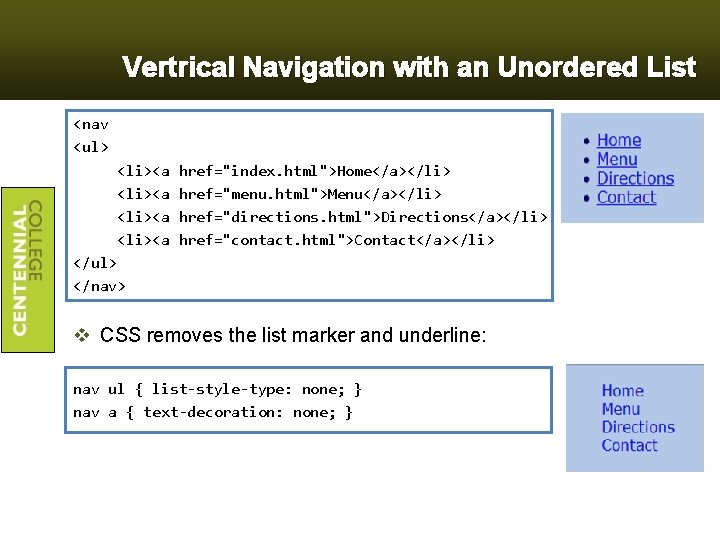
Vertrical Navigation with an Unordered List <nav <ul> <li><a </ul> </nav> href="index. html">Home</a></li> href="menu. html">Menu</a></li> href="directions. html">Directions</a></li> href="contact. html">Contact</a></li> v CSS removes the list marker and underline: nav ul { list-style-type: none; } nav a { text-decoration: none; }
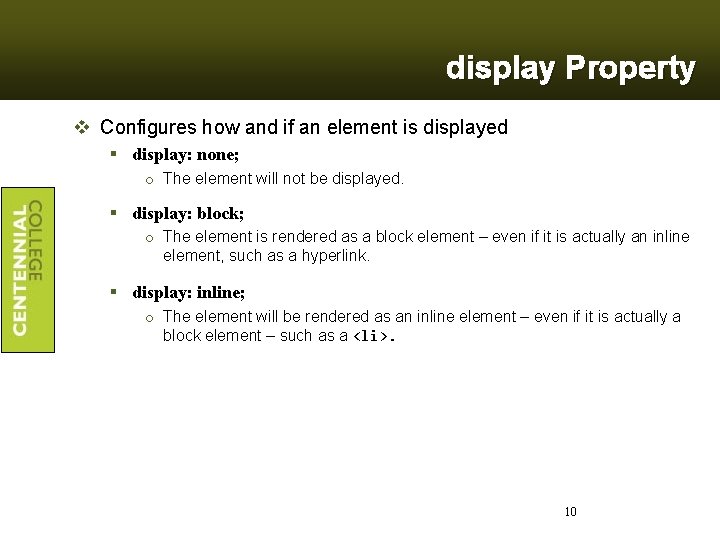
display Property v Configures how and if an element is displayed § display: none; o The element will not be displayed. § display: block; o The element is rendered as a block element – even if it is actually an inline element, such as a hyperlink. § display: inline; o The element will be rendered as an inline element – even if it is actually a block element – such as a <li>. 10
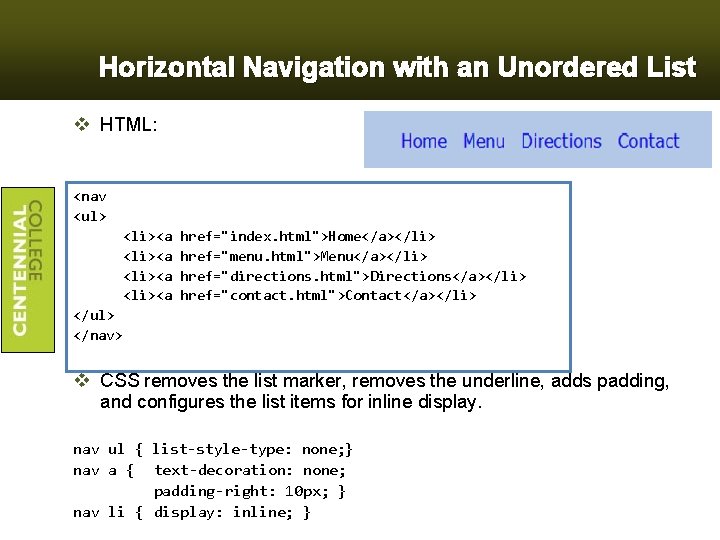
Horizontal Navigation with an Unordered List v HTML: <nav <ul> <li><a href="index. html">Home</a></li> href="menu. html">Menu</a></li> href="directions. html">Directions</a></li> href="contact. html">Contact</a></li> </ul> </nav> v CSS removes the list marker, removes the underline, adds padding, and configures the list items for inline display. nav ul { list-style-type: none; } nav a { text-decoration: none; padding-right: 10 px; } nav li { display: inline; }
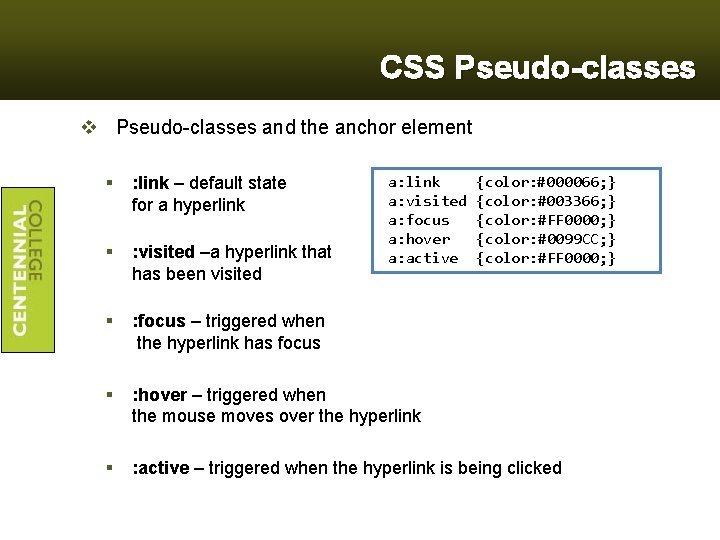
CSS Pseudo-classes v Pseudo-classes and the anchor element a: link a: visited a: focus a: hover a: active {color: #000066; } {color: #003366; } {color: #FF 0000; } {color: #0099 CC; } {color: #FF 0000; } § : link – default state for a hyperlink § : visited –a hyperlink that has been visited § : focus – triggered when the hyperlink has focus § : hover – triggered when the mouse moves over the hyperlink § : active – triggered when the hyperlink is being clicked
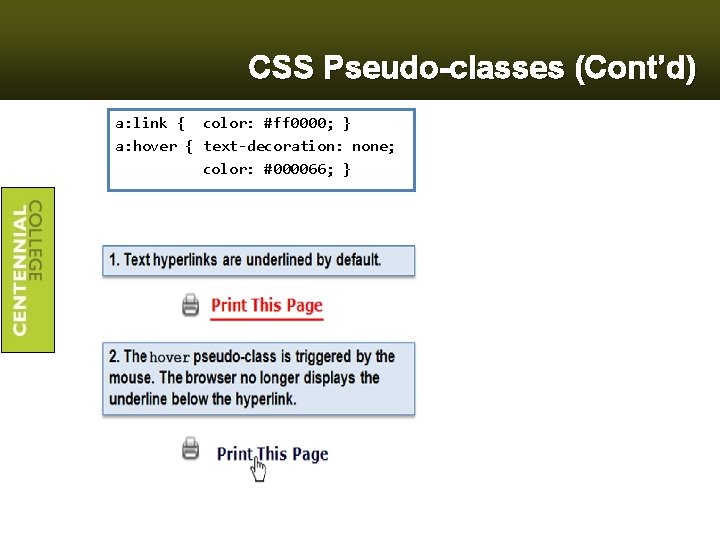
CSS Pseudo-classes (Cont’d) a: link { color: #ff 0000; } a: hover { text-decoration: none; color: #000066; }

Position Property 14
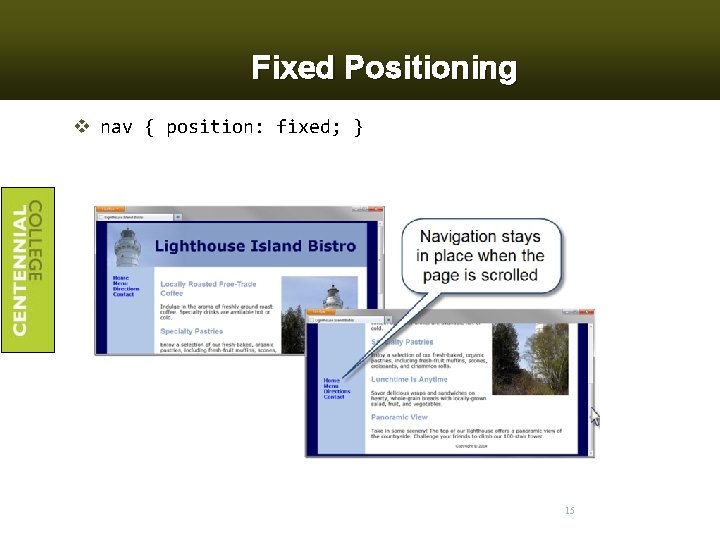
Fixed Positioning v nav { position: fixed; } 15
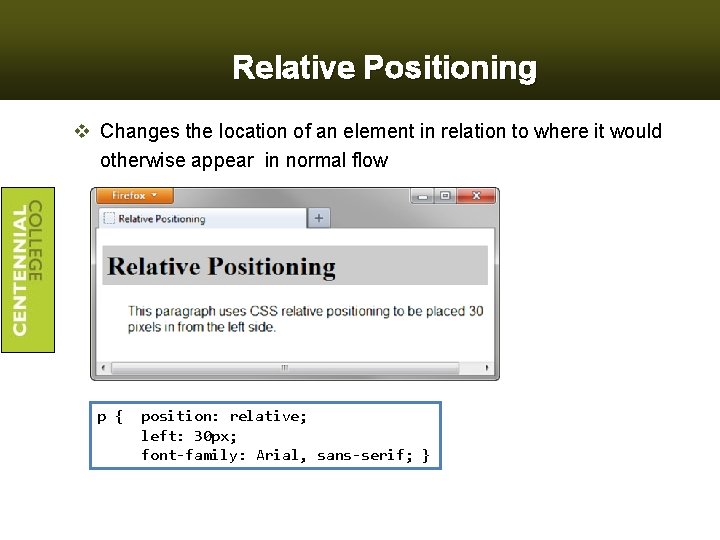
Relative Positioning v Changes the location of an element in relation to where it would otherwise appear in normal flow p { position: relative; left: 30 px; font-family: Arial, sans-serif; }
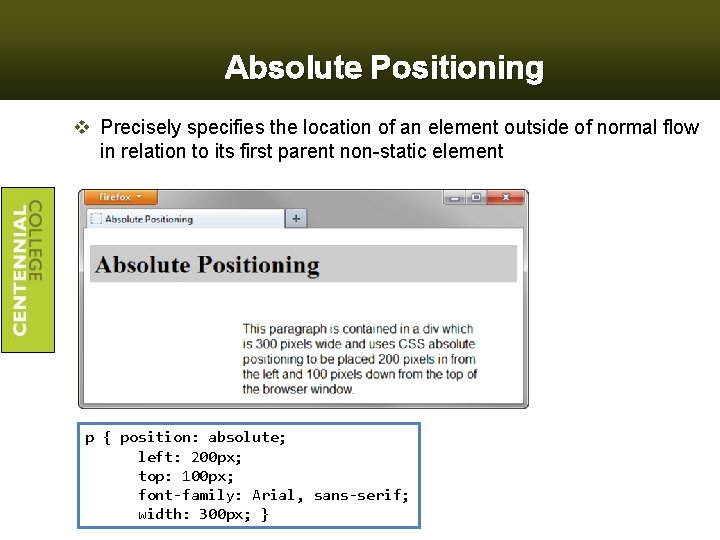
Absolute Positioning v Precisely specifies the location of an element outside of normal flow in relation to its first parent non-static element p { position: absolute; left: 200 px; top: 100 px; font-family: Arial, sans-serif; width: 300 px; }
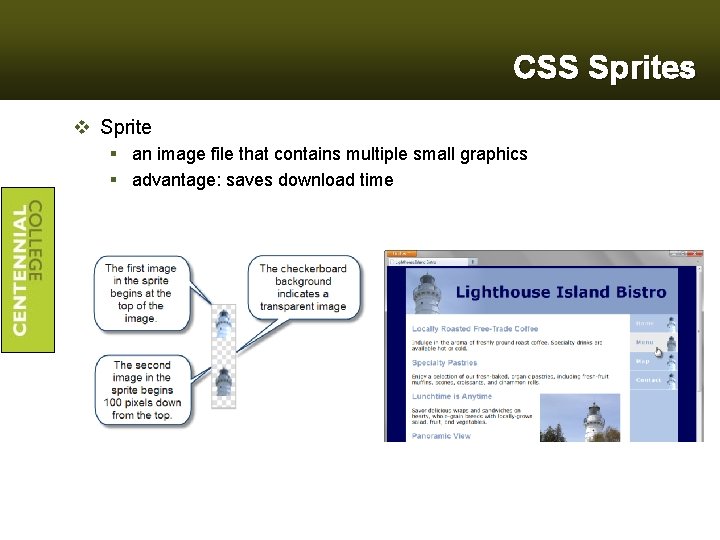
CSS Sprites v Sprite § an image file that contains multiple small graphics § advantage: saves download time
CSS Debugging Tips v Manually check syntax errors v Use W 3 C CSS Validator to check syntax errors § http: //jigsaw. w 3. org/css-validator/ v Configure temporary background colors v Configure temporary borders v Use CSS comments to find the unexpected /* the browser ignores this code */ v Don’t expect your pages to look exactly the same in all browsers! v Be patient! 19
Summary v This chapter expanded your CSS skillset. v You configured web pages with floating elements with CSS. v You were introduced to fixed, relative, and absolute positioning. v You configured web pages with two-column page layouts v You used unordered lists to provide structure for navigation hyperlinks. v You added interactivity to hyperlinks with CSS pseudo-classes. v You configured a CSS sprite image. 20
- Slides: 20