
COMP 201 Java Programming Part II GUI Programming
- Slides: 36
COMP 201 Java Programming Part II: GUI Programming Topic 8: Basics of Graphics Programming Reading: Chapter 7 1
COMP 201 Topic 8 / Slide 2 Outline l Introduction: Ingredients of Swing GUI l Creating a frame (window) l Displaying information in a panel Displaying texts n 2 D shapes n Colors and fonts n Images n 2
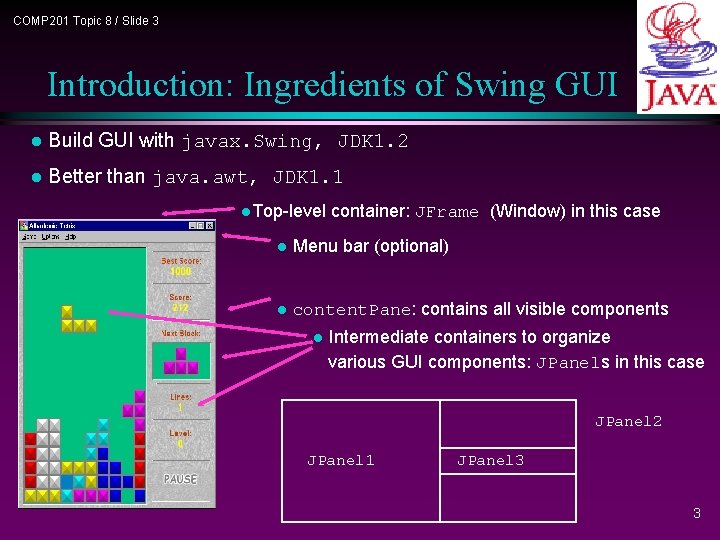
COMP 201 Topic 8 / Slide 3 Introduction: Ingredients of Swing GUI l Build GUI with javax. Swing, JDK 1. 2 l Better than java. awt, JDK 1. 1 l. Top-level container: JFrame (Window) in this case l Menu bar (optional) l content. Pane: contains all visible components l Intermediate containers to organize various GUI components: JPanels in this case JPanel 2 JPanel 1 JPanel 3 3
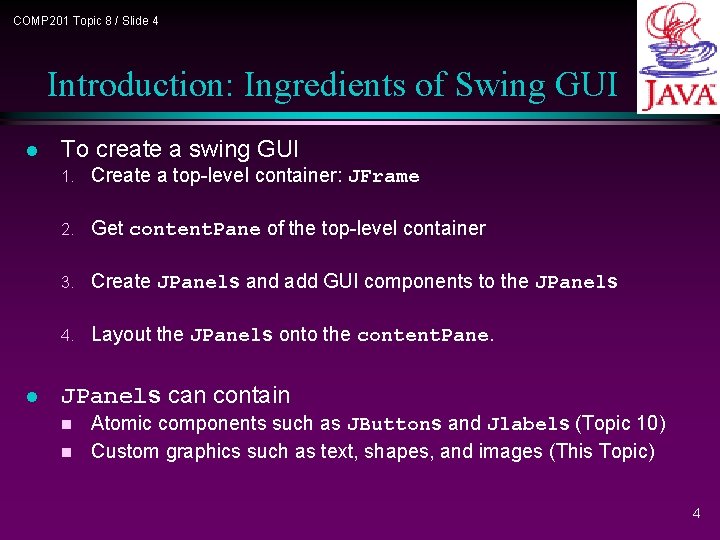
COMP 201 Topic 8 / Slide 4 Introduction: Ingredients of Swing GUI l l To create a swing GUI 1. Create a top-level container: JFrame 2. Get content. Pane of the top-level container 3. Create JPanels and add GUI components to the JPanels 4. Layout the JPanels onto the content. Pane. JPanels can contain Atomic components such as JButtons and Jlabels (Topic 10) n Custom graphics such as text, shapes, and images (This Topic) n 4
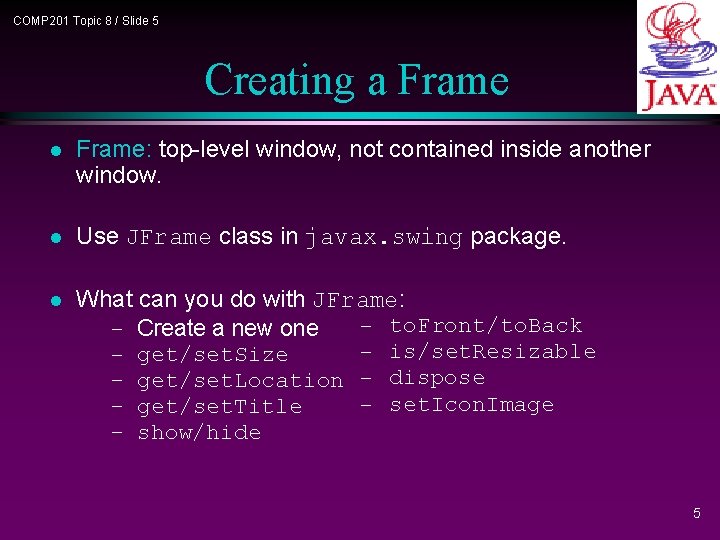
COMP 201 Topic 8 / Slide 5 Creating a Frame l Frame: top-level window, not contained inside another window. l Use JFrame class in javax. swing package. l What can you do with JFrame: - to. Front/to. Back - Create a new one - is/set. Resizable - get/set. Size - get/set. Location - dispose - set. Icon. Image - get/set. Title - show/hide 5
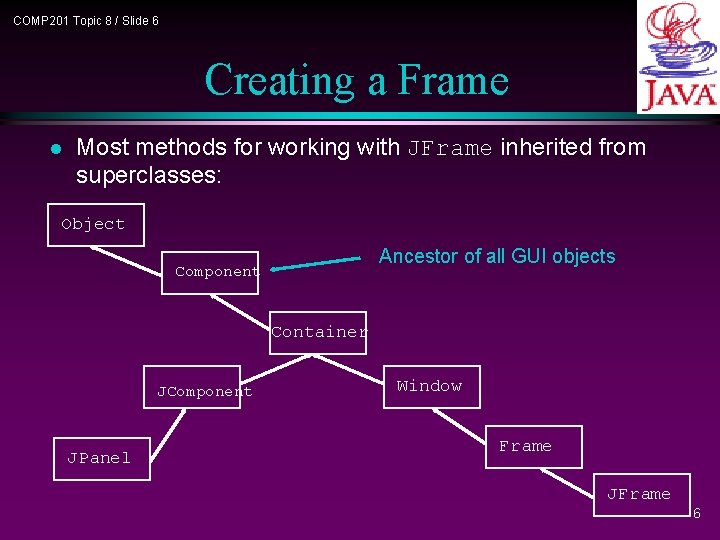
COMP 201 Topic 8 / Slide 6 Creating a Frame l Most methods for working with JFrame inherited from superclasses: Object Ancestor of all GUI objects Component Container JComponent JPanel Window Frame JFrame 6
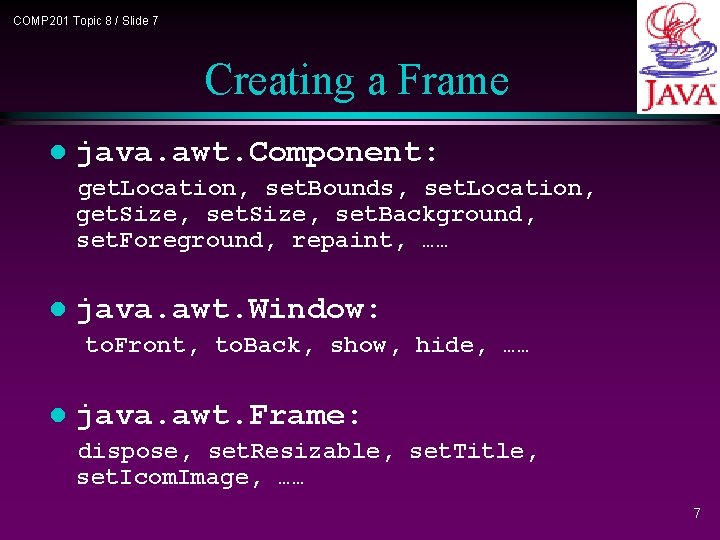
COMP 201 Topic 8 / Slide 7 Creating a Frame l java. awt. Component: get. Location, set. Bounds, set. Location, get. Size, set. Background, set. Foreground, repaint, …… l java. awt. Window: to. Front, to. Back, show, hide, …… l java. awt. Frame: dispose, set. Resizable, set. Title, set. Icom. Image, …… 7
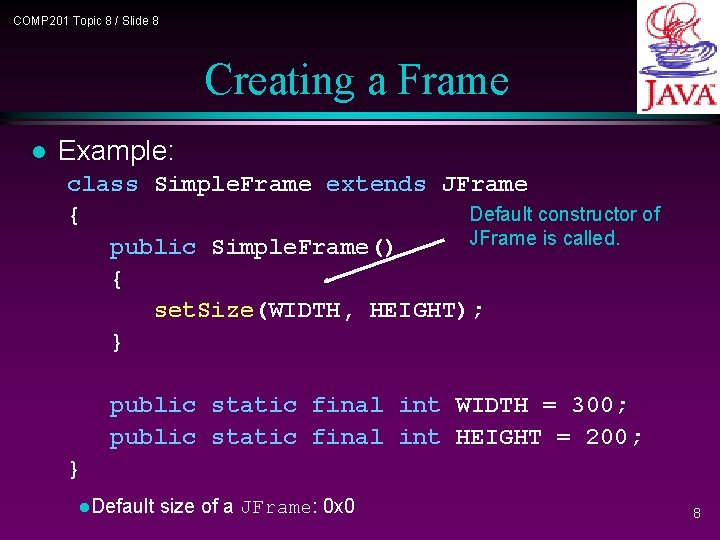
COMP 201 Topic 8 / Slide 8 Creating a Frame l Example: class Simple. Frame extends JFrame Default constructor of { JFrame is called. public Simple. Frame() { set. Size(WIDTH, HEIGHT); } public static final int WIDTH = 300; public static final int HEIGHT = 200; } l. Default size of a JFrame: 0 x 0 8
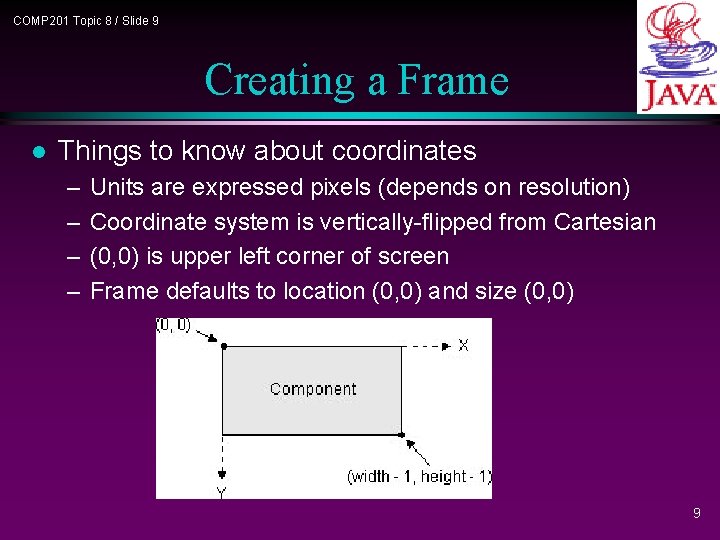
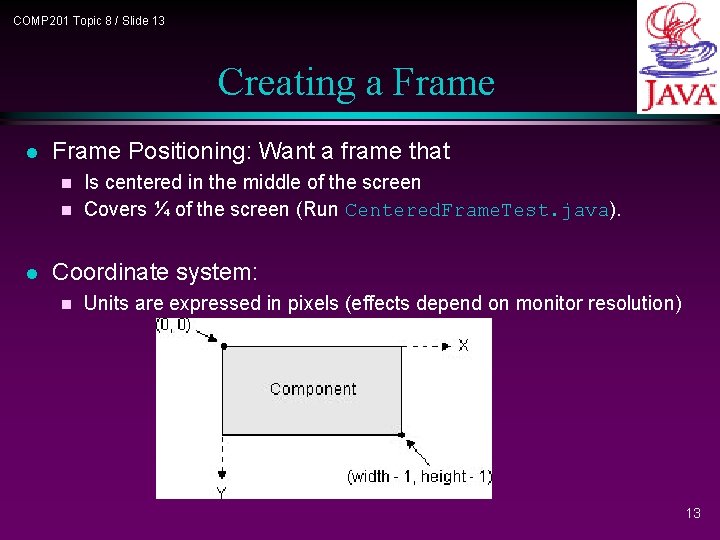
COMP 201 Topic 8 / Slide 9 Creating a Frame l Things to know about coordinates – – Units are expressed pixels (depends on resolution) Coordinate system is vertically-flipped from Cartesian (0, 0) is upper left corner of screen Frame defaults to location (0, 0) and size (0, 0) 9
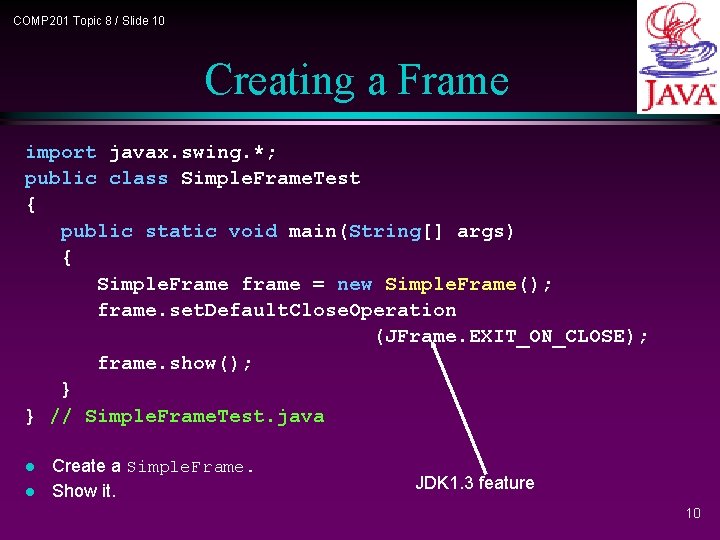
COMP 201 Topic 8 / Slide 10 Creating a Frame import javax. swing. *; public class Simple. Frame. Test { public static void main(String[] args) { Simple. Frame frame = new Simple. Frame(); frame. set. Default. Close. Operation (JFrame. EXIT_ON_CLOSE); frame. show(); } } // Simple. Frame. Test. java l l Create a Simple. Frame. Show it. JDK 1. 3 feature 10
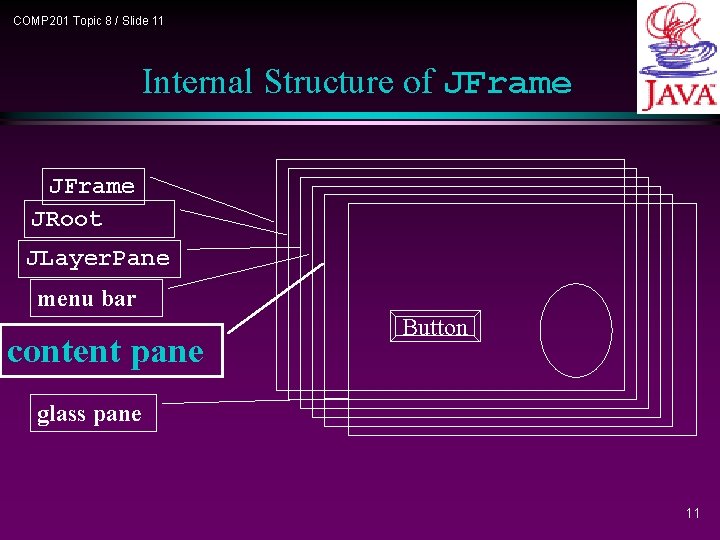
COMP 201 Topic 8 / Slide 11 Internal Structure of JFrame JRoot JLayer. Pane menu bar content pane Button glass pane 11
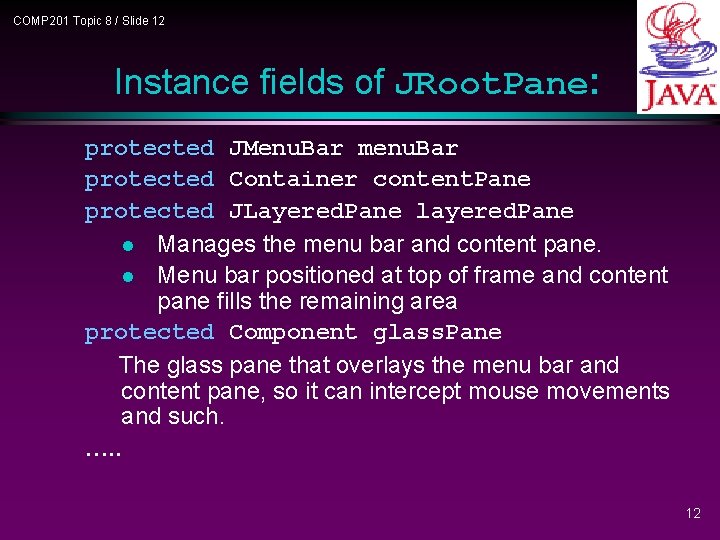
COMP 201 Topic 8 / Slide 12 Instance fields of JRoot. Pane: protected JMenu. Bar menu. Bar protected Container content. Pane protected JLayered. Pane l Manages the menu bar and content pane. l Menu bar positioned at top of frame and content pane fills the remaining area protected Component glass. Pane The glass pane that overlays the menu bar and content pane, so it can intercept mouse movements and such. …. . 12
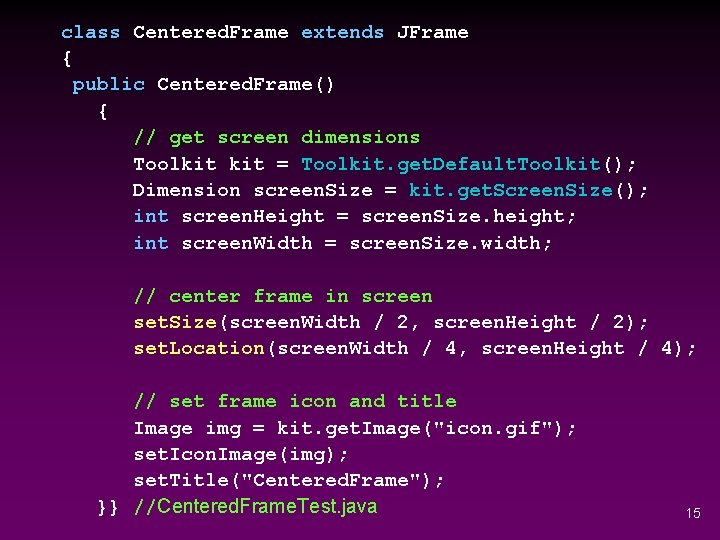
COMP 201 Topic 8 / Slide 13 Creating a Frame l Frame Positioning: Want a frame that Is centered in the middle of the screen n Covers ¼ of the screen (Run Centered. Frame. Test. java). n l Coordinate system: n Units are expressed in pixels (effects depend on monitor resolution) 13
COMP 201 Topic 8 / Slide 14 Creating a Frame l Also need dimension of screen, which is platform dependent l Get system-dependent info using java. awt. Toolkit class: get. Default. Toolkit --- static method for creating a Toolkit object get. Screen. Size --- get size of screen get. Image --- load image 14
class Centered. Frame extends JFrame { public Centered. Frame() { // get screen dimensions Toolkit = Toolkit. get. Default. Toolkit(); Dimension screen. Size = kit. get. Screen. Size(); int screen. Height = screen. Size. height; int screen. Width = screen. Size. width; // center frame in screen set. Size(screen. Width / 2, screen. Height / 2); set. Location(screen. Width / 4, screen. Height / 4); // set frame icon and title Image img = kit. get. Image("icon. gif"); set. Icon. Image(img); set. Title("Centered. Frame"); }} //Centered. Frame. Test. java 15
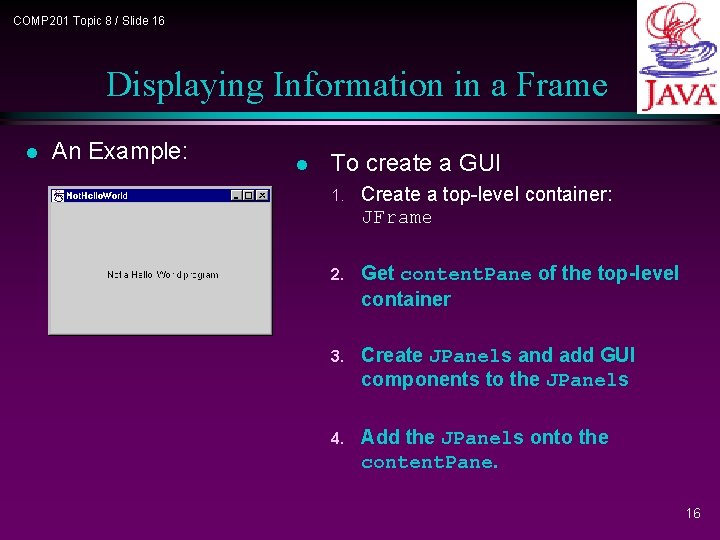
COMP 201 Topic 8 / Slide 16 Displaying Information in a Frame l An Example: l To create a GUI 1. Create a top-level container: JFrame 2. Get content. Pane of the top-level container 3. Create JPanels and add GUI components to the JPanels 4. Add the JPanels onto the content. Pane. 16
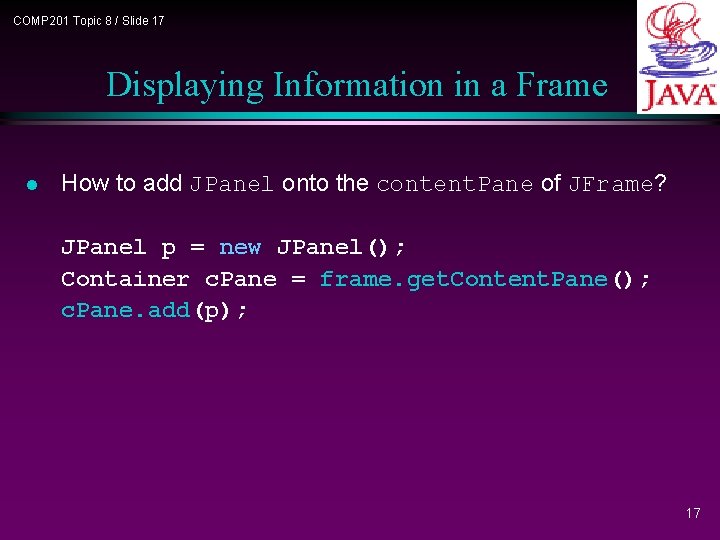
COMP 201 Topic 8 / Slide 17 Displaying Information in a Frame l How to add JPanel onto the content. Pane of JFrame? JPanel p = new JPanel(); Container c. Pane = frame. get. Content. Pane(); c. Pane. add(p); 17
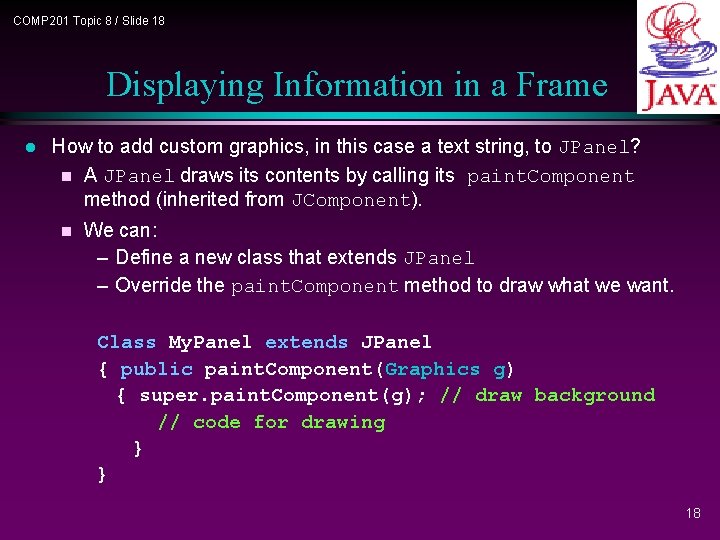
COMP 201 Topic 8 / Slide 18 Displaying Information in a Frame l How to add custom graphics, in this case a text string, to JPanel? n A JPanel draws its contents by calling its paint. Component method (inherited from JComponent). n We can: – Define a new class that extends JPanel – Override the paint. Component method to draw what we want. Class My. Panel extends JPanel { public paint. Component(Graphics g) { super. paint. Component(g); // draw background // code for drawing } } 18
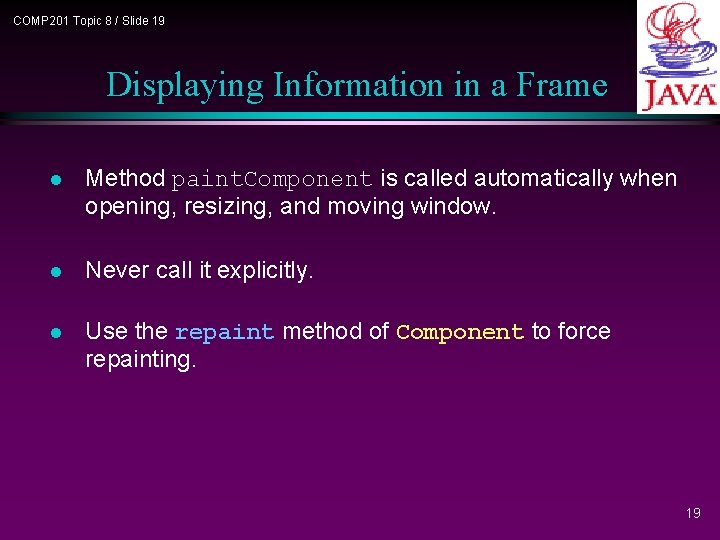
COMP 201 Topic 8 / Slide 19 Displaying Information in a Frame l Method paint. Component is called automatically when opening, resizing, and moving window. l Never call it explicitly. l Use the repaint method of Component to force repainting. 19
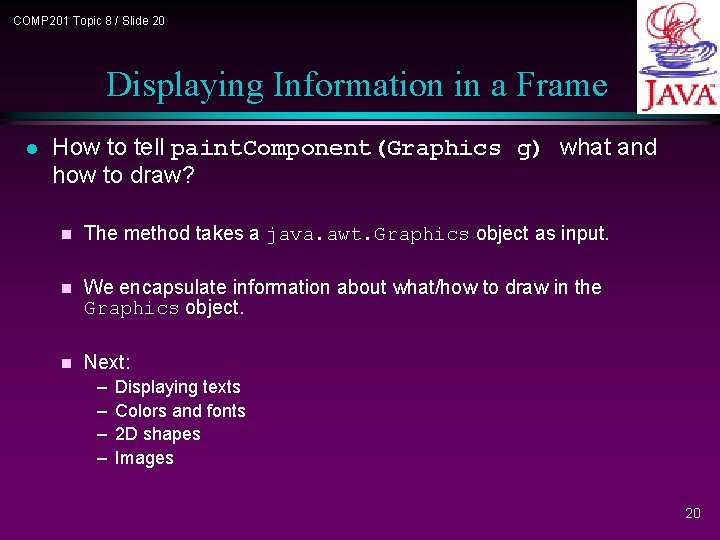
COMP 201 Topic 8 / Slide 20 Displaying Information in a Frame l How to tell paint. Component(Graphics g) what and how to draw? n The method takes a java. awt. Graphics object as input. n We encapsulate information about what/how to draw in the Graphics object. n Next: – – Displaying texts Colors and fonts 2 D shapes Images 20
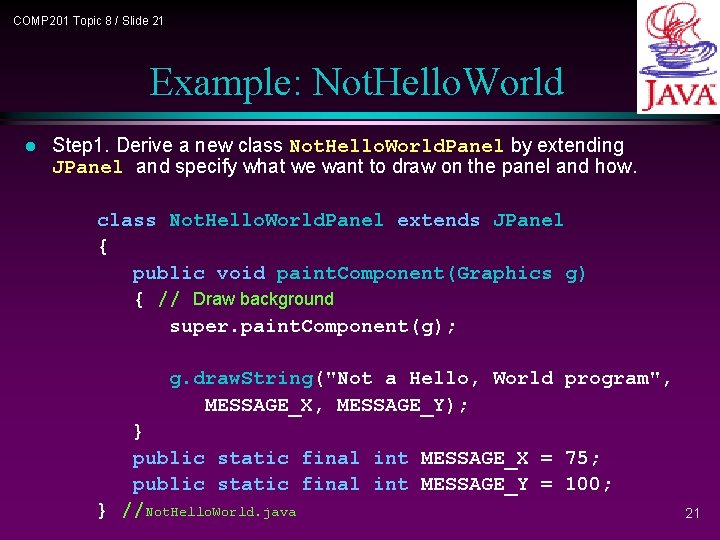
COMP 201 Topic 8 / Slide 21 Example: Not. Hello. World l Step 1. Derive a new class Not. Hello. World. Panel by extending JPanel and specify what we want to draw on the panel and how. class Not. Hello. World. Panel extends JPanel { public void paint. Component(Graphics g) { // Draw background super. paint. Component(g); g. draw. String("Not a Hello, World program", MESSAGE_X, MESSAGE_Y); } public static final int MESSAGE_X = 75; public static final int MESSAGE_Y = 100; } //Not. Hello. World. java 21
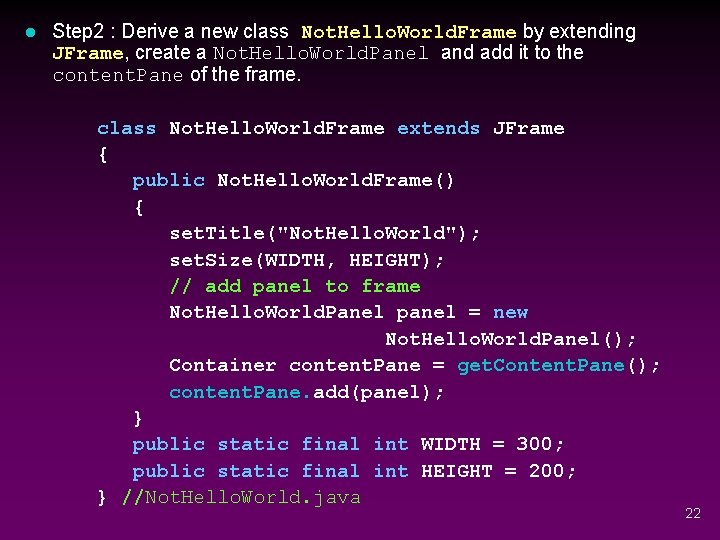
l Step 2 : Derive a new class Not. Hello. World. Frame by extending JFrame, create a Not. Hello. World. Panel and add it to the content. Pane of the frame. class Not. Hello. World. Frame extends JFrame { public Not. Hello. World. Frame() { set. Title("Not. Hello. World"); set. Size(WIDTH, HEIGHT); // add panel to frame Not. Hello. World. Panel panel = new Not. Hello. World. Panel(); Container content. Pane = get. Content. Pane(); content. Pane. add(panel); } public static final int WIDTH = 300; public static final int HEIGHT = 200; } //Not. Hello. World. java 22
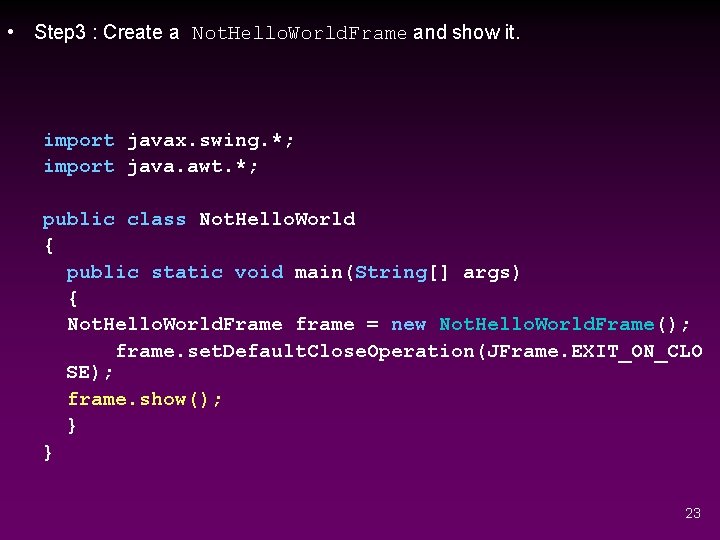
• Step 3 : Create a Not. Hello. World. Frame and show it. import javax. swing. *; import java. awt. *; public class Not. Hello. World { public static void main(String[] args) { Not. Hello. World. Frame frame = new Not. Hello. World. Frame(); frame. set. Default. Close. Operation(JFrame. EXIT_ON_CLO SE); frame. show(); } } 23
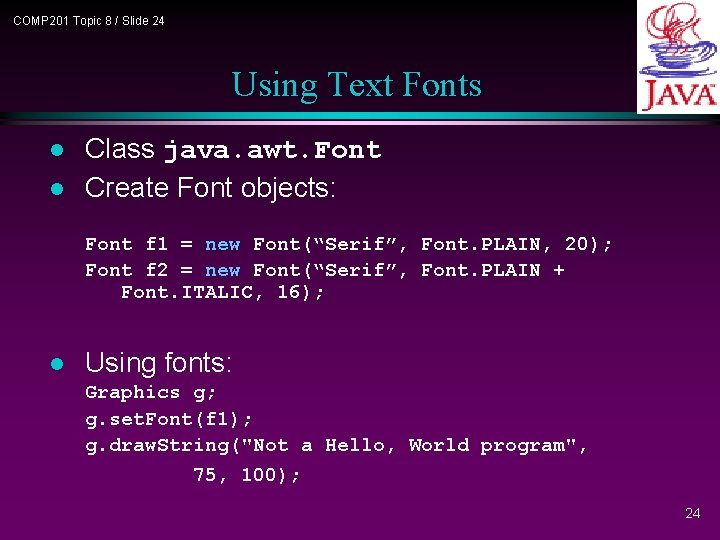
COMP 201 Topic 8 / Slide 24 Using Text Fonts l l Class java. awt. Font Create Font objects: Font f 1 = new Font(“Serif”, Font. PLAIN, 20); Font f 2 = new Font(“Serif”, Font. PLAIN + Font. ITALIC, 16); l Using fonts: Graphics g; g. set. Font(f 1); g. draw. String("Not a Hello, World program", 75, 100); 24
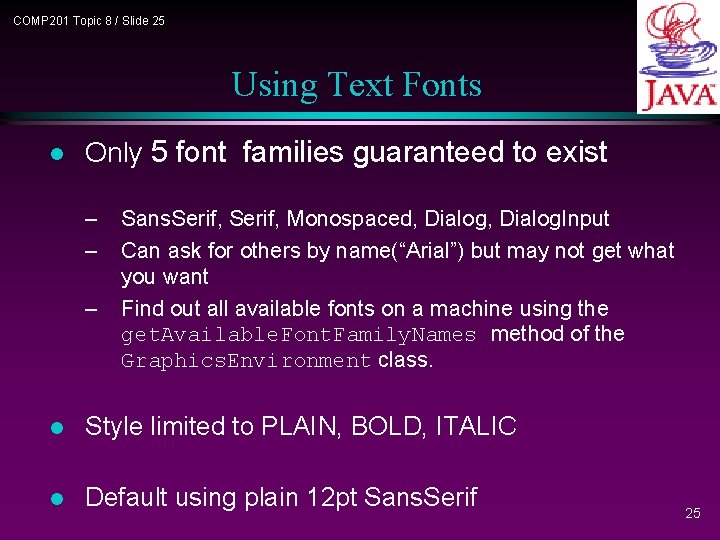
COMP 201 Topic 8 / Slide 25 Using Text Fonts l Only 5 font families guaranteed to exist – – – Sans. Serif, Monospaced, Dialog. Input Can ask for others by name(“Arial”) but may not get what you want Find out all available fonts on a machine using the get. Available. Font. Family. Names method of the Graphics. Environment class. l Style limited to PLAIN, BOLD, ITALIC l Default using plain 12 pt Sans. Serif 25
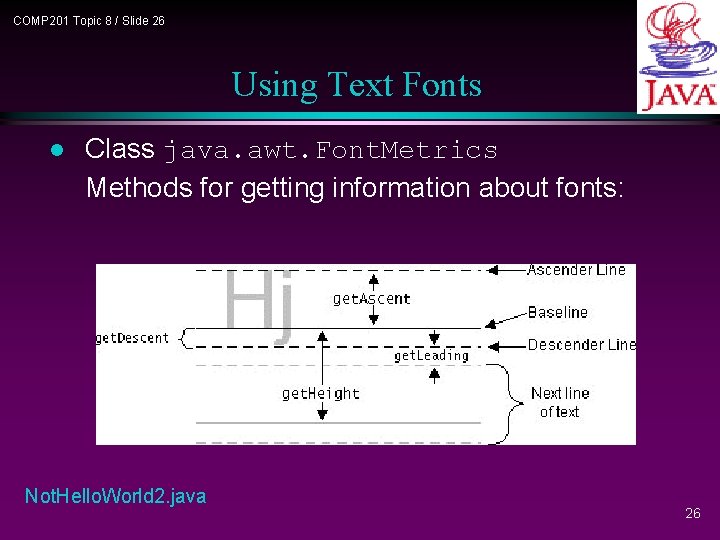
COMP 201 Topic 8 / Slide 26 Using Text Fonts l Class java. awt. Font. Metrics Methods for getting information about fonts: Not. Hello. World 2. java 26
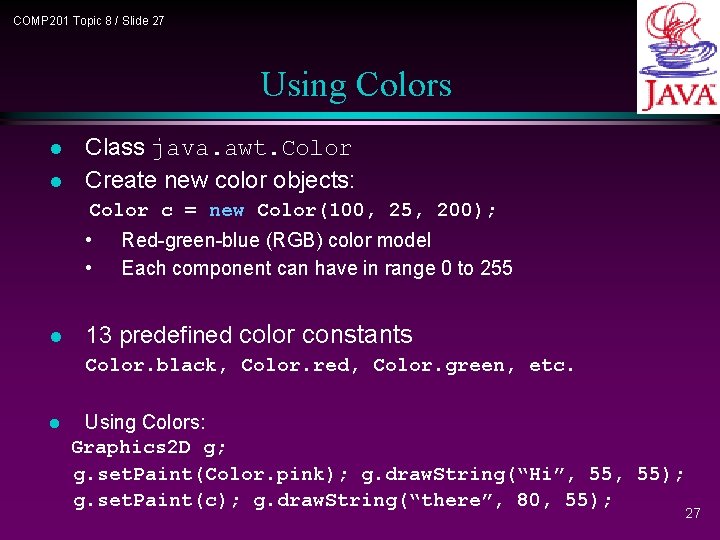
COMP 201 Topic 8 / Slide 27 Using Colors l l Class java. awt. Color Create new color objects: Color c = new Color(100, 25, 200); • • l Red-green-blue (RGB) color model Each component can have in range 0 to 255 13 predefined color constants Color. black, Color. red, Color. green, etc. l Using Colors: Graphics 2 D g; g. set. Paint(Color. pink); g. draw. String(“Hi”, 55); g. set. Paint(c); g. draw. String(“there”, 80, 55); 27
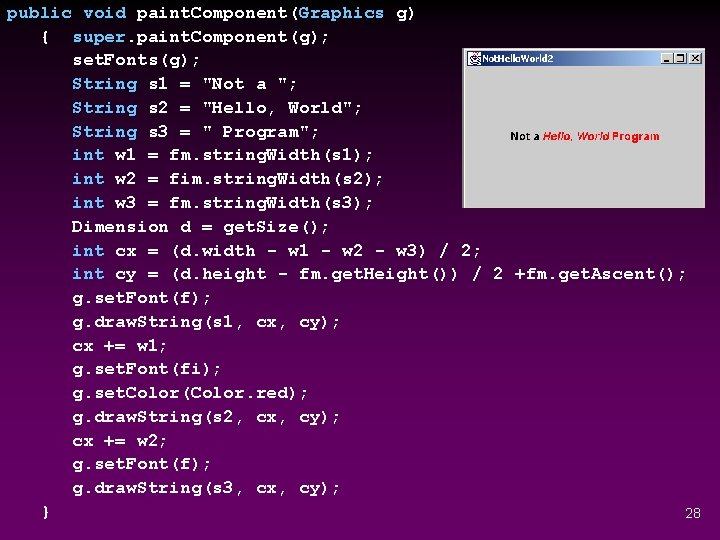
public void paint. Component(Graphics g) { super. paint. Component(g); set. Fonts(g); String s 1 = "Not a "; String s 2 = "Hello, World"; String s 3 = " Program"; int w 1 = fm. string. Width(s 1); int w 2 = fim. string. Width(s 2); int w 3 = fm. string. Width(s 3); Dimension d = get. Size(); int cx = (d. width - w 1 - w 2 - w 3) / 2; int cy = (d. height - fm. get. Height()) / 2 +fm. get. Ascent(); g. set. Font(f); g. draw. String(s 1, cx, cy); cx += w 1; g. set. Font(fi); g. set. Color(Color. red); g. draw. String(s 2, cx, cy); cx += w 2; g. set. Font(f); g. draw. String(s 3, cx, cy); } 28
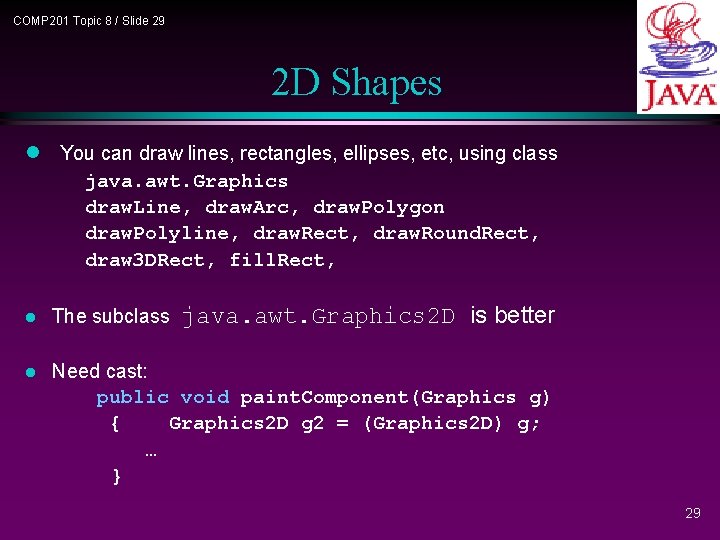
COMP 201 Topic 8 / Slide 29 2 D Shapes l You can draw lines, rectangles, ellipses, etc, using class java. awt. Graphics draw. Line, draw. Arc, draw. Polygon draw. Polyline, draw. Rect, draw. Round. Rect, draw 3 DRect, fill. Rect, java. awt. Graphics 2 D is better l The subclass l Need cast: public void paint. Component(Graphics g) { Graphics 2 D g 2 = (Graphics 2 D) g; … } 29
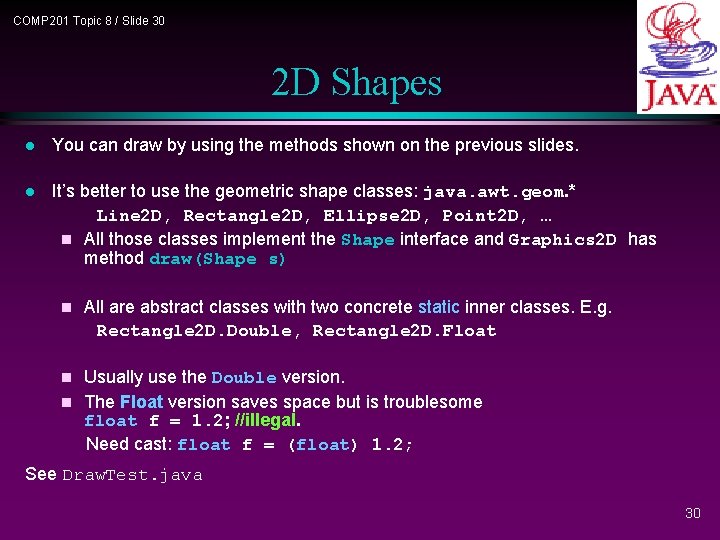
COMP 201 Topic 8 / Slide 30 2 D Shapes l You can draw by using the methods shown on the previous slides. l It’s better to use the geometric shape classes: java. awt. geom. * Line 2 D, Rectangle 2 D, Ellipse 2 D, Point 2 D, … n All those classes implement the Shape interface and Graphics 2 D has method draw(Shape s) n All are abstract classes with two concrete static inner classes. E. g. Rectangle 2 D. Double, Rectangle 2 D. Float Usually use the Double version. n The Float version saves space but is troublesome float f = 1. 2; //illegal. Need cast: float f = (float) 1. 2; n See Draw. Test. java 30
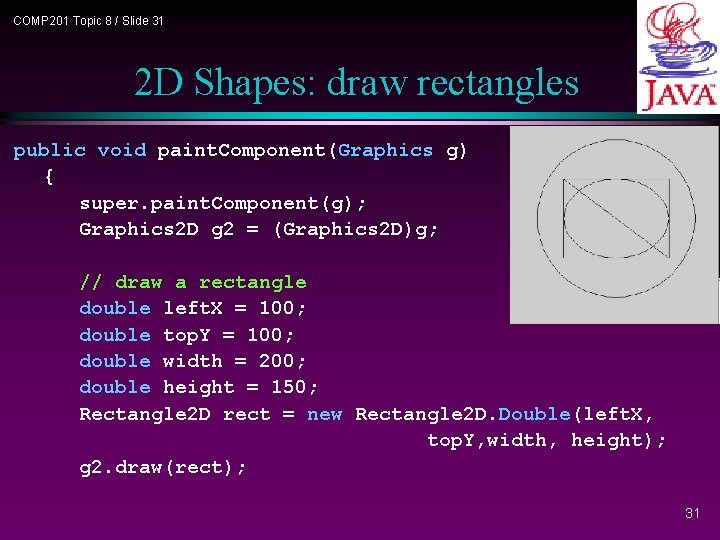
COMP 201 Topic 8 / Slide 31 2 D Shapes: draw rectangles public void paint. Component(Graphics g) { super. paint. Component(g); Graphics 2 D g 2 = (Graphics 2 D)g; // draw a rectangle double left. X = 100; double top. Y = 100; double width = 200; double height = 150; Rectangle 2 D rect = new Rectangle 2 D. Double(left. X, top. Y, width, height); g 2. draw(rect); 31
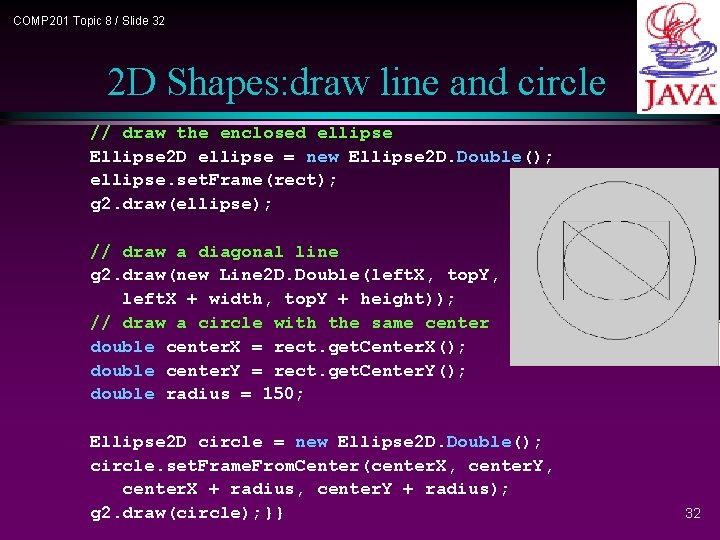
COMP 201 Topic 8 / Slide 32 2 D Shapes: draw line and circle // draw the enclosed ellipse Ellipse 2 D ellipse = new Ellipse 2 D. Double(); ellipse. set. Frame(rect); g 2. draw(ellipse); // draw a diagonal line g 2. draw(new Line 2 D. Double(left. X, top. Y, left. X + width, top. Y + height)); // draw a circle with the same center double center. X = rect. get. Center. X(); double center. Y = rect. get. Center. Y(); double radius = 150; Ellipse 2 D circle = new Ellipse 2 D. Double(); circle. set. Frame. From. Center(center. X, center. Y, center. X + radius, center. Y + radius); g 2. draw(circle); }} 32
COMP 201 Topic 8 / Slide 33 Drawing Lines and Shapes l Paint Mode l l Default: last drawn shape covers earlier one. XOR mode: If you draw one shape twice in XOR mode, the second one erases the first one. 33
COMP 201 Topic 8 / Slide 34 Displaying Images l l Java Toolkit object can read GIF and JPEG files. Get image from file Image image = Toolkit. get. Default. Toolkit(). get. Image(File. Name); l Get image from the Net: URL u = new URL(http: //www. somehwere/Image. File); Image image = Toolkit. get. Default. Toolkit(). get. Image(u); l Display image: g. draw. Image(image, x, y, null); 34
COMP 201 Topic 8 / Slide 35 Displaying Images l Java spawn a separate thread to load image, which run in parallel with the main thread. l Use Media. Tracker class to wait until image is completely loaded before drawing l public Image. Panel() { image = Toolkit. get. Default. Toolkit(). get. Image ("Cat. gif"); Media. Tracker tracker = new Media. Tracker(this); tracker. add. Image(image, 0); try { tracker. wait. For. ID(0); } catch (Interrupted. Exception e) {} } Example: Image. Test. java 35
COMP 201 Topic 8 / Slide 36 Summary l To create a Swing GUI n Create JPanels and add GUI components to the JPanels – Custom graphics: l Override the paint. Component(Graphics g) method l Encapsulate what and how to draw in the graphics object – Predefined GUI components: simply add to the panel (Topic 10) – Hierarchical: Panels can contain other panels n Create a top-level container: JFrame and layout the JPanels onto the content. Pane of the container 36