
COMP 101 REVIEW Topics page structure validation file











- Slides: 29
COMP 101 REVIEW
Topics ◦ page structure ◦ validation ◦ file structures ◦ box model ◦ centering ◦ lists ◦ links ◦ selective formatting ◦ colors
PAGE STRUCTURE
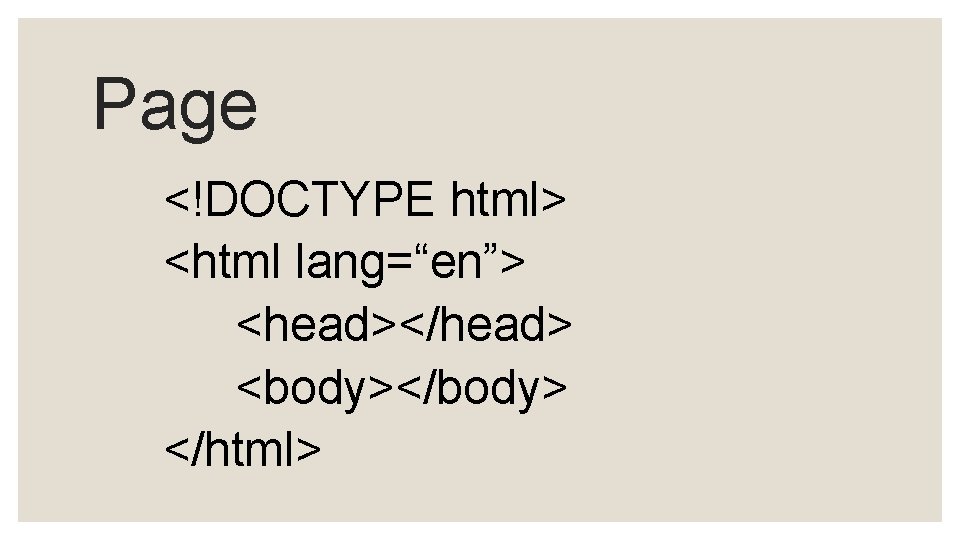
Page <!DOCTYPE html> <html lang=“en”> <head></head> <body></body> </html>
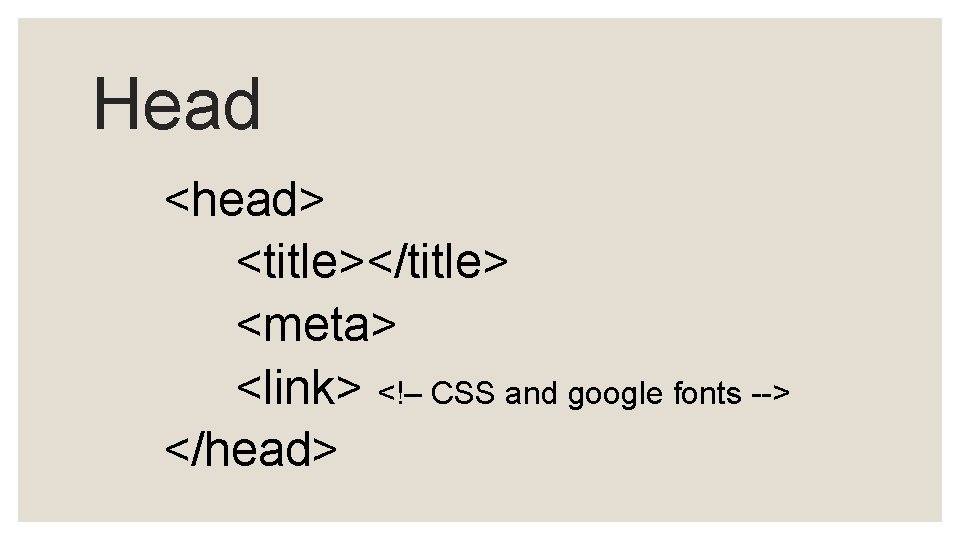
Head <head> <title></title> <meta> <link> <!– CSS and google fonts --> </head>
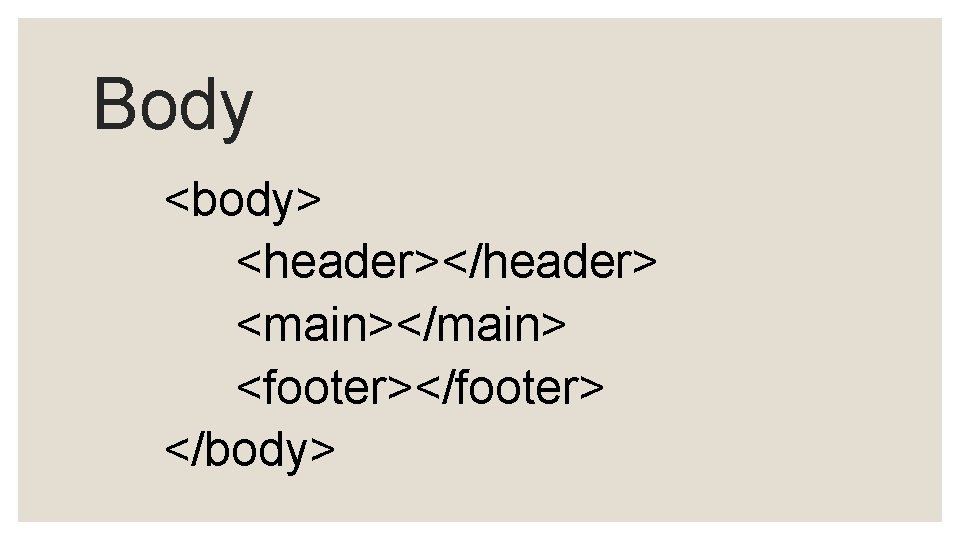
Body <body> <header></header> <main></main> <footer></footer> </body>
VALIDATION
Validation error = something wrong ◦ Validater tries to fix ◦ Adds tags that aren’t closed ◦ If tag in wrong context, will create context ◦ <p> in head ◦ <ul> in p ◦ Complains if not told everything ◦ Language ◦ Character set
FILE STRUCTURES
Need to organize information ◦ Folders contain files ◦ To find a specific file, need to identify the folder it is in ◦ Folders can hold files or other folders ◦ Think of the path as a set of google map directions: ◦ takes you step by step ◦ Always starts you where you are ◦ Analogies ◦ Finding a room ◦ A person’s name ◦ Folder/file. ext (only files have extensions)
BOX MODEL
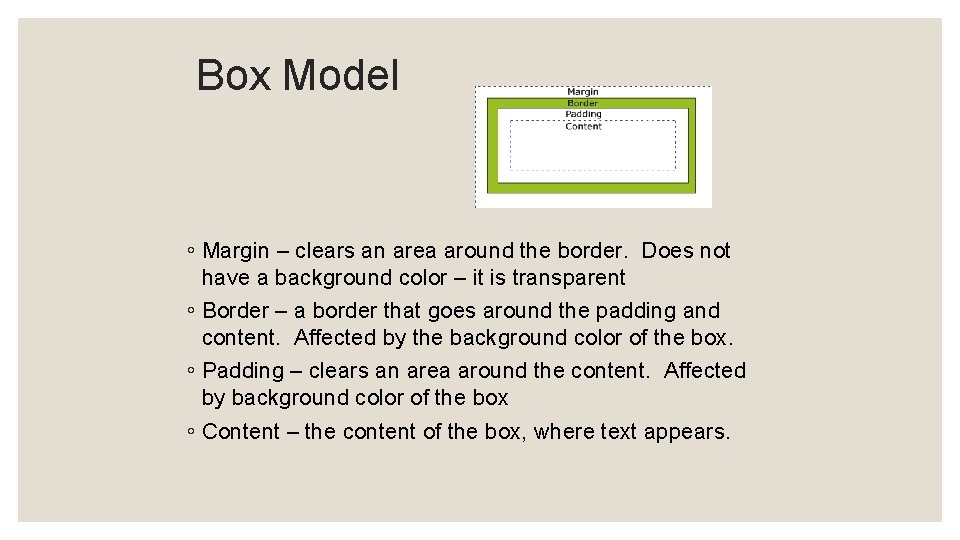
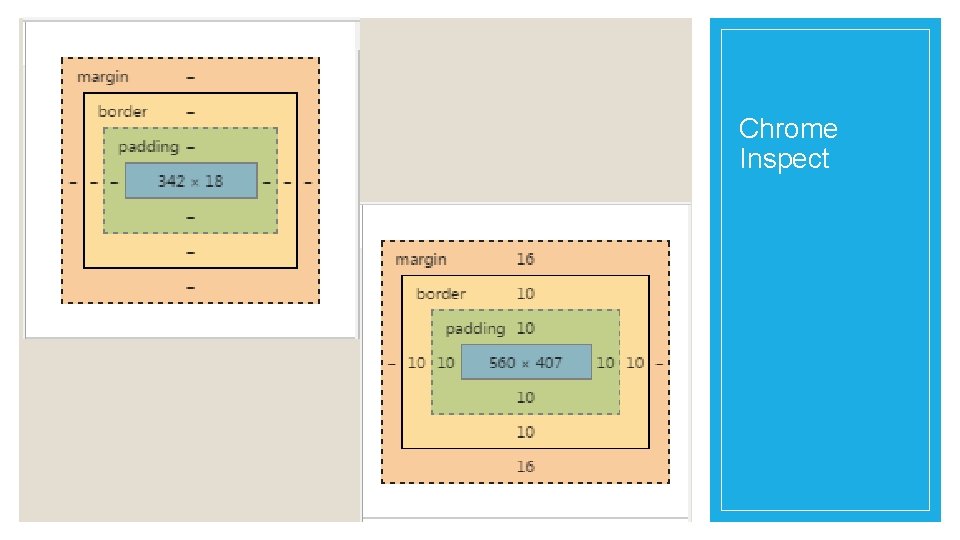
Box Model ◦ Margin – clears an area around the border. Does not have a background color – it is transparent ◦ Border – a border that goes around the padding and content. Affected by the background color of the box. ◦ Padding – clears an area around the content. Affected by background color of the box ◦ Content – the content of the box, where text appears.
Chrome Inspect
CENTERING
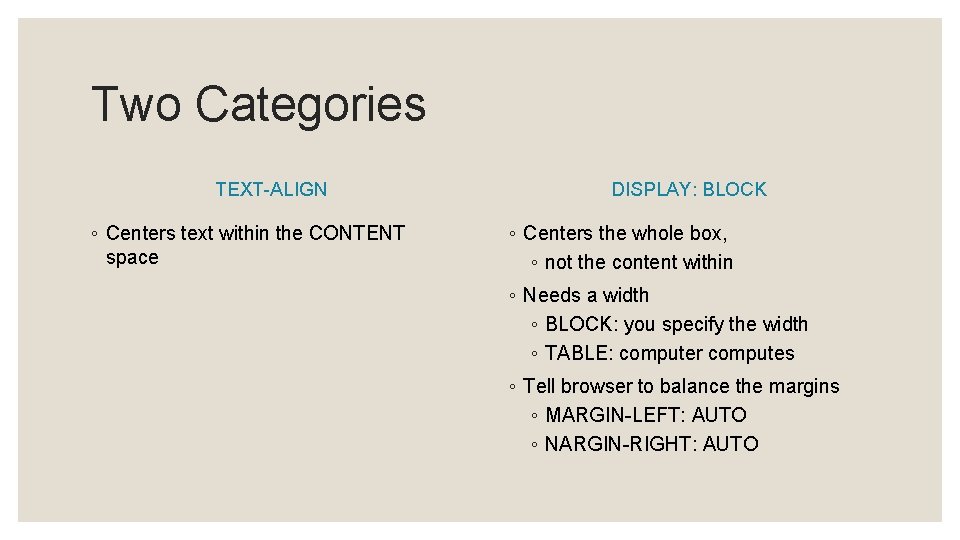
Two Categories TEXT-ALIGN ◦ Centers text within the CONTENT space DISPLAY: BLOCK ◦ Centers the whole box, ◦ not the content within ◦ Needs a width ◦ BLOCK: you specify the width ◦ TABLE: computer computes ◦ Tell browser to balance the margins ◦ MARGIN-LEFT: AUTO ◦ NARGIN-RIGHT: AUTO
LISTS
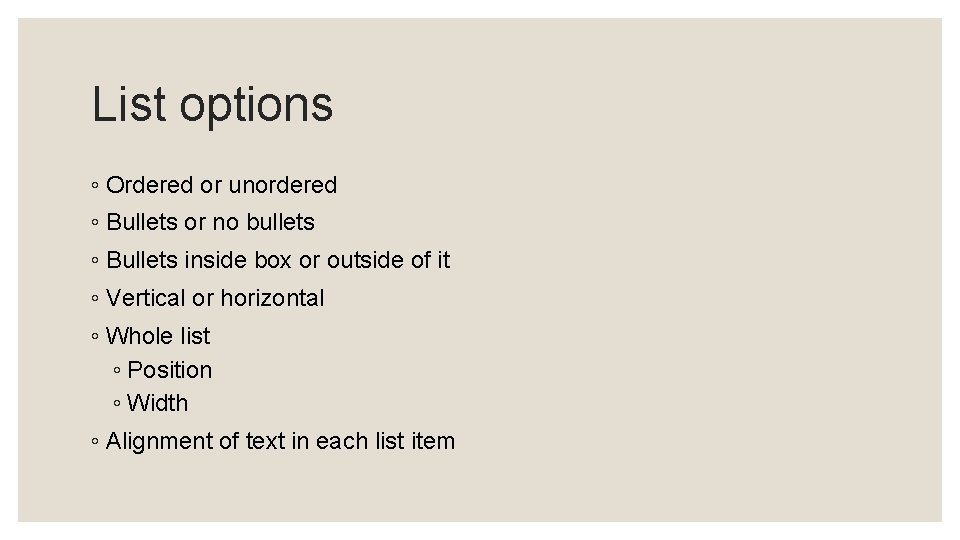
List options ◦ Ordered or unordered ◦ Bullets or no bullets ◦ Bullets inside box or outside of it ◦ Vertical or horizontal ◦ Whole list ◦ Position ◦ Width ◦ Alignment of text in each list item
LINKS
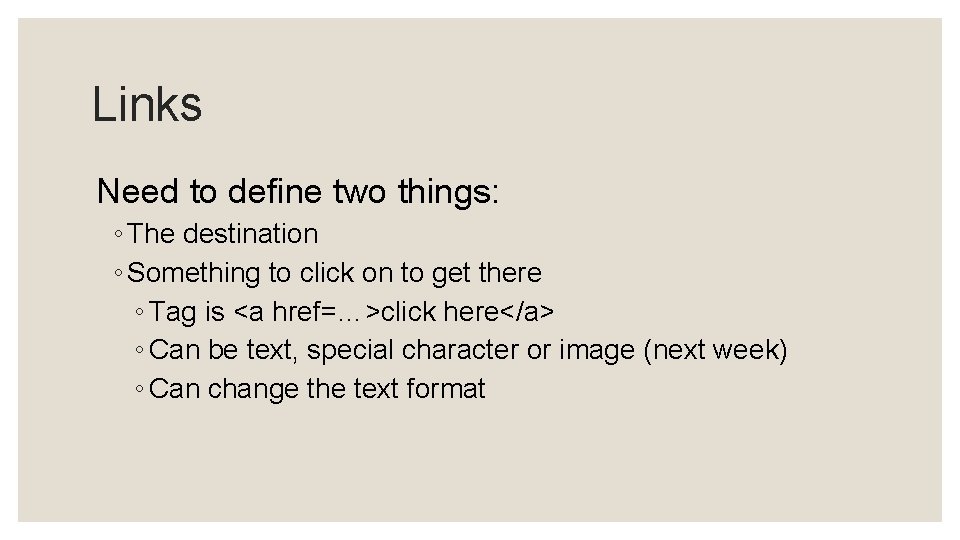
Links Need to define two things: ◦ The destination ◦ Something to click on to get there ◦ Tag is <a href=…>click here</a> ◦ Can be text, special character or image (next week) ◦ Can change the text format
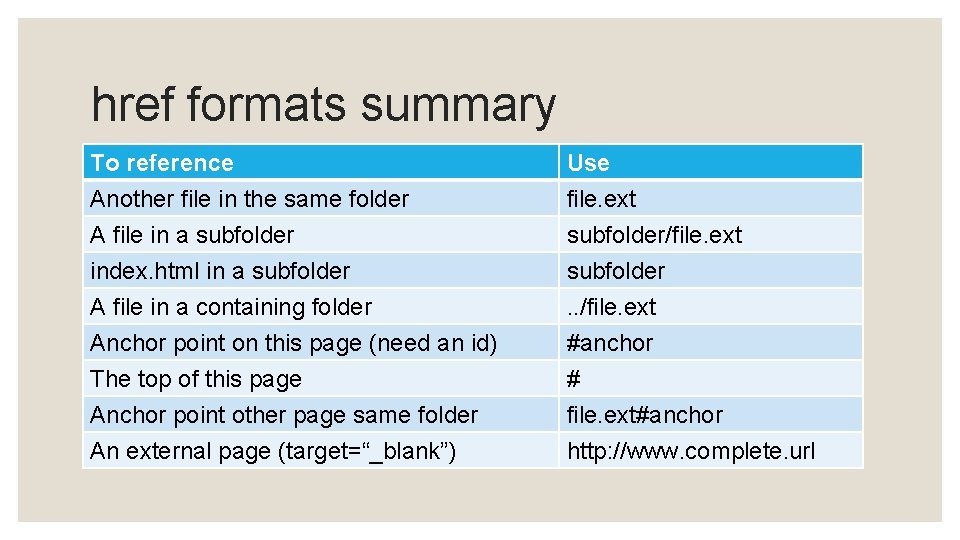
href formats summary To reference Another file in the same folder A file in a subfolder index. html in a subfolder Use file. ext subfolder/file. ext subfolder A file in a containing folder Anchor point on this page (need an id) The top of this page Anchor point other page same folder An external page (target=“_blank”) . . /file. ext #anchor # file. ext#anchor http: //www. complete. url
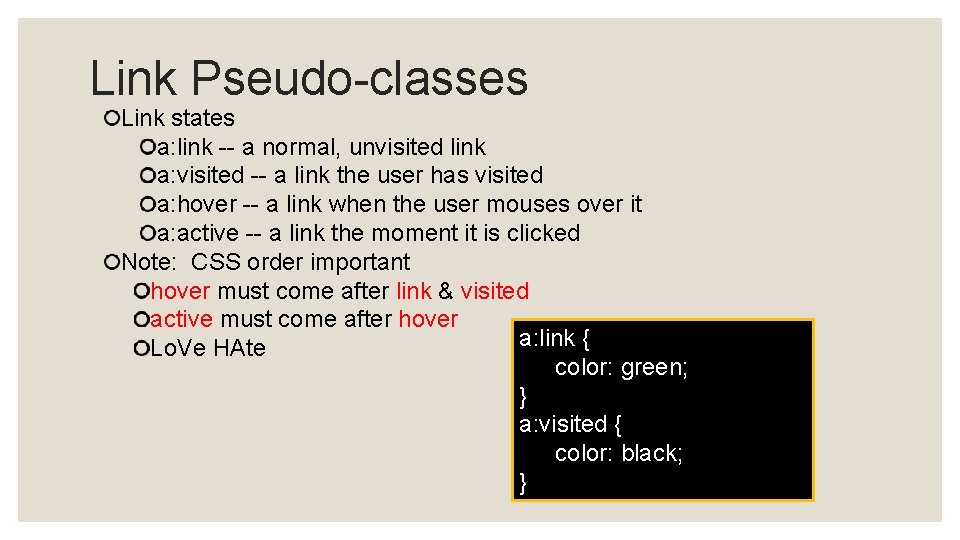
Link Pseudo-classes Link states a: link -- a normal, unvisited link a: visited -- a link the user has visited a: hover -- a link when the user mouses over it a: active -- a link the moment it is clicked Note: CSS order important hover must come after link & visited active must come after hover a: link { Lo. Ve HAte color: green; } a: visited { color: black; }
SELECTIVE FORMATTING
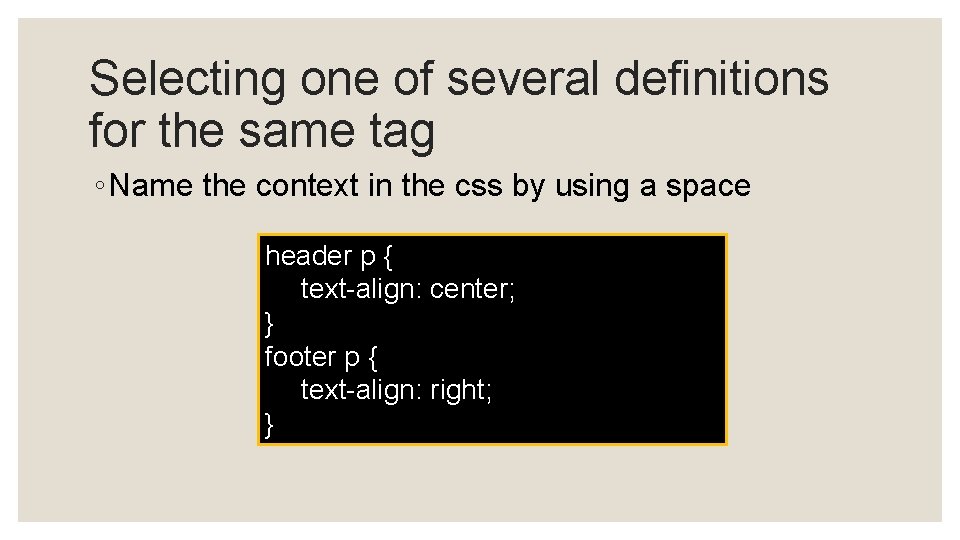
Selecting one of several definitions for the same tag ◦ Name the context in the css by using a space header p { text-align: center; } footer p { text-align: right; }
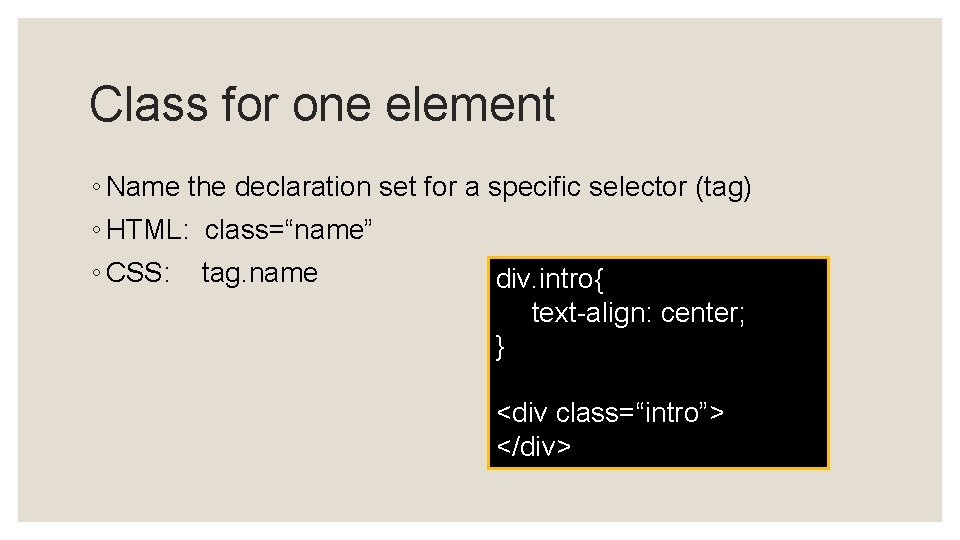
Class for one element ◦ Name the declaration set for a specific selector (tag) ◦ HTML: class=“name” ◦ CSS: tag. name div. intro{ text-align: center; } <div class=“intro”> </div>
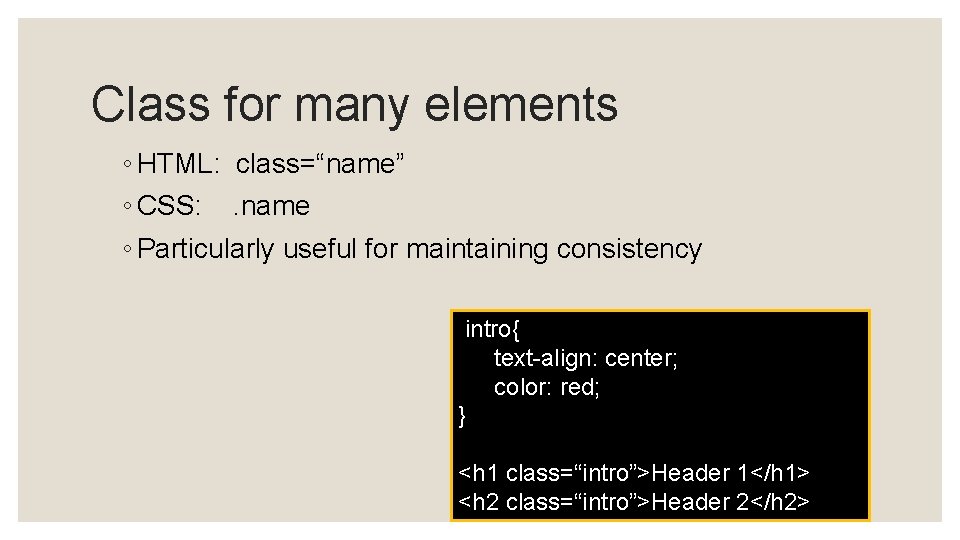
Class for many elements ◦ HTML: class=“name” ◦ CSS: . name ◦ Particularly useful for maintaining consistency. intro{ text-align: center; color: red; } <h 1 class=“intro”>Header 1</h 1> <h 2 class=“intro”>Header 2</h 2>
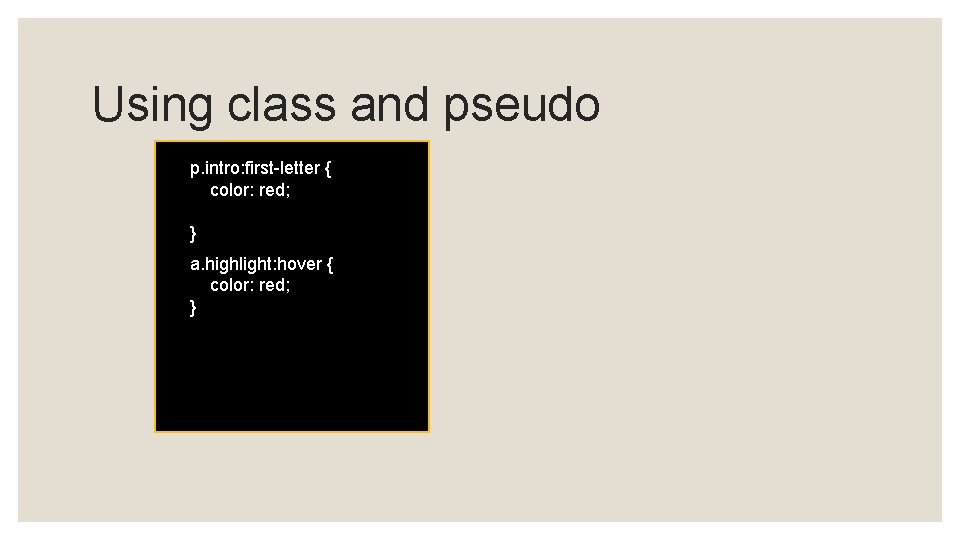
Using class and pseudo p. intro: first-letter { color: red; } a. highlight: hover { color: red; }
COLORS
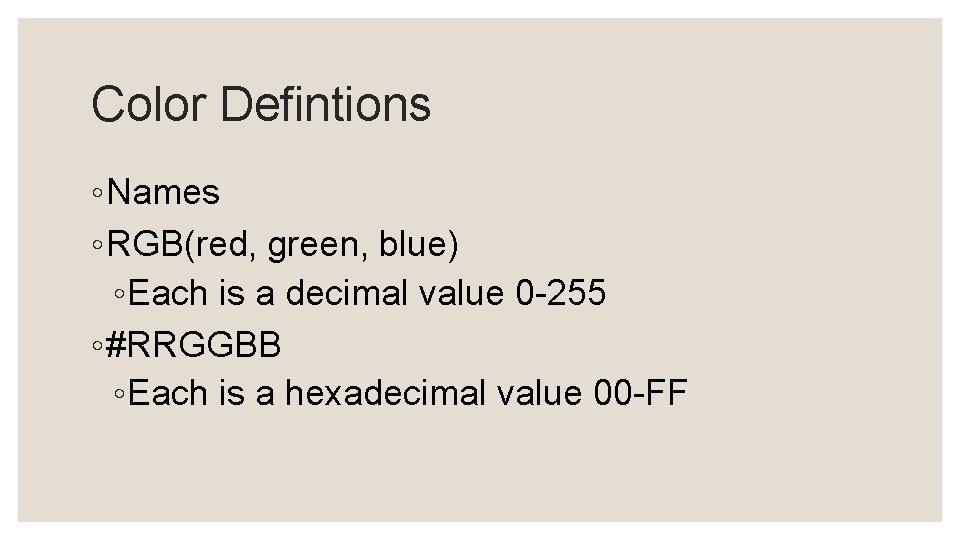
Color Defintions ◦ Names ◦ RGB(red, green, blue) ◦ Each is a decimal value 0 -255 ◦ #RRGGBB ◦ Each is a hexadecimal value 00 -FF