
Commonwealth of Massachusetts Department of Developmental Services DDS
- Slides: 22
Commonwealth of Massachusetts Department of Developmental Services DDS MFA and VPN setup Demonstration June 4, 2020
DDS Multi-Function Authentication & VPN topics of discussion DDS MFA & VPN topics of Discussion • DDS i. Phones have been issued to simplify the user experience while working remotely and in the field, the following slides will assist with downloading the MFA app to your i. Phones • The i. Phones will be used to host a Multi Factor Authentication (MFA) application, either Google Authenticator or Microsoft Authenticator for Android • The MFA is required to access VPN on your state issued laptop. The following slides will demonstrate how to use the MFA app to login to VPN • DDS i. Phones are for business use only and only those applications approved by EHS-IT Security are allowed to be downloaded to your state owned device • There is a DDS app request form with instructions for submitting app requests to EHS-IT. Only apps requested for business use will be considered for approval 2
DDS Multi-Function Authentication & VPN topics of discussion DDS MFA & VPN topics of Discussion Topics to consider: 1. 2. 3. MFA = Google Authenticator for i. Phones & Microsoft authenticator for Android phones An Apple ID will be needed to download apps from the App Store for Apple devices. Apple. ID on state phones will be your email address; “Yourname@mass. gov, if you have multiple state email addresses then it is suggested to use the @mass. gov email address Pulse Secure is the application used to log in to VPN, there are 3 steps to login to VPN • Enter your username = state email address • Enter your password = same password used to log on to your desktop or laptop • Enter your MFA = 6 digit code from the Google or Microsoft Authentication app 3
Multi-factor Authentication What is Multi-factor Authorization (MFA): • Multi-factor authentication refers to the pieces of information you need to provide to gain access to our employee-facing services outside the DDS network • It is an added layer of security making it harder for an account to be accessed by outside sources even if a password is compromised. This is essential in ensuring the safety and security of our clients’ Personally Identifiable Information (PII) 4
Multi-factor Authentication • MFA Set Up General Steps 1. Download the Authenticator app onto your smartphone. Google Authenticator for i. Phones and MS Authenticator for Android devices 2. Log in to the Centrify webpage at; https: //eotss. my. Centrify. com 3. Scan the OATH OTP Client QR code with either your Google or Microsoft Authenticator app 4. Enter the 6 digit verification code that is generated in the app and select “Verify” The following slides demonstrate how to perform the MFA setup beginning with downloading the MFA app, syncing the smartphone to Centrify then log in to VPN. Each time you log in to VPN you will need to use your MFA authentication app to input a 6 digit MFA Verification code. 5
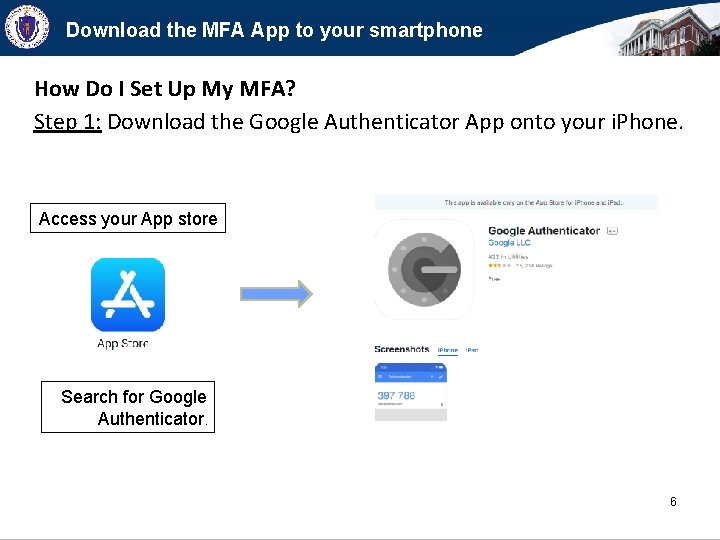
Download the MFA App to your smartphone How Do I Set Up My MFA? Step 1: Download the Google Authenticator App onto your i. Phone. Access your App store Search for Google Authenticator. 6
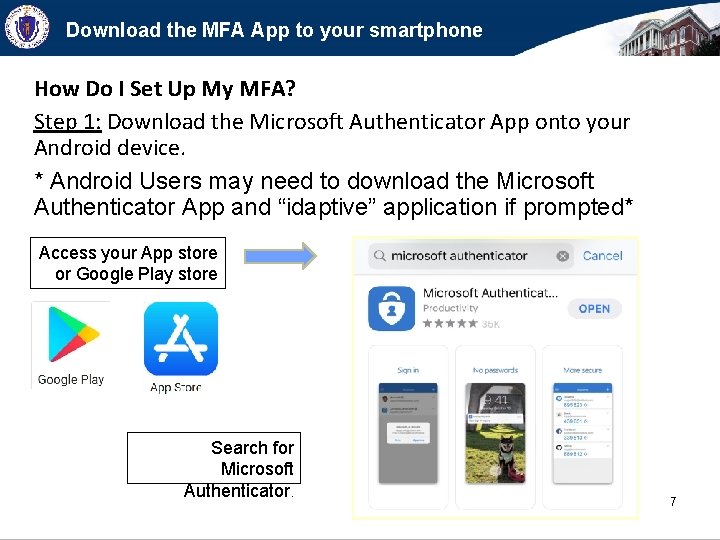
Download the MFA App to your smartphone How Do I Set Up My MFA? Step 1: Download the Microsoft Authenticator App onto your Android device. * Android Users may need to download the Microsoft Authenticator App and “idaptive” application if prompted* Access your App store or Google Play store Search for Microsoft Authenticator. 7
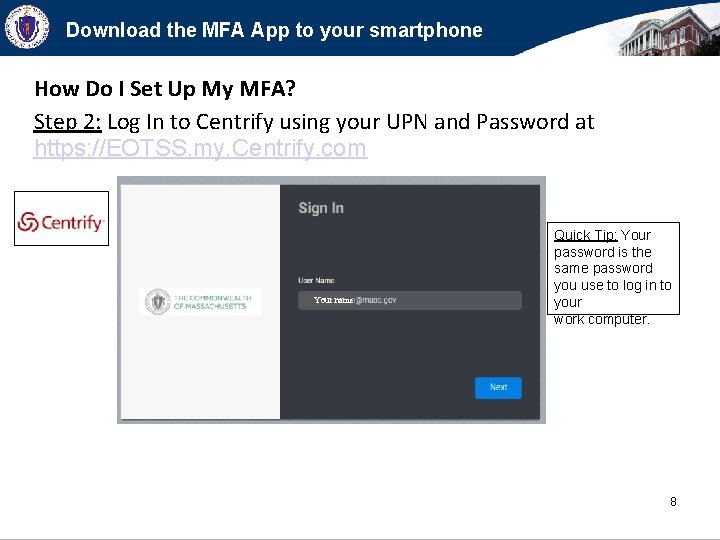
Download the MFA App to your smartphone How Do I Set Up My MFA? Step 2: Log In to Centrify using your UPN and Password at https: //EOTSS. my. Centrify. com Your name Quick Tip: Your password is the same password you use to log in to your work computer. 8
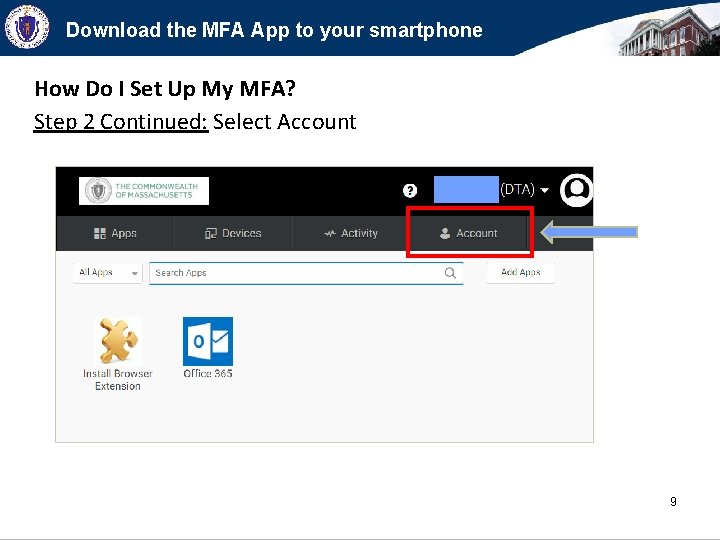
Download the MFA App to your smartphone How Do I Set Up My MFA? Step 2 Continued: Select Account 9
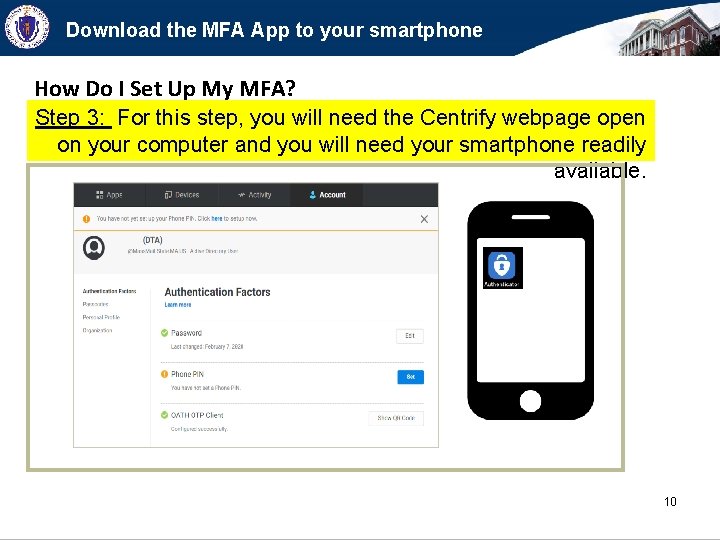
Download the MFA App to your smartphone How Do I Set Up My MFA? Step 3: For this step, you will need the Centrify webpage open on your computer and you will need your smartphone readily available. 10
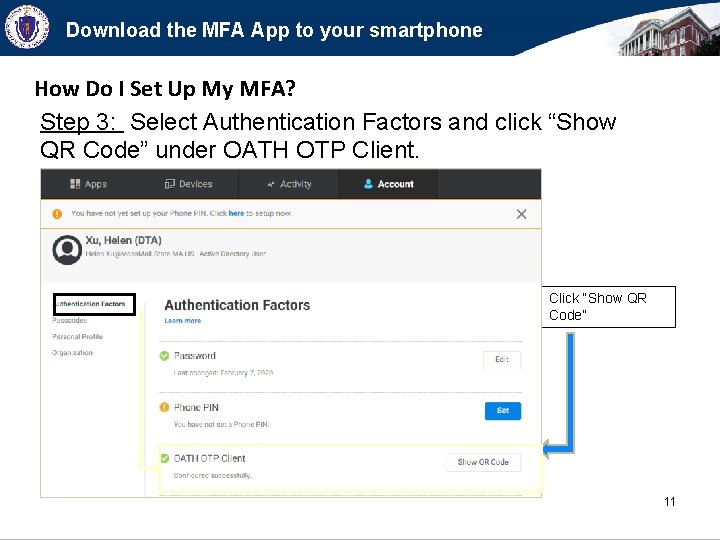
Download the MFA App to your smartphone How Do I Set Up My MFA? Step 3: Select Authentication Factors and click “Show QR Code” under OATH OTP Client. Click “Show QR Code” 11
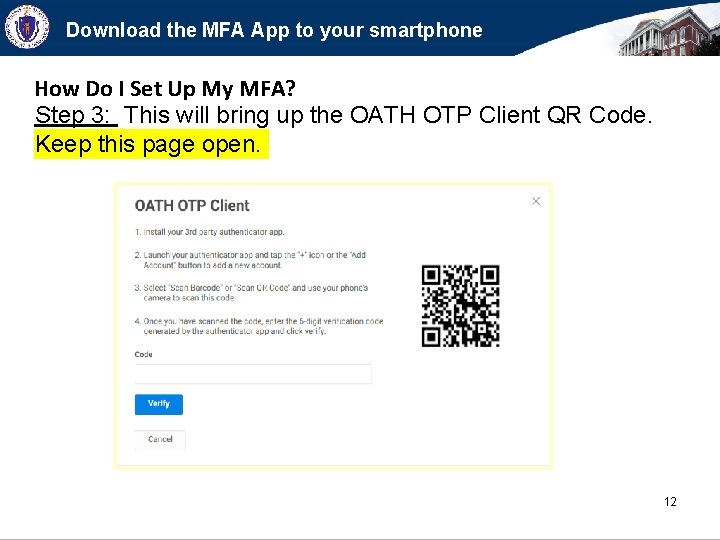
Download the MFA App to your smartphone How Do I Set Up My MFA? Step 3: This will bring up the OATH OTP Client QR Code. Keep this page open. 12
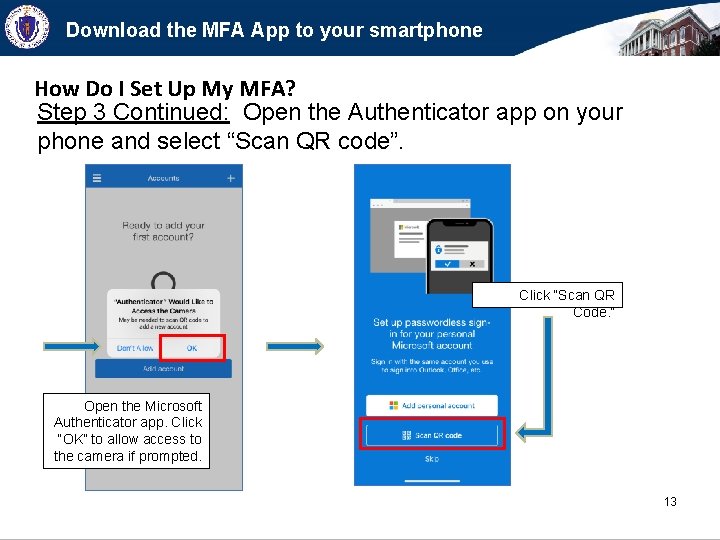
Download the MFA App to your smartphone How Do I Set Up My MFA? Step 3 Continued: Open the Authenticator app on your phone and select “Scan QR code”. Click “Scan QR Code. ” Open the Microsoft Authenticator app. Click “OK” to allow access to the camera if prompted. 13
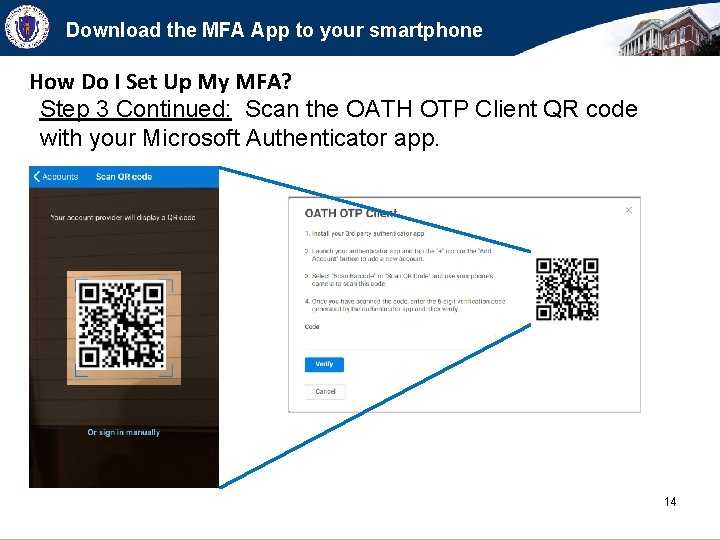
Download the MFA App to your smartphone How Do I Set Up My MFA? Step 3 Continued: Scan the OATH OTP Client QR code with your Microsoft Authenticator app. 14
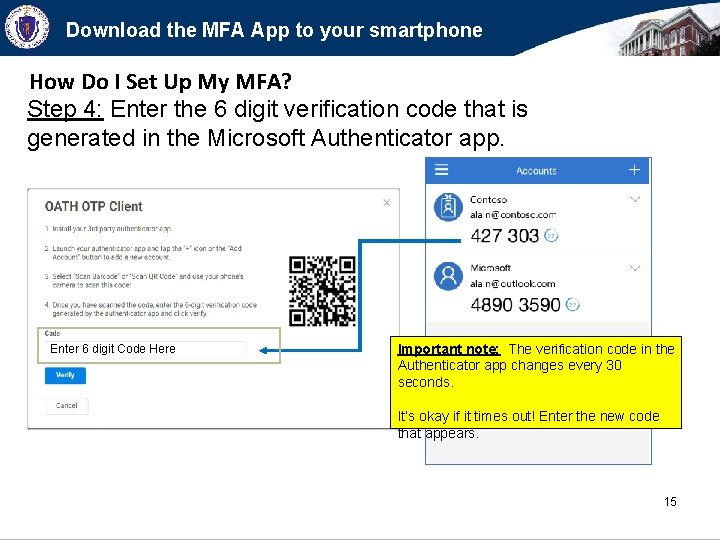
Download the MFA App to your smartphone How Do I Set Up My MFA? Step 4: Enter the 6 digit verification code that is generated in the Microsoft Authenticator app. Enter 6 digit Code Here Important note: The verification code in the Authenticator app changes every 30 seconds. It’s okay if it times out! Enter the new code that appears. 15
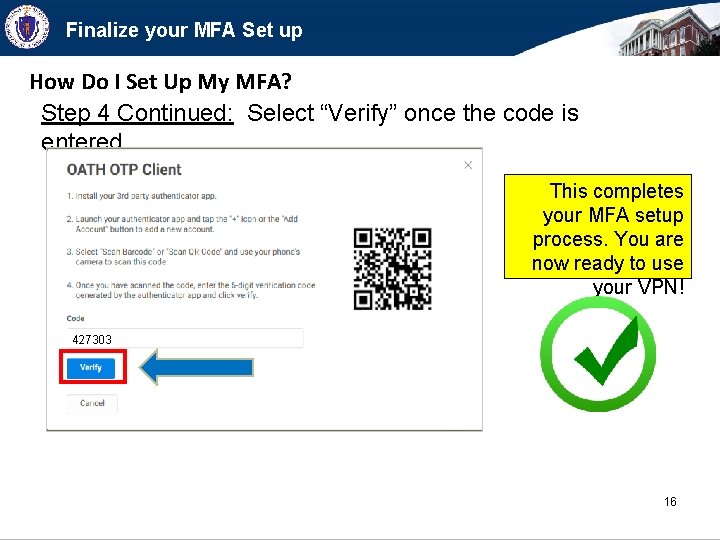
Finalize your MFA Set up How Do I Set Up My MFA? Step 4 Continued: Select “Verify” once the code is entered. This completes your MFA setup process. You are now ready to use your VPN! 427303 16
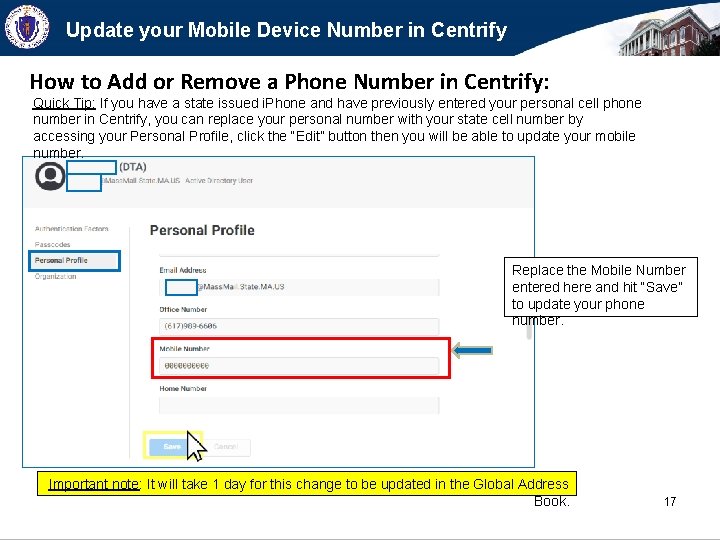
Update your Mobile Device Number in Centrify How to Add or Remove a Phone Number in Centrify: Quick Tip: If you have a state issued i. Phone and have previously entered your personal cell phone number in Centrify, you can replace your personal number with your state cell number by accessing your Personal Profile, click the “Edit” button then you will be able to update your mobile number. Replace the Mobile Number entered here and hit “Save” to update your phone number. Important note: It will take 1 day for this change to be updated in the Global Address Book. 17
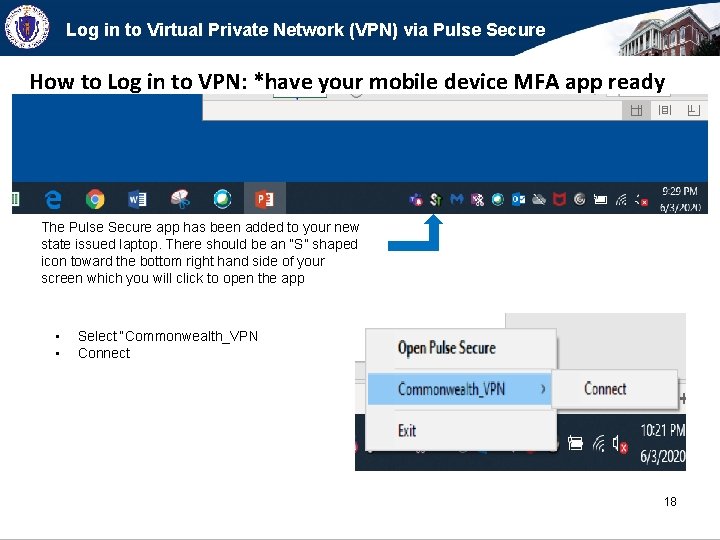
Log in to Virtual Private Network (VPN) via Pulse Secure How to Log in to VPN: *have your mobile device MFA app ready The Pulse Secure app has been added to your new state issued laptop. There should be an “S” shaped icon toward the bottom right hand side of your screen which you will click to open the app • • Select “Commonwealth_VPN Connect 18
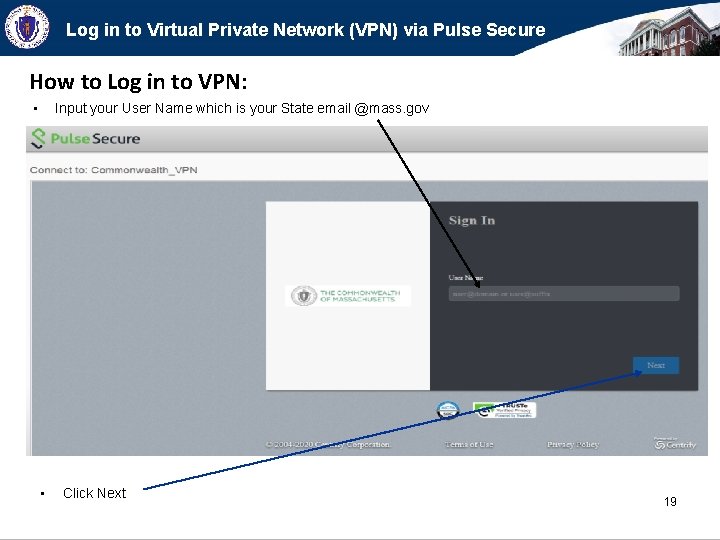
Log in to Virtual Private Network (VPN) via Pulse Secure How to Log in to VPN: • Input your User Name which is your State email @mass. gov • Click Next 19
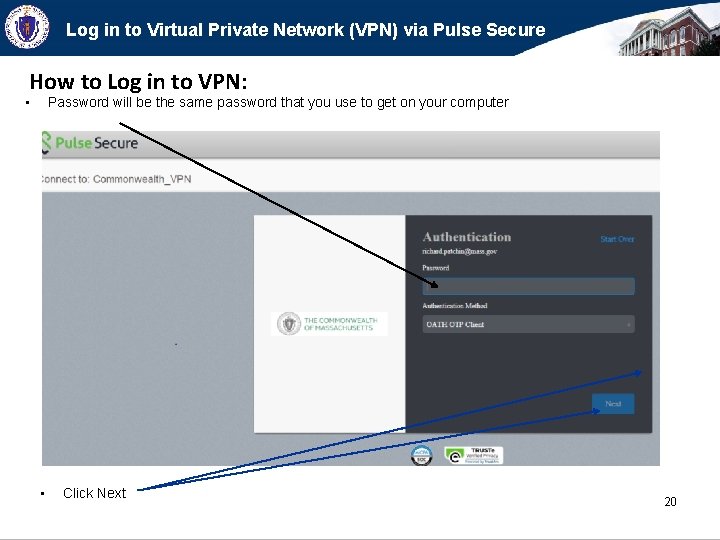
Log in to Virtual Private Network (VPN) via Pulse Secure How to Log in to VPN: • Password will be the same password that you use to get on your computer • Click Next 20
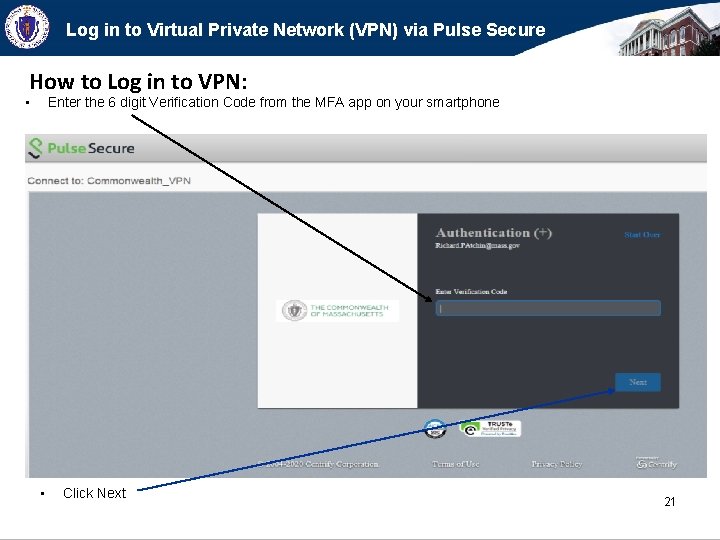
Log in to Virtual Private Network (VPN) via Pulse Secure How to Log in to VPN: • Enter the 6 digit Verification Code from the MFA app on your smartphone • Click Next 21
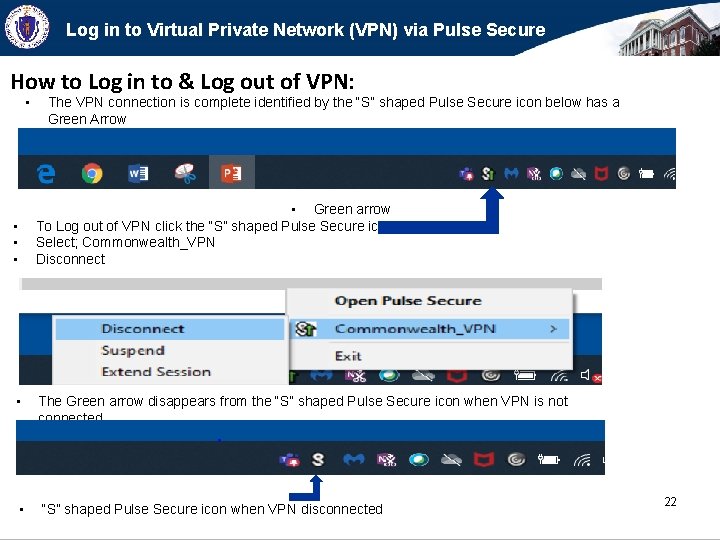
Log in to Virtual Private Network (VPN) via Pulse Secure How to Log in to & Log out of VPN: • The VPN connection is complete identified by the “S” shaped Pulse Secure icon below has a Green Arrow • Green arrow To Log out of VPN click the “S” shaped Pulse Secure icon Select; Commonwealth_VPN Disconnect • • The Green arrow disappears from the “S” shaped Pulse Secure icon when VPN is not connected • “S” shaped Pulse Secure icon when VPN disconnected 22