
Common Dialog Boxes Modal Forms Resizing Menus Combo
Common Dialog Boxes, Modal Forms, Resizing, Menus, Combo. Boxes, Web Controls and Dates
Common Dialog Boxes
Common Dialog Boxes • VB has certain prefabricated forms for dealing with certain recurring tasks, such as – Selecting a color – Selecting a font – Selecting a file – And so on • These prefabricated forms “ensure” a consistent “look and feel”
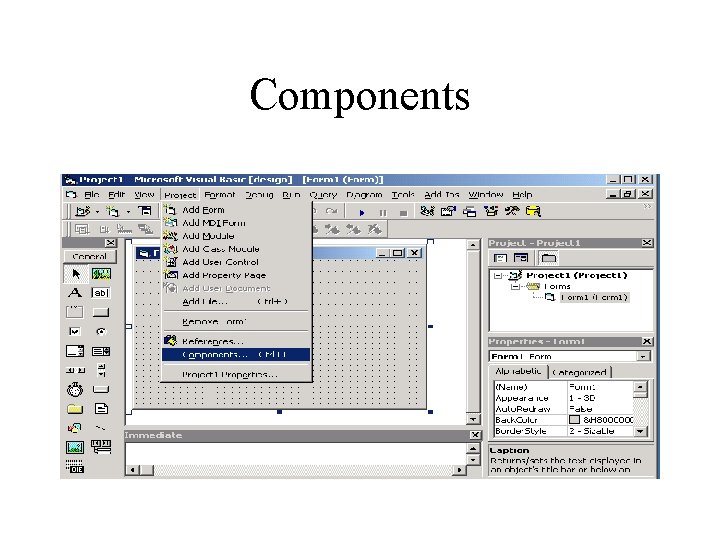
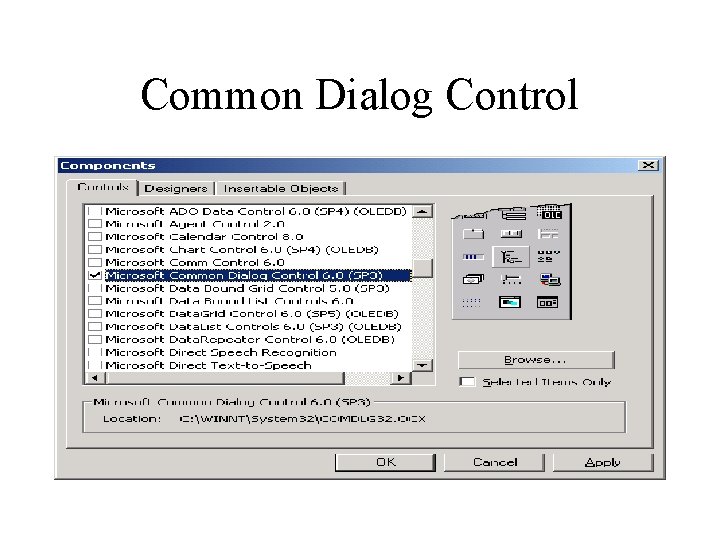
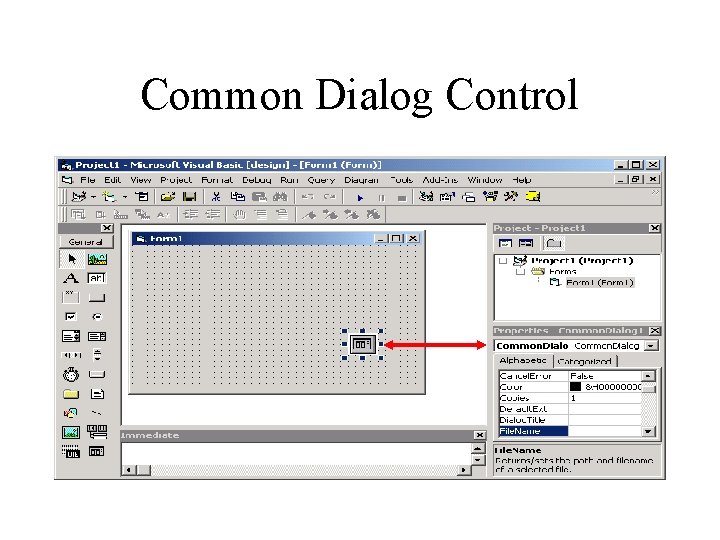
Common Dialog Boxes • The Common. Dialog control must be added to the toolbox by checking the Microsoft Common Dialog Control checkbox under Project/Components • The Hungarian prefix is cdl • (p. 536 in Schneider)
Components
Common Dialog Control
Common Dialog Control
Ex: Common Dialog Box Color 1 2 3
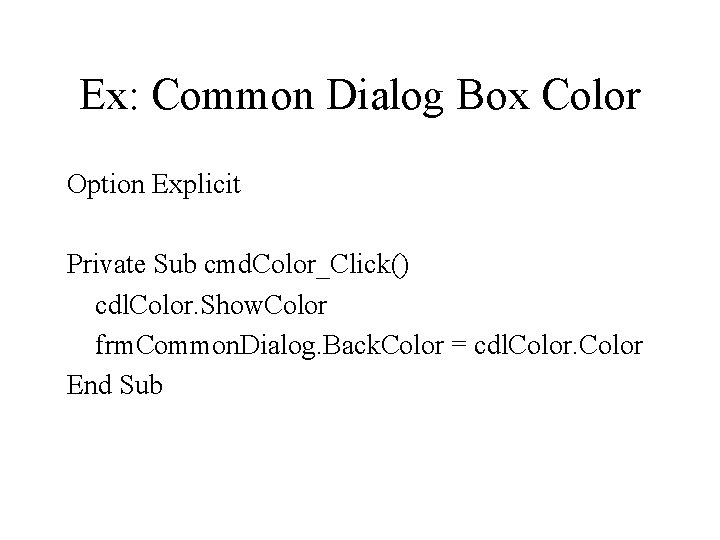
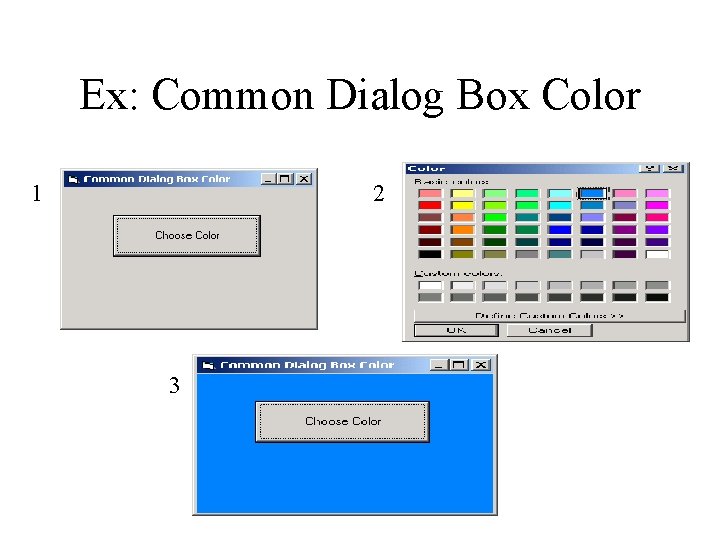
Ex: Common Dialog Box Color Option Explicit Private Sub cmd. Color_Click() cdl. Color. Show. Color frm. Common. Dialog. Back. Color = cdl. Color End Sub
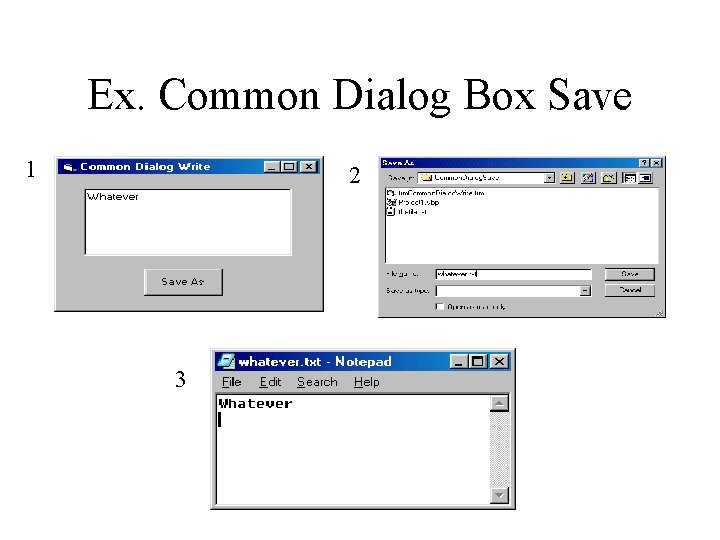
Ex. Common Dialog Box Save 1 2 3
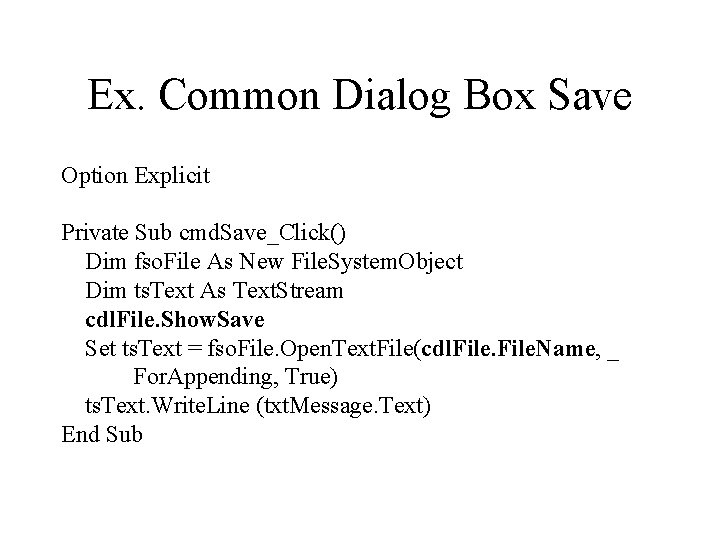
Ex. Common Dialog Box Save Option Explicit Private Sub cmd. Save_Click() Dim fso. File As New File. System. Object Dim ts. Text As Text. Stream cdl. File. Show. Save Set ts. Text = fso. File. Open. Text. File(cdl. File. Name, _ For. Appending, True) ts. Text. Write. Line (txt. Message. Text) End Sub
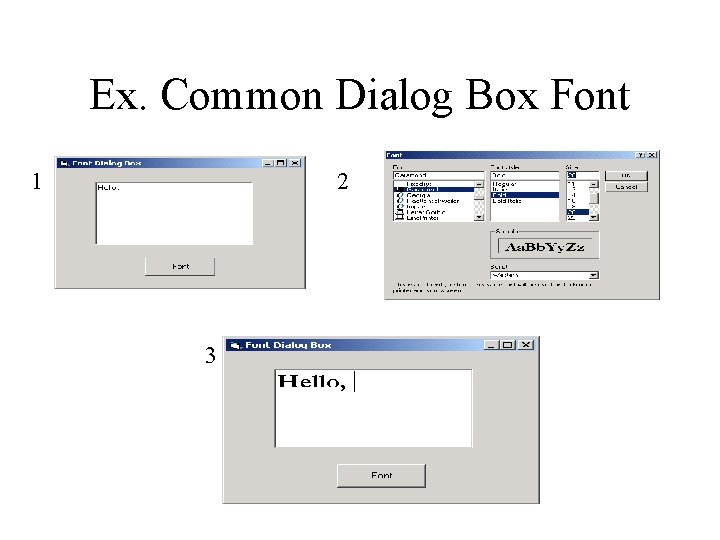
Ex. Common Dialog Box Font 1 2 3
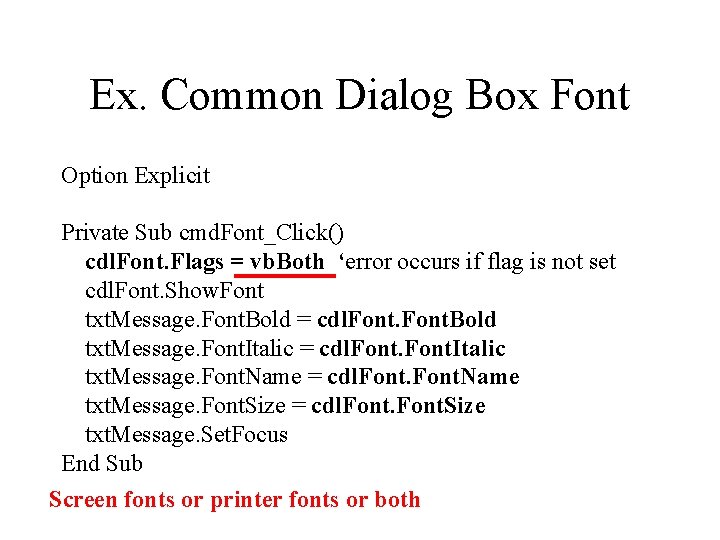
Ex. Common Dialog Box Font Option Explicit Private Sub cmd. Font_Click() cdl. Font. Flags = vb. Both ‘error occurs if flag is not set cdl. Font. Show. Font txt. Message. Font. Bold = cdl. Font. Bold txt. Message. Font. Italic = cdl. Font. Italic txt. Message. Font. Name = cdl. Font. Name txt. Message. Font. Size = cdl. Font. Size txt. Message. Set. Focus End Sub Screen fonts or printer fonts or both
Modal Forms
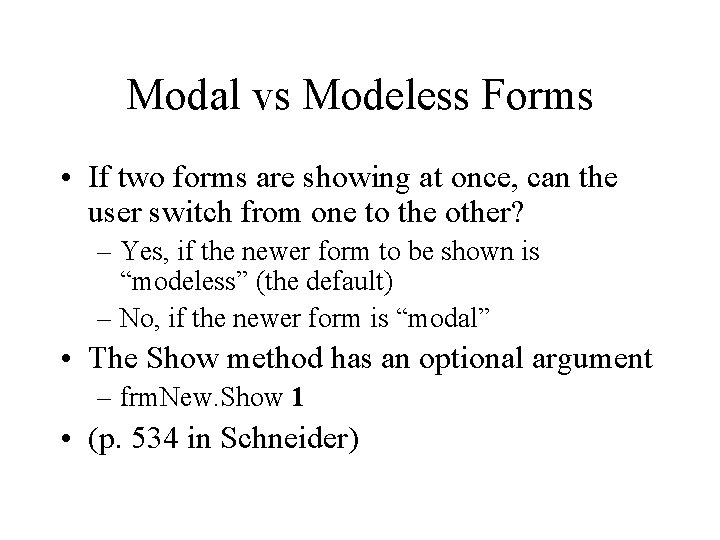
Modal vs Modeless Forms • If two forms are showing at once, can the user switch from one to the other? – Yes, if the newer form to be shown is “modeless” (the default) – No, if the newer form is “modal” • The Show method has an optional argument – frm. New. Show 1 • (p. 534 in Schneider)

Modal Forms
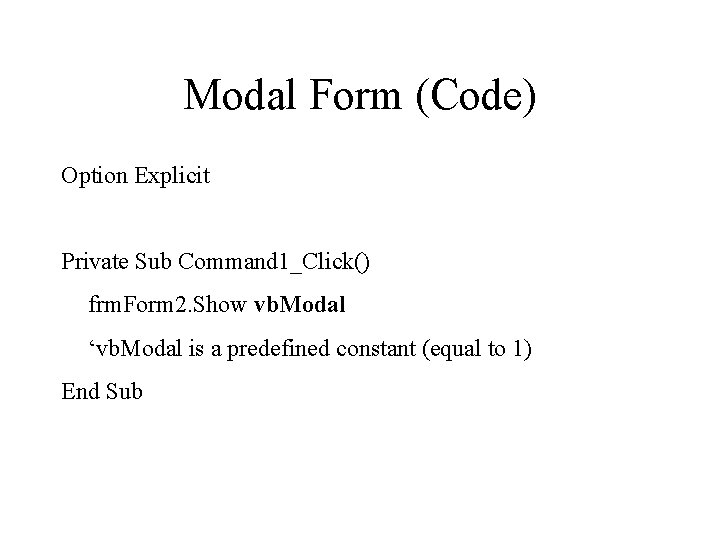
Modal Form (Code) Option Explicit Private Sub Command 1_Click() frm. Form 2. Show vb. Modal ‘vb. Modal is a predefined constant (equal to 1) End Sub
Scale. Height and Scale. Width
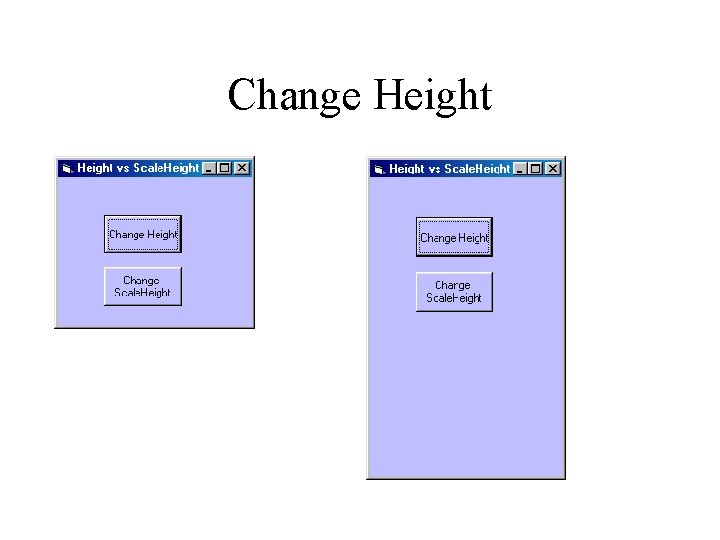
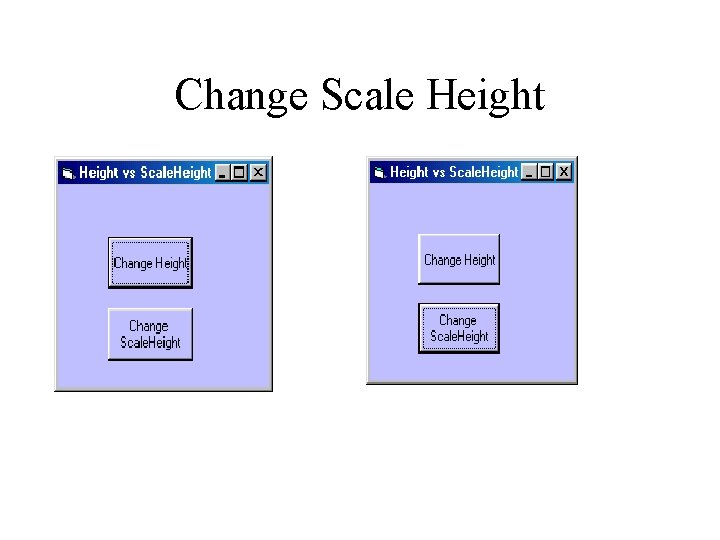
Scale. Height and Scale. Width • Scale. Height and Scale. Width are the usable area of the form • Scale. Height is typically a bit less than Height – Title, borders • More important difference: – Height is an external observable property that determines how tall the form is – Scale. Height is an internal reference property that determines where things are within the form
Change Height
Change Scale Height
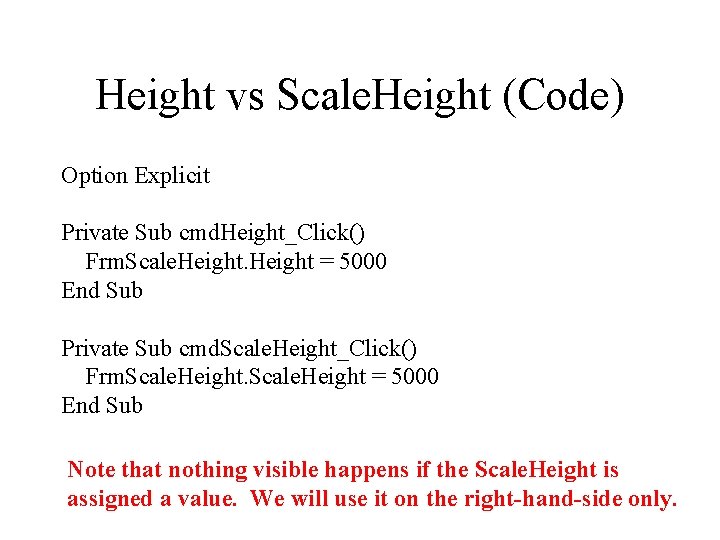
Height vs Scale. Height (Code) Option Explicit Private Sub cmd. Height_Click() Frm. Scale. Height = 5000 End Sub Private Sub cmd. Scale. Height_Click() Frm. Scale. Height = 5000 End Sub Note that nothing visible happens if the Scale. Height is assigned a value. We will use it on the right-hand-side only.
Resize • Changing the size of the form is known as resizing • One can prevent resizing by setting the Form’s Border. Style property to Fixed instead of Sizable • One can only change the Border. Style at design time (not at run-time)
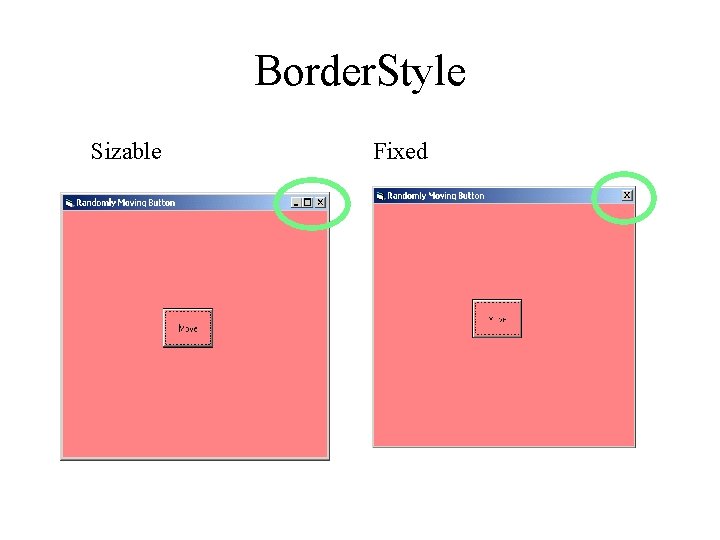
Border. Style Sizable Fixed
Allowing Resizing • Users like the freedom to minimize, maximize and resize forms. • It is the programmer’s responsibility to ensure that a form continues to function and look presentable upon resizing. • If the user resizes the Form, a Resize event is raised, and the programmers should write a Resize method to make any changes.
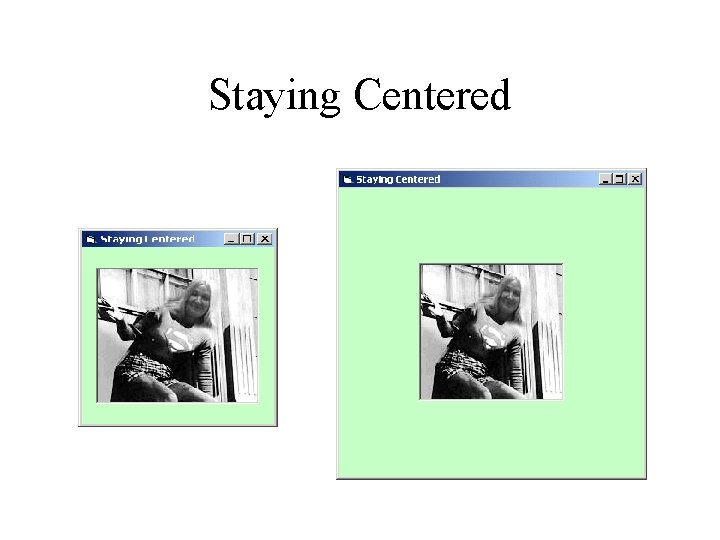
Staying Centered
Staying Centered (Code) Option Explicit Private Sub Form_Resize() pic. Elliott. Top = (frm. Center. Scale. Height - _ pic. Elliott. Height ) 2 pic. Elliott. Left = frm. Center. Scale. Width / 2 - _ pic. Elliott. Width / 2 'Note use of Scale. Height and Scale. Width 'instead of Height and Width ‘only using Scale. Height and Scale. Width on right of assign End Sub
Web Browser
IE • Internet Explorer (IE) is made from various (COM) objects, for instance – The toolbar and menu system that allow the user to interface with the browser – An object that accesses files using HTTP, which retrieves pages – An object that parses HTML code and presents (renders) it for the user • The web. Browser object that we will be using is the same basic object used by IE, but we will design our own interface.
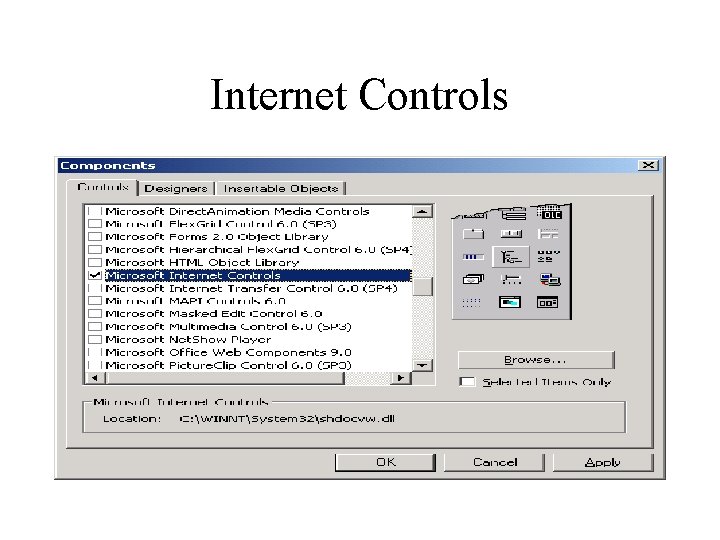
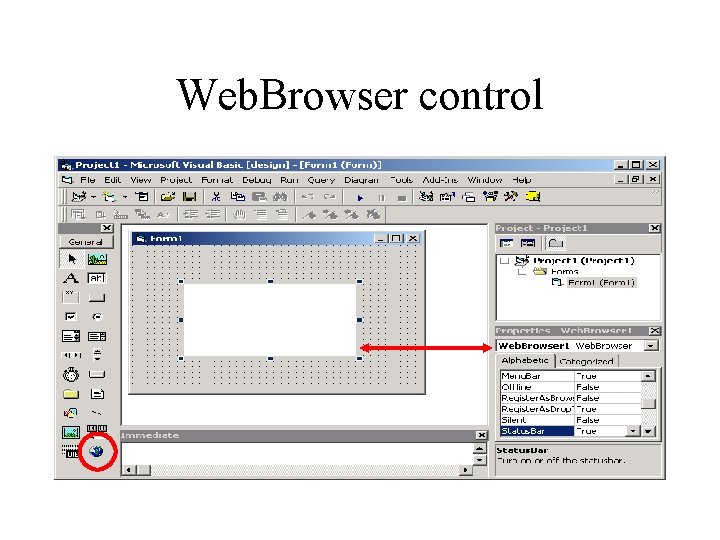
A simple web browser • Go to Project/Components and check off Microsoft Internet Controls checkbox – (not Microsoft Internet Transfer Control) • Instantiate a browser by dragging the web browser control (Internet Control) onto the form – Along with a text box and a command button
Internet Controls
Web. Browser control
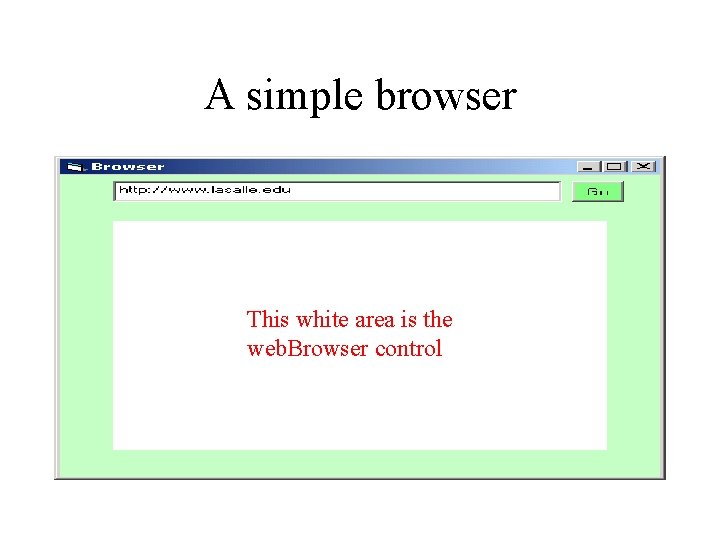
A simple browser This white area is the web. Browser control
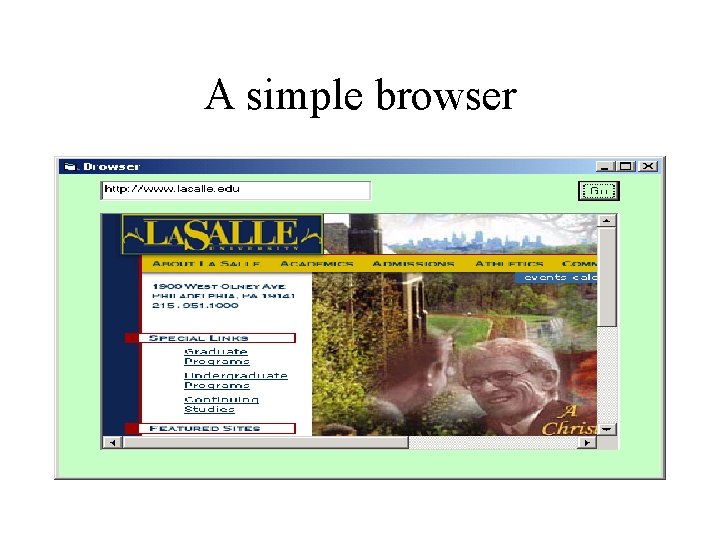
A simple browser
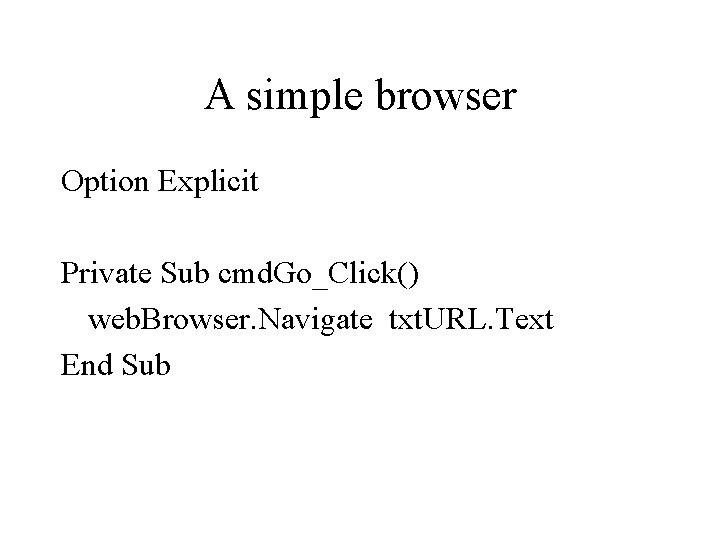
A simple browser Option Explicit Private Sub cmd. Go_Click() web. Browser. Navigate txt. URL. Text End Sub
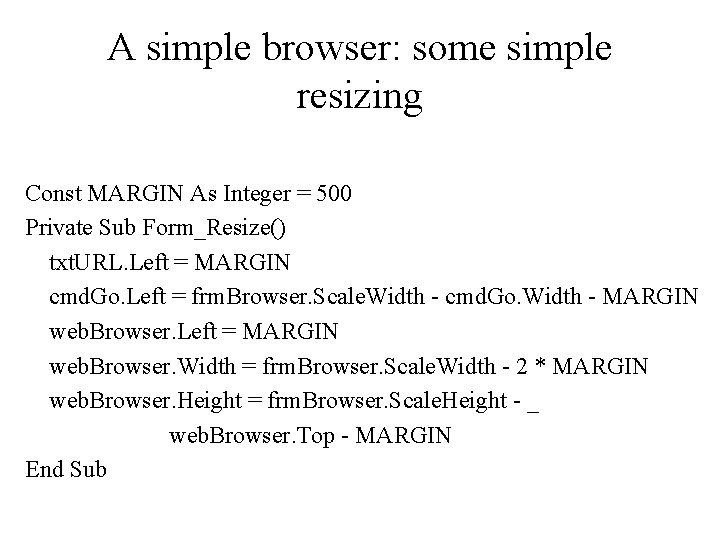
A simple browser: some simple resizing Const MARGIN As Integer = 500 Private Sub Form_Resize() txt. URL. Left = MARGIN cmd. Go. Left = frm. Browser. Scale. Width - cmd. Go. Width - MARGIN web. Browser. Left = MARGIN web. Browser. Width = frm. Browser. Scale. Width - 2 * MARGIN web. Browser. Height = frm. Browser. Scale. Height - _ web. Browser. Top - MARGIN End Sub
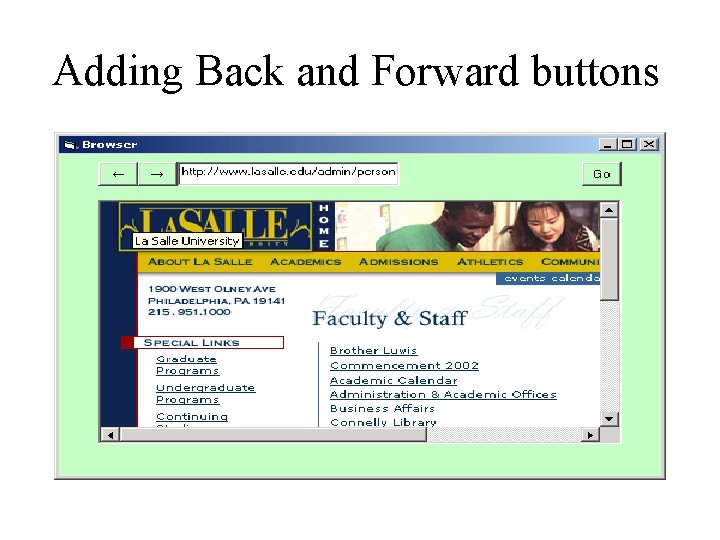
Adding Back and Forward buttons
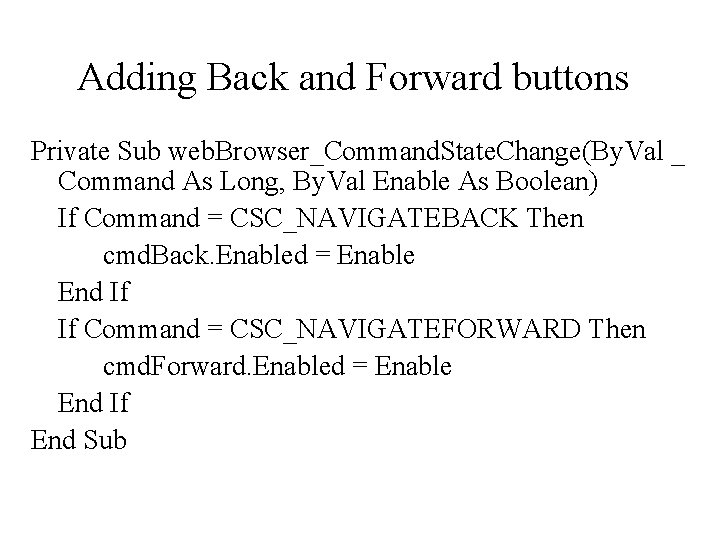
Adding Back and Forward buttons Private Sub web. Browser_Command. State. Change(By. Val _ Command As Long, By. Val Enable As Boolean) If Command = CSC_NAVIGATEBACK Then cmd. Back. Enabled = Enable End If If Command = CSC_NAVIGATEFORWARD Then cmd. Forward. Enabled = Enable End If End Sub
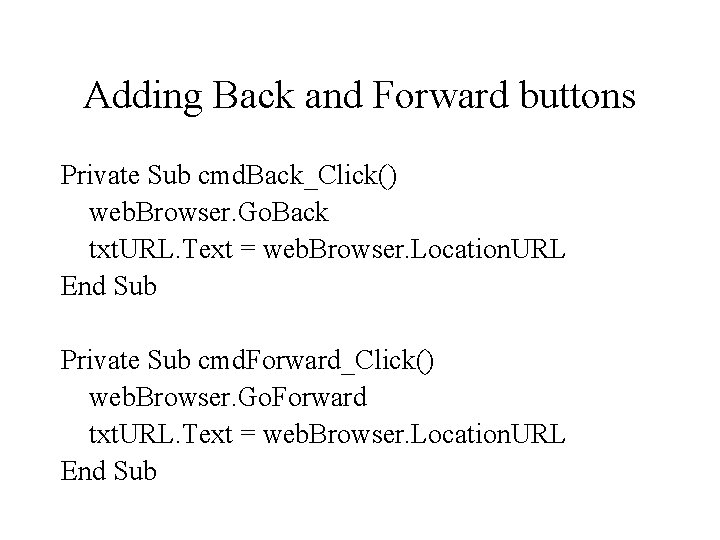
Adding Back and Forward buttons Private Sub cmd. Back_Click() web. Browser. Go. Back txt. URL. Text = web. Browser. Location. URL End Sub Private Sub cmd. Forward_Click() web. Browser. Go. Forward txt. URL. Text = web. Browser. Location. URL End Sub
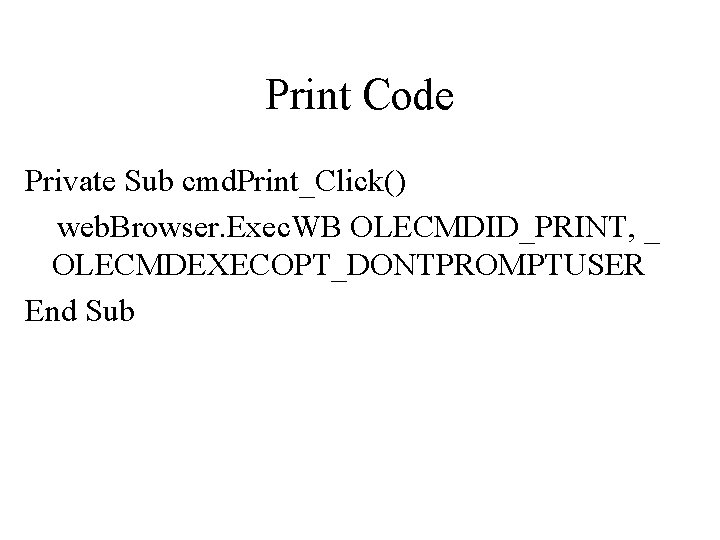
Print Code Private Sub cmd. Print_Click() web. Browser. Exec. WB OLECMDID_PRINT, _ OLECMDEXECOPT_DONTPROMPTUSER End Sub
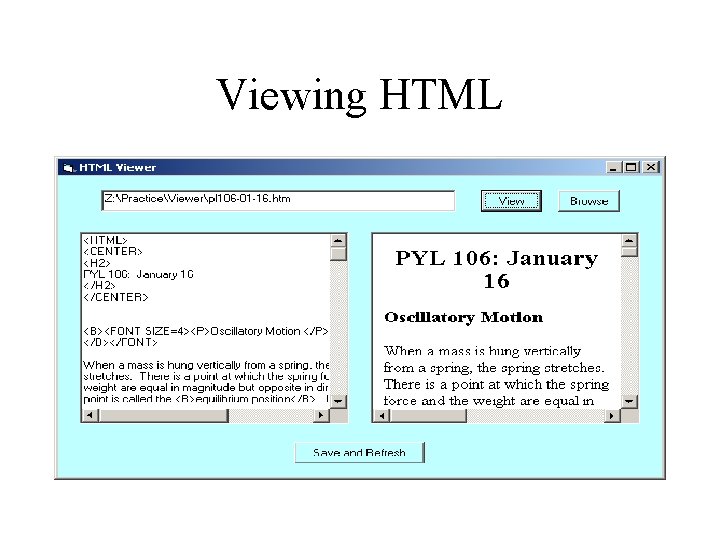
Viewing HTML
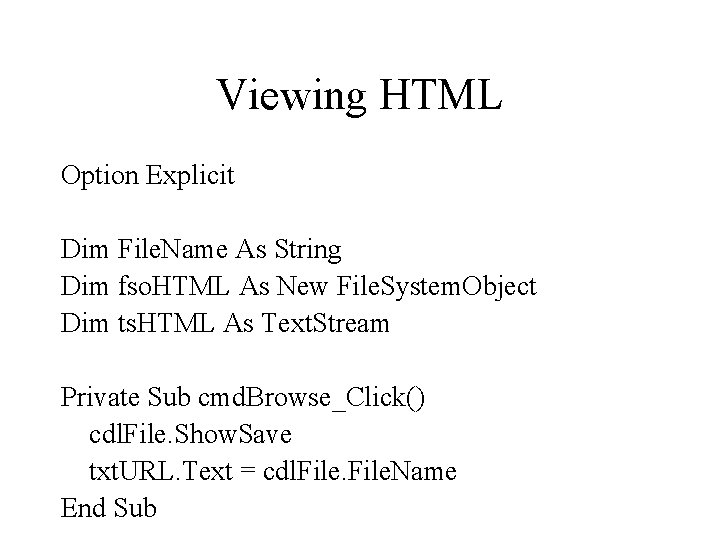
Viewing HTML Option Explicit Dim File. Name As String Dim fso. HTML As New File. System. Object Dim ts. HTML As Text. Stream Private Sub cmd. Browse_Click() cdl. File. Show. Save txt. URL. Text = cdl. File. Name End Sub
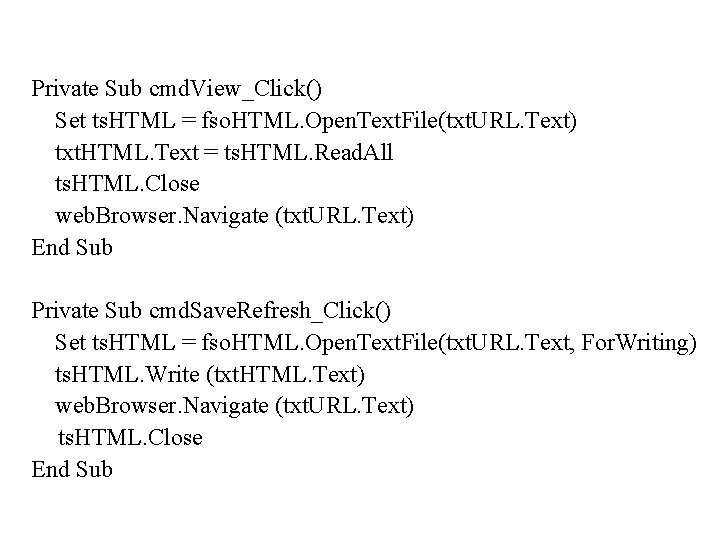
Private Sub cmd. View_Click() Set ts. HTML = fso. HTML. Open. Text. File(txt. URL. Text) txt. HTML. Text = ts. HTML. Read. All ts. HTML. Close web. Browser. Navigate (txt. URL. Text) End Sub Private Sub cmd. Save. Refresh_Click() Set ts. HTML = fso. HTML. Open. Text. File(txt. URL. Text, For. Writing) ts. HTML. Write (txt. HTML. Text) web. Browser. Navigate (txt. URL. Text) ts. HTML. Close End Sub
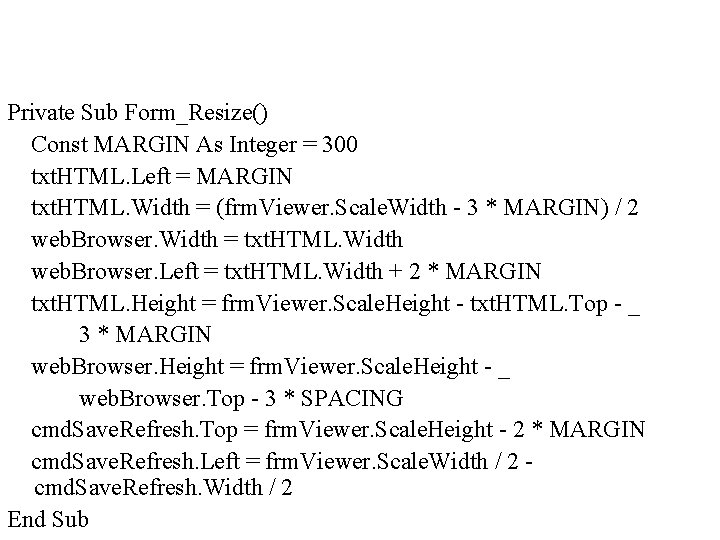
Private Sub Form_Resize() Const MARGIN As Integer = 300 txt. HTML. Left = MARGIN txt. HTML. Width = (frm. Viewer. Scale. Width - 3 * MARGIN) / 2 web. Browser. Width = txt. HTML. Width web. Browser. Left = txt. HTML. Width + 2 * MARGIN txt. HTML. Height = frm. Viewer. Scale. Height - txt. HTML. Top - _ 3 * MARGIN web. Browser. Height = frm. Viewer. Scale. Height - _ web. Browser. Top - 3 * SPACING cmd. Save. Refresh. Top = frm. Viewer. Scale. Height - 2 * MARGIN cmd. Save. Refresh. Left = frm. Viewer. Scale. Width / 2 cmd. Save. Refresh. Width / 2 End Sub
Menus
Menus • Right click on a form and choose Menu Editor • Supply a caption and a name for the menu • Click the next button and supply another caption and name • Hit “ ” if it should be an item on the above menu rather than another menu
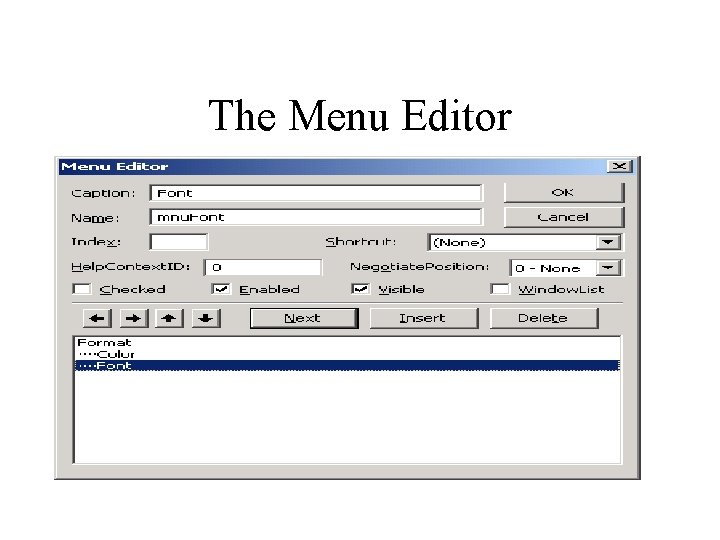
The Menu Editor
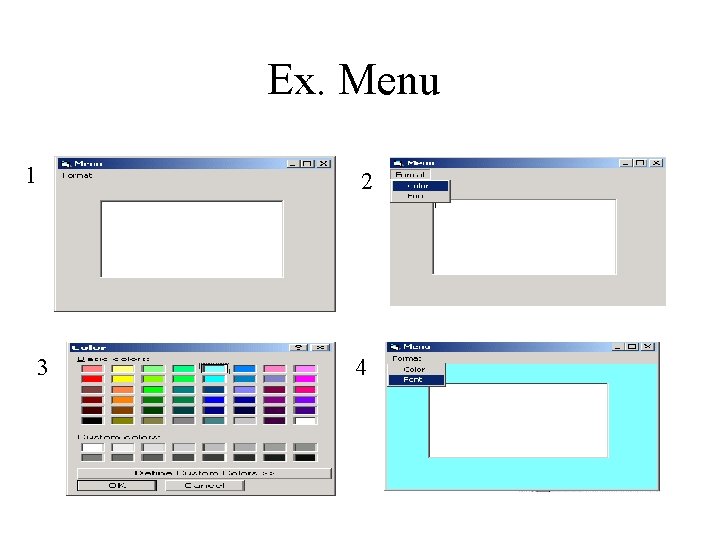
Ex. Menu 1 2 3 4
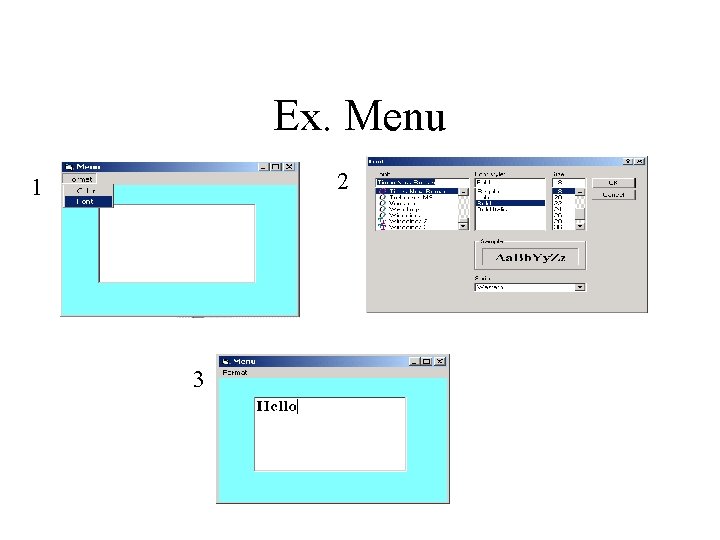
Ex. Menu 2 1 3
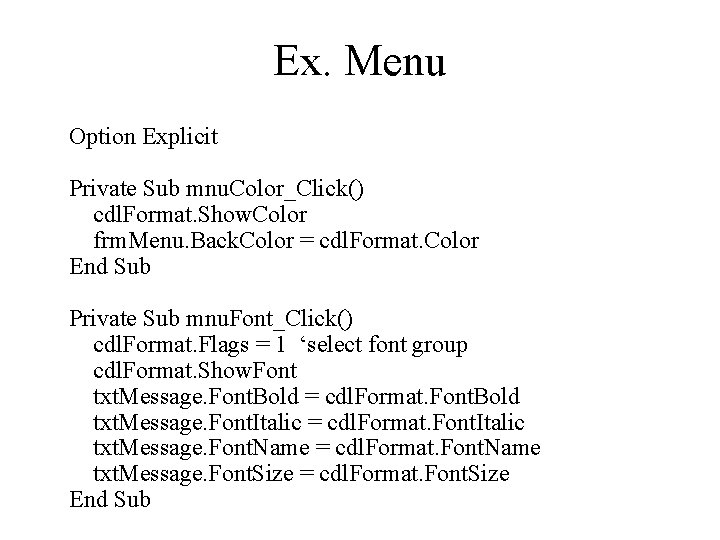
Ex. Menu Option Explicit Private Sub mnu. Color_Click() cdl. Format. Show. Color frm. Menu. Back. Color = cdl. Format. Color End Sub Private Sub mnu. Font_Click() cdl. Format. Flags = 1 ‘select font group cdl. Format. Show. Font txt. Message. Font. Bold = cdl. Format. Font. Bold txt. Message. Font. Italic = cdl. Format. Font. Italic txt. Message. Font. Name = cdl. Format. Font. Name txt. Message. Font. Size = cdl. Format. Font. Size End Sub
Combo. Box
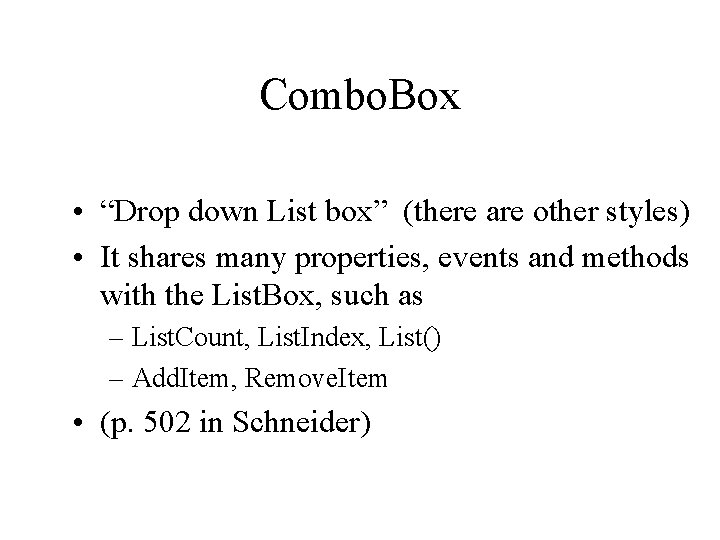
Combo. Box • “Drop down List box” (there are other styles) • It shares many properties, events and methods with the List. Box, such as – List. Count, List. Index, List() – Add. Item, Remove. Item • (p. 502 in Schneider)
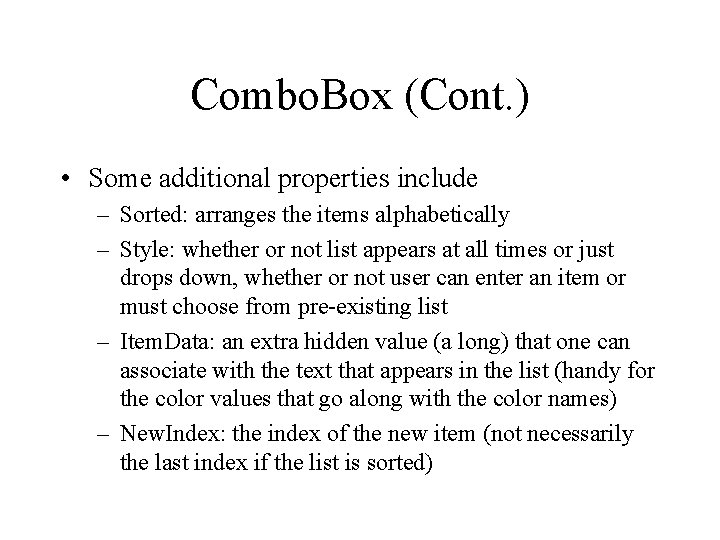
Combo. Box (Cont. ) • Some additional properties include – Sorted: arranges the items alphabetically – Style: whether or not list appears at all times or just drops down, whether or not user can enter an item or must choose from pre-existing list – Item. Data: an extra hidden value (a long) that one can associate with the text that appears in the list (handy for the color values that go along with the color names) – New. Index: the index of the new item (not necessarily the last index if the list is sorted)
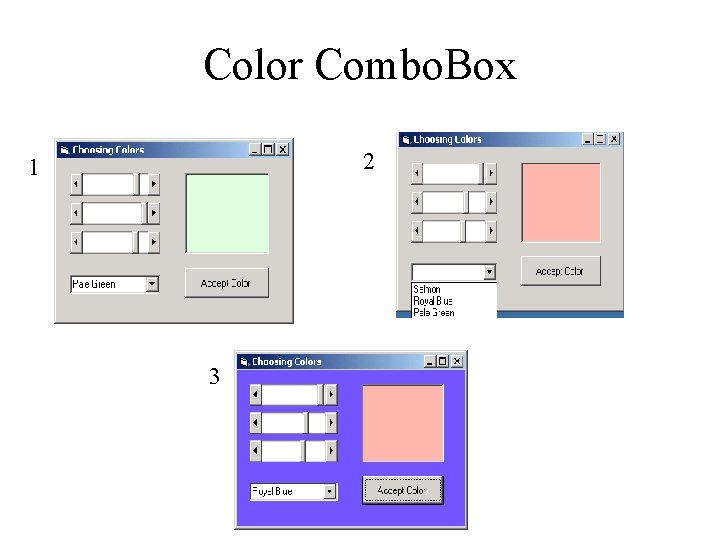
Color Combo. Box 2 1 3
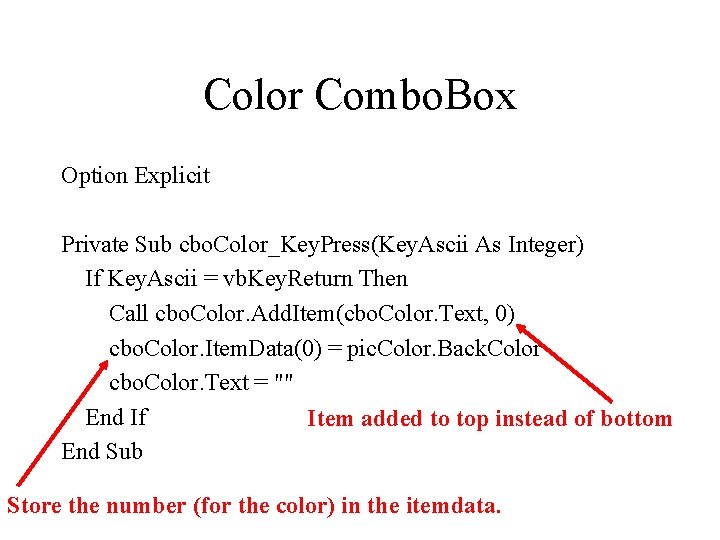
Color Combo. Box Option Explicit Private Sub cbo. Color_Key. Press(Key. Ascii As Integer) If Key. Ascii = vb. Key. Return Then Call cbo. Color. Add. Item(cbo. Color. Text, 0) cbo. Color. Item. Data(0) = pic. Color. Back. Color cbo. Color. Text = "" End If Item added to top instead of bottom End Sub Store the number (for the color) in the itemdata.
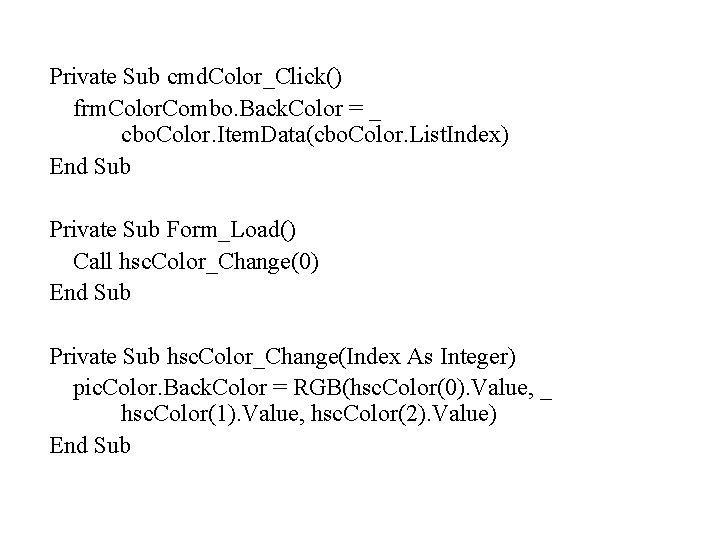
Private Sub cmd. Color_Click() frm. Color. Combo. Back. Color = _ cbo. Color. Item. Data(cbo. Color. List. Index) End Sub Private Sub Form_Load() Call hsc. Color_Change(0) End Sub Private Sub hsc. Color_Change(Index As Integer) pic. Color. Back. Color = RGB(hsc. Color(0). Value, _ hsc. Color(1). Value, hsc. Color(2). Value) End Sub
Dates
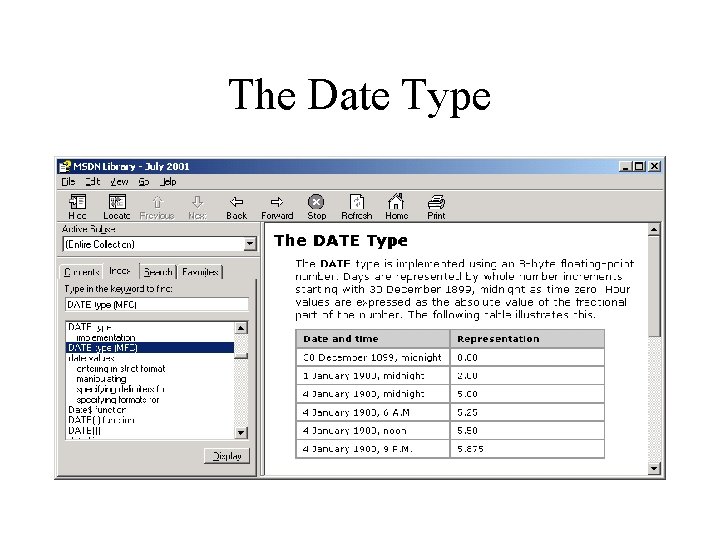
The Date Type
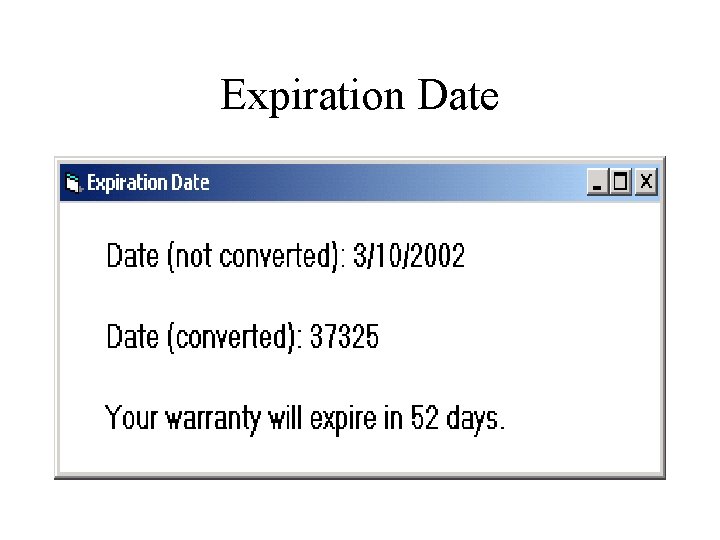
Expiration Date
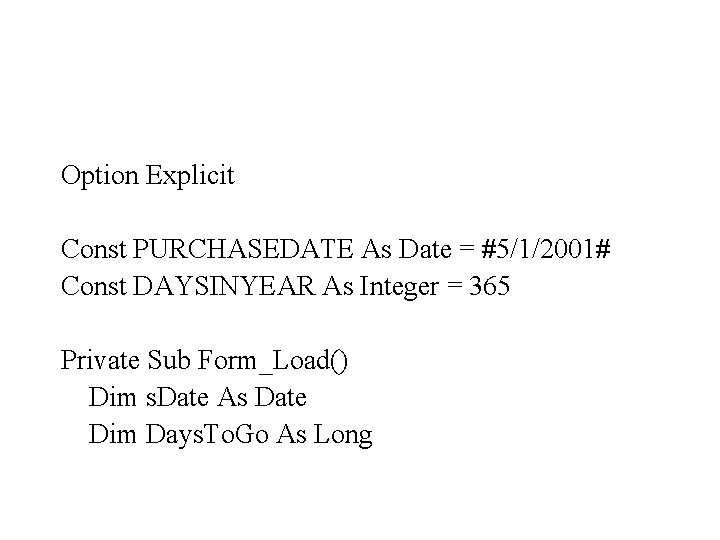
Option Explicit Const PURCHASEDATE As Date = #5/1/2001# Const DAYSINYEAR As Integer = 365 Private Sub Form_Load() Dim s. Date As Date Dim Days. To. Go As Long
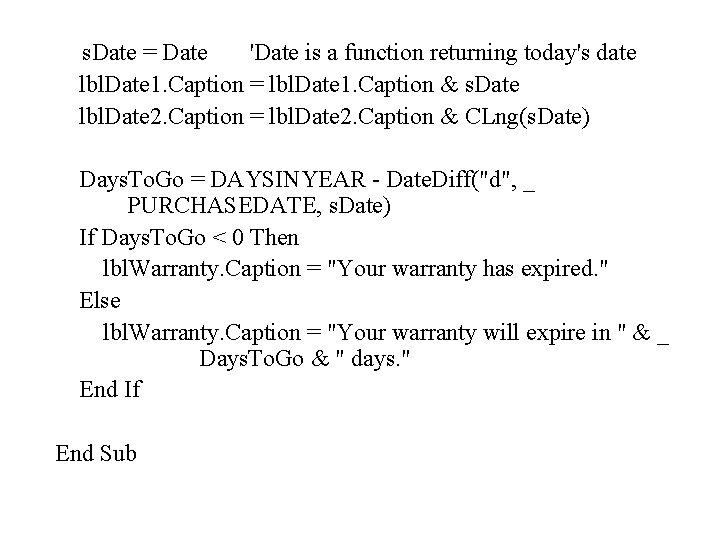
s. Date = Date 'Date is a function returning today's date lbl. Date 1. Caption = lbl. Date 1. Caption & s. Date lbl. Date 2. Caption = lbl. Date 2. Caption & CLng(s. Date) Days. To. Go = DAYSINYEAR - Date. Diff("d", _ PURCHASEDATE, s. Date) If Days. To. Go < 0 Then lbl. Warranty. Caption = "Your warranty has expired. " Else lbl. Warranty. Caption = "Your warranty will expire in " & _ Days. To. Go & " days. " End If End Sub
- Slides: 61