
Come and See Website Tutorial The Come and
Come and See Website Tutorial
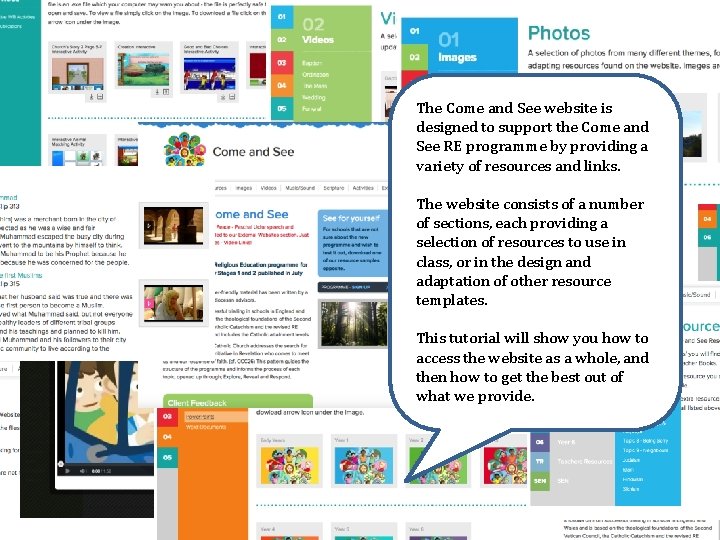
The Come and See website is designed to support the Come and See RE programme by providing a variety of resources and links. The website consists of a number of sections, each providing a selection of resources to use in class, or in the design and adaptation of other resource templates. This tutorial will show you how to access the website as a whole, and then how to get the best out of what we provide.
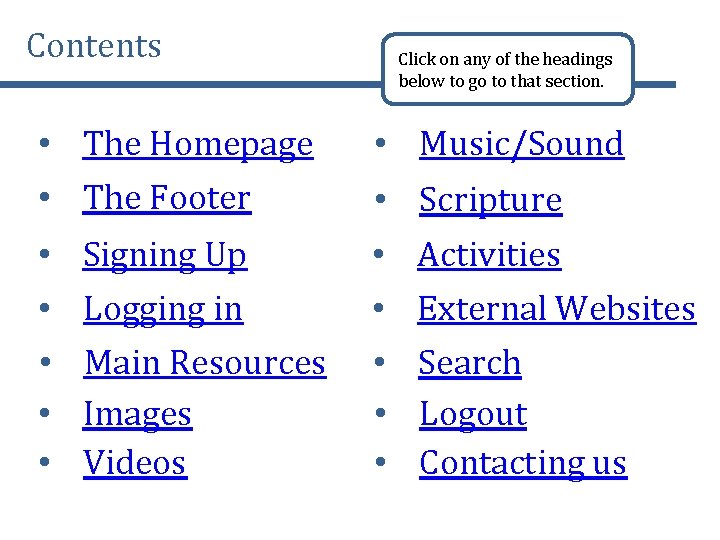
Contents • The Homepage • The Footer • • • Signing Up Logging in Main Resources Images Videos Click on any of the headings below to go to that section. • Music/Sound • • • Scripture Activities External Websites Search Logout Contacting us
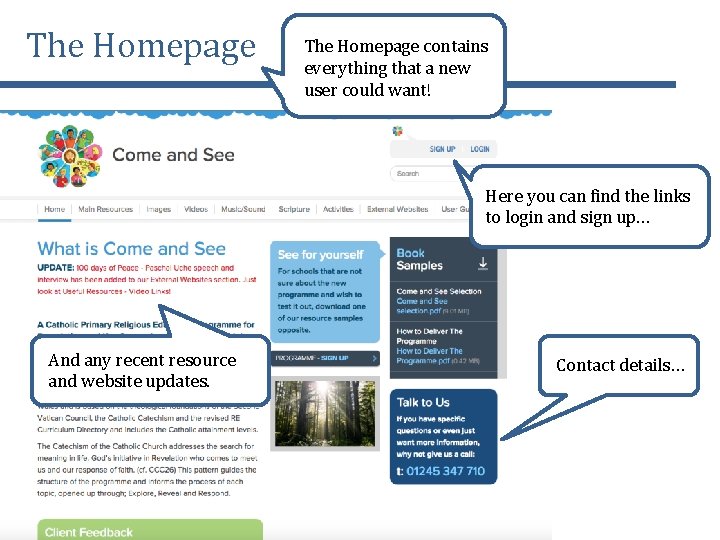
The Homepage contains everything that a new user could want! Here you can find the links to login and sign up… And any recent resource and website updates. Contact details…
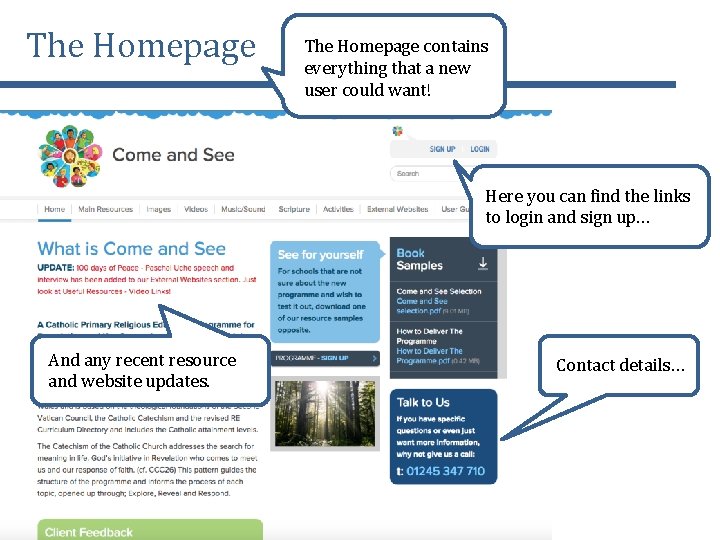
The Homepage contains everything that a new user could want! Here you can find the links to login and sign up… And any recent resource and website updates. Contact details…
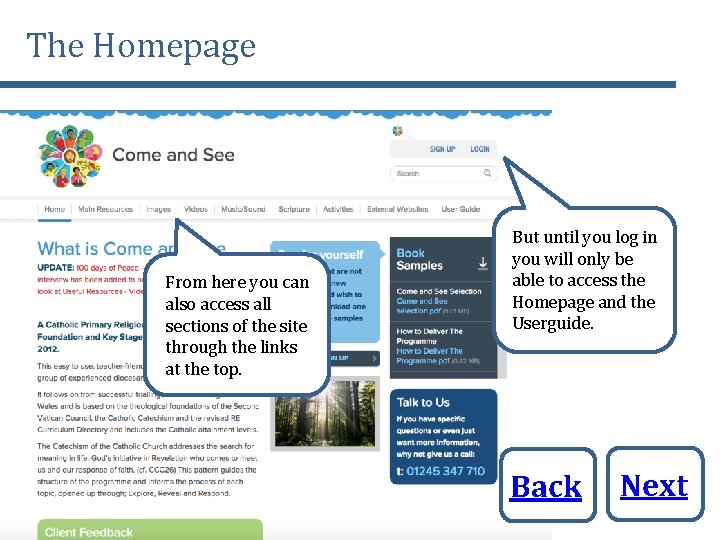
The Homepage From here you can also access all sections of the site through the links at the top. But until you log in you will only be able to access the Homepage and the Userguide. Back Next
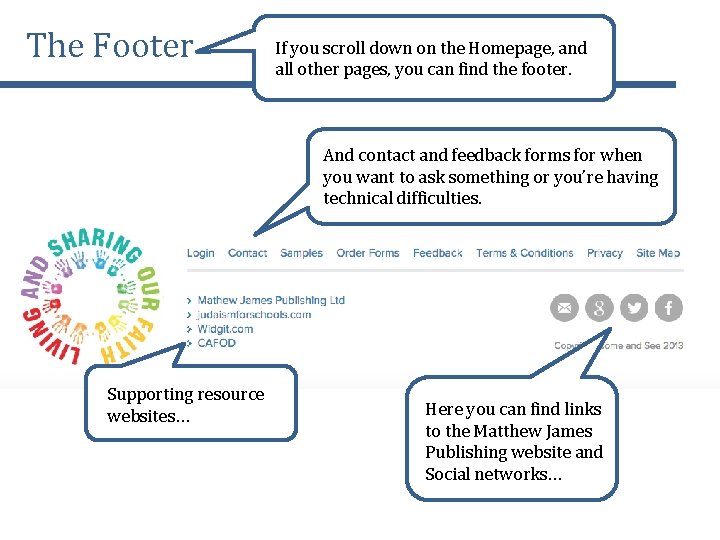
The Footer If you scroll down on the Homepage, and all other pages, you can find the footer. And contact and feedback forms for when you want to ask something or you’re having technical difficulties. Supporting resource websites… Here you can find links to the Matthew James Publishing website and Social networks…
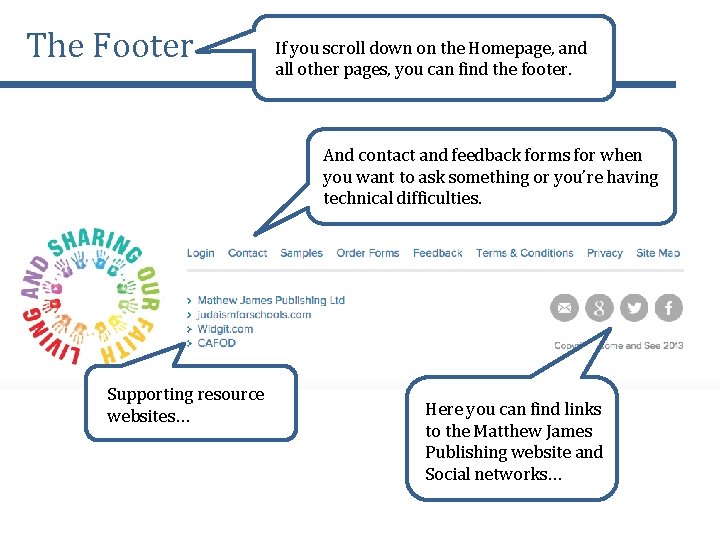
The Footer If you scroll down on the Homepage, and all other pages, you can find the footer. And contact and feedback forms for when you want to ask something or you’re having technical difficulties. Supporting resource websites… Here you can find links to the Matthew James Publishing website and Social networks…
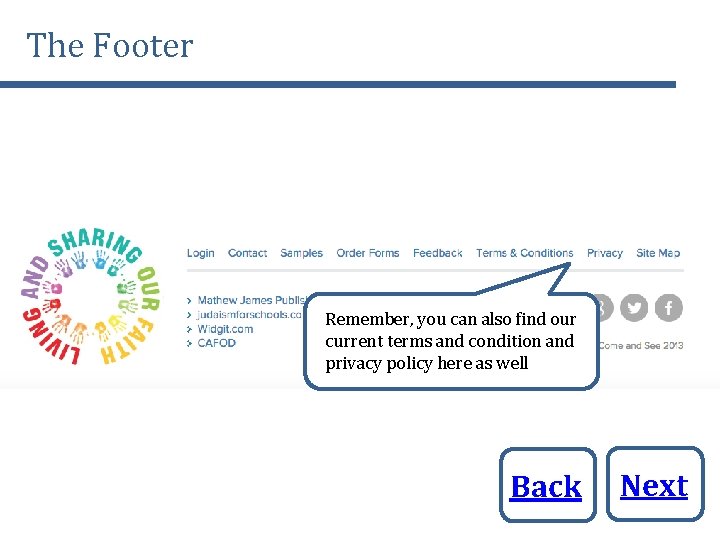
The Footer Remember, you can also find our current terms and condition and privacy policy here as well Back Next
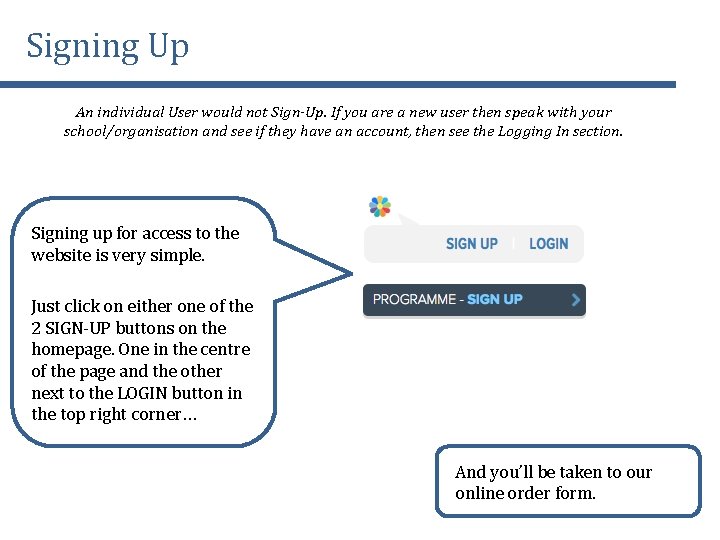
Signing Up An individual User would not Sign-Up. If you are a new user then speak with your school/organisation and see if they have an account, then see the Logging In section. Signing up for access to the website is very simple. Just click on either one of the 2 SIGN-UP buttons on the homepage. One in the centre of the page and the other next to the LOGIN button in the top right corner… And you’ll be taken to our online order form.
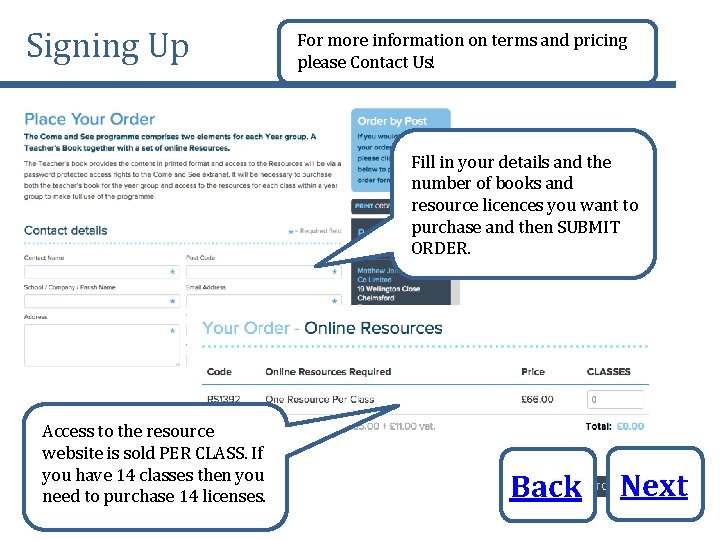
Signing Up For more information on terms and pricing please Contact Us! Fill in your details and the number of books and resource licences you want to purchase and then SUBMIT ORDER. Access to the resource website is sold PER CLASS. If you have 14 classes then you need to purchase 14 licenses. Back Next
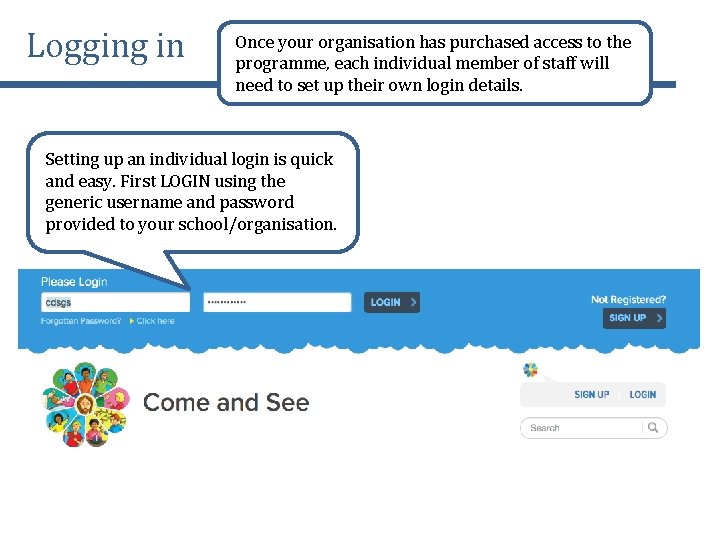
Logging in Once your organisation has purchased access to the programme, each individual member of staff will need to set up their own login details. Setting up an individual login is quick and easy. First LOGIN using the generic username and password provided to your school/organisation.
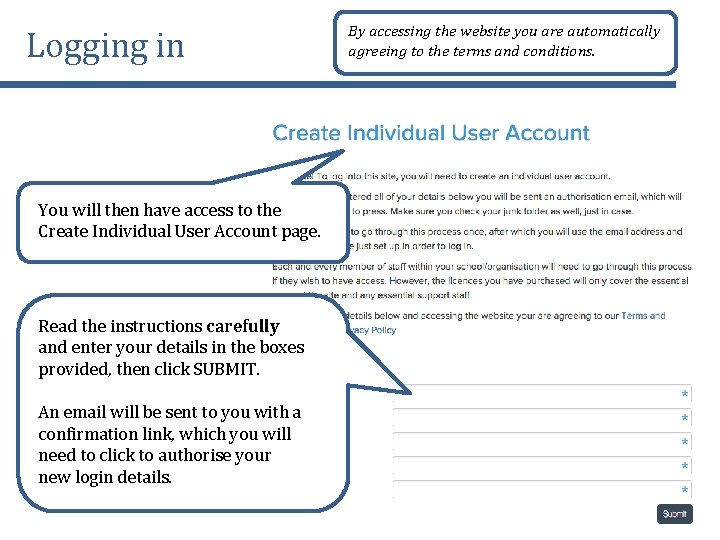
Logging in You will then have access to the Create Individual User Account page. Read the instructions carefully and enter your details in the boxes provided, then click SUBMIT. An email will be sent to you with a confirmation link, which you will need to click to authorise your new login details. By accessing the website you are automatically agreeing to the terms and conditions.
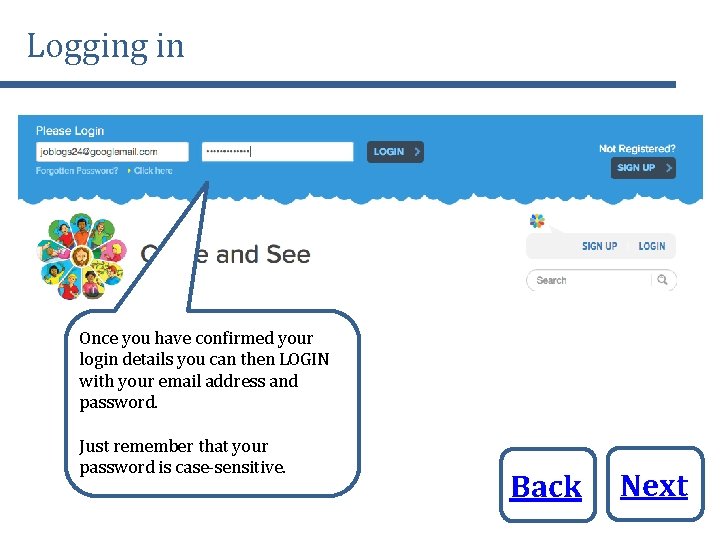
Logging in Once you have confirmed your login details you can then LOGIN with your email address and password. Just remember that your password is case-sensitive. Back Next
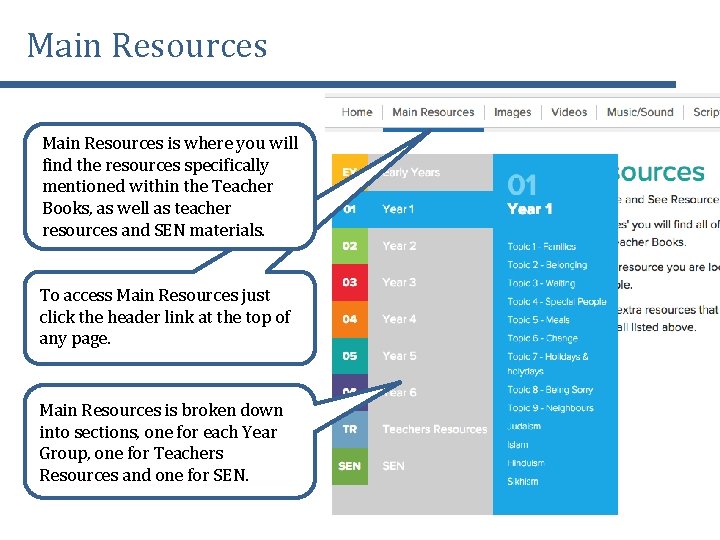
Main Resources is where you will find the resources specifically mentioned within the Teacher Books, as well as teacher resources and SEN materials. To access Main Resources just click the header link at the top of any page. Main Resources is broken down into sections, one for each Year Group, one for Teachers Resources and one for SEN.
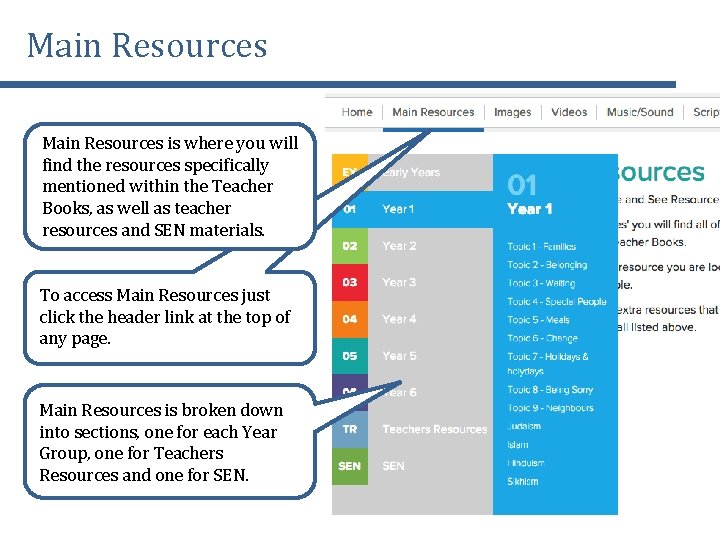
Main Resources is where you will find the resources specifically mentioned within the Teacher Books, as well as teacher resources and SEN materials. To access Main Resources just click the header link at the top of any page. Main Resources is broken down into sections, one for each Year Group, one for Teachers Resources and one for SEN.
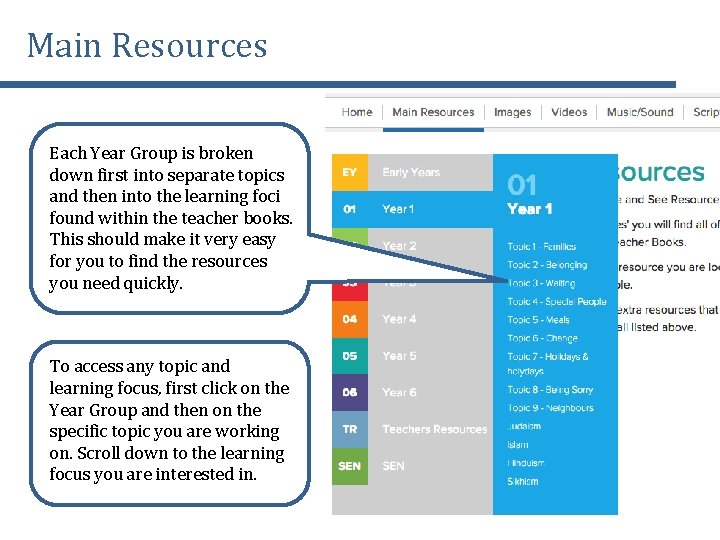
Main Resources Each Year Group is broken down first into separate topics and then into the learning foci found within the teacher books. This should make it very easy for you to find the resources you need quickly. To access any topic and learning focus, first click on the Year Group and then on the specific topic you are working on. Scroll down to the learning focus you are interested in.
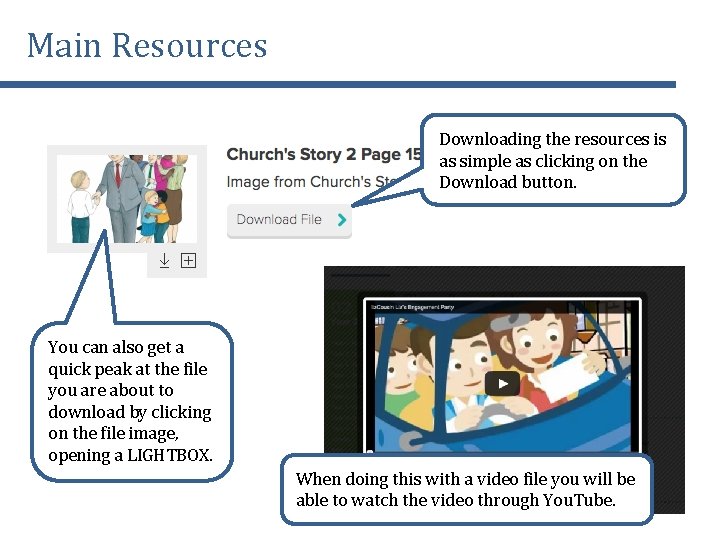
Main Resources Downloading the resources is as simple as clicking on the Download button. You can also get a quick peak at the file you are about to download by clicking on the file image, opening a LIGHTBOX. When doing this with a video file you will be able to watch the video through You. Tube.
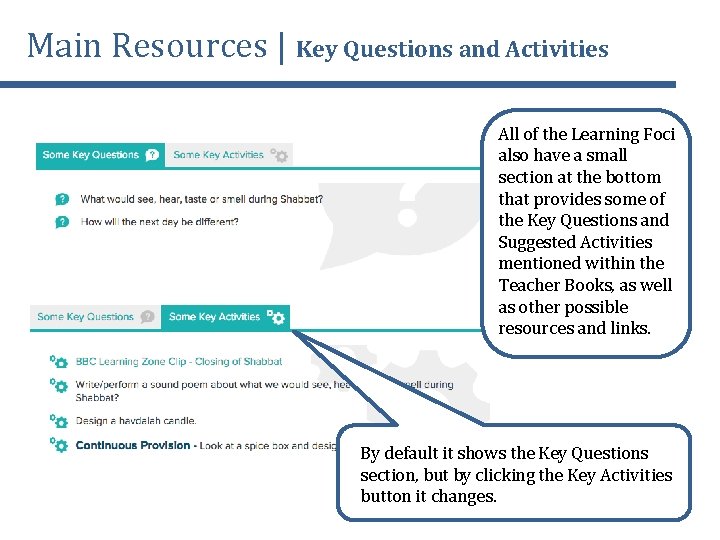
Main Resources | Key Questions and Activities All of the Learning Foci also have a small section at the bottom that provides some of the Key Questions and Suggested Activities mentioned within the Teacher Books, as well as other possible resources and links. By default it shows the Key Questions section, but by clicking the Key Activities button it changes.
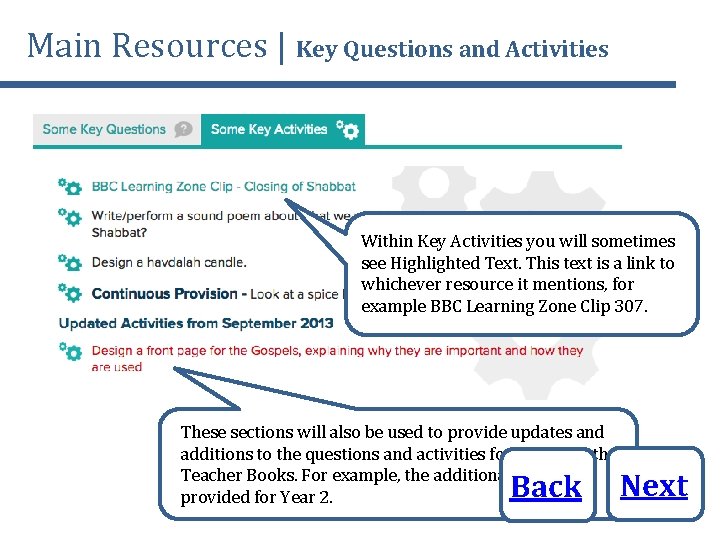
Main Resources | Key Questions and Activities Within Key Activities you will sometimes see Highlighted Text. This text is a link to whichever resource it mentions, for example BBC Learning Zone Clip 307. These sections will also be used to provide updates and additions to the questions and activities found within the Teacher Books. For example, the additional resources provided for Year 2. Back Next
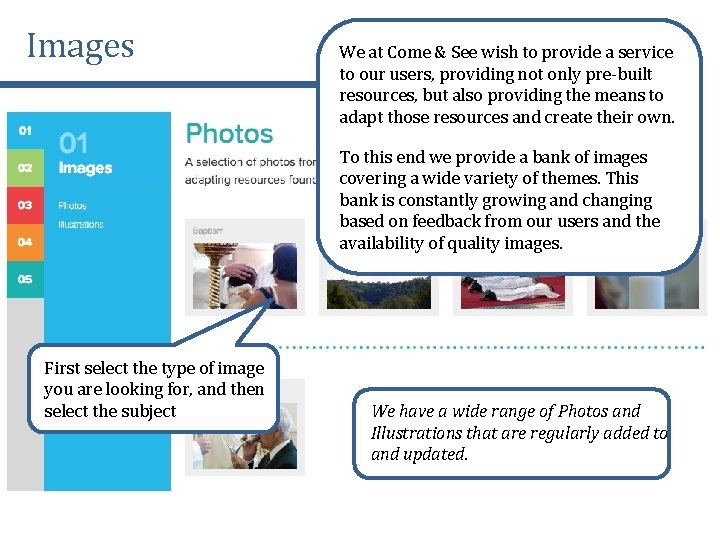
Images We at Come & See wish to provide a service to our users, providing not only pre-built resources, but also providing the means to adapt those resources and create their own. To this end we provide a bank of images covering a wide variety of themes. This bank is constantly growing and changing based on feedback from our users and the availability of quality images. First select the type of image you are looking for, and then select the subject We have a wide range of Photos and Illustrations that are regularly added to and updated.
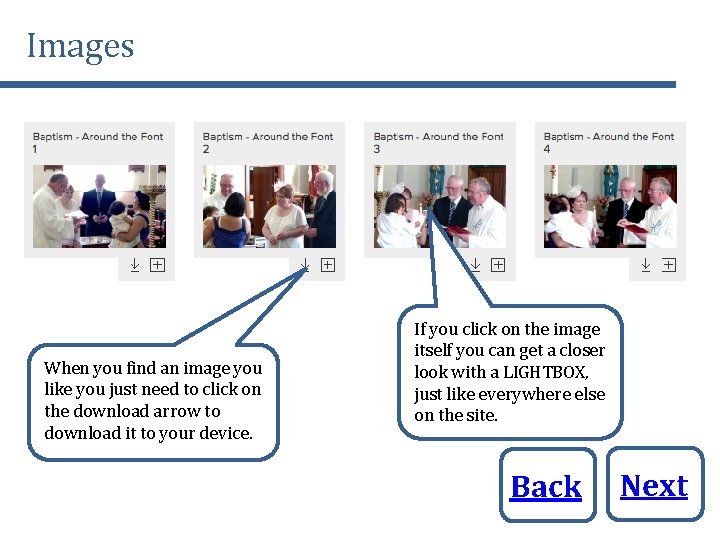
Images When you find an image you like you just need to click on the download arrow to download it to your device. If you click on the image itself you can get a closer look with a LIGHTBOX, just like everywhere else on the site. Back Next
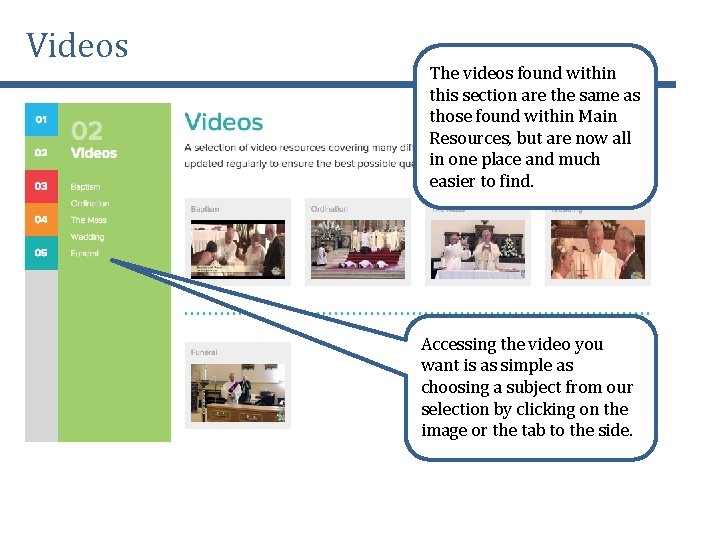
Videos The videos found within this section are the same as those found within Main Resources, but are now all in one place and much easier to find. Accessing the video you want is as simple as choosing a subject from our selection by clicking on the image or the tab to the side.
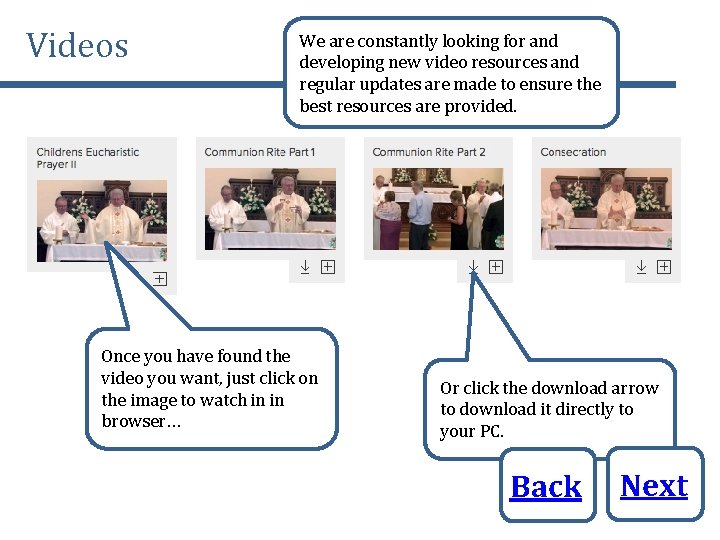
Videos We are constantly looking for and developing new video resources and regular updates are made to ensure the best resources are provided. Once you have found the video you want, just click on the image to watch in in browser… Or click the download arrow to download it directly to your PC. Back Next
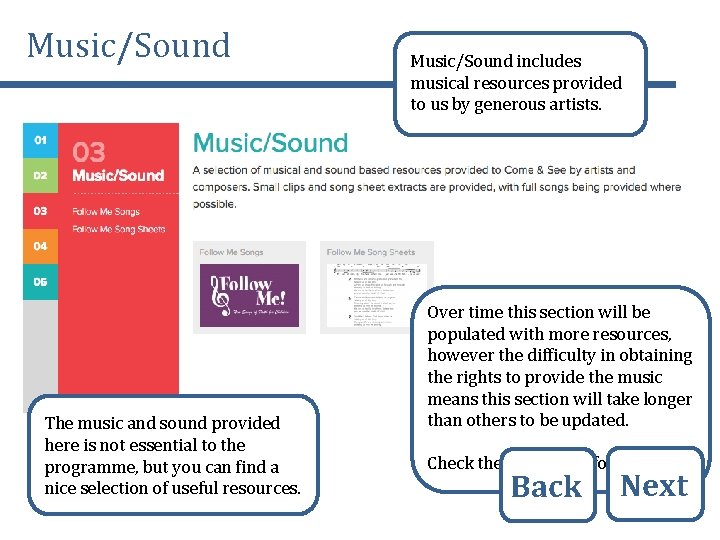
Music/Sound The music and sound provided here is not essential to the programme, but you can find a nice selection of useful resources. Music/Sound includes musical resources provided to us by generous artists. Over time this section will be populated with more resources, however the difficulty in obtaining the rights to provide the music means this section will take longer than others to be updated. Check the Homepage for updates! Back Next
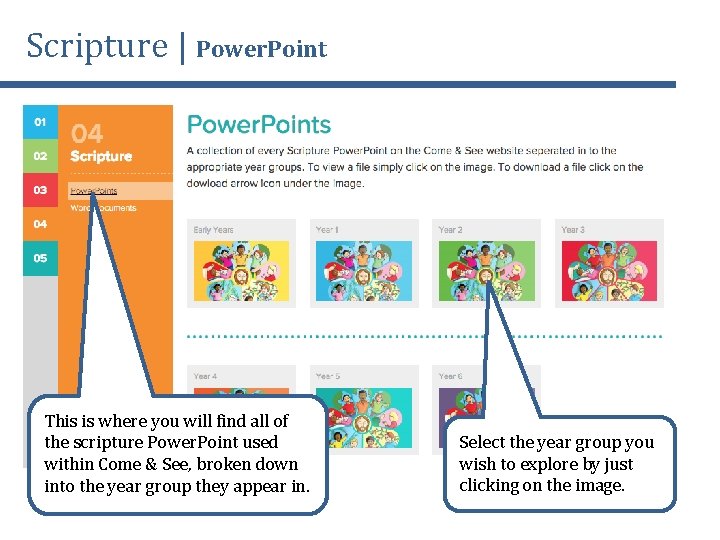
Scripture | Power. Point This is where you will find all of the scripture Power. Point used within Come & See, broken down into the year group they appear in. Select the year group you wish to explore by just clicking on the image.
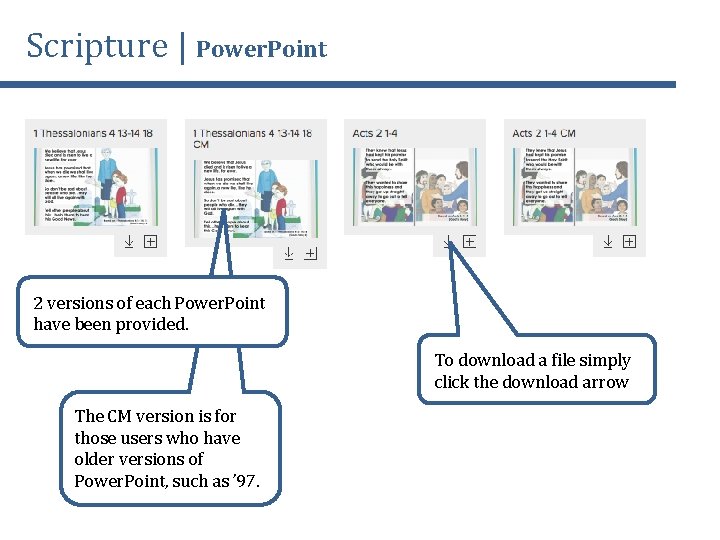
Scripture | Power. Point 2 versions of each Power. Point have been provided. To download a file simply click the download arrow The CM version is for those users who have older versions of Power. Point, such as ’ 97.
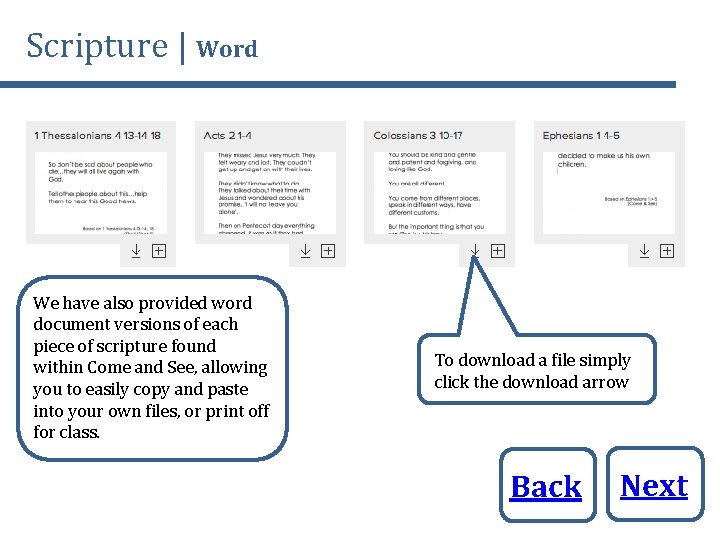
Scripture | Word We have also provided word document versions of each piece of scripture found within Come and See, allowing you to easily copy and paste into your own files, or print off for class. To download a file simply click the download arrow Back Next
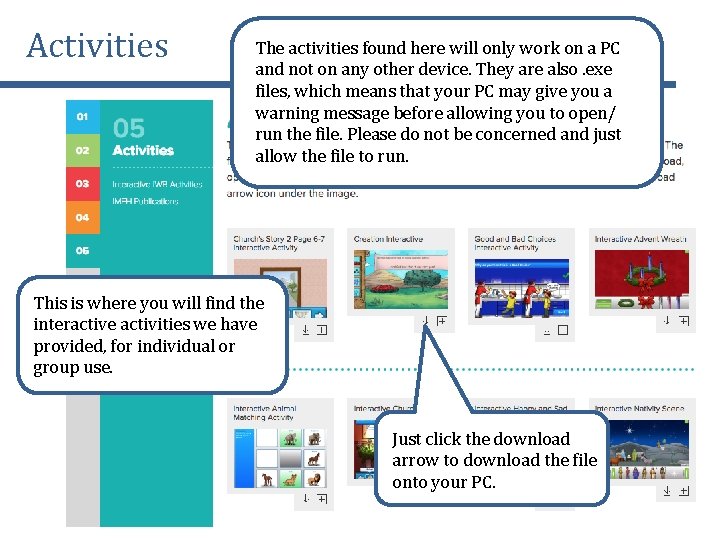
Activities The activities found here will only work on a PC and not on any other device. They are also. exe files, which means that your PC may give you a warning message before allowing you to open/ run the file. Please do not be concerned and just allow the file to run. This is where you will find the interactive activities we have provided, for individual or group use. Just click the download arrow to download the file onto your PC.
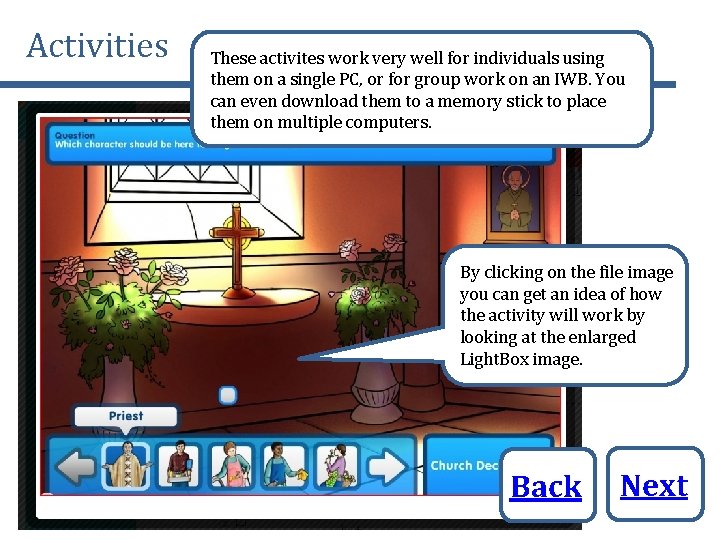
Activities These activites work very well for individuals using them on a single PC, or for group work on an IWB. You can even download them to a memory stick to place them on multiple computers. By clicking on the file image you can get an idea of how the activity will work by looking at the enlarged Light. Box image. Back Next
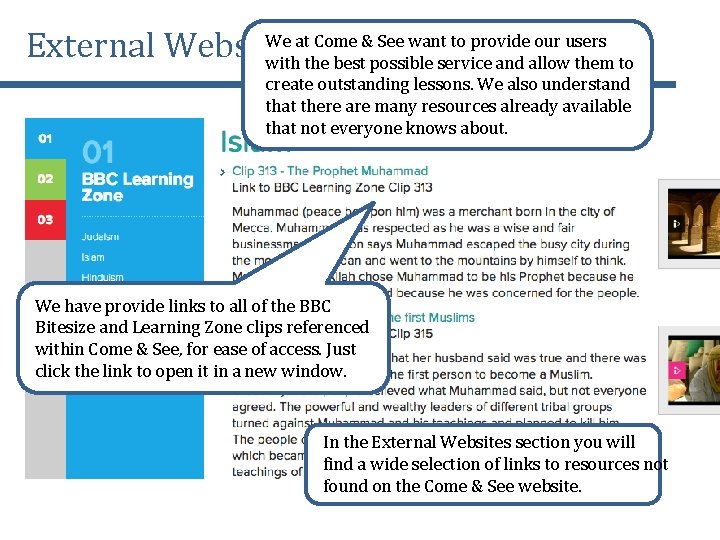
We at Come & See want to provide our users External Websites with the best possible service and allow them to create outstanding lessons. We also understand that there are many resources already available that not everyone knows about. We have provide links to all of the BBC Bitesize and Learning Zone clips referenced within Come & See, for ease of access. Just click the link to open it in a new window. In the External Websites section you will find a wide selection of links to resources not found on the Come & See website.
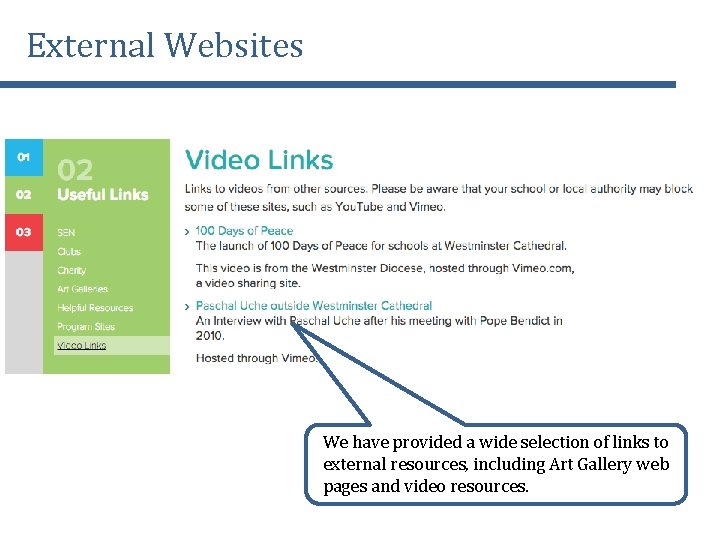
External Websites We have provided a wide selection of links to external resources, including Art Gallery web pages and video resources.
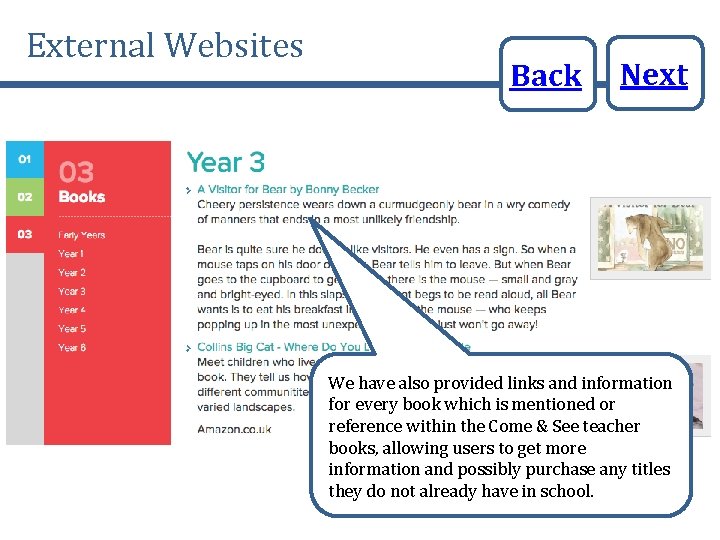
External Websites Back Next We have also provided links and information for every book which is mentioned or reference within the Come & See teacher books, allowing users to get more information and possibly purchase any titles they do not already have in school.
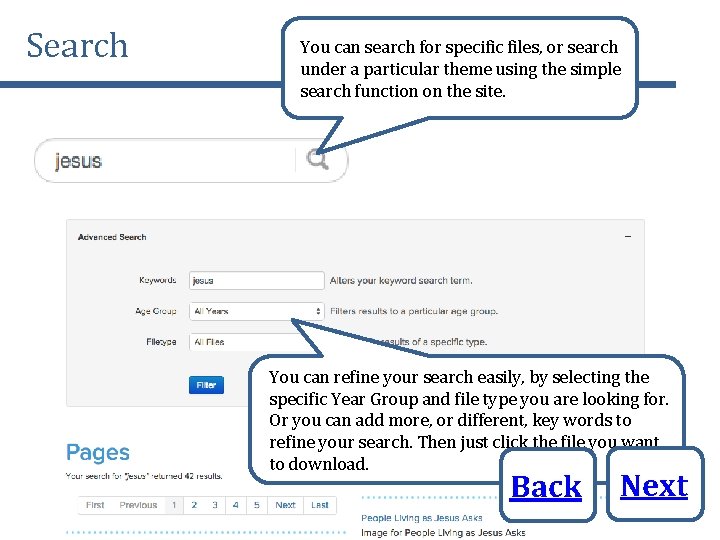
Search You can search for specific files, or search under a particular theme using the simple search function on the site. You can refine your search easily, by selecting the specific Year Group and file type you are looking for. Or you can add more, or different, key words to refine your search. Then just click the file you want to download. Back Next
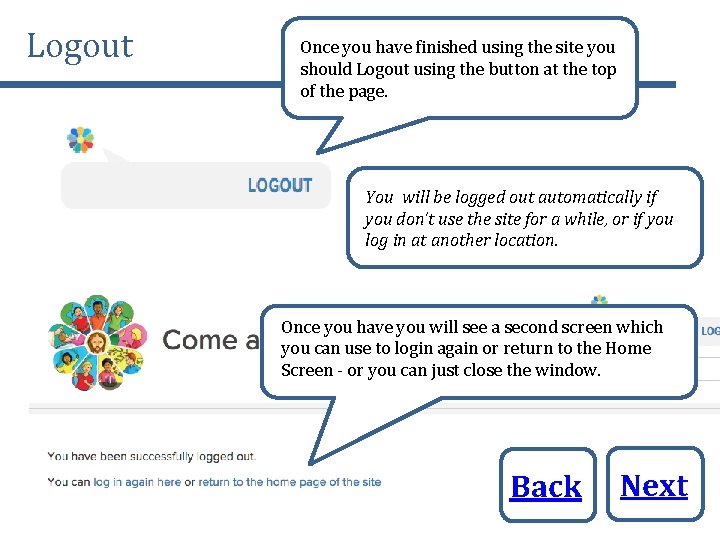
Logout Once you have finished using the site you should Logout using the button at the top of the page. You will be logged out automatically if you don’t use the site for a while, or if you log in at another location. Once you have you will see a second screen which you can use to login again or return to the Home Screen - or you can just close the window. Back Next
Contacting us • You can contact our offices by phone on 01245 9 am and 5 pm Monday to Friday. 347 710 between • Or you can use the Contact Form or Feedback Form found within the Footer of the website. • We will endeavour to get back to you with an answer within 24 hrs. • If you are calling about technical difficulties then please make sure you are at a computer, otherwise we may not be able to help. Back
- Slides: 36