
Color Tracking A Quick Overview Color Representations Choosing
- Slides: 11
Color Tracking
A Quick Overview ● Color Representations ● Choosing a Color to Track ● How to Find the Target
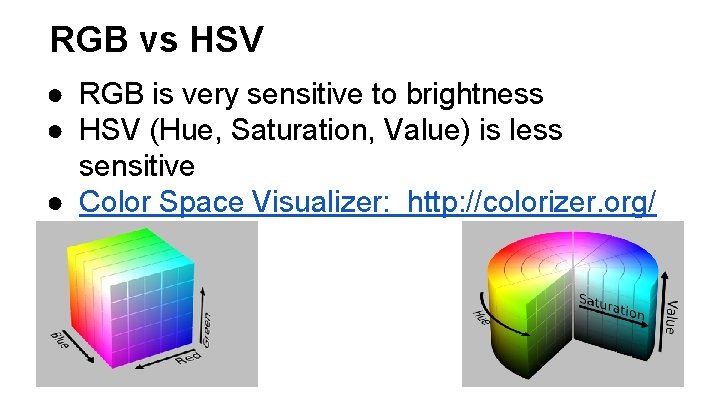
RGB vs HSV ● RGB is very sensitive to brightness ● HSV (Hue, Saturation, Value) is less sensitive ● Color Space Visualizer: http: //colorizer. org/
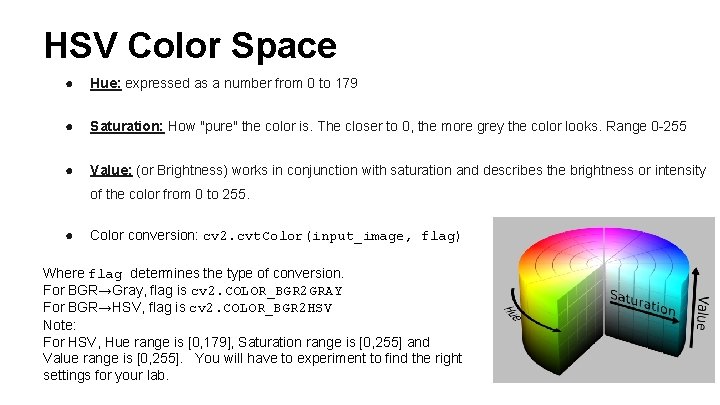
HSV Color Space ● Hue: expressed as a number from 0 to 179 ● Saturation: How "pure" the color is. The closer to 0, the more grey the color looks. Range 0 -255 ● Value: (or Brightness) works in conjunction with saturation and describes the brightness or intensity of the color from 0 to 255. ● Color conversion: cv 2. cvt. Color(input_image, flag) Where flag determines the type of conversion. For BGR→Gray, flag is cv 2. COLOR_BGR 2 GRAY For BGR→HSV, flag is cv 2. COLOR_BGR 2 HSV Note: For HSV, Hue range is [0, 179], Saturation range is [0, 255] and Value range is [0, 255]. You will have to experiment to find the right settings for your lab.
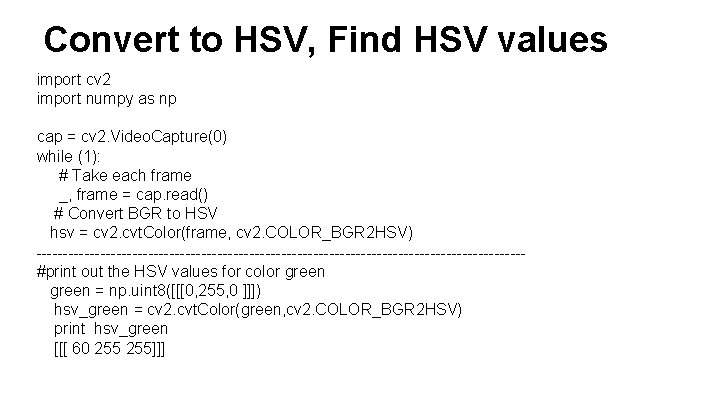
Convert to HSV, Find HSV values import cv 2 import numpy as np cap = cv 2. Video. Capture(0) while (1): # Take each frame _, frame = cap. read() # Convert BGR to HSV hsv = cv 2. cvt. Color(frame, cv 2. COLOR_BGR 2 HSV) ----------------------------------------------#print out the HSV values for color green = np. uint 8([[[0, 255, 0 ]]]) hsv_green = cv 2. cvt. Color(green, cv 2. COLOR_BGR 2 HSV) print hsv_green [[[ 60 255]]]
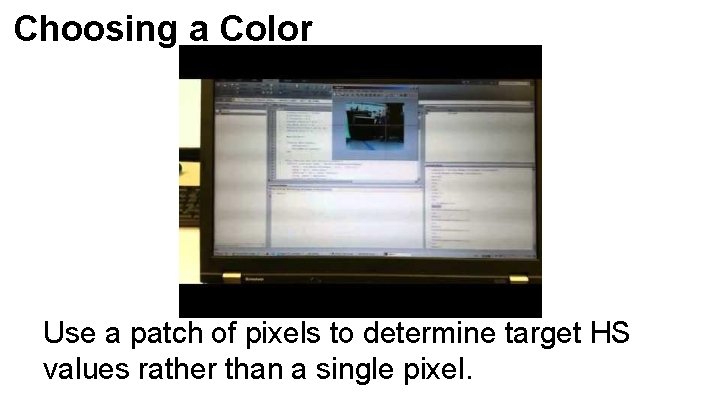
Choosing a Color Use a patch of pixels to determine target HS values rather than a single pixel.
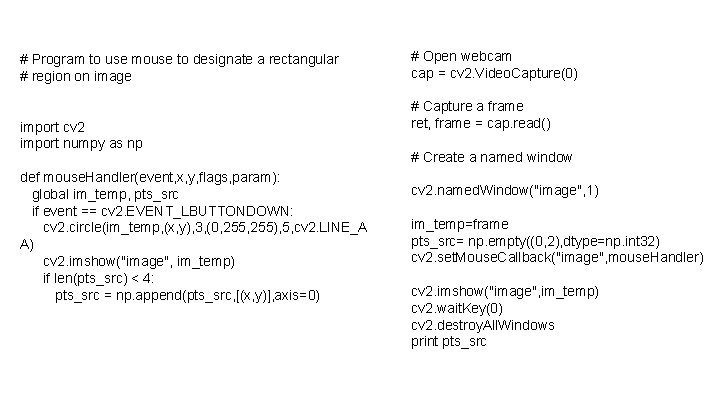
# Program to use mouse to designate a rectangular # region on image import cv 2 import numpy as np def mouse. Handler(event, x, y, flags, param): global im_temp, pts_src if event == cv 2. EVENT_LBUTTONDOWN: cv 2. circle(im_temp, (x, y), 3, (0, 255), 5, cv 2. LINE_A A) cv 2. imshow("image", im_temp) if len(pts_src) < 4: pts_src = np. append(pts_src, [(x, y)], axis=0) # Open webcam cap = cv 2. Video. Capture(0) # Capture a frame ret, frame = cap. read() # Create a named window cv 2. named. Window("image", 1) im_temp=frame pts_src= np. empty((0, 2), dtype=np. int 32) cv 2. set. Mouse. Callback("image", mouse. Handler) cv 2. imshow("image", im_temp) cv 2. wait. Key(0) cv 2. destroy. All. Windows print pts_src
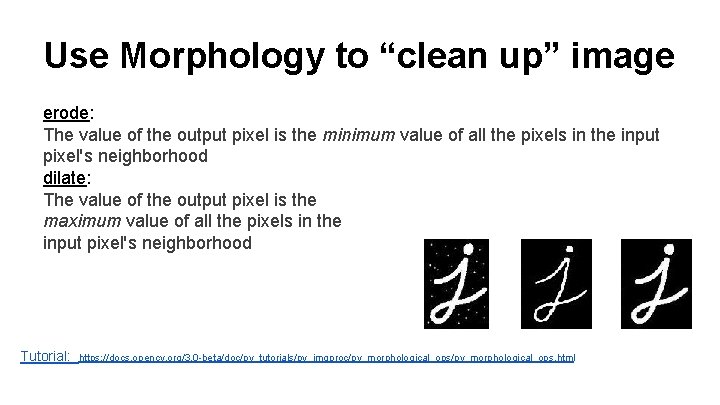
Use Morphology to “clean up” image erode: The value of the output pixel is the minimum value of all the pixels in the input pixel's neighborhood dilate: The value of the output pixel is the maximum value of all the pixels in the input pixel's neighborhood Tutorial: https: //docs. opencv. org/3. 0 -beta/doc/py_tutorials/py_imgproc/py_morphological_ops. html
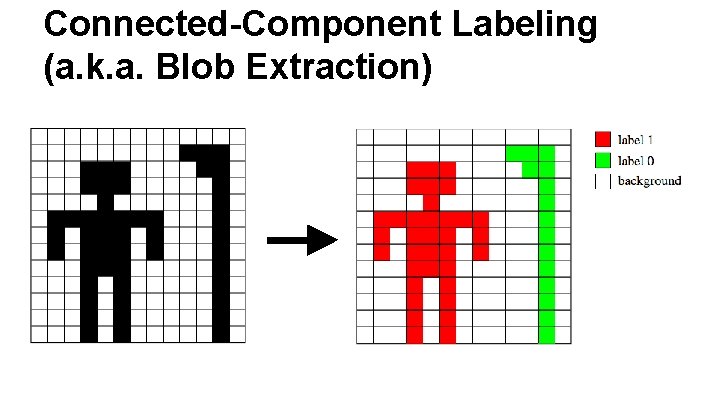
Connected-Component Labeling (a. k. a. Blob Extraction)
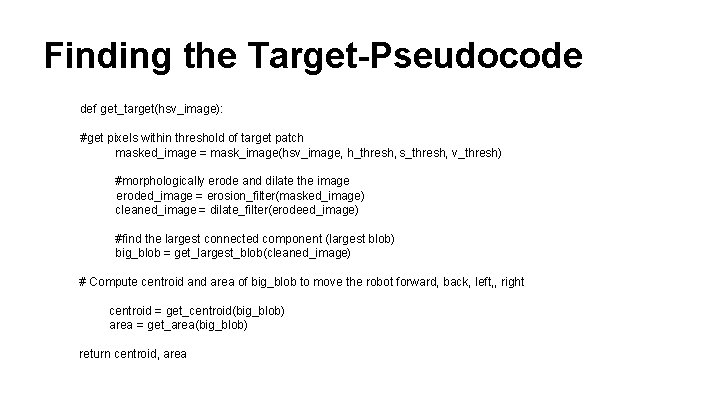
Finding the Target-Pseudocode def get_target(hsv_image): #get pixels within threshold of target patch masked_image = mask_image(hsv_image, h_thresh, s_thresh, v_thresh) #morphologically erode and dilate the image eroded_image = erosion_filter(masked_image) cleaned_image = dilate_filter(erodeed_image) #find the largest connected component (largest blob) big_blob = get_largest_blob(cleaned_image) # Compute centroid and area of big_blob to move the robot forward, back, left, , right centroid = get_centroid(big_blob) area = get_area(big_blob) return centroid, area
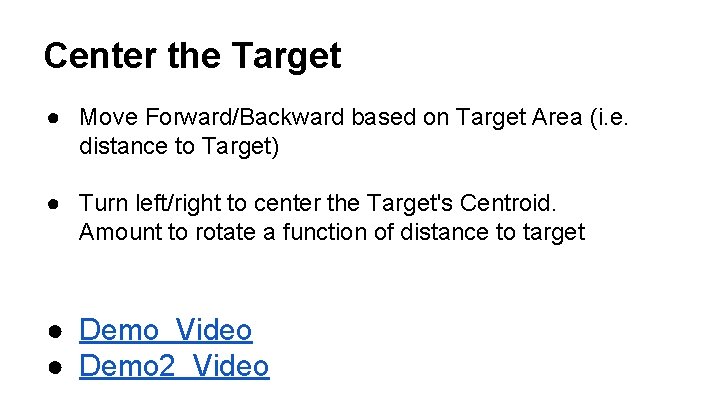
Center the Target ● Move Forward/Backward based on Target Area (i. e. distance to Target) ● Turn left/right to center the Target's Centroid. Amount to rotate a function of distance to target ● Demo Video ● Demo 2 Video