
Color Picker RGB recipe The color picker has
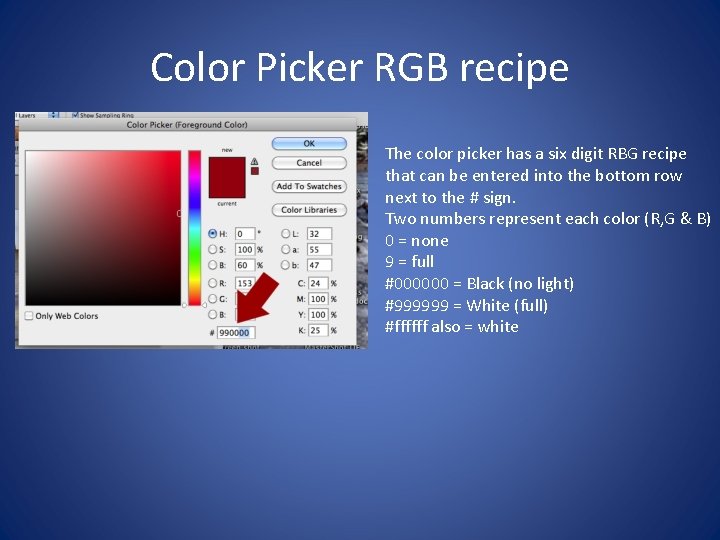
Color Picker RGB recipe The color picker has a six digit RBG recipe that can be entered into the bottom row next to the # sign. Two numbers represent each color (R, G & B) 0 = none 9 = full #000000 = Black (no light) #999999 = White (full) #ffffff also = white
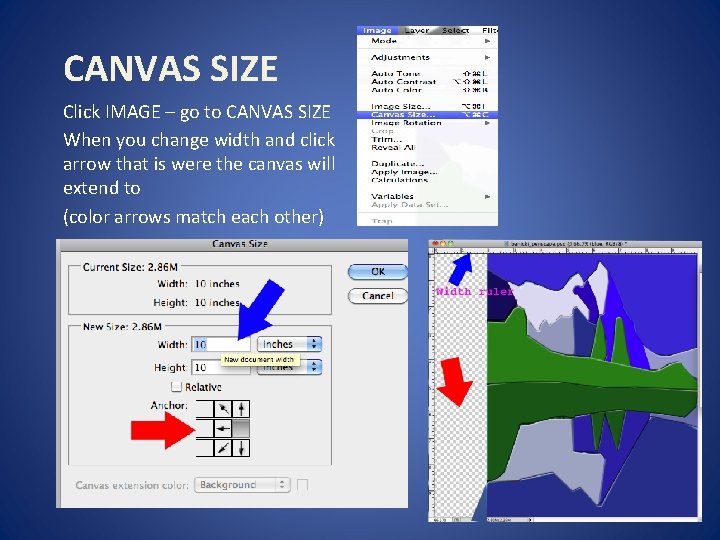
CANVAS SIZE Click IMAGE – go to CANVAS SIZE When you change width and click arrow that is were the canvas will extend to (color arrows match each other)
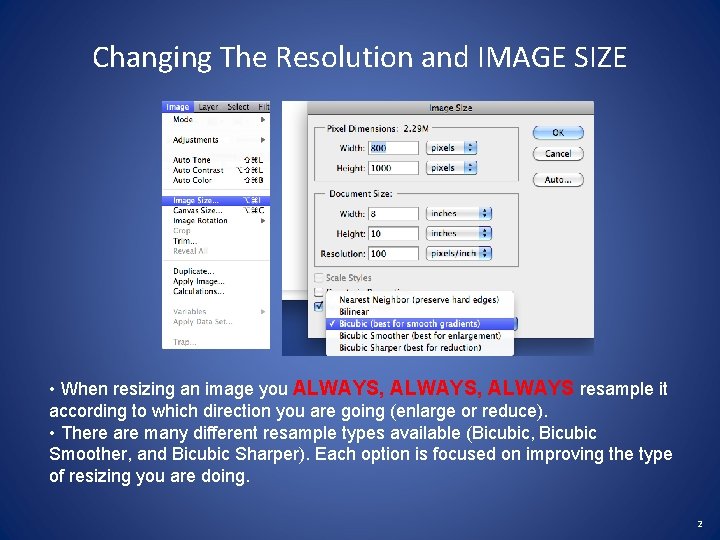
Changing The Resolution and IMAGE SIZE • When resizing an image you ALWAYS, ALWAYS resample it according to which direction you are going (enlarge or reduce). • There are many different resample types available (Bicubic, Bicubic Smoother, and Bicubic Sharper). Each option is focused on improving the type of resizing you are doing. 2
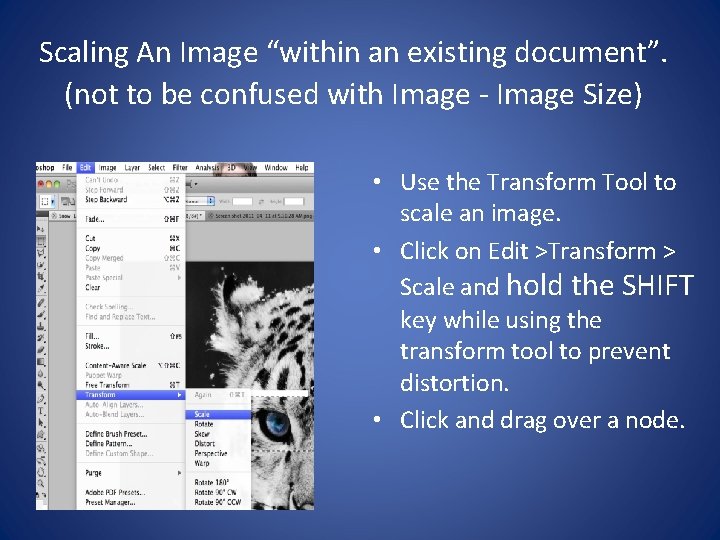
Scaling An Image “within an existing document”. (not to be confused with Image - Image Size) • Use the Transform Tool to scale an image. • Click on Edit >Transform > Scale and hold the SHIFT key while using the transform tool to prevent distortion. • Click and drag over a node.
What is the main purpose of working spaces when implementing a color management workflow? Viewing of images the way they are intended across multiple devices or screens. *NOTE: the Working Space setting under EDIT – COLOR SETTINGS dialog is your way of telling Photoshop your preference for a default color profile for your future work. * An example of a color profile = “s. RGB v 2” IEC 1966 -2. 1” which is the profile for an average PC monitor or “U. S. Web Coated (SWOP) which is a CMYK profile for ‘print’. If your client is viewing your web work on a PC, then s. RGB IEC 1966 -2. 1 is the most appropriate choice for Working space color profile.
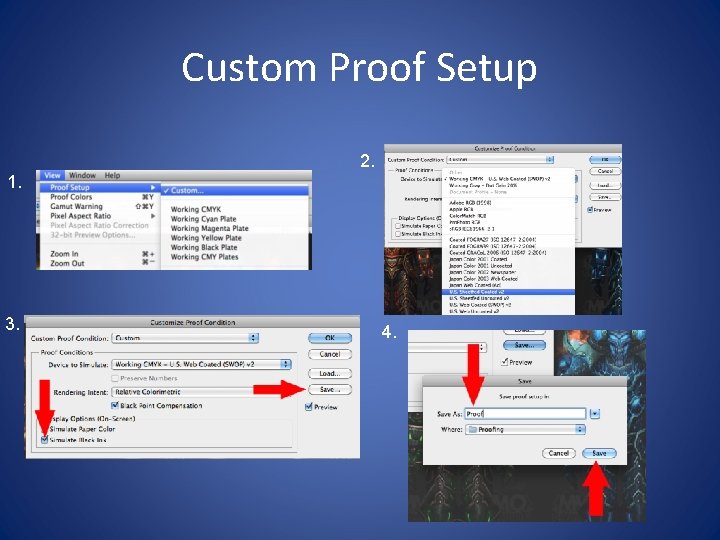
Custom Proof Setup 2. 1. 3. 4.
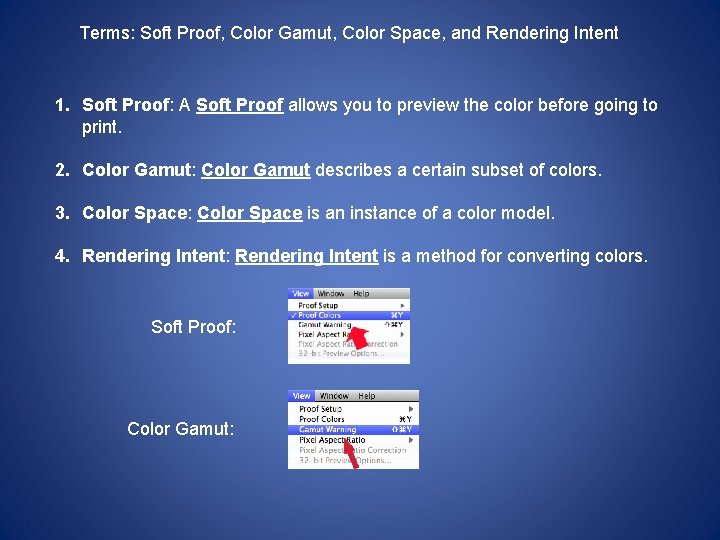
Terms: Soft Proof, Color Gamut, Color Space, and Rendering Intent 1. Soft Proof: A Soft Proof allows you to preview the color before going to print. 2. Color Gamut: Color Gamut describes a certain subset of colors. 3. Color Space: Color Space is an instance of a color model. 4. Rendering Intent: Rendering Intent is a method for converting colors. Soft Proof: Color Gamut:
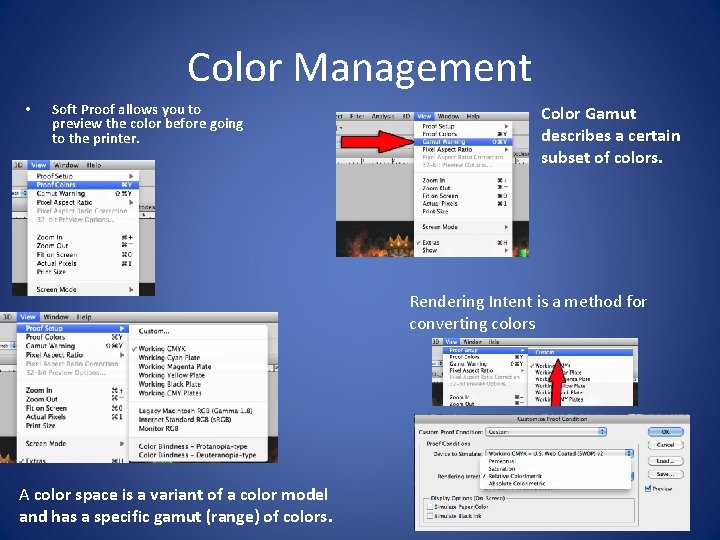
Color Management • Soft Proof allows you to preview the color before going to the printer. Color Gamut describes a certain subset of colors. Rendering Intent is a method for converting colors A color space is a variant of a color model and has a specific gamut (range) of colors.
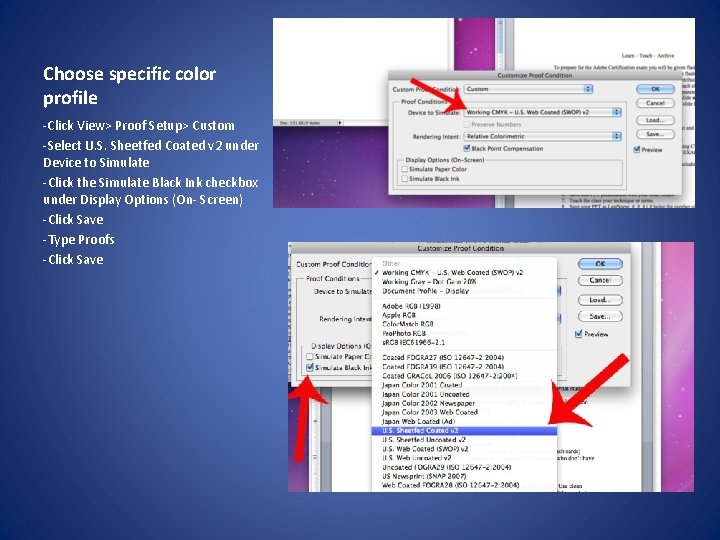
Choose specific color profile -Click View> Proof Setup> Custom -Select U. S. Sheetfed Coated v 2 under Device to Simulate -Click the Simulate Black Ink checkbox under Display Options (On- Screen) -Click Save -Type Proofs -Click Save
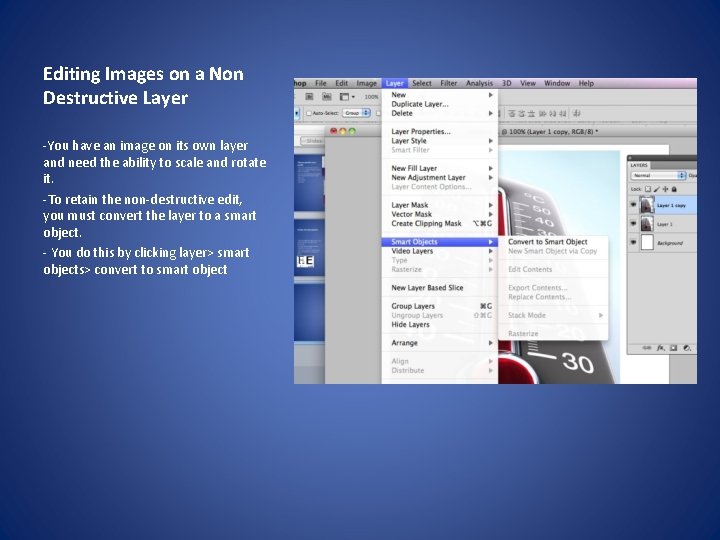
Editing Images on a Non Destructive Layer -You have an image on its own layer and need the ability to scale and rotate it. -To retain the non-destructive edit, you must convert the layer to a smart object. - You do this by clicking layer> smart objects> convert to smart object
Items relating to the design principal of balance • Symmetry – Patterned self-similarity • Horizontal – Left to right – There are 3 forms of Balance: • Symmetrical, Asymmetrical and Radial.
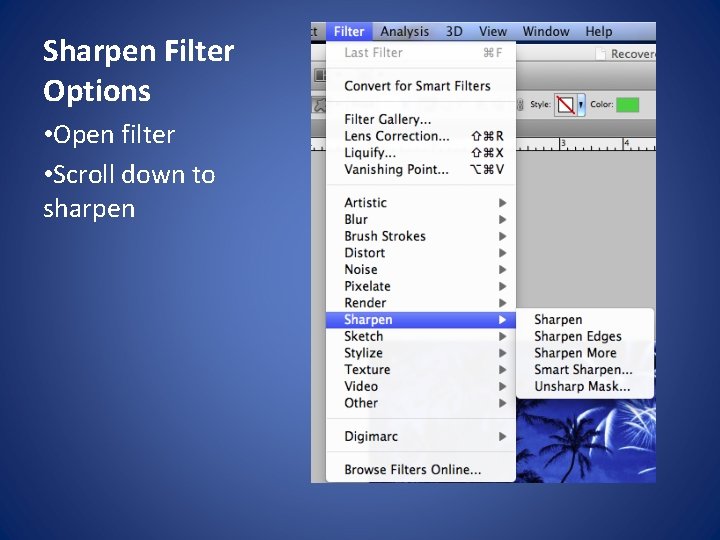
Sharpen Filter Options • Open filter • Scroll down to sharpen
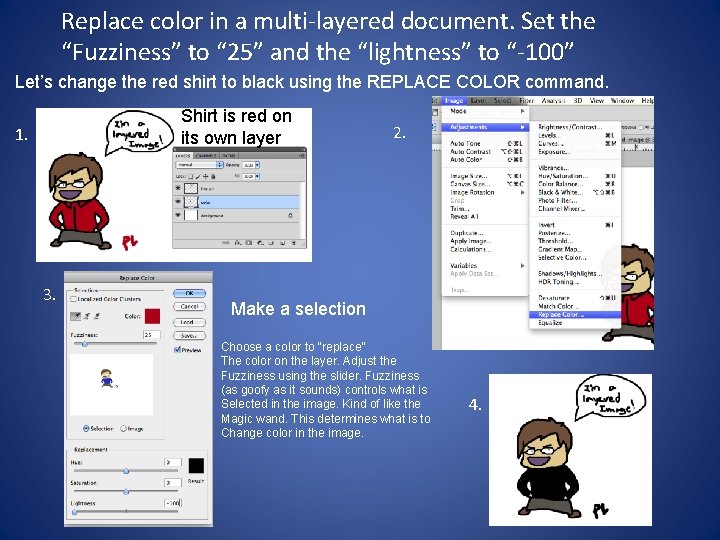
Replace color in a multi-layered document. Set the “Fuzziness” to “ 25” and the “lightness” to “-100” Let’s change the red shirt to black using the REPLACE COLOR command. Shirt is red on its own layer 1. 3. 2. Make a selection Choose a color to “replace” The color on the layer. Adjust the Fuzziness using the slider. Fuzziness (as goofy as it sounds) controls what is Selected in the image. Kind of like the Magic wand. This determines what is to Change color in the image. 4.
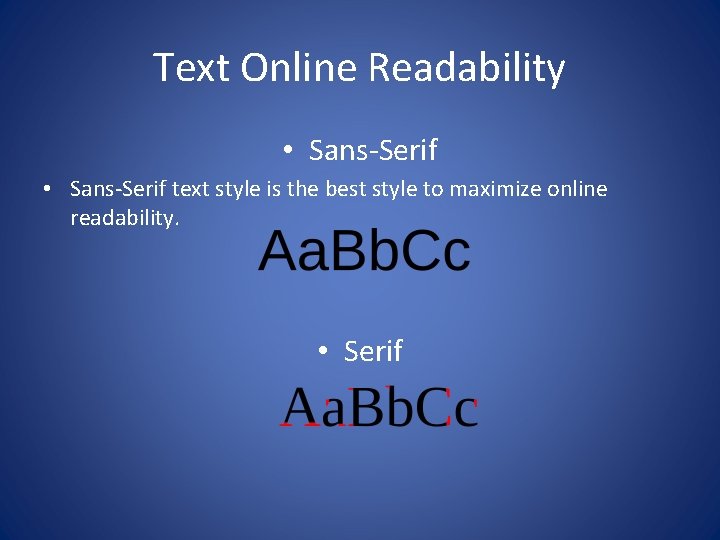
Text Online Readability • Sans-Serif text style is the best style to maximize online readability. • Serif
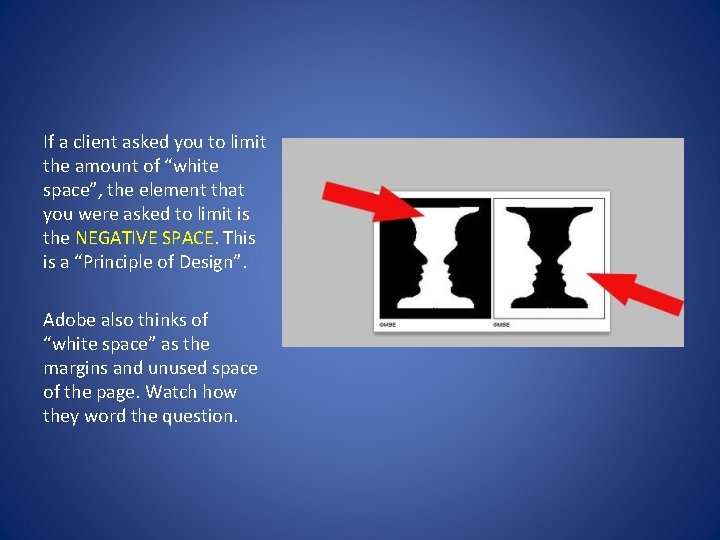
If a client asked you to limit the amount of “white space”, the element that you were asked to limit is the NEGATIVE SPACE. This is a “Principle of Design”. Adobe also thinks of “white space” as the margins and unused space of the page. Watch how they word the question.
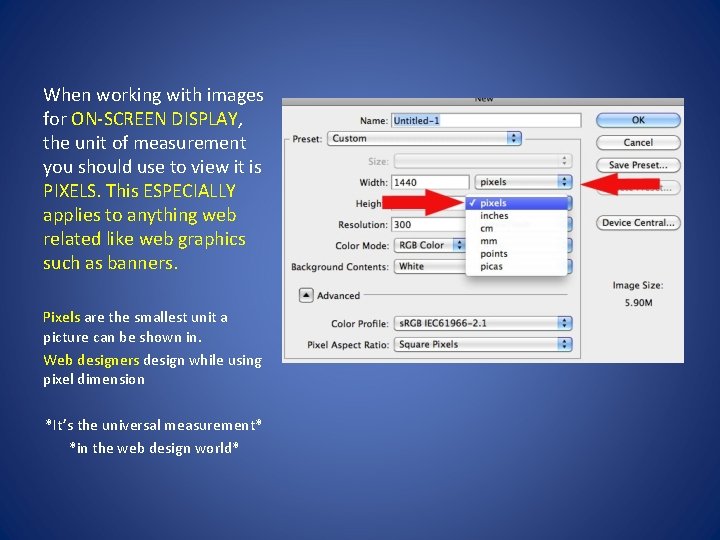
When working with images for ON-SCREEN DISPLAY, the unit of measurement you should use to view it is PIXELS. This ESPECIALLY applies to anything web related like web graphics such as banners. Pixels are the smallest unit a picture can be shown in. Web designers design while using pixel dimension *It’s the universal measurement* *in the web design world*
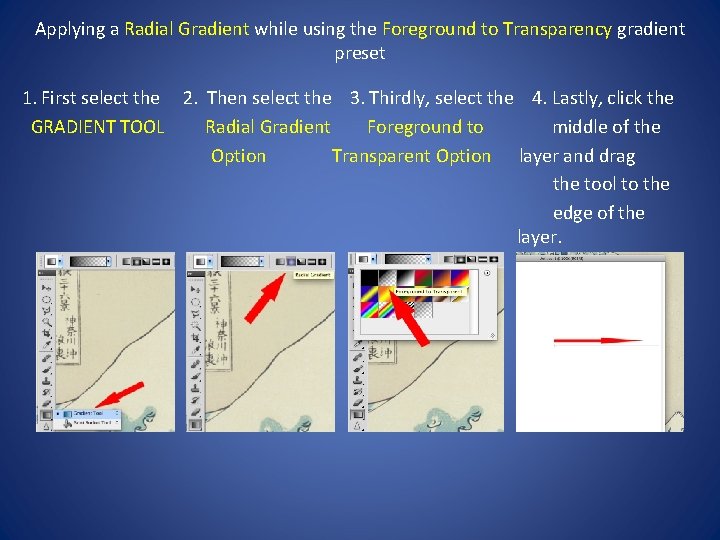
Applying a Radial Gradient while using the Foreground to Transparency gradient preset 1. First select the 2. Then select the 3. Thirdly, select the 4. Lastly, click the GRADIENT TOOL Radial Gradient Foreground to middle of the Option Transparent Option layer and drag the tool to the edge of the layer.
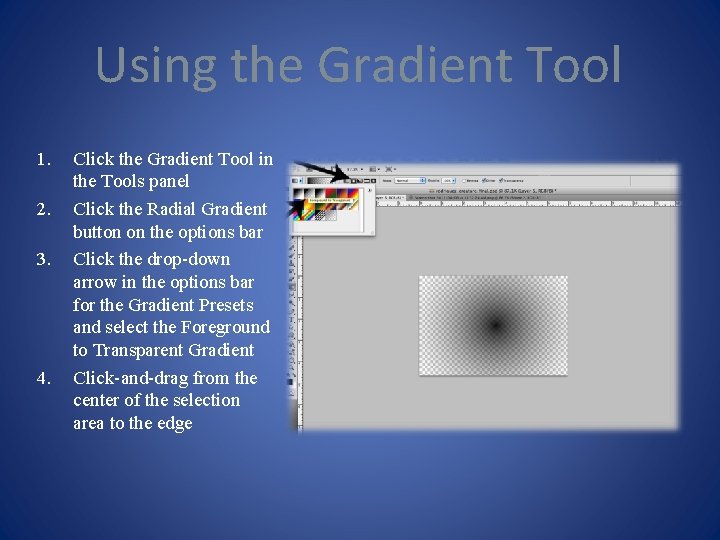
Using the Gradient Tool 1. 2. 3. 4. Click the Gradient Tool in the Tools panel Click the Radial Gradient button on the options bar Click the drop-down arrow in the options bar for the Gradient Presets and select the Foreground to Transparent Gradient Click-and-drag from the center of the selection area to the edge
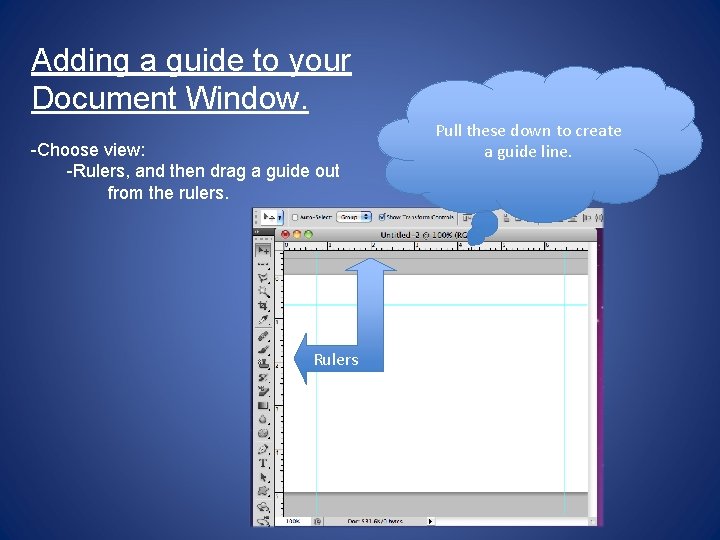
Adding a guide to your Document Window. -Choose view: -Rulers, and then drag a guide out from the rulers. Rulers Pull these down to create a guide line.
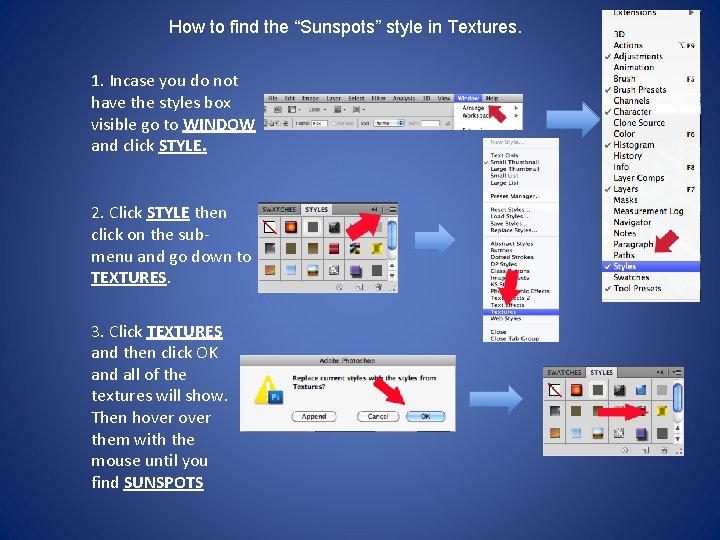
How to find the “Sunspots” style in Textures. 1. Incase you do not have the styles box visible go to WINDOW and click STYLE. 2. Click STYLE then click on the submenu and go down to TEXTURES. 3. Click TEXTURES and then click OK and all of the textures will show. Then hover them with the mouse until you find SUNSPOTS
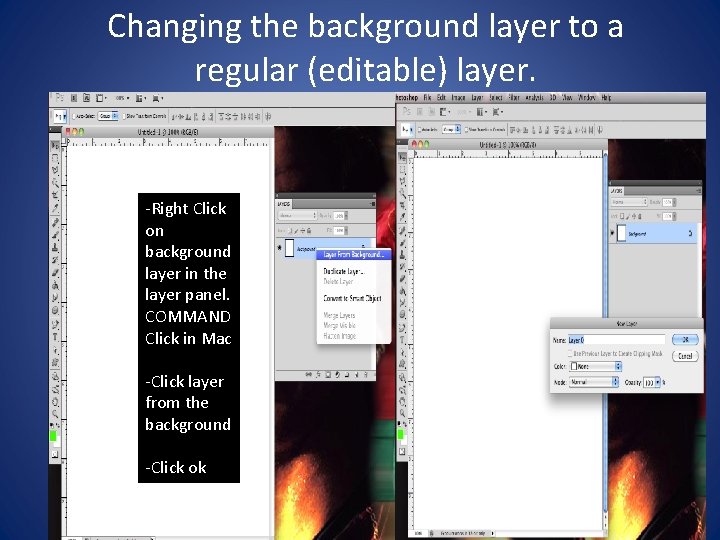
Changing the background layer to a regular (editable) layer. -Right Click on background layer in the layer panel. COMMAND Click in Mac -Click layer from the background -Click ok
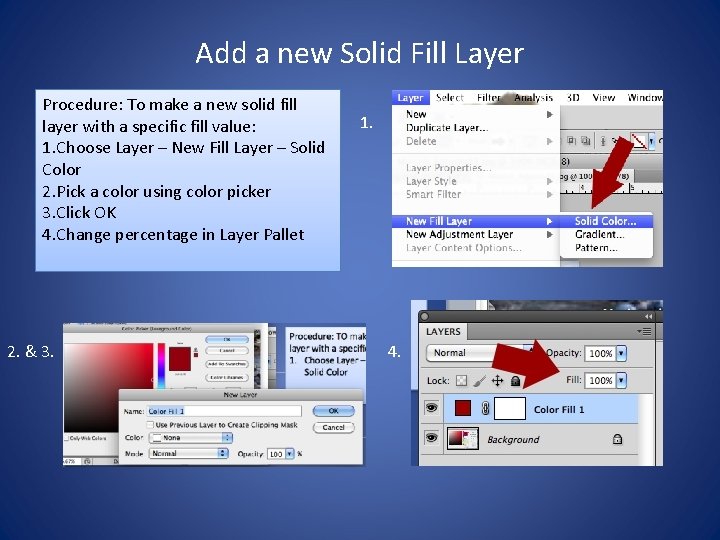
Add a new Solid Fill Layer Procedure: To make a new solid fill layer with a specific fill value: 1. Choose Layer – New Fill Layer – Solid Color 2. Pick a color using color picker 3. Click OK 4. Change percentage in Layer Pallet 2. & 3. 1. 4. Use Background slide #11
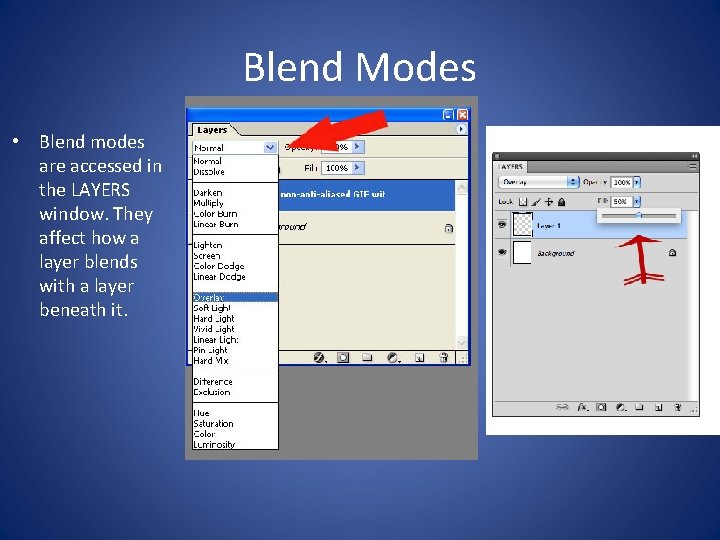
Blend Modes • Blend modes are accessed in the LAYERS window. They affect how a layer blends with a layer beneath it.
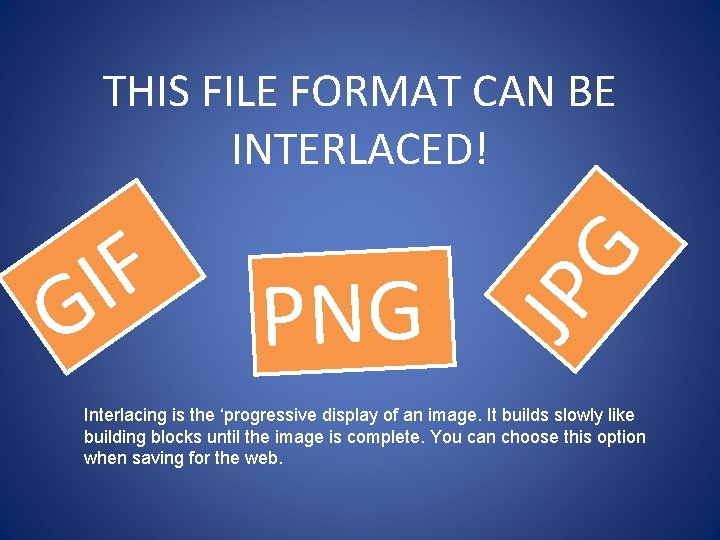
PNG JP F I G G THIS FILE FORMAT CAN BE INTERLACED! Interlacing is the ‘progressive display of an image. It builds slowly like building blocks until the image is complete. You can choose this option when saving for the web.
Which two are graphic design elements? • Line - is the basic element that refers to the continuous movement of a point along a surface, such as by a pencil or brush. The edges of shapes and forms also create lines. • Shape - area that stands out from the space next to or around it due to a defined or implied boundary, or because of differences of value, color, or texture. Shapes can also show perspective by overlapping. They can be geometric or organic. It is important to note that design ‘elements’ are component parts of “Principles Of Design”, but should not be confused with the principles.
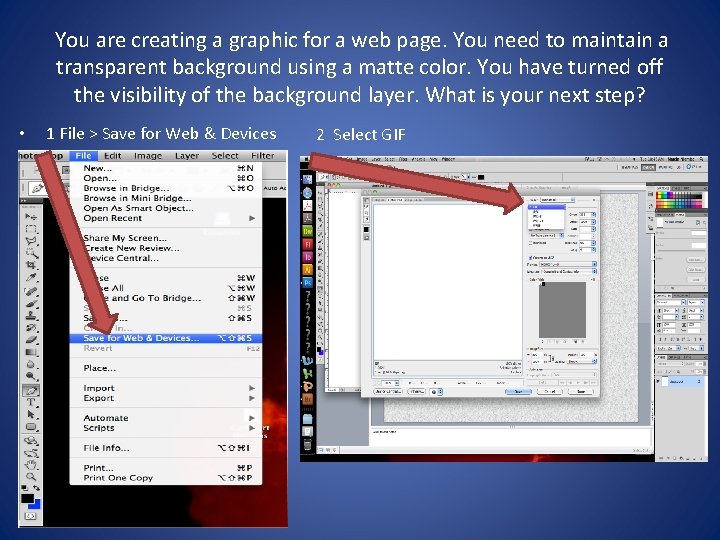
You are creating a graphic for a web page. You need to maintain a transparent background using a matte color. You have turned off the visibility of the background layer. What is your next step? • 1 File > Save for Web & Devices 2 Select GIF
When creating an image with a drop shadow for use on a website, you decide to delete the background to make the image transparent. Next, you open the Save for Web & Devices dialog box and select the Transparency checkbox… • The file format you should select to keep full alpha transparency without using a matte color is: – PNG 24 • PNG 24 offers the option to not use matte color.
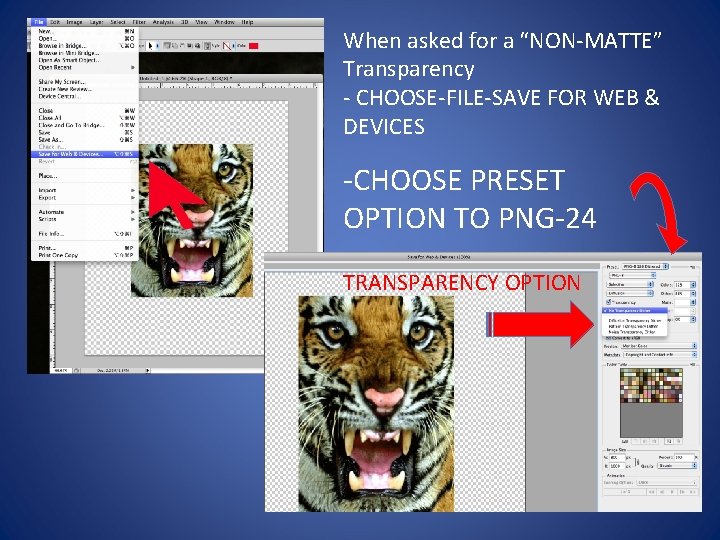
When asked for a “NON-MATTE” Transparency - CHOOSE-FILE-SAVE FOR WEB & DEVICES -CHOOSE PRESET OPTION TO PNG-24 TRANSPARENCY OPTION
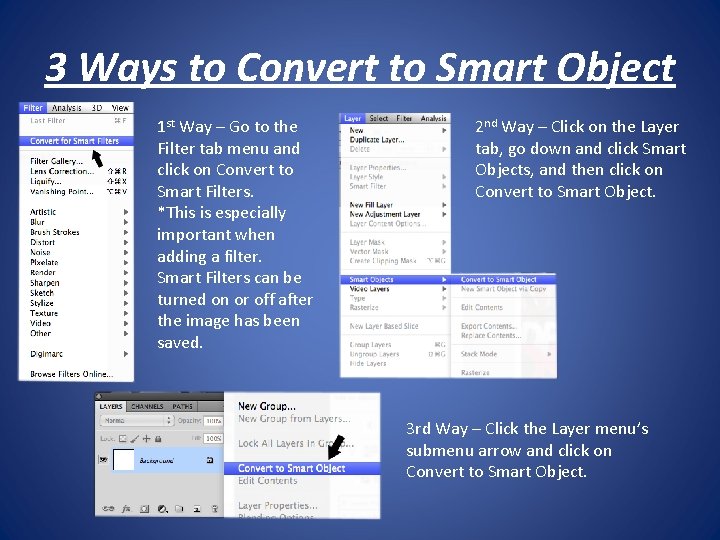
3 Ways to Convert to Smart Object 1 st Way – Go to the Filter tab menu and click on Convert to Smart Filters. *This is especially important when adding a filter. Smart Filters can be turned on or off after the image has been saved. 2 nd Way – Click on the Layer tab, go down and click Smart Objects, and then click on Convert to Smart Object. 3 rd Way – Click the Layer menu’s submenu arrow and click on Convert to Smart Object.
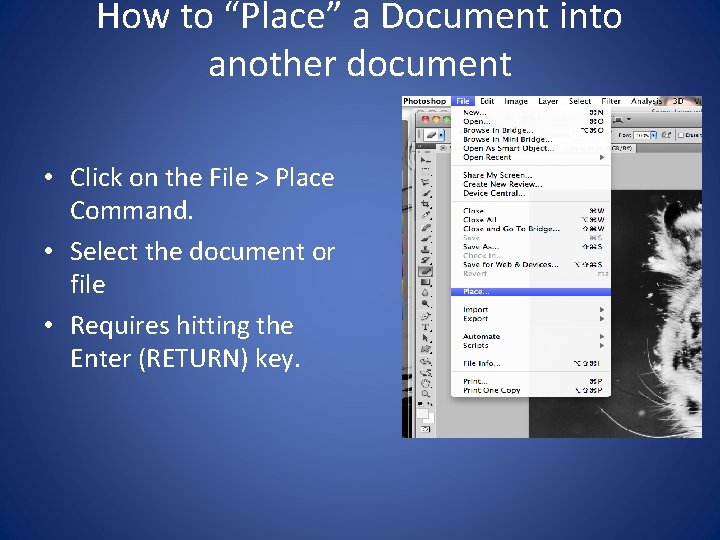
How to “Place” a Document into another document • Click on the File > Place Command. • Select the document or file • Requires hitting the Enter (RETURN) key.
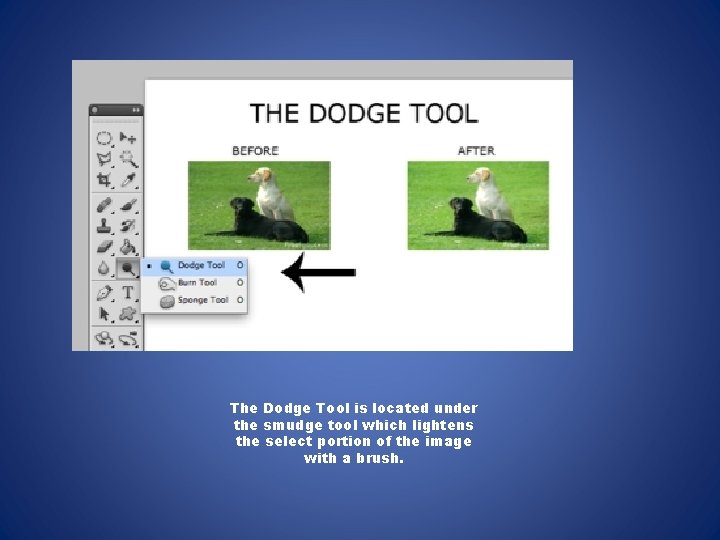
The Dodge Tool is located under the smudge tool which lightens the select portion of the image with a brush.
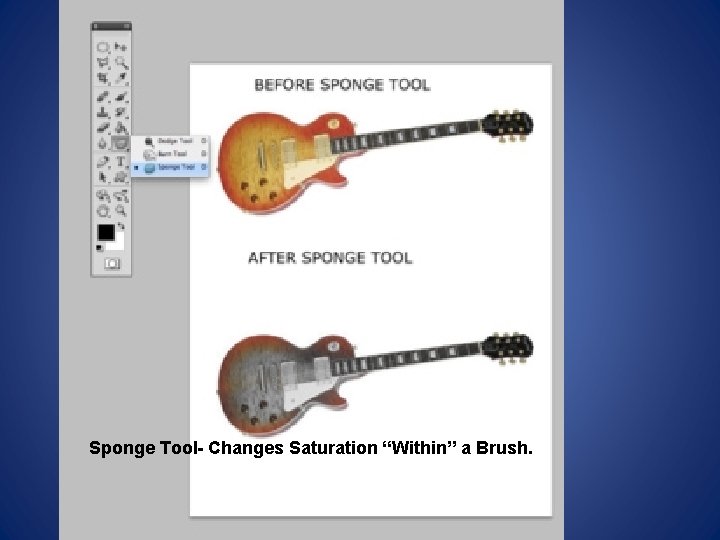
Sponge Tool- Changes Saturation “Within” a Brush.
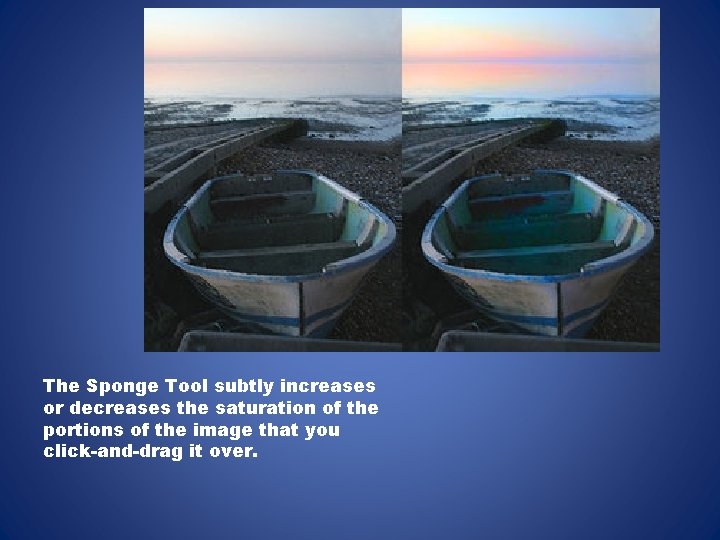
The Sponge Tool subtly increases or decreases the saturation of the portions of the image that you click-and-drag it over.
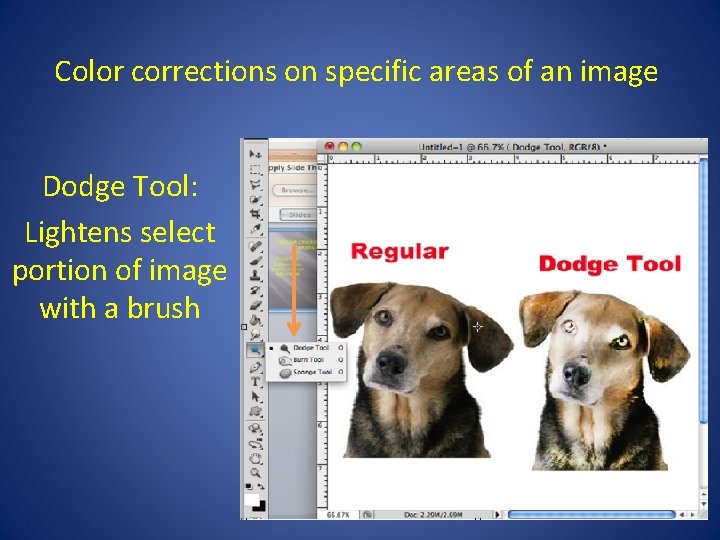
Color corrections on specific areas of an image Dodge Tool: Lightens select portion of image with a brush
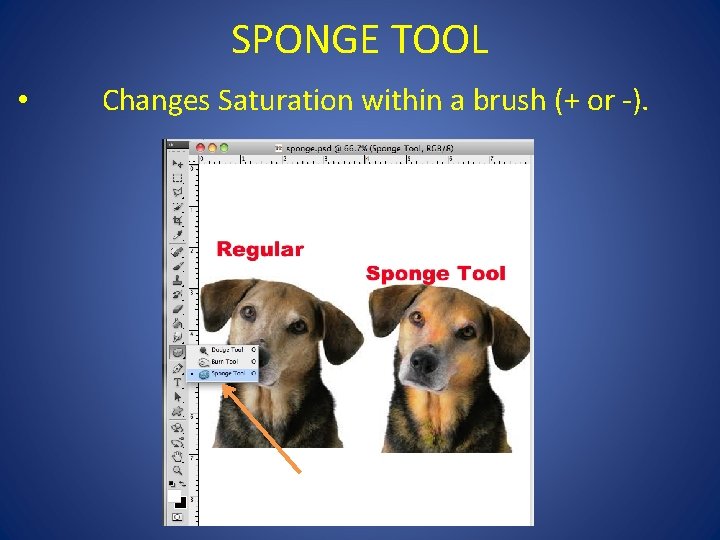
SPONGE TOOL • Changes Saturation within a brush (+ or -).
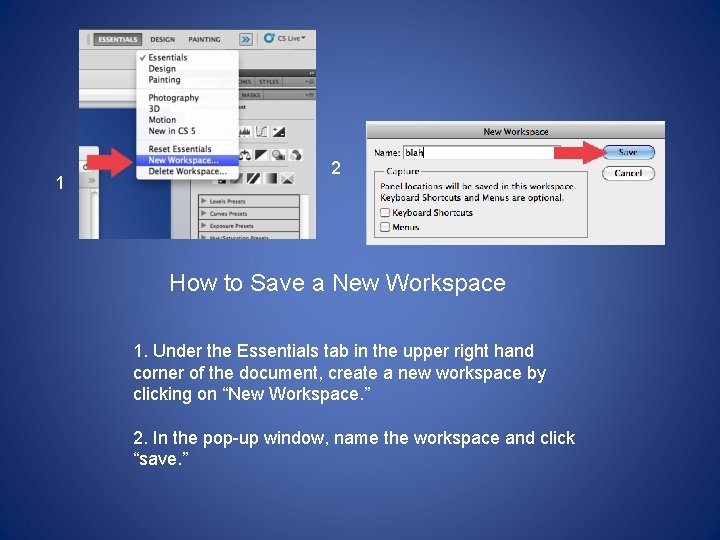
1 2 How to Save a New Workspace 1. Under the Essentials tab in the upper right hand corner of the document, create a new workspace by clicking on “New Workspace. ” 2. In the pop-up window, name the workspace and click “save. ”
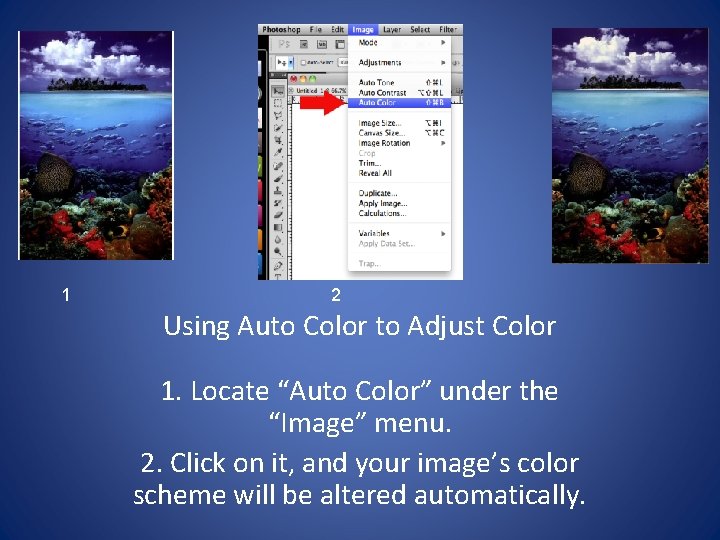
1 2 Using Auto Color to Adjust Color 1. Locate “Auto Color” under the “Image” menu. 2. Click on it, and your image’s color scheme will be altered automatically.
Project Planning • When planning a Photoshop project it is necessary to think about the project scope and the content purpose.
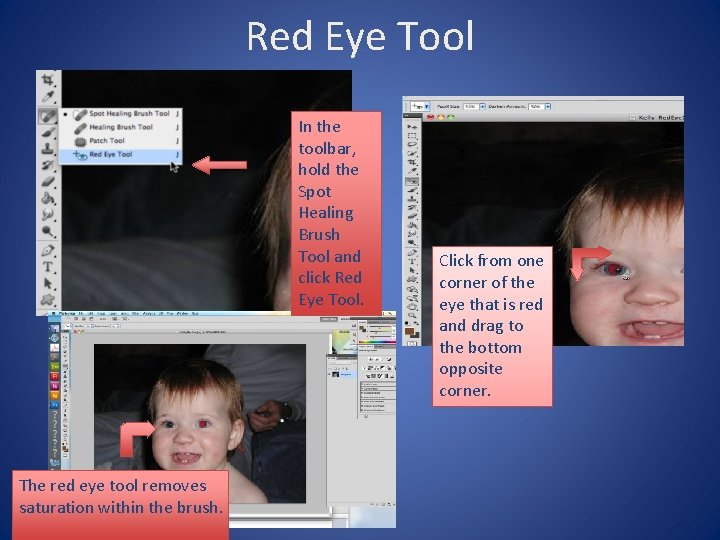
Red Eye Tool In the toolbar, hold the Spot Healing Brush Tool and click Red Eye Tool. The red eye tool removes saturation within the brush. Click from one corner of the eye that is red and drag to the bottom opposite corner.

Where can copyright information for a Photoshop file be viewed, added, or edited? Choose FILE – FILE INFO. You can write your name in the Copyright Notice field and the info is stored into the file.
Which two must be identified when developing a Photoshop Project plan? 1. Resource allocation 2. Task owners Consider the fact that you are a “Freelance” (self-employed) contractor. You need to manage expenses from the beginning to end of project. If you don’t, your accountant might not like you when evaluating your profit and loss statement.
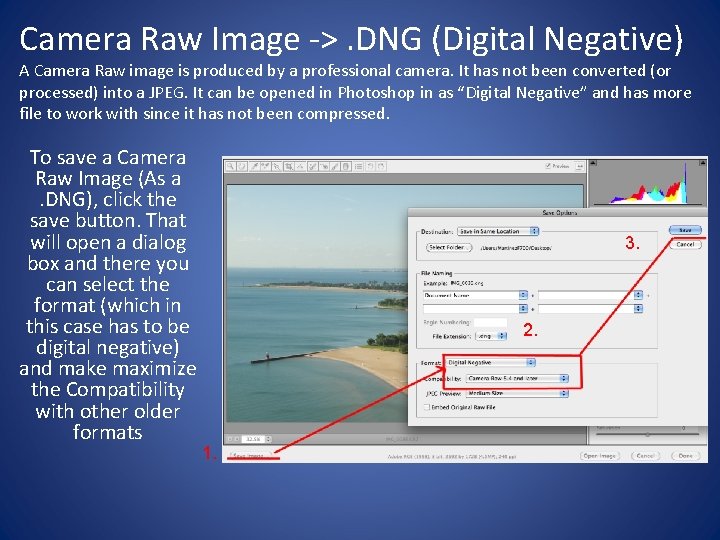
Camera Raw Image ->. DNG (Digital Negative) A Camera Raw image is produced by a professional camera. It has not been converted (or processed) into a JPEG. It can be opened in Photoshop in as “Digital Negative” and has more file to work with since it has not been compressed. To save a Camera Raw Image (As a. DNG), click the save button. That will open a dialog box and there you can select the format (which in this case has to be digital negative) and make maximize the Compatibility with other older formats 3. 2. 1.
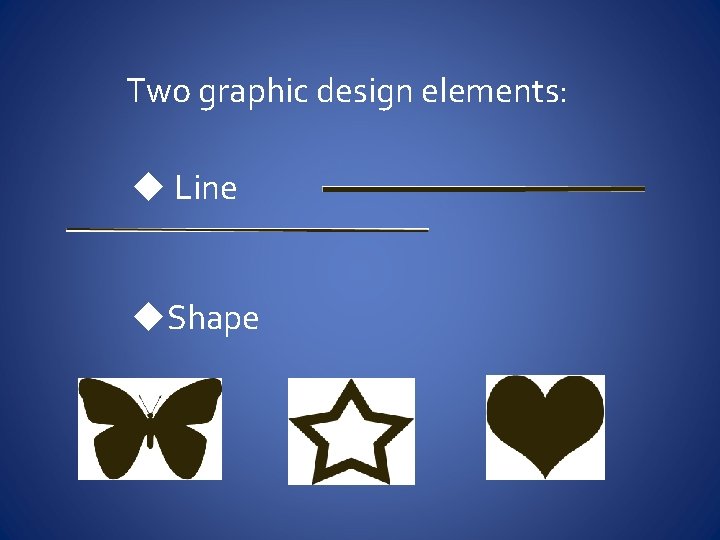
Two graphic design elements: u Line u. Shape
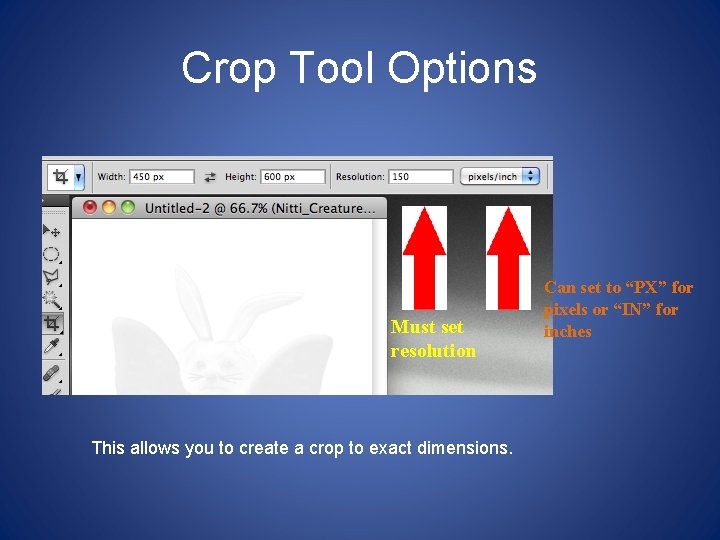
Crop Tool Options Must set resolution This allows you to create a crop to exact dimensions. Can set to “PX” for pixels or “IN” for inches
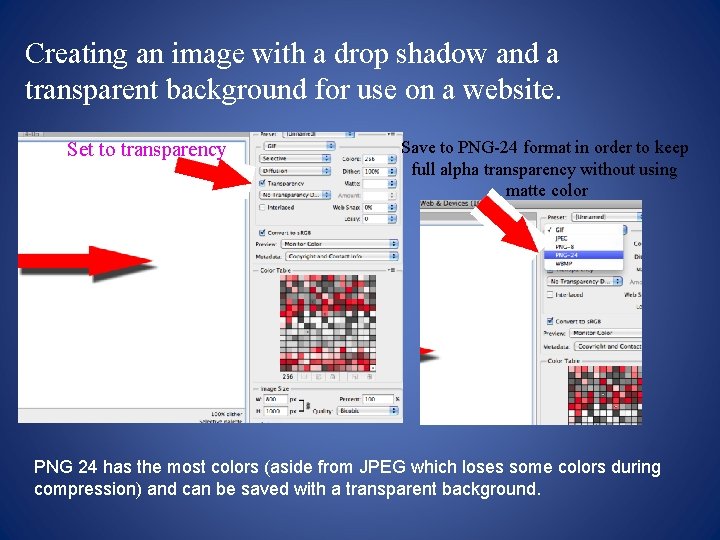
Creating an image with a drop shadow and a transparent background for use on a website. Set to transparency Save to PNG-24 format in order to keep full alpha transparency without using matte color PNG 24 has the most colors (aside from JPEG which loses some colors during compression) and can be saved with a transparent background.
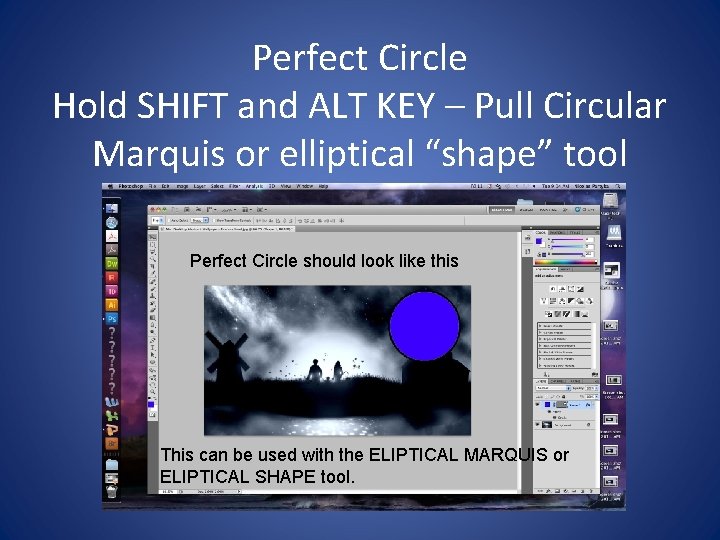
Perfect Circle Hold SHIFT and ALT KEY – Pull Circular Marquis or elliptical “shape” tool Perfect Circle should look like this This can be used with the ELIPTICAL MARQUIS or ELIPTICAL SHAPE tool.
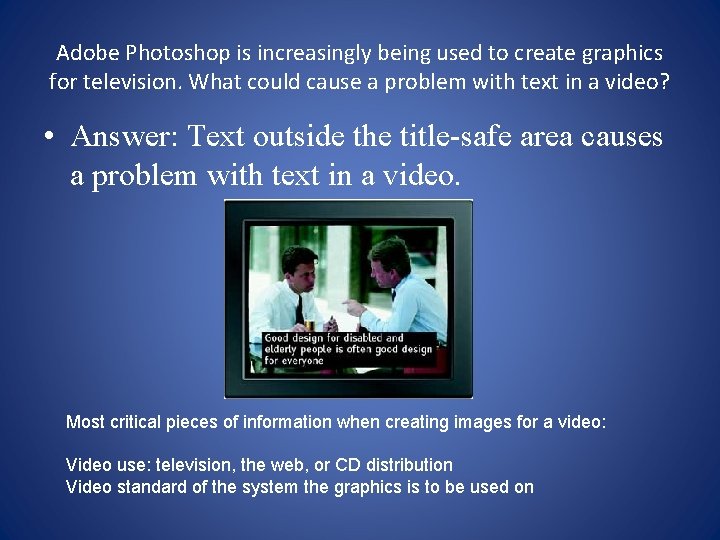
Adobe Photoshop is increasingly being used to create graphics for television. What could cause a problem with text in a video? • Answer: Text outside the title-safe area causes a problem with text in a video. Most critical pieces of information when creating images for a video: Video use: television, the web, or CD distribution Video standard of the system the graphics is to be used on
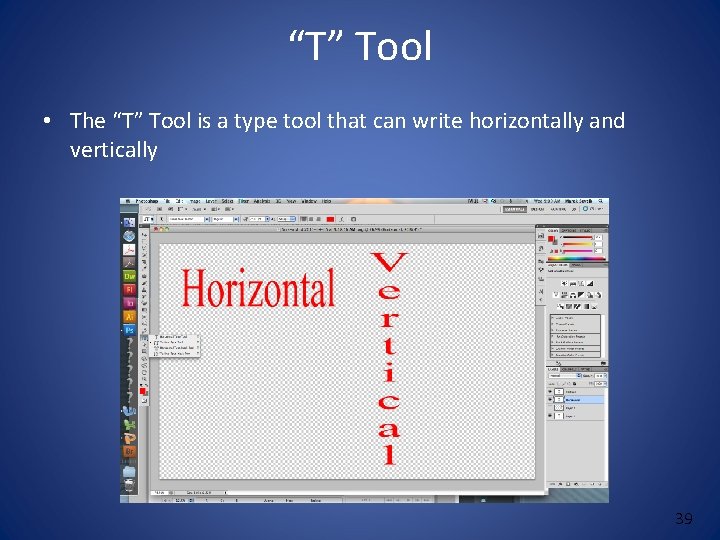
“T” Tool • The “T” Tool is a type tool that can write horizontally and vertically 39
Pixels Vs Inches • Websites and flash banners require the use of pixels while billboards, magazine covers and business cards are measured in inches. • The reason begin because websites and flash banners are digital media. • While billboards, magazine covers and business are physical media.
File size | color mode | resolution File size Is the measure of a size of a computer file. They are measured in bytes. Color mode • RGB –is a color model in which red green and blue light are combined to reproduced a broad array of color • CMYK- is a color model used in color printing because of the 4 colors (black cyan magenta yellow) used to to print documents and pictures. • Gray scale. Resolution is dependant on the number of pixels that make up the image.
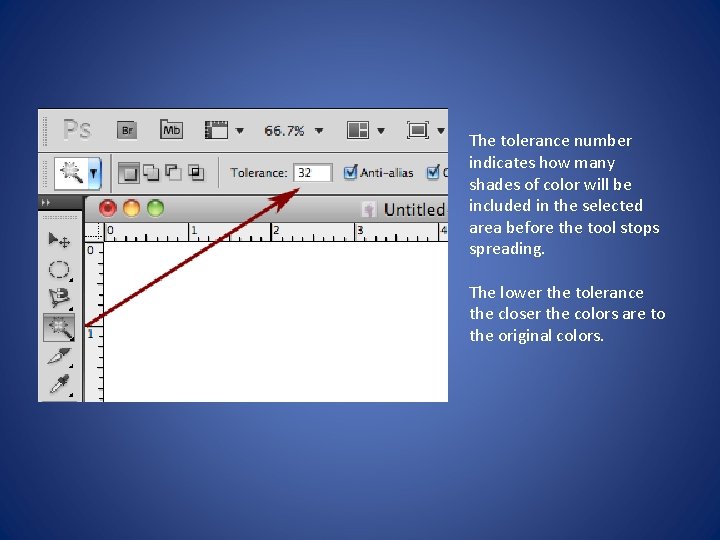
The tolerance number indicates how many shades of color will be included in the selected area before the tool stops spreading. The lower the tolerance the closer the colors are to the original colors.
Which two are uses of color as a graphic design element? 1) To label or show hierarchy (arrangement of items in which the items are represented as being "above, " "below, " or "at the same level as" one another) 2) To unify or tie a layout together
When you are using a layer mask, what does painting with black or white inside the mask do? (You should know this!!!!) Black hides the image; white reveals the image.
Know these concepts for Copyright. 1)Fair use -Fair use is the right to use copyrighted material for education, research, criticism or news reporting. 2) Public domain -Works in the public domain have copyrights that are expired or abandoned. 3) Derivative works - Derivative works are based on another work where only the changes are protected. The copyright of the original work belongs to its creator.
Things to do after using global adjustments. Global Adjustments are the permanent adjustments accessed using IMAGE - ADJUSTMENTS A. Apply the Unsharp Mask filter after adjusting or retouching an image. After globally adjusting an image, some elements may appear blurry. Unsharp Mask filter increases contrast of certain areas, making things look sharp again. B. Before making global adjustments, be sure that nothing is selected in the image. Global adjustments affect the entire image in the same way at the same time. If there is a selection, the adjustments made will only be applied to the selected area. D. On the RGB Level histogram, drag the right (white) triangle left to the point where the lightest color in the image begin. Using level adjustments may affect the color range of an image. It’s good to adjust the levels afterwards. This provides better contrast and sharper image.
- Slides: 55