
Colleague SelfService Training Welcome to your SelfService Home

- Slides: 8
Colleague Self-Service Training
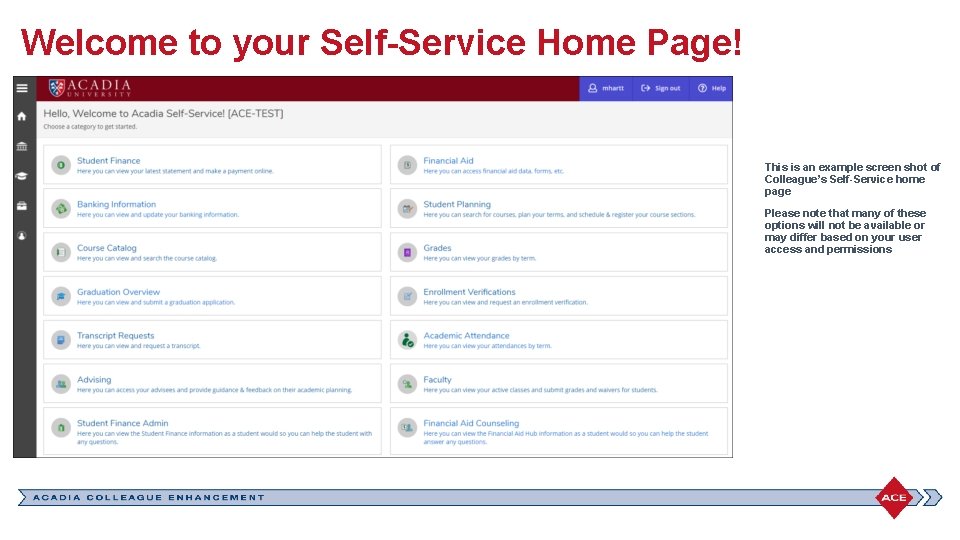
Welcome to your Self-Service Home Page! This is an example screen shot of Colleague’s Self-Service home page Please note that many of these options will not be available or may differ based on your user access and permissions
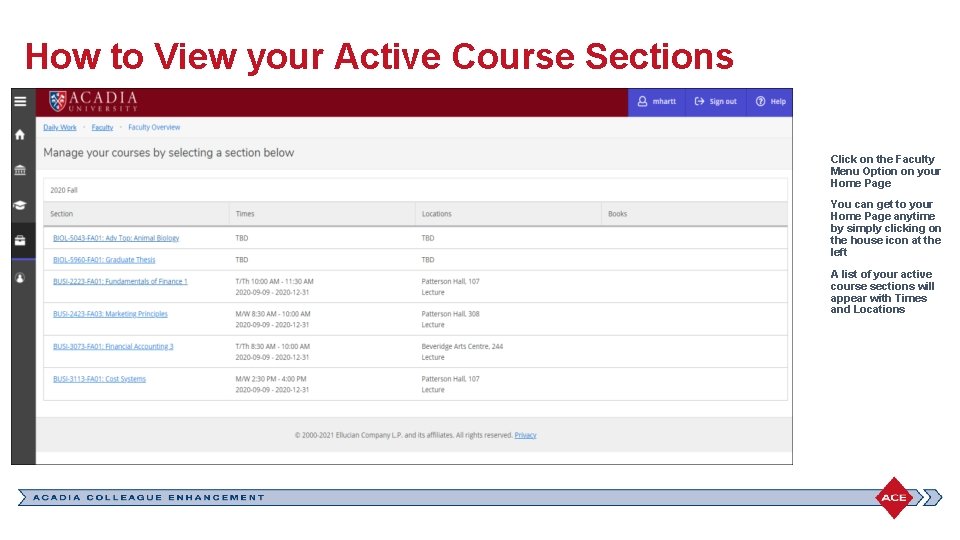
How to View your Active Course Sections Click on the Faculty Menu Option on your Home Page You can get to your Home Page anytime by simply clicking on the house icon at the left A list of your active course sections will appear with Times and Locations
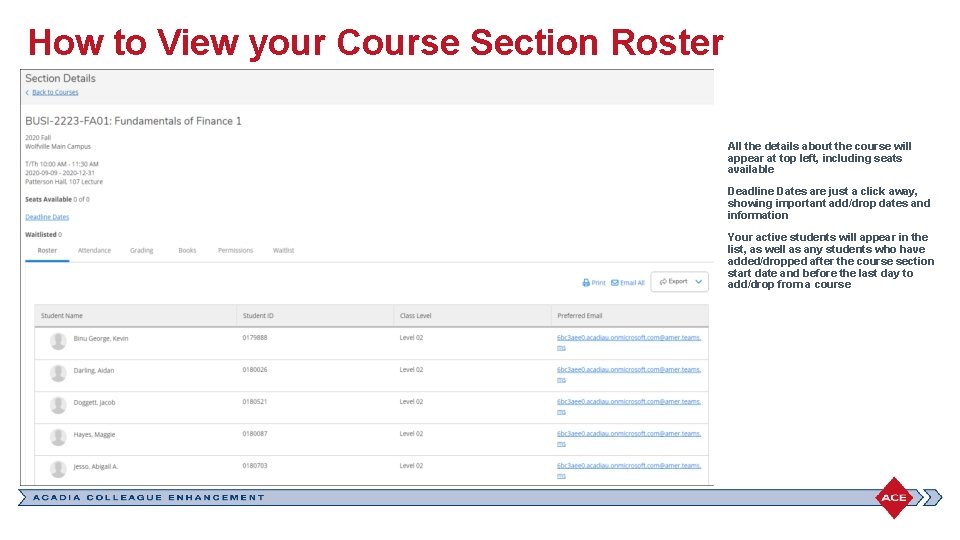
How to View your Course Section Roster All the details about the course will appear at top left, including seats available Deadline Dates are just a click away, showing important add/drop dates and information Your active students will appear in the list, as well as any students who have added/dropped after the course section start date and before the last day to add/drop from a course
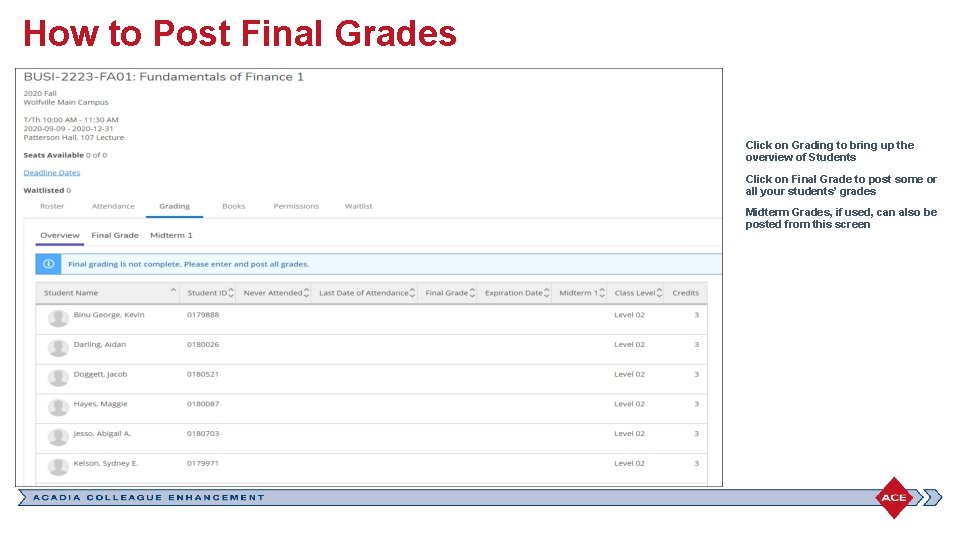
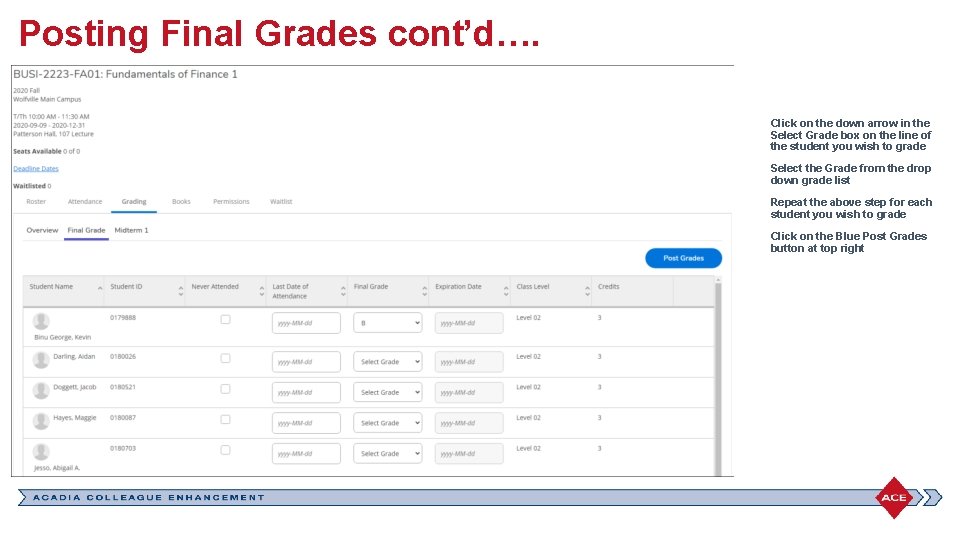
How to Post Final Grades Click on Grading to bring up the overview of Students Click on Final Grade to post some or all your students’ grades Midterm Grades, if used, can also be posted from this screen
Posting Final Grades cont’d…. Click on the down arrow in the Select Grade box on the line of the student you wish to grade Select the Grade from the drop down grade list Repeat the above step for each student you wish to grade Click on the Blue Post Grades button at top right
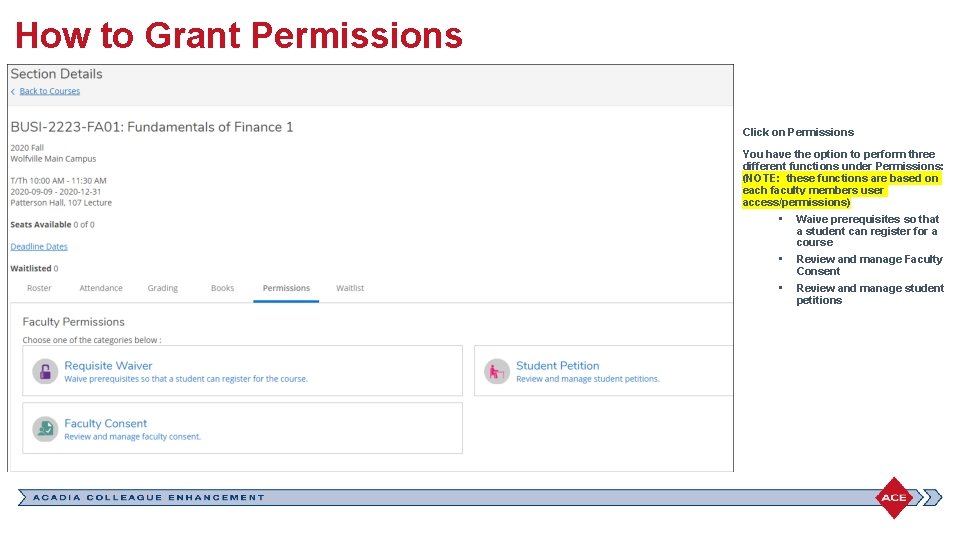
How to Grant Permissions Click on Permissions You have the option to perform three different functions under Permissions: (NOTE: these functions are based on each faculty members user access/permissions) • Waive prerequisites so that a student can register for a course • Review and manage Faculty Consent • Review and manage student petitions
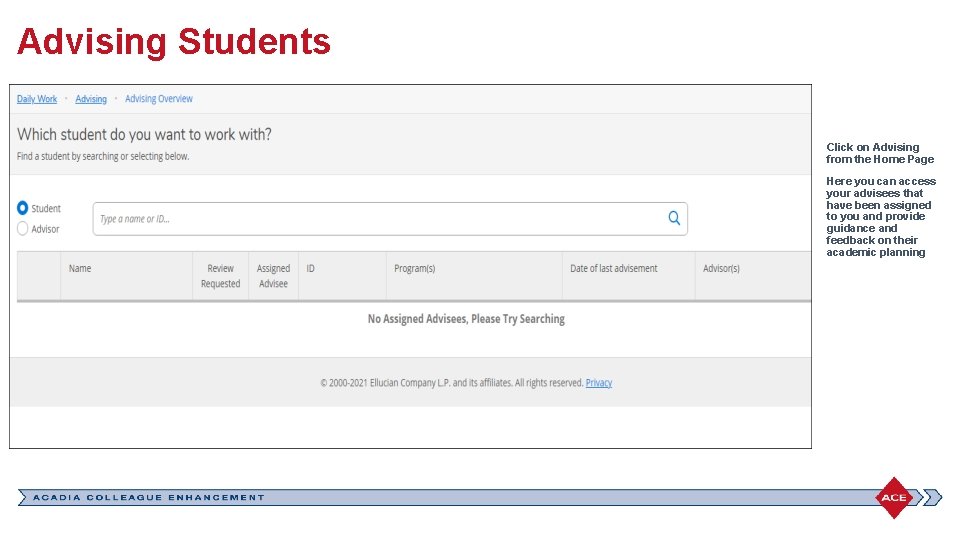
Advising Students Click on Advising from the Home Page Here you can access your advisees that have been assigned to you and provide guidance and feedback on their academic planning