
Co Browse VIEW AND CONTROL YOUR VISITORS BROWSER
Co. Browse VIEW AND CONTROL YOUR VISITOR’S BROWSER TAB IN REAL TIME
What is it? • Is a tool based on sharing the consumer’s browser in real-time. • The lifetime of session data on the server is limited to the length of the Co. Browse session. • Different from desktop sharing, Co. Browse shares only the visitor’s webpage to the Customer Care Professional (CCP).
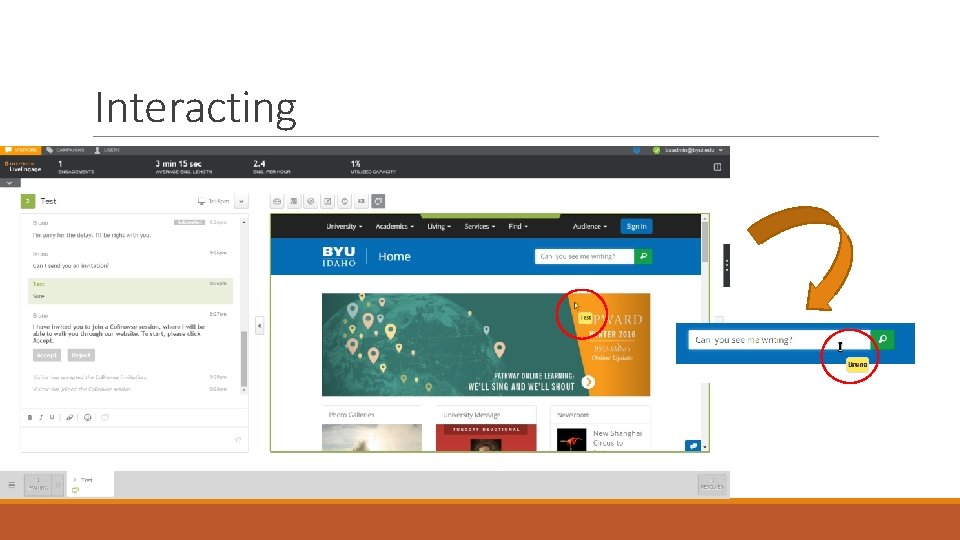
How does it work? • When a Co. Browse session is active, the CCP is able to visualize the visitor’s browser. • The consumer browser and CCP browser communicate entirely via the Co. Browse server; there is no direct communication between connected browsers. • User events, such as mouse move, mouse clicks, or key inputs in form fields, are monitored in the consumer’s browser and displayed in the CCP’s browser (and vice versa). • Co. Browse supports both “read-only” and “interactive” mode: • In “read-only” mode, a CCP can only highlight elements on the website during the session. • In “interactive mode”, a CCP can execute mouse clicks and key inputs in form fields, without the need to manually hand over control.
Why use it? • Co. Browse ensures that complex online tasks and processes can be completed quickly and efficiently. • It increases consumer engagement by creating a higher degree of co-presence of the CCP. • It does not require any installation, plugins or configuration by CCPs or by visitors. • It is easy to use. • Can be used on all major browsers with zero setup time or preparation required.
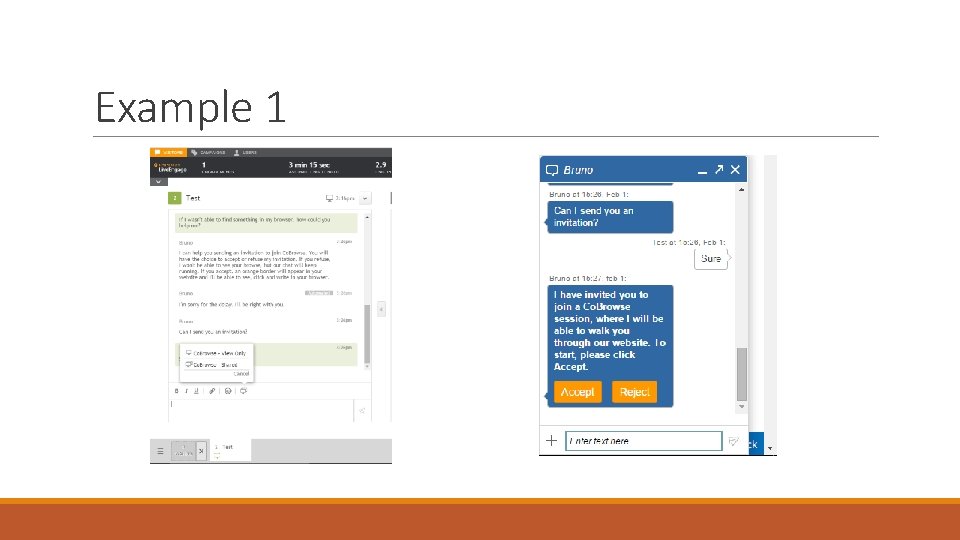
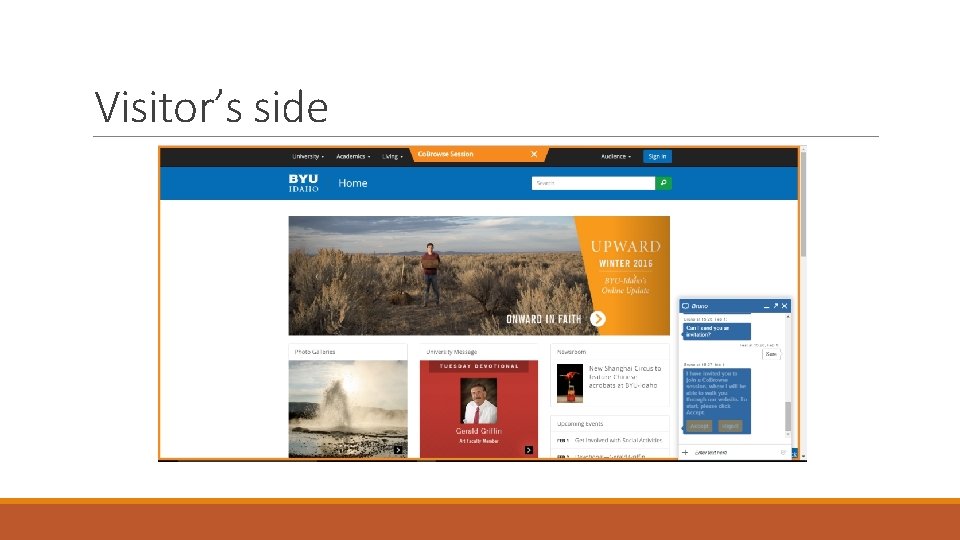
How can I use it? • Co. Browse doesn’t need to be downloaded in your computer, you use it through you Live. Engage account while chatting with any visitor. • The CCP sends an invitation from the Embedded Engagement Window. • If the consumer accepts, the Co. Browse session starts on the same webpage as the consumer was on when they initiated the conservation.
Example 1
Visitor’s side
Interacting
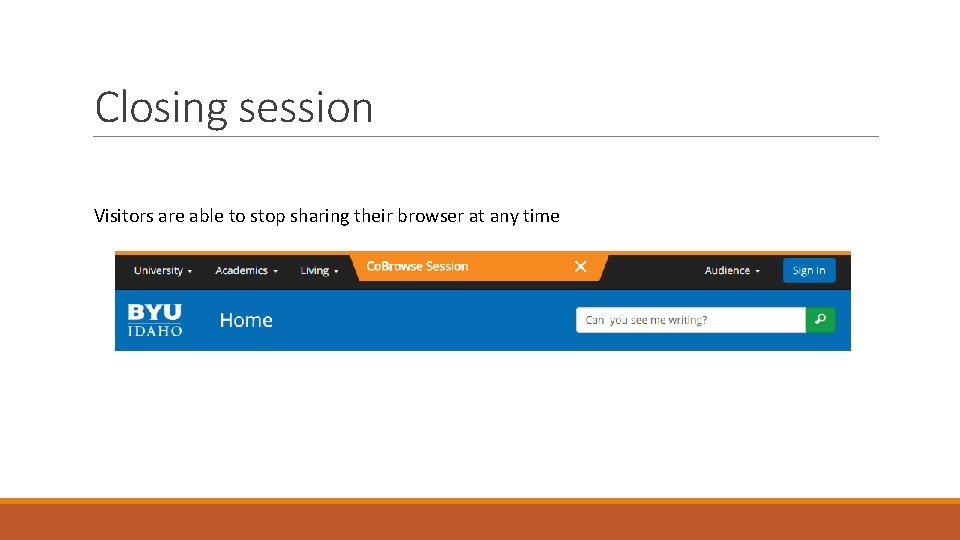
Closing session Visitors are able to stop sharing their browser at any time
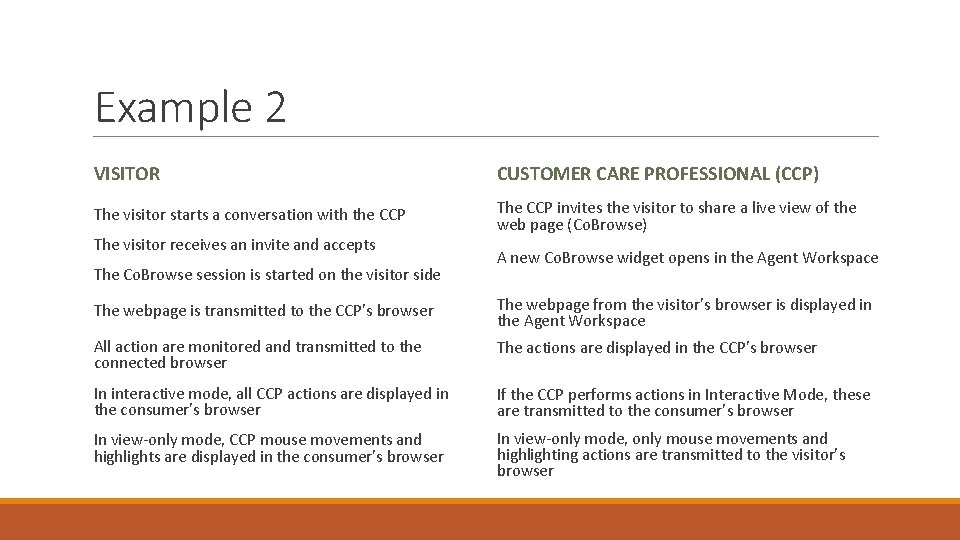
Example 2 VISITOR CUSTOMER CARE PROFESSIONAL (CCP) The visitor starts a conversation with the CCP The CCP invites the visitor to share a live view of the web page (Co. Browse) The visitor receives an invite and accepts The Co. Browse session is started on the visitor side A new Co. Browse widget opens in the Agent Workspace The webpage is transmitted to the CCP’s browser The webpage from the visitor’s browser is displayed in the Agent Workspace All action are monitored and transmitted to the connected browser The actions are displayed in the CCP’s browser In interactive mode, all CCP actions are displayed in the consumer’s browser If the CCP performs actions in Interactive Mode, these are transmitted to the consumer’s browser In view-only mode, CCP mouse movements and highlights are displayed in the consumer’s browser In view-only mode, only mouse movements and highlighting actions are transmitted to the visitor’s browser
Is it safe? • The Co. Browse server applies security filters to block malicious content from being transmitted to the CCP’s browser. • It is technically not possible to access any data outside of the shared web application. • A multi-stage and customizable security architecture systematically protects sensitive information and meets individual security requirements. • The visitors and CCPs can only access the tab that is opened. No local system or web applications opened in other browser tabs or windows can be accessed. • Password form fields are automatically blocked from transmitting data into the Co. Browse session of other participants.
Pricing • Our account has an agreement with Live. Engage of unlimited plan, which means that we have unlimited access and sessions to Co. Browse. • We may use as many Co. Browse sessions as we need with no extra costs. • Every account is able to start a Co. Browse session. • Also remember that we can have as many CCPs in our office as we want for the same price.
Questions?
- Slides: 13