
cms 2 V 2009 tm New Feature Overview
- Slides: 42
cms 2 V 2009 tm New Feature Overview Cougar Mountain Software Professional Version Revised 01/04/2009 © GPS Financial Services 2008 -2009 Slide#: 1 of 42
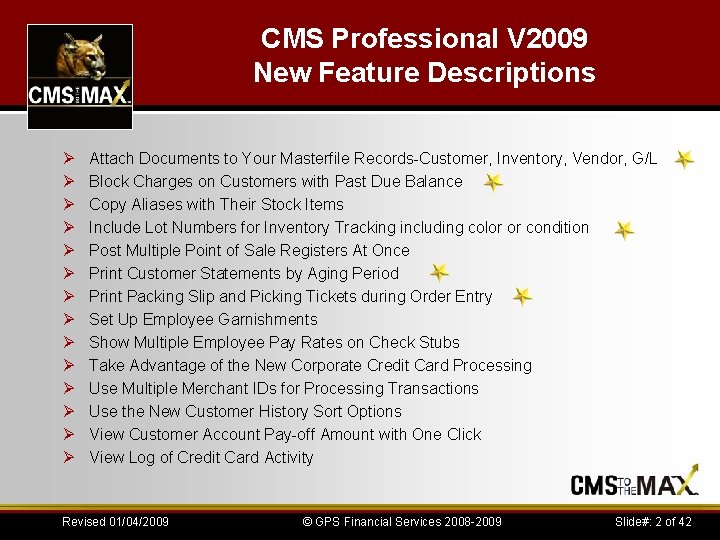
CMS Professional V 2009 New Feature Descriptions Ø Ø Ø Ø Attach Documents to Your Masterfile Records-Customer, Inventory, Vendor, G/L Block Charges on Customers with Past Due Balance Copy Aliases with Their Stock Items Include Lot Numbers for Inventory Tracking including color or condition Post Multiple Point of Sale Registers At Once Print Customer Statements by Aging Period Print Packing Slip and Picking Tickets during Order Entry Set Up Employee Garnishments Show Multiple Employee Pay Rates on Check Stubs Take Advantage of the New Corporate Credit Card Processing Use Multiple Merchant IDs for Processing Transactions Use the New Customer History Sort Options View Customer Account Pay-off Amount with One Click View Log of Credit Card Activity Revised 01/04/2009 © GPS Financial Services 2008 -2009 Slide#: 2 of 42
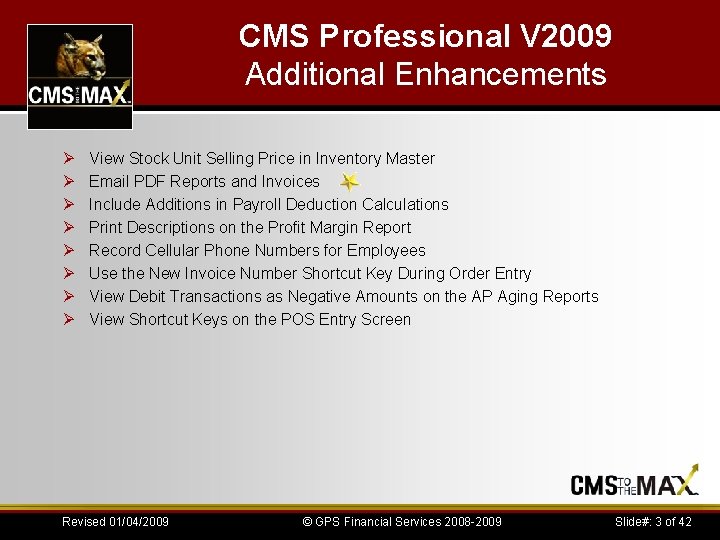
CMS Professional V 2009 Additional Enhancements Ø Ø Ø Ø View Stock Unit Selling Price in Inventory Master Email PDF Reports and Invoices Include Additions in Payroll Deduction Calculations Print Descriptions on the Profit Margin Report Record Cellular Phone Numbers for Employees Use the New Invoice Number Shortcut Key During Order Entry View Debit Transactions as Negative Amounts on the AP Aging Reports View Shortcut Keys on the POS Entry Screen Revised 01/04/2009 © GPS Financial Services 2008 -2009 Slide#: 3 of 42
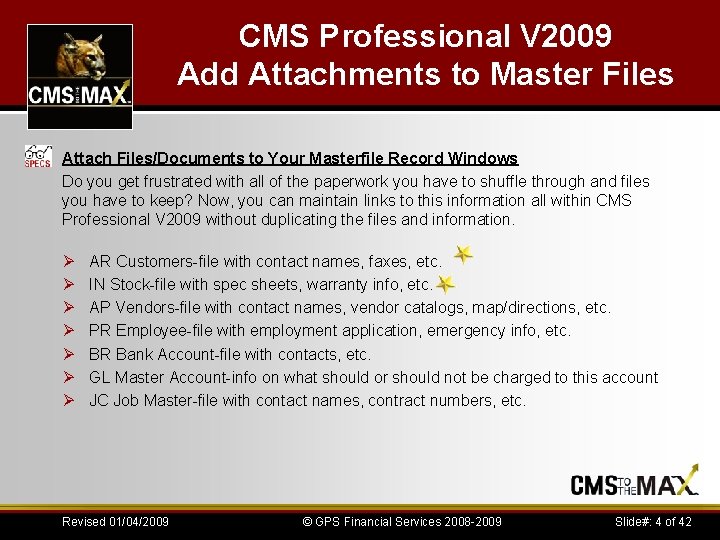
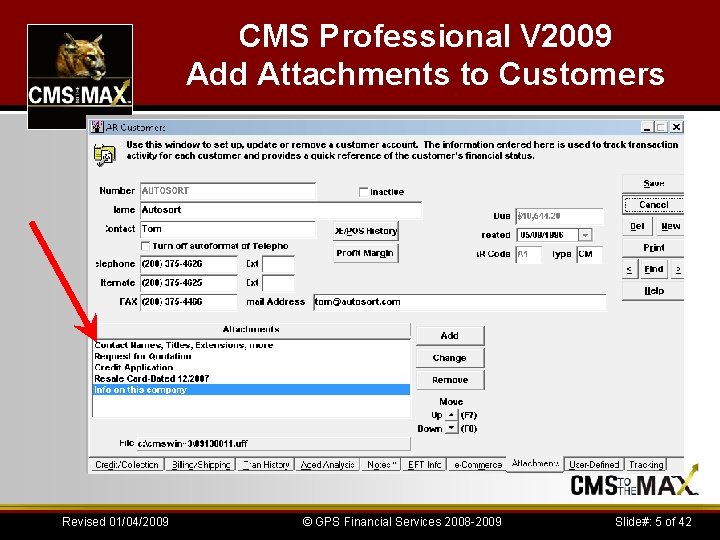
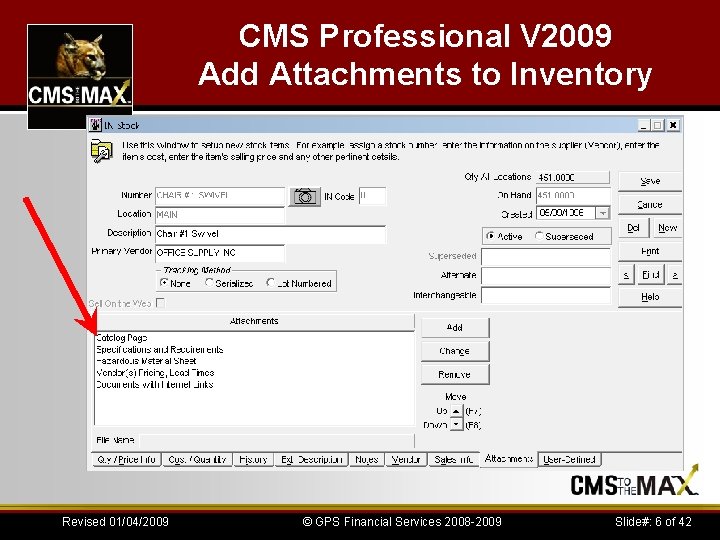
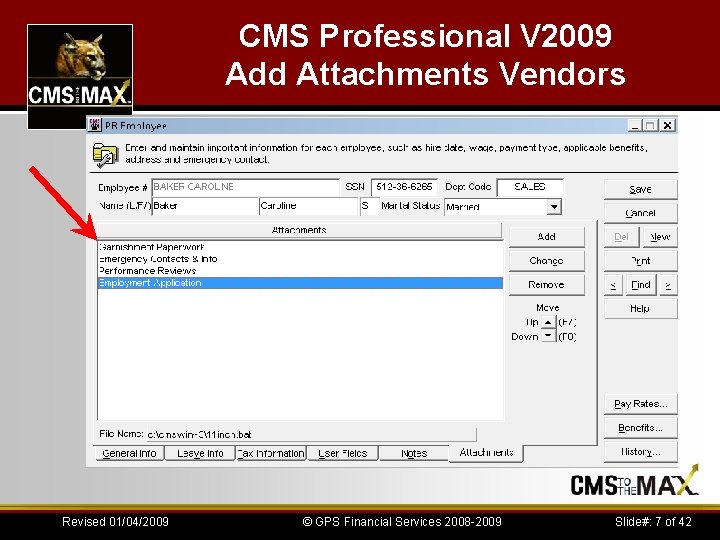
CMS Professional V 2009 Add Attachments to Master Files Attach Files/Documents to Your Masterfile Record Windows Do you get frustrated with all of the paperwork you have to shuffle through and files you have to keep? Now, you can maintain links to this information all within CMS Professional V 2009 without duplicating the files and information. Ø Ø Ø Ø AR Customers-file with contact names, faxes, etc. IN Stock-file with spec sheets, warranty info, etc. AP Vendors-file with contact names, vendor catalogs, map/directions, etc. PR Employee-file with employment application, emergency info, etc. BR Bank Account-file with contacts, etc. GL Master Account-info on what should or should not be charged to this account JC Job Master-file with contact names, contract numbers, etc. Revised 01/04/2009 © GPS Financial Services 2008 -2009 Slide#: 4 of 42
CMS Professional V 2009 Add Attachments to Customers Revised 01/04/2009 © GPS Financial Services 2008 -2009 Slide#: 5 of 42
CMS Professional V 2009 Add Attachments to Inventory Revised 01/04/2009 © GPS Financial Services 2008 -2009 Slide#: 6 of 42
CMS Professional V 2009 Add Attachments Vendors Revised 01/04/2009 © GPS Financial Services 2008 -2009 Slide#: 7 of 42
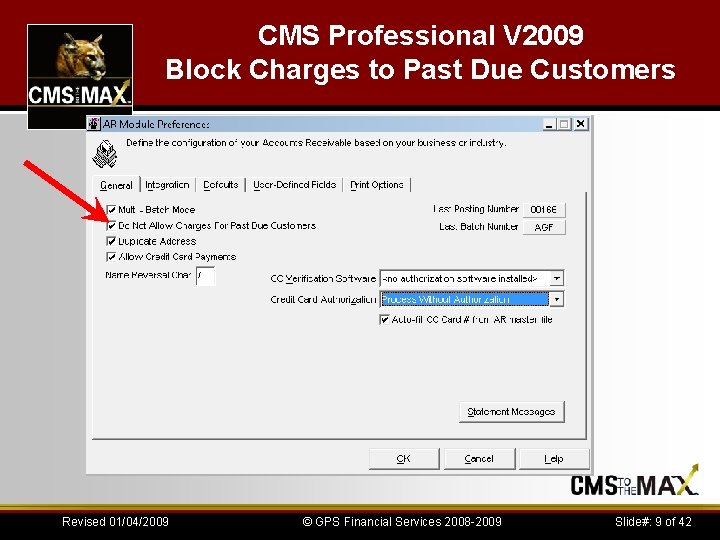
CMS Professional V 2009 Block Charges to Past Due Customers Ø At some point most businesses have customers that make late payments. When this situation occurs, you can now set up your software to block customers from charging on their in-house account when they are past due. There are multiple new options added to CMS Professional to accommodate this new feature. Ø If you check the Do Not Allow Charges For Past Due Customers check box in the AR Module Preferences window, when past due customers attempt to charge to their accounts in Order Entry, Point of Sale, or Job Cost, a message appears indicating this tender option is disallowed. The past due date is based on the aging you established in Accounts Receivable. Ø You can also use the new Print Customer Statements by Aging Period report filter to help streamline your collection process by printing customer statements specific to their past due status. Revised 01/04/2009 © GPS Financial Services 2008 -2009 Slide#: 8 of 42
CMS Professional V 2009 Block Charges to Past Due Customers Revised 01/04/2009 © GPS Financial Services 2008 -2009 Slide#: 9 of 42
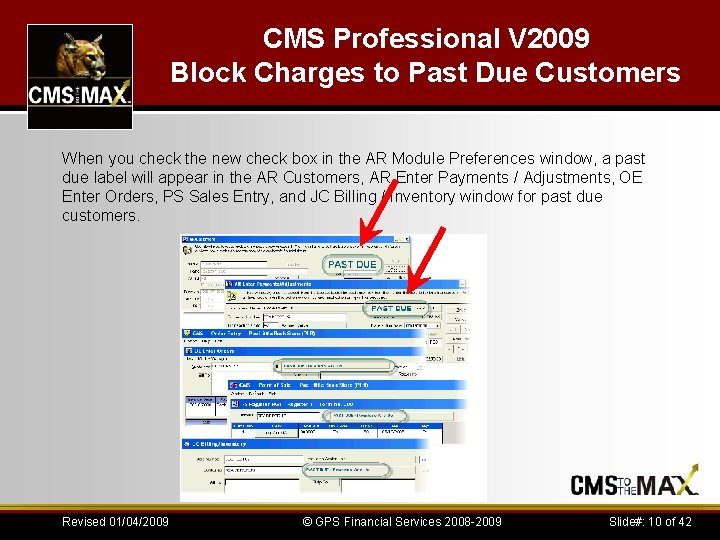
CMS Professional V 2009 Block Charges to Past Due Customers When you check the new check box in the AR Module Preferences window, a past due label will appear in the AR Customers, AR Enter Payments / Adjustments, OE Enter Orders, PS Sales Entry, and JC Billing / Inventory window for past due customers. Revised 01/04/2009 © GPS Financial Services 2008 -2009 Slide#: 10 of 42
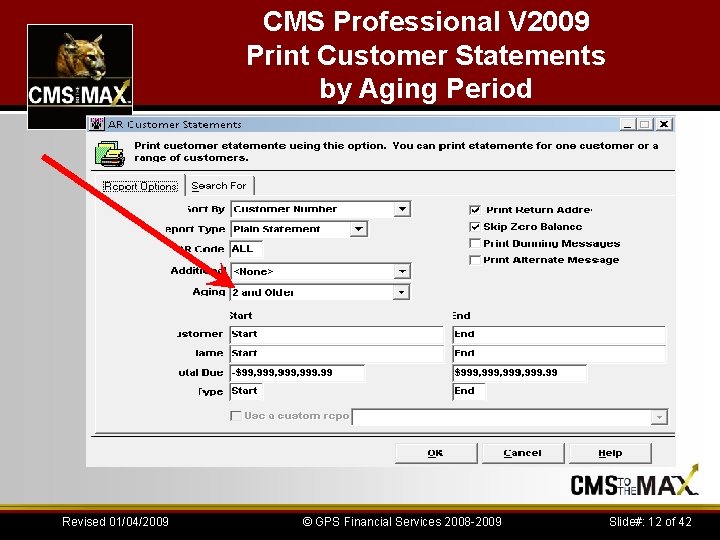
CMS Professional V 2009 Print Customer Statements by Aging Period Ø Monitoring your customers’ outstanding balances is important to your business. To further assist you with this task you can now print your customer statements by aging period. This allows you an additional filtering option to view only customers with balances outstanding for a certain aging period or for all periods. When you select Reports > Customer Statements from the Accounts Receivable menu bar, you will notice the new Aging Periods field. Ø The drop-down list for this field includes the options of All, 1 and Older, 2 and Older, 3 and Older, 4 and Older. If, for example, you want to print customer statements for Aging Periods 2 through 4, you would select 2 and Older. Ø The aging periods for customer accounts are defined in the AR Codes window. Ø For customers that are past due, you can use the new Block Charges to Past Due Customers feature which blocks their accounts from accruing additional charges based on their aging status. Revised 01/04/2009 © GPS Financial Services 2008 -2009 Slide#: 11 of 42
CMS Professional V 2009 Print Customer Statements by Aging Period Revised 01/04/2009 © GPS Financial Services 2008 -2009 Slide#: 12 of 42
CMS Professional V 2009 Use the New Customer History Sort Options Ø In the AR Customers and OE Enter Orders windows, you now have additional sorting options when viewing your customer transaction history. Ø You can sort your customers’ transaction history by the first three columns in the Customer History Information section of the windows. Ø This feature allows you to view history in the order that is most helpful to you. Ø In Accounts Receivable, select Customer > Customer Maintenance from the menu bar. select the customer for which you want to view history information and click the OE/POS History button. Ø In Order Entry, select Orders > Enter Orders from the menu bar. Ø Select a customer for the order and click the H button. Revised 01/04/2009 © GPS Financial Services 2008 -2009 Slide#: 13 of 42
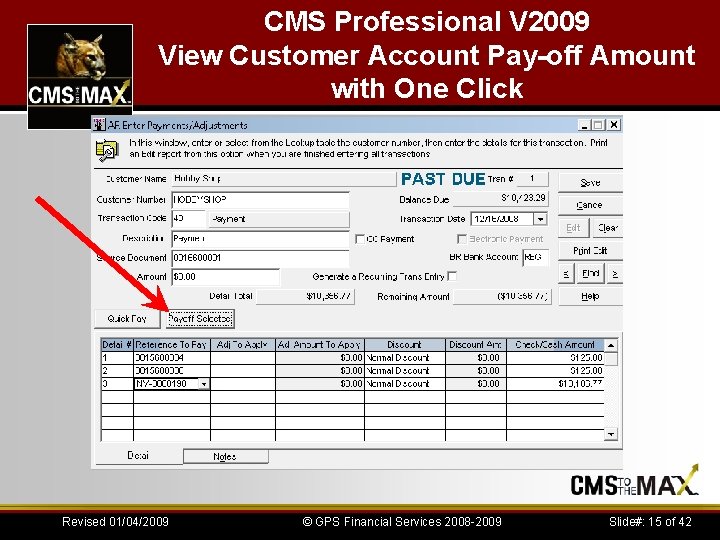
CMS Professional V 2009 View Customer Account Pay-off Amount with One Click Ø If you want to sort transaction history differently than the default, click the Sort By button until the label indicates the sort you wish to perform. The sort option will cycle through the first three column headings shown in the grid. Ø Your sort selection also updates the Search For field so that you can search for a specific transaction based on the current sort. Ø When your customer has multiple outstanding invoices, you can now obtain the complete payoff amount without using your calculator. After you enter the customer’s payment information in the AR Enter Payments/Adjustments window, leave the Amount field set at zero and either select the Quick Pay button to select multiple invoices, or manually enter the individual invoice(s) to pay in the detail grid. Revised 01/04/2009 © GPS Financial Services 2008 -2009 Slide#: 14 of 42
CMS Professional V 2009 View Customer Account Pay-off Amount with One Click Revised 01/04/2009 © GPS Financial Services 2008 -2009 Slide#: 15 of 42
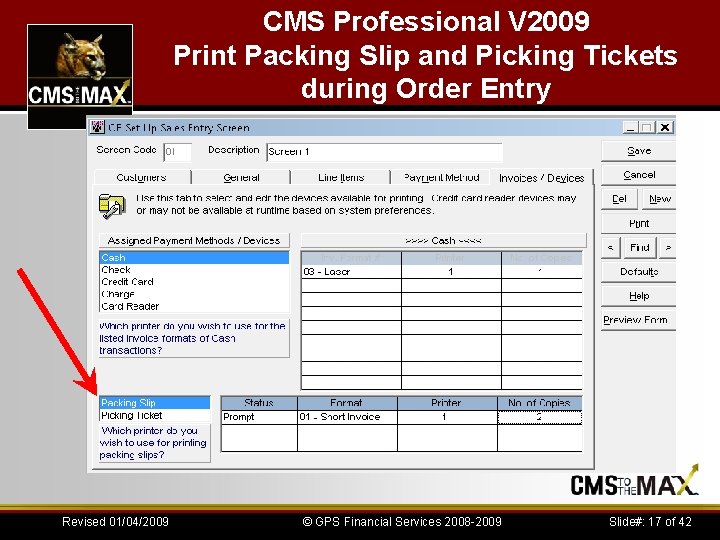
CMS Professional V 2009 Print Packing Slip and Picking Tickets during Order Entry Ø Do you print packing slips and/or picking tickets for your customer orders? Do you wish you could print them at the time you enter the order instead of in a batch later? Now with CMS Professional 2009 you can. Ø We added the ability to print one or more packing slips and picking tickets before you print your invoice. Ø To use this new feature, select Options > Set Up Sales Entry Screen from the Order Entry menu bar. In the window that appears, select the Invoices / Devices tab, and then choose either Packing Slip or Picking Ticket in the format grid. Revised 01/04/2009 © GPS Financial Services 2008 -2009 Slide#: 16 of 42
CMS Professional V 2009 Print Packing Slip and Picking Tickets during Order Entry Revised 01/04/2009 © GPS Financial Services 2008 -2009 Slide#: 17 of 42
CMS Professional V 2009 Print Descriptions on the Profit Margin Report Ø Now when you print the detailed Profit Margin Report in Order Entry, you can view the line item description for all Stock Item, Non-Inventory, and Special Order line types. Ø One benefit for having this information is to better identify your special order items. For example, you can have a stock item set up as “SPECIALORDER” and when you are selling this item in the OE Enter Order window, you can modify the description to identify the item. Then, when management runs the Profit Margin Report, they can see exactly what the special ordered item was. Ø This feature is only available for the detailed report type that is printed to a laser printer. Also, the item and description information does not appear if you selected to include the Job Number, Stock Number/Code, or Stock/Job/Code options. Revised 01/04/2009 © GPS Financial Services 2008 -2009 Slide#: 18 of 42
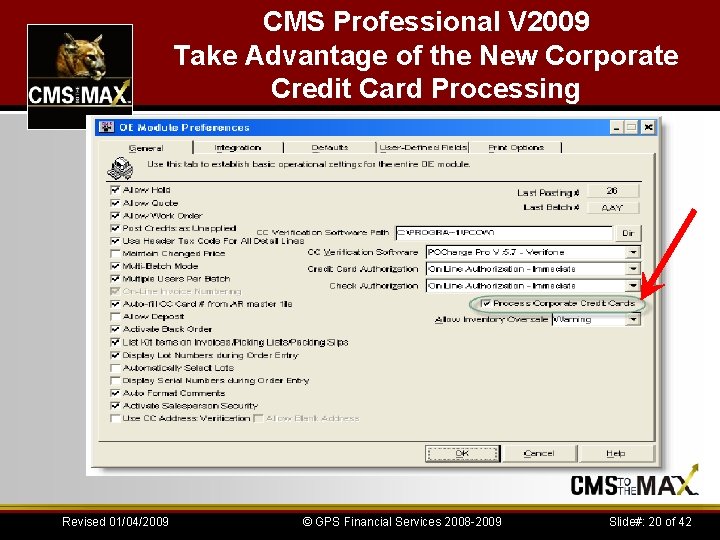
CMS Professional V 2009 Take Advantage of the New Corporate Credit Card Processing Ø If you currently process credit card transactions in CMS Professional, you can now process corporate credit cards using the same method (see the user’s guide(s) or online help that was installed with your software package(s) for information on credit card processing). Ø This can help ensure that you receive the best possible rate from your processor. Ø To activate this feature, select the Process Corporate Credit Cards check box in the Module Preferences window in Accounts Receivable, Order Entry, Point of Sale, or Job Cost. Revised 01/04/2009 © GPS Financial Services 2008 -2009 Slide#: 19 of 42
CMS Professional V 2009 Take Advantage of the New Corporate Credit Card Processing Revised 01/04/2009 © GPS Financial Services 2008 -2009 Slide#: 20 of 42
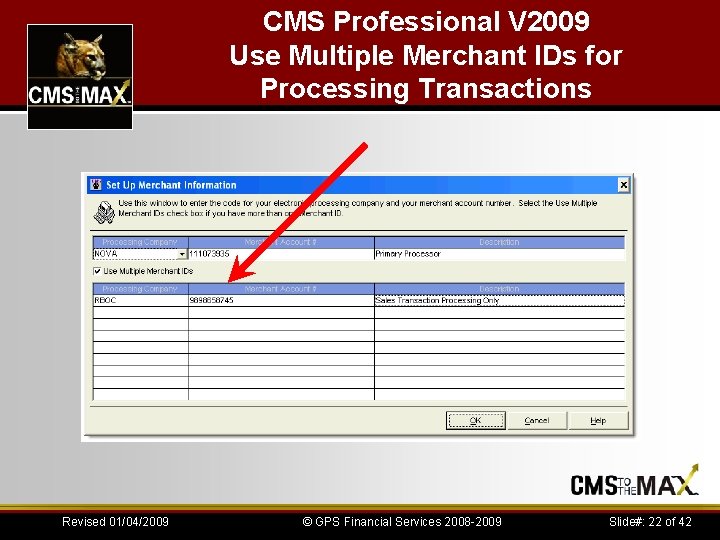
CMS Professional V 2009 Use Multiple Merchant IDs for Processing Transactions Ø Now, when you set up your merchant information you have the option of setting up more than one Merchant ID. Ø If your business requires this type of transaction processing, this new feature allows you to set up a different Merchant ID per module, register, or batch (multibatch processing only). When you select Options > Set Up Merchant Info from the Main Menu bar, you will notice several changes to the window. Revised 01/04/2009 © GPS Financial Services 2008 -2009 Slide#: 21 of 42
CMS Professional V 2009 Use Multiple Merchant IDs for Processing Transactions Revised 01/04/2009 © GPS Financial Services 2008 -2009 Slide#: 22 of 42
CMS Professional V 2009 Use Multiple Merchant IDs for Processing Transactions Ø In Accounts Receivable, Order Entry, and Job Cost, you can set up your default merchant account number in the Module Preferences windows. Ø The Merchant Acct. # field is only available if you set up more than one Merchant ID in the Set Up Merchant Information window. Ø The following image reflects the OE Module Preferences window. Revised 01/04/2009 © GPS Financial Services 2008 -2009 Slide#: 23 of 42
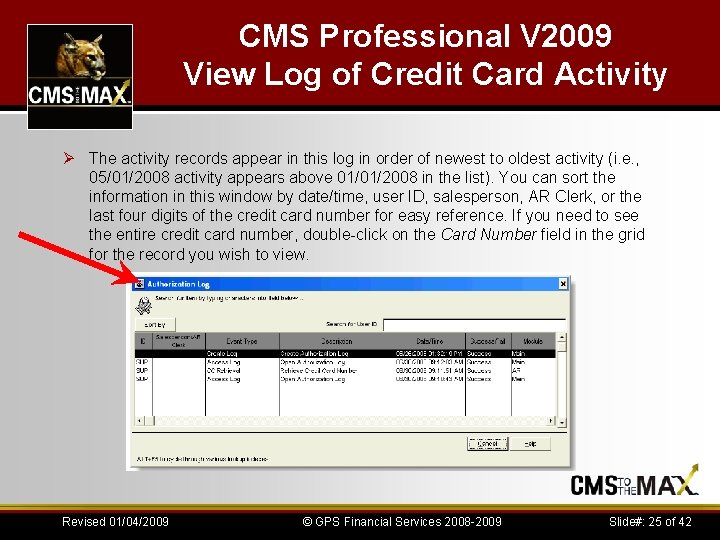
CMS Professional V 2009 View Log of Credit Card Activity Ø A new authorization log was added to CMS Professional 2009 which allows you to closely monitor credit card related activity. This means not only can you view a log of authorization attempts, but you can also see when an employee has accessed a customer’s credit card information, viewed the authorization log, or even purged the log. Ø Another benefit of this new log is that you can access the complete credit card number for reference purposes. For example, if you need to verify the use of a lost or stolen card, you can use the log to view the use of the card in your store. Review the remainder of this topic for complete information about this new feature. Ø One change to the software for this new feature is the addition of the CMS Authorization Log window, which you can access in the Main Menu by selecting Options > Credit Card Log Activity > Authorization Log from the menu bar. Revised 01/04/2009 © GPS Financial Services 2008 -2009 Slide#: 24 of 42
CMS Professional V 2009 View Log of Credit Card Activity Ø The activity records appear in this log in order of newest to oldest activity (i. e. , 05/01/2008 activity appears above 01/01/2008 in the list). You can sort the information in this window by date/time, user ID, salesperson, AR Clerk, or the last four digits of the credit card number for easy reference. If you need to see the entire credit card number, double-click on the Card Number field in the grid for the record you wish to view. Revised 01/04/2009 © GPS Financial Services 2008 -2009 Slide#: 25 of 42
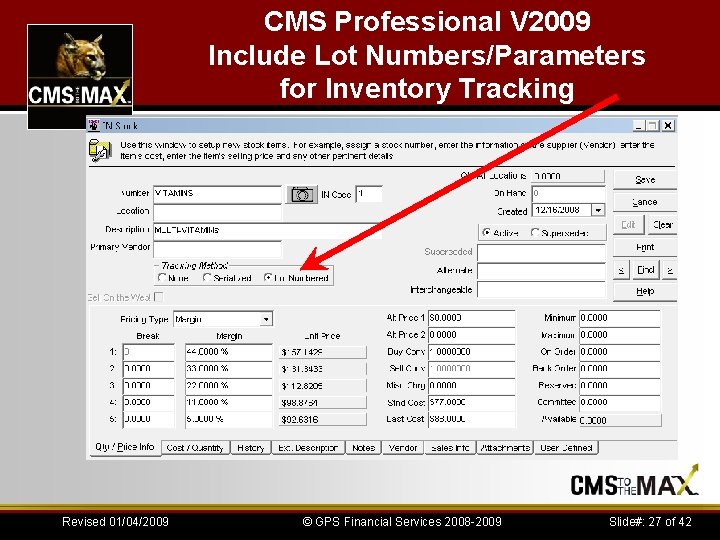
CMS Professional V 2009 Include Lot Numbers/Parameters for Inventory Tracking Ø You can now assign lot numbers or other parameters to your inventory items and track them throughout your system. Ø This can be useful if you want to group items together by certain criteria, such as arrival date, expiration date, country of origin, vendor, color or condition (like damaged vs prime). Ø To use this new feature, you must first indicate that you want to track an inventory item by lot number(s). Revised 01/04/2009 © GPS Financial Services 2008 -2009 Slide#: 26 of 42
CMS Professional V 2009 Include Lot Numbers/Parameters for Inventory Tracking Revised 01/04/2009 © GPS Financial Services 2008 -2009 Slide#: 27 of 42
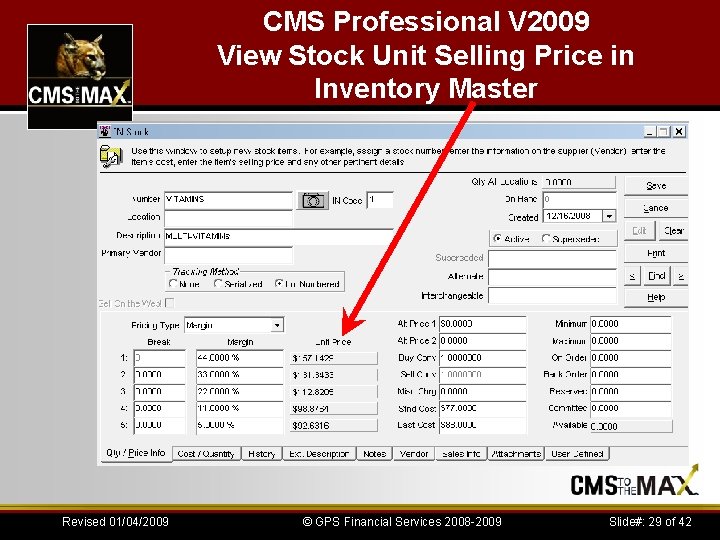
CMS Professional V 2009 View Stock Unit Selling Price in Inventory Master Ø If you use a margin or markup pricing type for any inventory stock items, you can now view the price at which the inventory items were sold. Ø This can be beneficial because without printing a report, you can view both the cost and final price of an item. Ø In Inventory, select Stock > Stock Item Maintenance from the menu bar. Ø On the Qty / Price Info and History tabs of the IN Stock window, there is a new Unit Price column that displays the selling price of the item. Ø This read-only column appears on the Qty / Price Info tab for Margin, Markup, Level Margin, or Level Markup pricing types. Ø On the History tab, the selling price only appears for items sold through Order Entry or Point of Sale. Revised 01/04/2009 © GPS Financial Services 2008 -2009 Slide#: 28 of 42
CMS Professional V 2009 View Stock Unit Selling Price in Inventory Master Revised 01/04/2009 © GPS Financial Services 2008 -2009 Slide#: 29 of 42
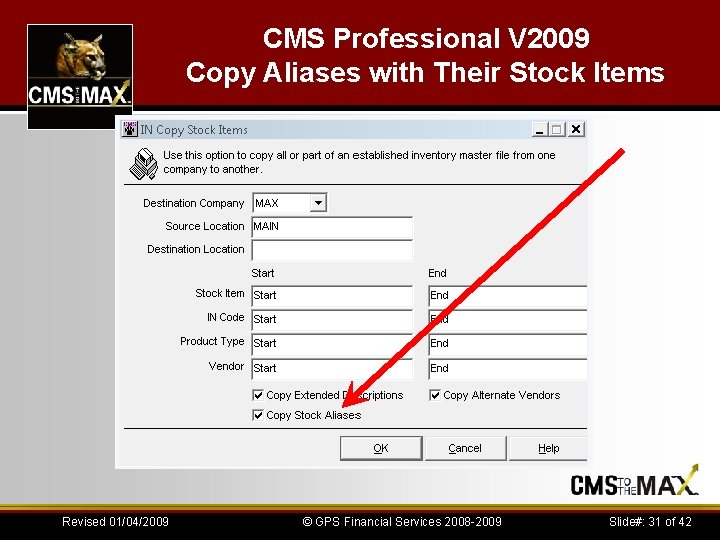
CMS Professional V 2009 Copy Aliases with Their Stock Items Ø To accommodate our customers that use stock item aliases in Inventory, we made the copying process more complete. Now, you can include your stock aliases and Multi-Pack Codes (if using Specialty Shop) when copying stock item records from one company to another. This added functionality can help streamline your process when creating a new company. This is one more way Cougar Mountain grows with your business. Ø If you are an Accounting or Point of Sale user and you are using Multiple Location Inventory (MLI) with your business, this check box is unavailable if you are attempting to copy stock items from one location to another. This is because with MLI, when you copy items from one location to another, the aliases are automatically included. Revised 01/04/2009 © GPS Financial Services 2008 -2009 Slide#: 30 of 42
CMS Professional V 2009 Copy Aliases with Their Stock Items Revised 01/04/2009 © GPS Financial Services 2008 -2009 Slide#: 31 of 42
CMS Professional V 2009 View Shortcut Keys on the POS Entry Screen Ø On the updated Point Of Sale entry window, many of the menu shortcut keys are now listed on the window for easy viewing. Ø This can help your clerks decrease transaction entry time without having to memorize the shortcut keys. Revised 01/04/2009 © GPS Financial Services 2008 -2009 Slide#: 32 of 42
CMS Professional V 2009 Post Multiple Registers At Once Ø To help streamline the posting process in Point of Sale, we implemented a new feature that allows you to post multiple registers at one time. For previous users of CMS Professional, when you select Sales > Post Transactions from the Point of Sale menu bar, you will notice some significant changes to the window that appears. Ø The biggest change is that instead of balancing the registers, selecting the register to post, and posting the transactions through three separate windows, you now do everything in one window. Revised 01/04/2009 © GPS Financial Services 2008 -2009 Slide#: 33 of 42
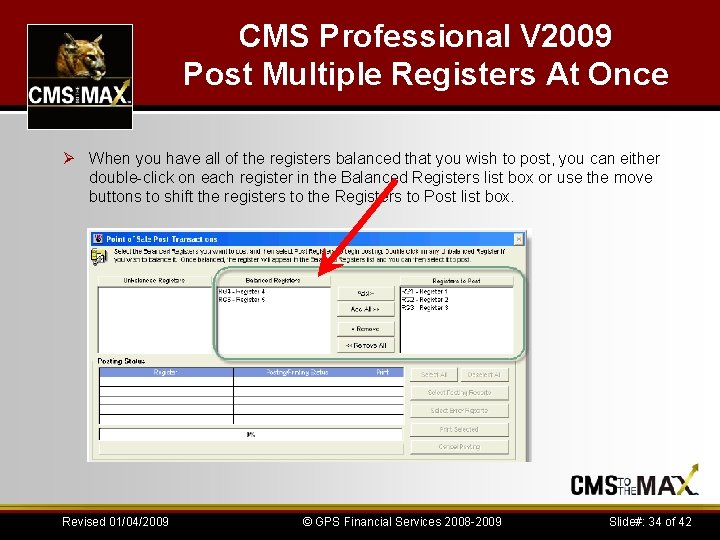
CMS Professional V 2009 Post Multiple Registers At Once Ø When you have all of the registers balanced that you wish to post, you can either double-click on each register in the Balanced Registers list box or use the move buttons to shift the registers to the Registers to Post list box. Revised 01/04/2009 © GPS Financial Services 2008 -2009 Slide#: 34 of 42
CMS Professional V 2009 Set Up Employee Garnishments Ø In the past versions, when you had to enforce a garnishment for one of your employees, you had to manually figure the deduction amount for each pay period. Ø Now, you can set up your system to automatically calculate your employees’ pay deducting any garnishment(s) they have, as a fixed amount, percentage. Ø The system calculates the garnishment deduction based on the net disposable income and you can set it up to meet any state or federal regulations and limitations. Ø You can also set up the garnishment to end by a specific date or once the total amount reaches zero. Revised 01/04/2009 © GPS Financial Services 2008 -2009 Slide#: 35 of 42
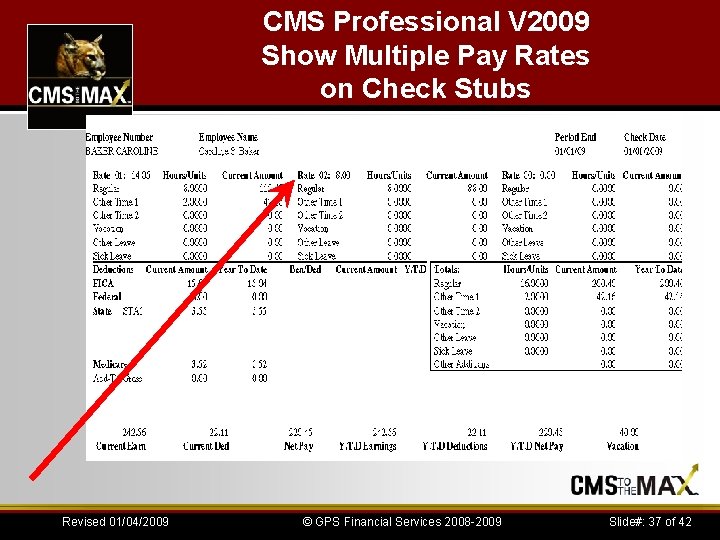
CMS Professional V 2009 Show Multiple Pay Rates on Check Stubs Ø The multiple pay rate feature is only for use with the 1 - Plain Paper Laser SCS check format. Ø The check stub will indicate which pay rates were printed and if more than three rates are included in the paycheck, the additional amounts will appear in the Totals section of the stub. Ø When you include a salary rate as one of the three pay rates, the salary hours do not appear with the rate but are included with the totals. Ø If an employee has more than three pay rates, you can provide the additional pay information by printing an Edit Report for that employee. Ø If you select a different check format, the paycheck will only show the first pay rate. Revised 01/04/2009 © GPS Financial Services 2008 -2009 Slide#: 36 of 42
CMS Professional V 2009 Show Multiple Pay Rates on Check Stubs Revised 01/04/2009 © GPS Financial Services 2008 -2009 Slide#: 37 of 42
CMS Professional V 2009 Include Additions in Payroll Deduction Calculations Ø In the PR Benefit/Deduction Codes window, we added the new Apply to Deduction Calculations check box. Ø This check box is only available when you select Addition from the Class dropdown list. Ø If you check this check box, the selected code will be included in the total when calculating the Deduction Code amounts. Revised 01/04/2009 © GPS Financial Services 2008 -2009 Slide#: 38 of 42
CMS Professional V 2009 Email PDF Reports and Invoices Ø In order to save time and money, you can now email your statements and invoices by using PDFBlaster. Ø Cougar Mountain has partnered with Data Fabrication to provide PDFBlaster Lite for free, which allows you to create and email PDF's. Ø For complete information about this new feature, see the Cougar Mountain Services and Companion Products guide. Ø You can access this guide through the Customer Service Center site at http: //service. cougarmtn. com. Revised 01/04/2009 © GPS Financial Services 2008 -2009 Slide#: 39 of 42
CMS Professional V 2009 View Debit Transactions as Negative Amounts on the AP Aging and Total Debt Reports Ø On the AP Aging and Total Debt Reports, you can now choose to show all debit transactions as negative number(s). Ø This might help you more quickly and easily read and interpret the reports. Ø To use this enhancement, check the Show Debit Trans. as Negative check box in the AP Aging Report or AP Total Debt Report window. Ø These transactions include debit adjustments, payments, unapplied debit memo invoices, and unapplied payments. Ø Negative amounts appear in parentheses for all transaction types. Revised 01/04/2009 © GPS Financial Services 2008 -2009 Slide#: 40 of 42
Other CMStothe. Maxtm tm Products cms 2 EM Email tm cms 2 SY Auto. Archiver tm cms 2 EX Excel tm cms 2 SY UDF+ tm cms 2 AR Past. Due. Invoices tm cms 2 OE Collection. Notes-swo cms 2 OE Lookup. His-Enh tm Revised 01/04/2009 cms 2 RRW Reportstm cms 2 R&R Learn. CDtm cms 2 AL Max. Pak’stm cms 2 PR Certified. PR-Formstm cms 2 AL Qck. Chgtm cms 2 SY Mini-Contact. Mgrtm © GPS Financial Services 2008 -2009 Slide#: 41 of 42
How Can I Get the CMStothe. Max tm & Cougar-Magic tm Products? You can get cms 2 OE_Collection. Comments&Notes tm from your local Cougar Mtn Dealer or GPS Financial Services (aka CMStothe. MAX. com and Cougar. Mtn. Support. com) 13337 South Street #352 Cerritos, CA 90703 714 228 -5444 Phone 800 531 -2944 Fax sales@CMStothe. MAX. com Revised 01/04/2009 © GPS Financial Services 2008 -2009 Slide#: 42 of 42