
Cloud Computing Backup and Recovery Infrastructure Technician Sections
Cloud Computing Backup and Recovery Infrastructure Technician
Sections 2. 1 Describe backup and recovery options and their benefits 2. 2 Describe the importance of testing backups and performing test restores 2. 10 Explain the purpose of a three-two-one backup policy 2. 11 Explain the difference between a data and system restore

Data and system backups • Research the advantages and disadvantages of: • full system backup • system only • data only
Data and system backups • data and system • take longer to backup • take up more media space • simplify restores - no need to install and configure OS • data • quicker to backup • OS must be installed and configured when complete system is lost

System backups • Takes an image of the system • When first set up (with OS, drivers and applications up to date) • As a snapshot (system and data) during normal usage • Can be used for a “bare metal” restore • Use the Windows “Create System image” • Restoring to a snapshot will loose data changes since the snapshot was taken. A data backup will need to be restored as well
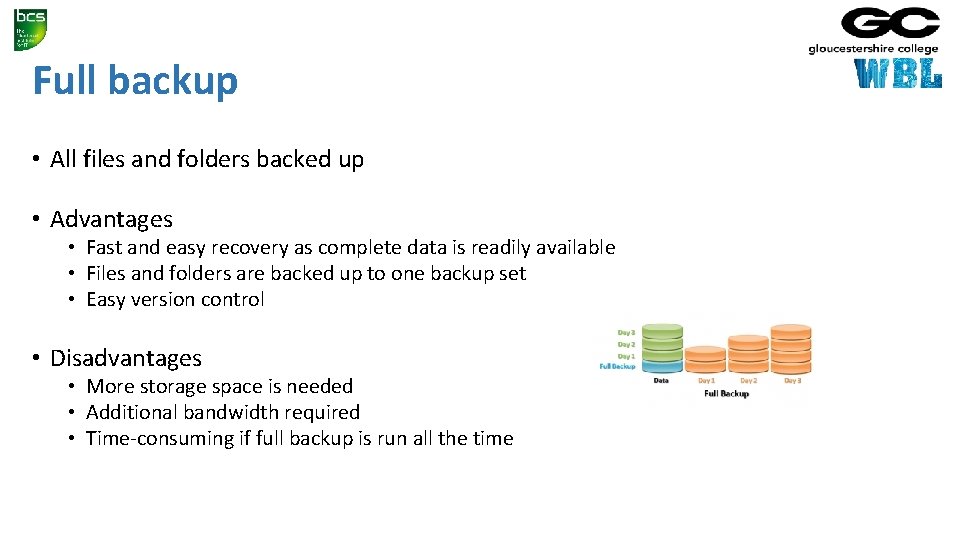
Full backup • All files and folders backed up • Advantages • Fast and easy recovery as complete data is readily available • Files and folders are backed up to one backup set • Easy version control • Disadvantages • More storage space is needed • Additional bandwidth required • Time-consuming if full backup is run all the time
Incremental backup • Backs up all of the files that have changed since the last full or incremental backup was made • Advantages • Fast elapsed time, as there is less data compared to full backups • Less storage space (disk, tape, or network drive) needed • Allows retention of several versions of same files • Disadvantages • • • Slower recovery, as all increments must be restored Initial full backup is needed before incremental backups start A full backup and all incremental backups are needed for recovery Takes longer to restore a specific file, as you need to search more than one backup set If one of the backups fails (either the full or incremental), then recovery will be incomplete
Differential backup • Backs up all of the files that have changed since the last full backup was made • Advantages • Less storage space (disk, tape, or network drive) needed as compared to incremental • Only full backup and the last differential backup needed for restore • Allows retention of several versions of same files • Disadvantages • • • Slower backups than incremental backups Initial full backup is needed before differential backups start A full backup and all differential backups are needed for recovery If one of the backups fails (either the full or differential), then recovery will be incomplete Takes longer to restore a specific file, as you need to locate the file on differential or full backup sets
Rotation strategies - first in, first out • Assume the use of tapes • Set of 14 tapes • Take a backup every day on a fresh tape • After 14 days, overwrite the oldest tape • No good for archiving (oldest data is 14 days old)
Rotation strategies - generations • Assume the use of tapes • Daily backup on first in first out (7 tapes) • Weekly backups on first in first out (5 tapes) • Monthly backups on first in first out (12 tapes for a year)
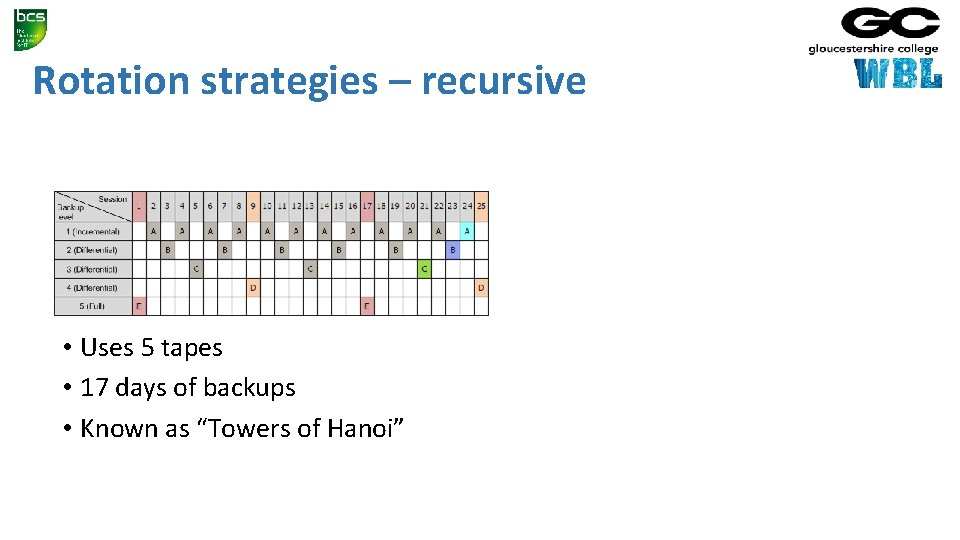
Rotation strategies – recursive • Uses 5 tapes • 17 days of backups • Known as “Towers of Hanoi”
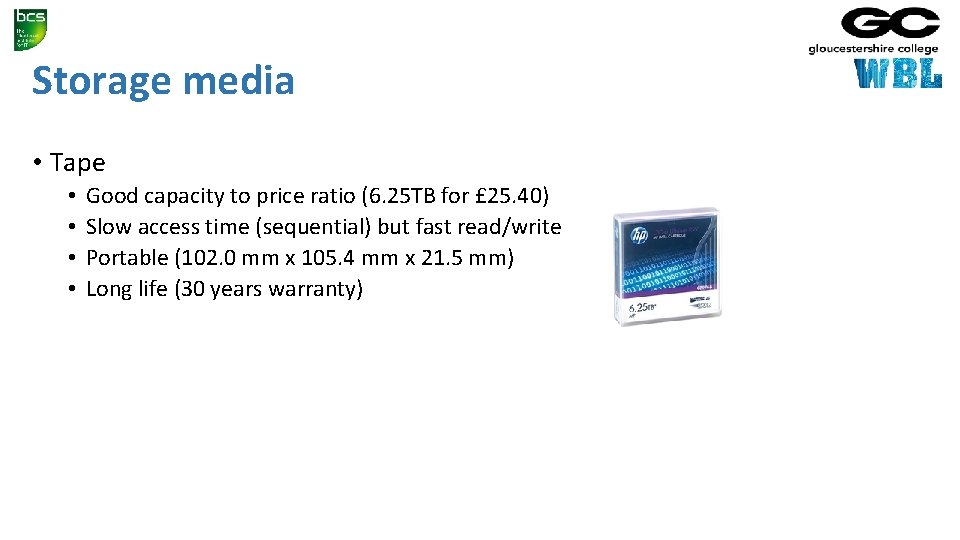
Storage media • Tape • • Good capacity to price ratio (6. 25 TB for £ 25. 40) Slow access time (sequential) but fast read/write Portable (102. 0 mm x 105. 4 mm x 21. 5 mm) Long life (30 years warranty)

Storage media • Hard drives • • Fast access Freely available Good capacity Improving capacity to price ratio (6 TB for ~ £ 160) Variety of connections (USB, Ethernet, i. SCSI, Fibre Channel Not robust Shorter data stability than tape
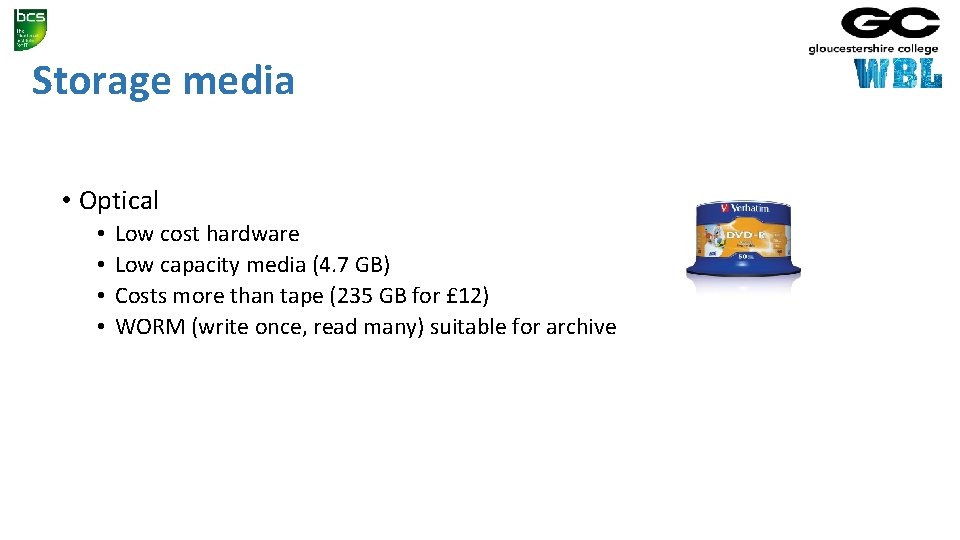
Storage media • Optical • • Low cost hardware Low capacity media (4. 7 GB) Costs more than tape (235 GB for £ 12) WORM (write once, read many) suitable for archive
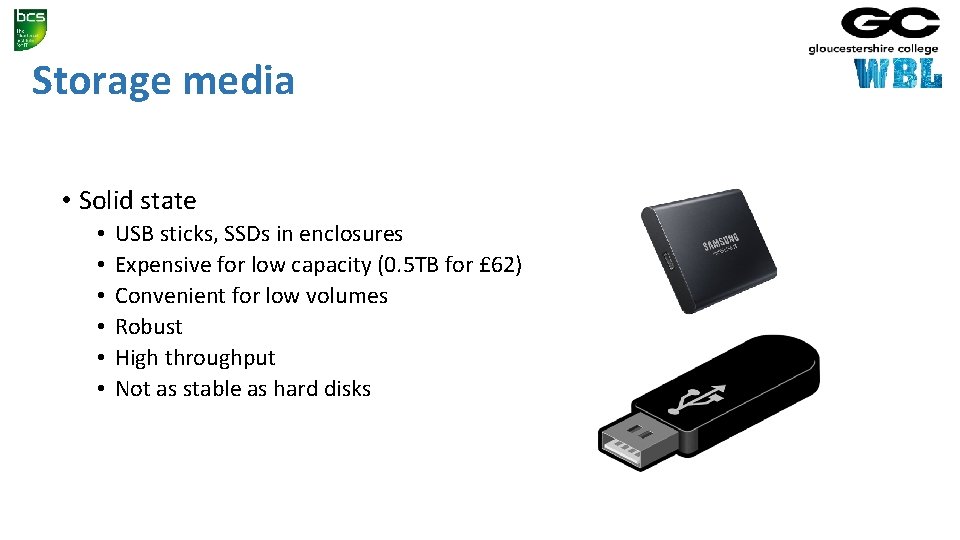
Storage media • Solid state • • • USB sticks, SSDs in enclosures Expensive for low capacity (0. 5 TB for £ 62) Convenient for low volumes Robust High throughput Not as stable as hard disks
Storage media • Remote back up • • • Protection against local disasters Internet slower than local connections Upload slower than download Rely on third party for privacy and integrity Priced per user/per month • Research how much to use cloud backup for your organisation
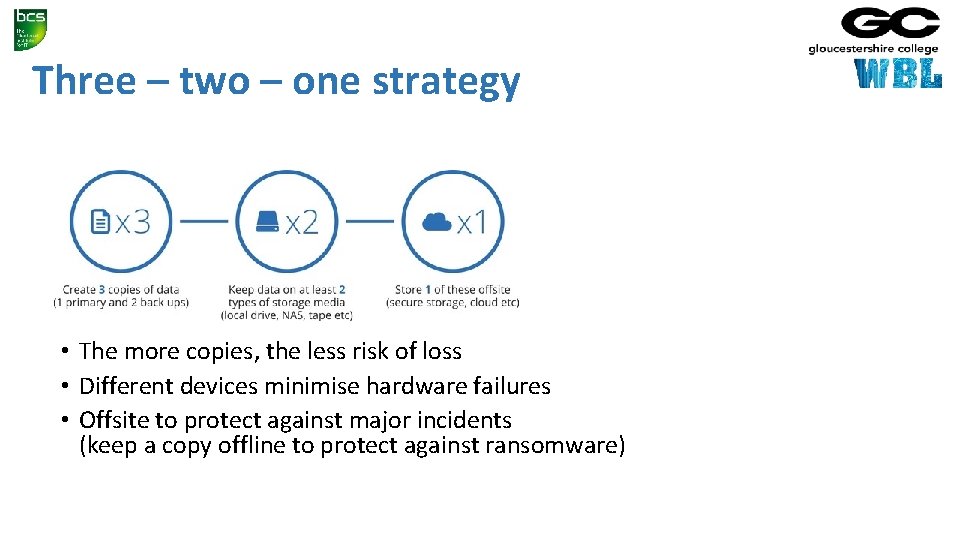
Three – two – one strategy • The more copies, the less risk of loss • Different devices minimise hardware failures • Offsite to protect against major incidents (keep a copy offline to protect against ransomware)
Client backups • Windows • Up to Win 10: backup and restore • Win 10 : File history and restore • Files backed up on a per user basis • System image option • System repair disk • Apple • Time machine • Linux • Research the backup options on Linux • Third party software • Research options, costs
Server backups • Windows server backups • Full backup can restore to different hardware • Plug in for Exchange backup • GUI or command line (wbadmin – explore the options)
Restoration – individual files • Windows 10 • Use file history and “Restore files from a current backup” • Prior versions of Windows • Use Backup and Restore then Restore My Files • Apple • Use Time Machine • Linux • Research options
Restoration – system • Windows • Use the system image disk (previously created to HDD or Otpical) and System Recovery Options • Apple • Use Time Machine • Linux • Research options
Restoration – system settings • Use restore points – Windows System Restore • Only affects Windows system files • • Drivers registry keys system files installed programs • Can you use System Restore in Server 2016?
Testing backups • You only know a backup is good if you restore it • Backup may have failed • Restore may fail • Have a backup testing policy • • • Have a documented backup test plan Test backups routinely Test data, application and system backups Check restored data is valid Ensure the complete workload is tested (not just one or two files) Test each backup copy (from the 3: 2: 1 strategy)
Summary • Back up types • Full • Differential • Incremental • Backup media • Backup strategies (3: 2: 1) • Virtual machine backup • Snapshots • Restoration • Testing
- Slides: 24