
Clin FHIR Tutorial Initial Setup Chrome Browser Use
Clin. FHIR Tutorial
Initial Setup • Chrome Browser • Use the Zoom in/out function (CTRL-) if you don’t see buttons • Keep a notepad handy to jot down information
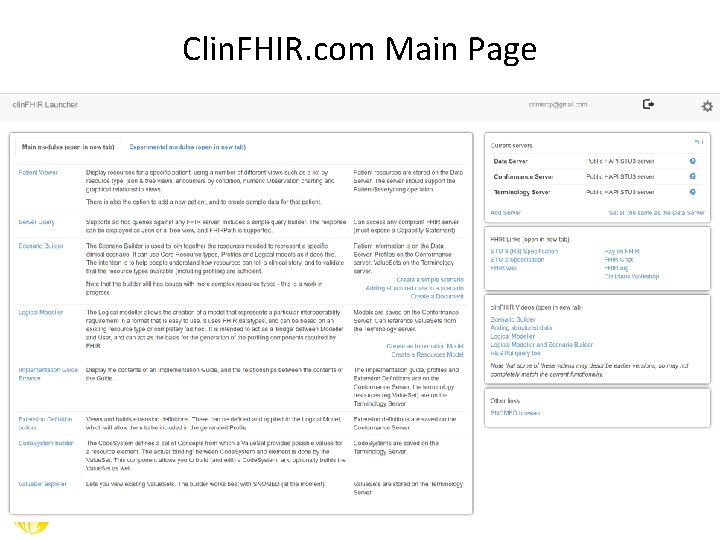
Clin. FHIR. com Main Page
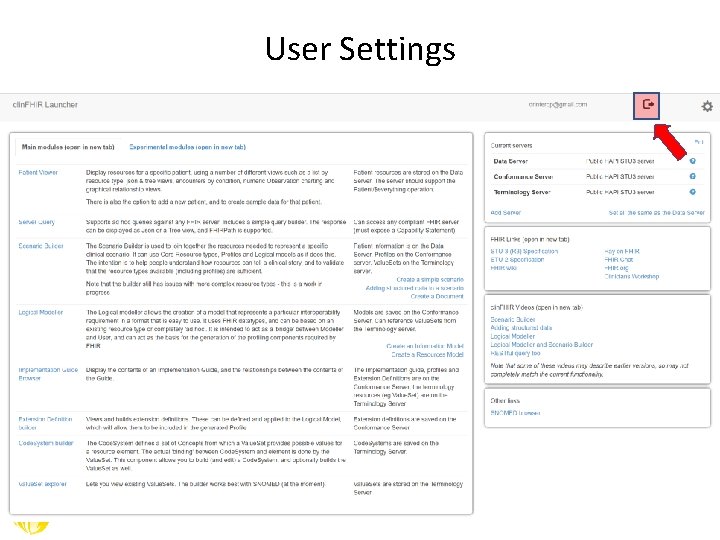
User Settings
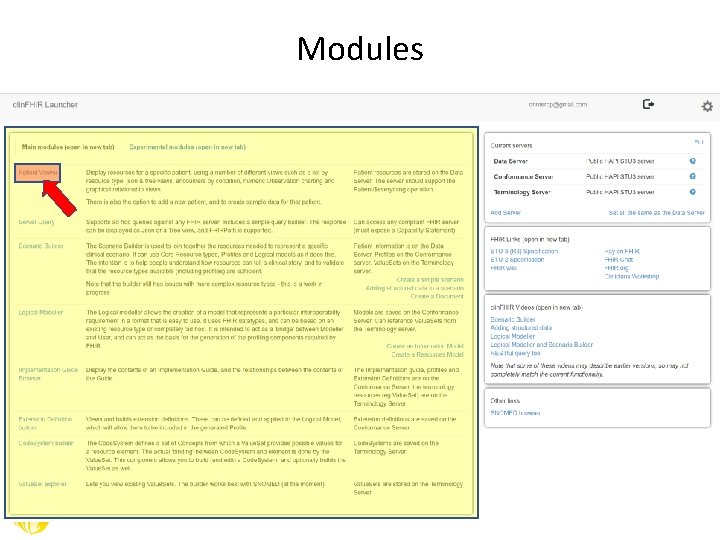
Modules
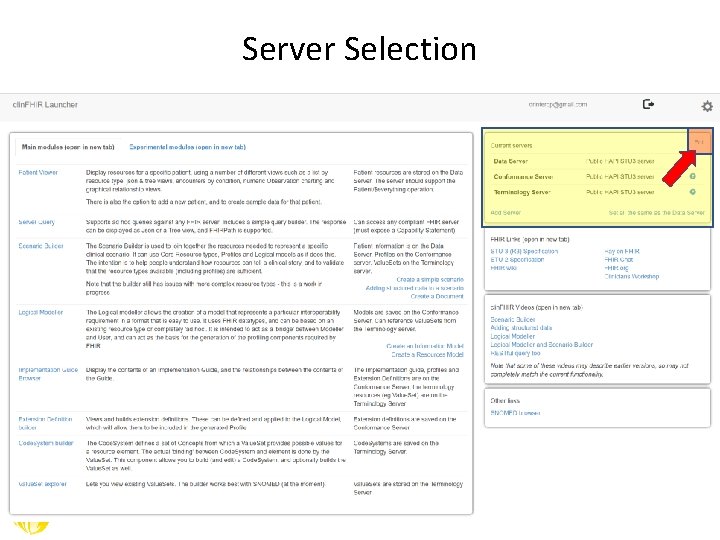
Server Selection
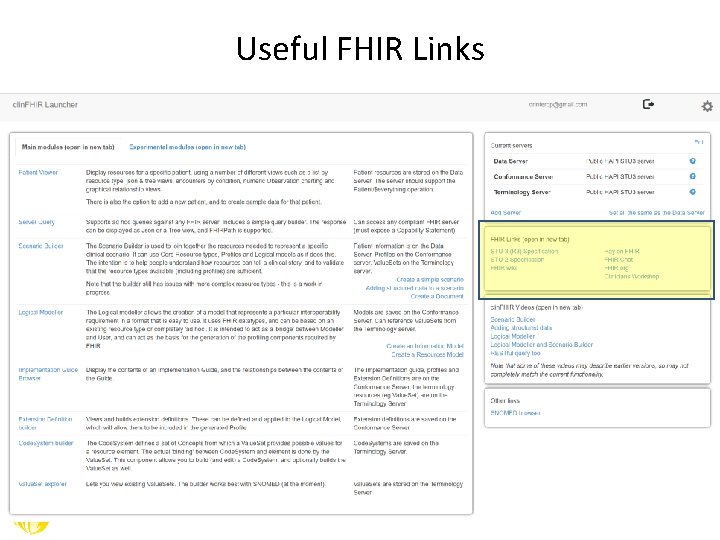
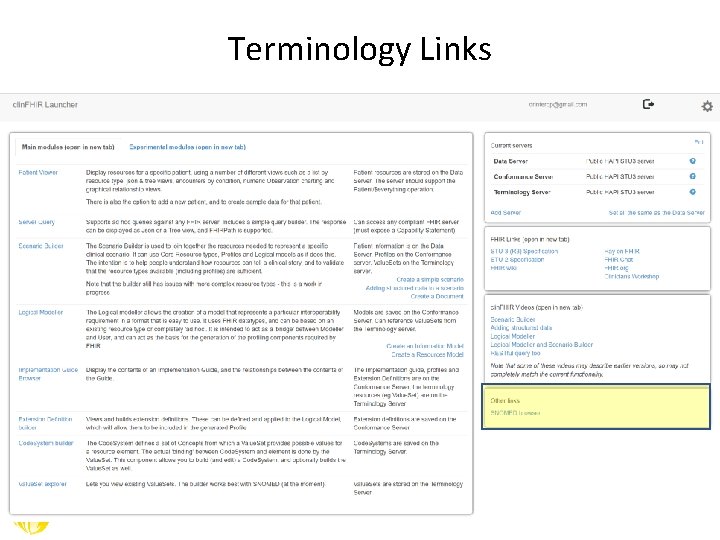
Useful FHIR Links
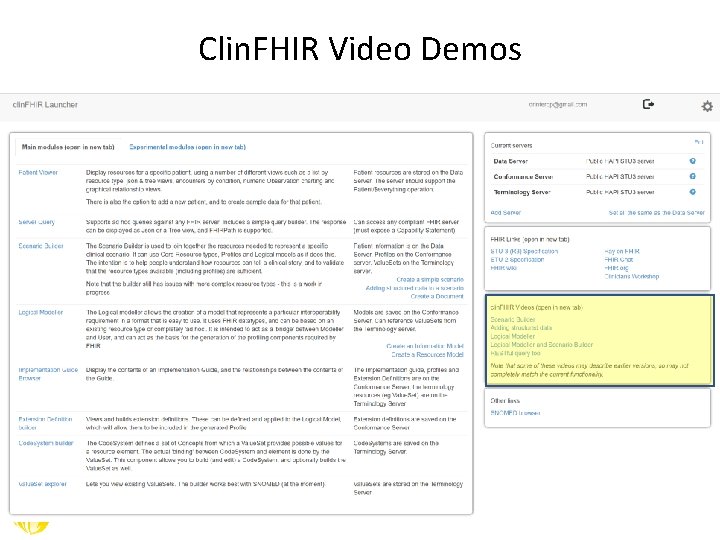
Clin. FHIR Video Demos
Terminology Links
Create User Account
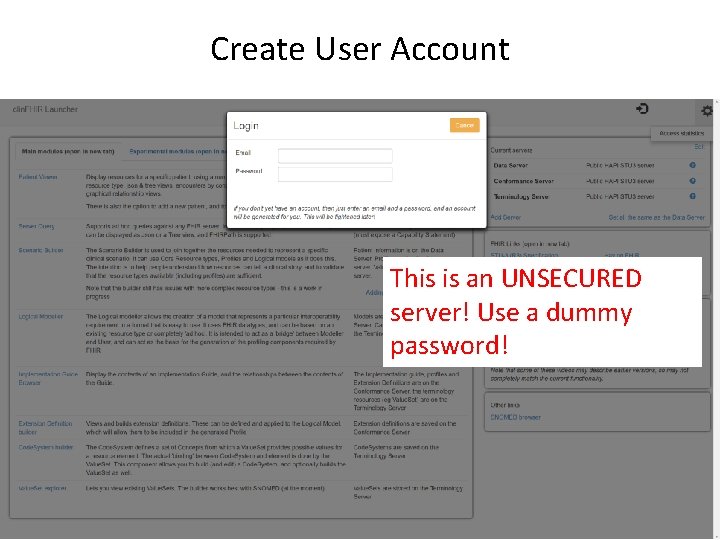
Create User Account This is an UNSECURED server! Use a dummy password!
Server Selection
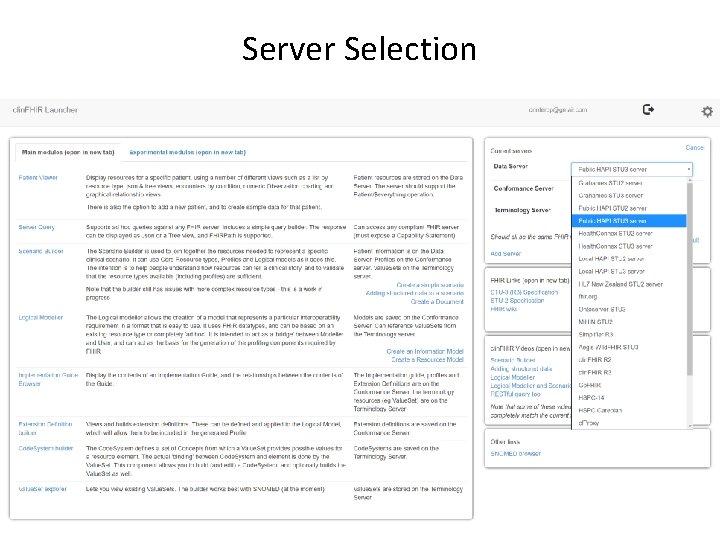
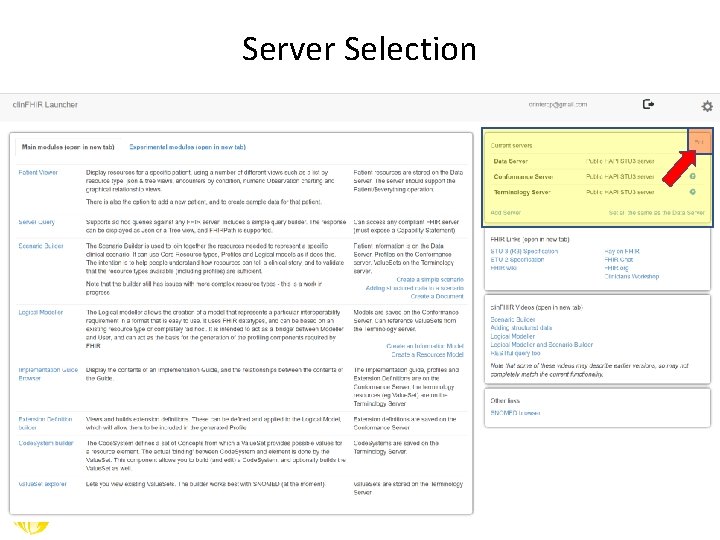
Server Selection
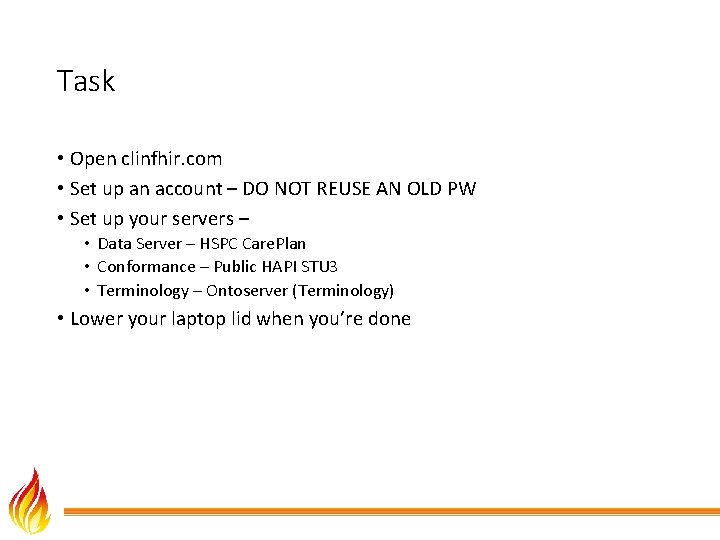
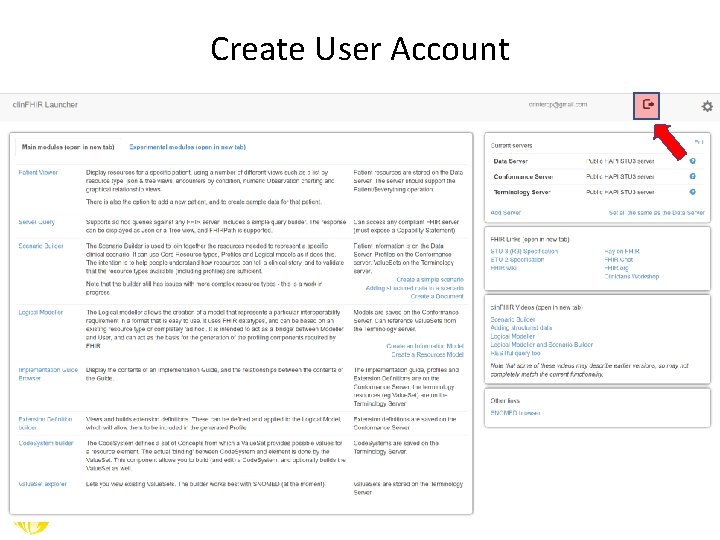
Task • Open clinfhir. com • Set up an account – DO NOT REUSE AN OLD PW • Set up your servers – • Data Server – HSPC Care. Plan • Conformance – Public HAPI STU 3 • Terminology – Ontoserver (Terminology) • Lower your laptop lid when you’re done
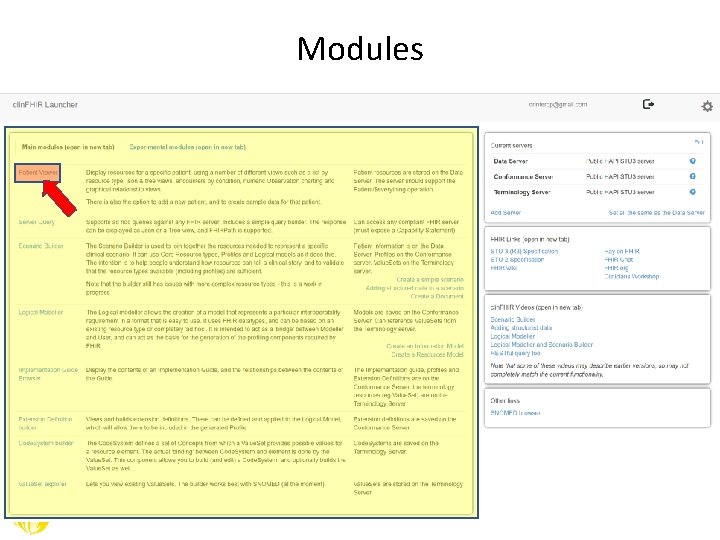
Modules
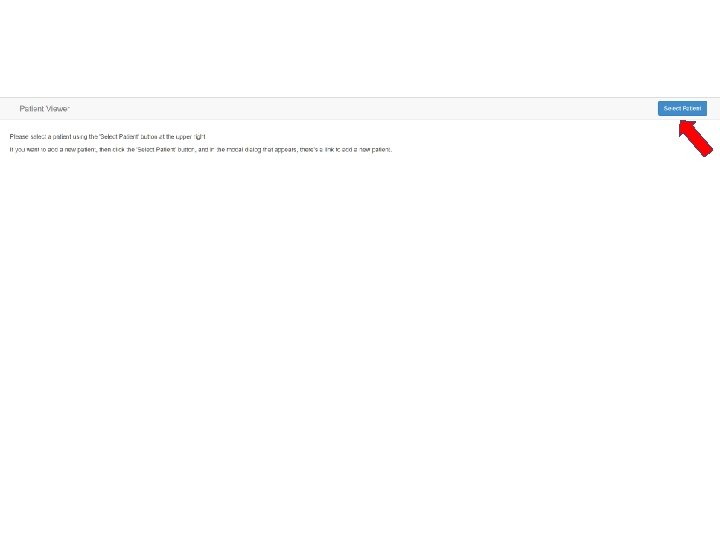
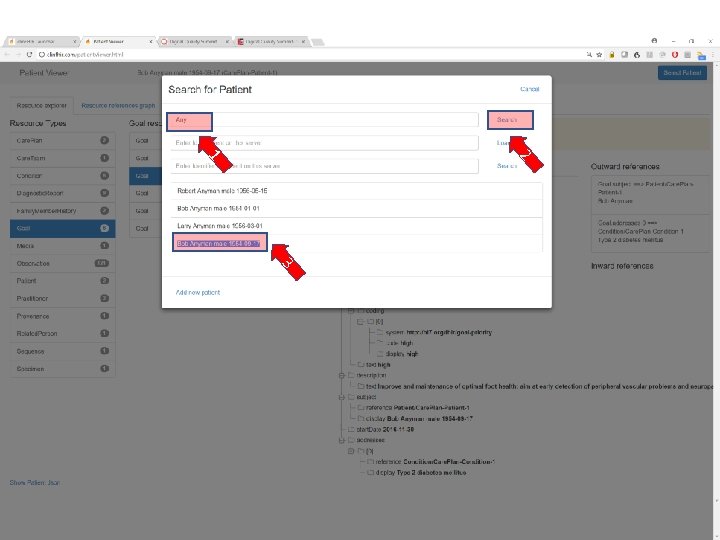
2 1 3
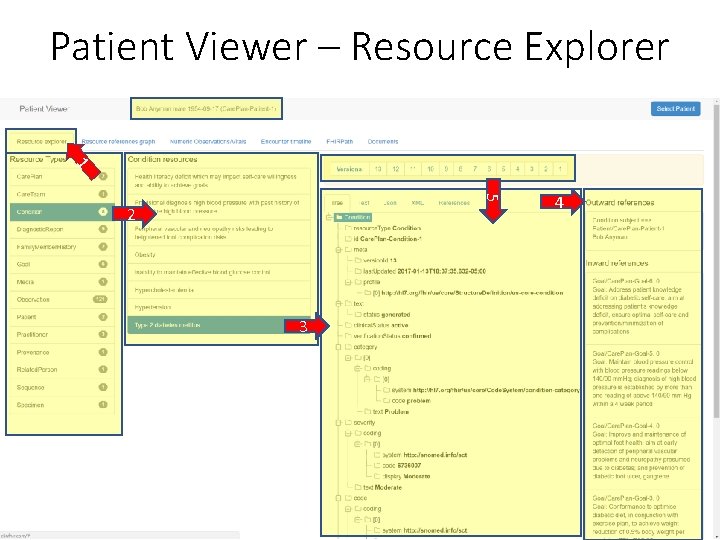
Patient Viewer – Resource Explorer 1 5 2 3 4
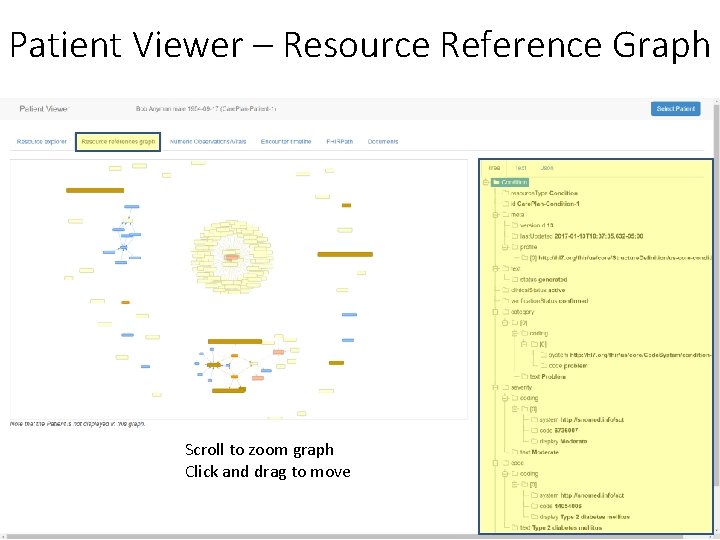
Patient Viewer – Resource Reference Graph Scroll to zoom graph Click and drag to move
Task – Select and View Patient • Go to Patient Viewer Module • Enter “Betsy” in Patient Search • Select “Betsy Johnson” patient • Explore patient’s FHIR resources • Explore other servers and try out names like • David Sullivan • Meghan Anderson • Create a sample patient and view the data
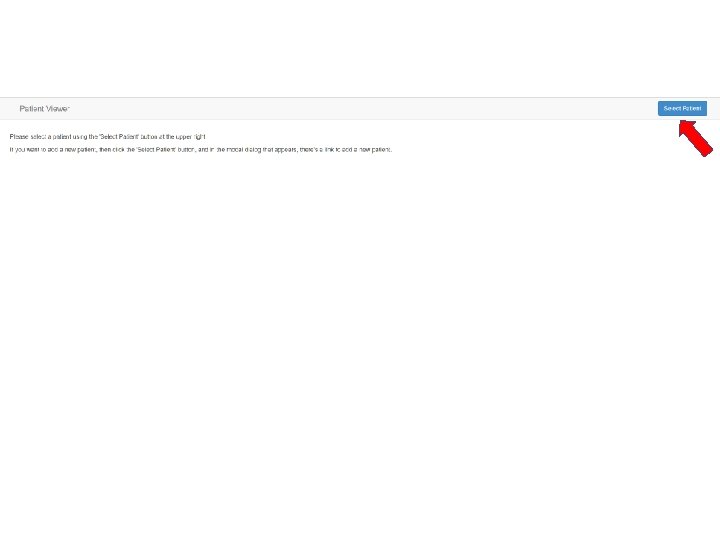
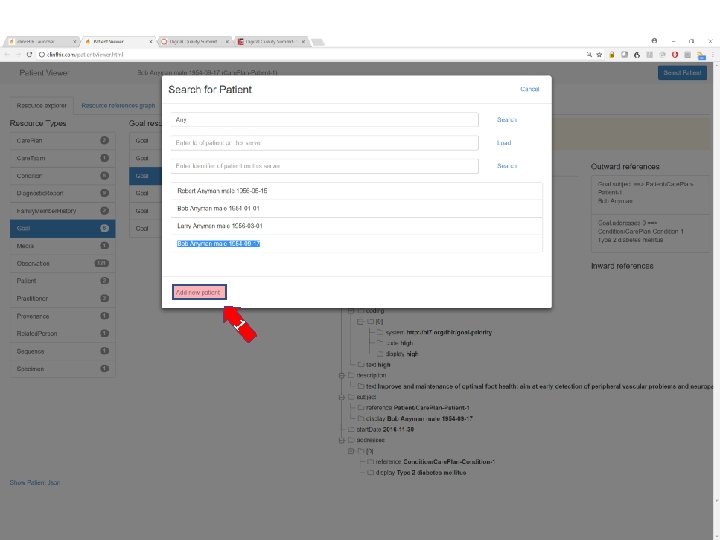
1
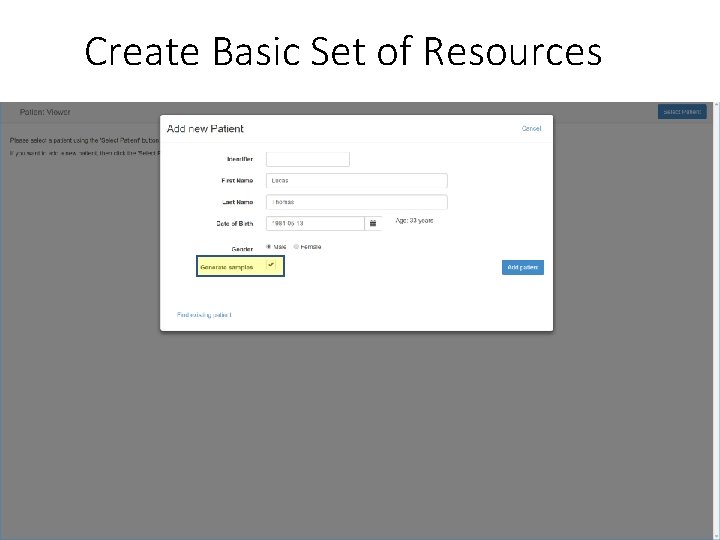
Create Basic Set of Resources
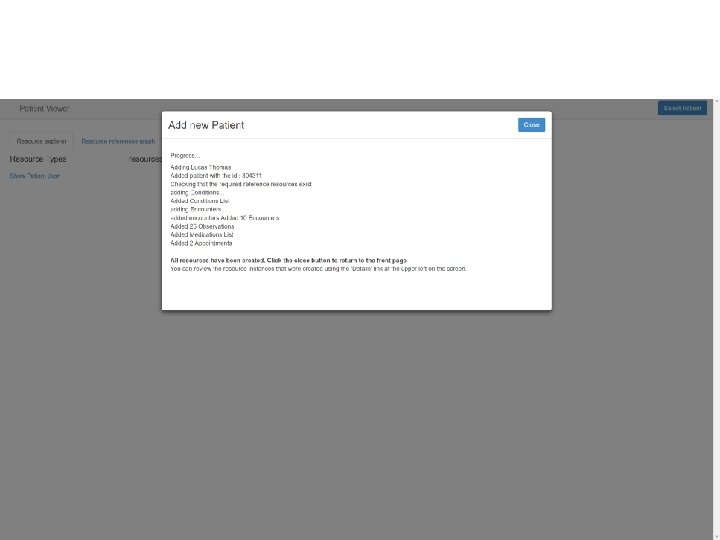
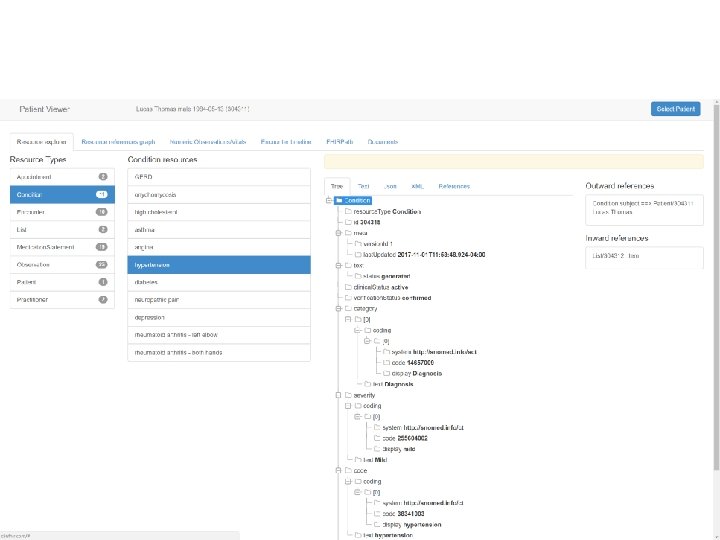

Ok – Hang on! Here we go!!!!
Creating FHIR Resource INSTANCES https: //fhirblog. com/creating-a-simple-scenario/ Time Check – set working time….
Adding Structured Data https: //fhirblog. com/adding-structured-data-to-a-scenario/ Time Check – set working time….
Task – Create a Patient (15 min) • Use Scenario Builder module to create your own patient • Include a name, gender and birthdate • Record patient name and id on your note to find it later • Validate your resource instance • Update (POST) the resource to the data server • Confirm that your patient is on the data server using the Patient Viewer module and the patient id
- Slides: 29