
Classifying content on your Z Home Drive Before
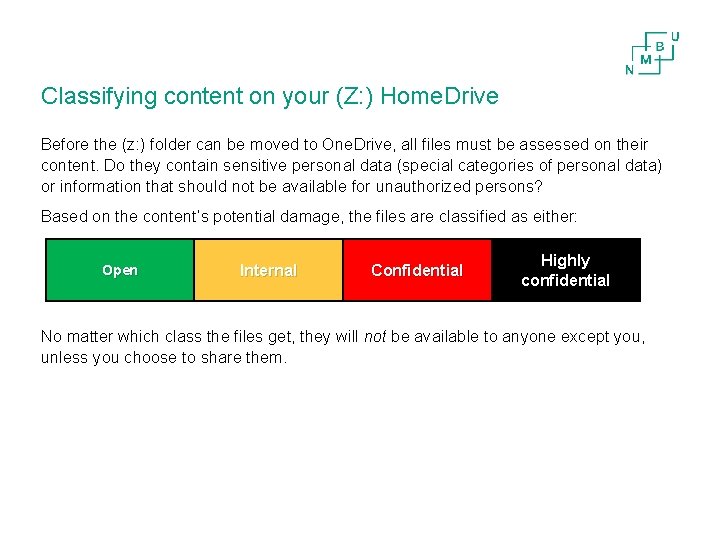
Classifying content on your (Z: ) Home. Drive Before the (z: ) folder can be moved to One. Drive, all files must be assessed on their content. Do they contain sensitive personal data (special categories of personal data) or information that should not be available for unauthorized persons? Based on the content’s potential damage, the files are classified as either: Open Internal Confidential Highly confidential No matter which class the files get, they will not be available to anyone except you, unless you choose to share them.
Why is it important to classify my files when they are not accessible to anyone other than those I choose to share them with? Using One. Drive, it is easy to share both individual files and entire folders with others, both internally and externally. The downside is that one easily can share something that should not have been shared. Files containing information that must not be known to unauthorized persons must therefore be classified in order to reduce the risk of sensitive information becoming available for the wrong person. This applies to both sensitive personal data, other confidential information and information that is critical for NMBU. This is a requirement both in terms of GDPR and other legal requirements for information security and a duty you have as an employee at NMBU.
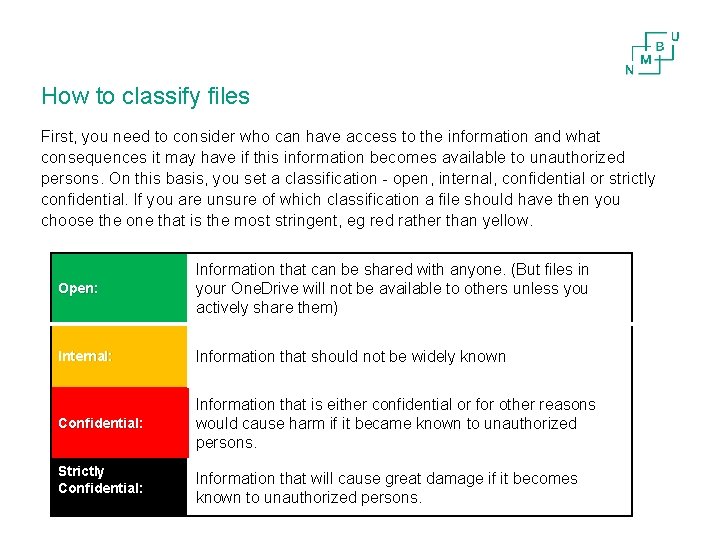
How to classify files First, you need to consider who can have access to the information and what consequences it may have if this information becomes available to unauthorized persons. On this basis, you set a classification - open, internal, confidential or strictly confidential. If you are unsure of which classification a file should have then you choose the one that is the most stringent, eg red rather than yellow. Open: Information that can be shared with anyone. (But files in your One. Drive will not be available to others unless you actively share them) Internal: Information that should not be widely known Confidential: Information that is either confidential or for other reasons would cause harm if it became known to unauthorized persons. Strictly Confidential: Information that will cause great damage if it becomes known to unauthorized persons.
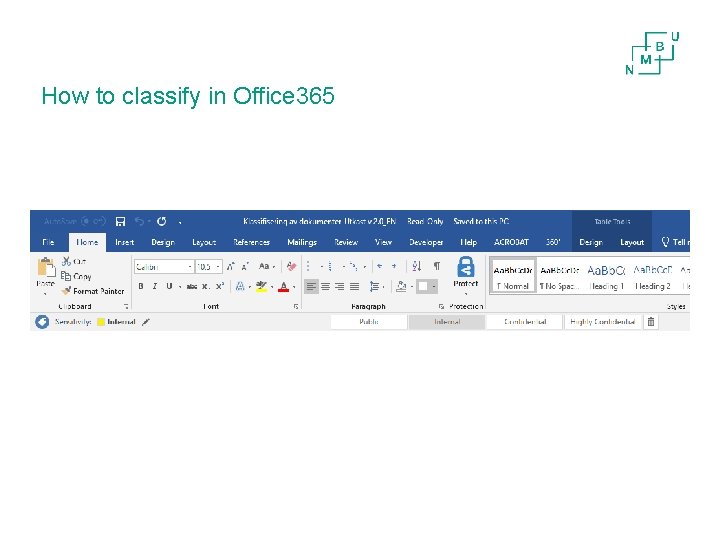
How to classify in Office 365

Classify all files in a folder
Only files are classified - not the folders You can classify all the files in one folder at a time, but it is the files - not the folder that are being classified • If you create new documents in the folder, they must be classified • If you move files to the folder, the file will not be classified • If you move a file to another folder, it will retain the classification it has

Encryption Signal Encryption Open Internal Confidential Strictly Confidential Information that may be accessible to anyone without special access rights. The information must have some protection, but may be available for both external and internal parties, with controlled access rights. Information that may cause damage to NMBU, public interests, individuals or partners if it becomes known to unauthorised parties Information that may cause considerable damage to NMBU, public interests, individuals or partners if it becomes known to unauthorised parties Yellow classification is a warning that the content must not be widely available The file is encrypted and unreadable to anyone who has not been granted access
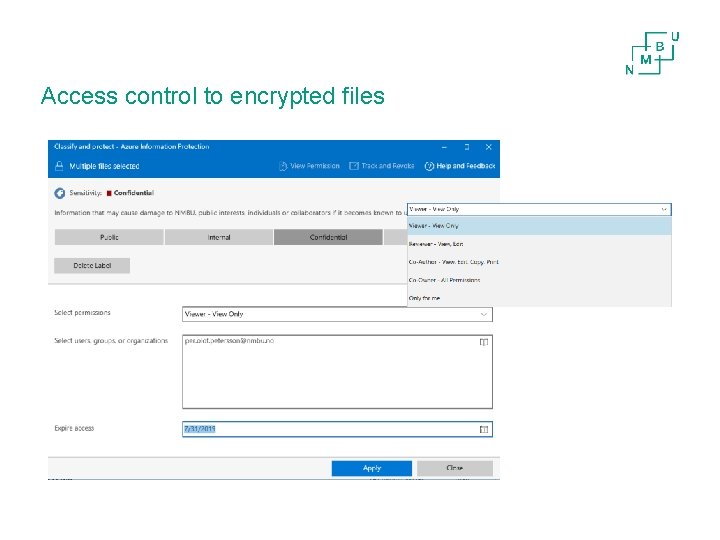
Access control to encrypted files
What do I have to do when it comes to classification? You need to set aside time to classify your files before moving them to One. Drive • Map and classify documents and files that MUST be classified according to the guidelines approved by the management group. - See guidance on the Document Centre's support page • If there is an archiving obligation, documents must be imported to P 360. - See the Document Centre's guide • Delete everything you don't need anymore The Document Centre can help you. Dokhjelp@nmbu. no All classified documents must then be moved to the cloud
- Slides: 9