
Class II Solidworks Exercise Modeling the bearing block
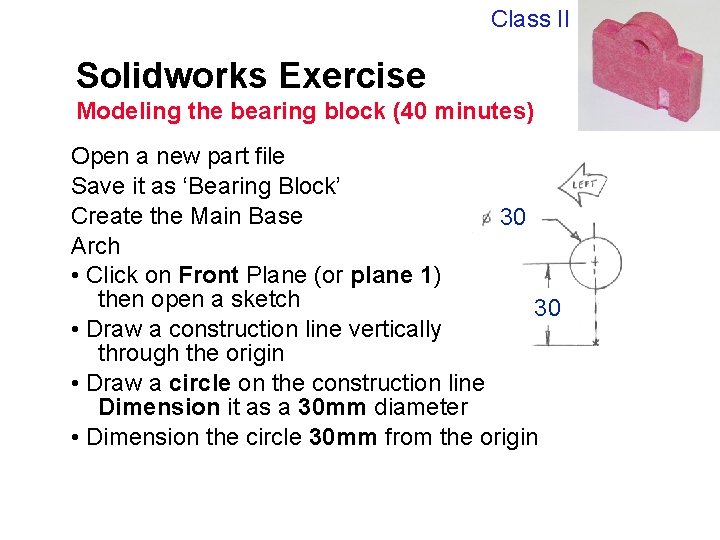
Class II Solidworks Exercise Modeling the bearing block (40 minutes) Open a new part file Save it as ‘Bearing Block’ Create the Main Base 30 Arch • Click on Front Plane (or plane 1) then open a sketch 30 • Draw a construction line vertically through the origin • Draw a circle on the construction line Dimension it as a 30 mm diameter • Dimension the circle 30 mm from the origin
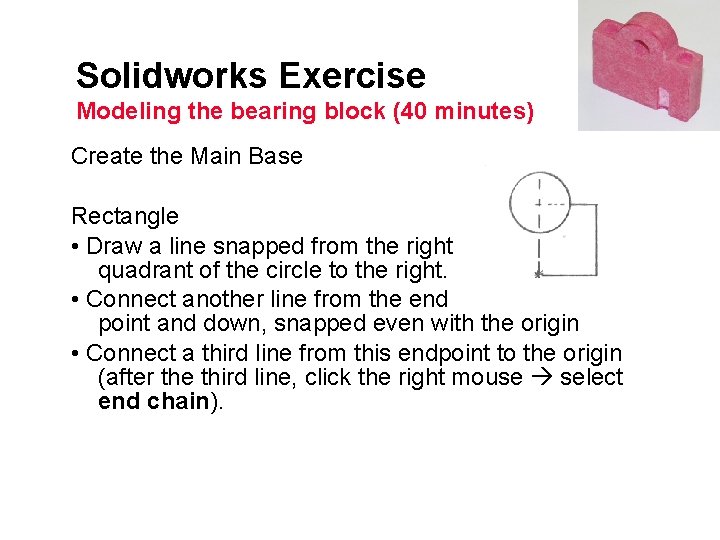
Solidworks Exercise Modeling the bearing block (40 minutes) Create the Main Base Rectangle • Draw a line snapped from the right quadrant of the circle to the right. • Connect another line from the end point and down, snapped even with the origin • Connect a third line from this endpoint to the origin (after the third line, click the right mouse select end chain).
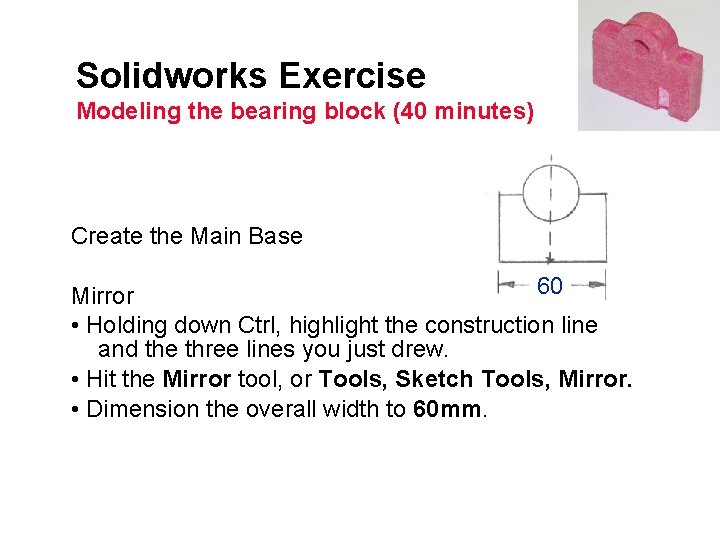
Solidworks Exercise Modeling the bearing block (40 minutes) Create the Main Base 60 Mirror • Holding down Ctrl, highlight the construction line and the three lines you just drew. • Hit the Mirror tool, or Tools, Sketch Tools, Mirror. • Dimension the overall width to 60 mm.

Solidworks Exercise Modeling the bearing block (40 minutes) Create the main base Trim • Click Trim (or tools sketch tools trim) and select the bottom half of the circle. Click to delete a quarter of the circle. • Repeat process to remove the other quarter of the circle
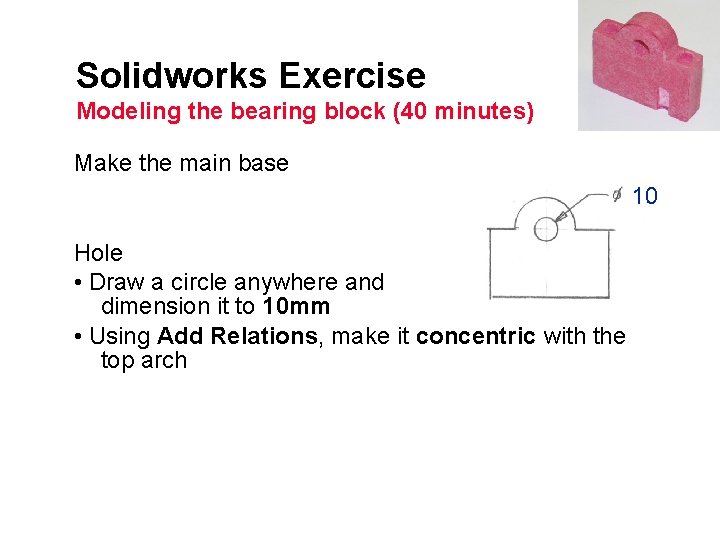
Solidworks Exercise Modeling the bearing block (40 minutes) Make the main base 10 Hole • Draw a circle anywhere and dimension it to 10 mm • Using Add Relations, make it concentric with the top arch
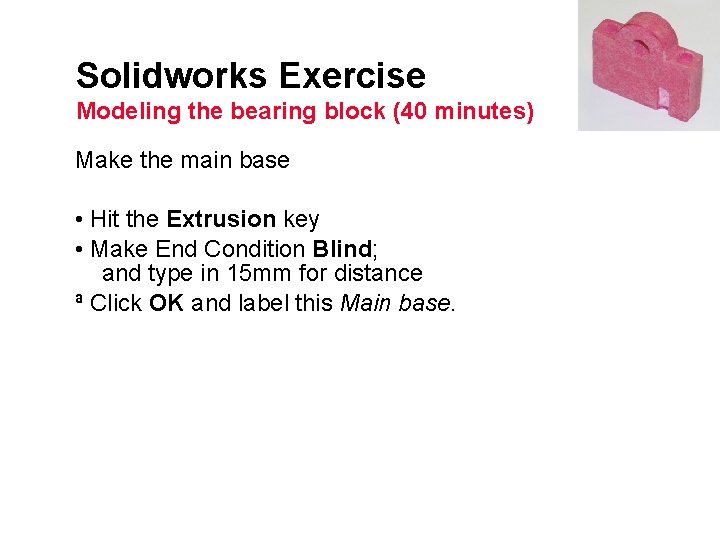
Solidworks Exercise Modeling the bearing block (40 minutes) Make the main base • Hit the Extrusion key • Make End Condition Blind; and type in 15 mm for distance ª Click OK and label this Main base.

Solidworks Exercise Modeling the bearing block (40 minutes) Make cbore • Go to isometric view and highlight a flat area on top of the part, then open a sketch on the plane shown. • Draw a circle anywhere and dimension it to 8 mm. • Dimension it 7. 5 mm from both edges. • Extrude Cut this sketch to 5 mm • Label this Cbore 8
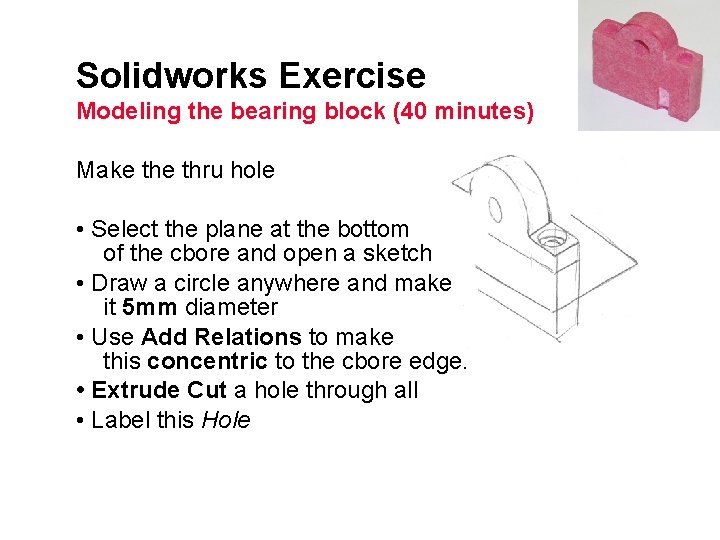
Solidworks Exercise Modeling the bearing block (40 minutes) Make thru hole • Select the plane at the bottom of the cbore and open a sketch • Draw a circle anywhere and make it 5 mm diameter • Use Add Relations to make this concentric to the cbore edge. • Extrude Cut a hole through all • Label this Hole
Solidworks Exercise Modeling the bearing block (40 minutes) Mirror the hole • Select Insert, Pattern/Mirror, Mirror Feature • Under Mirror Plane, select Right plane (or plane 3) in the feature manager; under Features to Mirror, choose Cbore and Hole in the feature manager • Leave this called Mirror 1
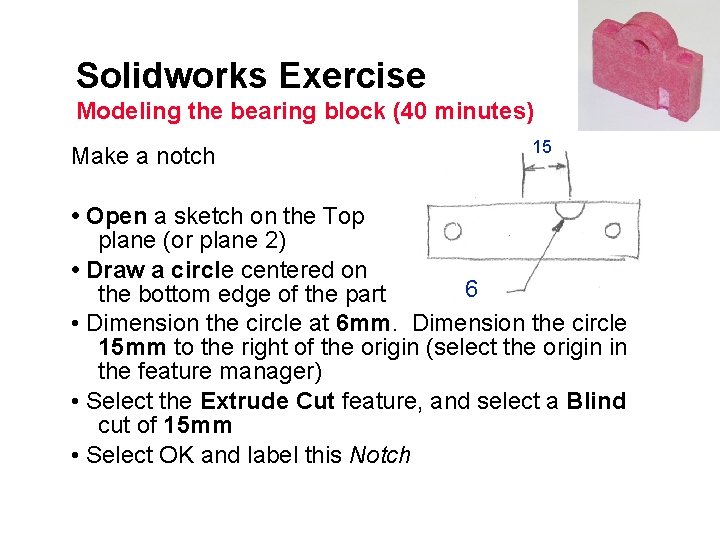
Solidworks Exercise Modeling the bearing block (40 minutes) Make a notch 15 • Open a sketch on the Top plane (or plane 2) • Draw a circle centered on 6 the bottom edge of the part • Dimension the circle at 6 mm. Dimension the circle 15 mm to the right of the origin (select the origin in the feature manager) • Select the Extrude Cut feature, and select a Blind cut of 15 mm • Select OK and label this Notch
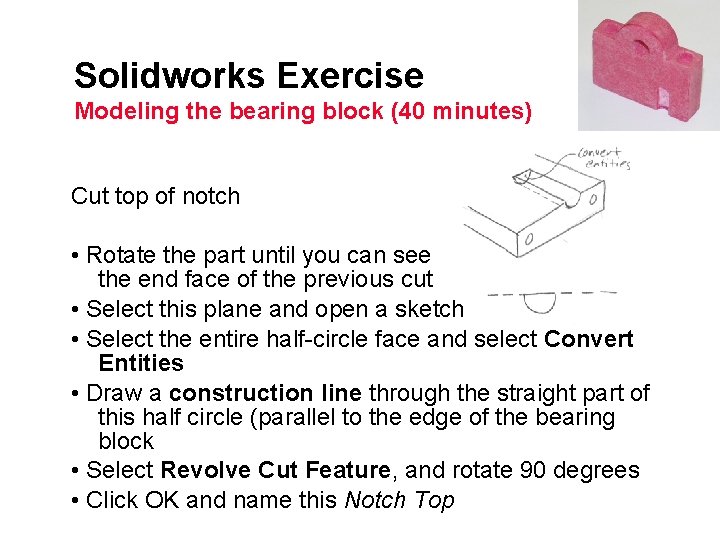
Solidworks Exercise Modeling the bearing block (40 minutes) Cut top of notch • Rotate the part until you can see the end face of the previous cut • Select this plane and open a sketch • Select the entire half-circle face and select Convert Entities • Draw a construction line through the straight part of this half circle (parallel to the edge of the bearing block • Select Revolve Cut Feature, and rotate 90 degrees • Click OK and name this Notch Top
- Slides: 11