
CIT 590 SwingGUI in Java How to create

![28 Option dialogs • Object[] options = new String[] {"English", "Chinese", "French", "German" };](https://slidetodoc.com/presentation_image_h/be5f9a0ba238e7f39c5c3a7de248b7a2/image-28.jpg "28 Option dialogs • Object[] options = new String[] {\"English\", \"Chinese\", \"French\", \"German\" };")
- Slides: 33
CIT 590 Swing/GUI in Java
How to create a GUI • Create a window in which to display things—usually a JFrame (for an application), • Use the set. Layout(Layout. Manager manager) method to specify a layout manager • Throw some components in. • Create some listeners and attach them to your components. • When you do something to a component, an event is generated which is ‘listened’ to. When the listener ‘hears’ the event, it executes code to deal with it • Display your window.
Frames v Applets • A lot of what we cover applies to both Applications and Applets • Applications are basically what we have been writing so far – everything running on your computer • Applets were the predecessors of things like Flash on the internet • Basically can be embedded in HTML • Runs in browser • Currently very few people use Applets. • http: //programmers. stackexchange. com/questions/21843/where-did -java-go-wrong-on-the-client • We will only do application programming – safely assume everything is a frame.
OMG so many packages to import … • CTRL(Command) + SHIFT + O = magic! • That keyboard shortcut will import all that is needed. • If you are curious…. • Javax. swing. * • Java. awt. event. * • Javax. swing. event. * • And others …. • I always use CTRL + SHIFT +O • If it doesn’t work (rare but can happen), I google and find out what I need to import.
Reading assignment • Some of the notes in this lecture on GUI will use anonymous classes (specific example of inner classes) • Please read the ‘inner classes’ slides yourself
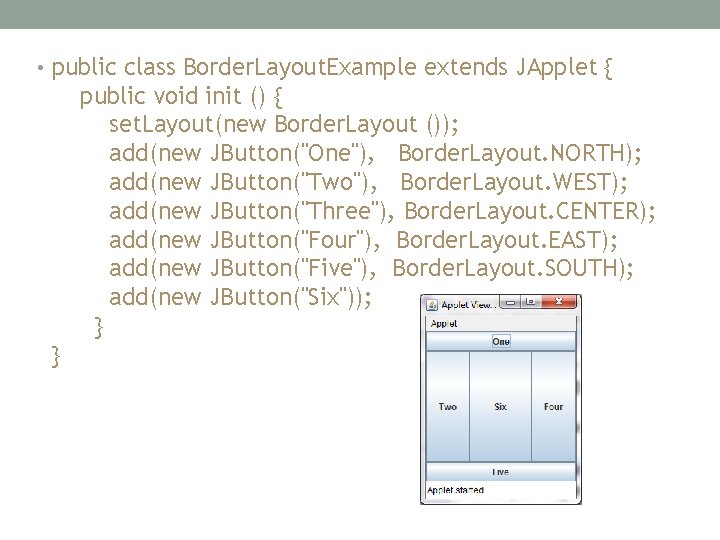
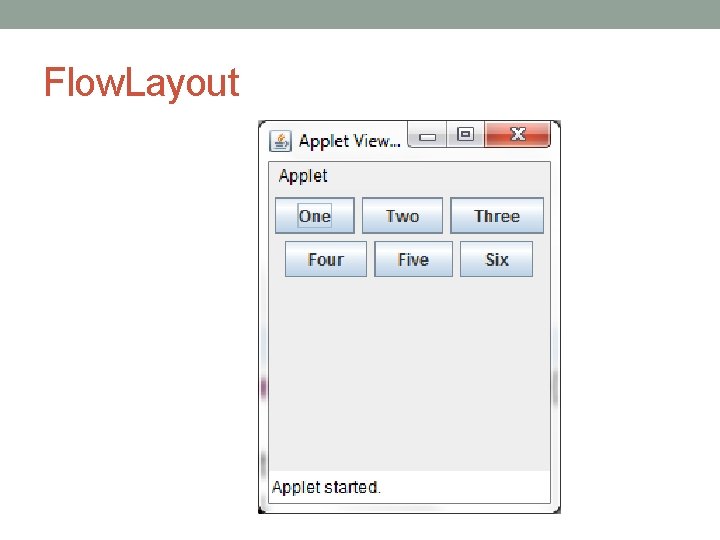
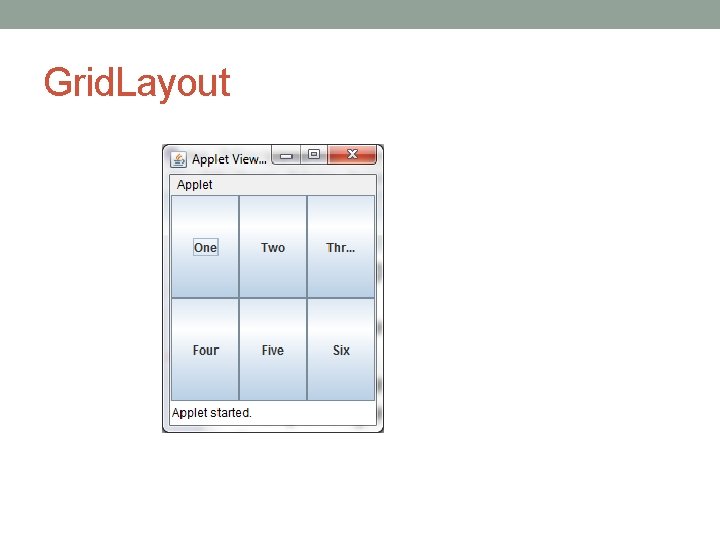
Layouts for your container • The most important layout managers are: • Border. Layout • Provides five areas into which you can put components • This is the default layout manager for both JFrame and JApplet • Flow. Layout • Components are added left to right, top to bottom • Grid. Layout • Components are put in a rectangular grid • All areas are the same size and shape • Box. Layout • Creates a horizontal row or a vertical stack • This can be a little weird to use
Add components • container. add(component); • What is a component? • Buttons, textboxes, checkboxes, textareas etc n n For Flow. Layout, Grid. Layout, and Box. Layout, this adds the component to the next available location For Border. Layout, this puts the component in the CENTER by default • For Border. Layout, it’s usually better to use container. add(component, Border. Layout. position); • position is one of NORTH, SOUTH, EAST, WEST, or CENTER
Useful resources • http: //www. cis. upenn. edu/~matuszek/General/Swing. Exam ples. jar • A jar file is just a bunch of compressed java files.
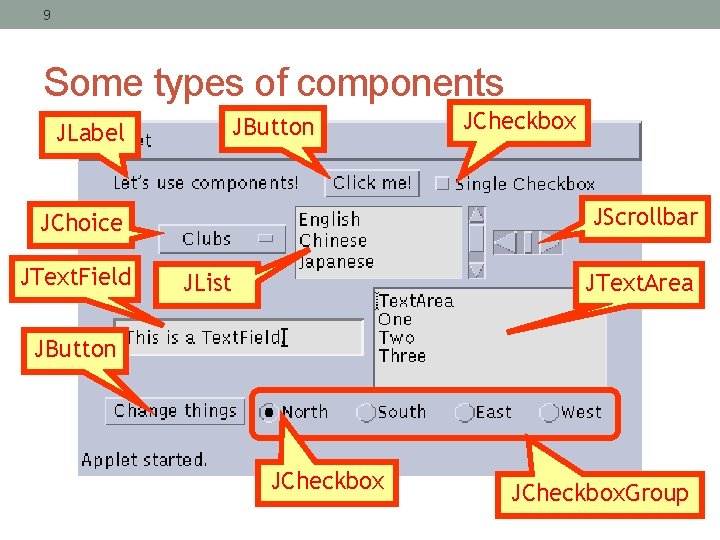
9 Some types of components JLabel JButton JScrollbar JChoice JText. Field JCheckbox JList JText. Area JButton JCheckbox. Group
10 Create components • JButton button = new JButton("Click me!"); • JLabel label = new JLabel("This is a JLabel"); • JText. Field text. Field 1 = new JText. Field("This is the initial text"); • JText. Field text. Field 2 = new JText. Field("Initial text", columns); • JText. Area text. Area 1 = new JText. Area("Initial text"); • JText. Area text. Area 2 = new JText. Area(rows, columns); • JText. Area text. Area 3 = new JText. Area("Initial text", rows, columns); • JCheck. Box checkbox = new JCheck. Box("Label for checkbox"); • JRadio. Button radio. Button 1 = new JRadio. Button("Label for button"); • Button. Group group = new Button. Group(); group. add(radio. Button 1); group. add(radio. Button 2); etc. • This is just a sampling of the available constructors; see the javax. swing API for all the rest
• public class Border. Layout. Example extends JApplet { public void init () { set. Layout(new Border. Layout ()); add(new JButton("One"), Border. Layout. NORTH); add(new JButton("Two"), Border. Layout. WEST); add(new JButton("Three"), Border. Layout. CENTER); add(new JButton("Four"), Border. Layout. EAST); add(new JButton("Five"), Border. Layout. SOUTH); add(new JButton("Six")); } }
Flow. Layout
Grid. Layout
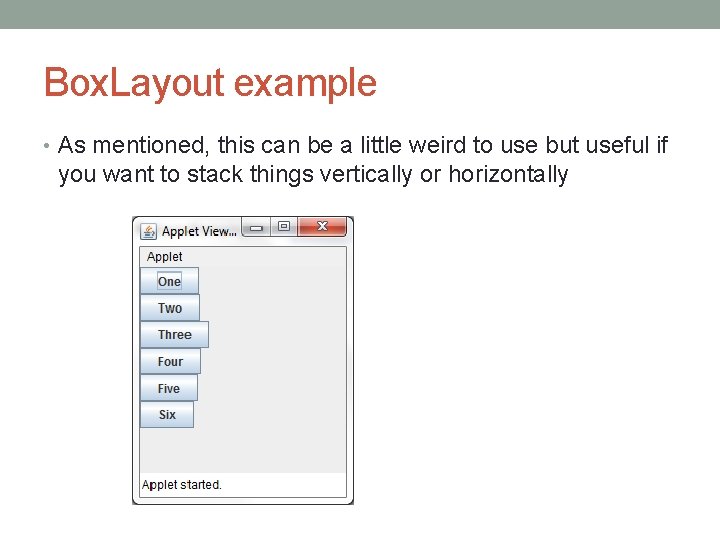
Box. Layout example • As mentioned, this can be a little weird to use but useful if you want to stack things vertically or horizontally
15 Nested layouts • A JPanel is both a JContainer and a Component • Because it’s a container, you can put other components into it • Because it’s a component, you can put it into other containers • All but the very simplest GUIs are built by creating several JPanels, arranging them, and putting components (possibly other JPanels) into them • A good approach is to draw (on paper) the arrangement you want, then finding an arrangement of JPanels and their layout managers that accomplishes this
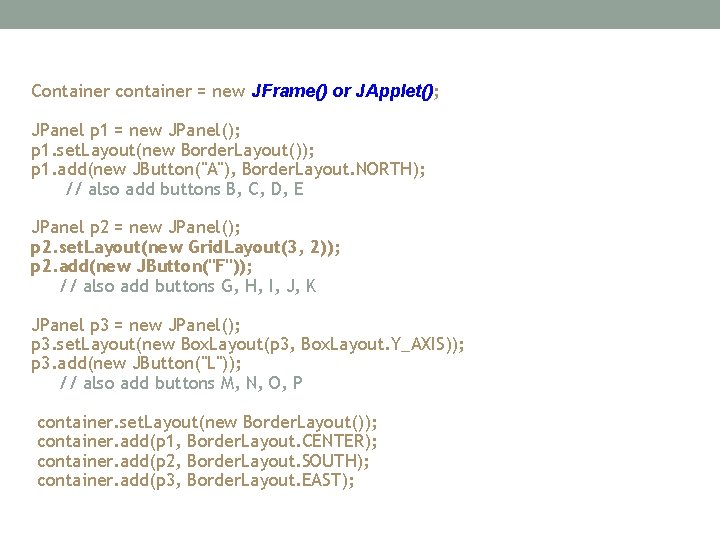
Container container = new JFrame() or JApplet(); JPanel p 1 = new JPanel(); p 1. set. Layout(new Border. Layout()); p 1. add(new JButton("A"), Border. Layout. NORTH); // also add buttons B, C, D, E JPanel p 2 = new JPanel(); p 2. set. Layout(new Grid. Layout(3, 2)); p 2. add(new JButton("F")); // also add buttons G, H, I, J, K JPanel p 3 = new JPanel(); p 3. set. Layout(new Box. Layout(p 3, Box. Layout. Y_AXIS)); p 3. add(new JButton("L")); // also add buttons M, N, O, P container. set. Layout(new Border. Layout()); container. add(p 1, Border. Layout. CENTER); container. add(p 2, Border. Layout. SOUTH); container. add(p 3, Border. Layout. EAST);
17 Create and attach listeners • JButton ok. Button = new JButton("OK"); • ok. Button. add. Action. Listener(new My. Ok. Listener()); • class My. Ok. Listener implements Action. Listener { public void action. Performed(Action. Event event) { // code to handle ok. Button click } } • A small class like this is often best implemented as an anonymous inner class
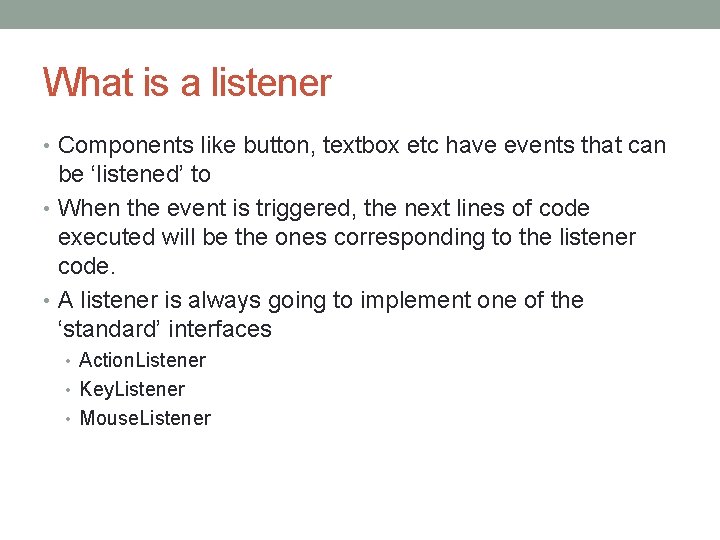
What is a listener • Components like button, textbox etc have events that can be ‘listened’ to • When the event is triggered, the next lines of code executed will be the ones corresponding to the listener code. • A listener is always going to implement one of the ‘standard’ interfaces • Action. Listener • Key. Listener • Mouse. Listener
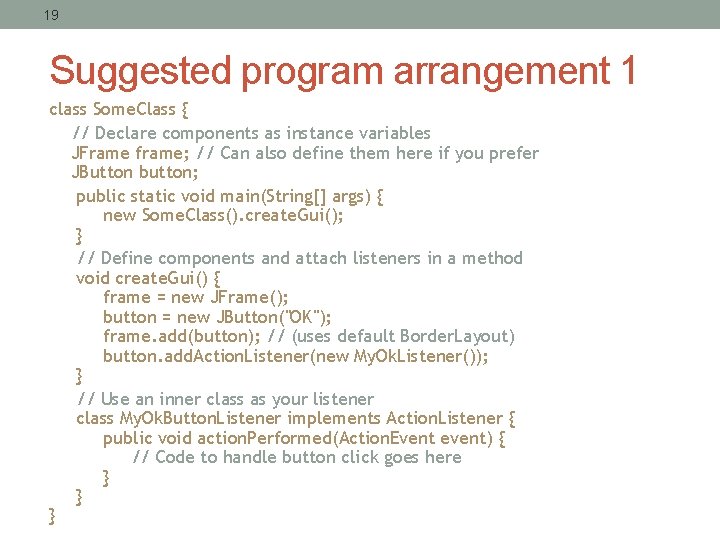
19 Suggested program arrangement 1 class Some. Class { // Declare components as instance variables JFrame frame; // Can also define them here if you prefer JButton button; public static void main(String[] args) { new Some. Class(). create. Gui(); } // Define components and attach listeners in a method void create. Gui() { frame = new JFrame(); button = new JButton("OK"); frame. add(button); // (uses default Border. Layout) button. add. Action. Listener(new My. Ok. Listener()); } // Use an inner class as your listener class My. Ok. Button. Listener implements Action. Listener { public void action. Performed(Action. Event event) { // Code to handle button click goes here } } }
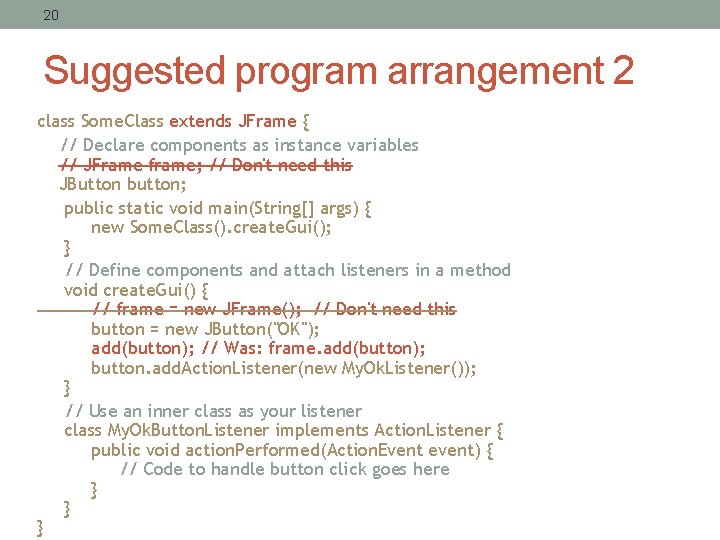
20 Suggested program arrangement 2 class Some. Class extends JFrame { // Declare components as instance variables // JFrame frame; // Don't need this JButton button; public static void main(String[] args) { new Some. Class(). create. Gui(); } // Define components and attach listeners in a method void create. Gui() { // frame = new JFrame(); // Don't need this button = new JButton("OK"); add(button); // Was: frame. add(button); button. add. Action. Listener(new My. Ok. Listener()); } // Use an inner class as your listener class My. Ok. Button. Listener implements Action. Listener { public void action. Performed(Action. Event event) { // Code to handle button click goes here } } }
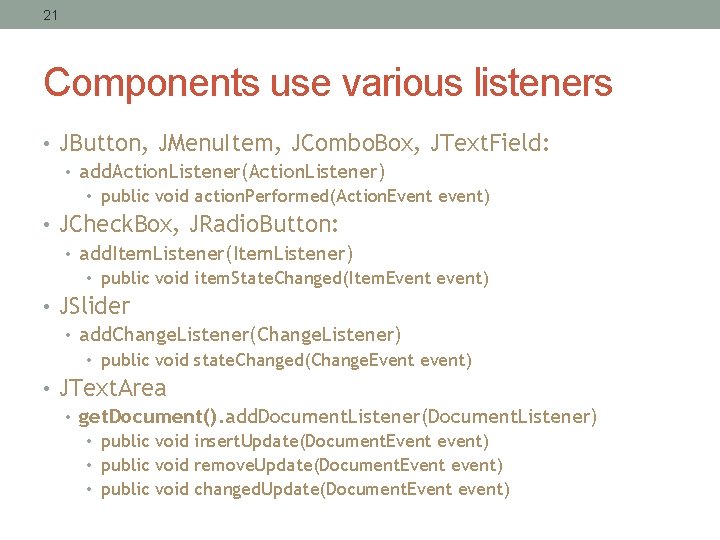
21 Components use various listeners • JButton, JMenu. Item, JCombo. Box, JText. Field: • add. Action. Listener(Action. Listener) • public void action. Performed(Action. Event event) • JCheck. Box, JRadio. Button: • add. Item. Listener(Item. Listener) • public void item. State. Changed(Item. Event event) • JSlider • add. Change. Listener(Change. Listener) • public void state. Changed(Change. Event event) • JText. Area • get. Document(). add. Document. Listener(Document. Listener) • public void insert. Update(Document. Event event) • public void remove. Update(Document. Event event) • public void changed. Update(Document. Event event)
22 Getting values • Some user actions normally cause the program to do something: clicking a button, or selecting from a menu • Some user actions set values to be used later: entering text, setting a checkbox or a radio button • You can listen for events from these, but it’s not usually a good idea • Instead, read their values when you need them • String my. Text = my. JText. Field. get. Text(); • String my. Text = my. JText. Area. get. Text(); • boolean checked = my. JCheck. Box. is. Selected(); • boolean selected 1 = my. JRadio. Button 1. is. Selected();
23 Enabling and disabling components • It is poor style to remove components you don’t want the user to be able to use • “Where did it go? It was here a minute ago!” • It’s better to enable and disable controls • Disabled controls appear “grayed out” • The user may still wonder why? , but that’s still less confusing • any. Component. set. Enabled(enabled); • Parameter should be true to enable, false to disable
24 Dialogs • A dialog (small accessory window) can be modal or nonmodal • When your code opens a modal dialog, it waits for a result from the dialog before continuing • When your code opens a nonmodal dialog, it does so in a separate thread, and your code just keeps going • Sun supplies a few simple (but useful) modal dialogs for your use • You can create your own dialogs (with JDialog), but they are nonmodal by default
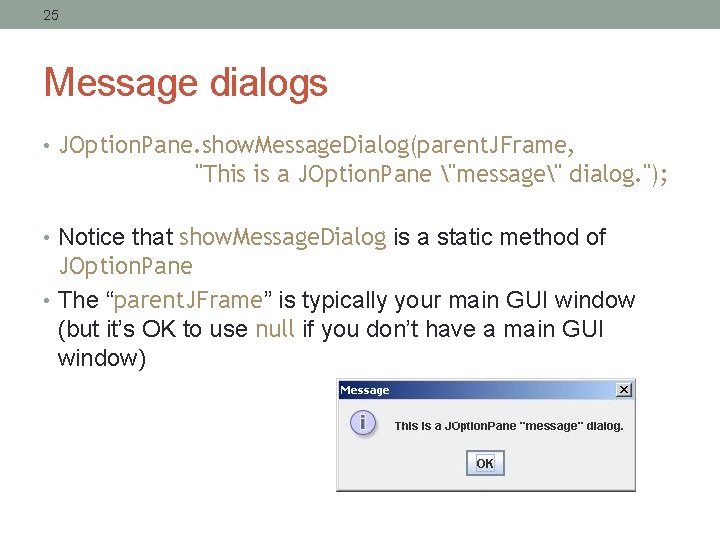
25 Message dialogs • JOption. Pane. show. Message. Dialog(parent. JFrame, "This is a JOption. Pane "message" dialog. "); • Notice that show. Message. Dialog is a static method of JOption. Pane • The “parent. JFrame” is typically your main GUI window (but it’s OK to use null if you don’t have a main GUI window)
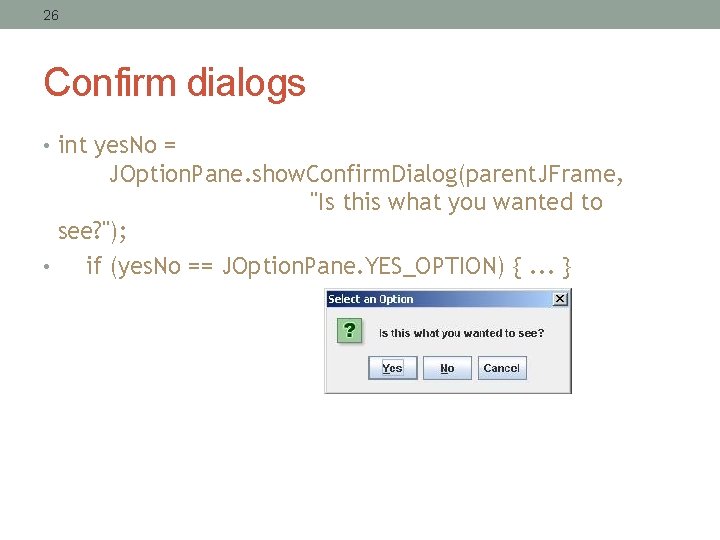
26 Confirm dialogs • int yes. No = JOption. Pane. show. Confirm. Dialog(parent. JFrame, "Is this what you wanted to see? "); • if (yes. No == JOption. Pane. YES_OPTION) {. . . }
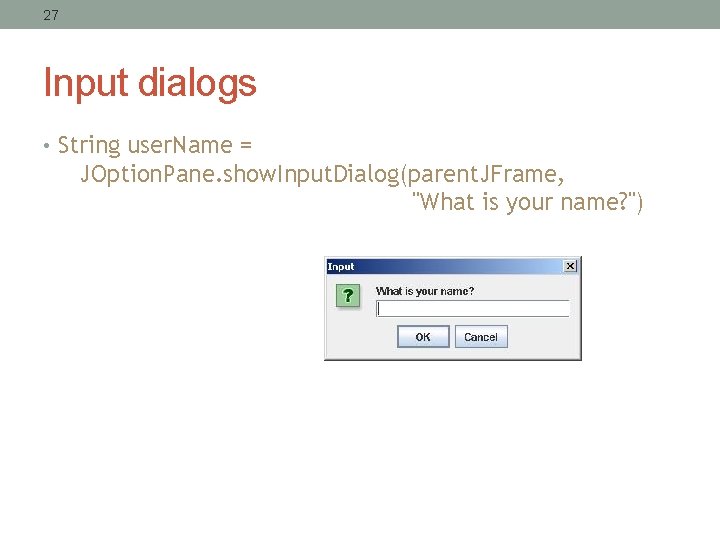
27 Input dialogs • String user. Name = JOption. Pane. show. Input. Dialog(parent. JFrame, "What is your name? ")
28 Option dialogs • Object[] options = new String[] {"English", "Chinese", "French", "German" }; int option = JOption. Pane. show. Option. Dialog(parent. JFrame, "Choose an option: ", "Option Dialog", JOption. Pane. YES_NO_OPTION, JOption. Pane. QUESTION_MESSAGE, null, options[0]); // use as default • Fourth argument could be JOption. Pane. YES_NO_CANCEL_OPTION • Fifth argument specifies which icon to use in the dialog; it could be one of ERROR_MESSAGE, INFORMATION_MESSAGE, WARNING_MESSAGE, or PLAIN_MESSAGE • Sixth argument (null above) can specify a custom icon
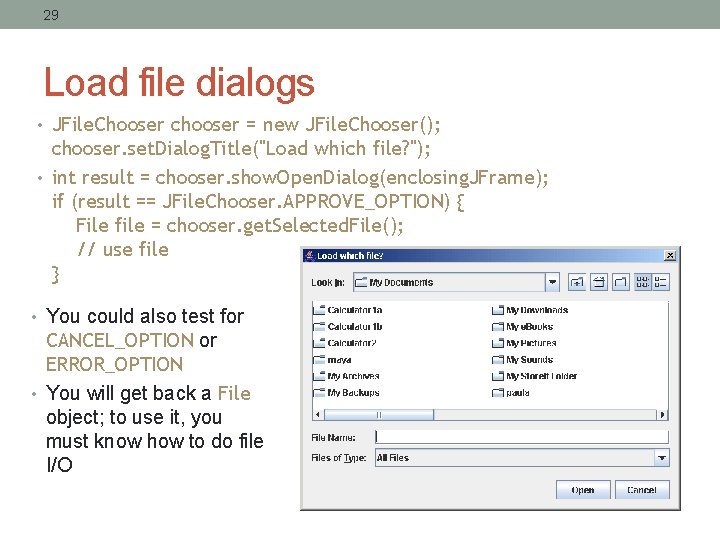
29 Load file dialogs • JFile. Chooser chooser = new JFile. Chooser(); chooser. set. Dialog. Title("Load which file? "); • int result = chooser. show. Open. Dialog(enclosing. JFrame); if (result == JFile. Chooser. APPROVE_OPTION) { File file = chooser. get. Selected. File(); // use file } • You could also test for CANCEL_OPTION or ERROR_OPTION • You will get back a File object; to use it, you must know how to do file I/O
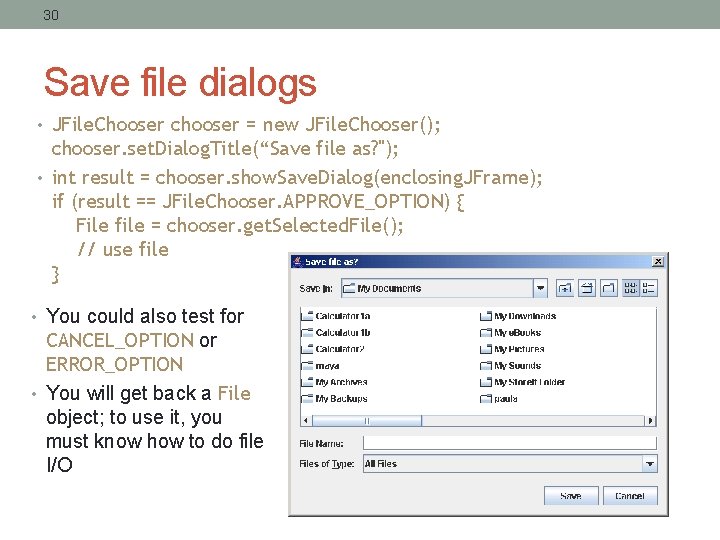
30 Save file dialogs • JFile. Chooser chooser = new JFile. Chooser(); chooser. set. Dialog. Title(“Save file as? "); • int result = chooser. show. Save. Dialog(enclosing. JFrame); if (result == JFile. Chooser. APPROVE_OPTION) { File file = chooser. get. Selected. File(); // use file } • You could also test for CANCEL_OPTION or ERROR_OPTION • You will get back a File object; to use it, you must know how to do file I/O
31 Quitting the program • gui. set. Default. Close. Operation(JFrame. EXIT_ON_CLOSE); • Other options are DO_NOTHING_ON_CLOSE, HIDE_ON_CLOSE, and DISPOSE_ON_CLOSE
32 Summary I: Building a GUI • Create a container, either have a Jframe instance variable or extend JFrame • Choose a layout manager • Create more complex layouts by adding JPanels; each JPanel can have its own layout manager • Create other components and add them to whichever JPanels you like
33 Summary II: Building a GUI • For each active component, look up what kind of Listeners it can have • Create (implement) the Listeners • often there is one Listener for each active component • Active components can share the same Listener • For each Listener you implement, supply the methods that it requires