
CISEEC693 Applied Computer Vision with Depth Cameras Lecture

- Slides: 35
CIS/EEC-693 Applied Computer Vision with Depth Cameras Lecture 14 Wenbing Zhao
Outline n Using Kinect’s Microphone Array q q q q Verifying the Kinect audio configuration The Kinect SDK architecture for audio How Kinect processes audio signals Inside Kinect's microphone array Capturing and playing audio Processing audio data by suppressing and canceling noise Understanding sound source localization and beam formation
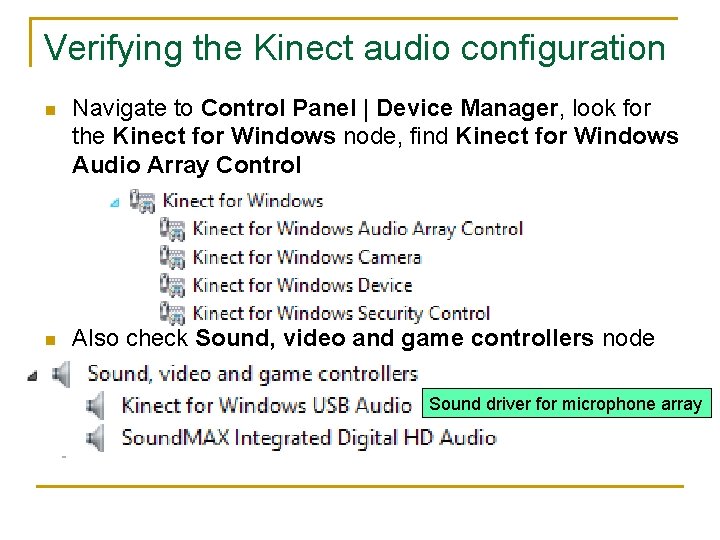
Verifying the Kinect audio configuration n Navigate to Control Panel | Device Manager, look for the Kinect for Windows node, find Kinect for Windows Audio Array Control n Also check Sound, video and game controllers node Sound driver for microphone array
Troubleshooting: Kinect USB Audio not recognizing n n While installing the SDK make sure the Kinect device is unplugged Before using Kinect, restart your system once the installation is done It's always recommended to assign a dedicated USB Controller to the Kinect sensor
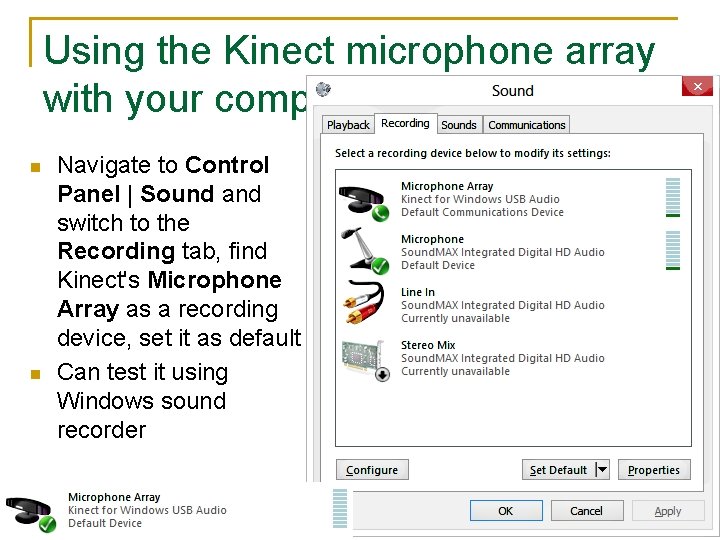
Using the Kinect microphone array with your computer n n Navigate to Control Panel | Sound and switch to the Recording tab, find Kinect's Microphone Array as a recording device, set it as default Can test it using Windows sound recorder
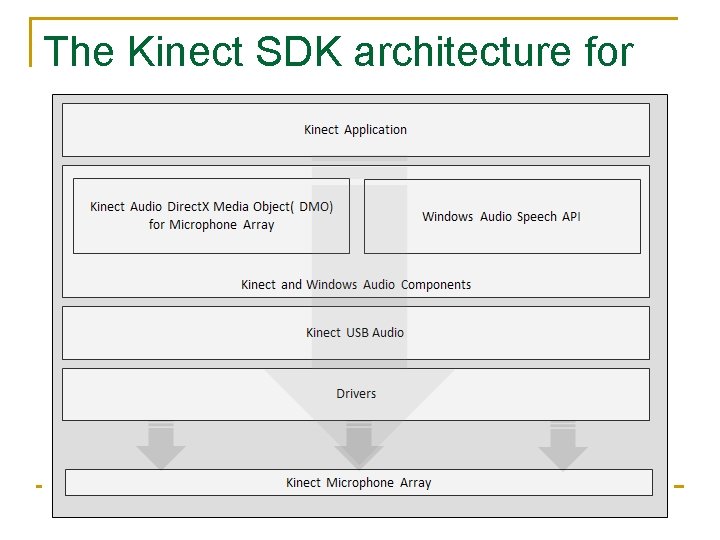
The Kinect SDK architecture for Audio
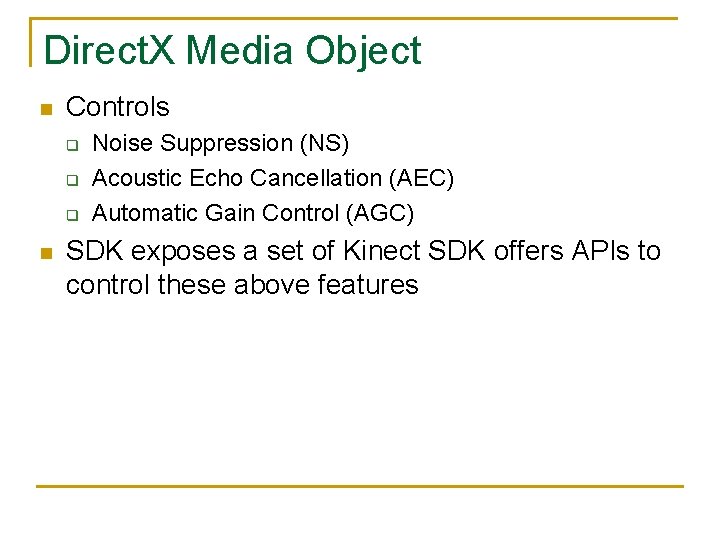
Direct. X Media Object n Controls q q q n Noise Suppression (NS) Acoustic Echo Cancellation (AEC) Automatic Gain Control (AGC) SDK exposes a set of Kinect SDK offers APIs to control these above features
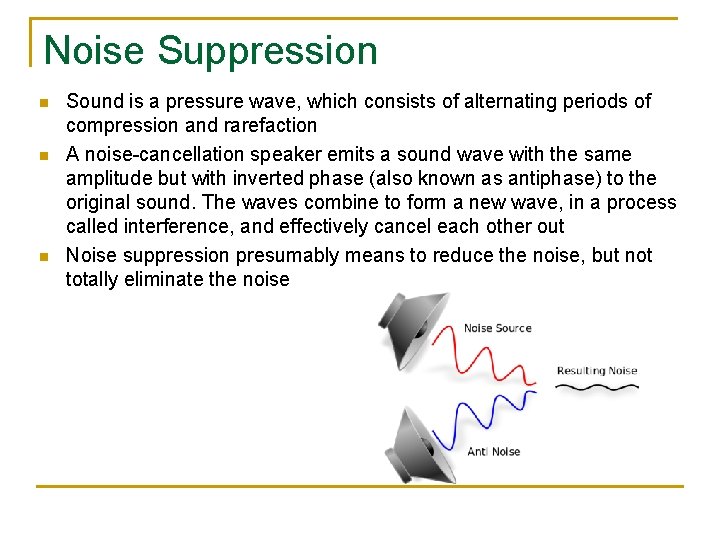
Noise Suppression n Sound is a pressure wave, which consists of alternating periods of compression and rarefaction A noise-cancellation speaker emits a sound wave with the same amplitude but with inverted phase (also known as antiphase) to the original sound. The waves combine to form a new wave, in a process called interference, and effectively cancel each other out Noise suppression presumably means to reduce the noise, but not totally eliminate the noise
Acoustic Echo Cancellation n n Echo suppression and echo cancellation are methods used in telephony to improve voice quality by preventing echo from being created or removing it after it is already present Echo cancellation involves first recognizing the originally transmitted signal that re-appears, with some delay, in the transmitted or received signal Once the echo is recognized, it can be removed by subtracting it from the transmitted or received signal This technique is generally implemented digitally using a digital signal processor or software
Automatic Gain Control n n n Automatic gain control (AGC), also called automatic volume control (AVC), is a closed-loop feedback regulating circuit in an amplifier or chain of amplifiers The purpose of AGC is to maintain a suitable signal amplitude at its output, despite variation of the signal amplitude at the input The average or peak output signal level is used to dynamically adjust the gain of the amplifiers, enabling the circuit to work satisfactorily with a greater range of input signal levels
Major focus area of Kinect audio n Human speech recognition q n Recognize player’s voice despite loud noise and echoes Identify the speech within a dynamic range of area q q While playing, the player could change his position, or Multiple players could be speaking from different directions
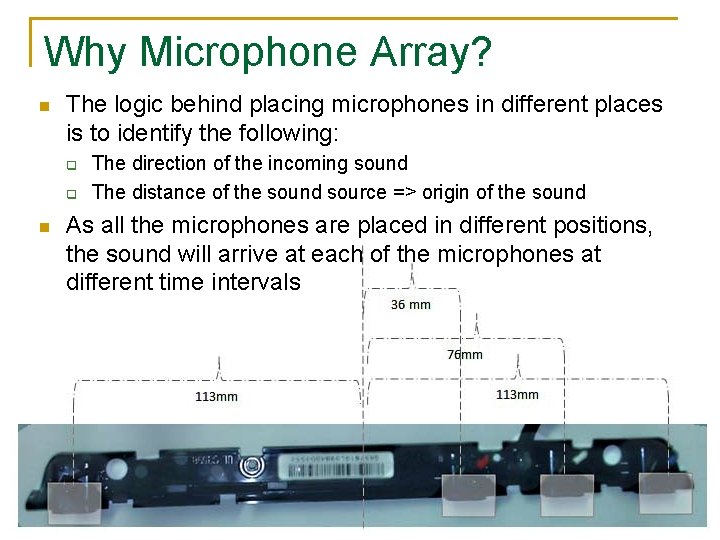
Why Microphone Array? n The logic behind placing microphones in different places is to identify the following: q q n The direction of the incoming sound The distance of the sound source => origin of the sound As all the microphones are placed in different positions, the sound will arrive at each of the microphones at different time intervals
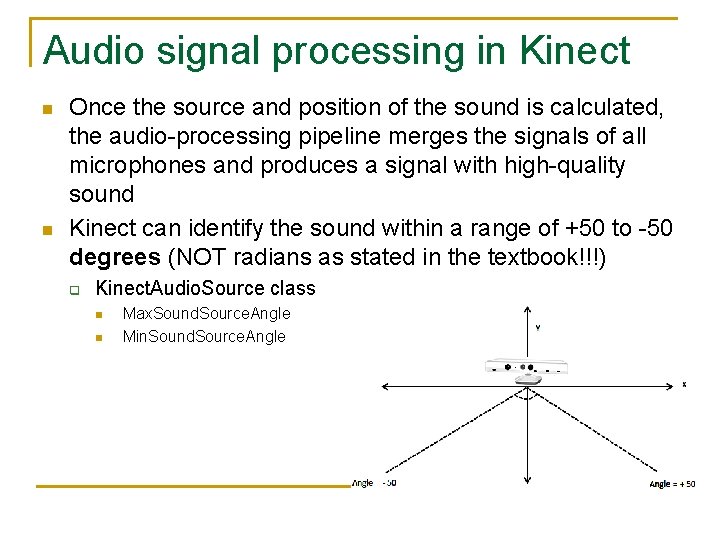
Audio signal processing in Kinect n n Once the source and position of the sound is calculated, the audio-processing pipeline merges the signals of all microphones and produces a signal with high-quality sound Kinect can identify the sound within a range of +50 to -50 degrees (NOT radians as stated in the textbook!!!) q Kinect. Audio. Source class n n Max. Sound. Source. Angle Min. Sound. Source. Angle
Audio signal processing in The SDK fires the Sound. Source. Angle. Changed event if Kinect n n there is any change in the source angle The Sound. Source. Angle. Changed. Event. Args class contains two properties: q n The sound source angle identifies the direction (not the location) of a sound source q n The current source angle and the confidence that the sound source angle is correct The range of the angle is [-50, +50] degrees Confidence level q q Range: 0. 0 (no confidence) to 1. 0 (full confidence) Kinect. Audio. Source class has the Sound. Source. Angle. Confidence property
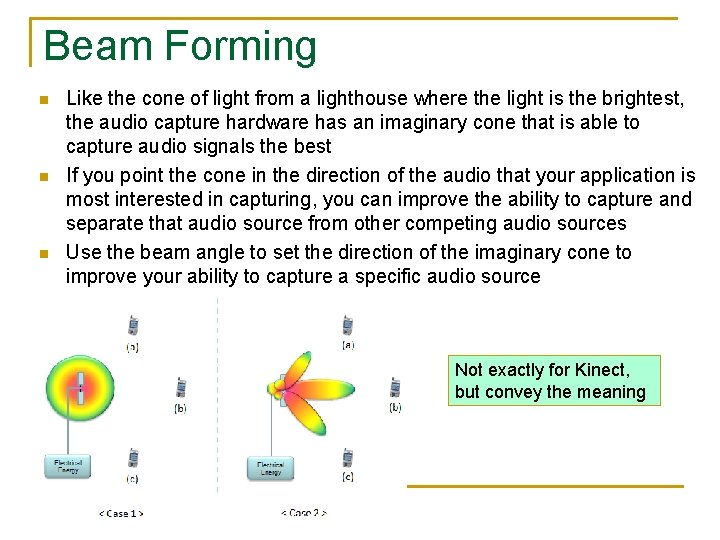
Beam Forming n n n Like the cone of light from a lighthouse where the light is the brightest, the audio capture hardware has an imaginary cone that is able to capture audio signals the best If you point the cone in the direction of the audio that your application is most interested in capturing, you can improve the ability to capture and separate that audio source from other competing audio sources Use the beam angle to set the direction of the imaginary cone to improve your ability to capture a specific audio source Not exactly for Kinect, but convey the meaning
Beam Angle n n n The beam angle identifies a preferred direction for the sensor to listen The angle is one of the following values (in degrees): {50, -40, -30, -20, -10, 0, +10, +20, +30, +40, +50} The sign determines direction: q q q A negative number indicates the audio source is on the right side of the sensor (left side of the user) A positive value indicates the audio source is on the left side of the sensor (right side of the user) 0 indicates the audio source is centered in front of the sensor
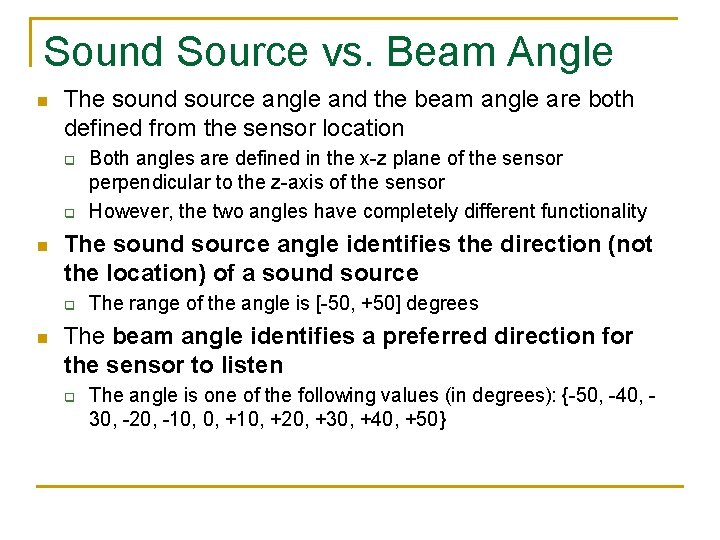
Sound Source vs. Beam Angle n The sound source angle and the beam angle are both defined from the sensor location q q n The sound source angle identifies the direction (not the location) of a sound source q n Both angles are defined in the x-z plane of the sensor perpendicular to the z-axis of the sensor However, the two angles have completely different functionality The range of the angle is [-50, +50] degrees The beam angle identifies a preferred direction for the sensor to listen q The angle is one of the following values (in degrees): {-50, -40, 30, -20, -10, 0, +10, +20, +30, +40, +50}
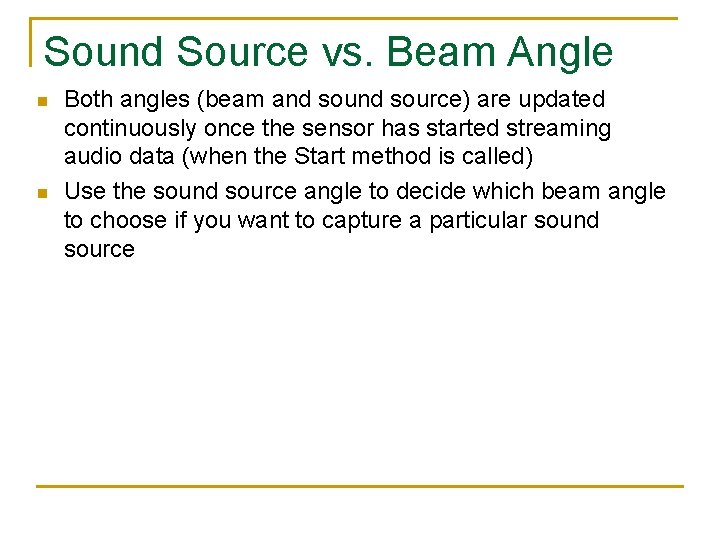
Sound Source vs. Beam Angle n n Both angles (beam and source) are updated continuously once the sensor has started streaming audio data (when the Start method is called) Use the sound source angle to decide which beam angle to choose if you want to capture a particular sound source
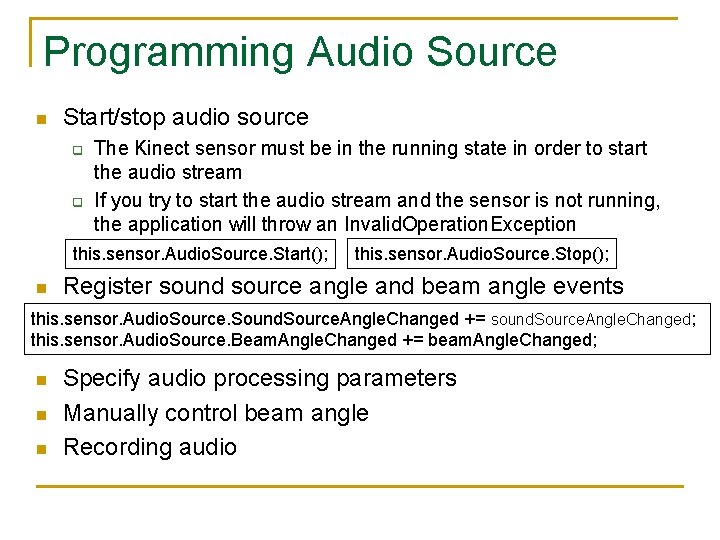
Programming Audio Source n Start/stop audio source q q The Kinect sensor must be in the running state in order to start the audio stream If you try to start the audio stream and the sensor is not running, the application will throw an Invalid. Operation. Exception this. sensor. Audio. Source. Start(); n this. sensor. Audio. Source. Stop(); Register sound source angle and beam angle events this. sensor. Audio. Source. Sound. Source. Angle. Changed += sound. Source. Angle. Changed; this. sensor. Audio. Source. Beam. Angle. Changed += beam. Angle. Changed; n n n Specify audio processing parameters Manually control beam angle Recording audio
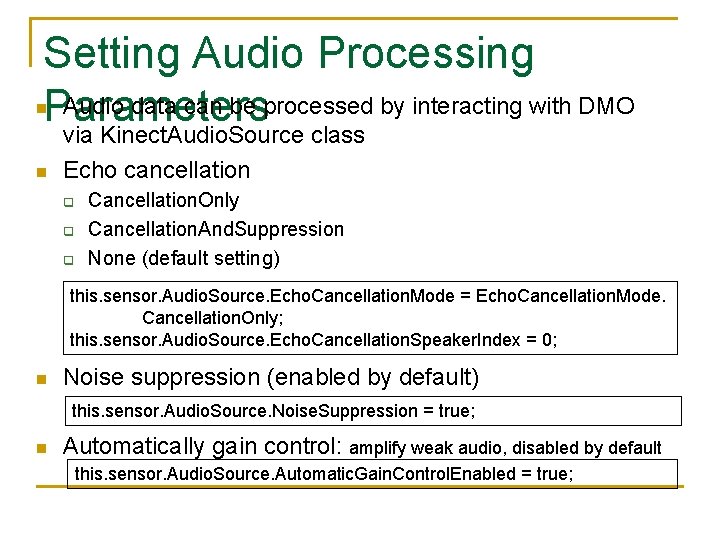
Setting Audio Processing Audio data can be processed by interacting with DMO Parameters n n via Kinect. Audio. Source class Echo cancellation q q q Cancellation. Only Cancellation. And. Suppression None (default setting) this. sensor. Audio. Source. Echo. Cancellation. Mode = Echo. Cancellation. Mode. Cancellation. Only; this. sensor. Audio. Source. Echo. Cancellation. Speaker. Index = 0; n Noise suppression (enabled by default) this. sensor. Audio. Source. Noise. Suppression = true; n Automatically gain control: amplify weak audio, disabled by default this. sensor. Audio. Source. Automatic. Gain. Control. Enabled = true;
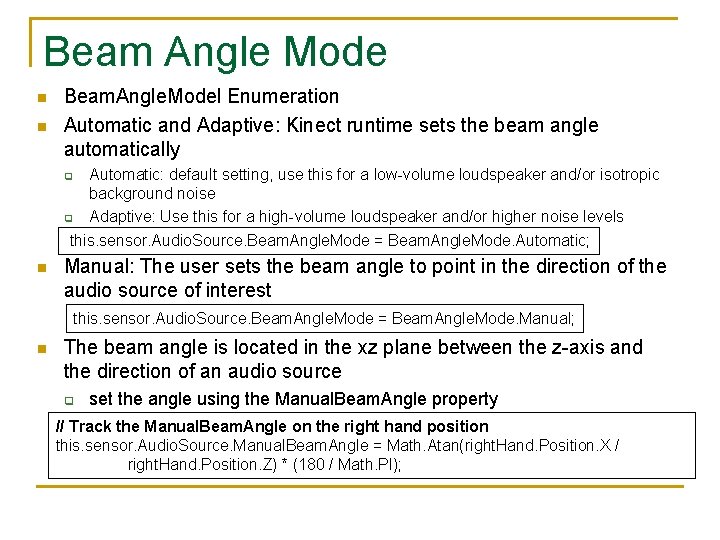
Beam Angle Mode n n Beam. Angle. Model Enumeration Automatic and Adaptive: Kinect runtime sets the beam angle automatically Automatic: default setting, use this for a low-volume loudspeaker and/or isotropic background noise Adaptive: Use this for a high-volume loudspeaker and/or higher noise levels q q this. sensor. Audio. Source. Beam. Angle. Mode = Beam. Angle. Mode. Automatic; n Manual: The user sets the beam angle to point in the direction of the audio source of interest this. sensor. Audio. Source. Beam. Angle. Mode = Beam. Angle. Mode. Manual; n The beam angle is located in the xz plane between the z-axis and the direction of an audio source q set the angle using the Manual. Beam. Angle property // Track the Manual. Beam. Angle on the right hand position this. sensor. Audio. Source. Manual. Beam. Angle = Math. Atan(right. Hand. Position. X / right. Hand. Position. Z) * (180 / Math. PI);
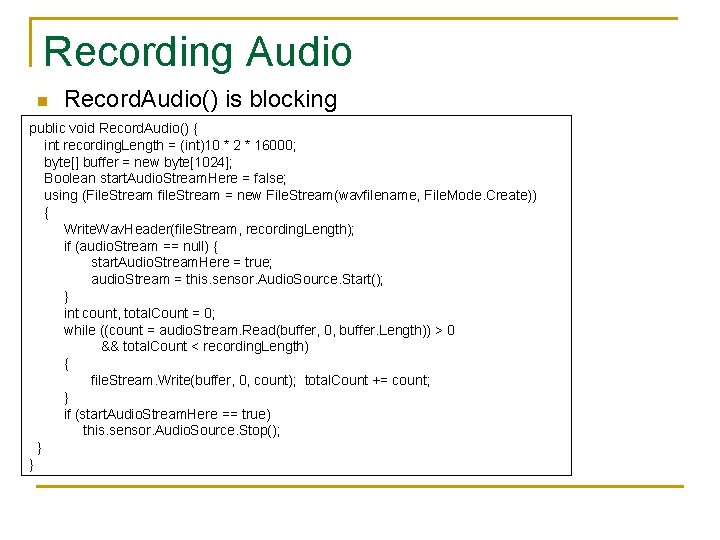
Recording Audio n Record. Audio() is blocking public void Record. Audio() { int recording. Length = (int)10 * 2 * 16000; byte[] buffer = new byte[1024]; Boolean start. Audio. Stream. Here = false; using (File. Stream file. Stream = new File. Stream(wavfilename, File. Mode. Create)) { Write. Wav. Header(file. Stream, recording. Length); if (audio. Stream == null) { start. Audio. Stream. Here = true; audio. Stream = this. sensor. Audio. Source. Start(); } int count, total. Count = 0; while ((count = audio. Stream. Read(buffer, 0, buffer. Length)) > 0 && total. Count < recording. Length) { file. Stream. Write(buffer, 0, count); total. Count += count; } if (start. Audio. Stream. Here == true) this. sensor. Audio. Source. Stop(); } }
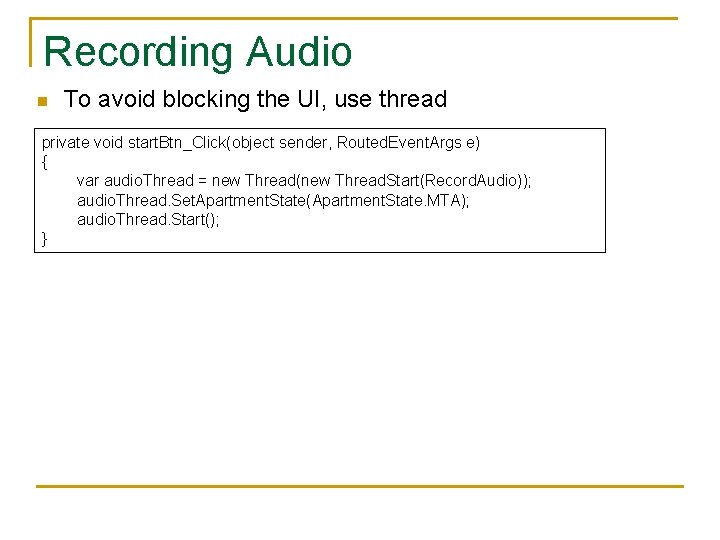
Recording Audio n To avoid blocking the UI, use thread private void start. Btn_Click(object sender, Routed. Event. Args e) { var audio. Thread = new Thread(new Thread. Start(Record. Audio)); audio. Thread. Set. Apartment. State(Apartment. State. MTA); audio. Thread. Start(); }
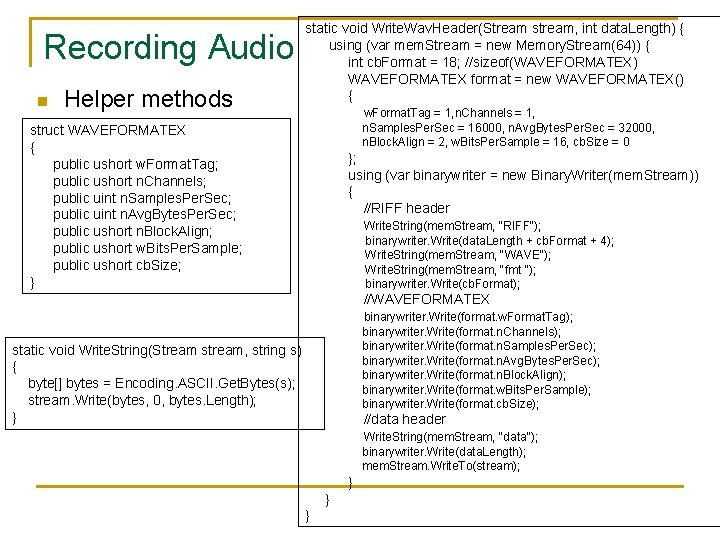
Recording Audio n Helper methods static void Write. Wav. Header(Stream stream, int data. Length) { using (var mem. Stream = new Memory. Stream(64)) { int cb. Format = 18; //sizeof(WAVEFORMATEX) WAVEFORMATEX format = new WAVEFORMATEX() { w. Format. Tag = 1, n. Channels = 1, n. Samples. Per. Sec = 16000, n. Avg. Bytes. Per. Sec = 32000, n. Block. Align = 2, w. Bits. Per. Sample = 16, cb. Size = 0 struct WAVEFORMATEX { public ushort w. Format. Tag; public ushort n. Channels; public uint n. Samples. Per. Sec; public uint n. Avg. Bytes. Per. Sec; public ushort n. Block. Align; public ushort w. Bits. Per. Sample; public ushort cb. Size; } }; using (var binarywriter = new Binary. Writer(mem. Stream)) { //RIFF header Write. String(mem. Stream, "RIFF"); binarywriter. Write(data. Length + cb. Format + 4); Write. String(mem. Stream, "WAVE"); Write. String(mem. Stream, "fmt "); binarywriter. Write(cb. Format); //WAVEFORMATEX binarywriter. Write(format. w. Format. Tag); binarywriter. Write(format. n. Channels); binarywriter. Write(format. n. Samples. Per. Sec); binarywriter. Write(format. n. Avg. Bytes. Per. Sec); binarywriter. Write(format. n. Block. Align); binarywriter. Write(format. w. Bits. Per. Sample); binarywriter. Write(format. cb. Size); static void Write. String(Stream stream, string s) { byte[] bytes = Encoding. ASCII. Get. Bytes(s); stream. Write(bytes, 0, bytes. Length); } //data header Write. String(mem. Stream, "data"); binarywriter. Write(data. Length); mem. Stream. Write. To(stream); } } }
Build Kinect. Audio App n n Create a new C# WPF project with name Kinect. Audio Add Microsoft. Kinect reference Design GUI Adding code
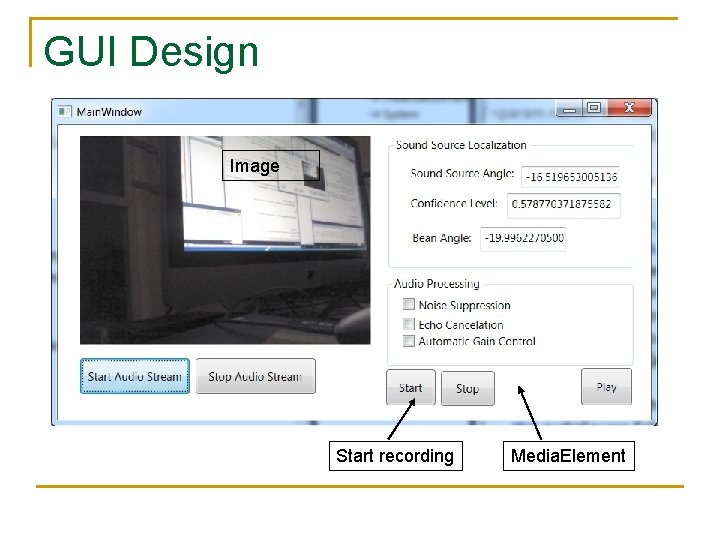
GUI Design Image Start recording Media. Element
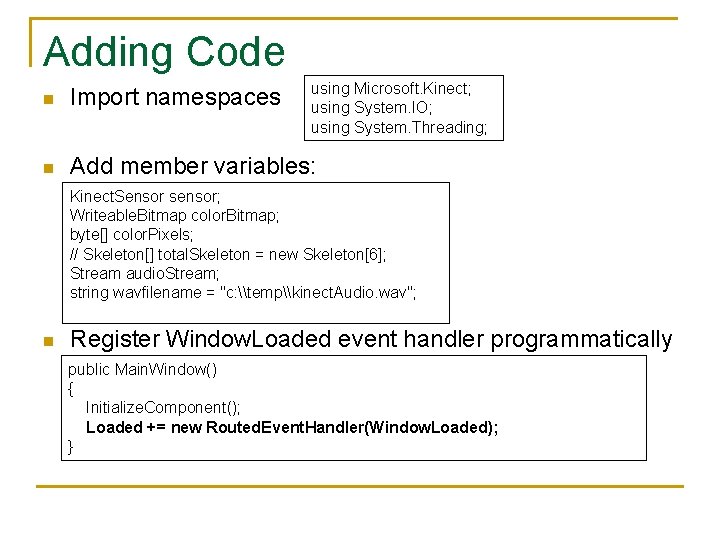
Adding Code using Microsoft. Kinect; using System. IO; using System. Threading; n Import namespaces n Add member variables: Kinect. Sensor sensor; Writeable. Bitmap color. Bitmap; byte[] color. Pixels; // Skeleton[] total. Skeleton = new Skeleton[6]; Stream audio. Stream; string wavfilename = "c: \temp\kinect. Audio. wav"; n Register Window. Loaded event handler programmatically public Main. Window() { Initialize. Component(); Loaded += new Routed. Event. Handler(Window. Loaded); }
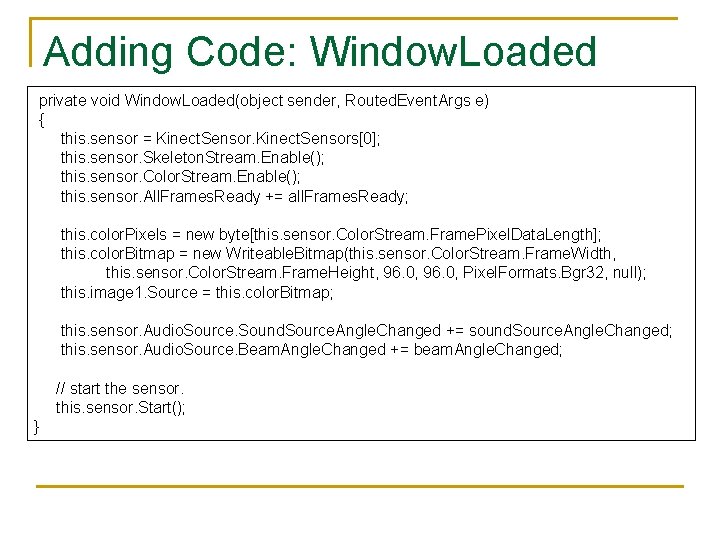
Adding Code: Window. Loaded private void Window. Loaded(object sender, Routed. Event. Args e) { this. sensor = Kinect. Sensors[0]; this. sensor. Skeleton. Stream. Enable(); this. sensor. Color. Stream. Enable(); this. sensor. All. Frames. Ready += all. Frames. Ready; this. color. Pixels = new byte[this. sensor. Color. Stream. Frame. Pixel. Data. Length]; this. color. Bitmap = new Writeable. Bitmap(this. sensor. Color. Stream. Frame. Width, this. sensor. Color. Stream. Frame. Height, 96. 0, Pixel. Formats. Bgr 32, null); this. image 1. Source = this. color. Bitmap; this. sensor. Audio. Source. Sound. Source. Angle. Changed += sound. Source. Angle. Changed; this. sensor. Audio. Source. Beam. Angle. Changed += beam. Angle. Changed; // start the sensor. this. sensor. Start(); }
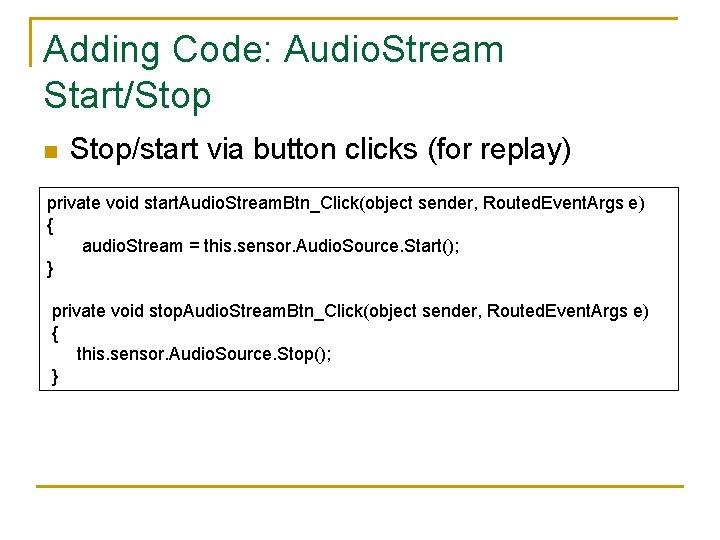
Adding Code: Audio. Stream Start/Stop n Stop/start via button clicks (for replay) private void start. Audio. Stream. Btn_Click(object sender, Routed. Event. Args e) { audio. Stream = this. sensor. Audio. Source. Start(); } private void stop. Audio. Stream. Btn_Click(object sender, Routed. Event. Args e) { this. sensor. Audio. Source. Stop(); }
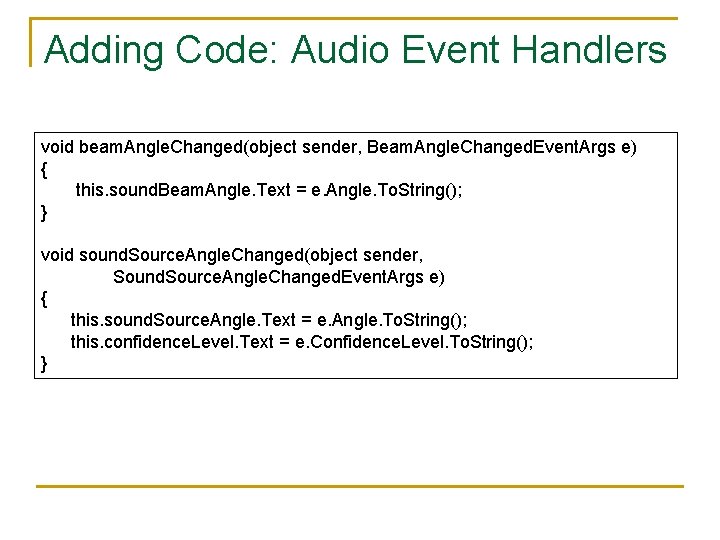
Adding Code: Audio Event Handlers void beam. Angle. Changed(object sender, Beam. Angle. Changed. Event. Args e) { this. sound. Beam. Angle. Text = e. Angle. To. String(); } void sound. Source. Angle. Changed(object sender, Sound. Source. Angle. Changed. Event. Args e) { this. sound. Source. Angle. Text = e. Angle. To. String(); this. confidence. Level. Text = e. Confidence. Level. To. String(); }
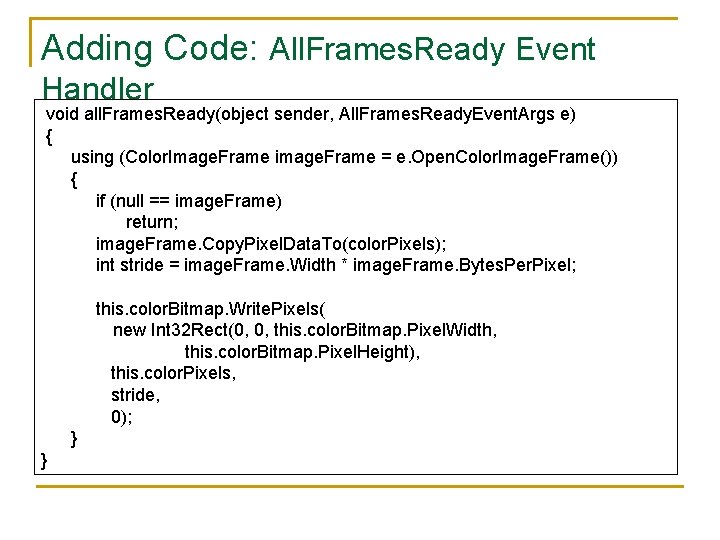
Adding Code: All. Frames. Ready Event Handler void all. Frames. Ready(object sender, All. Frames. Ready. Event. Args e) { using (Color. Image. Frame image. Frame = e. Open. Color. Image. Frame()) { if (null == image. Frame) return; image. Frame. Copy. Pixel. Data. To(color. Pixels); int stride = image. Frame. Width * image. Frame. Bytes. Per. Pixel; this. color. Bitmap. Write. Pixels( new Int 32 Rect(0, 0, this. color. Bitmap. Pixel. Width, this. color. Bitmap. Pixel. Height), this. color. Pixels, stride, 0); } }
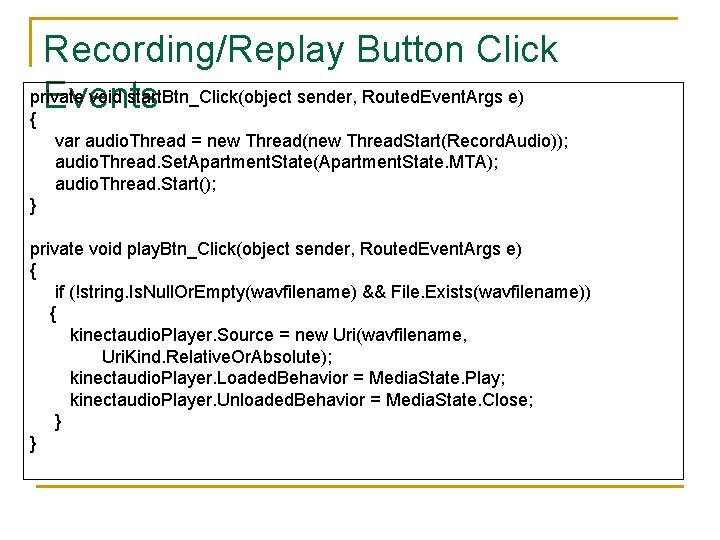
Recording/Replay Button Click private void start. Btn_Click(object sender, Routed. Event. Args e) Events { var audio. Thread = new Thread(new Thread. Start(Record. Audio)); audio. Thread. Set. Apartment. State(Apartment. State. MTA); audio. Thread. Start(); } private void play. Btn_Click(object sender, Routed. Event. Args e) { if (!string. Is. Null. Or. Empty(wavfilename) && File. Exists(wavfilename)) { kinectaudio. Player. Source = new Uri(wavfilename, Uri. Kind. Relative. Or. Absolute); kinectaudio. Player. Loaded. Behavior = Media. State. Play; kinectaudio. Player. Unloaded. Behavior = Media. State. Close; } }
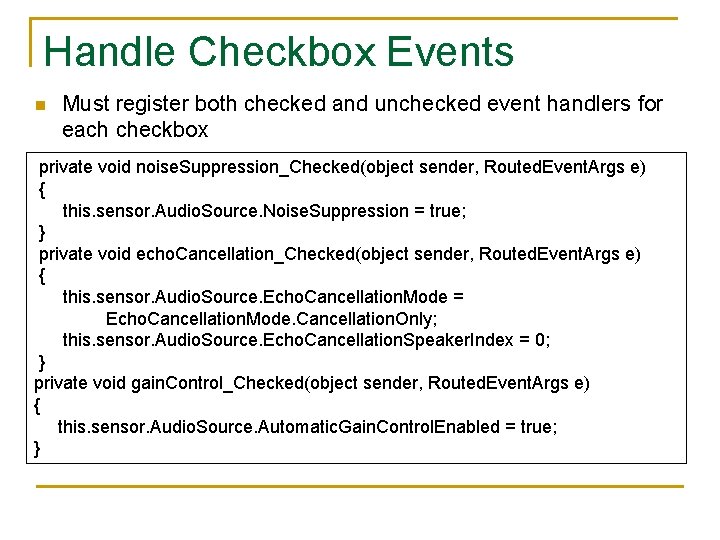
Handle Checkbox Events n Must register both checked and unchecked event handlers for each checkbox private void noise. Suppression_Checked(object sender, Routed. Event. Args e) { this. sensor. Audio. Source. Noise. Suppression = true; } private void echo. Cancellation_Checked(object sender, Routed. Event. Args e) { this. sensor. Audio. Source. Echo. Cancellation. Mode = Echo. Cancellation. Mode. Cancellation. Only; this. sensor. Audio. Source. Echo. Cancellation. Speaker. Index = 0; } private void gain. Control_Checked(object sender, Routed. Event. Args e) { this. sensor. Audio. Source. Automatic. Gain. Control. Enabled = true; }
Handle Checkbox Events private void gain. Control_Unchecked(object sender, Routed. Event. Args e) { this. sensor. Audio. Source. Automatic. Gain. Control. Enabled = false; } private void echo. Cancellation_Unchecked(object sender, Routed. Event. Args e) this. sensor. Audio. Source. Echo. Cancellation. Mode = Echo. Cancellation. Mode. None; } private void noise. Suppression_Unchecked(object sender, Routed. Event. Args e) { this. sensor. Audio. Source. Noise. Suppression = false; }
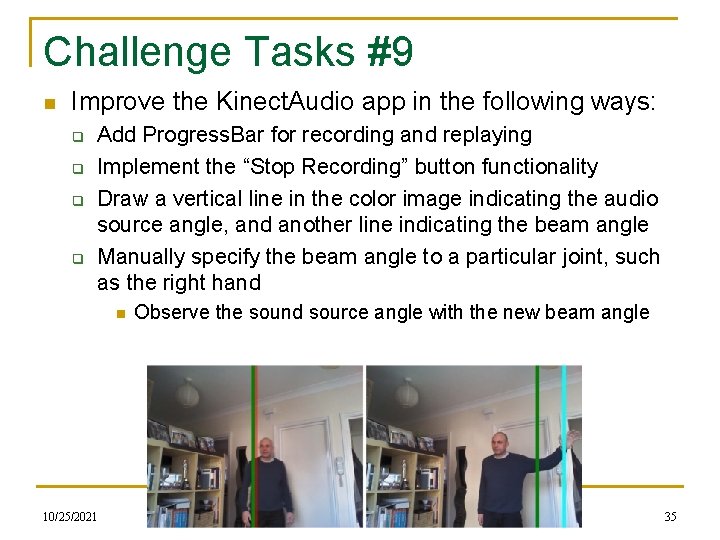
Challenge Tasks #9 n Improve the Kinect. Audio app in the following ways: q q Add Progress. Bar for recording and replaying Implement the “Stop Recording” button functionality Draw a vertical line in the color image indicating the audio source angle, and another line indicating the beam angle Manually specify the beam angle to a particular joint, such as the right hand n 10/25/2021 Observe the sound source angle with the new beam angle EEC 492/693/793 - i. Phone Application Development 35