
Cisco Webex Meetings Roomkit Training Agenda 1 Using
Cisco Webex Meetings & Roomkit Training
Agenda 1. Using a Roomkit, Live Demo (10 minutes) • • Webex Meetings App Connecting your device (being on the same network) Touch (10) controller Camera and microphone 2. Using Breakout sessions (15 minutes) • Enabling feature, assigning groups, sharing media in groups, in ending sessions 3. Questions and Answers, additional resources (15 minutes)

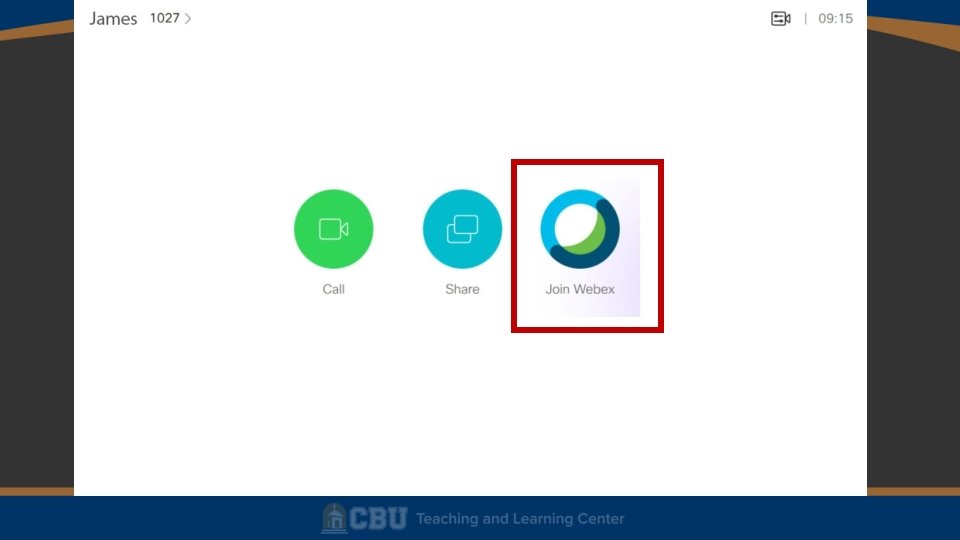
Devices in the room • Your laptop or Classroom computer • Cisco Room. Kit – Display, Camera, Touch-10 panel, Soundbar, and Microphone. Connecting to the Roomkit • Important: Must be using the Webex Meetings desktop application.
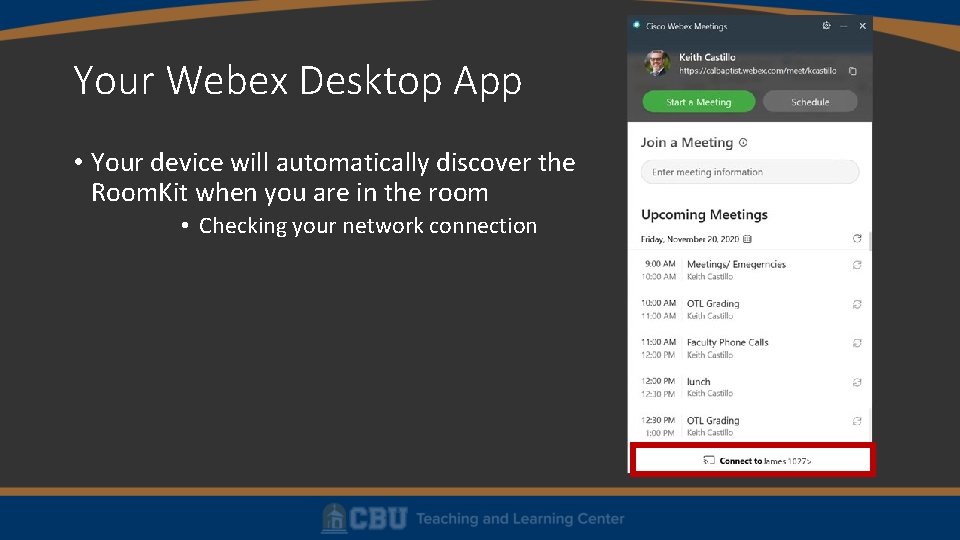
Your Webex Desktop App • Your device will automatically discover the Room. Kit when you are in the room • Checking your network connection
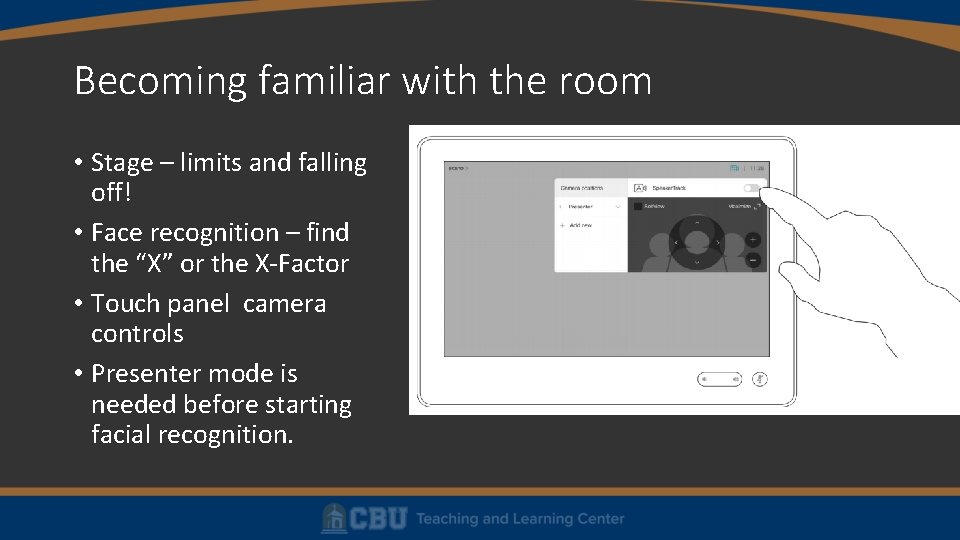
Becoming familiar with the room • Stage – limits and falling off! • Face recognition – find the “X” or the X-Factor • Touch panel camera controls • Presenter mode is needed before starting facial recognition.
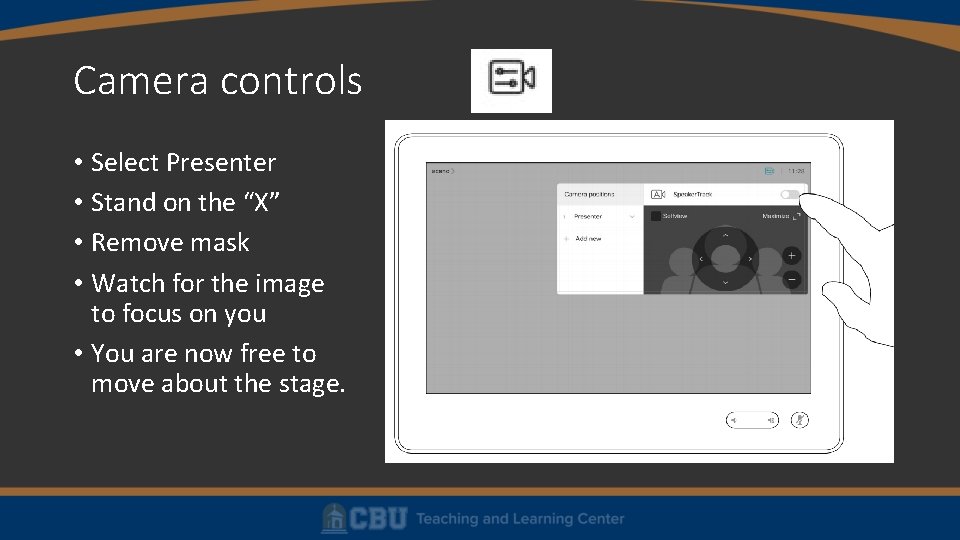
Camera controls • Select Presenter • Stand on the “X” • Remove mask • Watch for the image to focus on you • You are now free to move about the stage.
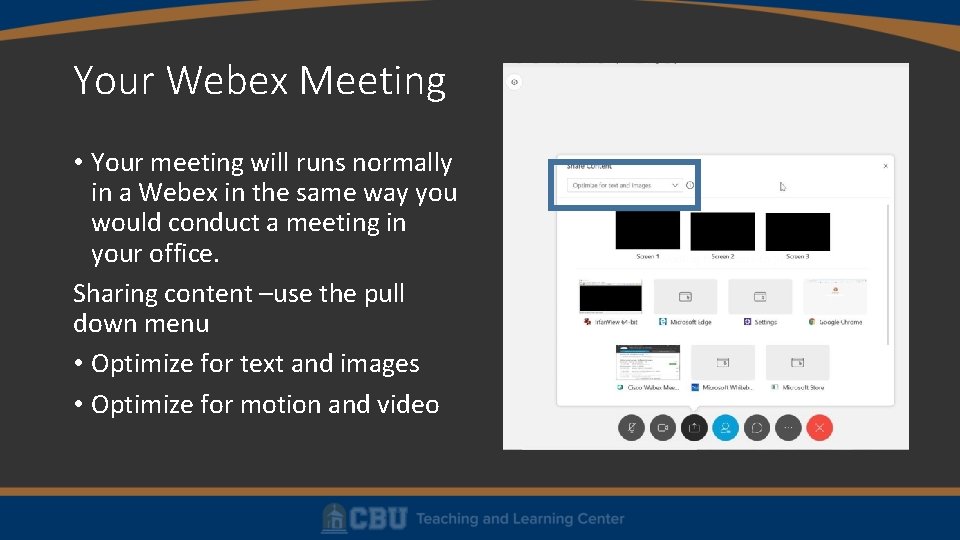
Your Webex Meeting • Your meeting will runs normally in a Webex in the same way you would conduct a meeting in your office. Sharing content –use the pull down menu • Optimize for text and images • Optimize for motion and video
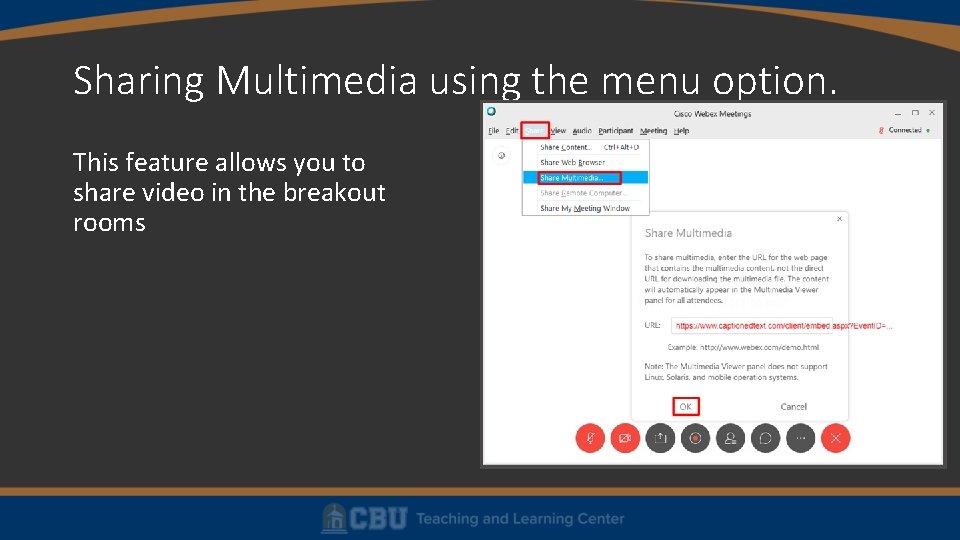
Sharing Multimedia using the menu option. This feature allows you to share video in the breakout rooms
Breakout Sessions • Enable Breakout Sessions • In a scheduled meeting, you can enable this in advance in the settings • During a live meeting, at the top menu, select Breakout > Enable Breakout Session • Start a Breakout Session • Select the Breakout Sessions button from the bottom controls • You may manually assign groups, or let the system assign automatically • Select Start Breakout Sessions to start the group sessions. • Select the Breakout Sessions button > End all breakout sessions to recall the class.
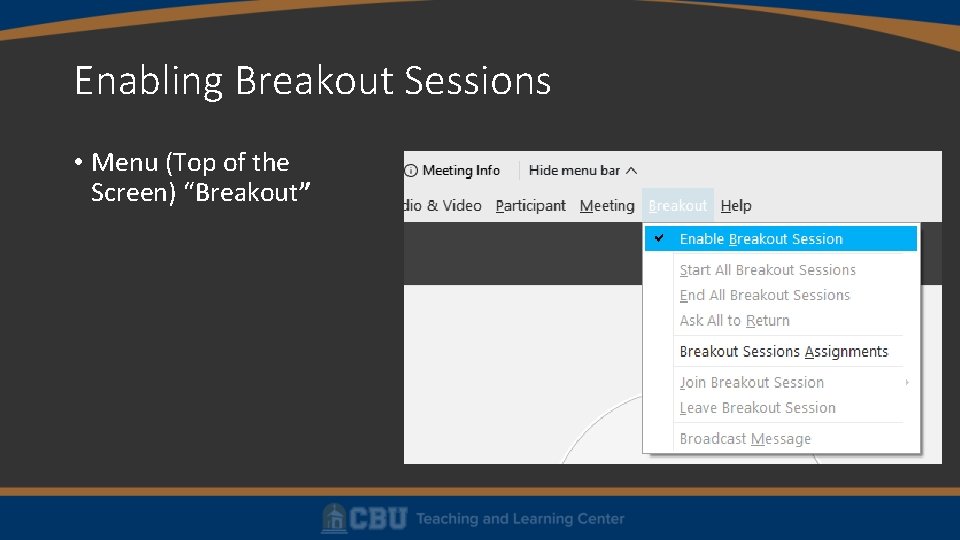
Enabling Breakout Sessions • Menu (Top of the Screen) “Breakout”
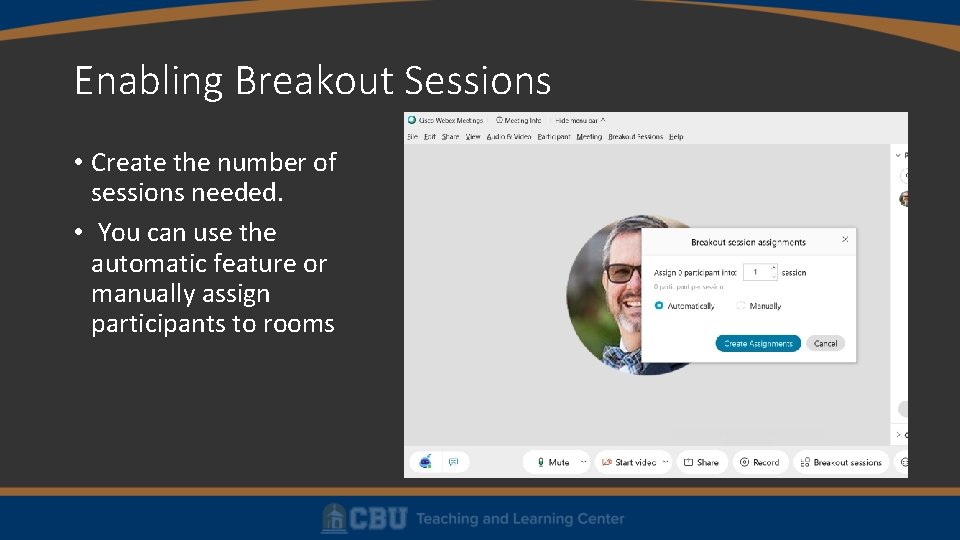
Enabling Breakout Sessions • Create the number of sessions needed. • You can use the automatic feature or manually assign participants to rooms
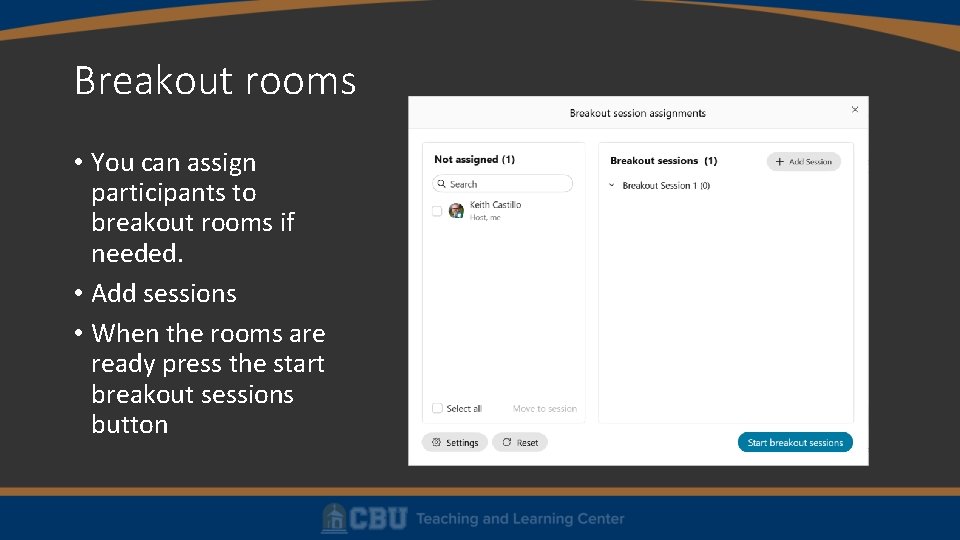
Breakout rooms • You can assign participants to breakout rooms if needed. • Add sessions • When the rooms are ready press the start breakout sessions button
Joining breakout rooms • You first need to disconnect from the Room. Kit • Click on the breakout room button • Then select the room you want to join. To move to another room • Click on the breakout room button • Click on leave room • Then select the next room you want to join
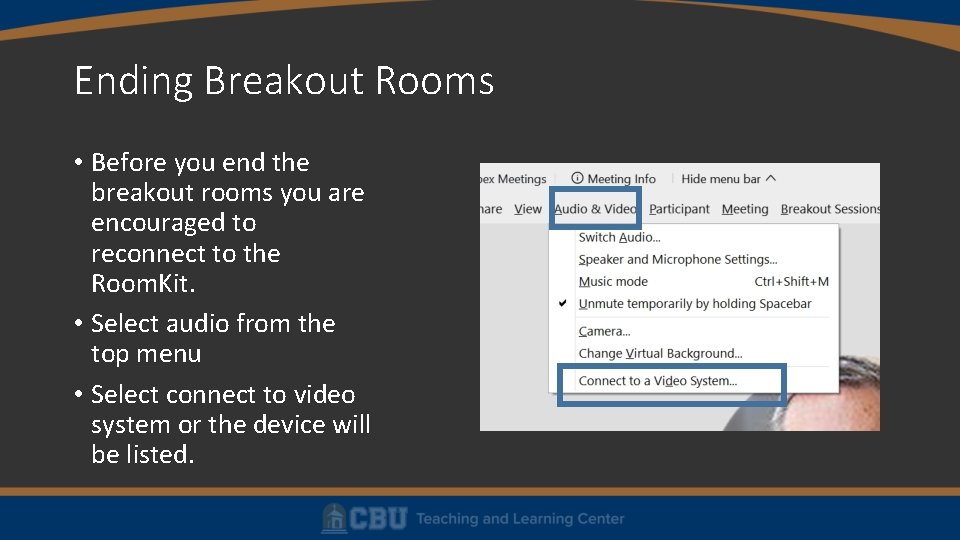
Ending Breakout Rooms • Before you end the breakout rooms you are encouraged to reconnect to the Room. Kit. • Select audio from the top menu • Select connect to video system or the device will be listed.
Ending your breakout rooms • Once you have reconnected to the Room. Kit you can end your breakout sessions. • There is a 60 second count down before session ends. This will allow you to prepare to continue the meeting sessions with the class.
What you can do and can’t do in a breakout session Can do • Share media using the Share media option as discussed • Broadcast to all meetings rooms Can’t do and limitations • Breakout sessions can’t be joined by phone only participants • You cannot manage (host) or join (participant) breakout session from a web browser • Recommendation: Always use the Webex Meetings desktop application. • Unavailable features when in Breakout session: • • Webex Assistant Automated closed captioning Recording (the main session is recorded but breakout rooms are not) Annotation and whiteboard
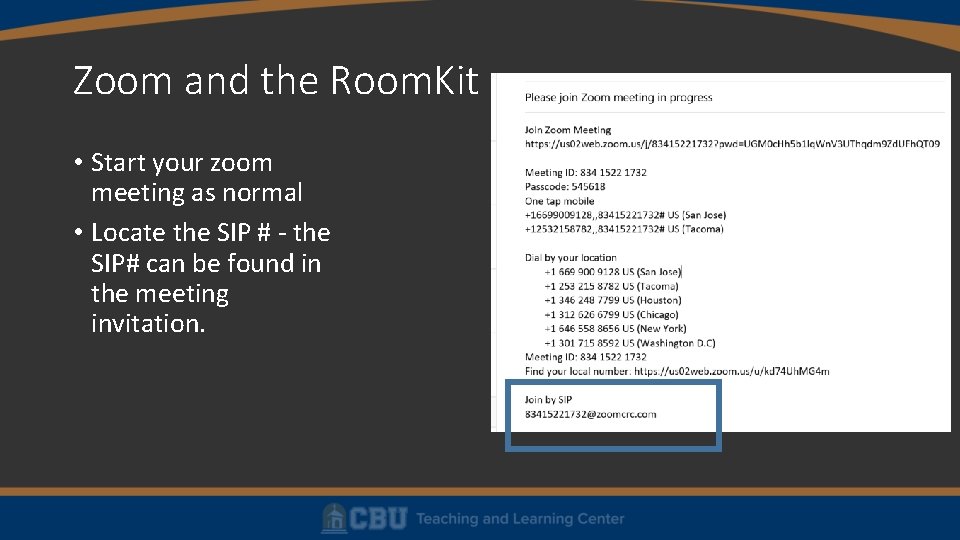
Zoom and the Room. Kit • Start your zoom meeting as normal • Locate the SIP # - the SIP# can be found in the meeting invitation.
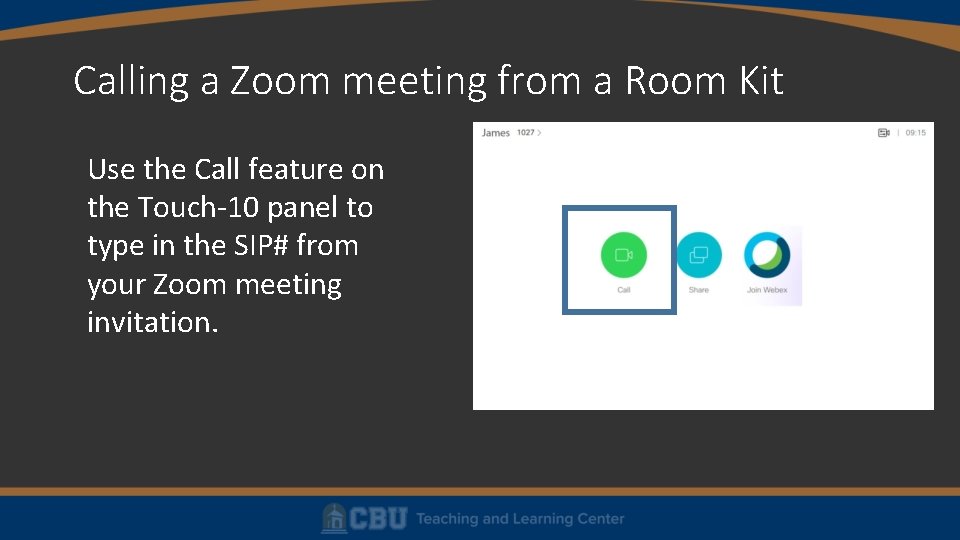
Calling a Zoom meeting from a Room Kit Use the Call feature on the Touch-10 panel to type in the SIP# from your Zoom meeting invitation.
Webex Polling • Part 1: Adding the Polling Panel • 1. Start the Web. Ex meeting. • 2. Click the More Options and Controls down arrow and choose Manage Panels. • In the Manage Panels popup window, choose Polling under Available panels and click on the Add button.
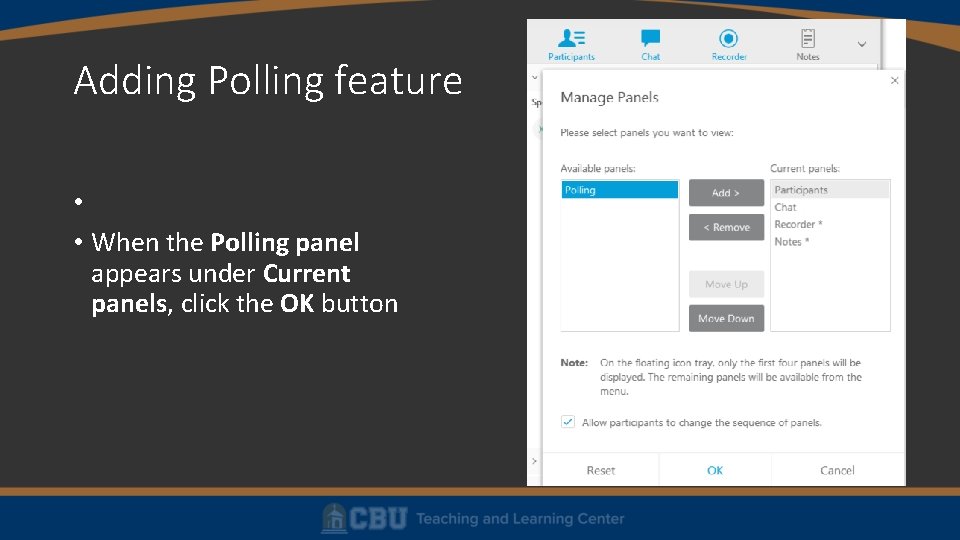
Adding Polling feature • • When the Polling panel appears under Current panels, click the OK button
Creating Polling Questions • There are mainly two types of questions: Multiple choice (Single Answer/ Multiple Answers) and Short answers. • Single Answer: The answer options will be displayed as radio buttons and only one selection is allowed. • Multiple Answer: The answer options will be displayed as check boxes and more than one selection are allowed. • • Short answer An empty text box will be displayed under the question text. Participants can type their answers.
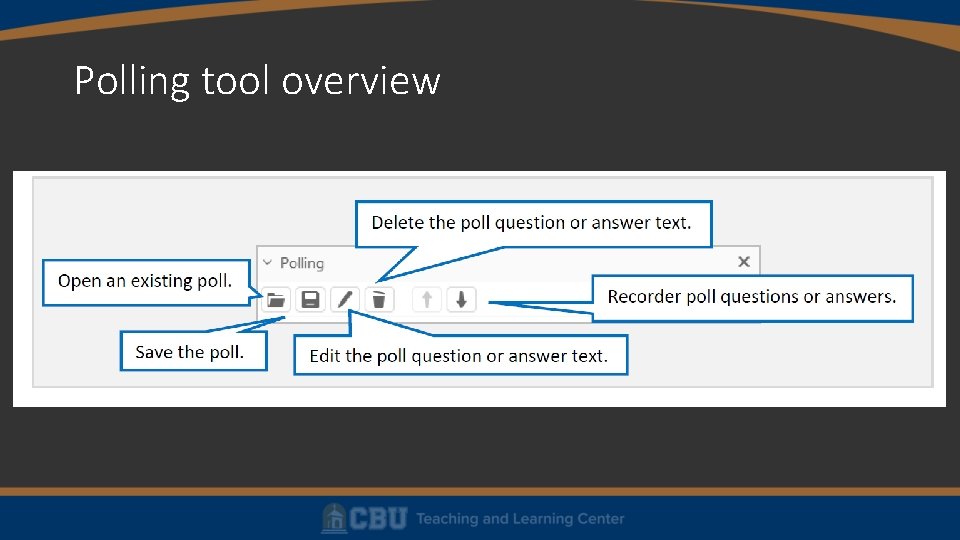
Polling tool overview
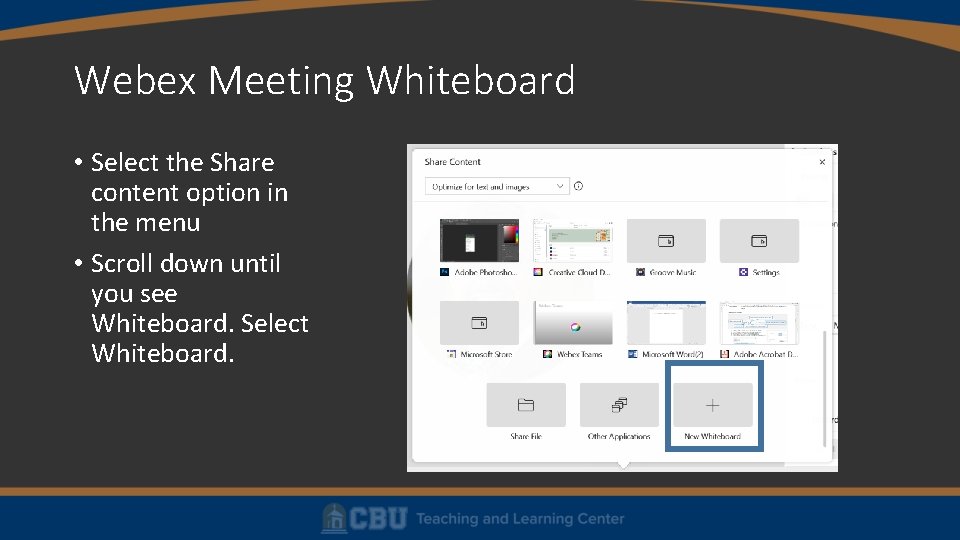
Webex Meeting Whiteboard • Select the Share content option in the menu • Scroll down until you see Whiteboard. Select Whiteboard.
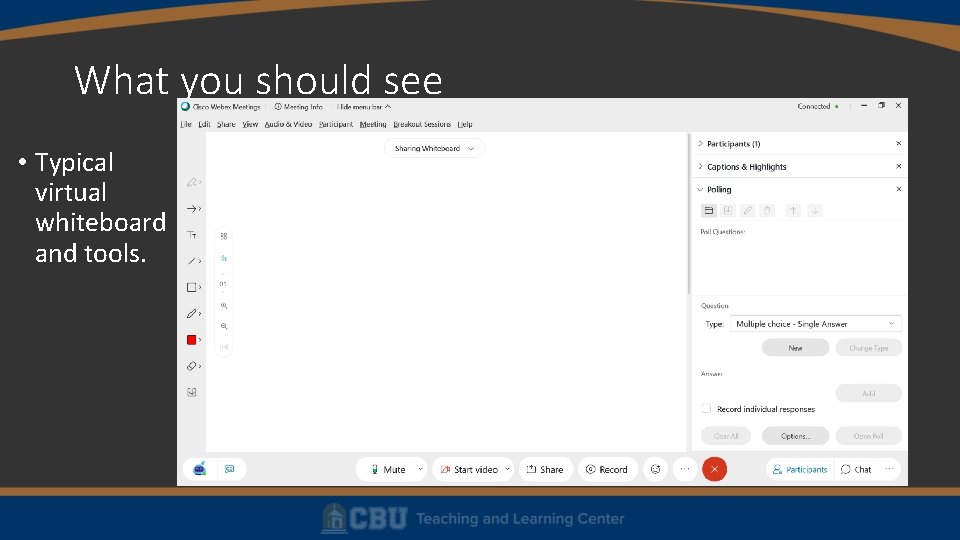
What you should see • Typical virtual whiteboard and tools.
For help or if you have questions please contact the TLC.
- Slides: 26