
Cisco Webex Meetings Roomkit Training Agenda 1 Using
Cisco Webex Meetings & Roomkit Training
Agenda 1. Using a Room. Kit, 2. Webex Meetings App • Connecting your device (being on the same network) • Touch (10) controller • Camera and microphone 3. Using Breakout sessions 4. Enabling feature, assigning groups, sharing media in groups, in ending sessions
Devices in the room • Your laptop or Classroom computer • Cisco Room. Kit – Display, Camera, Touch-10 panel, Soundbar, and Microphone. Connecting to the Roomkit • Important: Must be using the Webex Meetings desktop application.
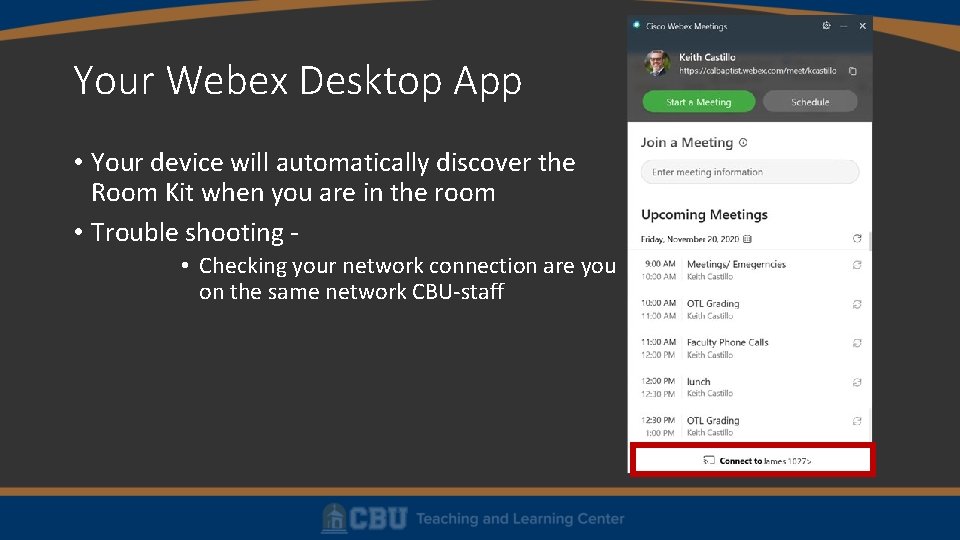
Your Webex Desktop App • Your device will automatically discover the Room Kit when you are in the room • Trouble shooting • Checking your network connection are you on the same network CBU-staff
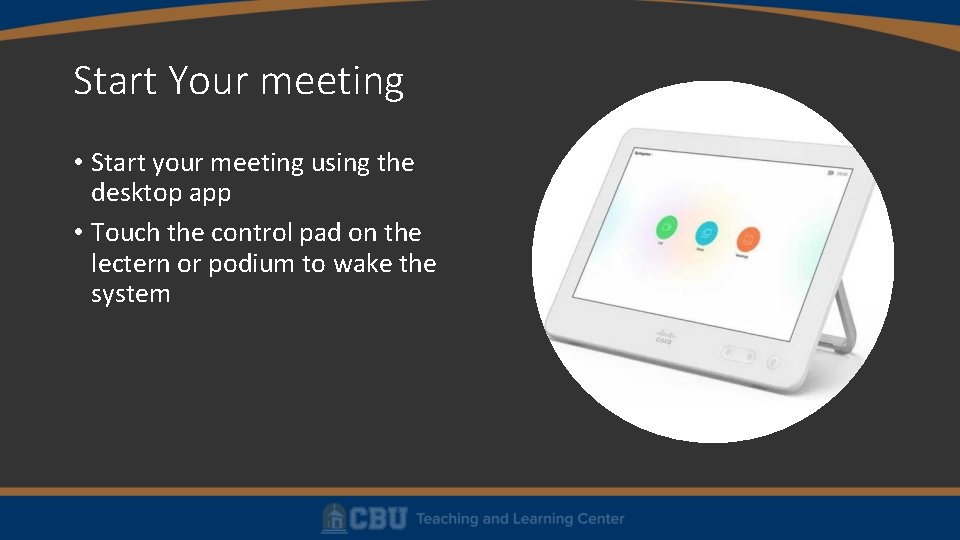
Start Your meeting • Start your meeting using the desktop app • Touch the control pad on the lectern or podium to wake the system

Answering the Cisco Room Kit meeting call • Click the green button to answer the call.
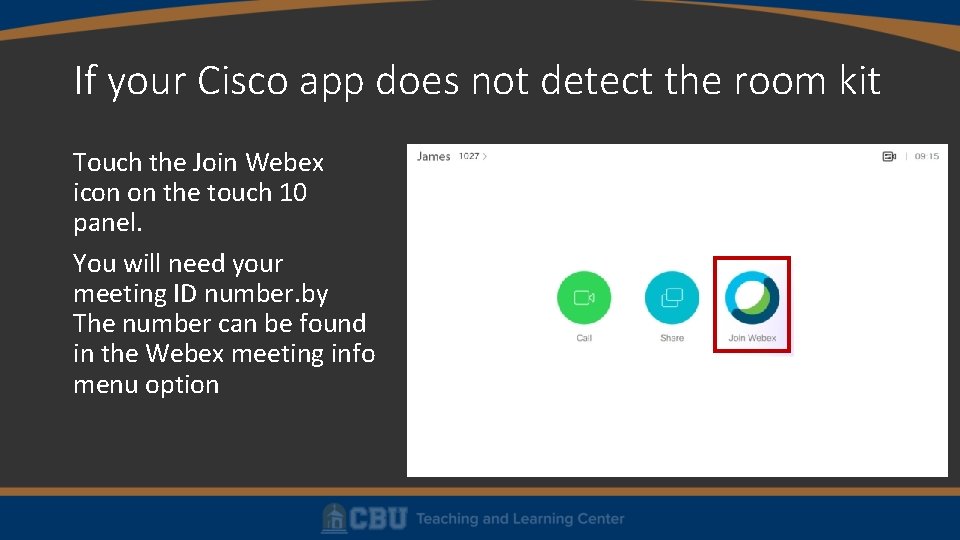
If your Cisco app does not detect the room kit Touch the Join Webex icon on the touch 10 panel. You will need your meeting ID number. by The number can be found in the Webex meeting info menu option
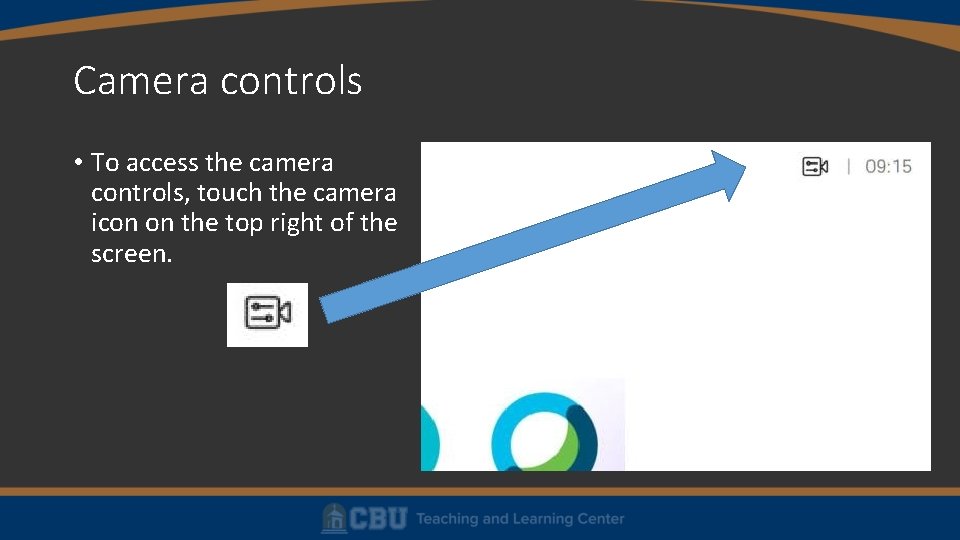
Camera controls • To access the camera controls, touch the camera icon on the top right of the screen.
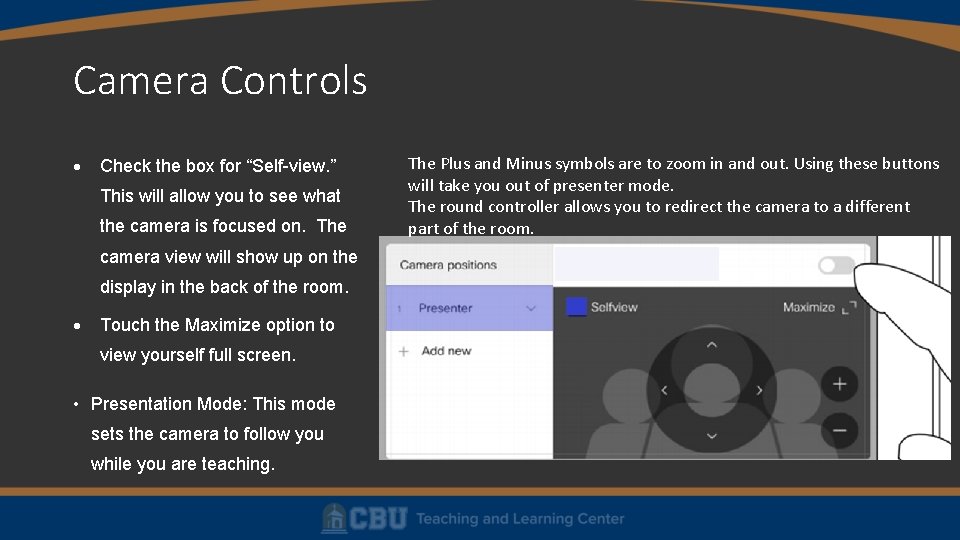
Camera Controls Check the box for “Self-view. ” This will allow you to see what the camera is focused on. The camera view will show up on the display in the back of the room. Touch the Maximize option to view yourself full screen. • Presentation Mode: This mode sets the camera to follow you while you are teaching. The Plus and Minus symbols are to zoom in and out. Using these buttons will take you out of presenter mode. The round controller allows you to redirect the camera to a different part of the room.
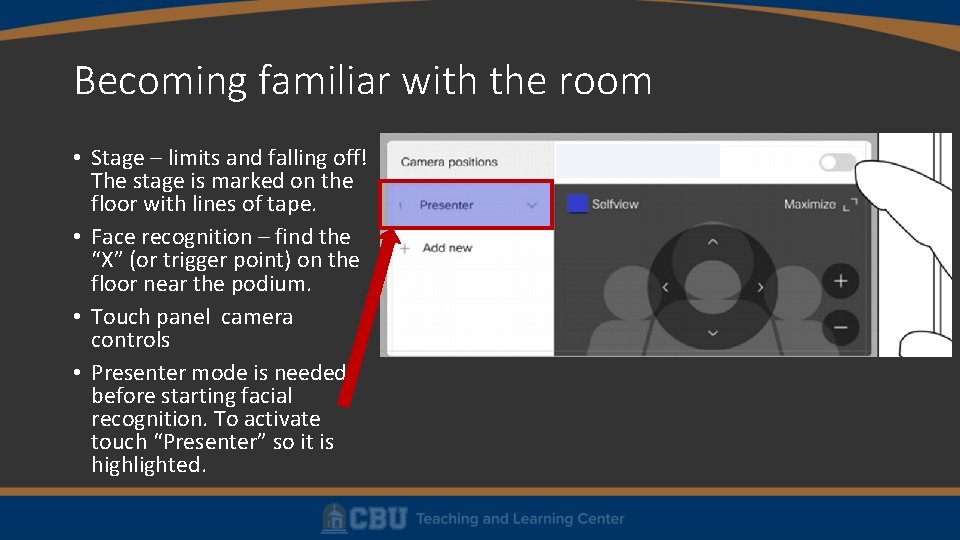
Becoming familiar with the room • Stage – limits and falling off! The stage is marked on the floor with lines of tape. • Face recognition – find the “X” (or trigger point) on the floor near the podium. • Touch panel camera controls • Presenter mode is needed before starting facial recognition. To activate touch “Presenter” so it is highlighted.
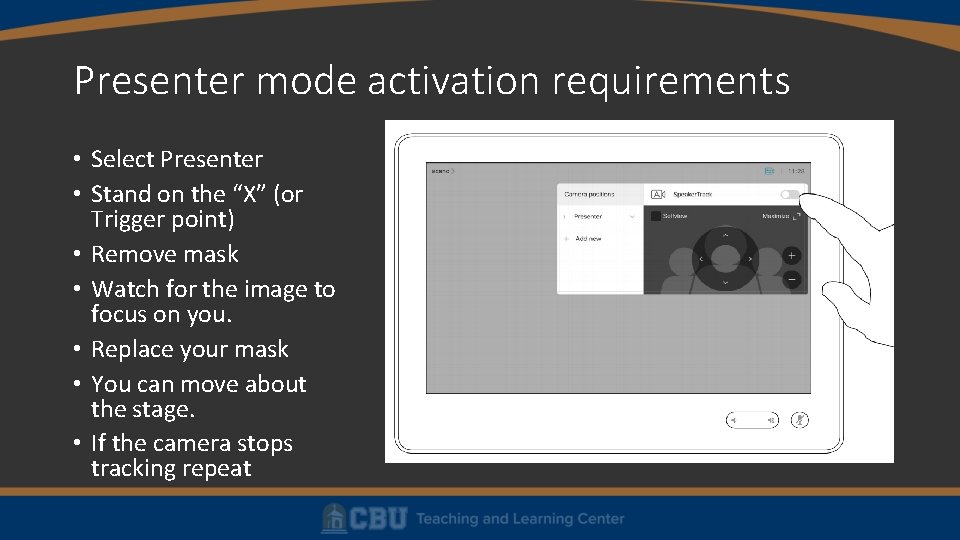
Presenter mode activation requirements • Select Presenter • Stand on the “X” (or Trigger point) • Remove mask • Watch for the image to focus on you. • Replace your mask • You can move about the stage. • If the camera stops tracking repeat
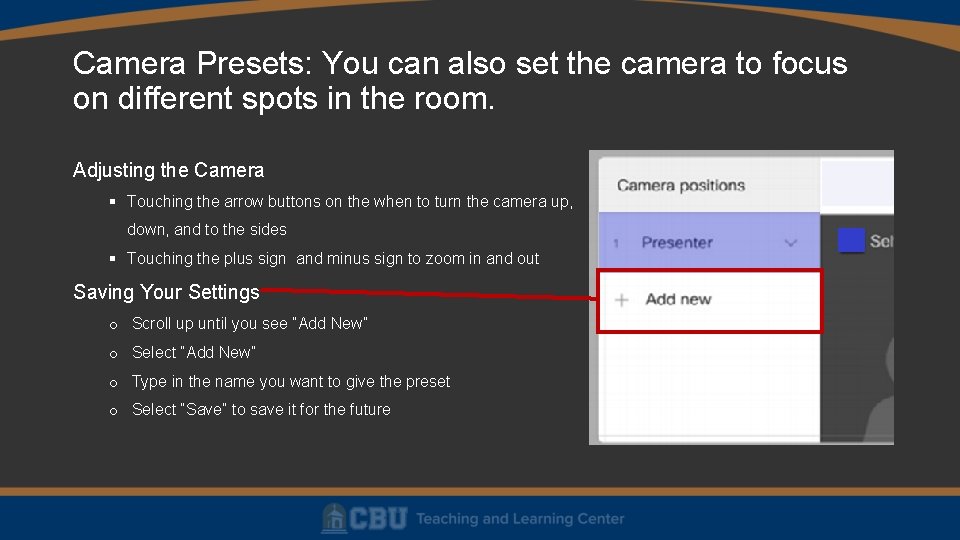
Camera Presets: You can also set the camera to focus on different spots in the room. Adjusting the Camera Touching the arrow buttons on the when to turn the camera up, down, and to the sides Touching the plus sign and minus sign to zoom in and out Saving Your Settings o Scroll up until you see “Add New” o Select “Add New” o Type in the name you want to give the preset o Select “Save” to save it for the future
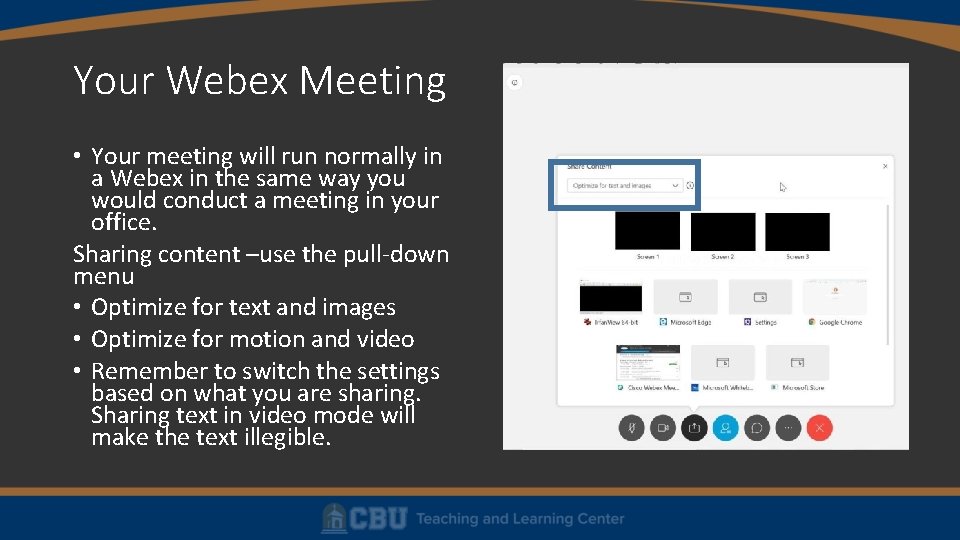
Your Webex Meeting • Your meeting will run normally in a Webex in the same way you would conduct a meeting in your office. Sharing content –use the pull-down menu • Optimize for text and images • Optimize for motion and video • Remember to switch the settings based on what you are sharing. Sharing text in video mode will make the text illegible.
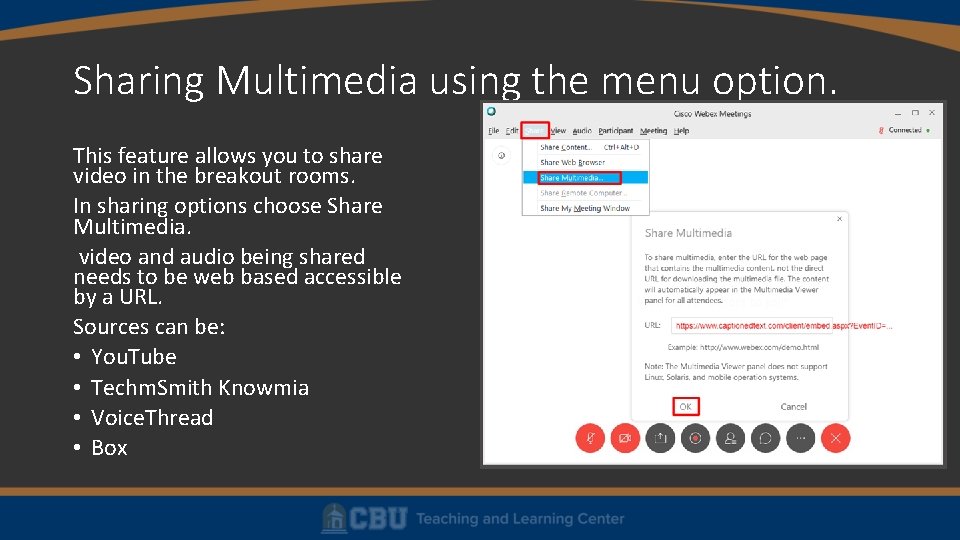
Sharing Multimedia using the menu option. This feature allows you to share video in the breakout rooms. In sharing options choose Share Multimedia. video and audio being shared needs to be web based accessible by a URL. Sources can be: • You. Tube • Techm. Smith Knowmia • Voice. Thread • Box
Breakout Sessions • Enable Breakout Sessions • In a scheduled meeting, you can enable this in advance in the settings • During a live meeting, at the top menu, select Breakout > Enable Breakout Session • Start a Breakout Session • Select the Breakout Sessions button from the bottom controls • You may manually assign groups, or let the system assign automatically • Select Start Breakout Sessions to start the group sessions. • Select the Breakout Sessions button > End all breakout sessions to recall the class.

Enabling Breakout Sessions in the Webex App • Menu (Top of the Screen) “Breakout”
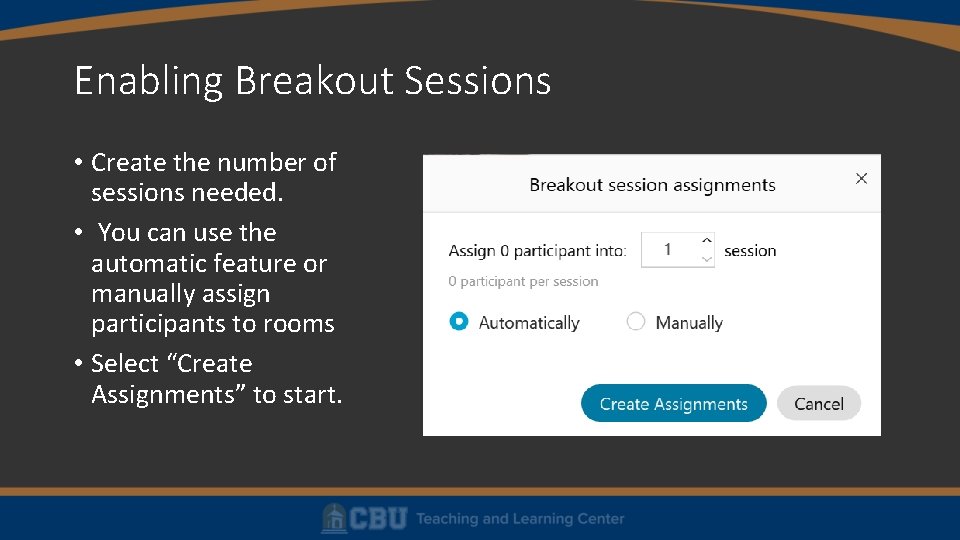
Enabling Breakout Sessions • Create the number of sessions needed. • You can use the automatic feature or manually assign participants to rooms • Select “Create Assignments” to start.
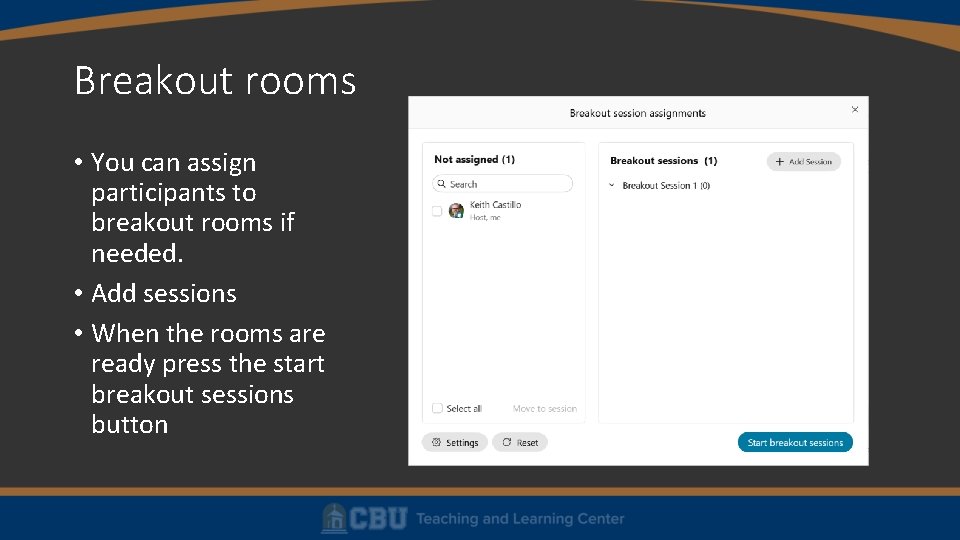
Breakout rooms • You can assign participants to breakout rooms if needed. • Add sessions • When the rooms are ready press the start breakout sessions button
Joining breakout rooms • You first need to disconnect from the Room. Kit • Click on the breakout room button • Then select the room you want to join. To move to another room • Click on the breakout room button • Click on leave room • Then select the next room you want to join
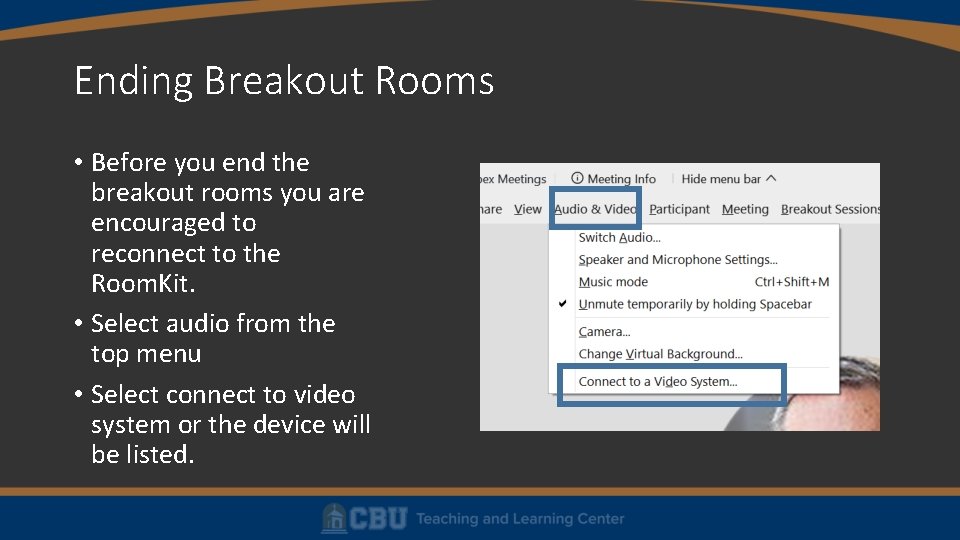
Ending Breakout Rooms • Before you end the breakout rooms you are encouraged to reconnect to the Room. Kit. • Select audio from the top menu • Select connect to video system or the device will be listed.
Ending your breakout rooms • Once you have reconnected to the Room. Kit you can end your breakout sessions. • There is a 60 second count down before session ends. This will allow you to prepare to continue the meeting sessions with the class.
What you can do and can’t do in a breakout session Can do • Share media using the Share media option as discussed • Broadcast to all meetings rooms Can’t do and limitations • Breakout sessions can’t be joined by phone only participants • You cannot manage (host) or join (participant) breakout session from a web browser • Recommendation: Always use the Webex Meetings desktop application. • Unavailable features when in Breakout session: • • Webex Assistant Automated closed captioning Recording (the main session is recorded but breakout rooms are not) Annotation and whiteboard
Prescheduling a Webex Meeting It is best to log in to Webex through the web interface when scheduling meetings. Options available: • Meeting reoccurrence Under advanced options > Scheduling options: • Automatically start recording • Enable Breakout Sessions • Meeting Options > enable closed Captioning
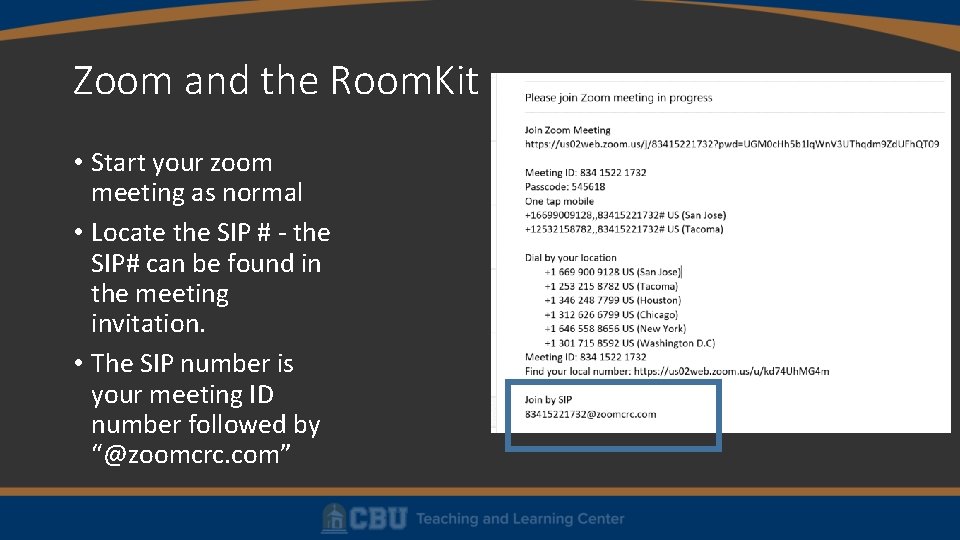
Zoom and the Room. Kit • Start your zoom meeting as normal • Locate the SIP # - the SIP# can be found in the meeting invitation. • The SIP number is your meeting ID number followed by “@zoomcrc. com”
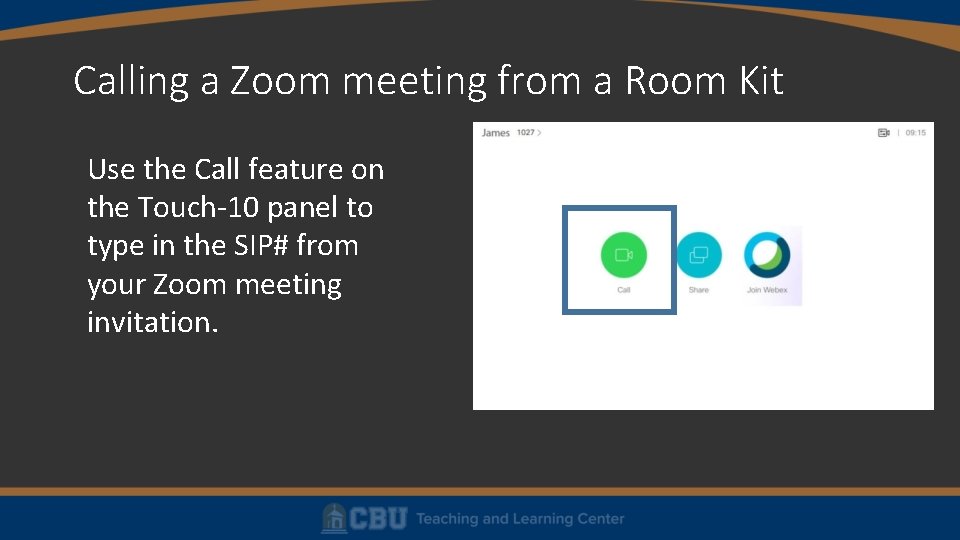
Calling a Zoom meeting from a Room Kit Use the Call feature on the Touch-10 panel to type in the SIP# from your Zoom meeting invitation.
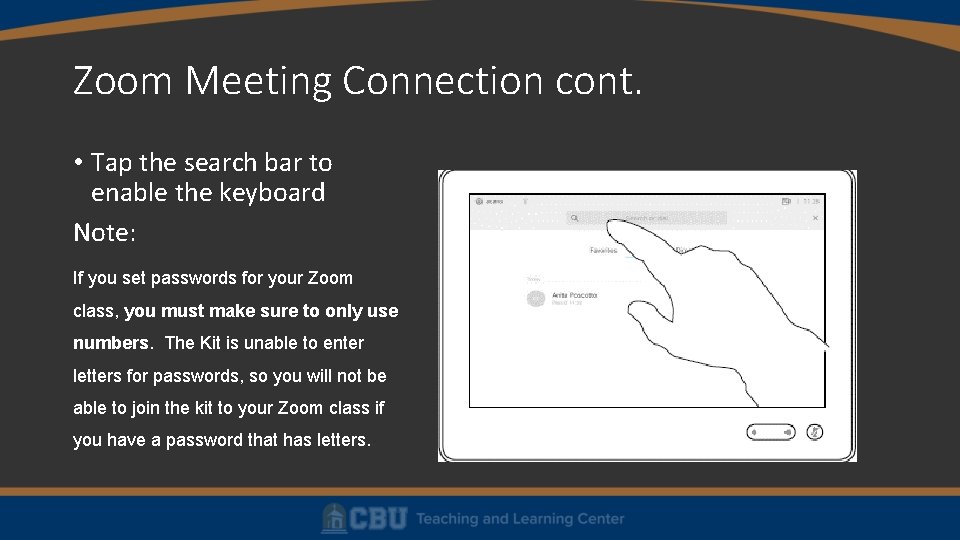
Zoom Meeting Connection cont. • Tap the search bar to enable the keyboard Note: If you set passwords for your Zoom class, you must make sure to only use numbers. The Kit is unable to enter letters for passwords, so you will not be able to join the kit to your Zoom class if you have a password that has letters.
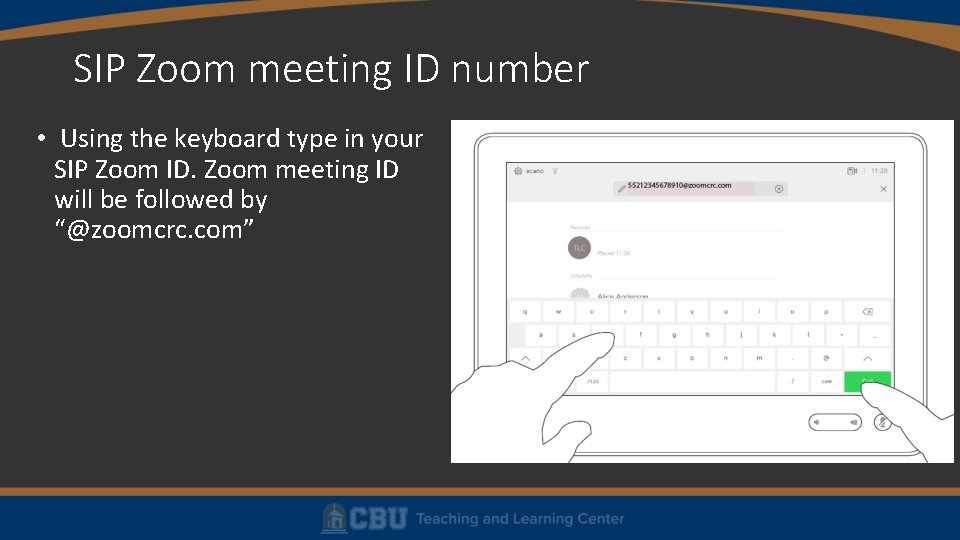
SIP Zoom meeting ID number • Using the keyboard type in your SIP Zoom ID. Zoom meeting ID will be followed by “@zoomcrc. com”
Webex Polling • Part 1: Adding the Polling Panel • 1. Start the Web. Ex meeting. • 2. Click the More Options and Controls down arrow and choose Manage Panels. • In the Manage Panels popup window, choose Polling under Available panels and click on the Add button.
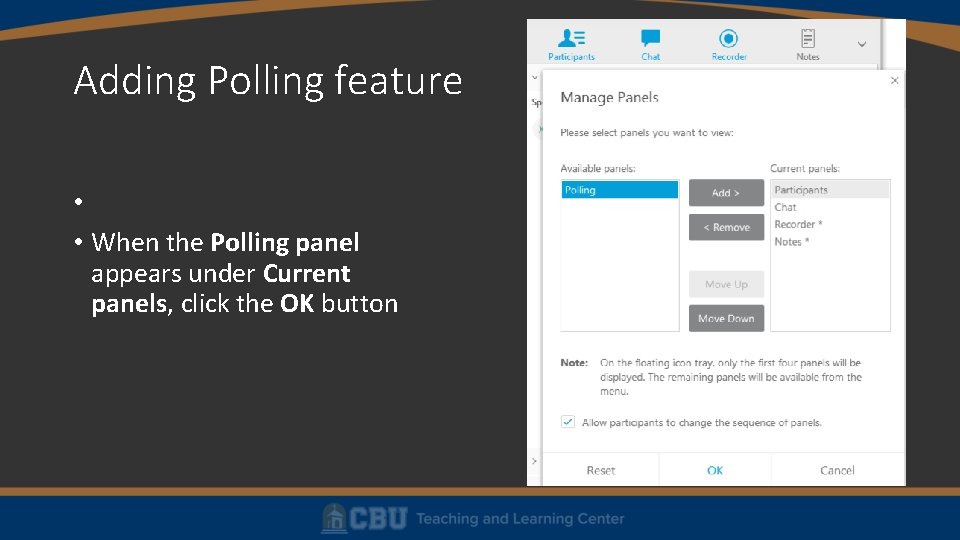
Adding Polling feature • • When the Polling panel appears under Current panels, click the OK button
Creating Polling Questions • There are mainly two types of questions: Multiple choice (Single Answer/ Multiple Answers) and Short answers. • Single Answer: The answer options will be displayed as radio buttons and only one selection is allowed. • Multiple Answer: The answer options will be displayed as check boxes and more than one selection are allowed. • • Short answer An empty text box will be displayed under the question text. Participants can type their answers.
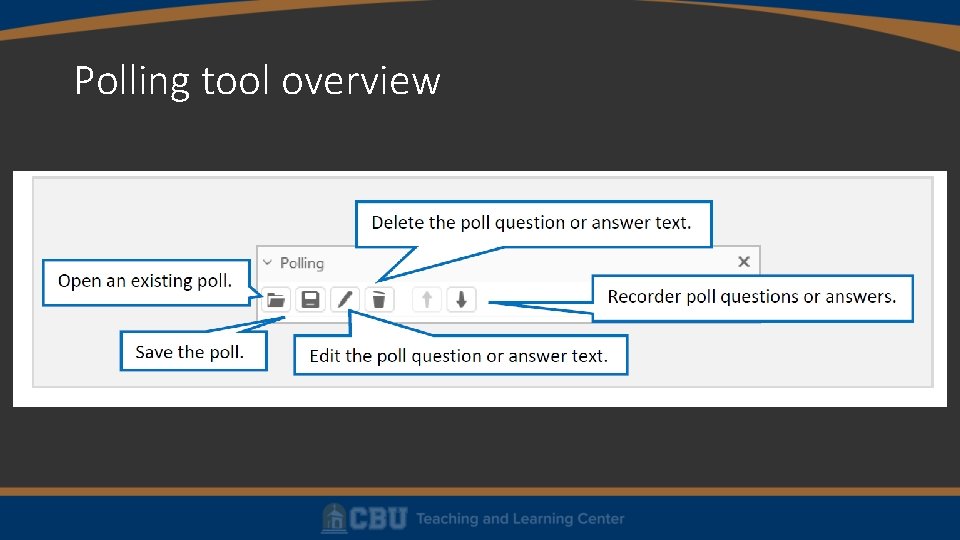
Polling tool overview
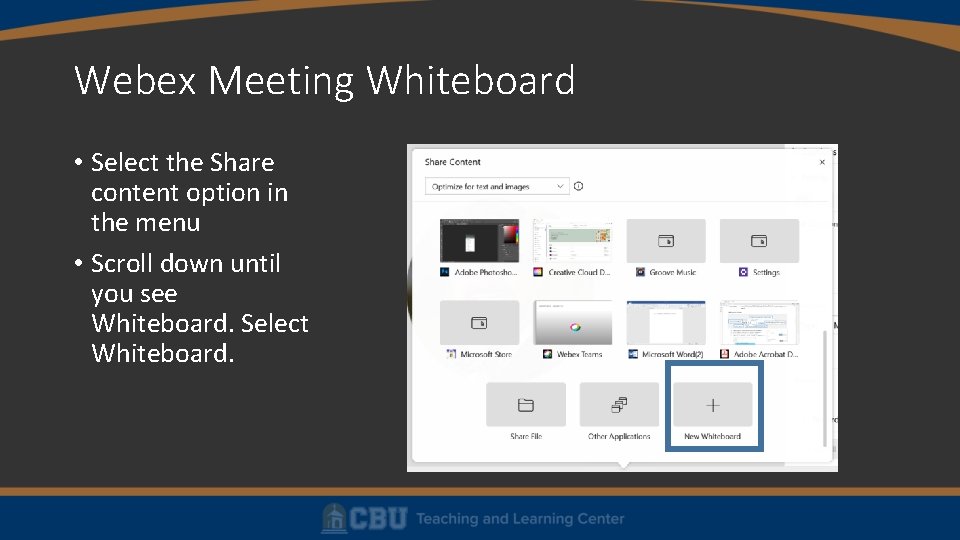
Webex Meeting Whiteboard • Select the Share content option in the menu • Scroll down until you see Whiteboard. Select Whiteboard.
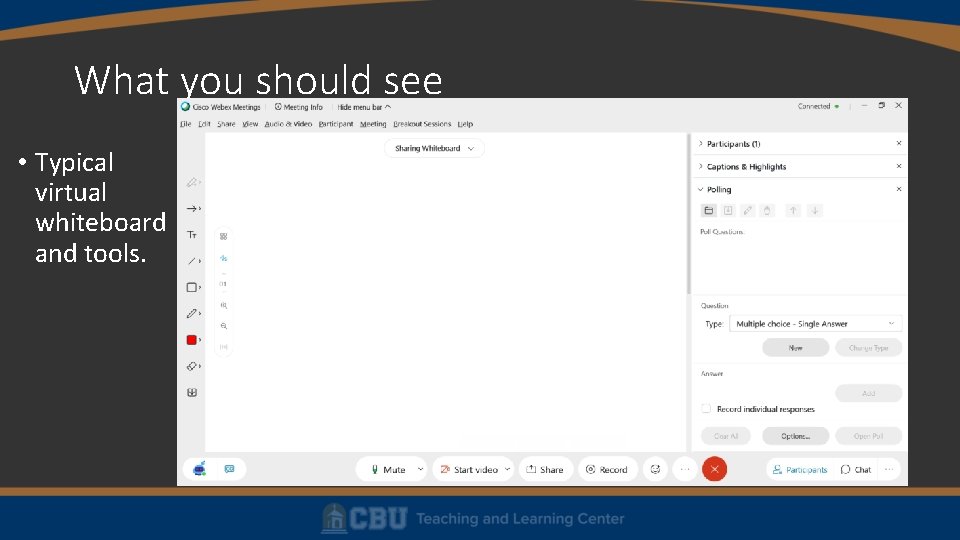
What you should see • Typical virtual whiteboard and tools.
For help or if you have questions please contact the TLC.
- Slides: 34