
Cisco Webex for eSchool Davide Grandis Webex TSA

Cisco Webex for e-School Davide Grandis Webex TSA EMEAR March 2 nd, 2020 - version 1. 0
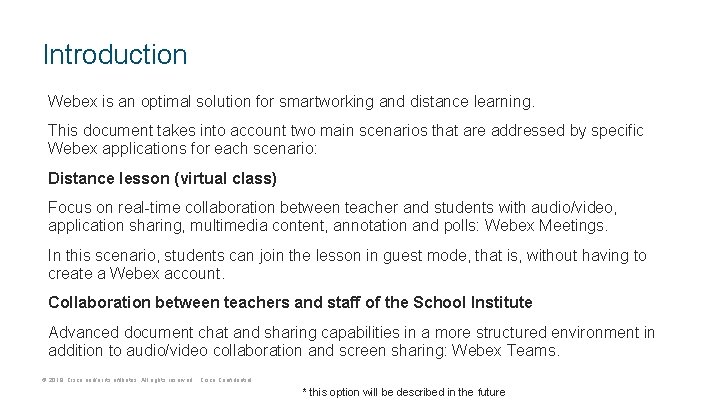
Introduction Webex is an optimal solution for smartworking and distance learning. This document takes into account two main scenarios that are addressed by specific Webex applications for each scenario: Distance lesson (virtual class) Focus on real-time collaboration between teacher and students with audio/video, application sharing, multimedia content, annotation and polls: Webex Meetings. In this scenario, students can join the lesson in guest mode, that is, without having to create a Webex account. Collaboration between teachers and staff of the School Institute Advanced document chat and sharing capabilities in a more structured environment in addition to audio/video collaboration and screen sharing: Webex Teams. © 2018 Cisco and/or its affiliates. All rights reserved. Cisco Confidential * this option will be described in the future
1) Preliminary setup © 2018 Cisco and/or its affiliates. All rights reserved. Cisco Confidential
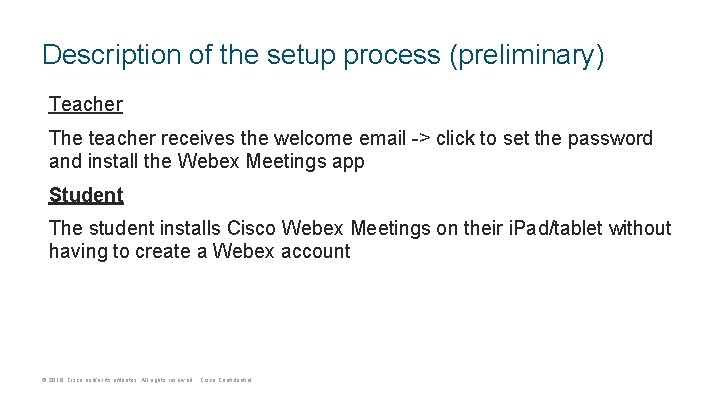
Description of the setup process (preliminary) Teacher The teacher receives the welcome email -> click to set the password and install the Webex Meetings app Student The student installs Cisco Webex Meetings on their i. Pad/tablet without having to create a Webex account © 2018 Cisco and/or its affiliates. All rights reserved. Cisco Confidential
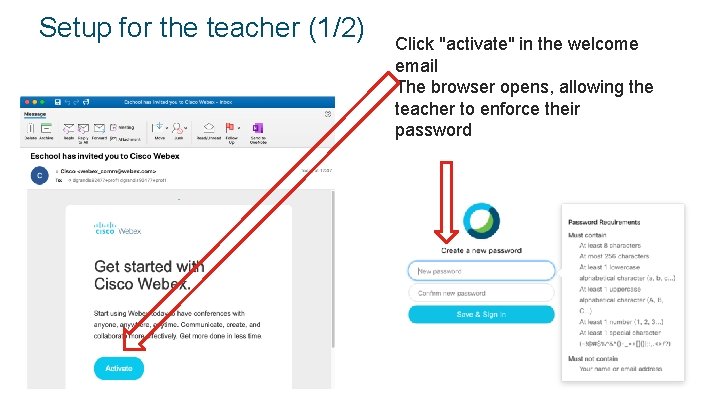
Setup for the teacher (1/2) © 2018 Cisco and/or its affiliates. All rights reserved. Cisco Confidential Click "activate" in the welcome email The browser opens, allowing the teacher to enforce their password
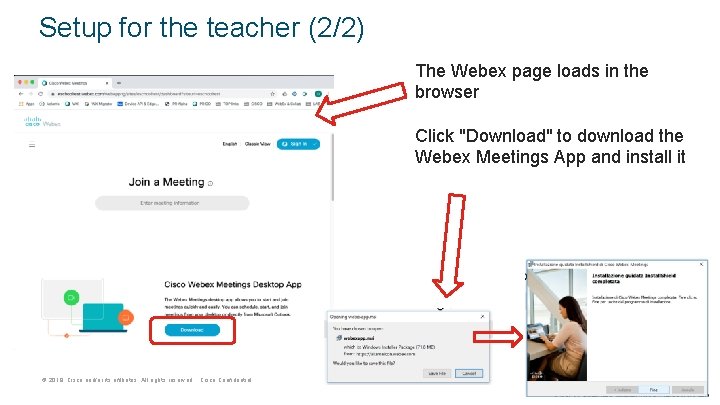
Setup for the teacher (2/2) The Webex page loads in the browser Click "Download" to download the Webex Meetings App and install it © 2018 Cisco and/or its affiliates. All rights reserved. Cisco Confidential

Teacher login Launch the Webex Meetings app on your PC and log in using your Webex credentials (email address and password) © 2018 Cisco and/or its affiliates. All rights reserved. Cisco Confidential
Virtual lesson The virtual lesson takes place in a virtual classroom represented by the so-called "Personal Room" or personal room of the teacher. This room represents the physical class of the school and the Personal Room provides digital tools that allow an advanced collaboration between teacher and students. Teachers can share their PC screen, show documents, applications, and even multimedia content. The Personal Room is run by the teacher. The teacher initiates the lesson by allowing the students to participate. The teacher can also mute or even expel one or more students and can record the lesson itself, to allow students who are absent to enjoy it later. The teacher can lock (equivalent to locking the classroom door) to prevent other students from connecting and finally, it is always the teacher who has the power to finish the lesson, closing the Personal Room. © 2018 Cisco and/or its affiliates. All rights reserved. Cisco Confidential How to use: The professor organizes the video conference for the class using the link to Webex The professor copies the Webex link of his/her Personal Room from the Webex app The professor shares the link with the class through the most appropriate tool (electronic register, email etc) At the indicated time, the professor starts the meeting; students participate by clicking on the received link Students who connect in advance (before the professor starts the meeting) are waiting. They are equally waiting when the professor locks the meeting.
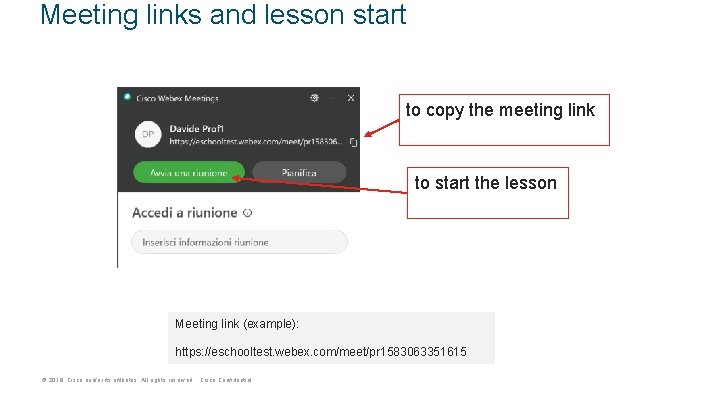
Meeting links and lesson start to copy the meeting link to start the lesson Meeting link (example): https: //eschooltest. webex. com/meet/pr 1583063351615 © 2018 Cisco and/or its affiliates. All rights reserved. Cisco Confidential
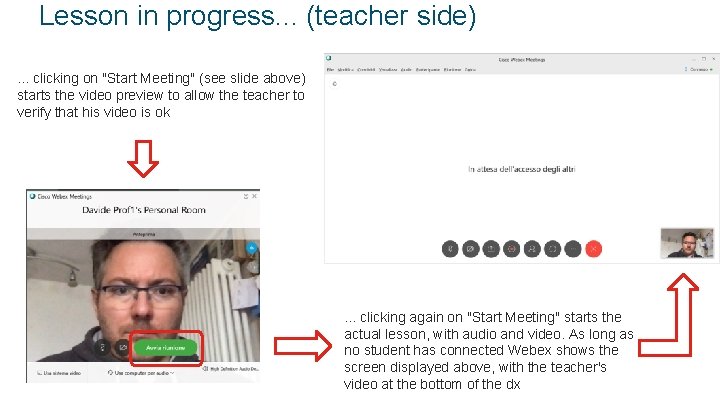
Lesson in progress. . . (teacher side). . . clicking on "Start Meeting" (see slide above) starts the video preview to allow the teacher to verify that his video is ok © 2018 Cisco and/or its affiliates. All rights reserved. Cisco Confidential . . . clicking again on "Start Meeting" starts the actual lesson, with audio and video. As long as no student has connected Webex shows the screen displayed above, with the teacher's video at the bottom of the dx
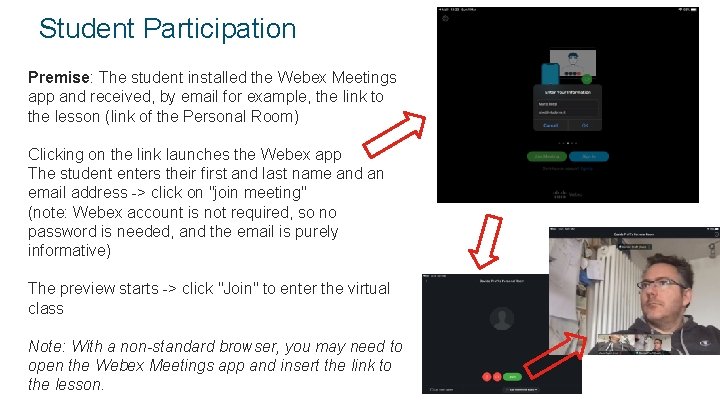
Student Participation Premise: The student installed the Webex Meetings app and received, by email for example, the link to the lesson (link of the Personal Room) Clicking on the link launches the Webex app The student enters their first and last name and an email address -> click on "join meeting" (note: Webex account is not required, so no password is needed, and the email is purely informative) The preview starts -> click "Join" to enter the virtual class Note: With a non-standard browser, you may need to open the Webex Meetings app and insert the link to the lesson. © 2018 Cisco and/or its affiliates. All rights reserved. Cisco Confidential
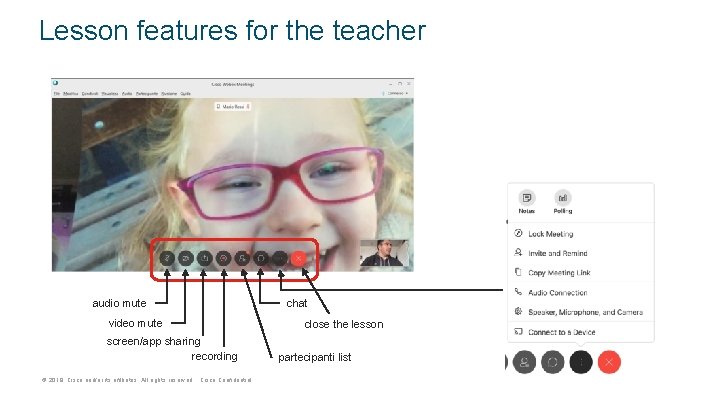
Lesson features for the teacher audio mute video mute screen/app sharing recording © 2018 Cisco and/or its affiliates. All rights reserved. Cisco Confidential chat close the lesson partecipanti list
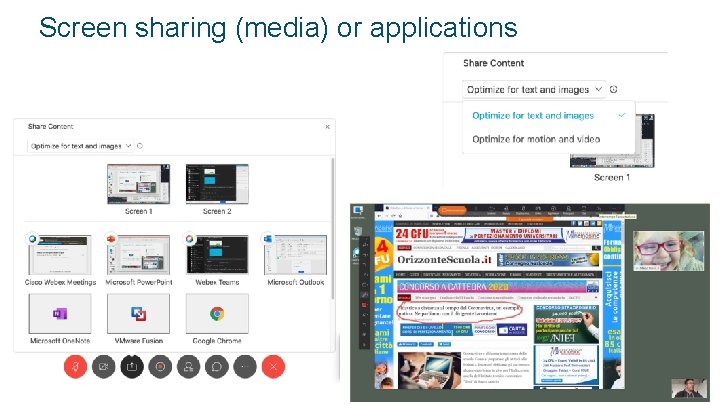
Screen sharing (media) or applications © 2018 Cisco and/or its affiliates. All rights reserved. Cisco Confidential
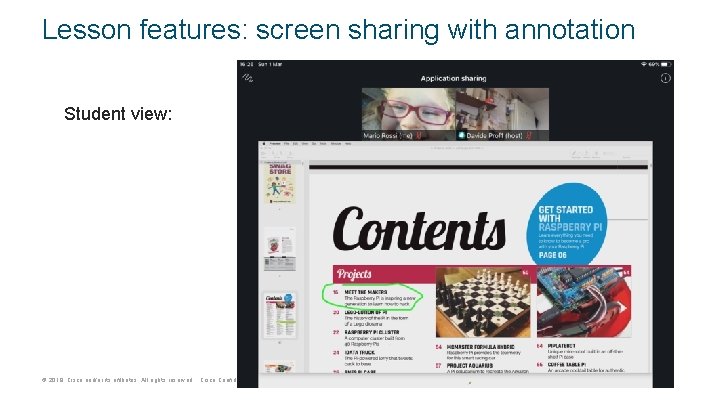
Lesson features: screen sharing with annotation Student view: © 2018 Cisco and/or its affiliates. All rights reserved. Cisco Confidential
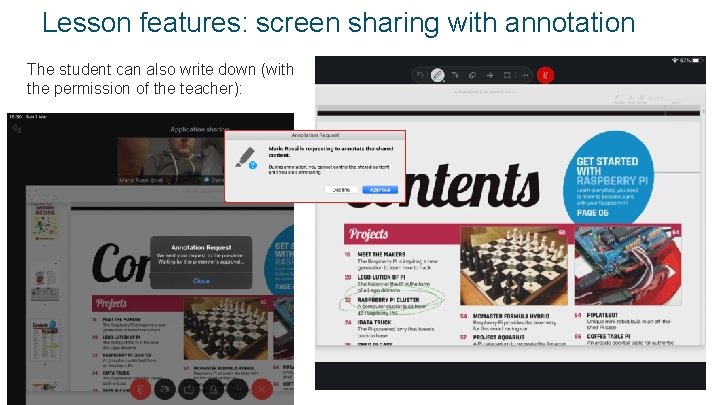
Lesson features: screen sharing with annotation The student can also write down (with the permission of the teacher): © 2018 Cisco and/or its affiliates. All rights reserved. Cisco Confidential
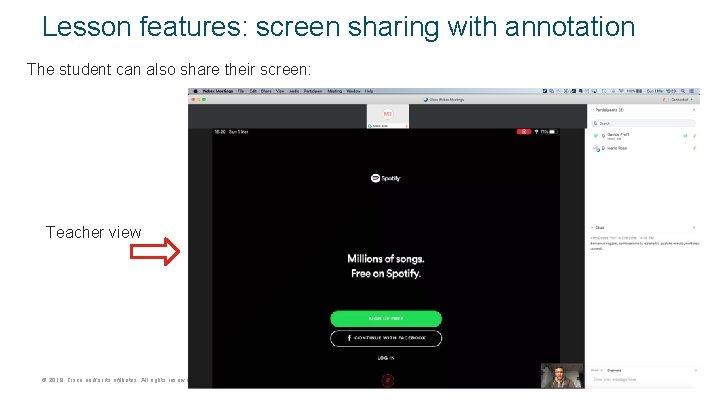
Lesson features: screen sharing with annotation The student can also share their screen: Teacher view © 2018 Cisco and/or its affiliates. All rights reserved. Cisco Confidential
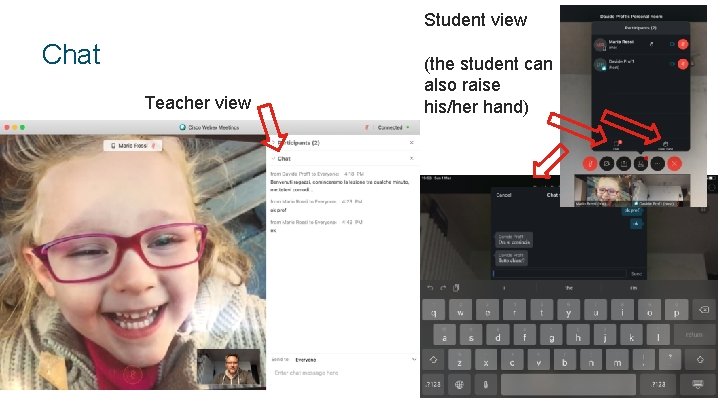
Student view Chat Teacher view © 2018 Cisco and/or its affiliates. All rights reserved. Cisco Confidential (the student can also raise his/her hand)
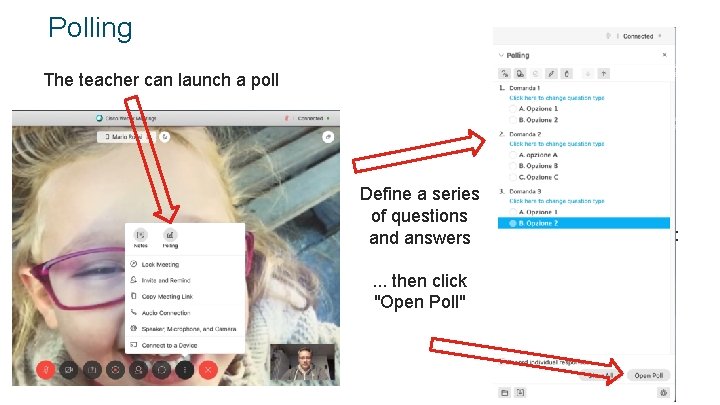
Polling The teacher can launch a poll Define a series of questions and answers. . . then click "Open Poll" © 2018 Cisco and/or its affiliates. All rights reserved. Cisco Confidential per lo studente:
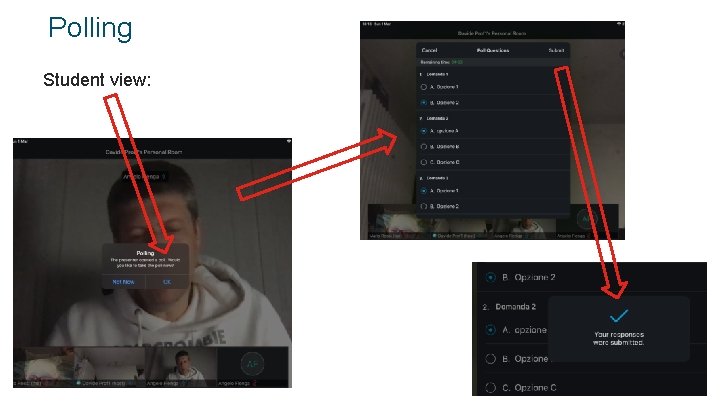
Polling Student view: © 2018 Cisco and/or its affiliates. All rights reserved. Cisco Confidential
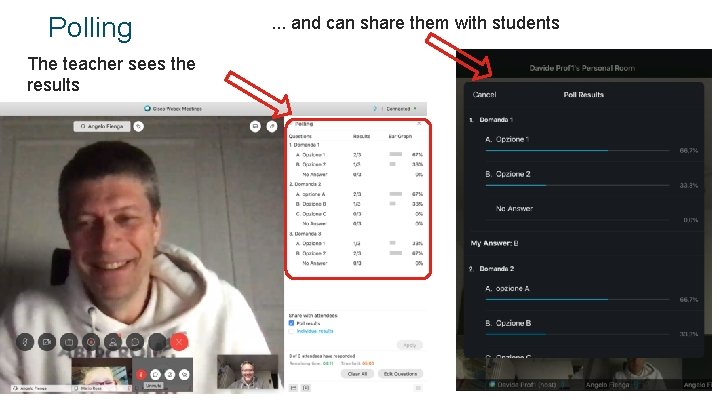
Polling The teacher sees the results © 2018 Cisco and/or its affiliates. All rights reserved. Cisco Confidential . . . and can share them with students
Lesson control (for the teacher) © 2018 Cisco and/or its affiliates. All rights reserved. Cisco Confidential
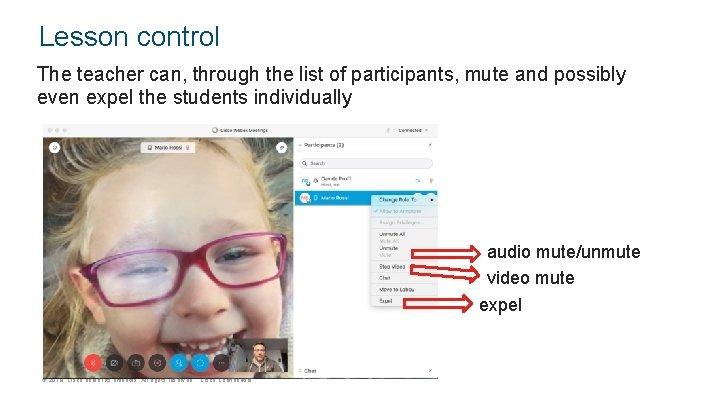
Lesson control The teacher can, through the list of participants, mute and possibly even expel the students individually audio mute/unmute video mute expel © 2018 Cisco and/or its affiliates. All rights reserved. Cisco Confidential
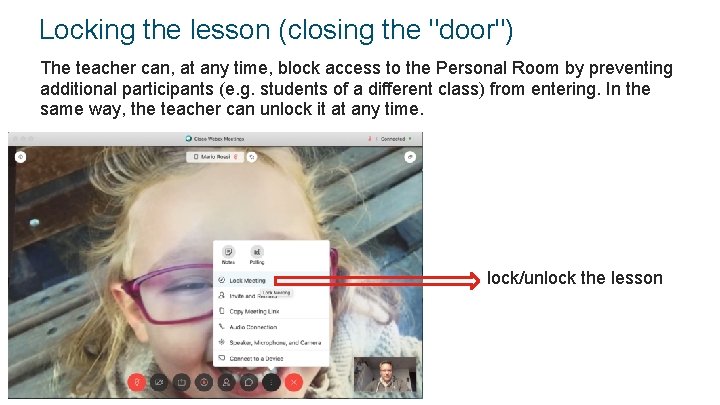
Locking the lesson (closing the "door") The teacher can, at any time, block access to the Personal Room by preventing additional participants (e. g. students of a different class) from entering. In the same way, the teacher can unlock it at any time. lock/unlock the lesson © 2018 Cisco and/or its affiliates. All rights reserved. Cisco Confidential
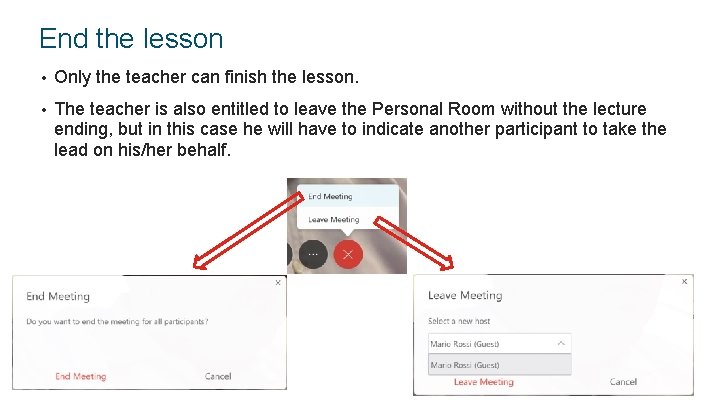
End the lesson • Only the teacher can finish the lesson. • The teacher is also entitled to leave the Personal Room without the lecture ending, but in this case he will have to indicate another participant to take the lead on his/her behalf. © 2018 Cisco and/or its affiliates. All rights reserved. Cisco Confidential

- Slides: 25