
Cisco Digital Media System Digital Signage Live Broadcast
Cisco Digital Media System Digital Signage Live Broadcast Configuration Guide for 4. 1 January 2008 Presentation_ID © 2006 Cisco Systems, Inc. All rights reserved. Cisco Confidential 1
Agenda § Prerequisites and assumptions § Necessary components § Scientific Atlanta D 9032 or 9022 encoder configuration § Testing broadcast using VLC and on Digital Media Player Device Manager (DMPDM) § Digital Media Manager (DMM) configuration § Publishing broadcast to Digital Media Player (DMP) TMEConf 28062007 © 2006 Cisco Systems, Inc. All rights reserved. Cisco Confidential 2
Prerequisites and Assumptions § Familiar with basic DMP setup and “Quick Start Guide for Cisco Digital Media Player 4305 G” that ships with DMP § Familiar with Digital Media Player Device Manager (DMPDM)* § Pre-configured Digital Media Manager – Digital Signage Module (DMM-DSM) using “Quick Start Guide for Cisco Digital Media System 4. 1”* § DMP added to DMM-DSM by either DMP Discovery application or configured manually *Please see reference page at the end of presentation TMEConf 28062007 © 2006 Cisco Systems, Inc. All rights reserved. Cisco Confidential 3
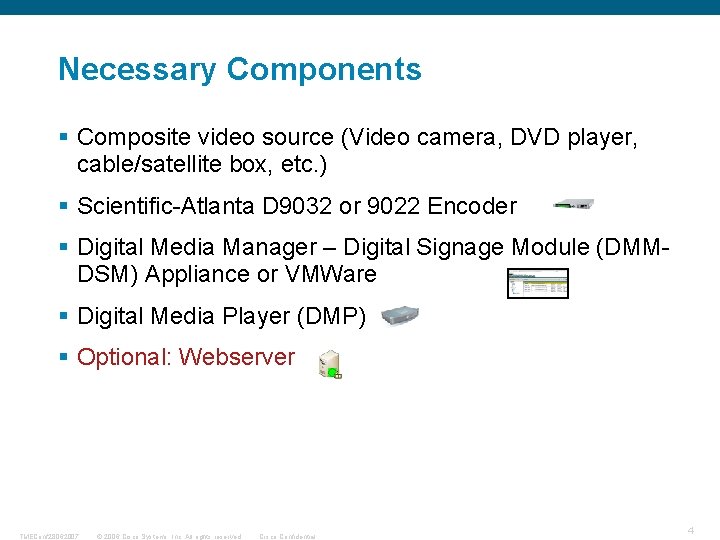
Necessary Components § Composite video source (Video camera, DVD player, cable/satellite box, etc. ) § Scientific-Atlanta D 9032 or 9022 Encoder § Digital Media Manager – Digital Signage Module (DMMDSM) Appliance or VMWare § Digital Media Player (DMP) § Optional: Webserver TMEConf 28062007 © 2006 Cisco Systems, Inc. All rights reserved. Cisco Confidential 4
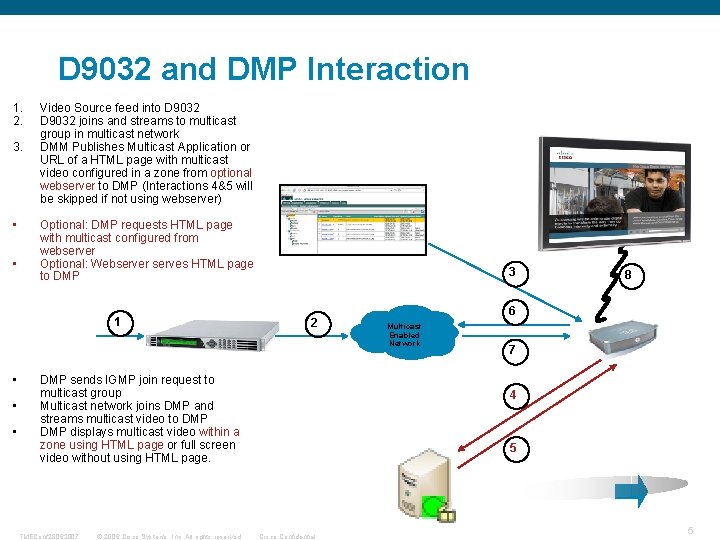
D 9032 and DMP Interaction 1. 2. 3. • • Video Source feed into D 9032 joins and streams to multicast group in multicast network DMM Publishes Multicast Application or URL of a HTML page with multicast video configured in a zone from optional webserver to DMP (Interactions 4&5 will be skipped if not using webserver) Optional: DMP requests HTML page with multicast configured from webserver Optional: Webserver serves HTML page to DMP 1 • • • 3 2 DMP sends IGMP join request to multicast group Multicast network joins DMP and streams multicast video to DMP displays multicast video within a zone using HTML page or full screen video without using HTML page. TMEConf 28062007 © 2006 Cisco Systems, Inc. All rights reserved. 8 6 Multicast Enabled Network 7 4 5 Cisco Confidential 5
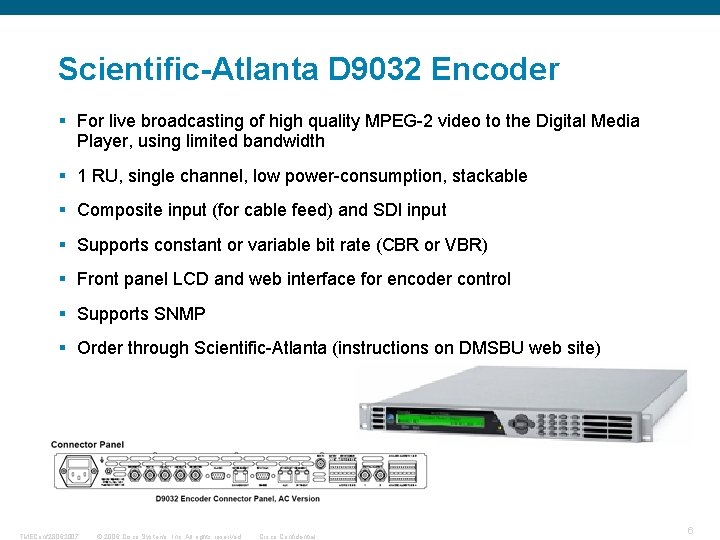
Scientific-Atlanta D 9032 Encoder § For live broadcasting of high quality MPEG-2 video to the Digital Media Player, using limited bandwidth § 1 RU, single channel, low power-consumption, stackable § Composite input (for cable feed) and SDI input § Supports constant or variable bit rate (CBR or VBR) § Front panel LCD and web interface for encoder control § Supports SNMP § Order through Scientific-Atlanta (instructions on DMSBU web site) TMEConf 28062007 © 2006 Cisco Systems, Inc. All rights reserved. Cisco Confidential 6
Live Broadcast Set Up Process 1. D 9032 physical connections to video source and IP network 2. SA D 9032 encoder multicast configuration 3. Verifying D 9032 configuration using VLC 4. Testing broadcast/multicast using DMPDM 5. DMM--Multicast configuration 5. 1. Creating a full screen design for a multicast stream 5. 2. Adding a multicast stream to the design 5. 3. Saving the presentation 5. 4. Deploying new design with multicast stream TMEConf 28062007 © 2006 Cisco Systems, Inc. All rights reserved. Cisco Confidential 7
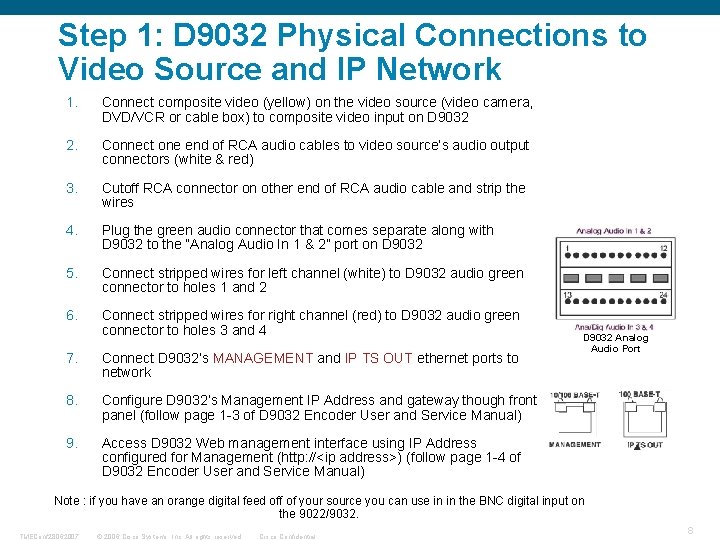
Step 1: D 9032 Physical Connections to Video Source and IP Network 1. Connect composite video (yellow) on the video source (video camera, DVD/VCR or cable box) to composite video input on D 9032 2. Connect one end of RCA audio cables to video source’s audio output connectors (white & red) 3. Cutoff RCA connector on other end of RCA audio cable and strip the wires 4. Plug the green audio connector that comes separate along with D 9032 to the “Analog Audio In 1 & 2” port on D 9032 5. Connect stripped wires for left channel (white) to D 9032 audio green connector to holes 1 and 2 6. Connect stripped wires for right channel (red) to D 9032 audio green connector to holes 3 and 4 7. Connect D 9032’s MANAGEMENT and IP TS OUT ethernet ports to network 8. Configure D 9032’s Management IP Address and gateway though front panel (follow page 1 -3 of D 9032 Encoder User and Service Manual) 9. Access D 9032 Web management interface using IP Address configured for Management (http: //<ip address>) (follow page 1 -4 of D 9032 Encoder User and Service Manual) D 9032 Analog Audio Port Note : if you have an orange digital feed off of your source you can use in in the BNC digital input on the 9022/9032. TMEConf 28062007 © 2006 Cisco Systems, Inc. All rights reserved. Cisco Confidential 8
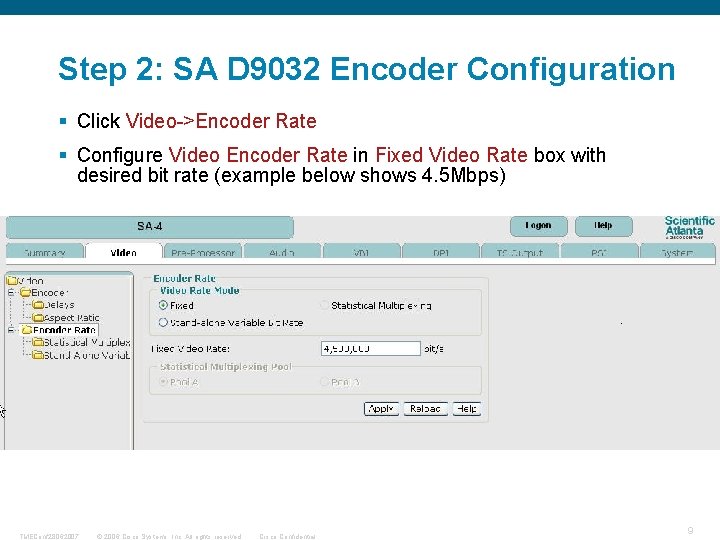
Step 2: SA D 9032 Encoder Configuration § Click Video->Encoder Rate § Configure Video Encoder Rate in Fixed Video Rate box with desired bit rate (example below shows 4. 5 Mbps) TMEConf 28062007 © 2006 Cisco Systems, Inc. All rights reserved. Cisco Confidential 9
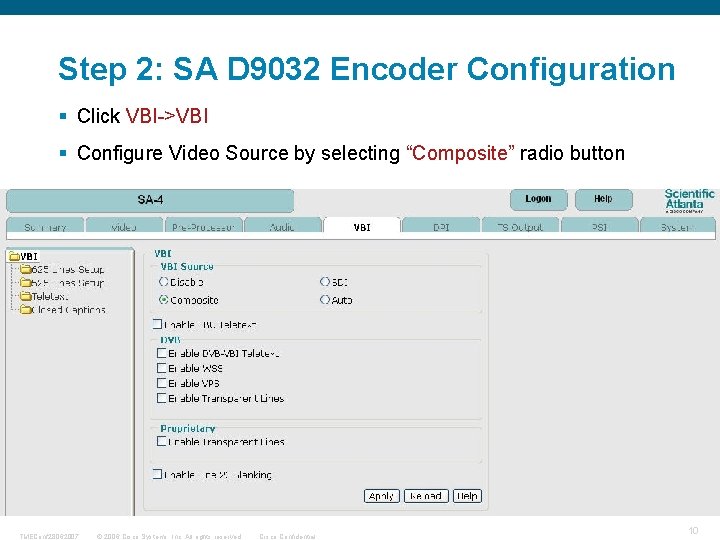
Step 2: SA D 9032 Encoder Configuration § Click VBI->VBI § Configure Video Source by selecting “Composite” radio button TMEConf 28062007 © 2006 Cisco Systems, Inc. All rights reserved. Cisco Confidential 10
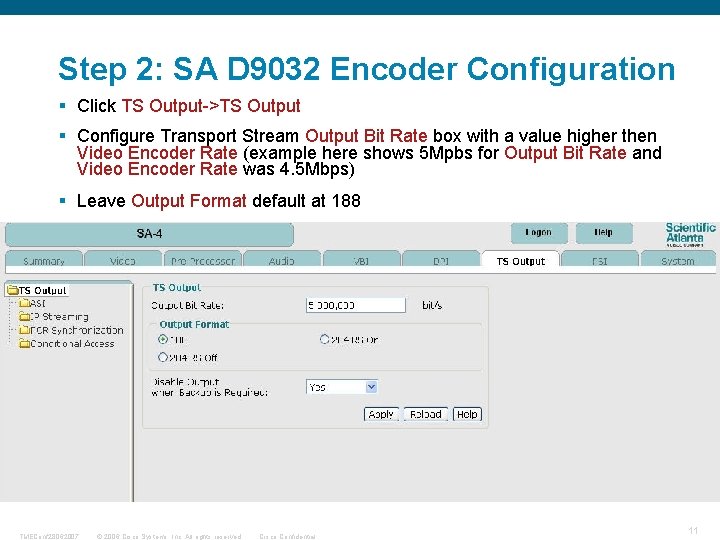
Step 2: SA D 9032 Encoder Configuration § Click TS Output->TS Output § Configure Transport Stream Output Bit Rate box with a value higher then Video Encoder Rate (example here shows 5 Mpbs for Output Bit Rate and Video Encoder Rate was 4. 5 Mbps) § Leave Output Format default at 188 TMEConf 28062007 © 2006 Cisco Systems, Inc. All rights reserved. Cisco Confidential 11
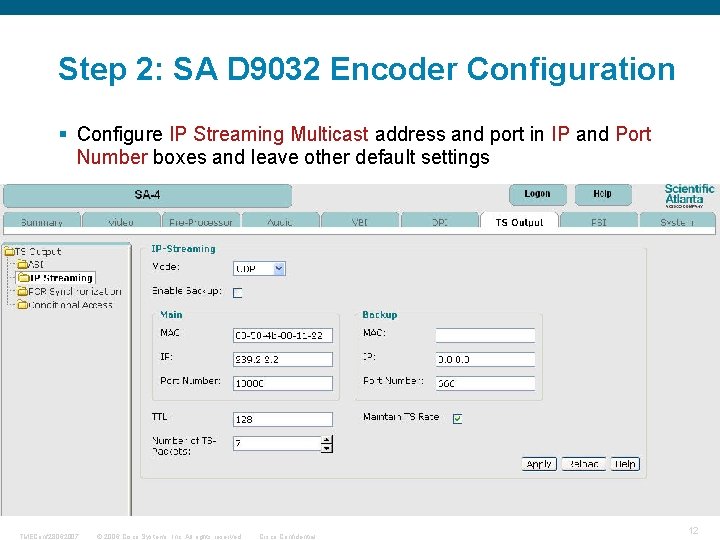
Step 2: SA D 9032 Encoder Configuration § Configure IP Streaming Multicast address and port in IP and Port Number boxes and leave other default settings TMEConf 28062007 © 2006 Cisco Systems, Inc. All rights reserved. Cisco Confidential 12
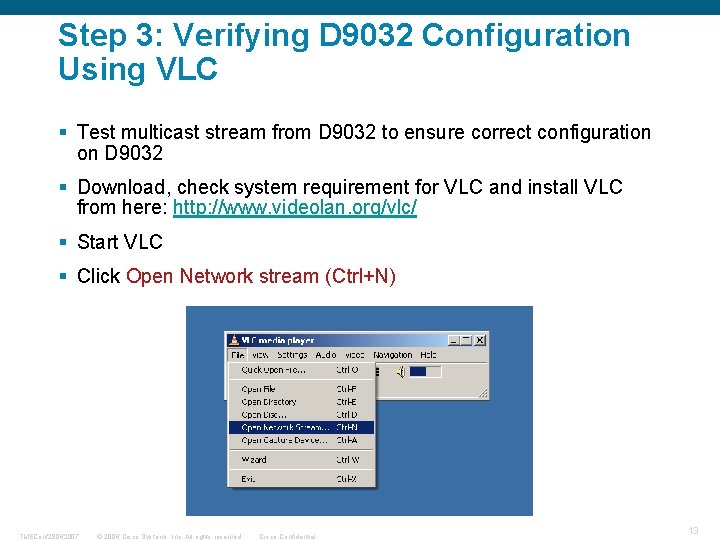
Step 3: Verifying D 9032 Configuration Using VLC § Test multicast stream from D 9032 to ensure correct configuration on D 9032 § Download, check system requirement for VLC and install VLC from here: http: //www. videolan. org/vlc/ § Start VLC § Click Open Network stream (Ctrl+N) TMEConf 28062007 © 2006 Cisco Systems, Inc. All rights reserved. Cisco Confidential 13
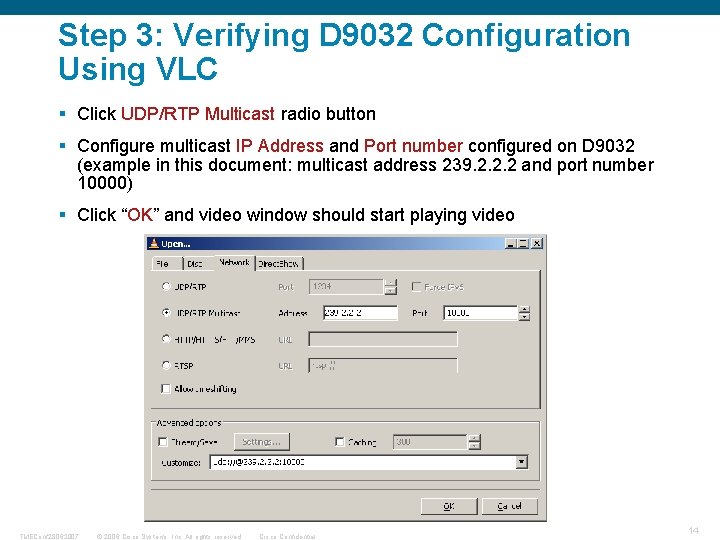
Step 3: Verifying D 9032 Configuration Using VLC § Click UDP/RTP Multicast radio button § Configure multicast IP Address and Port number configured on D 9032 (example in this document: multicast address 239. 2. 2. 2 and port number 10000) § Click “OK” and video window should start playing video TMEConf 28062007 © 2006 Cisco Systems, Inc. All rights reserved. Cisco Confidential 14
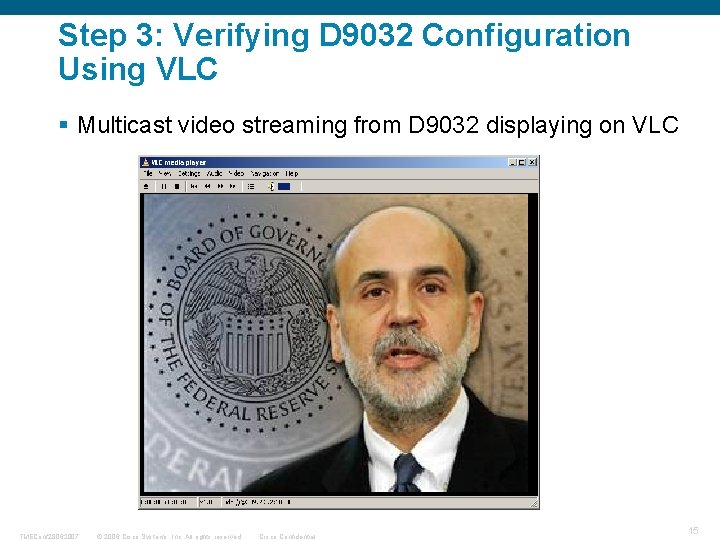
Step 3: Verifying D 9032 Configuration Using VLC § Multicast video streaming from D 9032 displaying on VLC TMEConf 28062007 © 2006 Cisco Systems, Inc. All rights reserved. Cisco Confidential 15
Step 4: Testing Multicast Using DMPDM § Open Digital Media Player Device Manager (DMPDM) § Click Display Actions->Video Multicast § Configure Multicast Address and Multicast Port configured on D 9032 (example in this document: multicast address 239. 2. 2. 2 and port number 10000) § Click Start § Display should play full screen video from video source *Please note: This configuration will not be saved in the DMP TMEConf 28062007 © 2006 Cisco Systems, Inc. All rights reserved. Cisco Confidential 16
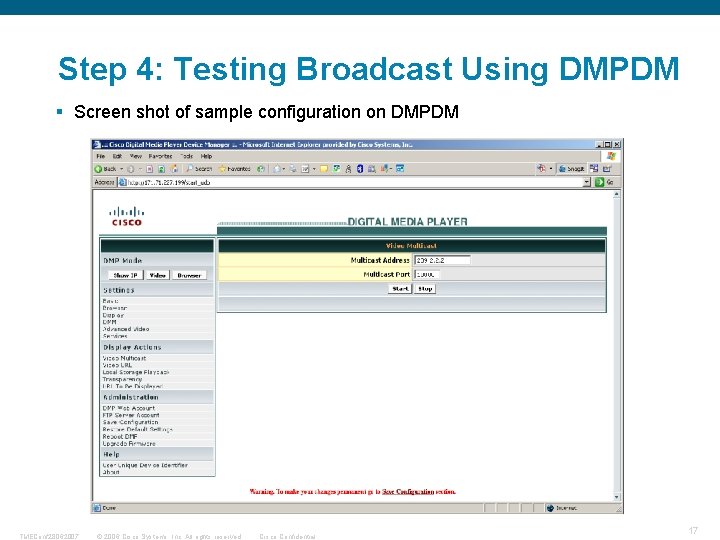
Step 4: Testing Broadcast Using DMPDM § Screen shot of sample configuration on DMPDM TMEConf 28062007 © 2006 Cisco Systems, Inc. All rights reserved. Cisco Confidential 17
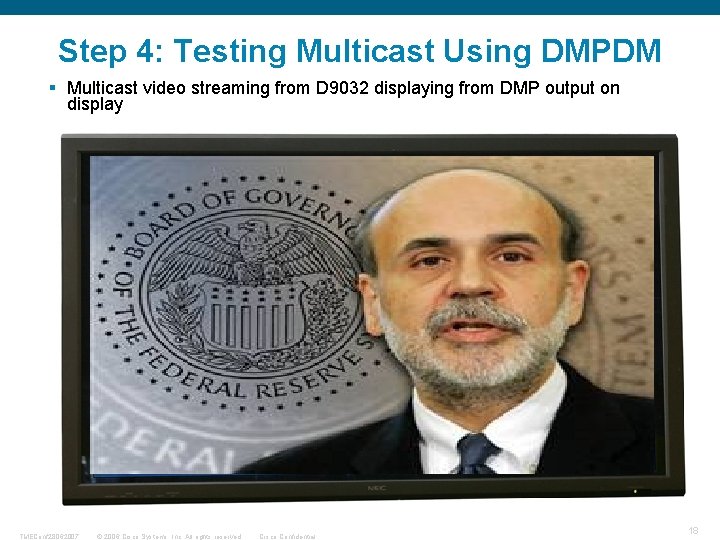
Step 4: Testing Multicast Using DMPDM § Multicast video streaming from D 9032 displaying from DMP output on display TMEConf 28062007 © 2006 Cisco Systems, Inc. All rights reserved. Cisco Confidential 18
Step 5: DMM Multicast Configuration § Since the introduction of version 4. 1, in order to show a full screen video—multicast or unicast—a design must be created § The Digital Media Designer tool allows you to easily create more advanced layouts to use on the screens beyond a full screen video TMEConf 28062007 © 2006 Cisco Systems, Inc. All rights reserved. Cisco Confidential 19
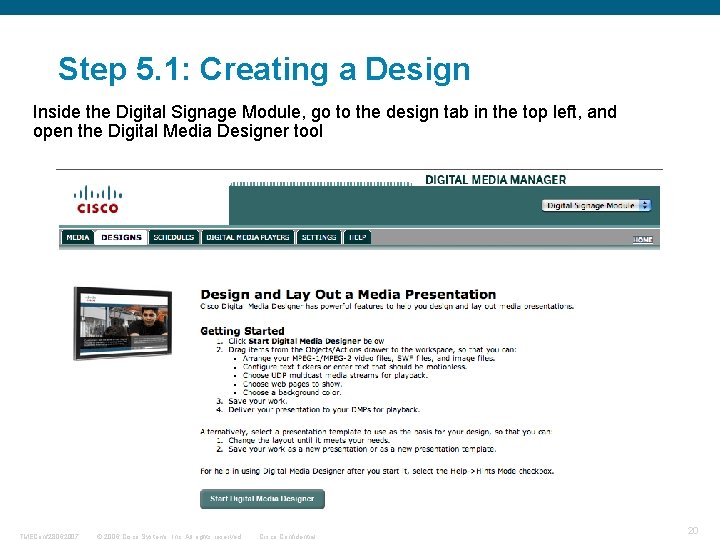
Step 5. 1: Creating a Design Inside the Digital Signage Module, go to the design tab in the top left, and open the Digital Media Designer tool TMEConf 28062007 © 2006 Cisco Systems, Inc. All rights reserved. Cisco Confidential 20
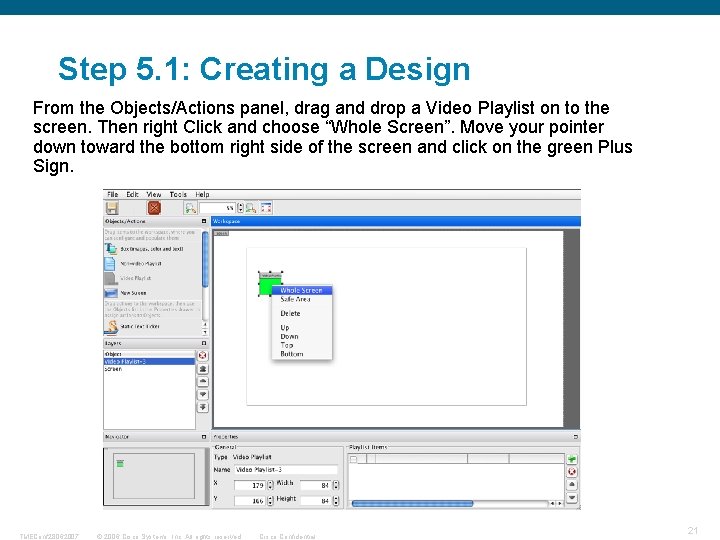
Step 5. 1: Creating a Design From the Objects/Actions panel, drag and drop a Video Playlist on to the screen. Then right Click and choose “Whole Screen”. Move your pointer down toward the bottom right side of the screen and click on the green Plus Sign. TMEConf 28062007 © 2006 Cisco Systems, Inc. All rights reserved. Cisco Confidential 21
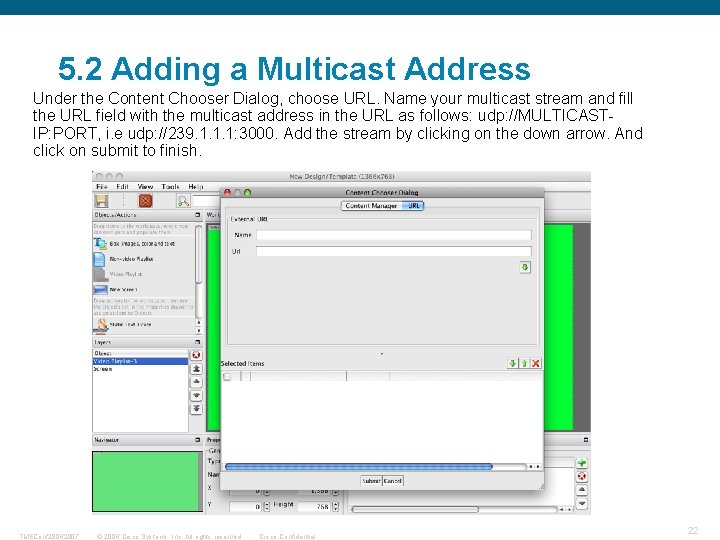
5. 2 Adding a Multicast Address Under the Content Chooser Dialog, choose URL. Name your multicast stream and fill the URL field with the multicast address in the URL as follows: udp: //MULTICASTIP: PORT, i. e udp: //239. 1. 1. 1: 3000. Add the stream by clicking on the down arrow. And click on submit to finish. TMEConf 28062007 © 2006 Cisco Systems, Inc. All rights reserved. Cisco Confidential 22
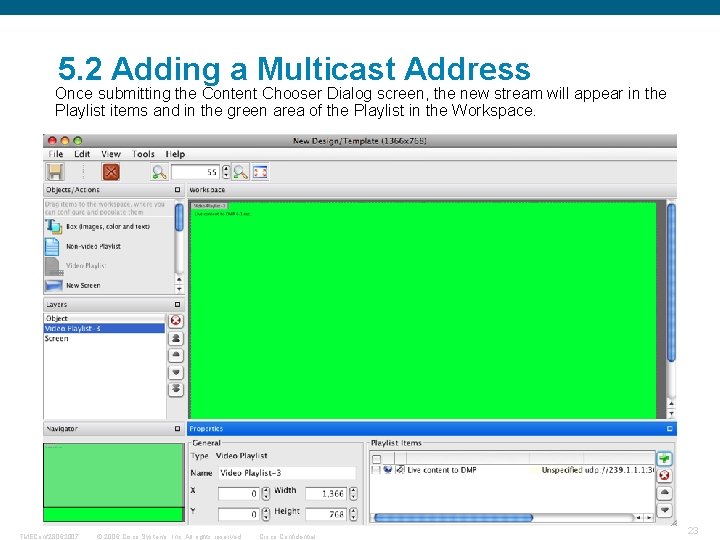
5. 2 Adding a Multicast Address Once submitting the Content Chooser Dialog screen, the new stream will appear in the Playlist items and in the green area of the Playlist in the Workspace. TMEConf 28062007 © 2006 Cisco Systems, Inc. All rights reserved. Cisco Confidential 23
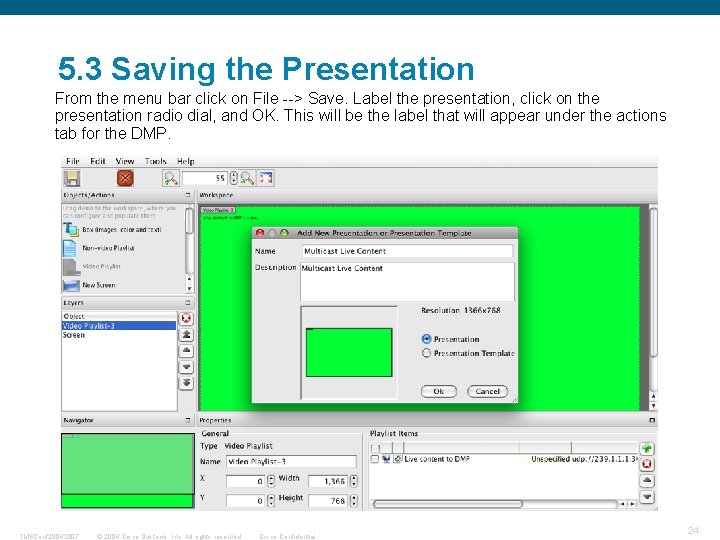
5. 3 Saving the Presentation From the menu bar click on File --> Save. Label the presentation, click on the presentation radio dial, and OK. This will be the label that will appear under the actions tab for the DMP. TMEConf 28062007 © 2006 Cisco Systems, Inc. All rights reserved. Cisco Confidential 24
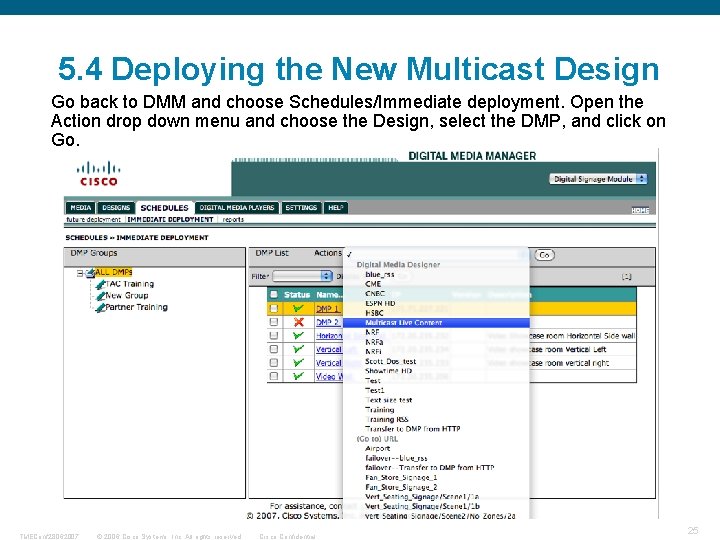
5. 4 Deploying the New Multicast Design Go back to DMM and choose Schedules/Immediate deployment. Open the Action drop down menu and choose the Design, select the DMP, and click on Go. TMEConf 28062007 © 2006 Cisco Systems, Inc. All rights reserved. Cisco Confidential 25
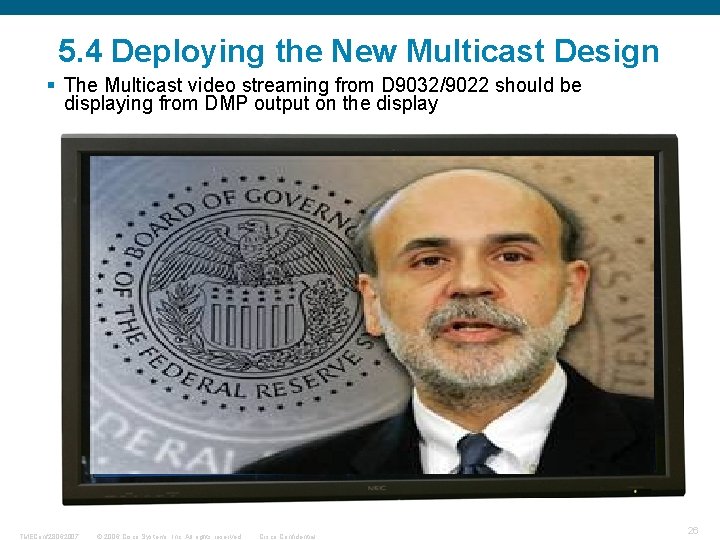
5. 4 Deploying the New Multicast Design § The Multicast video streaming from D 9032/9022 should be displaying from DMP output on the display TMEConf 28062007 © 2006 Cisco Systems, Inc. All rights reserved. Cisco Confidential 26
TMEConf 28062007 © 2006 Cisco Systems, Inc. All rights reserved. Cisco Confidential 27
- Slides: 27