
CIS 90 Lesson 12 Lesson Module Status Slides
![CIS 90 - Lesson 12 alias command (a shell builtin) alias [-p] [name[=value]. .](https://slidetodoc.com/presentation_image/3215421b371f0095bc7bd7fabf4ed9cf/image-22.jpg "CIS 90 - Lesson 12 alias command (a shell builtin) alias [-p] [name[=value]. .")
![CIS 90 - Lesson 12 . bash_profile [roddyduk@opus ~]$ cat. bash_profile # Get the](https://slidetodoc.com/presentation_image/3215421b371f0095bc7bd7fabf4ed9cf/image-44.jpg "CIS 90 - Lesson 12 . bash_profile [roddyduk@opus ~]$ cat. bash_profile # Get the")
- Slides: 55
CIS 90 - Lesson 12 Lesson Module Status • Slides – draft • Properties - done • Flash cards – • No-stress quiz – done • Web calendar summary – done • Web book pages – done • Commands – • Lab – • Supplies () • Email tech to class • Class PC's – na • Scripts () – done
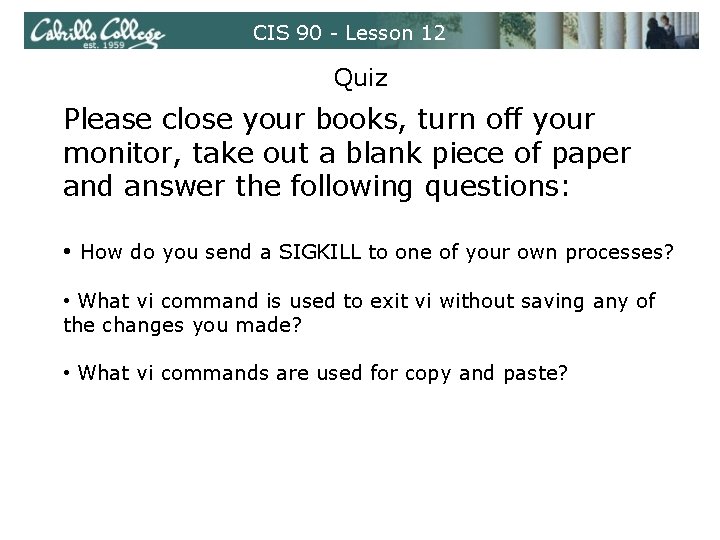
CIS 90 - Lesson 12 Quiz Please close your books, turn off your monitor, take out a blank piece of paper and answer the following questions: • How do you send a SIGKILL to one of your own processes? • What vi command is used to exit vi without saving any of the changes you made? • What vi commands are used for copy and paste?
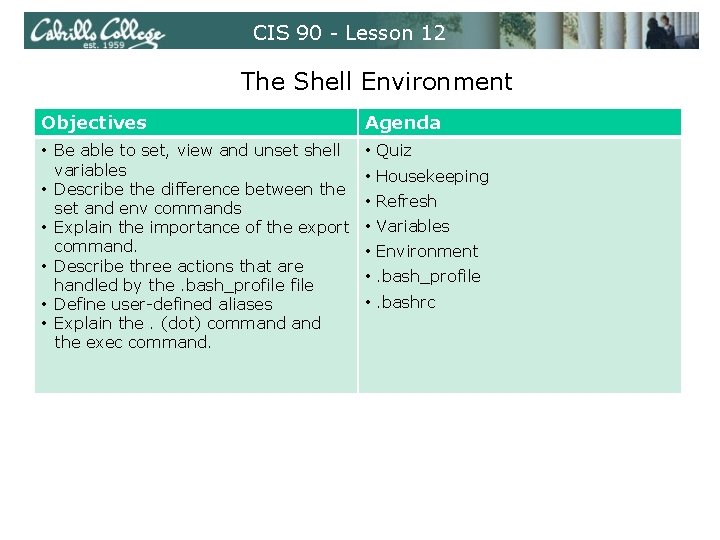
CIS 90 - Lesson 12 The Shell Environment Objectives Agenda • Be able to set, view and unset shell variables • Describe the difference between the set and env commands • Explain the importance of the export command. • Describe three actions that are handled by the. bash_profile • Define user-defined aliases • Explain the. (dot) command the exec command. • Quiz • Housekeeping • Refresh • Variables • Environment • . bash_profile • . bashrc
CIS 90 - Lesson 12 Housekeeping
CIS 90 - Lesson 12 Previous material and assignment 1. Lab 9 due midnight tonight 2. Five posts due midnight tonight 3. Questions? • vi • lab 9
CIS 90 - Lesson 12 vi practice and final project prep
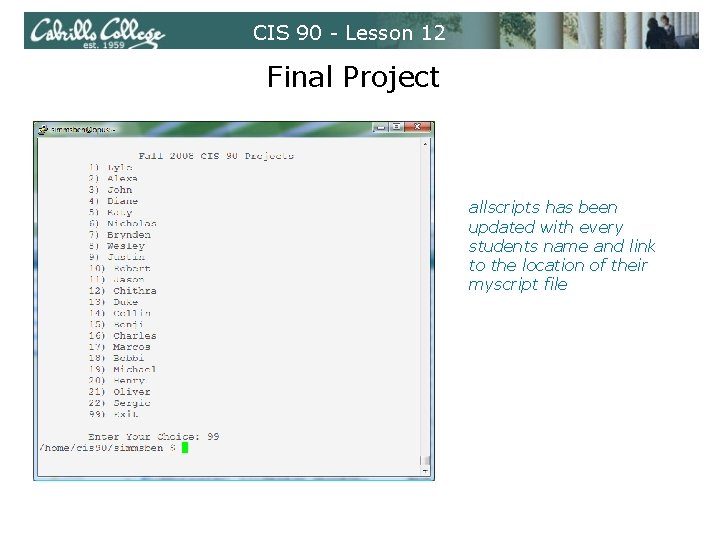
CIS 90 - Lesson 12 Final Project allscripts has been updated with every students name and link to the location of their myscript file
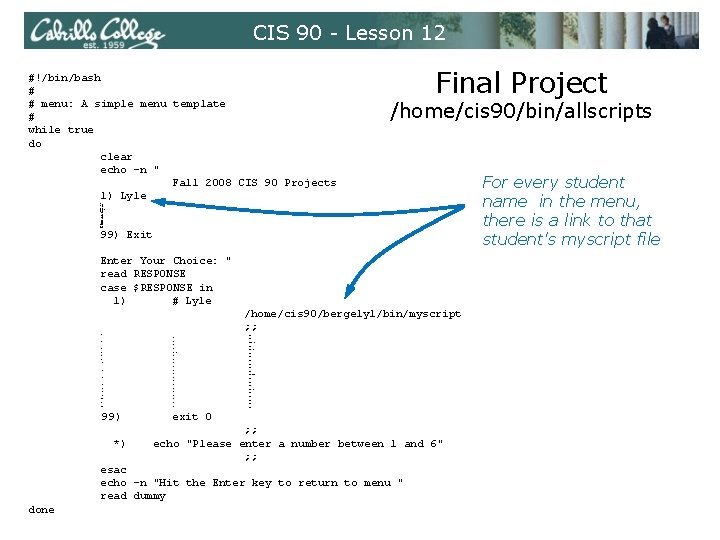
CIS 90 - Lesson 12 #!/bin/bash # # menu: A simple menu template # while true do clear echo -n " Fall 2008 CIS 90 Projects 1) Lyle Final Project /home/cis 90/bin/allscripts 2) Alexa 3) John 4) Diane 5) Katy 6) Nicholas 7) Brynden 8) Wesley 9) Justin 10) Robert 11) Jason 12) Chithra 13) Duke 14) Collin 15) Benji 16) Charles 17) Marcos 18) Bobbi 19) Michael 20) Henry 21) Oliver 22) Sergio 99) Exit Enter Your Choice: " read RESPONSE case $RESPONSE in 1) # Lyle /home/cis 90/bergelyl/bin/myscript ; ; 2) # Alexa 3) # John 4) # Diane 5) # Katy 6) # Nicholas 7) # Brynden /home/cis 90/bolasale/bin/myscript ; ; /home/cis 90/crivejoh/bin/myscript ; ; /home/cis 90/dymesdia/bin/myscript ; ; /home/cis 90/elliokat/bin/myscript ; ; /home/cis 90/gardnnic/bin/myscript ; ; /home/cis 90/hutmabry/bin/myscript ; ; 8) # Wesley 9) # Justin 10) # Robert 11) # Jason 12) # Chithra 13) # Duke 14) # Collin 15) # Benji 16) # Charles 17) # Marcos /home/cis 90/jessuwes/bin/myscript ; ; /home/cis 90/luisjus/bin/myscript ; ; /home/cis 90/lyonsrob/bin/myscript ; ; /home/cis 90/meyerjas/bin/myscript ; ; /home/cis 90/mohanchi/bin/myscript ; ; /home/cis 90/roddyduk/bin/myscript ; ; /home/cis 90/seatocol/bin/myscript ; ; /home/cis 90/simmsben/bin/myscript ; ; /home/cis 90/stanlcha/bin/myscript ; ; /home/cis 90/valdemar/bin/myscript ; ; 18) # Bobbi 19) # Michael 20) # Henry 21) # Oliver 22) # Sergio /home/cis 90/whitfbob/bin/myscript ; ; /home/cis 90/wichemic/bin/myscript ; ; /home/cis 90/woolahen/bin/myscript ; ; /home/cis 90/wrigholi/bin/myscript ; ; /home/cis 90/ybarrser/bin/myscript ; ; 99) *) exit 0 ; ; echo "Please enter a number between 1 and 6" ; ; esac echo -n "Hit the Enter key to return to menu " read dummy done For every student name in the menu, there is a link to that student's myscript file
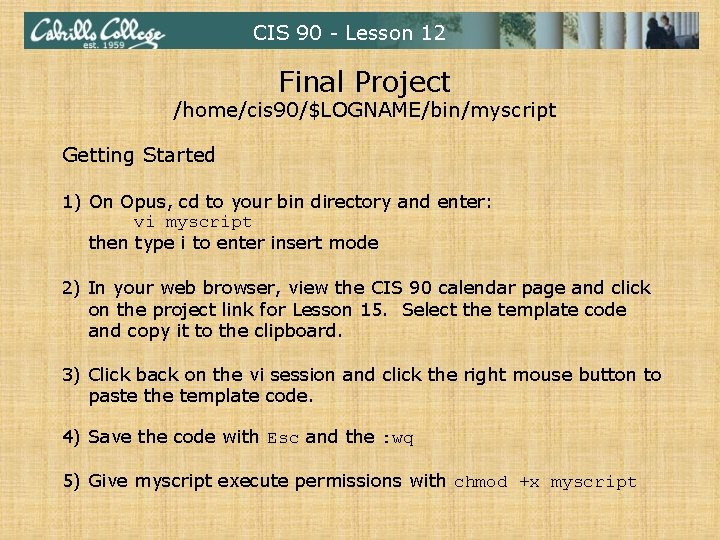
CIS 90 - Lesson 12 Final Project /home/cis 90/$LOGNAME/bin/myscript Getting Started 1) On Opus, cd to your bin directory and enter: vi myscript then type i to enter insert mode 2) In your web browser, view the CIS 90 calendar page and click on the project link for Lesson 15. Select the template code and copy it to the clipboard. 3) Click back on the vi session and click the right mouse button to paste the template code. 4) Save the code with Esc and the : wq 5) Give myscript execute permissions with chmod +x myscript
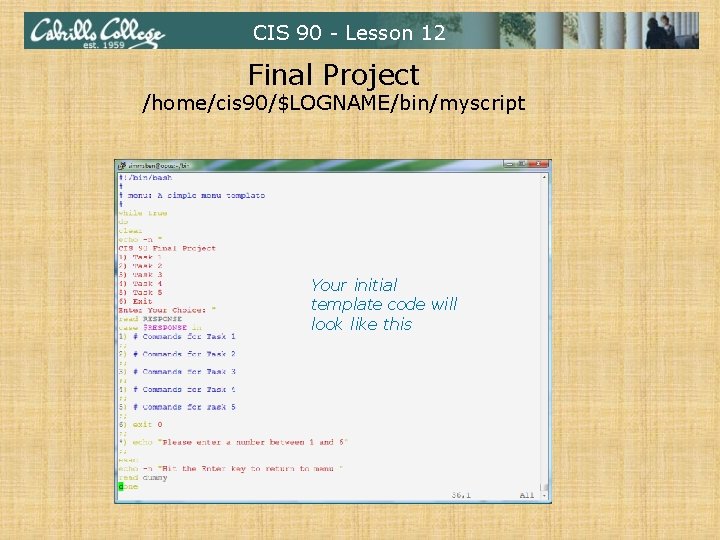
CIS 90 - Lesson 12 Final Project /home/cis 90/$LOGNAME/bin/myscript Your initial template code will look like this
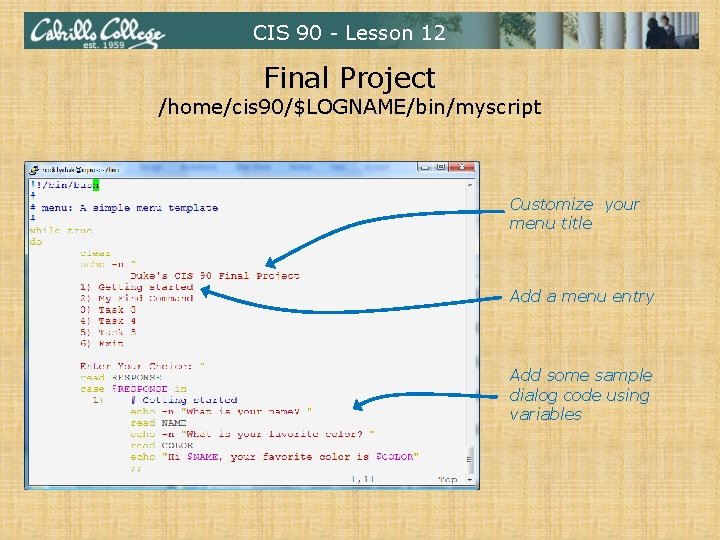
CIS 90 - Lesson 12 Final Project /home/cis 90/$LOGNAME/bin/myscript Customize your menu title Add a menu entry Add some sample dialog code using variables
CIS 90 - Lesson 12 Shell Variables
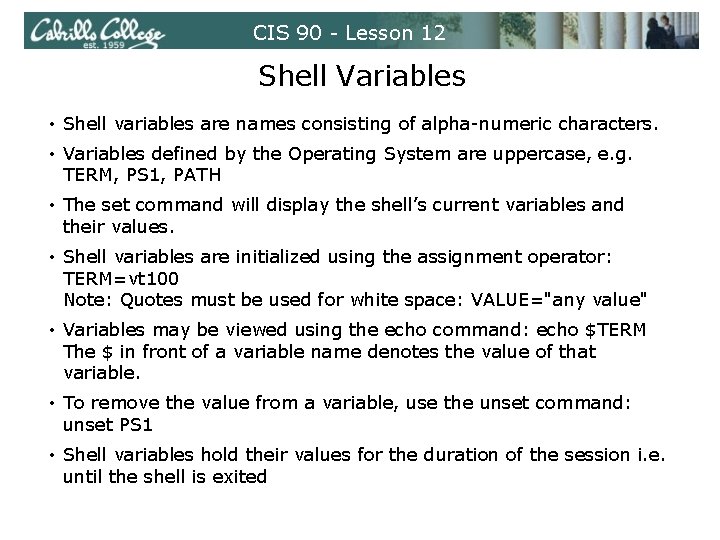
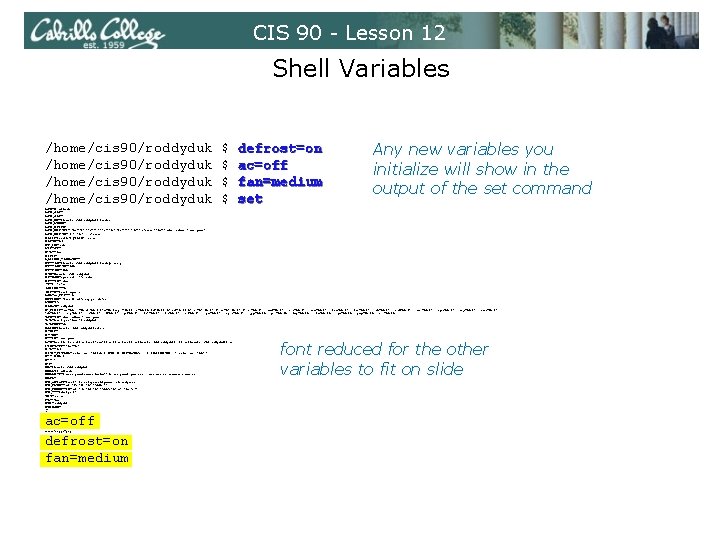
CIS 90 - Lesson 12 Shell Variables • Shell variables are names consisting of alpha-numeric characters. • Variables defined by the Operating System are uppercase, e. g. TERM, PS 1, PATH • The set command will display the shell’s current variables and their values. • Shell variables are initialized using the assignment operator: TERM=vt 100 Note: Quotes must be used for white space: VALUE="any value" • Variables may be viewed using the echo command: echo $TERM The $ in front of a variable name denotes the value of that variable. • To remove the value from a variable, use the unset command: unset PS 1 • Shell variables hold their values for the duration of the session i. e. until the shell is exited
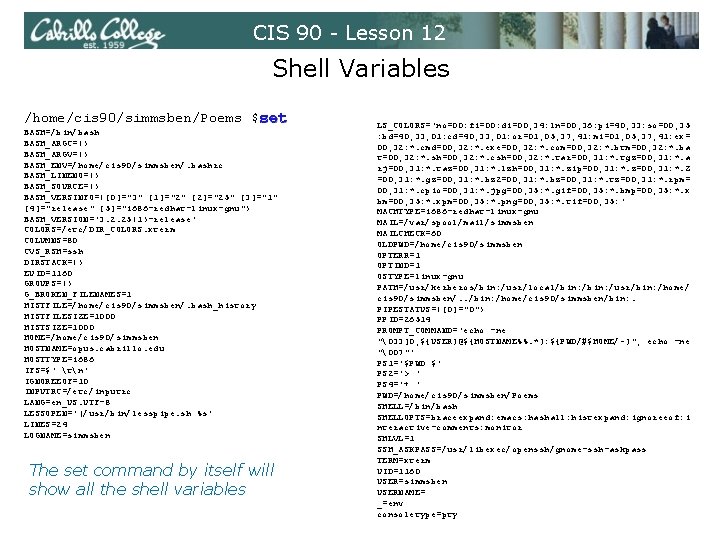
CIS 90 - Lesson 12 Shell Variables /home/cis 90/simmsben/Poems $set BASH=/bin/bash BASH_ARGC=() BASH_ARGV=() BASH_ENV=/home/cis 90/simmsben/. bashrc BASH_LINENO=() BASH_SOURCE=() BASH_VERSINFO=([0]="3" [1]="2" [2]="25" [3]="1" [4]="release" [5]="i 686 -redhat-linux-gnu") BASH_VERSION='3. 2. 25(1)-release' COLORS=/etc/DIR_COLORS. xterm COLUMNS=80 CVS_RSH=ssh DIRSTACK=() EUID=1160 GROUPS=() G_BROKEN_FILENAMES=1 HISTFILE=/home/cis 90/simmsben/. bash_history HISTFILESIZE=1000 HISTSIZE=1000 HOME=/home/cis 90/simmsben HOSTNAME=opus. cabrillo. edu HOSTTYPE=i 686 IFS=$' tn' IGNOREEOF=10 INPUTRC=/etc/inputrc LANG=en_US. UTF-8 LESSOPEN='|/usr/bin/lesspipe. sh %s' LINES=24 LOGNAME=simmsben The set command by itself will show all the shell variables LS_COLORS='no=00: fi=00: di=00; 34: ln=00; 36: pi=40; 33: so=00; 35 : bd=40; 33; 01: cd=40; 33; 01: or=01; 05; 37; 41: mi=01; 05; 37; 41: ex= 00; 32: *. cmd=00; 32: *. exe=00; 32: *. com=00; 32: *. btm=00; 32: *. ba t=00; 32: *. sh=00; 32: *. csh=00; 32: *. tar=00; 31: *. tgz=00; 31: *. a rj=00; 31: *. taz=00; 31: *. lzh=00; 31: *. zip=00; 31: *. z=00; 31: *. Z =00; 31: *. gz=00; 31: *. bz 2=00; 31: *. bz=00; 31: *. tz=00; 31: *. rpm= 00; 31: *. cpio=00; 31: *. jpg=00; 35: *. gif=00; 35: *. bmp=00; 35: *. x bm=00; 35: *. xpm=00; 35: *. png=00; 35: *. tif=00; 35: ' MACHTYPE=i 686 -redhat-linux-gnu MAIL=/var/spool/mail/simmsben MAILCHECK=60 OLDPWD=/home/cis 90/simmsben OPTERR=1 OPTIND=1 OSTYPE=linux-gnu PATH=/usr/kerberos/bin: /usr/local/bin: /usr/bin: /home/ cis 90/simmsben/. . /bin: /home/cis 90/simmsben/bin: . PIPESTATUS=([0]="0") PPID=26514 PROMPT_COMMAND='echo -ne "33]0; ${USER}@${HOSTNAME%%. *}: ${PWD/#$HOME/~}"; echo -ne "07"' PS 1='$PWD $' PS 2='> ' PS 4='+ ' PWD=/home/cis 90/simmsben/Poems SHELL=/bin/bash SHELLOPTS=braceexpand: emacs: hashall: histexpand: ignoreeof: i nteractive-comments: monitor SHLVL=1 SSH_ASKPASS=/usr/libexec/openssh/gnome-ssh-askpass TERM=xterm UID=1160 USER=simmsben USERNAME= _=env consoletype=pty
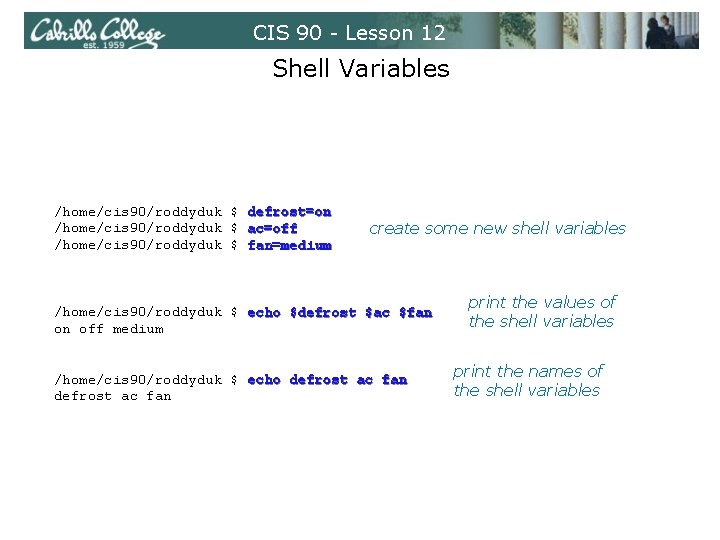
CIS 90 - Lesson 12 Shell Variables /home/cis 90/roddyduk $ defrost=on /home/cis 90/roddyduk $ ac=off /home/cis 90/roddyduk $ fan=medium create some new shell variables /home/cis 90/roddyduk $ echo $defrost $ac $fan on off medium /home/cis 90/roddyduk $ echo defrost ac fan print the values of the shell variables print the names of the shell variables
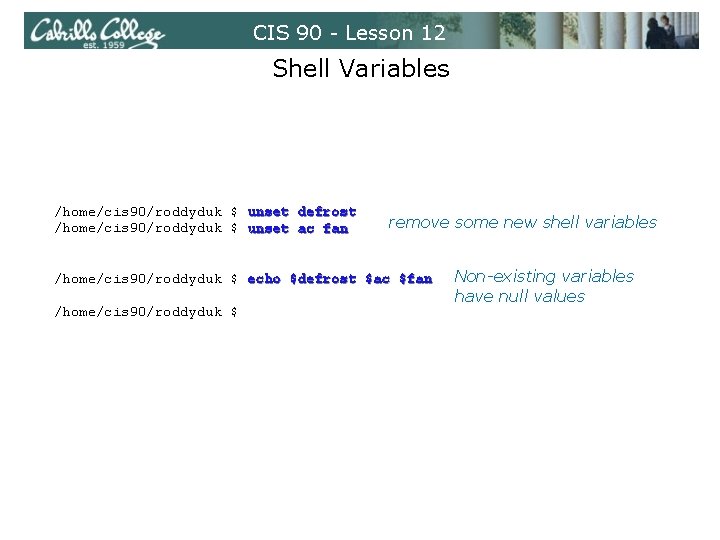
CIS 90 - Lesson 12 Shell Variables /home/cis 90/roddyduk $ unset defrost /home/cis 90/roddyduk $ unset ac fan remove some new shell variables /home/cis 90/roddyduk $ echo $defrost $ac $fan /home/cis 90/roddyduk $ Non-existing variables have null values
CIS 90 - Lesson 12 Shell Variables /home/cis 90/roddyduk $ $ defrost=on ac=off fan=medium set Any new variables you initialize will show in the output of the set command BASH=/bin/bash BASH_ARGC=() BASH_ARGV=() BASH_ENV=/home/cis 90/roddyduk/. bashrc BASH_LINENO=() BASH_SOURCE=() BASH_VERSINFO=([0]="3" [1]="2" [2]="25" [3]="1" [4]="release" [5]="i 686 -redhat-linux-gnu") BASH_VERSION='3. 2. 25(1)-release' COLORS=/etc/DIR_COLORS. xterm COLUMNS=84 CVS_RSH=ssh DIRSTACK=() EUID=1156 GROUPS=() G_BROKEN_FILENAMES=1 HISTFILE=/home/cis 90/roddyduk/. bash_history HISTFILESIZE=1000 HISTSIZE=1000 HOME=/home/cis 90/roddyduk HOSTNAME=opus. cabrillo. edu HOSTTYPE=i 686 IFS=$' tn' IGNOREEOF=10 INPUTRC=/etc/inputrc LANG=en_US. UTF-8 LESSOPEN='|/usr/bin/lesspipe. sh %s' LINES=39 LOGNAME=roddyduk LS_COLORS='no=00: fi=00: di=00; 34: ln=00; 36: pi=40; 33: so=00; 35: bd=40; 33; 01: cd=40; 33; 01: or=01; 05; 37; 41: mi=01; 05; 37; 41: ex=00; 32: *. cmd=00; 32: *. exe=00; 32: *. com=00; 32: *. btm=00; 32: *. bat=00; 32: *. sh=00; 32: *. csh=00; 32: *. tar=00; 31: *. tgz=00; 31: *. arj=00; 31: *. taz=00; 31: *. lzh=00; 31: *. zip=00; 31: *. z=00; 31: *. Z=00; 31: *. gz=00; 31: *. bz 2=00; 31: *. bz=00; 31: *. tz=00; 31: *. rpm=00; 31: *. cpio=00; 31: *. jpg=00; 35: *. gif=00; 35: *. bmp=00; 35: *. xbm=00; 35: *. xpm=00; 35: *. png=00; 35: *. tif=00; 35: ' MACHTYPE=i 686 -redhat-linux-gnu MAIL=/var/spool/mail/roddyduk MAILCHECK=60 OLDPWD=/home/cis 90/roddyduk/edits OPTERR=1 OPTIND=1 OSTYPE=linux-gnu PATH=/usr/kerberos/bin: /usr/local/bin: /usr/bin: /home/cis 90/roddyduk/. . /bin: /home/cis 90/roddyduk/bin: . PIPESTATUS=([0]="0") PPID=7254 PROMPT_COMMAND='echo -ne "33]0; ${USER}@${HOSTNAME%%. *}: ${PWD/#$HOME/~}"; echo -ne "07"' PS 1='$PWD $ ' PS 2='> ' PS 4='+ ' PWD=/home/cis 90/roddyduk SHELL=/bin/bash SHELLOPTS=braceexpand: emacs: hashall: histexpand: ignoreeof: interactive-comments: monitor SHLVL=1 SSH_ASKPASS=/usr/libexec/openssh/gnome-ssh-askpass SSH_CLIENT='63. 249. 103. 107 19509 22' SSH_CONNECTION='63. 249. 103. 107 19509 207. 62. 186. 9 22' SSH_TTY=/dev/pts/1 TERM=xterm UID=1156 USER=roddyduk USERNAME= _= font reduced for the other variables to fit on slide ac=off defrost=on fan=medium consoletype=pty
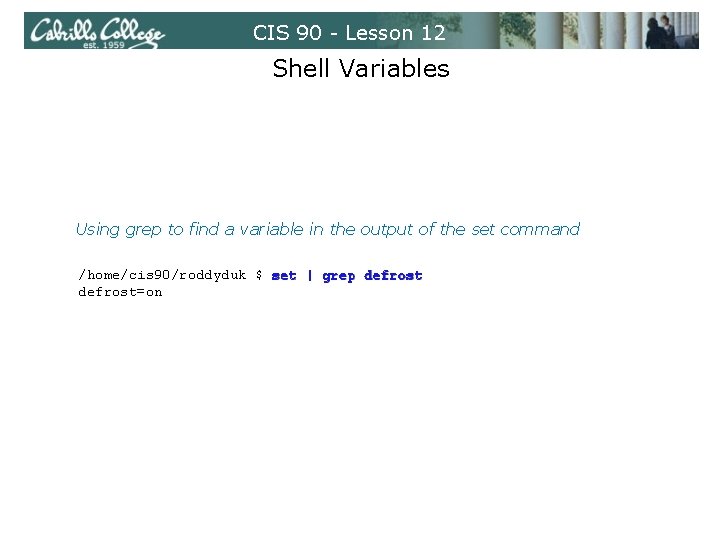
CIS 90 - Lesson 12 Shell Variables Using grep to find a variable in the output of the set command /home/cis 90/roddyduk $ set | grep defrost=on
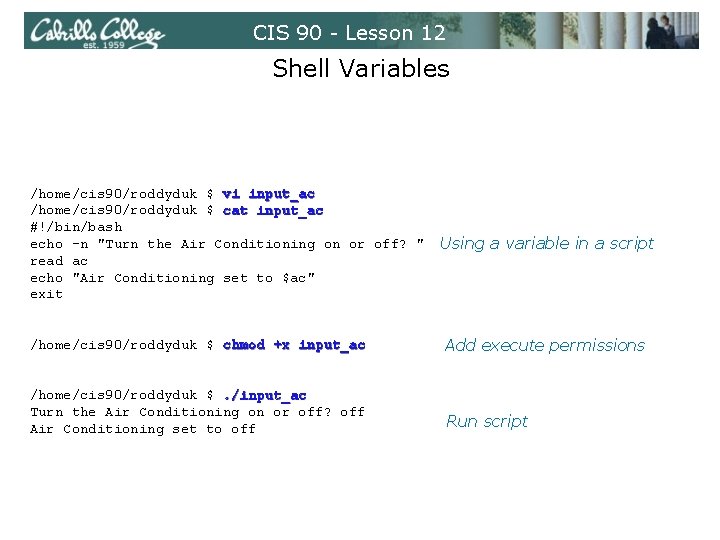
CIS 90 - Lesson 12 Shell Variables /home/cis 90/roddyduk $ vi input_ac /home/cis 90/roddyduk $ cat input_ac #!/bin/bash echo -n "Turn the Air Conditioning on or off? " read ac echo "Air Conditioning set to $ac" exit Using a variable in a script /home/cis 90/roddyduk $ chmod +x input_ac Add execute permissions /home/cis 90/roddyduk $. /input_ac Turn the Air Conditioning on or off? off Air Conditioning set to off Run script
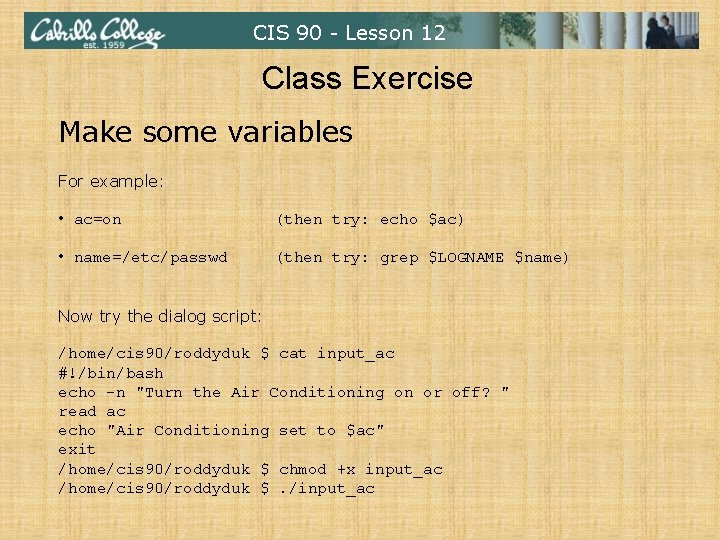
CIS 90 - Lesson 12 Class Exercise Make some variables For example: • ac=on (then try: echo $ac) • name=/etc/passwd (then try: grep $LOGNAME $name) Now try the dialog script: /home/cis 90/roddyduk $ cat input_ac #!/bin/bash echo -n "Turn the Air Conditioning on or off? " read ac echo "Air Conditioning set to $ac" exit /home/cis 90/roddyduk $ chmod +x input_ac /home/cis 90/roddyduk $. /input_ac
CIS 90 - Lesson 12 aliases
CIS 90 - Lesson 12 alias command (a shell builtin) alias [-p] [name[=value]. . . ] Alias with no arguments or with the -p option prints the list of aliases in the form alias name=value on standard output. When arguments are supplied, an alias is defined for each name whose value is given. A trailing space in value causes the next word to be checked for alias substitution when the alias is expanded. For each name in the argument list for which no value is supplied, the name and value of the alias is printed. Alias returns true unless a name is given for which no alias has been defined. Note aliases are not expanded by default in non-interactive shell, and it can be enabled by setting the expand_aliases shell option using shopt.
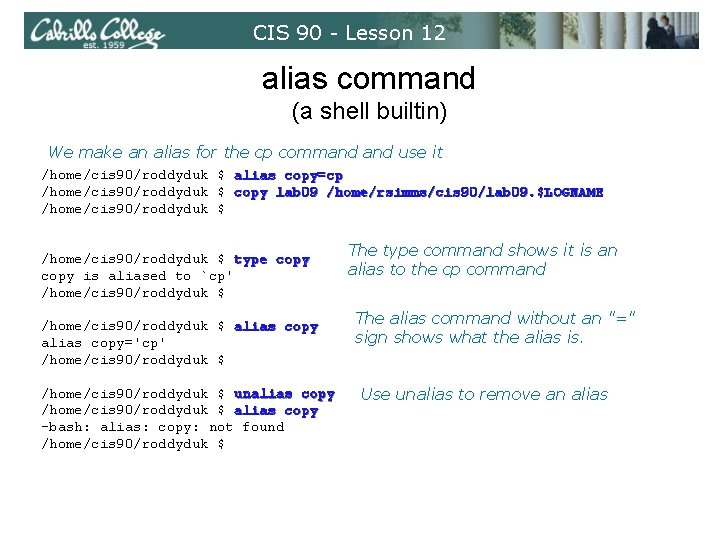
CIS 90 - Lesson 12 alias command (a shell builtin) We make an alias for the cp command use it /home/cis 90/roddyduk $ alias copy=cp /home/cis 90/roddyduk $ copy lab 09 /home/rsimms/cis 90/lab 09. $LOGNAME /home/cis 90/roddyduk $ type copy is aliased to `cp' /home/cis 90/roddyduk $ alias copy='cp' /home/cis 90/roddyduk $ unalias copy /home/cis 90/roddyduk $ alias copy -bash: alias: copy: not found /home/cis 90/roddyduk $ The type command shows it is an alias to the cp command The alias command without an "=" sign shows what the alias is. Use unalias to remove an alias
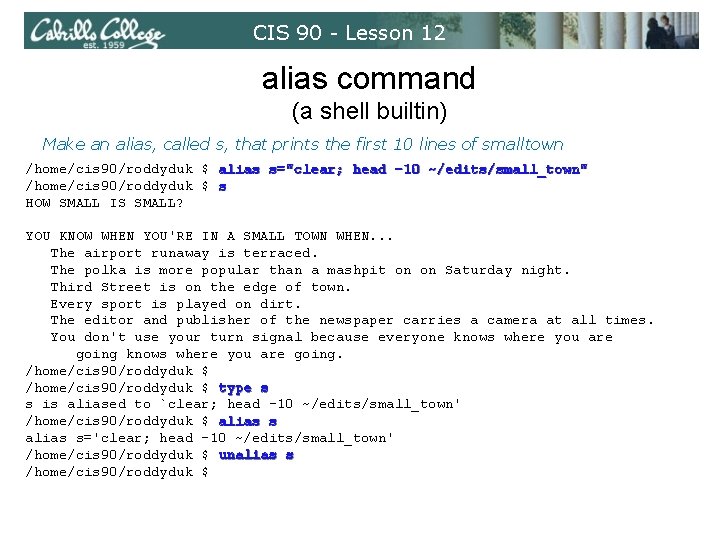
CIS 90 - Lesson 12 alias command (a shell builtin) Make an alias, called s, that prints the first 10 lines of smalltown /home/cis 90/roddyduk $ alias s="clear; head -10 ~/edits/small_town" /home/cis 90/roddyduk $ s HOW SMALL IS SMALL? YOU KNOW WHEN YOU'RE IN A SMALL TOWN WHEN. . . The airport runaway is terraced. The polka is more popular than a mashpit on on Saturday night. Third Street is on the edge of town. Every sport is played on dirt. The editor and publisher of the newspaper carries a camera at all times. You don't use your turn signal because everyone knows where you are going. /home/cis 90/roddyduk $ type s s is aliased to `clear; head -10 ~/edits/small_town' /home/cis 90/roddyduk $ alias s='clear; head -10 ~/edits/small_town' /home/cis 90/roddyduk $ unalias s /home/cis 90/roddyduk $
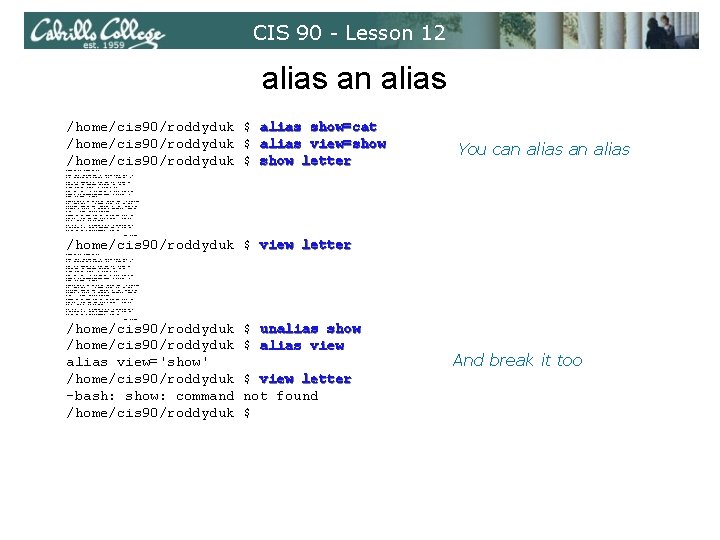
CIS 90 - Lesson 12 alias an alias /home/cis 90/roddyduk $ alias show=cat /home/cis 90/roddyduk $ alias view=show /home/cis 90/roddyduk $ show letter Hello Mother! You can alias Hello Father! Here I am at Camp Granada. Things are very entertaining, and they say we'll have some fun when it stops raining. All the counselors hate the waiters, and the lake has alligators. You remember Leonard Skinner? He got ptomaine poisoning last night after dinner. Now I don't want this to scare you, but my bunk mate has malaria. You remember Jeffrey Hardy? Their about to organize a searching party. Take me home, oh Mother, Father, take me home! I hate Granada. Don't leave me out in the forest where I might get eaten by a bear! Take me home, I promise that I won't make noise, or mess the house with other boys, oh please don't make me stay -- I've been here one whole day. Dearest Father, darling Mother, how's my precious little brother? I will come home if you miss me. I will even let Aunt Bertha hug and kiss me! Wait a minute! It's stopped hailing! Guys are swimming! Guys are sailing! Playing baseball, gee that's better! Mother, Father, kindly disregard this letter. Alan Sherman /home/cis 90/roddyduk $ view letter Hello Mother! Hello Father! Here I am at Camp Granada. Things are very entertaining, and they say we'll have some fun when it stops raining. All the counselors hate the waiters, and the lake has alligators. You remember Leonard Skinner? He got ptomaine poisoning last night after dinner. Now I don't want this to scare you, but my bunk mate has malaria. You remember Jeffrey Hardy? Their about to organize a searching party. Take me home, oh Mother, Father, take me home! I hate Granada. Don't leave me out in the forest where I might get eaten by a bear! Take me home, I promise that I won't make noise, or mess the house with other boys, oh please don't make me stay -- I've been here one whole day. Dearest Father, darling Mother, how's my precious little brother? I will come home if you miss me. I will even let Aunt Bertha hug and kiss me! Wait a minute! It's stopped hailing! Guys are swimming! Guys are sailing! Playing baseball, gee that's better! Mother, Father, kindly disregard this letter. Alan Sherman /home/cis 90/roddyduk alias view='show' /home/cis 90/roddyduk -bash: show: command /home/cis 90/roddyduk $ unalias show $ alias view $ view letter not found $ And break it too
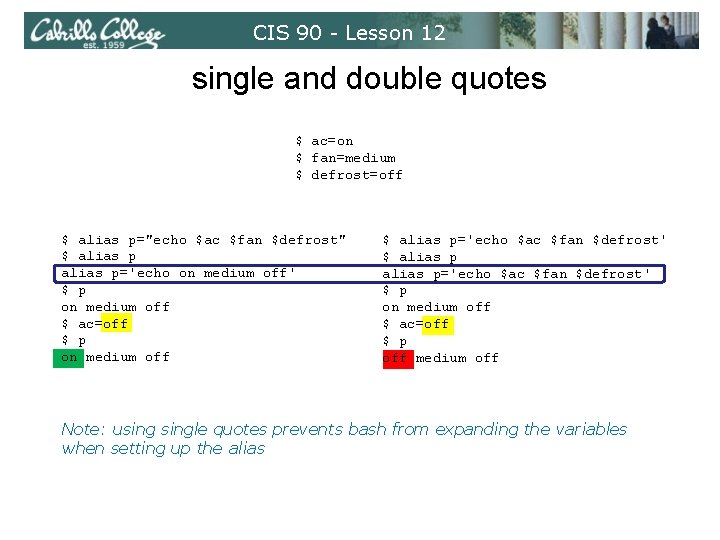
CIS 90 - Lesson 12 single and double quotes $ ac=on $ fan=medium $ defrost=off $ alias p="echo $ac $fan $defrost" $ alias p='echo on medium off' $ p on medium off $ ac=off $ p on medium off $ alias p='echo $ac $fan $defrost' $ p on medium off $ ac=off $ p off medium off Note: usingle quotes prevents bash from expanding the variables when setting up the alias
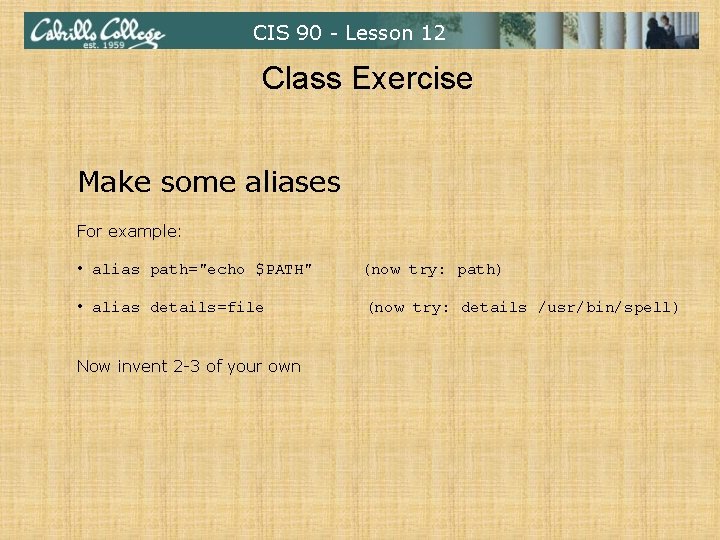
CIS 90 - Lesson 12 Class Exercise Make some aliases For example: • alias path="echo $PATH" (now try: path) • alias details=file (now try: details /usr/bin/spell) Now invent 2 -3 of your own
CIS 90 - Lesson 12 Shell Environment
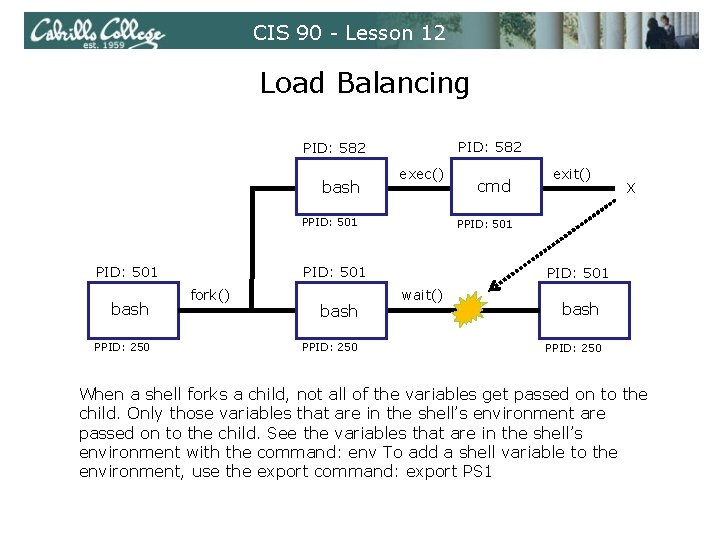
CIS 90 - Lesson 12 Load Balancing PID: 582 exec() bash PPID: 501 bash PPID: 250 X PID: 501 wait() bash PPID: 250 exit() PPID: 501 fork() cmd / bash PPID: 250 When a shell forks a child, not all of the variables get passed on to the child. Only those variables that are in the shell’s environment are passed on to the child. See the variables that are in the shell’s environment with the command: env To add a shell variable to the environment, use the export command: export PS 1
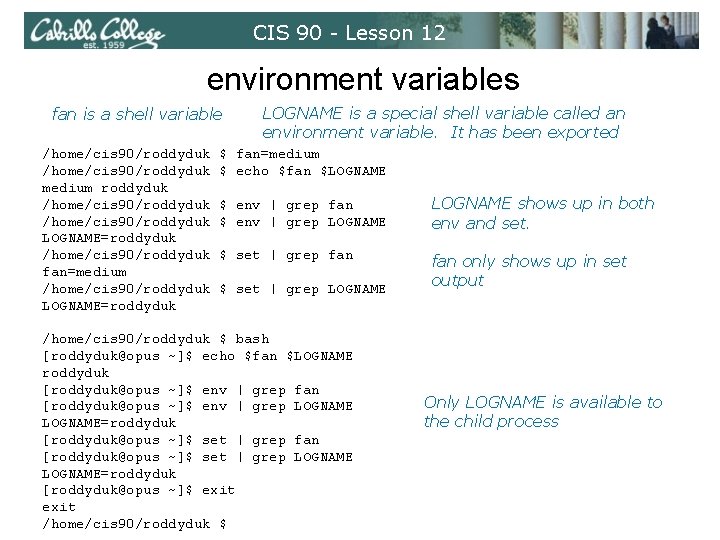
CIS 90 - Lesson 12 environment variables fan is a shell variable /home/cis 90/roddyduk medium roddyduk /home/cis 90/roddyduk LOGNAME=roddyduk /home/cis 90/roddyduk fan=medium /home/cis 90/roddyduk LOGNAME=roddyduk LOGNAME is a special shell variable called an environment variable. It has been exported $ fan=medium $ echo $fan $LOGNAME $ env | grep fan $ env | grep LOGNAME shows up in both env and set. $ set | grep fan only shows up in set output $ set | grep LOGNAME /home/cis 90/roddyduk $ bash [roddyduk@opus ~]$ echo $fan $LOGNAME roddyduk [roddyduk@opus ~]$ env | grep fan [roddyduk@opus ~]$ env | grep LOGNAME=roddyduk [roddyduk@opus ~]$ set | grep fan [roddyduk@opus ~]$ set | grep LOGNAME=roddyduk [roddyduk@opus ~]$ exit /home/cis 90/roddyduk $ Only LOGNAME is available to the child process
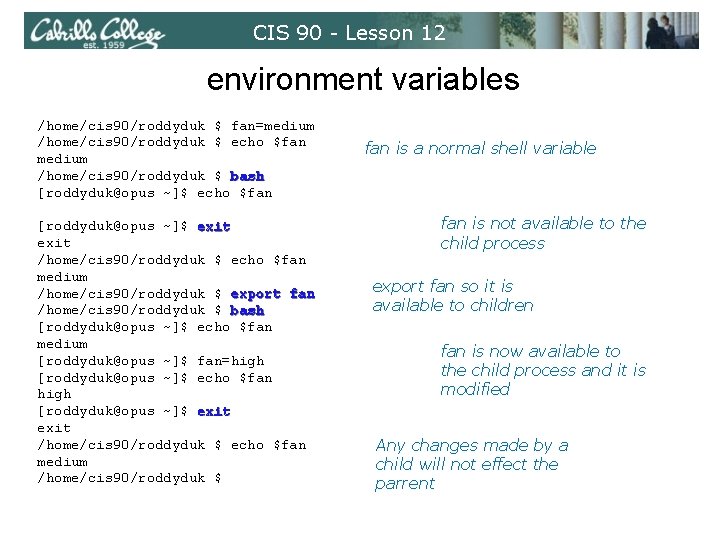
CIS 90 - Lesson 12 environment variables /home/cis 90/roddyduk $ fan=medium /home/cis 90/roddyduk $ echo $fan medium /home/cis 90/roddyduk $ bash [roddyduk@opus ~]$ echo $fan [roddyduk@opus ~]$ exit /home/cis 90/roddyduk $ echo $fan medium /home/cis 90/roddyduk $ export fan /home/cis 90/roddyduk $ bash [roddyduk@opus ~]$ echo $fan medium [roddyduk@opus ~]$ fan=high [roddyduk@opus ~]$ echo $fan high [roddyduk@opus ~]$ exit /home/cis 90/roddyduk $ echo $fan medium /home/cis 90/roddyduk $ fan is a normal shell variable fan is not available to the child process export fan so it is available to children fan is now available to the child process and it is modified Any changes made by a child will not effect the parrent
CIS 90 - Lesson 12 Environment Variables
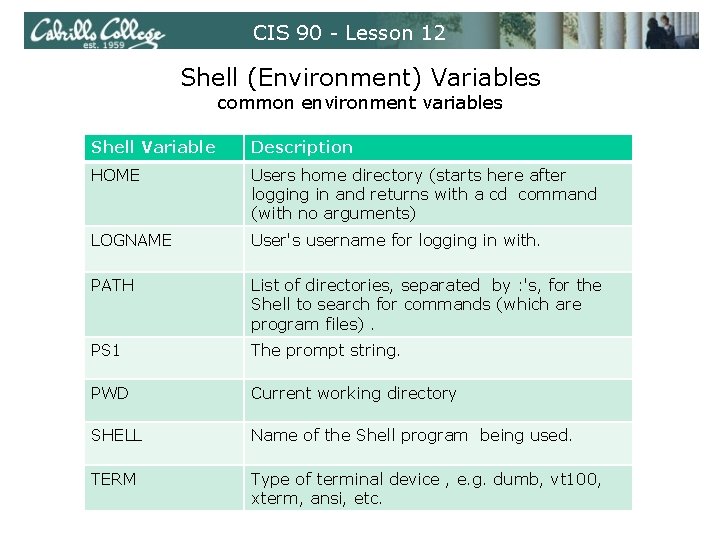
CIS 90 - Lesson 12 Shell (Environment) Variables common environment variables Shell Variable Description HOME Users home directory (starts here after logging in and returns with a cd command (with no arguments) LOGNAME User's username for logging in with. PATH List of directories, separated by : 's, for the Shell to search for commands (which are program files). PS 1 The prompt string. PWD Current working directory SHELL Name of the Shell program being used. TERM Type of terminal device , e. g. dumb, vt 100, xterm, ansi, etc.
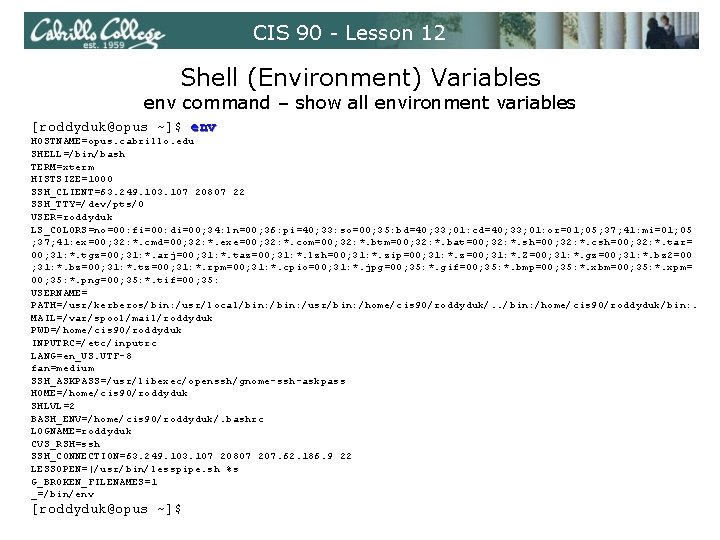
CIS 90 - Lesson 12 Shell (Environment) Variables env command – show all environment variables [roddyduk@opus ~]$ env HOSTNAME=opus. cabrillo. edu SHELL=/bin/bash TERM=xterm HISTSIZE=1000 SSH_CLIENT=63. 249. 103. 107 20807 22 SSH_TTY=/dev/pts/0 USER=roddyduk LS_COLORS=no=00: fi=00: di=00; 34: ln=00; 36: pi=40; 33: so=00; 35: bd=40; 33; 01: cd=40; 33; 01: or=01; 05; 37; 41: mi=01; 05 ; 37; 41: ex=00; 32: *. cmd=00; 32: *. exe=00; 32: *. com=00; 32: *. btm=00; 32: *. bat=00; 32: *. sh=00; 32: *. csh=00; 32: *. tar= 00; 31: *. tgz=00; 31: *. arj=00; 31: *. taz=00; 31: *. lzh=00; 31: *. zip=00; 31: *. z=00; 31: *. Z=00; 31: *. gz=00; 31: *. bz 2=00 ; 31: *. bz=00; 31: *. tz=00; 31: *. rpm=00; 31: *. cpio=00; 31: *. jpg=00; 35: *. gif=00; 35: *. bmp=00; 35: *. xbm=00; 35: *. xpm= 00; 35: *. png=00; 35: *. tif=00; 35: USERNAME= PATH=/usr/kerberos/bin: /usr/local/bin: /usr/bin: /home/cis 90/roddyduk/. . /bin: /home/cis 90/roddyduk/bin: . MAIL=/var/spool/mail/roddyduk PWD=/home/cis 90/roddyduk INPUTRC=/etc/inputrc LANG=en_US. UTF-8 fan=medium SSH_ASKPASS=/usr/libexec/openssh/gnome-ssh-askpass HOME=/home/cis 90/roddyduk SHLVL=2 BASH_ENV=/home/cis 90/roddyduk/. bashrc LOGNAME=roddyduk CVS_RSH=ssh SSH_CONNECTION=63. 249. 103. 107 20807 207. 62. 186. 9 22 LESSOPEN=|/usr/bin/lesspipe. sh %s G_BROKEN_FILENAMES=1 _=/bin/env [roddyduk@opus ~]$
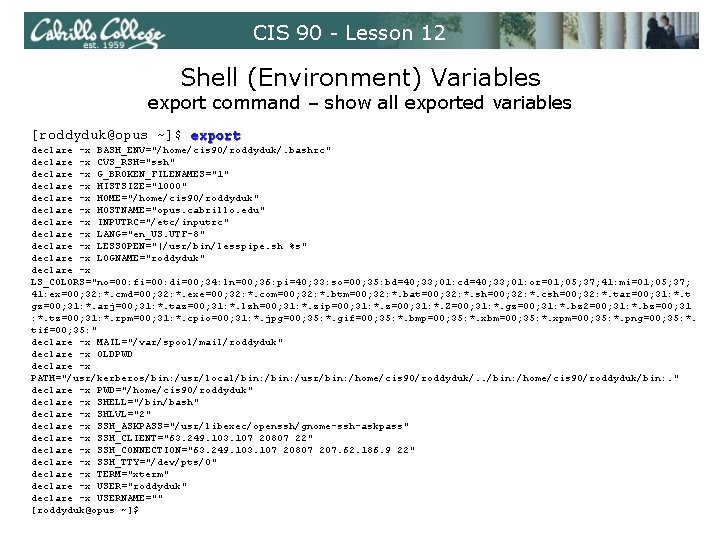
CIS 90 - Lesson 12 Shell (Environment) Variables export command – show all exported variables [roddyduk@opus ~]$ export declare -x BASH_ENV="/home/cis 90/roddyduk/. bashrc" declare -x CVS_RSH="ssh" declare -x G_BROKEN_FILENAMES="1" declare -x HISTSIZE="1000" declare -x HOME="/home/cis 90/roddyduk" declare -x HOSTNAME="opus. cabrillo. edu" declare -x INPUTRC="/etc/inputrc" declare -x LANG="en_US. UTF-8" declare -x LESSOPEN="|/usr/bin/lesspipe. sh %s" declare -x LOGNAME="roddyduk" declare -x LS_COLORS="no=00: fi=00: di=00; 34: ln=00; 36: pi=40; 33: so=00; 35: bd=40; 33; 01: cd=40; 33; 01: or=01; 05; 37; 41: mi=01; 05; 37; 41: ex=00; 32: *. cmd=00; 32: *. exe=00; 32: *. com=00; 32: *. btm=00; 32: *. bat=00; 32: *. sh=00; 32: *. csh=00; 32: *. tar=00; 31: *. t gz=00; 31: *. arj=00; 31: *. taz=00; 31: *. lzh=00; 31: *. zip=00; 31: *. z=00; 31: *. Z=00; 31: *. gz=00; 31: *. bz 2=00; 31: *. bz=00; 31 : *. tz=00; 31: *. rpm=00; 31: *. cpio=00; 31: *. jpg=00; 35: *. gif=00; 35: *. bmp=00; 35: *. xbm=00; 35: *. xpm=00; 35: *. png=00; 35: *. tif=00; 35: " declare -x MAIL="/var/spool/mail/roddyduk" declare -x OLDPWD declare -x PATH="/usr/kerberos/bin: /usr/local/bin: /usr/bin: /home/cis 90/roddyduk/. . /bin: /home/cis 90/roddyduk/bin: . " declare -x PWD="/home/cis 90/roddyduk" declare -x SHELL="/bin/bash" declare -x SHLVL="2" declare -x SSH_ASKPASS="/usr/libexec/openssh/gnome-ssh-askpass" declare -x SSH_CLIENT="63. 249. 103. 107 20807 22" declare -x SSH_CONNECTION="63. 249. 103. 107 20807 207. 62. 186. 9 22" declare -x SSH_TTY="/dev/pts/0" declare -x TERM="xterm" declare -x USER="roddyduk" declare -x USERNAME="" [roddyduk@opus ~]$
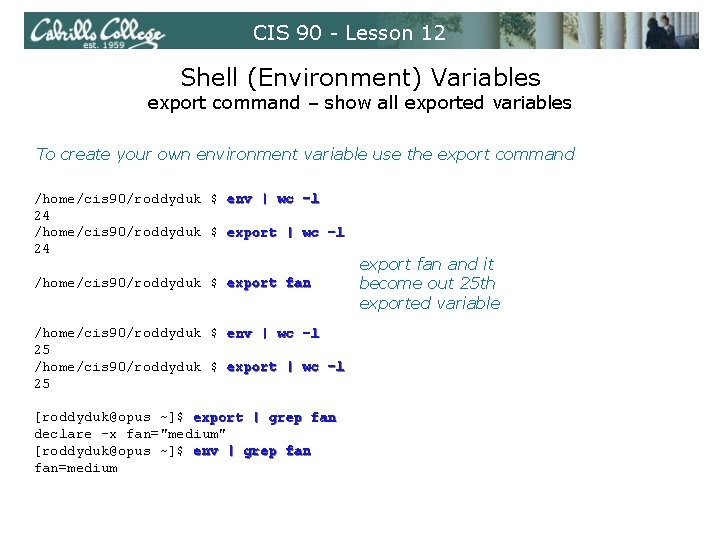
CIS 90 - Lesson 12 Shell (Environment) Variables export command – show all exported variables To create your own environment variable use the export command /home/cis 90/roddyduk $ env | wc –l 24 /home/cis 90/roddyduk $ export | wc -l 24 /home/cis 90/roddyduk $ export fan /home/cis 90/roddyduk $ env | wc -l 25 /home/cis 90/roddyduk $ export | wc -l 25 [roddyduk@opus ~]$ export | grep fan declare -x fan="medium" [roddyduk@opus ~]$ env | grep fan=medium export fan and it become out 25 th exported variable
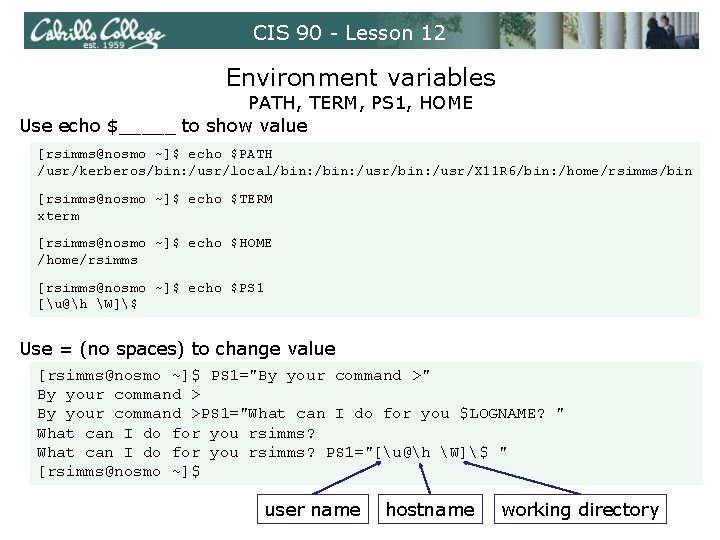
CIS 90 - Lesson 12 Environment variables PATH, TERM, PS 1, HOME Use echo $_____ to show value [rsimms@nosmo ~]$ echo $PATH /usr/kerberos/bin: /usr/local/bin: /usr/bin: /usr/X 11 R 6/bin: /home/rsimms/bin [rsimms@nosmo ~]$ echo $TERM xterm [rsimms@nosmo ~]$ echo $HOME /home/rsimms [rsimms@nosmo ~]$ echo $PS 1 [u@h W]$ Use = (no spaces) to change value [rsimms@nosmo ~]$ PS 1="By your command >" By your command >PS 1="What can I do for you $LOGNAME? " What can I do for you rsimms? PS 1="[u@h W]$ " [rsimms@nosmo ~]$ user name hostname working directory
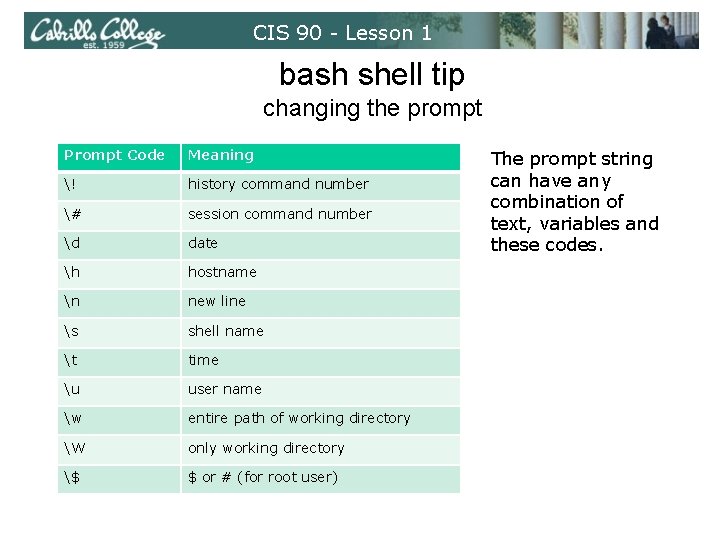
CIS 90 - Lesson 1 bash shell tip changing the prompt Prompt Code Meaning ! history command number # session command number d date h hostname n new line s shell name t time u user name w entire path of working directory W only working directory $ $ or # (for root user) The prompt string can have any combination of text, variables and these codes.
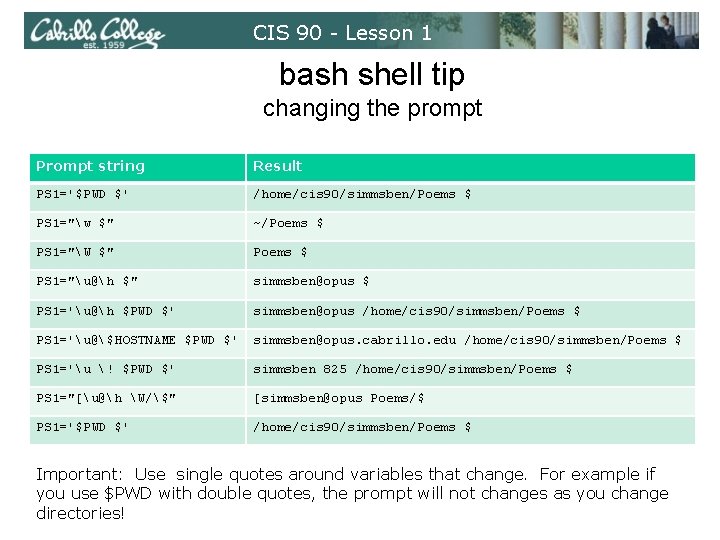
CIS 90 - Lesson 1 bash shell tip changing the prompt Prompt string Result PS 1='$PWD $' /home/cis 90/simmsben/Poems $ PS 1="w $" ~/Poems $ PS 1="W $" Poems $ PS 1="u@h $" simmsben@opus $ PS 1='u@h $PWD $' simmsben@opus /home/cis 90/simmsben/Poems $ PS 1='u@$HOSTNAME $PWD $' simmsben@opus. cabrillo. edu /home/cis 90/simmsben/Poems $ PS 1='u ! $PWD $' simmsben 825 /home/cis 90/simmsben/Poems $ PS 1="[u@h W/$" [simmsben@opus Poems/$ PS 1='$PWD $' /home/cis 90/simmsben/Poems $ Important: Use single quotes around variables that change. For example if you use $PWD with double quotes, the prompt will not changes as you change directories!
CIS 90 - Lesson 12 bash startup files
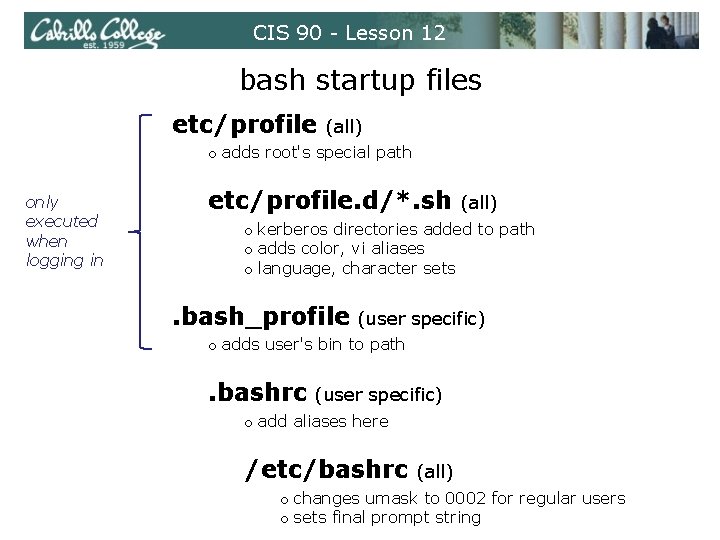
CIS 90 - Lesson 12 bash startup files etc/profile (all) o adds root's special path only executed when logging in etc/profile. d/*. sh (all) o kerberos directories added to path o adds color, vi aliases o language, character sets . bash_profile (user specific) o adds user's bin to path . bashrc (user specific) o add aliases here /etc/bashrc (all) o changes umask to 0002 for regular users o sets final prompt string
CIS 90 - Lesson 12 . bash_profile
CIS 90 - Lesson 12 . bash_profile • The. bash_profile is a shell script that sets up a user's shell environment. • This script is executed each time the user logs in. • The. bash_profile is used for initializing shell variables, running the user's. bashrc file, running basic commands like umask and set -o options.
CIS 90 - Lesson 12 . bash_profile [roddyduk@opus ~]$ cat. bash_profile # Get the aliases and functions if [ -f ~/. bashrc ]; then. ~/. bashrc fi # User specific environment and startup programs PATH=$PATH: $HOME/. . /bin: $HOME/bin: . BASH_ENV=$HOME/. bashrc USERNAME="" PS 1='$PWD $ ' export USERNAME BASH_ENV PATH umask 002 set -o ignoreeof stty susp eval `tset -s -m vt 100: vt 100 -m : ? ${TERM: -ansi} -r -Q ` [roddyduk@opus ~]$
CIS 90 - Lesson 12 . bashrc
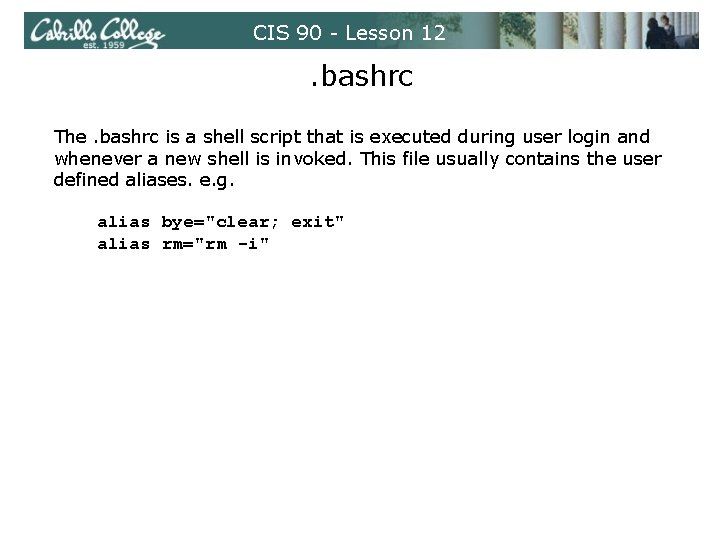
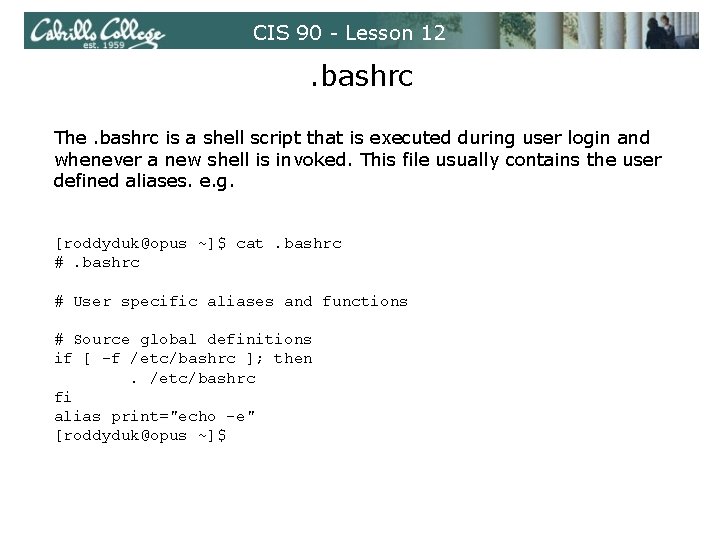
CIS 90 - Lesson 12 . bashrc The. bashrc is a shell script that is executed during user login and whenever a new shell is invoked. This file usually contains the user defined aliases. e. g. alias bye="clear; exit" alias rm="rm -i"
CIS 90 - Lesson 12 . bashrc The. bashrc is a shell script that is executed during user login and whenever a new shell is invoked. This file usually contains the user defined aliases. e. g. [roddyduk@opus ~]$ cat. bashrc # User specific aliases and functions # Source global definitions if [ -f /etc/bashrc ]; then. /etc/bashrc fi alias print="echo -e" [roddyduk@opus ~]$
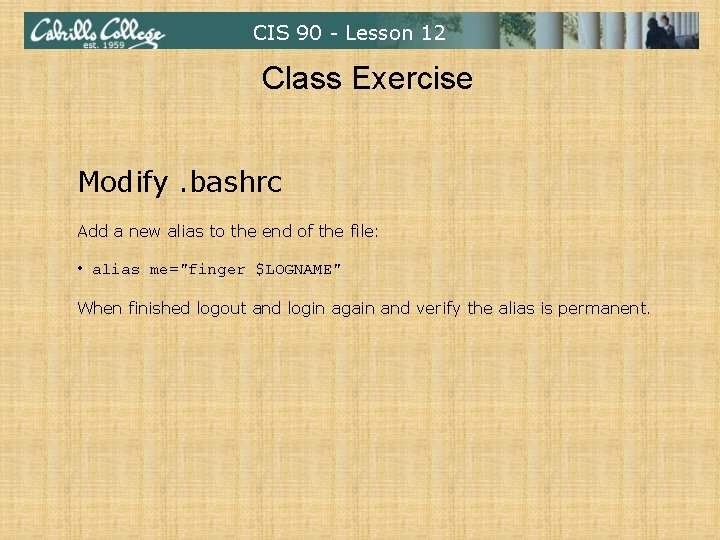
CIS 90 - Lesson 12 Class Exercise Modify. bashrc Add a new alias to the end of the file: • alias me="finger $LOGNAME" When finished logout and login again and verify the alias is permanent.
CIS 90 - Lesson 12 . and exec
CIS 90 - Lesson 12 . and exec In normal execution of a unix command, shell-script or binary, the child process in unable to affect the login shell environment. Sometimes it is desireable to run a shell script that will initialize or change shell variables in the parent environment. To do this, the shell (bash) provides a. (dot) or source command, which instructs the shell to execute the shell script itself, without spawning a child process to run the script. . shscript or source shscript In this example, the commands in the file shscript are run by the parent shell, and therefore, any changes made to the environment will last for the duration of the login session. If a UNIX command is run using the exec command, the shell will terminate upon the exiting of that command: exec clear This will have the effect of clearing the screen and logging off the computer.
CIS 90 - Lesson 12 Lab 10
CIS 90 - Lesson 12 Wrap up
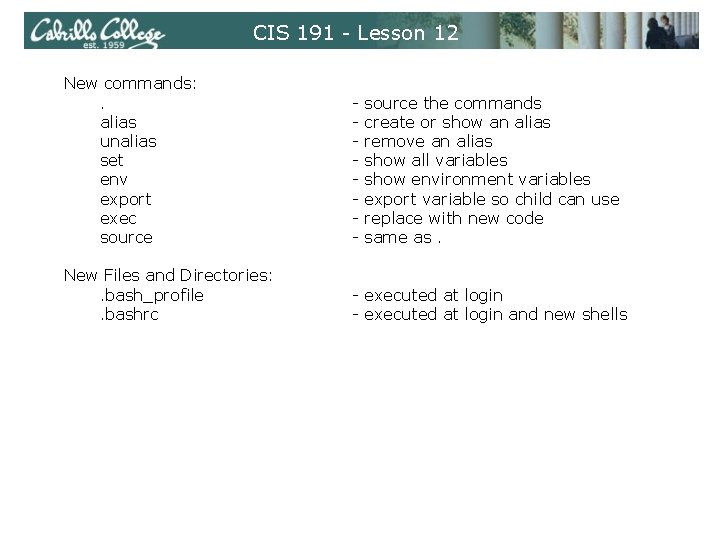
CIS 191 - Lesson 12 New commands: . alias unalias set env export exec source - New Files and Directories: . bash_profile. bashrc - executed at login and new shells source the commands create or show an alias remove an alias show all variables show environment variables export variable so child can use replace with new code same as.
CIS 90 - Lesson 12 Next Class Assignment: Check Calendar Page on web site to see what is due next week. 10 Quiz questions for next class: b a L • How do you make an alias setting permanent? • What must you do to a variable so a child can use it? • How would you use an alias to make a command named copy … that would do what the cp command does?
CIS 90 - Lesson 12 Backup