
CIS 470 Mobile App Development Lecture 8 Wenbing
CIS 470 Mobile App Development Lecture 8 Wenbing Zhao Department of Electrical Engineering and Computer Science Cleveland State University wenbing@ieee. org 9/26/2020 CIS 470: Mobile App Development 1
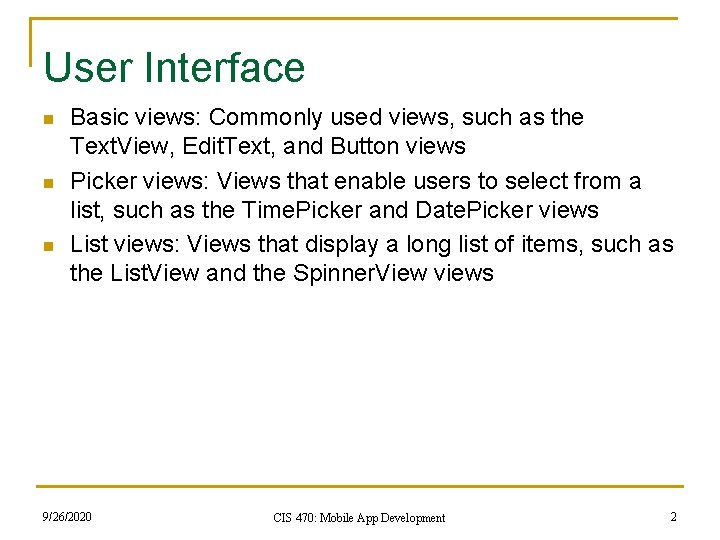
User Interface n n n Basic views: Commonly used views, such as the Text. View, Edit. Text, and Button views Picker views: Views that enable users to select from a list, such as the Time. Picker and Date. Picker views List views: Views that display a long list of items, such as the List. View and the Spinner. View views 9/26/2020 CIS 470: Mobile App Development 2
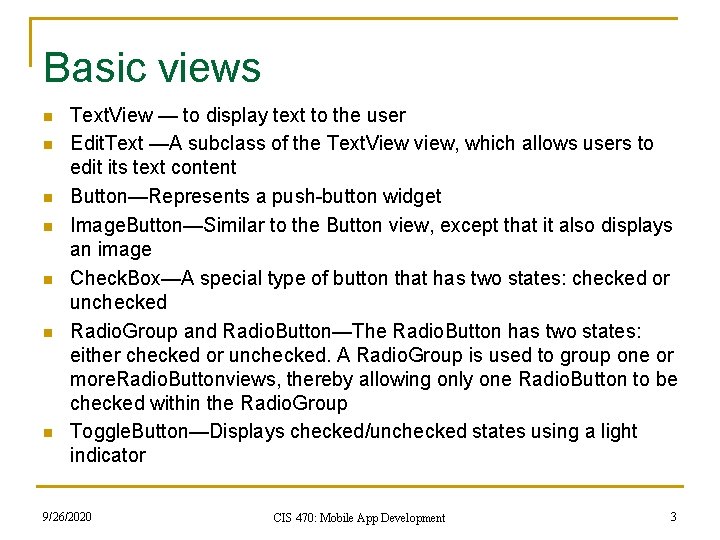
Basic views n n n n Text. View — to display text to the user Edit. Text —A subclass of the Text. View view, which allows users to edit its text content Button—Represents a push-button widget Image. Button—Similar to the Button view, except that it also displays an image Check. Box—A special type of button that has two states: checked or unchecked Radio. Group and Radio. Button—The Radio. Button has two states: either checked or unchecked. A Radio. Group is used to group one or more. Radio. Buttonviews, thereby allowing only one Radio. Button to be checked within the Radio. Group Toggle. Button—Displays checked/unchecked states using a light indicator 9/26/2020 CIS 470: Mobile App Development 3
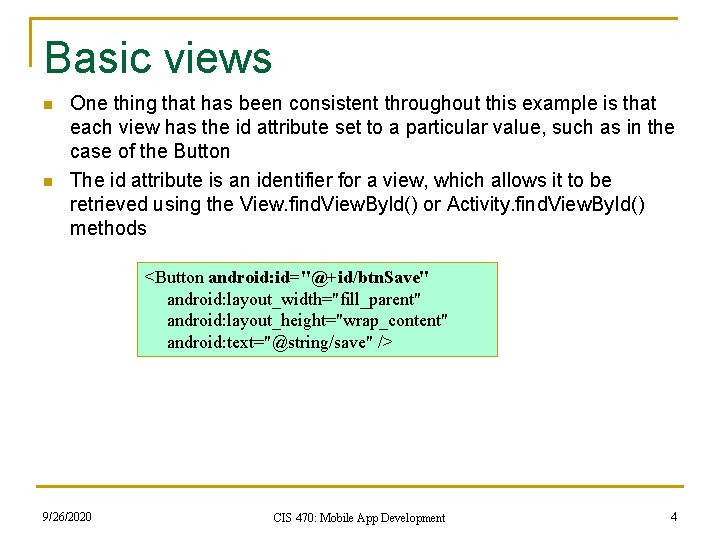
Basic views n n One thing that has been consistent throughout this example is that each view has the id attribute set to a particular value, such as in the case of the Button The id attribute is an identifier for a view, which allows it to be retrieved using the View. find. View. By. Id() or Activity. find. View. By. Id() methods <Button android: id="@+id/btn. Save" android: layout_width="fill_parent" android: layout_height="wrap_content" android: text="@string/save" /> 9/26/2020 CIS 470: Mobile App Development 4
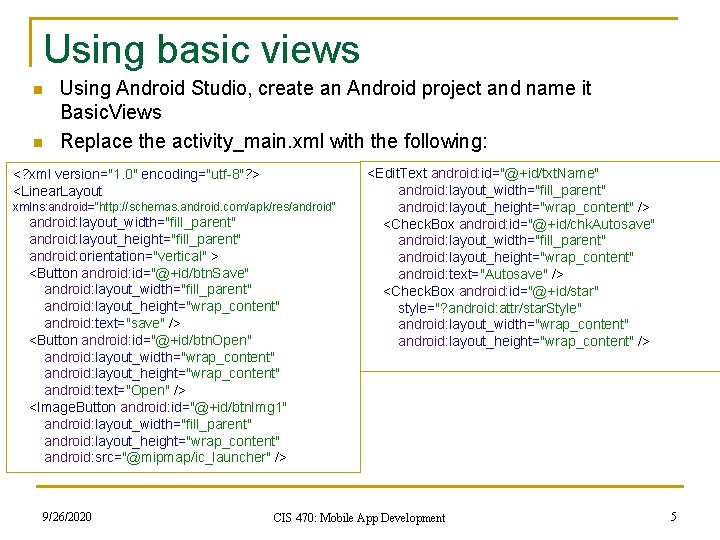
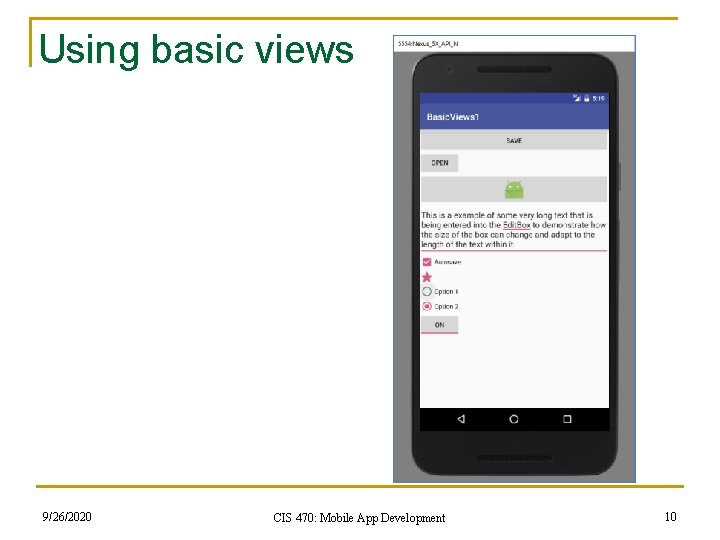
Using basic views n n Using Android Studio, create an Android project and name it Basic. Views Replace the activity_main. xml with the following: <? xml version="1. 0" encoding="utf-8"? > <Linear. Layout xmlns: android="http: //schemas. android. com/apk/res/android" android: layout_width="fill_parent" android: layout_height="fill_parent" android: orientation="vertical" > <Button android: id="@+id/btn. Save" android: layout_width="fill_parent" android: layout_height="wrap_content" android: text="save" /> <Button android: id="@+id/btn. Open" android: layout_width="wrap_content" android: layout_height="wrap_content" android: text="Open" /> <Image. Button android: id="@+id/btn. Img 1" android: layout_width="fill_parent" android: layout_height="wrap_content" android: src="@mipmap/ic_launcher" /> 9/26/2020 <Edit. Text android: id="@+id/txt. Name" android: layout_width="fill_parent" android: layout_height="wrap_content" /> <Check. Box android: id="@+id/chk. Autosave" android: layout_width="fill_parent" android: layout_height="wrap_content" android: text="Autosave" /> <Check. Box android: id="@+id/star" style="? android: attr/star. Style" android: layout_width="wrap_content" android: layout_height="wrap_content" /> CIS 470: Mobile App Development 5
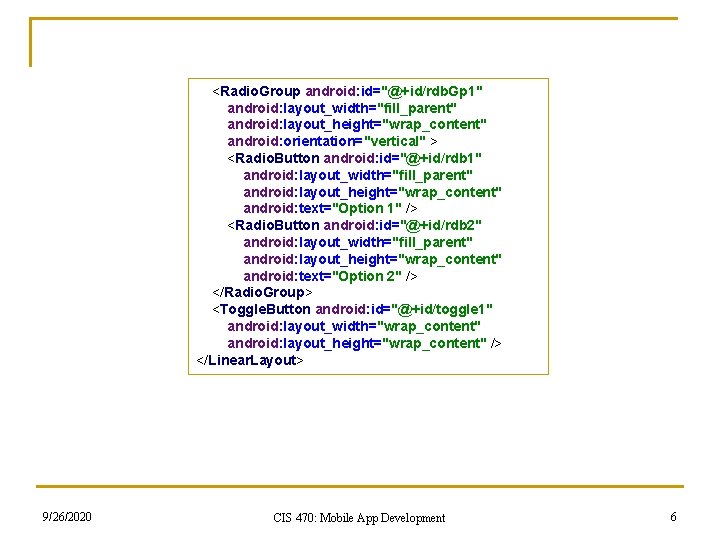
<Radio. Group android: id="@+id/rdb. Gp 1" android: layout_width="fill_parent" android: layout_height="wrap_content" android: orientation="vertical" > <Radio. Button android: id="@+id/rdb 1" android: layout_width="fill_parent" android: layout_height="wrap_content" android: text="Option 1" /> <Radio. Button android: id="@+id/rdb 2" android: layout_width="fill_parent" android: layout_height="wrap_content" android: text="Option 2" /> </Radio. Group> <Toggle. Button android: id="@+id/toggle 1" android: layout_width="wrap_content" android: layout_height="wrap_content" /> </Linear. Layout> 9/26/2020 CIS 470: Mobile App Development 6
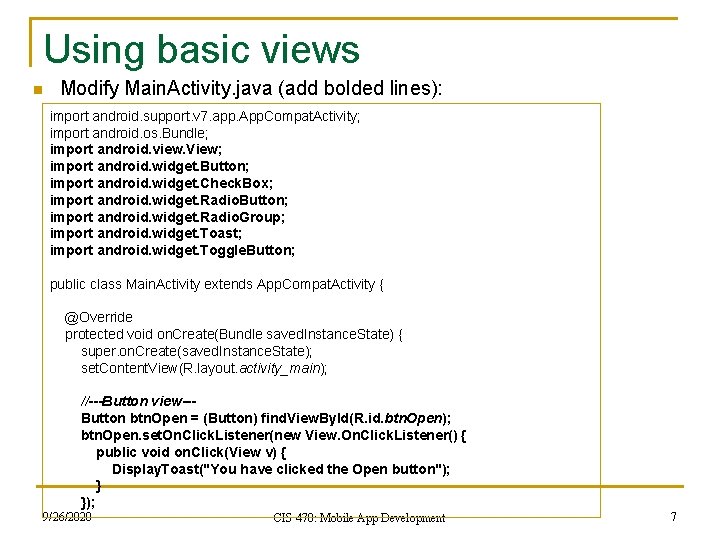
Using basic views n Modify Main. Activity. java (add bolded lines): import android. support. v 7. app. App. Compat. Activity; import android. os. Bundle; import android. view. View; import android. widget. Button; import android. widget. Check. Box; import android. widget. Radio. Button; import android. widget. Radio. Group; import android. widget. Toast; import android. widget. Toggle. Button; public class Main. Activity extends App. Compat. Activity { @Override protected void on. Create(Bundle saved. Instance. State) { super. on. Create(saved. Instance. State); set. Content. View(R. layout. activity_main); //---Button view--Button btn. Open = (Button) find. View. By. Id(R. id. btn. Open); btn. Open. set. On. Click. Listener(new View. On. Click. Listener() { public void on. Click(View v) { Display. Toast("You have clicked the Open button"); } }); 9/26/2020 CIS 470: Mobile App Development 7
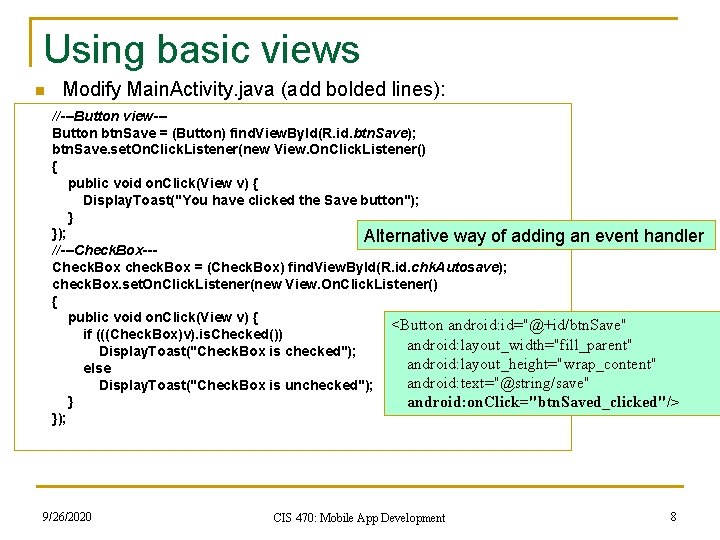
Using basic views n Modify Main. Activity. java (add bolded lines): //---Button view--Button btn. Save = (Button) find. View. By. Id(R. id. btn. Save); btn. Save. set. On. Click. Listener(new View. On. Click. Listener() { public void on. Click(View v) { Display. Toast("You have clicked the Save button"); } }); Alternative way of adding an event handler //---Check. Box check. Box = (Check. Box) find. View. By. Id(R. id. chk. Autosave); check. Box. set. On. Click. Listener(new View. On. Click. Listener() { public void on. Click(View v) { <Button android: id="@+id/btn. Save" if (((Check. Box)v). is. Checked()) android: layout_width="fill_parent" Display. Toast("Check. Box is checked"); android: layout_height="wrap_content" else android: text="@string/save" Display. Toast("Check. Box is unchecked"); } android: on. Click="btn. Saved_clicked"/> }); 9/26/2020 CIS 470: Mobile App Development 8
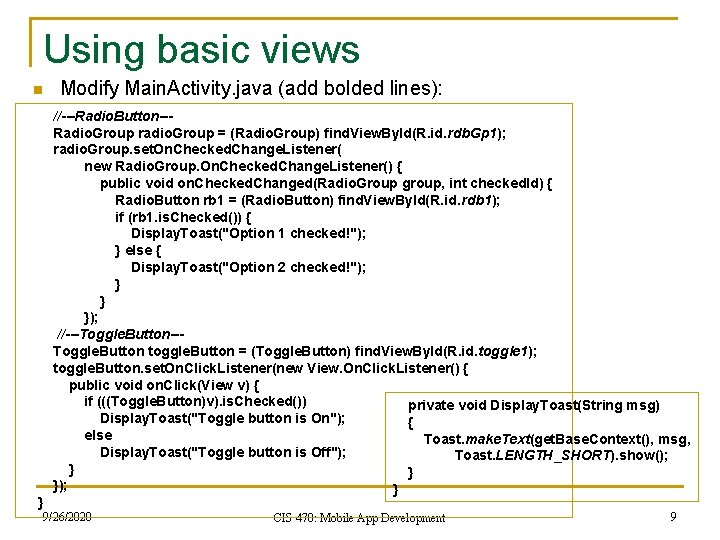
Using basic views n } Modify Main. Activity. java (add bolded lines): //---Radio. Button--Radio. Group radio. Group = (Radio. Group) find. View. By. Id(R. id. rdb. Gp 1); radio. Group. set. On. Checked. Change. Listener( new Radio. Group. On. Checked. Change. Listener() { public void on. Checked. Changed(Radio. Group group, int checked. Id) { Radio. Button rb 1 = (Radio. Button) find. View. By. Id(R. id. rdb 1); if (rb 1. is. Checked()) { Display. Toast("Option 1 checked!"); } else { Display. Toast("Option 2 checked!"); } } }); //---Toggle. Button toggle. Button = (Toggle. Button) find. View. By. Id(R. id. toggle 1); toggle. Button. set. On. Click. Listener(new View. On. Click. Listener() { public void on. Click(View v) { if (((Toggle. Button)v). is. Checked()) private void Display. Toast(String msg) Display. Toast("Toggle button is On"); { else Toast. make. Text(get. Base. Context(), msg, Display. Toast("Toggle button is Off"); Toast. LENGTH_SHORT). show(); } } }); } 9/26/2020 CIS 470: Mobile App Development 9
Using basic views 9/26/2020 CIS 470: Mobile App Development 10
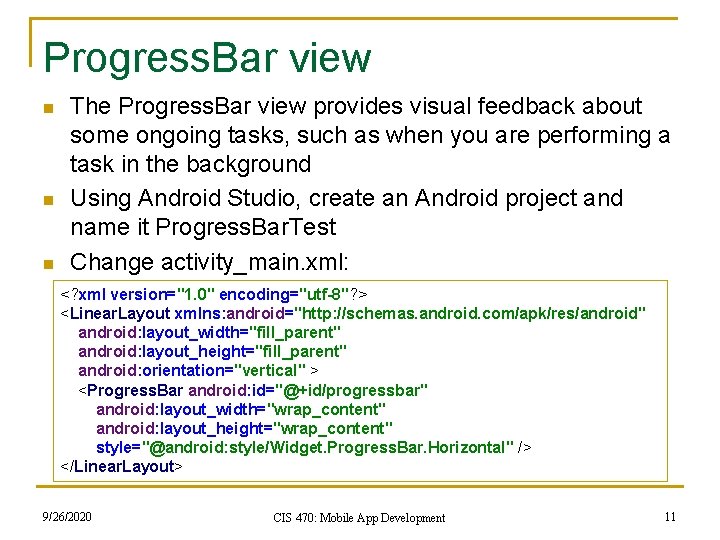
Progress. Bar view n n n The Progress. Bar view provides visual feedback about some ongoing tasks, such as when you are performing a task in the background Using Android Studio, create an Android project and name it Progress. Bar. Test Change activity_main. xml: <? xml version="1. 0" encoding="utf-8"? > <Linear. Layout xmlns: android="http: //schemas. android. com/apk/res/android" android: layout_width="fill_parent" android: layout_height="fill_parent" android: orientation="vertical" > <Progress. Bar android: id="@+id/progressbar" android: layout_width="wrap_content" android: layout_height="wrap_content" style="@android: style/Widget. Progress. Bar. Horizontal" /> </Linear. Layout> 9/26/2020 CIS 470: Mobile App Development 11
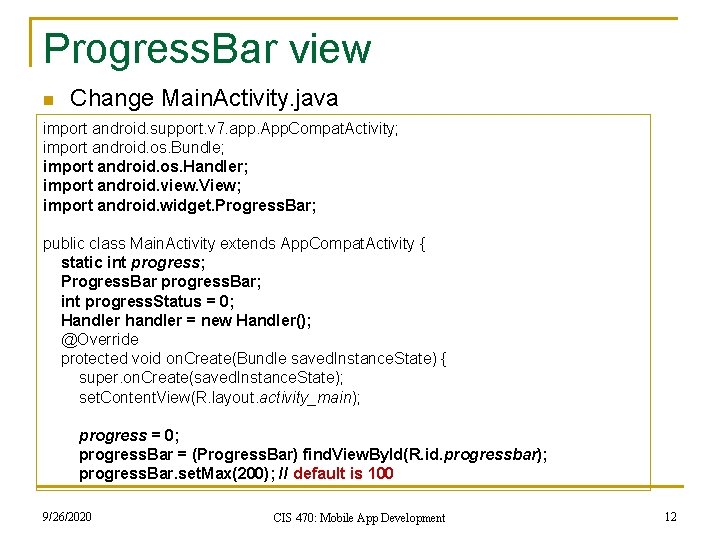
Progress. Bar view n Change Main. Activity. java import android. support. v 7. app. App. Compat. Activity; import android. os. Bundle; import android. os. Handler; import android. view. View; import android. widget. Progress. Bar; public class Main. Activity extends App. Compat. Activity { static int progress; Progress. Bar progress. Bar; int progress. Status = 0; Handler handler = new Handler(); @Override protected void on. Create(Bundle saved. Instance. State) { super. on. Create(saved. Instance. State); set. Content. View(R. layout. activity_main); progress = 0; progress. Bar = (Progress. Bar) find. View. By. Id(R. id. progressbar); progress. Bar. set. Max(200); // default is 100 9/26/2020 CIS 470: Mobile App Development 12
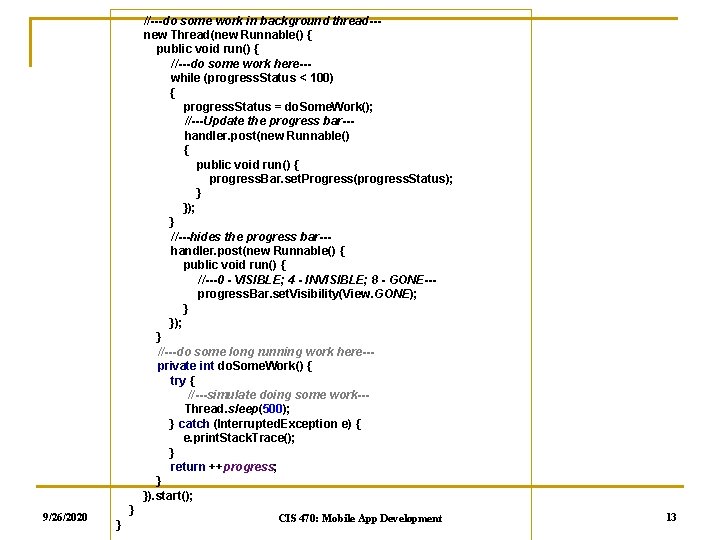
//---do some work in background thread--new Thread(new Runnable() { public void run() { //---do some work here--while (progress. Status < 100) { progress. Status = do. Some. Work(); //---Update the progress bar--handler. post(new Runnable() { public void run() { progress. Bar. set. Progress(progress. Status); } }); } //---hides the progress bar--handler. post(new Runnable() { public void run() { //---0 - VISIBLE; 4 - INVISIBLE; 8 - GONE--progress. Bar. set. Visibility(View. GONE); } }); } //---do some long running work here--private int do. Some. Work() { try { //---simulate doing some work--Thread. sleep(500); } catch (Interrupted. Exception e) { e. print. Stack. Trace(); } return ++progress; } }). start(); 9/26/2020 } } CIS 470: Mobile App Development 13
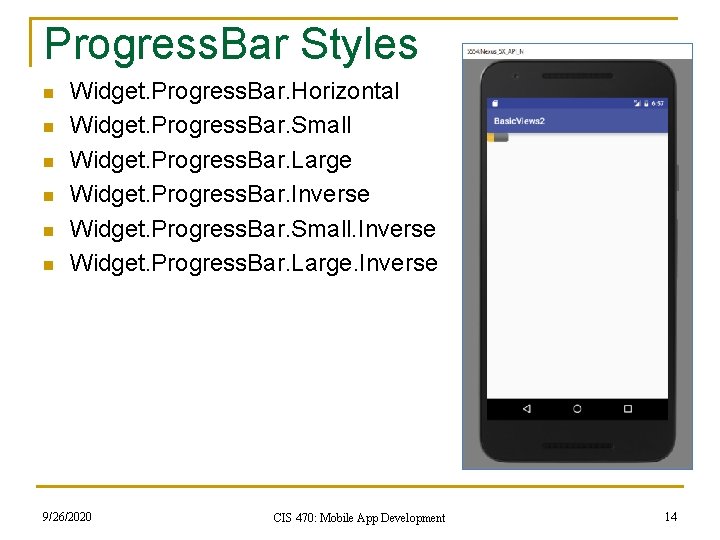
Progress. Bar Styles n n n Widget. Progress. Bar. Horizontal Widget. Progress. Bar. Small Widget. Progress. Bar. Large Widget. Progress. Bar. Inverse Widget. Progress. Bar. Small. Inverse Widget. Progress. Bar. Large. Inverse 9/26/2020 CIS 470: Mobile App Development 14
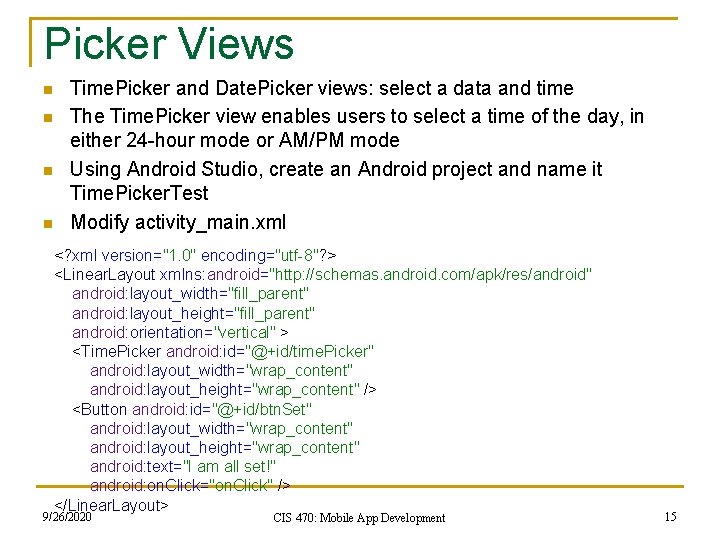
Picker Views n n Time. Picker and Date. Picker views: select a data and time The Time. Picker view enables users to select a time of the day, in either 24 -hour mode or AM/PM mode Using Android Studio, create an Android project and name it Time. Picker. Test Modify activity_main. xml <? xml version="1. 0" encoding="utf-8"? > <Linear. Layout xmlns: android="http: //schemas. android. com/apk/res/android" android: layout_width="fill_parent" android: layout_height="fill_parent" android: orientation="vertical" > <Time. Picker android: id="@+id/time. Picker" android: layout_width="wrap_content" android: layout_height="wrap_content" /> <Button android: id="@+id/btn. Set" android: layout_width="wrap_content" android: layout_height="wrap_content" android: text="I am all set!" android: on. Click="on. Click" /> </Linear. Layout> 9/26/2020 CIS 470: Mobile App Development 15
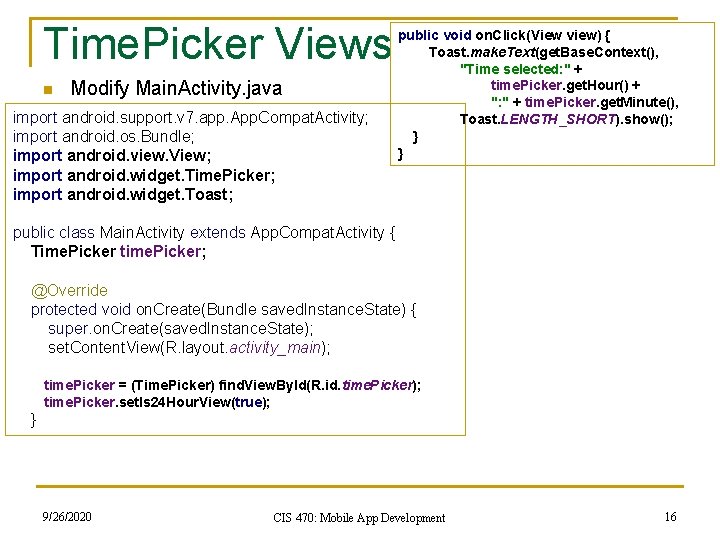
Time. Picker Views n Modify Main. Activity. java import android. support. v 7. app. App. Compat. Activity; import android. os. Bundle; import android. view. View; import android. widget. Time. Picker; import android. widget. Toast; public void on. Click(View view) { Toast. make. Text(get. Base. Context(), "Time selected: " + time. Picker. get. Hour() + ": " + time. Picker. get. Minute(), Toast. LENGTH_SHORT). show(); } } public class Main. Activity extends App. Compat. Activity { Time. Picker time. Picker; @Override protected void on. Create(Bundle saved. Instance. State) { super. on. Create(saved. Instance. State); set. Content. View(R. layout. activity_main); time. Picker = (Time. Picker) find. View. By. Id(R. id. time. Picker); time. Picker. set. Is 24 Hour. View(true); } 9/26/2020 CIS 470: Mobile App Development 16
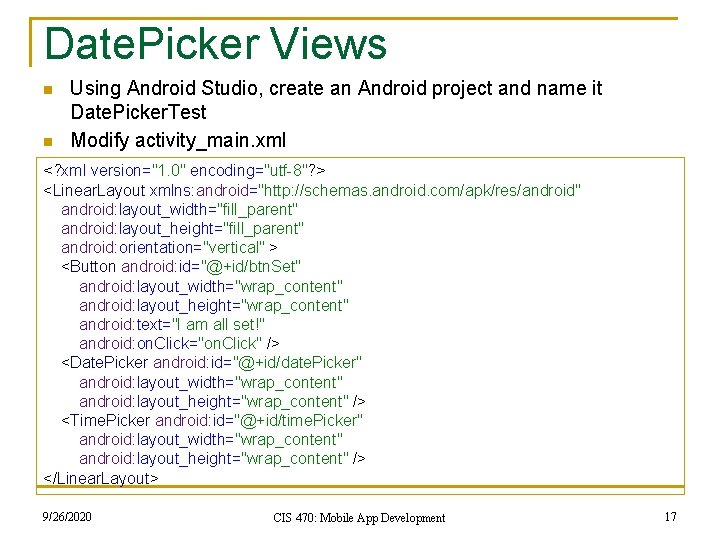
Date. Picker Views n n Using Android Studio, create an Android project and name it Date. Picker. Test Modify activity_main. xml <? xml version="1. 0" encoding="utf-8"? > <Linear. Layout xmlns: android="http: //schemas. android. com/apk/res/android" android: layout_width="fill_parent" android: layout_height="fill_parent" android: orientation="vertical" > <Button android: id="@+id/btn. Set" android: layout_width="wrap_content" android: layout_height="wrap_content" android: text="I am all set!" android: on. Click="on. Click" /> <Date. Picker android: id="@+id/date. Picker" android: layout_width="wrap_content" android: layout_height="wrap_content" /> <Time. Picker android: id="@+id/time. Picker" android: layout_width="wrap_content" android: layout_height="wrap_content" /> </Linear. Layout> 9/26/2020 CIS 470: Mobile App Development 17
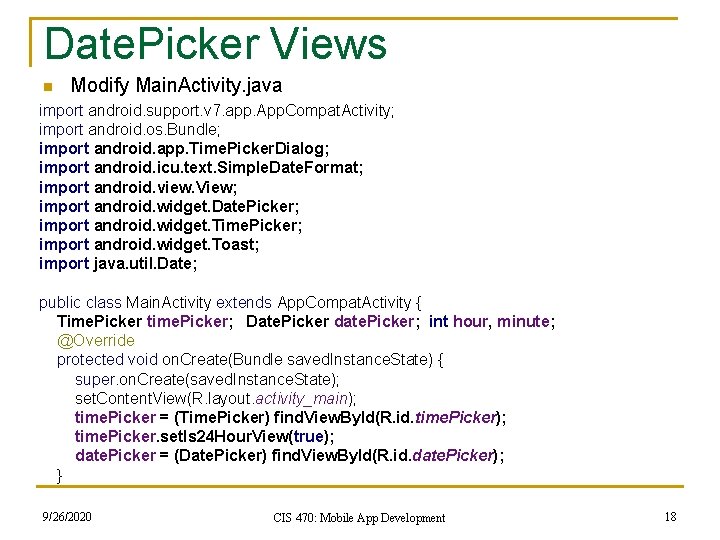
Date. Picker Views n Modify Main. Activity. java import android. support. v 7. app. App. Compat. Activity; import android. os. Bundle; import android. app. Time. Picker. Dialog; import android. icu. text. Simple. Date. Format; import android. view. View; import android. widget. Date. Picker; import android. widget. Time. Picker; import android. widget. Toast; import java. util. Date; public class Main. Activity extends App. Compat. Activity { Time. Picker time. Picker; Date. Picker date. Picker; int hour, minute; @Override protected void on. Create(Bundle saved. Instance. State) { super. on. Create(saved. Instance. State); set. Content. View(R. layout. activity_main); time. Picker = (Time. Picker) find. View. By. Id(R. id. time. Picker); time. Picker. set. Is 24 Hour. View(true); date. Picker = (Date. Picker) find. View. By. Id(R. id. date. Picker); } 9/26/2020 CIS 470: Mobile App Development 18
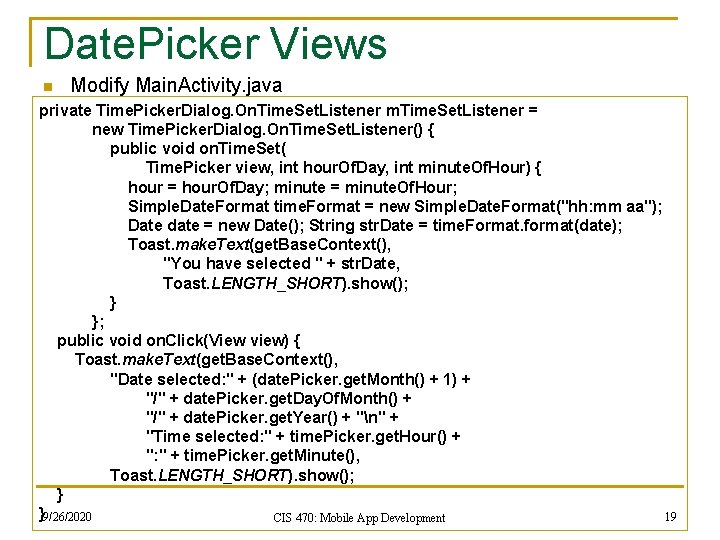
Date. Picker Views n Modify Main. Activity. java private Time. Picker. Dialog. On. Time. Set. Listener m. Time. Set. Listener = new Time. Picker. Dialog. On. Time. Set. Listener() { public void on. Time. Set( Time. Picker view, int hour. Of. Day, int minute. Of. Hour) { hour = hour. Of. Day; minute = minute. Of. Hour; Simple. Date. Format time. Format = new Simple. Date. Format("hh: mm aa"); Date date = new Date(); String str. Date = time. Format. format(date); Toast. make. Text(get. Base. Context(), "You have selected " + str. Date, Toast. LENGTH_SHORT). show(); } }; public void on. Click(View view) { Toast. make. Text(get. Base. Context(), "Date selected: " + (date. Picker. get. Month() + 1) + "/" + date. Picker. get. Day. Of. Month() + "/" + date. Picker. get. Year() + "n" + "Time selected: " + time. Picker. get. Hour() + ": " + time. Picker. get. Minute(), Toast. LENGTH_SHORT). show(); } }9/26/2020 19 CIS 470: Mobile App Development
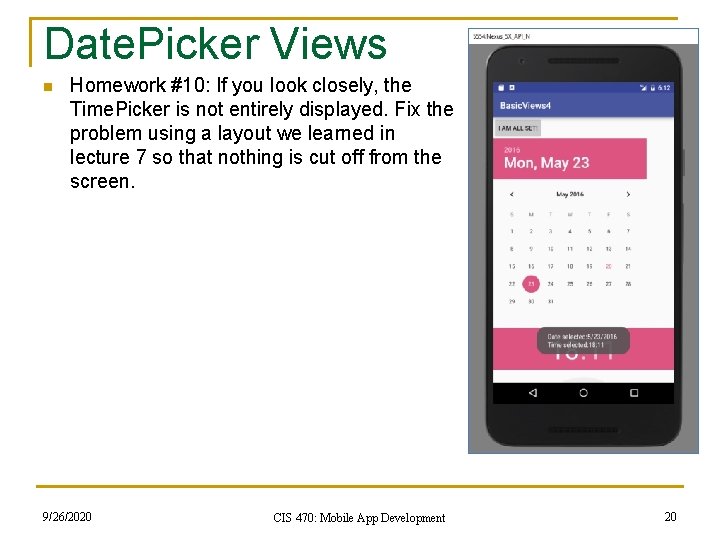
Date. Picker Views n Homework #10: If you look closely, the Time. Picker is not entirely displayed. Fix the problem using a layout we learned in lecture 7 so that nothing is cut off from the screen. 9/26/2020 CIS 470: Mobile App Development 20
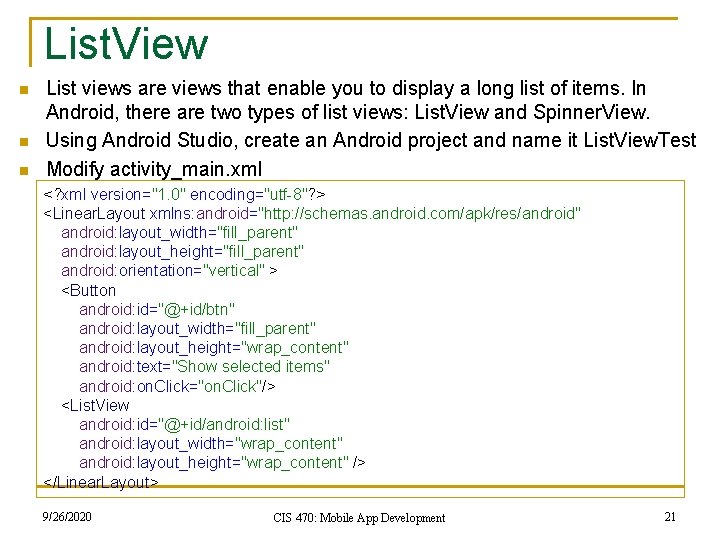
List. View n n n List views are views that enable you to display a long list of items. In Android, there are two types of list views: List. View and Spinner. View. Using Android Studio, create an Android project and name it List. View. Test Modify activity_main. xml <? xml version="1. 0" encoding="utf-8"? > <Linear. Layout xmlns: android="http: //schemas. android. com/apk/res/android" android: layout_width="fill_parent" android: layout_height="fill_parent" android: orientation="vertical" > <Button android: id="@+id/btn" android: layout_width="fill_parent" android: layout_height="wrap_content" android: text="Show selected items" android: on. Click="on. Click"/> <List. View android: id="@+id/android: list" android: layout_width="wrap_content" android: layout_height="wrap_content" /> </Linear. Layout> 9/26/2020 CIS 470: Mobile App Development 21
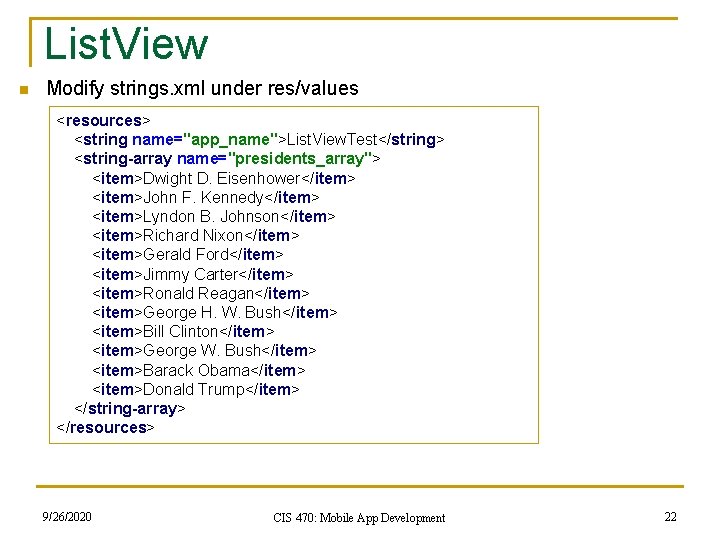
List. View n Modify strings. xml under res/values <resources> <string name="app_name">List. View. Test</string> <string-array name="presidents_array"> <item>Dwight D. Eisenhower</item> <item>John F. Kennedy</item> <item>Lyndon B. Johnson</item> <item>Richard Nixon</item> <item>Gerald Ford</item> <item>Jimmy Carter</item> <item>Ronald Reagan</item> <item>George H. W. Bush</item> <item>Bill Clinton</item> <item>George W. Bush</item> <item>Barack Obama</item> <item>Donald Trump</item> </string-array> </resources> 9/26/2020 CIS 470: Mobile App Development 22
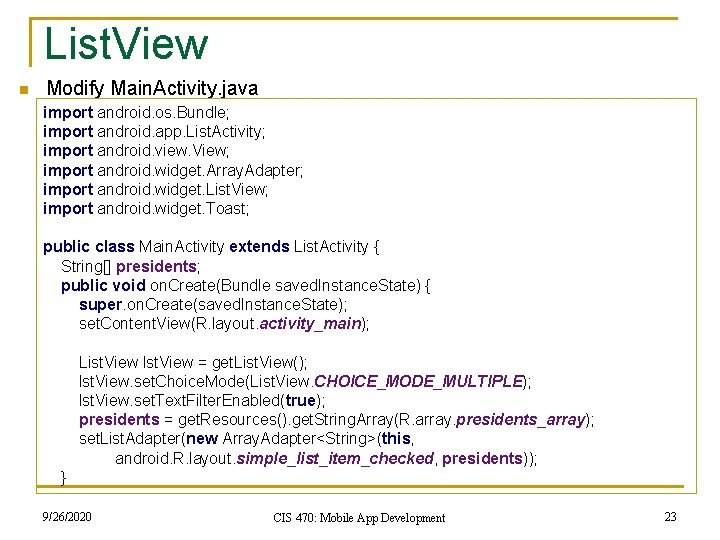
List. View n Modify Main. Activity. java import android. os. Bundle; import android. app. List. Activity; import android. view. View; import android. widget. Array. Adapter; import android. widget. List. View; import android. widget. Toast; public class Main. Activity extends List. Activity { String[] presidents; public void on. Create(Bundle saved. Instance. State) { super. on. Create(saved. Instance. State); set. Content. View(R. layout. activity_main); List. View lst. View = get. List. View(); lst. View. set. Choice. Mode(List. View. CHOICE_MODE_MULTIPLE); lst. View. set. Text. Filter. Enabled(true); presidents = get. Resources(). get. String. Array(R. array. presidents_array); set. List. Adapter(new Array. Adapter<String>(this, android. R. layout. simple_list_item_checked, presidents)); } 9/26/2020 CIS 470: Mobile App Development 23
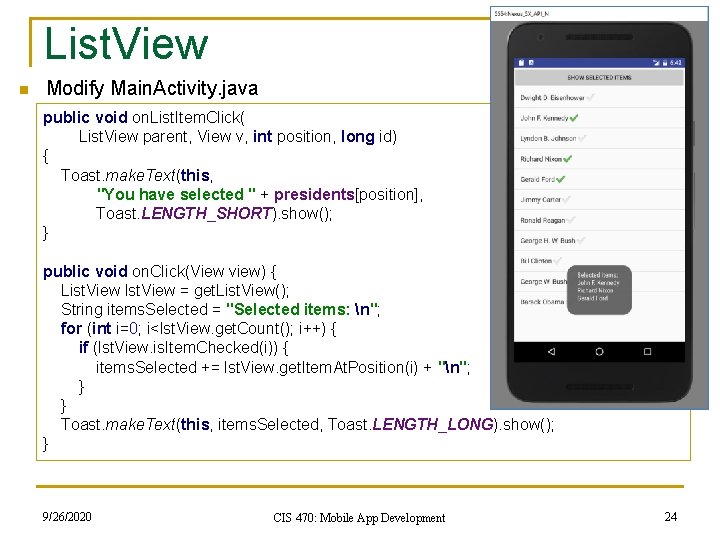
List. View n Modify Main. Activity. java public void on. List. Item. Click( List. View parent, View v, int position, long id) { Toast. make. Text(this, "You have selected " + presidents[position], Toast. LENGTH_SHORT). show(); } public void on. Click(View view) { List. View lst. View = get. List. View(); String items. Selected = "Selected items: n"; for (int i=0; i<lst. View. get. Count(); i++) { if (lst. View. is. Item. Checked(i)) { items. Selected += lst. View. get. Item. At. Position(i) + "n"; } } Toast. make. Text(this, items. Selected, Toast. LENGTH_LONG). show(); } 9/26/2020 CIS 470: Mobile App Development 24
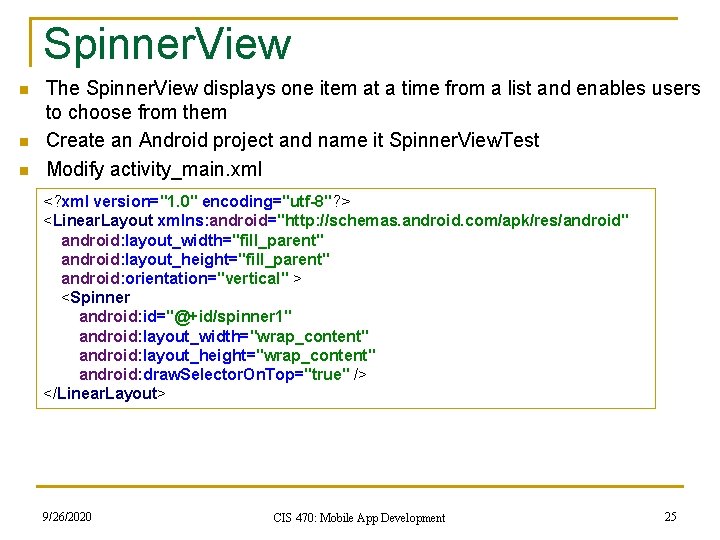
Spinner. View n n n The Spinner. View displays one item at a time from a list and enables users to choose from them Create an Android project and name it Spinner. View. Test Modify activity_main. xml <? xml version="1. 0" encoding="utf-8"? > <Linear. Layout xmlns: android="http: //schemas. android. com/apk/res/android" android: layout_width="fill_parent" android: layout_height="fill_parent" android: orientation="vertical" > <Spinner android: id="@+id/spinner 1" android: layout_width="wrap_content" android: layout_height="wrap_content" android: draw. Selector. On. Top="true" /> </Linear. Layout> 9/26/2020 CIS 470: Mobile App Development 25
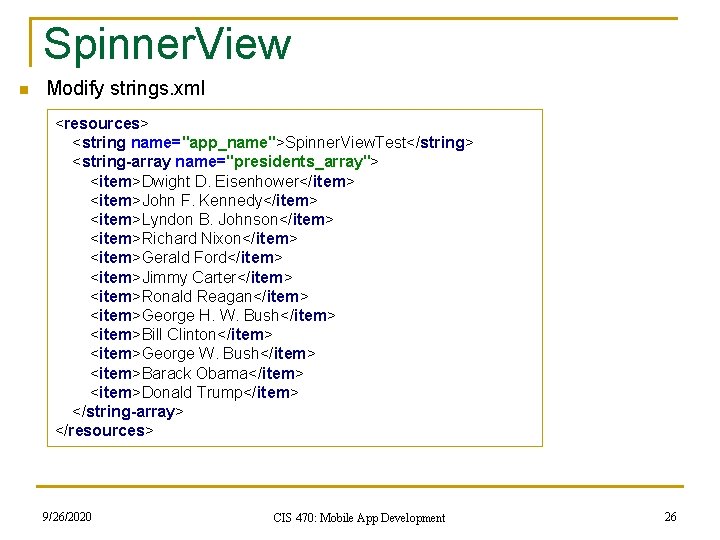
Spinner. View n Modify strings. xml <resources> <string name="app_name">Spinner. View. Test</string> <string-array name="presidents_array"> <item>Dwight D. Eisenhower</item> <item>John F. Kennedy</item> <item>Lyndon B. Johnson</item> <item>Richard Nixon</item> <item>Gerald Ford</item> <item>Jimmy Carter</item> <item>Ronald Reagan</item> <item>George H. W. Bush</item> <item>Bill Clinton</item> <item>George W. Bush</item> <item>Barack Obama</item> <item>Donald Trump</item> </string-array> </resources> 9/26/2020 CIS 470: Mobile App Development 26
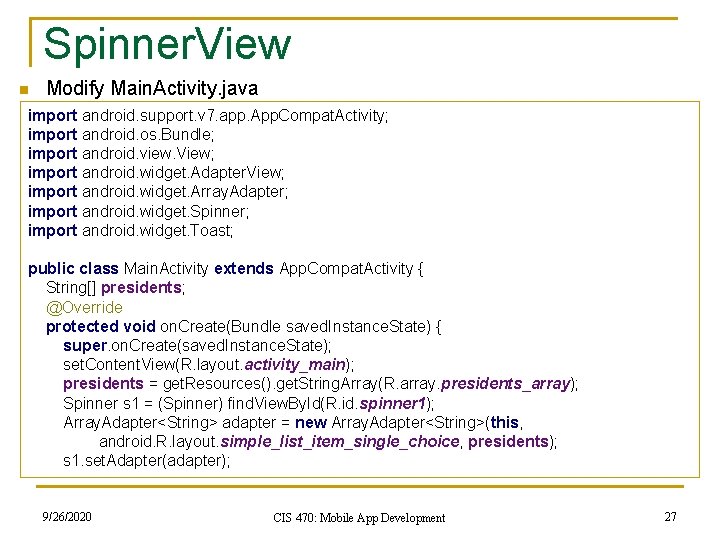
Spinner. View n Modify Main. Activity. java import android. support. v 7. app. App. Compat. Activity; import android. os. Bundle; import android. view. View; import android. widget. Adapter. View; import android. widget. Array. Adapter; import android. widget. Spinner; import android. widget. Toast; public class Main. Activity extends App. Compat. Activity { String[] presidents; @Override protected void on. Create(Bundle saved. Instance. State) { super. on. Create(saved. Instance. State); set. Content. View(R. layout. activity_main); presidents = get. Resources(). get. String. Array(R. array. presidents_array); Spinner s 1 = (Spinner) find. View. By. Id(R. id. spinner 1); Array. Adapter<String> adapter = new Array. Adapter<String>(this, android. R. layout. simple_list_item_single_choice, presidents); s 1. set. Adapter(adapter); 9/26/2020 CIS 470: Mobile App Development 27
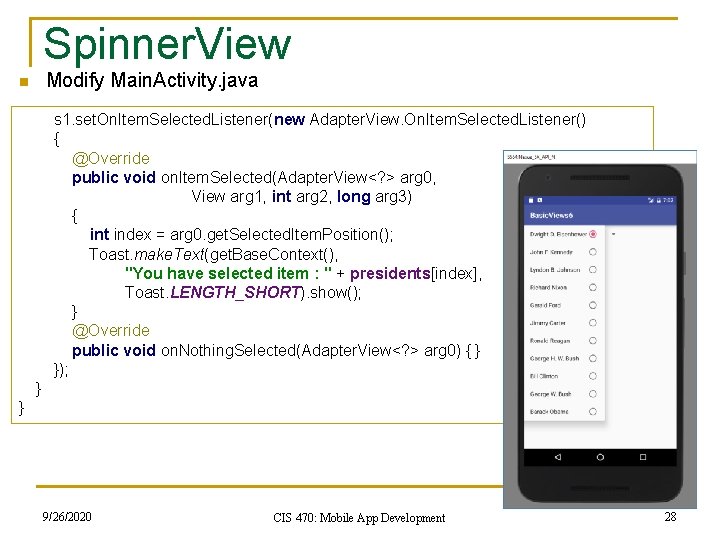
Spinner. View Modify Main. Activity. java n s 1. set. On. Item. Selected. Listener(new Adapter. View. On. Item. Selected. Listener() { @Override public void on. Item. Selected(Adapter. View<? > arg 0, View arg 1, int arg 2, long arg 3) { int index = arg 0. get. Selected. Item. Position(); Toast. make. Text(get. Base. Context(), "You have selected item : " + presidents[index], Toast. LENGTH_SHORT). show(); } @Override public void on. Nothing. Selected(Adapter. View<? > arg 0) { } }); } } 9/26/2020 CIS 470: Mobile App Development 28
Homework #11 n Further develop the contact management app you did in homework #2 q q When there is at least one contact, the main activity could display a list of contacts identified by the full name of each contact. Make sure you use the List. View for the contacts In the main activity, a user could click each row of the contact, a third activity would open to display the contact details 9/26/2020 CIS 470: Mobile App Development 29
- Slides: 29