
CIS 103 Applied Computer Technology Connecting USB Devices
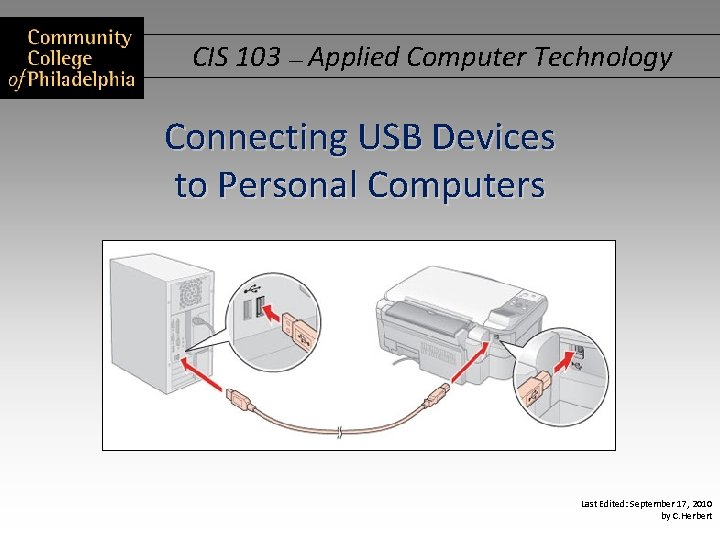
CIS 103 — Applied Computer Technology Connecting USB Devices to Personal Computers Last Edited: September 17, 2010 by C. Herbert
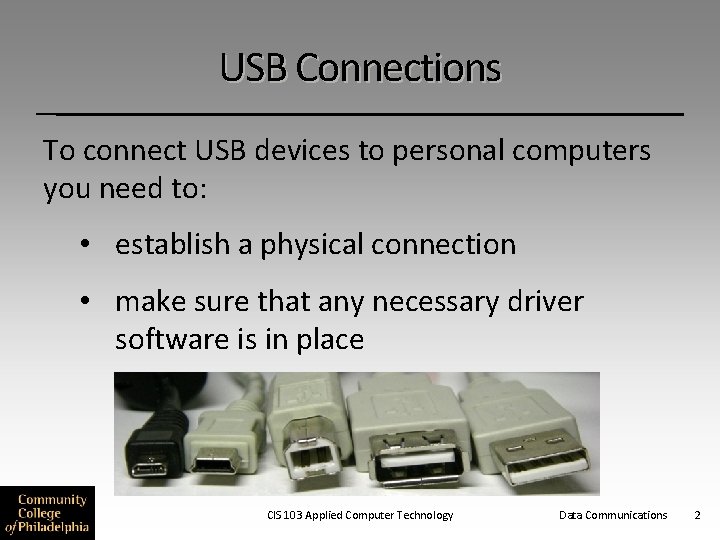
USB Connections To connect USB devices to personal computers you need to: • establish a physical connection • make sure that any necessary driver software is in place CIS 103 Applied Computer Technology Data Communications 2
Driver Software A driver is a computer program that manages a device or a connection between devices. USB connections are simple and do not need drivers, but sometimes the device connected to the computer needs a driver so that it will work properly. CIS 103 Applied Computer Technology Data Communications 3
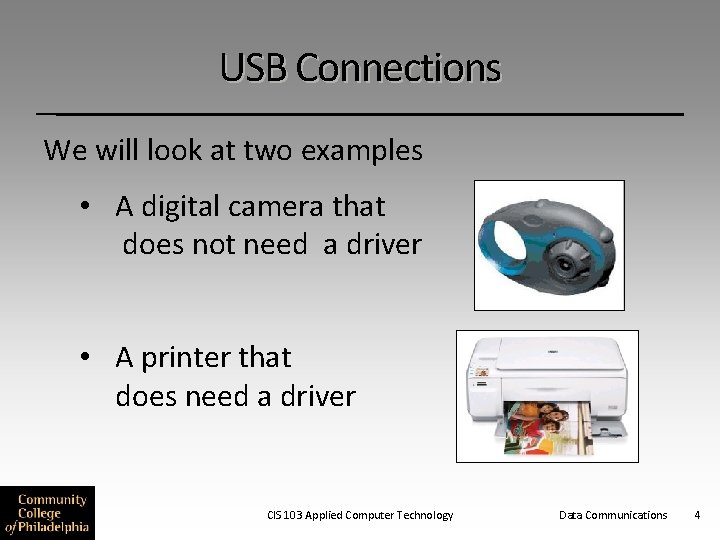
USB Connections We will look at two examples • A digital camera that does not need a driver • A printer that does need a driver CIS 103 Applied Computer Technology Data Communications 4
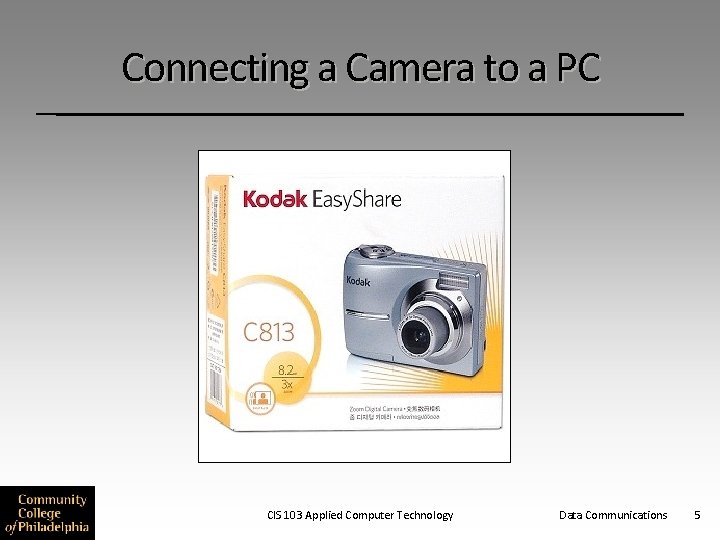
Connecting a Camera to a PC CIS 103 Applied Computer Technology Data Communications 5
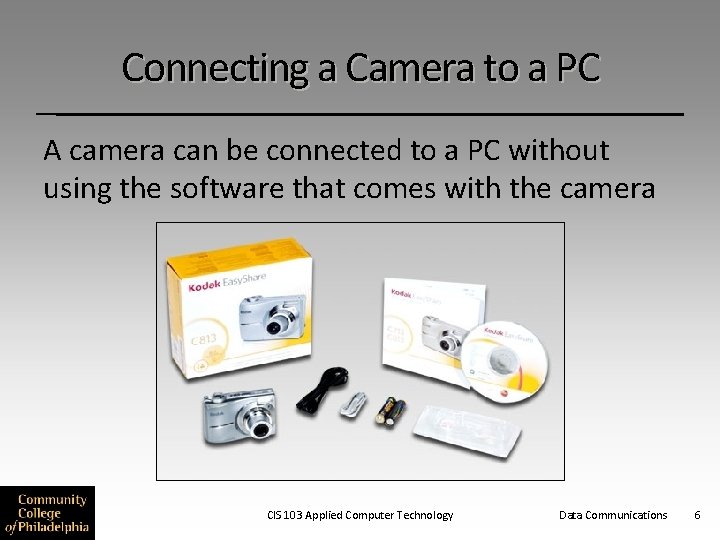
Connecting a Camera to a PC A camera can be connected to a PC without using the software that comes with the camera CIS 103 Applied Computer Technology Data Communications 6
Connecting a Camera to a PC • Step 1 - Make sure you have the correct cable. • Step 2 - Make sure the camera is turned off and that the computer is turned on and ready to use. • Step 3 - Connect the cable • Step 4 - Turn on the camera • Step 5 - Open the picture folder • Step 6 - Copy the files to the desired location CIS 103 Applied Computer Technology Data Communications 7
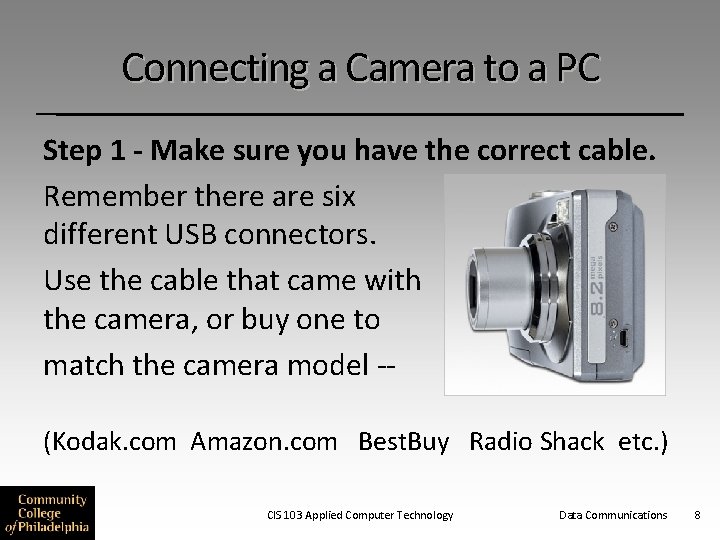
Connecting a Camera to a PC Step 1 - Make sure you have the correct cable. Remember there are six different USB connectors. Use the cable that came with the camera, or buy one to match the camera model -(Kodak. com Amazon. com Best. Buy Radio Shack etc. ) CIS 103 Applied Computer Technology Data Communications 8
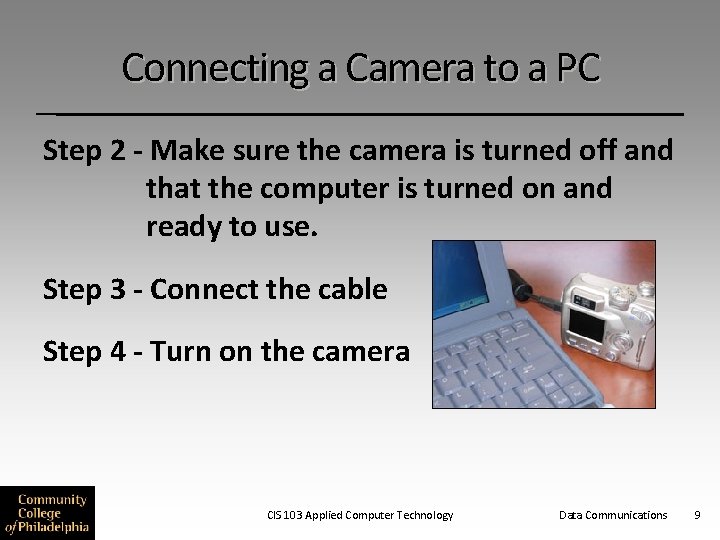
Connecting a Camera to a PC Step 2 - Make sure the camera is turned off and that the computer is turned on and ready to use. Step 3 - Connect the cable Step 4 - Turn on the camera CIS 103 Applied Computer Technology Data Communications 9
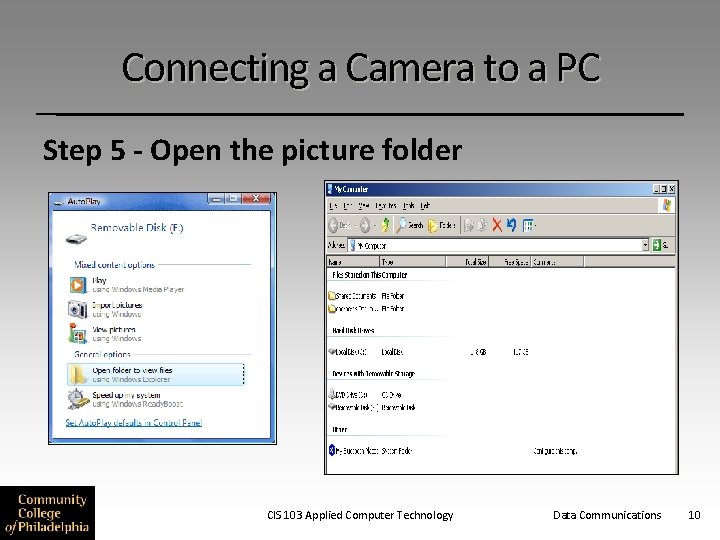
Connecting a Camera to a PC Step 5 - Open the picture folder CIS 103 Applied Computer Technology Data Communications 10
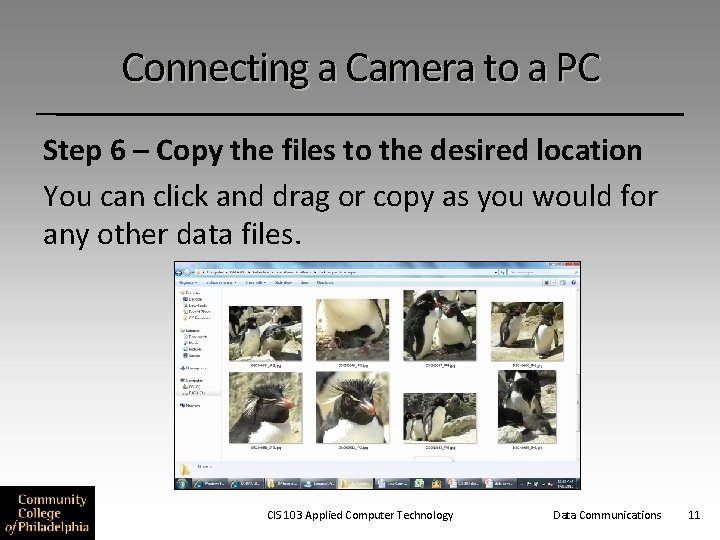
Connecting a Camera to a PC Step 6 – Copy the files to the desired location You can click and drag or copy as you would for any other data files. CIS 103 Applied Computer Technology Data Communications 11
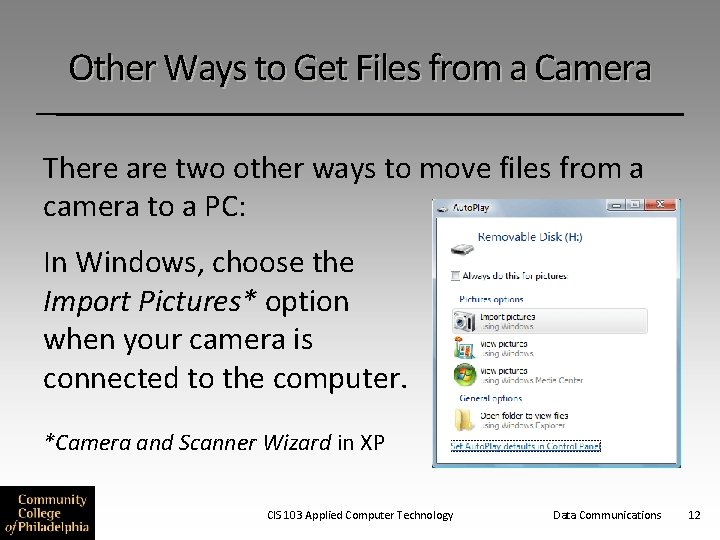
Other Ways to Get Files from a Camera There are two other ways to move files from a camera to a PC: In Windows, choose the Import Pictures* option when your camera is connected to the computer. *Camera and Scanner Wizard in XP CIS 103 Applied Computer Technology Data Communications 12
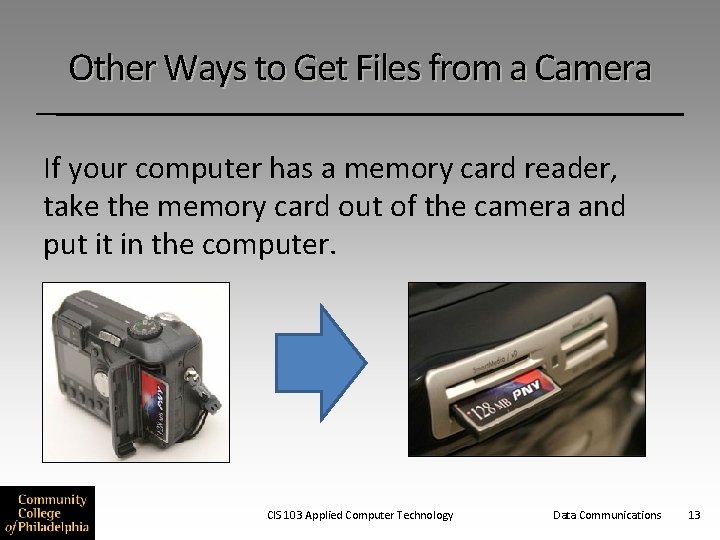
Other Ways to Get Files from a Camera If your computer has a memory card reader, take the memory card out of the camera and put it in the computer. CIS 103 Applied Computer Technology Data Communications 13
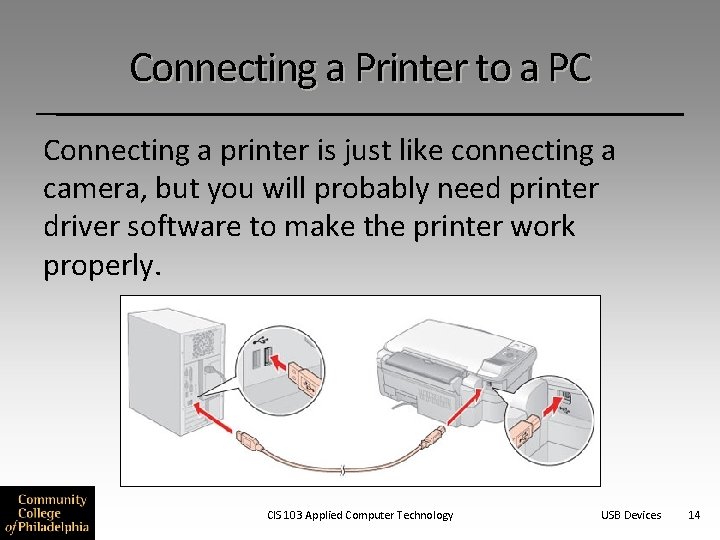
Connecting a Printer to a PC Connecting a printer is just like connecting a camera, but you will probably need printer driver software to make the printer work properly. CIS 103 Applied Computer Technology USB Devices 14
Connecting a USB Printer to a PC For a printer that needs a driver, use the cable and the software that come with the printer and follow the instructions in the manual. • Step 1 - Find the directions • Step 2 - Read the directions • Step 3 - Follow the directions CIS 103 Applied Computer Technology USB Devices 15
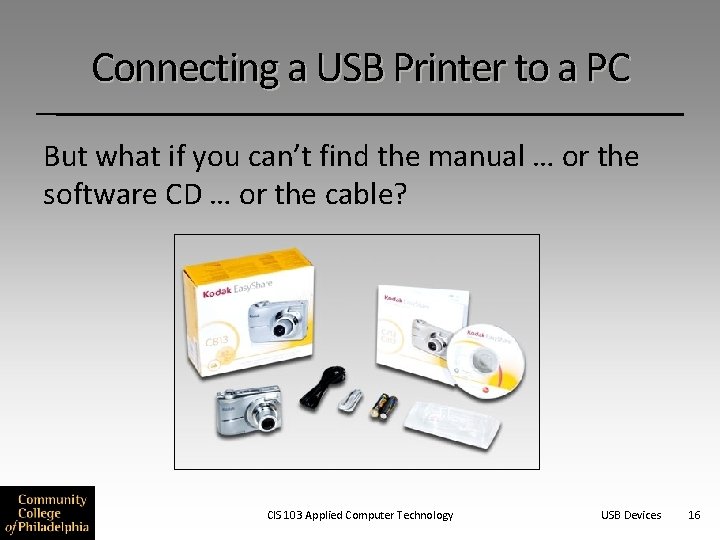
Connecting a USB Printer to a PC But what if you can’t find the manual … or the software CD … or the cable? CIS 103 Applied Computer Technology USB Devices 16
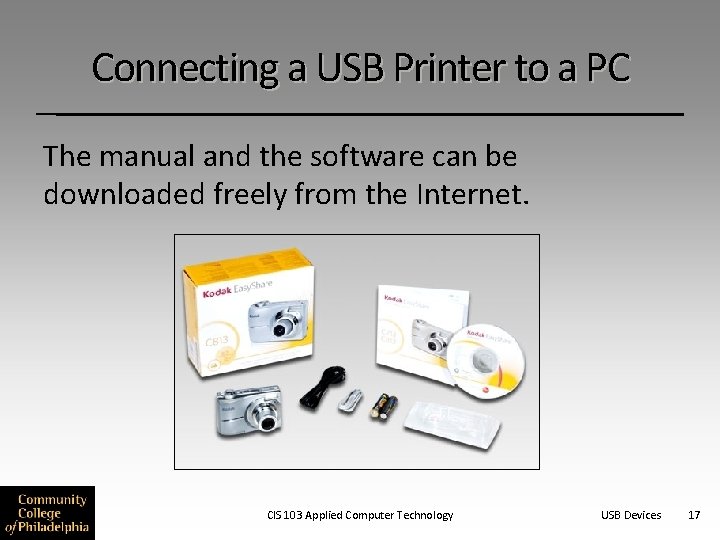
Connecting a USB Printer to a PC The manual and the software can be downloaded freely from the Internet. CIS 103 Applied Computer Technology USB Devices 17
Connecting a USB Printer to a PC The manual and the software can be downloaded freely from the Internet. • Go to the manufacturer’s Web site • Search for the manual or the driver using the item’s model number. • Do not use Google or another Internet search engine for this search CIS 103 Applied Computer Technology USB Devices 18
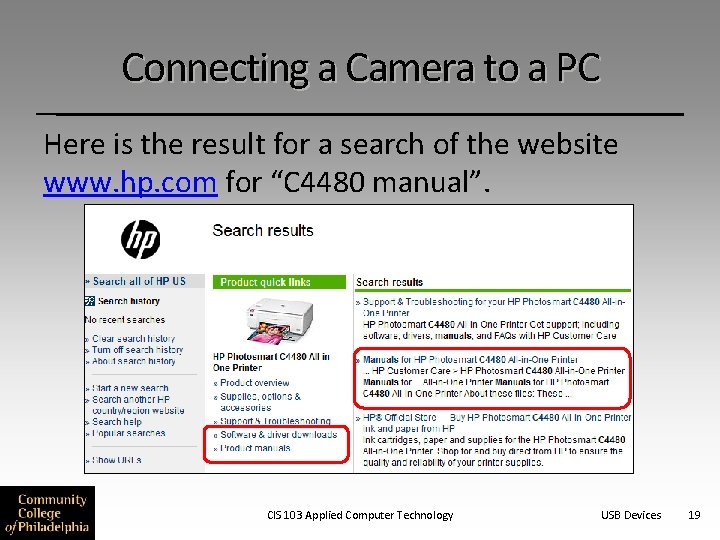
Connecting a Camera to a PC Here is the result for a search of the website www. hp. com for “C 4480 manual”. CIS 103 Applied Computer Technology USB Devices 19
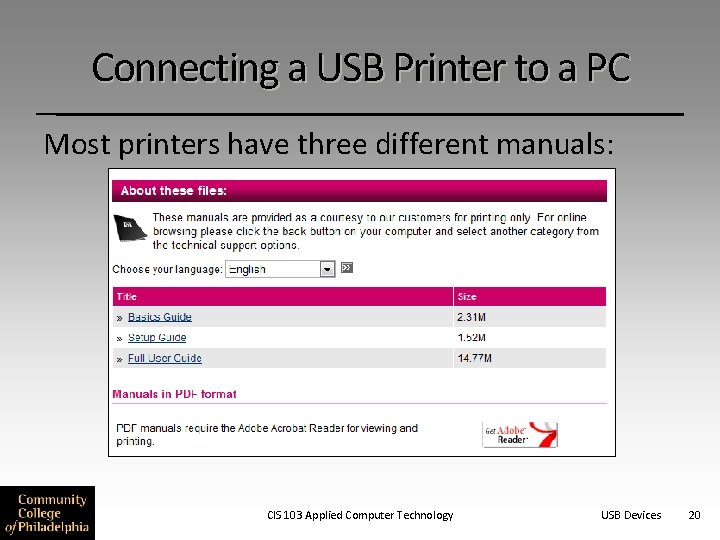
Connecting a USB Printer to a PC Most printers have three different manuals: CIS 103 Applied Computer Technology USB Devices 20
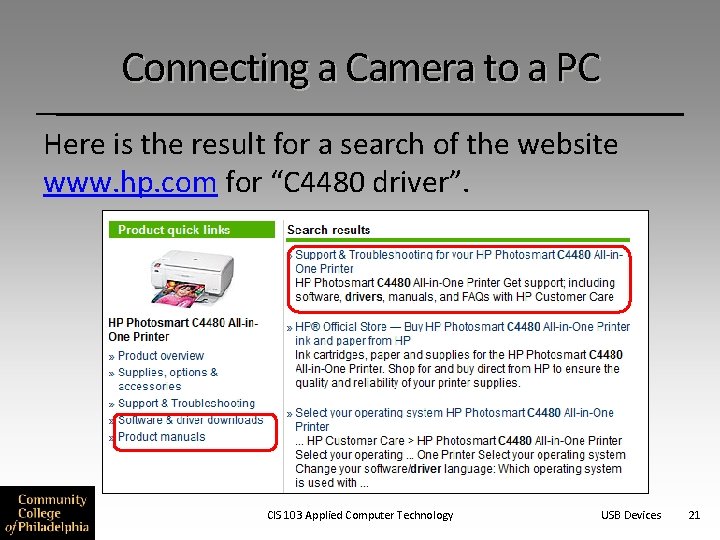
Connecting a Camera to a PC Here is the result for a search of the website www. hp. com for “C 4480 driver”. CIS 103 Applied Computer Technology USB Devices 21
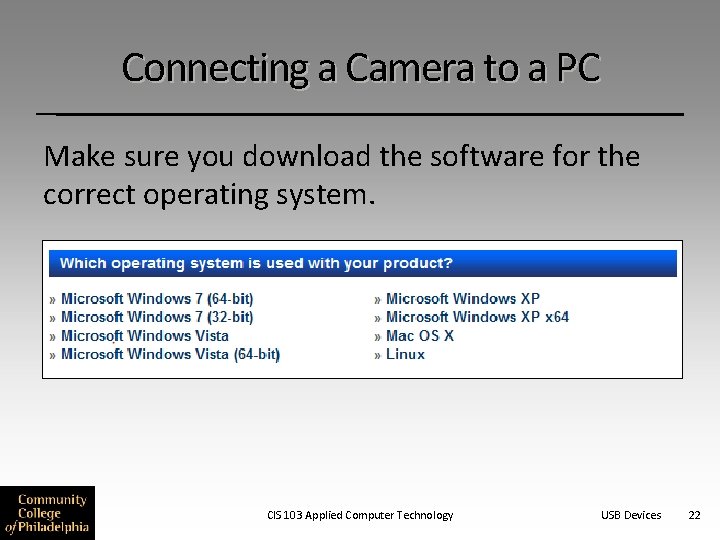
Connecting a Camera to a PC Make sure you download the software for the correct operating system. CIS 103 Applied Computer Technology USB Devices 22
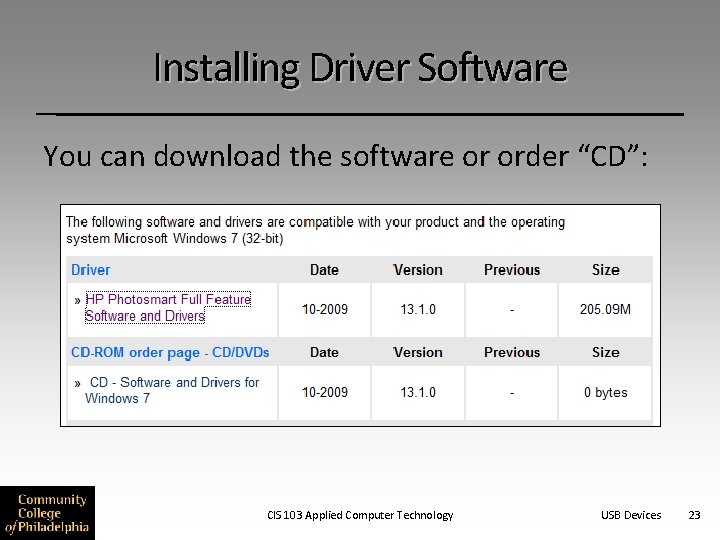
Installing Driver Software You can download the software or order “CD”: CIS 103 Applied Computer Technology USB Devices 23
Installing Driver Software 1. Search the manufacturer’s Website for the diver software using the printer’s model number. For example: “HP 4480 driver”. 2. Make sure you download the software for the correct operating system. 3. Follow the install instructions for the software. CIS 103 Applied Computer Technology USB Devices 24
Connecting a Printer to a PC • Step 1 - Make sure you have the correct cable. • Step 2 - Make sure the camera is turned off and that the computer is turned on and ready to use. • Step 3 – Connect the cable • Step 4 – Turn on the printer • Step 5 – Install the driver, if necessary. CIS 103 Applied Computer Technology USB Devices 25
http: //www. microsoft. com/windowsxp/using/digitalphotography/takeit/transfer. mspx CIS 103 Applied Computer Technology Data Communications 26
- Slides: 26