
CIAT CIS 101 A Storage CIAT CIS 101
- Slides: 49
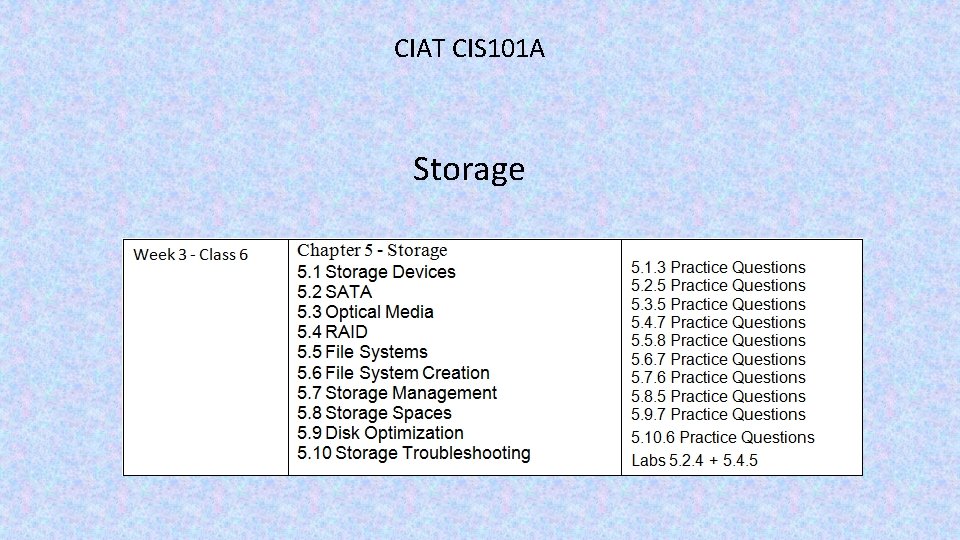
CIAT CIS 101 A Storage
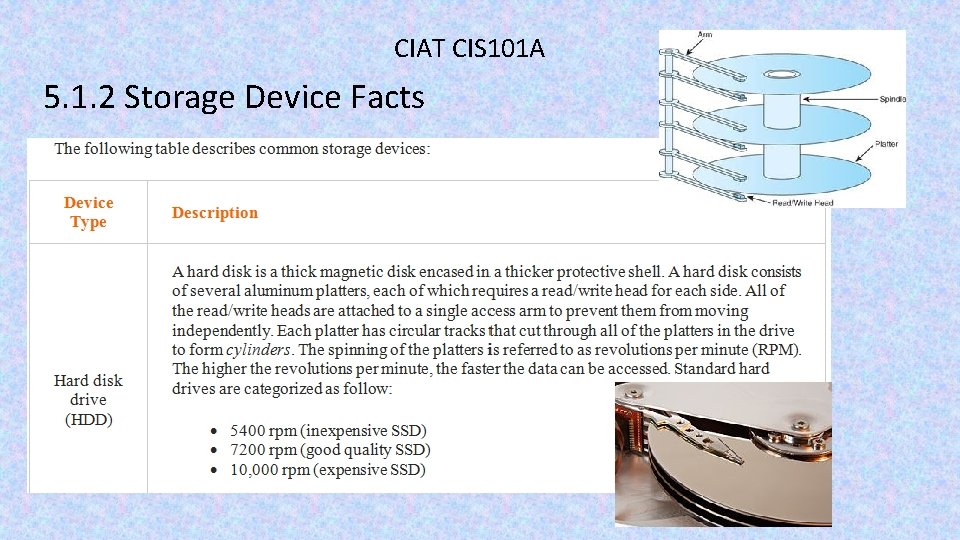
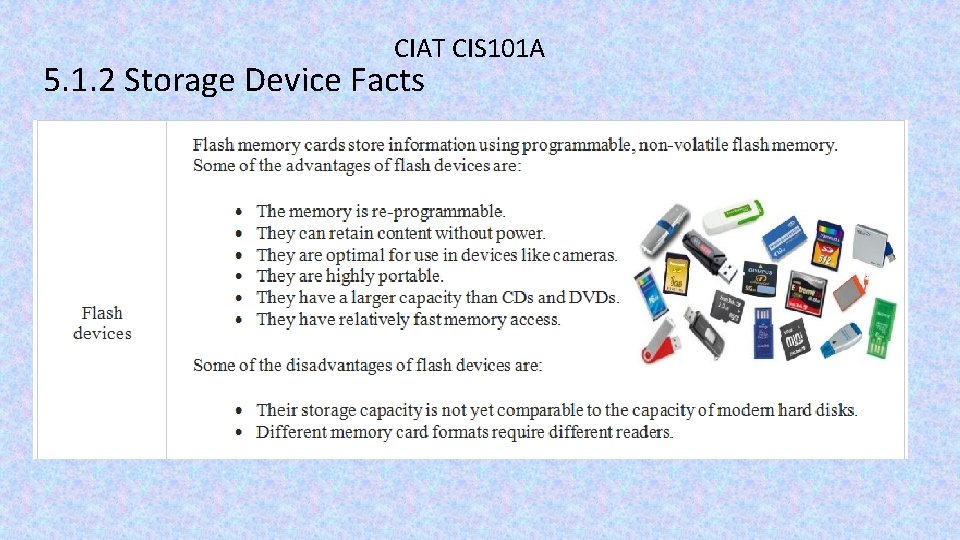
CIAT CIS 101 A 5. 1. 2 Storage Device Facts
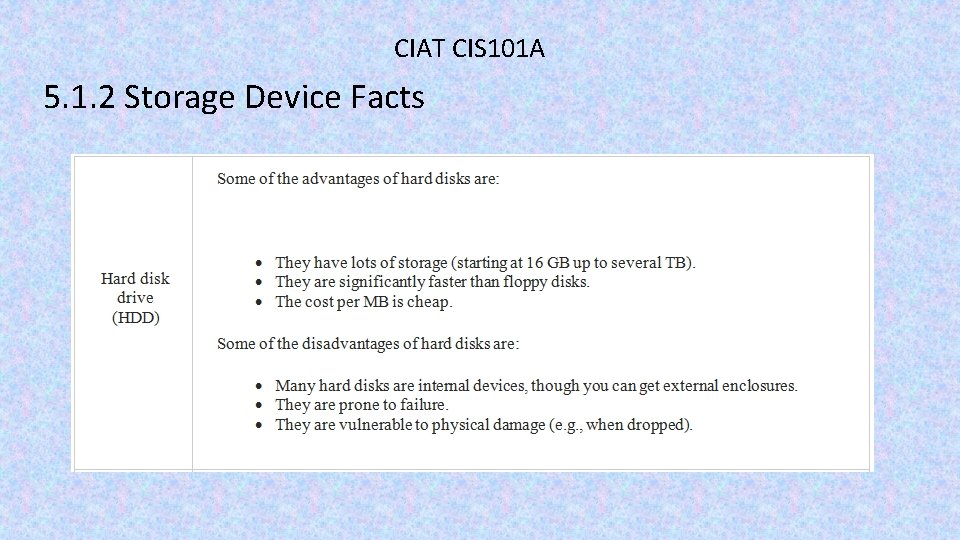
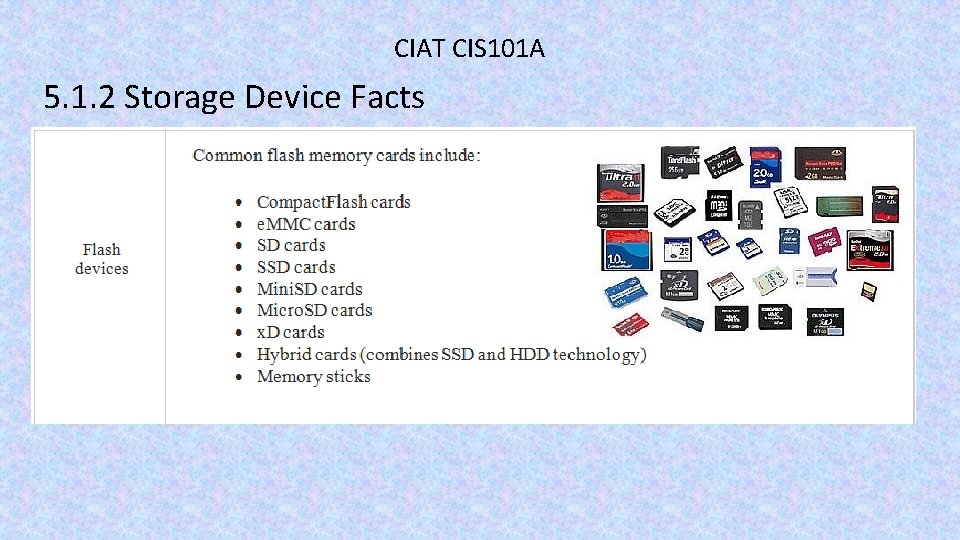
CIAT CIS 101 A 5. 1. 2 Storage Device Facts
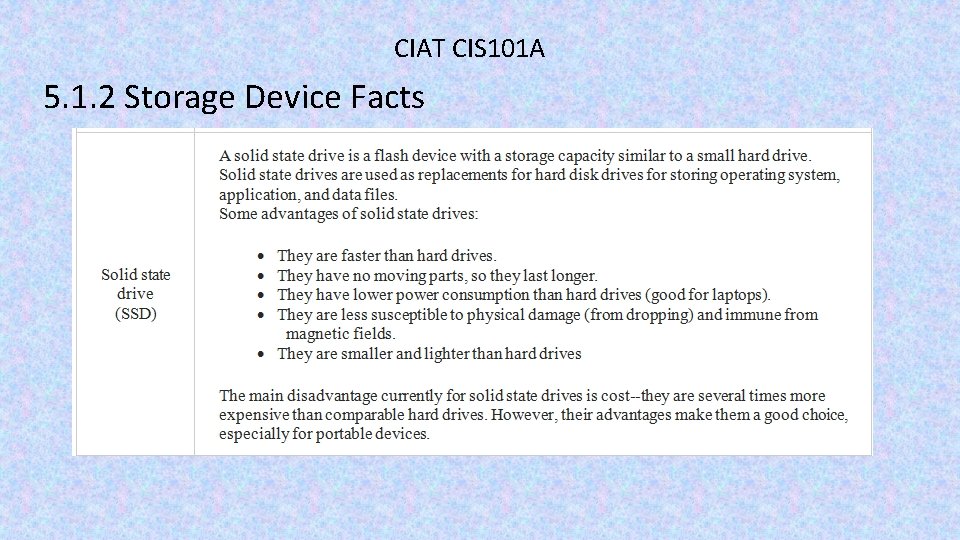
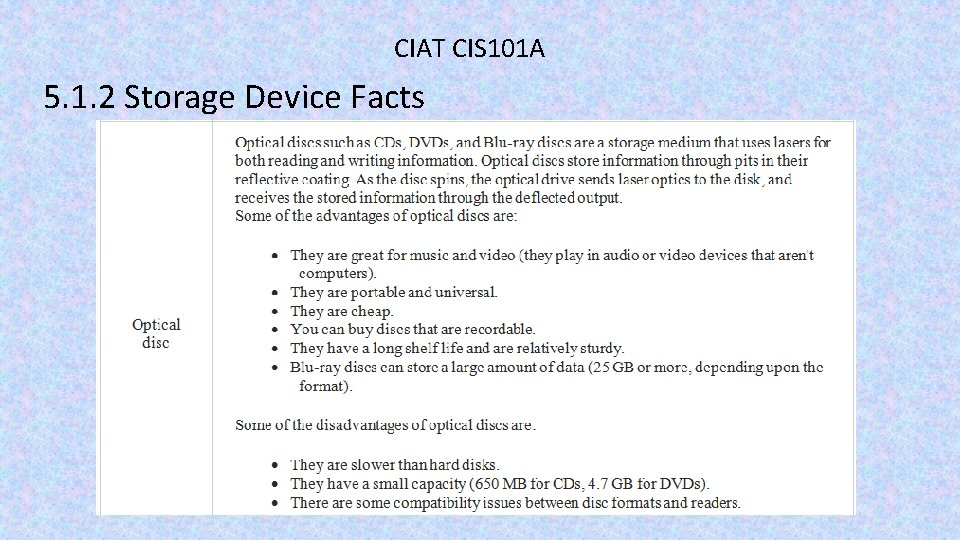
CIAT CIS 101 A 5. 1. 2 Storage Device Facts
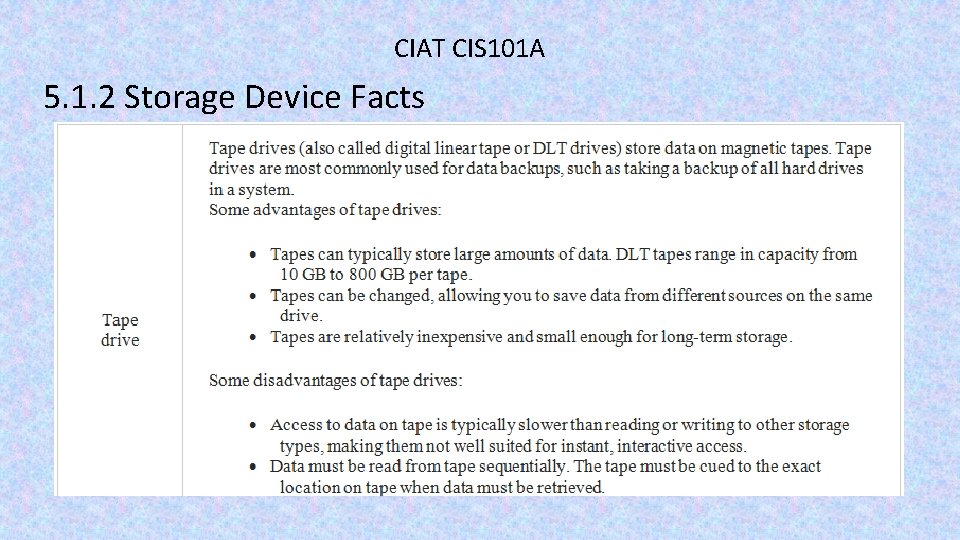
CIAT CIS 101 A 5. 1. 2 Storage Device Facts
CIAT CIS 101 A 5. 1. 2 Storage Device Facts
CIAT CIS 101 A 5. 1. 2 Storage Device Facts
CIAT CIS 101 A 5. 1. 2 Storage Device Facts
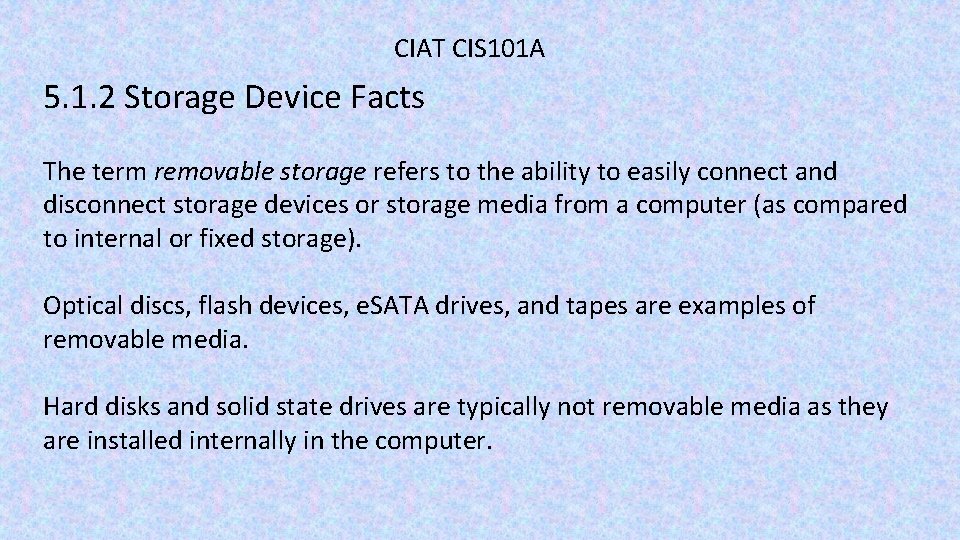
CIAT CIS 101 A 5. 1. 2 Storage Device Facts The term removable storage refers to the ability to easily connect and disconnect storage devices or storage media from a computer (as compared to internal or fixed storage). Optical discs, flash devices, e. SATA drives, and tapes are examples of removable media. Hard disks and solid state drives are typically not removable media as they are installed internally in the computer.
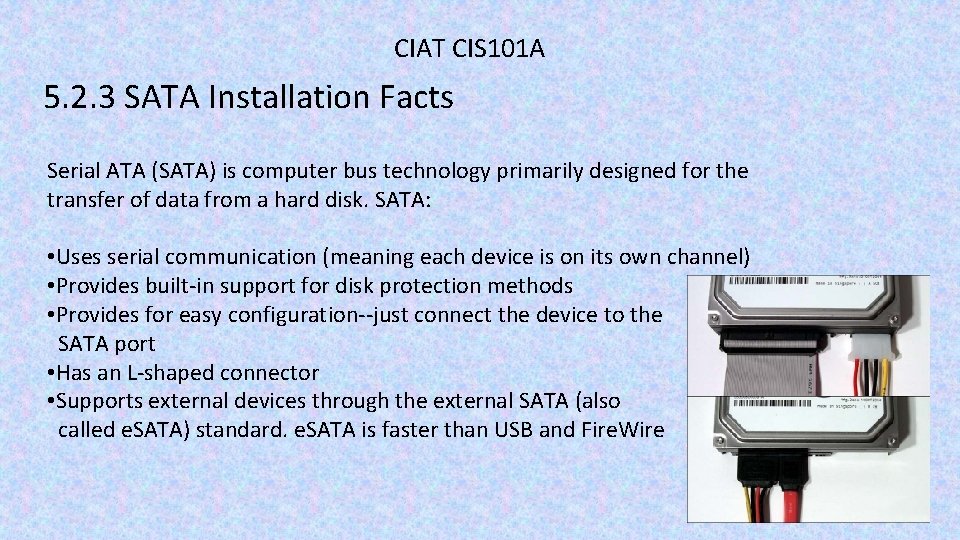
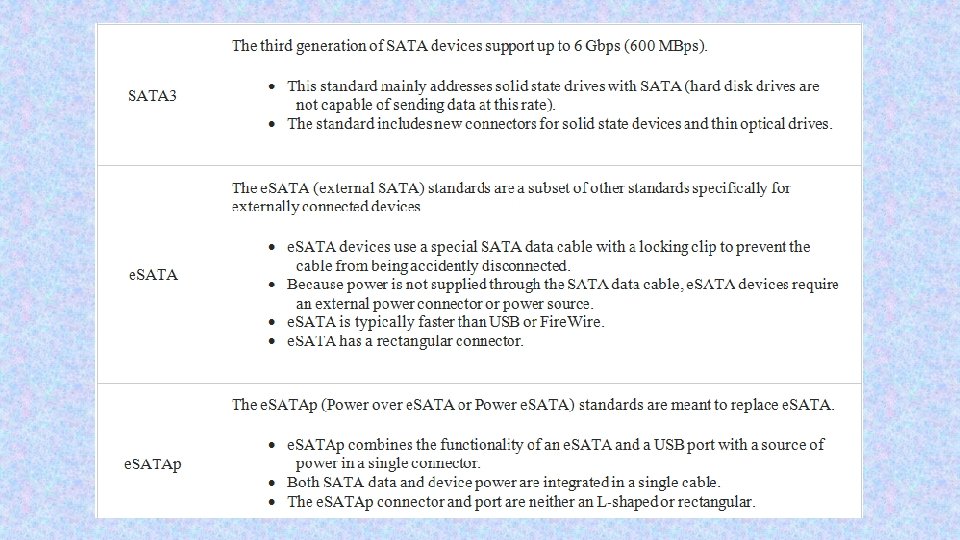
CIAT CIS 101 A 5. 2. 3 SATA Installation Facts Serial ATA (SATA) is computer bus technology primarily designed for the transfer of data from a hard disk. SATA: • Uses serial communication (meaning each device is on its own channel) • Provides built-in support for disk protection methods • Provides for easy configuration--just connect the device to the SATA port • Has an L-shaped connector • Supports external devices through the external SATA (also called e. SATA) standard. e. SATA is faster than USB and Fire. Wire
CIAT CIS 101 A 5. 2. 3 SATA Installation Facts
CIAT CIS 101 A
CIAT CIS 101 A 5. 2. 3 SATA Installation Facts You should know the following facts about SATA: • Each SATA drive has its own channel, with a single drive connected to each cable and port. • The cable length can be up to one meter (up to 2 meters for e. SATA). • SATA devices use a special 15 -pin power connector that supplies 3. 3, 5, and 12 volts. You can use an adapter cable to convert a 4 -pin Molex connector to a SATA power connector, but if you do, the resulting cable will not have 3. 3 volts (3. 3 volts are typically not used in most SATA devices). • Devices you can connect using SATA include: o. Hard disk drives (HDD) o. Optical drives (CD/DVD/Blu-ray) o. Solid state drives (SSD)
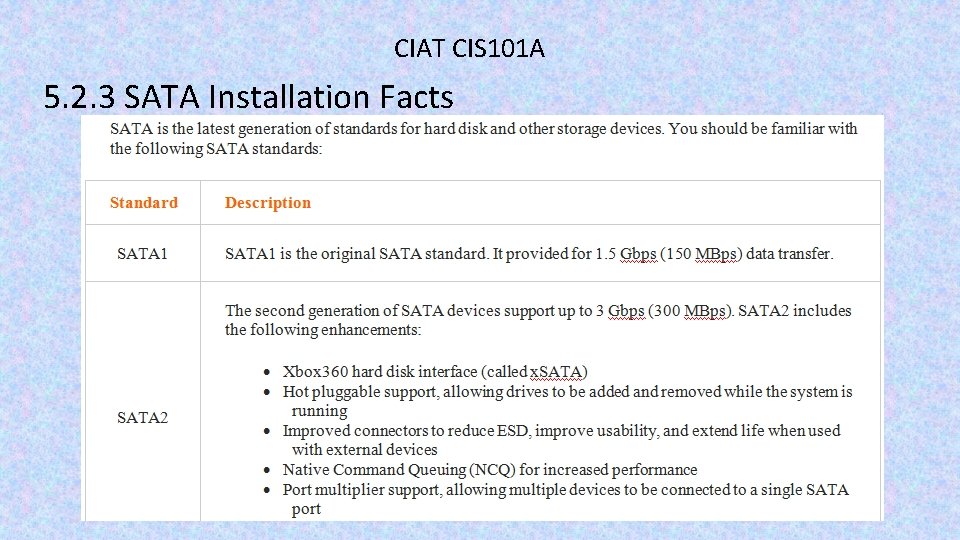
CIAT CIS 101 A 5. 2. 3 SATA Installation Facts • All new motherboards include support for multiple SATA devices. o. Some motherboards include e. SATA connectors, or you can use a port connector device to add external ports using the internal SATA connections. o. You can also install an adapter card in an available bus slot to increase the number of SATA ports. • Removable storage devices are typically connected through e. SATA, USB, or Fire. Wire ports. A hard drive enclosure allows you to connect a SATA hard drive to the USB or Fire. Wire port of your computer, making the hard drives a form of portable storage. • Connect the boot drive to the lowest SATA channel number of the installed devices. The boot sequence will normally follow the channel order unless a boot priority is specified in the BIOS/UEFI. • When installing a newer SATA 2 drive into a system that only supports SATA 1, you might need to: o. Configure the drive to operate in SATA 1 mode. This is typically done by setting a jumper. o. Update the BIOS/UEFI to recognize the new drive. Even with these steps, some SATA 2 drives will not work in a motherboard that supports only SATA 1. In that case, install a SATA 2 controller card.
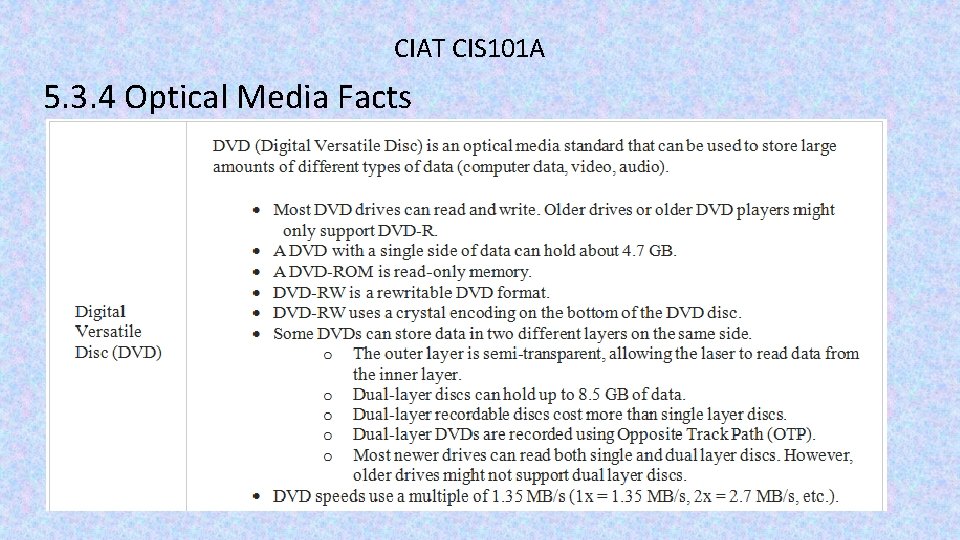
CIAT CIS 101 A 5. 3. 4 Optical Media Facts
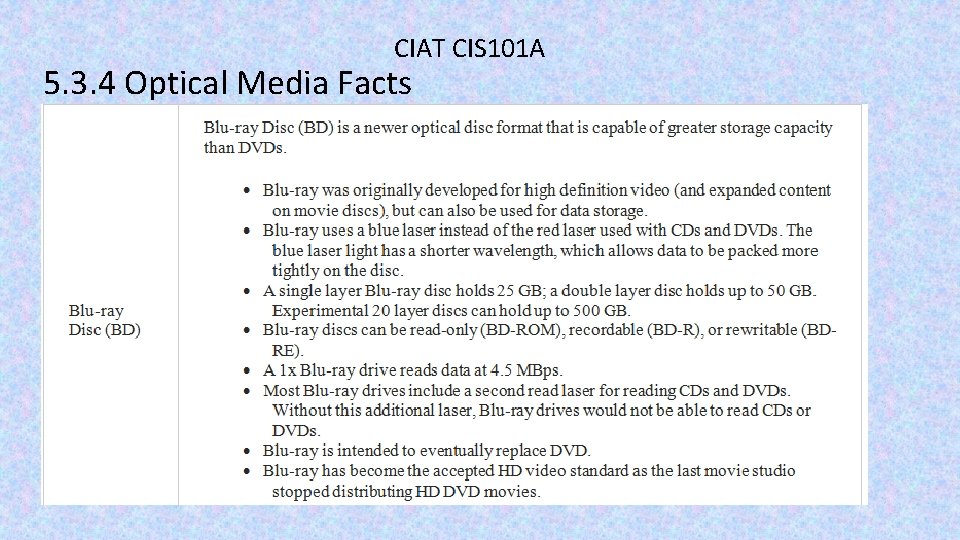
CIAT CIS 101 A 5. 3. 4 Optical Media Facts
CIAT CIS 101 A 5. 3. 4 Optical Media Facts
CIAT CIS 101 A 5. 3. 4 Optical Media Facts
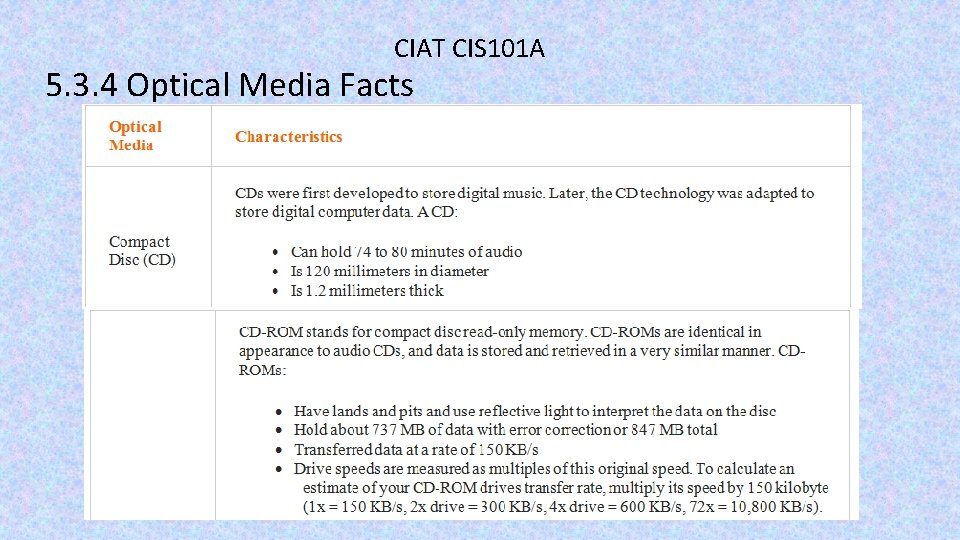
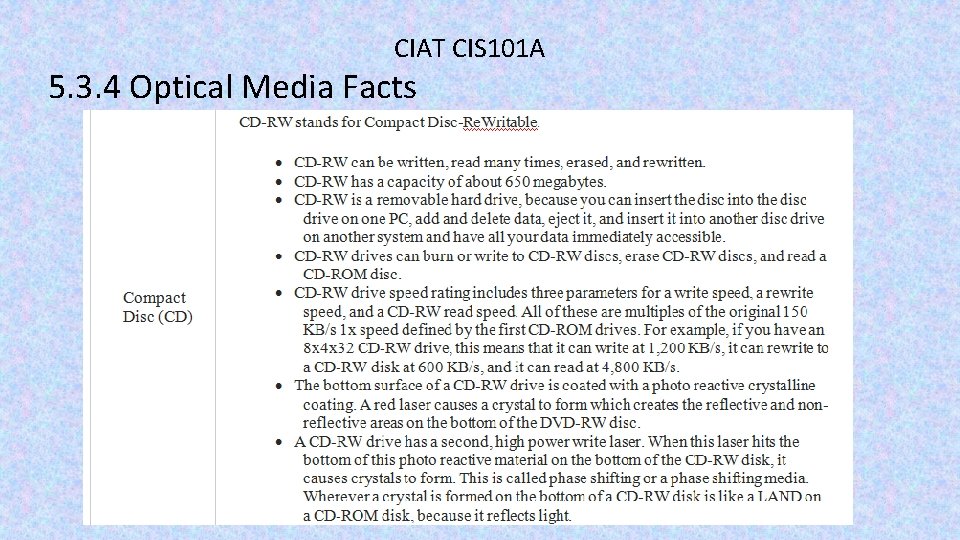
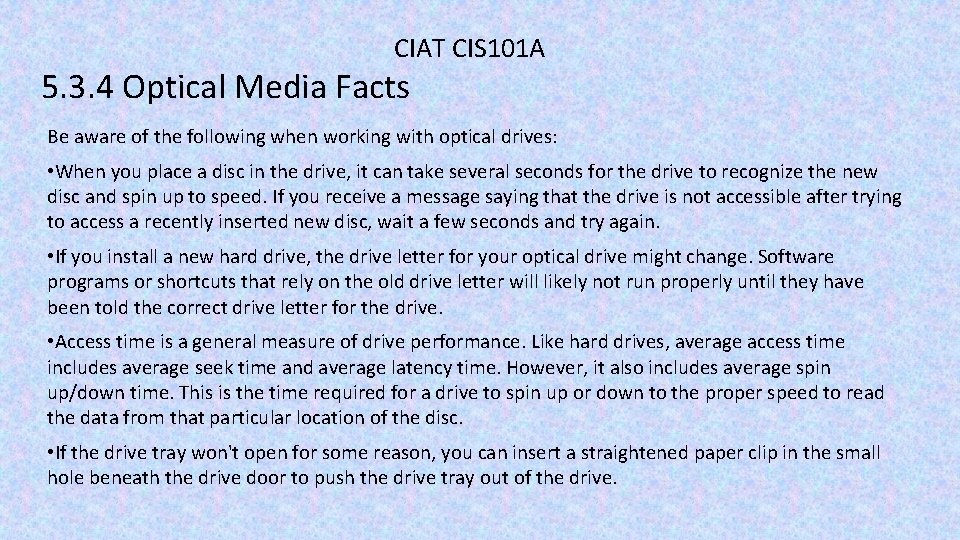
CIAT CIS 101 A 5. 3. 4 Optical Media Facts Be aware of the following when working with optical drives: • When you place a disc in the drive, it can take several seconds for the drive to recognize the new disc and spin up to speed. If you receive a message saying that the drive is not accessible after trying to access a recently inserted new disc, wait a few seconds and try again. • If you install a new hard drive, the drive letter for your optical drive might change. Software programs or shortcuts that rely on the old drive letter will likely not run properly until they have been told the correct drive letter for the drive. • Access time is a general measure of drive performance. Like hard drives, average access time includes average seek time and average latency time. However, it also includes average spin up/down time. This is the time required for a drive to spin up or down to the proper speed to read the data from that particular location of the disc. • If the drive tray won't open for some reason, you can insert a straightened paper clip in the small hole beneath the drive door to push the drive tray out of the drive.
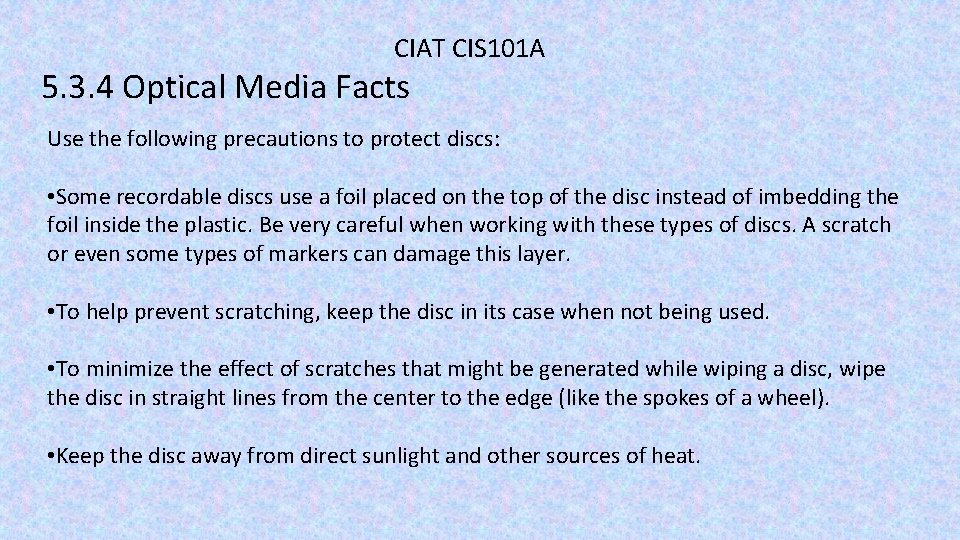
CIAT CIS 101 A 5. 3. 4 Optical Media Facts Use the following precautions to protect discs: • Some recordable discs use a foil placed on the top of the disc instead of imbedding the foil inside the plastic. Be very careful when working with these types of discs. A scratch or even some types of markers can damage this layer. • To help prevent scratching, keep the disc in its case when not being used. • To minimize the effect of scratches that might be generated while wiping a disc, wipe the disc in straight lines from the center to the edge (like the spokes of a wheel). • Keep the disc away from direct sunlight and other sources of heat.
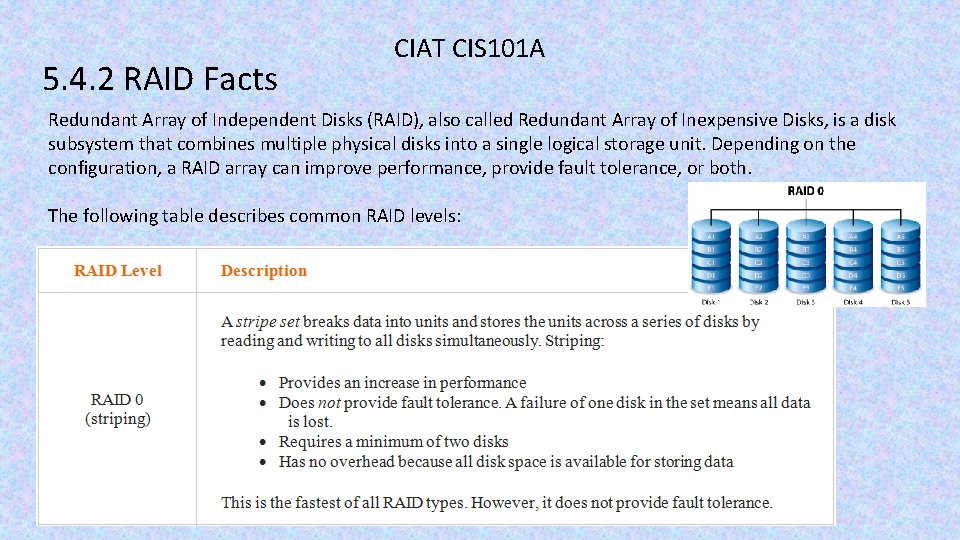
5. 4. 2 RAID Facts CIAT CIS 101 A Redundant Array of Independent Disks (RAID), also called Redundant Array of Inexpensive Disks, is a disk subsystem that combines multiple physical disks into a single logical storage unit. Depending on the configuration, a RAID array can improve performance, provide fault tolerance, or both. The following table describes common RAID levels:
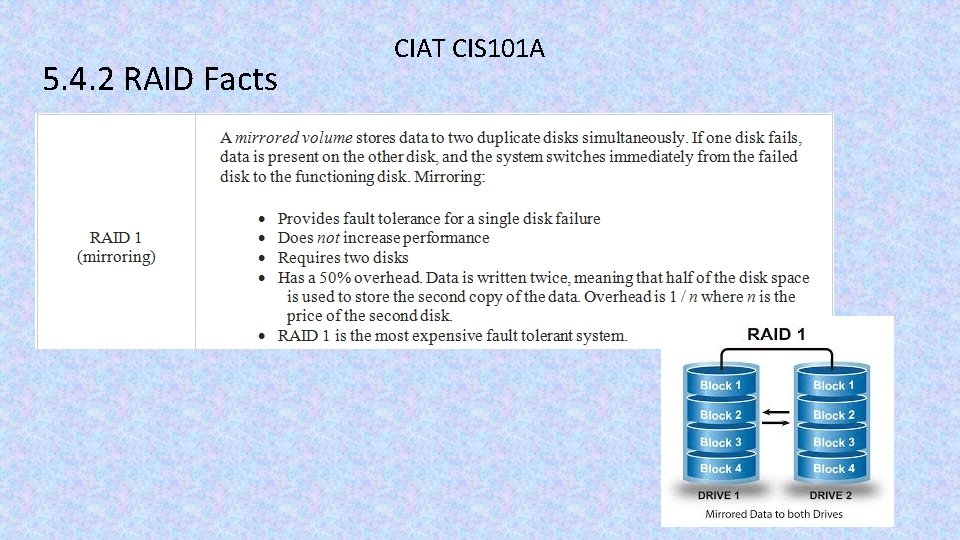
5. 4. 2 RAID Facts CIAT CIS 101 A
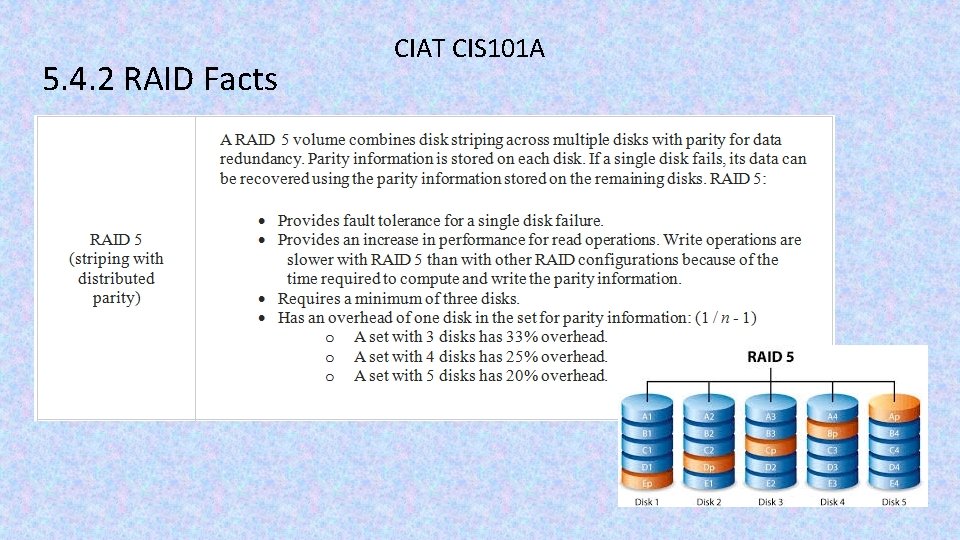
5. 4. 2 RAID Facts CIAT CIS 101 A
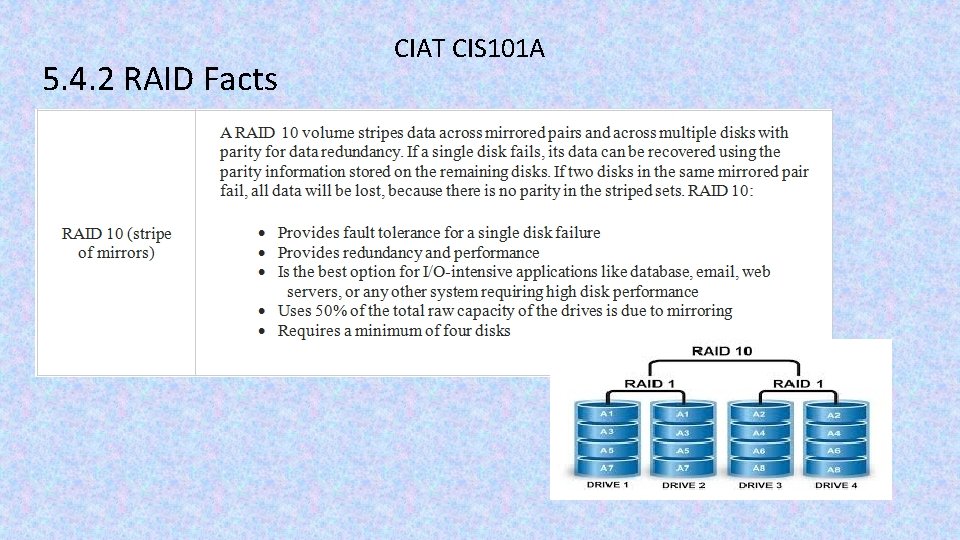
5. 4. 2 RAID Facts CIAT CIS 101 A
5. 4. 2 RAID Facts CIAT CIS 101 A Be aware of the following facts about RAID: • Some RAID controllers support combined levels of RAID. For example, RAID 0+1 is a striped array that is mirrored. Other combined configurations that might be supported include RAID 1+0 (also called RAID 10), RAID 5+0, and RAID 5+1. • For all RAID configurations, the amount of disk space used on each disk must be of equal size. If disks in the array are of different sizes, the resulting volume will be limited to the smallest disk. Remaining space on other drives can be used in other RAID sets or as traditional storage. • While some RAID configurations provide fault tolerance in the event of a disk failure, configuring RAID is not a substitute for regular backups.
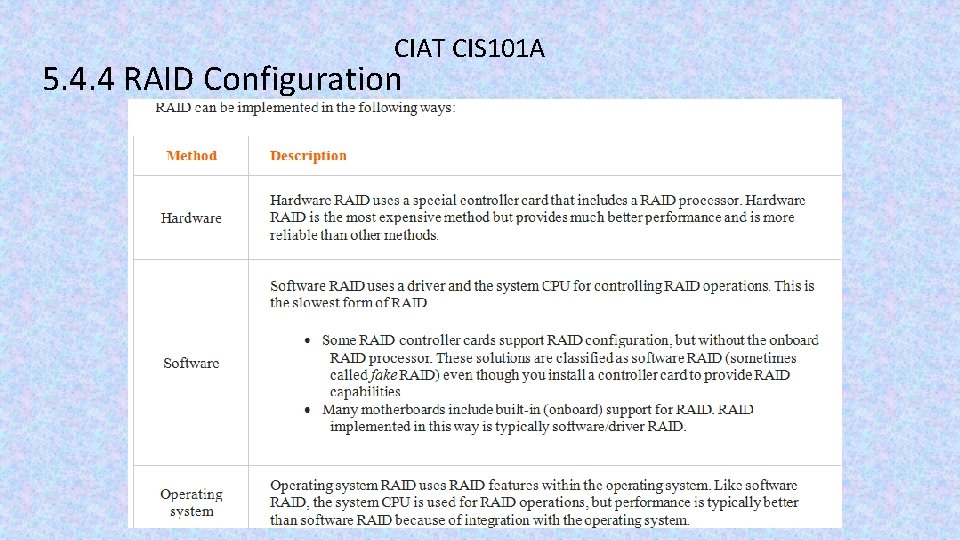
CIAT CIS 101 A 5. 4. 4 RAID Configuration
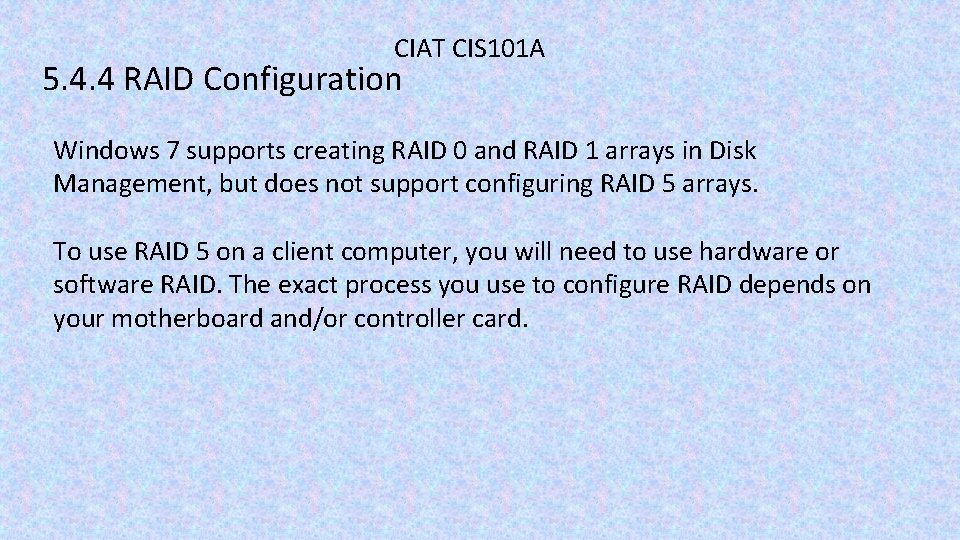
CIAT CIS 101 A 5. 4. 4 RAID Configuration Windows 7 supports creating RAID 0 and RAID 1 arrays in Disk Management, but does not support configuring RAID 5 arrays. To use RAID 5 on a client computer, you will need to use hardware or software RAID. The exact process you use to configure RAID depends on your motherboard and/or controller card.
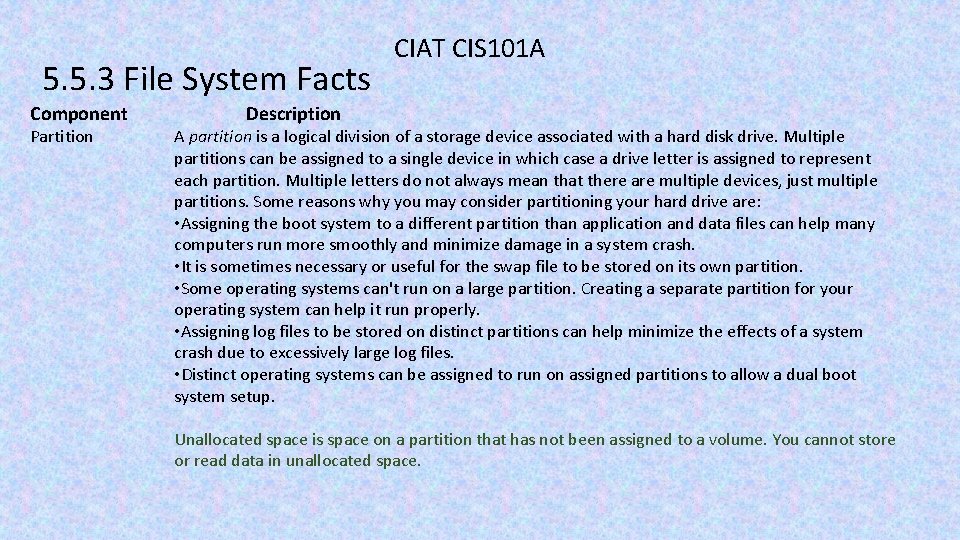
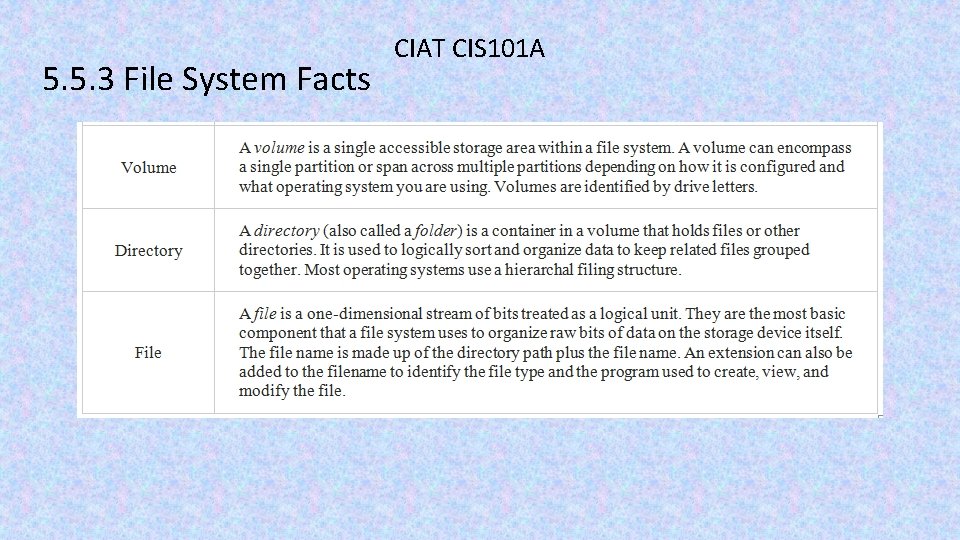
5. 5. 3 File System Facts CIAT CIS 101 A A file system is a means for organizing and storing data and information on a storage device. The file system and the operating system work together to ensure data availability, integrity, and accessibility. The following table gives a description for the four main components of a file system:
5. 5. 3 File System Facts Component Partition CIAT CIS 101 A Description A partition is a logical division of a storage device associated with a hard disk drive. Multiple partitions can be assigned to a single device in which case a drive letter is assigned to represent each partition. Multiple letters do not always mean that there are multiple devices, just multiple partitions. Some reasons why you may consider partitioning your hard drive are: • Assigning the boot system to a different partition than application and data files can help many computers run more smoothly and minimize damage in a system crash. • It is sometimes necessary or useful for the swap file to be stored on its own partition. • Some operating systems can't run on a large partition. Creating a separate partition for your operating system can help it run properly. • Assigning log files to be stored on distinct partitions can help minimize the effects of a system crash due to excessively large log files. • Distinct operating systems can be assigned to run on assigned partitions to allow a dual boot system setup. Unallocated space is space on a partition that has not been assigned to a volume. You cannot store or read data in unallocated space.
5. 5. 3 File System Facts CIAT CIS 101 A
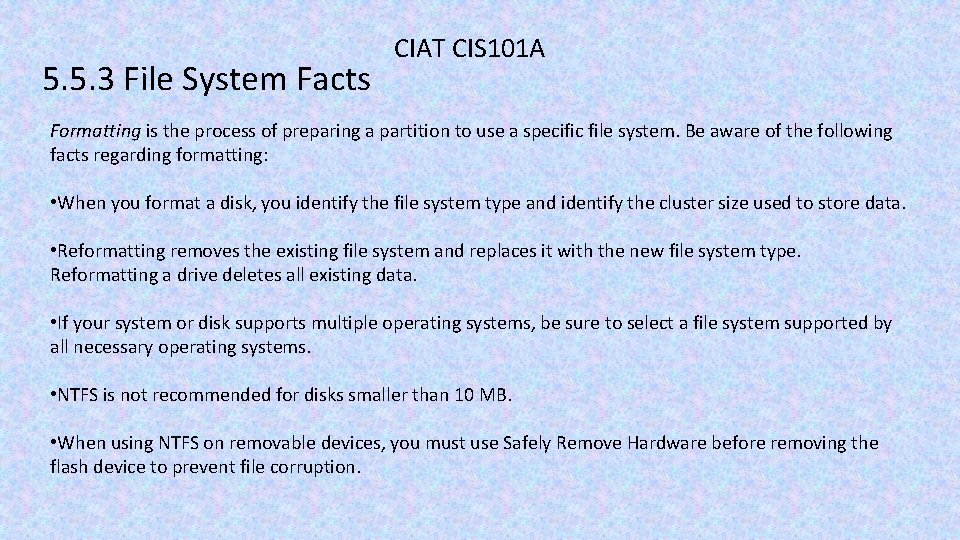
5. 5. 3 File System Facts CIAT CIS 101 A Formatting is the process of preparing a partition to use a specific file system. Be aware of the following facts regarding formatting: • When you format a disk, you identify the file system type and identify the cluster size used to store data. • Reformatting removes the existing file system and replaces it with the new file system type. Reformatting a drive deletes all existing data. • If your system or disk supports multiple operating systems, be sure to select a file system supported by all necessary operating systems. • NTFS is not recommended for disks smaller than 10 MB. • When using NTFS on removable devices, you must use Safely Remove Hardware before removing the flash device to prevent file corruption.
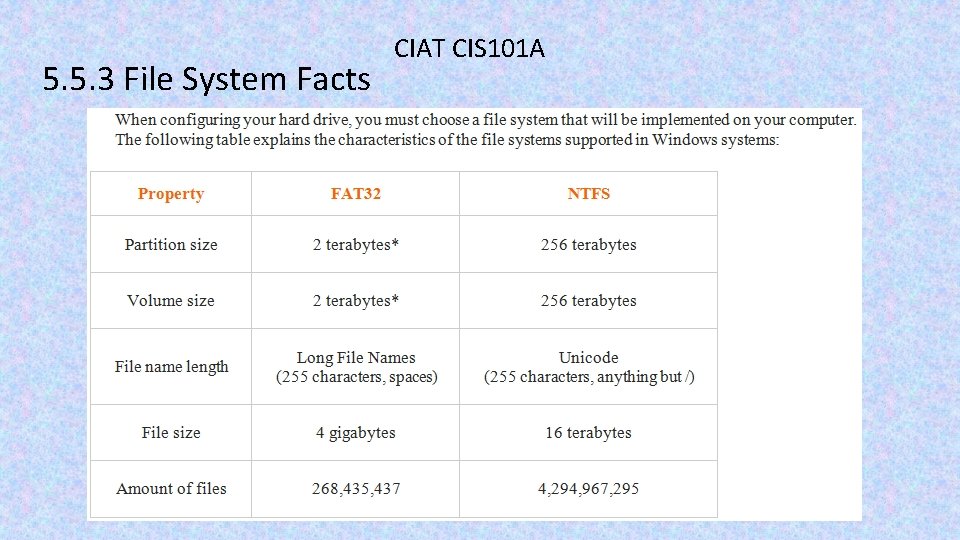
5. 5. 3 File System Facts CIAT CIS 101 A
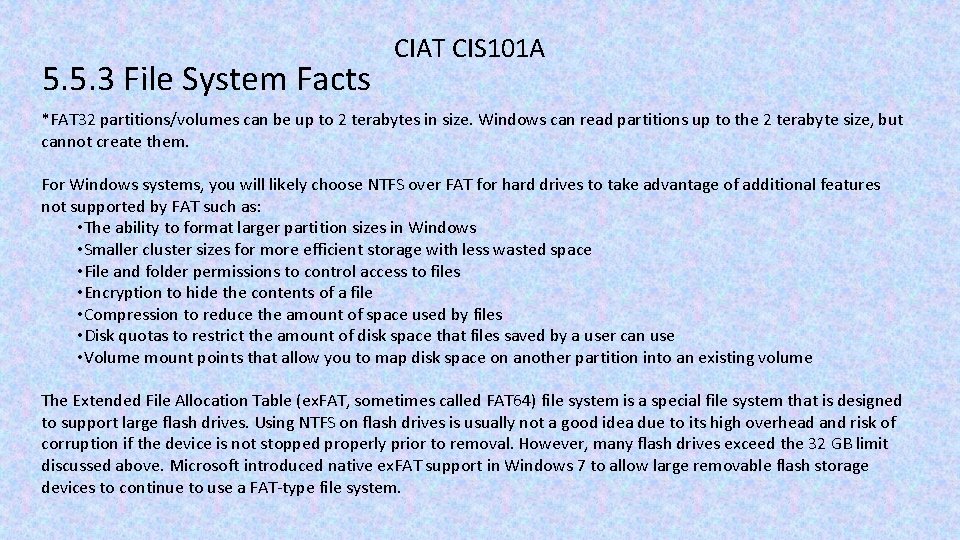
5. 5. 3 File System Facts CIAT CIS 101 A *FAT 32 partitions/volumes can be up to 2 terabytes in size. Windows can read partitions up to the 2 terabyte size, but cannot create them. For Windows systems, you will likely choose NTFS over FAT for hard drives to take advantage of additional features not supported by FAT such as: • The ability to format larger partition sizes in Windows • Smaller cluster sizes for more efficient storage with less wasted space • File and folder permissions to control access to files • Encryption to hide the contents of a file • Compression to reduce the amount of space used by files • Disk quotas to restrict the amount of disk space that files saved by a user can use • Volume mount points that allow you to map disk space on another partition into an existing volume The Extended File Allocation Table (ex. FAT, sometimes called FAT 64) file system is a special file system that is designed to support large flash drives. Using NTFS on flash drives is usually not a good idea due to its high overhead and risk of corruption if the device is not stopped properly prior to removal. However, many flash drives exceed the 32 GB limit discussed above. Microsoft introduced native ex. FAT support in Windows 7 to allow large removable flash storage devices to continue to use a FAT-type file system.
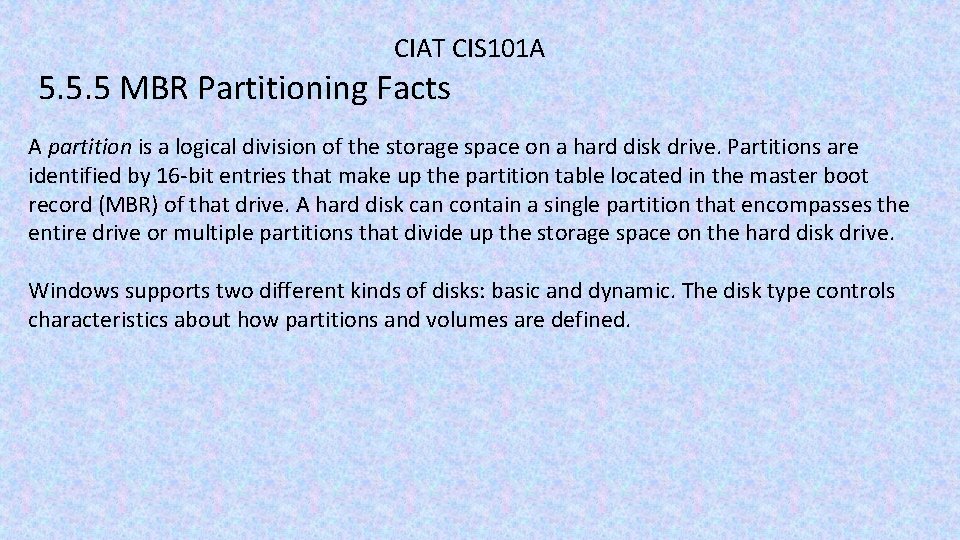
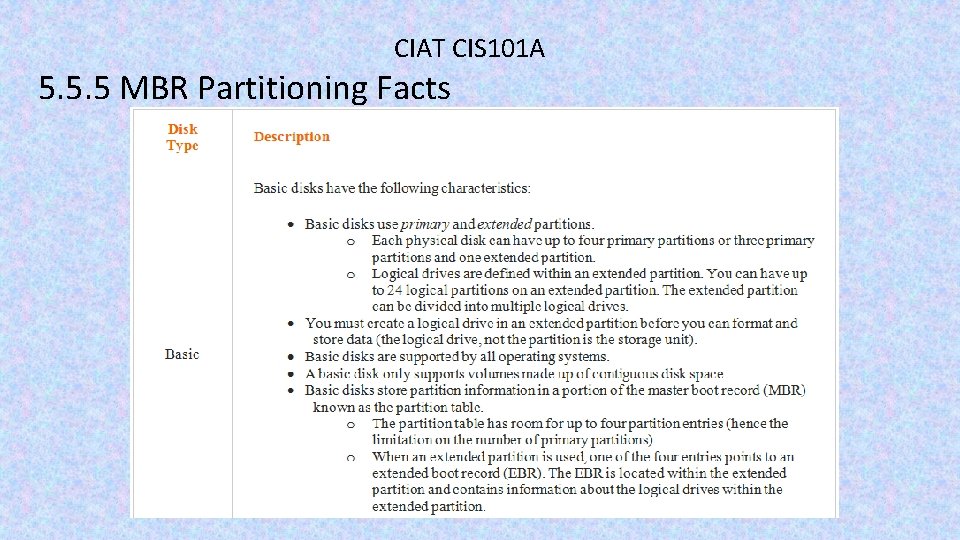
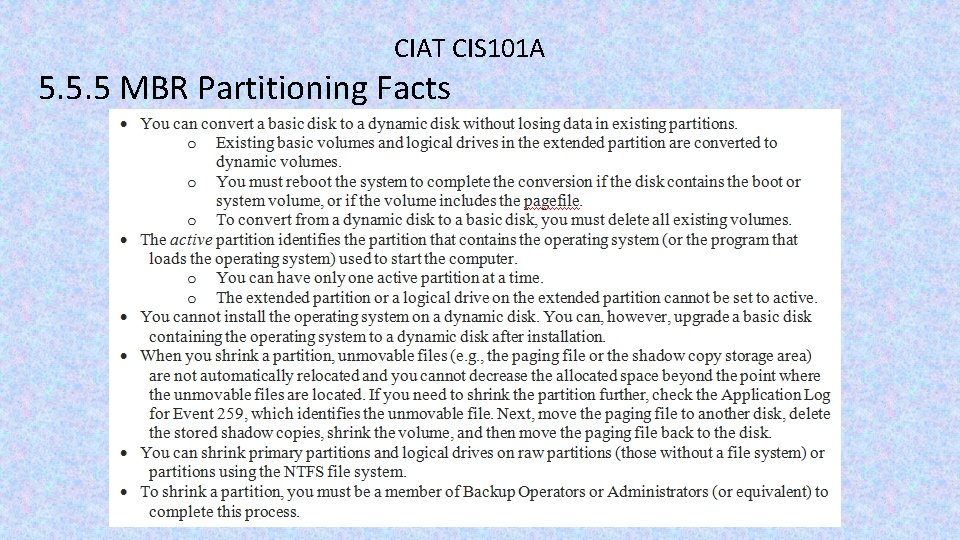
CIAT CIS 101 A 5. 5. 5 MBR Partitioning Facts A partition is a logical division of the storage space on a hard disk drive. Partitions are identified by 16 -bit entries that make up the partition table located in the master boot record (MBR) of that drive. A hard disk can contain a single partition that encompasses the entire drive or multiple partitions that divide up the storage space on the hard disk drive. Windows supports two different kinds of disks: basic and dynamic. The disk type controls characteristics about how partitions and volumes are defined.
CIAT CIS 101 A 5. 5. 5 MBR Partitioning Facts
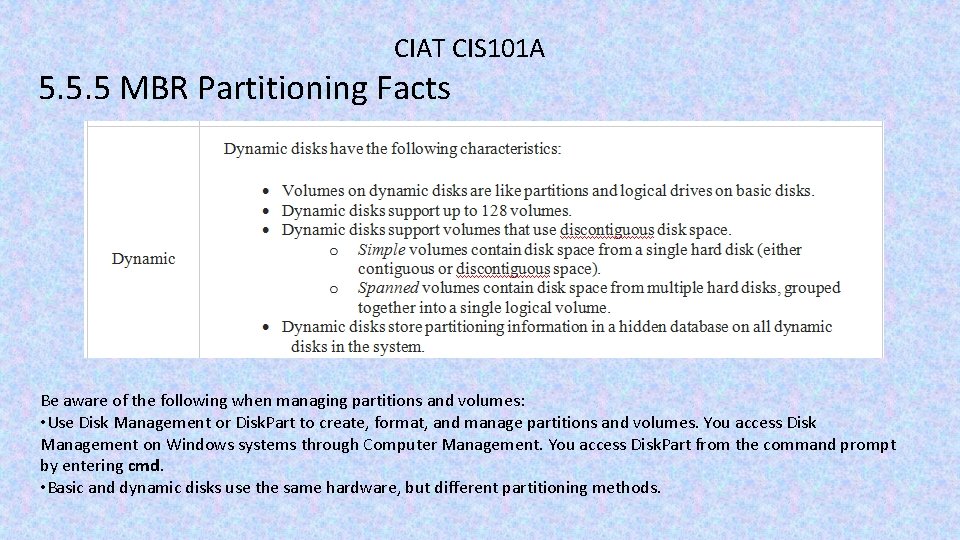
CIAT CIS 101 A 5. 5. 5 MBR Partitioning Facts Be aware of the following when managing partitions and volumes: • Use Disk Management or Disk. Part to create, format, and manage partitions and volumes. You access Disk Management on Windows systems through Computer Management. You access Disk. Part from the command prompt by entering cmd. • Basic and dynamic disks use the same hardware, but different partitioning methods.
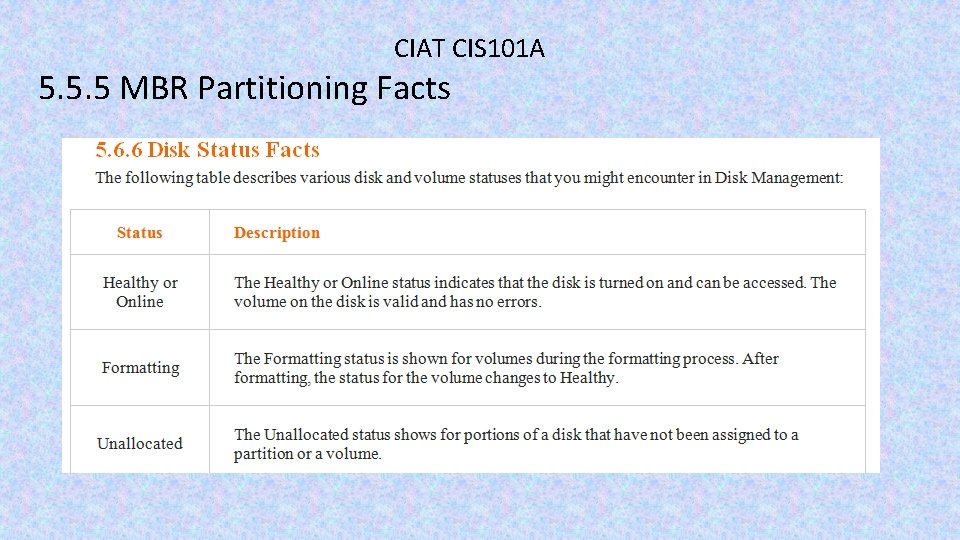
CIAT CIS 101 A 5. 5. 5 MBR Partitioning Facts
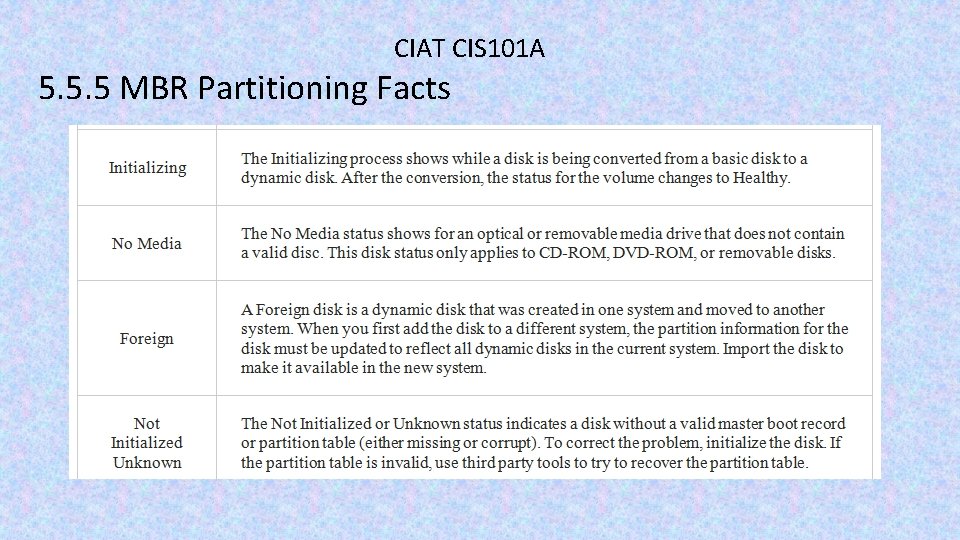
CIAT CIS 101 A 5. 5. 5 MBR Partitioning Facts
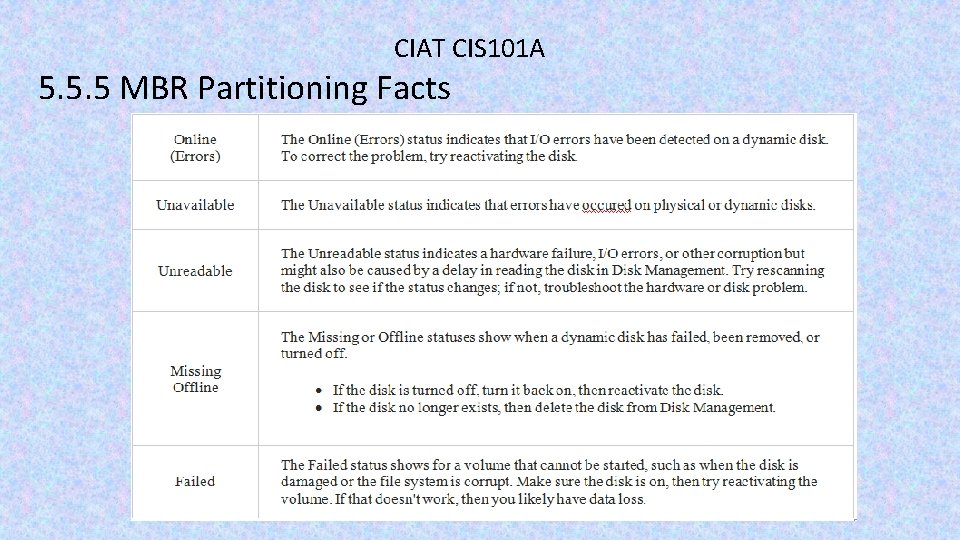
CIAT CIS 101 A 5. 5. 5 MBR Partitioning Facts
CIAT CIS 101 A 5. 5. 5 MBR Partitioning Facts
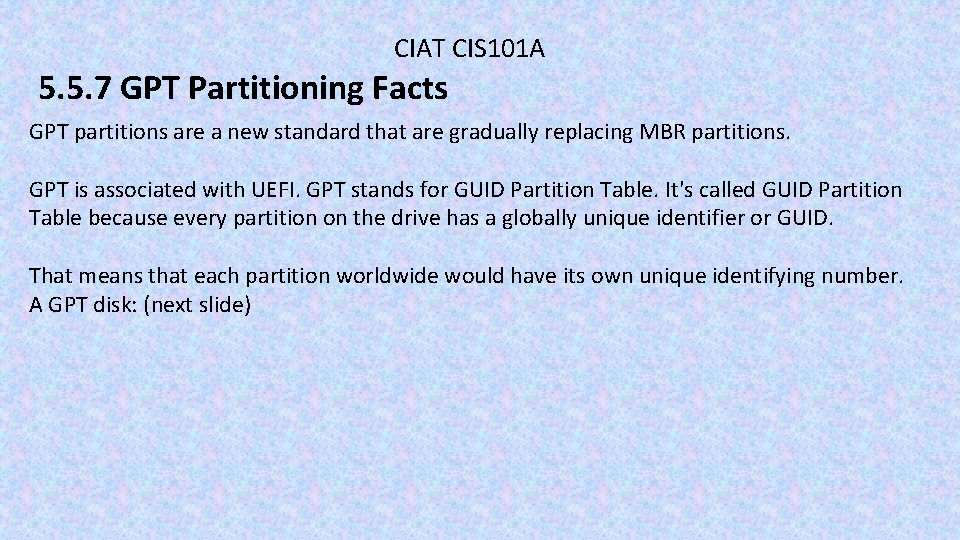
CIAT CIS 101 A 5. 5. 7 GPT Partitioning Facts GPT partitions are a new standard that are gradually replacing MBR partitions. GPT is associated with UEFI. GPT stands for GUID Partition Table. It's called GUID Partition Table because every partition on the drive has a globally unique identifier or GUID. That means that each partition worldwide would have its own unique identifying number. A GPT disk: (next slide)
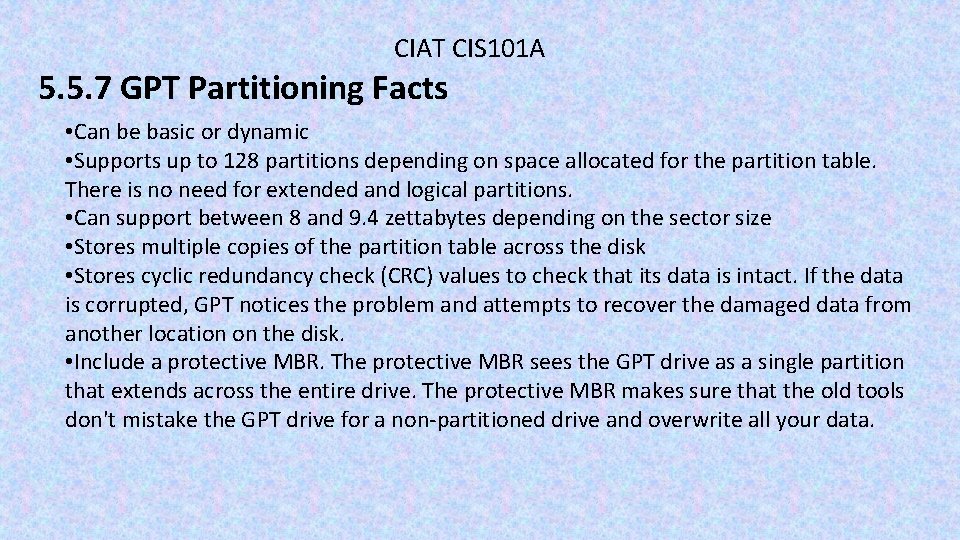
CIAT CIS 101 A 5. 5. 7 GPT Partitioning Facts • Can be basic or dynamic • Supports up to 128 partitions depending on space allocated for the partition table. There is no need for extended and logical partitions. • Can support between 8 and 9. 4 zettabytes depending on the sector size • Stores multiple copies of the partition table across the disk • Stores cyclic redundancy check (CRC) values to check that its data is intact. If the data is corrupted, GPT notices the problem and attempts to recover the damaged data from another location on the disk. • Include a protective MBR. The protective MBR sees the GPT drive as a single partition that extends across the entire drive. The protective MBR makes sure that the old tools don't mistake the GPT drive for a non-partitioned drive and overwrite all your data.
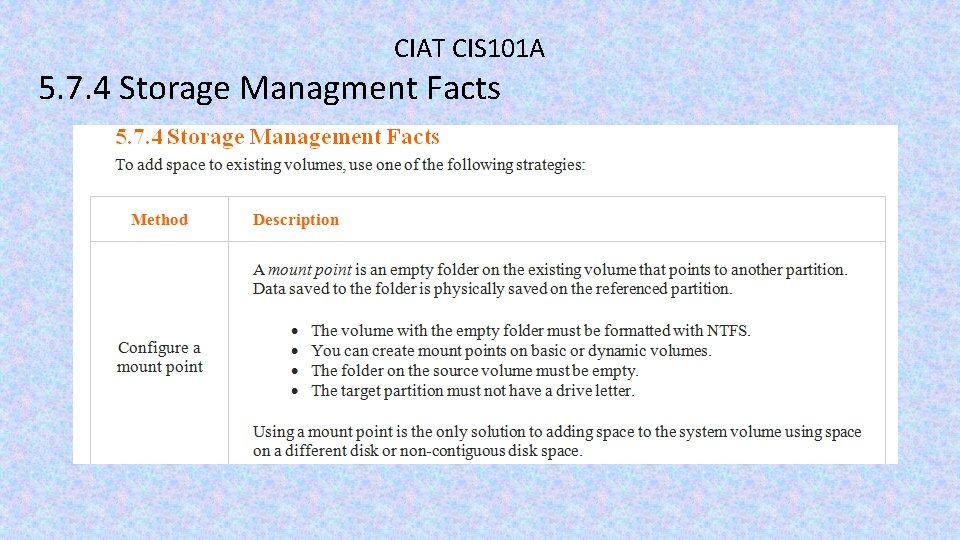
CIAT CIS 101 A 5. 7. 4 Storage Managment Facts
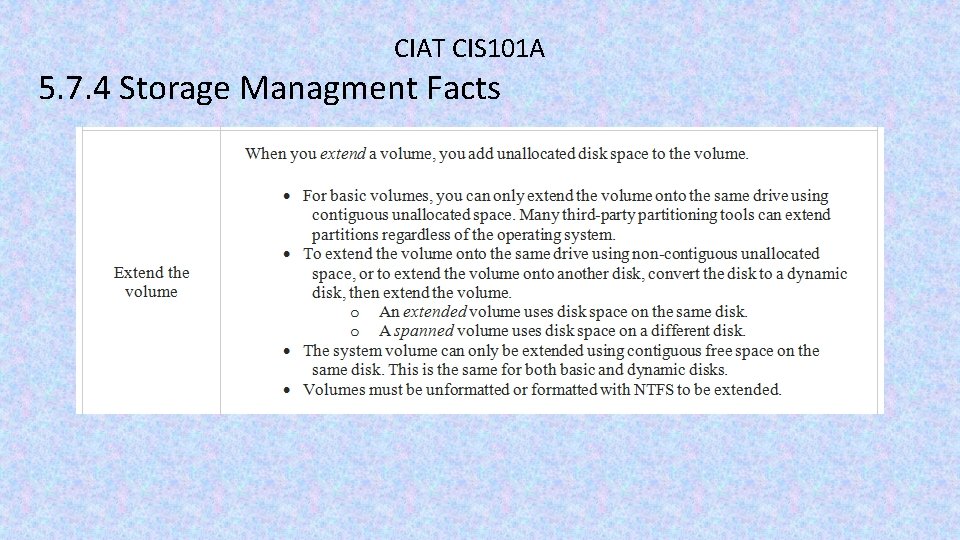
CIAT CIS 101 A 5. 7. 4 Storage Managment Facts
CIAT CIS 101 A
CIAT CIS 101 A
CIAT CIS 101 A
CIAT CIS 101 A
CIAT CIS 101 A End of lesson