
Chulabhorn Graduate Institute 2010 Sci Finder Scholar Training
Chulabhorn Graduate Institute 2010 Sci. Finder Scholar Training Overview 7 -8 June, 2010 1
“We spend countless hours learning our subject, but we spend few hours learning how to find information” “an hour in the library may save a month at the bench” “Searching of the literature is extremely complicated and we should never underestimate the challenges” 2
What is Scifinder? Sci. Finder is a research tool that allows you to explore the Scientific databases containing literature from many scientific disciplines including biomedical sciences, chemistry, engineering, materials science, agricultural science, etc. Sci. Finder is produced by CAS, a division of the American Chemical Society Sci. Finder is for commercial and government use. Sci. Finder Scholar is for academic use. 3
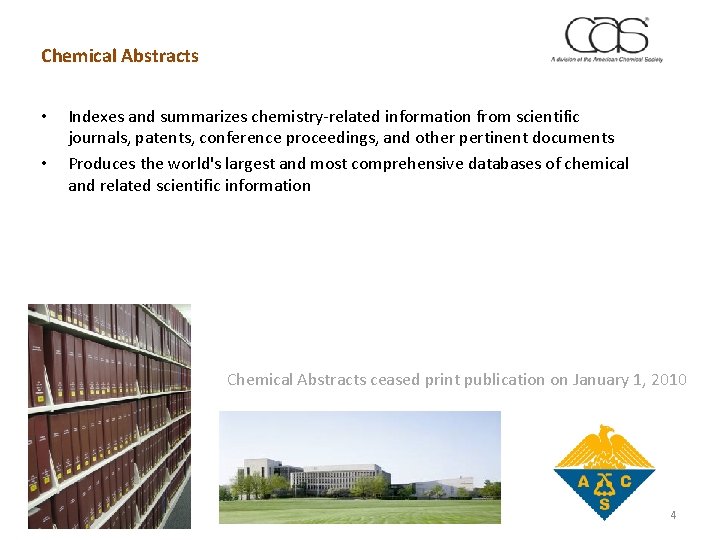
Chemical Abstracts • • Indexes and summarizes chemistry-related information from scientific journals, patents, conference proceedings, and other pertinent documents Produces the world's largest and most comprehensive databases of chemical and related scientific information Chemical Abstracts ceased print publication on January 1, 2010 4
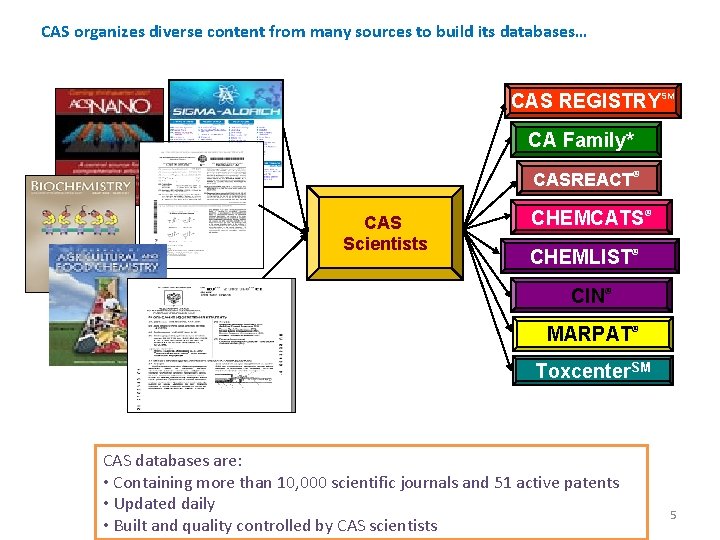
CAS organizes diverse content from many sources to build its databases… CAS REGISTRYSM CA Family* CASREACT® CAS Scientists CHEMCATS® CHEMLIST® CIN® MARPAT® Toxcenter. SM CAS databases are: • Containing more than 10, 000 scientific journals and 51 active patents • Updated daily • Built and quality controlled by CAS scientists 5
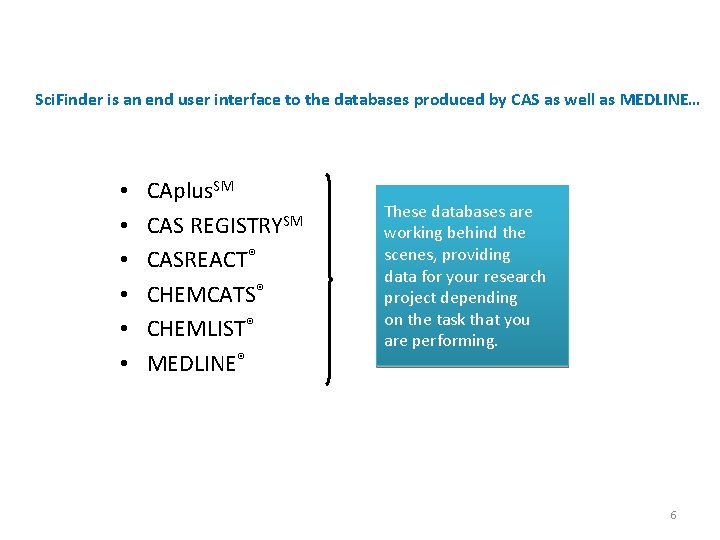
Sci. Finder is an end user interface to the databases produced by CAS as well as MEDLINE… • • • CAplus. SM CAS REGISTRYSM CASREACT® CHEMCATS® CHEMLIST® MEDLINE® These databases are working behind the scenes, providing data for your research project depending on the task that you are performing. 6
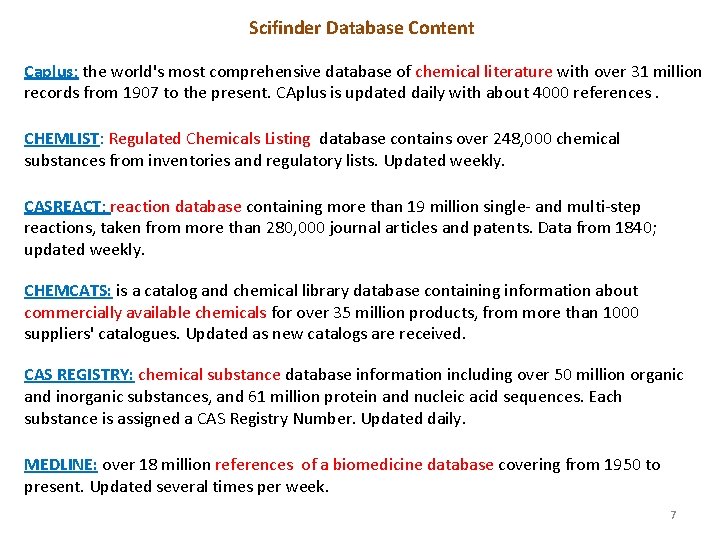
Scifinder Database Content Caplus: the world's most comprehensive database of chemical literature with over 31 million records from 1907 to the present. CAplus is updated daily with about 4000 references. CHEMLIST: Regulated Chemicals Listing database contains over 248, 000 chemical substances from inventories and regulatory lists. Updated weekly. CASREACT: reaction database containing more than 19 million single- and multi-step reactions, taken from more than 280, 000 journal articles and patents. Data from 1840; updated weekly. CHEMCATS: is a catalog and chemical library database containing information about commercially available chemicals for over 35 million products, from more than 1000 suppliers' catalogues. Updated as new catalogs are received. CAS REGISTRY: chemical substance database information including over 50 million organic and inorganic substances, and 61 million protein and nucleic acid sequences. Each substance is assigned a CAS Registry Number. Updated daily. MEDLINE: over 18 million references of a biomedicine database covering from 1950 to present. Updated several times per week. 7
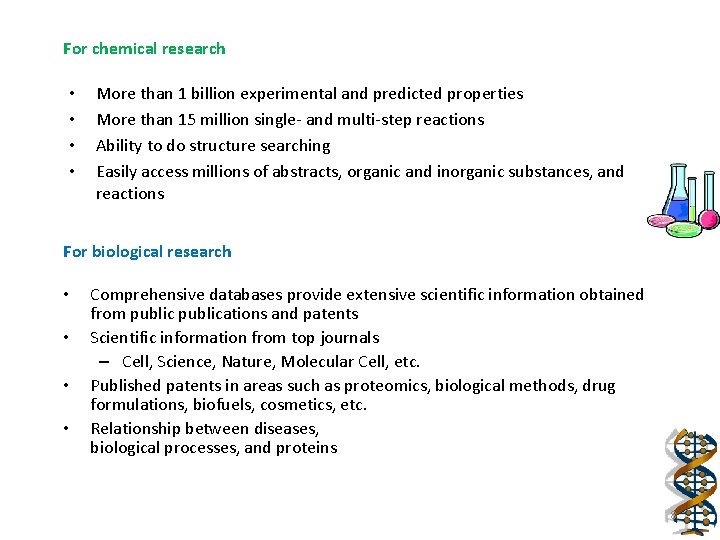
For chemical research • • More than 1 billion experimental and predicted properties More than 15 million single- and multi-step reactions Ability to do structure searching Easily access millions of abstracts, organic and inorganic substances, and reactions For biological research • • Comprehensive databases provide extensive scientific information obtained from publications and patents Scientific information from top journals – Cell, Science, Nature, Molecular Cell, etc. Published patents in areas such as proteomics, biological methods, drug formulations, biofuels, cosmetics, etc. Relationship between diseases, biological processes, and proteins 8
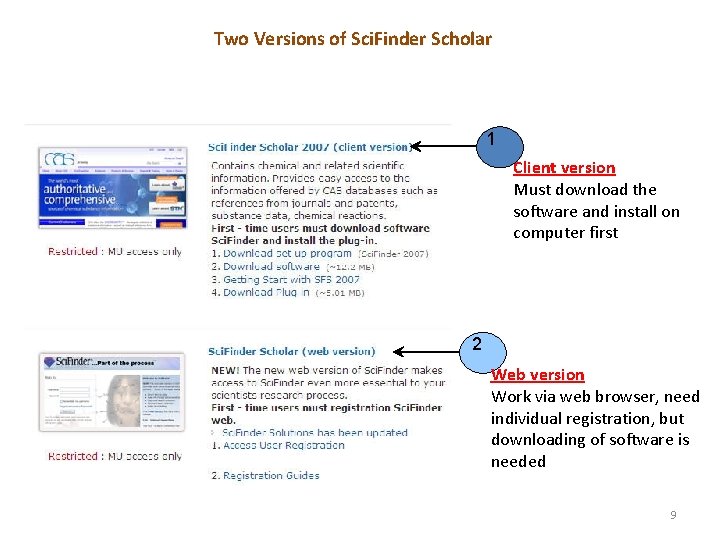
Two Versions of Sci. Finder Scholar 1 Client version Must download the software and install on computer first 2 Web version Work via web browser, need individual registration, but downloading of software is needed 9
Sci. Finder Scholar @ CGI We use the Scifinder Scholar under Mahidol University subscirption Mahidol's Sci. Finder subscription allows up to FOUR concurrent users: two for the web version and another two for the client version To use Sci. Finder Scholar, there are three options. . . 1. Use the client version. Download the client software of the Sci. Finder Scholar client and install it on computer. You must connect to Mahidol’s library first. 2. Use the Web Version of Sci. Finder. Individual registration is required for the web version of Sci. Finder. 3. Use a public access PC in either the Library or Laboratory computer. For Library computer: Ask the librarian For Laboratory computer: Ask your faculty’s coordinator 10
Keep in mind!! 1. Please quit the program as soon as you have finished seraching (automatic disconnection will be taken place after 20 minutes inactivity) 2. Avoid the busiest times (~10 am-4 pm) whenever possible 3. Be prepared for a message "Your allocated system resources are currently unavailable to access Sci. Finder" - just try again later Licence Agreement: Sci. Finder Scholar is licensed for use by registered students and staff. All use, other than for educational or research purposes, is prohibited 11
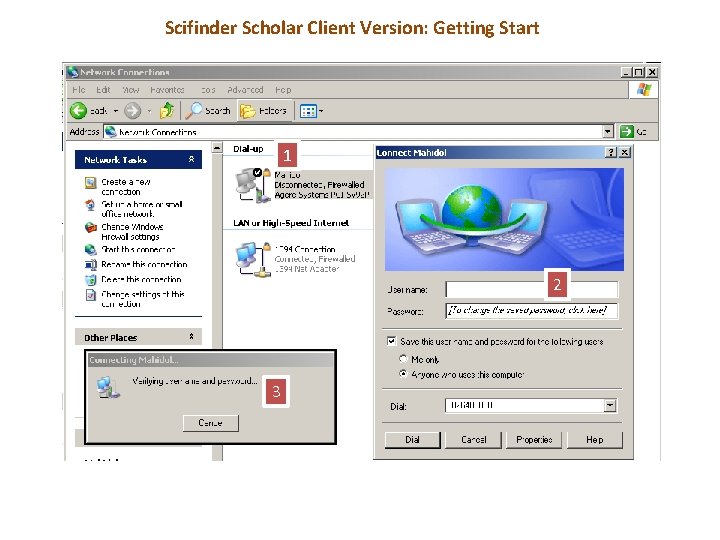
Scifinder Scholar Client Version: Getting Start 1 2 3
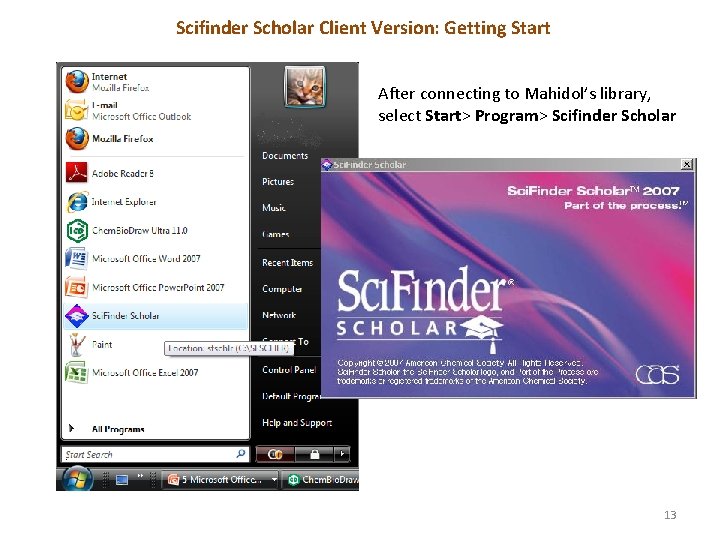
Scifinder Scholar Client Version: Getting Start After connecting to Mahidol’s library, select Start> Program> Scifinder Scholar 13
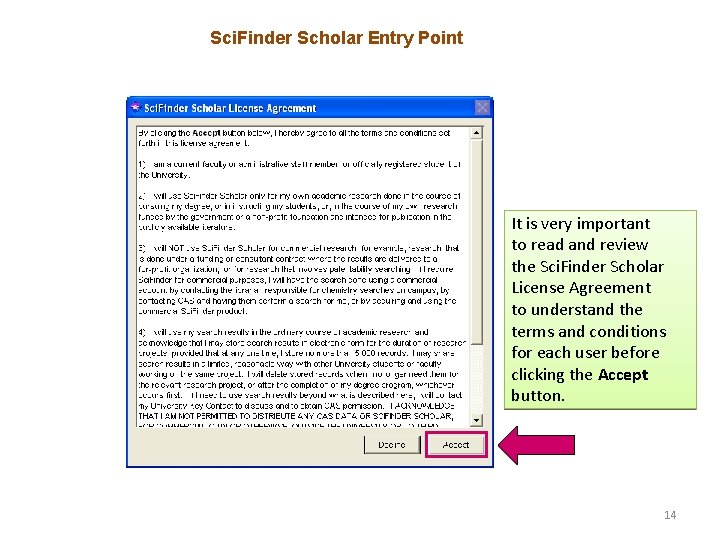
Sci. Finder Scholar Entry Point It is very important to read and review the Sci. Finder Scholar License Agreement to understand the terms and conditions for each user before clicking the Accept button. 14
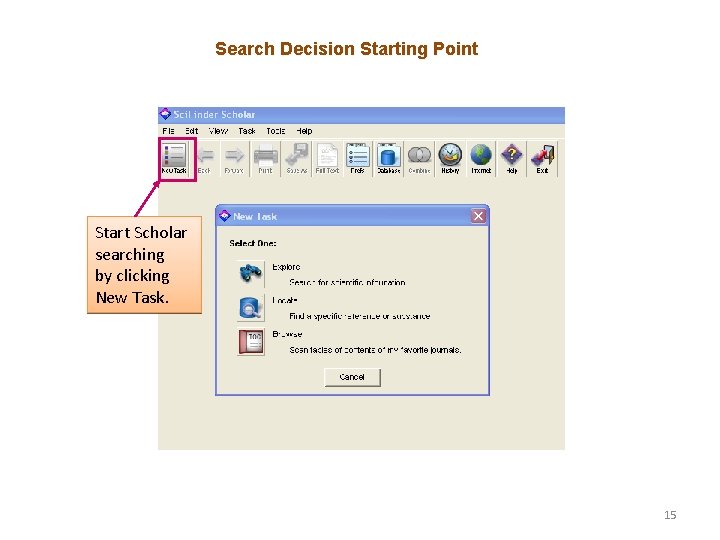
Search Decision Starting Point Start Scholar searching by clicking New Task. 15
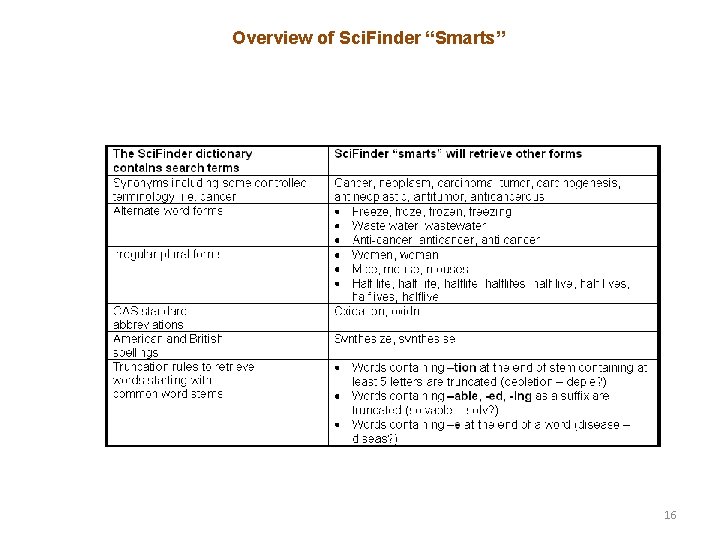
Overview of Sci. Finder “Smarts” 16
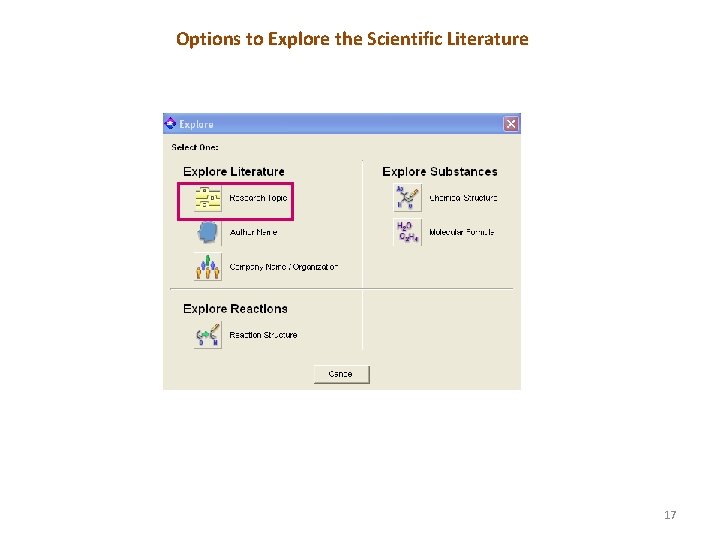
Options to Explore the Scientific Literature 17
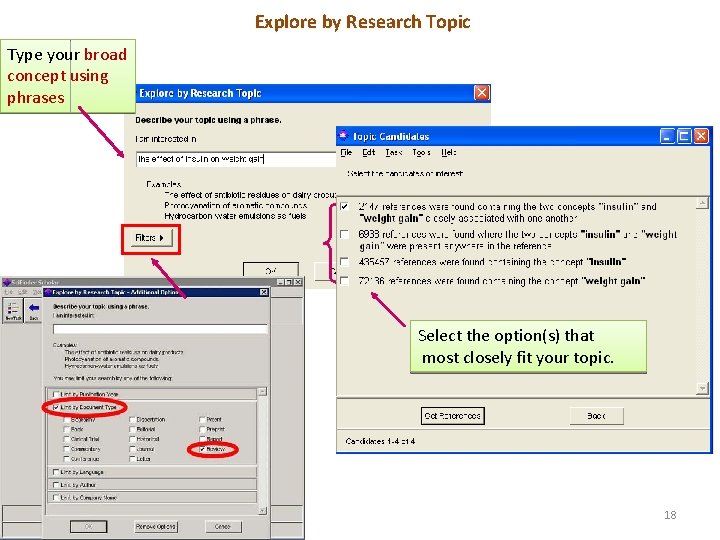
Explore by Research Topic Type your broad concept using phrases Select the option(s) that most closely fit your topic. 18
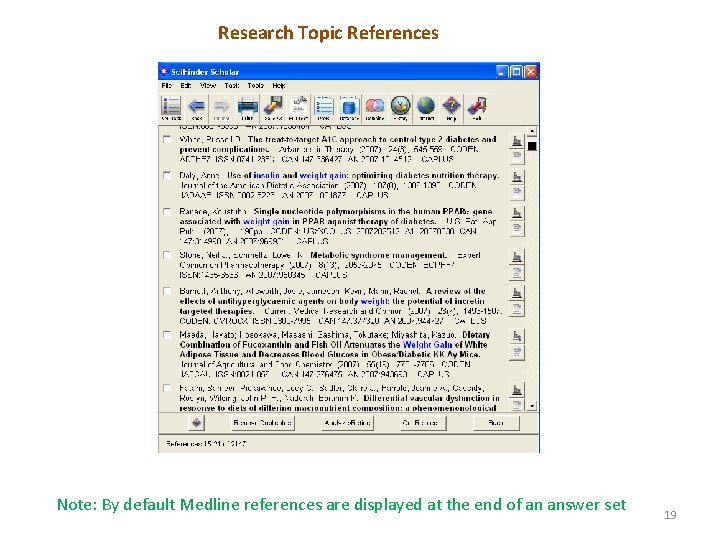
Research Topic References Note: By default Medline references are displayed at the end of an answer set 19
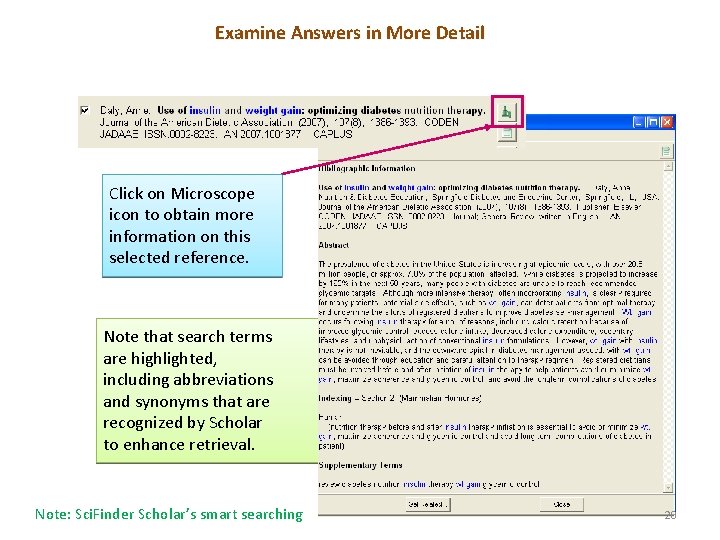
Examine Answers in More Detail Click on Microscope icon to obtain more information on this selected reference. Note that search terms are highlighted, including abbreviations and synonyms that are recognized by Scholar to enhance retrieval. Note: Sci. Finder Scholar’s smart searching 20
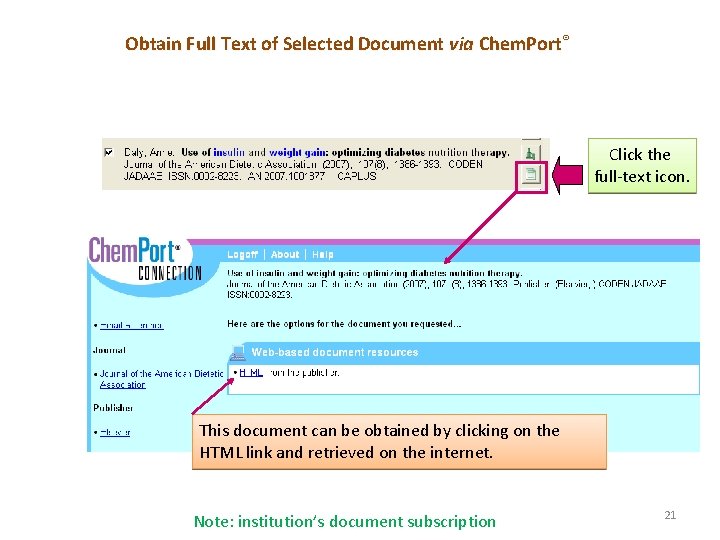
Obtain Full Text of Selected Document via Chem. Port® Click the full-text icon. This document can be obtained by clicking on the HTML link and retrieved on the internet. Note: institution’s document subscription 21
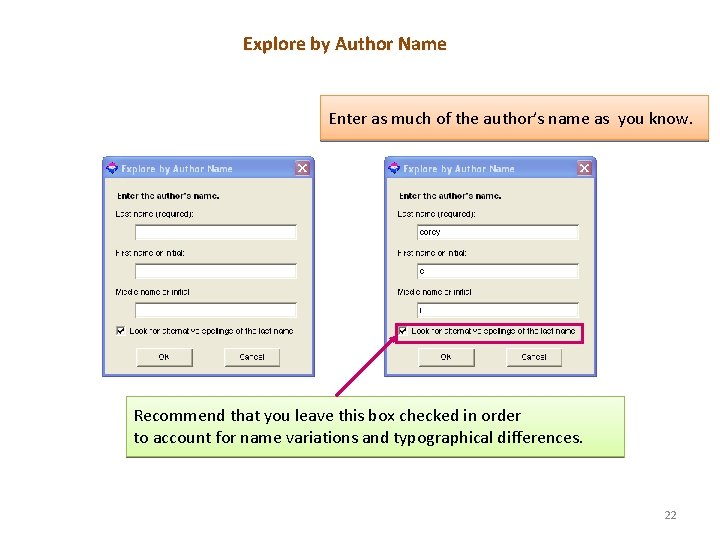
Explore by Author Name Enter as much of the author’s name as you know. Recommend that you leave this box checked in order to account for name variations and typographical differences. 22
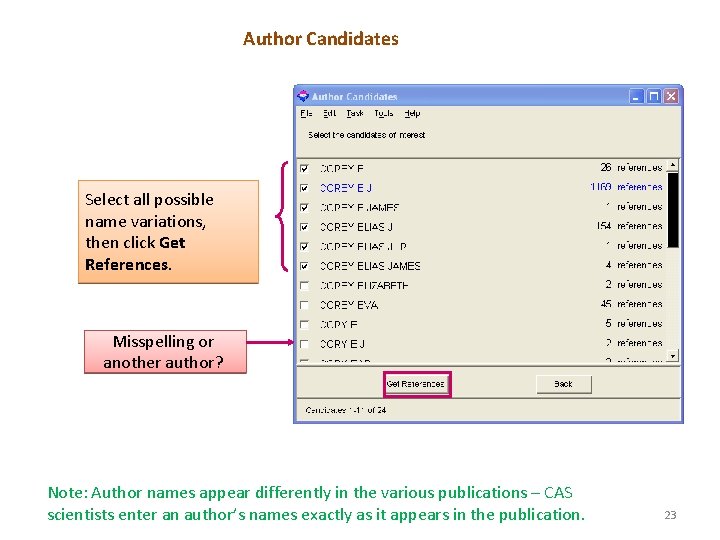
Author Candidates Select all possible name variations, then click Get References. Misspelling or another author? Note: Author names appear differently in the various publications – CAS scientists enter an author’s names exactly as it appears in the publication. 23
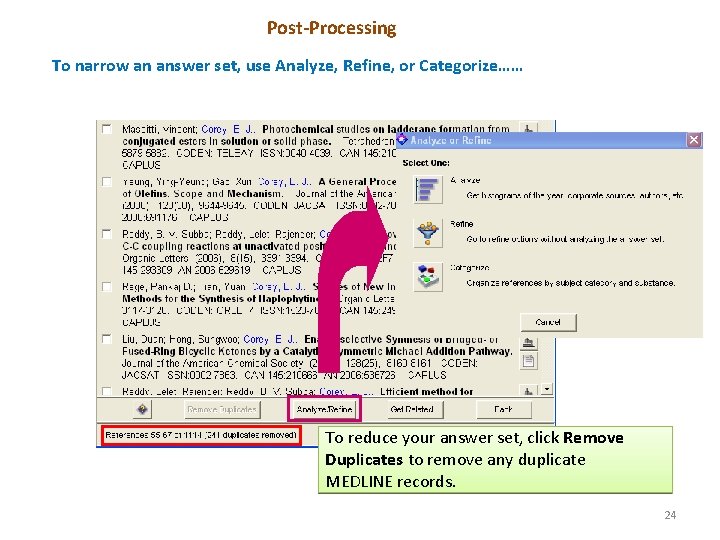
Post-Processing To narrow an answer set, use Analyze, Refine, or Categorize…… To reduce your answer set, click Remove Duplicates to remove any duplicate MEDLINE records. 24
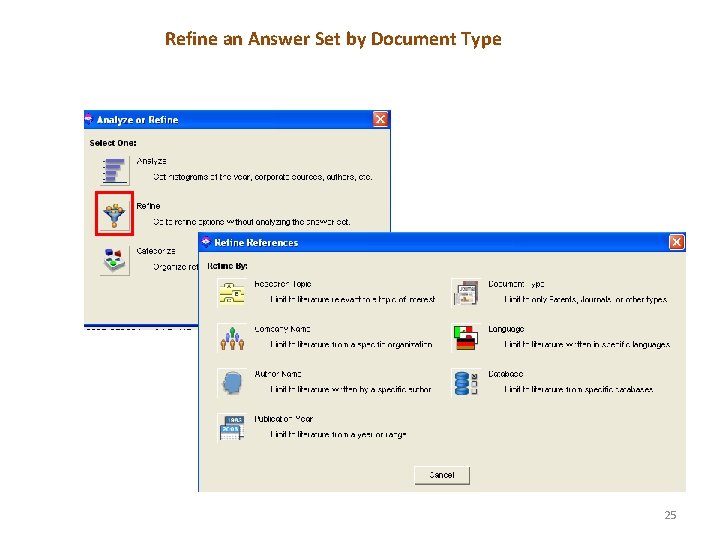
Refine an Answer Set by Document Type 25
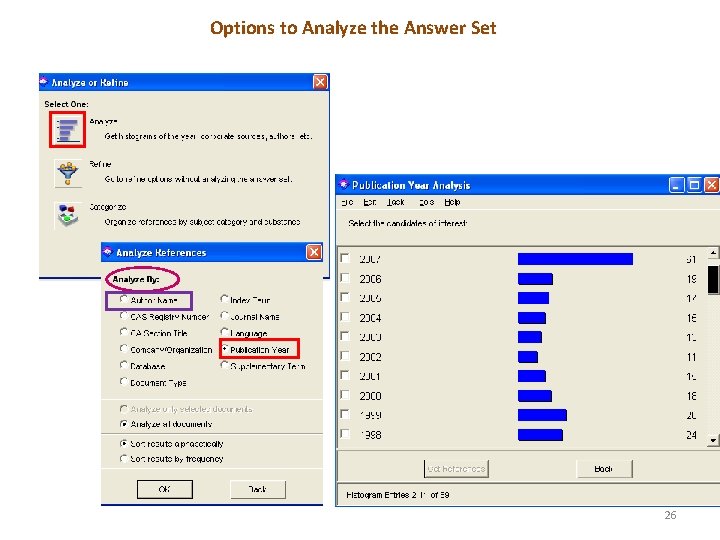
Options to Analyze the Answer Set 26
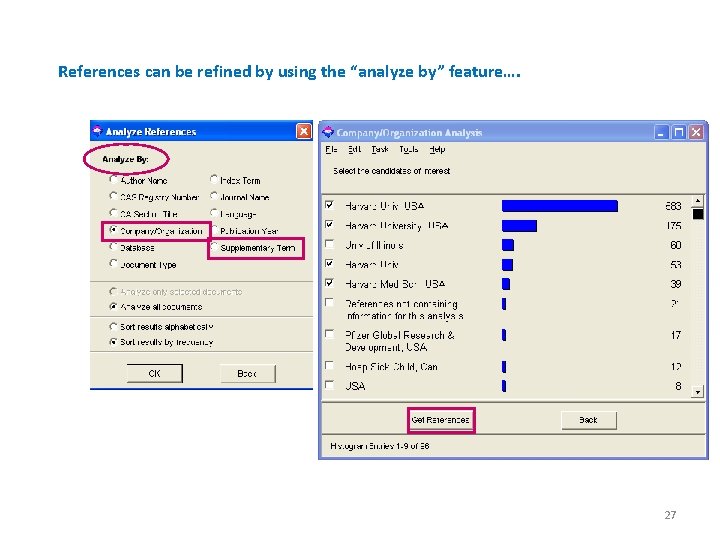
References can be refined by using the “analyze by” feature…. 27
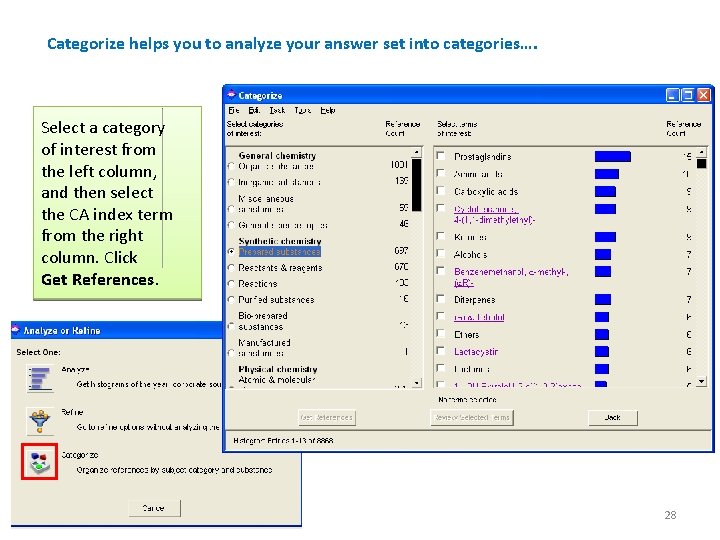
Categorize helps you to analyze your answer set into categories…. Select a category of interest from the left column, and then select the CA index term from the right column. Click Get References. 28
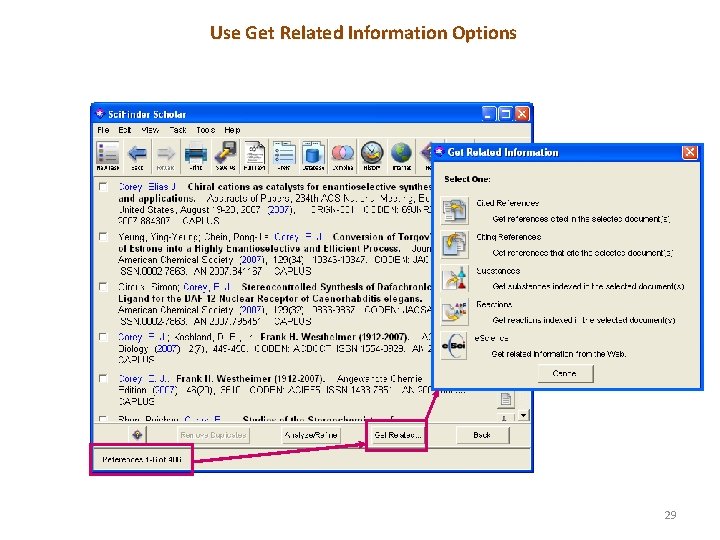
Use Get Related Information Options 29
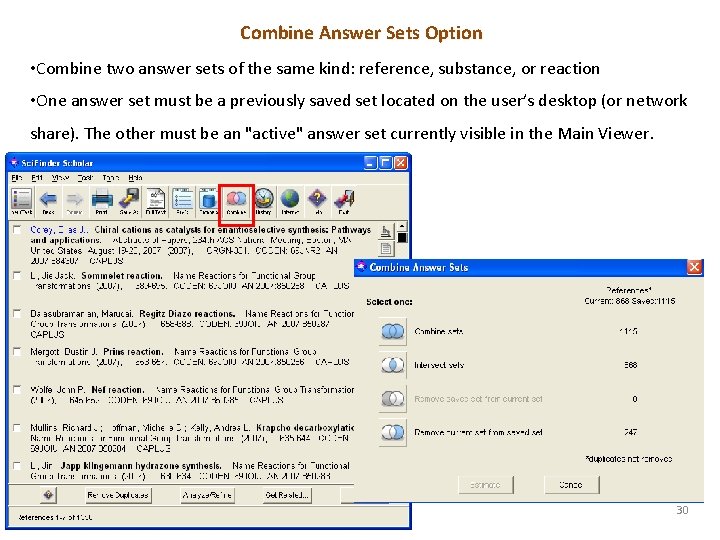
Combine Answer Sets Option • Combine two answer sets of the same kind: reference, substance, or reaction • One answer set must be a previously saved set located on the user’s desktop (or network share). The other must be an "active" answer set currently visible in the Main Viewer. 30
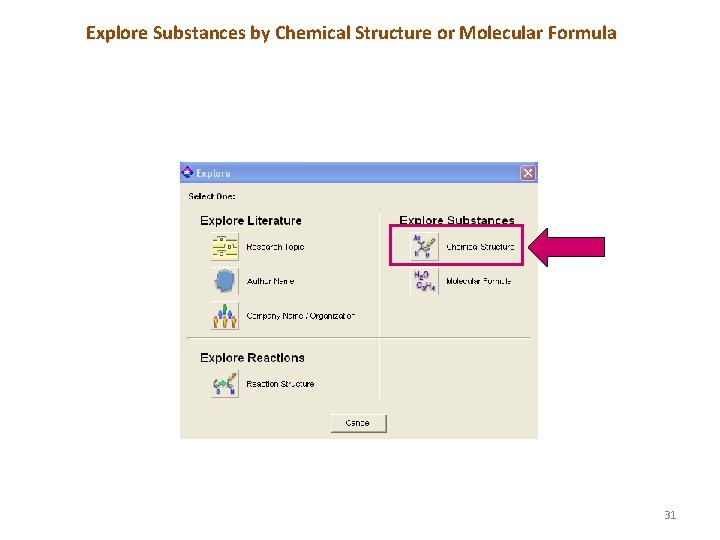
Explore Substances by Chemical Structure or Molecular Formula 31
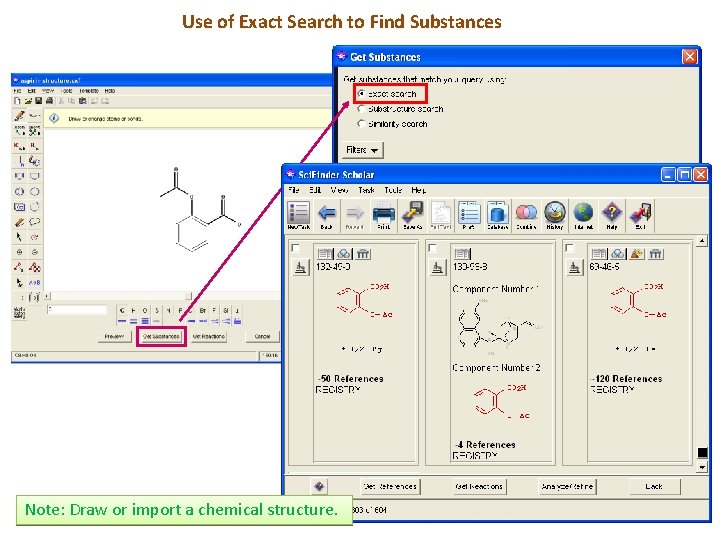
Use of Exact Search to Find Substances Note: Draw or import a chemical structure. 32
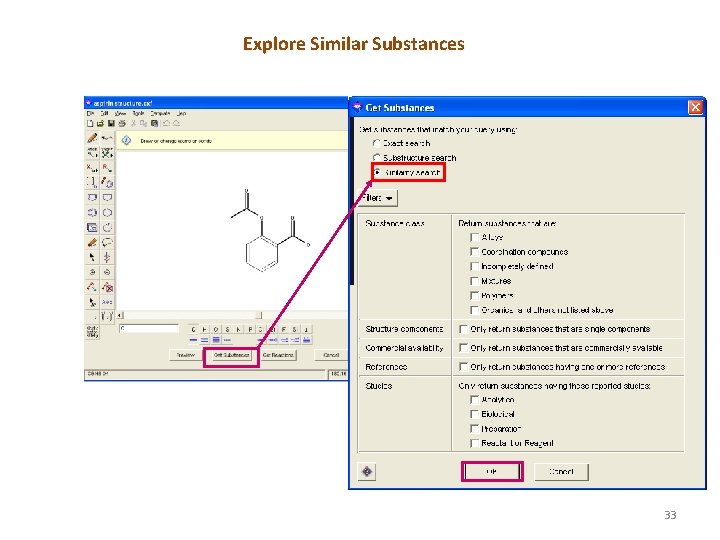
Explore Similar Substances 33
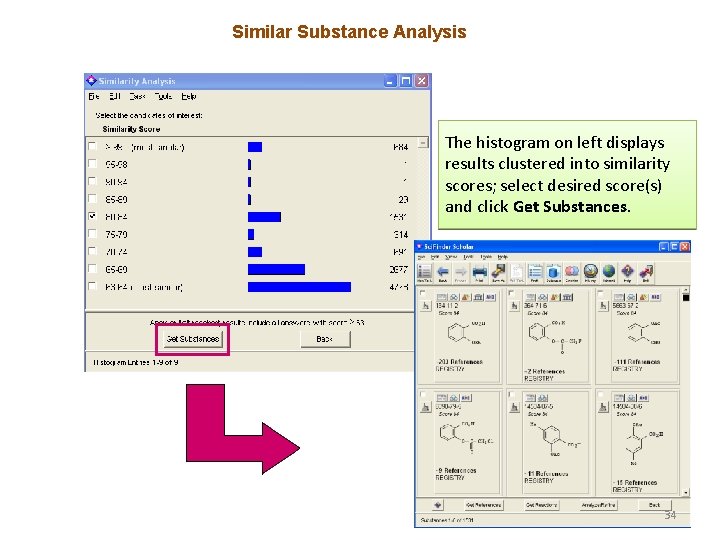
Similar Substance Analysis The histogram on left displays results clustered into similarity scores; select desired score(s) and click Get Substances. 34
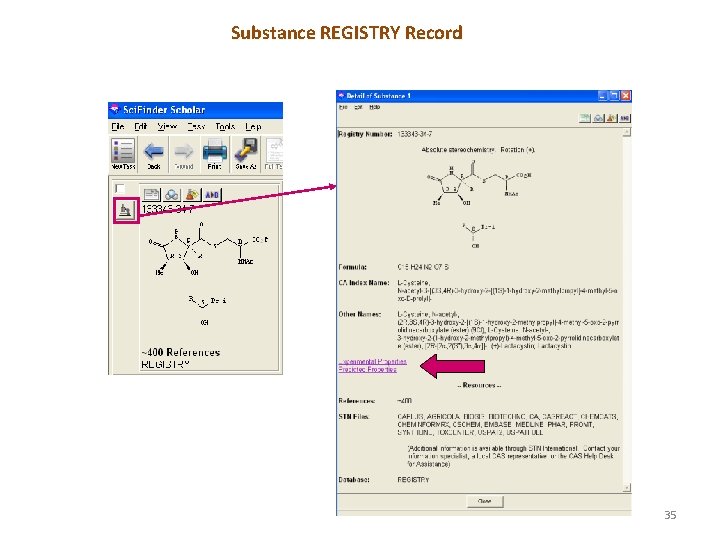
Substance REGISTRY Record 35
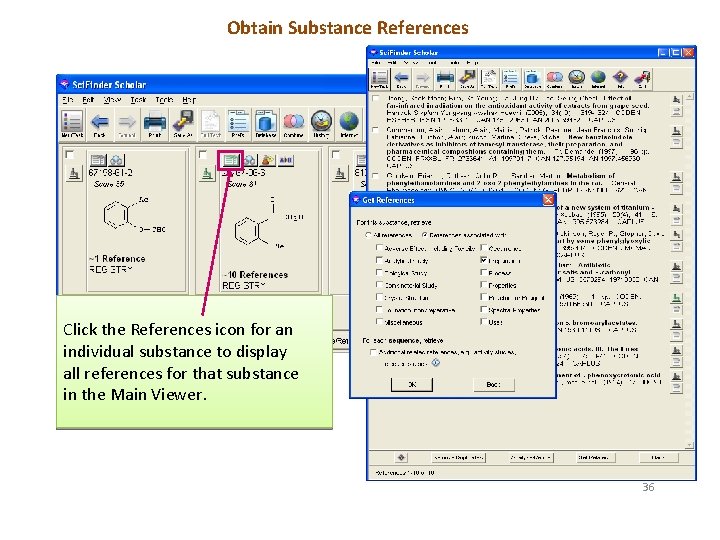
Obtain Substance References Click the References icon for an individual substance to display all references for that substance in the Main Viewer. 36
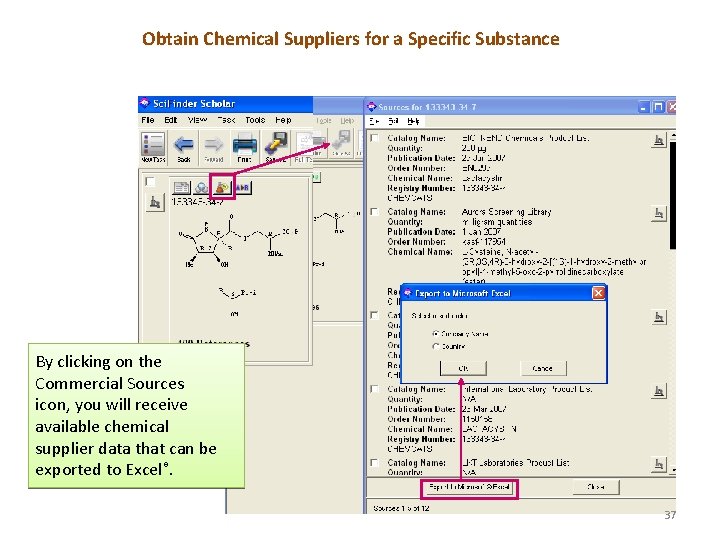
Obtain Chemical Suppliers for a Specific Substance By clicking on the Commercial Sources icon, you will receive available chemical supplier data that can be exported to Excel®. 37
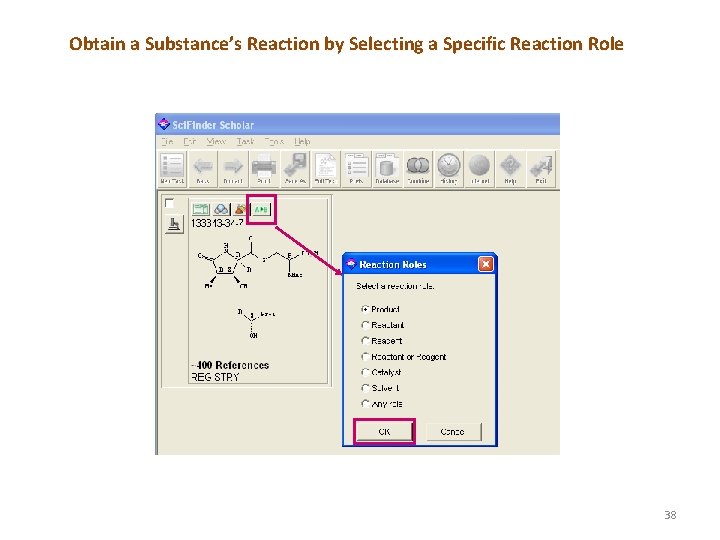
Obtain a Substance’s Reaction by Selecting a Specific Reaction Role 38
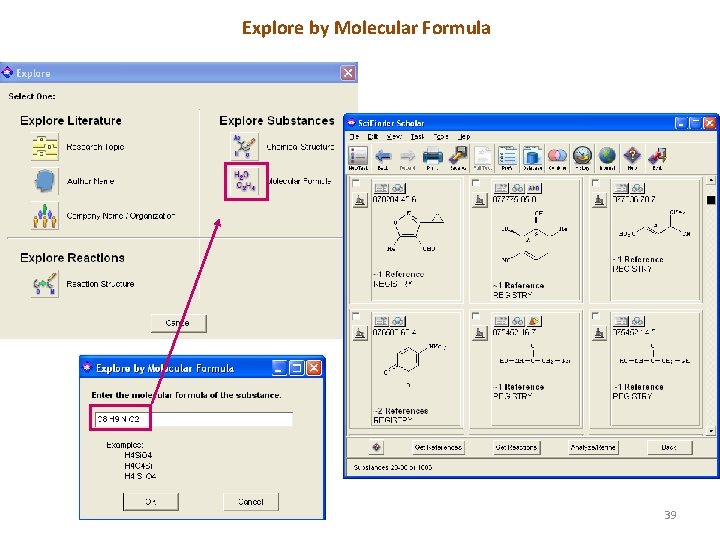
Explore by Molecular Formula 39
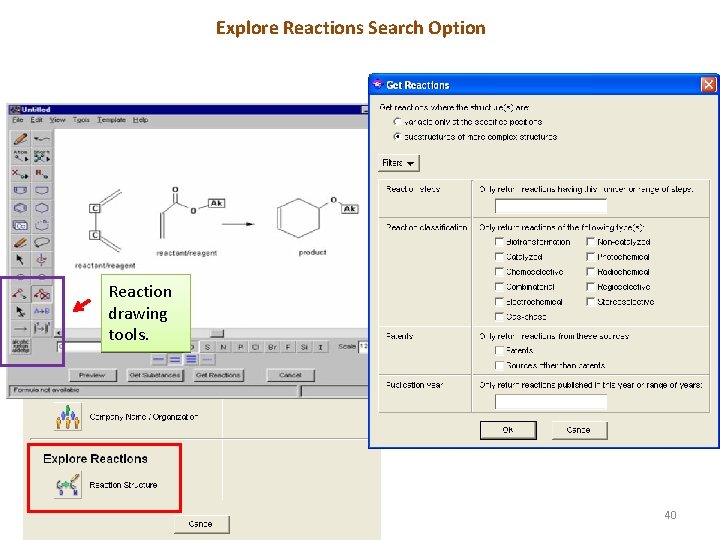
Explore Reactions Search Option Reaction drawing tools. 40
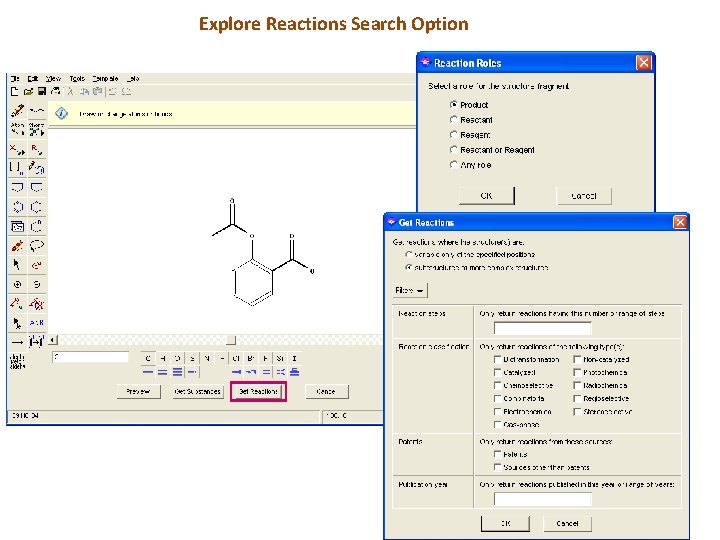
Explore Reactions Search Option 41
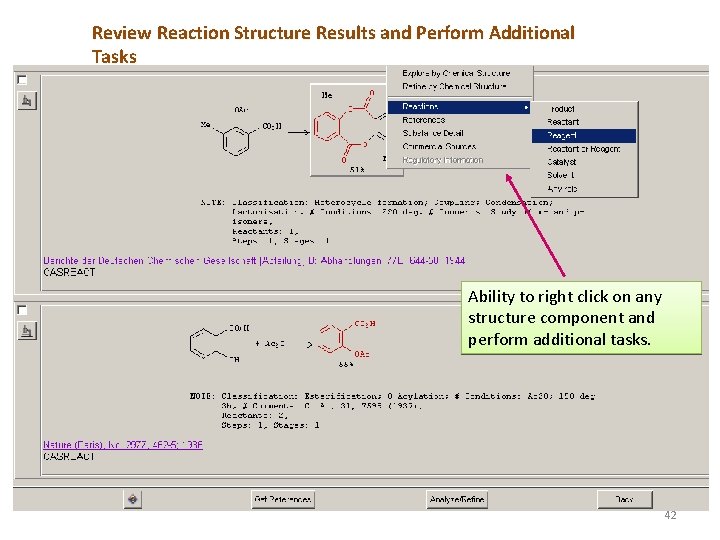
Review Reaction Structure Results and Perform Additional Tasks Ability to right click on any structure component and perform additional tasks. 42
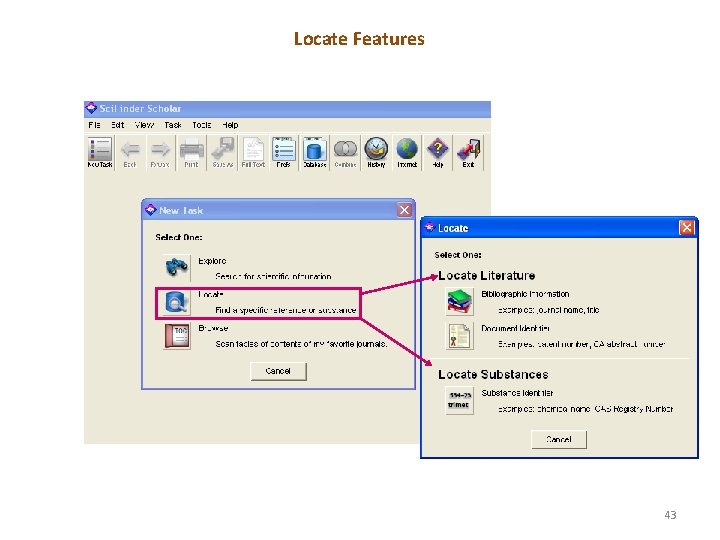
Locate Features 43
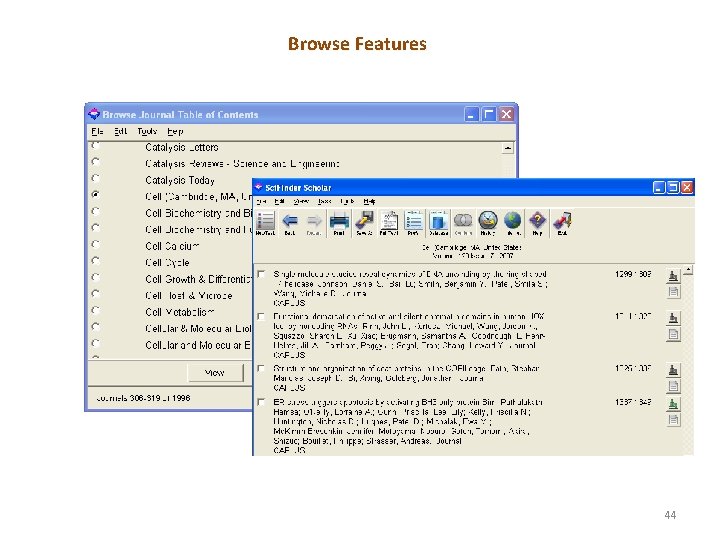
Browse Features 44
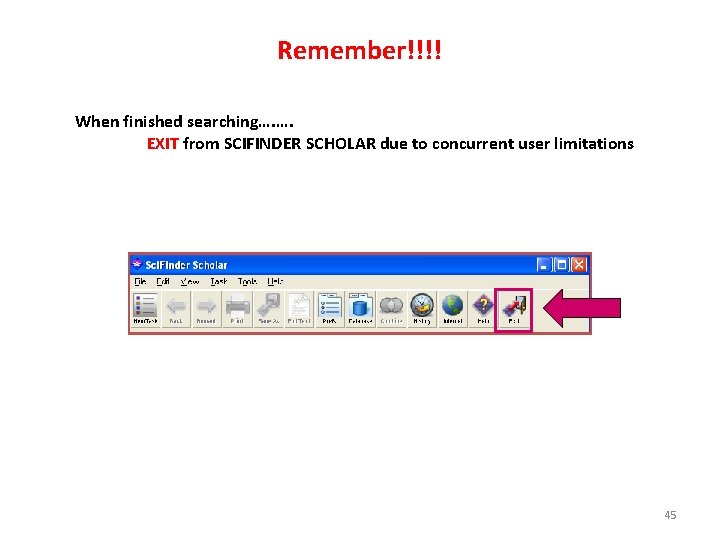
Remember!!!! When finished searching…. …. EXIT from SCIFINDER SCHOLAR due to concurrent user limitations 45
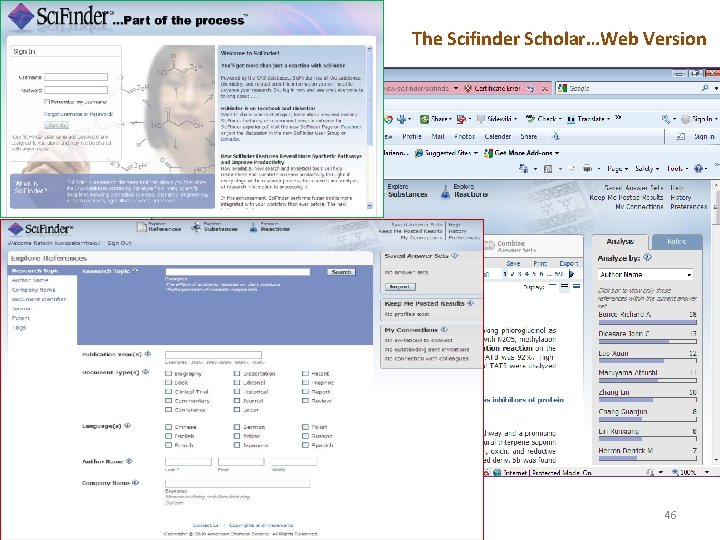
The Scifinder Scholar…Web Version 46
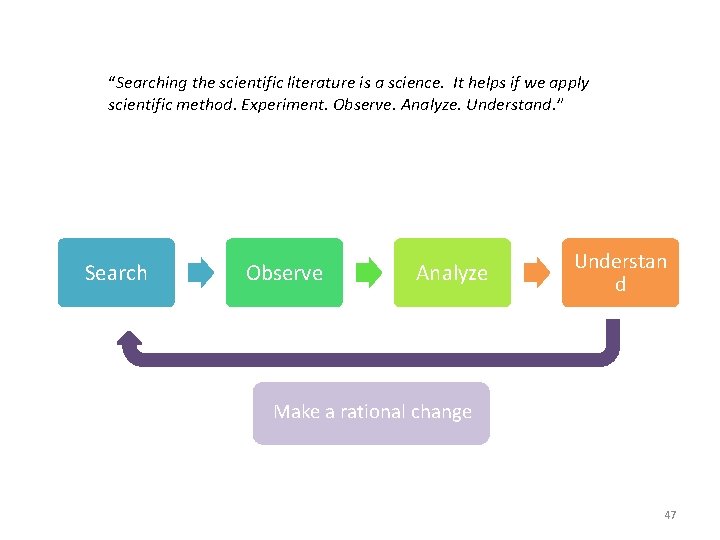
“Searching the scientific literature is a science. It helps if we apply scientific method. Experiment. Observe. Analyze. Understand. ” Search Observe Analyze Understan d Make a rational change 47
References and Further Information • http: //www. cas. org/support/academic/sf/index. html • Damon D. Ridley. Exploring Sci. Finder. Bangkok : Booknet, 2004. Call No. : Z 699. 5. S 3 R 545 e 2004 All quotes in this presentation are from Exploring Scienfinder by Demon D. Ridley “Wikipedia is convenient, but you should not rely on it alone; moreover, CGI instructors do not accept Wikipedia as a cited source for your assignments” 48
- Slides: 48