
Chromebooks 101 A Guide for Elementary Students What
Chromebooks 101 A Guide for Elementary Students

What is a Chromebook? A Chromebook is a laptop that uses the Google Chrome browser It provides fast wireless Internet access. There isn’t any software- it’s all on the Web It is quick to start up- no wait time for log-in! The battery can last all day!

Taking Care of a Chromebook Treat it just like a laptop- carefully! Carry it with both hands with the lid closed Don’t eat or drink near your Chromebook Make sure your hands are clean before using the Chromebook
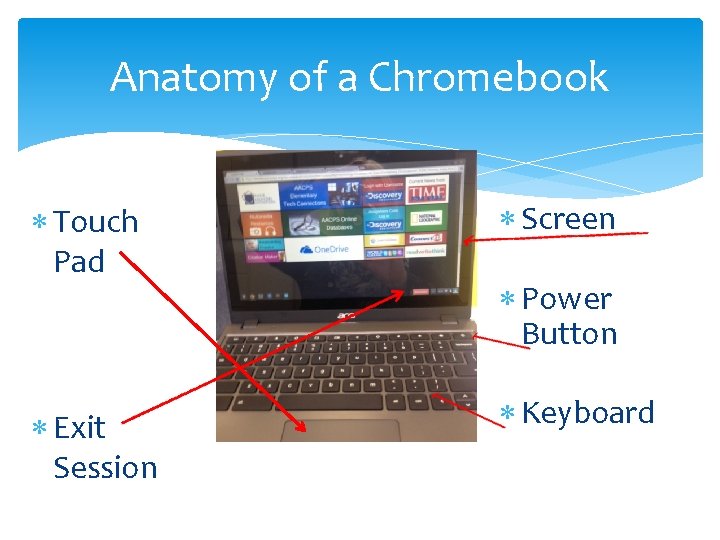
Anatomy of a Chromebook Touch Pad Screen Exit Session Keyboard Power Button
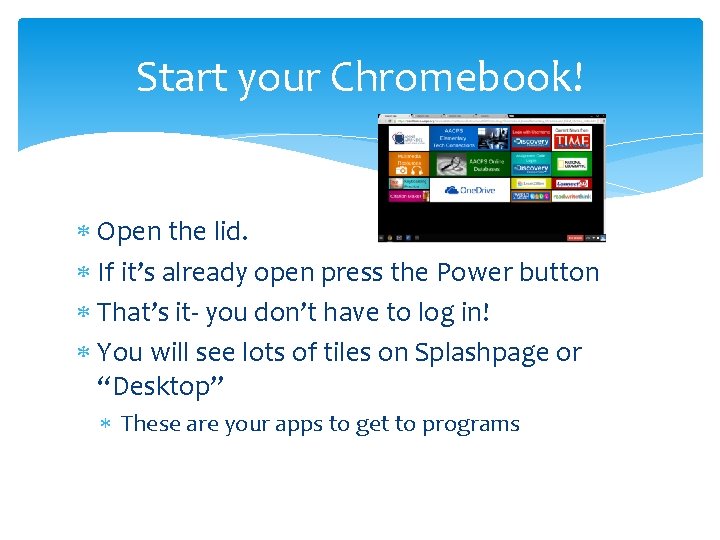
Start your Chromebook! Open the lid. If it’s already open press the Power button That’s it- you don’t have to log in! You will see lots of tiles on Splashpage or “Desktop” These are your apps to get to programs
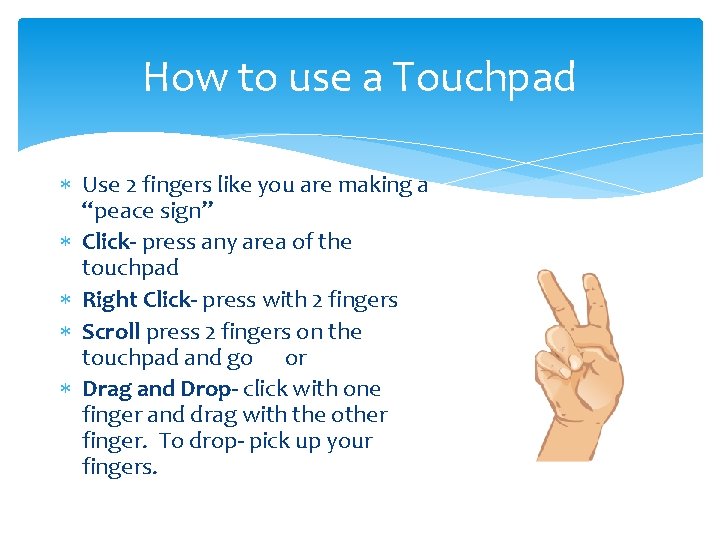
How to use a Touchpad Use 2 fingers like you are making a “peace sign” Click- press any area of the touchpad Right Click- press with 2 fingers Scroll press 2 fingers on the touchpad and go or Drag and Drop- click with one finger and drag with the other finger. To drop- pick up your fingers.
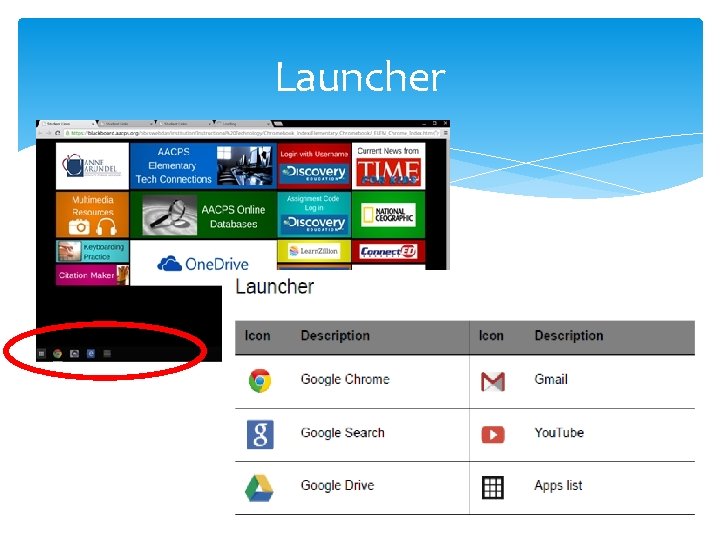
Launcher
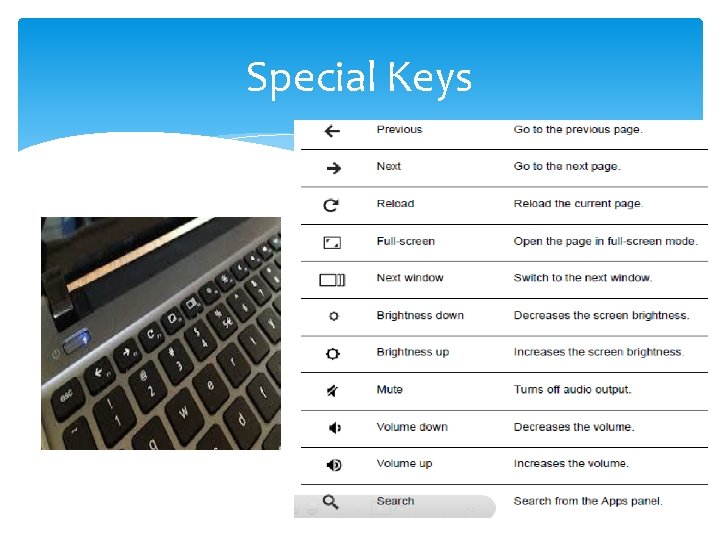
Special Keys
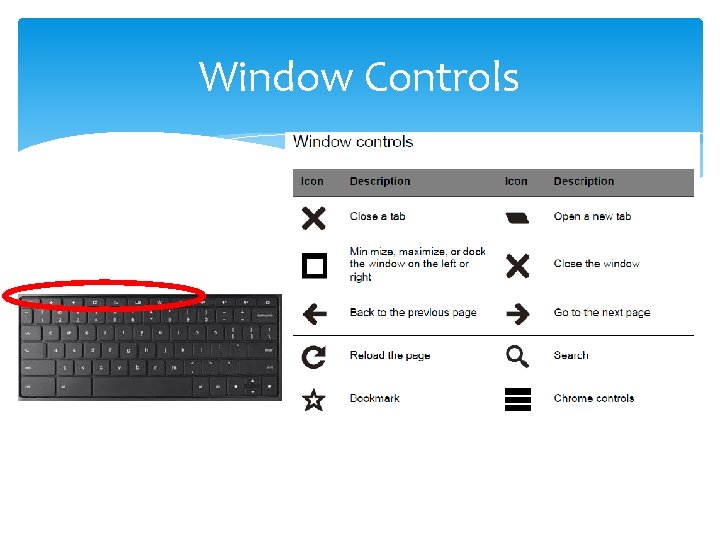
Window Controls
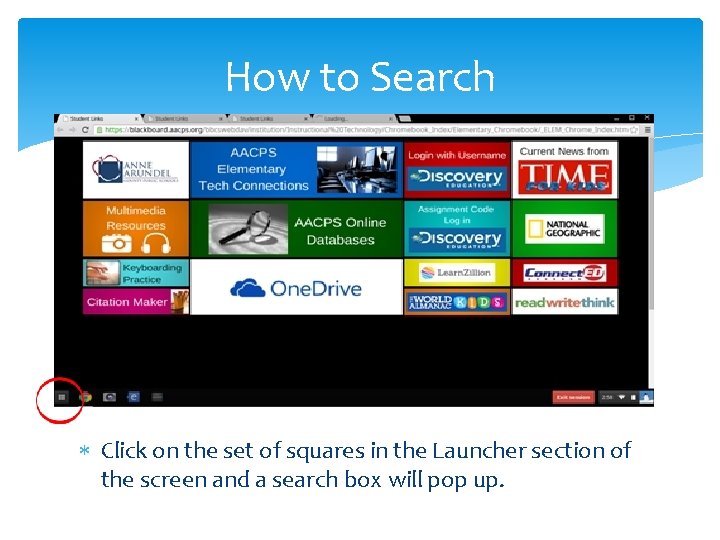
How to Search Click on the set of squares in the Launcher section of the screen and a search box will pop up.
How to Restore Tabs Click on the Exit Session Button on the screen This will reset your Chromebook and all of the original tabs will return. Warning! You will lose any work that you didn’t save and it will be like you just turned the Chromebook on for the first time.

How to Shut Down your Chromebook When you are sure you have finished all of your workbe sure to log out of any application, like Edmodo or Nearpod Wait for the Teacher’s directions Close the lid Press the Power button on the keyboard
- Slides: 12