
Chrome River Invoice Agenda Detailed overview of the



- Slides: 45
Chrome River Invoice
Agenda • Detailed overview of the invoice form • Invoice demonstrations • Manual entry • Prior invoice • Template • Questions
Accounts Payable – Chrome River • What transactions should I process in Chrome River? • Direct pay invoices (non-purchase order related) • What transactions cannot be processed in Chrome River? • Payments associated with a purchase order • Payments associated with a contract • Refund payments
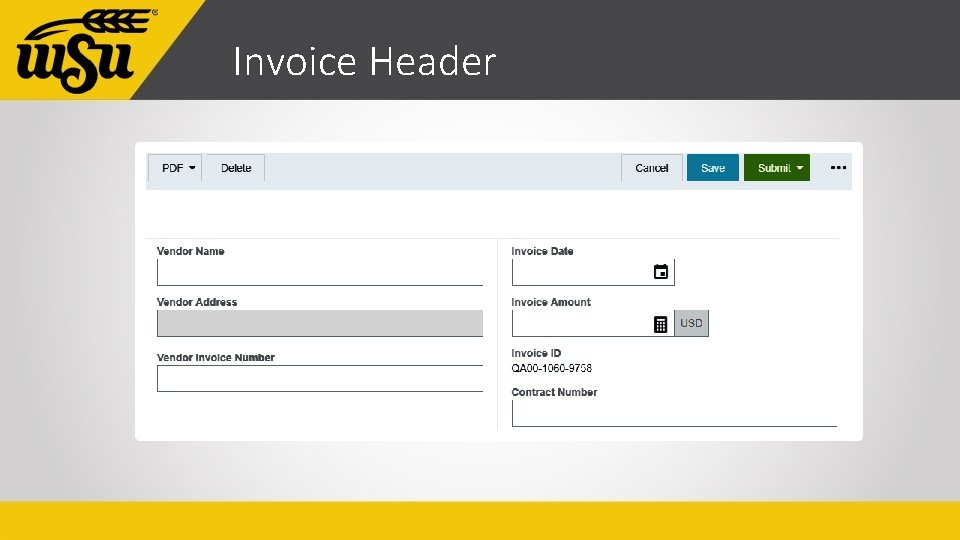
Invoice Header
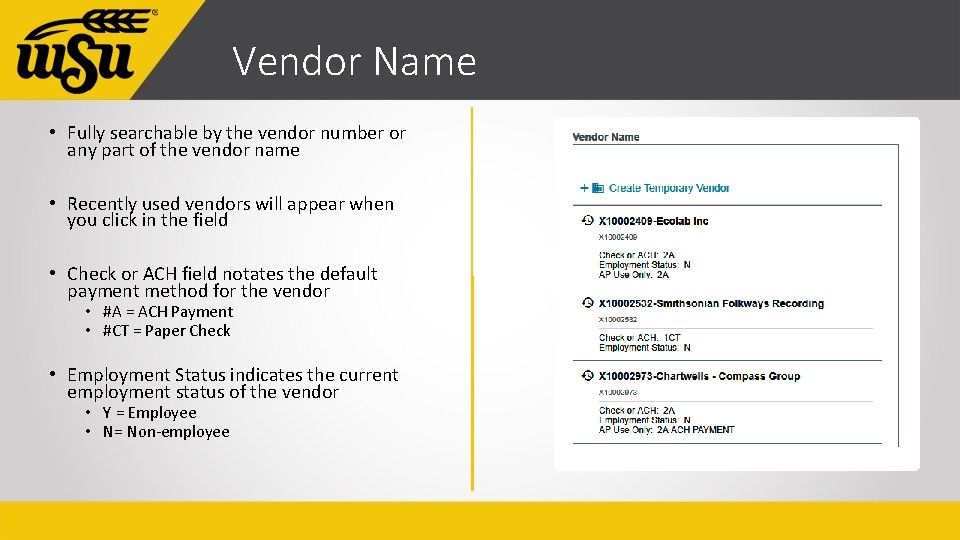
Vendor Name • Fully searchable by the vendor number or any part of the vendor name • Recently used vendors will appear when you click in the field • Check or ACH field notates the default payment method for the vendor • #A = ACH Payment • #CT = Paper Check • Employment Status indicates the current employment status of the vendor • Y = Employee • N= Non-employee
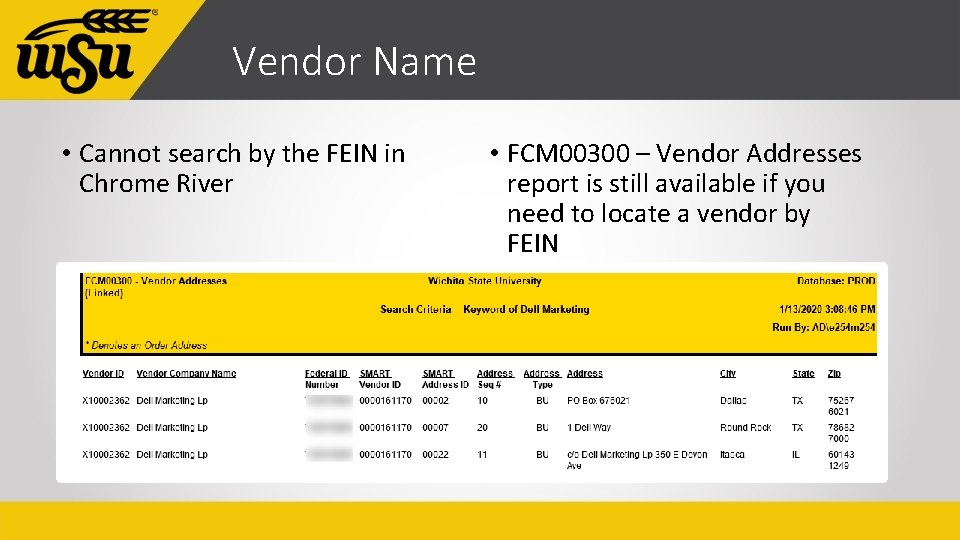
Vendor Name • Cannot search by the FEIN in Chrome River • FCM 00300 – Vendor Addresses report is still available if you need to locate a vendor by FEIN
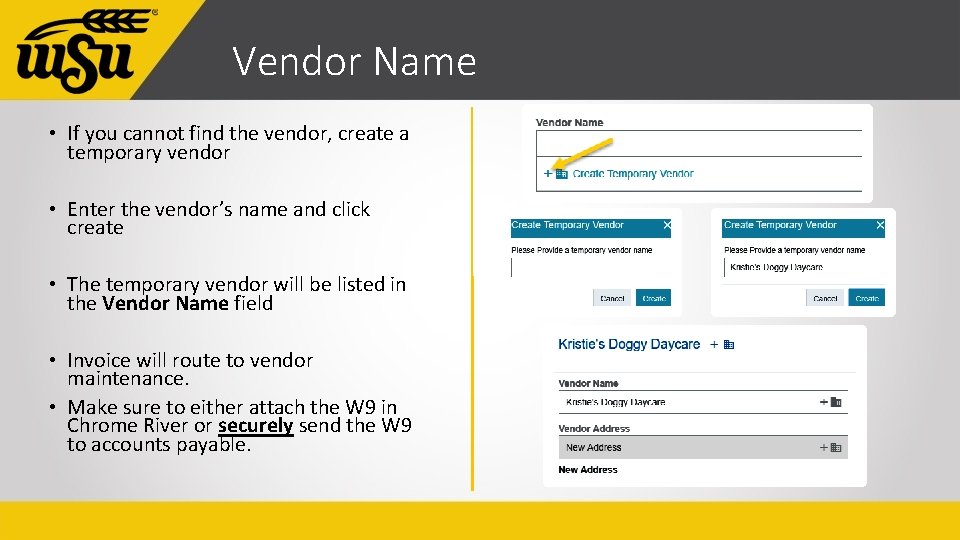
Vendor Name • If you cannot find the vendor, create a temporary vendor • Enter the vendor’s name and click create • The temporary vendor will be listed in the Vendor Name field • Invoice will route to vendor maintenance. • Make sure to either attach the W 9 in Chrome River or securely send the W 9 to accounts payable.
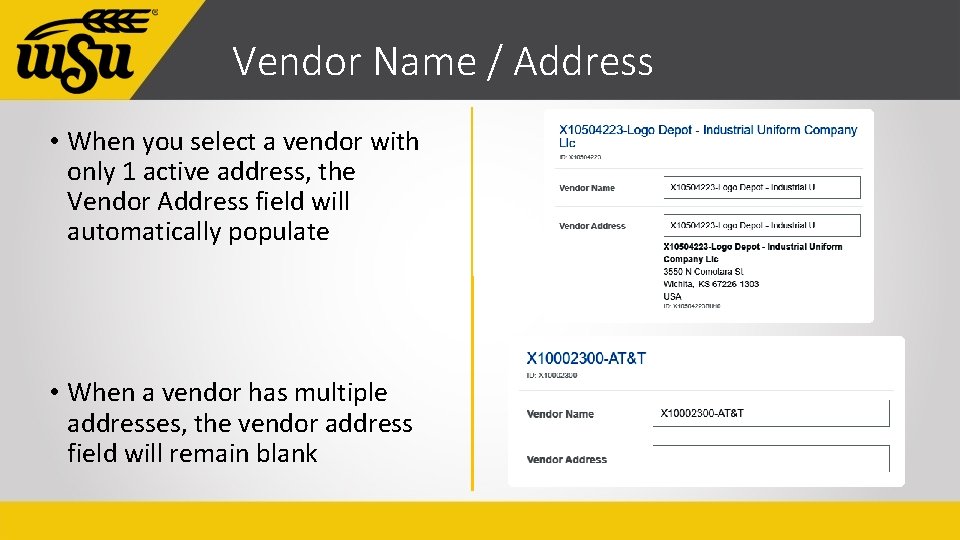
Vendor Name / Address • When you select a vendor with only 1 active address, the Vendor Address field will automatically populate • When a vendor has multiple addresses, the vendor address field will remain blank
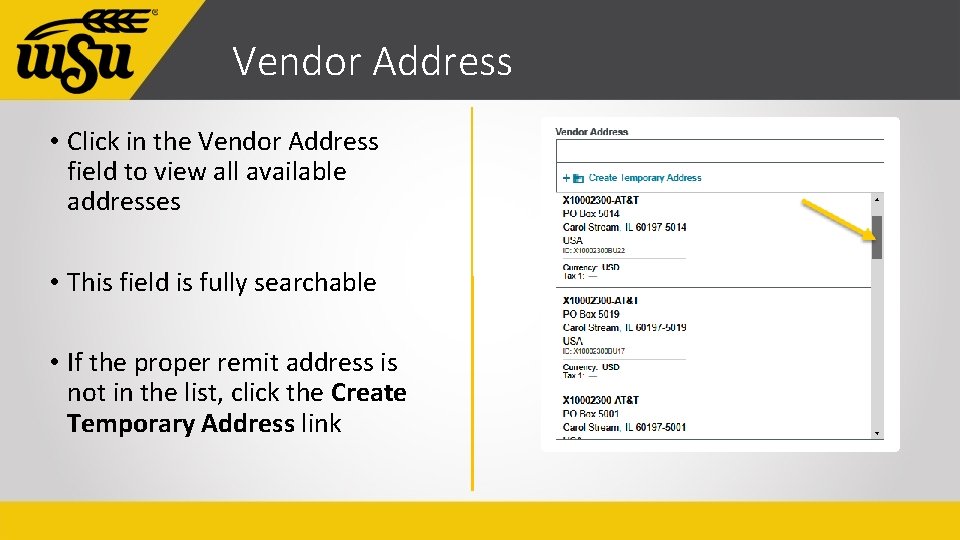
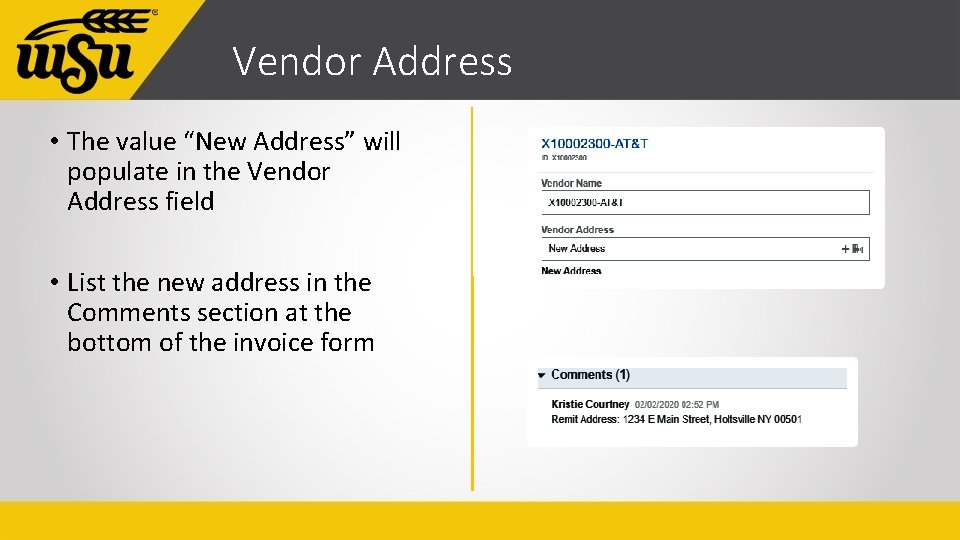
Vendor Address • Click in the Vendor Address field to view all available addresses • This field is fully searchable • If the proper remit address is not in the list, click the Create Temporary Address link
Vendor Address • The value “New Address” will populate in the Vendor Address field • List the new address in the Comments section at the bottom of the invoice form
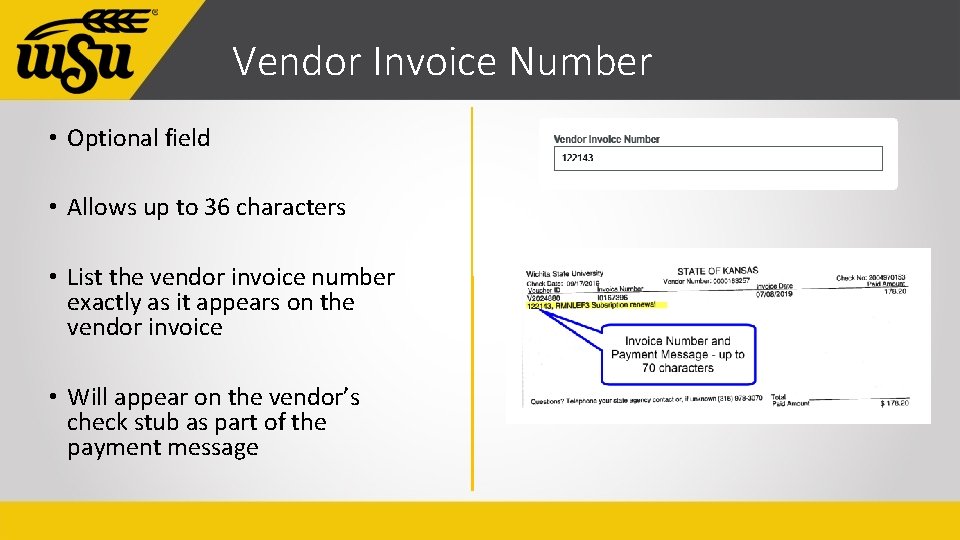
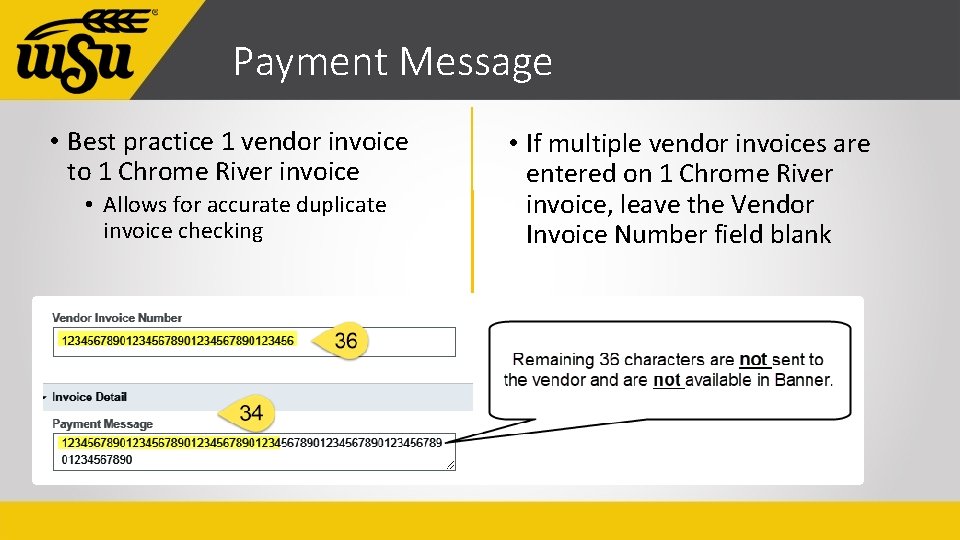
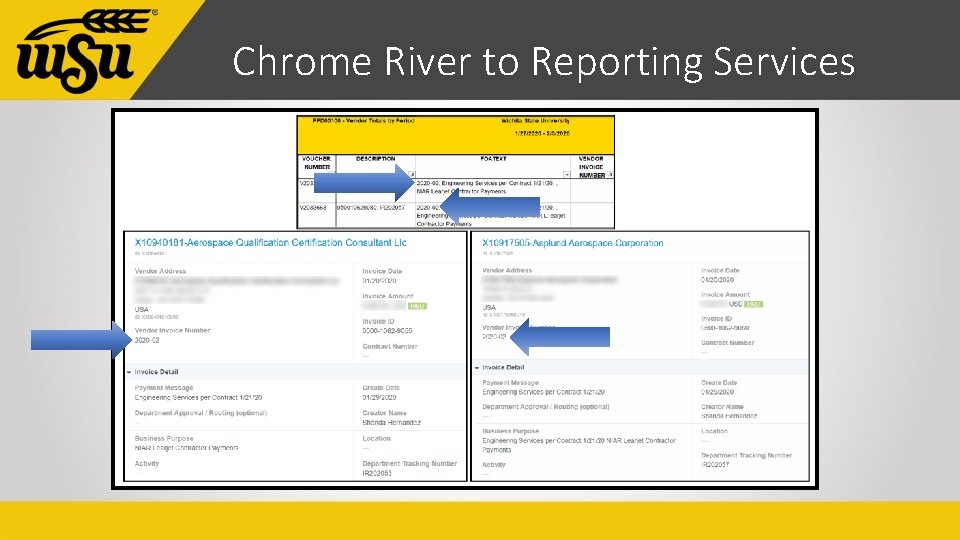
Vendor Invoice Number • Optional field • Allows up to 36 characters • List the vendor invoice number exactly as it appears on the vendor invoice • Will appear on the vendor’s check stub as part of the payment message
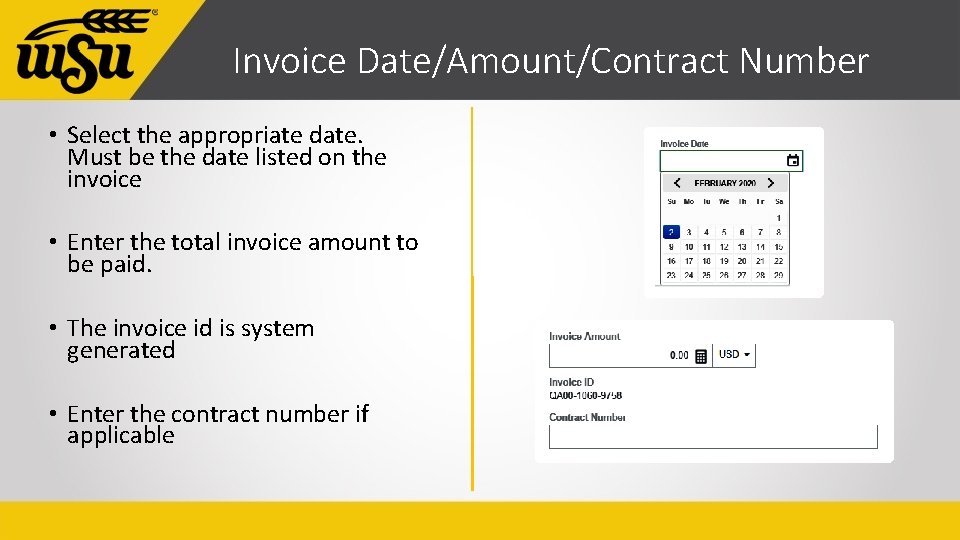
Invoice Date/Amount/Contract Number • Select the appropriate date. Must be the date listed on the invoice • Enter the total invoice amount to be paid. • The invoice id is system generated • Enter the contract number if applicable
Invoice Detail
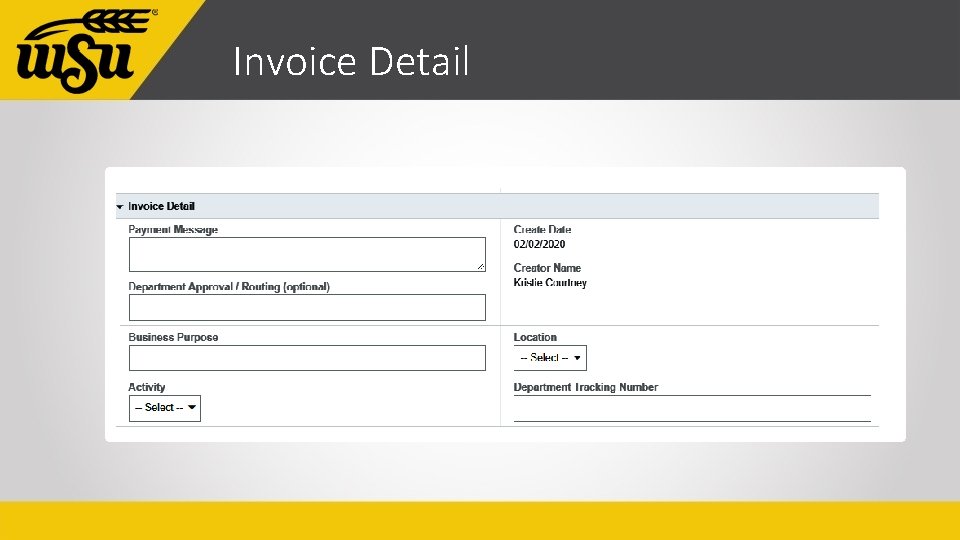
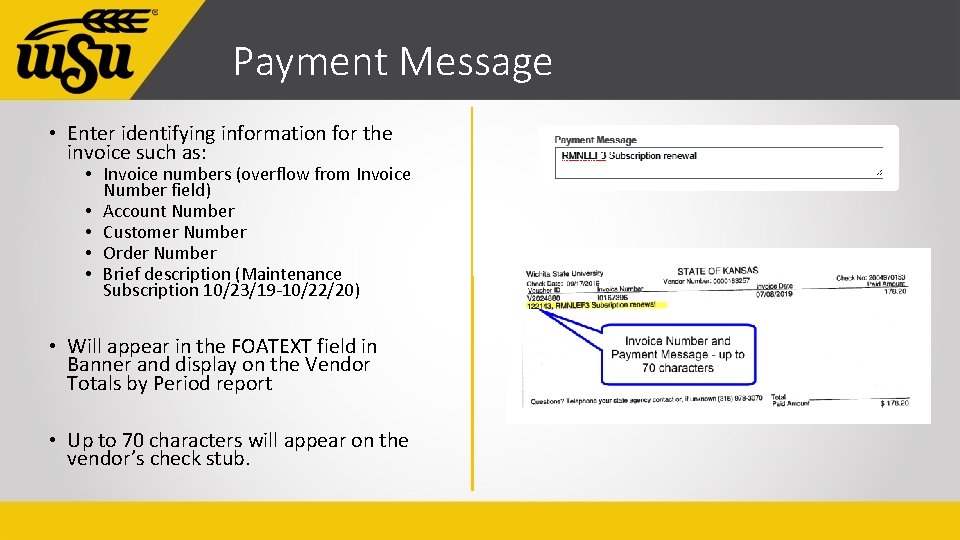
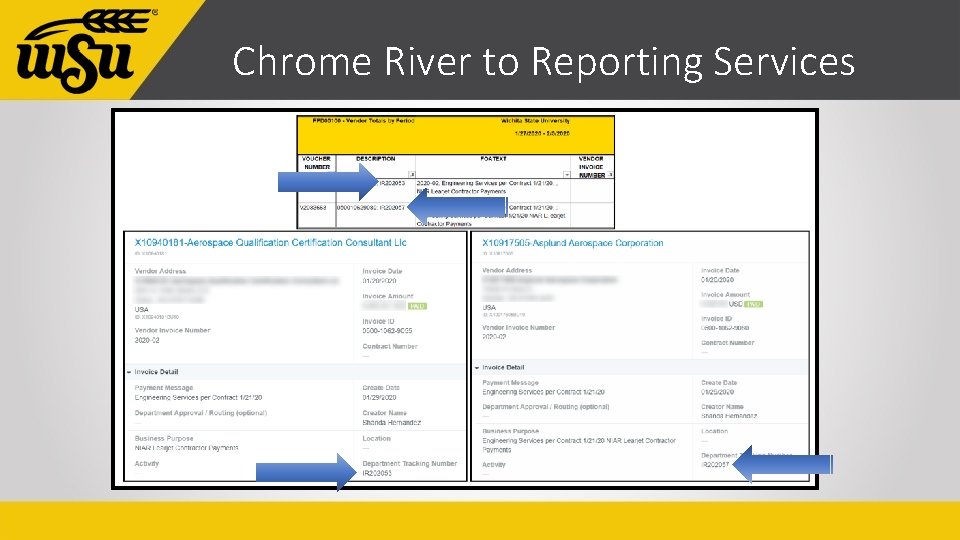
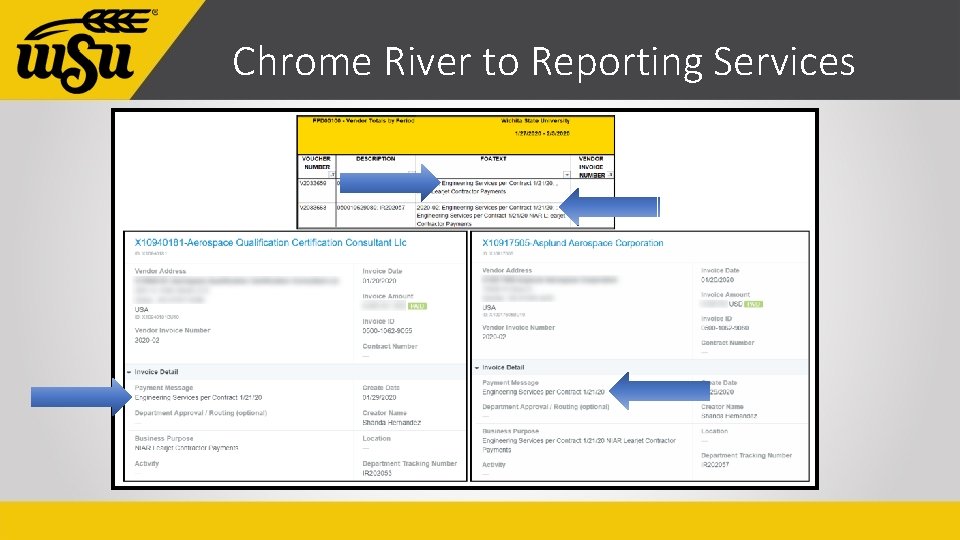
Payment Message • Enter identifying information for the invoice such as: • Invoice numbers (overflow from Invoice Number field) • Account Number • Customer Number • Order Number • Brief description (Maintenance Subscription 10/23/19 -10/22/20) • Will appear in the FOATEXT field in Banner and display on the Vendor Totals by Period report • Up to 70 characters will appear on the vendor’s check stub.
Payment Message • Best practice 1 vendor invoice to 1 Chrome River invoice • Allows for accurate duplicate invoice checking • If multiple vendor invoices are entered on 1 Chrome River invoice, leave the Vendor Invoice Number field blank
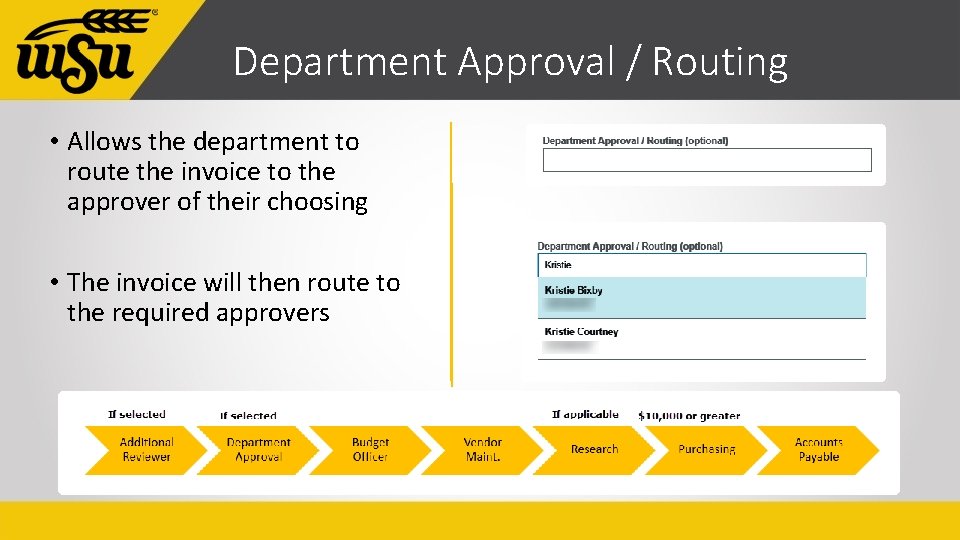
Department Approval / Routing • Allows the department to route the invoice to the approver of their choosing • The invoice will then route to the required approvers
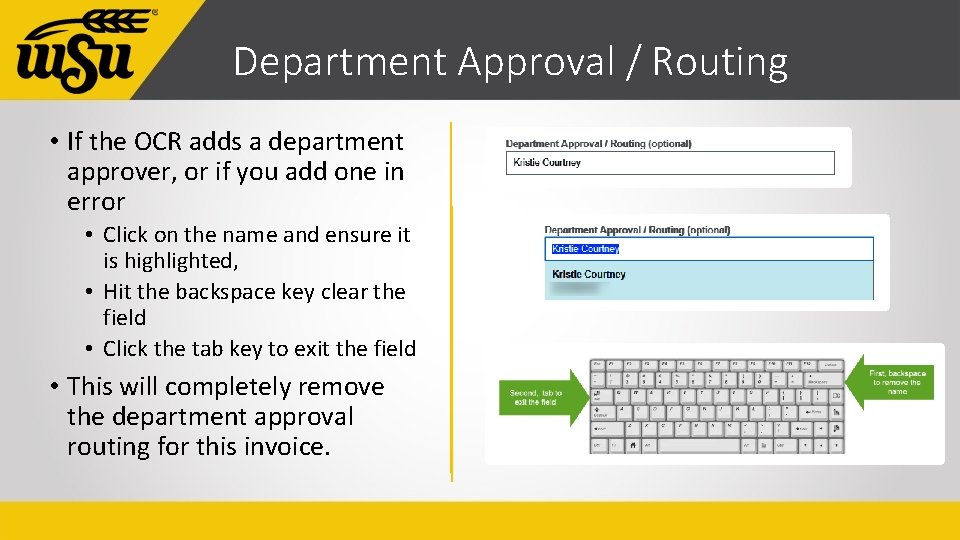
Department Approval / Routing • If the OCR adds a department approver, or if you add one in error • Click on the name and ensure it is highlighted, • Hit the backspace key clear the field • Click the tab key to exit the field • This will completely remove the department approval routing for this invoice.
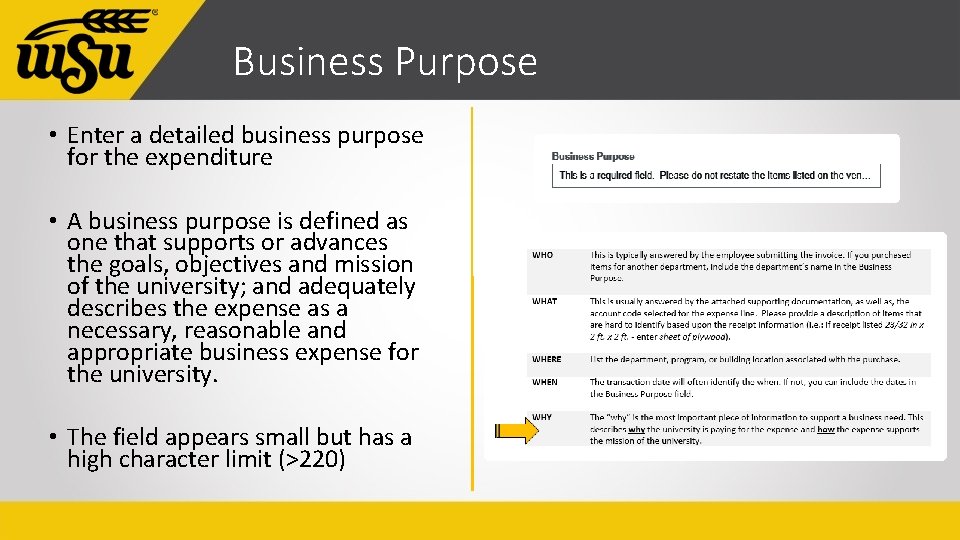
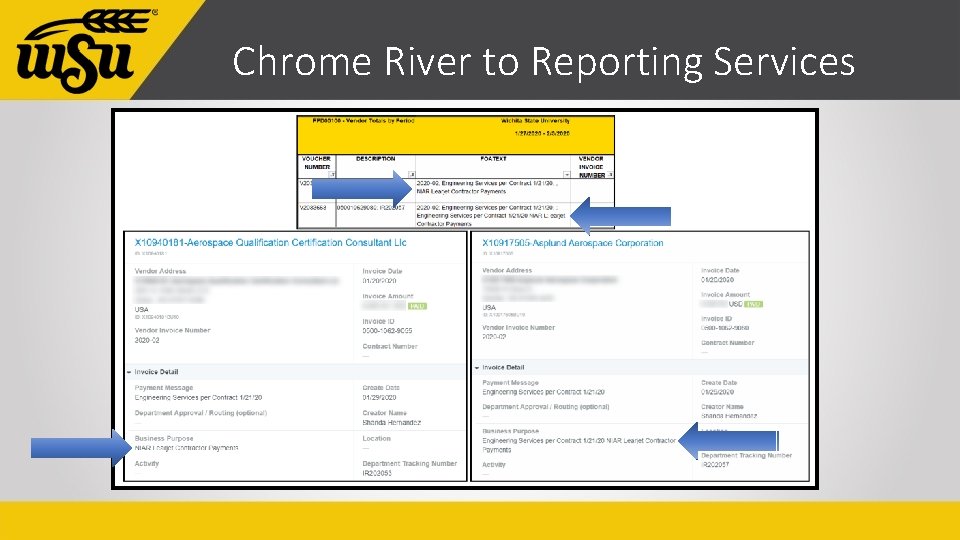
Business Purpose • Enter a detailed business purpose for the expenditure • A business purpose is defined as one that supports or advances the goals, objectives and mission of the university; and adequately describes the expense as a necessary, reasonable and appropriate business expense for the university. • The field appears small but has a high character limit (>220)
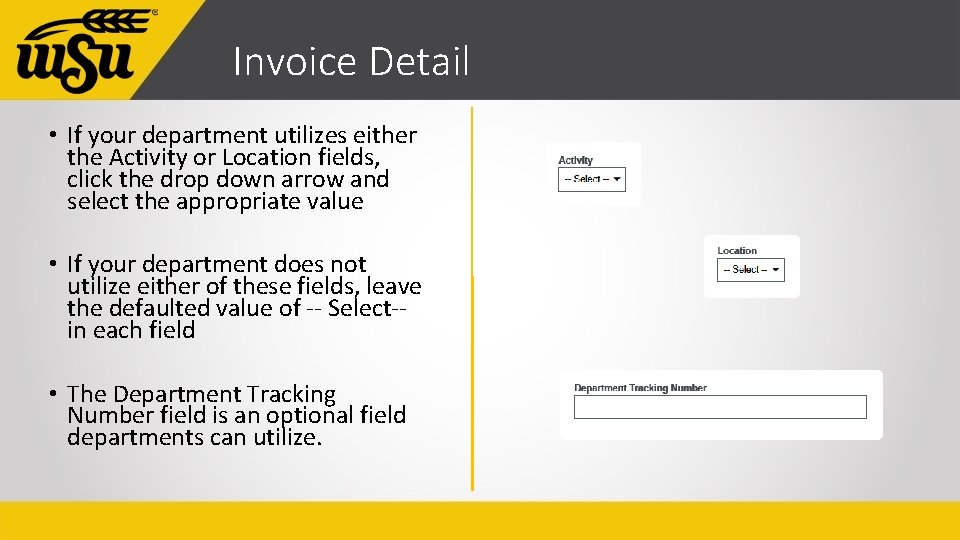
Invoice Detail • If your department utilizes either the Activity or Location fields, click the drop down arrow and select the appropriate value • If your department does not utilize either of these fields, leave the defaulted value of -- Select-in each field • The Department Tracking Number field is an optional field departments can utilize.
Special Handling
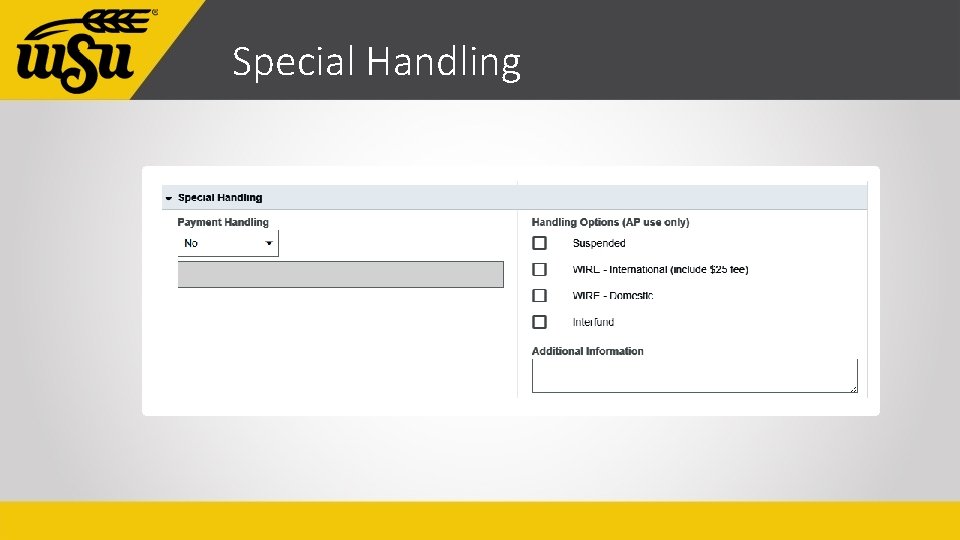
Payment Handling • State of Kansas strongly encourages utilizing ACH as the primary payment method • In special circumstances, there may be a need to have a paper check issued and returned to WSU • Options: • No – utilize default payment method • Yes –only used by AP • Yes, Pickup by –request a check to be returned to WSU, and picked up by the person listed • Yes, Send to –request a check to be returned to WSU, and sent to the individual listed via campus
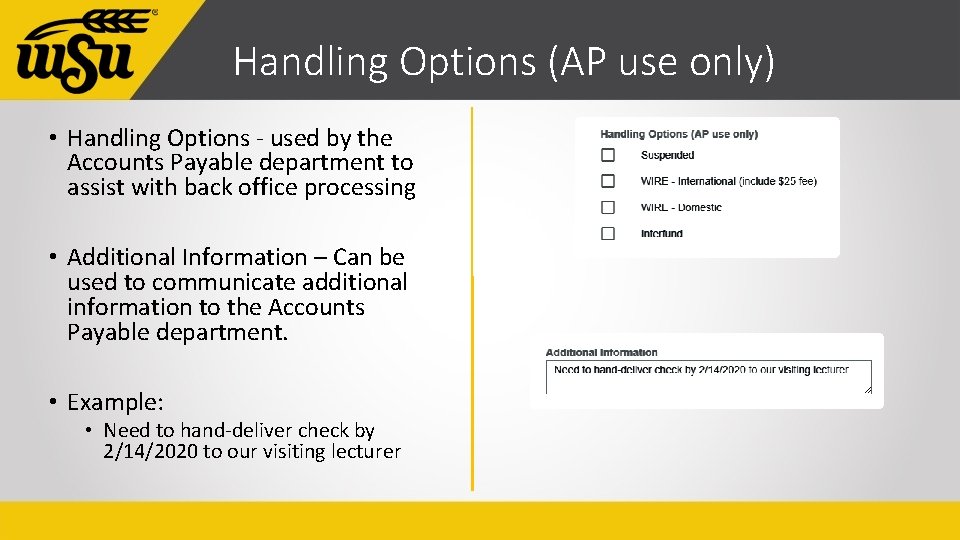
Handling Options (AP use only) • Handling Options - used by the Accounts Payable department to assist with back office processing • Additional Information – Can be used to communicate additional information to the Accounts Payable department. • Example: • Need to hand-deliver check by 2/14/2020 to our visiting lecturer
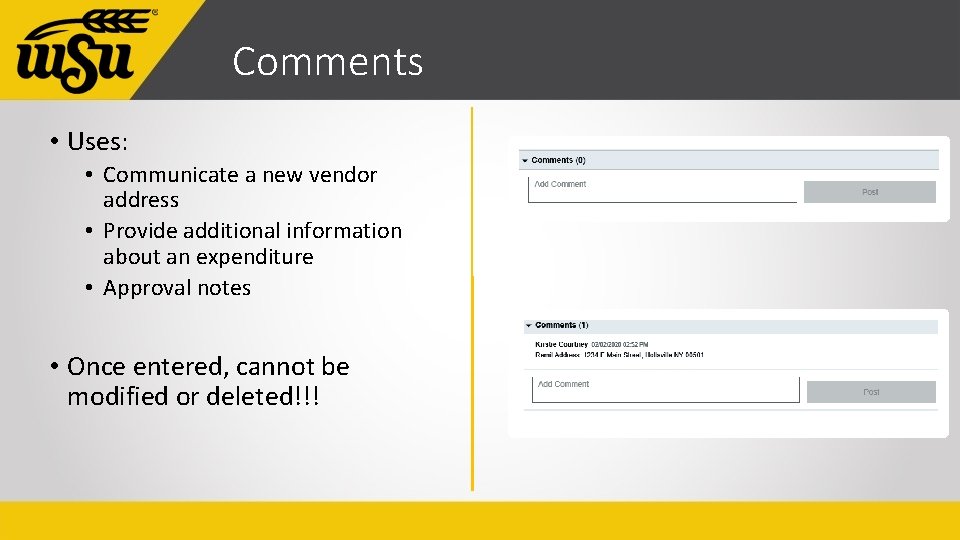
Comments • Uses: • Communicate a new vendor address • Provide additional information about an expenditure • Approval notes • Once entered, cannot be modified or deleted!!!
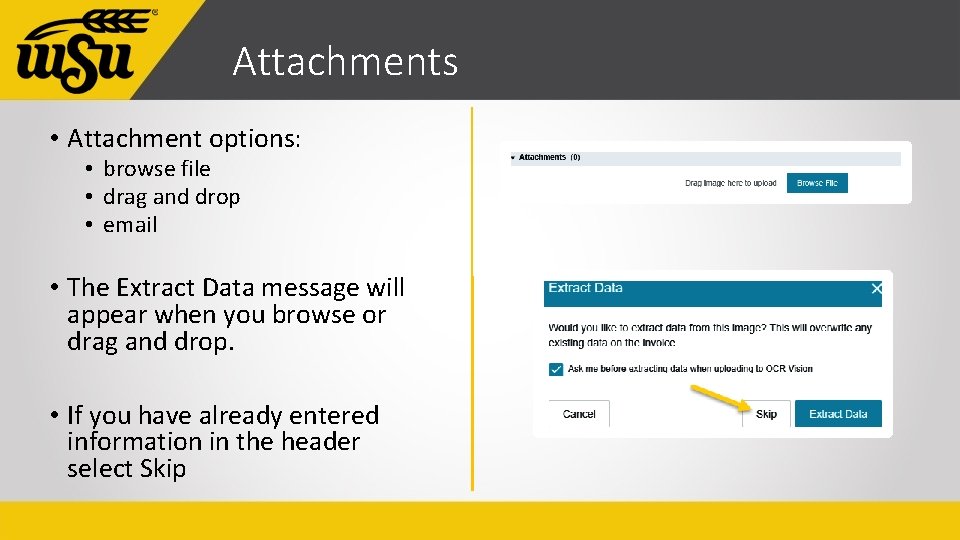
Attachments • Attachment options: • browse file • drag and drop • email • The Extract Data message will appear when you browse or drag and drop. • If you have already entered information in the header select Skip
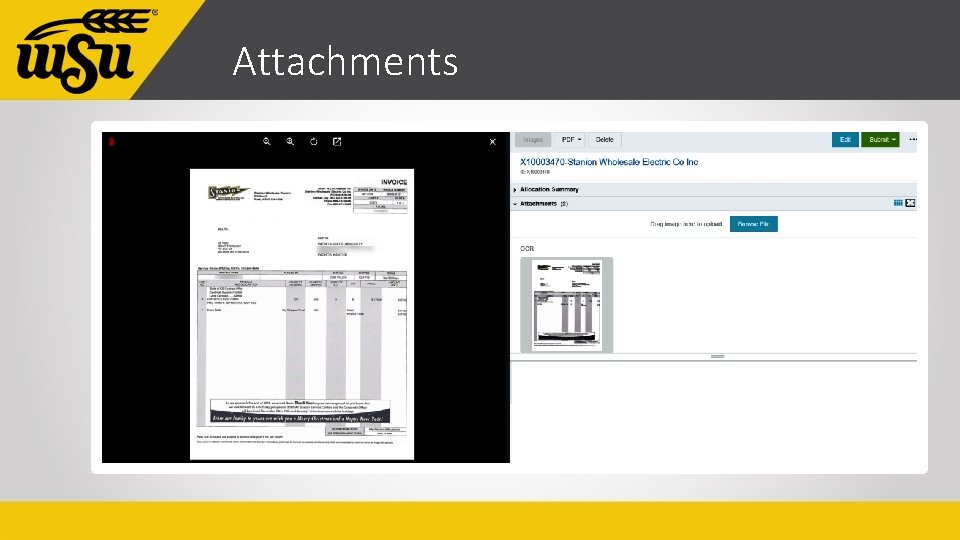
Attachments
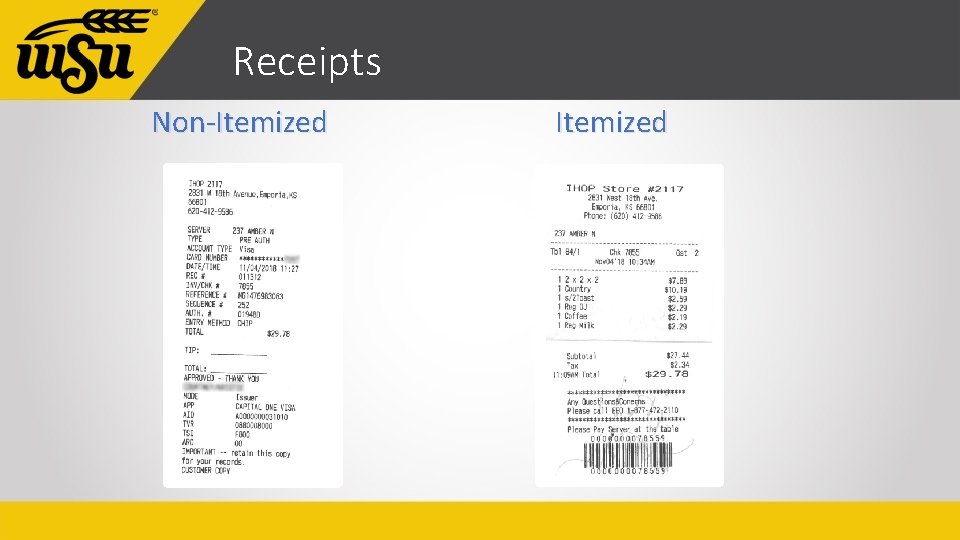
Back-Up Documentation Acceptable • Itemized Invoice • Itemized Receipt • Contract • Event Flyer/Brochure • Program Documentation Unacceptable • Packing Slip • Quote • Pro-forma Invoice • Statement • Order Confirmation • Proposal • Email correspondence
Receipts Non-Itemized
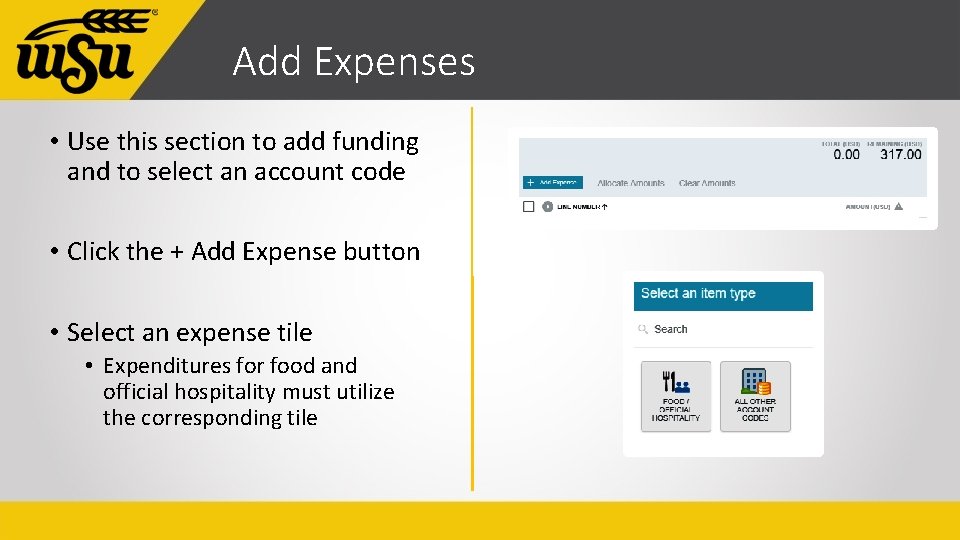
Add Expenses • Use this section to add funding and to select an account code • Click the + Add Expense button • Select an expense tile • Expenditures for food and official hospitality must utilize the corresponding tile
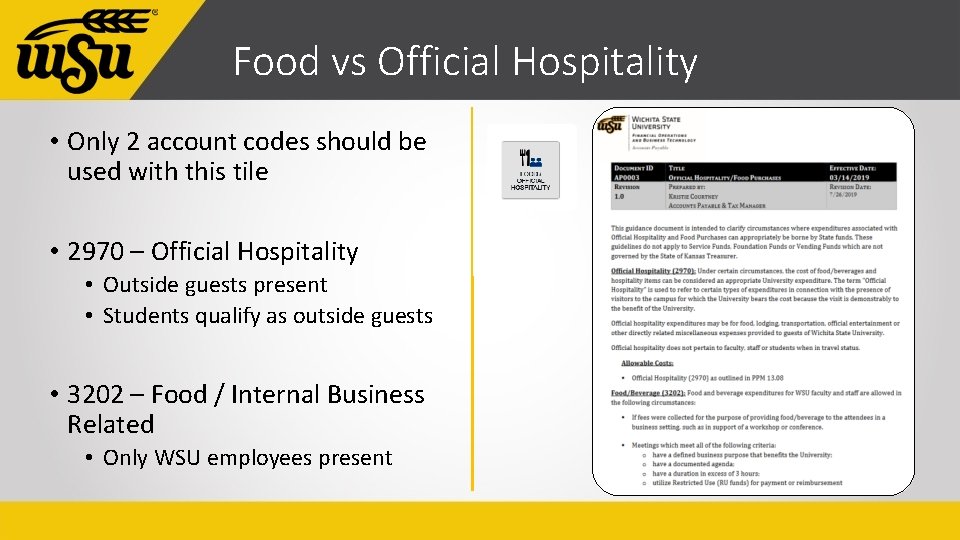
Food vs Official Hospitality • Only 2 account codes should be used with this tile • 2970 – Official Hospitality • Outside guests present • Students qualify as outside guests • 3202 – Food / Internal Business Related • Only WSU employees present
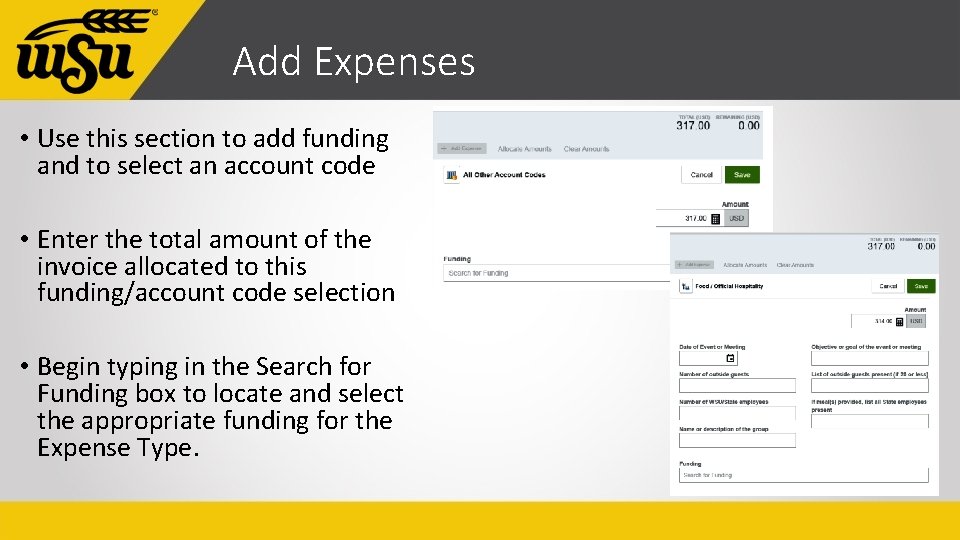
Add Expenses • Use this section to add funding and to select an account code • Enter the total amount of the invoice allocated to this funding/account code selection • Begin typing in the Search for Funding box to locate and select the appropriate funding for the Expense Type.
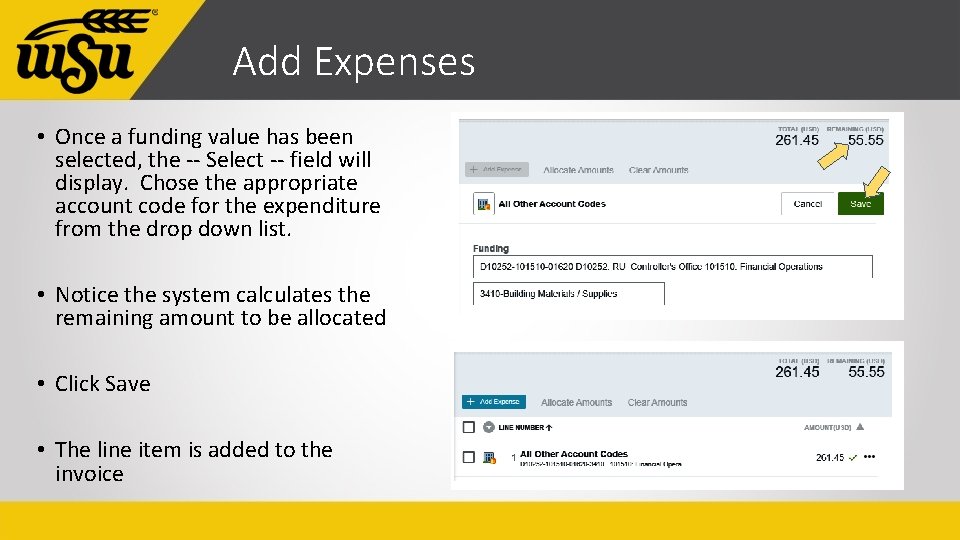
Add Expenses • Once a funding value has been selected, the -- Select -- field will display. Chose the appropriate account code for the expenditure from the drop down list. • Notice the system calculates the remaining amount to be allocated • Click Save • The line item is added to the invoice
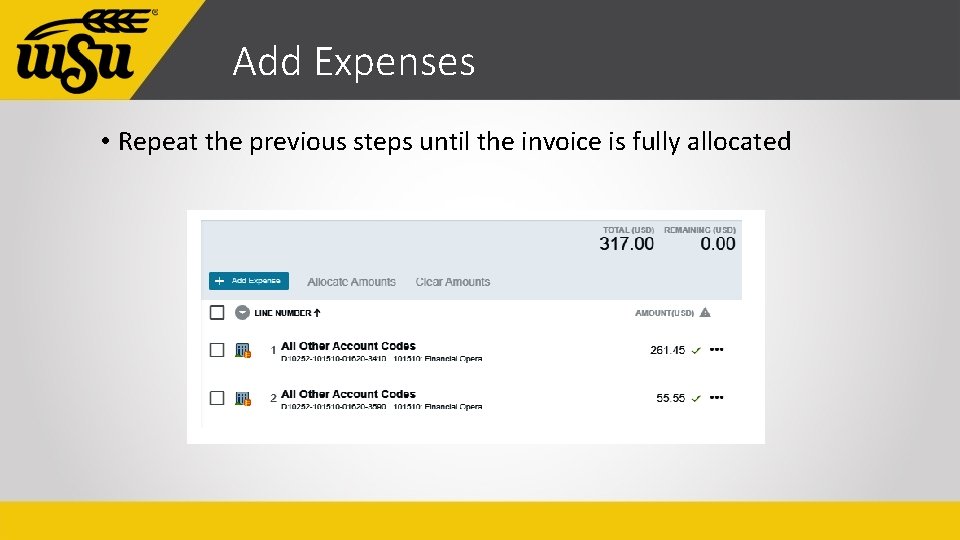
Add Expenses • Repeat the previous steps until the invoice is fully allocated
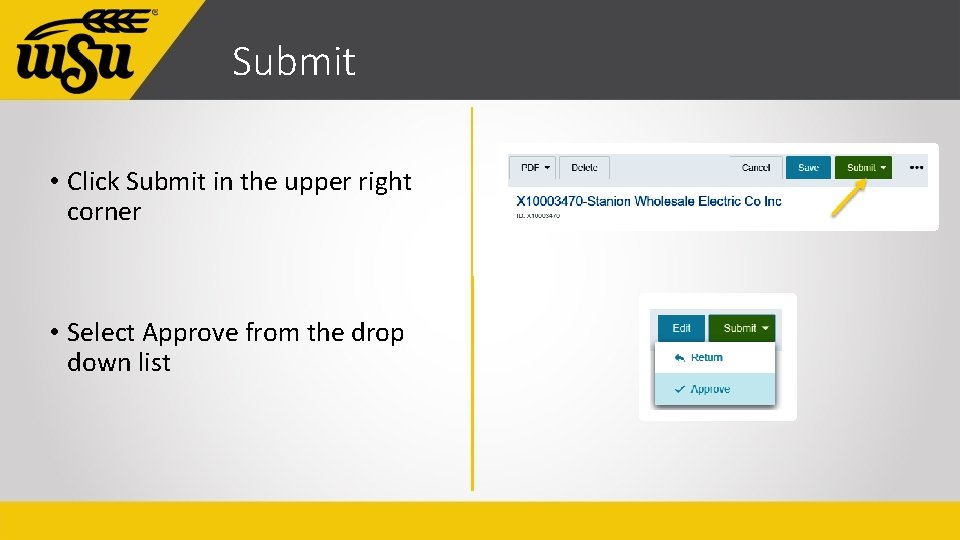
Submit • Click Submit in the upper right corner • Select Approve from the drop down list
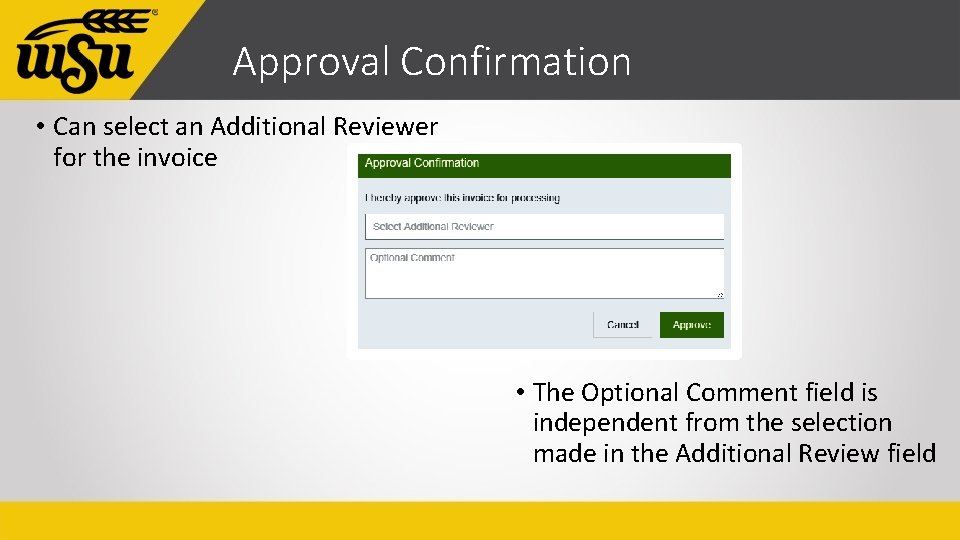
Approval Confirmation • Can select an Additional Reviewer for the invoice • The Optional Comment field is independent from the selection made in the Additional Review field
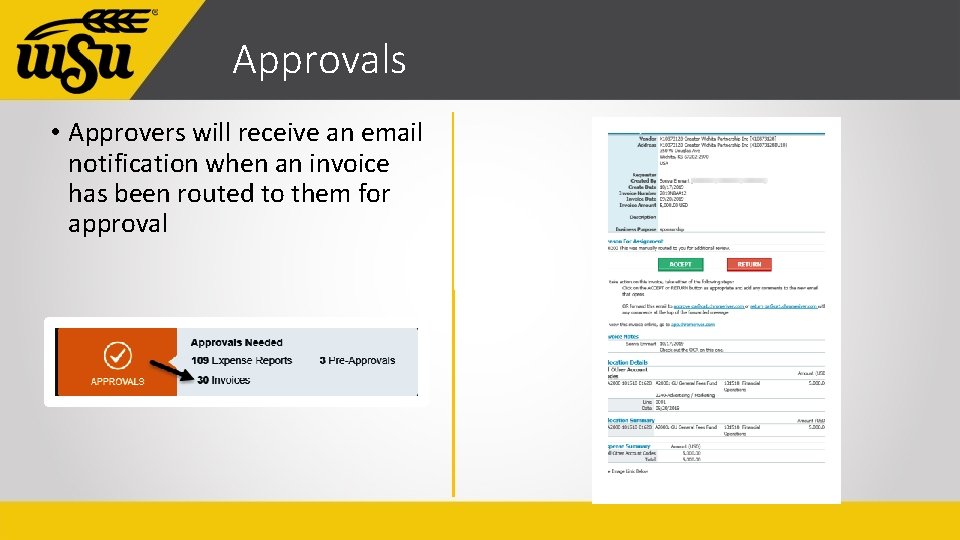
Approvals • Approvers will receive an email notification when an invoice has been routed to them for approval
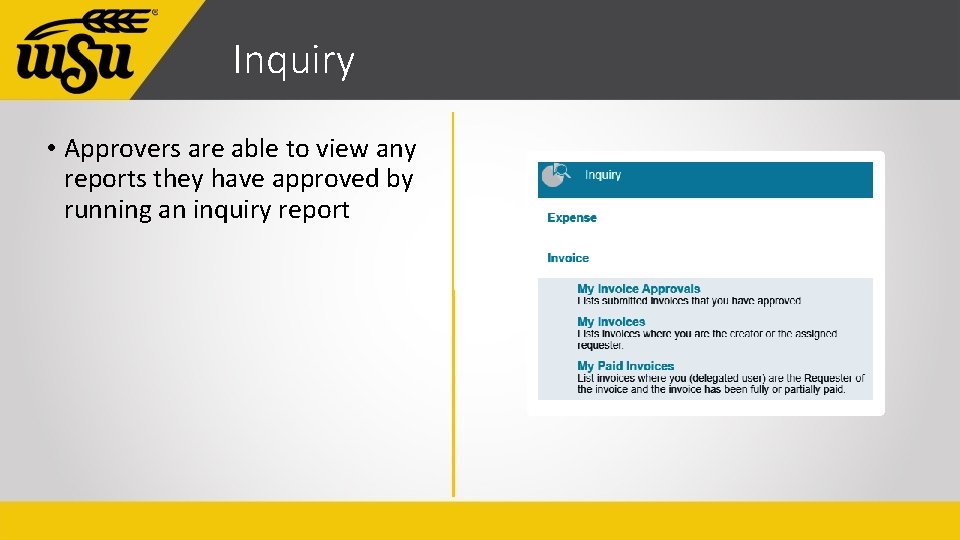
Inquiry • Approvers are able to view any reports they have approved by running an inquiry report
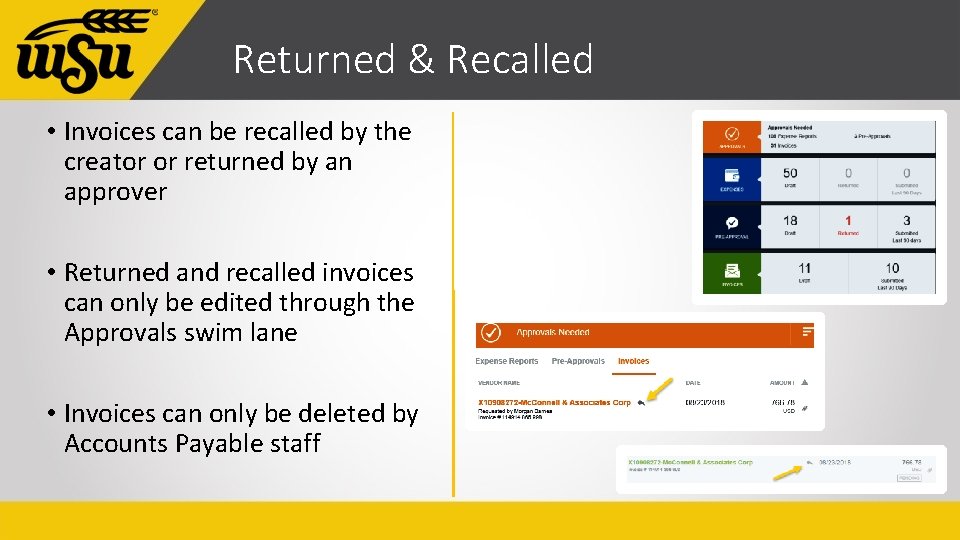
Returned & Recalled • Invoices can be recalled by the creator or returned by an approver • Returned and recalled invoices can only be edited through the Approvals swim lane • Invoices can only be deleted by Accounts Payable staff
Payment Information • Payment information can be viewed within Chrome River • Look for the status of Paid on the Submitted Invoices page • Click once on the invoice to display • Click on the paid icon
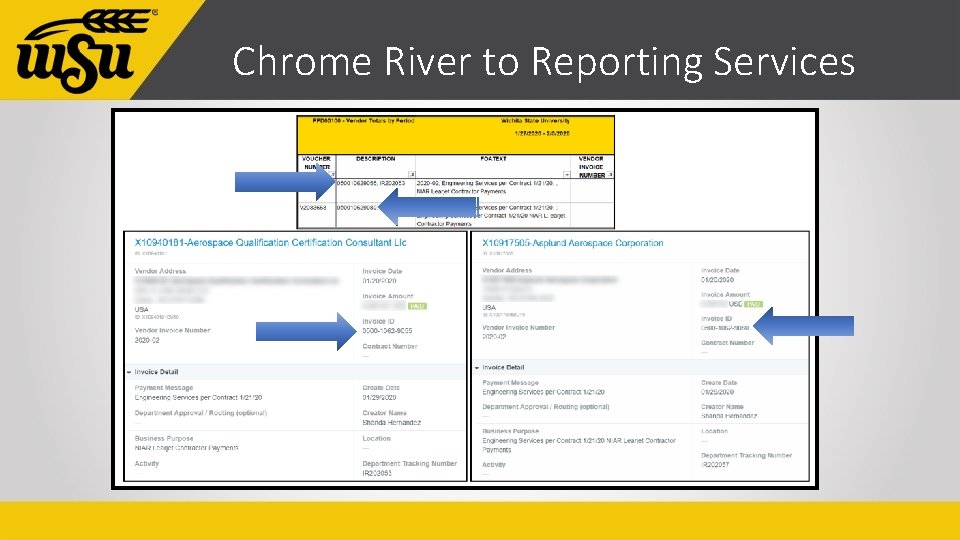
Chrome River to Reporting Services
Chrome River to Reporting Services
Chrome River to Reporting Services
Chrome River to Reporting Services
Chrome River to Reporting Services
Accounts Payable Questions • What documentation am I required to keep? • Paper and electronic copies – keep until scanned image is verified and invoice has been paid in Chrome River. Can be discarded after 1 year • Abide by departmental directives and/or directives of applicable Governing bodies • Scanned images in Chrome River will be retained according to the current retention policy
Closing