
CHIGO CMV VRF Selection Software Contents 01 Software

- Slides: 46
CHIGO CMV VRF Selection Software
Contents 01 - Software Start Interface 02 - Drawing Directly 03 - Drawing according to Load and Selection CHIGO CMV - Selection Software
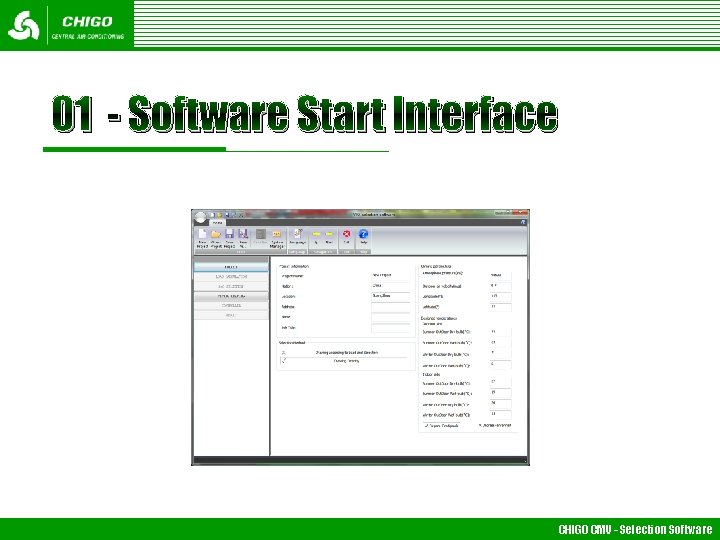
01 - Software Start Interface CHIGO CMV - Selection Software
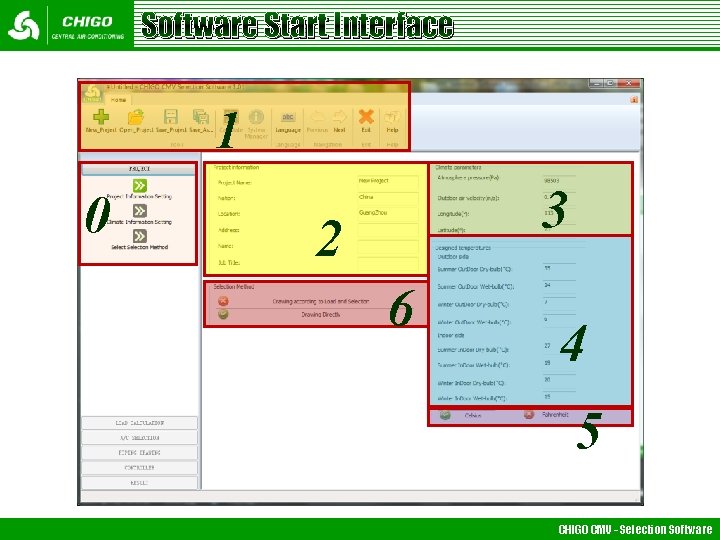
Software Start Interface 1 0 3 2 6 4 5 CHIGO CMV - Selection Software
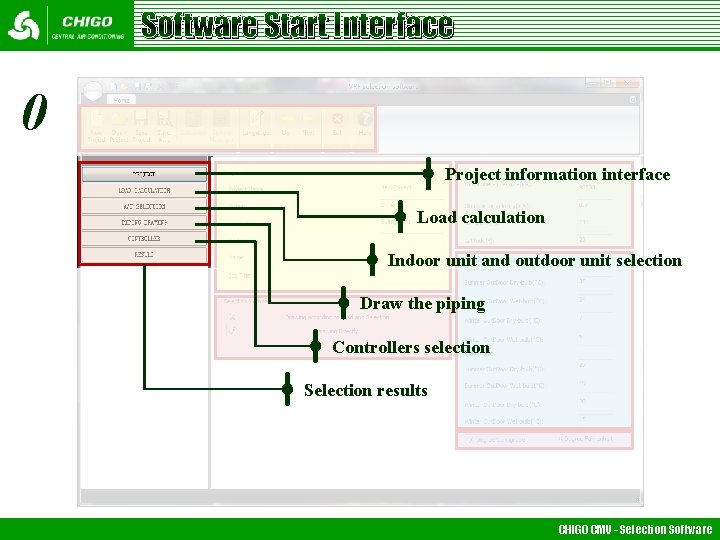
Software Start Interface 0 Project information interface Load calculation Indoor unit and outdoor unit selection Draw the piping Controllers selection Selection results CHIGO CMV - Selection Software
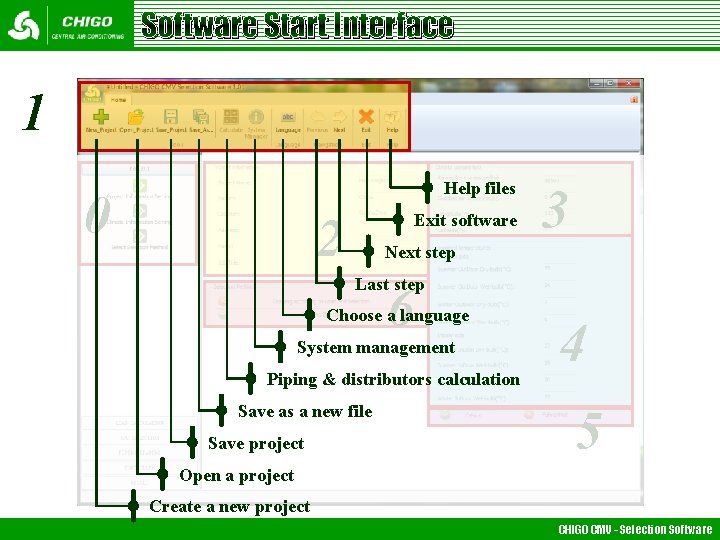
Software Start Interface 1 Help files 0 2 Exit software 3 Next step Last step 6 Choose a language System management Piping & distributors calculation Save as a new file Save project 4 5 Open a project Create a new project CHIGO CMV - Selection Software
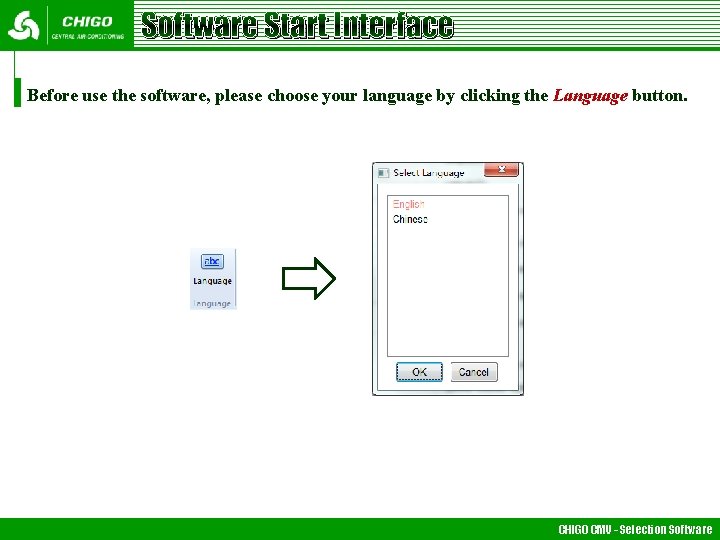
Software Start Interface Before use the software, please choose your language by clicking the Language button. CHIGO CMV - Selection Software
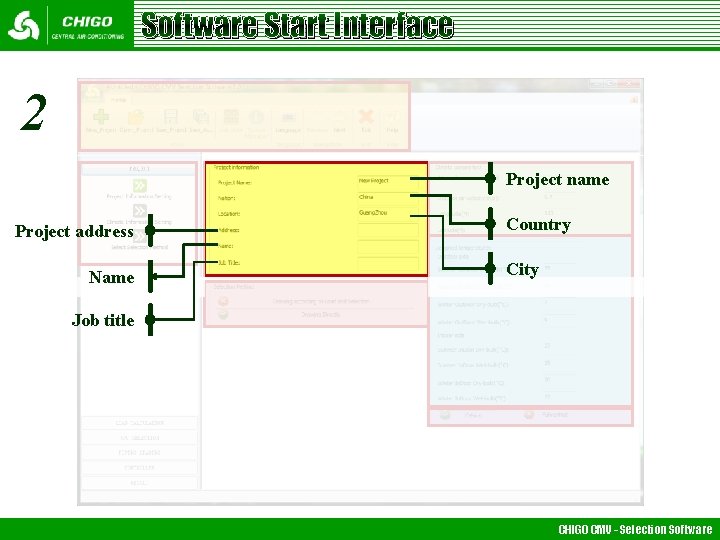
Software Start Interface 2 Project name Project address Name Country City Job title CHIGO CMV - Selection Software
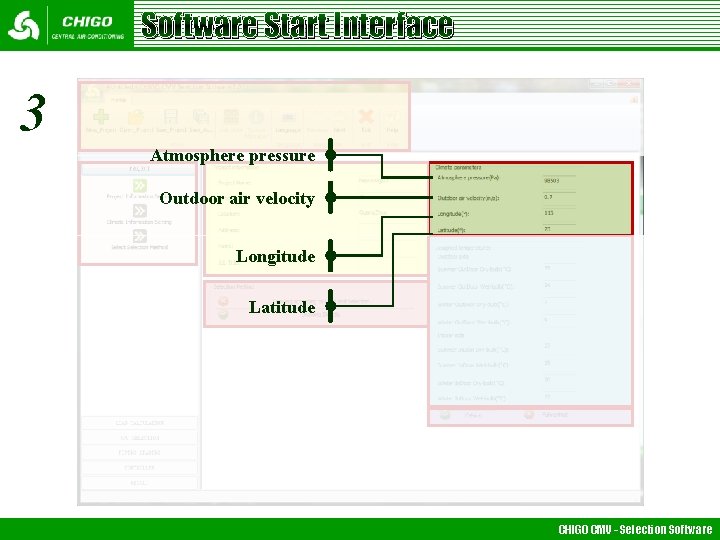
Software Start Interface 3 Atmosphere pressure Outdoor air velocity Longitude Latitude CHIGO CMV - Selection Software
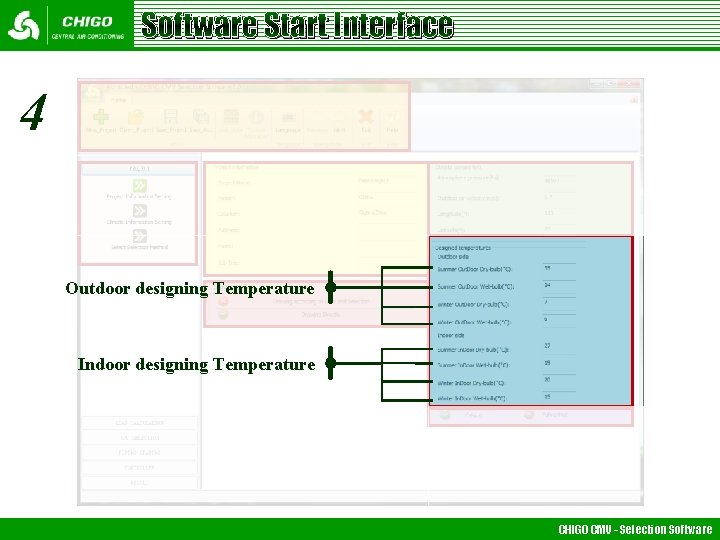
Software Start Interface 4 Outdoor designing Temperature Indoor designing Temperature CHIGO CMV - Selection Software
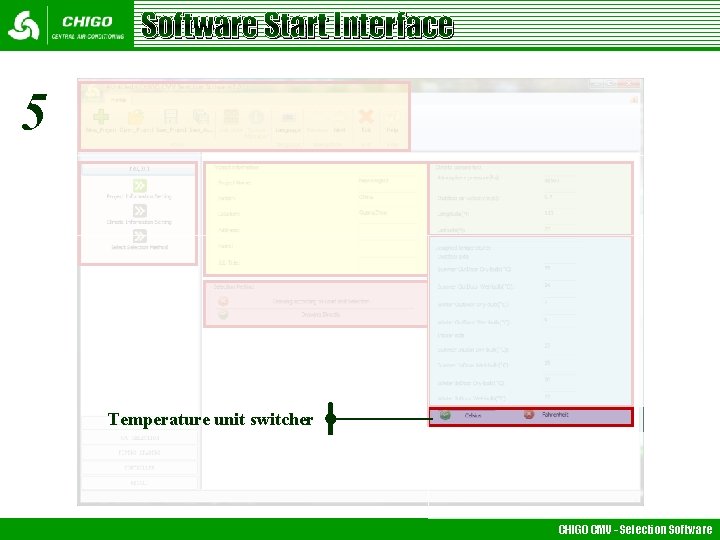
Software Start Interface 5 Temperature unit switcher CHIGO CMV - Selection Software
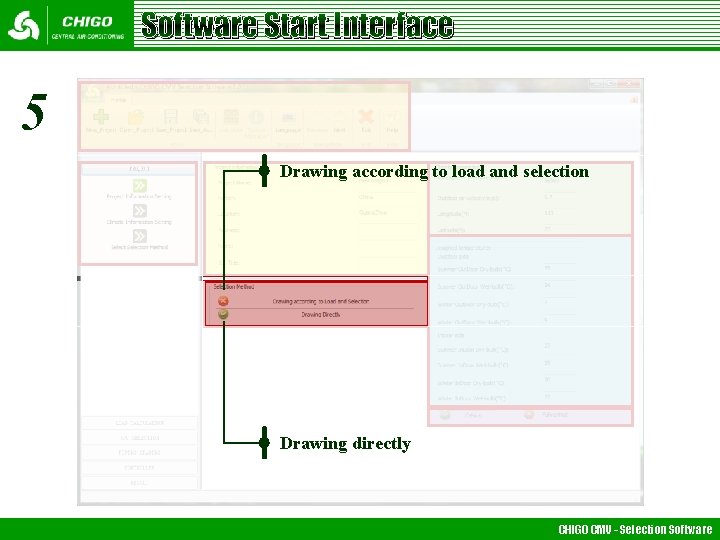
Software Start Interface 5 Drawing according to load and selection Drawing directly CHIGO CMV - Selection Software
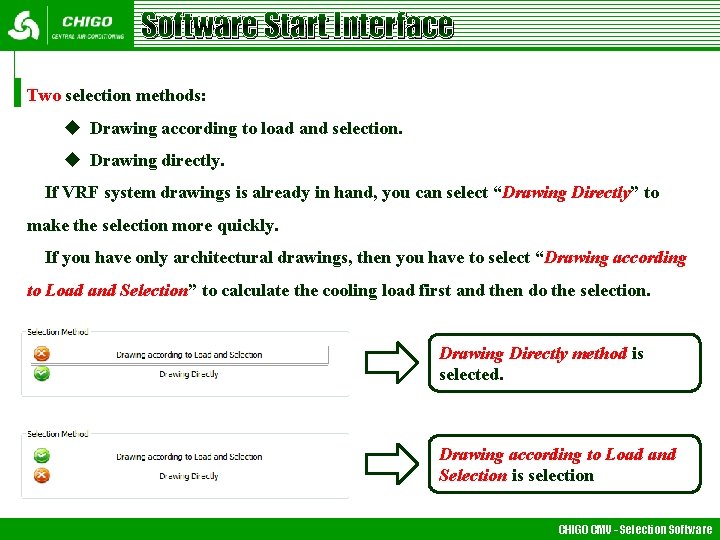
Software Start Interface Two selection methods: u Drawing according to load and selection. u Drawing directly. If VRF system drawings is already in hand, you can select “Drawing Directly” to make the selection more quickly. If you have only architectural drawings, then you have to select “Drawing according to Load and Selection” to calculate the cooling load first and then do the selection. Drawing Directly method is selected. Drawing according to Load and Selection is selection CHIGO CMV - Selection Software
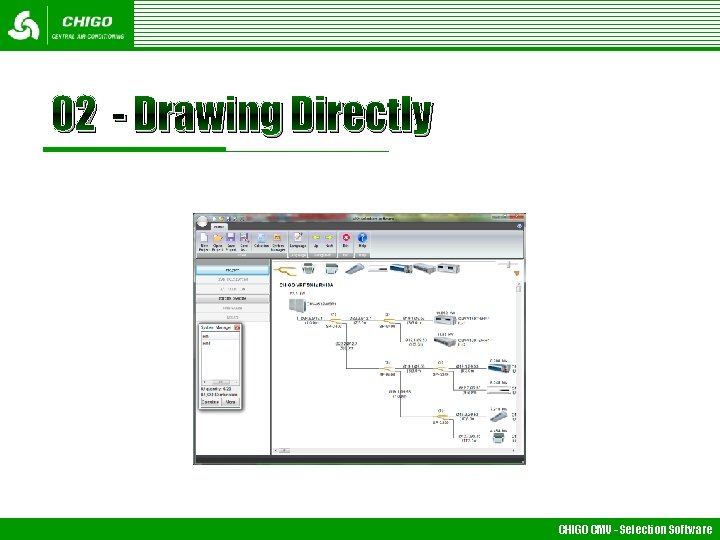
02 - Drawing Directly CHIGO CMV - Selection Software
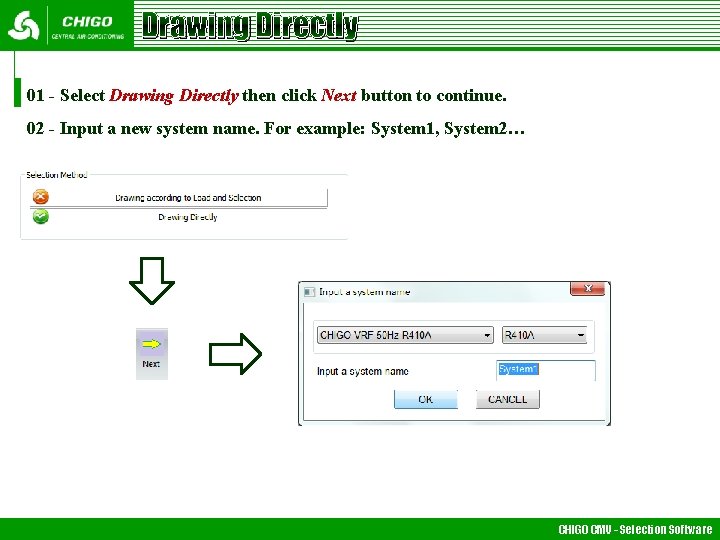
Drawing Directly 01 - Select Drawing Directly then click Next button to continue. 02 - Input a new system name. For example: System 1, System 2… CHIGO CMV - Selection Software
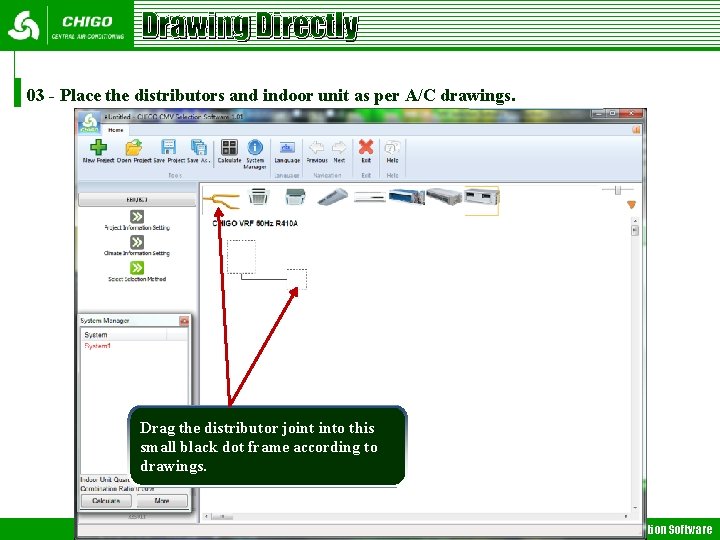
Drawing Directly 03 - Place the distributors and indoor unit as per A/C drawings. Drag the distributor joint into this small black dot frame according to drawings. CHIGO CMV - Selection Software
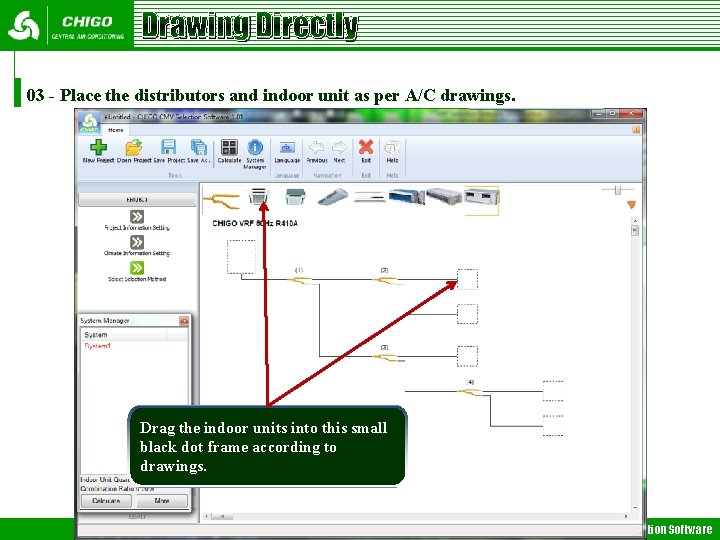
Drawing Directly 03 - Place the distributors and indoor unit as per A/C drawings. Drag the indoor units into this small black dot frame according to drawings. CHIGO CMV - Selection Software
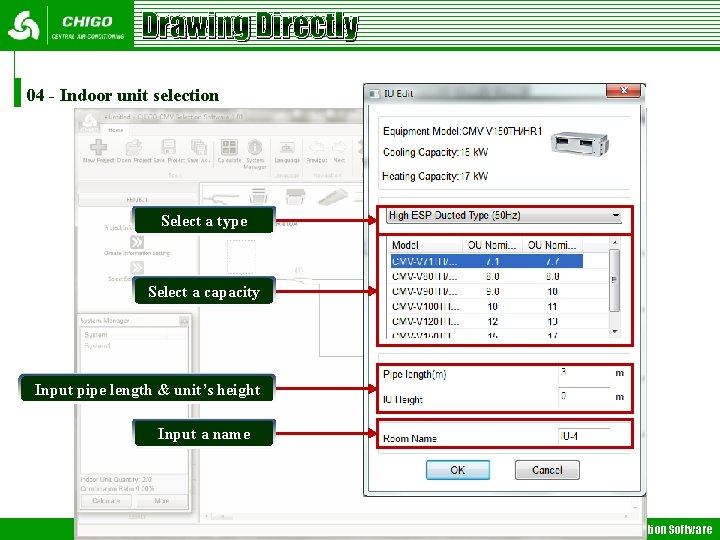
Drawing Directly 04 - Indoor unit selection Select a type Select a capacity Input pipe length & unit’s height Input a name CHIGO CMV - Selection Software
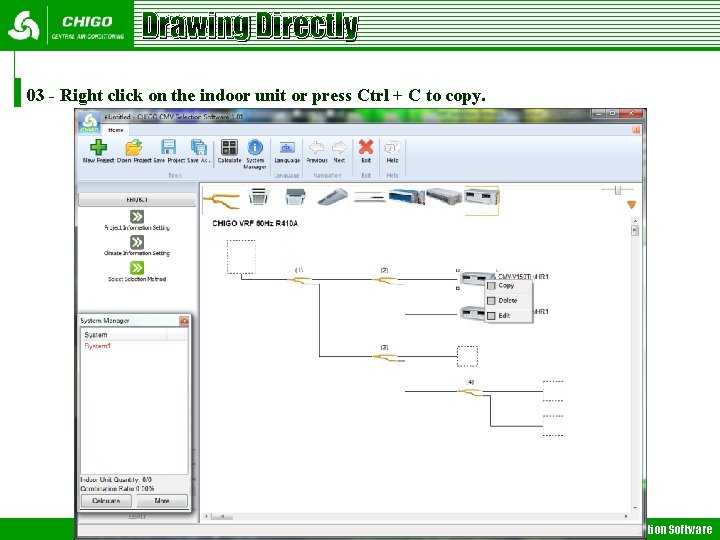
Drawing Directly 03 - Right click on the indoor unit or press Ctrl + C to copy. CHIGO CMV - Selection Software
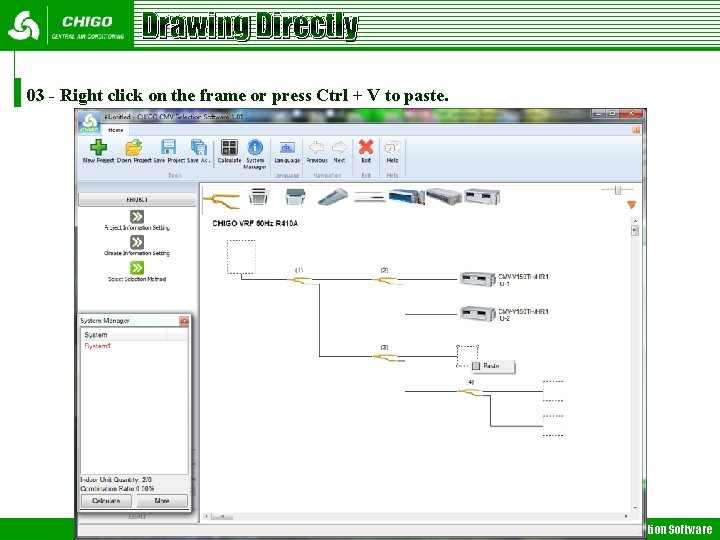
Drawing Directly 03 - Right click on the frame or press Ctrl + V to paste. CHIGO CMV - Selection Software
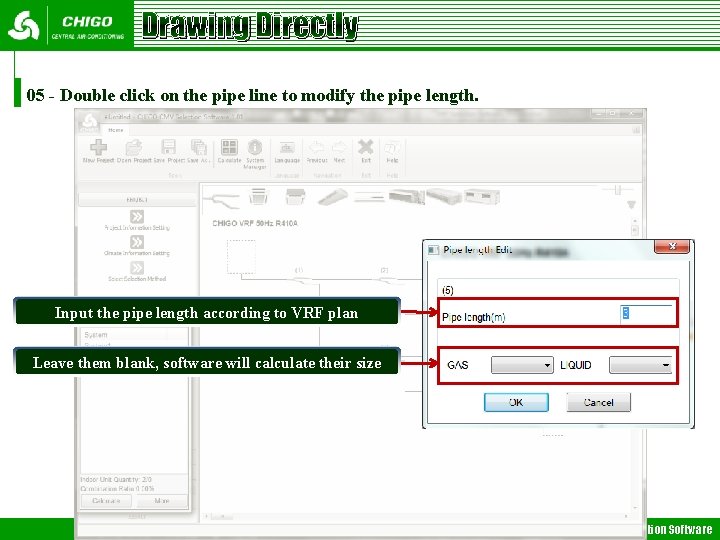
Drawing Directly 05 - Double click on the pipe line to modify the pipe length. Input the pipe length according to VRF plan Leave them blank, software will calculate their size CHIGO CMV - Selection Software
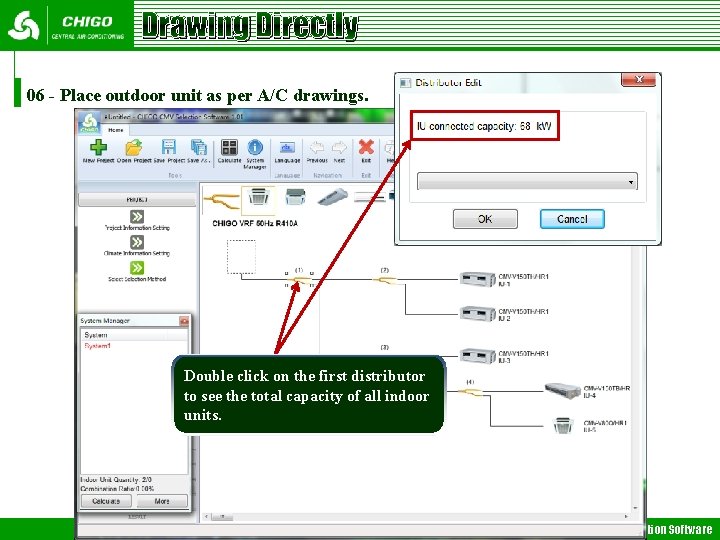
Drawing Directly 06 - Place outdoor unit as per A/C drawings. Double click on the first distributor to see the total capacity of all indoor units. CHIGO CMV - Selection Software
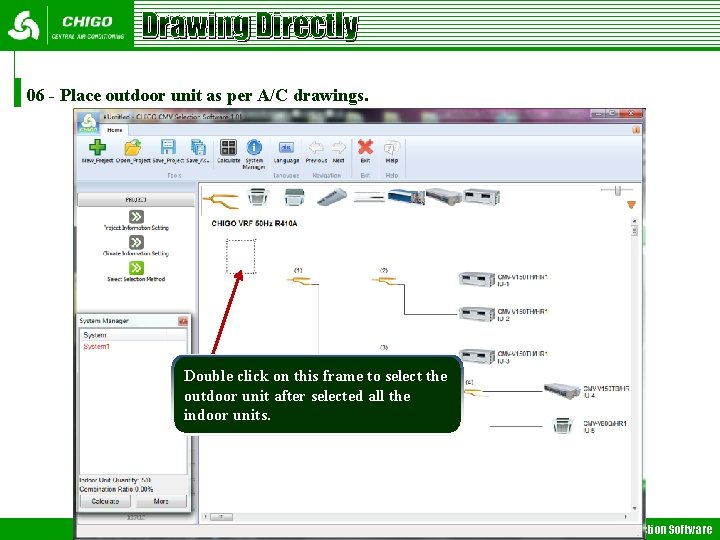
Drawing Directly 06 - Place outdoor unit as per A/C drawings. Double click on this frame to select the outdoor unit after selected all the indoor units. CHIGO CMV - Selection Software
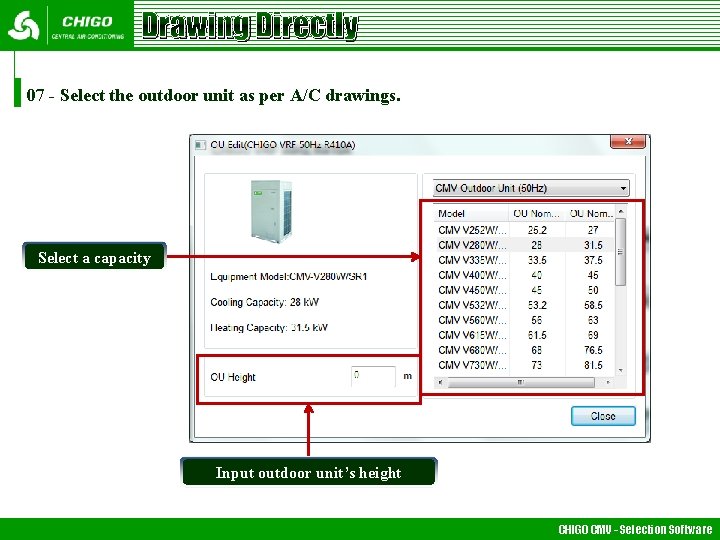
Drawing Directly 07 - Select the outdoor unit as per A/C drawings. Select a capacity Input outdoor unit’s height CHIGO CMV - Selection Software
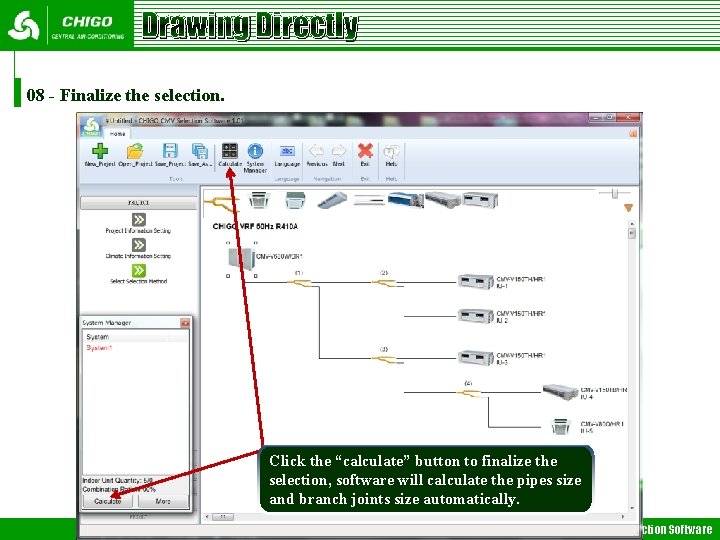
Drawing Directly 08 - Finalize the selection. Click the “calculate” button to finalize the selection, software will calculate the pipes size and branch joints size automatically. CHIGO CMV - Selection Software
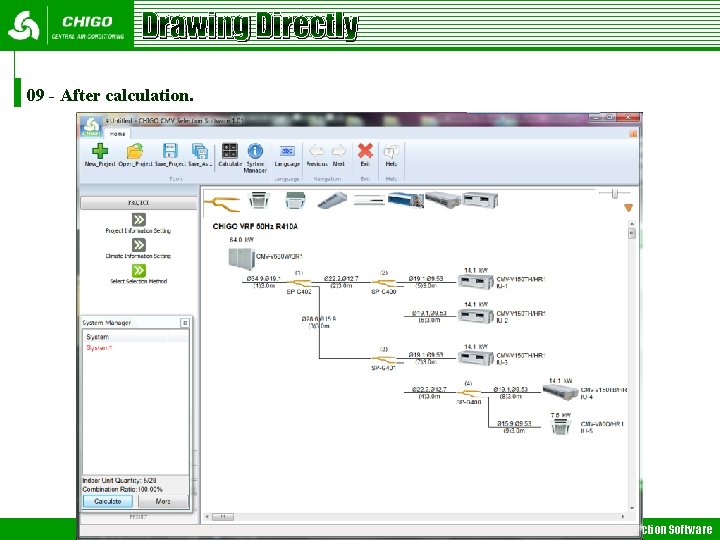
Drawing Directly 09 - After calculation. CHIGO CMV - Selection Software
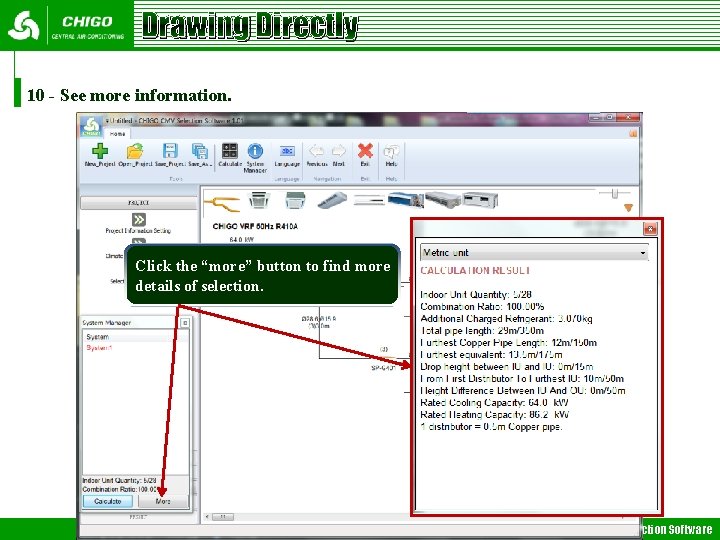
Drawing Directly 10 - See more information. Click the “more” button to find more details of selection. CHIGO CMV - Selection Software
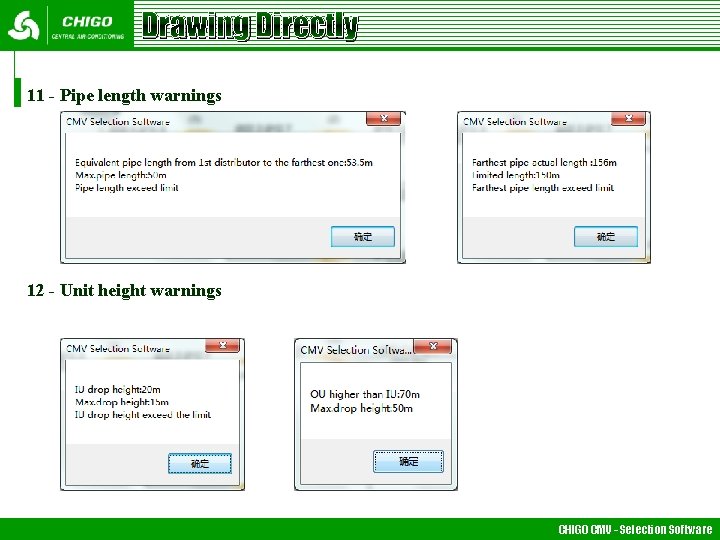
Drawing Directly 11 - Pipe length warnings 12 - Unit height warnings CHIGO CMV - Selection Software
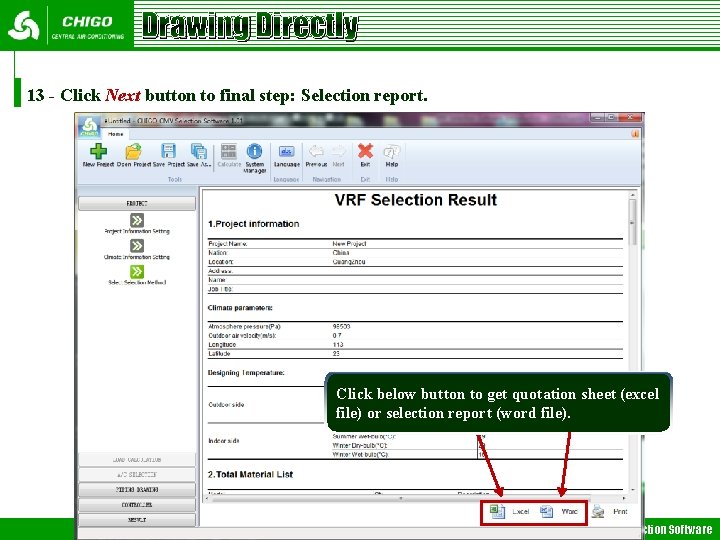
Drawing Directly 13 - Click Next button to final step: Selection report. Click below button to get quotation sheet (excel file) or selection report (word file). CHIGO CMV - Selection Software
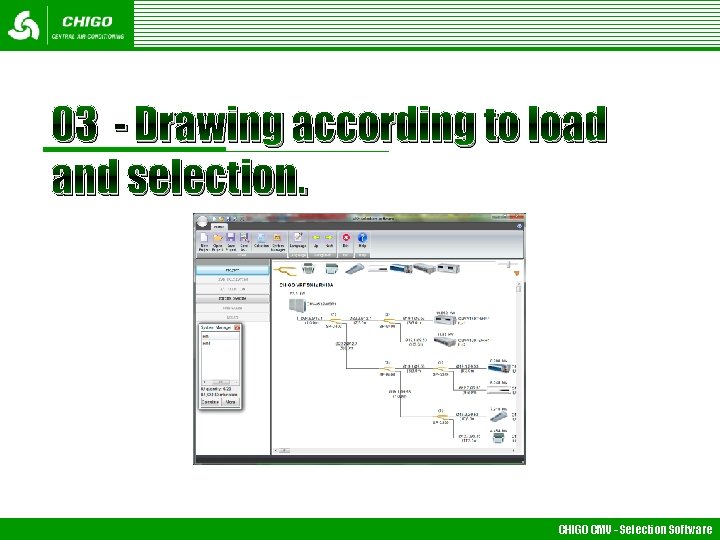
03 - Drawing according to load and selection. CHIGO CMV - Selection Software
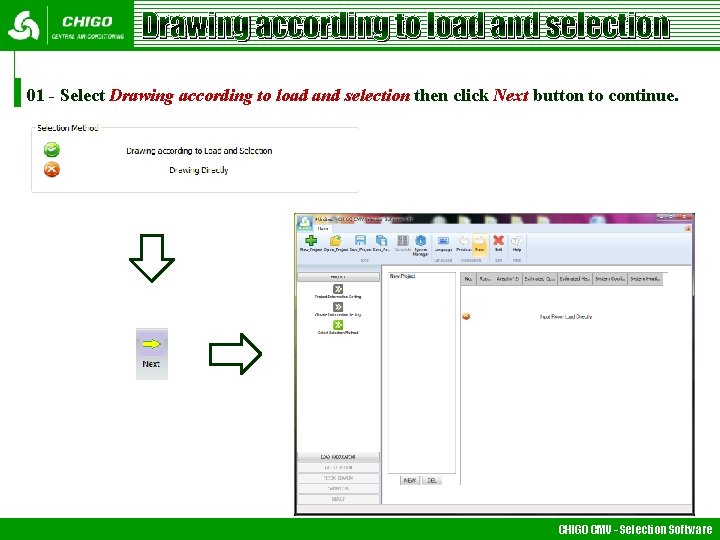
Drawing according to load and selection 01 - Select Drawing according to load and selection then click Next button to continue. CHIGO CMV - Selection Software
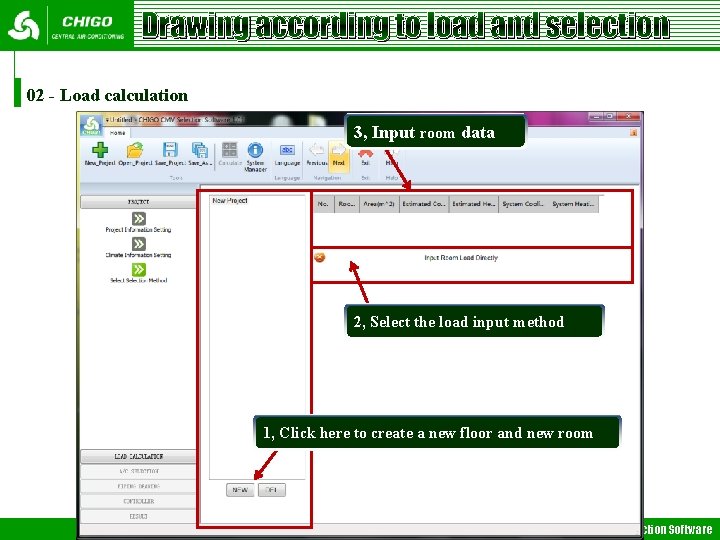
Drawing according to load and selection 02 - Load calculation 3, Input room data 2, Select the load input method 1, Click here to create a new floor and new room CHIGO CMV - Selection Software
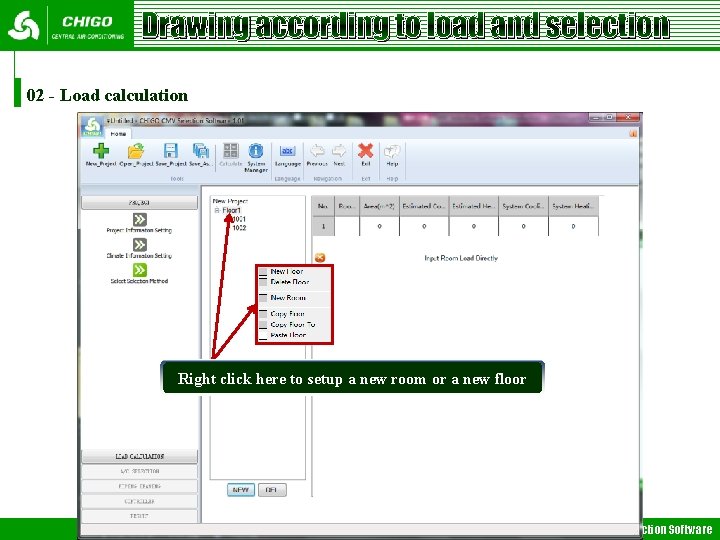
Drawing according to load and selection 02 - Load calculation Right click here to setup a new room or a new floor CHIGO CMV - Selection Software
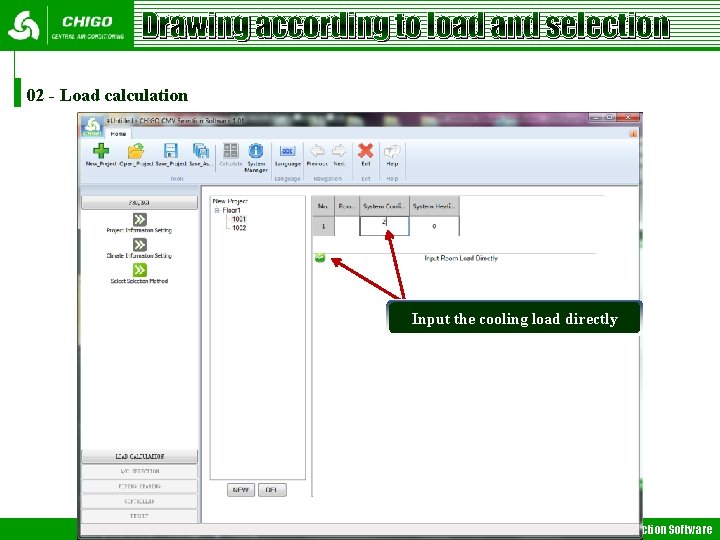
Drawing according to load and selection 02 - Load calculation Input the cooling load directly CHIGO CMV - Selection Software
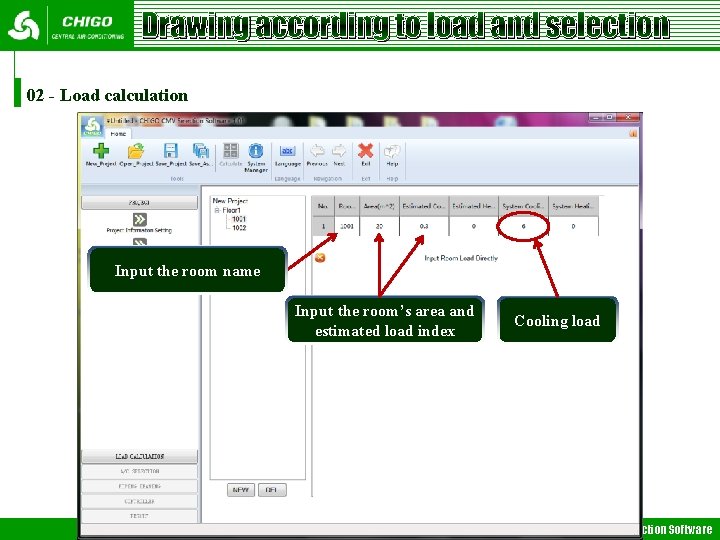
Drawing according to load and selection 02 - Load calculation Input the room name Input the room’s area and estimated load index Cooling load CHIGO CMV - Selection Software
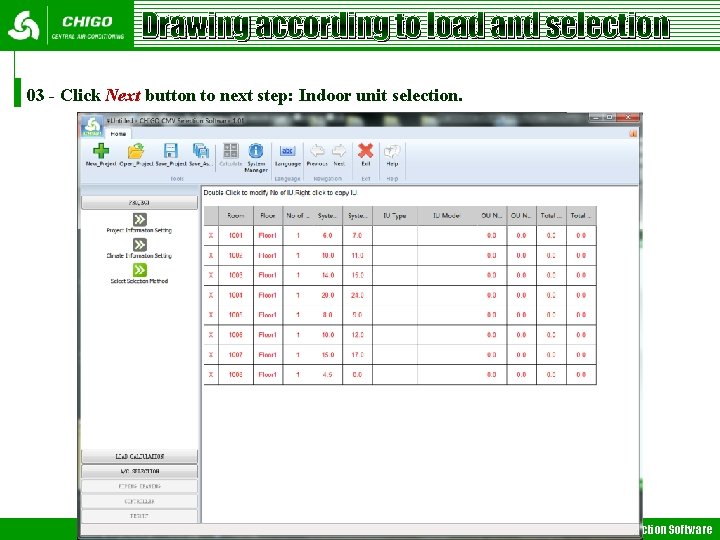
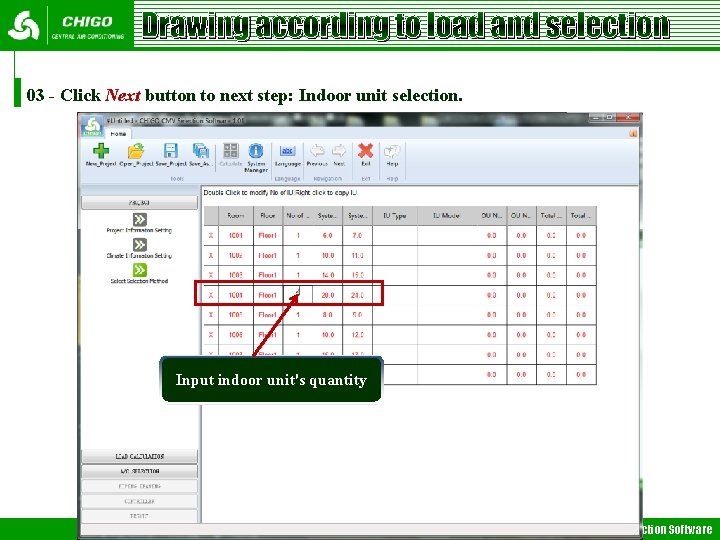
Drawing according to load and selection 03 - Click Next button to next step: Indoor unit selection. CHIGO CMV - Selection Software
Drawing according to load and selection 03 - Click Next button to next step: Indoor unit selection. Input indoor unit's quantity CHIGO CMV - Selection Software
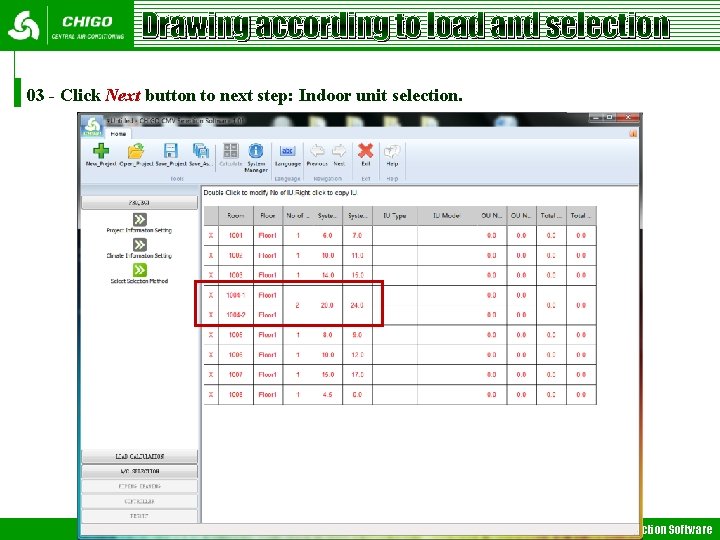
Drawing according to load and selection 03 - Click Next button to next step: Indoor unit selection. CHIGO CMV - Selection Software
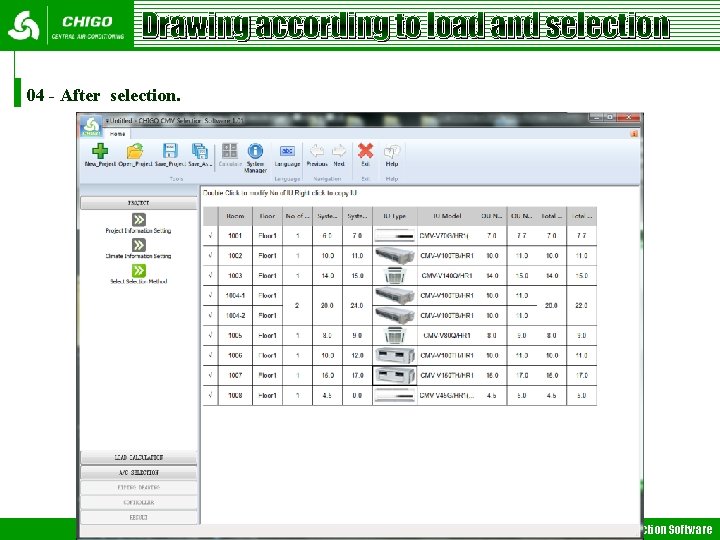
Drawing according to load and selection 04 - After selection. CHIGO CMV - Selection Software
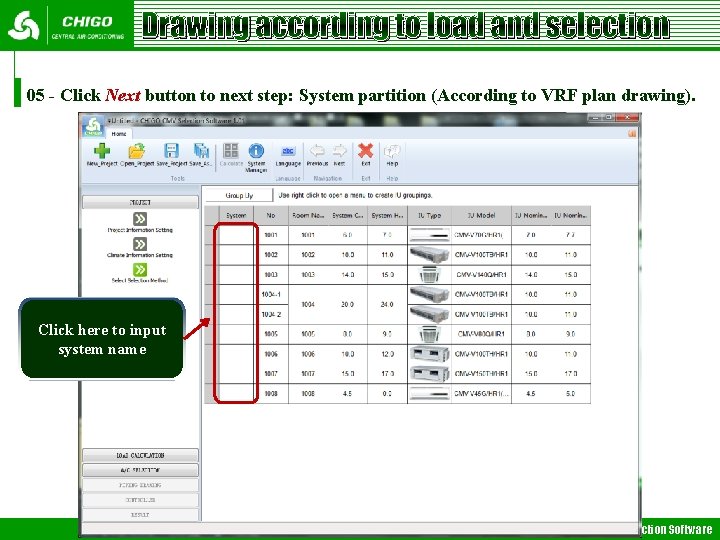
Drawing according to load and selection 05 - Click Next button to next step: System partition (According to VRF plan drawing). Click here to input system name CHIGO CMV - Selection Software
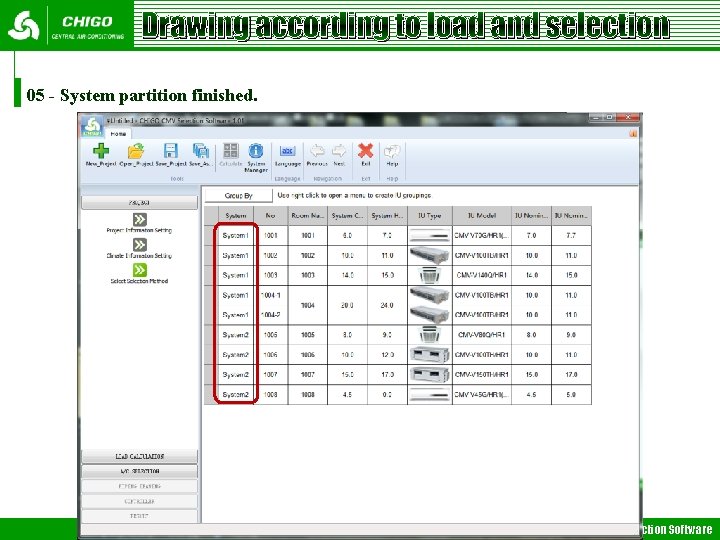
Drawing according to load and selection 05 - System partition finished. CHIGO CMV - Selection Software
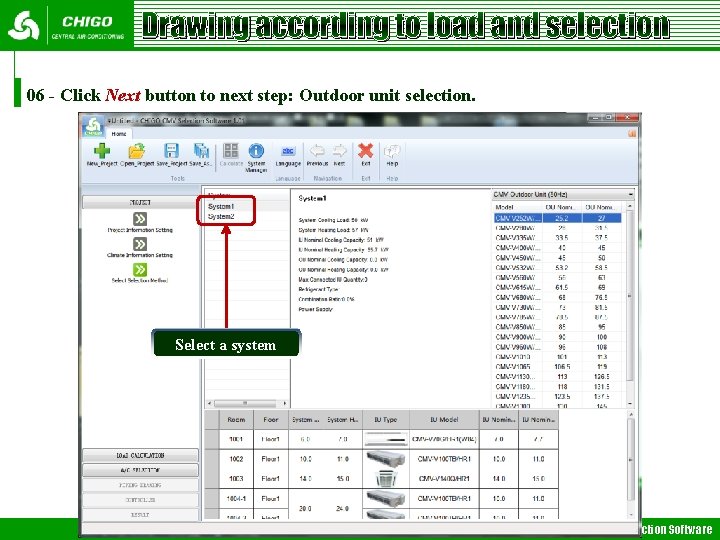
Drawing according to load and selection 06 - Click Next button to next step: Outdoor unit selection. Select a system CHIGO CMV - Selection Software
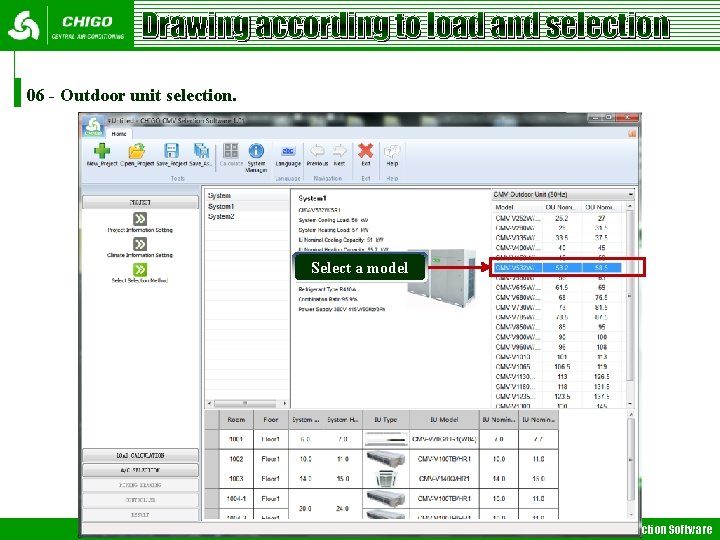
Drawing according to load and selection 06 - Outdoor unit selection. Select a model CHIGO CMV - Selection Software
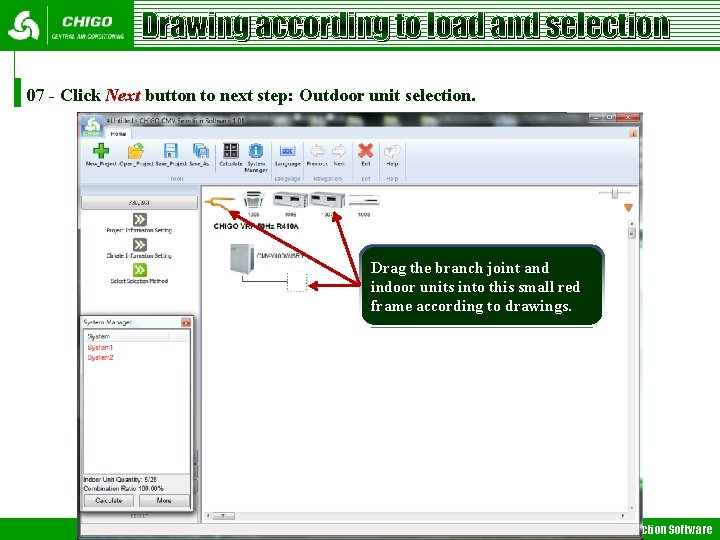
Drawing according to load and selection 07 - Click Next button to next step: Outdoor unit selection. Drag the branch joint and indoor units into this small red frame according to drawings. CHIGO CMV - Selection Software
Drawing according to load and selection 08 - The rest step are same as Drawing Directly. CHIGO CMV - Selection Software
Thank You!