
Chequed Set Up Overview System Set Up for
- Slides: 12
Chequed Set Up Overview System Set Up for Fit & Impact (Approx. 6 minutes) © 2 0 1 6 C h e q u e d H o l d i n g s L L C. A l l r i g h t s r e s e r v e d.
Chequed Set Up Overview 1. Creating Positions 2. Adding Candidates 3. Managing Candidates © 2 0 1 6 O u t M a t c h. A l l r i g h t s r e s e r v e d. 2
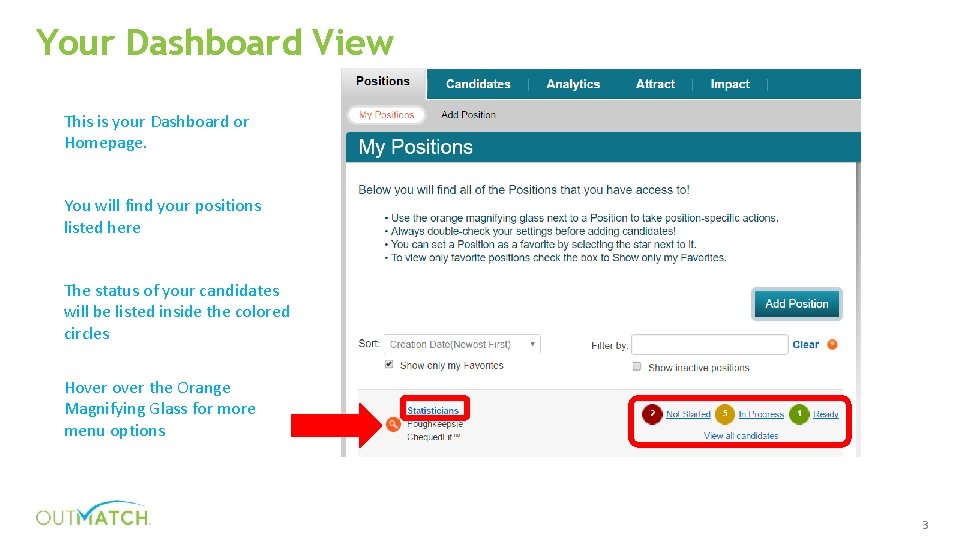
Your Dashboard View This is your Dashboard or Homepage. You will find your positions listed here The status of your candidates will be listed inside the colored circles Hover the Orange Magnifying Glass for more menu options 3
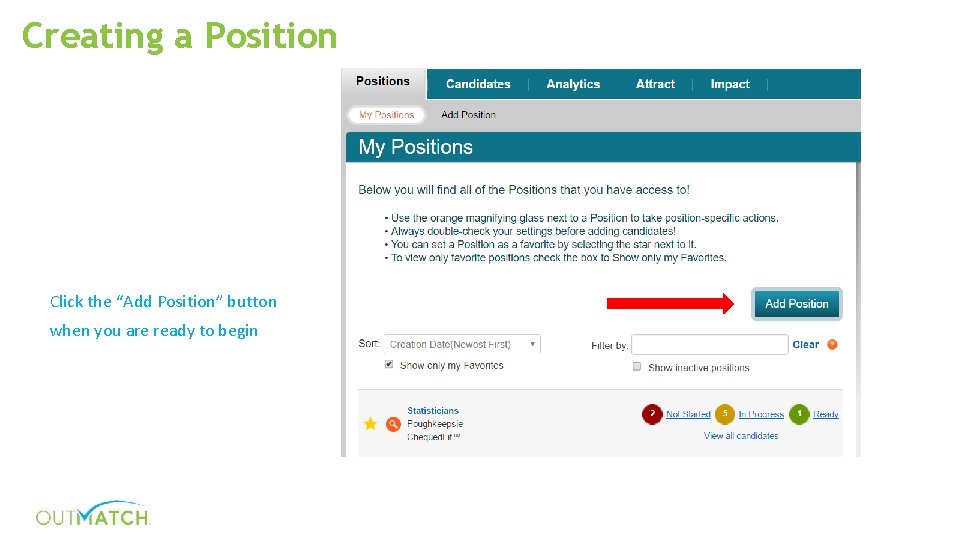
Creating a Position Click the “Add Position” button when you are ready to begin
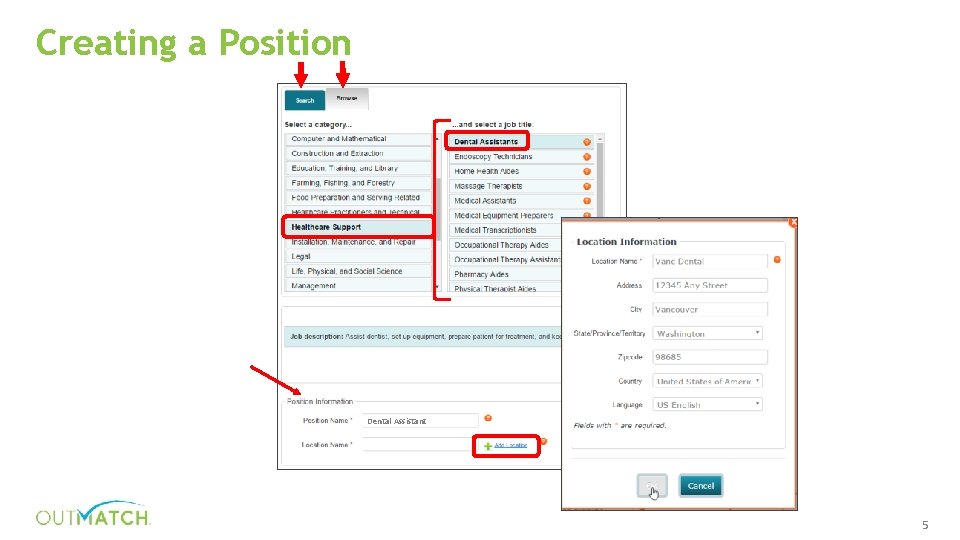
Creating a Position Dental Assistant 5
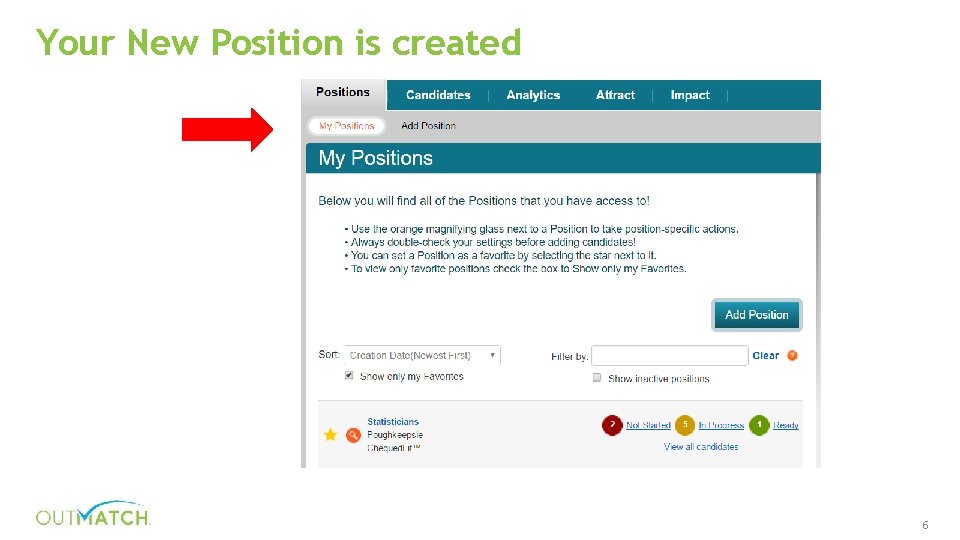
Your New Position is created 6
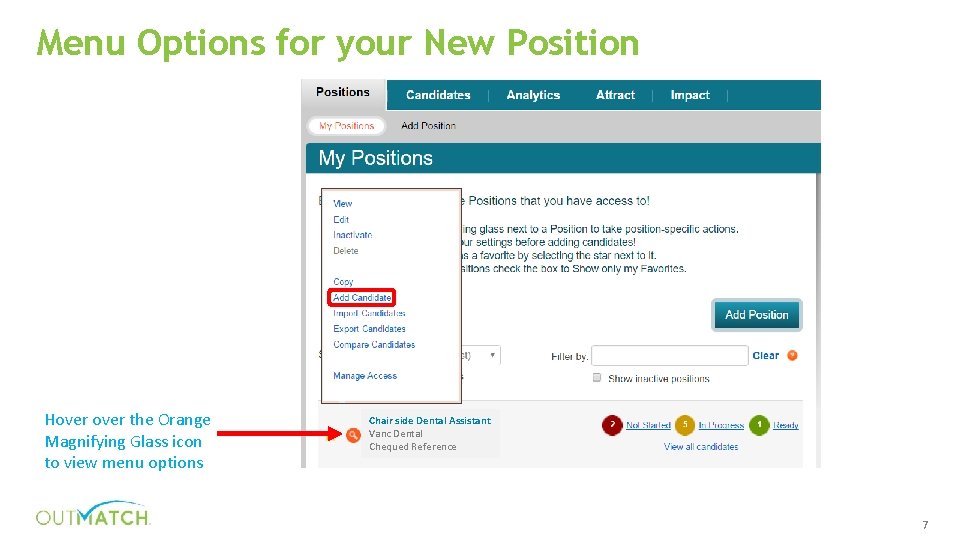
Menu Options for your New Position Hover the Orange Magnifying Glass icon to view menu options Chair side Dental Assistant Vanc Dental Chequed Reference 7
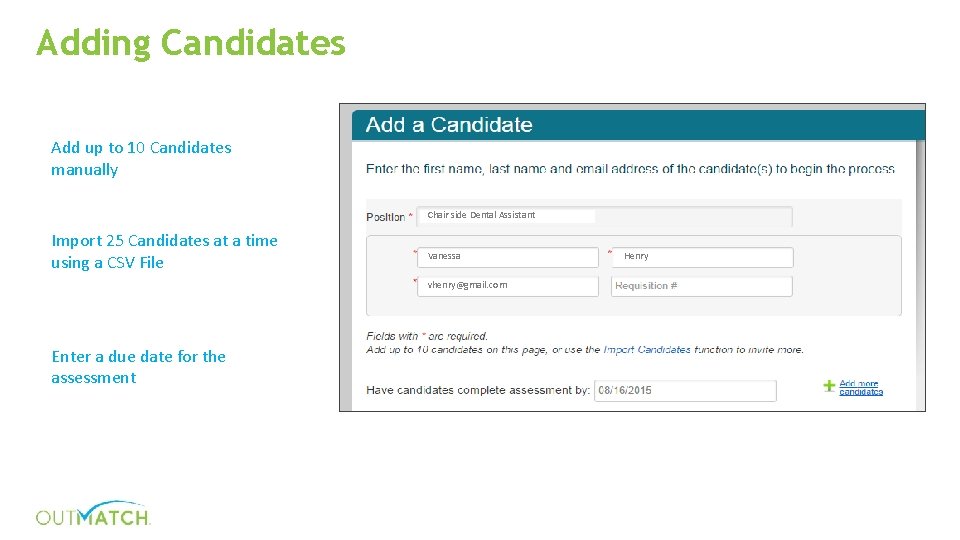
Adding Candidates Add up to 10 Candidates manually Chair side Dental Assistant Import 25 Candidates at a time using a CSV File Vanessa vhenry@gmail. com Enter a due date for the assessment Henry
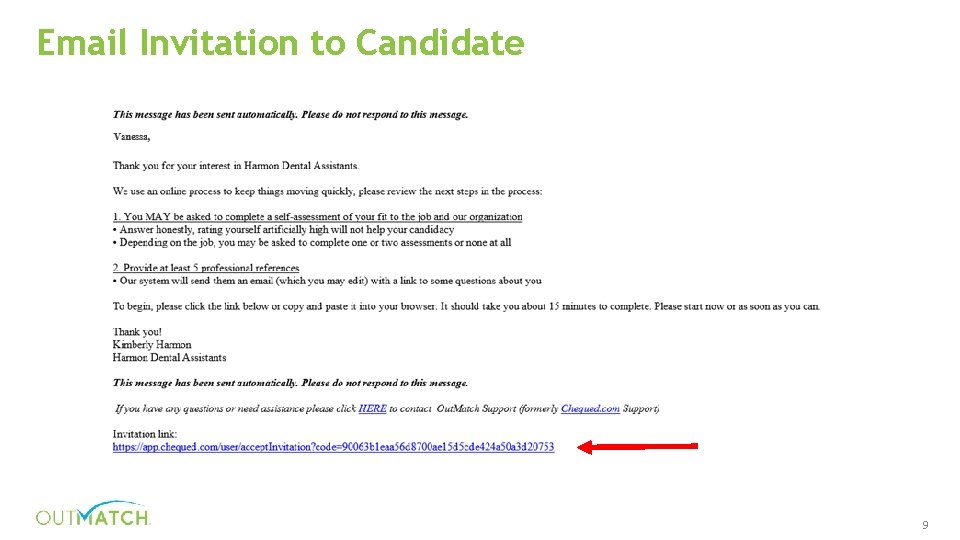
Email Invitation to Candidate 9
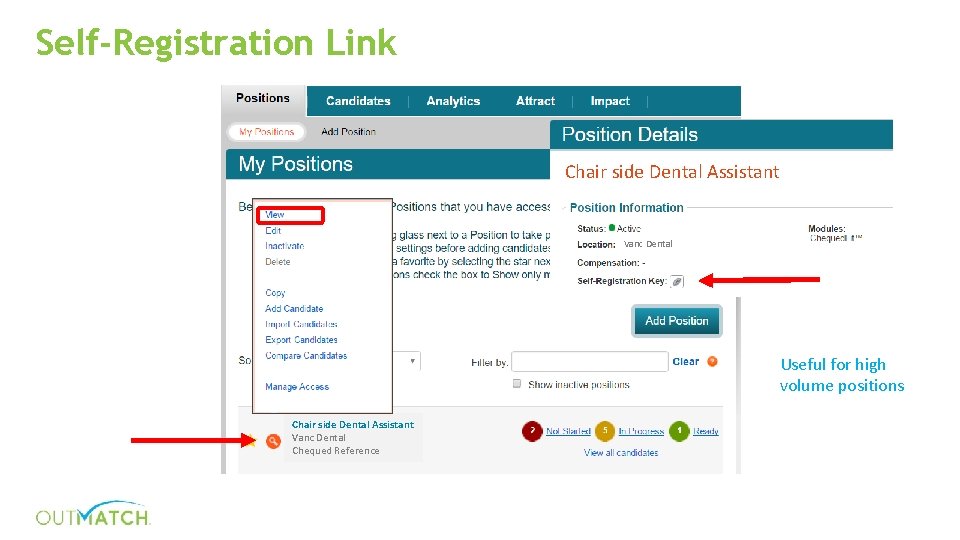
Self-Registration Link Chair side Dental Assistant Vanc Dental Useful for high volume positions Chair side Dental Assistant Vanc Dental Chequed Reference
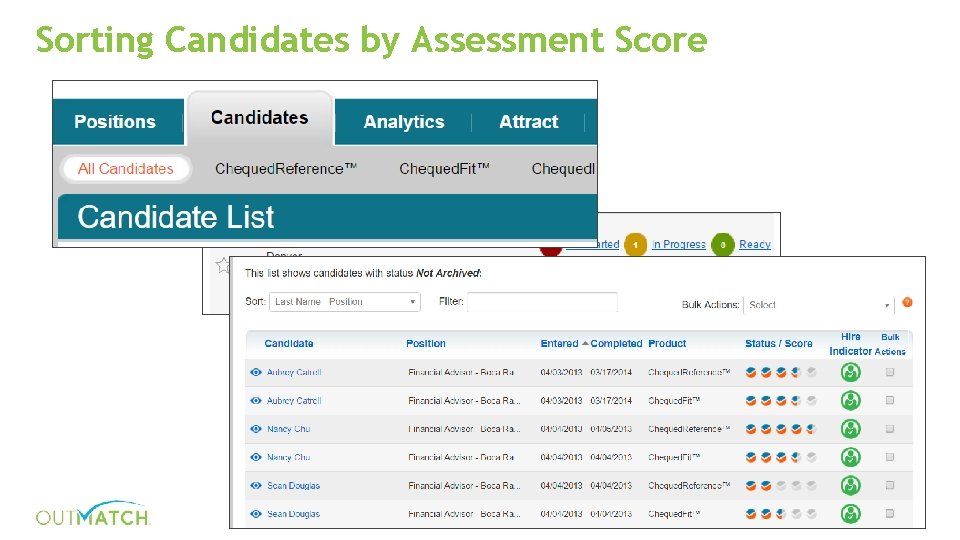
Sorting Candidates by Assessment Score
Thank you! Please click here for a 1 -minute survey to help us improve our training! clientservices@outmatch. com © 2 0 1 6 C h e q u e d H o l d i n g s L L C. A l l r i g h t s r e s e r v e d. 12