
CHECKLIST SECURE YOUR DEVICES While learning teaching and
- Slides: 1
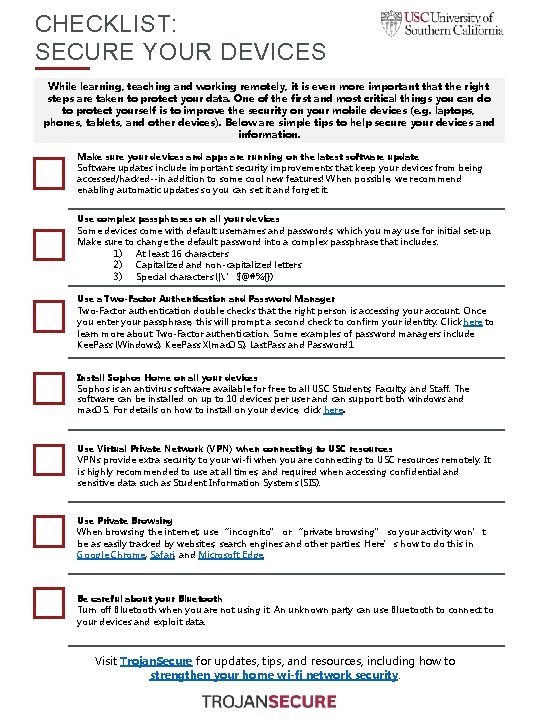
CHECKLIST: SECURE YOUR DEVICES While learning, teaching and working remotely, it is even more important that the right steps are taken to protect your data. One of the first and most critical things you can do to protect yourself is to improve the security on your mobile devices (e. g. laptops, phones, tablets, and other devices). Below are simple tips to help secure your devices and information. Make sure your devices and apps are running on the latest software update Software updates include important security improvements that keep your devices from being accessed/hacked--in addition to some cool new features! When possible, we recommend enabling automatic updates so you can set it and forget it. Use complex passphrases on all your devices Some devices come with default usernames and passwords, which you may use for initial set-up. Make sure to change the default password into a complex passphrase that includes: 1) At least 16 characters 2) Capitalized and non-capitalized letters 3) Special characters (|. ’$@#%{}) Use a Two-Factor Authentication and Password Manager Two-Factor authentication double checks that the right person is accessing your account. Once you enter your passphrase, this will prompt a second check to confirm your identity. Click here to learn more about Two-Factor authentication. Some examples of password managers include Kee. Pass (Windows), Kee. Pass X(mac. OS), Last. Pass and Password 1. Install Sophos Home on all your devices Sophos is an antivirus software available for free to all USC Students, Faculty, and Staff. The software can be installed on up to 10 devices per user and can support both windows and mac. OS. For details on how to install on your device, click here. Use Virtual Private Network (VPN) when connecting to USC resources VPNs provide extra security to your wi-fi when you are connecting to USC resources remotely. It is highly recommended to use at all times, and required when accessing confidential and sensitive data such as Student Information Systems (SIS). Use Private Browsing When browsing the internet, use “incognito” or “private browsing” so your activity won’t be as easily tracked by websites, search engines and other parties. Here’s how to do this in Google Chrome, Safari, and Microsoft Edge. Be careful about your Bluetooth Turn off Bluetooth when you are not using it. An unknown party can use Bluetooth to connect to your devices and exploit data. Visit Trojan. Secure for updates, tips, and resources, including how to strengthen your home wi-fi network security.