
CHAPTER TWO Creating Simple Visual Basic NET Windows
CHAPTER TWO Creating Simple Visual Basic. NET Windows Applications Mc. Graw-Hill/Irwin © 2002 by The Mc. Graw-Hill Companies, Inc. All rights reserved.
Chapter Introduction • The Integrated Development Environment (IDE) is used for modern software development. • The IDE contains tools to write code, build a GUI , and test and debug applications. • Overview of the application construction process. • Design issues are addressed. • Visual Basic. NET controls are examined. • The Msg. Box statement and Input. Box() function are visited. • A project is developed as a working application. Mc. Graw-Hill/Irwin © 2002 by The Mc. Graw-Hill Companies, Inc. All rights reserved. 2
2. 1 From New Solution to Finished Application • Overview of the Construction Process – Visual Basic. NET runs under Windows. – The programmer creates the application. – The project is an application under construction. – The application is saved to disk periodically. – An executable file is generated from the finished application program. Mc. Graw-Hill/Irwin © 2002 by The Mc. Graw-Hill Companies, Inc. All rights reserved. 3

4 Visual Basic. NET’s Three Modes • Design Mode – Placing, arranging, and customizing the appearance of buttons, labels, and other controls on a form. – Writing processing scripts (source code). – Saving the solution. – Making an executable file. Mc. Graw-Hill/Irwin © 2002 by The Mc. Graw-Hill Companies, Inc. All rights reserved.
Visual Basic. NET’s Three Modes (cont. ) • Run Mode – Executes the solution. – Used to evaluate the workability of a part of the project. – Used to show the user how the solution will work. Mc. Graw-Hill/Irwin © 2002 by The Mc. Graw-Hill Companies, Inc. All rights reserved. 5
Visual Basic. NET’s Three Modes (cont. ) • Break Mode – Helps the developer with debugging. – Enables the developer to switch back to run mode or design mode. Mc. Graw-Hill/Irwin © 2002 by The Mc. Graw-Hill Companies, Inc. All rights reserved. 6
Design Time and Run Time • In design mode, the project is in design time. • In run mode, the project is in run time. • Some errors can be found and corrected in design time. • Other errors can only be detected during run time. Mc. Graw-Hill/Irwin © 2002 by The Mc. Graw-Hill Companies, Inc. All rights reserved. 7
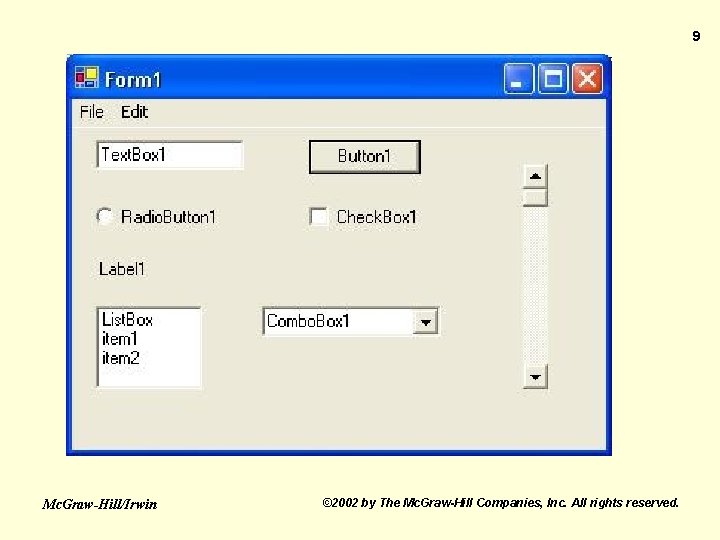
2. 2 Overview of Controls • Standard controls are used to create userfriendly applications. • Standard controls help users lower the learning curve for new programs. Mc. Graw-Hill/Irwin © 2002 by The Mc. Graw-Hill Companies, Inc. All rights reserved. 8
9 Mc. Graw-Hill/Irwin © 2002 by The Mc. Graw-Hill Companies, Inc. All rights reserved.
Categories of Controls • Trigger: Initiate processing – Ex. Button, Main. Menu, and Timer • Input: Get data from user – Ex. Text. Box, Radio. Button, and Check. Box • Output: Display results to user – Ex. Label, Data. Grid, and List. View Mc. Graw-Hill/Irwin © 2002 by The Mc. Graw-Hill Companies, Inc. All rights reserved. 10

Categories of Controls (cont. ) • Organize: Group other controls – Ex. Form, Group. Box, and Panel • Data Access: Interface with databases – Ex. Entire Data Group and Data. Grid Mc. Graw-Hill/Irwin © 2002 by The Mc. Graw-Hill Companies, Inc. All rights reserved. 11

The Correct Control for the Job • Chose controls to satisfy user requirements. • Different controls are good for different tasks. • The Button, Label, and Textbox controls are introduced. Mc. Graw-Hill/Irwin © 2002 by The Mc. Graw-Hill Companies, Inc. All rights reserved. 12

2. 3 The Visual Basic. NET Development Environment • The IDE helps develops create efficient and effective solutions. • The IDE for Visual Basic. NET is common to all the other tools available in the Visual Studio. NET suite. Mc. Graw-Hill/Irwin © 2002 by The Mc. Graw-Hill Companies, Inc. All rights reserved. 13

Getting Started • Open an existing project or begin a new project from the Start Page. • Use the My Profile option to set up the IDE. Mc. Graw-Hill/Irwin © 2002 by The Mc. Graw-Hill Companies, Inc. All rights reserved. 14
Visual Basic. NET Solution Structure • Every application will be organized as a “solution. ” • Solution Explorer is an interface for viewing and managing containers and associated items. • Items are files that make up your project, such as forms, source files, and classes. Mc. Graw-Hill/Irwin © 2002 by The Mc. Graw-Hill Companies, Inc. All rights reserved. 15
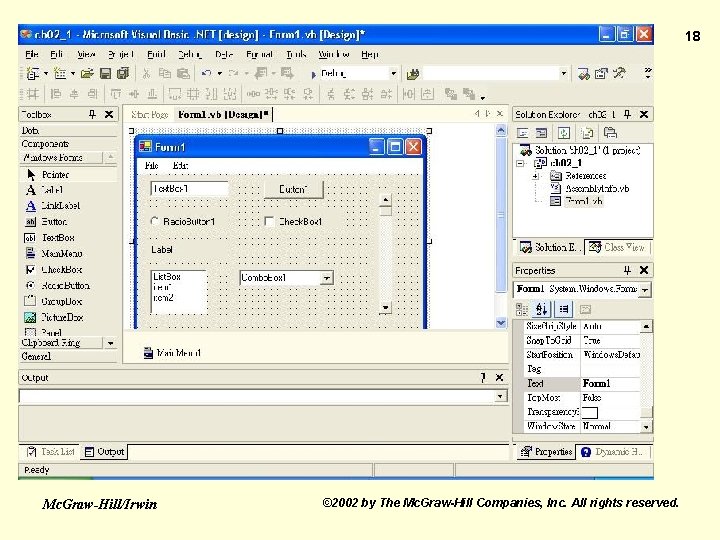
Main Tools Used in Visual Basic. NET • • • Menu Toolbar Solution Explorer Properties Editor Task List Mc. Graw-Hill/Irwin • • Toolbox Designer Window Code Window Help System (Ctrl-F 1 for Dynamic Help) © 2002 by The Mc. Graw-Hill Companies, Inc. All rights reserved. 16

Saving a Solution • Save your solution and all its contents on a regular basis. • Each project should be in its own separate folder. • Avoid the temptation to use the Save As…, save option. • Use the Save and Save All Toolbar icons. Mc. Graw-Hill/Irwin © 2002 by The Mc. Graw-Hill Companies, Inc. All rights reserved. 17
18 Mc. Graw-Hill/Irwin © 2002 by The Mc. Graw-Hill Companies, Inc. All rights reserved.
2. 4 Introducing the Windows Form Control • The window that is displayed when the application is running. • The IDE automatically creates a Windows Form when you start a new project. • This form will hold or “contain” other controls. Mc. Graw-Hill/Irwin © 2002 by The Mc. Graw-Hill Companies, Inc. All rights reserved. 19
2. 5 The Button Control • React to the click of the use • Perform a task associated with the name of the button that is displayed on its face. Mc. Graw-Hill/Irwin © 2002 by The Mc. Graw-Hill Companies, Inc. All rights reserved. 20

Appearance and Use • Appears as a rectangular-shaped control on a form. • Its face can display text, an image, or both. • The face of the button should clearly indicate its function. Mc. Graw-Hill/Irwin © 2002 by The Mc. Graw-Hill Companies, Inc. All rights reserved. 21
Properties • The most common properties of the Button control are listed. • Most properties are available for every control. Mc. Graw-Hill/Irwin © 2002 by The Mc. Graw-Hill Companies, Inc. All rights reserved. 22
Common Properties of the Button Control • • Name Back. Color Background. Image Enabled Font Fore. Color Image Mc. Graw-Hill/Irwin • • • Image. Align Tab. Index Tab. Stop Text. Align Visible © 2002 by The Mc. Graw-Hill Companies, Inc. All rights reserved. 23
Events • Components are able to respond to events. • The click event is generated when the user clicks the mouse button. • You write code to handle events. • Double-click the Button control to automatically open the code window. Mc. Graw-Hill/Irwin © 2002 by The Mc. Graw-Hill Companies, Inc. All rights reserved. 24

2. 6 The Label Control • Used to display information to the user. • Used to label other controls or show results of a calculation. – Ex. Check box and radio button labels. Mc. Graw-Hill/Irwin © 2002 by The Mc. Graw-Hill Companies, Inc. All rights reserved. 25

Appearance and Use • Appears as a rectangular area that can be filled with text. • You have some control over size and alignment of text. • You can include a border around the label. Mc. Graw-Hill/Irwin © 2002 by The Mc. Graw-Hill Companies, Inc. All rights reserved. 26

Properties • Many of the Button control properties apply to the Label control. • The Text Property is the most-used property for the Label control. Mc. Graw-Hill/Irwin © 2002 by The Mc. Graw-Hill Companies, Inc. All rights reserved. 27
Common Properties of the Label Control • • • Name Auto. Size Border. Style Data. Bindings Font Mc. Graw-Hill/Irwin • • • Fore. Color Image. Align Text. Align © 2002 by The Mc. Graw-Hill Companies, Inc. All rights reserved. 28
Events • Example 2. 1 Using the Label Control – Demonstrates two main uses of the Label control • To display a message to the user. • To display “labeling” information for the user. Mc. Graw-Hill/Irwin © 2002 by The Mc. Graw-Hill Companies, Inc. All rights reserved. 29
2. 7 The Text. Box Control • Provides an area for the user to type while the program runs. Mc. Graw-Hill/Irwin © 2002 by The Mc. Graw-Hill Companies, Inc. All rights reserved. 30
Appearance and Use • Displays as a rectangular area that provides the user a place to type. • You can limit the user types • You can also surround the Text. Box with a border. Mc. Graw-Hill/Irwin © 2002 by The Mc. Graw-Hill Companies, Inc. All rights reserved. 31
Properties • Some of the Text. Box control properties are only available at run time. • The value of the Text property is used most frequently. • Control of user entry is shared between properties and events. • The Password. Char property allows you to set a security character. Mc. Graw-Hill/Irwin © 2002 by The Mc. Graw-Hill Companies, Inc. All rights reserved. 32
Properties (cont. ) • Text. Length property determines the number of characters contained in a textbox. • Selection… properties provide information on user selections in the Text. Box control. Mc. Graw-Hill/Irwin © 2002 by The Mc. Graw-Hill Companies, Inc. All rights reserved. 33
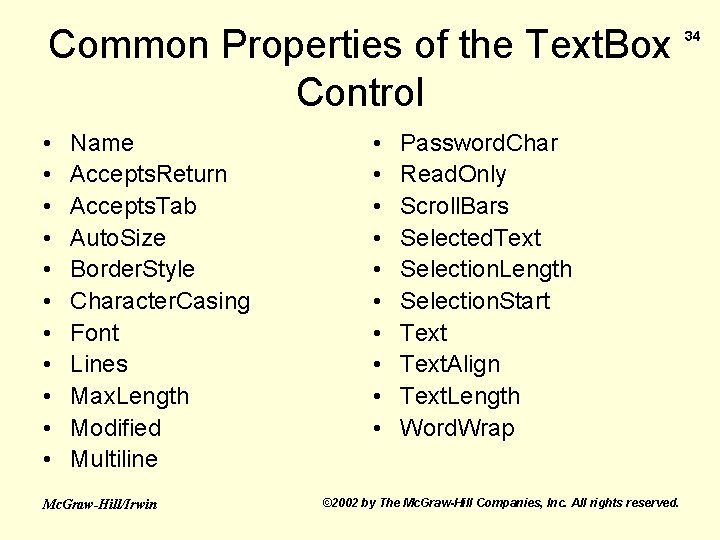
Common Properties of the Text. Box Control • • • Name Accepts. Return Accepts. Tab Auto. Size Border. Style Character. Casing Font Lines Max. Length Modified Multiline Mc. Graw-Hill/Irwin • • • Password. Char Read. Only Scroll. Bars Selected. Text Selection. Length Selection. Start Text. Align Text. Length Word. Wrap © 2002 by The Mc. Graw-Hill Companies, Inc. All rights reserved. 34
Events Focus means the user is currently working with the specific control. • Enter - Occurs when input focus is received. • Key. Press - Occurs when a key is pressed while the control has focus. • Leave – Occurs when input focus leaves the control. Mc. Graw-Hill/Irwin © 2002 by The Mc. Graw-Hill Companies, Inc. All rights reserved. 35

Events (cont. ) • Methods – Enable the developer to manipulate text in a Text. Box. – Many are available to the developer. Mc. Graw-Hill/Irwin © 2002 by The Mc. Graw-Hill Companies, Inc. All rights reserved. 36

Common Events for the Text. Box Control • • • Enter Key. Press Leave Append. Text Clear Copy Mc. Graw-Hill/Irwin • • • Cut Paste Select. All Undo © 2002 by The Mc. Graw-Hill Companies, Inc. All rights reserved. 37

2. 8 The Msg. Box Statement and Input. Box Function • Two alternate ways to receive information from the user and to display information on the screen. Mc. Graw-Hill/Irwin © 2002 by The Mc. Graw-Hill Companies, Inc. All rights reserved. 38
Msg. Box Statement • The Msg. Box statement will display information that requires user intervention. – Msg. Box(“A prompt”, Buttons, ”A title”) Mc. Graw-Hill/Irwin © 2002 by The Mc. Graw-Hill Companies, Inc. All rights reserved. 39
Input. Box() Function • The Input. Box() function requests information from the user with a dialog box. It requires user intervention. – Input. Box(“A prompt”, ”A title”, ”A default response”) Mc. Graw-Hill/Irwin © 2002 by The Mc. Graw-Hill Companies, Inc. All rights reserved. 40
- Slides: 40