
Chapter II Creating Your First Power Point Presentation

- Slides: 13
Chapter II Creating Your First Power. Point Presentation Saturday, January 1, 2022 1 LOGO
Introduction v. You create your Power. Point presentation on slides. v. You use layouts to organize the content on each slide. v. Power. Point has several slide layouts from which to choose. v. After you complete your slides, you can run your presentation. 2 LOGO
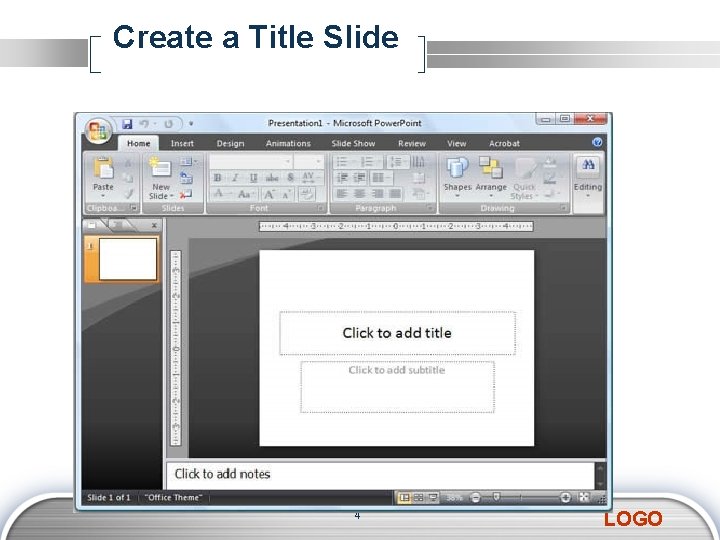
Create a Title Slide v. When you start Power. Point, Power. Point displays the title slide in the Slide pane. You can type the title of your presentation and a subtitle on this slide v. If you do not wish to use the title slide, click the Delete Slide button in the Slides group on the Home tab. 3 LOGO
Create a Title Slide 4 LOGO
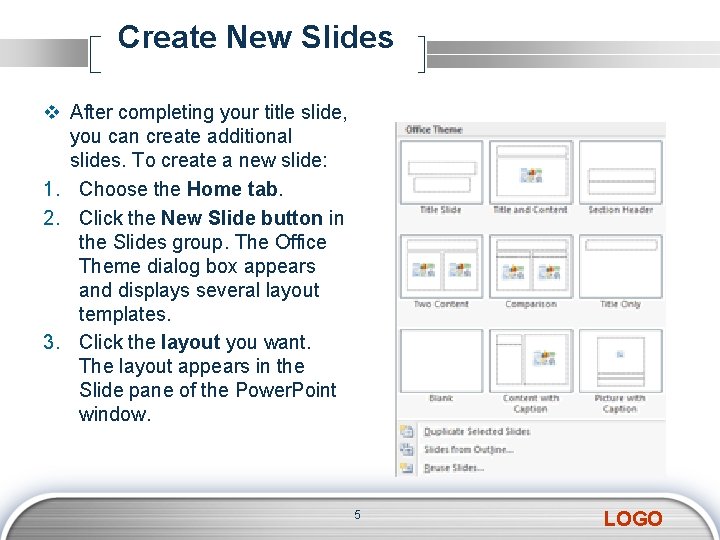
Create New Slides v After completing your title slide, you can create additional slides. To create a new slide: 1. Choose the Home tab. 2. Click the New Slide button in the Slides group. The Office Theme dialog box appears and displays several layout templates. 3. Click the layout you want. The layout appears in the Slide pane of the Power. Point window. 5 LOGO
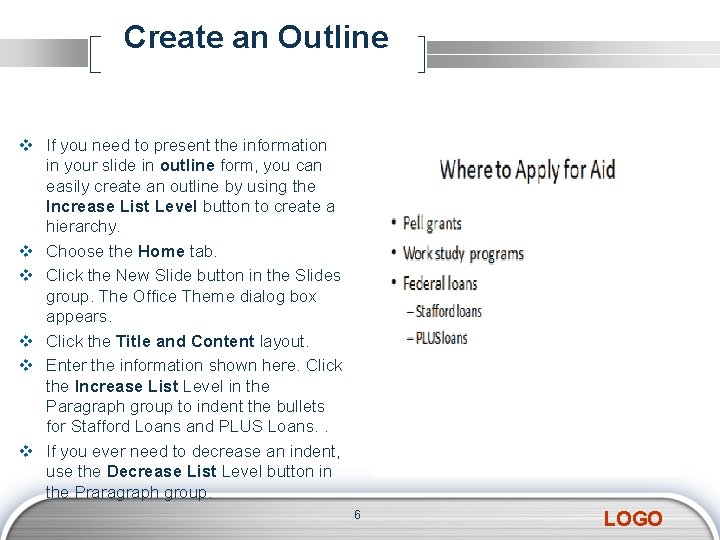
Create an Outline v If you need to present the information in your slide in outline form, you can easily create an outline by using the Increase List Level button to create a hierarchy. v Choose the Home tab. v Click the New Slide button in the Slides group. The Office Theme dialog box appears. v Click the Title and Content layout. v Enter the information shown here. Click the Increase List Level in the Paragraph group to indent the bullets for Stafford Loans and PLUS Loans. . v If you ever need to decrease an indent, use the Decrease List Level button in the Praragraph group. 6 LOGO
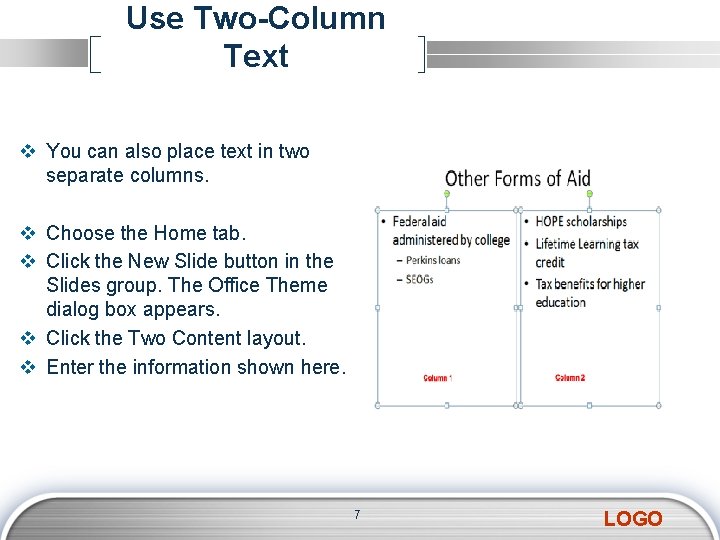
Use Two-Column Text v You can also place text in two separate columns. v Choose the Home tab. v Click the New Slide button in the Slides group. The Office Theme dialog box appears. v Click the Two Content layout. v Enter the information shown here. 7 LOGO
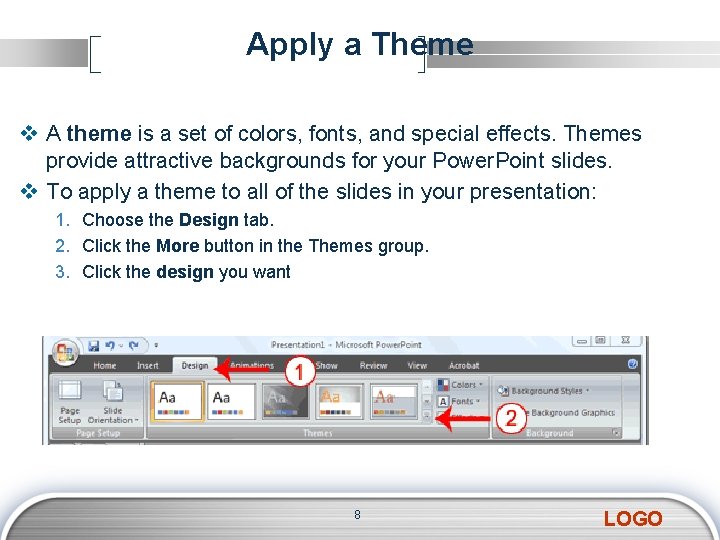
Apply a Theme v A theme is a set of colors, fonts, and special effects. Themes provide attractive backgrounds for your Power. Point slides. v To apply a theme to all of the slides in your presentation: 1. Choose the Design tab. 2. Click the More button in the Themes group. 3. Click the design you want 8 LOGO
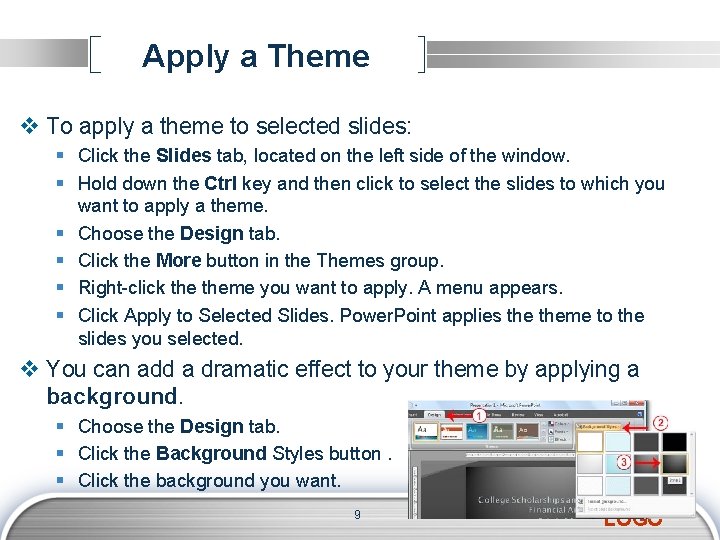
Apply a Theme v To apply a theme to selected slides: § Click the Slides tab, located on the left side of the window. § Hold down the Ctrl key and then click to select the slides to which you want to apply a theme. § Choose the Design tab. § Click the More button in the Themes group. § Right-click theme you want to apply. A menu appears. § Click Apply to Selected Slides. Power. Point applies theme to the slides you selected. v You can add a dramatic effect to your theme by applying a background. § Choose the Design tab. § Click the Background Styles button. § Click the background you want. 9 LOGO
Run Your PPoint Slide Show v. After you create your slides, you can run your slide show: v. Do any one of the following: 1. Press F 5. 2. Choose the Slide Show tab. Click the From Beginning button in the Start Slide Show group. 3. Click the Slide Show icon in the bottom-right corner of your screen. 10 LOGO
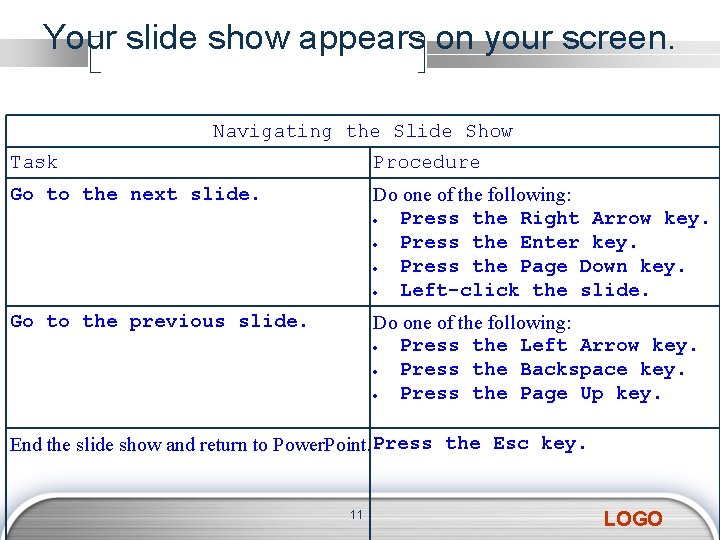
Your slide show appears on your screen. Navigating the Slide Show Task Procedure Go to the next slide. Do one of the following: Press the Right Arrow key. Press the Enter key. Press the Page Down key. Left-click the slide. Go to the previous slide. Do one of the following: Press the Left Arrow key. Press the Backspace key. Press the Page Up key. End the slide show and return to Power. Point. Press the Esc key. 11 LOGO
End of Chapter Two 12 LOGO
Saturday, January 1, 2022 13 LOGO