
Chapter Extension 3 Introduction to Microsoft Excel 2010
- Slides: 36
Chapter Extension 3 Introduction to Microsoft Excel 2010
Study Questions Q 1: What is a spreadsheet? Q 2: How do you get started with Excel? Q 3: How can you enter data? Q 4: How can you insert and delete rows and columns and change their size? Q 5: How can you format data? Q 6: How can you create a (simple) formula? Q 7: How can you print results? Copyright © 2014 Pearson Education, Inc. Publishing as Prentice Hall ce 3 -2
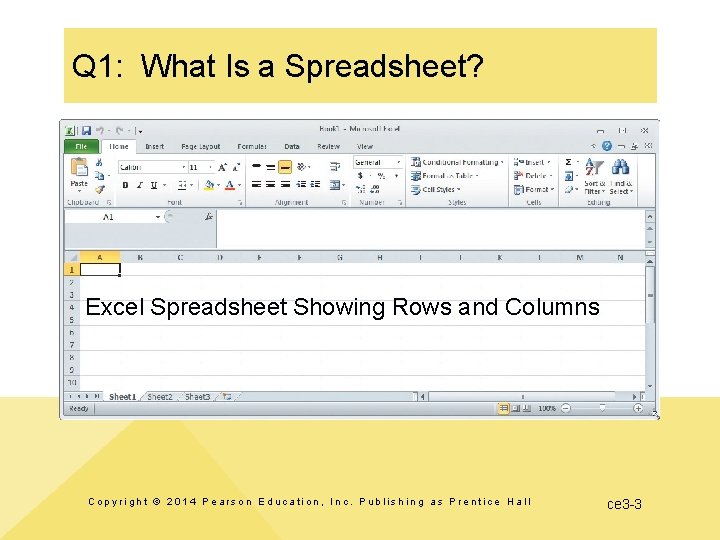
Q 1: What Is a Spreadsheet? Excel Spreadsheet Showing Rows and Columns Copyright © 2014 Pearson Education, Inc. Publishing as Prentice Hall ce 3 -3
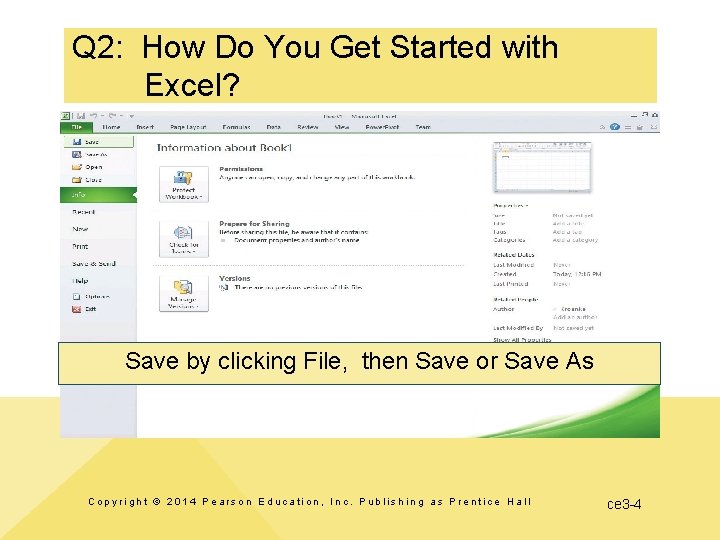
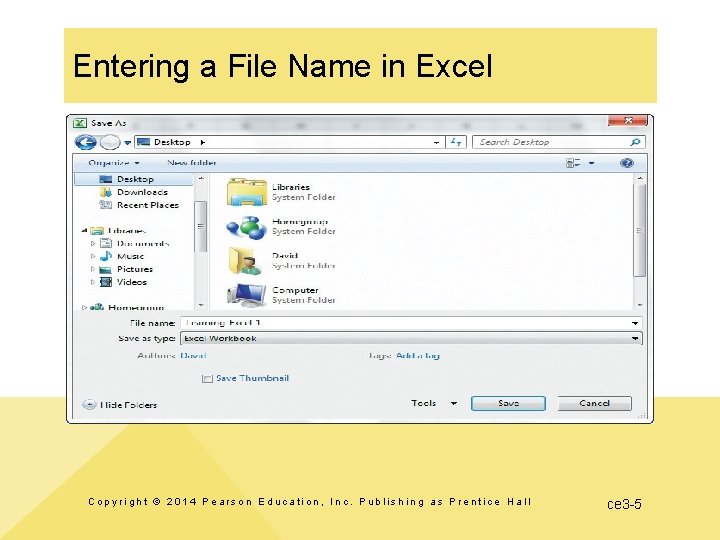
Q 2: How Do You Get Started with Excel? Save by clicking File, then Save or Save As Copyright © 2014 Pearson Education, Inc. Publishing as Prentice Hall ce 3 -4
Entering a File Name in Excel Copyright © 2014 Pearson Education, Inc. Publishing as Prentice Hall ce 3 -5
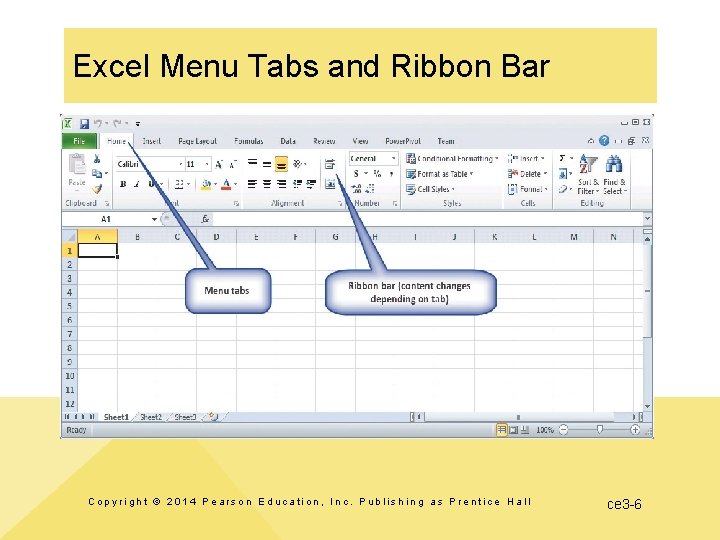
Excel Menu Tabs and Ribbon Bar Copyright © 2014 Pearson Education, Inc. Publishing as Prentice Hall ce 3 -6
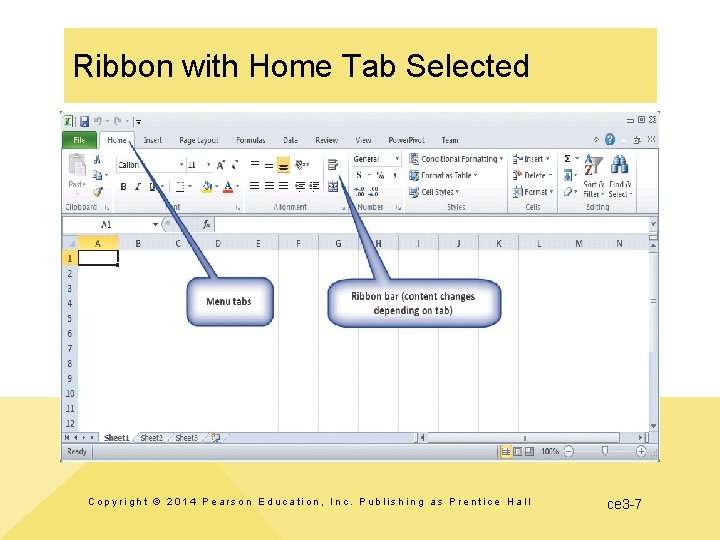
Ribbon with Home Tab Selected Copyright © 2014 Pearson Education, Inc. Publishing as Prentice Hall ce 3 -7
Q 3: How Can You Enter Data? Three general methods 1. Key in the data 2. Let Excel add data based on a pattern 3. Import from another file or program Copyright © 2014 Pearson Education, Inc. Publishing as Prentice Hall ce 3 -8
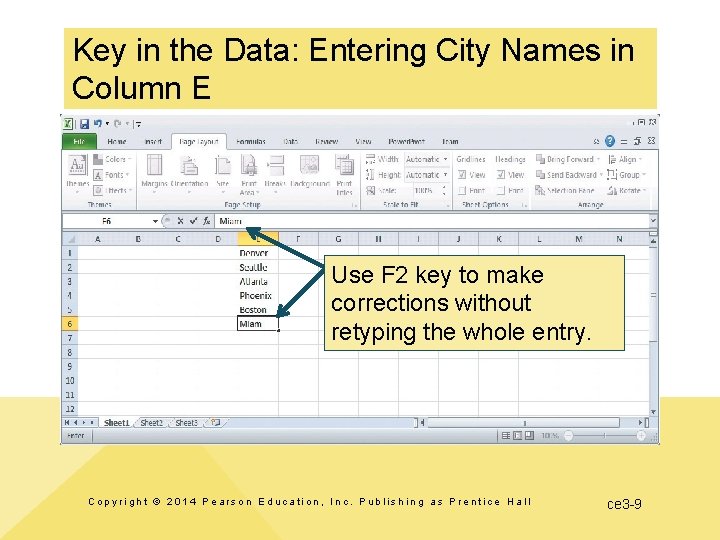
Key in the Data: Entering City Names in Column E Use F 2 key to make corrections without retyping the whole entry. Copyright © 2014 Pearson Education, Inc. Publishing as Prentice Hall ce 3 -9
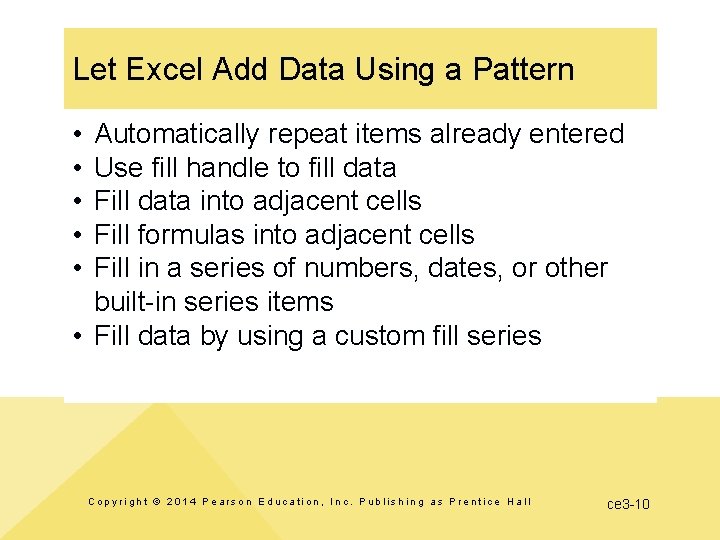
Let Excel Add Data Using a Pattern • • • Automatically repeat items already entered Use fill handle to fill data Fill data into adjacent cells Fill formulas into adjacent cells Fill in a series of numbers, dates, or other built-in series items • Fill data by using a custom fill series Copyright © 2014 Pearson Education, Inc. Publishing as Prentice Hall ce 3 -10
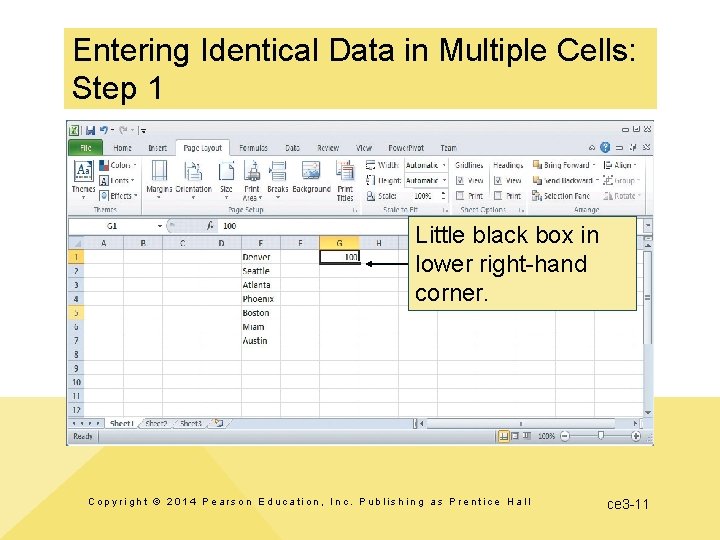
Entering Identical Data in Multiple Cells: Step 1 Little black box in lower right-hand corner. Copyright © 2014 Pearson Education, Inc. Publishing as Prentice Hall ce 3 -11
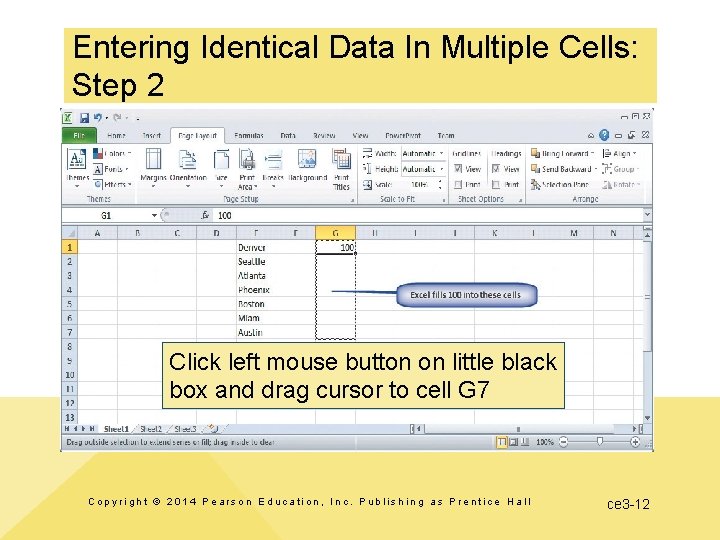
Entering Identical Data In Multiple Cells: Step 2 Click left mouse button on little black box and drag cursor to cell G 7 Copyright © 2014 Pearson Education, Inc. Publishing as Prentice Hall ce 3 -12
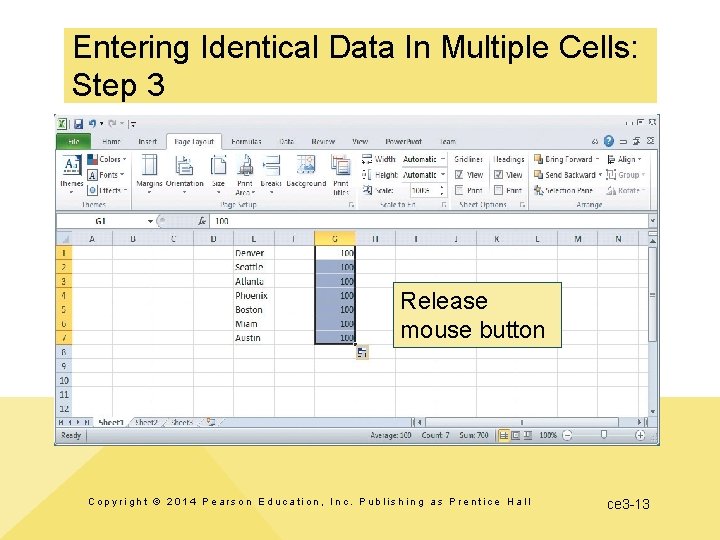
Entering Identical Data In Multiple Cells: Step 3 Release mouse button Copyright © 2014 Pearson Education, Inc. Publishing as Prentice Hall ce 3 -13
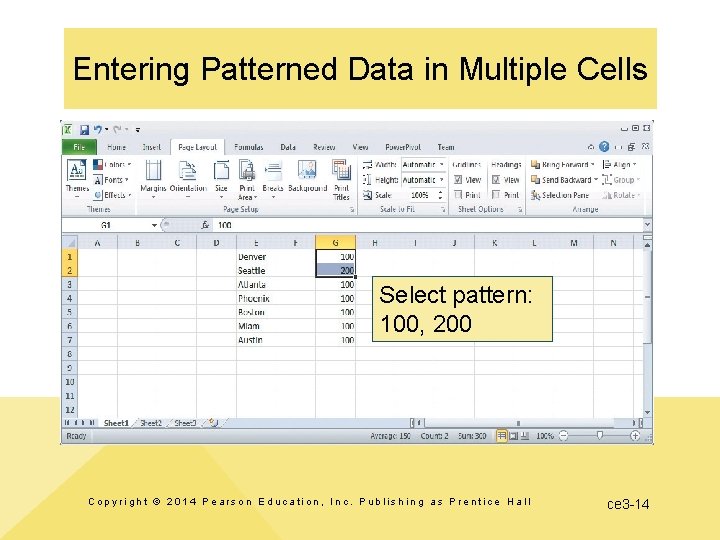
Entering Patterned Data in Multiple Cells Select pattern: 100, 200 Copyright © 2014 Pearson Education, Inc. Publishing as Prentice Hall ce 3 -14
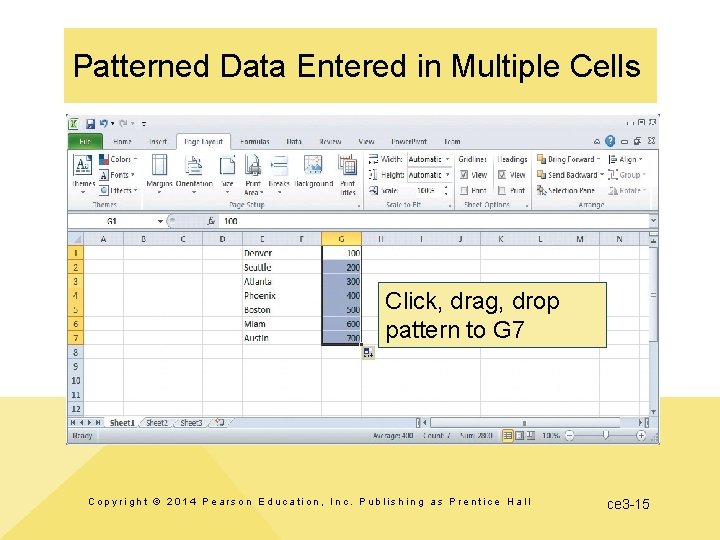
Patterned Data Entered in Multiple Cells Click, drag, drop pattern to G 7 Copyright © 2014 Pearson Education, Inc. Publishing as Prentice Hall ce 3 -15
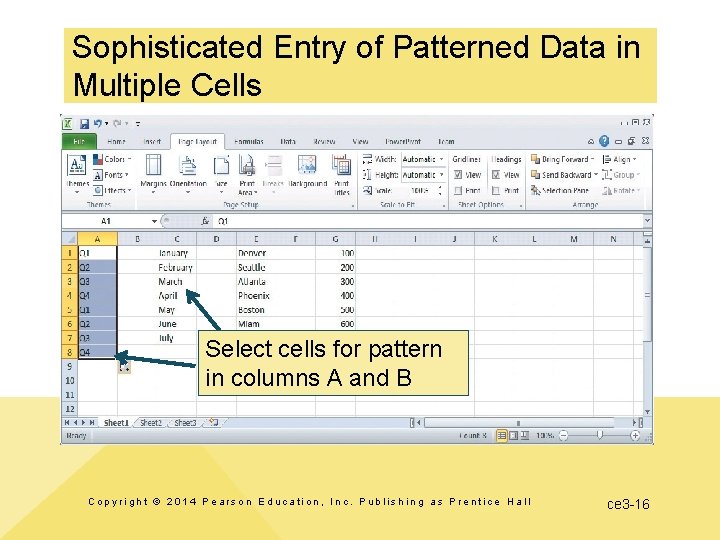
Sophisticated Entry of Patterned Data in Multiple Cells Select cells for pattern in columns A and B Copyright © 2014 Pearson Education, Inc. Publishing as Prentice Hall ce 3 -16
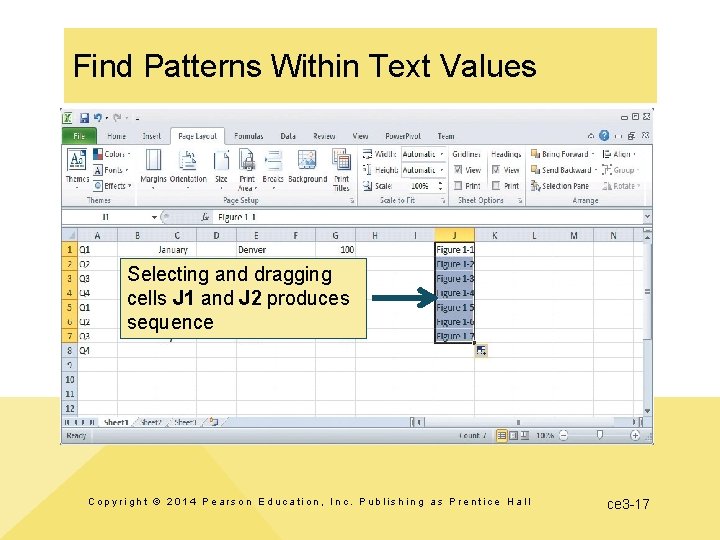
Find Patterns Within Text Values Selecting and dragging cells J 1 and J 2 produces sequence Copyright © 2014 Pearson Education, Inc. Publishing as Prentice Hall ce 3 -17
Q 4: How Can You Insert and Delete Rows and Columns and Change Their Size? • Insert rows – Left click in row number above where new row(s) to be inserted – Right click, select Insert from menu • Delete rows - Delete key • Change row size – Click and hold on bottom of row number (cursor changes to vertical bar) – Drag mouse to desired row height Copyright © 2014 Pearson Education, Inc. Publishing as Prentice Hall ce 3 -18
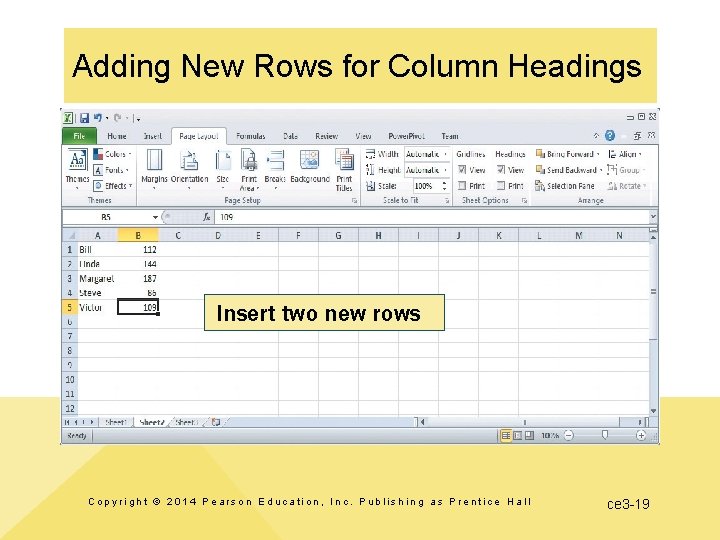
Adding New Rows for Column Headings Insert two new rows Copyright © 2014 Pearson Education, Inc. Publishing as Prentice Hall ce 3 -19
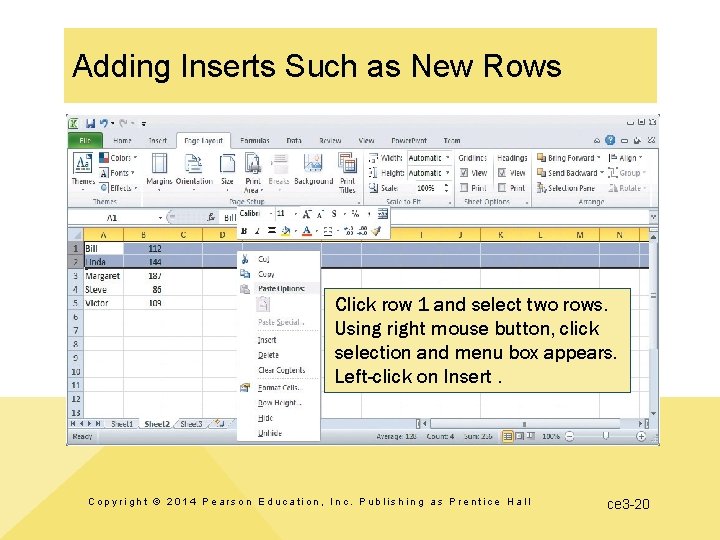
Adding Inserts Such as New Rows Click row 1 and select two rows. Using right mouse button, click selection and menu box appears. Left-click on Insert. Copyright © 2014 Pearson Education, Inc. Publishing as Prentice Hall ce 3 -20
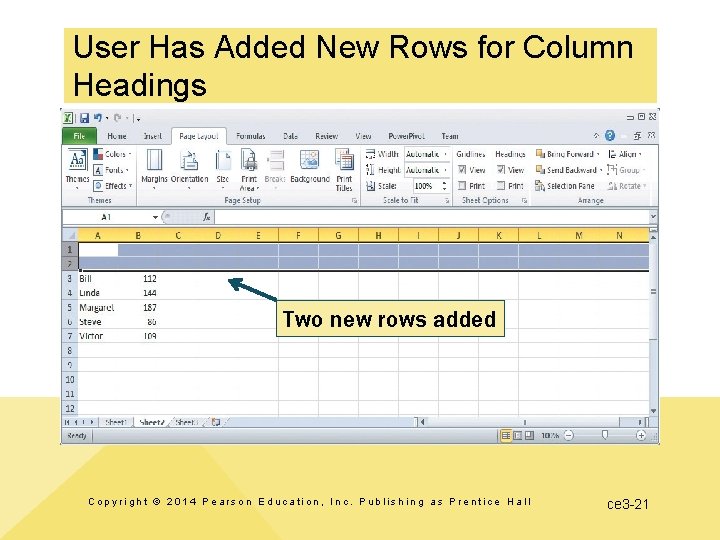
User Has Added New Rows for Column Headings Two new rows added Copyright © 2014 Pearson Education, Inc. Publishing as Prentice Hall ce 3 -21
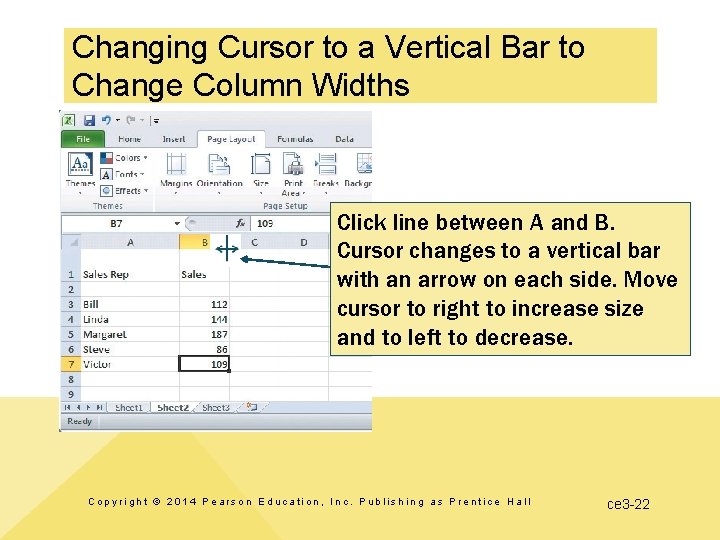
Changing Cursor to a Vertical Bar to Change Column Widths Click line between A and B. Cursor changes to a vertical bar with an arrow on each side. Move cursor to right to increase size and to left to decrease. Copyright © 2014 Pearson Education, Inc. Publishing as Prentice Hall ce 3 -22
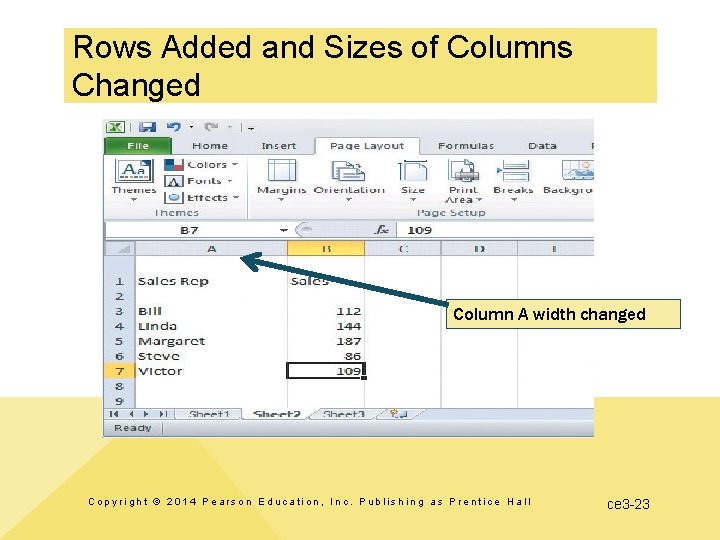
Rows Added and Sizes of Columns Changed Column A width changed Copyright © 2014 Pearson Education, Inc. Publishing as Prentice Hall ce 3 -23
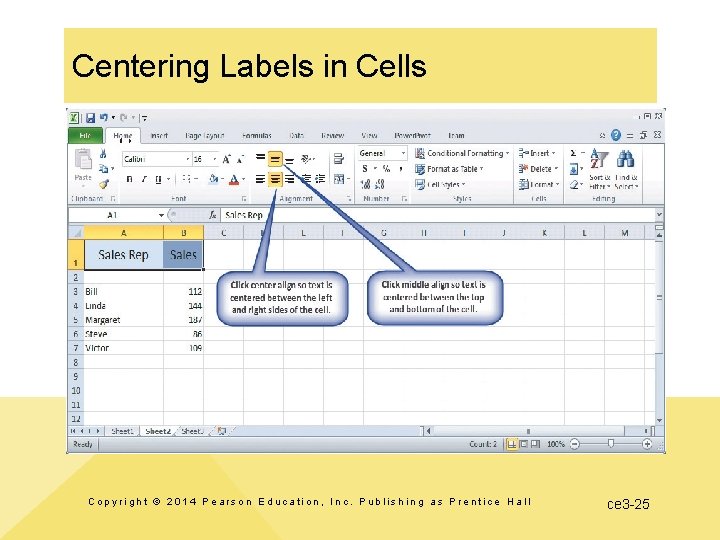
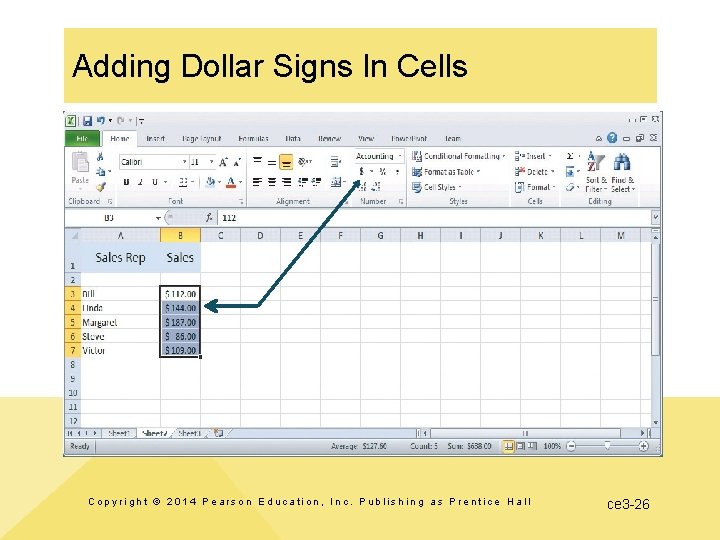
Q 5: How Can You Format Data? • Ribbon options – Alignment (left, center, right) within cell – Font size, style, color – Number style – currency, comma, percentage, number of decimal places – Cell lines and borders Copyright © 2014 Pearson Education, Inc. Publishing as Prentice Hall ce 3 -24
Centering Labels in Cells Copyright © 2014 Pearson Education, Inc. Publishing as Prentice Hall ce 3 -25
Adding Dollar Signs In Cells Copyright © 2014 Pearson Education, Inc. Publishing as Prentice Hall ce 3 -26
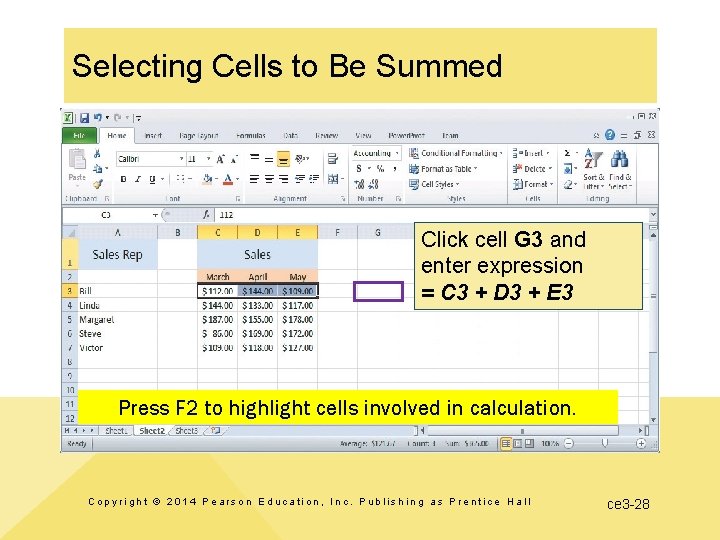
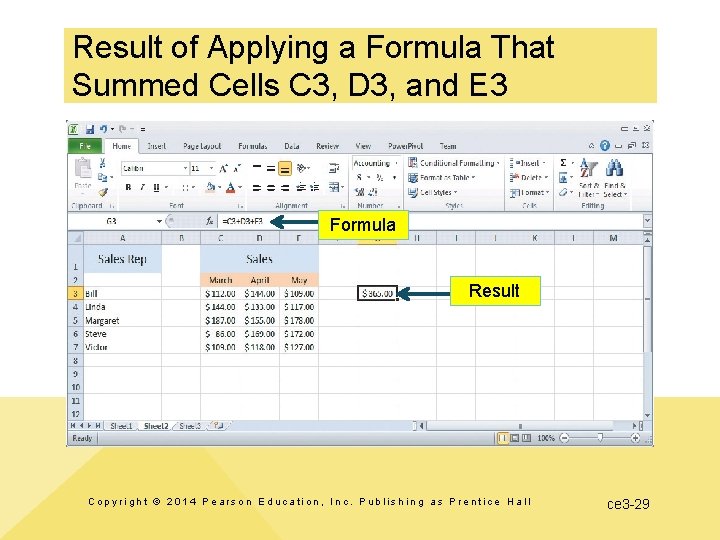
Q 6: How Can You Create a (Simple) Formula? • Formula – Key in: =C 3+D 3+E 3 – Copy and paste formula to other cells – Using built-in function such as SUM Copyright © 2014 Pearson Education, Inc. Publishing as Prentice Hall ce 3 -27
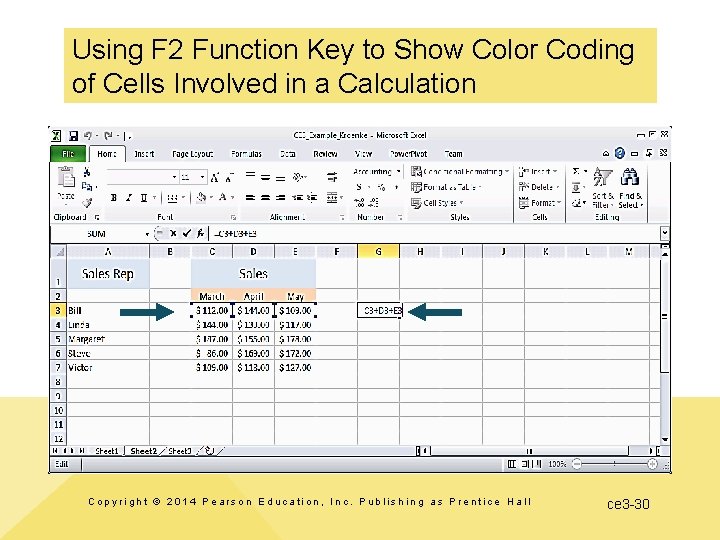
Selecting Cells to Be Summed Click cell G 3 and enter expression = C 3 + D 3 + E 3 Press F 2 to highlight cells involved in calculation. Copyright © 2014 Pearson Education, Inc. Publishing as Prentice Hall ce 3 -28
Result of Applying a Formula That Summed Cells C 3, D 3, and E 3 Formula Result Copyright © 2014 Pearson Education, Inc. Publishing as Prentice Hall ce 3 -29
Using F 2 Function Key to Show Color Coding of Cells Involved in a Calculation Copyright © 2014 Pearson Education, Inc. Publishing as Prentice Hall ce 3 -30
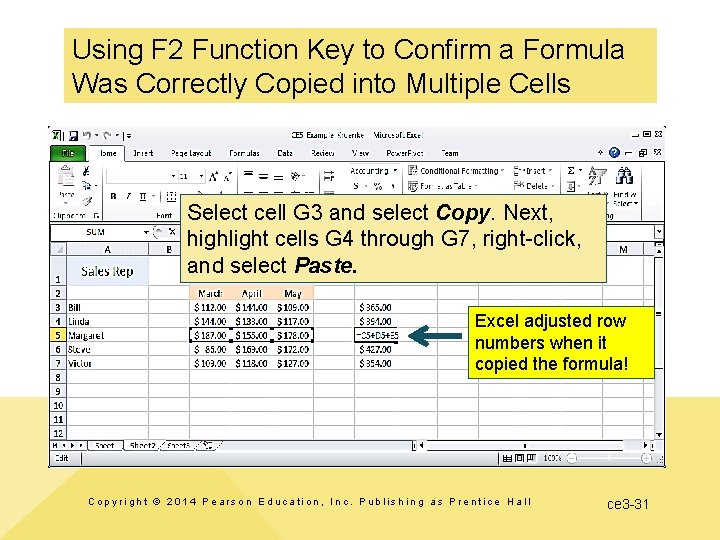
Using F 2 Function Key to Confirm a Formula Was Correctly Copied into Multiple Cells Select cell G 3 and select Copy. Next, highlight cells G 4 through G 7, right-click, and select Paste. Excel adjusted row numbers when it copied the formula! Copyright © 2014 Pearson Education, Inc. Publishing as Prentice Hall ce 3 -31
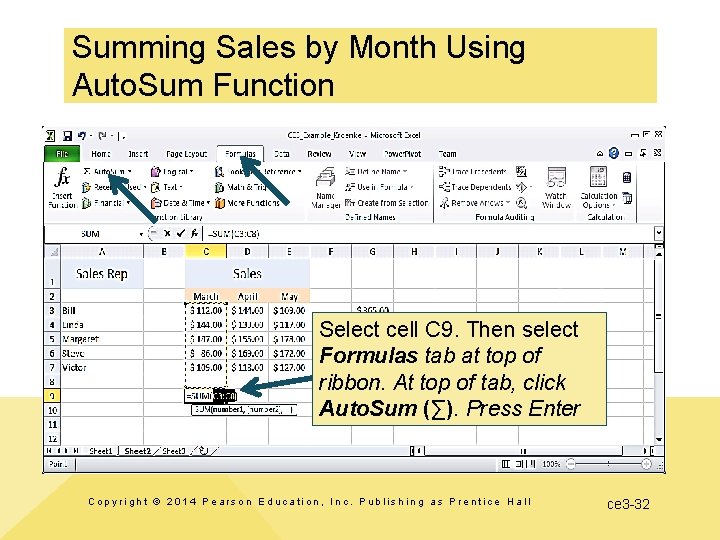
Summing Sales by Month Using Auto. Sum Function Select cell C 9. Then select Formulas tab at top of ribbon. At top of tab, click Auto. Sum (∑). Press Enter Copyright © 2014 Pearson Education, Inc. Publishing as Prentice Hall ce 3 -32
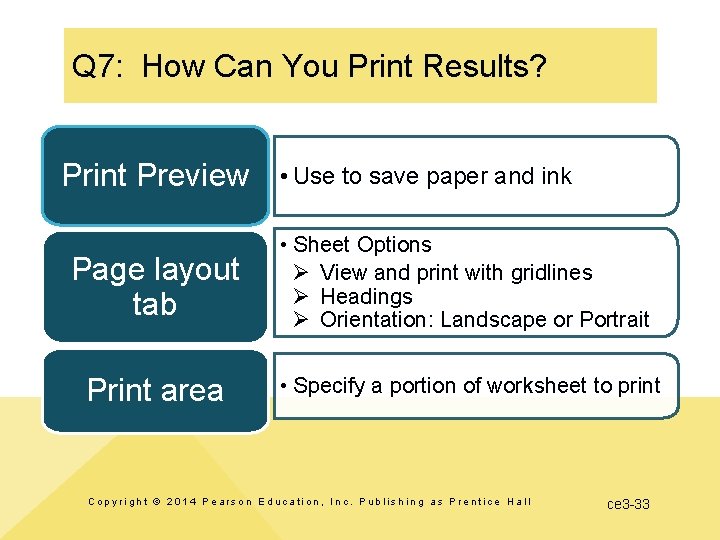
Q 7: How Can You Print Results? Print Preview • Use to save paper and ink Page layout tab • Sheet Options Ø View and print with gridlines Ø Headings Ø Orientation: Landscape or Portrait Print area • Specify a portion of worksheet to print Copyright © 2014 Pearson Education, Inc. Publishing as Prentice Hall ce 3 -33
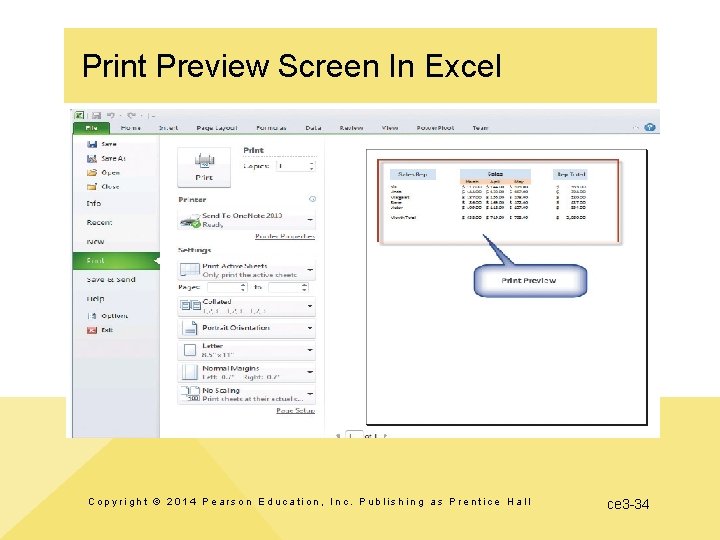
Print Preview Screen In Excel Copyright © 2014 Pearson Education, Inc. Publishing as Prentice Hall ce 3 -34
Active Review Q 1: What is a spreadsheet? Q 2: How do you get started with Excel? Q 3: How can you enter data? Q 4: How can you insert and delete rows and columns and change their size? Q 5: How can you format data? Q 6: How can you create a (simple) formula? Q 7: How can you print results? Copyright © 2014 Pearson Education, Inc. Publishing as Prentice Hall ce 3 -35
ce 3 -36