
Chapter Eight Results Postprocessing Results Postprocessing Chapter Overview
- Slides: 48
Chapter Eight Results Postprocessing
Results Postprocessing Chapter Overview Training Manual – Viewing Results – Scoping Results – Exporting Results – Coordinate Systems & Directional Results – Solution Combinations – Stress Singularities – Error Estimation – Convergence ANSYS Workbench – Simulation • In this chapter, aspects of reviewing results will be covered: • The capabilities described in this section are applicable to all ANSYS licenses, except when noted otherwise March 29, 2005 Inventory #002215 8 -2
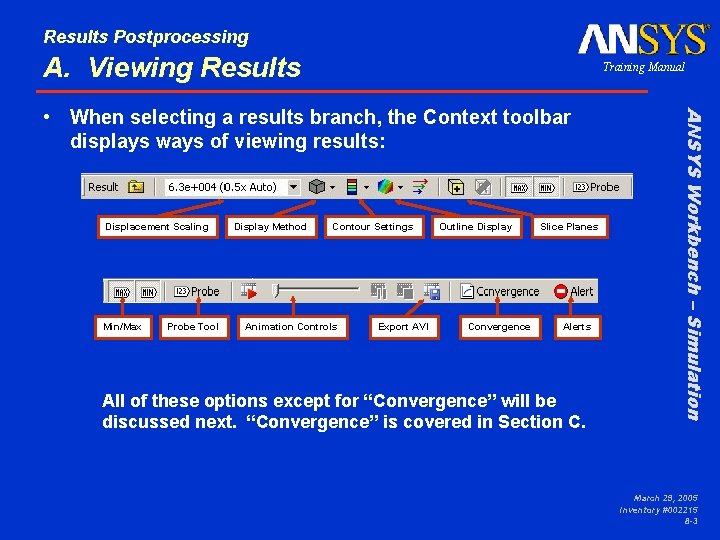
Results Postprocessing A. Viewing Results Training Manual Displacement Scaling Min/Max Probe Tool Display Method Contour Settings Animation Controls Export AVI Outline Display Convergence Slice Planes Alerts All of these options except for “Convergence” will be discussed next. “Convergence” is covered in Section C. ANSYS Workbench – Simulation • When selecting a results branch, the Context toolbar displays ways of viewing results: March 29, 2005 Inventory #002215 8 -3
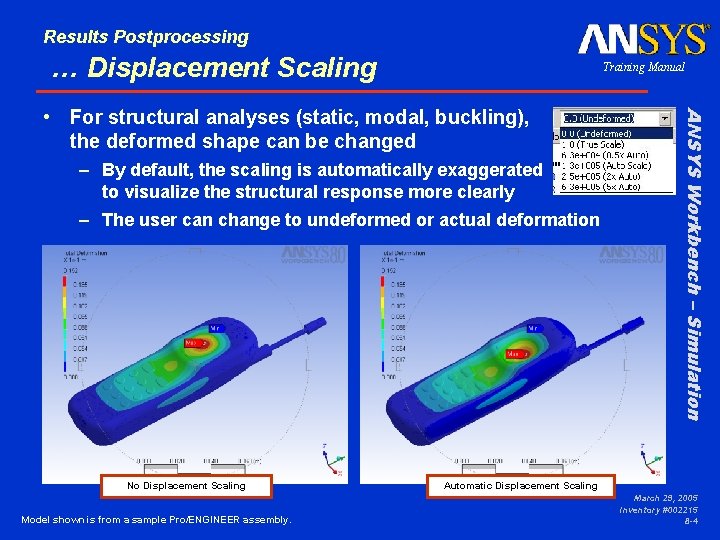
Results Postprocessing … Displacement Scaling Training Manual – By default, the scaling is automatically exaggerated to visualize the structural response more clearly – The user can change to undeformed or actual deformation No Displacement Scaling Model shown is from a sample Pro/ENGINEER assembly. ANSYS Workbench – Simulation • For structural analyses (static, modal, buckling), the deformed shape can be changed Automatic Displacement Scaling March 29, 2005 Inventory #002215 8 -4
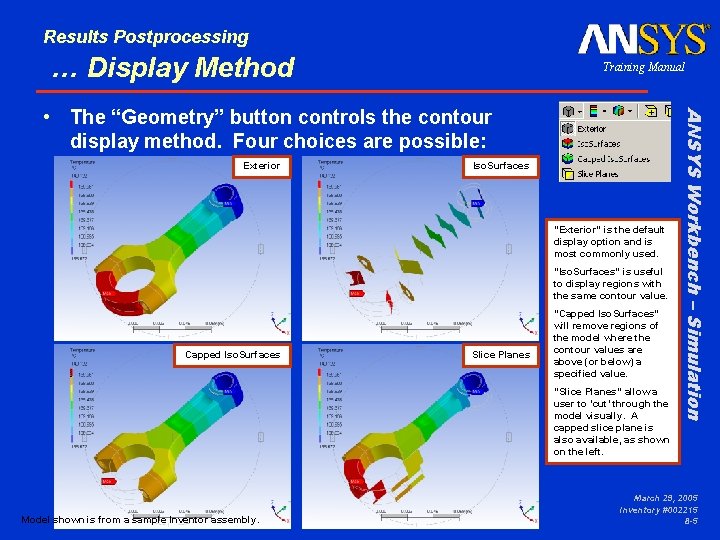
Results Postprocessing … Display Method Training Manual Exterior Iso. Surfaces “Exterior” is the default display option and is most commonly used. “Iso. Surfaces” is useful to display regions with the same contour value. Capped Iso. Surfaces Slice Planes “Capped Iso. Surfaces” will remove regions of the model where the contour values are above (or below) a specified value. “Slice Planes” allow a user to ‘cut’ through the model visually. A capped slice plane is also available, as shown on the left. Model shown is from a sample Inventor assembly. ANSYS Workbench – Simulation • The “Geometry” button controls the contour display method. Four choices are possible: March 29, 2005 Inventory #002215 8 -5
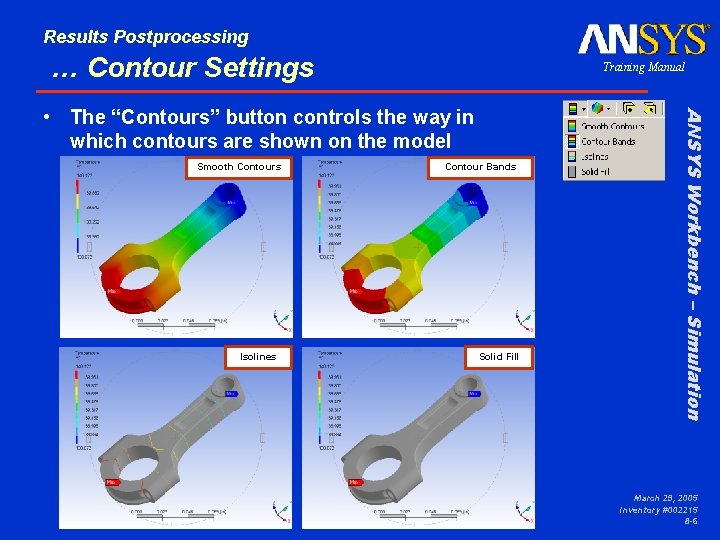
Results Postprocessing … Contour Settings Training Manual Smooth Contours Isolines Contour Bands Solid Fill ANSYS Workbench – Simulation • The “Contours” button controls the way in which contours are shown on the model March 29, 2005 Inventory #002215 8 -6
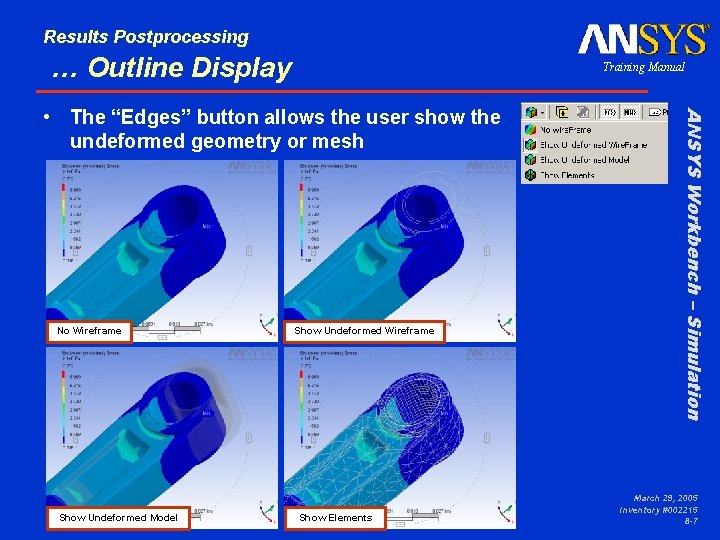
Results Postprocessing … Outline Display Training Manual No Wireframe Show Undeformed Model Show Undeformed Wireframe Show Elements ANSYS Workbench – Simulation • The “Edges” button allows the user show the undeformed geometry or mesh March 29, 2005 Inventory #002215 8 -7
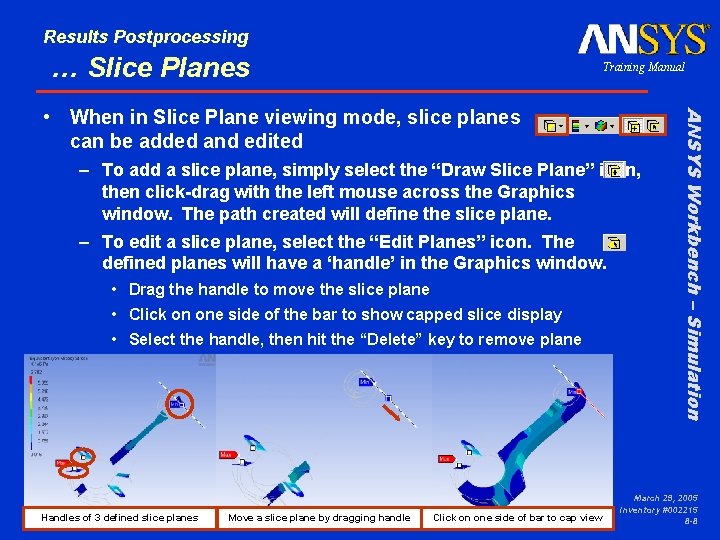
Results Postprocessing … Slice Planes Training Manual – To add a slice plane, simply select the “Draw Slice Plane” icon, then click-drag with the left mouse across the Graphics window. The path created will define the slice plane. – To edit a slice plane, select the “Edit Planes” icon. The defined planes will have a ‘handle’ in the Graphics window. • Drag the handle to move the slice plane • Click on one side of the bar to show capped slice display • Select the handle, then hit the “Delete” key to remove plane Handles of 3 defined slice planes Move a slice plane by dragging handle Click on one side of bar to cap view ANSYS Workbench – Simulation • When in Slice Plane viewing mode, slice planes can be added and edited March 29, 2005 Inventory #002215 8 -8
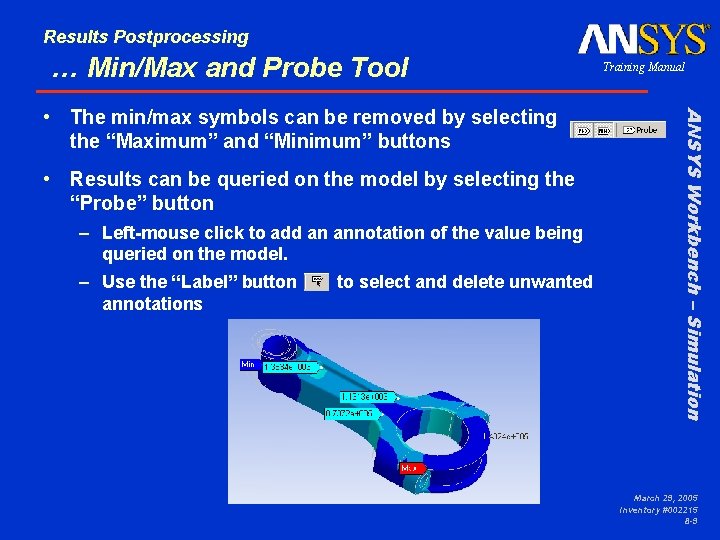
Results Postprocessing … Min/Max and Probe Tool • Results can be queried on the model by selecting the “Probe” button – Left-mouse click to add an annotation of the value being queried on the model. – Use the “Label” button annotations to select and delete unwanted ANSYS Workbench – Simulation • The min/max symbols can be removed by selecting the “Maximum” and “Minimum” buttons Training Manual March 29, 2005 Inventory #002215 8 -9
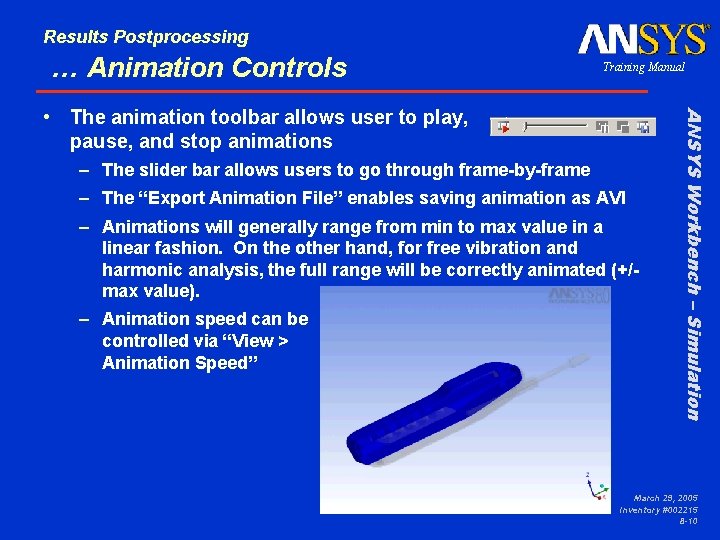
Results Postprocessing … Animation Controls Training Manual – The slider bar allows users to go through frame-by-frame – The “Export Animation File” enables saving animation as AVI – Animations will generally range from min to max value in a linear fashion. On the other hand, for free vibration and harmonic analysis, the full range will be correctly animated (+/max value). – Animation speed can be controlled via “View > Animation Speed” ANSYS Workbench – Simulation • The animation toolbar allows user to play, pause, and stop animations March 29, 2005 Inventory #002215 8 -10
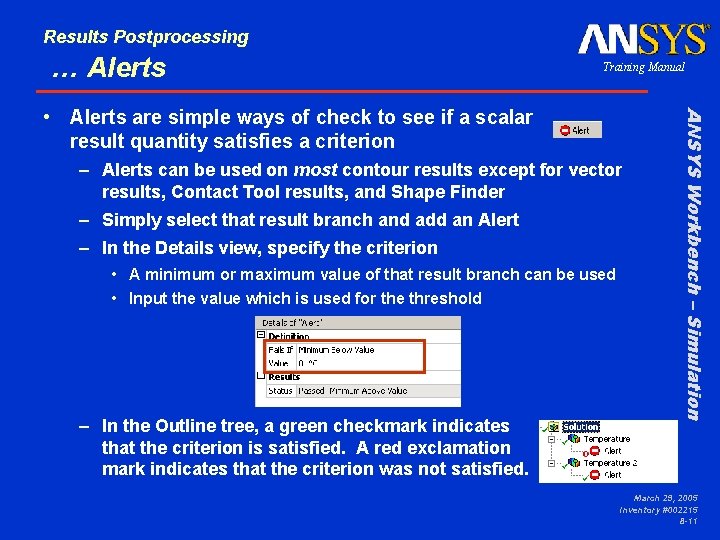
Results Postprocessing … Alerts Training Manual – Alerts can be used on most contour results except for vector results, Contact Tool results, and Shape Finder – Simply select that result branch and add an Alert – In the Details view, specify the criterion • A minimum or maximum value of that result branch can be used • Input the value which is used for the threshold – In the Outline tree, a green checkmark indicates that the criterion is satisfied. A red exclamation mark indicates that the criterion was not satisfied. ANSYS Workbench – Simulation • Alerts are simple ways of check to see if a scalar result quantity satisfies a criterion March 29, 2005 Inventory #002215 8 -11
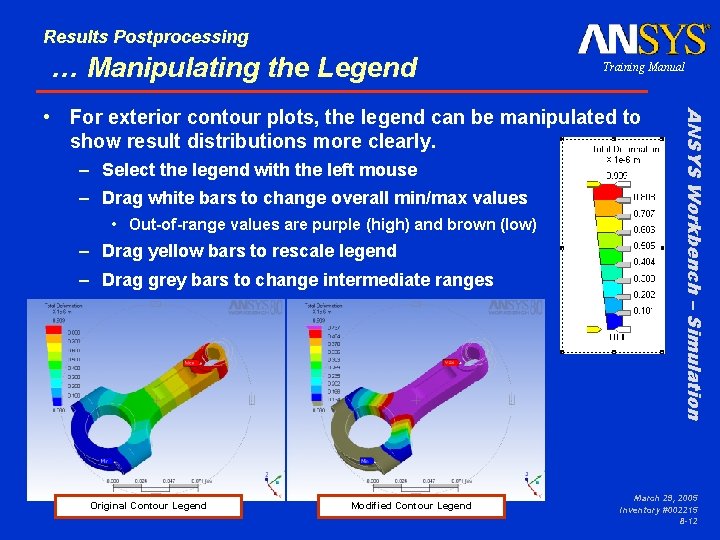
Results Postprocessing … Manipulating the Legend Training Manual – Select the legend with the left mouse – Drag white bars to change overall min/max values • Out-of-range values are purple (high) and brown (low) – Drag yellow bars to rescale legend – Drag grey bars to change intermediate ranges Original Contour Legend Modified Contour Legend ANSYS Workbench – Simulation • For exterior contour plots, the legend can be manipulated to show result distributions more clearly. March 29, 2005 Inventory #002215 8 -12
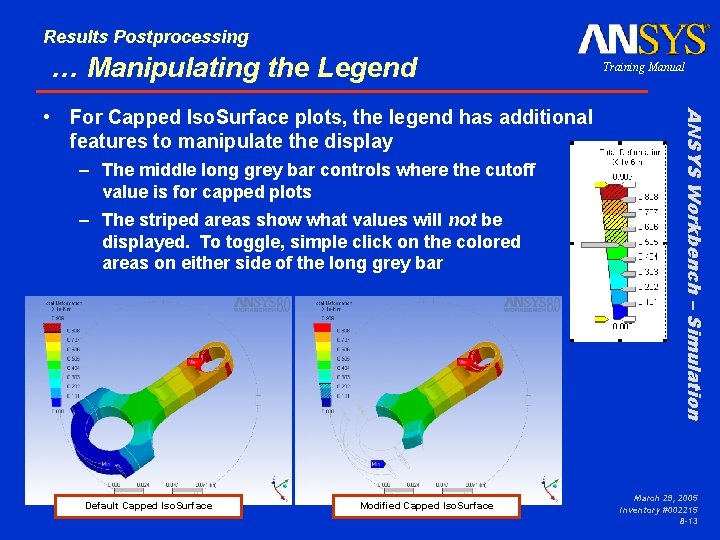
Results Postprocessing … Manipulating the Legend – The middle long grey bar controls where the cutoff value is for capped plots – The striped areas show what values will not be displayed. To toggle, simple click on the colored areas on either side of the long grey bar Default Capped Iso. Surface Modified Capped Iso. Surface ANSYS Workbench – Simulation • For Capped Iso. Surface plots, the legend has additional features to manipulate the display Training Manual March 29, 2005 Inventory #002215 8 -13
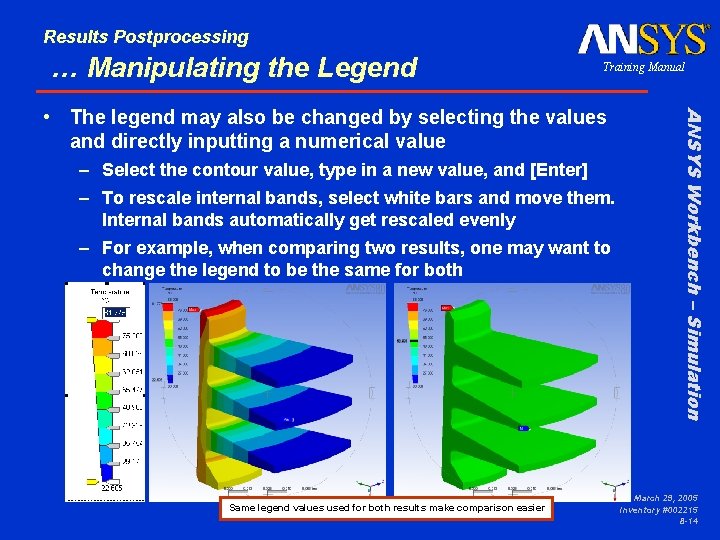
Results Postprocessing … Manipulating the Legend Training Manual – Select the contour value, type in a new value, and [Enter] – To rescale internal bands, select white bars and move them. Internal bands automatically get rescaled evenly – For example, when comparing two results, one may want to change the legend to be the same for both Same legend values used for both results make comparison easier ANSYS Workbench – Simulation • The legend may also be changed by selecting the values and directly inputting a numerical value March 29, 2005 Inventory #002215 8 -14
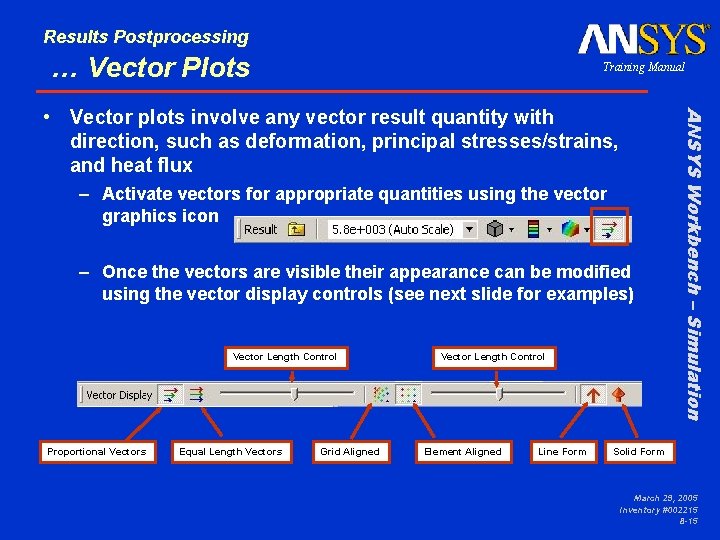
Results Postprocessing … Vector Plots Training Manual – Activate vectors for appropriate quantities using the vector graphics icon – Once the vectors are visible their appearance can be modified using the vector display controls (see next slide for examples) Vector Length Control Proportional Vectors Equal Length Vectors Grid Aligned Vector Length Control Element Aligned Line Form ANSYS Workbench – Simulation • Vector plots involve any vector result quantity with direction, such as deformation, principal stresses/strains, and heat flux Solid Form March 29, 2005 Inventory #002215 8 -15
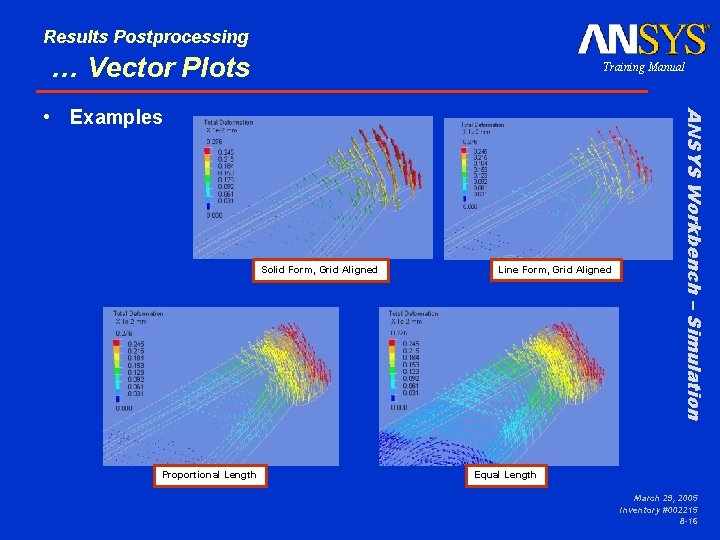
Results Postprocessing … Vector Plots Training Manual Solid Form, Grid Aligned Proportional Length Line Form, Grid Aligned ANSYS Workbench – Simulation • Examples Equal Length March 29, 2005 Inventory #002215 8 -16
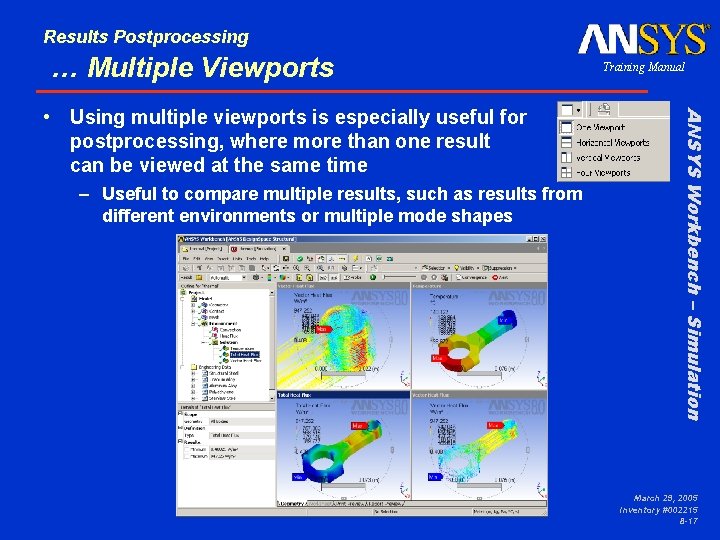
Results Postprocessing … Multiple Viewports – Useful to compare multiple results, such as results from different environments or multiple mode shapes ANSYS Workbench – Simulation • Using multiple viewports is especially useful for postprocessing, where more than one result can be viewed at the same time Training Manual March 29, 2005 Inventory #002215 8 -17
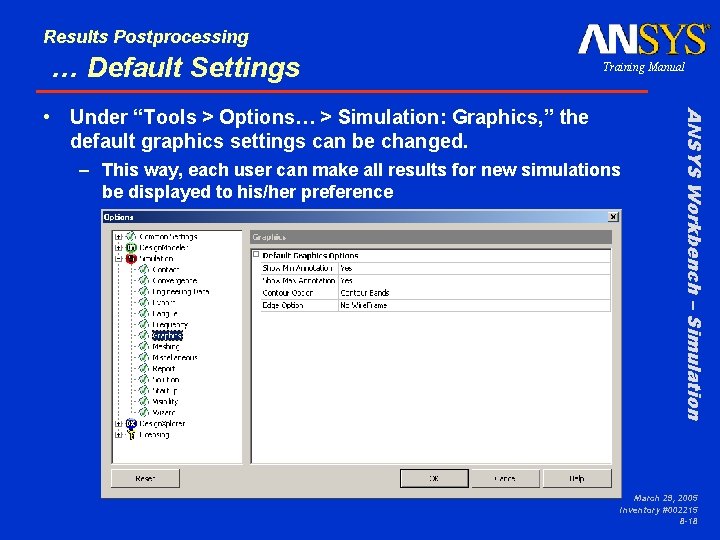
Results Postprocessing … Default Settings Training Manual – This way, each user can make all results for new simulations be displayed to his/her preference ANSYS Workbench – Simulation • Under “Tools > Options… > Simulation: Graphics, ” the default graphics settings can be changed. March 29, 2005 Inventory #002215 8 -18
Results Postprocessing B. Scoping Results Training Manual – Although one can rescale the legend to get a better idea of the result distribution on a certain part or surface, results scoping automatically scales the legend and only shows the applicable surface(s) or part(s), making result viewing easier. – Scoping results on edges produces a path plot, allowing users to see detailed results along selected edges – Results scoping is very useful for convergence controls (discussed later in this chapter) – When using Contact Tool, Simulation automatically scopes contact results to contact regions. • Results scoping can be performed on any result item in the Solution branch for any type of geometric quantity. ANSYS Workbench – Simulation • Sometimes, limiting the display of results is useful when postprocessing March 29, 2005 Inventory #002215 8 -19
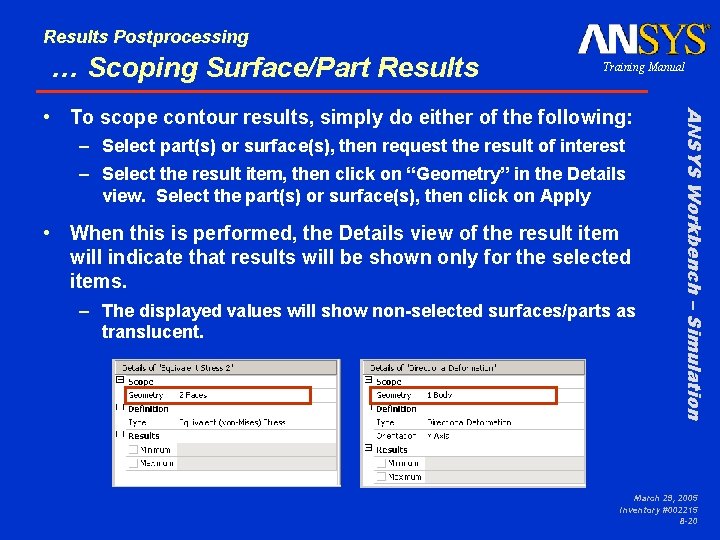
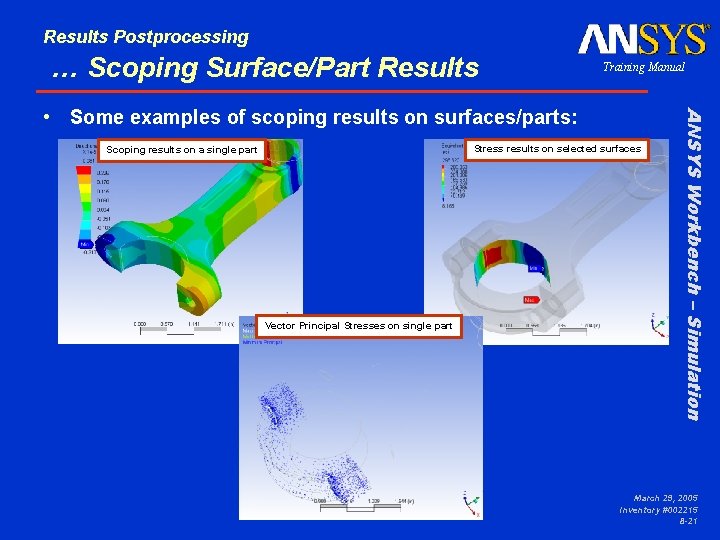
Results Postprocessing … Scoping Surface/Part Results Training Manual – Select part(s) or surface(s), then request the result of interest – Select the result item, then click on “Geometry” in the Details view. Select the part(s) or surface(s), then click on Apply • When this is performed, the Details view of the result item will indicate that results will be shown only for the selected items. – The displayed values will show non-selected surfaces/parts as translucent. ANSYS Workbench – Simulation • To scope contour results, simply do either of the following: March 29, 2005 Inventory #002215 8 -20
Results Postprocessing … Scoping Surface/Part Results Training Manual Stress results on selected surfaces Scoping results on a single part Vector Principal Stresses on single part ANSYS Workbench – Simulation • Some examples of scoping results on surfaces/parts: March 29, 2005 Inventory #002215 8 -21
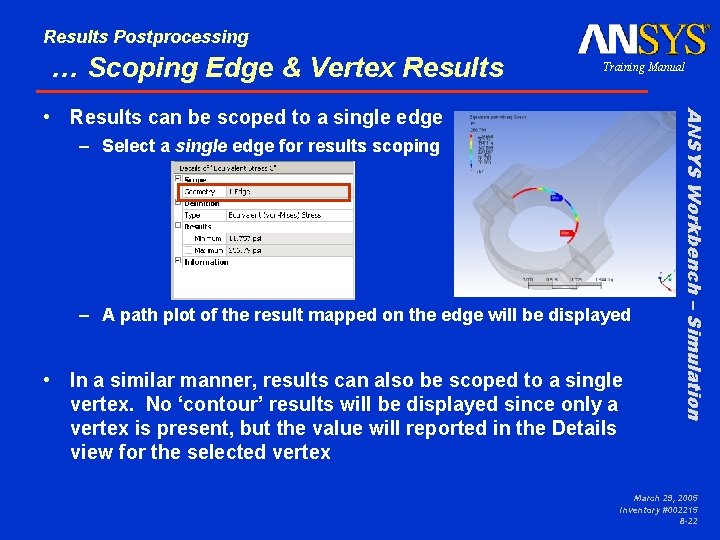
Results Postprocessing … Scoping Edge & Vertex Results Training Manual – Select a single edge for results scoping – A path plot of the result mapped on the edge will be displayed • In a similar manner, results can also be scoped to a single vertex. No ‘contour’ results will be displayed since only a vertex is present, but the value will reported in the Details view for the selected vertex ANSYS Workbench – Simulation • Results can be scoped to a single edge March 29, 2005 Inventory #002215 8 -22
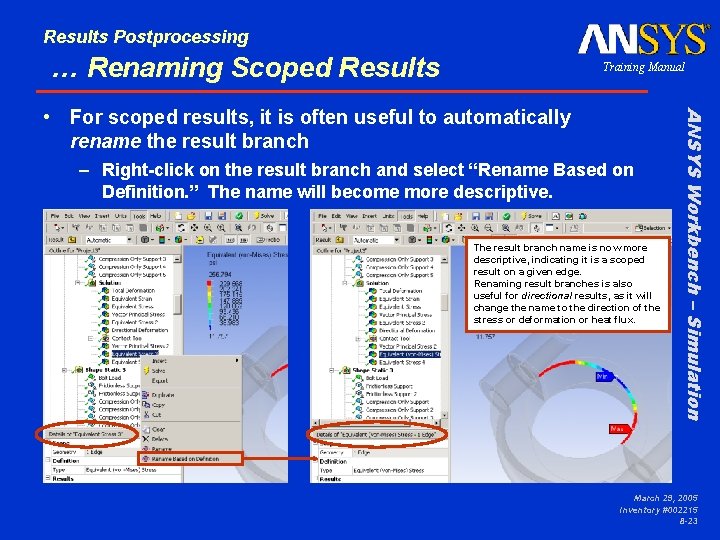
Results Postprocessing … Renaming Scoped Results Training Manual – Right-click on the result branch and select “Rename Based on Definition. ” The name will become more descriptive. The result branch name is now more descriptive, indicating it is a scoped result on a given edge. Renaming result branches is also useful for directional results, as it will change the name to the direction of the stress or deformation or heat flux. ANSYS Workbench – Simulation • For scoped results, it is often useful to automatically rename the result branch March 29, 2005 Inventory #002215 8 -23
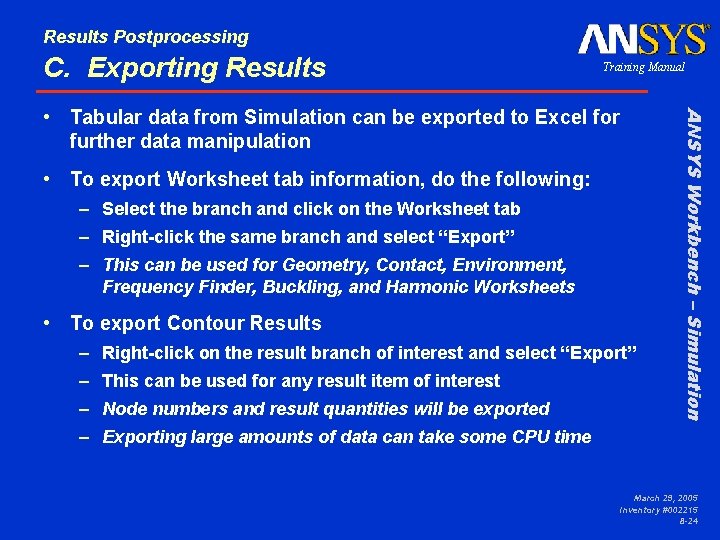
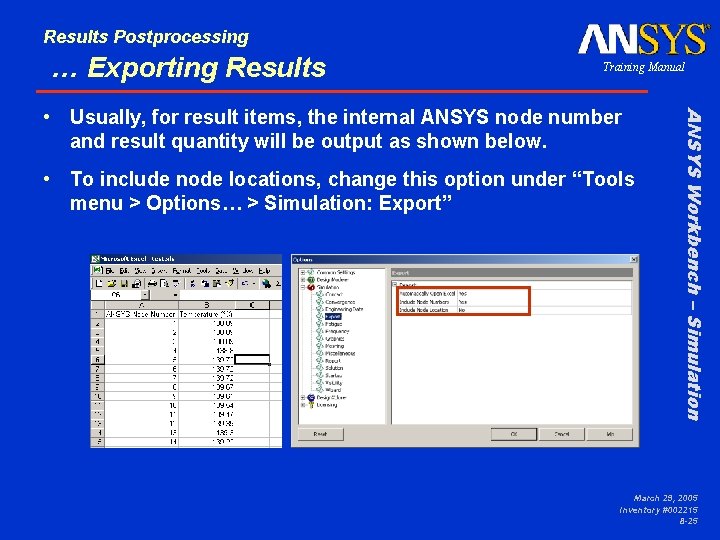
Results Postprocessing C. Exporting Results Training Manual • To export Worksheet tab information, do the following: – Select the branch and click on the Worksheet tab – Right-click the same branch and select “Export” – This can be used for Geometry, Contact, Environment, Frequency Finder, Buckling, and Harmonic Worksheets • To export Contour Results – Right-click on the result branch of interest and select “Export” – This can be used for any result item of interest – Node numbers and result quantities will be exported ANSYS Workbench – Simulation • Tabular data from Simulation can be exported to Excel for further data manipulation – Exporting large amounts of data can take some CPU time March 29, 2005 Inventory #002215 8 -24
Results Postprocessing … Exporting Results Training Manual • To include node locations, change this option under “Tools menu > Options… > Simulation: Export” ANSYS Workbench – Simulation • Usually, for result items, the internal ANSYS node number and result quantity will be output as shown below. March 29, 2005 Inventory #002215 8 -25
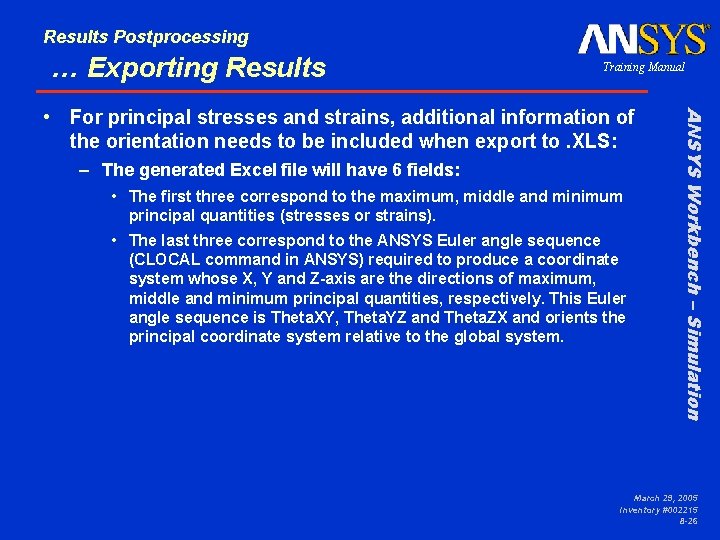
Results Postprocessing … Exporting Results Training Manual – The generated Excel file will have 6 fields: • The first three correspond to the maximum, middle and minimum principal quantities (stresses or strains). • The last three correspond to the ANSYS Euler angle sequence (CLOCAL command in ANSYS) required to produce a coordinate system whose X, Y and Z-axis are the directions of maximum, middle and minimum principal quantities, respectively. This Euler angle sequence is Theta. XY, Theta. YZ and Theta. ZX and orients the principal coordinate system relative to the global system. ANSYS Workbench – Simulation • For principal stresses and strains, additional information of the orientation needs to be included when export to. XLS: March 29, 2005 Inventory #002215 8 -26
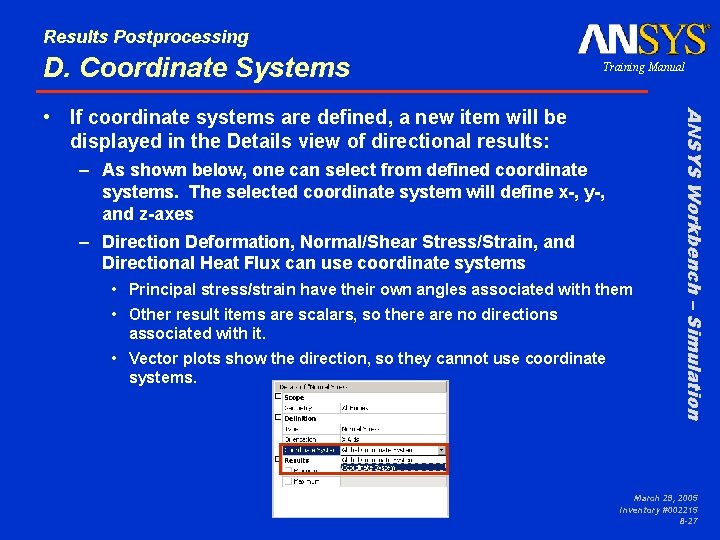
Results Postprocessing D. Coordinate Systems Training Manual – As shown below, one can select from defined coordinate systems. The selected coordinate system will define x-, y-, and z-axes – Direction Deformation, Normal/Shear Stress/Strain, and Directional Heat Flux can use coordinate systems • Principal stress/strain have their own angles associated with them • Other result items are scalars, so there are no directions associated with it. • Vector plots show the direction, so they cannot use coordinate systems. ANSYS Workbench – Simulation • If coordinate systems are defined, a new item will be displayed in the Details view of directional results: March 29, 2005 Inventory #002215 8 -27
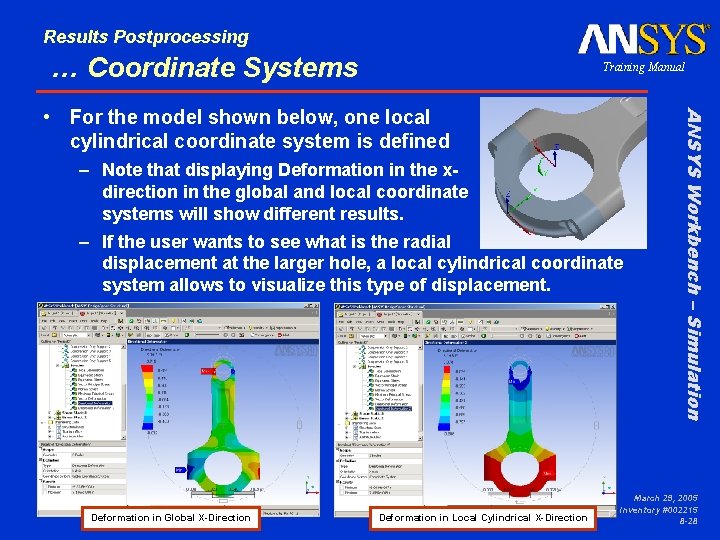
Results Postprocessing … Coordinate Systems Training Manual – Note that displaying Deformation in the xdirection in the global and local coordinate systems will show different results. – If the user wants to see what is the radial displacement at the larger hole, a local cylindrical coordinate system allows to visualize this type of displacement. Deformation in Global X-Direction Deformation in Local Cylindrical X-Direction ANSYS Workbench – Simulation • For the model shown below, one local cylindrical coordinate system is defined March 29, 2005 Inventory #002215 8 -28
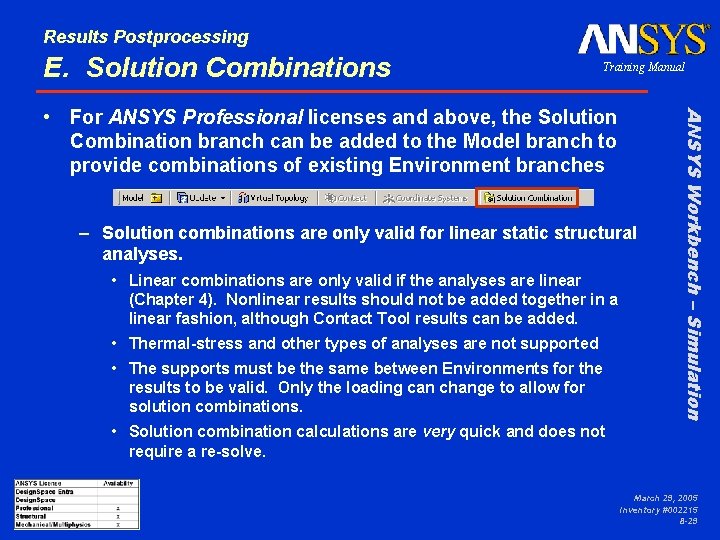
Results Postprocessing E. Solution Combinations Training Manual – Solution combinations are only valid for linear static structural analyses. • Linear combinations are only valid if the analyses are linear (Chapter 4). Nonlinear results should not be added together in a linear fashion, although Contact Tool results can be added. • Thermal-stress and other types of analyses are not supported • The supports must be the same between Environments for the results to be valid. Only the loading can change to allow for solution combinations. ANSYS Workbench – Simulation • For ANSYS Professional licenses and above, the Solution Combination branch can be added to the Model branch to provide combinations of existing Environment branches • Solution combination calculations are very quick and does not require a re-solve. March 29, 2005 Inventory #002215 8 -29
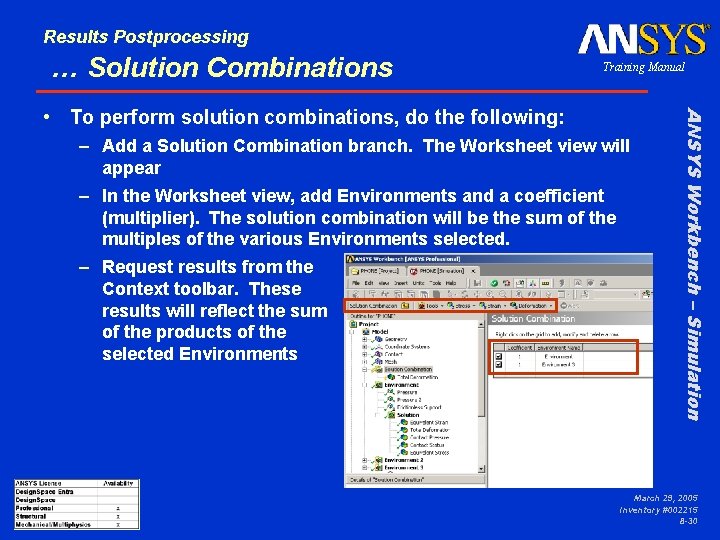
Results Postprocessing … Solution Combinations Training Manual – Add a Solution Combination branch. The Worksheet view will appear – In the Worksheet view, add Environments and a coefficient (multiplier). The solution combination will be the sum of the multiples of the various Environments selected. – Request results from the Context toolbar. These results will reflect the sum of the products of the selected Environments ANSYS Workbench – Simulation • To perform solution combinations, do the following: March 29, 2005 Inventory #002215 8 -30
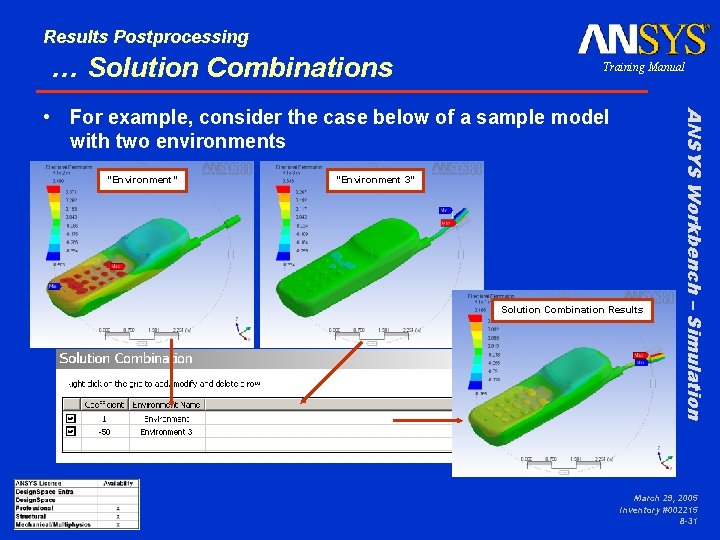
Results Postprocessing … Solution Combinations Training Manual “Environment” “Environment 3” Solution Combination Results ANSYS Workbench – Simulation • For example, consider the case below of a sample model with two environments March 29, 2005 Inventory #002215 8 -31
Results Postprocessing … Solution Combinations Training Manual • By using the Solution Combination branch, a linear combination of solutions can be solved for very quickly without having to perform another separate solution. • Multiple Solution Combination branches may be added, as needed. ANSYS Workbench – Simulation • Use of solution combinations allows the user to solve different environments, thereby considering the effect of different loads separately. March 29, 2005 Inventory #002215 8 -32
Results Postprocessing F. Stress Singularities Training Manual – Quantities directly solved for (degrees of freedom) such as displacements and temperatures, converge without problems – Derived quantities, such as stresses, strains, and heat flux, should also converge as the mesh is refined, but not as fast or smooth as DOF since these are derived from the DOF solution – In some cases, however, derived quantities such as stresses and heat flux will not converge as the mesh is refined. These are situations where these values are artificially high. This section will discuss situations where derived solution quantities are artificially high. • In thermal analyses, since temperature is the main quantity of interest, the discussion in this section will focus on stresses instead, not heat flux. ANSYS Workbench – Simulation • In any finite-element analysis, one seeks to balance accuracy and computational cost. As the mesh is refined, one expects to get mathematically more precise results. March 29, 2005 Inventory #002215 8 -33
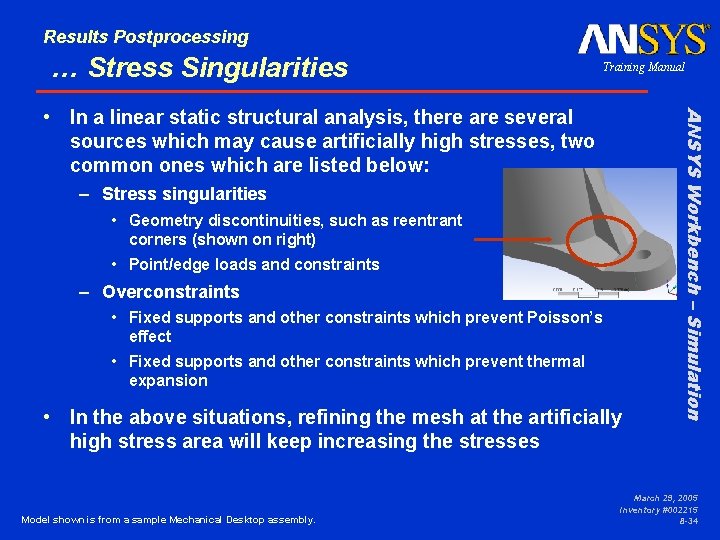
Results Postprocessing … Stress Singularities Training Manual – Stress singularities • Geometry discontinuities, such as reentrant corners (shown on right) • Point/edge loads and constraints – Overconstraints • Fixed supports and other constraints which prevent Poisson’s effect • Fixed supports and other constraints which prevent thermal expansion • In the above situations, refining the mesh at the artificially high stress area will keep increasing the stresses Model shown is from a sample Mechanical Desktop assembly. ANSYS Workbench – Simulation • In a linear static structural analysis, there are several sources which may cause artificially high stresses, two common ones which are listed below: March 29, 2005 Inventory #002215 8 -34
Results Postprocessing … Stress Singularities Training Manual If the area of artificially high stresses is not an area of interest, one can usually scope results only on part(s) or surface(s) of interest instead • If the area of artificially high stresses is of interest, there are several ways to obtain more accurate stress results: – Stress singularities • Model geometry with fillets or other details which do not cause geometric discontinuities since some form of these (albeit small) would exist in the actual system • Point loads and constraints should only be used on line bodies. For solid bodies, every load/constraint has a finite area on which it is applied, so these should be applied on areas rather than vertices – Overconstraints • A Fixed Support is an idealization, and modeling the constraint properly may be required (possibly including the geometry on which the part is connected) – Although the above are some suggestions, these usually involve additional effort or more nodes/elements, so it is up to the user to review the results and understand if and why stresses may be artificially high. ANSYS Workbench – Simulation • March 29, 2005 Inventory #002215 8 -35
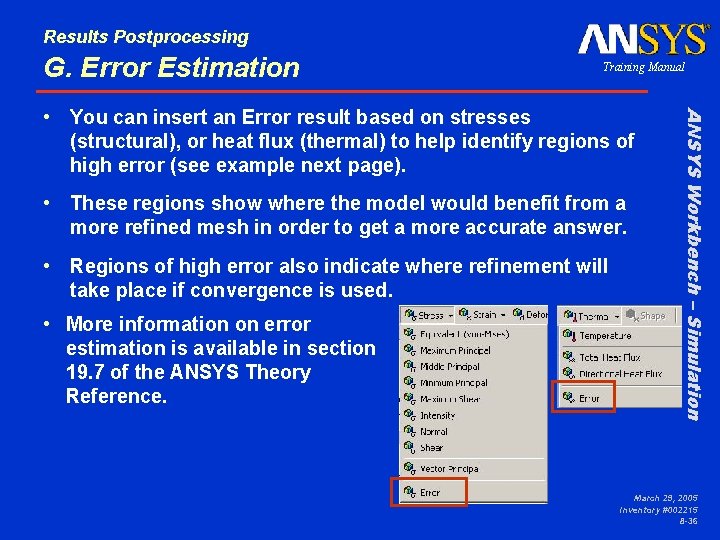
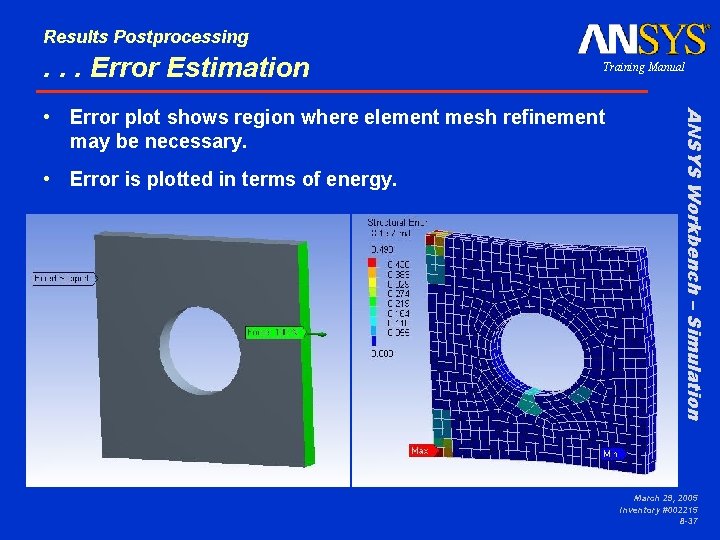
Results Postprocessing G. Error Estimation Training Manual • These regions show where the model would benefit from a more refined mesh in order to get a more accurate answer. • Regions of high error also indicate where refinement will take place if convergence is used. • More information on error estimation is available in section 19. 7 of the ANSYS Theory Reference. ANSYS Workbench – Simulation • You can insert an Error result based on stresses (structural), or heat flux (thermal) to help identify regions of high error (see example next page). March 29, 2005 Inventory #002215 8 -36
Results Postprocessing . . . Error Estimation Training Manual • Error is plotted in terms of energy. ANSYS Workbench – Simulation • Error plot shows region where element mesh refinement may be necessary. March 29, 2005 Inventory #002215 8 -37
Results Postprocessing H. Convergence Training Manual • Obtaining an optimal mesh requires the following: – Having criteria to determine if a mesh is adequate – Investing more elements only where needed • Performing these tasks manually is cumbersome and inexact – The user would have to manually refine the mesh, resolve, and compare results with previous solutions. • Simulation has convergence controls to automate adaptive mesh refinement to a user-specified level of accuracy ANSYS Workbench – Simulation • As noted earlier, as the mesh is refined, the mathematical model becomes more accurate. However, there is computational cost associated with a finer mesh. March 29, 2005 Inventory #002215 8 -38
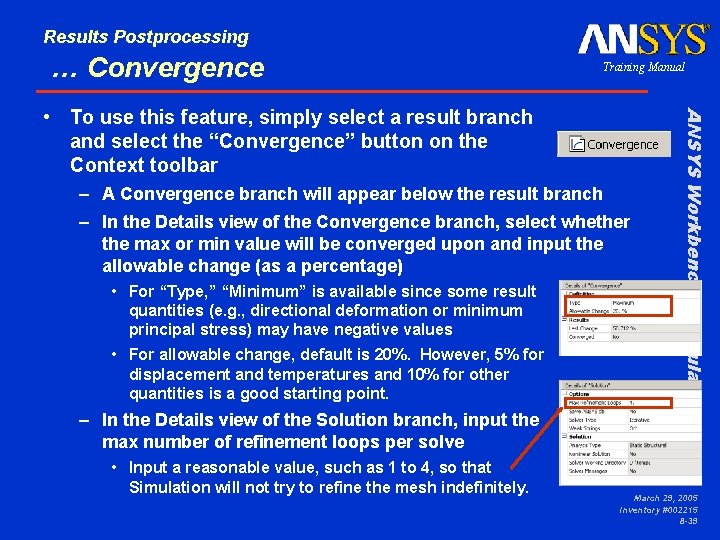
Results Postprocessing … Convergence Training Manual – A Convergence branch will appear below the result branch – In the Details view of the Convergence branch, select whether the max or min value will be converged upon and input the allowable change (as a percentage) • For “Type, ” “Minimum” is available since some result quantities (e. g. , directional deformation or minimum principal stress) may have negative values • For allowable change, default is 20%. However, 5% for displacement and temperatures and 10% for other quantities is a good starting point. – In the Details view of the Solution branch, input the max number of refinement loops per solve • Input a reasonable value, such as 1 to 4, so that Simulation will not try to refine the mesh indefinitely. ANSYS Workbench – Simulation • To use this feature, simply select a result branch and select the “Convergence” button on the Context toolbar March 29, 2005 Inventory #002215 8 -39
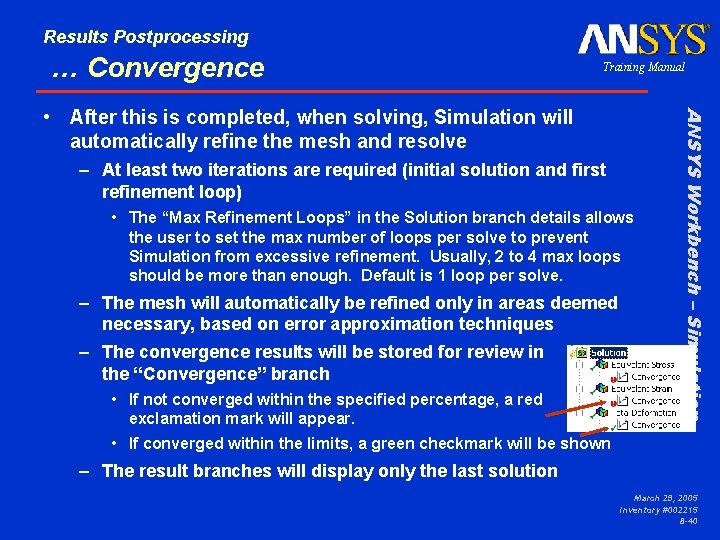
Results Postprocessing … Convergence Training Manual – At least two iterations are required (initial solution and first refinement loop) • The “Max Refinement Loops” in the Solution branch details allows the user to set the max number of loops per solve to prevent Simulation from excessive refinement. Usually, 2 to 4 max loops should be more than enough. Default is 1 loop per solve. – The mesh will automatically be refined only in areas deemed necessary, based on error approximation techniques – The convergence results will be stored for review in the “Convergence” branch • If not converged within the specified percentage, a red exclamation mark will appear. ANSYS Workbench – Simulation • After this is completed, when solving, Simulation will automatically refine the mesh and resolve • If converged within the limits, a green checkmark will be shown – The result branches will display only the last solution March 29, 2005 Inventory #002215 8 -40
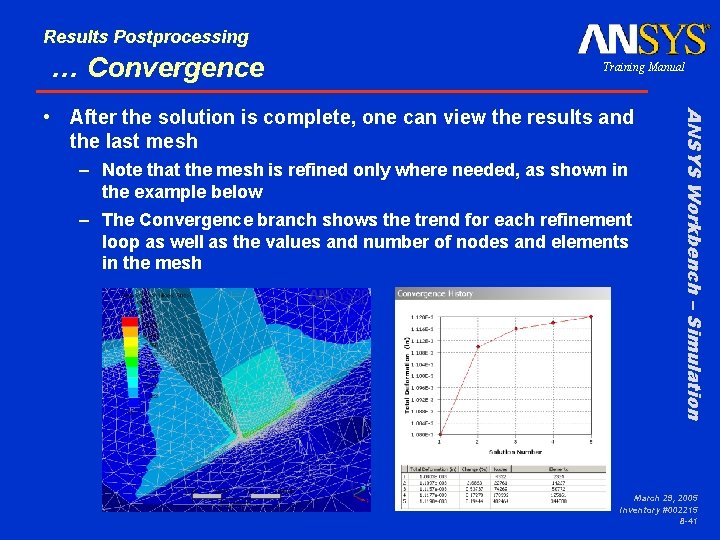
Results Postprocessing … Convergence Training Manual – Note that the mesh is refined only where needed, as shown in the example below – The Convergence branch shows the trend for each refinement loop as well as the values and number of nodes and elements in the mesh ANSYS Workbench – Simulation • After the solution is complete, one can view the results and the last mesh March 29, 2005 Inventory #002215 8 -41
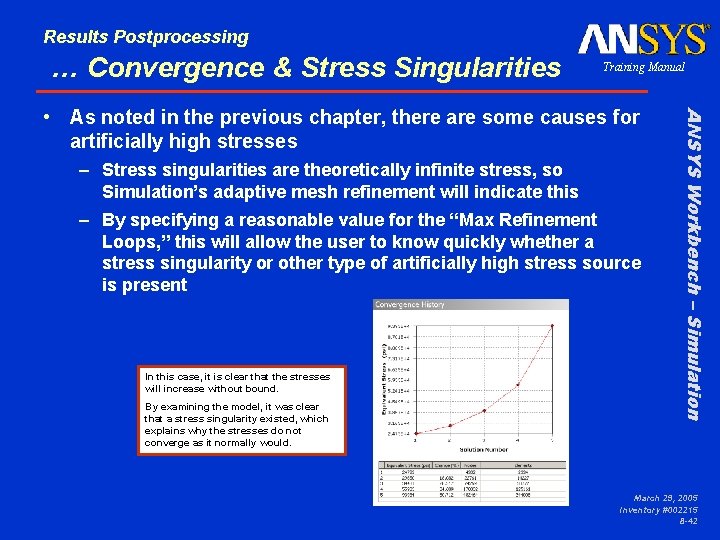
Results Postprocessing … Convergence & Stress Singularities Training Manual – Stress singularities are theoretically infinite stress, so Simulation’s adaptive mesh refinement will indicate this – By specifying a reasonable value for the “Max Refinement Loops, ” this will allow the user to know quickly whether a stress singularity or other type of artificially high stress source is present In this case, it is clear that the stresses will increase without bound. By examining the model, it was clear that a stress singularity existed, which explains why the stresses do not converge as it normally would. ANSYS Workbench – Simulation • As noted in the previous chapter, there are some causes for artificially high stresses March 29, 2005 Inventory #002215 8 -42
Results Postprocessing … Convergence & Scoping Training Manual – If the artificially high stress region is not of interest, one can scope results on selected part(s) or surface(s) and add convergence controls to those results only. • This provides the user with control on where to perform mesh refinement • This also allows the user to ignore areas of artificially high stresses which are not of interest ANSYS Workbench – Simulation • Besides adding details to get rid of stress singularities, one can also converge on scoped results. March 29, 2005 Inventory #002215 8 -43
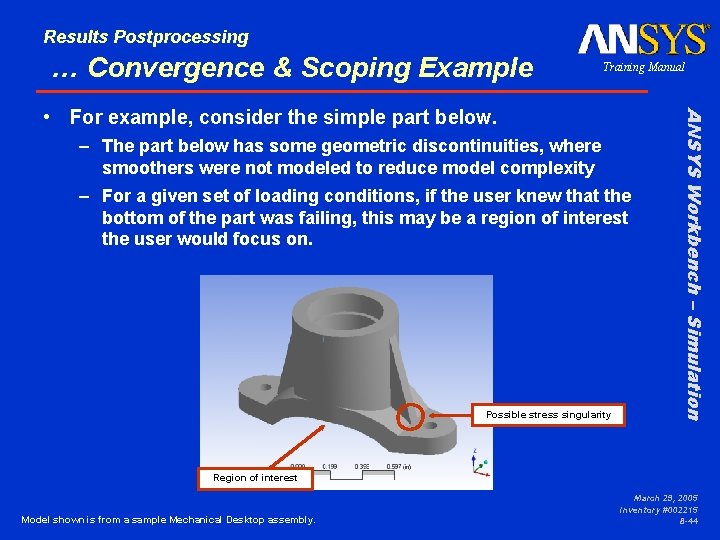
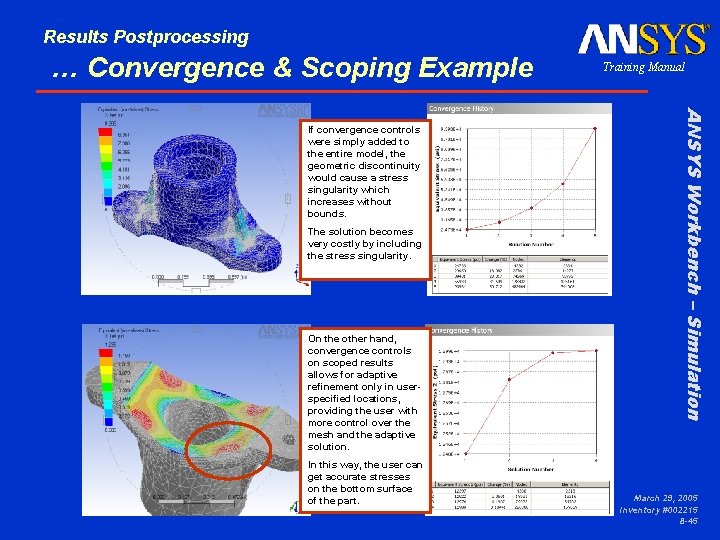
Results Postprocessing … Convergence & Scoping Example Training Manual – The part below has some geometric discontinuities, where smoothers were not modeled to reduce model complexity – For a given set of loading conditions, if the user knew that the bottom of the part was failing, this may be a region of interest the user would focus on. Possible stress singularity ANSYS Workbench – Simulation • For example, consider the simple part below. Region of interest Model shown is from a sample Mechanical Desktop assembly. March 29, 2005 Inventory #002215 8 -44
Results Postprocessing … Convergence & Scoping Example The solution becomes very costly by including the stress singularity. On the other hand, convergence controls on scoped results allows for adaptive refinement only in userspecified locations, providing the user with more control over the mesh and the adaptive solution. In this way, the user can get accurate stresses on the bottom surface of the part. ANSYS Workbench – Simulation If convergence controls were simply added to the entire model, the geometric discontinuity would cause a stress singularity which increases without bounds. Training Manual March 29, 2005 Inventory #002215 8 -45
Results Postprocessing … Results Not Used with Convergence – Any type of vector result – Contact Tool results – Frequency Finder stress/strain results – Buckling stress/strain results – Harmonic analysis results – Shape Finder results – Fatigue Tool graph results ANSYS Workbench – Simulation • Convergence cannot be used on the following result quantities: Training Manual March 29, 2005 Inventory #002215 8 -46
Results Postprocessing … Convergence Summary Training Manual – Note that the “percent change” is related to the previous solution. This is not “percent error” since Simulation does not know beforehand what the ‘actual answer’ is. – Convergence controls provides a way to get an accurate answer based on the mathematical model. It does not compensate for inaccurate assumptions, however! Hence, if loads, supports, material properties, etc. are wrong, the solution will still be inaccurate. – Because of convergence controls results in adaptive mesh refinement, each new iteration will take longer than the previous solution • Although adaptive meshing will put more nodes and elements only where needed, the mesh density will still increase • Scoping results helps to minimize mesh density by explicitly indicating to Simulation the areas of interest ANSYS Workbench – Simulation • Using convergence controls helps to achieve a given level of accuracy. March 29, 2005 Inventory #002215 8 -47
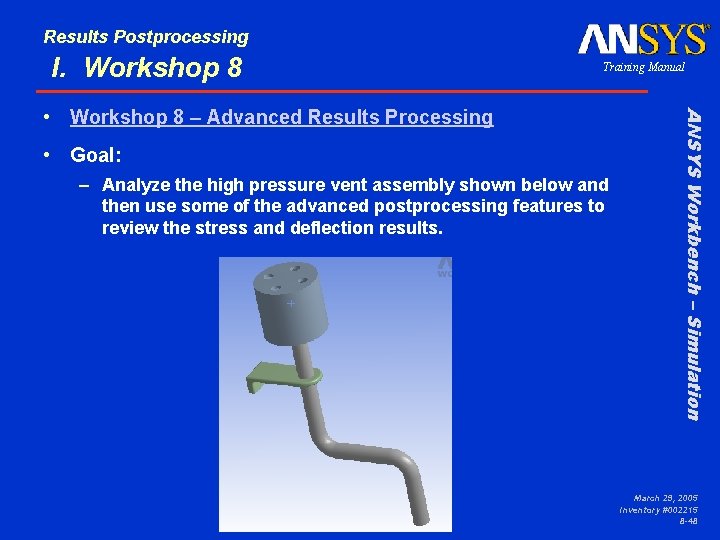
Results Postprocessing I. Workshop 8 Training Manual • Goal: – Analyze the high pressure vent assembly shown below and then use some of the advanced postprocessing features to review the stress and deflection results. ANSYS Workbench – Simulation • Workshop 8 – Advanced Results Processing March 29, 2005 Inventory #002215 8 -48