
Chapter 9 QuerybyExample Pearson Education 2009 Chapter 9
Chapter 9 Query-by-Example Pearson Education © 2009
Chapter 9 - Objectives u The main features of Query-By-Example (QBE). u The types of queries provided by the Microsoft Access DBMS QBE facility. u How to use QBE to build queries to select fields and records. u How to use QBE to target single or multiple tables. Pearson Education © 2009 2
Chapter 9 - Objectives u How to perform calculations using QBE. u How to use advanced QBE facilities including parameter, find matched, find unmatched, crosstab, and autolookup queries. u How to use QBE action queries to change content of tables. Pearson Education © 2009 3
Query-by-Example (QBE) u Visual approach for accessing information in a database through use of query templates. u Example values are entered into template to represent what access to database is to achieve, such as the answer to a query. u Originally developed by IBM in 1970 s and has proved so popular that QBE (or similar) is now provided by most DBMSs. u When user constructs a QBE - in background, DBMS creates an equivalent SQL statement. Pearson Education © 2009 4
Query-by-Example (QBE) u Allows user to: - Ask questions about data in one or more tables. - Specify the fields we want in the answer. - Select records according to some criteria. - Perform calculations on the data in tables. - Insert and delete records. - Modify values of fields. - Create new fields and tables. Pearson Education © 2009 5
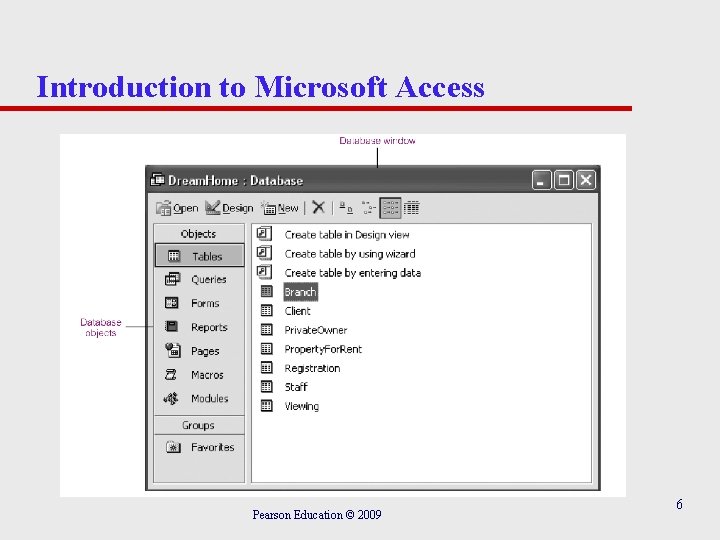
Introduction to Microsoft Access Pearson Education © 2009 6
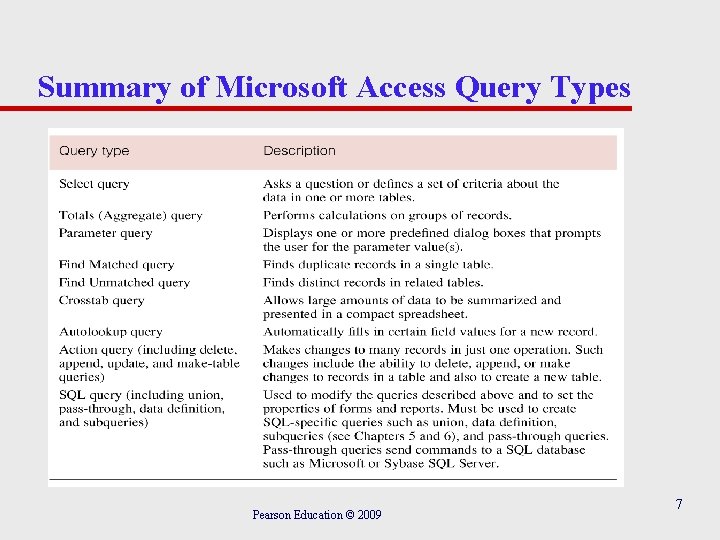
Summary of Microsoft Access Query Types Pearson Education © 2009 7
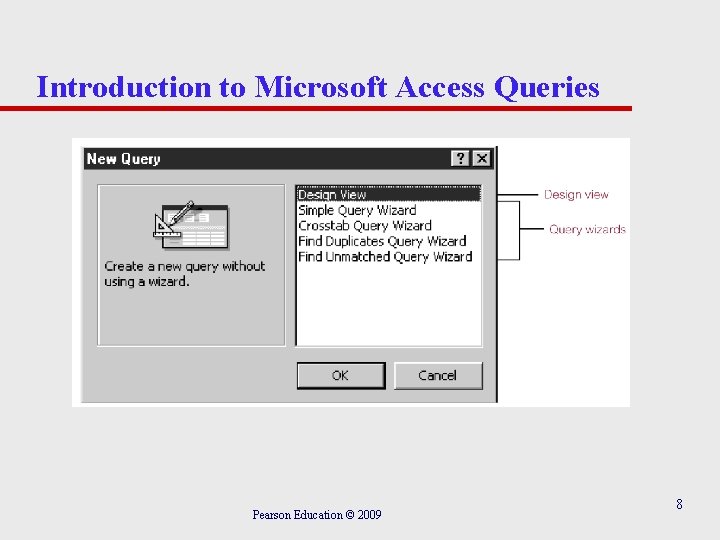
Introduction to Microsoft Access Queries Pearson Education © 2009 8
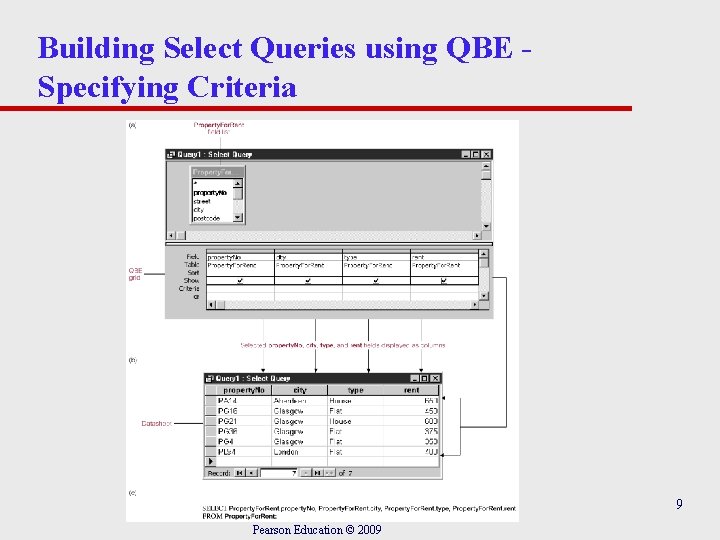
Building Select Queries using QBE Specifying Criteria 9 Pearson Education © 2009
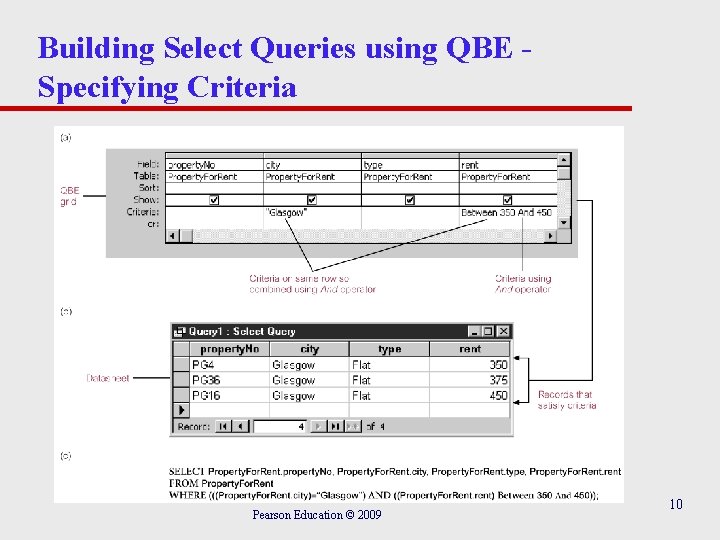
Building Select Queries using QBE Specifying Criteria Pearson Education © 2009 10
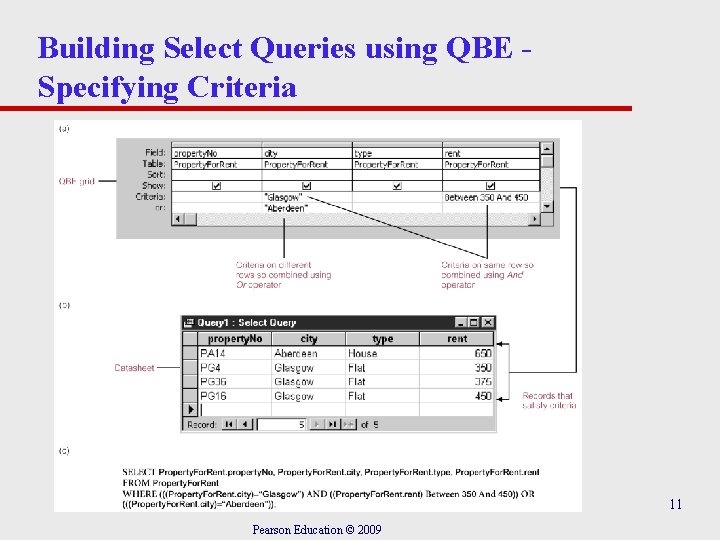
Building Select Queries using QBE Specifying Criteria 11 Pearson Education © 2009
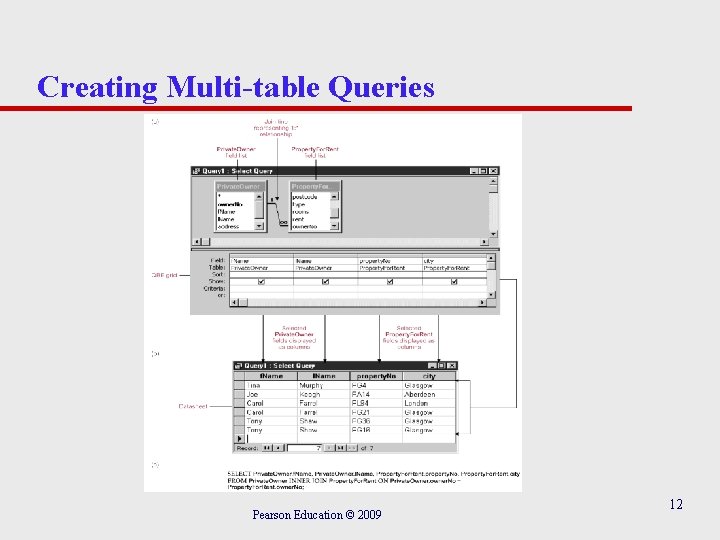
Creating Multi-table Queries Pearson Education © 2009 12
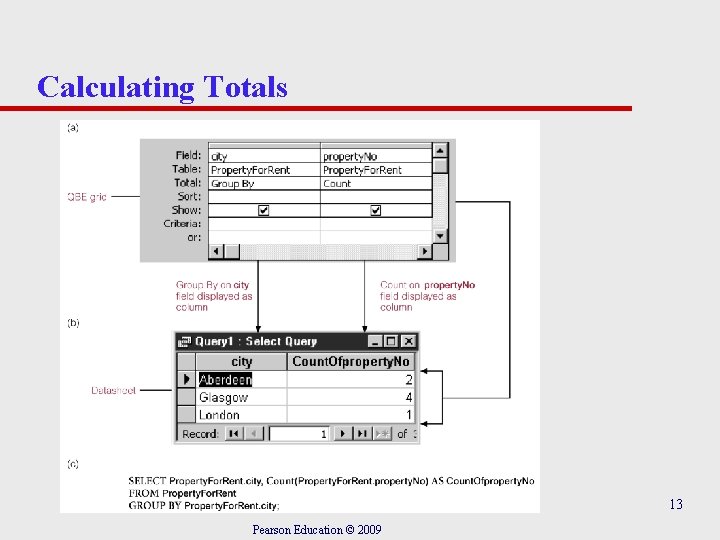
Calculating Totals 13 Pearson Education © 2009
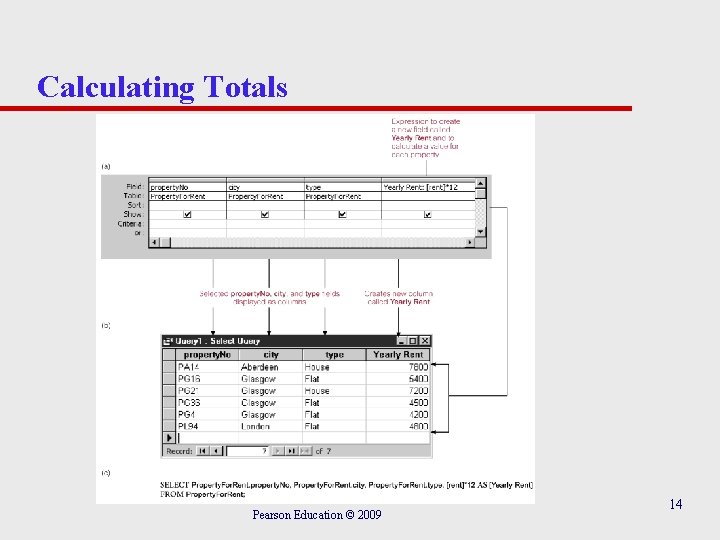
Calculating Totals Pearson Education © 2009 14
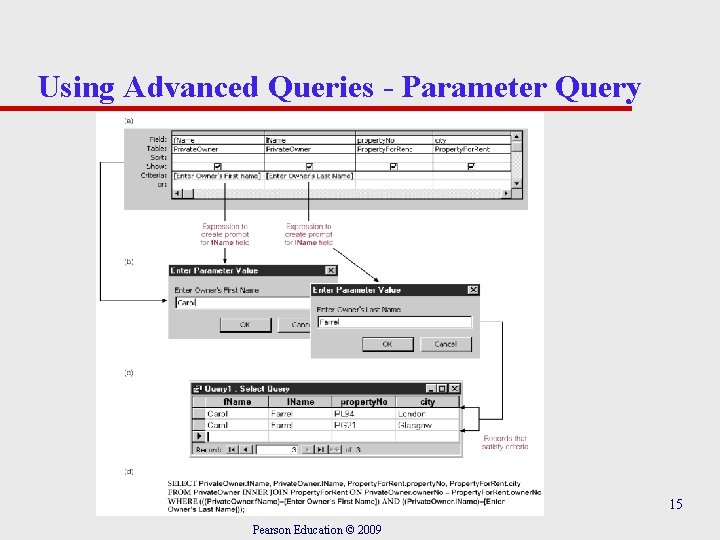
Using Advanced Queries - Parameter Query 15 Pearson Education © 2009
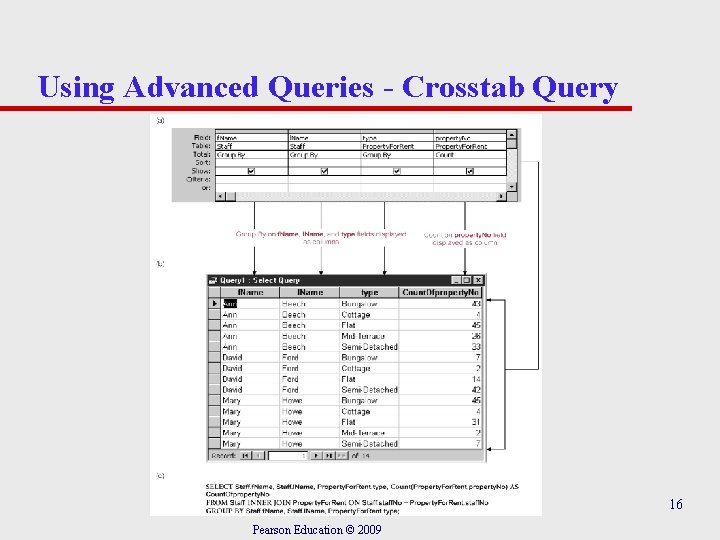
Using Advanced Queries - Crosstab Query 16 Pearson Education © 2009
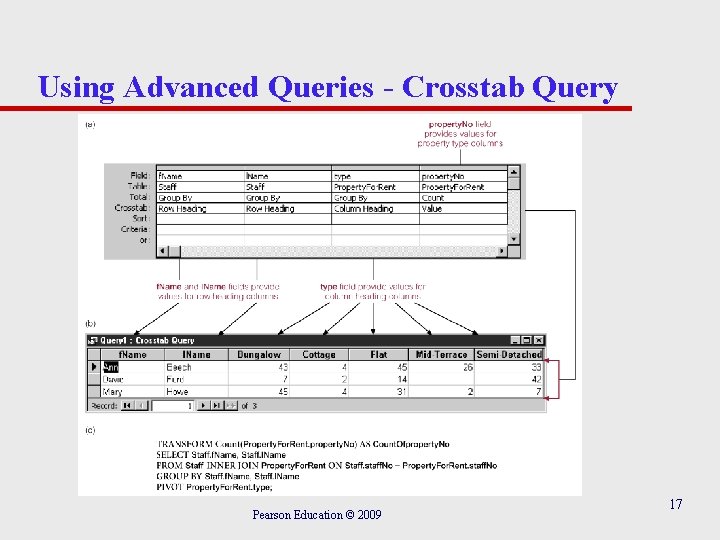
Using Advanced Queries - Crosstab Query Pearson Education © 2009 17
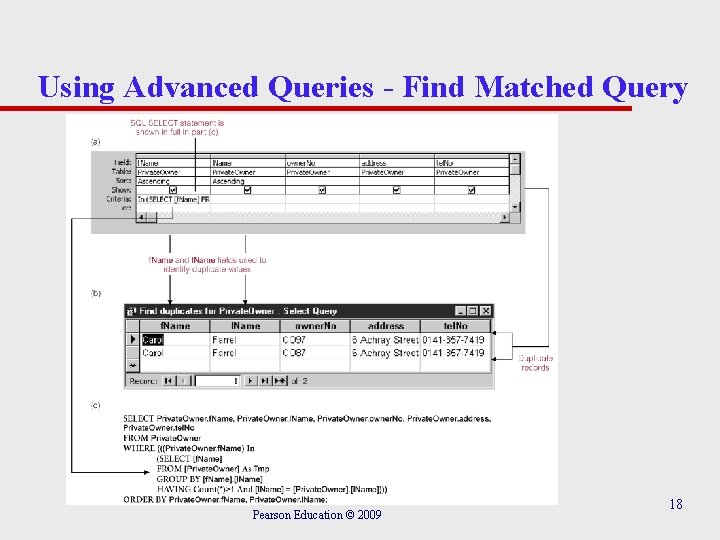
Using Advanced Queries - Find Matched Query Pearson Education © 2009 18
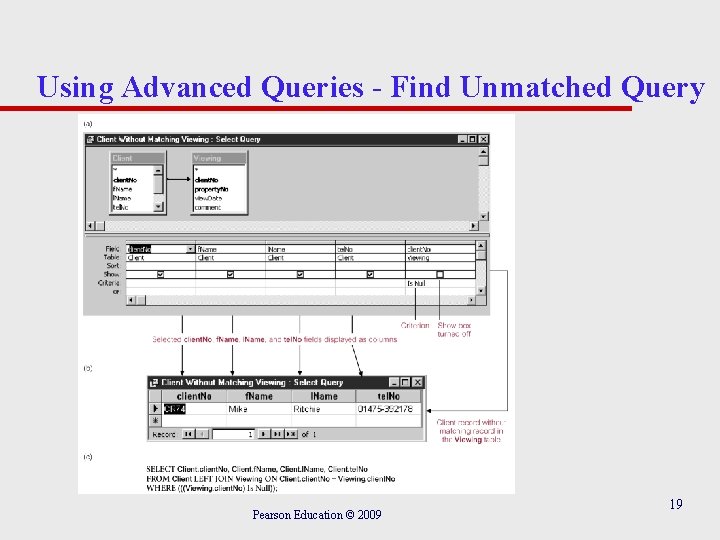
Using Advanced Queries - Find Unmatched Query Pearson Education © 2009 19
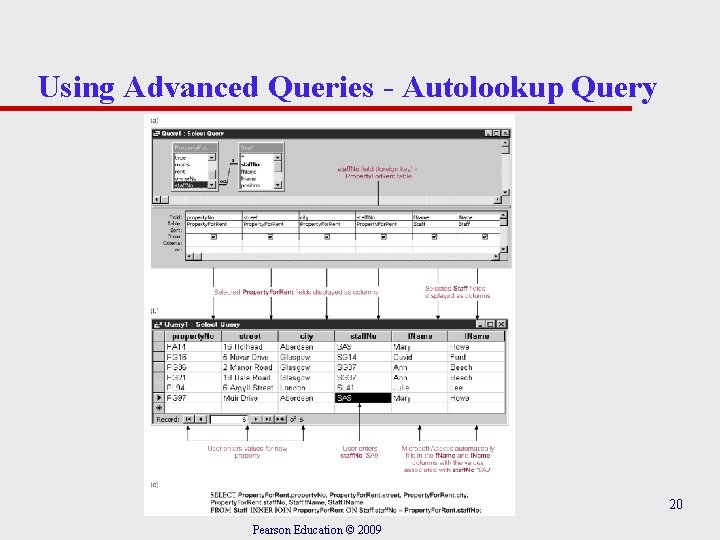
Using Advanced Queries - Autolookup Query 20 Pearson Education © 2009
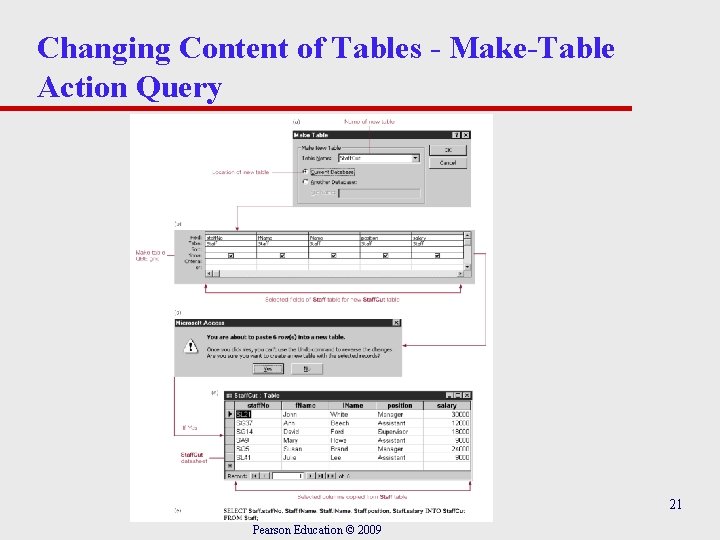
Changing Content of Tables - Make-Table Action Query 21 Pearson Education © 2009
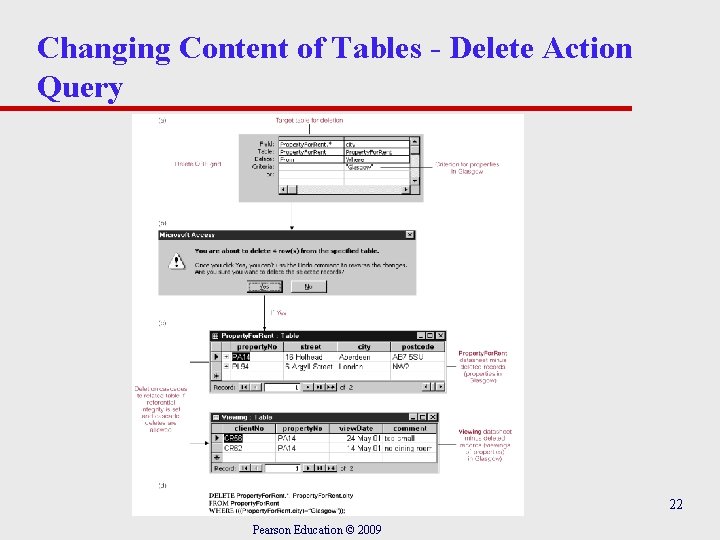
Changing Content of Tables - Delete Action Query 22 Pearson Education © 2009
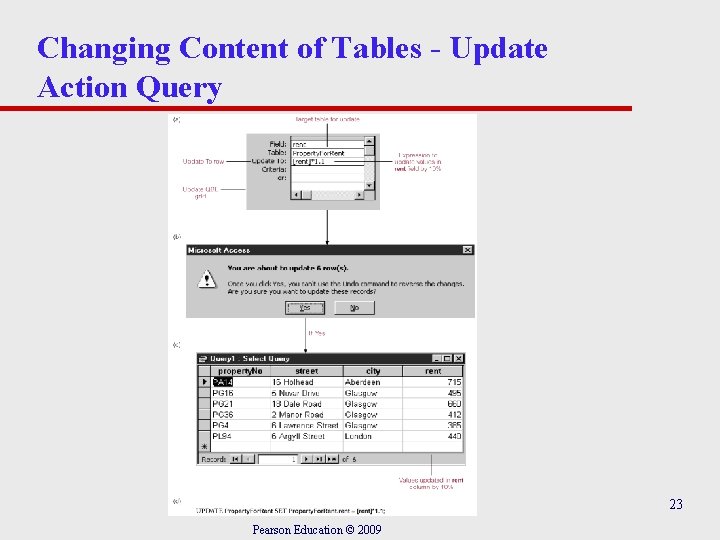
Changing Content of Tables - Update Action Query 23 Pearson Education © 2009
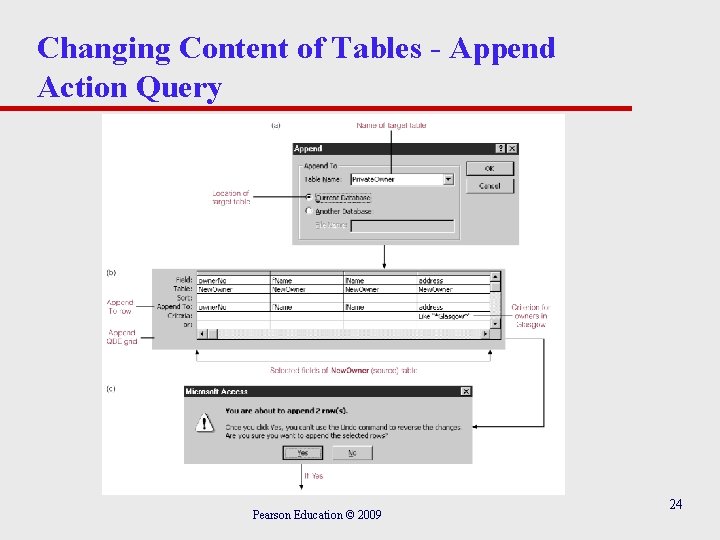
Changing Content of Tables - Append Action Query Pearson Education © 2009 24
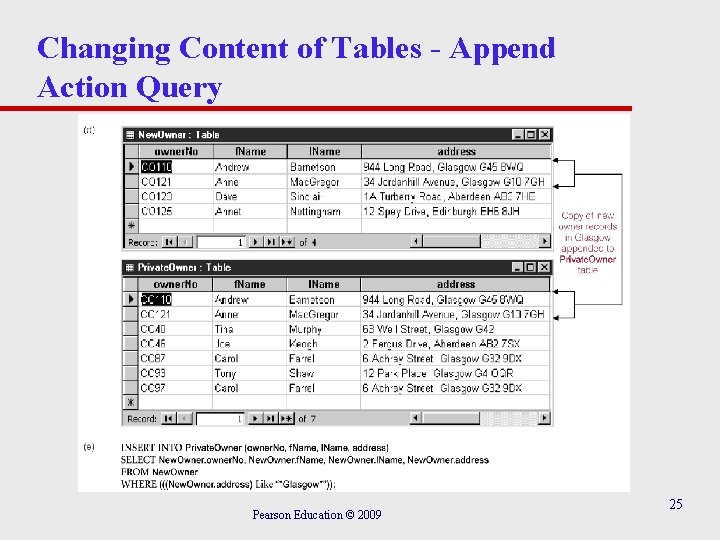
Changing Content of Tables - Append Action Query Pearson Education © 2009 25
- Slides: 25