
Chapter 9 EndUser Needs Assessment Projects A GUIDE
- Slides: 67
Chapter 9 End-User Needs Assessment Projects A GUIDE TO COMPUTER USER SUPPORT FOR HELP DESK AND SUPPORT SPECIALISTS SIXTH EDITION BY FRED BEISSE
Chapter Objectives • Basic strategies for performing end-user needs analysis and assessment • Steps analysts undertake to analyze and assess a user’s needs • Common tools that help support specialists to conduct a user needs assessment project • Tasks in managing a user needs assessment project • Project management software tools A Guide to Computer User Support for Help Desk and Support Specialists, Sixth Edition 2
Overview of User Needs Analysis and Assessment • Purpose: determine which technology products or services best meet end-user needs • Strategy: – – – Understand a user’s environment and work situation Clarify the problem or objectives Investigate alternative solutions Decide on a solution to meet the users’ needs Decide whether to purchase or build • Process can be formal or informal A Guide to Computer User Support for Help Desk and Support Specialists, Sixth Edition 3
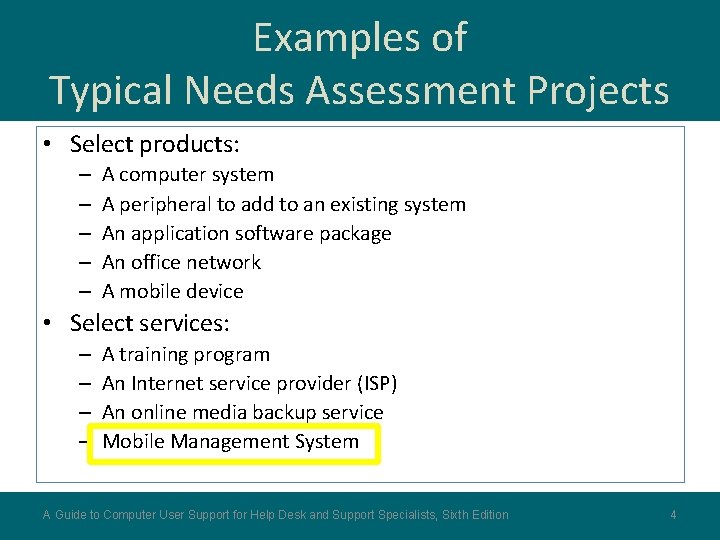
Examples of Typical Needs Assessment Projects • Select products: – – – A computer system A peripheral to add to an existing system An application software package An office network A mobile device • Select services: – – A training program An Internet service provider (ISP) An online media backup service Mobile Management System A Guide to Computer User Support for Help Desk and Support Specialists, Sixth Edition 4
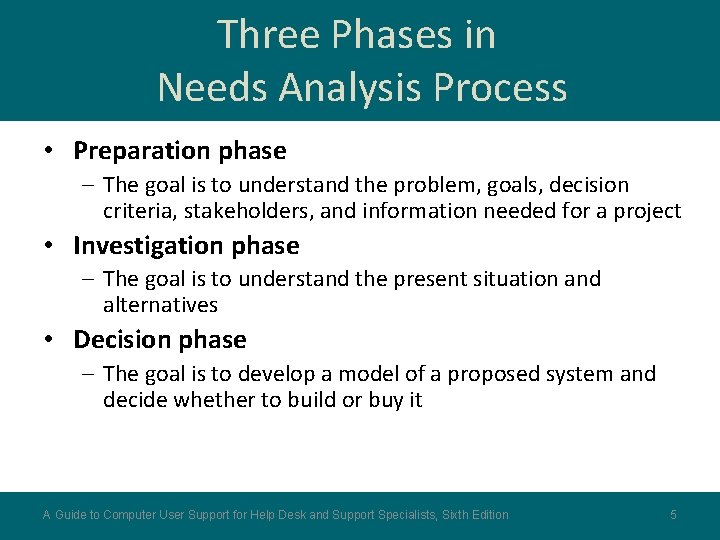
Three Phases in Needs Analysis Process • Preparation phase – The goal is to understand the problem, goals, decision criteria, stakeholders, and information needed for a project • Investigation phase – The goal is to understand the present situation and alternatives • Decision phase – The goal is to develop a model of a proposed system and decide whether to build or buy it A Guide to Computer User Support for Help Desk and Support Specialists, Sixth Edition 5
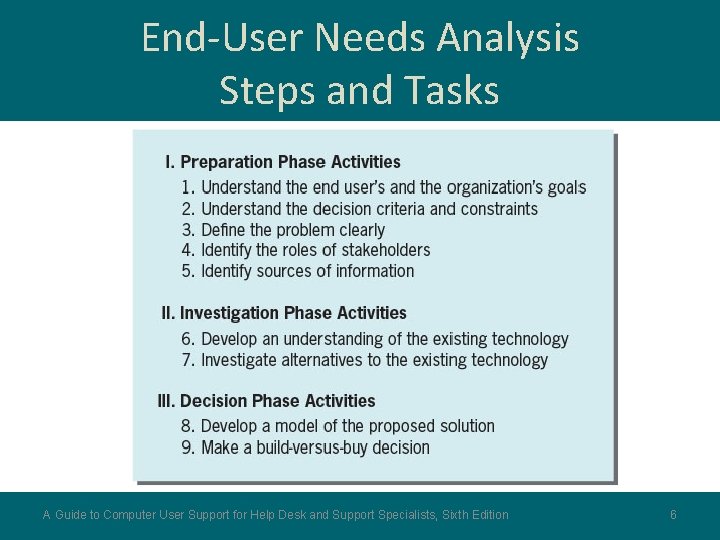
End-User Needs Analysis Steps and Tasks A Guide to Computer User Support for Help Desk and Support Specialists, Sixth Edition 6
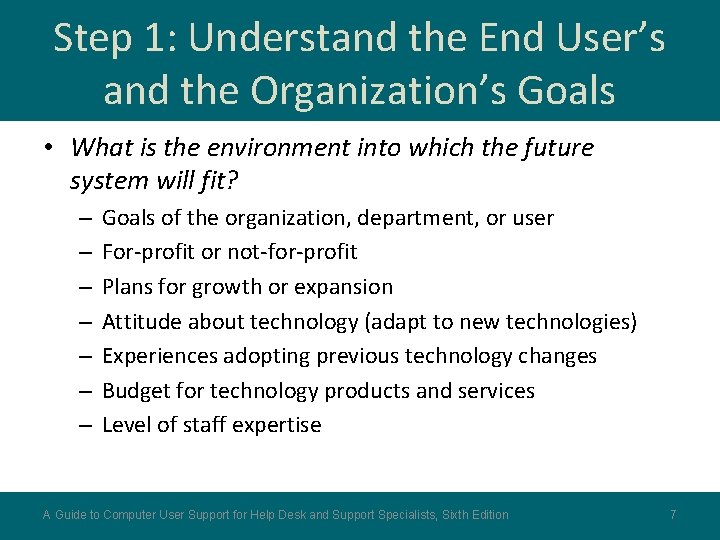
Step 1: Understand the End User’s and the Organization’s Goals • What is the environment into which the future system will fit? – – – – Goals of the organization, department, or user For-profit or not-for-profit Plans for growth or expansion Attitude about technology (adapt to new technologies) Experiences adopting previous technology changes Budget for technology products and services Level of staff expertise A Guide to Computer User Support for Help Desk and Support Specialists, Sixth Edition 7
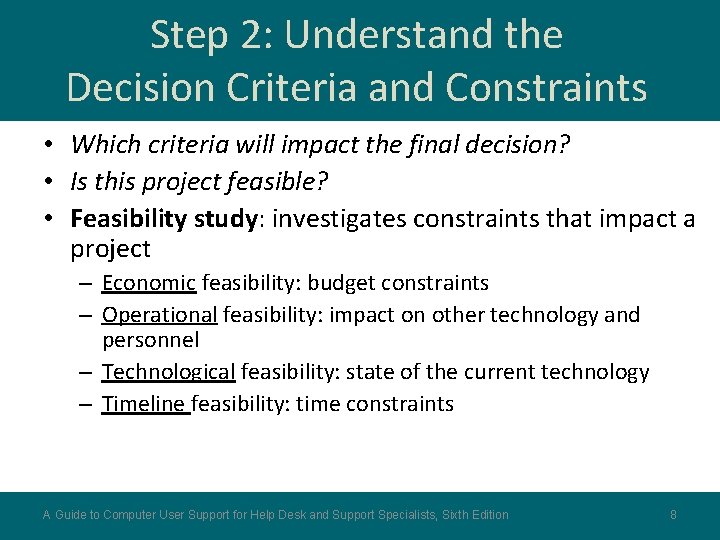
Step 2: Understand the Decision Criteria and Constraints • Which criteria will impact the final decision? • Is this project feasible? • Feasibility study: investigates constraints that impact a project – Economic feasibility: budget constraints – Operational feasibility: impact on other technology and personnel – Technological feasibility: state of the current technology – Timeline feasibility: time constraints A Guide to Computer User Support for Help Desk and Support Specialists, Sixth Edition 8
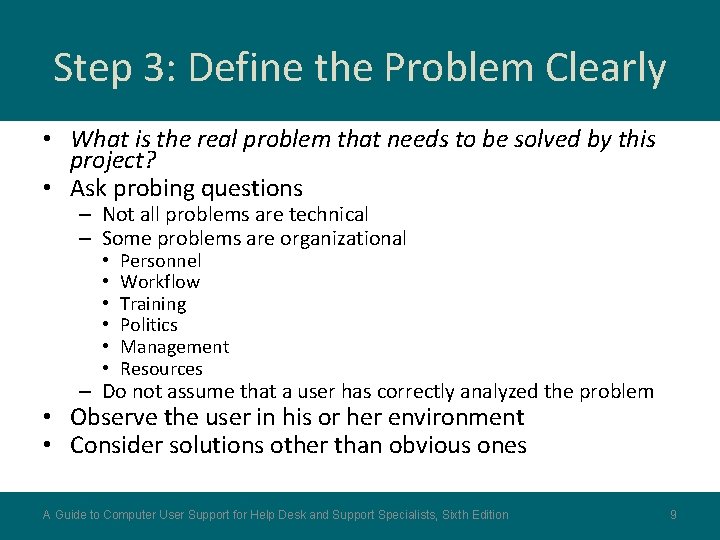
Step 3: Define the Problem Clearly • What is the real problem that needs to be solved by this project? • Ask probing questions – Not all problems are technical – Some problems are organizational • • • Personnel Workflow Training Politics Management Resources – Do not assume that a user has correctly analyzed the problem • Observe the user in his or her environment • Consider solutions other than obvious ones A Guide to Computer User Support for Help Desk and Support Specialists, Sixth Edition 9
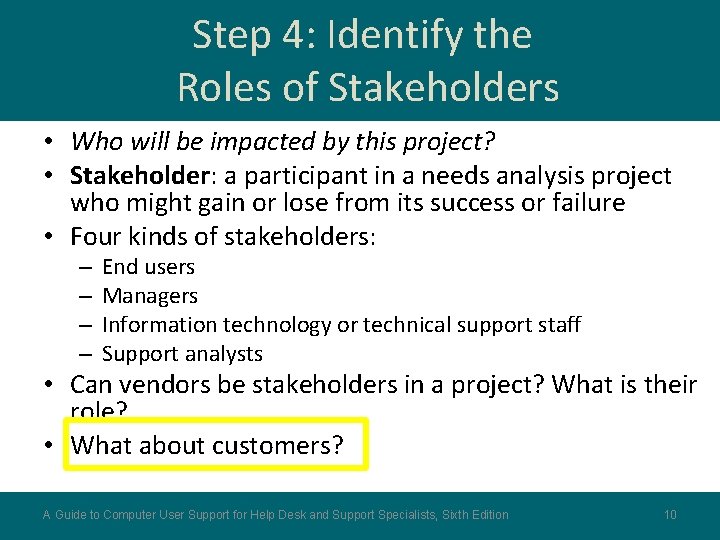
Step 4: Identify the Roles of Stakeholders • Who will be impacted by this project? • Stakeholder: a participant in a needs analysis project who might gain or lose from its success or failure • Four kinds of stakeholders: – – End users Managers Information technology or technical support staff Support analysts • Can vendors be stakeholders in a project? What is their role? • What about customers? A Guide to Computer User Support for Help Desk and Support Specialists, Sixth Edition 10
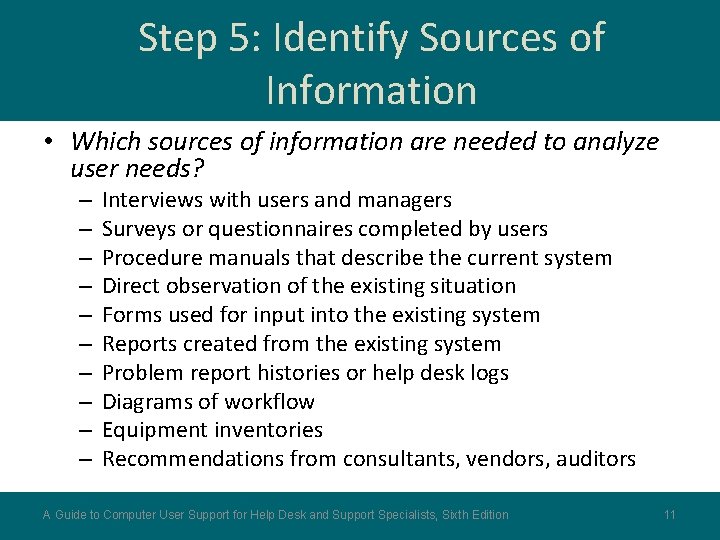
Step 5: Identify Sources of Information • Which sources of information are needed to analyze user needs? – – – – – Interviews with users and managers Surveys or questionnaires completed by users Procedure manuals that describe the current system Direct observation of the existing situation Forms used for input into the existing system Reports created from the existing system Problem report histories or help desk logs Diagrams of workflow Equipment inventories Recommendations from consultants, vendors, auditors A Guide to Computer User Support for Help Desk and Support Specialists, Sixth Edition 11
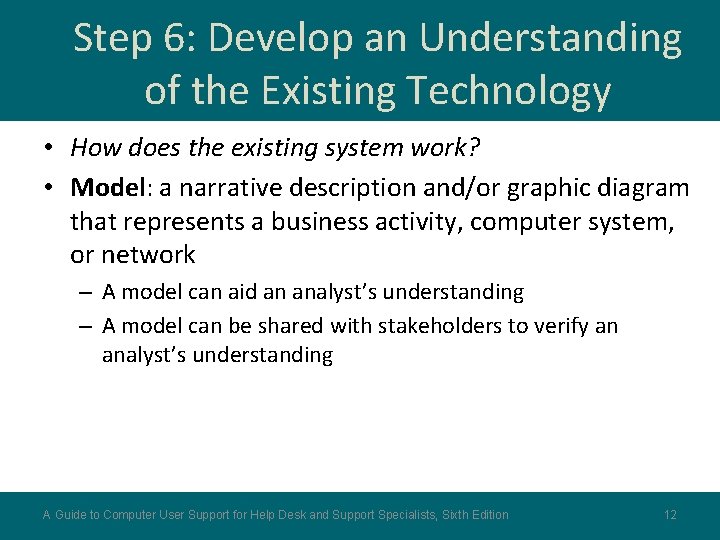
Step 6: Develop an Understanding of the Existing Technology • How does the existing system work? • Model: a narrative description and/or graphic diagram that represents a business activity, computer system, or network – A model can aid an analyst’s understanding – A model can be shared with stakeholders to verify an analyst’s understanding A Guide to Computer User Support for Help Desk and Support Specialists, Sixth Edition 12
Three Key Questions for Analysts in Step 6 1. Do I understand the existing technology well enough to explain its operation to project participants? 2. Do I understand which features of the existing technology users like? 3. Do I understand what users think is wrong with the existing system? 4. Is this an attempt to meet an unmet business need? • How will it fit in with the current systems? 5. Is this an attempt to increase functionality, efficiency, or effectiveness? A Guide to Computer User Support for Help Desk and Support Specialists, Sixth Edition 13
Step 7: Investigate Alternatives to Existing Technology • How can the existing system or situation be fixed? • Add resources – Technical: additional or different equipment – Organizational: additional personnel, budget, time, priority • Change resources – Reinstall or reconfigure hardware, software – Provide additional user training • Upgrades – Improve processing speed, storage capacity, compatibility – Offer new features that address identified problems A Guide to Computer User Support for Help Desk and Support Specialists, Sixth Edition 14
Step 7: Investigate Alternatives to Existing Technology (continued) • New hardware alternatives – Resolve capacity constraints – Run existing software efficiently – Support new software • New software alternatives – Address identified problems – Increase user productivity – Expand business opportunities A Guide to Computer User Support for Help Desk and Support Specialists, Sixth Edition 15
Step 7: Investigate Alternatives to Existing Technology (continued) • Improved workflow – Revised operating procedures • Improve the flow of information • Streamline processing steps • Increase efficiency of staff • Fix bottlenecks A Guide to Computer User Support for Help Desk and Support Specialists, Sixth Edition 16
Step 7: Investigate Alternatives to Existing Technology (continued) • Sources of products and solutions that address specific organizational needs – Articles in trade publications – Options other organizations use successfully in similar situations – Advertisements in trade periodicals – Internet searches – Informal connections with other techs who do what you do • Advantage: You know how it works with their people A Guide to Computer User Support for Help Desk and Support Specialists, Sixth Edition 17
Step 8: Develop a Model of Proposed Solution • What features would new technology or solution offer? • Build a model of the proposed system or solution – Include the pros and cons of each alternative – Answer the questions: • Why is the proposed solution an improvement over the current one? • Why is the best available alternative? – Model may be conceptual or physical (perhaps virtual) A Guide to Computer User Support for Help Desk and Support Specialists, Sixth Edition 18
Step 8: Develop a Model of Proposed Solution (continued) • Kinds of solutions: – Optimal solution: the best one • Most feasible • Lowest cost • Greatest benefits • Best fit to future technology plans – Satisficing solution: less than optimal, but solves the problem • Is not necessarily the best solution • “Don’t let the perfect be the enemy of the good” - Voltaire Consider the time horizon for this solution A Guide to Computer User Support for Help Desk and Support Specialists, Sixth Edition 19
Step 8: Develop a Model of Proposed Solution (continued) • Decision tool: cost-benefit analysis is a comparison between a solution’s expenses and its payoffs to an organization – A useful tool to: • Analyze a solution (pros and cons) • Compare solutions against each other • A cost-benefit analysis is not an exact science with right or wrong answers • For a small project, even an informal cost-benefit analysis is useful A Guide to Computer User Support for Help Desk and Support Specialists, Sixth Edition 20
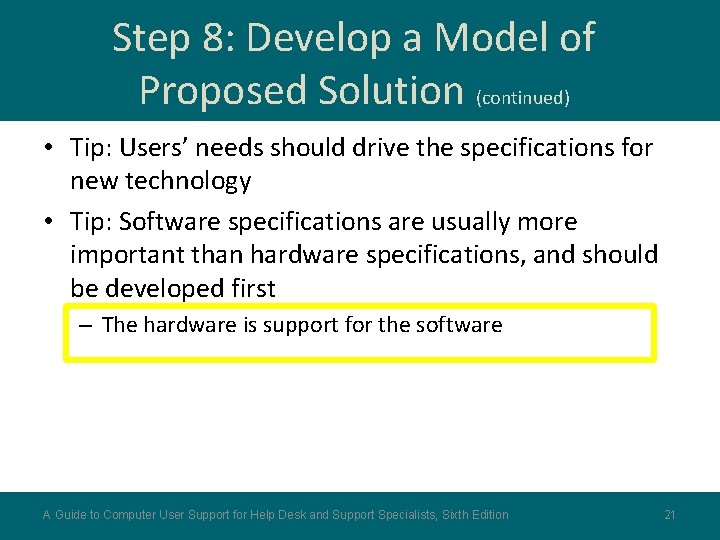
Step 8: Develop a Model of Proposed Solution (continued) • Tip: Users’ needs should drive the specifications for new technology • Tip: Software specifications are usually more important than hardware specifications, and should be developed first – The hardware is support for the software A Guide to Computer User Support for Help Desk and Support Specialists, Sixth Edition 21
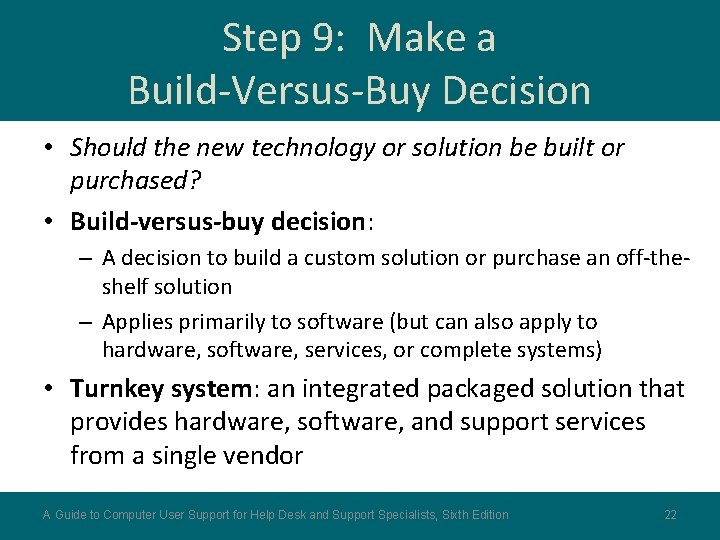
Step 9: Make a Build-Versus-Buy Decision • Should the new technology or solution be built or purchased? • Build-versus-buy decision: – A decision to build a custom solution or purchase an off-theshelf solution – Applies primarily to software (but can also apply to hardware, software, services, or complete systems) • Turnkey system: an integrated packaged solution that provides hardware, software, and support services from a single vendor A Guide to Computer User Support for Help Desk and Support Specialists, Sixth Edition 22
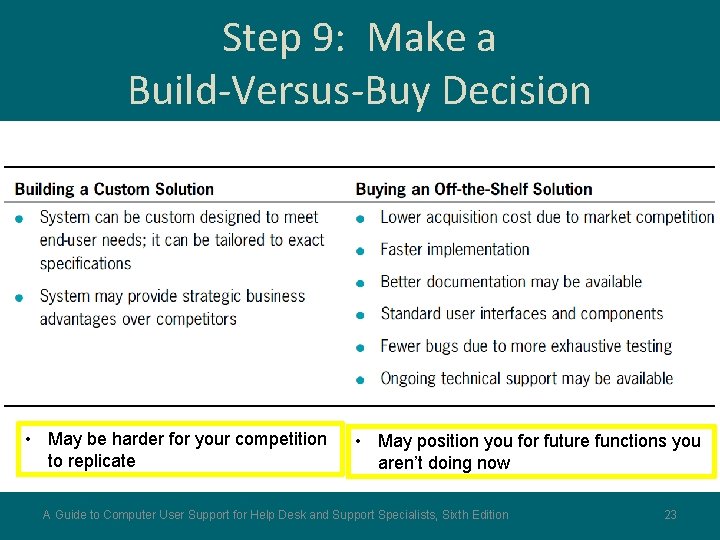
Step 9: Make a Build-Versus-Buy Decision • May be harder for your competition to replicate • May position you for future functions you aren’t doing now A Guide to Computer User Support for Help Desk and Support Specialists, Sixth Edition 23
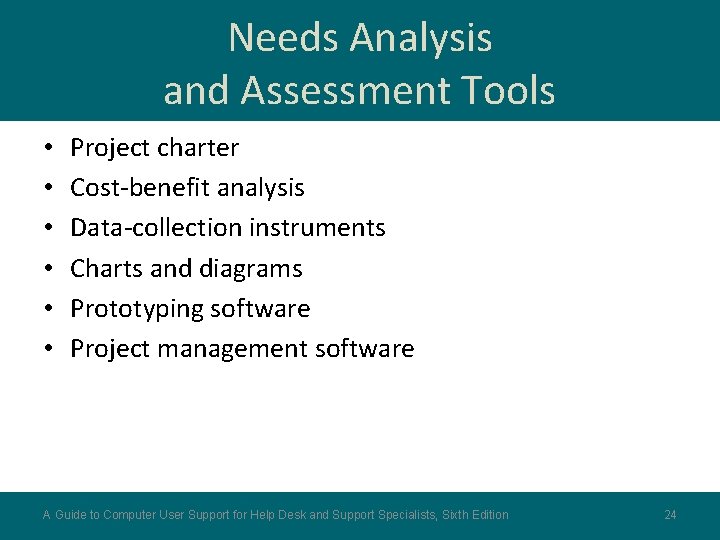
Needs Analysis and Assessment Tools • • • Project charter Cost-benefit analysis Data-collection instruments Charts and diagrams Prototyping software Project management software A Guide to Computer User Support for Help Desk and Support Specialists, Sixth Edition 24
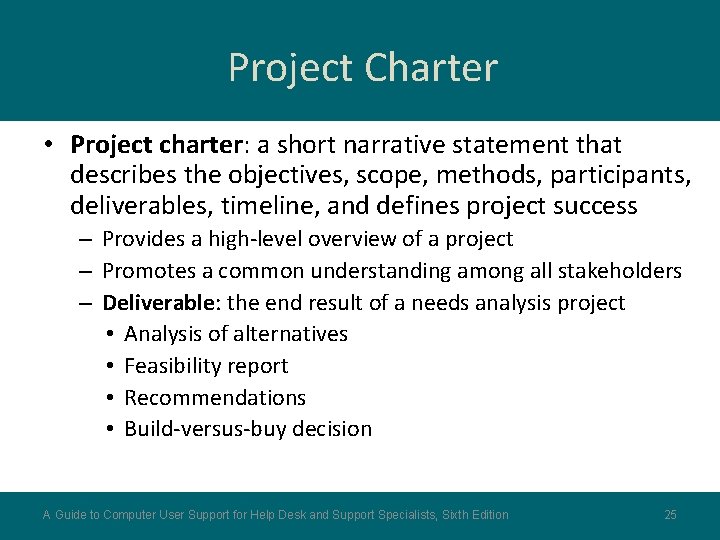
Project Charter • Project charter: a short narrative statement that describes the objectives, scope, methods, participants, deliverables, timeline, and defines project success – Provides a high-level overview of a project – Promotes a common understanding among all stakeholders – Deliverable: the end result of a needs analysis project • Analysis of alternatives • Feasibility report • Recommendations • Build-versus-buy decision A Guide to Computer User Support for Help Desk and Support Specialists, Sixth Edition 25
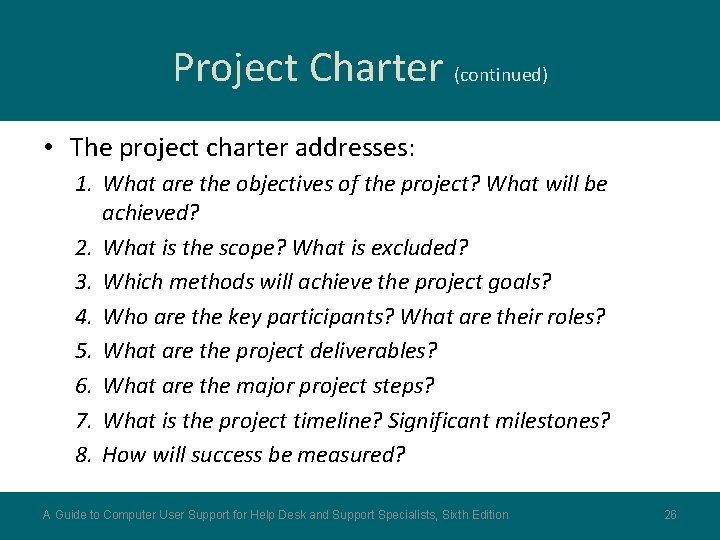
Project Charter (continued) • The project charter addresses: 1. What are the objectives of the project? What will be achieved? 2. What is the scope? What is excluded? 3. Which methods will achieve the project goals? 4. Who are the key participants? What are their roles? 5. What are the project deliverables? 6. What are the major project steps? 7. What is the project timeline? Significant milestones? 8. How will success be measured? A Guide to Computer User Support for Help Desk and Support Specialists, Sixth Edition 26
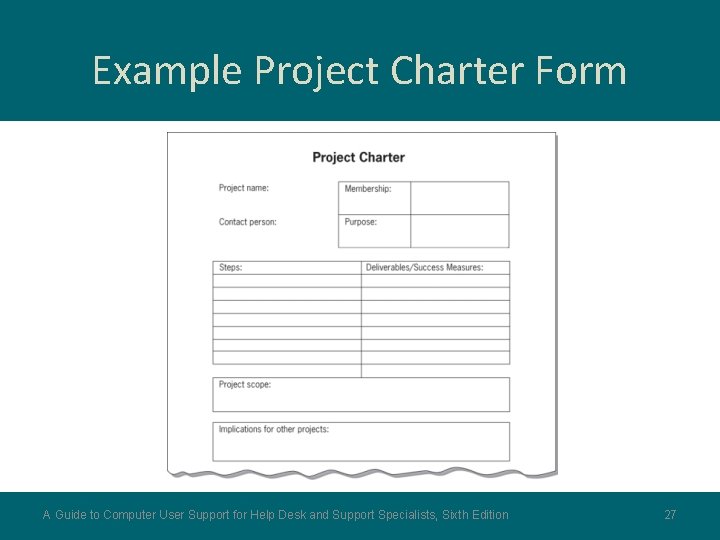
Example Project Charter Form A Guide to Computer User Support for Help Desk and Support Specialists, Sixth Edition 27
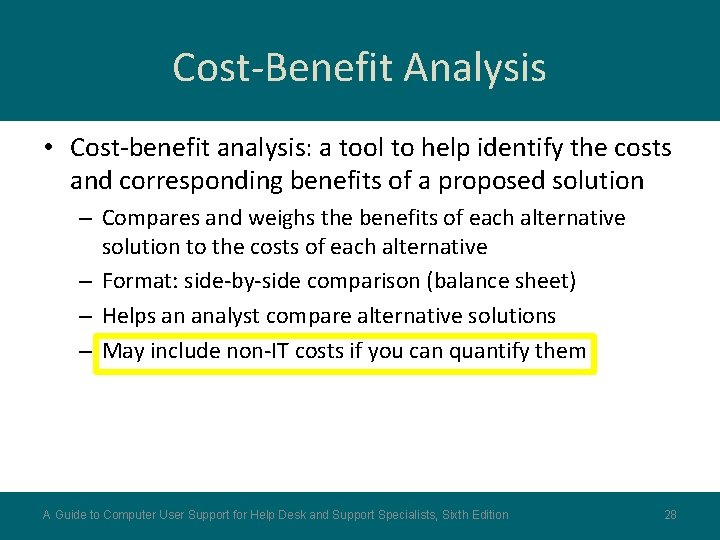
Cost-Benefit Analysis • Cost-benefit analysis: a tool to help identify the costs and corresponding benefits of a proposed solution – Compares and weighs the benefits of each alternative solution to the costs of each alternative – Format: side-by-side comparison (balance sheet) – Helps an analyst compare alternative solutions – May include non-IT costs if you can quantify them A Guide to Computer User Support for Help Desk and Support Specialists, Sixth Edition 28
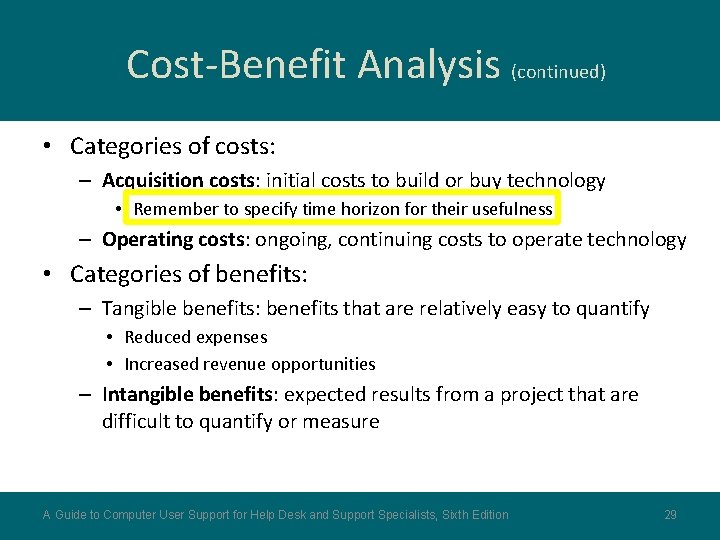
Cost-Benefit Analysis (continued) • Categories of costs: – Acquisition costs: initial costs to build or buy technology • Remember to specify time horizon for their usefulness – Operating costs: ongoing, continuing costs to operate technology • Categories of benefits: – Tangible benefits: benefits that are relatively easy to quantify • Reduced expenses • Increased revenue opportunities – Intangible benefits: expected results from a project that are difficult to quantify or measure A Guide to Computer User Support for Help Desk and Support Specialists, Sixth Edition 29
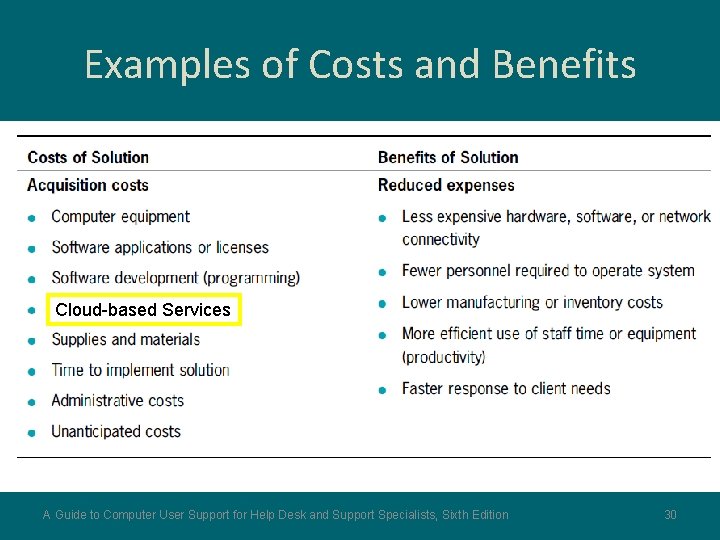
Examples of Costs and Benefits Cloud-based Services A Guide to Computer User Support for Help Desk and Support Specialists, Sixth Edition 30
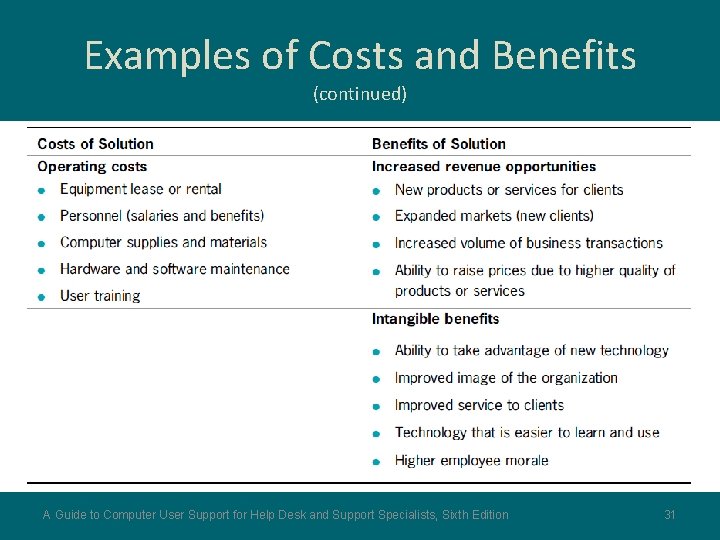
Examples of Costs and Benefits (continued) A Guide to Computer User Support for Help Desk and Support Specialists, Sixth Edition 31
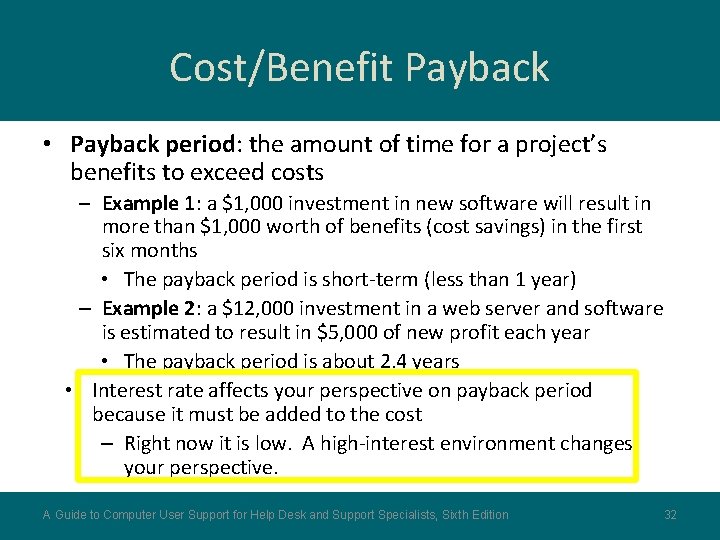
Cost/Benefit Payback • Payback period: the amount of time for a project’s benefits to exceed costs – Example 1: a $1, 000 investment in new software will result in more than $1, 000 worth of benefits (cost savings) in the first six months • The payback period is short-term (less than 1 year) – Example 2: a $12, 000 investment in a web server and software is estimated to result in $5, 000 of new profit each year • The payback period is about 2. 4 years • Interest rate affects your perspective on payback period because it must be added to the cost – Right now it is low. A high-interest environment changes your perspective. A Guide to Computer User Support for Help Desk and Support Specialists, Sixth Edition 32
Data-Collection Instruments • • • Input forms Output forms Procedure documentation Operating or problem logs Interviews and questionnaires Direct observation A Guide to Computer User Support for Help Desk and Support Specialists, Sixth Edition 33
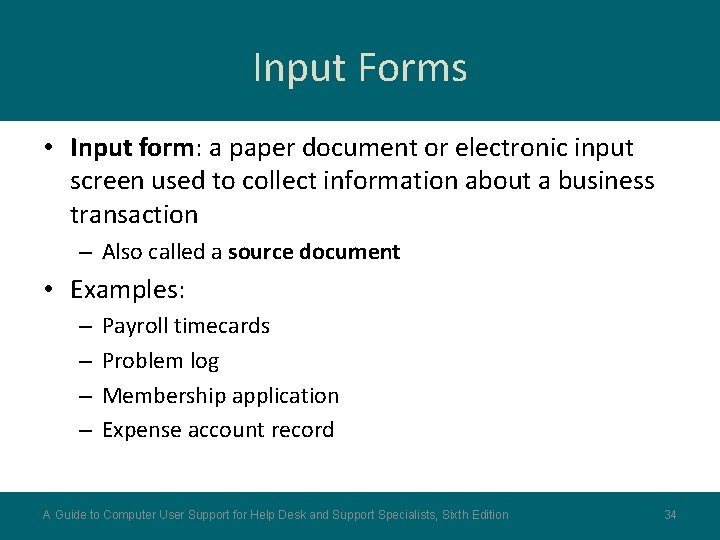
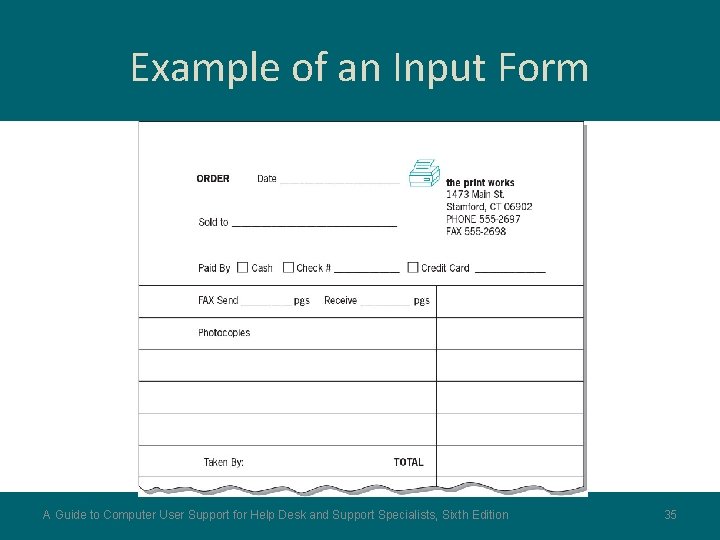
Input Forms • Input form: a paper document or electronic input screen used to collect information about a business transaction – Also called a source document • Examples: – – Payroll timecards Problem log Membership application Expense account record A Guide to Computer User Support for Help Desk and Support Specialists, Sixth Edition 34
Example of an Input Form A Guide to Computer User Support for Help Desk and Support Specialists, Sixth Edition 35
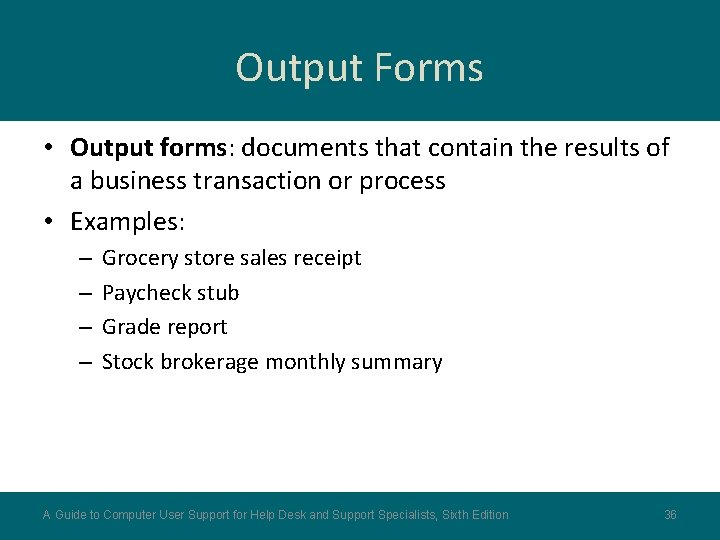
Output Forms • Output forms: documents that contain the results of a business transaction or process • Examples: – – Grocery store sales receipt Paycheck stub Grade report Stock brokerage monthly summary A Guide to Computer User Support for Help Desk and Support Specialists, Sixth Edition 36
Procedure Documentation • Procedure documentation: written instructions about how to perform a business transaction or handle a routine business process – Often used to train new workers or answer frequently asked questions about transaction processing procedures • Examples: – Manual on how to process orders in a copy shop – Operations manual in a bank or credit union – Instructions for installing client software on a networked PC A Guide to Computer User Support for Help Desk and Support Specialists, Sixth Edition 37
Operating or Problem Logs • Log: a list of events or activities recorded in the sequence the events occur – Routine, periodic event information – Unusual events, errors, problems, complaints • Examples: – Log of inventory shortages in Shipping and Receiving – Log of problems encountered with a new software package – Log of computer system boot up events and errors A Guide to Computer User Support for Help Desk and Support Specialists, Sixth Edition 38
Interviews and Questionnaires • Used to collect relevant information from users – Information about the work they do – How an existing or proposed technology might affect their work • Examples: – Interview about user satisfaction with technology support services – Questionnaire about user likes and dislikes regarding the current software package A Guide to Computer User Support for Help Desk and Support Specialists, Sixth Edition 39
Interviews vs. Questionnaires • Interview advantage: – Interviewer can probe to learn details of issues that are of special interest • Interview disadvantage: – Takes more analyst time than a questionnaire • Questionnaire advantage: – Ability to survey a larger group of users at a lower cost • Questionnaire disadvantage: – Difficult to phrase unambiguous questions • Alternative: – Focus group: an interview with a small group of selected users who represent a large user group A Guide to Computer User Support for Help Desk and Support Specialists, Sixth Edition 40
Response Bias • Surveys may only be answered by people who feel strongly – If 90% are happy and don’t answer, you hear only from the few who are ecstatic or angry • Focus groups can be monopolized by a few, and thus give a poor sample – People who are more articulate or noisy – Bullies A Guide to Computer User Support for Help Desk and Support Specialists, Sixth Edition 41
Direct Observation • Direct observation involves watching users work – Powerful method of data collection: • When other forms of data collection aren’t possible • To supplement other forms of data collection • Plan sufficient time for observation • Take notes on: – – – What users do Their sequence of tasks Tools and strategies users use With whom users interact Where users store information Problems users encounter Why not take the user’s role and do transactions yourself? A Guide to Computer User Support for Help Desk and Support Specialists, Sixth Edition 42
Charts and Diagrams • Used to show: – – The flow of information in an organization Relationships between workers Parts of an information system or network devices Workflow among employees • How information travels • Often easier to read and understand than a lengthy, technical narrative A Guide to Computer User Support for Help Desk and Support Specialists, Sixth Edition 43
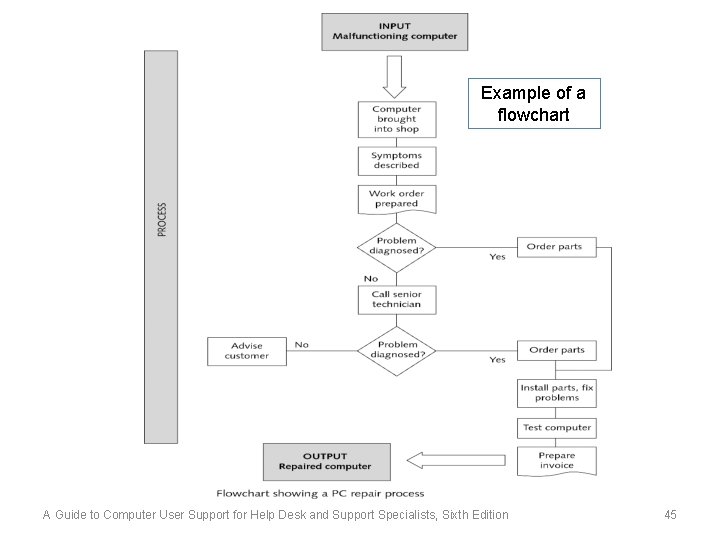
Types of Charts Used in Needs Analysis • Flowchart: a schematic diagram that uses symbols to represent the parts of a system or the steps in a procedure – Rectangular boxes: departments in a company, nodes on a network, processing steps a worker performs – Diamonds: decision points or Yes/No questions – Lines: relationships between parts or a sequence of processing steps A Guide to Computer User Support for Help Desk and Support Specialists, Sixth Edition 44
Example of a flowchart A Guide to Computer User Support for Help Desk and Support Specialists, Sixth Edition 45
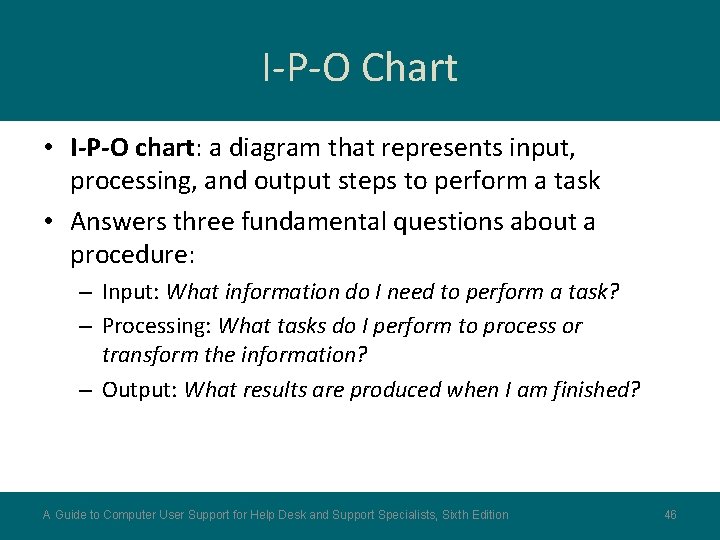
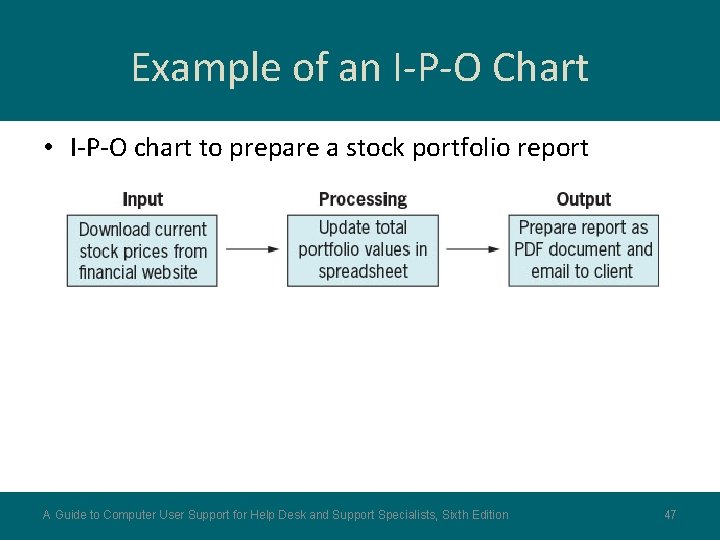
I-P-O Chart • I-P-O chart: a diagram that represents input, processing, and output steps to perform a task • Answers three fundamental questions about a procedure: – Input: What information do I need to perform a task? – Processing: What tasks do I perform to process or transform the information? – Output: What results are produced when I am finished? A Guide to Computer User Support for Help Desk and Support Specialists, Sixth Edition 46
Example of an I-P-O Chart • I-P-O chart to prepare a stock portfolio report A Guide to Computer User Support for Help Desk and Support Specialists, Sixth Edition 47
Prototyping Software • Prototype: a working model a support analyst builds to let users experience and evaluate how the completed software of a project will eventually work – Advantages: • Quick and cost-effective to build (compared to the finished product) • Easy to make changes suggested by users – Limitations: • Usually operates slowly or has limited capacity for data storage • May lack “friendly” or “comfortable” aspects, but shows core functionality • Example: – Use Microsoft Access to design a data entry form for help desk problem incidents – The “free” version of a software package you are considering A Guide to Computer User Support for Help Desk and Support Specialists, Sixth Edition 48
Managing a User Support Project • Help desk agents normally perform primarily routine operational tasks • Special project: a support task that does not occur regularly • Characteristics of special projects: – Driven by support from above – Steps and procedures not well defined – Usually take longer to accomplish • Speed, however, may be an important characteristic! – Often more complex than routine support tasks A Guide to Computer User Support for Help Desk and Support Specialists, Sixth Edition 49
Examples of Special Projects • Perform user needs analysis or assessment • Select and install network or application software • Develop or update product standards or support policies • Plan and implement a new training program • Select and implement help desk management software • Develop end-user documentation or training sessions A Guide to Computer User Support for Help Desk and Support Specialists, Sixth Edition 50
Project Management Steps • Project management: a detailed, step-by-step work plan and process to reach a specific goal • Steps: 1. Project definition 2. Project planning 3. Project implementation 4. Project monitoring 5. Project termination A Guide to Computer User Support for Help Desk and Support Specialists, Sixth Edition 51
Step 1: Project Definition • Project definition: defines the project scope – – – Goal(s) (objectives, outcomes) Tentative calendar (timelines, due dates) Tentative budget (estimates) Participants (stakeholders) Project manager (leadership role) • Project goal: a specific, measurable result (deliverable) that is the ultimate target or outcome A Guide to Computer User Support for Help Desk and Support Specialists, Sixth Edition 52
Step 2: Project Planning • Project task: a specific action or objective that must be performed to reach the goal • Purpose: – – Divide a large project into smaller tasks Estimate a time for each task Identify available resources and costs Assign resources to tasks A Guide to Computer User Support for Help Desk and Support Specialists, Sixth Edition 53
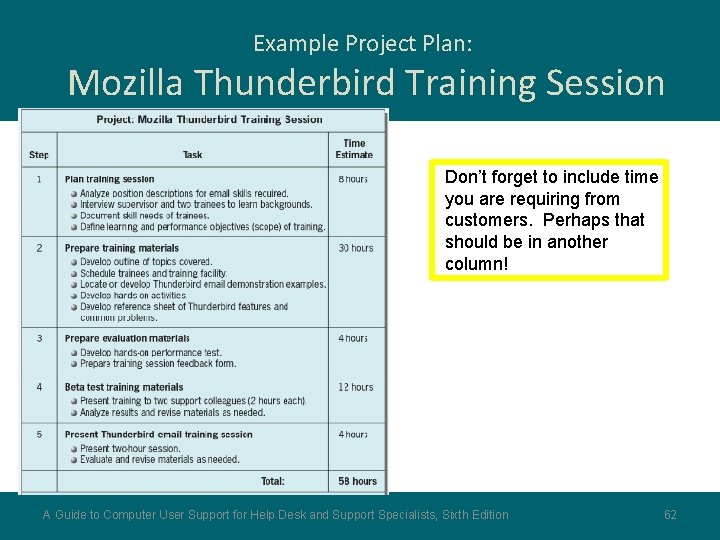
Step 2: Project Planning (continued) • Project plan: a document that describes the project tasks, resources, timeline, and costs • Typical questions answered in a project plan: – Which tasks will be accomplished? – What is the sequence of tasks? – Who will perform each task? – How long will each task take? – What resources will each task require? A Guide to Computer User Support for Help Desk and Support Specialists, Sixth Edition 54
Analysis of Project Risk Factors • Risk factors: identify and evaluate problems that can arise during the life of a project • Common risk factors: – Poor initial estimates of schedule, costs, resources – Unanticipated events: • Illness • Lack of skills needed • Equipment problems • Conflicts among participants • Tip: Time and budget estimates should fall between the minimum, best-case scenario and the maximum, worst-case scenario A Guide to Computer User Support for Help Desk and Support Specialists, Sixth Edition 55
Step 3: Project Implementation • Project implementation: work proceeds on each task or objective according to the task assignments and schedule in the project plan • The project manager’s focus shifts – From planning – To coordination – To resolving problems and conflicts A Guide to Computer User Support for Help Desk and Support Specialists, Sixth Edition 56
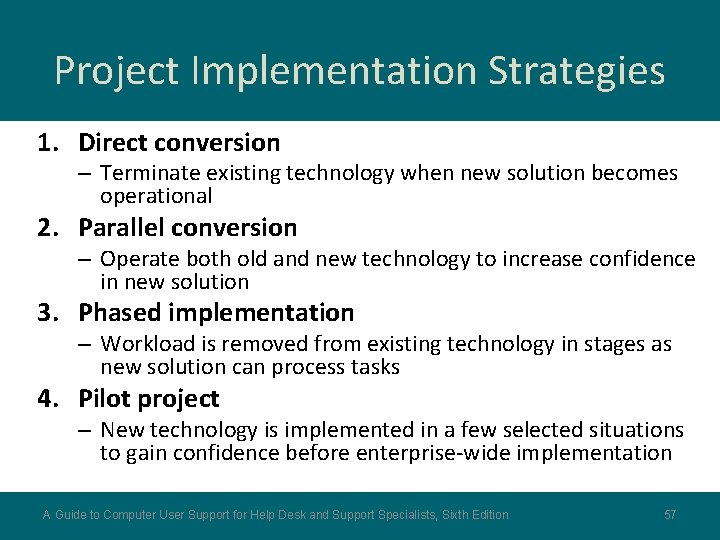
Project Implementation Strategies 1. Direct conversion – Terminate existing technology when new solution becomes operational 2. Parallel conversion – Operate both old and new technology to increase confidence in new solution 3. Phased implementation – Workload is removed from existing technology in stages as new solution can process tasks 4. Pilot project – New technology is implemented in a few selected situations to gain confidence before enterprise-wide implementation A Guide to Computer User Support for Help Desk and Support Specialists, Sixth Edition 57
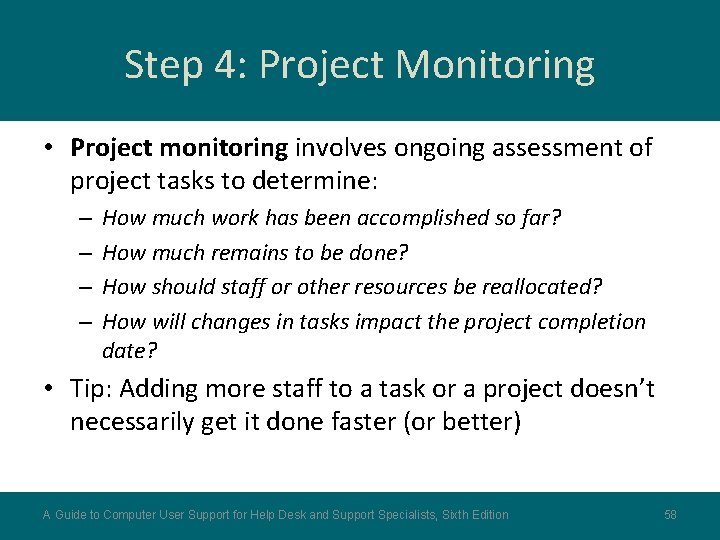
Step 4: Project Monitoring • Project monitoring involves ongoing assessment of project tasks to determine: – – How much work has been accomplished so far? How much remains to be done? How should staff or other resources be reallocated? How will changes in tasks impact the project completion date? • Tip: Adding more staff to a task or a project doesn’t necessarily get it done faster (or better) A Guide to Computer User Support for Help Desk and Support Specialists, Sixth Edition 58
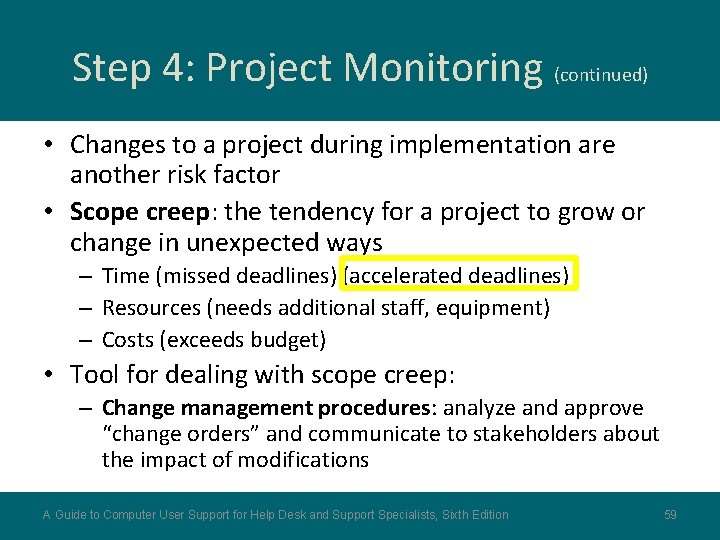
Step 4: Project Monitoring (continued) • Changes to a project during implementation are another risk factor • Scope creep: the tendency for a project to grow or change in unexpected ways – Time (missed deadlines) (accelerated deadlines) – Resources (needs additional staff, equipment) – Costs (exceeds budget) • Tool for dealing with scope creep: – Change management procedures: analyze and approve “change orders” and communicate to stakeholders about the impact of modifications A Guide to Computer User Support for Help Desk and Support Specialists, Sixth Edition 59
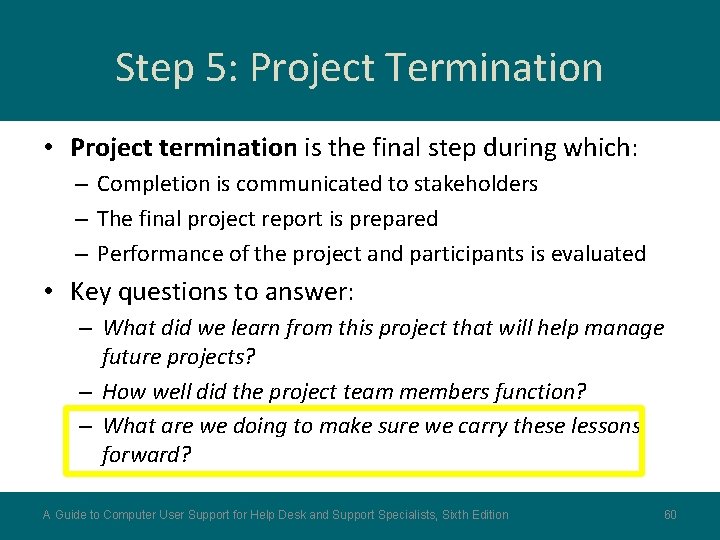
Step 5: Project Termination • Project termination is the final step during which: – Completion is communicated to stakeholders – The final project report is prepared – Performance of the project and participants is evaluated • Key questions to answer: – What did we learn from this project that will help manage future projects? – How well did the project team members function? – What are we doing to make sure we carry these lessons forward? A Guide to Computer User Support for Help Desk and Support Specialists, Sixth Edition 60
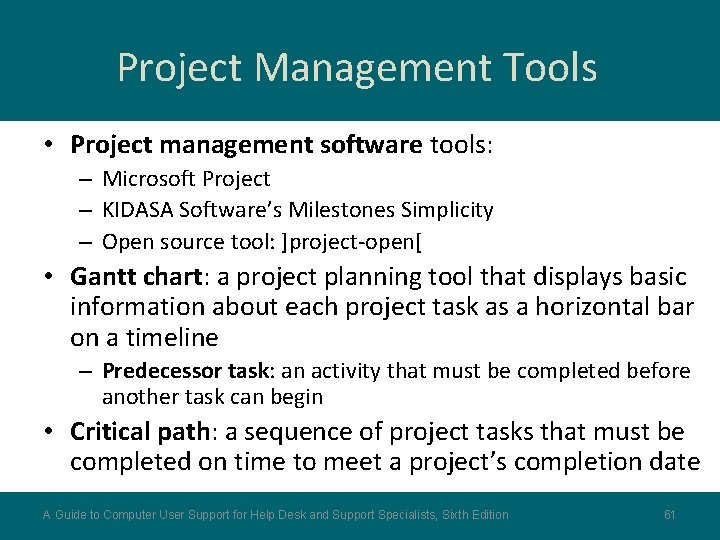
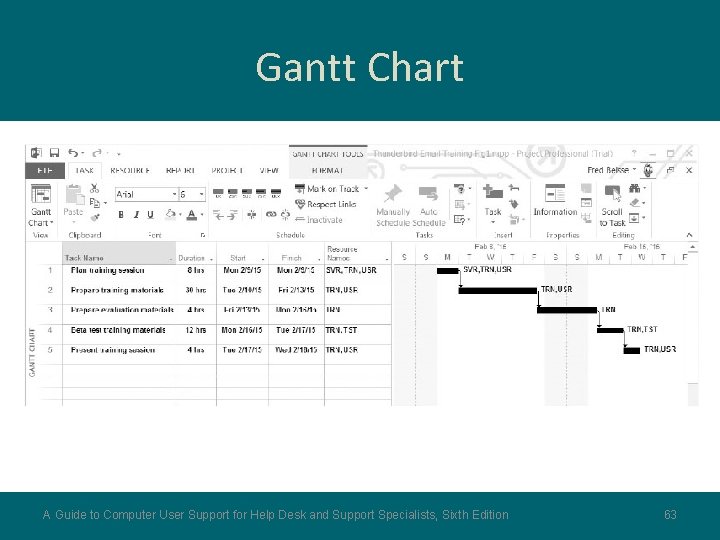
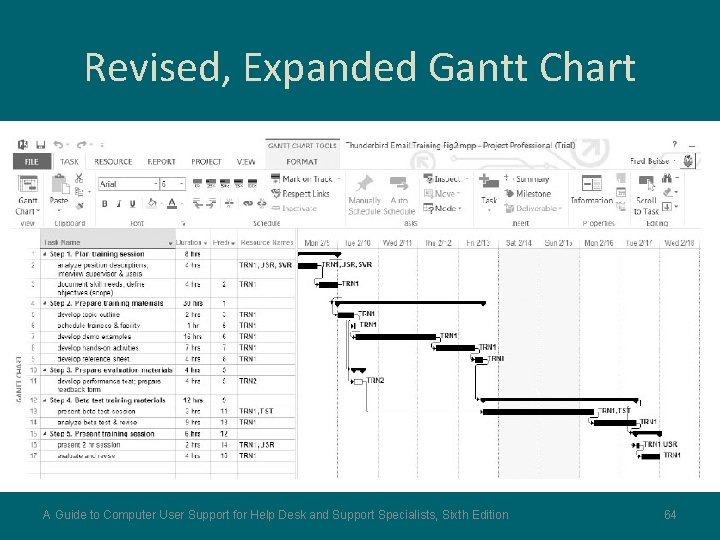
Project Management Tools • Project management software tools: – Microsoft Project – KIDASA Software’s Milestones Simplicity – Open source tool: ]project-open[ • Gantt chart: a project planning tool that displays basic information about each project task as a horizontal bar on a timeline – Predecessor task: an activity that must be completed before another task can begin • Critical path: a sequence of project tasks that must be completed on time to meet a project’s completion date A Guide to Computer User Support for Help Desk and Support Specialists, Sixth Edition 61
Example Project Plan: Mozilla Thunderbird Training Session Don’t forget to include time you are requiring from customers. Perhaps that should be in another column! A Guide to Computer User Support for Help Desk and Support Specialists, Sixth Edition 62
Gantt Chart A Guide to Computer User Support for Help Desk and Support Specialists, Sixth Edition 63
Revised, Expanded Gantt Chart A Guide to Computer User Support for Help Desk and Support Specialists, Sixth Edition 64
Chapter Summary • A needs assessment project is a sequence of steps designed to obtain relevant information from end users and help them make an informed decision about technology purchases or processing procedures A Guide to Computer User Support for Help Desk and Support Specialists, Sixth Edition 65
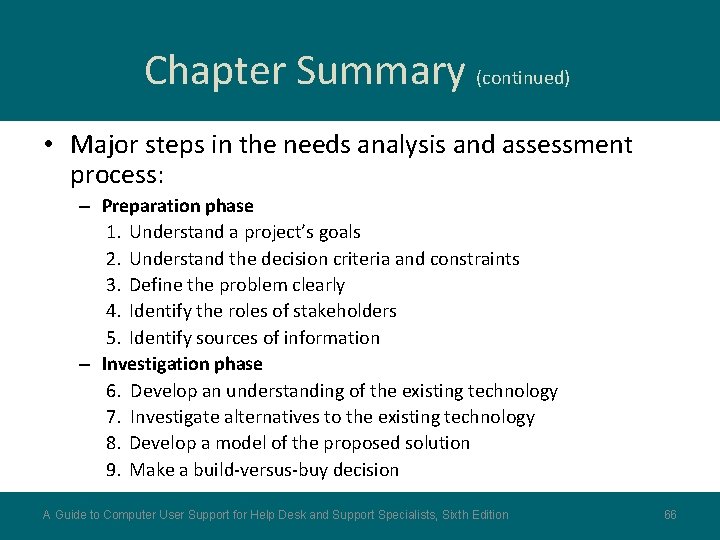
Chapter Summary (continued) • Major steps in the needs analysis and assessment process: – Preparation phase 1. Understand a project’s goals 2. Understand the decision criteria and constraints 3. Define the problem clearly 4. Identify the roles of stakeholders 5. Identify sources of information – Investigation phase 6. Develop an understanding of the existing technology 7. Investigate alternatives to the existing technology 8. Develop a model of the proposed solution 9. Make a build-versus-buy decision A Guide to Computer User Support for Help Desk and Support Specialists, Sixth Edition 66
Chapter Summary (continued) • User support analysts use a variety of tools as information acquisition and decision aids in a needs analysis project: – – – – – Project charters Cost-benefits analysis Input and output forms Procedure documentation Operating or problem logs Interviews and questionnaires Direct observation Charts and diagrams Prototyping software Project management software A Guide to Computer User Support for Help Desk and Support Specialists, Sixth Edition 67