
Chapter 9 Additional Controls and Objects 9 1
Chapter 9 – Additional Controls and Objects 9. 1 List Boxes and Combo Boxes 9. 2 Eight Additional Controls and Objects 9. 3 Multiple-Form Objects 9. 4 Graphics 1
9. 1 List Boxes and Combo Boxes • • A Review of List Box Features Some Additional Features of List Boxes The Combo Box Control A Helpful Feature of Combo Boxes 2
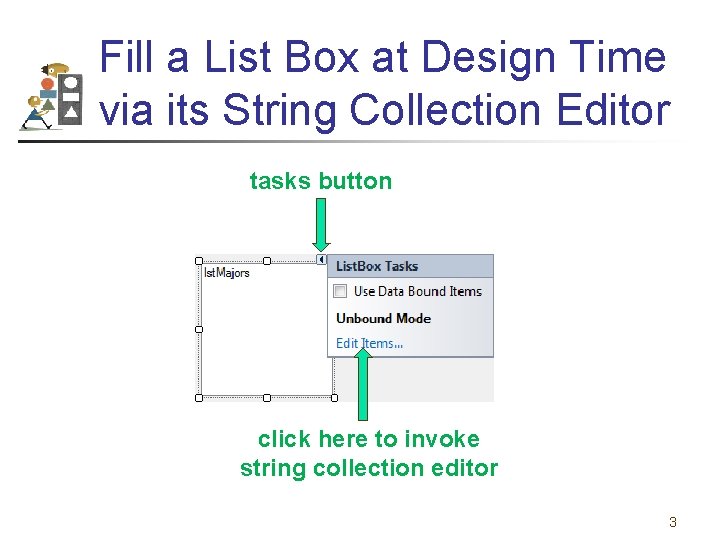
Fill a List Box at Design Time via its String Collection Editor tasks button click here to invoke string collection editor 3
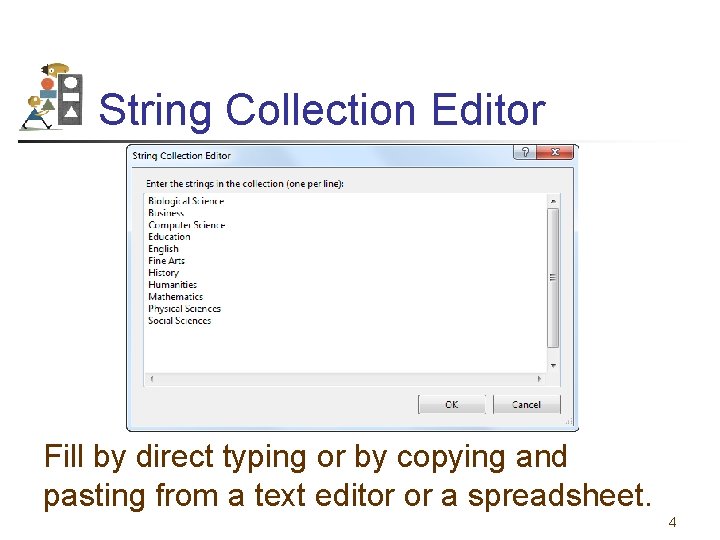
String Collection Editor Fill by direct typing or by copying and pasting from a text editor or a spreadsheet. 4
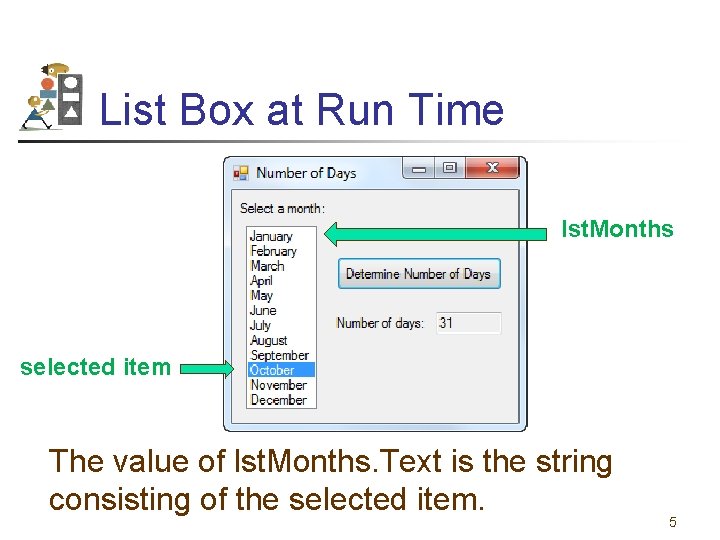
List Box at Run Time lst. Months selected item The value of lst. Months. Text is the string consisting of the selected item. 5
Indexes The items in a list box are indexed with zero-based numbering. lst. Box. Items(0) lst. Box. Items(1). . 6
List Box Properties • lst. Box. Text: The selected item as a string. • lst. Box. Items. Count: The number of items in the list box. • lst. Box. Sorted: If set to True, items will be displayed in ascending ANSI order. • lst. Box. Selected. Index: The index of the selected item. If no item is selected, the value is -1. 7
More List Box Properties • lst. Box. Items(n): The item having index n. It must be converted to a string before being displayed in a text or message box. • lst. Box. Data. Source: The source of data to populate the list box. 8
List Box Events • lst. Box. Selected. Index. Changed: Raised when the value of the Selected. Index property changes. (default event procedure) • lst. Box. Click: Raised when the user clicks on the list box. • lst. Box. Double. Click: Raised when the user double-clicks on the list box. 9
List Box Methods • lst. Box. Items. Index. Of(value): Index of the first item to have the value. • lst. Box. Items. Remove. At(n): Delete item having index n. • lst. Box. Items. Remove(str. Value): Delete first occurrence of the string value. • lst. Box. Items. Insert(n, value): Insert the value as the item of index n. 10
The Combo Box Control • A list box combined with a text box • The user has the option of filling the text box by selecting from a list or typing directly into the list box. • Essentially same properties, events, and methods as a list box • Drop. Down. Style property specifies one of three styles 11
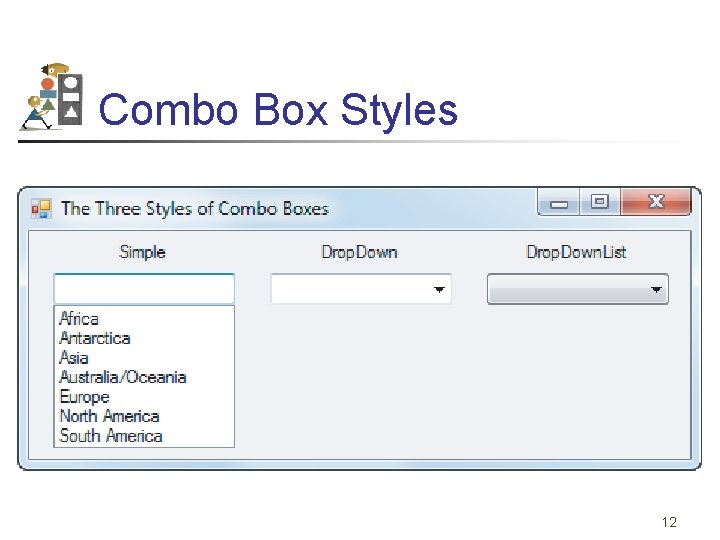
Combo Box Styles 12
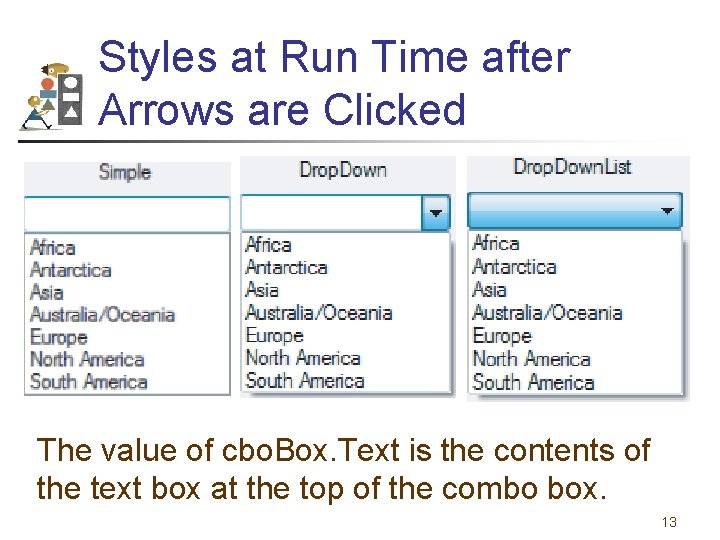
Styles at Run Time after Arrows are Clicked The value of cbo. Box. Text is the contents of the text box at the top of the combo box. 13
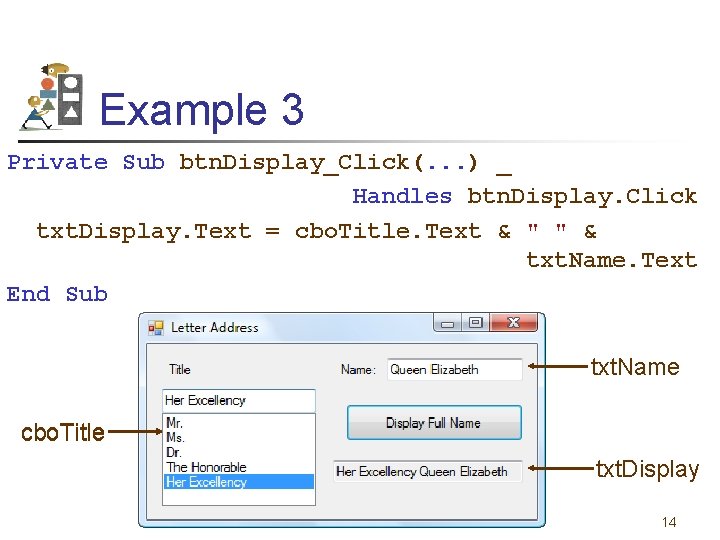
Example 3 Private Sub btn. Display_Click(. . . ) _ Handles btn. Display. Click txt. Display. Text = cbo. Title. Text & " " & txt. Name. Text End Sub txt. Name cbo. Title txt. Display 14
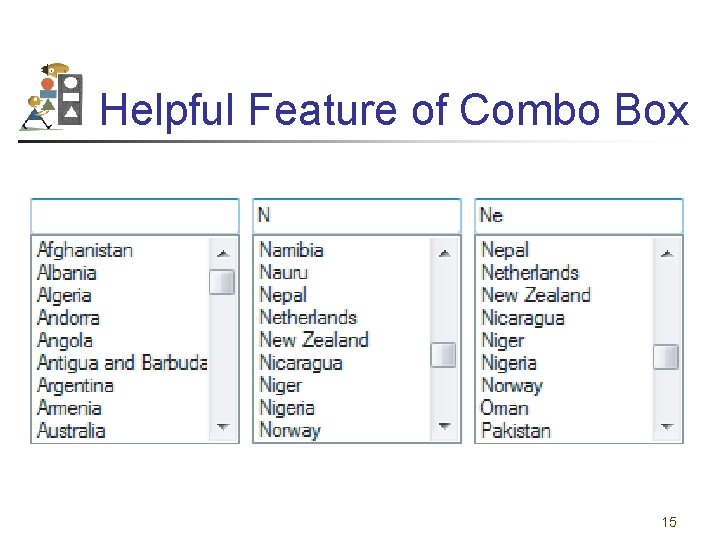
Helpful Feature of Combo Box 15
9. 2 Eight Additional Controls and Objects • • The Timer Control The Random Class The Tool. Tip Control The Clipboard Object The Picture Box Control The Menu. Strip Control The Horizontal and Vertical Scroll Bar Controls 16
The Timer Control • Invisible during run time • Raises an event after a specified period of time • The Interval property specifies the time period measured in milliseconds. • To begin timing, set Enabled property to True. • To stop timing, set Enabled property to False. • The event raised each time Timer 1. Interval elapses is called Timer 1. Tick. 17
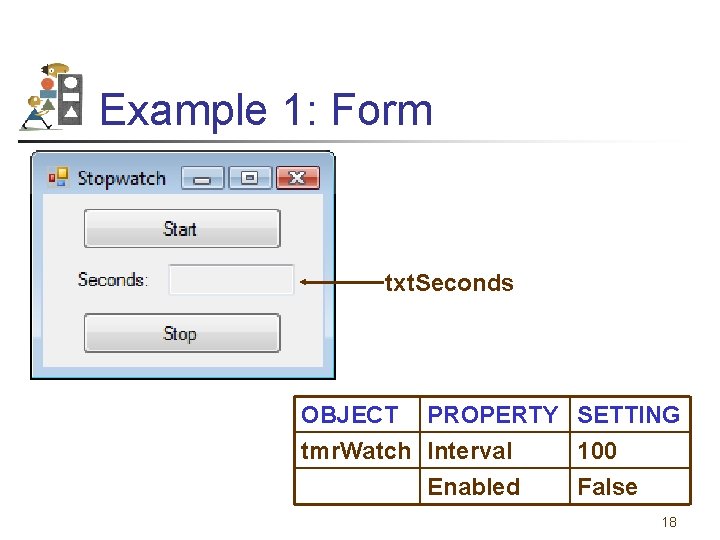
Example 1: Form txt. Seconds OBJECT PROPERTY SETTING tmr. Watch Interval 100 Enabled False 18
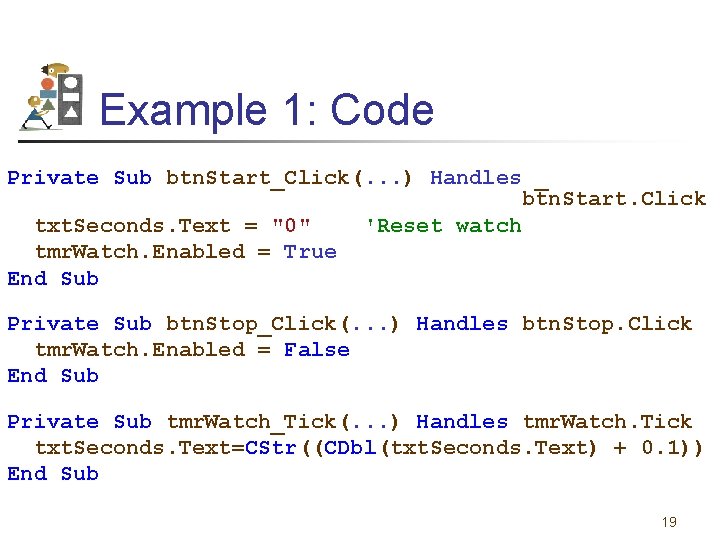
Example 1: Code Private Sub btn. Start_Click(. . . ) Handles _ btn. Start. Click txt. Seconds. Text = "0" 'Reset watch tmr. Watch. Enabled = True End Sub Private Sub btn. Stop_Click(. . . ) Handles btn. Stop. Click tmr. Watch. Enabled = False End Sub Private Sub tmr. Watch_Tick(. . . ) Handles tmr. Watch. Tick txt. Seconds. Text=CStr((CDbl(txt. Seconds. Text) + 0. 1)) End Sub 19
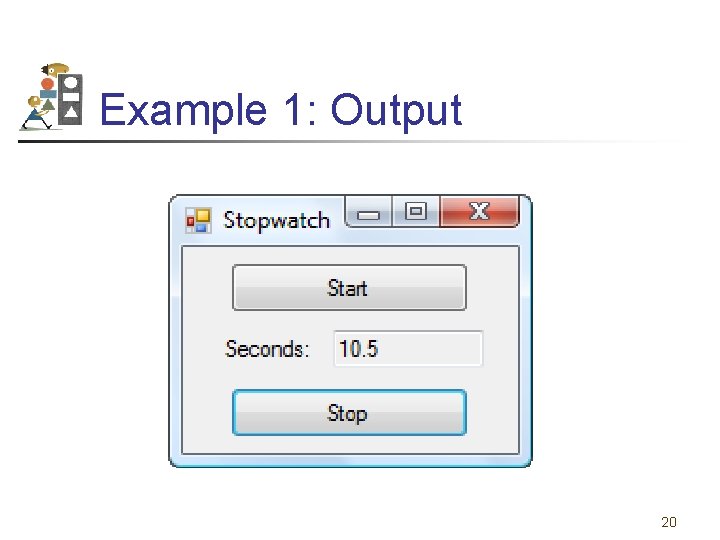
Example 1: Output 20
The Random Class • A random number generator is declared with the statement Dim random. Num As New Random() • If m and n are whole numbers and m < n the following generates a random whole number between m and n (including m, but excluding n) random. Num. Next(m, n) 21
Example 2 Private Sub btn. Select_Click(. . . ) Handles _ btn. Select. Click Dim random. Num As New Random() Dim num 1, num 2, num 3 As Integer num 1 = random. Num. Next(0, 10) num 2 = random. Num. Next(0, 10) num 3 = random. Num. Next(0, 10) txt. Numbers. Text = num 1 & " " & num 2 & " " & num 3 End Sub 22
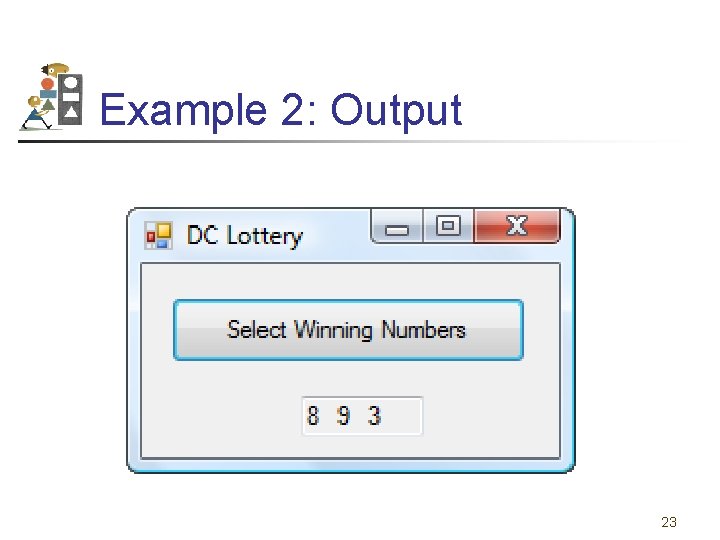
Example 2: Output 23
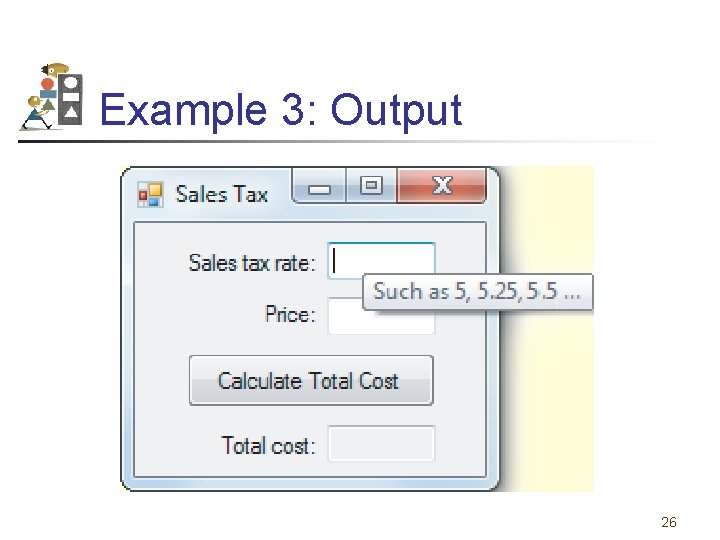
The Tool. Tip Control • Appears in component tray of form with default name Tool. Tip 1 • Allows a tooltip to appear when user hovers over a control (such as a text box) • Text displayed in tooltip is the setting of the “Tool. Tip on Tool. Tip 1” property of the control to be hovered over 24
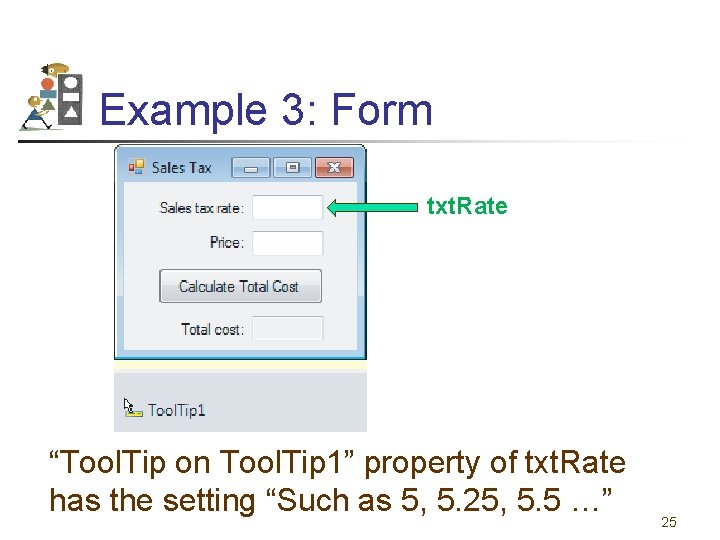
Example 3: Form txt. Rate “Tool. Tip on Tool. Tip 1” property of txt. Rate has the setting “Such as 5, 5. 25, 5. 5 …” 25
Example 3: Output 26
Other Tooltip Properties • Automatic. Delay - determines the length of time (in milliseconds) required for a tooltip to appear • Auto. Pop. Delay - determines the length of time the tooltip remains visible while the cursor is stationary inside the control 27
The Clipboard Object • Used to copy information from one place to another • Maintained by Windows. It can even be used with programs outside of Visual Basic. • A portion of memory that has no properties or events 28
Using the Clipboard Object • To place something into the Clipboard: Clipboard. Set. Text(str) • To get something out of the Clipboard: str = Clipboard. Get. Text To delete the contents of the Clipboard: Clipboard. Set. Text("") 29
Pixels • The graphics unit of measurement is called a pixel. • To get a feel for pixel measurement, place a picture box on a form and look at the picture box’s Size property. The two numbers in the setting give the width and height of the picture box in pixels. 30
Coordinates in a Picture Box Each point in a picture box is identified by a pair of coordinates, (x, y). y pixels x pixels (x, y) 31
The Picture Box Control • Designed to hold drawings and pictures • The following statement draws a blue rectangle of width w and height h inside the picture box whose upper left hand corner having coordinates (x, y) : pic. Box. Create. Graphics. Draw. Rectangle(Pens. Blue, x, y, w, h) 32
The Picture Box Control (continued) • To draw a blue circle with diameter d: • pic. Box. Create. Graphics. Draw. Ellipse(Pens. Blue, x, y, d, d) • The numbers x and y give the coordinates of the upper-left corner of a rectangle having the circle with diameter d inscribed in it. 33
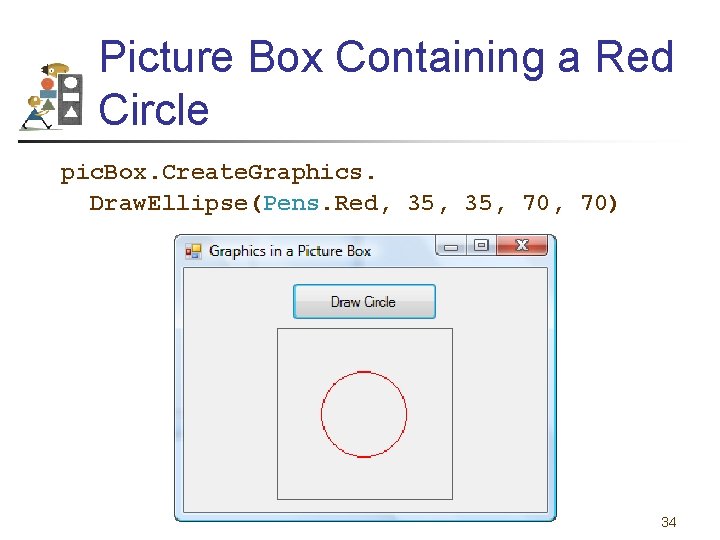
Picture Box Containing a Red Circle pic. Box. Create. Graphics. Draw. Ellipse(Pens. Red, 35, 70) 34
Picture Box Properties • A picture can be placed in a picture box control with the Image property. • Prior to setting the Image property, set the Size. Mode property. • Auto. Size will cause the picture box control to be resized to fit the picture. • Stretch. Image will cause the picture to be resized to fit the picture box control. 35
Picture Box at Run Time • A picture also can be assigned to a picture box control at run time: pic. Box. Image = Image. From. File(filespec) • The Size. Mode property can be altered at run time with a statement such as pic. Box. Size. Mode = Picture. Box. Size. Mode. Auto. Size 36
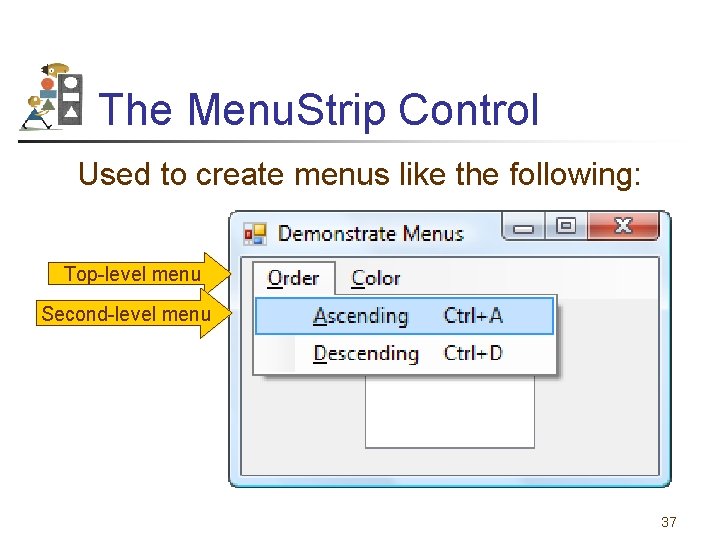
The Menu. Strip Control Used to create menus like the following: Top-level menu Second-level menu 37
Menu Events • Each menu item responds to the Click event • Click event is triggered by • the mouse • Alt + access key • Shortcut key 38
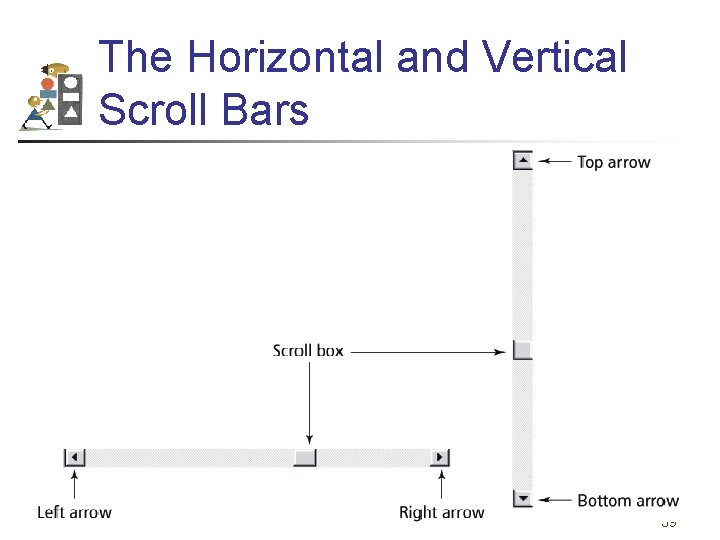
The Horizontal and Vertical Scroll Bars 39
Scroll Bar Behavior • When the user clicks on one of the arrow buttons, the scroll box moves a small amount toward that button. • When the user clicks between the scroll box and one of the arrow buttons, the scroll box moves a large amount toward that button. • The user can also move the scroll box by dragging it. 40
Scroll Bar Properties The main properties of a scroll bar control are Minimum, Maximum, Value, Small. Change, and Large. Change. hsb. Bar. Value is between hsb. Bar. Minimum and hsb. Bar. Maximum, and gives the location of the scroll box. 41
Scroll Bar Notes • The setting for the Minimum property must be less than the setting for the Maximum property. • The Minimum property determines the values for the left and top arrow buttons. • The Maximum property determines the values for the right and bottom arrow buttons. • The Scroll event is triggered whenever any part of the scroll bar is clicked. 42
9. 3 Multiple-Form Programs • Startup Form • Scope of Variables, Constants, and Procedures • Modality • Close and Show. Dialog Methods • The Form. Closing Event Procedure • Importing an Existing Form • Deleting a Form from a Program 43
Multiple Forms • Visual Basic programs can contain more than one form • To add the new form, select Add Windows Form from the Project menu, to invoke the Add New Items dialog box. 44
Add New Items Dialog Box • Select Windows Form from the center pane. • Optionally type in a name. • Press the Add button. 45
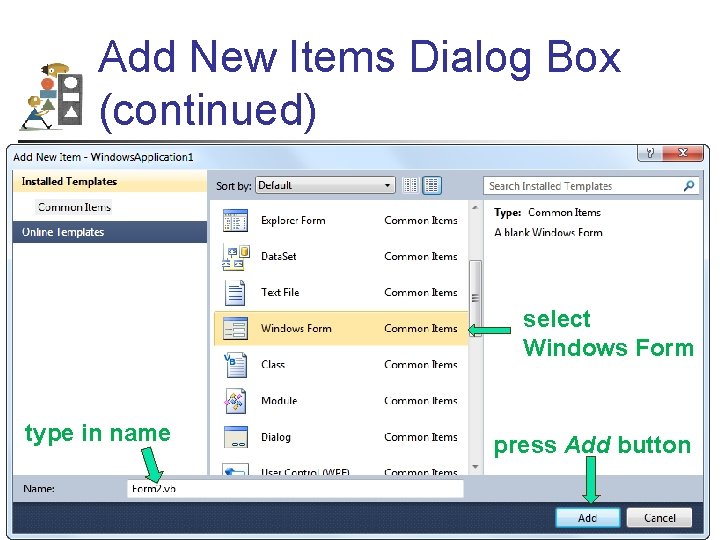
Add New Items Dialog Box (continued) select Windows Form type in name press Add button 46
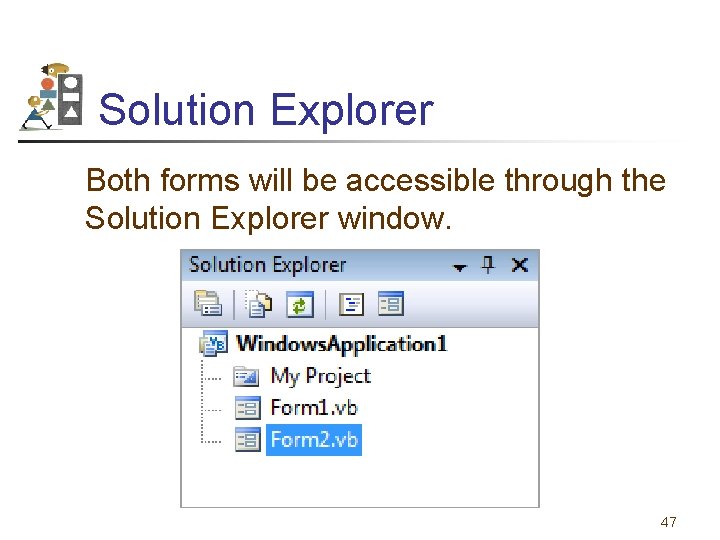
Solution Explorer Both forms will be accessible through the Solution Explorer window. 47
Startup Form • The form that loads when the program starts running is called the startup form. • To designate a form as the startup form 1. Right-click on the program name at the top of the Solution Explorer. 2. Click on Properties in the context menu. 3. Select the form from the “Startup form” dropdown list. 48
Variables and Multiple Forms • Variables declared in the Declarations section of a form with Public, instead of Dim, will be available to all forms in the program. The variable is said to have namespace-level scope. • When a Public variable is used in another form, it is referred to by an expression such as other. Form. variable. Name 49
Show. Dialog Method The statement frm. Other. Show. Dialog() displays frm. Other as a modal form. An open modal form must be closed before the user can work with any other form. 50
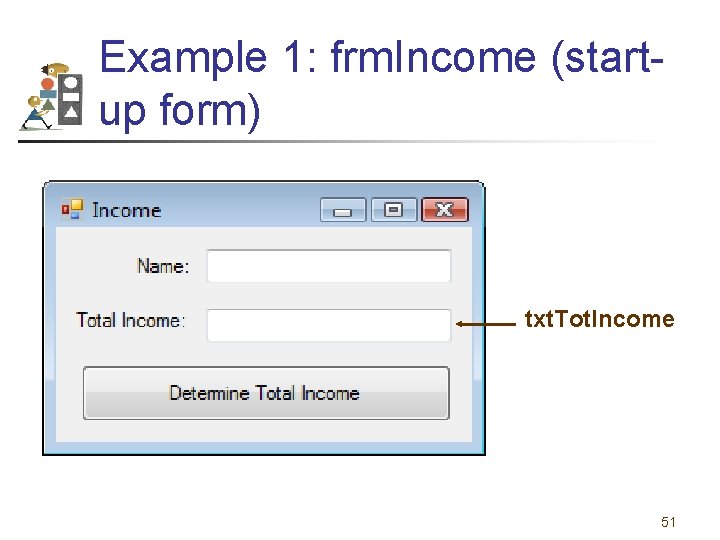
Example 1: frm. Income (startup form) txt. Tot. Income 51
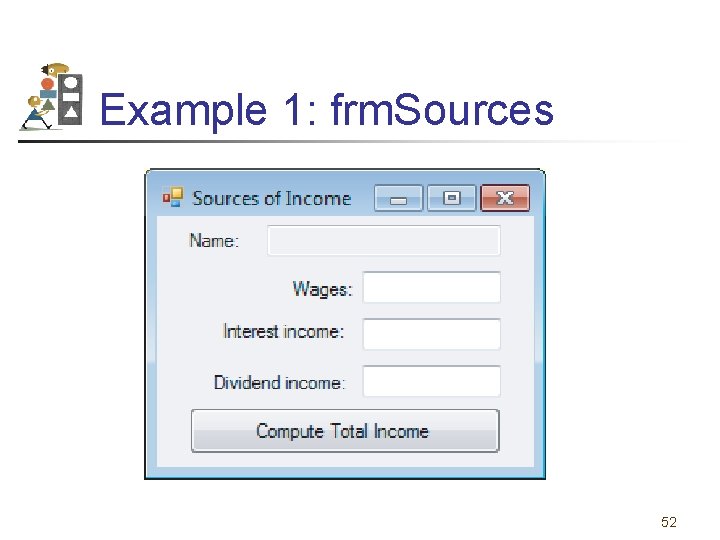
Example 1: frm. Sources 52
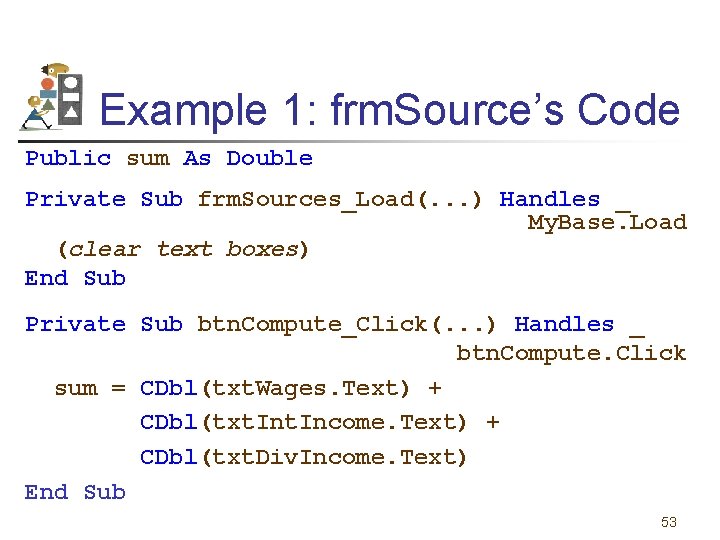
Example 1: frm. Source’s Code Public sum As Double Private Sub frm. Sources_Load(. . . ) Handles _ My. Base. Load (clear text boxes) End Sub Private Sub btn. Compute_Click(. . . ) Handles _ btn. Compute. Click sum = CDbl(txt. Wages. Text) + CDbl(txt. Income. Text) + CDbl(txt. Div. Income. Text) End Sub 53
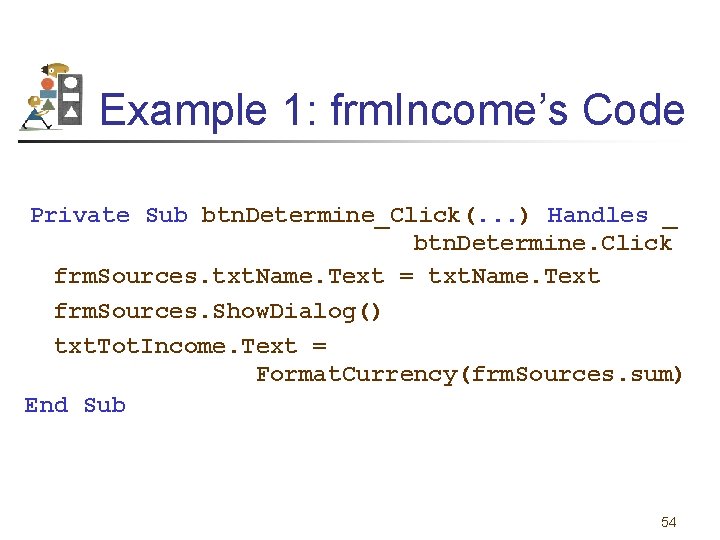
Example 1: frm. Income’s Code Private Sub btn. Determine_Click(. . . ) Handles _ btn. Determine. Click frm. Sources. txt. Name. Text = txt. Name. Text frm. Sources. Show. Dialog() txt. Tot. Income. Text = Format. Currency(frm. Sources. sum) End Sub 54
Form. Closing Event • Analogous to the Load event • Load event is raised before a form is displayed for the first time • Form. Closing event is raised before a form closes. 55
Importing an Existing Form 1. Click on Add Existing Item in Project menu. 2. Navigate to and open the folder for the form. 3. Double-click on form. Name. vb. Note: Text files must be copied separately. 56
9. 4 Graphics • • • Graphics Objects Lines, Rectangles, Circles, and Sectors Pie Charts Bar Charts Animation Printing Graphics 57
Graphics Objects • Our objective is to draw bar charts and pie charts in a picture box. • A statement of the form Dim gr As Graphics = pic. Box. Create. Graphics declares gr to be a Graphics object for the picture box pic. Box. 58
Pixels • The graphics unit of measurement is called a pixel. • To get a feel for pixel measurement, place a picture box on a form and look at the picture box’s Size property. The two numbers in the setting give the width and height in pixels. 59
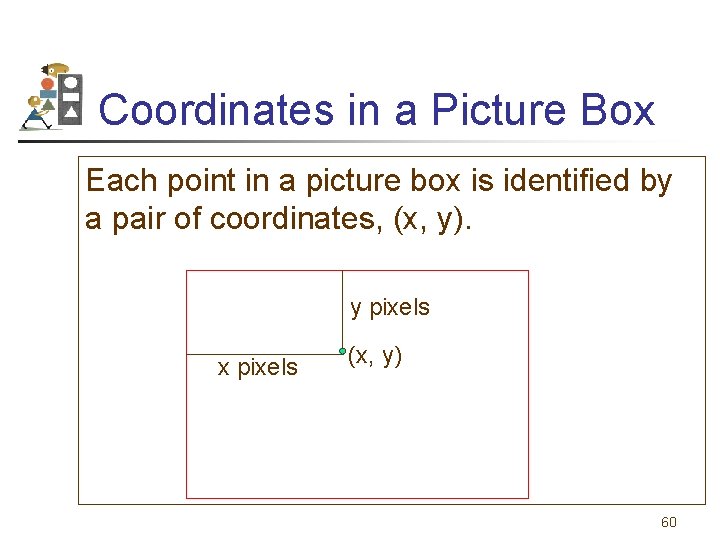
Coordinates in a Picture Box Each point in a picture box is identified by a pair of coordinates, (x, y). y pixels x pixels (x, y) 60
Display Text in Picture Box Dim gr As Graphics = pic. Box. Create. Graphics gr. Draw. String(string, Me. Font, _ Brushes. Color, x, y) Displays string in the picture box. The upperleft corner of the text has coordinates (x, y), the font used is the Form’s font, and the color of the text is specified by color. Note: Intelli. Sense will provide a list of colors. 61
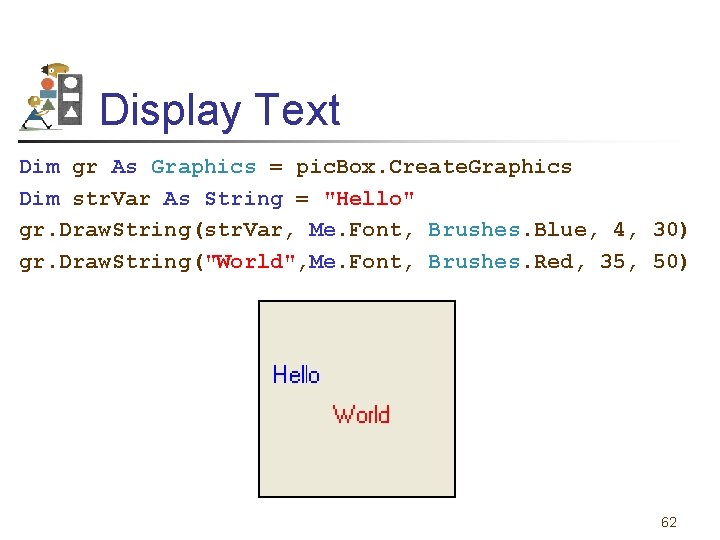
Display Text Dim gr As Graphics = pic. Box. Create. Graphics Dim str. Var As String = "Hello" gr. Draw. String(str. Var, Me. Font, Brushes. Blue, 4, 30) gr. Draw. String("World", Me. Font, Brushes. Red, 35, 50) 62
Draw a Line in a Picture Box Dim gr As Graphics = pic. Box. Create. Graphics gr. Draw. Line(Pens. Color, x 1, y 1, x 2, y 2) draws a line in the specified color from (x 1, y 1) to (x 2, y 2). Note: Intelli. Sense will provide a list of colors. 63
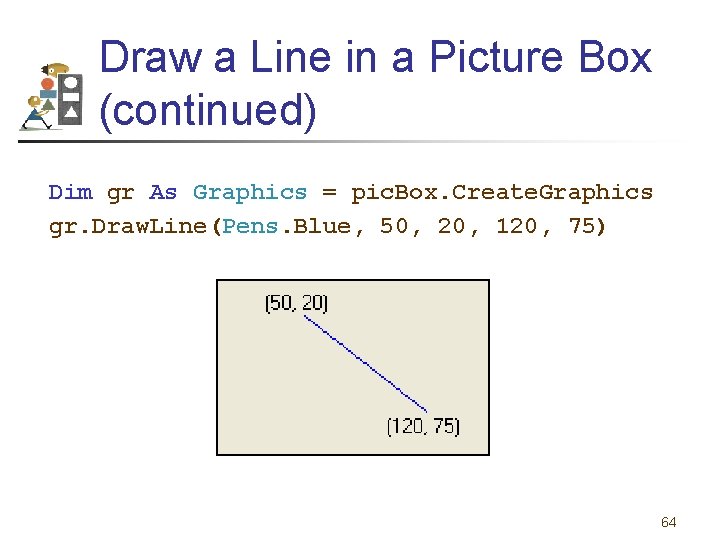
Draw a Line in a Picture Box (continued) Dim gr As Graphics = pic. Box. Create. Graphics gr. Draw. Line(Pens. Blue, 50, 20, 120, 75) 64
Draw a Solid Rectangle in a Picture Box Dim gr As Graphics = pic. Box. Create. Graphics gr. Fill. Rectangle(Brushes. Color, x, y, w, h) draws a solid rectangle of width w and height h in the color specified and having the point with coordinates (x, y) as its upper-left corner. Note: Intelli. Sense will provide a list of colors. 65
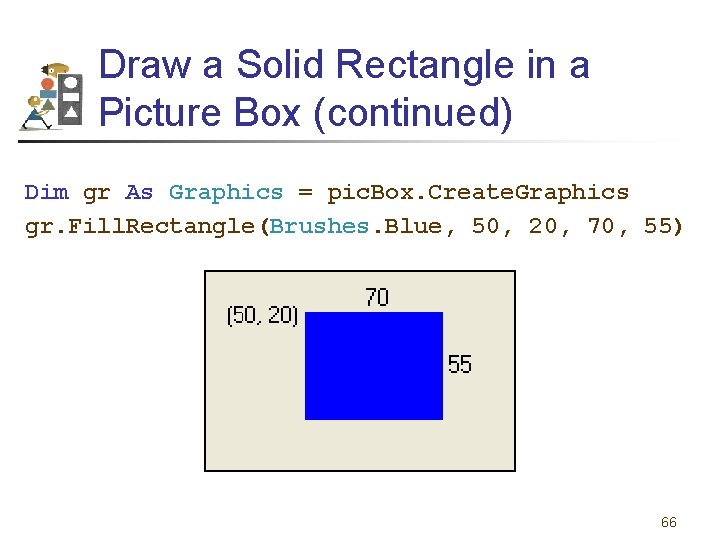
Draw a Solid Rectangle in a Picture Box (continued) Dim gr As Graphics = pic. Box. Create. Graphics gr. Fill. Rectangle(Brushes. Blue, 50, 20, 70, 55) 66
Draw a Solid Ellipse in a Picture Box Dim gr As Graphics = pic. Box. Create. Graphics gr. Fill. Ellipse(Brushes. Color, x, y, w, h) draws a solid ellipse in the color specified inscribed in the rectangle described by the values x, y, w, and h. Note: When w = h, the ellipse is a circle. This is the only type of ellipse we will consider. 67
Draw a Solid Ellipse in a Picture Box (continued) Dim gr As Graphics = pic. Box. Create. Graphics gr. Fill. Ellipse(Brushes. Color, _ a - r, b - r, 2 * r) draws a solid circle in the color specified with center (a, b) and radius r. . 68
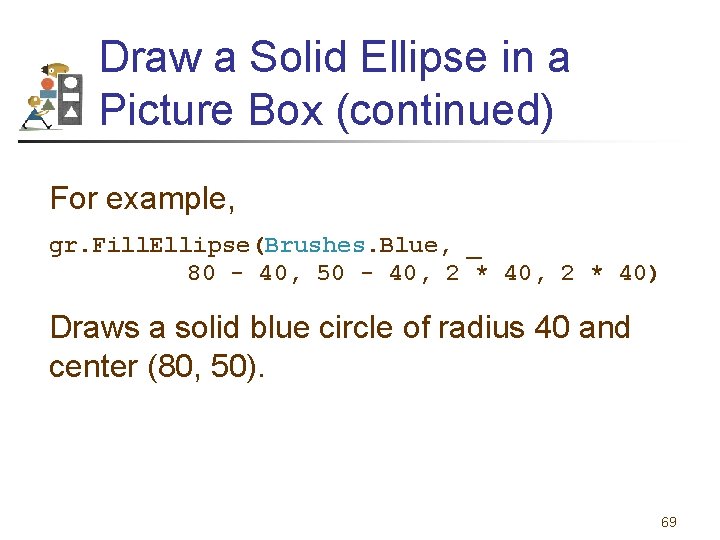
Draw a Solid Ellipse in a Picture Box (continued) For example, gr. Fill. Ellipse(Brushes. Blue, _ 80 - 40, 50 - 40, 2 * 40) Draws a solid blue circle of radius 40 and center (80, 50). 69
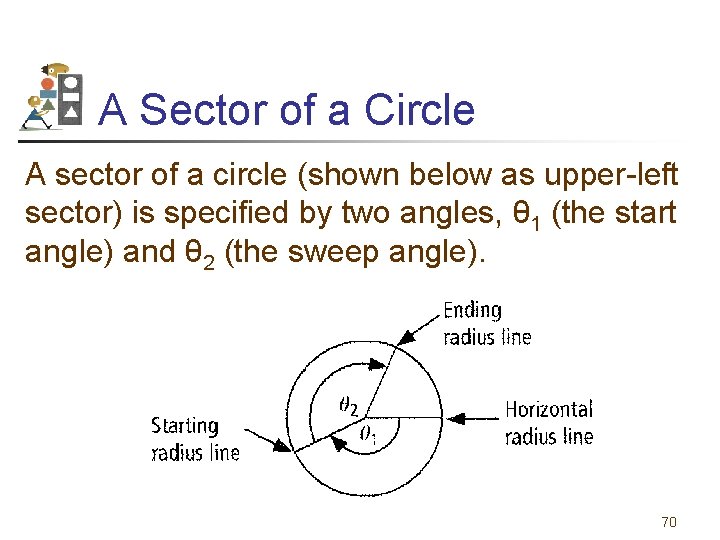
A Sector of a Circle A sector of a circle (shown below as upper-left sector) is specified by two angles, θ 1 (the start angle) and θ 2 (the sweep angle). 70
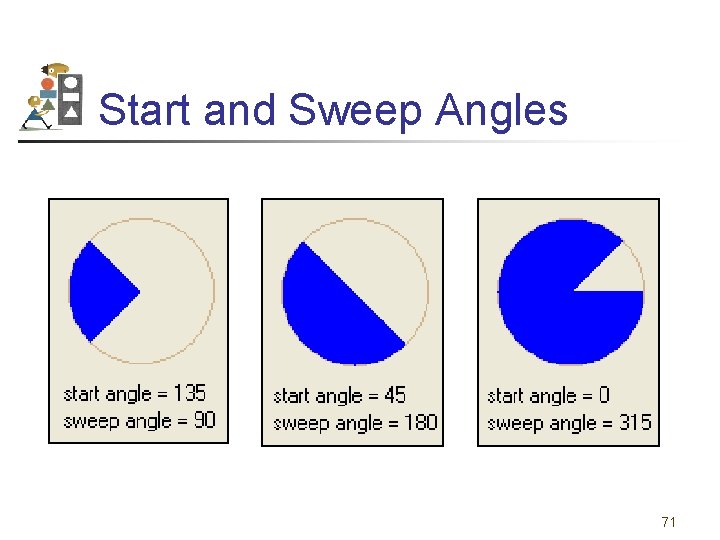
Start and Sweep Angles 71
Draw a Sector The statement gr. Fill. Pie(Brushes. Color, a - r, b - r, _ 2 * r, start. Angle, sweep. Angle) draws a solid sector of a circle with center (a, b), radius r, and having the specified start. Angle and sweep. Angle. The color of the sector is determined by the value of Color. 72
Brushes, Pens, and Fonts Variables can be used for brushes, pens, and fonts. For example, the statement gr. Fill. Rectangle(Brushes. Blue, 50, 20, 70, 55) can be replaced with Dim br As Brush = Brushes. Blue gr. Fill. Rectangle(br, 50, 20, 70, 55) 73
Single Data Type Numeric variables used in Draw and Fill statements must be of type Integer or Single. The Single data type is similar to the Double type, but has a smaller range (-3. 4∙ 1038 to 3. 4∙ 1038). CSng converts other data types to the Single data type. 74
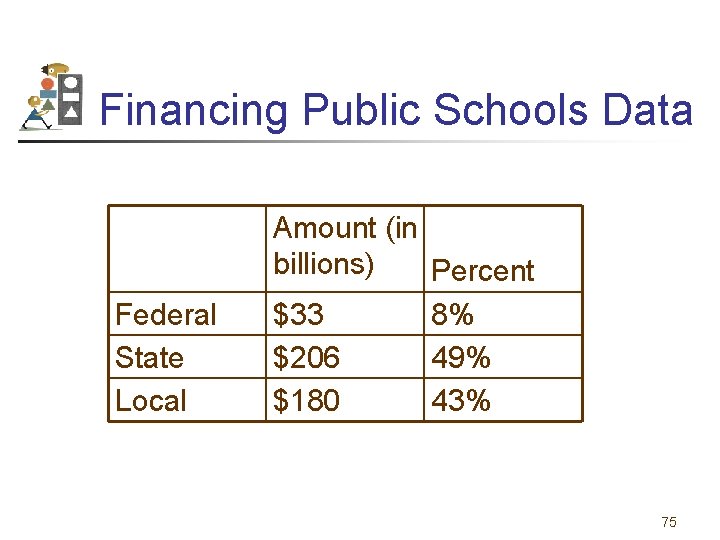
Financing Public Schools Data Federal State Local Amount (in billions) Percent $33 8% $206 49% $180 43% 75
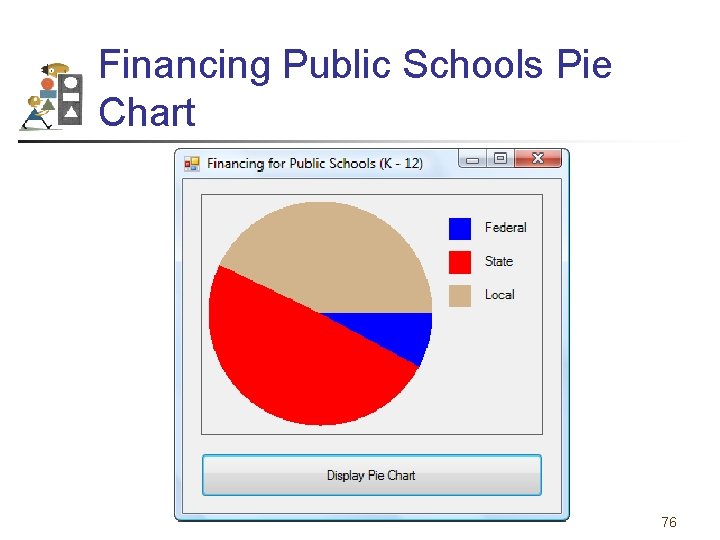
Financing Public Schools Pie Chart 76
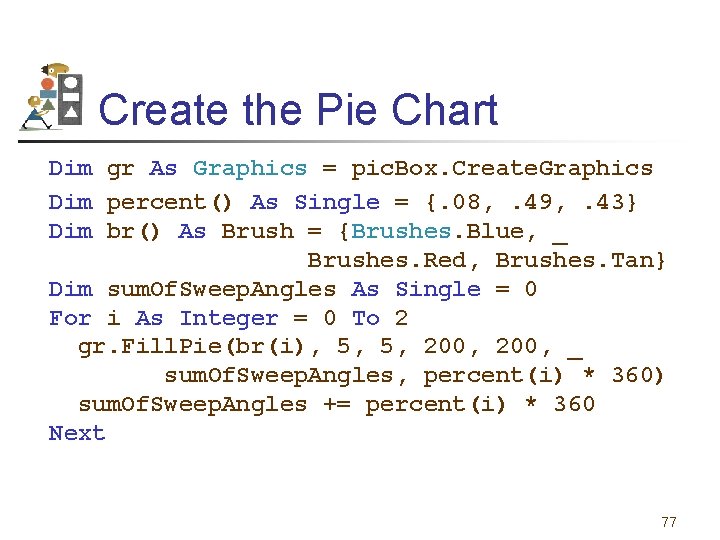
Create the Pie Chart Dim gr As Graphics = pic. Box. Create. Graphics Dim percent() As Single = {. 08, . 49, . 43} Dim br() As Brush = {Brushes. Blue, _ Brushes. Red, Brushes. Tan} Dim sum. Of. Sweep. Angles As Single = 0 For i As Integer = 0 To 2 gr. Fill. Pie(br(i), 5, 5, 200, _ sum. Of. Sweep. Angles, percent(i) * 360) sum. Of. Sweep. Angles += percent(i) * 360 Next 77
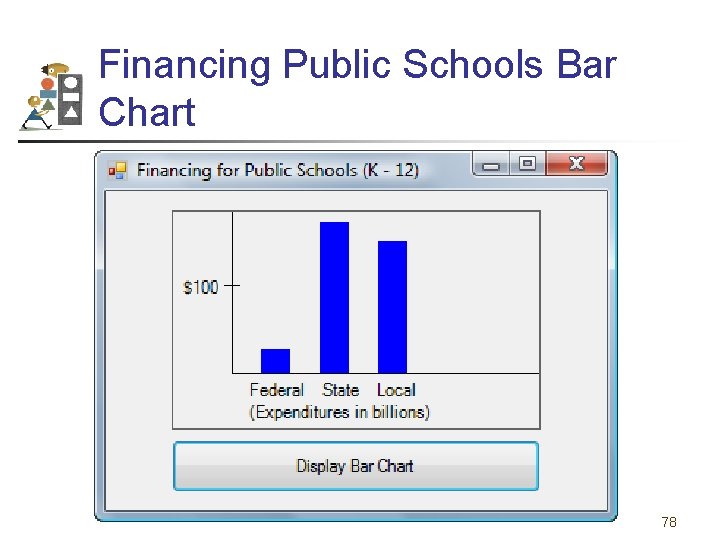
Financing Public Schools Bar Chart 78
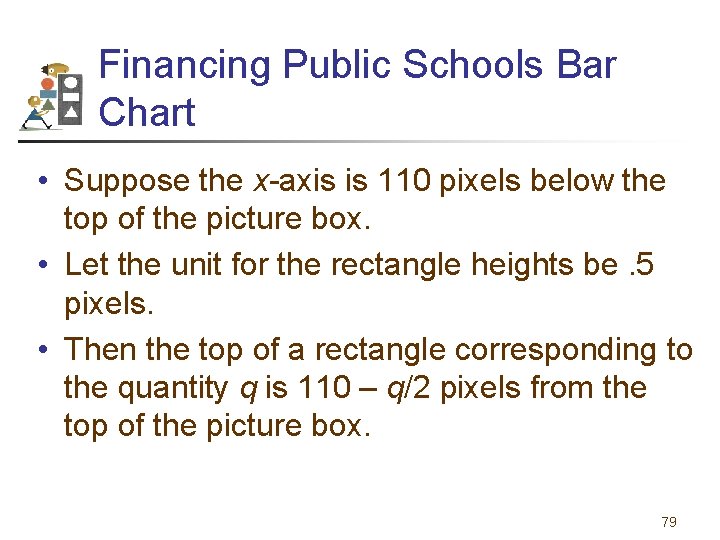
Financing Public Schools Bar Chart • Suppose the x-axis is 110 pixels below the top of the picture box. • Let the unit for the rectangle heights be. 5 pixels. • Then the top of a rectangle corresponding to the quantity q is 110 – q/2 pixels from the top of the picture box. 79
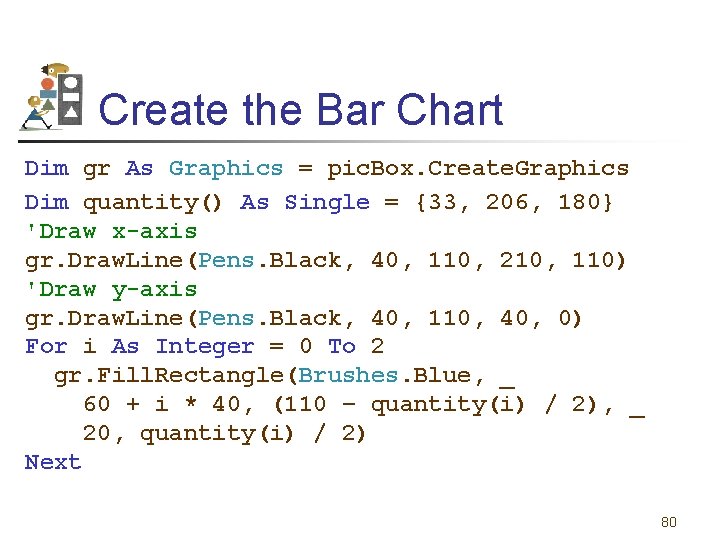
Create the Bar Chart Dim gr As Graphics = pic. Box. Create. Graphics Dim quantity() As Single = {33, 206, 180} 'Draw x-axis gr. Draw. Line(Pens. Black, 40, 110, 210, 110) 'Draw y-axis gr. Draw. Line(Pens. Black, 40, 110, 40, 0) For i As Integer = 0 To 2 gr. Fill. Rectangle(Brushes. Blue, _ 60 + i * 40, (110 – quantity(i) / 2), _ 20, quantity(i) / 2) Next 80
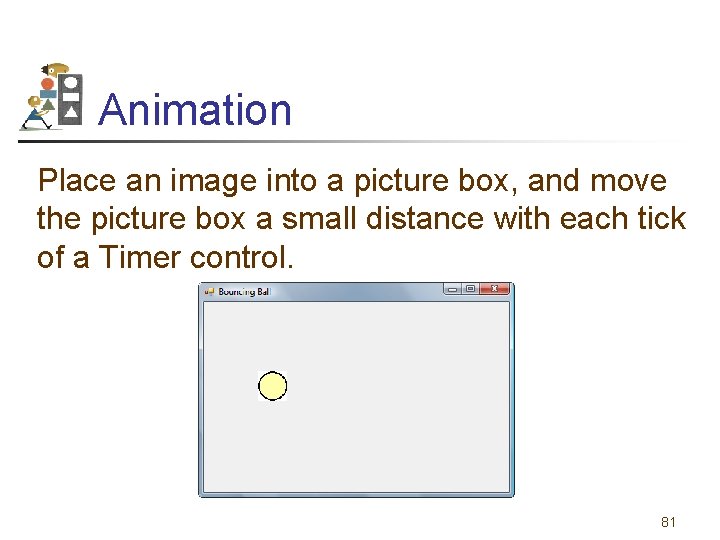
Animation Place an image into a picture box, and move the picture box a small distance with each tick of a Timer control. 81
Move Ball The following code moves the ball along a diagonal with each tick of the timer. Private Sub Timer 1_Tick(. . . ) Handles _ Timer 1. Tick pic. Ball. Left += 1 pic. Ball. Top += 1 End Sub 82
- Slides: 82