
Chapter 8 SPSS Statistical decision making Confidence interval
- Slides: 16
Chapter 8 SPSS: Statistical decision making
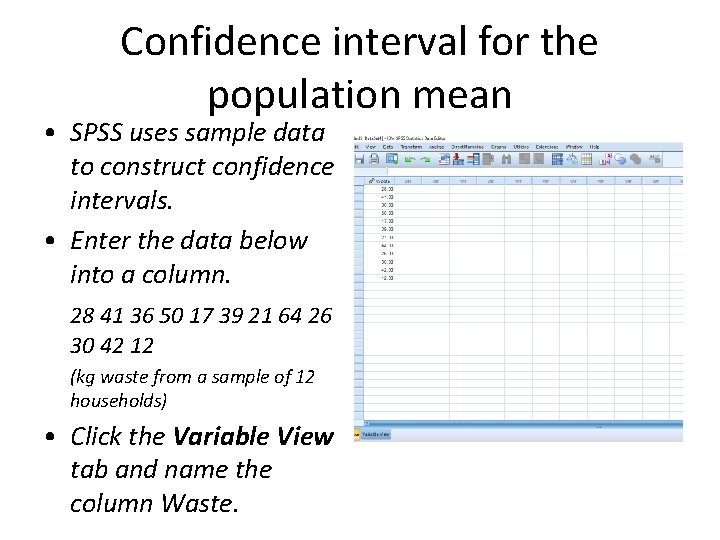
Confidence interval for the population mean • SPSS uses sample data to construct confidence intervals. • Enter the data below into a column. 28 41 36 50 17 39 21 64 26 30 42 12 (kg waste from a sample of 12 households) • Click the Variable View tab and name the column Waste.
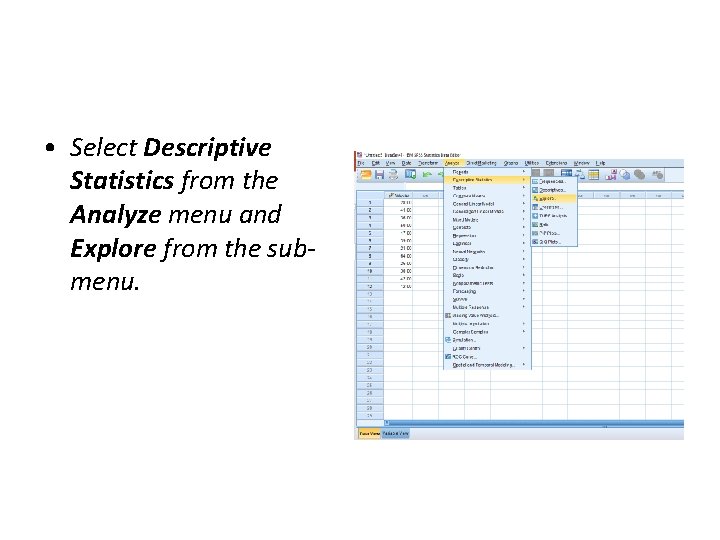
• Select Descriptive Statistics from the Analyze menu and Explore from the submenu.
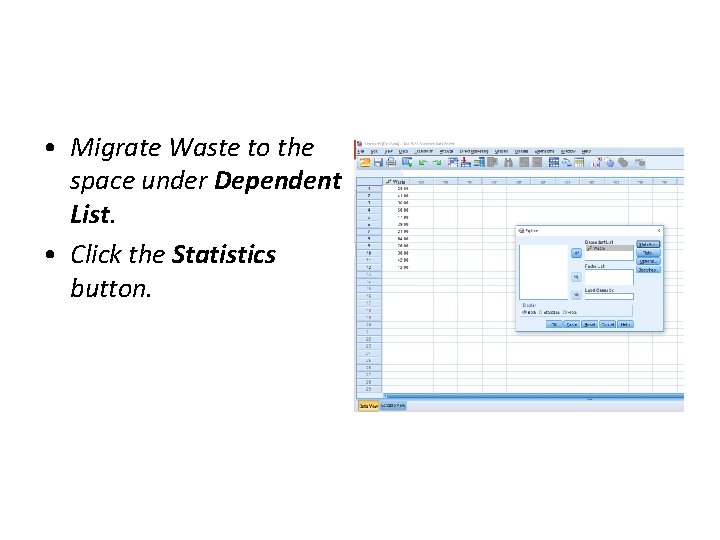
• Migrate Waste to the space under Dependent List. • Click the Statistics button.
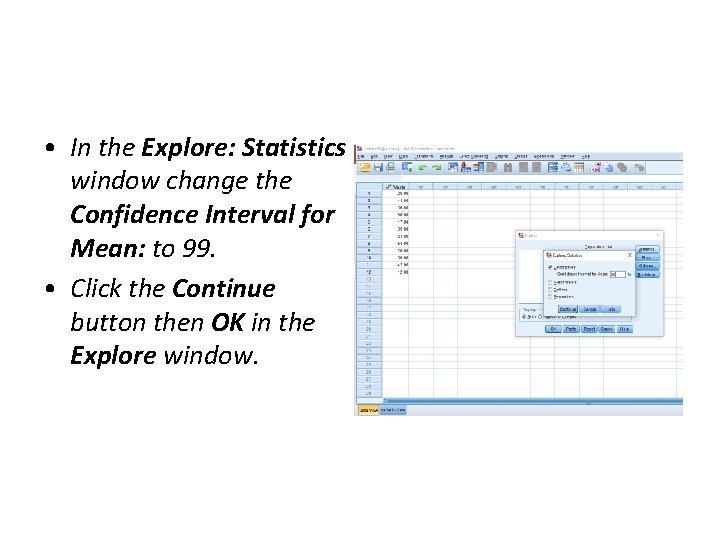
• In the Explore: Statistics window change the Confidence Interval for Mean: to 99. • Click the Continue button then OK in the Explore window.
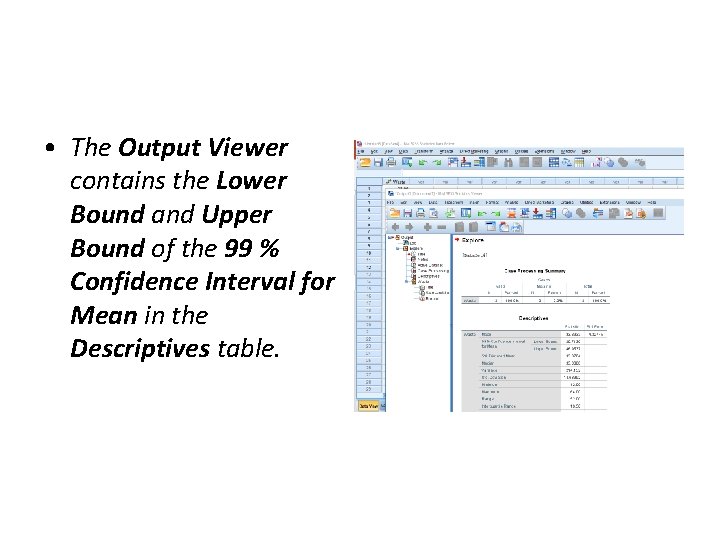
• The Output Viewer contains the Lower Bound and Upper Bound of the 99 % Confidence Interval for Mean in the Descriptives table.
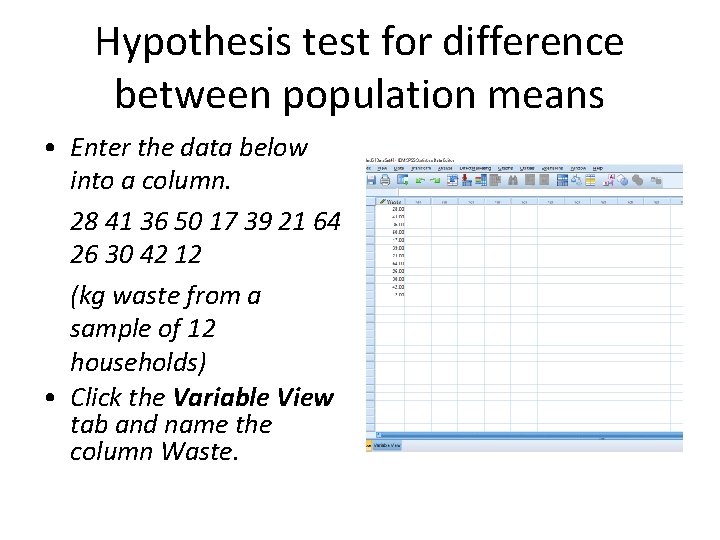
Hypothesis test for difference between population means • Enter the data below into a column. 28 41 36 50 17 39 21 64 26 30 42 12 (kg waste from a sample of 12 households) • Click the Variable View tab and name the column Waste.
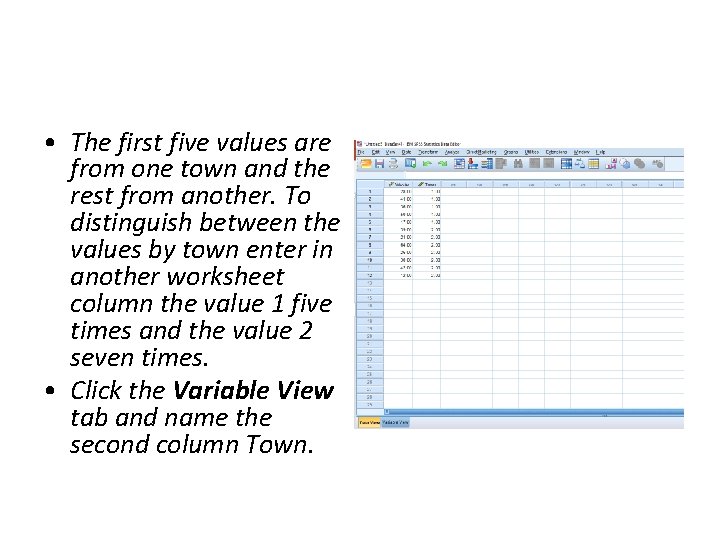
• The first five values are from one town and the rest from another. To distinguish between the values by town enter in another worksheet column the value 1 five times and the value 2 seven times. • Click the Variable View tab and name the second column Town.
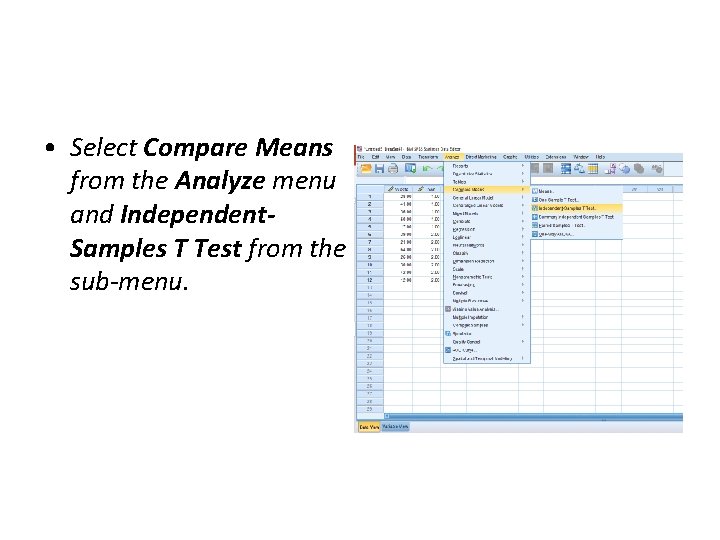
• Select Compare Means from the Analyze menu and Independent. Samples T Test from the sub-menu.
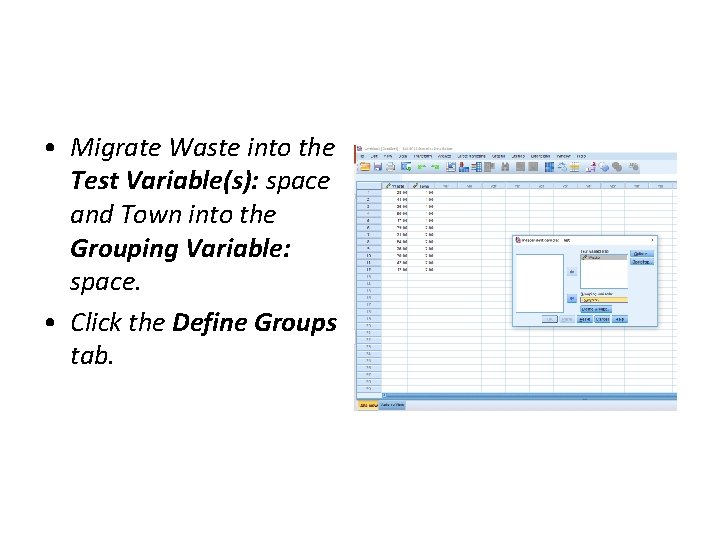
• Migrate Waste into the Test Variable(s): space and Town into the Grouping Variable: space. • Click the Define Groups tab.
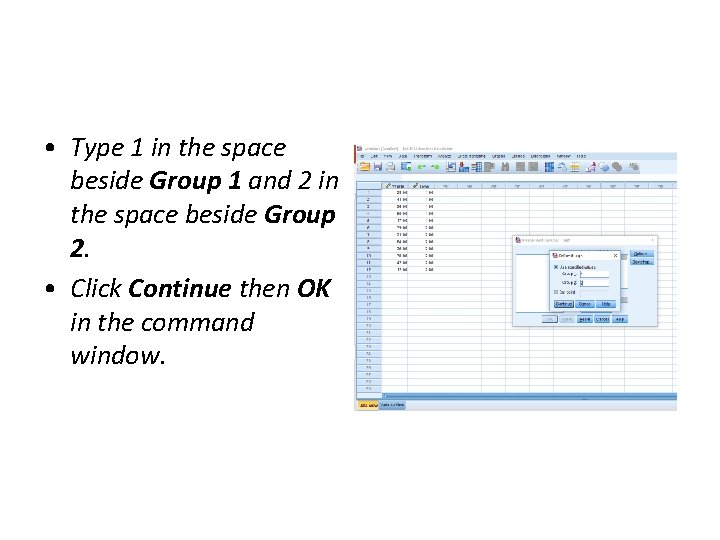
• Type 1 in the space beside Group 1 and 2 in the space beside Group 2. • Click Continue then OK in the command window.
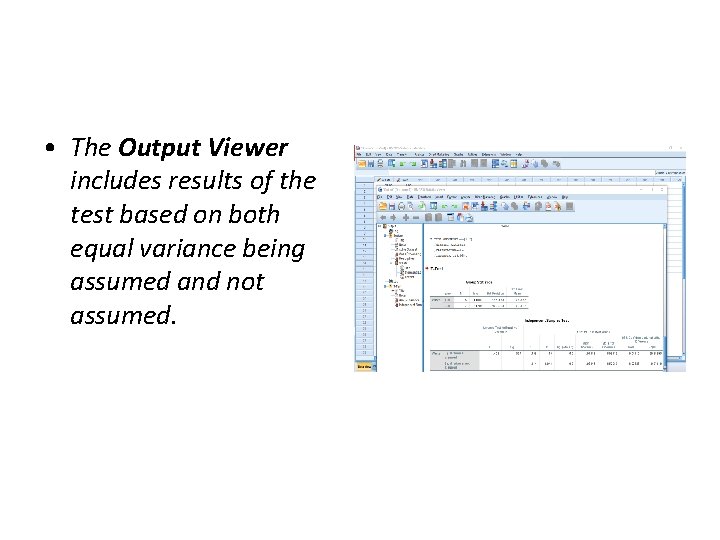
• The Output Viewer includes results of the test based on both equal variance being assumed and not assumed.
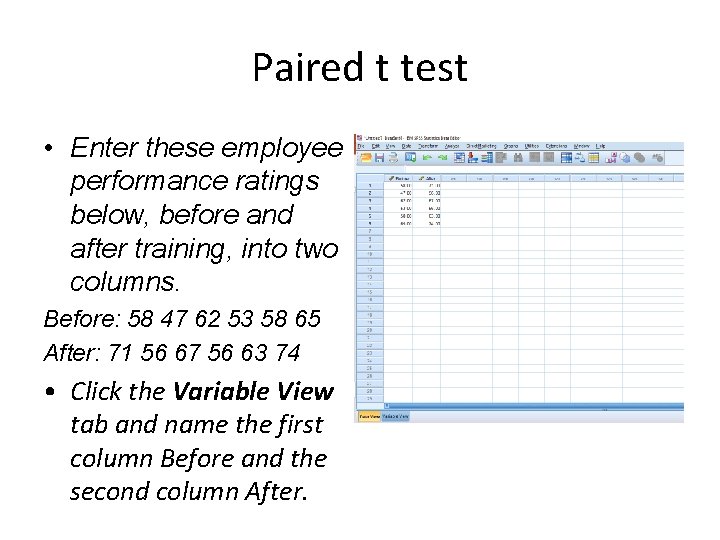
Paired t test • Enter these employee performance ratings below, before and after training, into two columns. Before: 58 47 62 53 58 65 After: 71 56 67 56 63 74 • Click the Variable View tab and name the first column Before and the second column After.
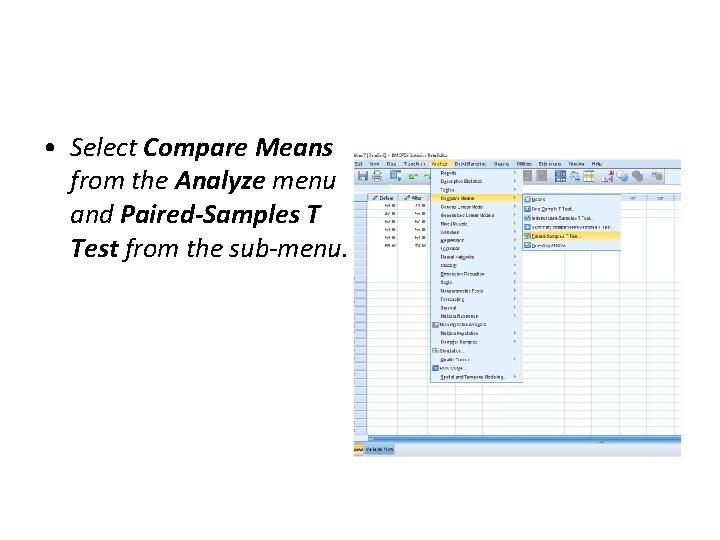
• Select Compare Means from the Analyze menu and Paired-Samples T Test from the sub-menu.
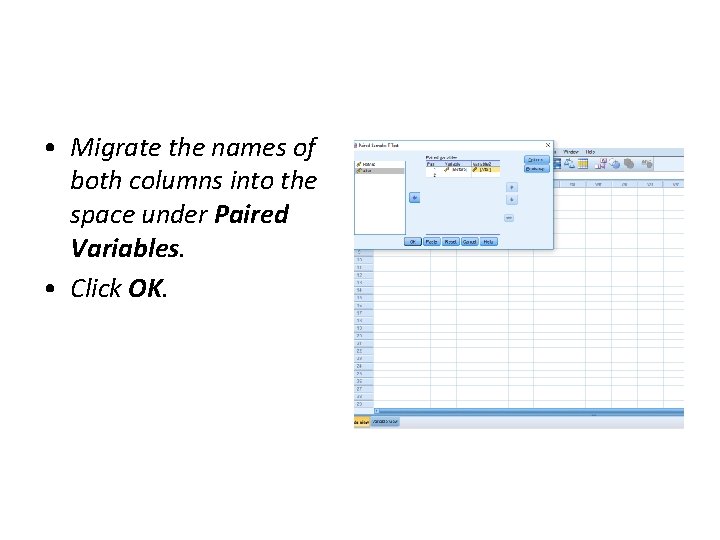
• Migrate the names of both columns into the space under Paired Variables. • Click OK.
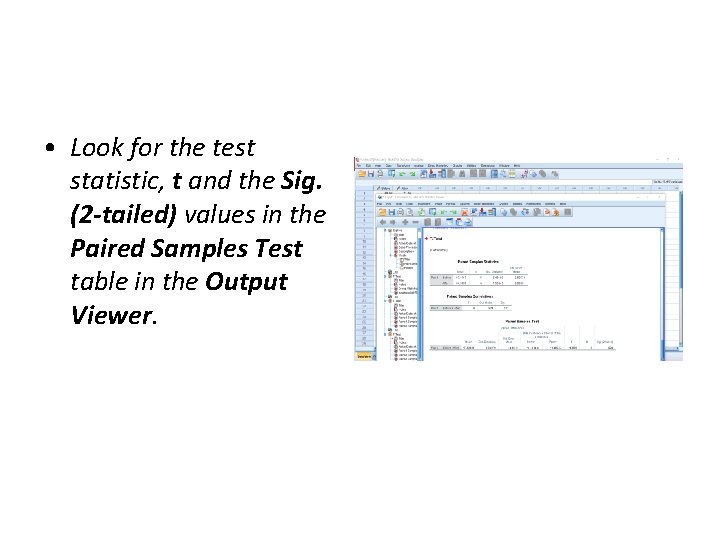
• Look for the test statistic, t and the Sig. (2 -tailed) values in the Paired Samples Test table in the Output Viewer.