
Chapter 8 Managing shared folder data storage Introduction
- Slides: 25
Chapter 8 Managing shared folder & data storage
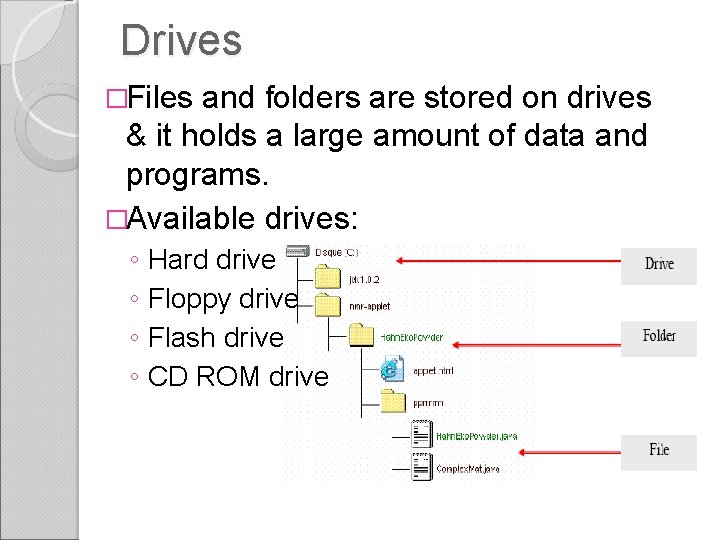
Introduction �Program codes and other data is saved in your hard disk as a file. �Every OS has its own way to organize these files. �Windows XP have 3 basic divisions for the data/program: ◦ Files ◦ Folders ◦ Drives
File �A collection of information that you create while you work on a computer. �Files are made up of the file name and extensions. Ex: file 3. doc �‘. doc’ is recognized as an extension for Microsoft word document and OS will use the application to open the file.
Folder �You can store a file in a folder and one folder can be placed in another folder creating subfolders. �Helps you to organize computer files into groups. �Windows XP stores its important files in Windows folder usually found in C drive.
Drives �Files and folders are stored on drives & it holds a large amount of data and programs. �Available drives: ◦ Hard drive ◦ Floppy drive ◦ Flash drive ◦ CD ROM drive
Windows XP Files & Folders sharing �Multiple computers connected together with LAN, makes its possible for file & folder sharing. �Computer need to be configured to share files & folders enabling user to copy/read the shared files from another location via your local computer. �One can only access sharing folders and files if they have appropriate permissions. �Windows XP has a file sharing user interface for enabling simple files & folders sharing. �NTFS allows for more control over shared
Simple File Sharing �By default its always turned ‘on’ on Win XP Pro computers that are joined to workgroup. �For those that are joined to domain only uses the classic file sharing and security interface. �If its turned ‘off’, you will have more control over the permissions to individual users. �When you turn ‘off’ the simple file sharing, the Shared Document feature is not turned off!!!
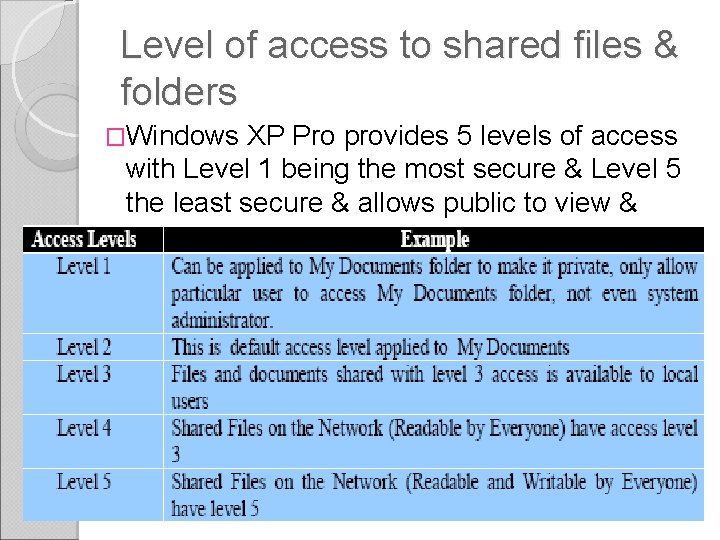
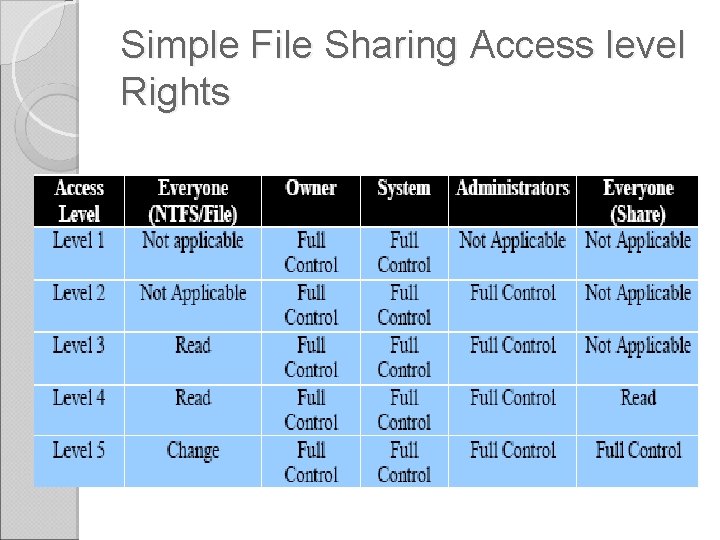
Level of access to shared files & folders �Windows XP Pro provides 5 levels of access with Level 1 being the most secure & Level 5 the least secure & allows public to view & change the data.
Level 1 �Can be applied to ‘My Documents’ folder & no body else can open/read any file or folder contained in My Documents folder. �Not even the administrator account can open it. �All subfolders that are in that folder & marked as private remains as private unless you change the parent folder permissions.
Level 2 �Owner of the files/folders as well as the administrator has the permission to read & write & others who is not involved in the creation of that file/folder can’t access. �It is default permission for each user’s My Documents folder on Win XP Pro.
Level 3 �Files & folders that are shared locally on a particular Win XP Pro machine by placing them in ‘shared documents’ folder of Win XP. �Can be read/modified & deleted by local computer administrators. �Other restricted users can only view & read files.
Simple File Sharing Access level Rights
Level 4 & 5 (sharing over the network) Level 4 �Everybody has read permission but can only write to it if special permission is given. �All local users including the guest can read the files but cannot modify the content over the network. Level 5 �It is not a secure access level & should be avoided unless necessary. �Allows any user(local & remote) to read/write /change or delete a file in the folder, even guest account holder!
Files & folder sharing guidelines �Advisable to only share folders over the network that users on the other computers must access. �Do not share system files & important Windows folder. �Do not share C: drive as whole where your OS is installed. �Read only devices like CD ROM shared at access level 4 & 5 only.
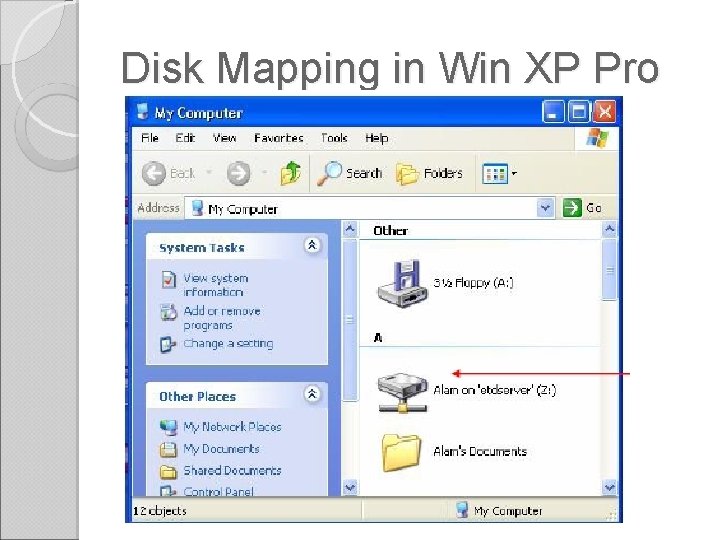
Disk Mapping in Win XP Pro �Files & folders in a network drive does not exist in the local machine but another computer which is connected via network. �Network drive can be assigned and accessed by drive name & letters as local hard disk drives.
Disk Mapping in Win XP Pro
Mounted drives �Is a drive that is mapped to an empty folder on a volume that uses the NTFS file system. �It functions as the same way as other drives, but they are assigned drive paths instead of drive letters. �Advantage over mapped network? – mounted drives are not subject to the 26 drive letter limit for local drives. ◦ Makes data more accessible & better flexibility ◦ Provide additional disk space for your temporary files
Data backup & restore �Data backup – the process of creating a copy of programs or files for later retrieval on a disk to a separate location for safe keeping. �Backup utility helps you protect data from accidental loss when your system faces hardware / storage media failure.
Using Backup to do the following � Archive selected files & folders on your hard disk � Restore the archived files & folders to hard disk / other disk � Make a copy of any remote storage data and any data in mounted drives � Schedule regular backups to keep your achieved data up to date. � Use Automated System Recovery to save & restore all the system files & configuration settings needed to recover from system failure. � Make a copy of your computer’s System State, which includes the system files, the registry, component services, active directory database & the Certificate Services database. � Make a copy of your computer’s system partition, boot partition & files needed for starting up your system.
Backup Modes �Launch Windows XP Backup and Restore Utility & you can select one of these modes: ◦ Wizard mode ◦ Advanced mode
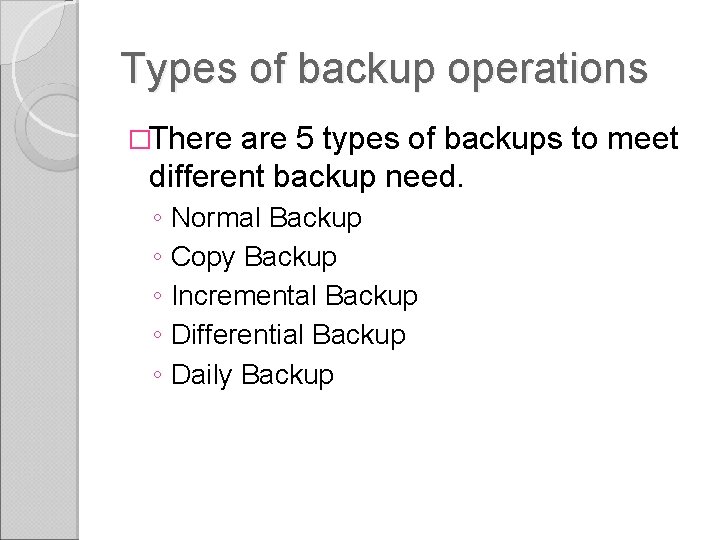
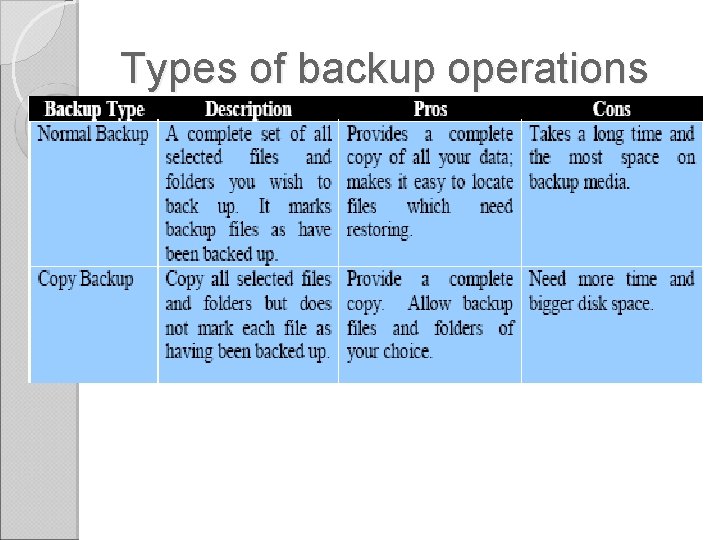
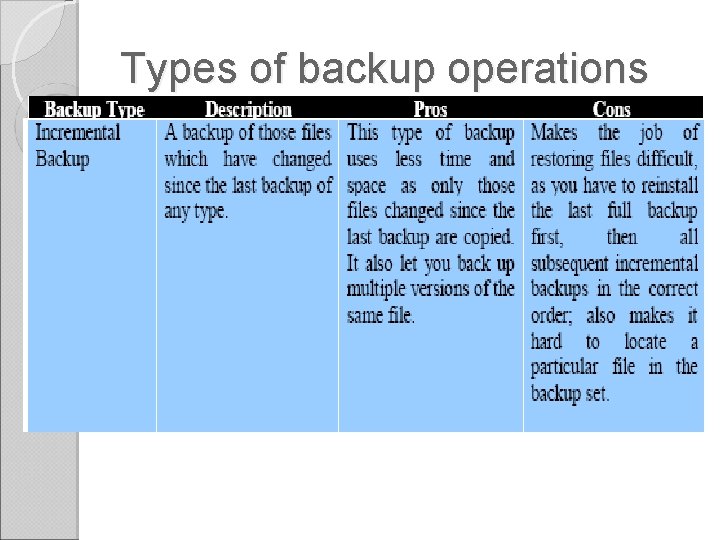
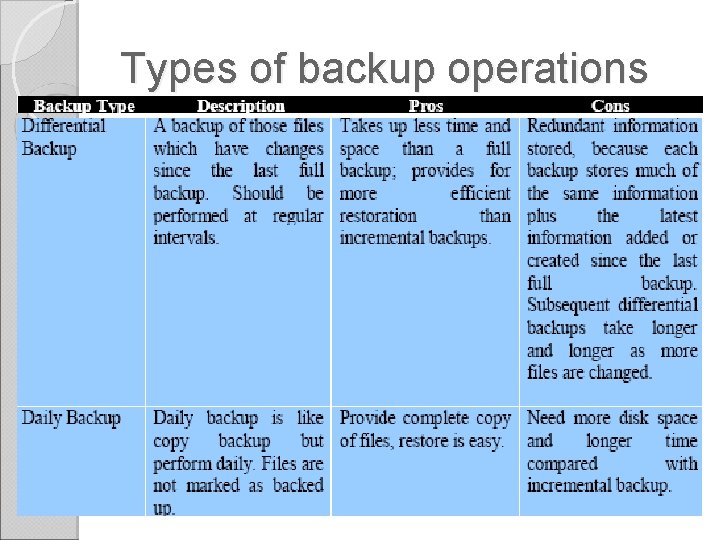
Types of backup operations �There are 5 types of backups to meet different backup need. ◦ Normal Backup ◦ Copy Backup ◦ Incremental Backup ◦ Differential Backup ◦ Daily Backup
Types of backup operations
Types of backup operations
Types of backup operations
Restoring data �Goal of all backup jobs is to restore corrupt / loss data.