
Chapter 8 Graphics Daly and Wrigley Objectives Use
Chapter 8 Graphics
© Daly and Wrigley Objectives • Use Graphic Components: ▫ ▫ ▫ Strings Lines Rectangles Ovals Arcs • Change the color and font of elements. 2
© Daly and Wrigley Graphical User Interfaces • Swing Set ▫ Flexible cross-platform GUIs that allow windows to appear in a similar format on different operating systems. ▫ Start with a “J” (example: JFrame) ▫ Import: import javax. swing. *; • Abstract Windowing Toolkit ▫ Older GUI components, change colors, or change fonts ▫ Import: import java. awt. *; 3
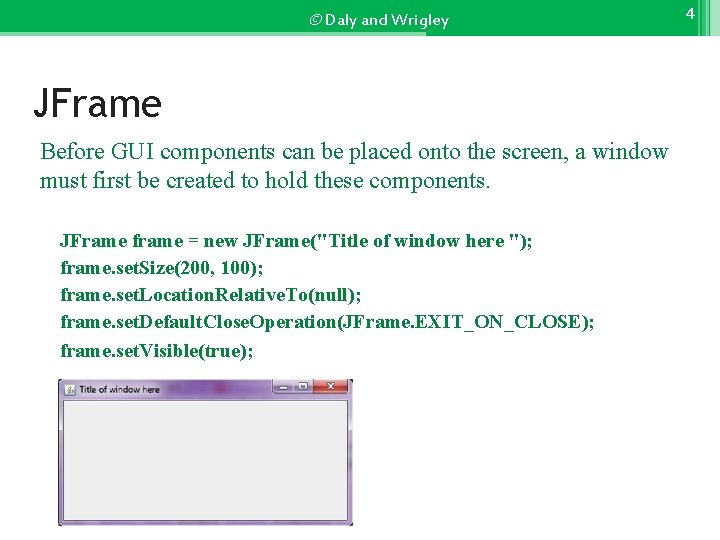
© Daly and Wrigley JFrame Before GUI components can be placed onto the screen, a window must first be created to hold these components. JFrame frame = new JFrame("Title of window here "); frame. set. Size(200, 100); frame. set. Location. Relative. To(null); frame. set. Default. Close. Operation(JFrame. EXIT_ON_CLOSE); frame. set. Visible(true); 4
© Daly and Wrigley Container • Every JFrame has a container called a content pane. • Purpose - provide a visual area in which to place GUI components. Container content = frame. get. Content. Pane(); content. set. Background(Color. YELLOW); 5
© Daly and Wrigley Placing GUI Components • Every JFrame has a container called a content pane. • Purpose - provide a visual area in which to place GUI components. Container content = frame. get. Content. Pane(); content. set. Background(Color. YELLOW); • To add the JComponent to your content pane named content: content. add(this); 6
© Daly and Wrigley 7 Graphic Components • The AWT (Abstract Windowing Toolkit) includes methods for drawing many different types of shapes, everything from lines to polygons; using colors; using fonts; and drawing images. • Painting: allows us to draw graphics on the screen ▫ Paint takes an argument of a Graphics object ▫ JComponent has a paint method associated with it ▫ g. draw. Line tells the computer to do the method called draw. Line on the Graphics object called g. • public void paint. Component (Graphics g) { }
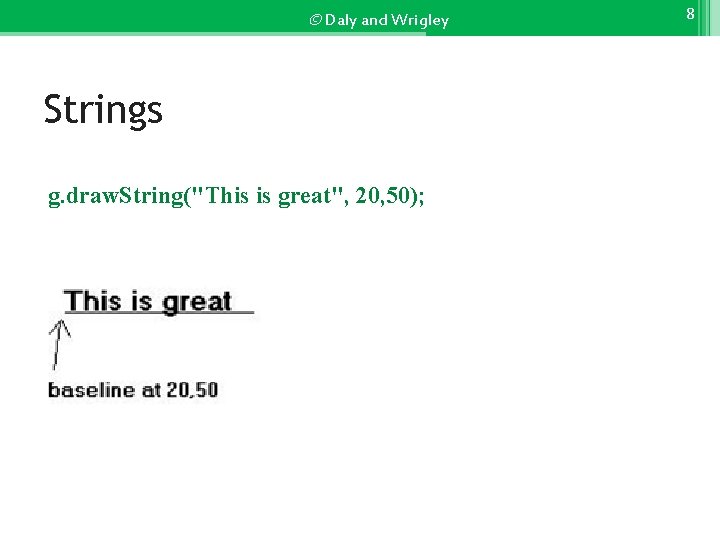
© Daly and Wrigley Strings g. draw. String("This is great", 20, 50); 8
© Daly and Wrigley 9 Changing the Font • Typeface( font name): Helvetica, Courier, Times. Roman, etc. • Style: Font. PLAIN, Font. BOLD, Font. ITALIC, Font. BOLD+Font. ITALIC • Size: Point size such as 24 point. Note: These are points -- not pixels) The standard typewriter size font is 12 point. g. set. Font(new Font ("Times. Roman", Font. ITALIC, 72) ); You can also create a font object (instance): Font f = new Font("Times. Roman", Font. BOLD, 36); g. set. Font(f) ;
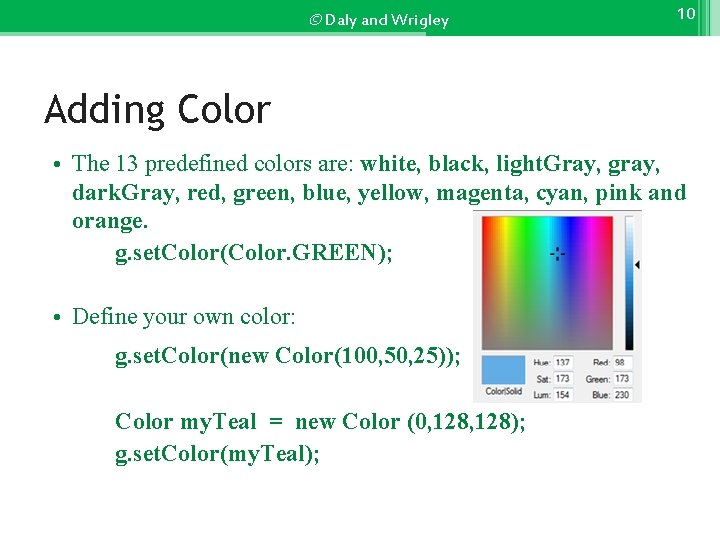
© Daly and Wrigley 10 Adding Color • The 13 predefined colors are: white, black, light. Gray, gray, dark. Gray, red, green, blue, yellow, magenta, cyan, pink and orange. g. set. Color(Color. GREEN); • Define your own color: g. set. Color(new Color(100, 50, 25)); Color my. Teal = new Color (0, 128); g. set. Color(my. Teal);
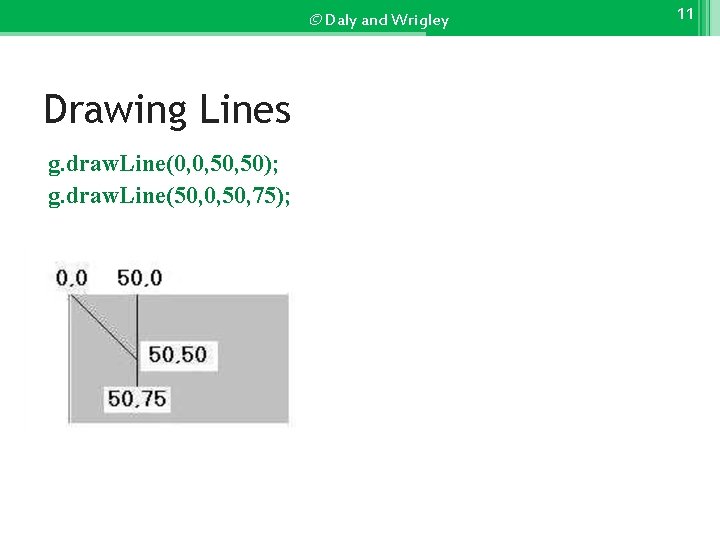
© Daly and Wrigley Drawing Lines g. draw. Line(0, 0, 50); g. draw. Line(50, 0, 50, 75); 11
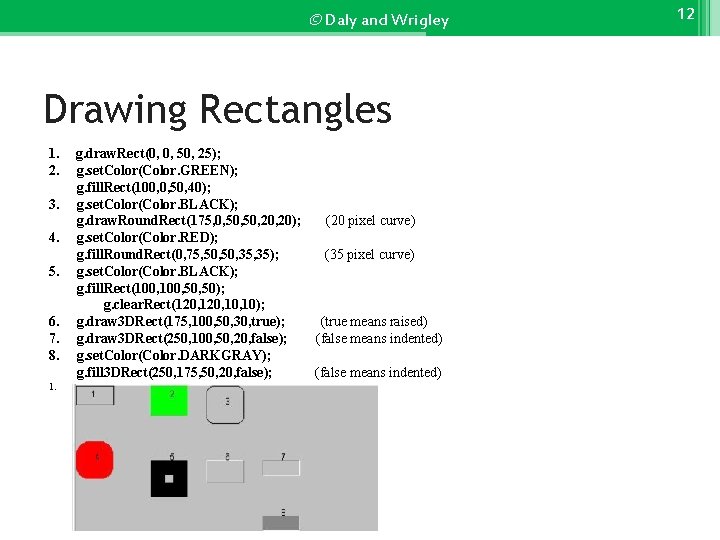
© Daly and Wrigley Drawing Rectangles 1. 2. 3. 4. 5. 6. 7. 8. 1. g. draw. Rect(0, 0, 50, 25); g. set. Color(Color. GREEN); g. fill. Rect(100, 0, 50, 40); g. set. Color(Color. BLACK); g. draw. Round. Rect(175, 0, 50, 20); (20 pixel curve) g. set. Color(Color. RED); g. fill. Round. Rect(0, 75, 50, 35); (35 pixel curve) g. set. Color(Color. BLACK); g. fill. Rect(100, 50, 50); g. clear. Rect(120, 10, 10); g. draw 3 DRect(175, 100, 50, 30, true); (true means raised) g. draw 3 DRect(250, 100, 50, 20, false); (false means indented) g. set. Color(Color. DARKGRAY); g. fill 3 DRect(250, 175, 50, 20, false); (false means indented) 12
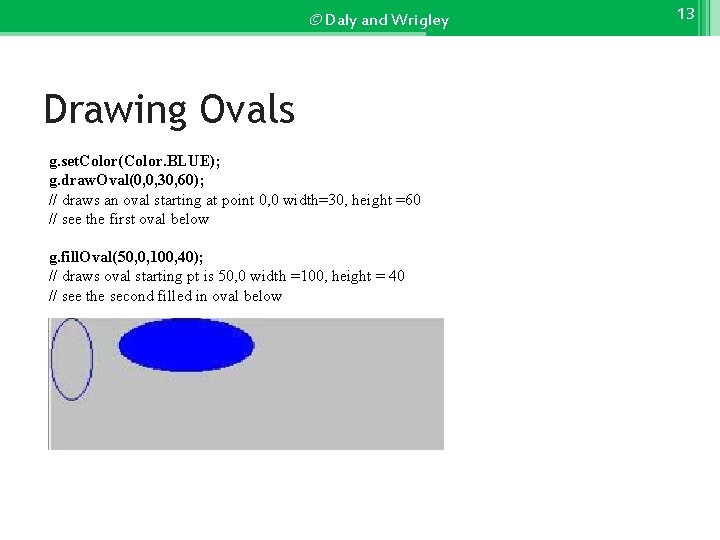
© Daly and Wrigley Drawing Ovals g. set. Color(Color. BLUE); g. draw. Oval(0, 0, 30, 60); // draws an oval starting at point 0, 0 width=30, height =60 // see the first oval below g. fill. Oval(50, 0, 100, 40); // draws oval starting pt is 50, 0 width =100, height = 40 // see the second filled in oval below 13
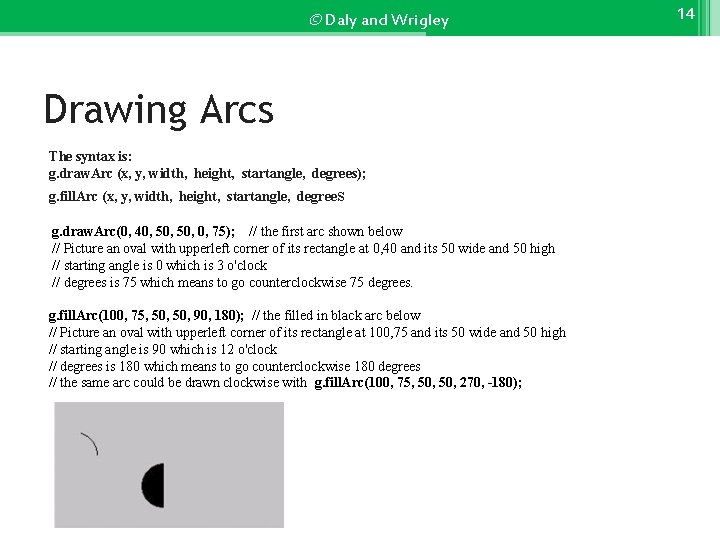
© Daly and Wrigley Drawing Arcs The syntax is: g. draw. Arc (x, y, width, height, startangle, degrees); g. fill. Arc (x, y, width, height, startangle, degrees); g. draw. Arc(0, 40, 50, 0, 75); // the first arc shown below // Picture an oval with upperleft corner of its rectangle at 0, 40 and its 50 wide and 50 high // starting angle is 0 which is 3 o'clock // degrees is 75 which means to go counterclockwise 75 degrees. g. fill. Arc(100, 75, 50, 90, 180); // the filled in black arc below // Picture an oval with upperleft corner of its rectangle at 100, 75 and its 50 wide and 50 high // starting angle is 90 which is 12 o'clock // degrees is 180 which means to go counterclockwise 180 degrees // the same arc could be drawn clockwise with g. fill. Arc(100, 75, 50, 270, -180); 14
- Slides: 14