
Chapter 8 Applied Networking Selecting a NIC Network
- Slides: 93
Chapter 8 – Applied Networking
Selecting a NIC • Network Interface Card • Can be wired or wireless • Most motherboards have integrated NICs
Installing/Updating a NIC • Sometimes need to replace/upgrade a NIC • Sometimes just need to update the driver • Usually best to temporarily disable virus protection to ensure driver installs correctly • Win 8/8. 1: Control Panel > Hardware and Sound > Device Manager • Win 7/Vista : Start > Control Panel > Device Manager • If new driver does not perform as expected, can “Uninstall” or “Roll Back” Driver
Configuring a NIC • Two ways – Manually – host is statically assigned IP configuration – Dynamically – host requests IP configuration from DHCP server (default – “Obtain an IP address automatically”) • Win 8/8. 1: Control Panel > Network and Internet > Network and Sharing Center > Change adapter settings > right-click Ethernet • Win 7/Vista: Start > Control Panel > Network and Sharing Center > Change adapter setting > rightclick Local Area Connection
Advanced NIC settings • Duplex and Speed: Must match in order for data to transfer between devices (default: auto configure) • Wake on LAN: Used to wake up a networked computer from a very low power mode/state • Quality of Service: also called 802. 1 q Qo. S, is a variety of techniques that control the flow of network traffic, improve transmission speeds, and improve real-time communications traffic
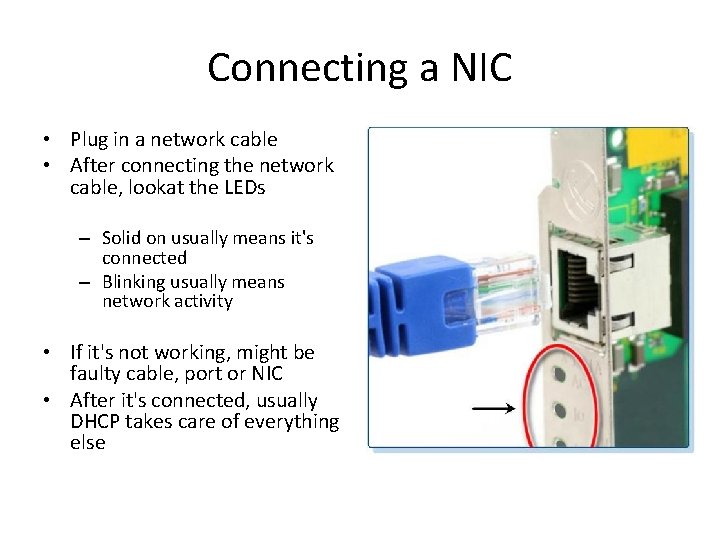
Connecting a NIC • Plug in a network cable • After connecting the network cable, lookat the LEDs – Solid on usually means it's connected – Blinking usually means network activity • If it's not working, might be faulty cable, port or NIC • After it's connected, usually DHCP takes care of everything else
Connecting a Router • Port labeled “WAN” connects to your ISP Modem • Port(s) labeled “LAN” connects to your Hosts • Turn on modem, then router • Router establishes communication with your ISP and gets configuration from DHCP
Network Location • Home Network - when you trust the people/devices on the network. Network discovery is turned on, which allows you to see other computers and devices on the network and other network users to see your computer. • Work Network - For a small office or other workplace network. Network discovery is turned on but a homegroup cannot be created or joined. • Public Network - Airports, coffee shops, and other public places. Network discovery is turned off. This network location provides the most protection. Also choose this network location if you connect directly to the Internet without using a router, or if you have a mobile broadband connection. Homegroup is not available.
Domain vs Workgroup vs Homegroup • Domain: user access and shared resources are controlled by an administrator and a Domain Controller/Server • Workgroup: Not controlled by a server, each host must join the same workgroup to share resources • Computers that belong to the same Workgroup can also belong to a Homegroup • There can only be one Homegroup per Workgroup on a network • Computers can only be a member of one Homegroup at a time • Homegroup provides simple method to share files and printing. (Vista does not support Homegroup)
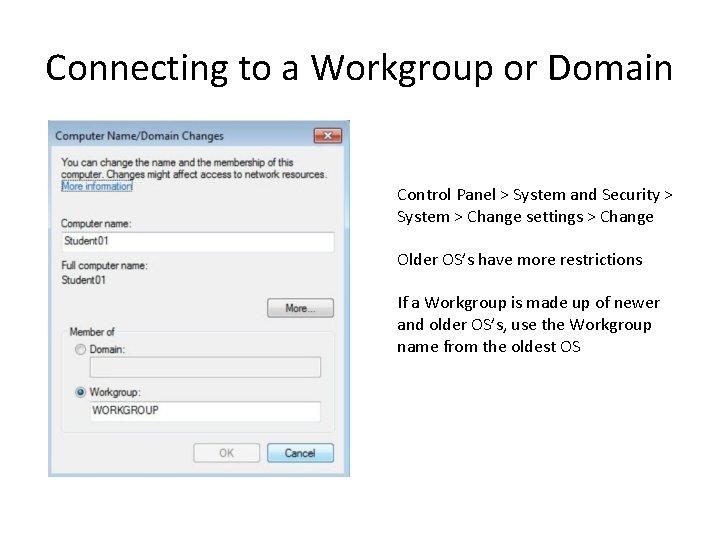
Connecting to a Workgroup or Domain Control Panel > System and Security > System > Change settings > Change Older OS’s have more restrictions If a Workgroup is made up of newer and older OS’s, use the Workgroup name from the oldest OS
Connecting to a Homegroup • One user in a Workgroup creates a Homegroup • Others can then join the Homegroup, provided they know the password • Homegroup availability depends on your network location profile – Home Network - allowed to create or join a homegroup – Work Network - not allowed to create or join a homegroup, but you can see and share resources with other computers – Public Network - homegroup not available
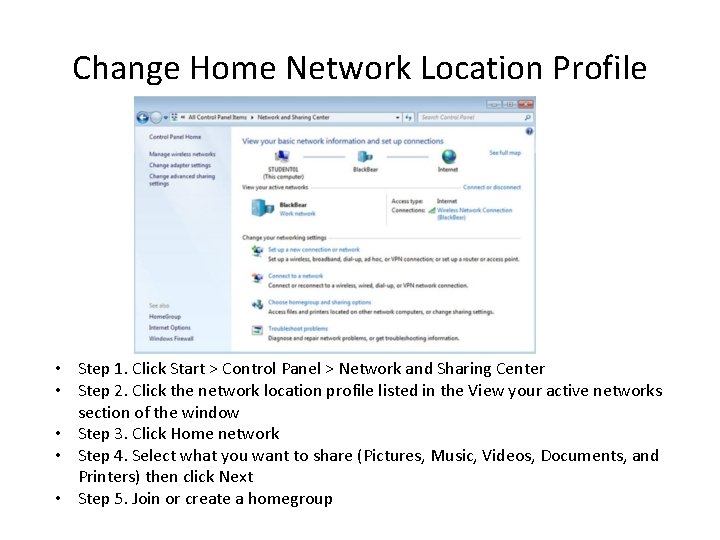
Change Home Network Location Profile • Step 1. Click Start > Control Panel > Network and Sharing Center • Step 2. Click the network location profile listed in the View your active networks section of the window • Step 3. Click Home network • Step 4. Select what you want to share (Pictures, Music, Videos, Documents, and Printers) then click Next • Step 5. Join or create a homegroup
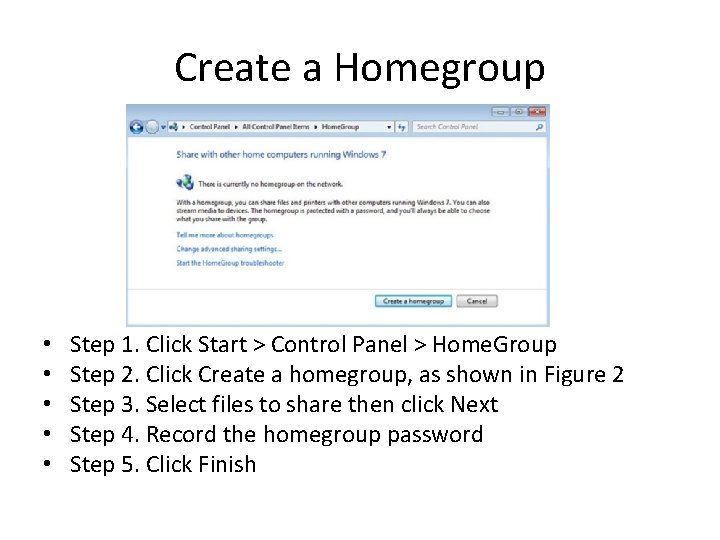
Create a Homegroup • • • Step 1. Click Start > Control Panel > Home. Group Step 2. Click Create a homegroup, as shown in Figure 2 Step 3. Select files to share then click Next Step 4. Record the homegroup password Step 5. Click Finish
Join a Homegroup • • • Step 1. Click Start > Control Panel > Home. Group Step 2. Click Join now, as shown in Figure 3 Step 3. Select files to share then click Next Step 4. Type in the homegroup password, and then click Next Step 5. Click Finish • All user account on the computer (except Guest) become members of the Homegroup • To change files shared (Pictures, Music, Videos, Documents, and Printers) on a computer : Start > Control Panel > Home. Group. After you make your changes, click Save change. • And finally, if a computer belongs to a domain, you can join a homegroup and access files and resources on other homegroup computers, but you are not allowed to create a new homegroup or share your own files and resources with a homegroup.
Sharing Resources in Vista • Sharing and Discovery: Start > Control Panel > Network and Internet > Network and Sharing Center • Can control: – – – Network discovery File sharing Public folder sharing Printer sharing Password protected sharing Media sharing • Network Discovery and File Sharing must be turned on in order to share resources
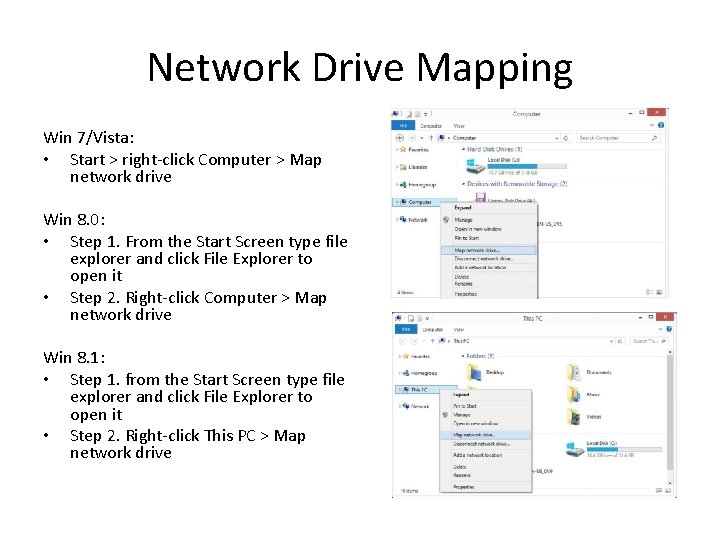
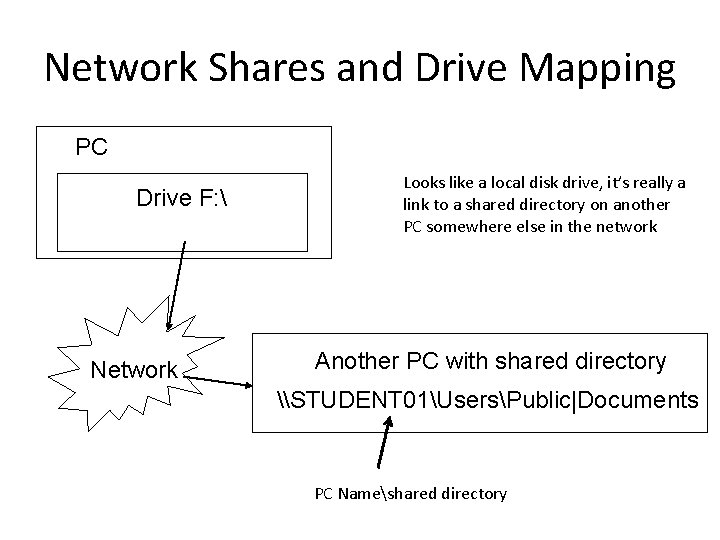
Network Shares and Drive Mapping • Mapping a drive, which is done by assigning a letter (A to Z) to the resource on a remote drive, allows you to use the remote drive as if it was a local drive • The following are the permissions that can be assigned to the file or folder – Read – user can view and run program files – Change – In addition to Read permissions, the user can add files and subfolders, change the data in files, and delete subfolders and files – Full Control - In addition to Change and Read permissions, the user can change the permission of files and folders in an NTFS partition and take ownership of files and folders
Network Drive Mapping Win 7/Vista: • Start > right-click Computer > Map network drive Win 8. 0: • Step 1. From the Start Screen type file explorer and click File Explorer to open it • Step 2. Right-click Computer > Map network drive Win 8. 1: • Step 1. from the Start Screen type file explorer and click File Explorer to open it • Step 2. Right-click This PC > Map network drive
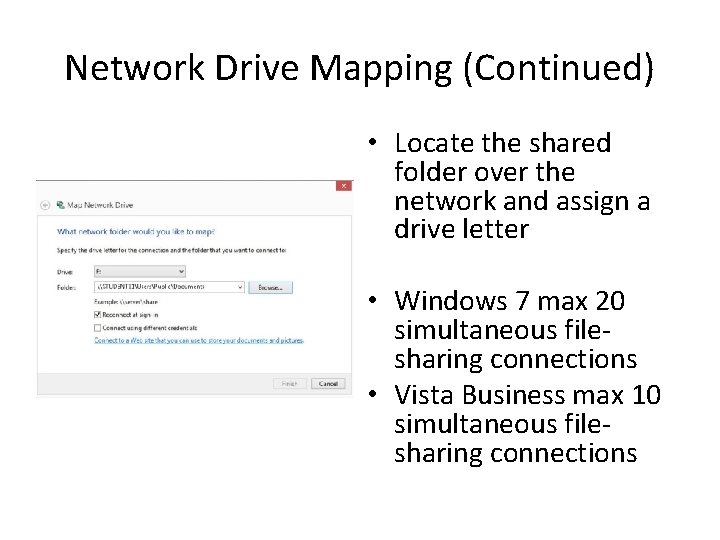
Network Drive Mapping (Continued) • Locate the shared folder over the network and assign a drive letter • Windows 7 max 20 simultaneous filesharing connections • Vista Business max 10 simultaneous filesharing connections
Network Shares and Drive Mapping PC Drive F: Network Looks like a local disk drive, it’s really a link to a shared directory on another PC somewhere else in the network Another PC with shared directory \STUDENT 01UsersPublic|Documents PC Nameshared directory
Administrative Shares • Administrative shares (AKA hidden shares) are ID'd with a dollar sign ($) at the end of the share name • Gives system administrators remote access • Must have administrator privileges to access • Default Windows hidden administrative shares: • Root partitions or volumes (C$, D$, E$ by default) • The system root folder • The FAX$ share (folder in which faxed pages/cover pages are cached) • The IPC$ share (inter-process communication via named pipes, not part of the file system) • The PRINT$ share (installed printer objects)
Administrative Shares • To create your own administrative share: • Step 1: Click Control Panel > Administrative Tools and double-click Computer Management • Step 2: Expand Shared Folders, right-click Shares, and then click New Share… to open Create A Shared Folder Wizard • Step 3: Type the path to the folder you want to use for the administrative share (for example, C: Admin. Only$. Be sure it includes a dollar sign ($) at the end of the name to identify this folder as an administrative share. Click Next. If the folder does not exist yet, Windows will ask if you want to create it. • Step 4: In the next screen, you can change the share name, add an optional description, and change the offline settings. Click Next. • Step 5: In the Share Folder Permissions window, select the Administrators have full access; other users have no access, and then click Finish.
Logging into a home Router • Web browser: http: //192. 168. 0. 1 or http: //10. 0. 0. 1 (default gateway address) • Admin/admin (default) which is why you want to change it when you first plug it in and start to use it
Basic Network Setup Best practice: • Change the default username and password • Change the default router IP address (if not already a private IP address range) • Network Address Translation (NAT) configuration for anything that needs to be presented to the internet
Basic Wireless Settings • Network mode - A mixed-mode allows 802. 11 b, 802. 11 g, 802. 11 n and 802. 11 ac devices • Service Set Identifier (SSID) - The name of the wireless network which is broadcast to potential users. Disabled is more secure but user has to manually enter SSID to connect. • Channel - 1 and 11 do not overlap with the default channel 6. Use one of these three channels for best results. (802. 11 ac automatically finds best channel) • Wireless security modes – Wired Equivalent Privacy (WEP) – Wi-Fi Protected Access (WPA) – Wi-Fi Protected Access 2 (WPA 2) • Temporal Key Integrity Protocol (TKIP) (Supported by more equipment) • Advanced Encryption Standard (AES) (Stronger, less equipment)
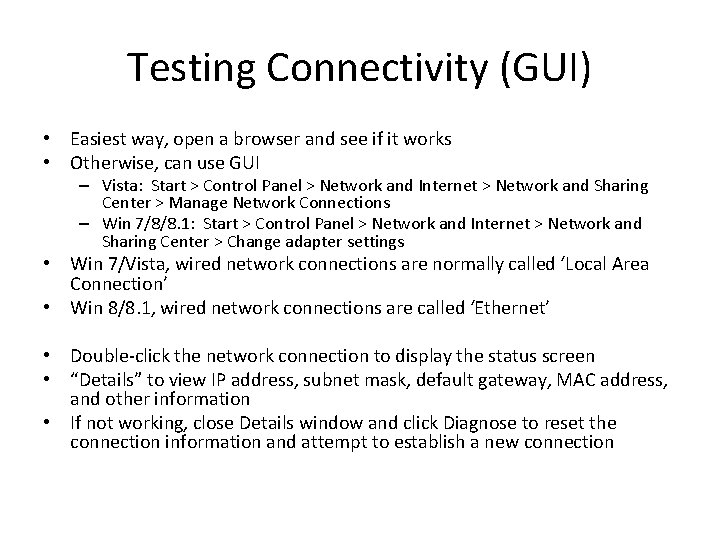
Testing Connectivity (GUI) • Easiest way, open a browser and see if it works • Otherwise, can use GUI – Vista: Start > Control Panel > Network and Internet > Network and Sharing Center > Manage Network Connections – Win 7/8/8. 1: Start > Control Panel > Network and Internet > Network and Sharing Center > Change adapter settings • Win 7/Vista, wired network connections are normally called ‘Local Area Connection’ • Win 8/8. 1, wired network connections are called ‘Ethernet’ • Double-click the network connection to display the status screen • “Details” to view IP address, subnet mask, default gateway, MAC address, and other information • If not working, close Details window and click Diagnose to reset the connection information and attempt to establish a new connection
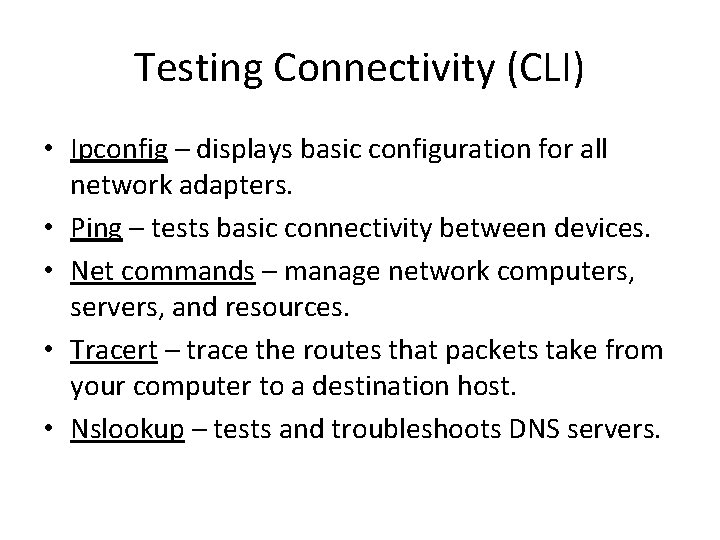
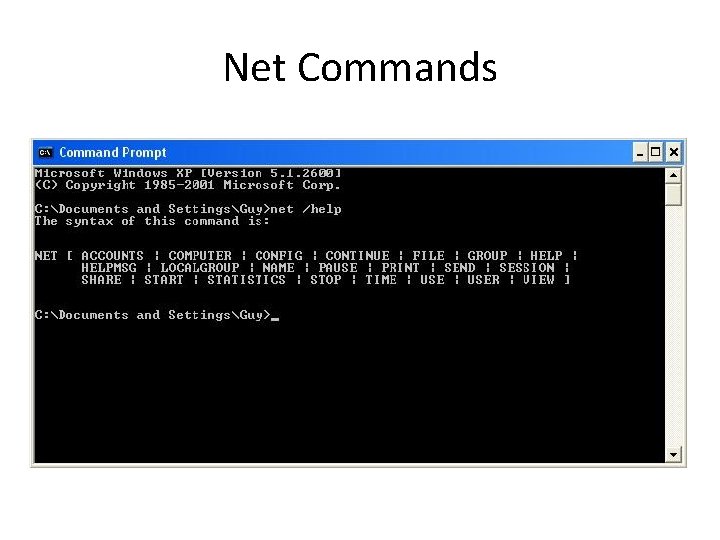
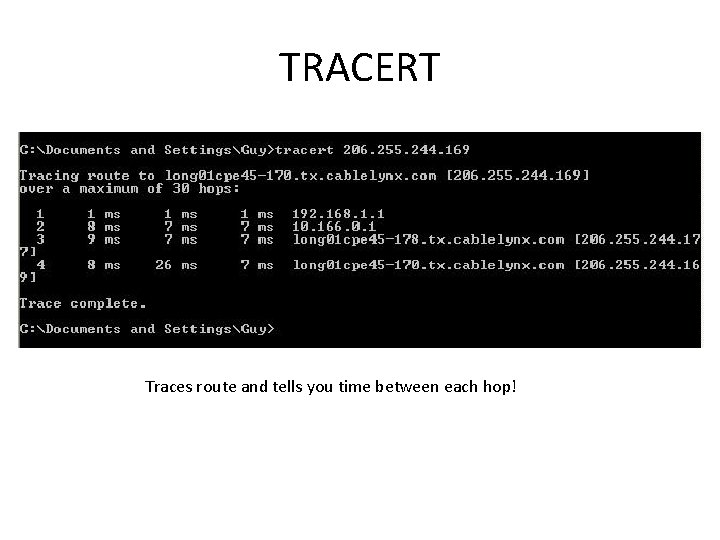
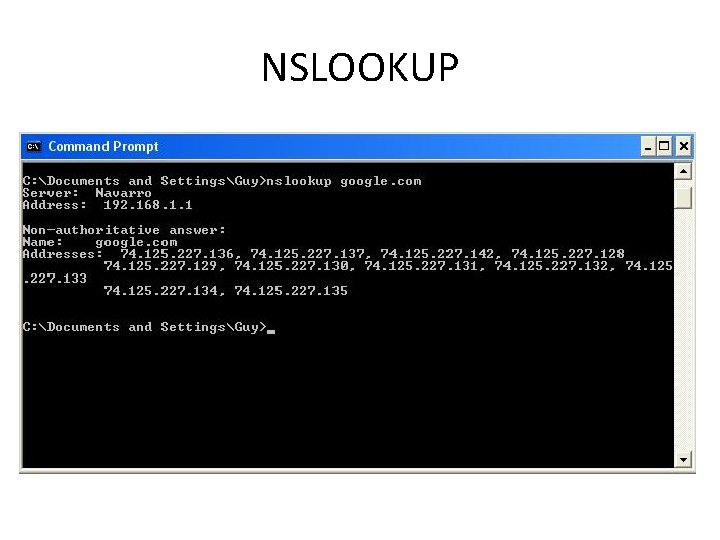
Testing Connectivity (CLI) • Ipconfig – displays basic configuration for all network adapters. • Ping – tests basic connectivity between devices. • Net commands – manage network computers, servers, and resources. • Tracert – trace the routes that packets take from your computer to a destination host. • Nslookup – tests and troubleshoots DNS servers.
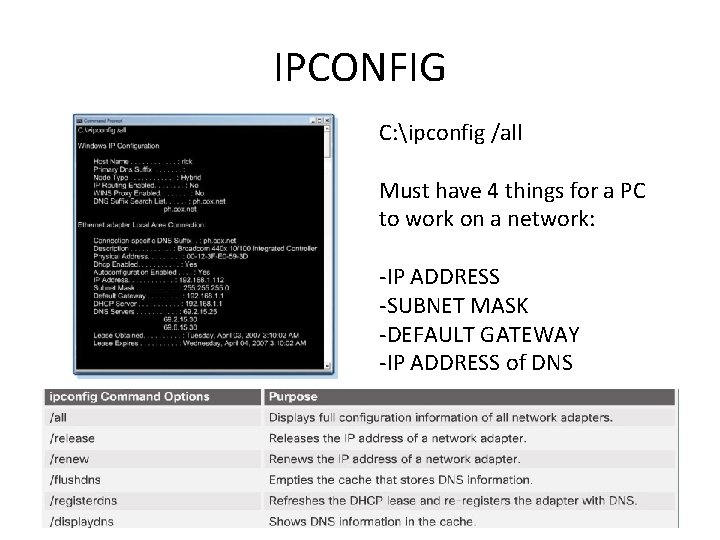
IPCONFIG C: ipconfig /all Must have 4 things for a PC to work on a network: -IP ADDRESS -SUBNET MASK -DEFAULT GATEWAY -IP ADDRESS of DNS
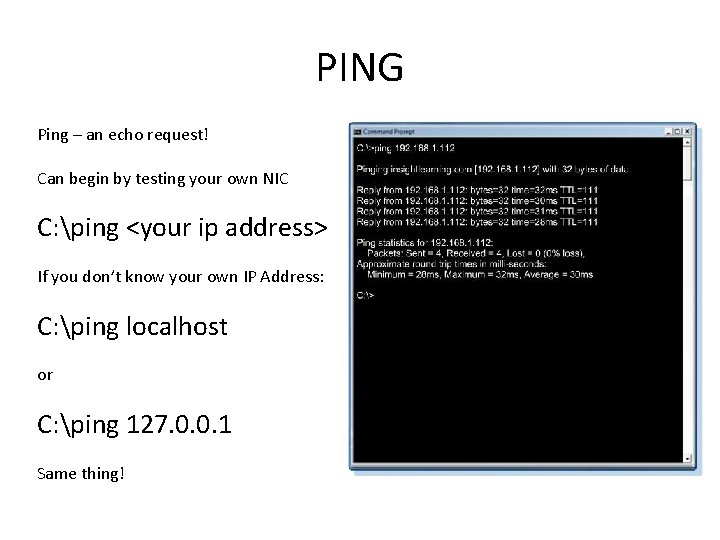
PING Ping – an echo request! Can begin by testing your own NIC C: ping <your ip address> If you don’t know your own IP Address: C: ping localhost or C: ping 127. 0. 0. 1 Same thing!
Net Commands
TRACERT Traces route and tells you time between each hop!
NSLOOKUP
VPN • When connecting to the local network and sharing files, the communication between computers is not sent beyond that network. Data remains secure because it is kept behind the router, off other networks, and off the Internet. To communicate and share resources over a network that is not secure, a Virtual Private Network (VPN) is used. • A VPN is a private network that connects remote sites or users together over a public network, like the Internet. The most common type of VPN is used to access a corporate private network. The VPN uses dedicated secure connections, routed through the Internet, from the corporate private network to the remote user. When connected to the corporate private network, users become part of that network and have access to all services and resources as if they were physically connected to the corporate LAN. • Remote-access users must install the VPN client on their computers to form a secure connection with the corporate private network. The VPN client software encrypts data before sending it over the Internet to the VPN gateway at the corporate private network. VPN gateways establish, manage, and control VPN connections, also known as VPN tunnels. ? T A H W
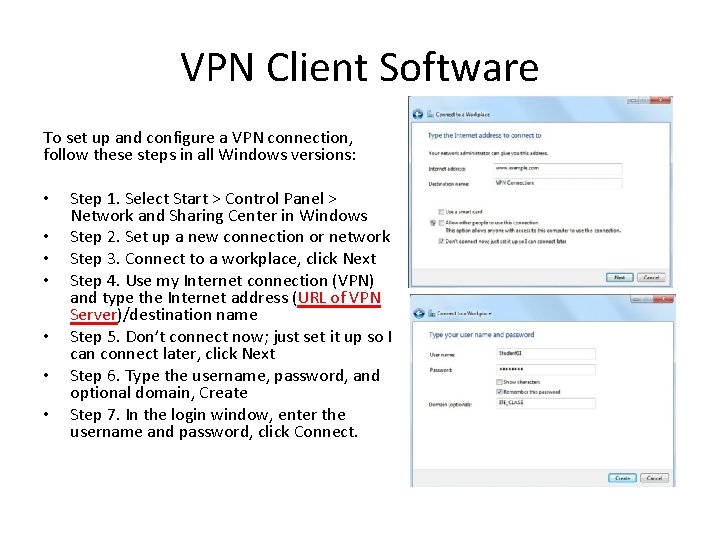
VPN Client Software To set up and configure a VPN connection, follow these steps in all Windows versions: • • Step 1. Select Start > Control Panel > Network and Sharing Center in Windows Step 2. Set up a new connection or network Step 3. Connect to a workplace, click Next Step 4. Use my Internet connection (VPN) and type the Internet address (URL of VPN Server)/destination name Step 5. Don’t connect now; just set it up so I can connect later, click Next Step 6. Type the username, password, and optional domain, Create Step 7. In the login window, enter the username and password, click Connect.
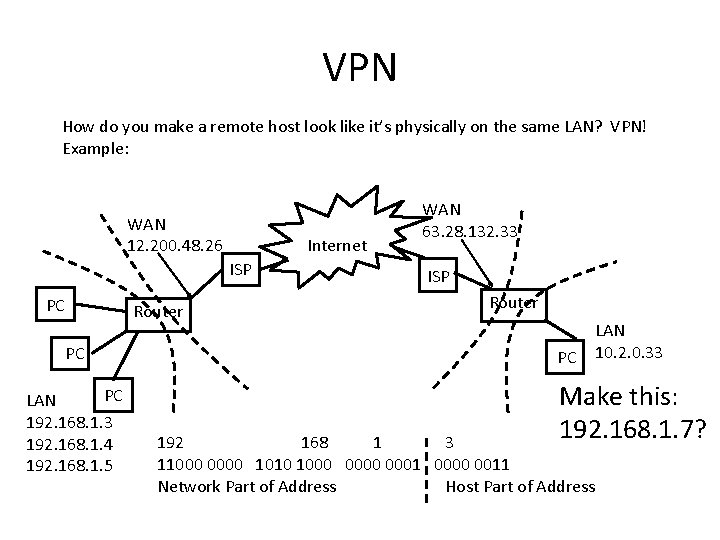
VPN How do you make a remote host look like it’s physically on the same LAN? VPN! Example: WAN 12. 200. 48. 26 Internet ISP PC Router PC PC LAN 192. 168. 1. 3 192. 168. 1. 4 192. 168. 1. 5 WAN 63. 28. 132. 33 ISP Router PC LAN 10. 2. 0. 33 Make this: 192. 168. 1. 7? 192 168 1 3 11000 0000 1010 1000 0001 0000 0011 Network Part of Address Host Part of Address
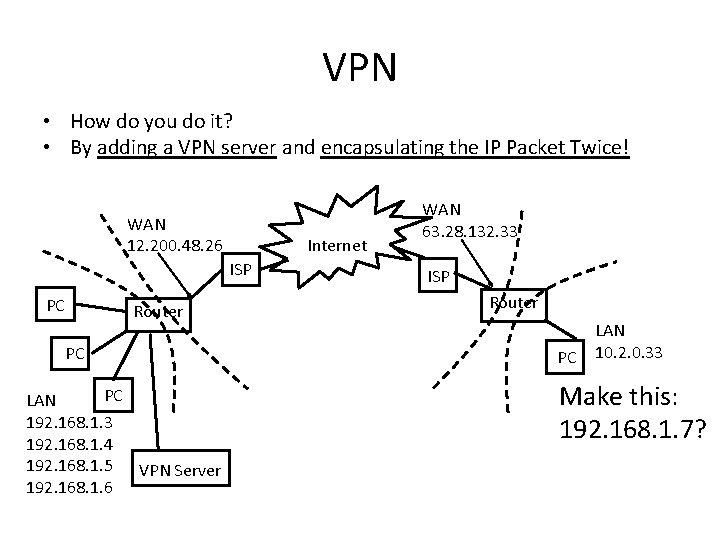
VPN • How do you do it? • By adding a VPN server and encapsulating the IP Packet Twice! WAN 12. 200. 48. 26 Internet ISP PC Router PC PC LAN 192. 168. 1. 3 192. 168. 1. 4 192. 168. 1. 5 VPN Server 192. 168. 1. 6 WAN 63. 28. 132. 33 ISP Router PC LAN 10. 2. 0. 33 Make this: 192. 168. 1. 7?
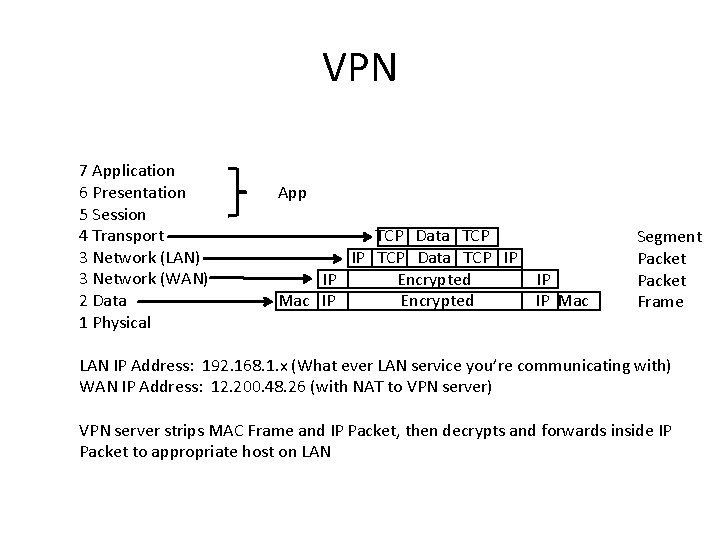
VPN 7 Application 6 Presentation 5 Session 4 Transport 3 Network (LAN) 3 Network (WAN) 2 Data 1 Physical App TCP Data TCP IP IP Encrypted Mac IP Encrypted IP IP Mac Segment Packet Frame LAN IP Address: 192. 168. 1. x (What ever LAN service you’re communicating with) WAN IP Address: 12. 200. 48. 26 (with NAT to VPN server) VPN server strips MAC Frame and IP Packet, then decrypts and forwards inside IP Packet to appropriate host on LAN
Windows Remote Desktop Client Used to view/control a computer from a remote location • Win 8: Start Screen, type Remote Desktop Connection, click Remote Desktop Connection icon • Win 7/Vista: Start > All Programs > Accessories > Remote Desktop Connection Must be enabled in remote computer Win 8: • Step 1. Right-click This PC (8. 1) or Computer (8. 0) and select Properties • Step 2. Click Remote Settings in the System window and select the Remote tab • Step 3. Select the Allow Remote Assistance Connections to This Computer • Step 4. Click OK Invite • Win 8 invite: Start Screen, type Invite, press Enter (only invite someone you trust) • Win 7/Vista: Start > All Programs > Maintenance > Windows Remote Assistance
Connection Technologies • Analog Telephone (POTS) • Integrated Services Digital Network (ISDN) – BRI – PRI – BISDN • Broadband (Multiple signals, same media) – – • • • Cable Satellite Fiber Broadband Bluetooth Digital Subscriber Line (DSL) Asymmetric DSL (ADSL) Line of Sight Wireless Internet Service Wi. MAX (Fixed vs Mobile) Cellular
Connection Technologies Analog Telephone Plane Old Telephone Service (POTS), AKA Dialup Been around since Alexander Graham Bell Originally designed for voice/audio over twisted pair • Can be used for voice only or data only • Limited bandwidth (usually much less than 56 Kbps) • •
Connection Technologies • • • Integrated Services Digital Network (ISDN) Originally a European standard Integrated voice, video, and data Higher quality BRI, PRI, BISDN
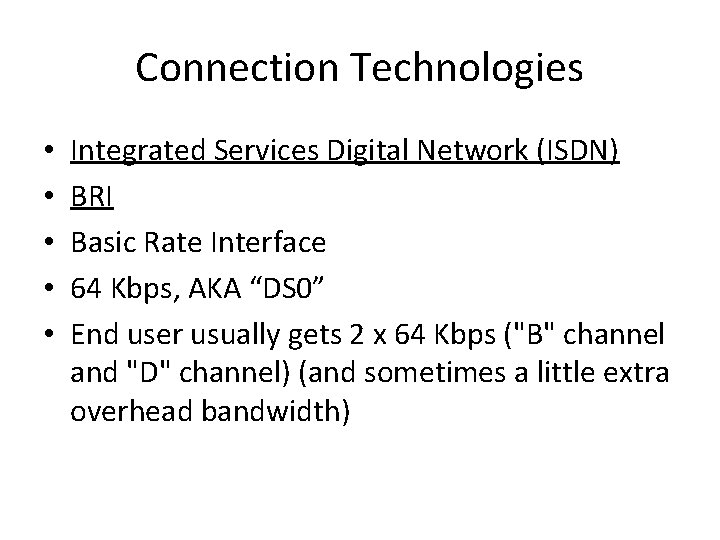
Connection Technologies • • • Integrated Services Digital Network (ISDN) BRI Basic Rate Interface 64 Kbps, AKA “DS 0” End user usually gets 2 x 64 Kbps ("B" channel and "D" channel) (and sometimes a little extra overhead bandwidth)
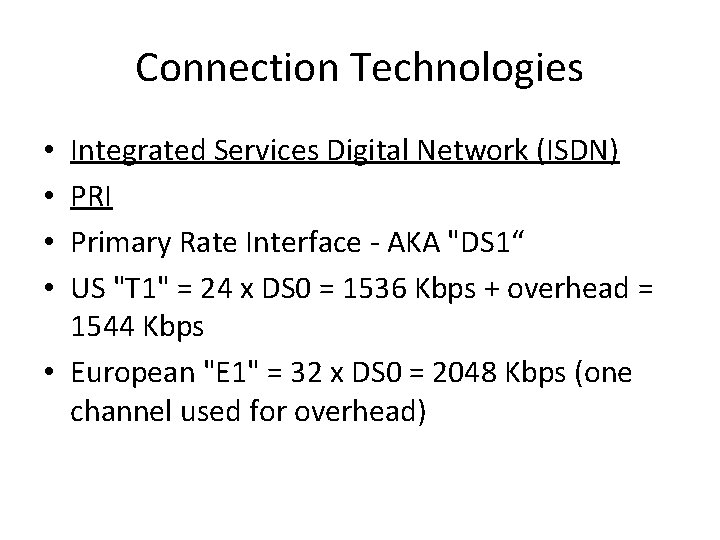
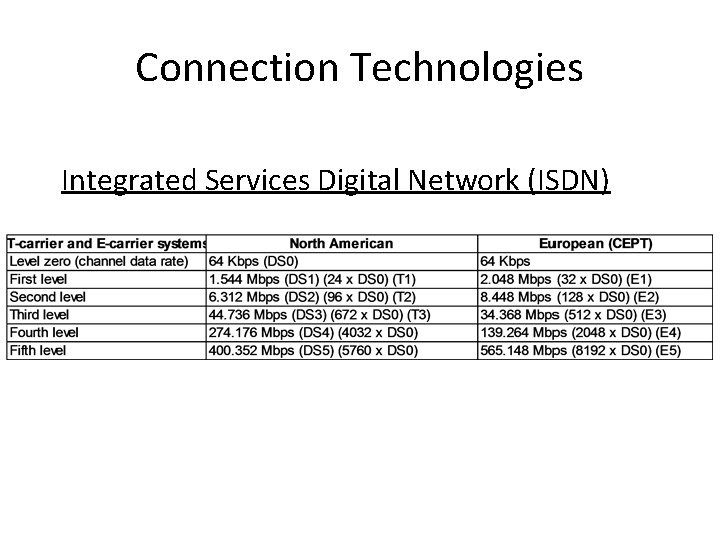
Connection Technologies Integrated Services Digital Network (ISDN) PRI Primary Rate Interface - AKA "DS 1“ US "T 1" = 24 x DS 0 = 1536 Kbps + overhead = 1544 Kbps • European "E 1" = 32 x DS 0 = 2048 Kbps (one channel used for overhead) • •
Connection Technologies Integrated Services Digital Network (ISDN)
Connection Technologies • Integrated Services Digital Network (ISDN) • BISDN • Broadband Integrated Services Digital Network • Used in the backbone • Good for both voice and data • Asynchronous Transfer Mode (ATM) was the agreed upon technology
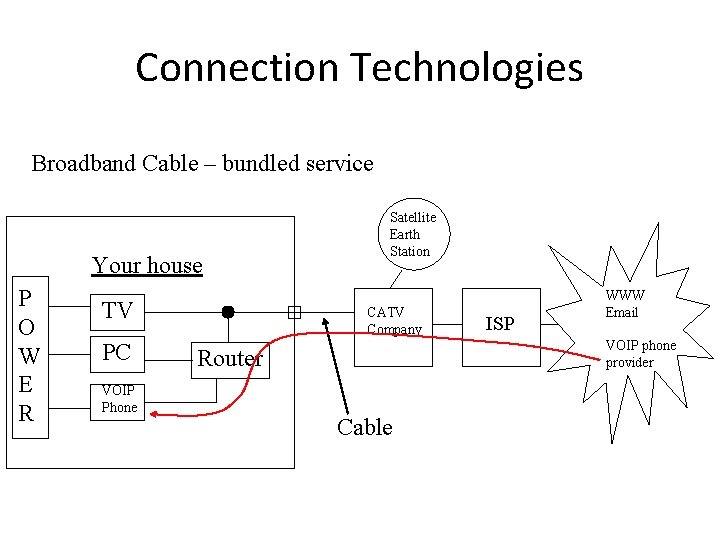
Connection Technologies • Broadband (*as opposed to “baseband”) defined: • A technique used to transmit and receive multiple signals using multiple frequencies over one medium • Examples: – Cable – Satellite – Fiber Broadband
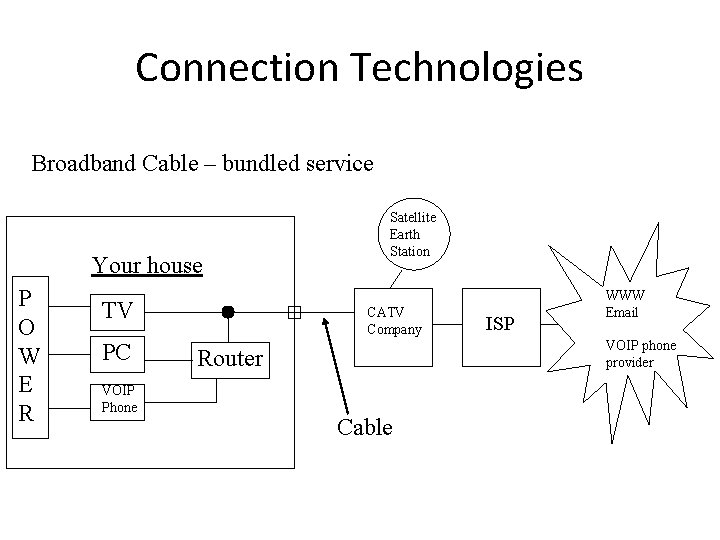
Connection Technologies Broadband Cable – bundled service Your house P O W E R TV PC VOIP Phone Satellite Earth Station CATV Company ISP WWW Email VOIP phone provider Router Cable
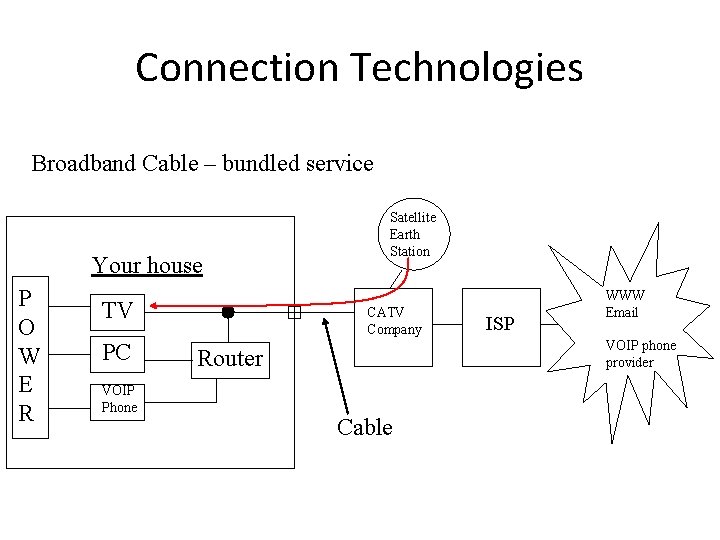
Connection Technologies Broadband Cable – bundled service Your house P O W E R TV PC VOIP Phone Satellite Earth Station CATV Company ISP WWW Email VOIP phone provider Router Cable
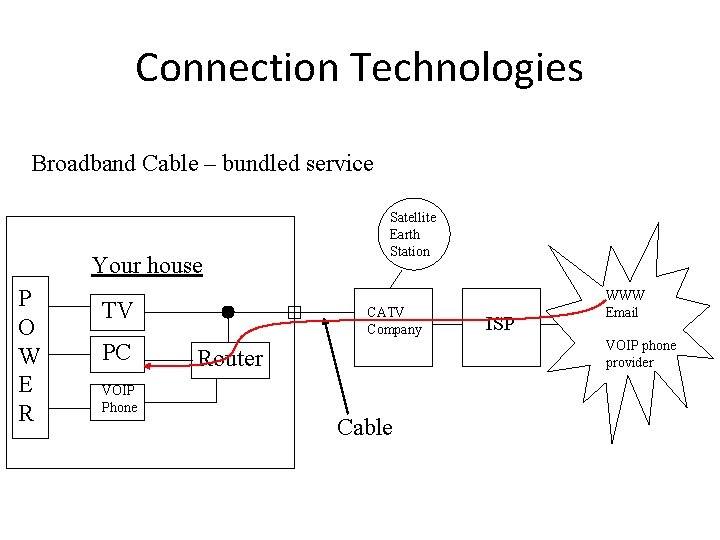
Connection Technologies Broadband Cable – bundled service Your house P O W E R TV PC VOIP Phone Satellite Earth Station CATV Company ISP WWW Email VOIP phone provider Router Cable
Connection Technologies Broadband Cable – bundled service Your house P O W E R TV PC VOIP Phone Satellite Earth Station CATV Company ISP WWW Email VOIP phone provider Router Cable
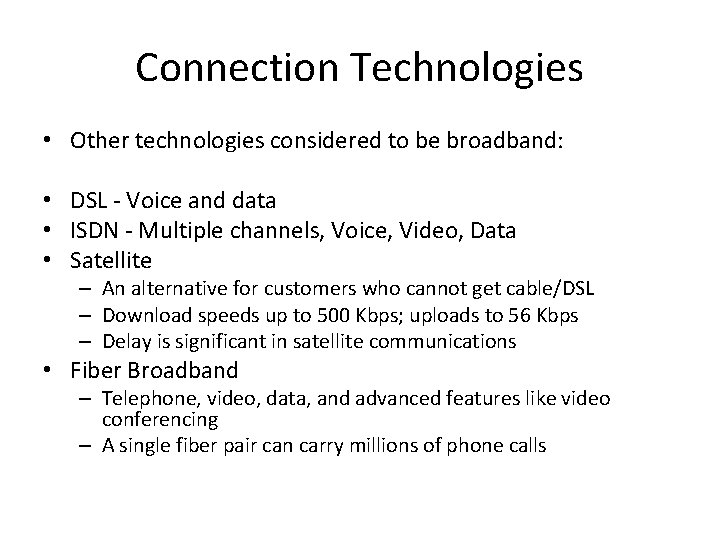
Connection Technologies • Other technologies considered to be broadband: • DSL - Voice and data • ISDN - Multiple channels, Voice, Video, Data • Satellite – An alternative for customers who cannot get cable/DSL – Download speeds up to 500 Kbps; uploads to 56 Kbps – Delay is significant in satellite communications • Fiber Broadband – Telephone, video, data, and advanced features like video conferencing – A single fiber pair can carry millions of phone calls
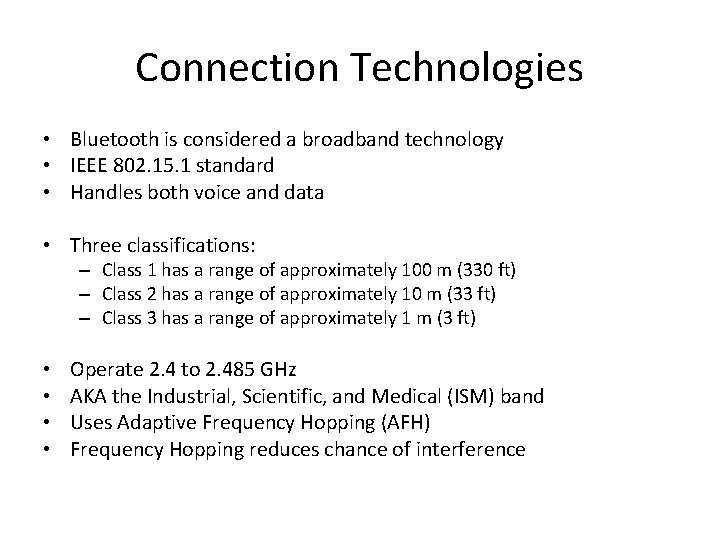
Connection Technologies • Bluetooth is considered a broadband technology • IEEE 802. 15. 1 standard • Handles both voice and data • Three classifications: – Class 1 has a range of approximately 100 m (330 ft) – Class 2 has a range of approximately 10 m (33 ft) – Class 3 has a range of approximately 1 m (3 ft) • • Operate 2. 4 to 2. 485 GHz AKA the Industrial, Scientific, and Medical (ISM) band Uses Adaptive Frequency Hopping (AFH) Frequency Hopping reduces chance of interference
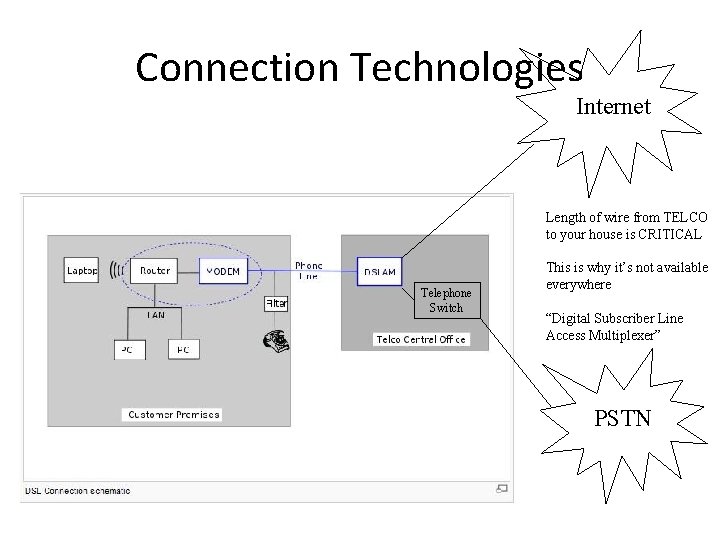
Connection Technologies • Digital Subscriber Line (DSL) • Uses existing copper telephone lines • An "always-on" technology; there is no need to dial up each time to connect to the Internet
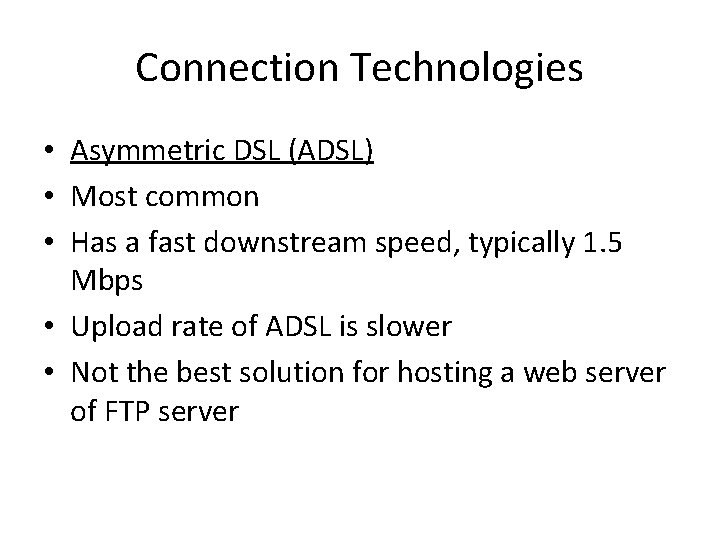
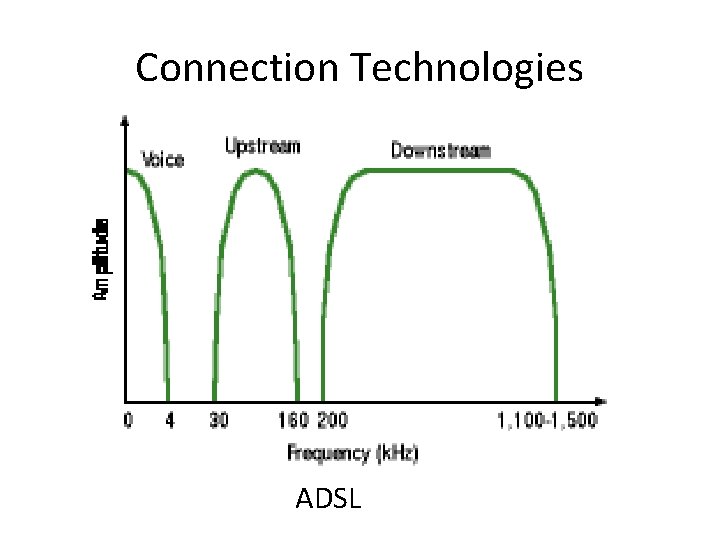
Connection Technologies • Asymmetric DSL (ADSL) • Most common • Has a fast downstream speed, typically 1. 5 Mbps • Upload rate of ADSL is slower • Not the best solution for hosting a web server of FTP server
Connection Technologies ADSL
Connection Technologies Internet Length of wire from TELCO to your house is CRITICAL Telephone Switch This is why it’s not available everywhere “Digital Subscriber Line Access Multiplexer” PSTN
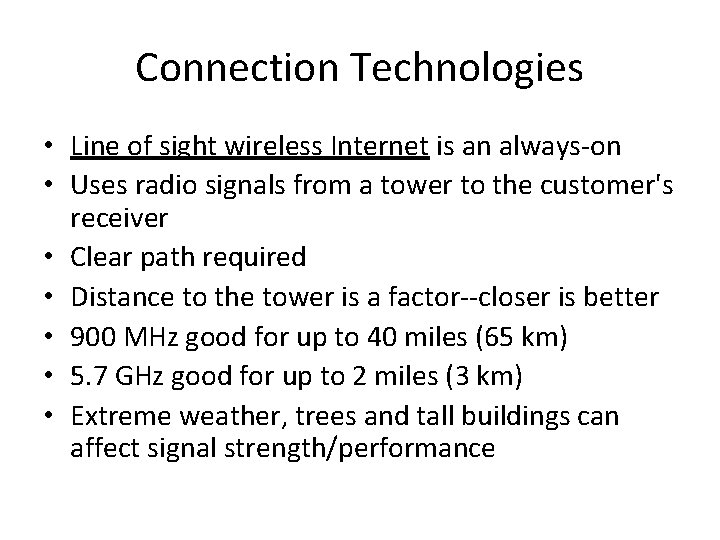
Connection Technologies • Line of sight wireless Internet is an always-on • Uses radio signals from a tower to the customer's receiver • Clear path required • Distance to the tower is a factor--closer is better • 900 MHz good for up to 40 miles (65 km) • 5. 7 GHz good for up to 2 miles (3 km) • Extreme weather, trees and tall buildings can affect signal strength/performance
Connection Technologies • Worldwide Interoperability for Microwave Access (Wi. MAX) - 4 G broadband, high-speed, mobile Internet access for mobile devices • IEEE 802. 16 e • Download speeds up to 70 Mb/s and distances up to 30 miles • Uses between 2 GHz to 11 GHz • Fixed Wi. MAX - A point-to-point or point-to-multipoint service with speeds up to 72 Mb/s and a range of 30 miles (50 km) • Mobile Wi. MAX - A mobile service, like Wi-Fi, but with higher speeds and a longer transmission range
Connection Technologies • Cellular – another broadband technology • 1 G - Analog voice only • 2 G - Digital voice, conference calls, and caller ID; data speeds less than 9. 6 Kb/s • 2. 5 G - Data speeds between 30 Kb/s and 90 Kb/s; supports web browsing, short audio and video clips, games, and application and ring tone downloads • 3 G - Data speeds between 144 Kb/s and 2 Mb/s; supports full-motion video, streaming music, 3 D gaming, and faster web browsing • 3. 5 G - Data speeds between 384 Kb/s and 14. 4 Mb/s; supports highquality streaming video, high-quality video conferencing, and Vo. IP • 4 G - Data speeds between 5. 8 Mb/s and 672 Mb/s when mobile, and up to 1 Gb/s when stationary; supports IP-based voice, gaming services, highquality streamed multimedia, and IPv 6
Connection Technologies • Cellular networks use one or more of the following technologies: • Global System for Mobile communications (GSM) - Standard used by the worldwide cellular network • General Packet Radio Service (GPRS) - Data service for users of GSM • Quad-band - Allows a cellular phone to operate on all four GSM frequencies: 850 MHz, 900 MHz, 1800 MHz, and 1900 MHz • Short Message Service (SMS) - Data service used to send and receive text messages • Multimedia Messaging Service (MMS) - Data service used to send and receive text messages and can include multimedia content • Enhanced Data Rates for GSM Evolution (EDGE) - Increased data rates and improved data reliability • Evolution-Data Optimized (EV-DO) - Improved upload speeds and Qo. S • High Speed Downlink Packet Access (HSDPA) - Enhanced 3 G access speed
NOT TESTABLE Connection Technologies • CDMA/GSM still competing • CDMA - Sprint, Virgin Mobile and Verizon Wireless • GSM - T-Mobile and AT&T
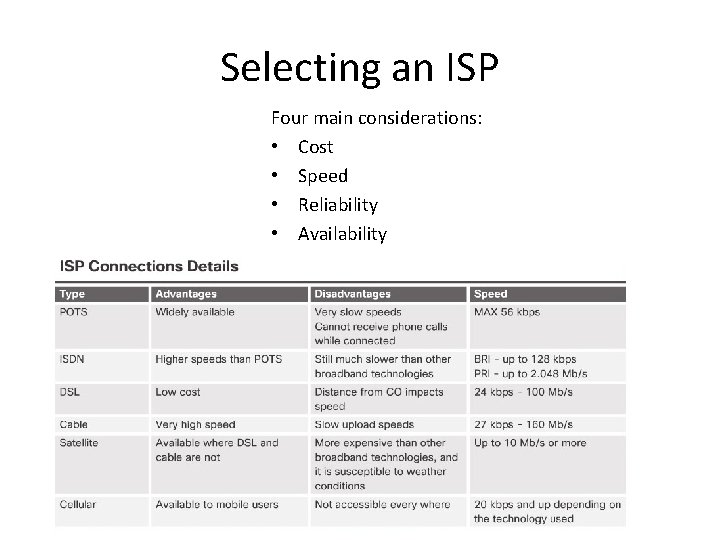
Selecting an ISP Four main considerations: • Cost • Speed • Reliability • Availability
Data Center • Concentrated computing and storage • Centralization eases maintenance • Cheaper O&M costs – Focused power and cooling – Full time IT staff with full time duties • Currently over 3, 000 data centers in the world
Cloud vs Data Center • Data center – In-house data storage/processing facility • Cloud computing – Service provided by someone else that offers on-demand access to a shared pool of configurable computing resources. • National Institute of Standards and Technology (NIST), Special Publication 800 -145, define a Cloud model that consists of five characteristics, three service models, and four deployment models • http: //nvlpubs. nist. gov/nistpubs/Legacy/SP/nistspecial publication 800 -145. pdf
Cloud Computing - Characteristics • On-demand self-service - the network administrator can buy additional computing space in the Cloud without requiring the interaction with another human. • Broad network access - access to the Cloud is available using a wide variety of client devices, such as PCs, laptops, tablets, and smartphones. • Resource pooling - the computing capacity of the Cloud provider is shared among all its customers and can be assigned and reassigned based on customer demand. • Rapid elasticity - resource allocation to customers can quickly expand or contract with demand. To the customer, the resources and capabilities of the Cloud service provider appear to be unlimited. • Measured service - resource usage can be easily monitored, controlled, reported, and billed to provide full visibility to both the Cloud service provide and customer.
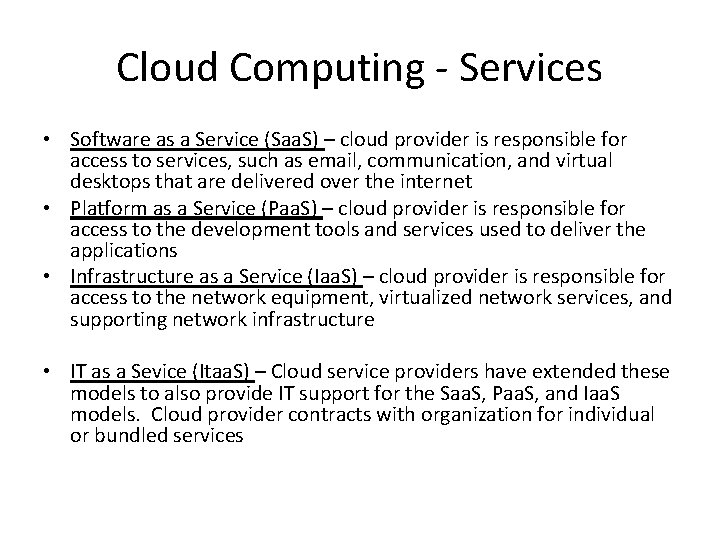
Cloud Computing - Services • Software as a Service (Saa. S) – cloud provider is responsible for access to services, such as email, communication, and virtual desktops that are delivered over the internet • Platform as a Service (Paa. S) – cloud provider is responsible for access to the development tools and services used to deliver the applications • Infrastructure as a Service (Iaa. S) – cloud provider is responsible for access to the network equipment, virtualized network services, and supporting network infrastructure • IT as a Sevice (Itaa. S) – Cloud service providers have extended these models to also provide IT support for the Saa. S, Paa. S, and Iaa. S models. Cloud provider contracts with organization for individual or bundled services
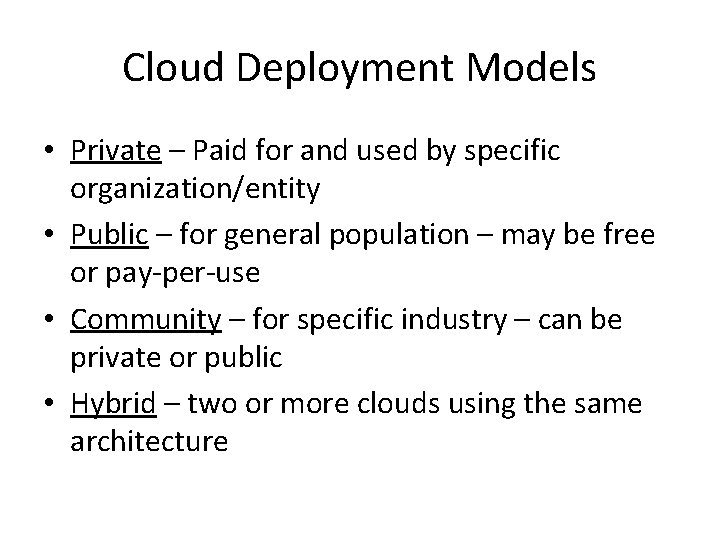
Cloud Deployment Models • Private – Paid for and used by specific organization/entity • Public – for general population – may be free or pay-per-use • Community – for specific industry – can be private or public • Hybrid – two or more clouds using the same architecture
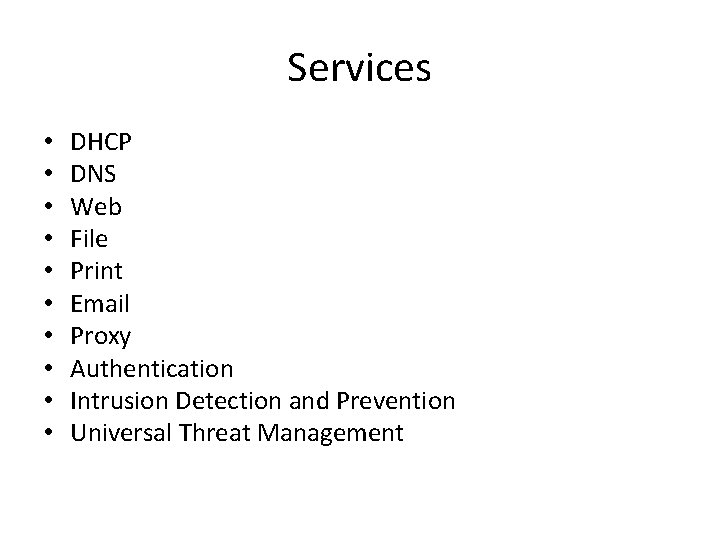
Services • • • DHCP DNS Web File Print Email Proxy Authentication Intrusion Detection and Prevention Universal Threat Management
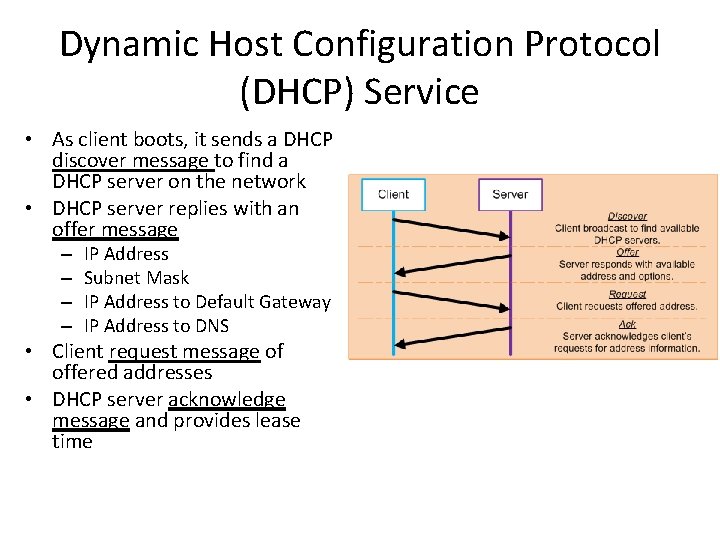
Dynamic Host Configuration Protocol (DHCP) Service • As client boots, it sends a DHCP discover message to find a DHCP server on the network • DHCP server replies with an offer message – – IP Address Subnet Mask IP Address to Default Gateway IP Address to DNS • Client request message of offered addresses • DHCP server acknowledge message and provides lease time
Domain Name Server (DNS) Service • Provides IP address to requested Universal Resource Locator, or Fully Qualified Domain Name • Domain name -> IP Address
Web Service • • HTTP (Port 80) HTTPS (SSL/TLS) (Port 443) Text, graphics, sound, video http: //www. cisco. com/index. html – http: // - protocol – www. cisco. com – server name – Index. html – specific file to return
SSL/TLS • In security chapter
File Service • File Transfer Protocol (FTP) – one of the first protocols created • FTP designed for the free and open exchange of information – therefore, it is very unsecure • File Transfer Protocol Secure (FTPS) – encrypts using TLS • Secure Shell File Transfer Protocol (SFTP) – extension of the Secure Shell (SSH) protocol – used to establish a secure file transfer session • Secure Copy (SCP) – uses SSH to secure file transfers
Print Service • Multiple users/single printer • Print server provides storage queue for print jobs and provides feedback to the user
Email Service • Store-and-forward method of sending, storing, and retrieving electronic messages across a network • Two methods: – Client email software -> Server email software – Web access to email server • Mail servers communicate with other mail servers to transport messages from one domain to another – Simple Mail Transfer Protocol (SMTP) (Sends Email) – Post Office Protocol (POP) – Internet Message Access Protocol (IMAP) (server to client)
Proxy Service • • All requests/traffic go through a proxy server Provides for centralized security Effectively hides IP addresses of internal hosts Provides web page cache (faster access)
Authentication Service • authentication, authorization, and accounting services. Referred to as AAA or “triple A” • AAA is a way to control who is permitted to access a network (authenticate), what they can do while they are there (authorize), and track what actions they perform while accessing the network (accounting).
Intrusion Detection and Prevention Service • Intrusion Detection Systems (IDSs) passively monitors and reports intrusion happened • Intrusion Prevention Systems (IPSs) actively monitors and stops intrusions before they happen
Universal Threat Management • Universal Threat Management (UTM) generic name for all-in-one security appliance (IDS/IPS/firewall) • Also can provide: – Zero Day protection – Denial of Service (Do. S) and Distributed Denial of Service (DDo. S) protection – Proxy filtering of applications – Email filtering for spam and phishing attacks – Antispyware – Network access control – VPN services
Next Generation Firewalls • Go beyond a UTM in several important ways: • Control the behaviors within applications • Restricting web and web application use based on the reputation of the site • Proactive protection against Internet threats • Enforcement of policies based on the user, device, role, application type, and threat profile
Preventive Maintenance • Scheduled maintenance reduces unscheduled maintenance • Check: – condition of cables/labeling - especially where other people can move or kick – Unusual sounds – Network devices – Servers – Computers – Uninteruptable Power Supplies (UPS) – should be tested at regular intervals – especially those hidden in closets • Clean: – One of the biggest problems with network devices, especially in the server room, is heat – Dust impedes proper flow of cool air – Clean at regular intervals and ensure good working order
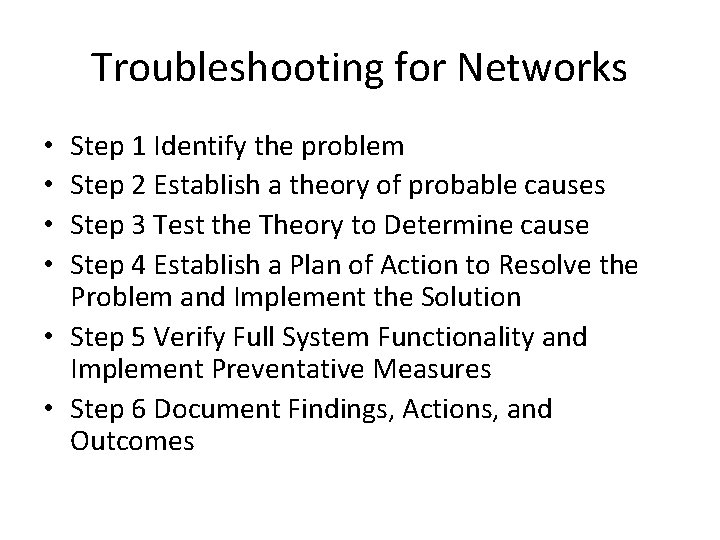
Troubleshooting for Networks Step 1 Identify the problem Step 2 Establish a theory of probable causes Step 3 Test the Theory to Determine cause Step 4 Establish a Plan of Action to Resolve the Problem and Implement the Solution • Step 5 Verify Full System Functionality and Implement Preventative Measures • Step 6 Document Findings, Actions, and Outcomes • •
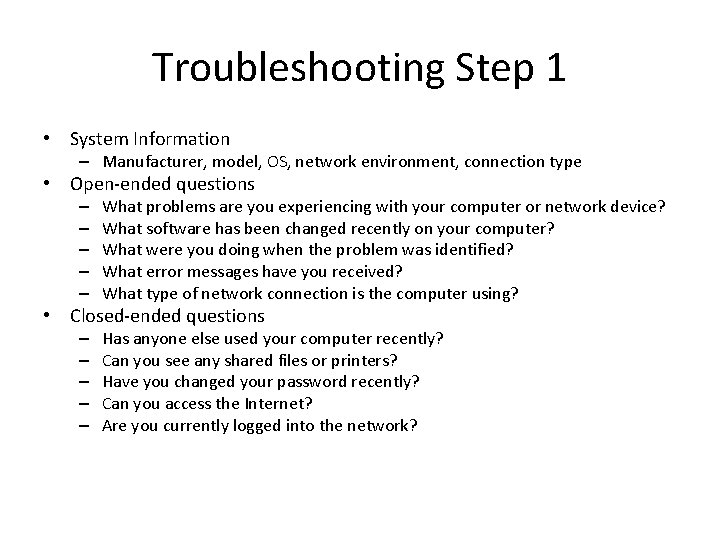
Troubleshooting Step 1 • System Information – Manufacturer, model, OS, network environment, connection type • Open-ended questions – – – What problems are you experiencing with your computer or network device? What software has been changed recently on your computer? What were you doing when the problem was identified? What error messages have you received? What type of network connection is the computer using? • Closed-ended questions – – – Has anyone else used your computer recently? Can you see any shared files or printers? Have you changed your password recently? Can you access the Internet? Are you currently logged into the network?
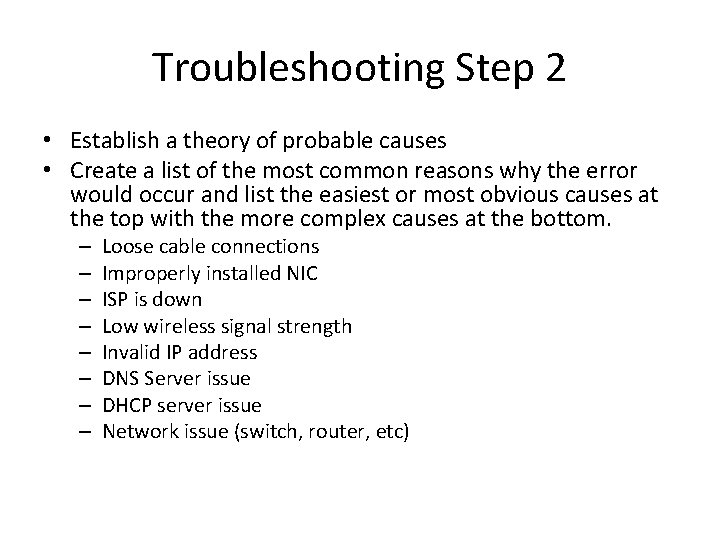
Troubleshooting Step 2 • Establish a theory of probable causes • Create a list of the most common reasons why the error would occur and list the easiest or most obvious causes at the top with the more complex causes at the bottom. – – – – Loose cable connections Improperly installed NIC ISP is down Low wireless signal strength Invalid IP address DNS Server issue DHCP server issue Network issue (switch, router, etc)
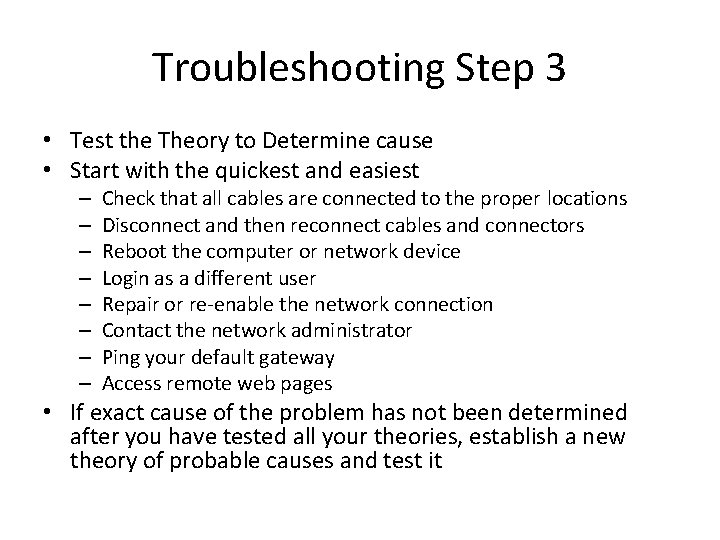
Troubleshooting Step 3 • Test the Theory to Determine cause • Start with the quickest and easiest – – – – Check that all cables are connected to the proper locations Disconnect and then reconnect cables and connectors Reboot the computer or network device Login as a different user Repair or re-enable the network connection Contact the network administrator Ping your default gateway Access remote web pages • If exact cause of the problem has not been determined after you have tested all your theories, establish a new theory of probable causes and test it
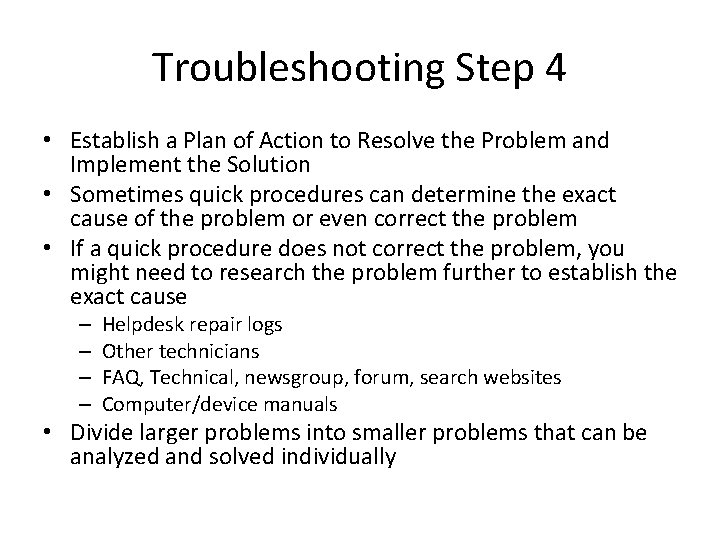
Troubleshooting Step 4 • Establish a Plan of Action to Resolve the Problem and Implement the Solution • Sometimes quick procedures can determine the exact cause of the problem or even correct the problem • If a quick procedure does not correct the problem, you might need to research the problem further to establish the exact cause – – Helpdesk repair logs Other technicians FAQ, Technical, newsgroup, forum, search websites Computer/device manuals • Divide larger problems into smaller problems that can be analyzed and solved individually
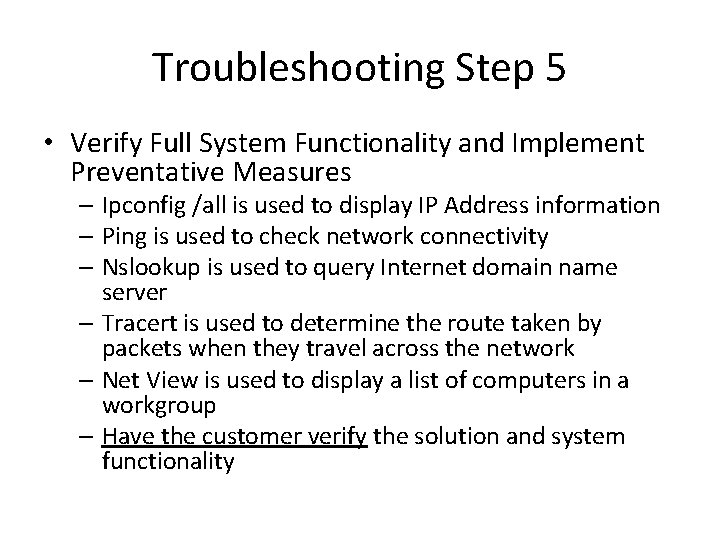
Troubleshooting Step 5 • Verify Full System Functionality and Implement Preventative Measures – Ipconfig /all is used to display IP Address information – Ping is used to check network connectivity – Nslookup is used to query Internet domain name server – Tracert is used to determine the route taken by packets when they travel across the network – Net View is used to display a list of computers in a workgroup – Have the customer verify the solution and system functionality
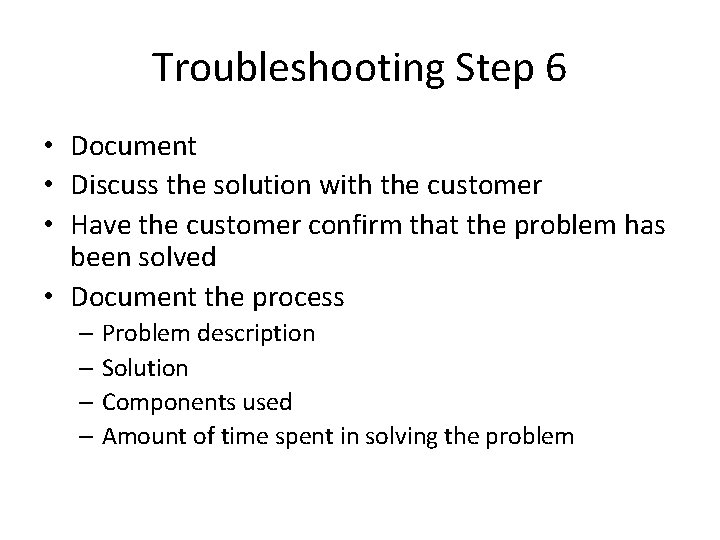
Troubleshooting Step 6 • Document • Discuss the solution with the customer • Have the customer confirm that the problem has been solved • Document the process – Problem description – Solution – Components used – Amount of time spent in solving the problem
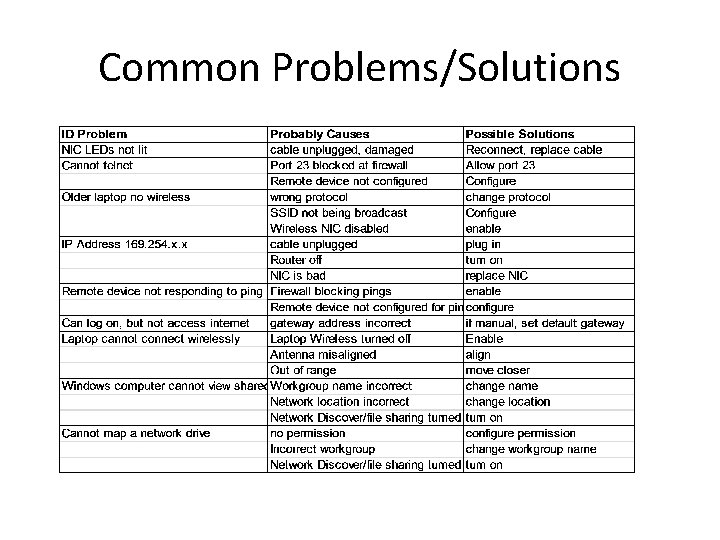
Common Problems/Solutions
Summary • A computer network is composed of two or more computers that share data and resources • A Local Area Network (LAN) refers to a group of interconnected computers that are under the same administrative control • A Wide Area Network (WAN) is a network that connects LANs in geographically separated locations • In a peer-to-peer network, devices are connected directly to each other. A peer-to-peer network is easy to install, and no additional equipment or dedicated administrator is required. Users control their own resources, and a networks best with a small number of computers. A client/server network uses a dedicated system that functions as the server. The server responds to requests made by users or clients connected to the network.
Summary (continued) • A LAN uses a direct connection from one computer to another. It is suitable for a small area, such as in a home, building, or school. A WAN uses point-to-point or point-to-multipoint, serial communications lines to communicate over greater distances. A WLAN uses wireless technology to connect devices together. • The network topology defines the way in which computers, printers, and other devices are connected. Logical topology describes how the hosts access the medium and communicate on the network. Physical topology describes the layout of the wire and devices, as well as the paths used by data transmissions. . Topologies include bus, star, ring, and mesh. • Networking devices are used to connect computers and peripheral devices so that they can communicate. These include hubs, bridges, switches, routers, and multipurpose devices. The type of device implemented depends on the type of network.
Summary (continued) • Networking media can be defined as the means by which signals, or data, are sent from one computer to another. Signals can be transmitted either by cable or wireless means. The media types discussed were coaxial, twisted-pair, fiber-optic cabling, and radio frequencies. • Ethernet is now the most popular type of LAN technology. The Ethernet architecture is based on the IEEE 802. 3 standard. The IEEE 802. 3 standard specifies that a network implement the CSMA/CD access control method. • The OSI reference model is an industry standard framework that is used to divide the functions of networking into seven distinct layers. These layers include Application, Presentation, Session, Transport, Network, Data Link, and Physical. It is important to understand the purpose of each layer.
Summary (continued) • The TCP/IP suite of protocols has become the dominant standard for the Internet. TCP/IP represents a set of public standards that specify how packets of information are exchanged between computers over one or more networks. • A NIC is a device that plugs into a motherboard and provides ports for the network cable connections. It is the computer interface with the LAN. • A modem is an electronic device that is used for computer communications through telephone lines. It allows data transfer between one computer and another. The modem converts byte-oriented data to serial bit streams.
Summary (continued) • The three transmission methods to sending signals over data channels are simplex, half-duplex, and full-duplex. Full-duplex networking technology increases performance because data can be sent and received at the same time. DSL, two-way cable modem, and other broadband technologies operate in full-duplex mode. • Network devices and media, such as computer components, must be maintained. It is important to clean equipment regularly and use a proactive approach to prevent problems. Repair or replace broken equipment to prevent downtime. • When troubleshooting network problems, listen to what your customer tells you so that you can formulate open-ended and closed-ended questions that will help you determine where to begin fixing the problem. Verify obvious issues and try quick solutions before escalating the troubleshooting process.