
Chapter 8 Advanced Part Modeling Techniques Chapter 8


- Slides: 51
Chapter 8 Advanced Part Modeling Techniques
Chapter 8 - Objectives • After completing this chapter, you will be able to – Extrude an open profile – Create ribs, webs, and rib networks – Emboss text and profiles – Create sweep features – Create coil features – Create loft features – Use surfaces to create solids – Split a part or split faces of a part – Copy features within a part
Chapter 8 – Objectives continued • After completing this chapter, you will be able to – Reorder part features – Mirror model features – Suppress features of a part – Create a derived part based on another part or an assembly – Use Auto Limits to alert you when a part or assembly exceeds a target range for a specific property
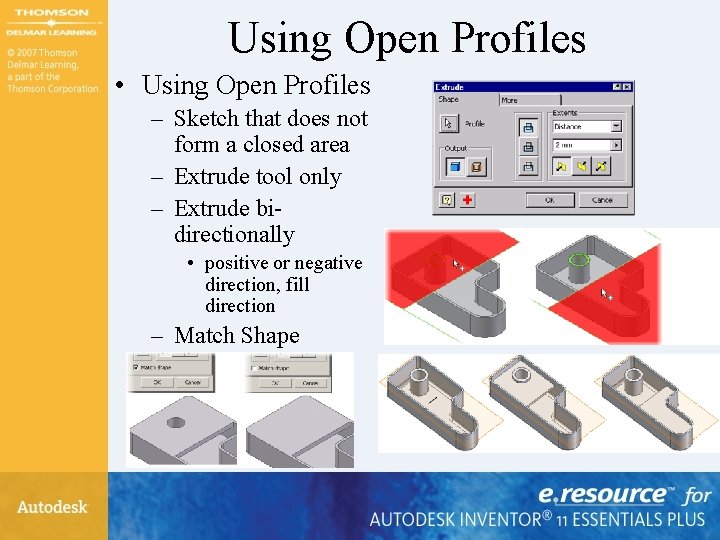
Using Open Profiles • Using Open Profiles – Sketch that does not form a closed area – Extrude tool only – Extrude bidirectionally • positive or negative direction, fill direction – Match Shape
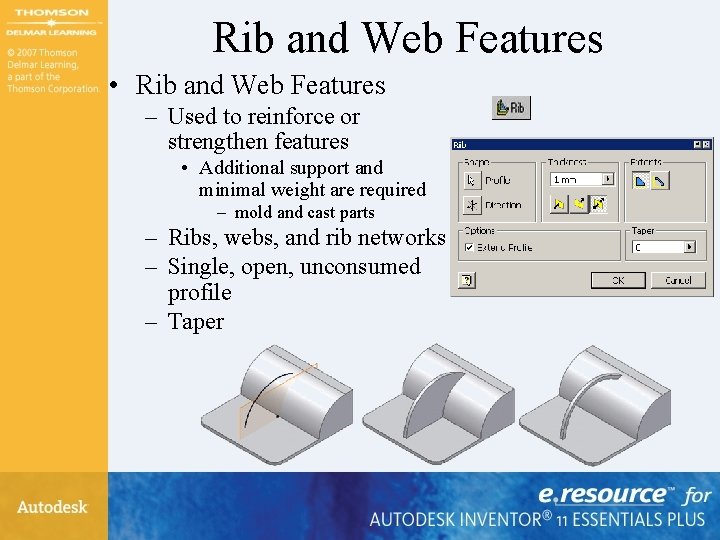
Rib and Web Features • Rib and Web Features – Used to reinforce or strengthen features • Additional support and minimal weight are required – mold and cast parts – Ribs, webs, and rib networks – Single, open, unconsumed profile – Taper
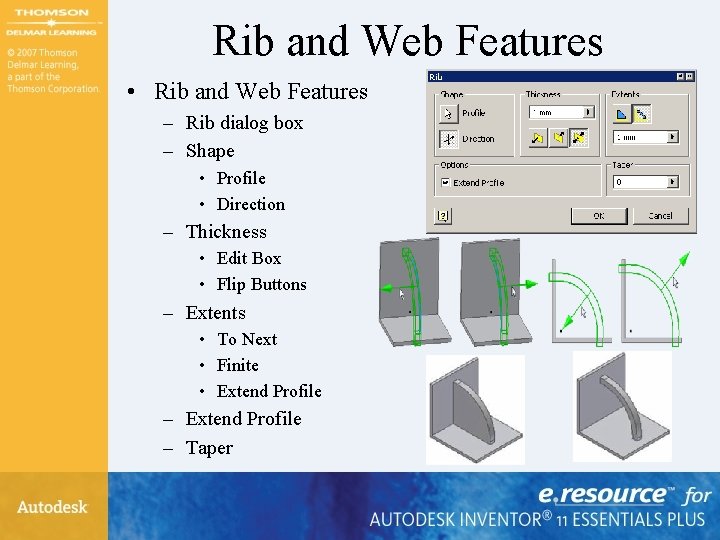
Rib and Web Features • Rib and Web Features – Rib dialog box – Shape • Profile • Direction – Thickness • Edit Box • Flip Buttons – Extents • To Next • Finite • Extend Profile – Taper
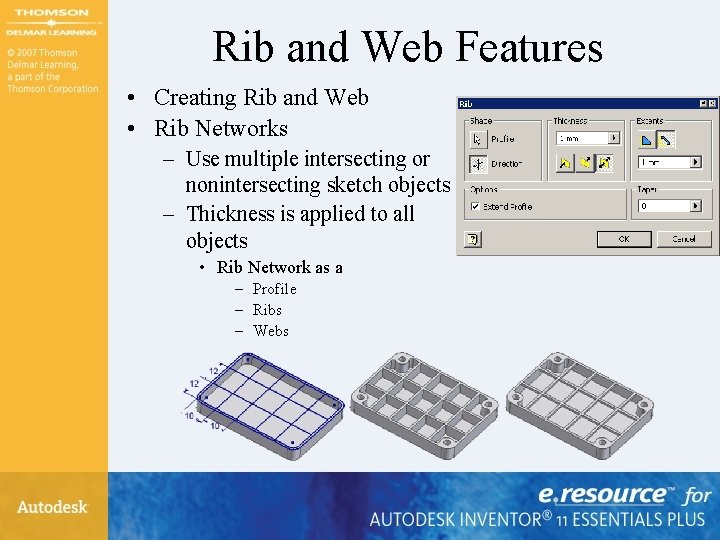
Rib and Web Features • Creating Rib and Web • Rib Networks – Use multiple intersecting or nonintersecting sketch objects – Thickness is applied to all objects • Rib Network as a – Profile – Ribs – Webs
Exercise 8 -1 • Creating Ribs and Webs
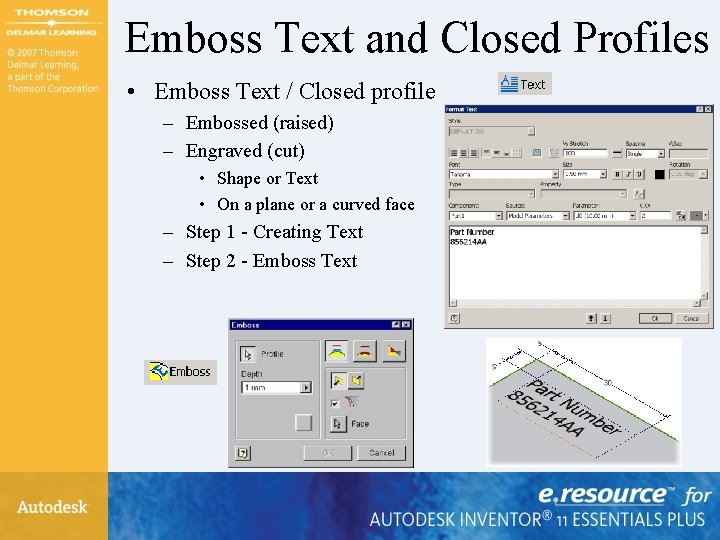
Emboss Text and Closed Profiles • Emboss Text / Closed profile – Embossed (raised) – Engraved (cut) • Shape or Text • On a plane or a curved face – Step 1 - Creating Text – Step 2 - Emboss Text
Exercise 8 -2 • Creating Text and Emboss Features
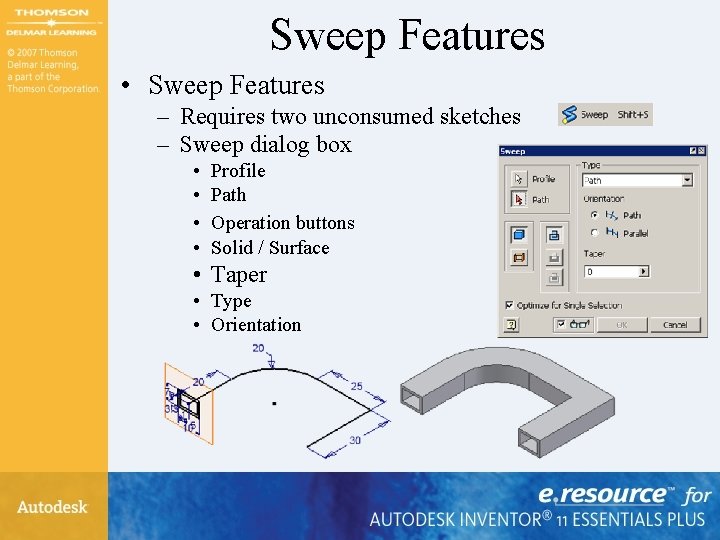
Sweep Features • Sweep Features – Requires two unconsumed sketches – Sweep dialog box • • Profile Path Operation buttons Solid / Surface • Taper • Type • Orientation
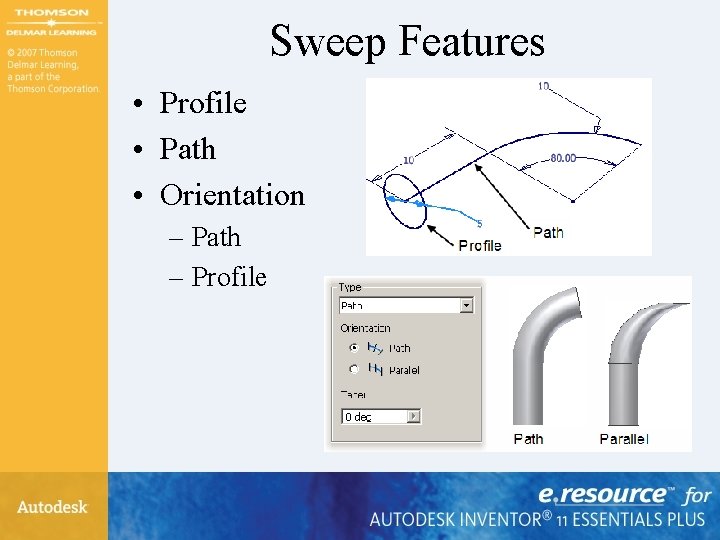
Sweep Features • Profile • Path • Orientation – Path – Profile
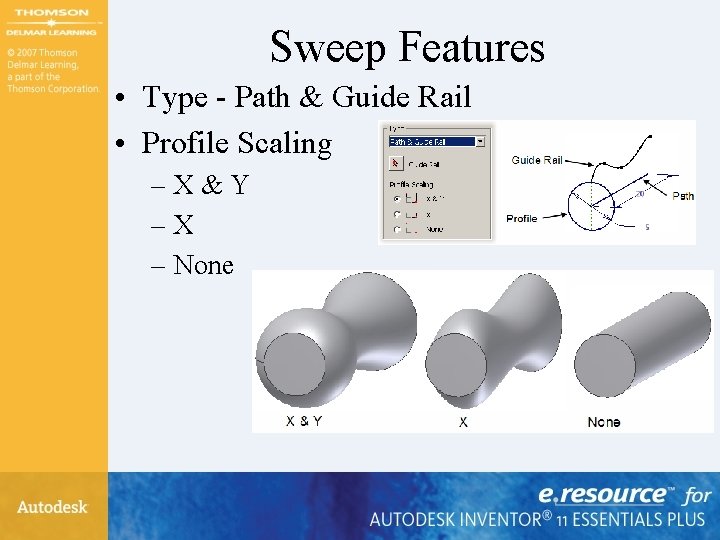
Sweep Features • Type - Path & Guide Rail • Profile Scaling –X&Y –X – None
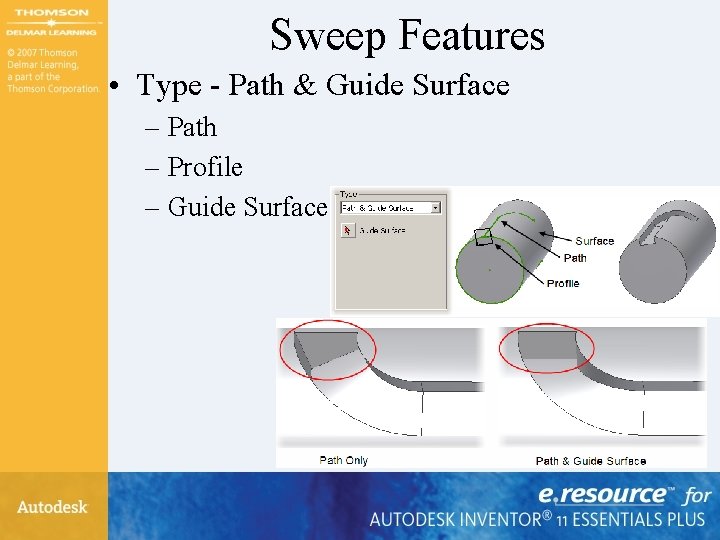
Sweep Features • Type - Path & Guide Surface – Path – Profile – Guide Surface
Exercise 8 -3 • Creating Sweep Features
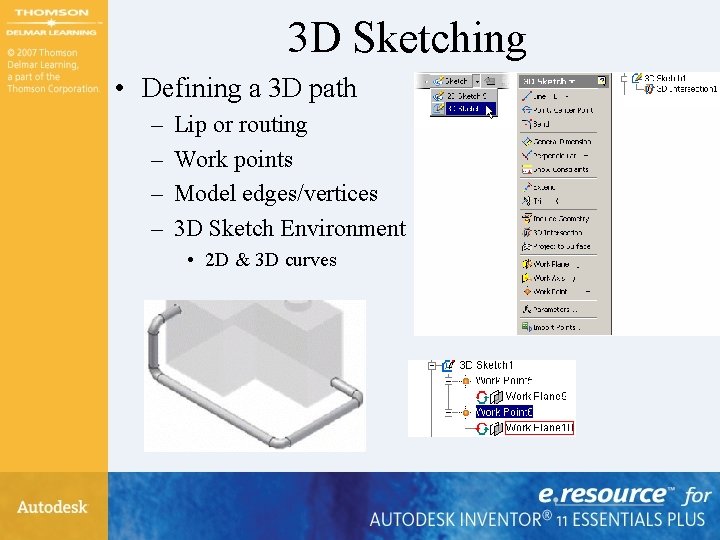
3 D Sketching • Defining a 3 D path – – Lip or routing Work points Model edges/vertices 3 D Sketch Environment • 2 D & 3 D curves
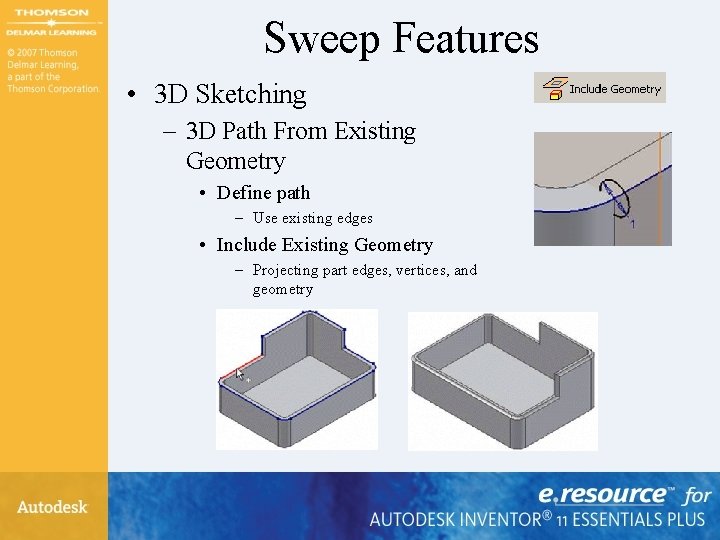
Sweep Features • 3 D Sketching – 3 D Path From Existing Geometry • Define path – Use existing edges • Include Existing Geometry – Projecting part edges, vertices, and geometry
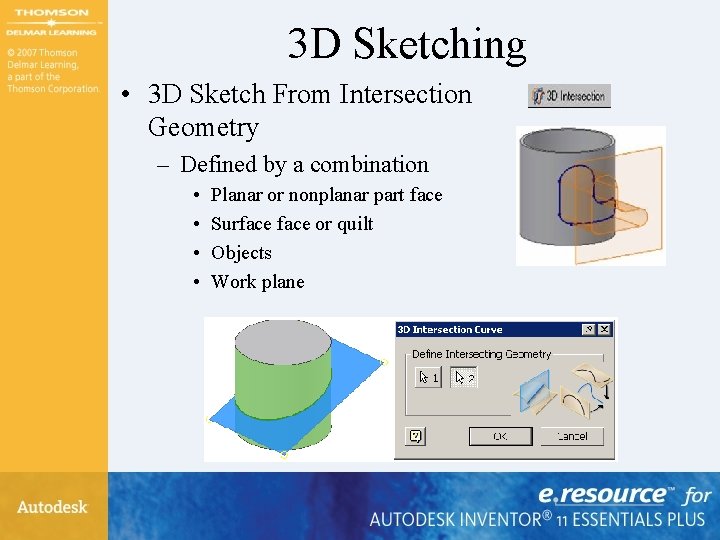
3 D Sketching • 3 D Sketch From Intersection Geometry – Defined by a combination • • Planar or nonplanar part face Surface or quilt Objects Work plane
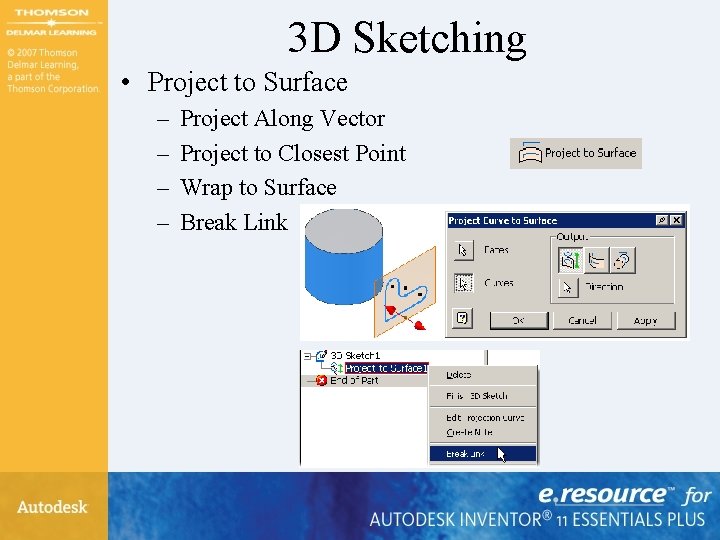
3 D Sketching • Project to Surface – – Project Along Vector Project to Closest Point Wrap to Surface Break Link
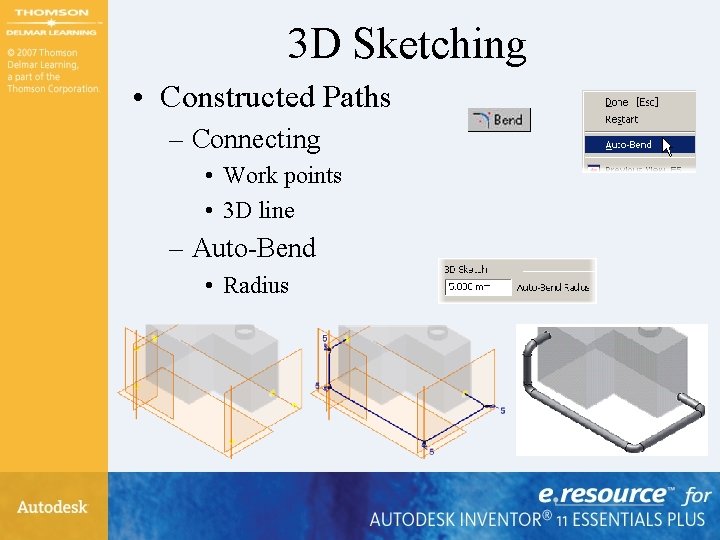
3 D Sketching • Constructed Paths – Connecting • Work points • 3 D line – Auto-Bend • Radius
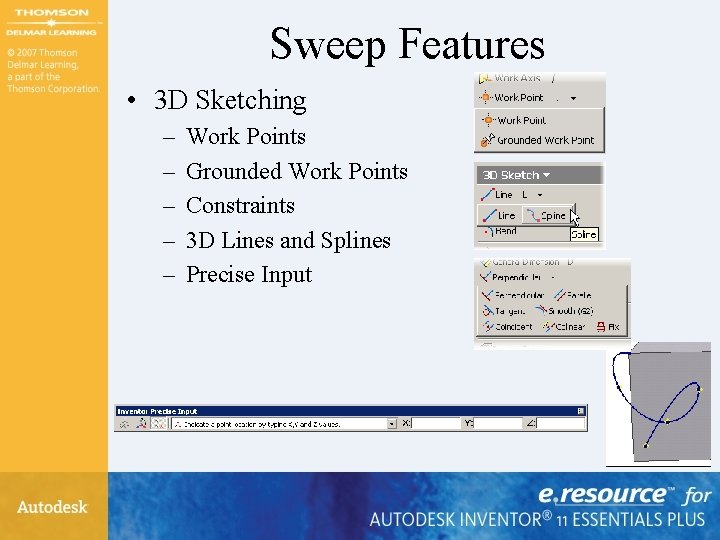
Sweep Features • 3 D Sketching – – – Work Points Grounded Work Points Constraints 3 D Lines and Splines Precise Input
Exercise 8 -4 • 3 D Sketch – Sweep Features
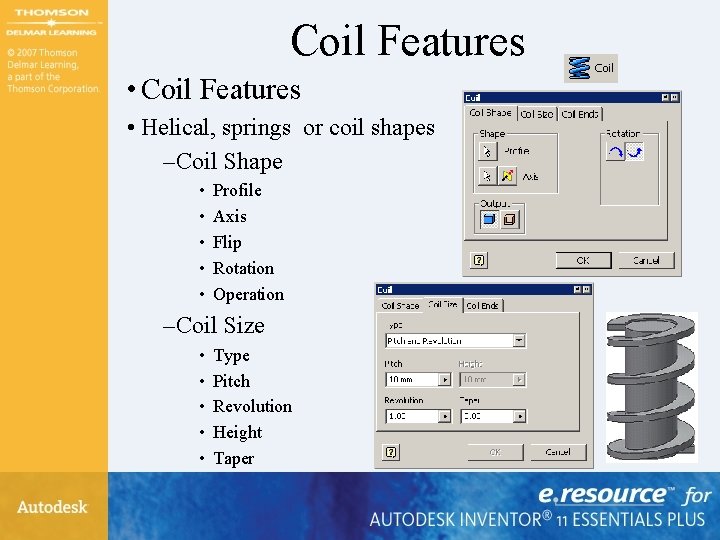
Coil Features • Helical, springs or coil shapes – Coil Shape • • • Profile Axis Flip Rotation Operation – Coil Size • • • Type Pitch Revolution Height Taper
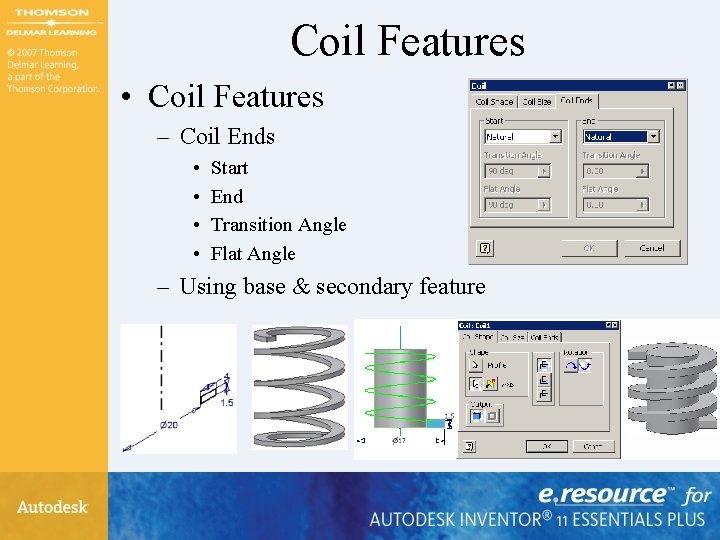
Coil Features • Coil Features – Coil Ends • • Start End Transition Angle Flat Angle – Using base & secondary feature
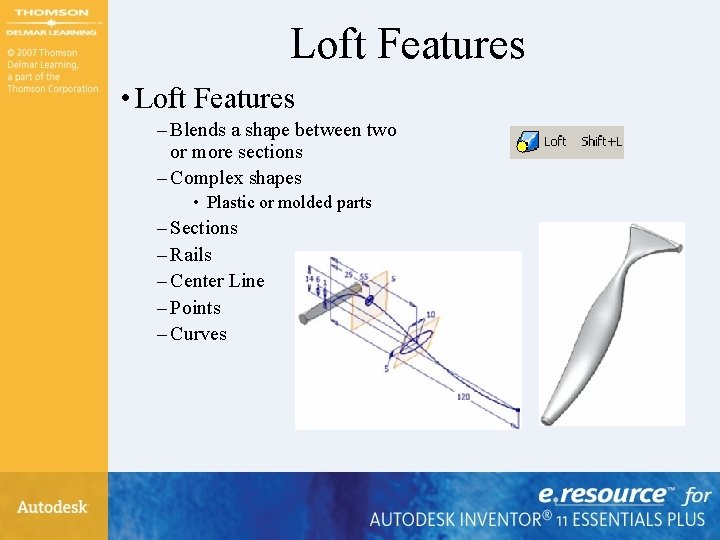
Loft Features • Loft Features – Blends a shape between two or more sections – Complex shapes • Plastic or molded parts – Sections – Rails – Center Line – Points – Curves
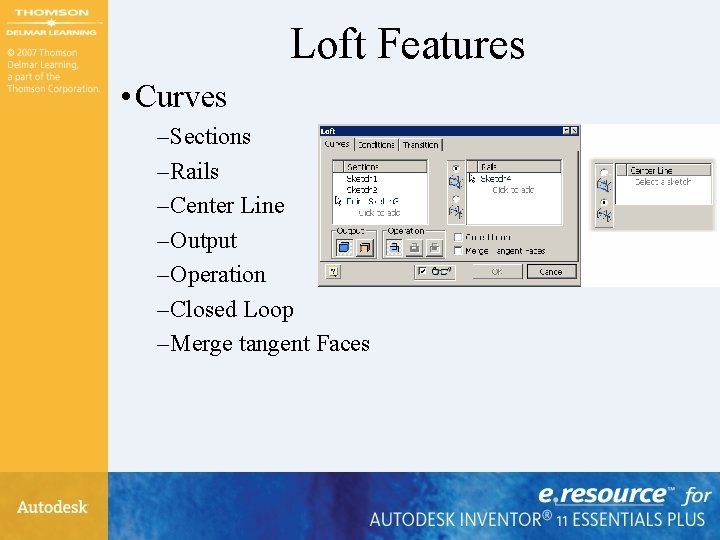
Loft Features • Curves – Sections – Rails – Center Line – Output – Operation – Closed Loop – Merge tangent Faces
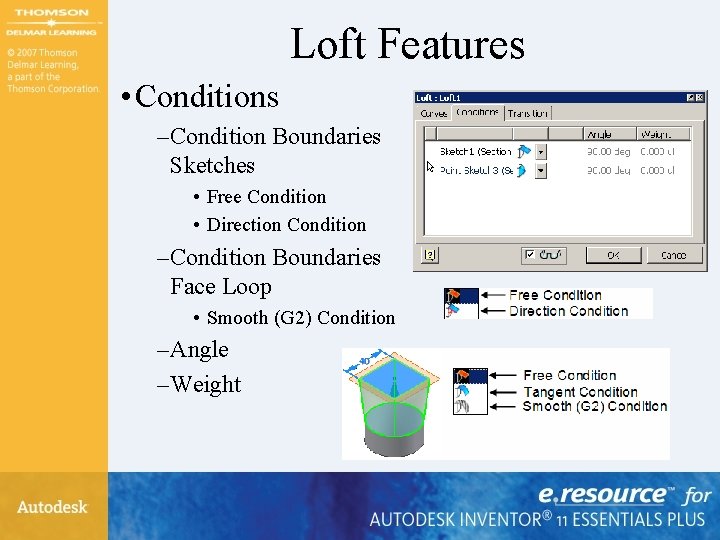
Loft Features • Conditions – Condition Boundaries Sketches • Free Condition • Direction Condition – Condition Boundaries Face Loop • Smooth (G 2) Condition – Angle – Weight
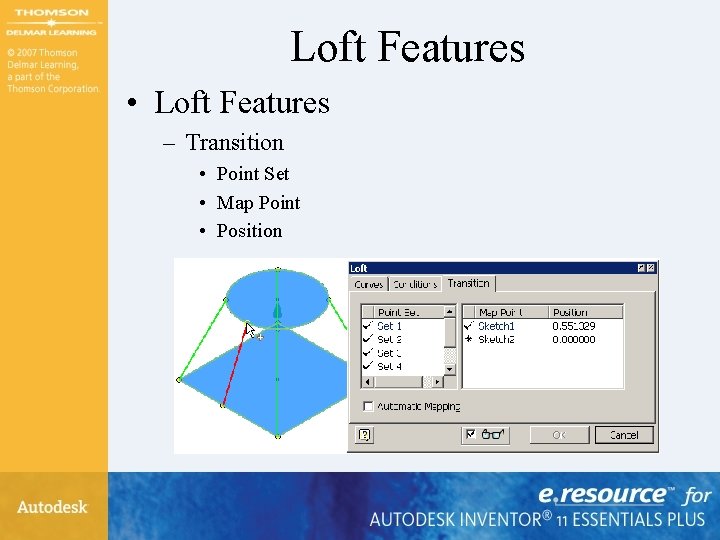
Loft Features • Loft Features – Transition • Point Set • Map Point • Position
Exercise 8 -5 • Creating Loft Features
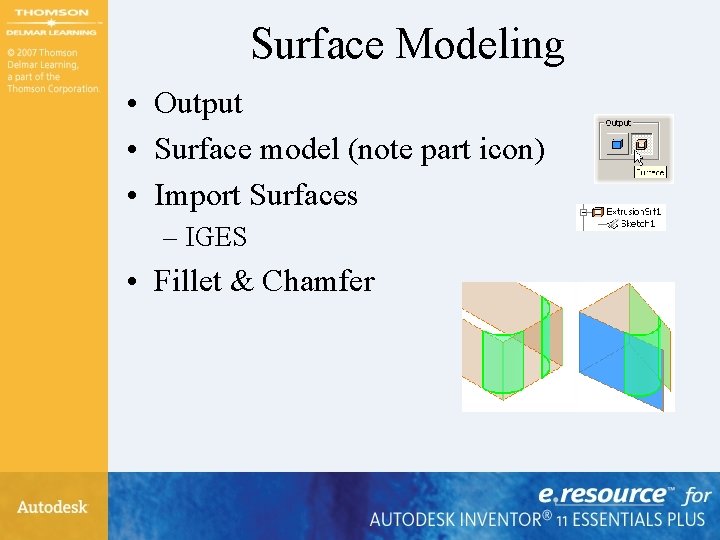
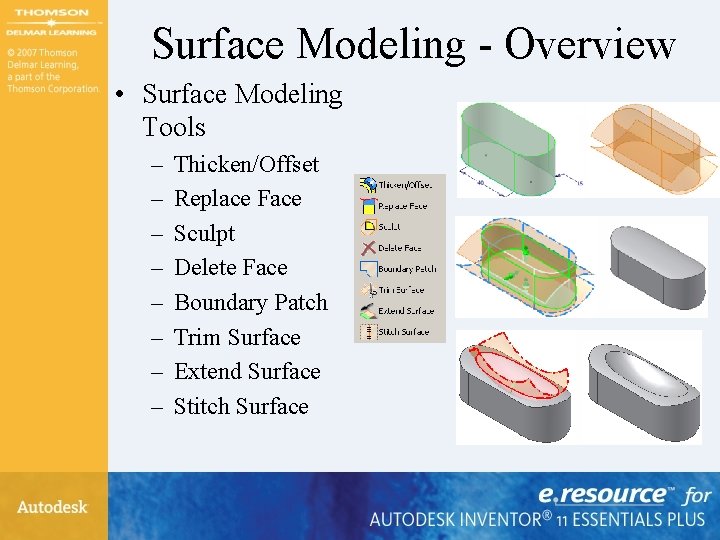
Surface Modeling • Output • Surface model (note part icon) • Import Surfaces – IGES • Fillet & Chamfer
Surface Modeling - Overview • Surface Modeling Tools – – – – Thicken/Offset Replace Face Sculpt Delete Face Boundary Patch Trim Surface Extend Surface Stitch Surface
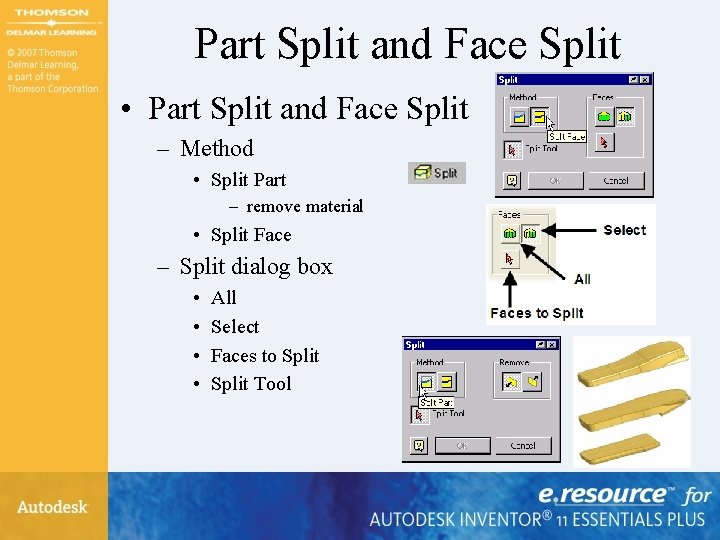
Part Split and Face Split • Part Split and Face Split – Method • Split Part – remove material • Split Face – Split dialog box • • All Select Faces to Split Tool
Exercise 8 -6 • Splitting a Part
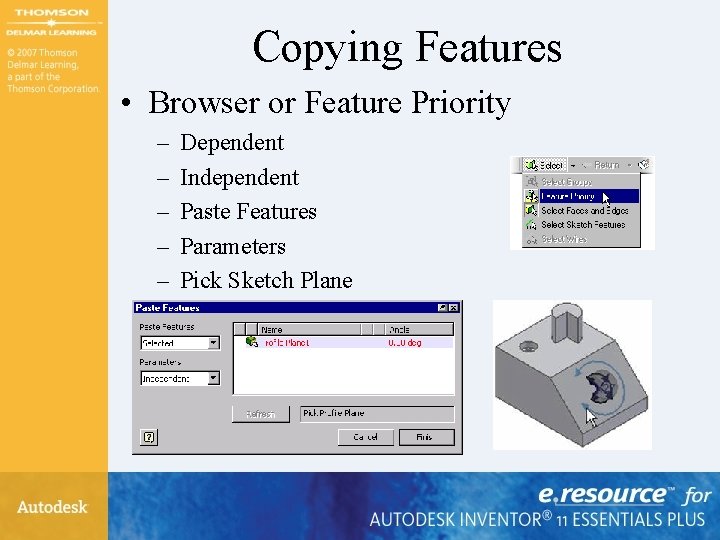
Copying Features • Browser or Feature Priority – – – Dependent Independent Paste Features Parameters Pick Sketch Plane
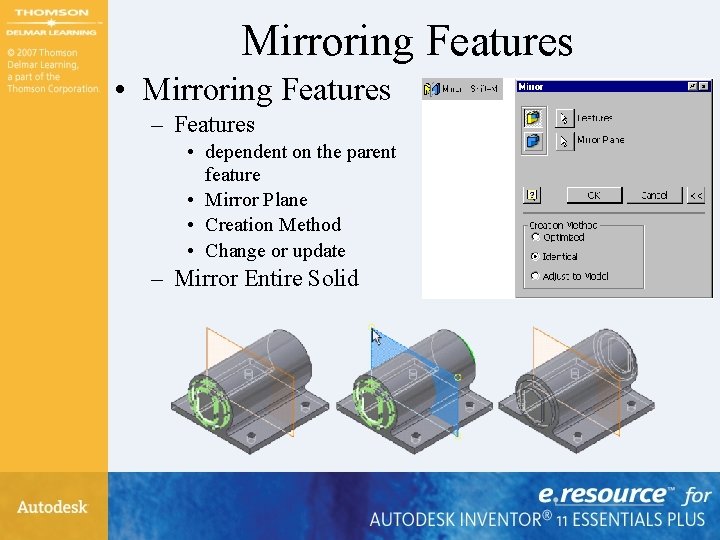
Mirroring Features • Mirroring Features – Features • dependent on the parent feature • Mirror Plane • Creation Method • Change or update – Mirror Entire Solid
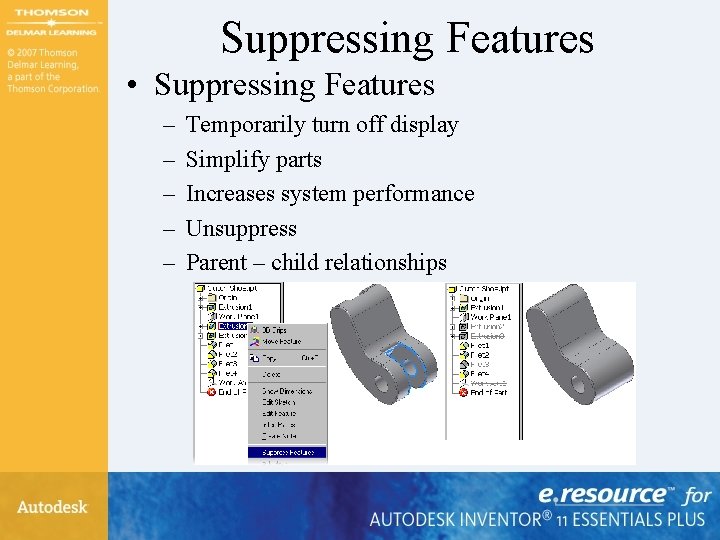
Suppressing Features • Suppressing Features – – – Temporarily turn off display Simplify parts Increases system performance Unsuppress Parent – child relationships
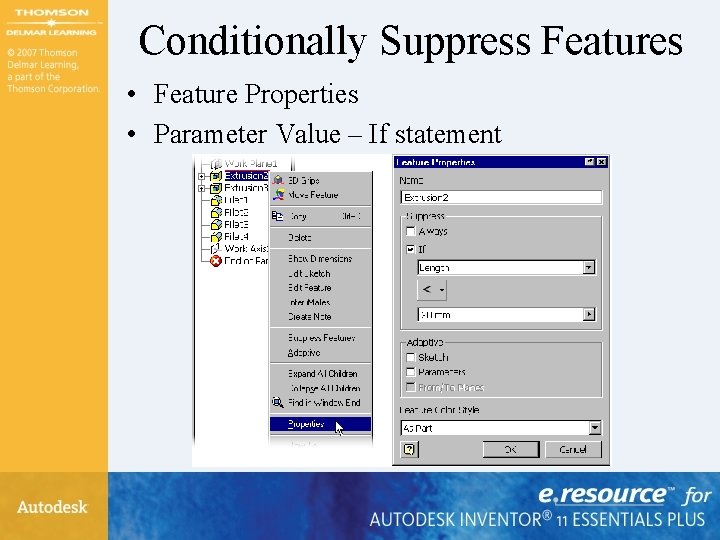
Conditionally Suppress Features • Feature Properties • Parameter Value – If statement
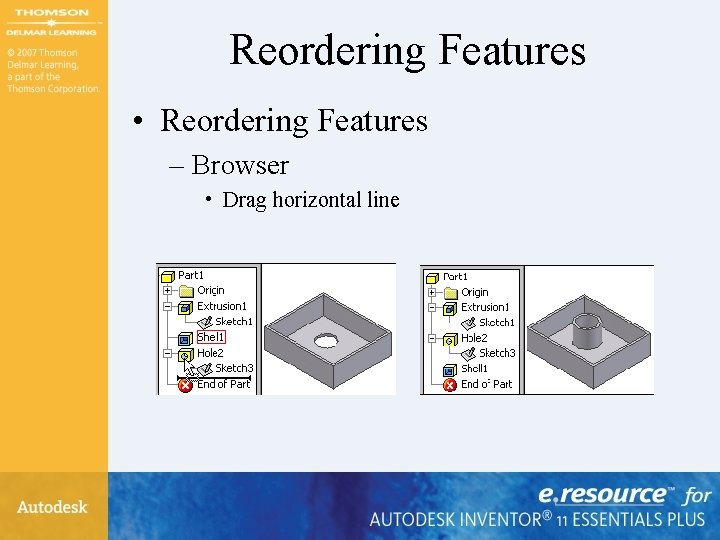
Reordering Features • Reordering Features – Browser • Drag horizontal line
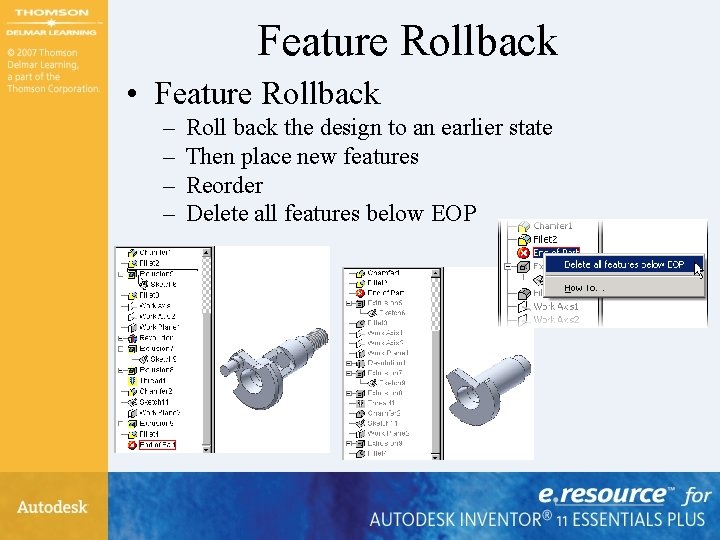
Feature Rollback • Feature Rollback – – Roll back the design to an earlier state Then place new features Reorder Delete all features below EOP
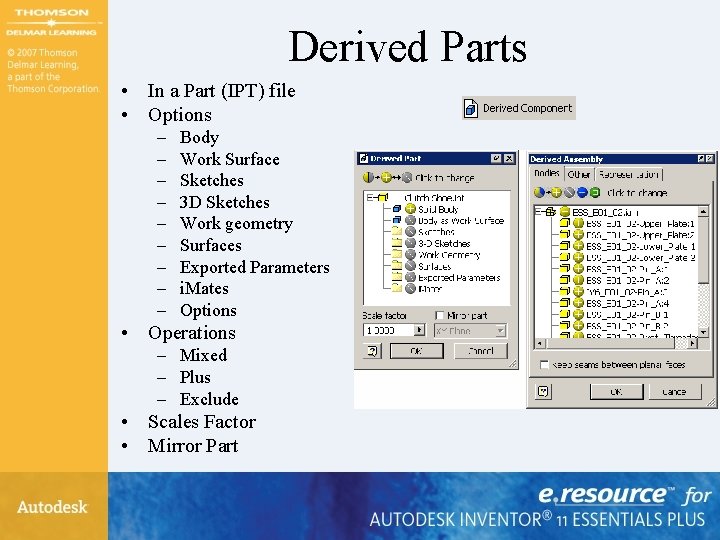
Derived Parts • In a Part (IPT) file • Options – – – – – Body Work Surface Sketches 3 D Sketches Work geometry Surfaces Exported Parameters i. Mates Options • Operations – Mixed – Plus – Exclude • Scales Factor • Mirror Part
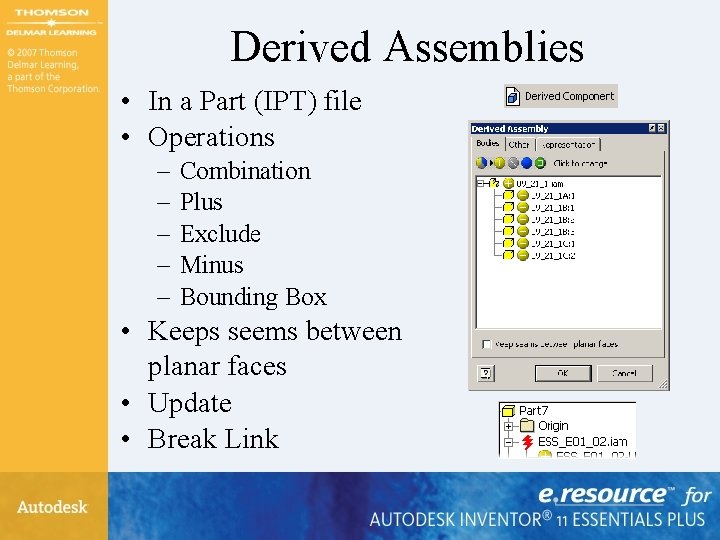
Derived Assemblies • In a Part (IPT) file • Operations – – – Combination Plus Exclude Minus Bounding Box • Keeps seems between planar faces • Update • Break Link
Exercise 8 -7 • Creating a Derived Part
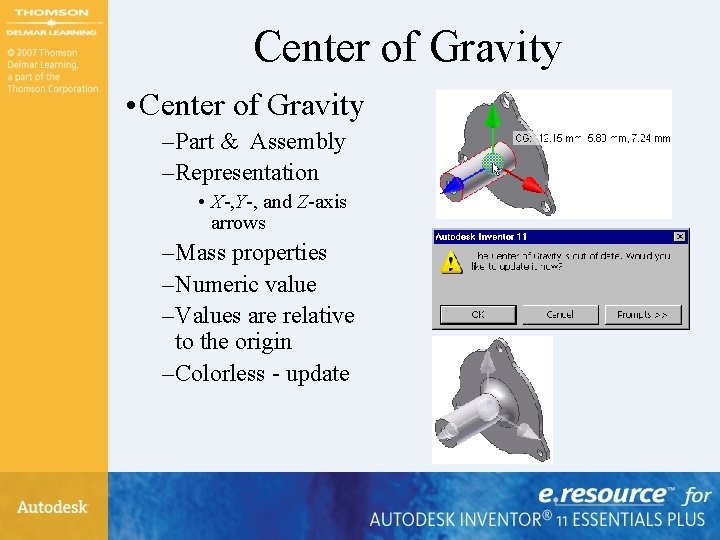
Center of Gravity • Center of Gravity – Part & Assembly – Representation • X-, Y-, and Z-axis arrows – Mass properties – Numeric value – Values are relative to the origin – Colorless - update
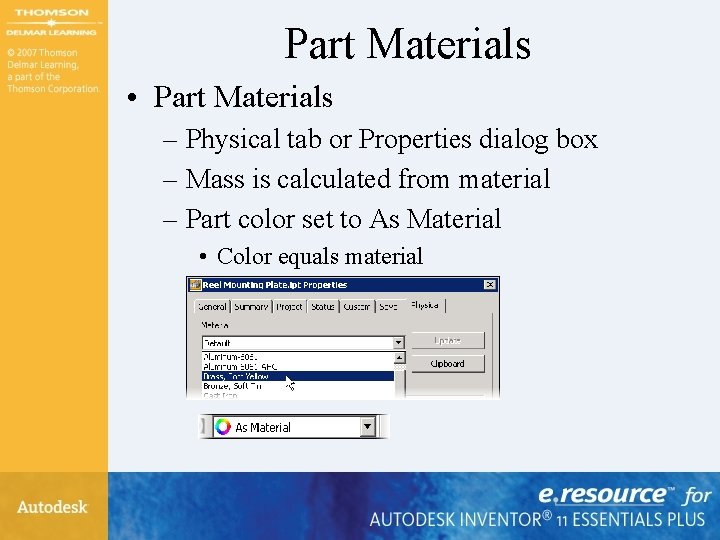
Part Materials • Part Materials – Physical tab or Properties dialog box – Mass is calculated from material – Part color set to As Material • Color equals material
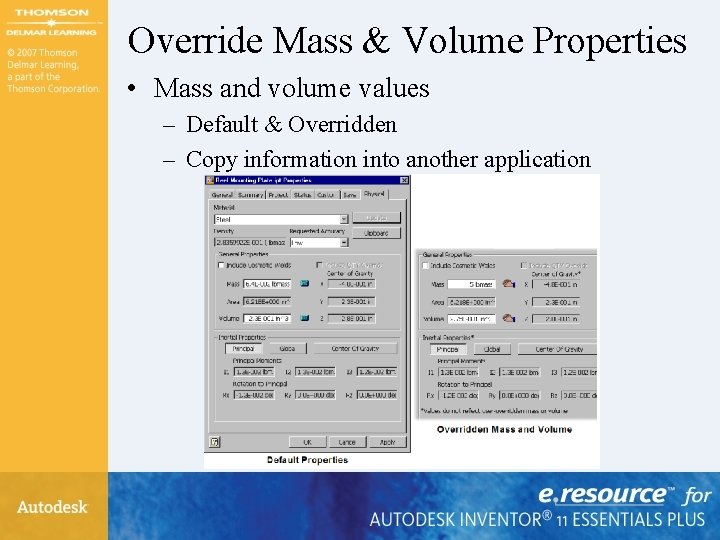
Override Mass & Volume Properties • Mass and volume values – Default & Overridden – Copy information into another application
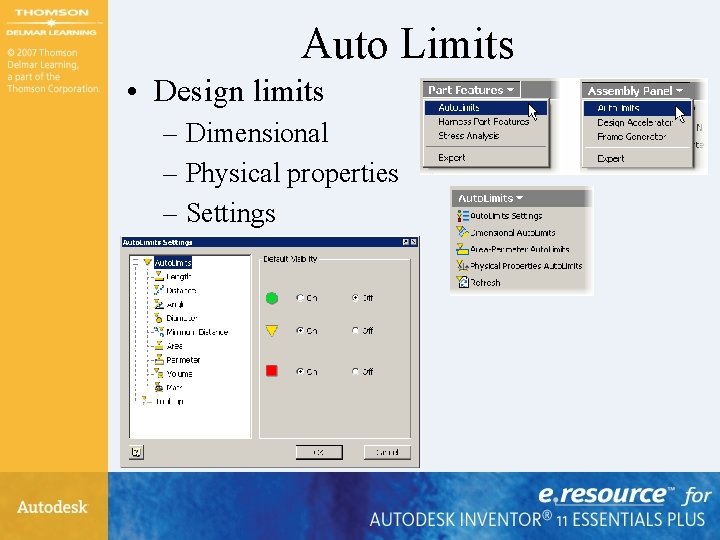
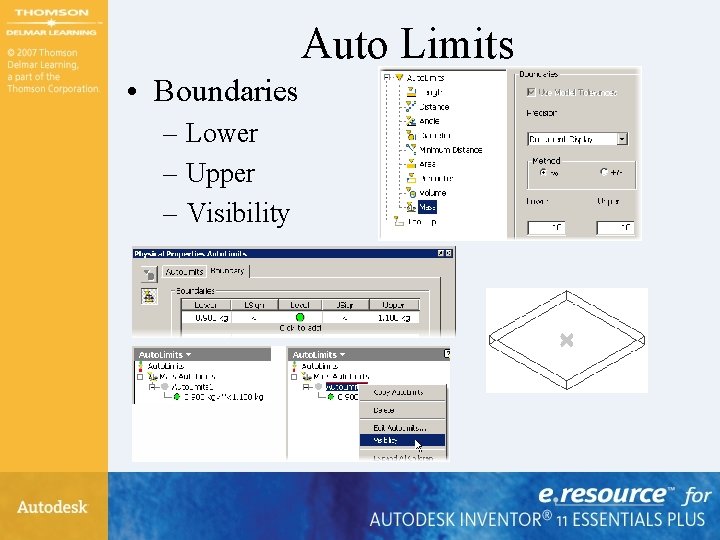
Auto Limits • Design limits – Dimensional – Physical properties – Settings
Auto Limits • Boundaries – Lower – Upper – Visibility
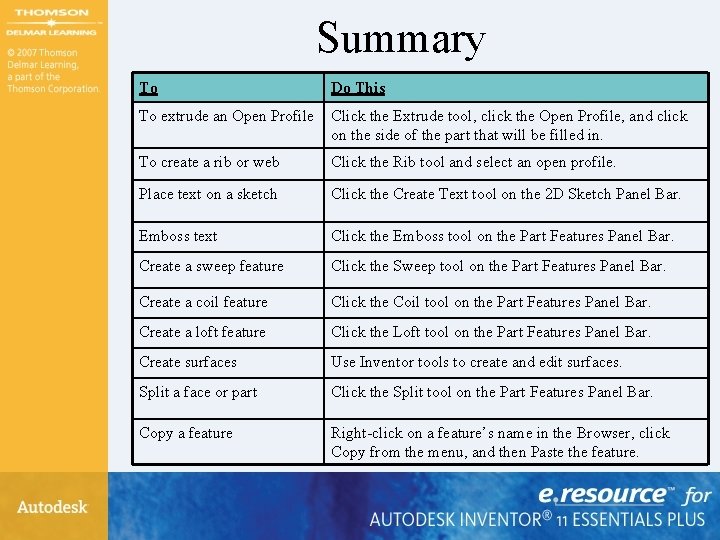
Summary To Do This To extrude an Open Profile Click the Extrude tool, click the Open Profile, and click on the side of the part that will be filled in. To create a rib or web Click the Rib tool and select an open profile. Place text on a sketch Click the Create Text tool on the 2 D Sketch Panel Bar. Emboss text Click the Emboss tool on the Part Features Panel Bar. Create a sweep feature Click the Sweep tool on the Part Features Panel Bar. Create a coil feature Click the Coil tool on the Part Features Panel Bar. Create a loft feature Click the Loft tool on the Part Features Panel Bar. Create surfaces Use Inventor tools to create and edit surfaces. Split a face or part Click the Split tool on the Part Features Panel Bar. Copy a feature Right-click on a feature’s name in the Browser, click Copy from the menu, and then Paste the feature.
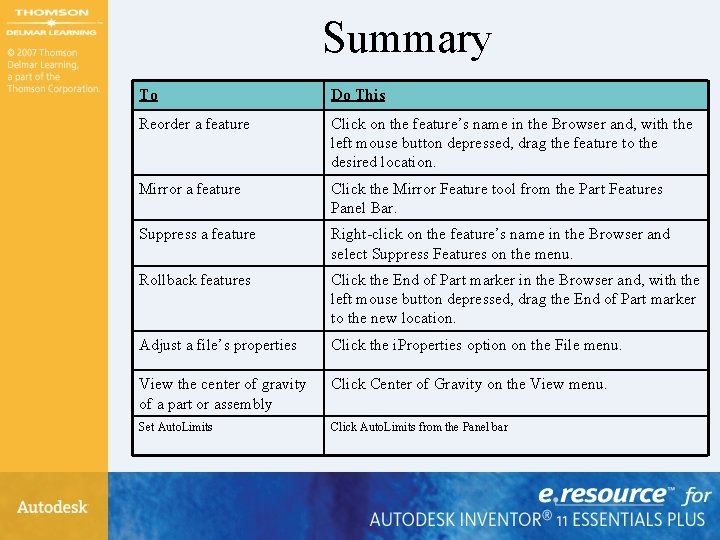
Summary To Do This Reorder a feature Click on the feature’s name in the Browser and, with the left mouse button depressed, drag the feature to the desired location. Mirror a feature Click the Mirror Feature tool from the Part Features Panel Bar. Suppress a feature Right-click on the feature’s name in the Browser and select Suppress Features on the menu. Rollback features Click the End of Part marker in the Browser and, with the left mouse button depressed, drag the End of Part marker to the new location. Adjust a file’s properties Click the i. Properties option on the File menu. View the center of gravity of a part or assembly Click Center of Gravity on the View menu. Set Auto. Limits Click Auto. Limits from the Panel bar
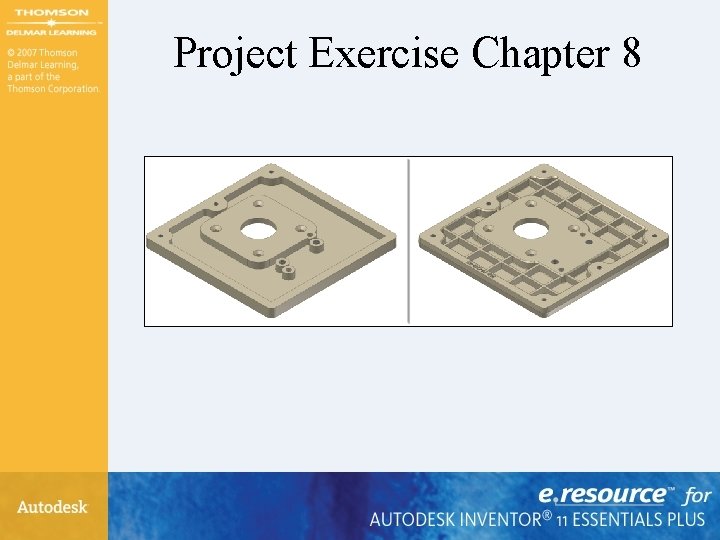
Project Exercise Chapter 8
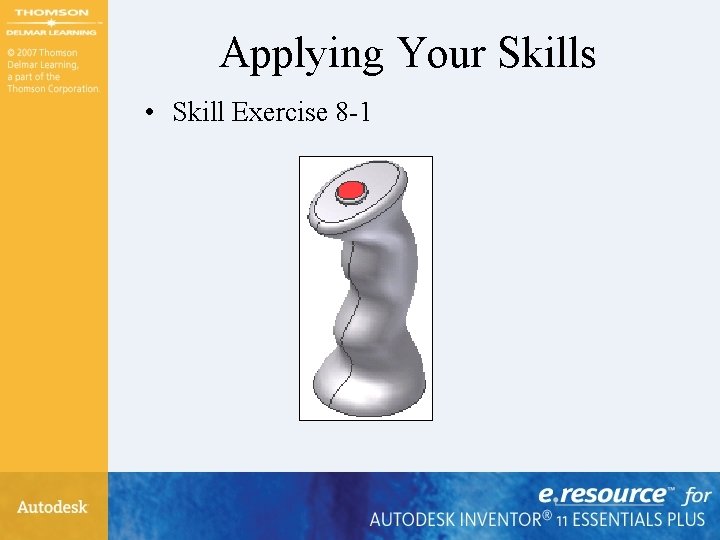
Applying Your Skills • Skill Exercise 8 -1