
Chapter 8 Adding a Disk Computer Center CS

- Slides: 31
Chapter 8 Adding a Disk
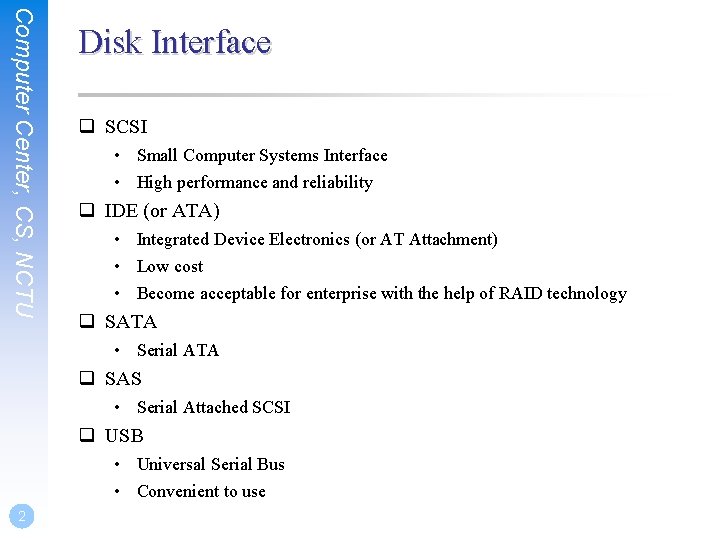
Computer Center, CS, NCTU Disk Interface q SCSI • Small Computer Systems Interface • High performance and reliability q IDE (or ATA) • Integrated Device Electronics (or AT Attachment) • Low cost • Become acceptable for enterprise with the help of RAID technology q SATA • Serial ATA q SAS • Serial Attached SCSI q USB • Universal Serial Bus • Convenient to use 2
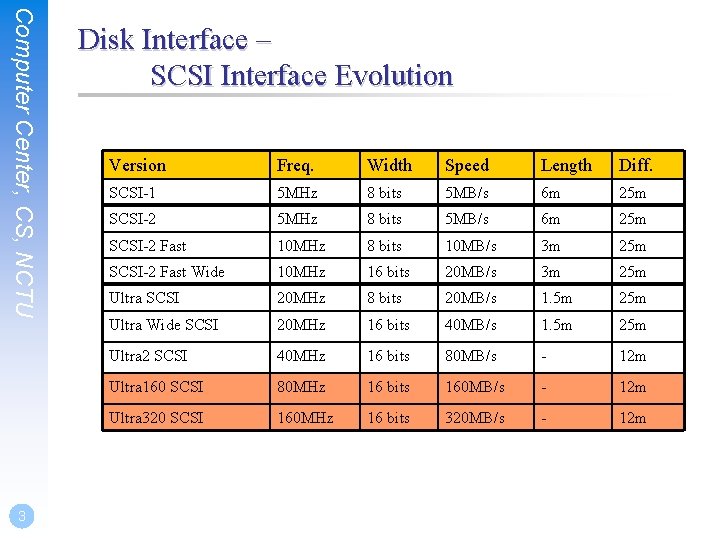
Computer Center, CS, NCTU 3 Disk Interface – SCSI Interface Evolution Version Freq. Width Speed Length Diff. SCSI-1 5 MHz 8 bits 5 MB/s 6 m 25 m SCSI-2 Fast 10 MHz 8 bits 10 MB/s 3 m 25 m SCSI-2 Fast Wide 10 MHz 16 bits 20 MB/s 3 m 25 m Ultra SCSI 20 MHz 8 bits 20 MB/s 1. 5 m 25 m Ultra Wide SCSI 20 MHz 16 bits 40 MB/s 1. 5 m 25 m Ultra 2 SCSI 40 MHz 16 bits 80 MB/s - 12 m Ultra 160 SCSI 80 MHz 16 bits 160 MB/s - 12 m Ultra 320 SCSI 160 MHz 16 bits 320 MB/s - 12 m
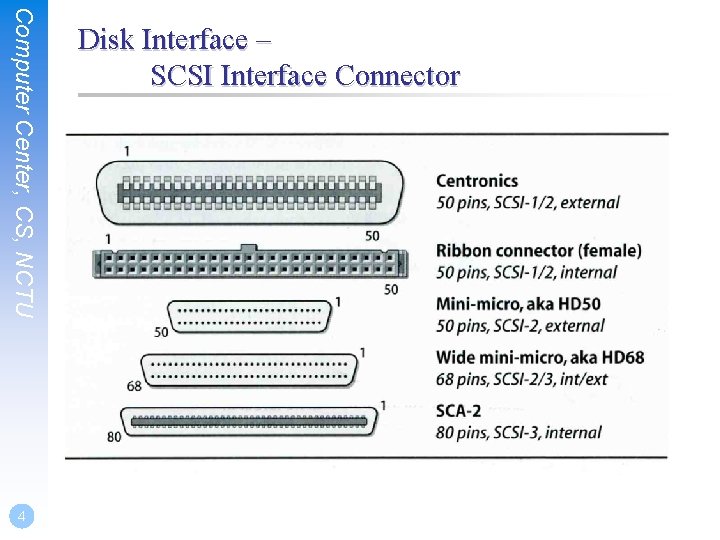
Computer Center, CS, NCTU 4 Disk Interface – SCSI Interface Connector
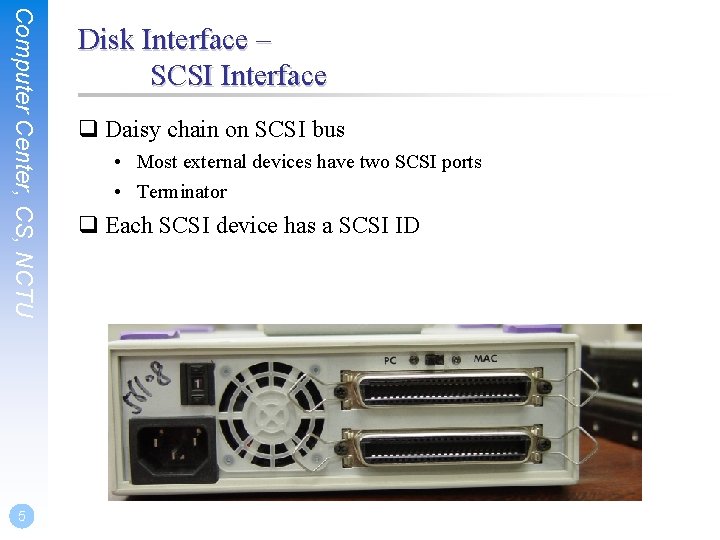
Computer Center, CS, NCTU 5 Disk Interface – SCSI Interface q Daisy chain on SCSI bus • Most external devices have two SCSI ports • Terminator q Each SCSI device has a SCSI ID
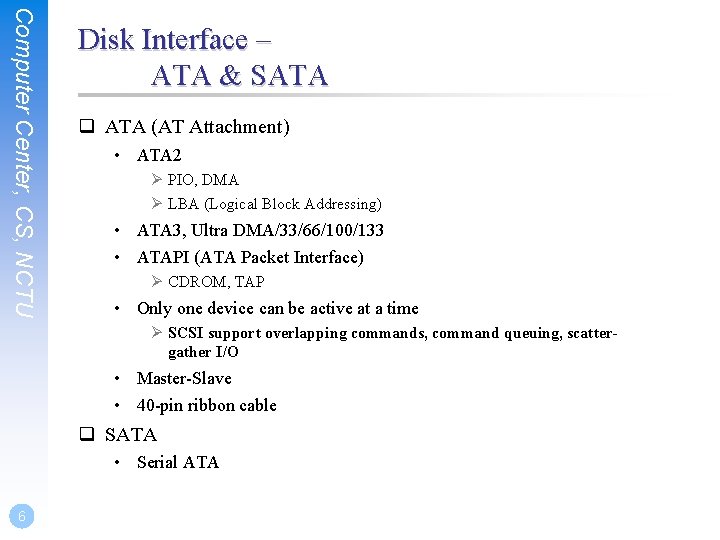
Computer Center, CS, NCTU Disk Interface – ATA & SATA q ATA (AT Attachment) • ATA 2 Ø PIO, DMA Ø LBA (Logical Block Addressing) • ATA 3, Ultra DMA/33/66/100/133 • ATAPI (ATA Packet Interface) Ø CDROM, TAP • Only one device can be active at a time Ø SCSI support overlapping commands, command queuing, scattergather I/O • Master-Slave • 40 -pin ribbon cable q SATA • Serial ATA 6
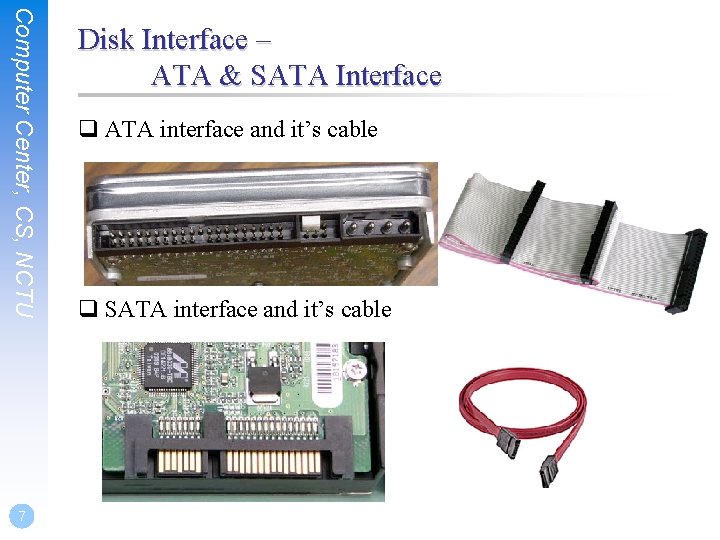
Computer Center, CS, NCTU 7 Disk Interface – ATA & SATA Interface q ATA interface and it’s cable q SATA interface and it’s cable
Computer Center, CS, NCTU 8 Disk Interface – SAS q SAS – Serial Attached SCSI q SAS vs parallel SCSI • SAS uses Serial transfer protocol to interface multiple devices hence lesser signaling overhead than parallel SCSI, resulting in higher speed. • No bus contention as SAS bus is point-to-point while SCSI bus is multidrop. Each device is connected by a dedicated bus to the initiator. Connection through expanders may appear to cause some contention, but this is transparent to the initiator. • SAS has no termination issues and does not require terminator packs like parallel SCSI. • SAS eliminates skew. • SAS supports higher number of devices (> 16384) while Parallel SCSI limits it to 16 or 32. • SAS supports higher transfer speed (1. 5, 3. 0 or 6. 0 Gbps). The speed is realized on each initiator-target connection, hence higher throughput whereas in parallel SCSI the speed is shared across the entire multidrop bus. • SAS supports SATA devices. • SAS uses SCSI commands to interface with SAS End devices.
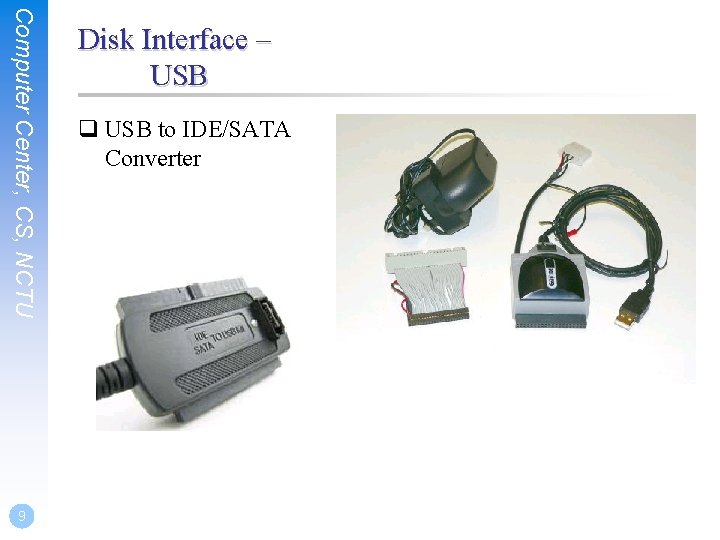
Computer Center, CS, NCTU 9 Disk Interface – USB q USB to IDE/SATA Converter
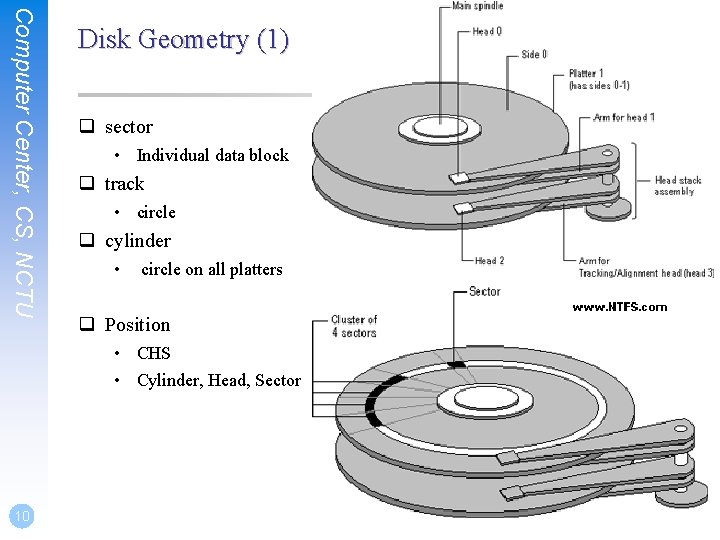
Computer Center, CS, NCTU Disk Geometry (1) q sector • Individual data block q track • circle q cylinder • circle on all platters q Position • CHS • Cylinder, Head, Sector 10
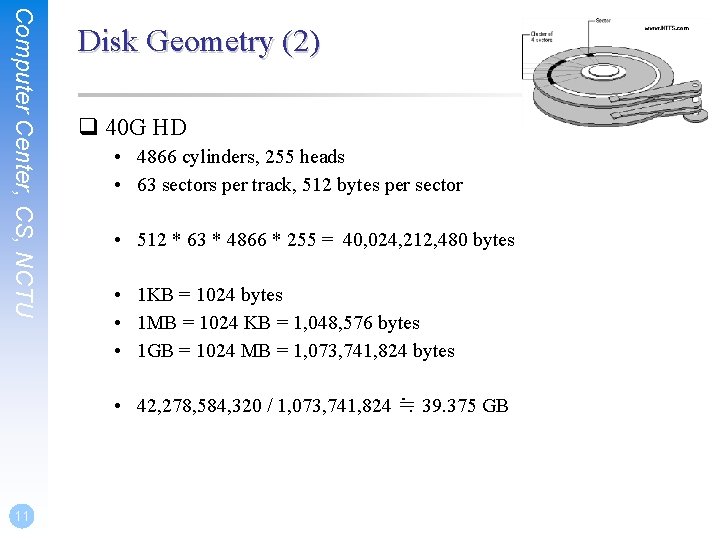
Computer Center, CS, NCTU Disk Geometry (2) q 40 G HD • 4866 cylinders, 255 heads • 63 sectors per track, 512 bytes per sector • 512 * 63 * 4866 * 255 = 40, 024, 212, 480 bytes • 1 KB = 1024 bytes • 1 MB = 1024 KB = 1, 048, 576 bytes • 1 GB = 1024 MB = 1, 073, 741, 824 bytes • 42, 278, 584, 320 / 1, 073, 741, 824 ≒ 39. 375 GB 11
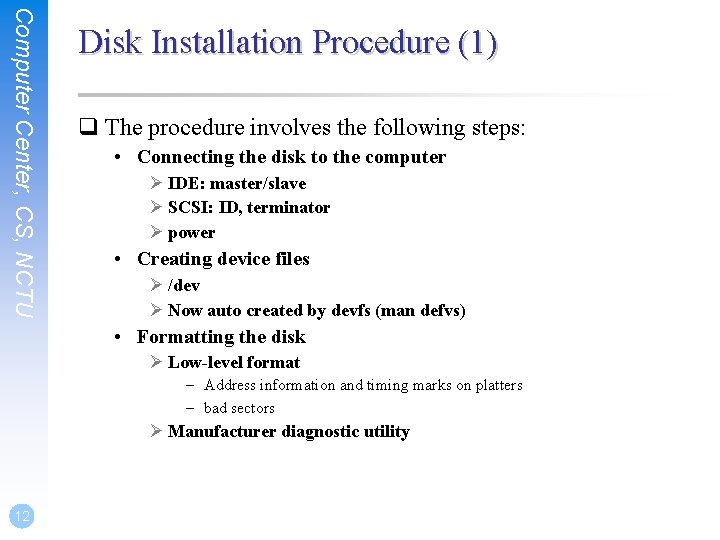
Computer Center, CS, NCTU Disk Installation Procedure (1) q The procedure involves the following steps: • Connecting the disk to the computer Ø IDE: master/slave Ø SCSI: ID, terminator Ø power • Creating device files Ø /dev Ø Now auto created by devfs (man defvs) • Formatting the disk Ø Low-level format – Address information and timing marks on platters – bad sectors Ø Manufacturer diagnostic utility 12
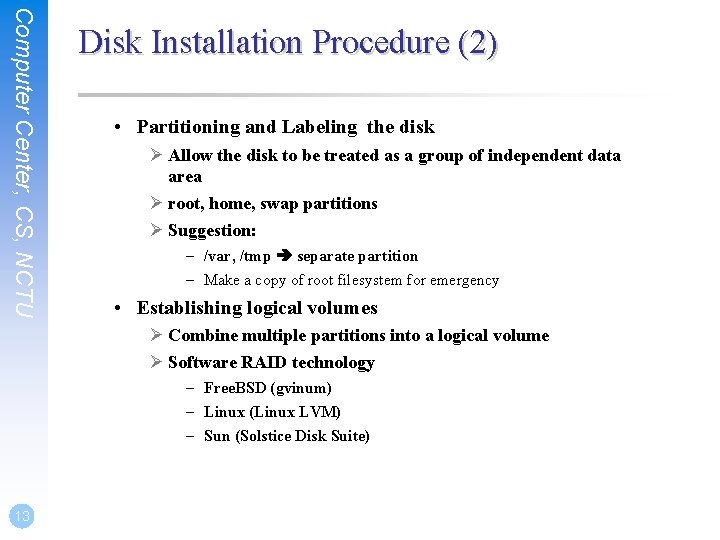
Computer Center, CS, NCTU Disk Installation Procedure (2) • Partitioning and Labeling the disk Ø Allow the disk to be treated as a group of independent data area Ø root, home, swap partitions Ø Suggestion: – /var, /tmp separate partition – Make a copy of root filesystem for emergency • Establishing logical volumes Ø Combine multiple partitions into a logical volume Ø Software RAID technology – Free. BSD (gvinum) – Linux (Linux LVM) – Sun (Solstice Disk Suite) 13
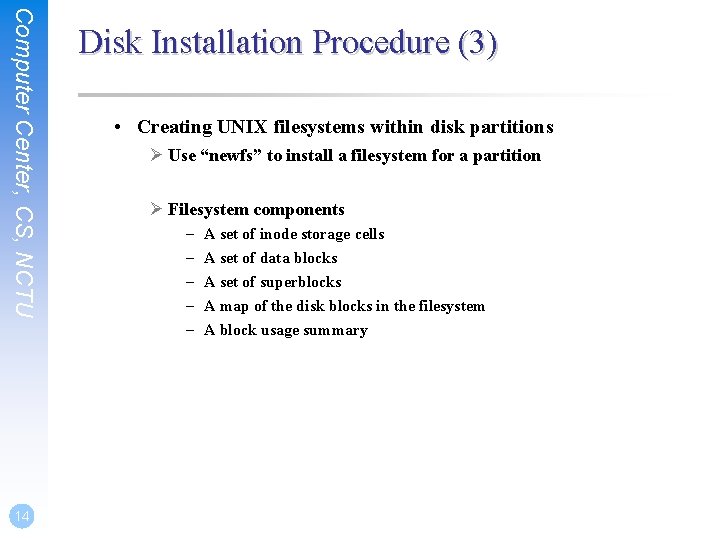
Computer Center, CS, NCTU 14 Disk Installation Procedure (3) • Creating UNIX filesystems within disk partitions Ø Use “newfs” to install a filesystem for a partition Ø Filesystem components – – – A set of inode storage cells A set of data blocks A set of superblocks A map of the disk blocks in the filesystem A block usage summary
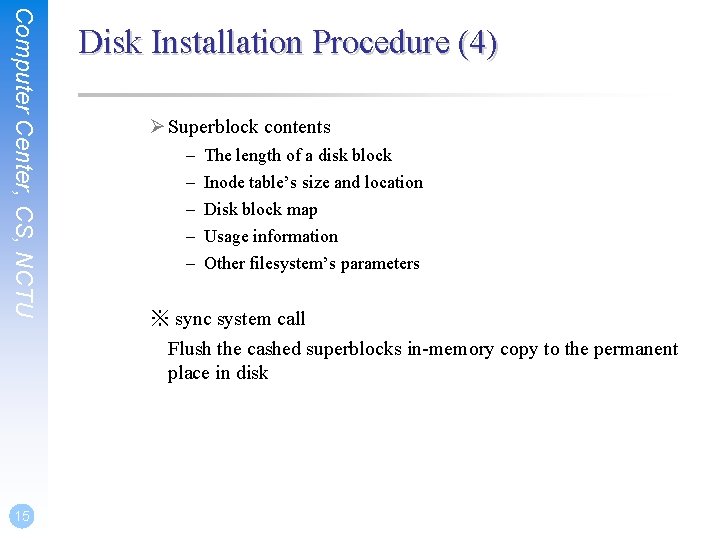
Computer Center, CS, NCTU 15 Disk Installation Procedure (4) Ø Superblock contents – – – The length of a disk block Inode table’s size and location Disk block map Usage information Other filesystem’s parameters ※ sync system call Flush the cashed superblocks in-memory copy to the permanent place in disk
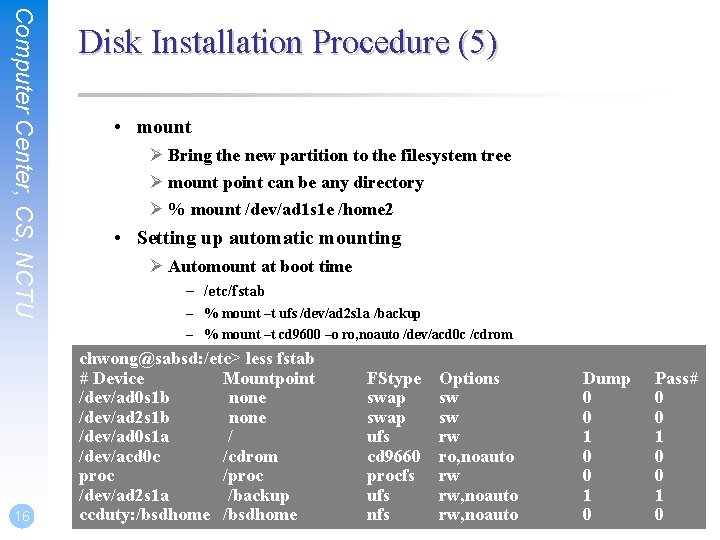
Computer Center, CS, NCTU 16 Disk Installation Procedure (5) • mount Ø Bring the new partition to the filesystem tree Ø mount point can be any directory Ø % mount /dev/ad 1 s 1 e /home 2 • Setting up automatic mounting Ø Automount at boot time – /etc/fstab – % mount –t ufs /dev/ad 2 s 1 a /backup – % mount –t cd 9600 –o ro, noauto /dev/acd 0 c /cdrom chwong@sabsd: /etc> less fstab # Device Mountpoint /dev/ad 0 s 1 b none /dev/ad 2 s 1 b none /dev/ad 0 s 1 a / /dev/acd 0 c /cdrom proc /dev/ad 2 s 1 a /backup ccduty: /bsdhome FStype swap ufs cd 9660 procfs ufs nfs Options sw sw rw ro, noauto rw rw, noauto Dump 0 0 1 0 Pass# 0 0 1 0
Computer Center, CS, NCTU 17 Disk Installation Procedure (6) • Setting up swapping on swap partitions Ø swapon command
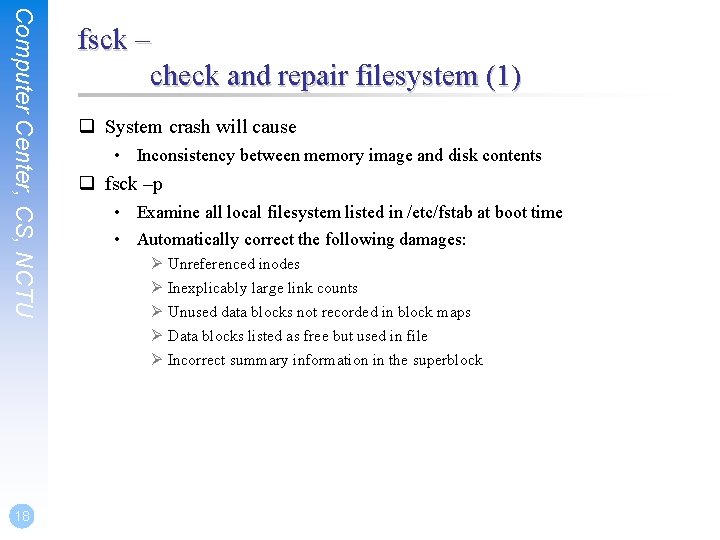
Computer Center, CS, NCTU 18 fsck – check and repair filesystem (1) q System crash will cause • Inconsistency between memory image and disk contents q fsck –p • Examine all local filesystem listed in /etc/fstab at boot time • Automatically correct the following damages: Ø Unreferenced inodes Ø Inexplicably large link counts Ø Unused data blocks not recorded in block maps Ø Data blocks listed as free but used in file Ø Incorrect summary information in the superblock
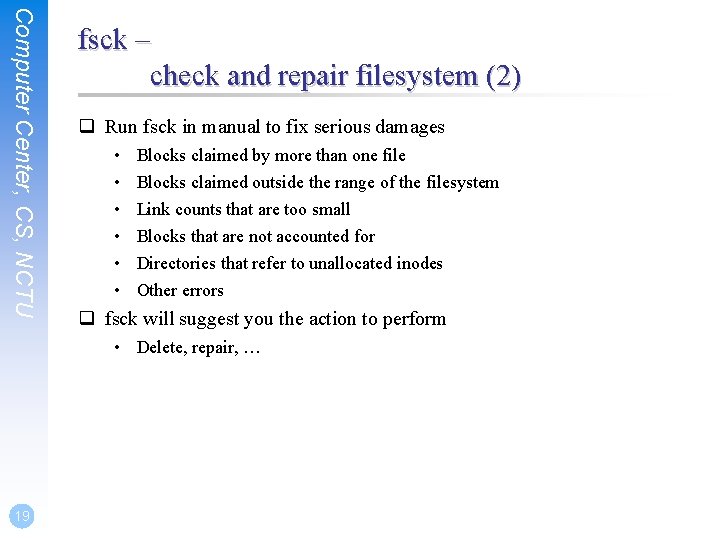
Computer Center, CS, NCTU fsck – check and repair filesystem (2) q Run fsck in manual to fix serious damages • • • Blocks claimed by more than one file Blocks claimed outside the range of the filesystem Link counts that are too small Blocks that are not accounted for Directories that refer to unallocated inodes Other errors q fsck will suggest you the action to perform • Delete, repair, … 19
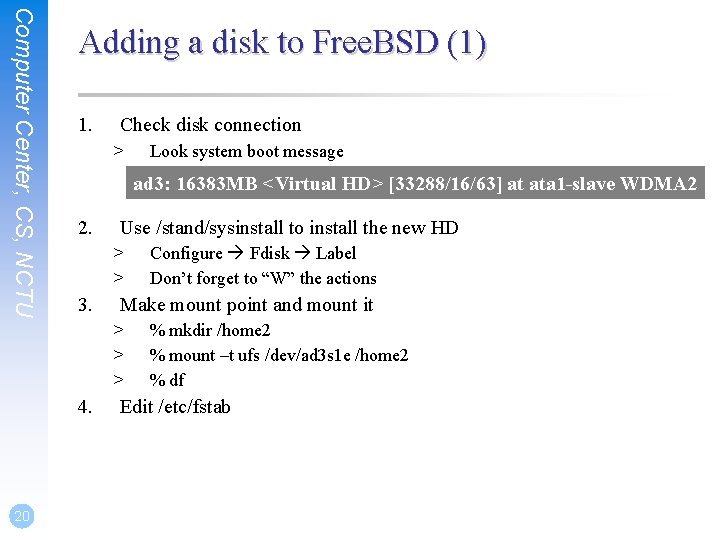
Computer Center, CS, NCTU Adding a disk to Free. BSD (1) 1. Check disk connection > ad 3: 16383 MB <Virtual HD> [33288/16/63] at ata 1 -slave WDMA 2 2. Use /stand/sysinstall to install the new HD > > 3. 4. Configure Fdisk Label Don’t forget to “W” the actions Make mount point and mount it > > > 20 Look system boot message % mkdir /home 2 % mount –t ufs /dev/ad 3 s 1 e /home 2 % df Edit /etc/fstab
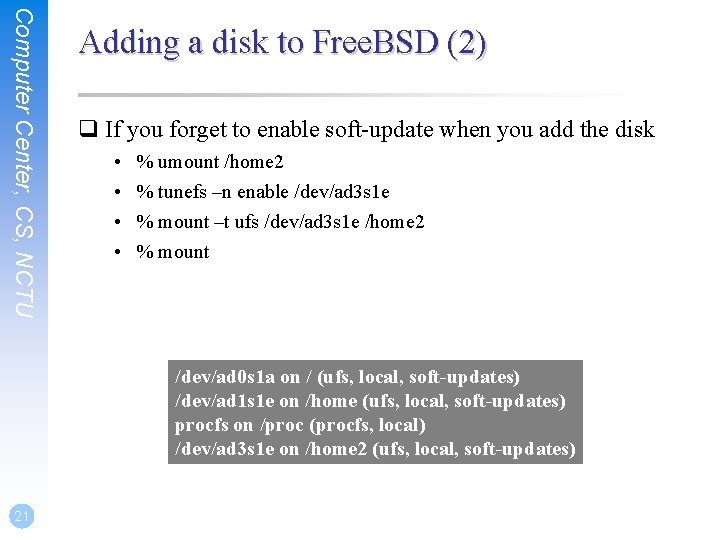
Computer Center, CS, NCTU Adding a disk to Free. BSD (2) q If you forget to enable soft-update when you add the disk • • % umount /home 2 % tunefs –n enable /dev/ad 3 s 1 e % mount –t ufs /dev/ad 3 s 1 e /home 2 % mount /dev/ad 0 s 1 a on / (ufs, local, soft-updates) /dev/ad 1 s 1 e on /home (ufs, local, soft-updates) procfs on /proc (procfs, local) /dev/ad 3 s 1 e on /home 2 (ufs, local, soft-updates) 21
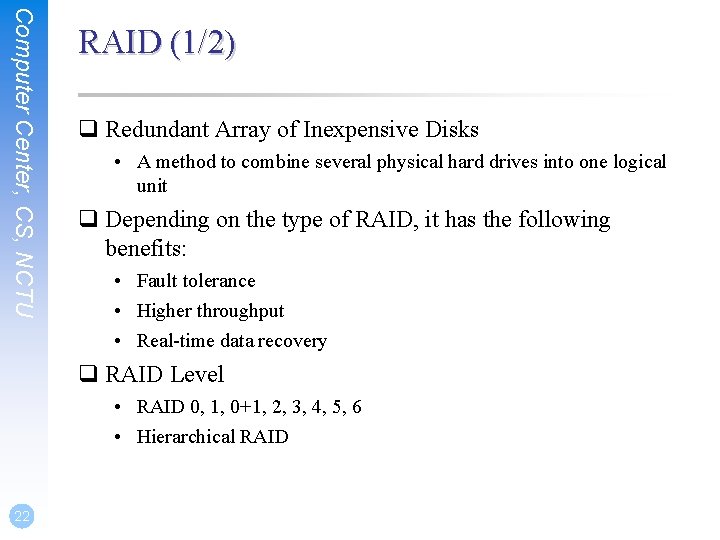
Computer Center, CS, NCTU RAID (1/2) q Redundant Array of Inexpensive Disks • A method to combine several physical hard drives into one logical unit q Depending on the type of RAID, it has the following benefits: • Fault tolerance • Higher throughput • Real-time data recovery q RAID Level • RAID 0, 1, 0+1, 2, 3, 4, 5, 6 • Hierarchical RAID 22
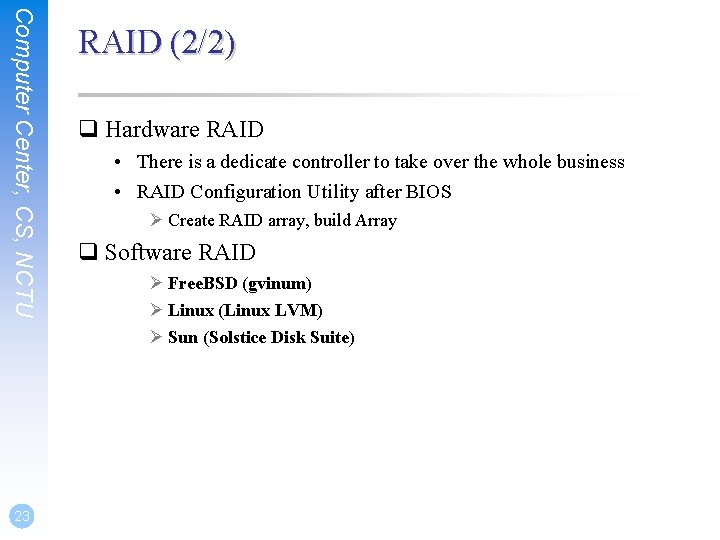
Computer Center, CS, NCTU 23 RAID (2/2) q Hardware RAID • There is a dedicate controller to take over the whole business • RAID Configuration Utility after BIOS Ø Create RAID array, build Array q Software RAID Ø Free. BSD (gvinum) Ø Linux (Linux LVM) Ø Sun (Solstice Disk Suite)
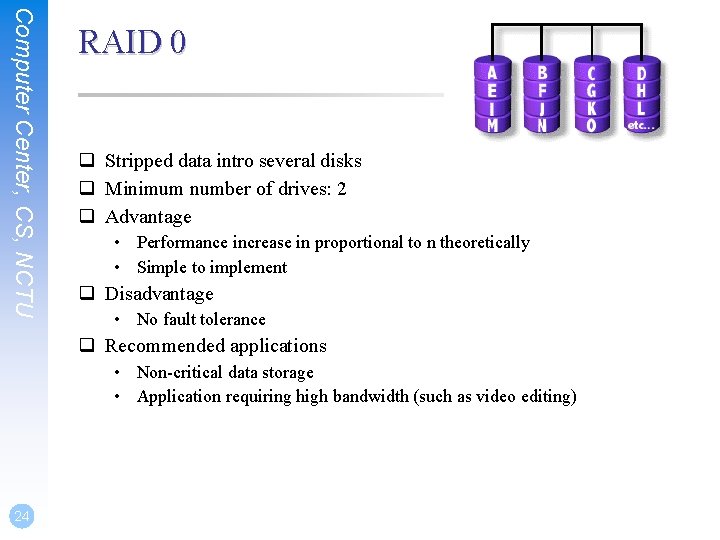
Computer Center, CS, NCTU RAID 0 q Stripped data intro several disks q Minimum number of drives: 2 q Advantage • Performance increase in proportional to n theoretically • Simple to implement q Disadvantage • No fault tolerance q Recommended applications • Non-critical data storage • Application requiring high bandwidth (such as video editing) 24
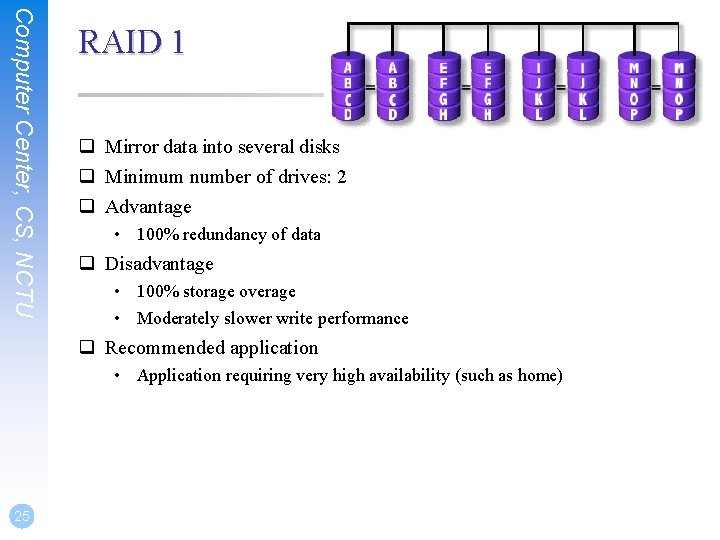
Computer Center, CS, NCTU RAID 1 q Mirror data into several disks q Minimum number of drives: 2 q Advantage • 100% redundancy of data q Disadvantage • 100% storage overage • Moderately slower write performance q Recommended application • Application requiring very high availability (such as home) 25
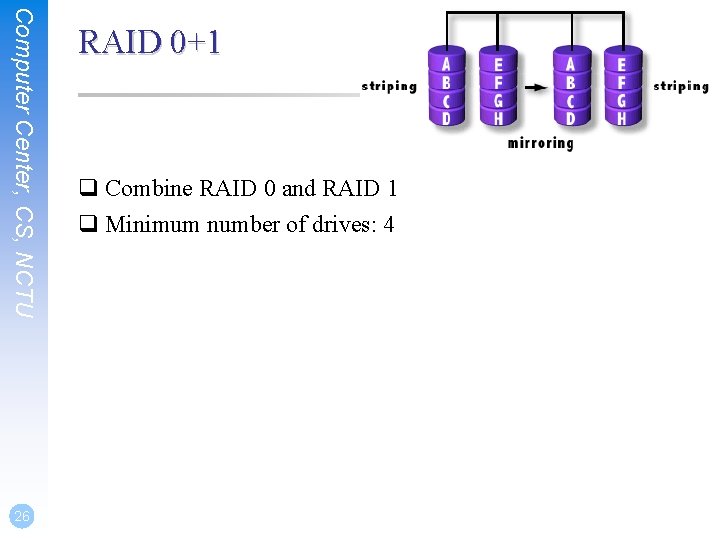
Computer Center, CS, NCTU 26 RAID 0+1 q Combine RAID 0 and RAID 1 q Minimum number of drives: 4
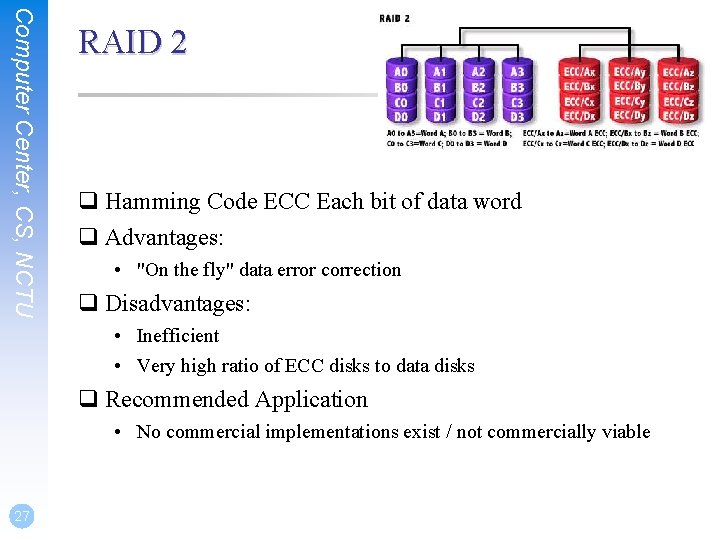
Computer Center, CS, NCTU RAID 2 q Hamming Code ECC Each bit of data word q Advantages: • "On the fly" data error correction q Disadvantages: • Inefficient • Very high ratio of ECC disks to data disks q Recommended Application • No commercial implementations exist / not commercially viable 27
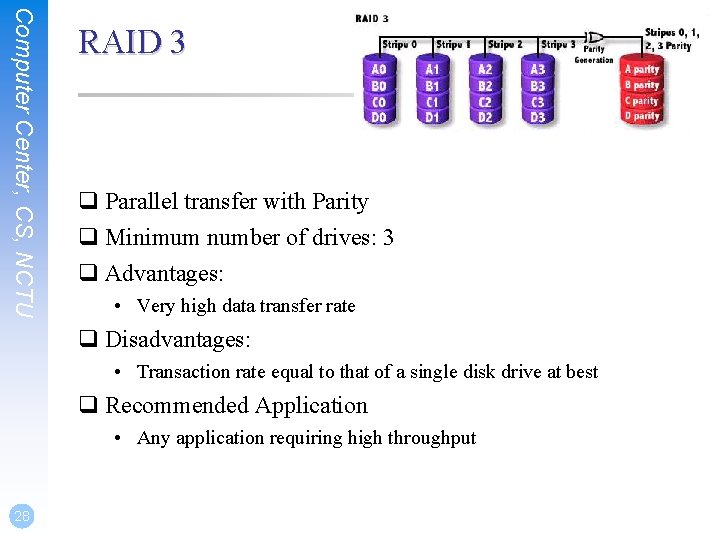
Computer Center, CS, NCTU RAID 3 q Parallel transfer with Parity q Minimum number of drives: 3 q Advantages: • Very high data transfer rate q Disadvantages: • Transaction rate equal to that of a single disk drive at best q Recommended Application • Any application requiring high throughput 28
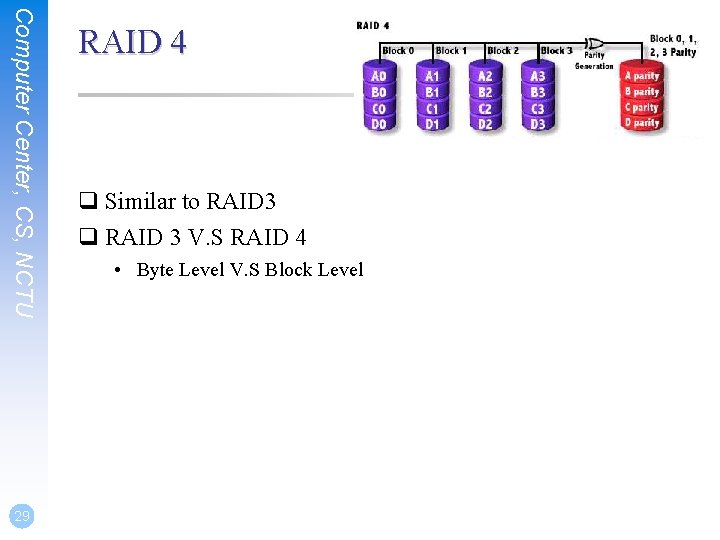
Computer Center, CS, NCTU 29 RAID 4 q Similar to RAID 3 q RAID 3 V. S RAID 4 • Byte Level V. S Block Level
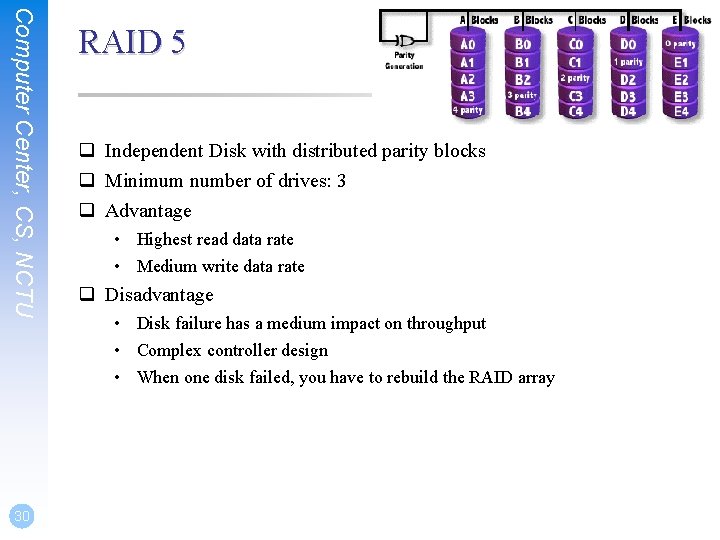
Computer Center, CS, NCTU 30 RAID 5 q Independent Disk with distributed parity blocks q Minimum number of drives: 3 q Advantage • Highest read data rate • Medium write data rate q Disadvantage • Disk failure has a medium impact on throughput • Complex controller design • When one disk failed, you have to rebuild the RAID array
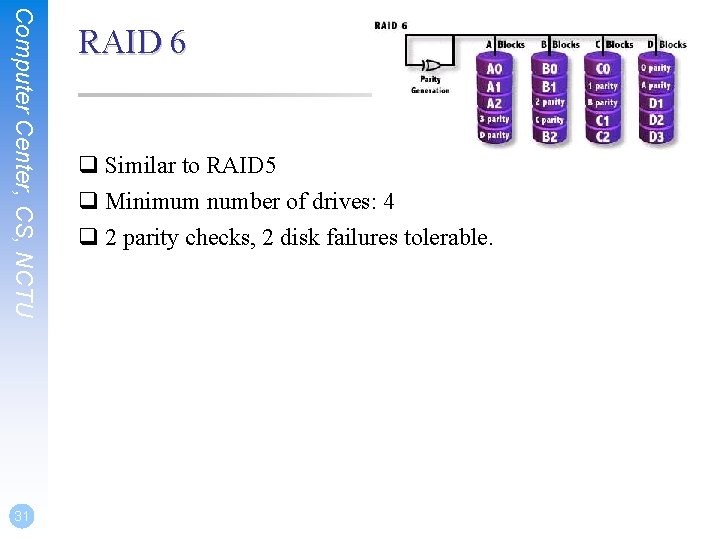
Computer Center, CS, NCTU 31 RAID 6 q Similar to RAID 5 q Minimum number of drives: 4 q 2 parity checks, 2 disk failures tolerable.