
Chapter 7 Web Typography Principles of Web Design
Chapter 7 Web Typography Principles of Web Design, 4 th Edition

Objectives • Understand type design principles • Understand Cascading Style Sheets (CSS) measurement units • Use the CSS font properties • Use the CSS text spacing properties • Create a font and text properties style sheet Principles of Web Design, 4 th Edition 7 -2
Understanding Type Design Principles of Web Design, 4 th Edition 7 -3
Understanding Type Design Principles • • Choose fewer fonts and sizes Choose available fonts Design for legibility Avoid using text as graphics Principles of Web Design, 4 th Edition 7 -4
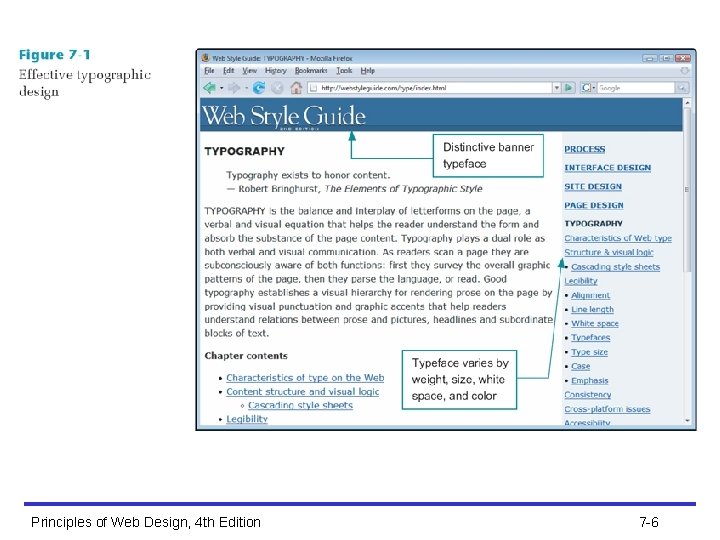
Choose Fewer Fonts and Sizes • Your pages will look cleaner when you choose fewer fonts and sizes of type • Decide on a font for each different level of topic importance, such as page headings, section headings, and body text • Communicate the hierarchy of information with changes in the size, weight, or color of the typeface Principles of Web Design, 4 th Edition 7 -5
Principles of Web Design, 4 th Edition 7 -6
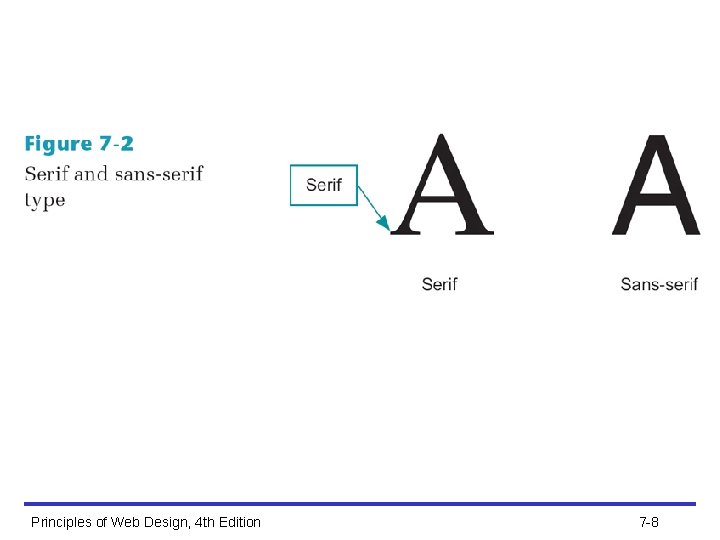
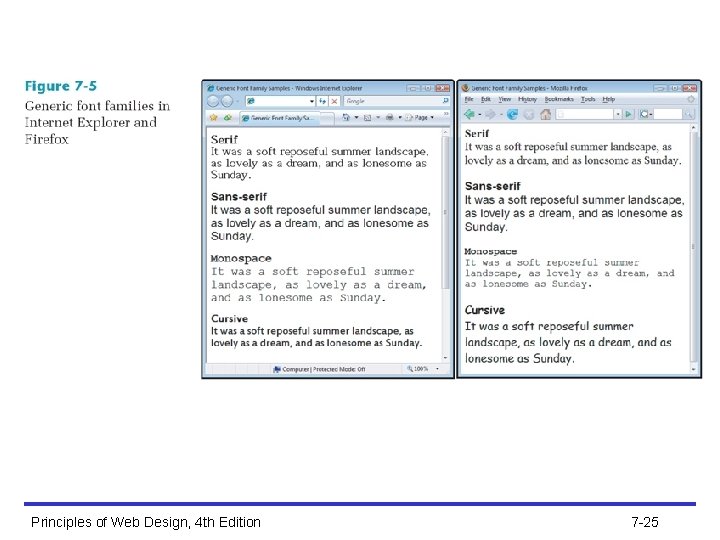
Use Available Fonts • The user’s browser and operating system determine how a font is displayed • To control more effectively how text appears on your pages, think in terms of font families, such as serif and sansserif typefaces Principles of Web Design, 4 th Edition 7 -7
Principles of Web Design, 4 th Edition 7 -8
Principles of Web Design, 4 th Edition 7 -9
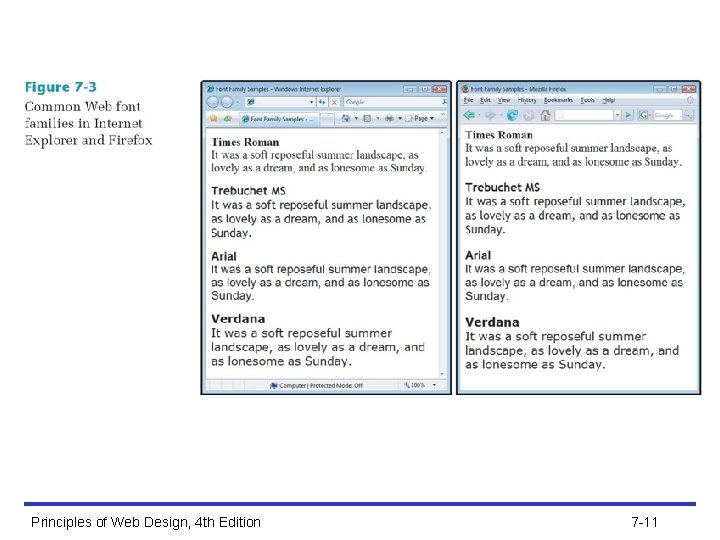
Design for Legibility • Figure 7 -3 shows the same paragraph in Times, Trebuchet, Arial, and Verdana at the default browser size in both Internet Explorer (on the left) and Mozilla Firefox • Notice that subtle variations in the weight, spacing, and rendering of the font families affect the way each is displayed to the user Principles of Web Design, 4 th Edition 7 -10
Principles of Web Design, 4 th Edition 7 -11
Avoid Using Text as Graphics • Save text graphics for important purposes, such as the main logo for your page or as reusable navigation graphics • Remember that including text as graphics means users cannot search for that text • Whenever possible, use HTML-styled text on your pages Principles of Web Design, 4 th Edition 7 -12
Understanding CSS Measurement Units Principles of Web Design, 4 th Edition 7 -13
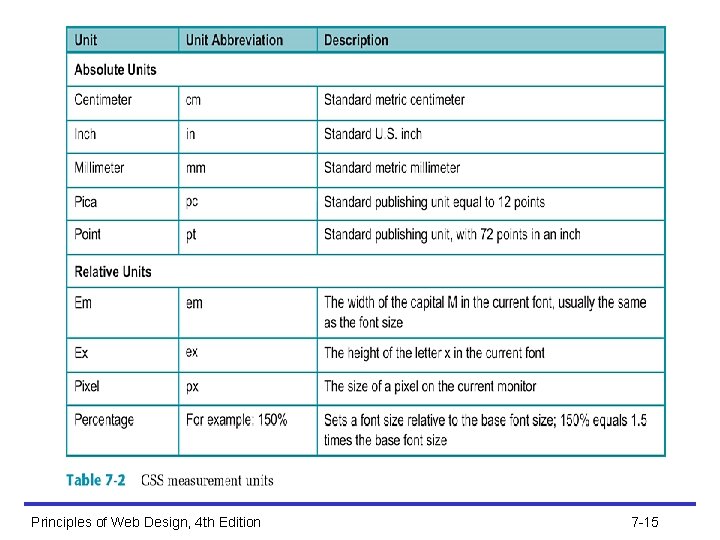
Understanding CSS Measurement Units • CSS offers a variety of measurement units, almost to the point of offering too many choices • For example, to specify font size, you can use any of the measurement units listed in the following table Principles of Web Design, 4 th Edition 7 -14
Principles of Web Design, 4 th Edition 7 -15
Absolute Units • Specify a fixed value P {margin: 1. 25 in; } • Cannot be scaled to client display • Should only be used when exact measurements of destination medium are known Principles of Web Design, 4 th Edition 7 -16
Relative Units • Enables scalable Web pages that adapt to different display types and sizes • Recommended method for Web page design • Relative measurement values such as em and px are designed to let you build scalable Web pages that adapt to different display types and sizes • The W 3 C recommends that you always use relative values Principles of Web Design, 4 th Edition 7 -17
The em Unit • The em is a printing measurement, traditionally equal to the horizontal length of the capital letter M in any given font size • In CSS the em unit is equal to the font size of an element • It can be used for both horizontal and vertical measurement Principles of Web Design, 4 th Edition 7 -18
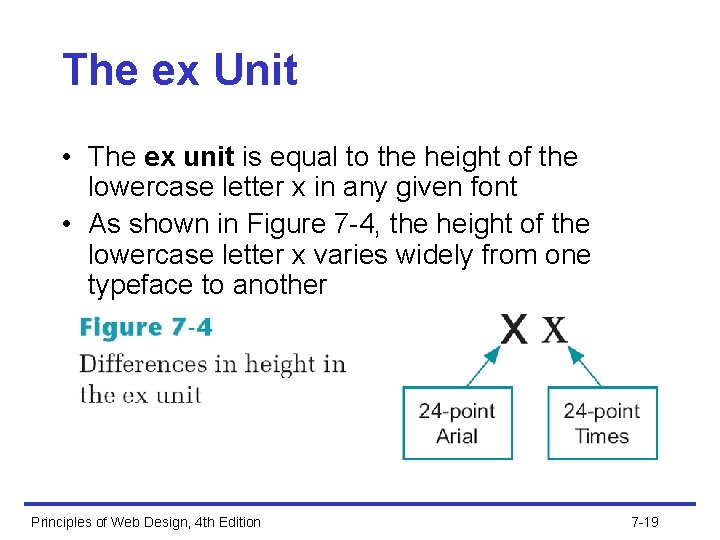
The ex Unit • The ex unit is equal to the height of the lowercase letter x in any given font • As shown in Figure 7 -4, the height of the lowercase letter x varies widely from one typeface to another Principles of Web Design, 4 th Edition 7 -19
The px Unit • Pixels are the basic picture element of a computer display • The size of the pixel is determined by the display resolution • Pixel measurements work well for computer displays, but they are not so well suited to other media, such as printing Principles of Web Design, 4 th Edition 7 -20
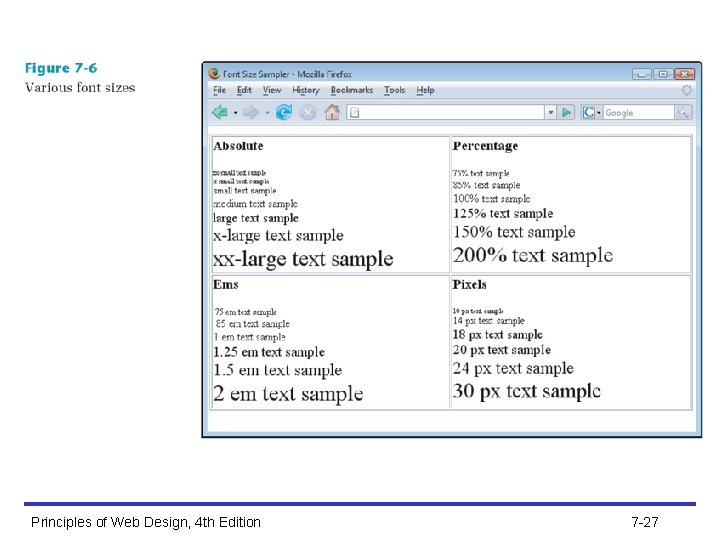
Percentages • Percentage values are always relative to another value • For example, the following rule sets the font size for the <body> element to 1. 5 times the size of the browser default: body {font-size: 150%; } • Child elements inherit the percentage values of their parents • For example, the < b> text in the following example is 125% larger than the <p> that contains it: p {font-size: 12 pt; } p b {font-size: 125%; } Principles of Web Design, 4 th Edition 7 -21
Using the CSS Font Properties Principles of Web Design, 4 th Edition 7 -22
Using the CSS Font Properties • font-family • font-size • font-style • font-variant • font-weight • font (shorthand property) Principles of Web Design, 4 th Edition 7 -23
Specifying Font Family • Allows specification of generic font family names (e. g. , sans-serif) or a specific name (e. g. , Arial) p {font-family: sans-serif; } p {font-family: arial; } Principles of Web Design, 4 th Edition 7 -24
Principles of Web Design, 4 th Edition 7 -25
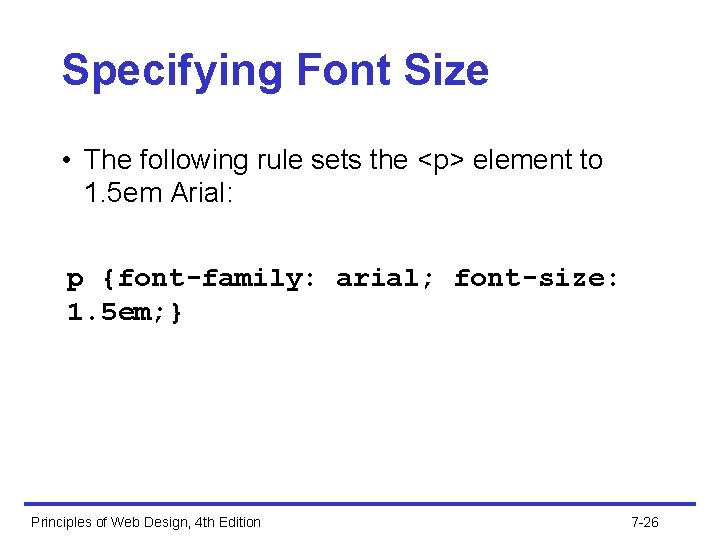
Specifying Font Size • The following rule sets the <p> element to 1. 5 em Arial: p {font-family: arial; font-size: 1. 5 em; } Principles of Web Design, 4 th Edition 7 -26
Principles of Web Design, 4 th Edition 7 -27
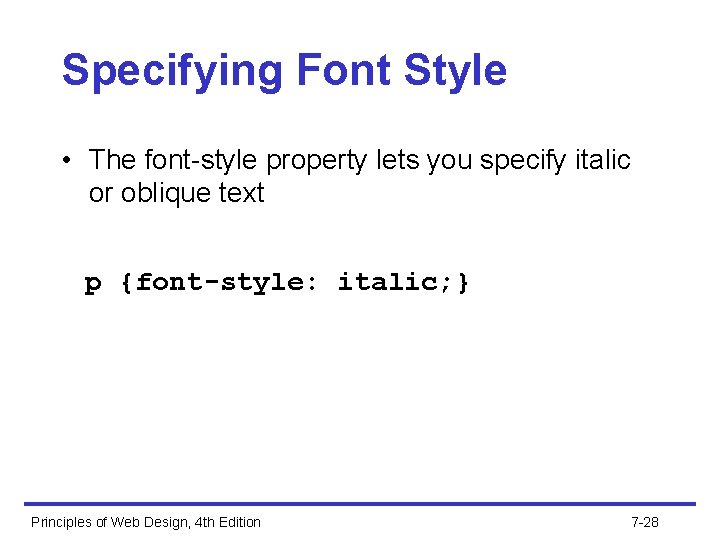
Specifying Font Style • The font-style property lets you specify italic or oblique text p {font-style: italic; } Principles of Web Design, 4 th Edition 7 -28
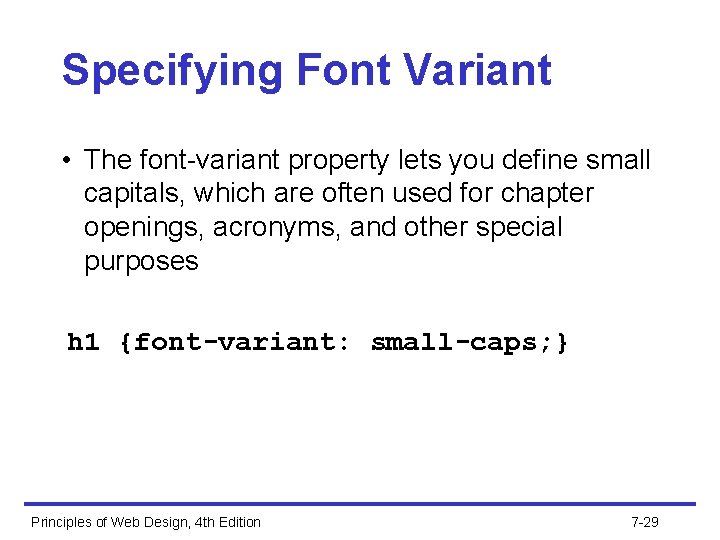
Specifying Font Variant • The font-variant property lets you define small capitals, which are often used for chapter openings, acronyms, and other special purposes h 1 {font-variant: small-caps; } Principles of Web Design, 4 th Edition 7 -29
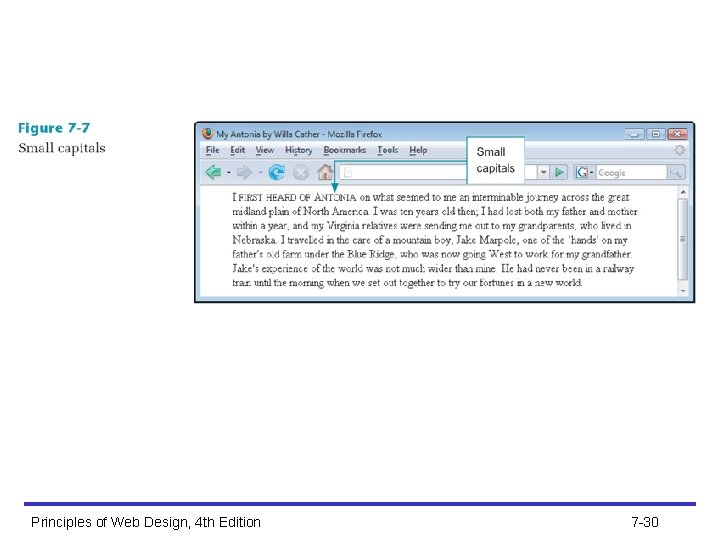
Principles of Web Design, 4 th Edition 7 -30
Specifying Font Weight • The font-weight property lets you set the weight of the typeface p {font-weight: bold; } Principles of Web Design, 4 th Edition 7 -31
Using the Font Shortcut Property • The font shortcut property lets you abbreviate the more verbose individual property listings • The following rules produce the same results p {font-weight: bold; font-size: 18 pt; line-height: 24 pt; fontfamily: arial; } p {font: bold 18 pt/24 pt arial; } Principles of Web Design, 4 th Edition 7 -32
Using the CSS Text Spacing Properties Principles of Web Design, 4 th Edition 7 -33
CSS Text Spacing Properties • text-indent • text-align • text-decoration • line-height • vertical-align • letter-spacing • word-spacing Principles of Web Design, 4 th Edition 7 -34
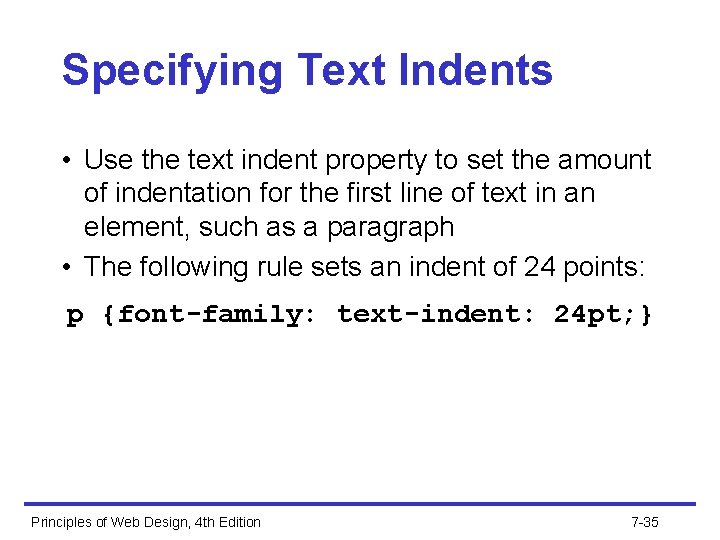
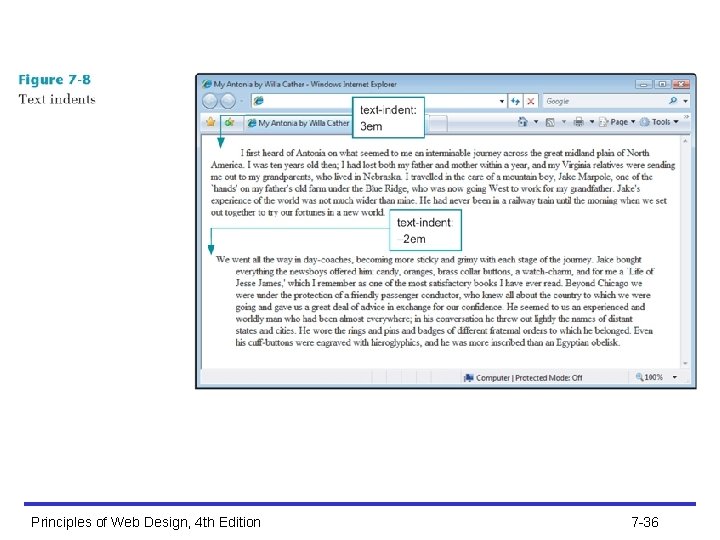
Specifying Text Indents • Use the text indent property to set the amount of indentation for the first line of text in an element, such as a paragraph • The following rule sets an indent of 24 points: p {font-family: text-indent: 24 pt; } Principles of Web Design, 4 th Edition 7 -35
Principles of Web Design, 4 th Edition 7 -36
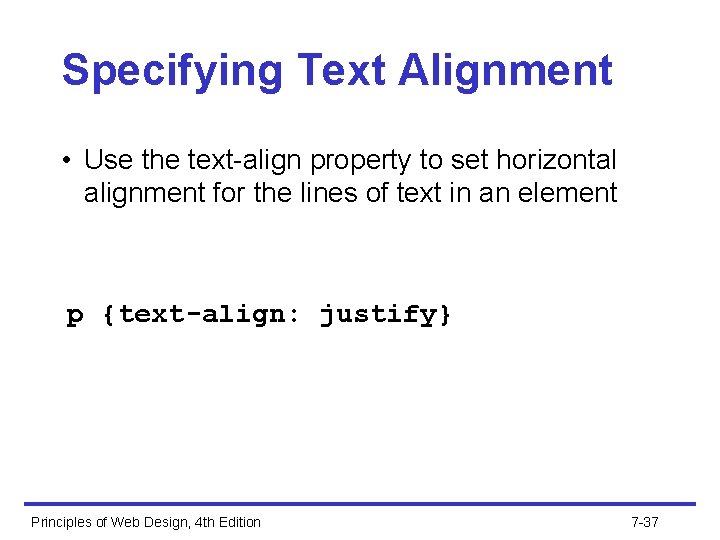
Specifying Text Alignment • Use the text-align property to set horizontal alignment for the lines of text in an element p {text-align: justify} Principles of Web Design, 4 th Edition 7 -37
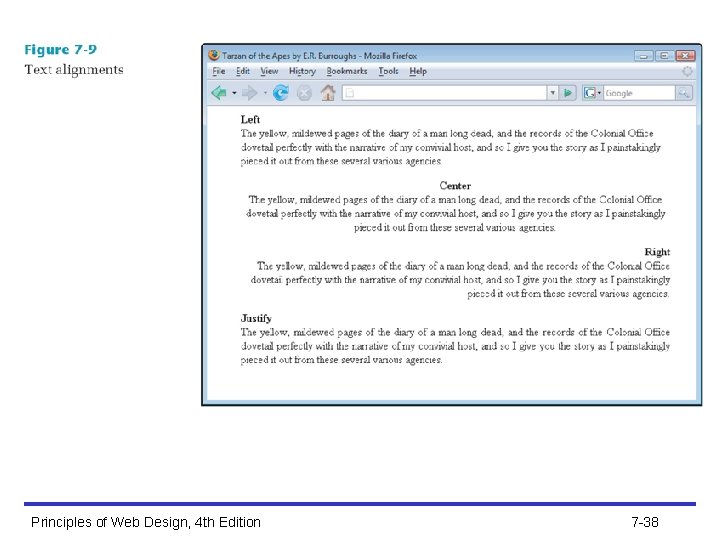
Principles of Web Design, 4 th Edition 7 -38
Specifying Text Decoration • Use the text-decoration property to add or remove underlining from text • The following code removes the underlining from hypertext links a {text-decoration: none} Principles of Web Design, 4 th Edition 7 -39
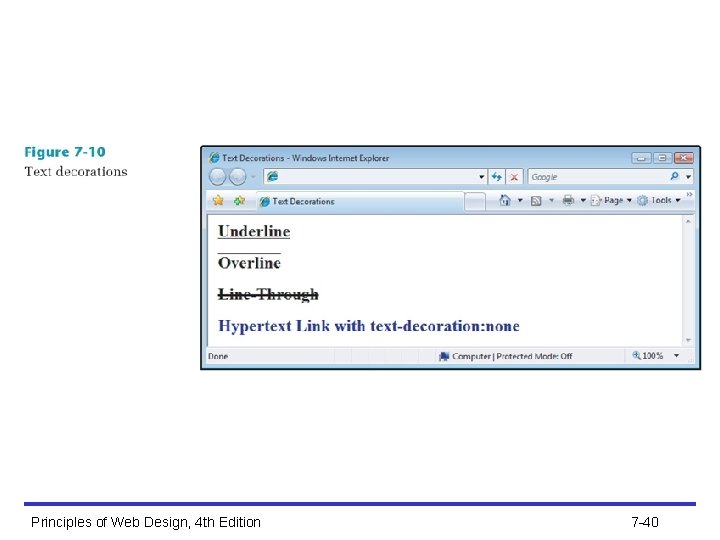
Principles of Web Design, 4 th Edition 7 -40
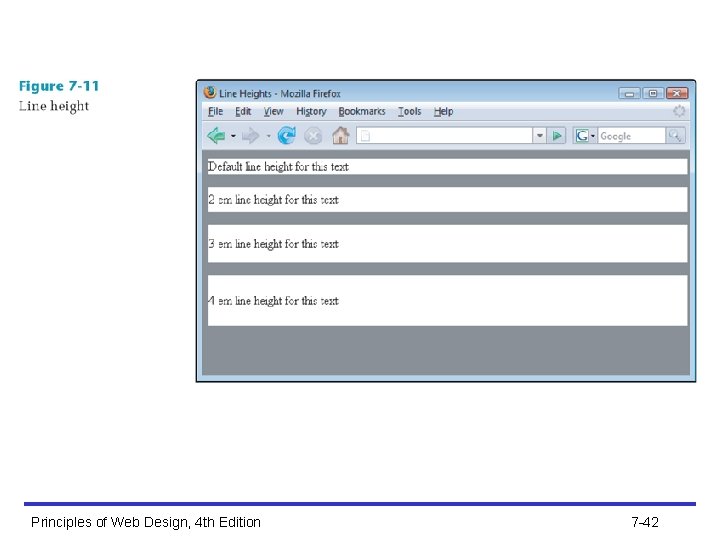
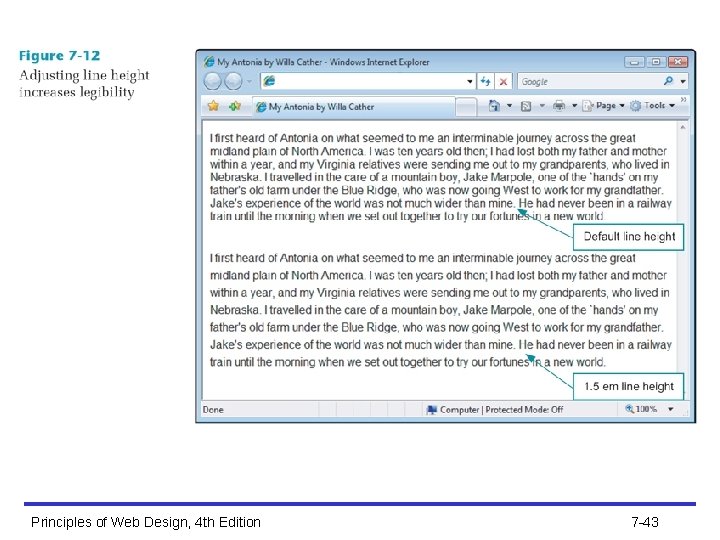
Specifying Line Height • CSS allows you to specify either a percentage or absolute value for the line height, which is more commonly called leading • The following rule sets the line height to 2 em: p {line-height: 2 em; } Principles of Web Design, 4 th Edition 7 -41
Principles of Web Design, 4 th Edition 7 -42
Principles of Web Design, 4 th Edition 7 -43
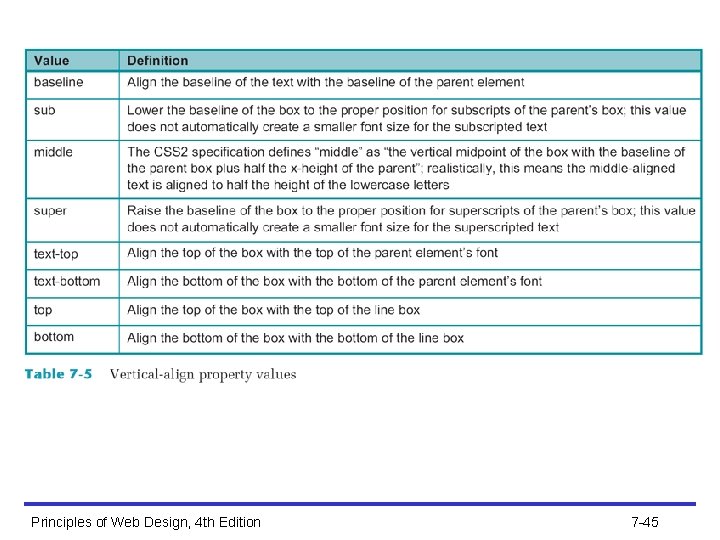
Specifying Vertical Alignment • The vertical-align property lets you adjust the vertical alignment of text within the line box • Vertical-align works on inline elements only Principles of Web Design, 4 th Edition 7 -44
Principles of Web Design, 4 th Edition 7 -45
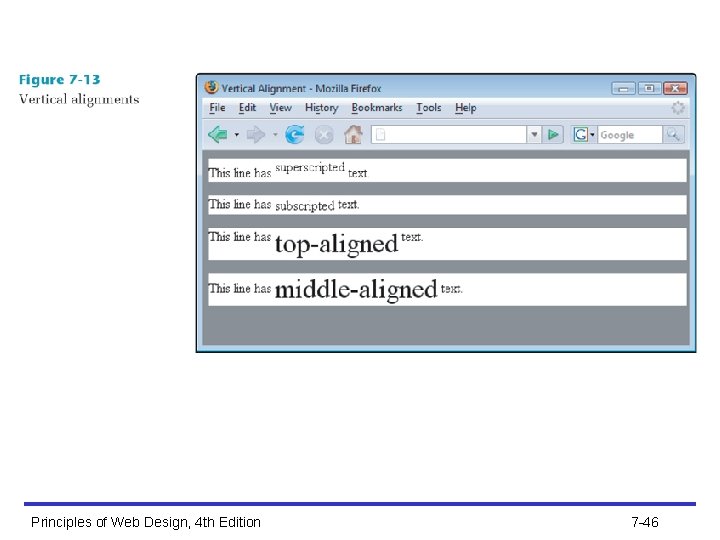
Principles of Web Design, 4 th Edition 7 -46
Specifying Vertical Alignment (continued) • You can also use vertical alignment to align text with graphics • The following rule, added to the <img> element with the style attribute, sets the vertical alignment to top: <img src=”image. gif” style=”vertical-align: text-top; ”> Principles of Web Design, 4 th Edition 7 -47
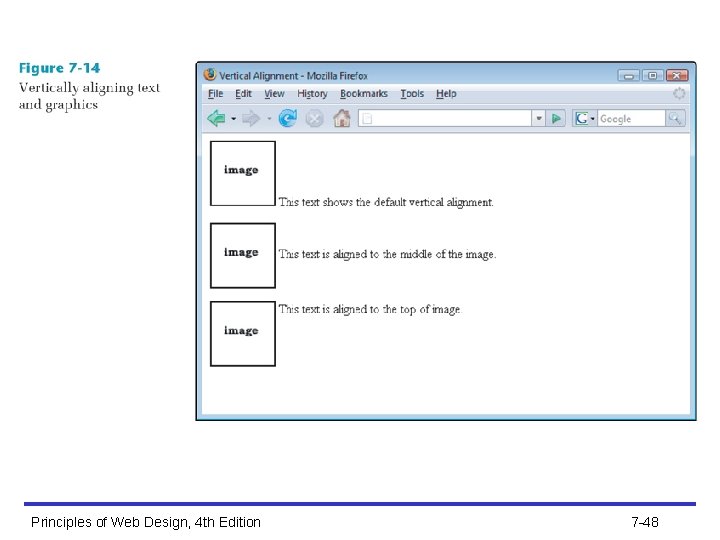
Principles of Web Design, 4 th Edition 7 -48
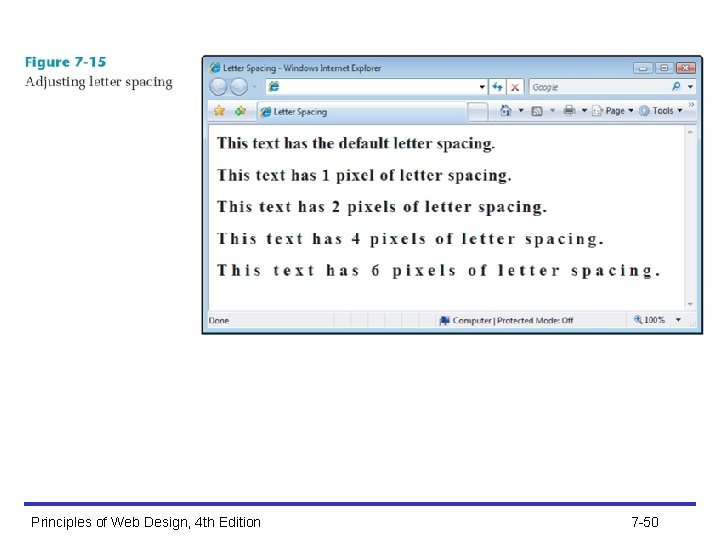
Specifying Letter Spacing • To adjust kerning, the printer’s term for adjusting the white space between letters, use the letter spacing property • The following rule sets the letter spacing to 4 points h 1 {letter-spacing: 4 pt; } Principles of Web Design, 4 th Edition 7 -49
Principles of Web Design, 4 th Edition 7 -50
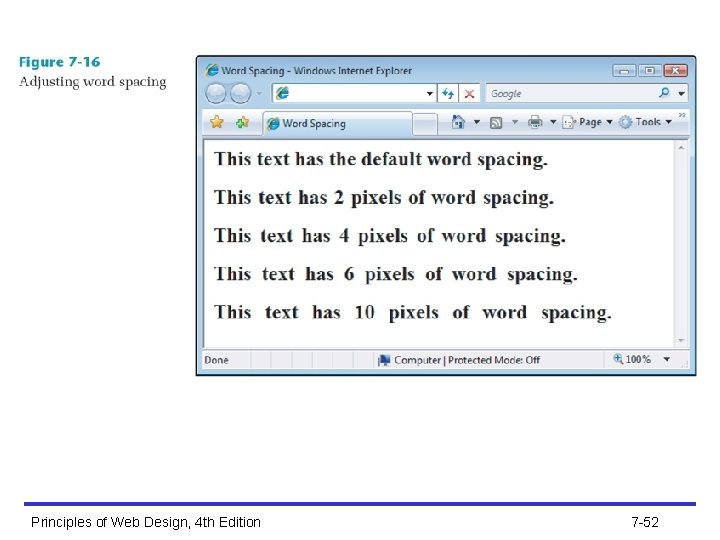
Specifying Word Spacing • The word-spacing property lets you adjust the white space between words in the text • The following code sets the word spacing to 2 em h 1 {word-spacing: 2 em; } Principles of Web Design, 4 th Edition 7 -51
Principles of Web Design, 4 th Edition 7 -52
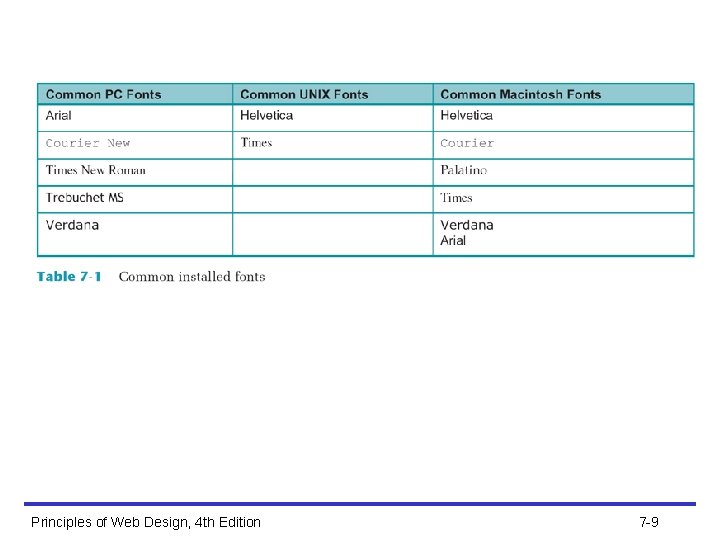
Summary • Use type to communicate information structure; be sparing with your type choices, and use fonts consistently • Remember that HTML text downloads faster than graphics-based text; use HTML text whenever possible • Use browser-safe fonts that will display as consistently as possible across operating systems Principles of Web Design, 4 th Edition 7 -53
Summary (continued) • Standardize your styles by building external style sheets and linking them to multiple documents • Test your work; different browsers and computing platforms render text in different sizes • Use type effectively by choosing available fonts and sizes; design for legibility and use text to communicate information about the structure of your material Principles of Web Design, 4 th Edition 7 -54
Summary (continued) • Choose the correct measurement unit based on the destination medium – For the computer screen, ems, pixels, or percentage measurements can scale to the user’s preferences Principles of Web Design, 4 th Edition 7 -55
Summary (continued) • Use the font properties to control the look of your letter forms – Specify font substitution values to ensure that your text is displayed properly across different platforms • Use the text spacing properties to create more visually interesting and legible text Principles of Web Design, 4 th Edition 7 -56
- Slides: 56