
Chapter 7 Vector Editing 2013 Cengage Learning All

- Slides: 23
Chapter 7 Vector Editing © 2013 Cengage Learning. All Rights Reserved. May not be scanned, copied or duplicated, or posted to a publicly accessible website, in whole or in part.
Lessons • Lesson 7. 1: Understanding Essential Vector Terminology • Lesson 7. 2: Working with Objects • Lesson 7. 3: Converting Raster Images to Vector Objects by Tracing Digital Media, 3 e 2
Learning Outcomes • 7. 1: Recognize the essential elements of a vector object and use vector terminology • 7. 2: Draw simple shapes and lines using vector drawing tools • 7. 3: Draw straight or curved paths segment by segment • 7. 4: Transform objects using a selection tool and a bounding box • 7. 5: Adjust curves • 7. 6: Stack and reorder objects • 7. 7: Create a clipping mask • 7. 8: Convert a raster image into a vector object using a tracing feature Digital Media, 3 e 3
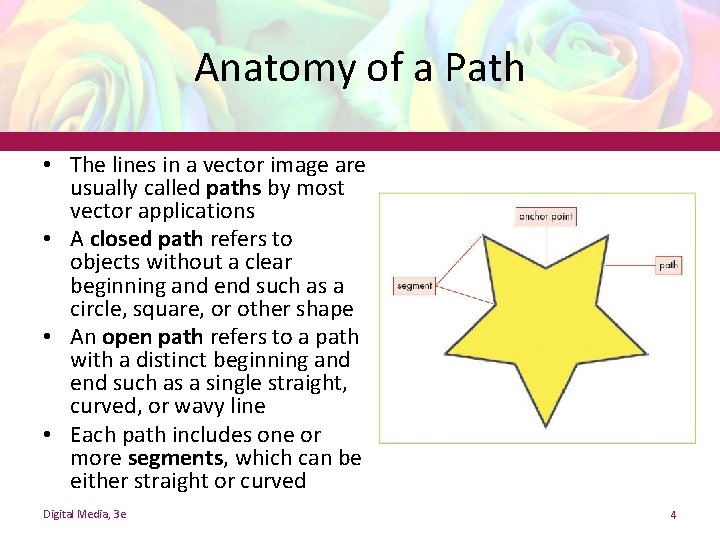
Anatomy of a Path • The lines in a vector image are usually called paths by most vector applications • A closed path refers to objects without a clear beginning and end such as a circle, square, or other shape • An open path refers to a path with a distinct beginning and end such as a single straight, curved, or wavy line • Each path includes one or more segments, which can be either straight or curved Digital Media, 3 e 4
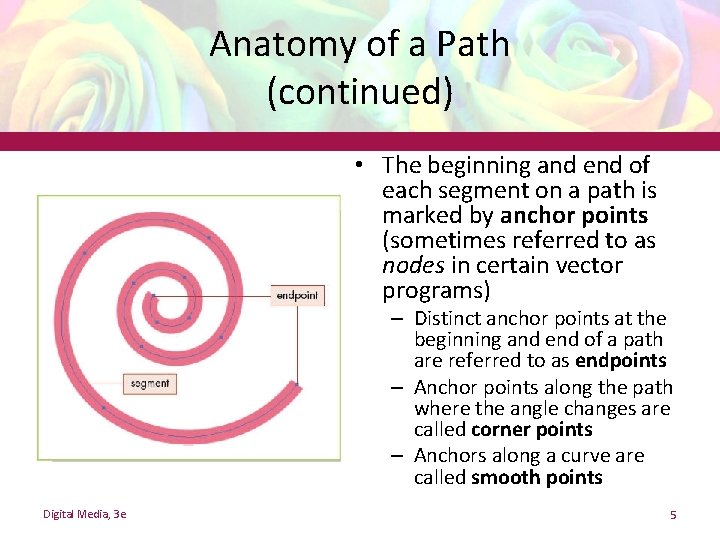
Anatomy of a Path (continued) • The beginning and end of each segment on a path is marked by anchor points (sometimes referred to as nodes in certain vector programs) – Distinct anchor points at the beginning and end of a path are referred to as endpoints – Anchor points along the path where the angle changes are called corner points – Anchors along a curve are called smooth points Digital Media, 3 e 5
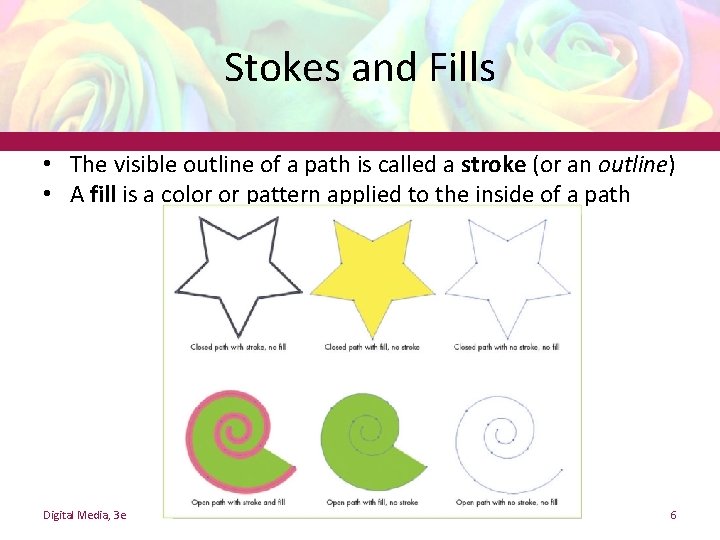
Stokes and Fills • The visible outline of a path is called a stroke (or an outline) • A fill is a color or pattern applied to the inside of a path Digital Media, 3 e 6
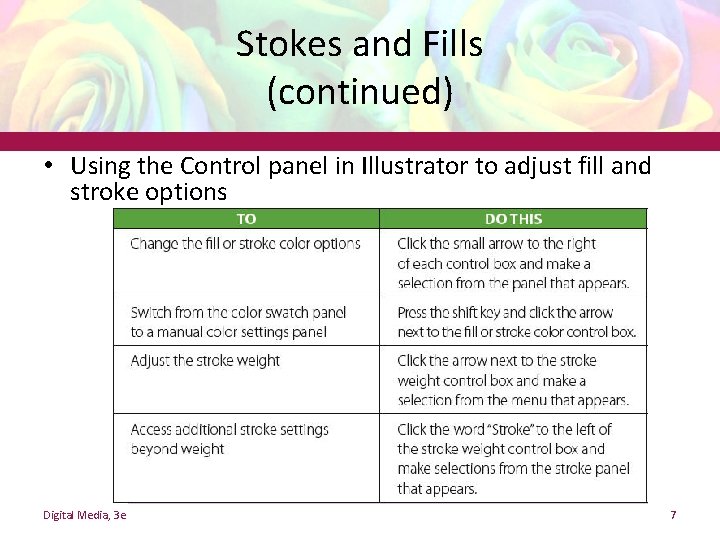
Stokes and Fills (continued) • Using the Control panel in Illustrator to adjust fill and stroke options Digital Media, 3 e 7
Raster vs. Vector Software • Why is it important for a graphic artist to be familiar with both raster and vector editing software? • Is one graphic format easier for you to grasp than the other? Digital Media, 3 e 8
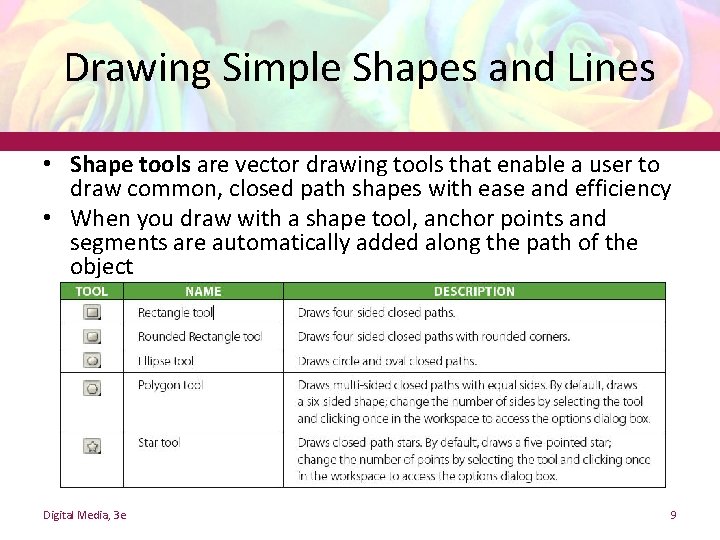
Drawing Simple Shapes and Lines • Shape tools are vector drawing tools that enable a user to draw common, closed path shapes with ease and efficiency • When you draw with a shape tool, anchor points and segments are automatically added along the path of the object Digital Media, 3 e 9
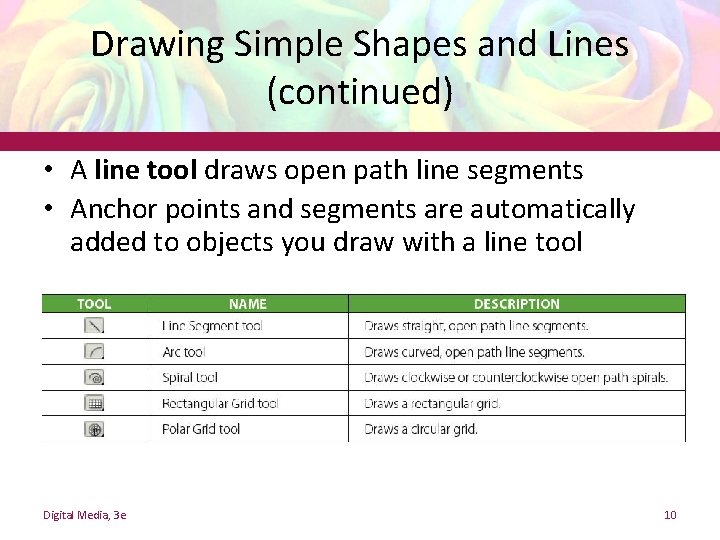
Drawing Simple Shapes and Lines (continued) • A line tool draws open path line segments • Anchor points and segments are automatically added to objects you draw with a line tool Digital Media, 3 e 10
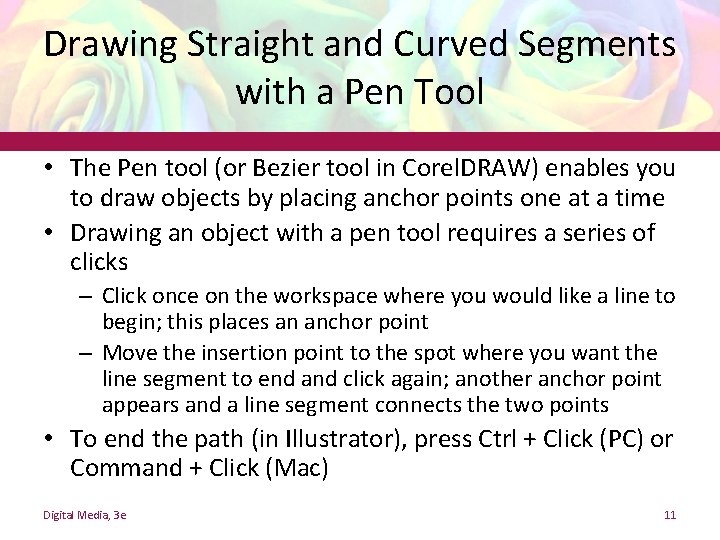
Drawing Straight and Curved Segments with a Pen Tool • The Pen tool (or Bezier tool in Corel. DRAW) enables you to draw objects by placing anchor points one at a time • Drawing an object with a pen tool requires a series of clicks – Click once on the workspace where you would like a line to begin; this places an anchor point – Move the insertion point to the spot where you want the line segment to end and click again; another anchor point appears and a line segment connects the two points • To end the path (in Illustrator), press Ctrl + Click (PC) or Command + Click (Mac) Digital Media, 3 e 11
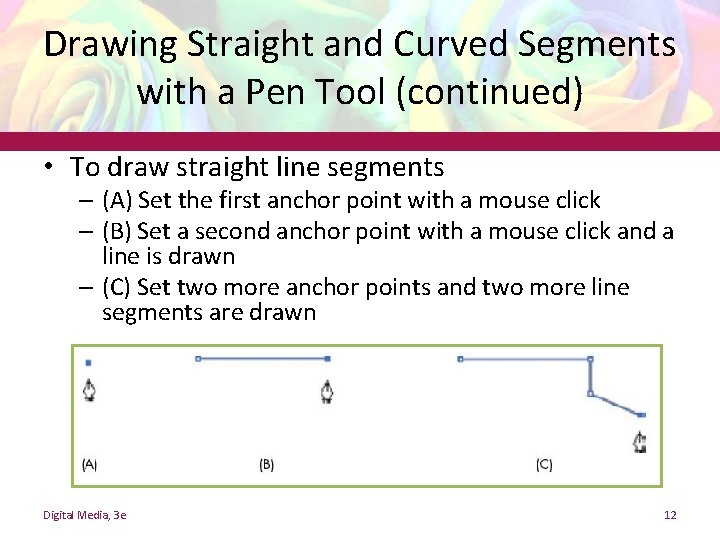
Drawing Straight and Curved Segments with a Pen Tool (continued) • To draw straight line segments – (A) Set the first anchor point with a mouse click – (B) Set a second anchor point with a mouse click and a line is drawn – (C) Set two more anchor points and two more line segments are drawn Digital Media, 3 e 12
Drawing Straight and Curved Segments with a Pen Tool (continued) • To draw a curved line segment: – Click once on the workspace to set an anchor point – Move the insertion point and click again, holding down the mouse button, and drag Digital Media, 3 e 13
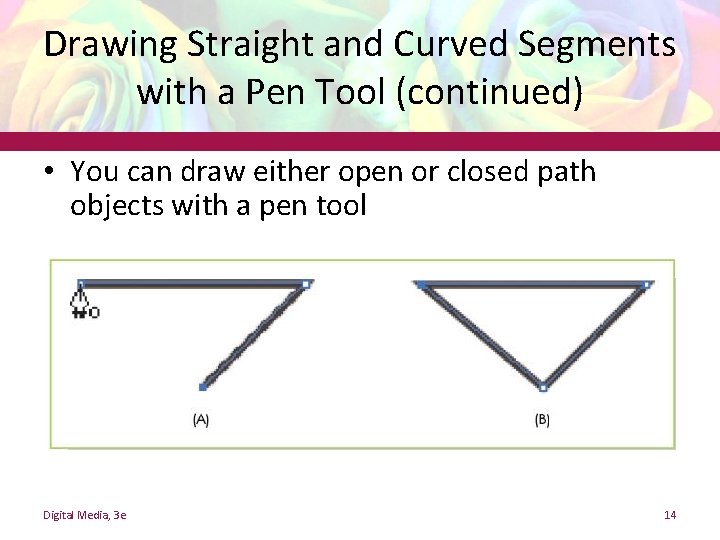
Drawing Straight and Curved Segments with a Pen Tool (continued) • You can draw either open or closed path objects with a pen tool Digital Media, 3 e 14
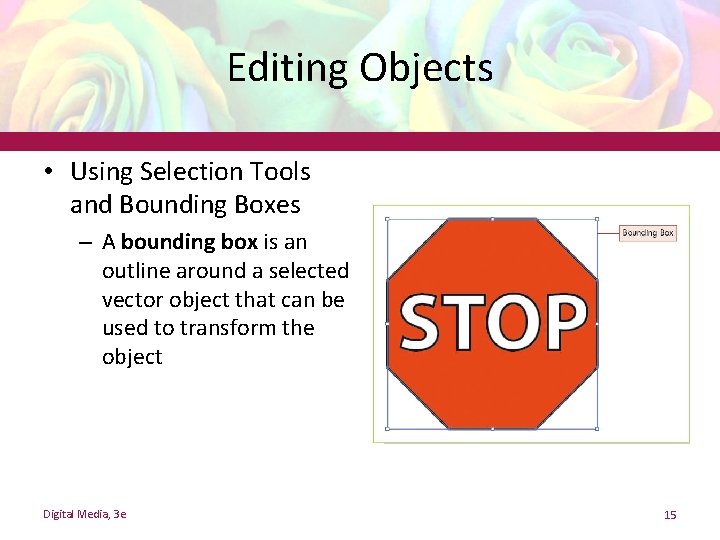
Editing Objects • Using Selection Tools and Bounding Boxes – A bounding box is an outline around a selected vector object that can be used to transform the object Digital Media, 3 e 15
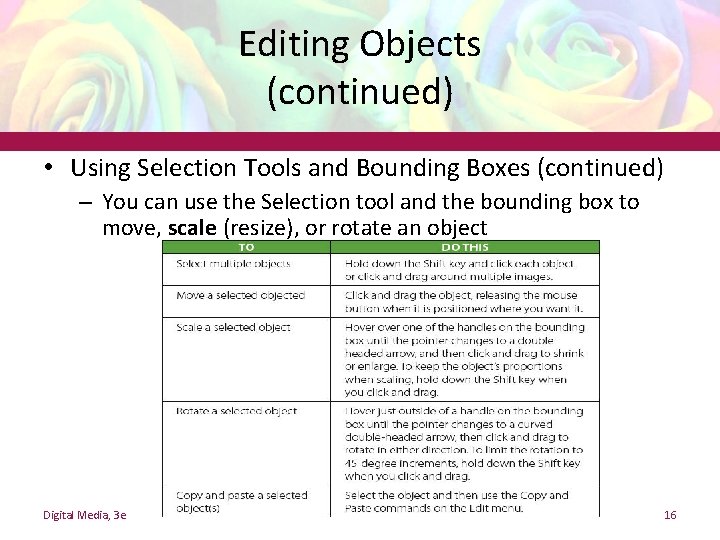
Editing Objects (continued) • Using Selection Tools and Bounding Boxes (continued) – You can use the Selection tool and the bounding box to move, scale (resize), or rotate an object Digital Media, 3 e 16
Editing Objects (continued) • Transforming Curved Segments – In most vector programs, when you select a curved segment, lines (called directional handles) appear at the smooth points on that segment – Directional handles are used to shape curves on a path – The lines on directional handles are called directional lines and are capped at the end with directional points – You can click and drag the directional lines or directional points to reshape and/or resize a curve Digital Media, 3 e 17
Editing Objects (continued) • Rearranging Stacked Objects – You can overlap or stack objects in a vector editing program by clicking an object with the selection tool and dragging it over another object – You can change the order of stacked objects – You can select an object to reorder Digital Media, 3 e 18
Editing Objects (continued) • Creating a Clipping Mask – A clipping mask is a vector object used to hide portions of lower objects in a stack – Similar to a layer mask in a raster editing program – To create a clipping mask in Illustrator, stack two or more objects, select them, and then choose Clipping Mask > Make – The hidden parts of the lower objects are not erased by the clipping mask Digital Media, 3 e 19
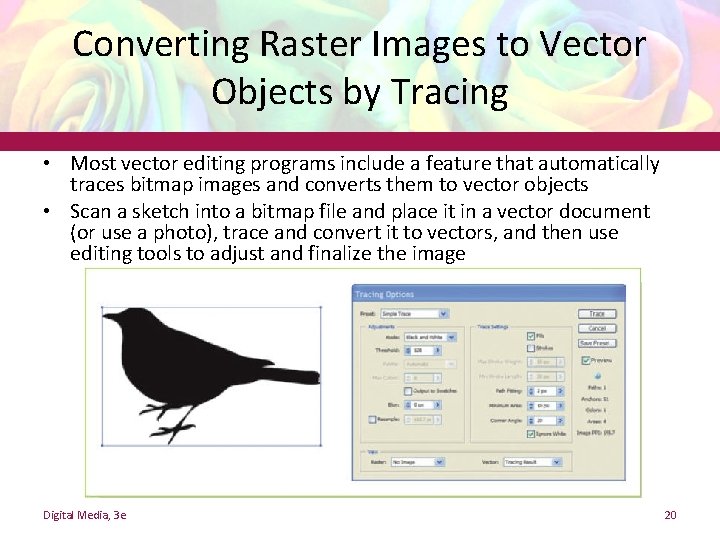
Converting Raster Images to Vector Objects by Tracing • Most vector editing programs include a feature that automatically traces bitmap images and converts them to vector objects • Scan a sketch into a bitmap file and place it in a vector document (or use a photo), trace and convert it to vectors, and then use editing tools to adjust and finalize the image Digital Media, 3 e 20
Image Effects • Is there ever a point where it becomes important to say, “This is good enough”? • Has the ability to make images “perfect” actually improved the effectiveness of the message? Digital Media, 3 e 21
Key Concepts • Vectors are defined by open and closed paths, anchor points, and segments • Strokes and fills are what make a path visible • Shape and line tools make it easy to draw objects with a single stroke or click • Certain tools in vector applications enable you to draw a path by plotting anchor points one at a time • Selection tools can be used to select and transform a whole object or one segment/anchor point at a time Digital Media, 3 e 22
Key Concepts (continued) • Bounding boxes appear around selected vector objects and can be used with a selection tool to quickly transform objects • Directional handles at smooth points on a curved segment control the size and shape of the curve • You can stack and rearrange vector objects • A clipping mask is a vector object used to hide portions of lower objects in a stack • A tracing feature converts bitmap images into editable vector objects Digital Media, 3 e 23